
Loyalty
On this page
Enrol your customers in a loyalty program to encourage regular purchases and brand loyalty.
Create a loyalty setup
- Navigate to the Loyalty tab using the App Launcher or find the tab in the App Navigation menu.
- In the Loyalty Setup section, you can view existing Loyalty Setups and also create a new one.
- To create a new Loyalty Setup, click the New button.
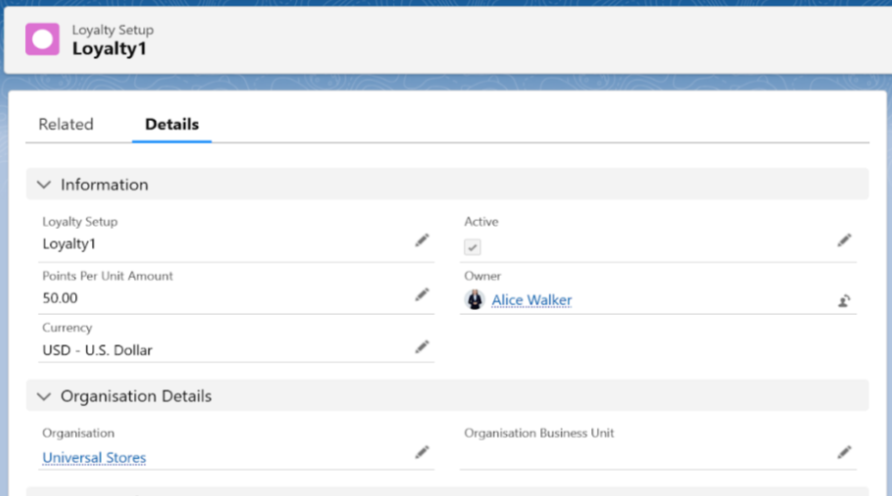
- Enter the Loyalty Setup Name and the Points Per Unit Amount.
- Select the Active checkbox and the Company.
- Save the record to create the Loyalty record.
Create a Loyalty program
- Navigate to the Loyalty Program tab using the App Launcher or find the tab in the App Navigation menu.
- In the Loyalty Program section, you can view existing Loyalty Programs or create a new one.
- To create a new Loyalty Program, click the New button.
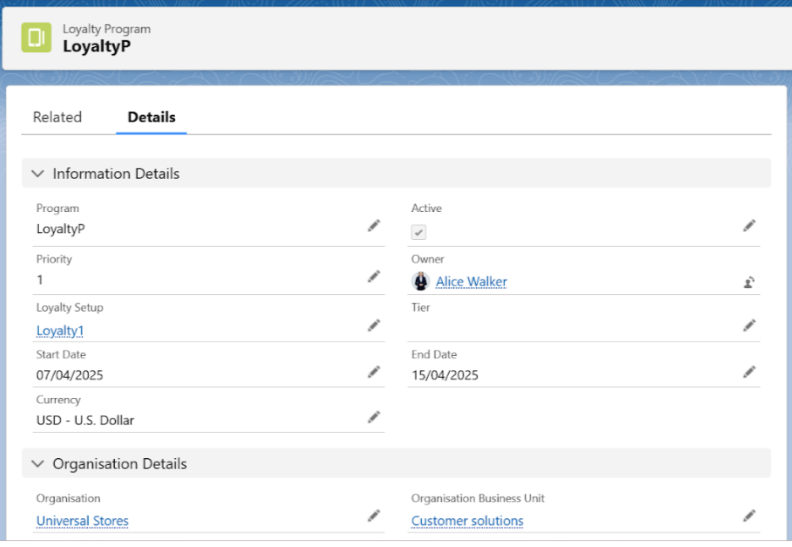
- Enter the program Name and select the Active checkbox.
- Select the Priority, Tier, Loyalty Setup, and Start and End Dates for the Loyalty Program.
- Save the record to create the Loyalty Program.
Create a Loyalty Card
- Navigate to the Loyalty Card tab using the App Launcher or find the tab in the App Navigation menu.
- In the Loyalty Card section, you can view existing Loyalty Cards and also create a new one.
- To create a new Loyalty Card, click the New button.
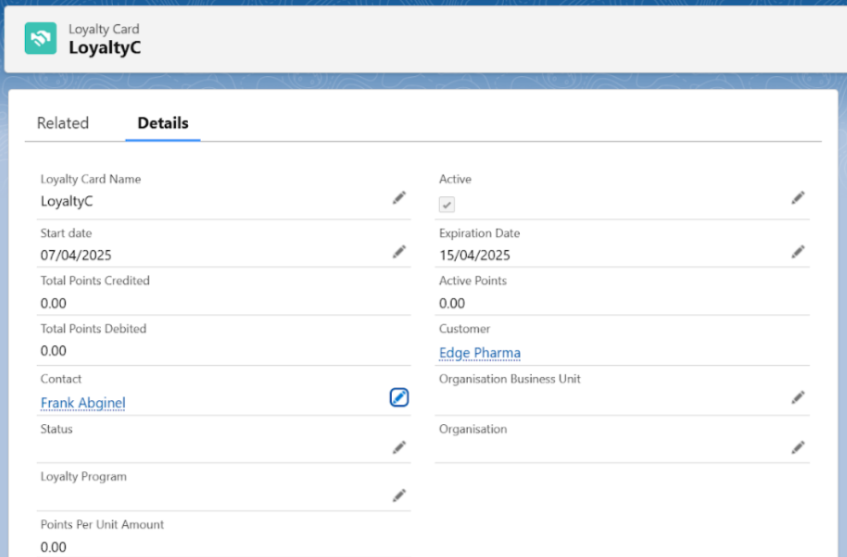
- Select the Loyalty Card Name and check the Active checkbox.
- Enter the Customer Account, Contact, and Loyalty Program details.
- Enter the Start and Expiration Dates for the card.
- Save the record to create the Loyalty Card.
Payment Using Loyalty
With Axolt ERP, you can process loyalty payments directly from the EPoS page.
- Create/Select the Sales Order from the EPoS screen.
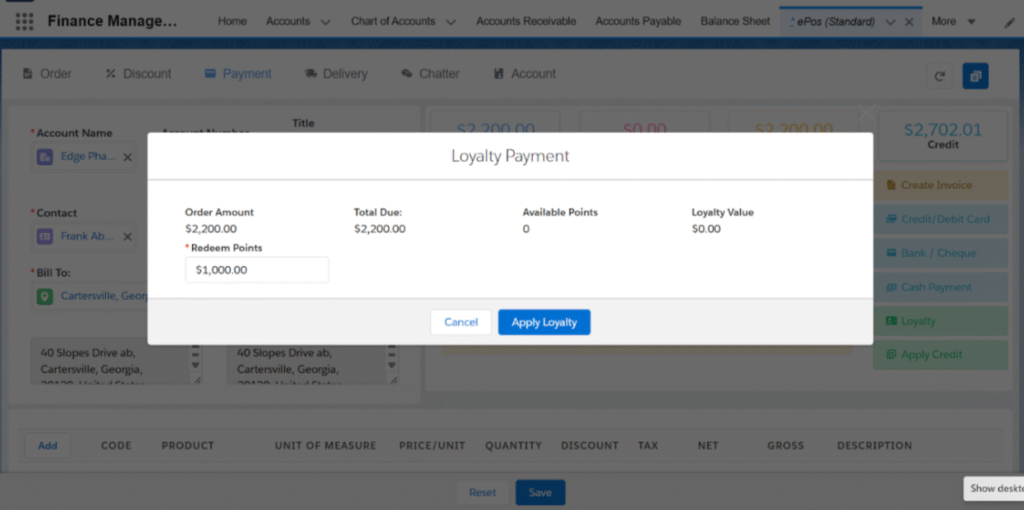
- Navigate to the Payments tab in EPoS and click the Loyalty button.
- Enter the Redeems Points and click the Apply Loyalty button.
- A Loyalty Payment record will be created.
Was this article helpful?