
AI in Action
On this page
AI in Action will add PO-related use cases on the Create PO screen.
These include smart vendor suggestions based on the items being ordered, alerts for possible duplicate purchase orders, and cost card recommendations to ensure correct pricing.
The suggestions appear directly on the Create PO screen to help users work faster and avoid common mistakes while still keeping full control
Below are the lists of AI use cases available under the Create Purchase Order screen –
1. Duplicate Purchase Prevention
Screen Name: Create Purchase Order
Overview: Duplicate Purchase Prevention is an AI feature on the Create Purchase Order screen. It automatically analyses the current Purchase Order against existing Open or Partially Received Purchase Orders to identify duplicate purchases before the order is saved.
What It Does: This runs automatically — no user prompt is required. When AI is enabled, the system automatically checks for duplicate Purchase Orders and alerts the user if the same products, with overlapping quantities, already exist in active Purchase Orders.
Sample Prompt: Automatic (No user prompt required). When AI is enabled, the system automatically checks for duplicate Purchase Orders and alerts the user if the same products with overlapping quantities already exist in active Purchase Orders.
Steps:
1. Navigate to the Create Purchase Order screen using the App Launcher or find the tab in the app navigation menu.
2. Enable AI on the Purchase Order screen.
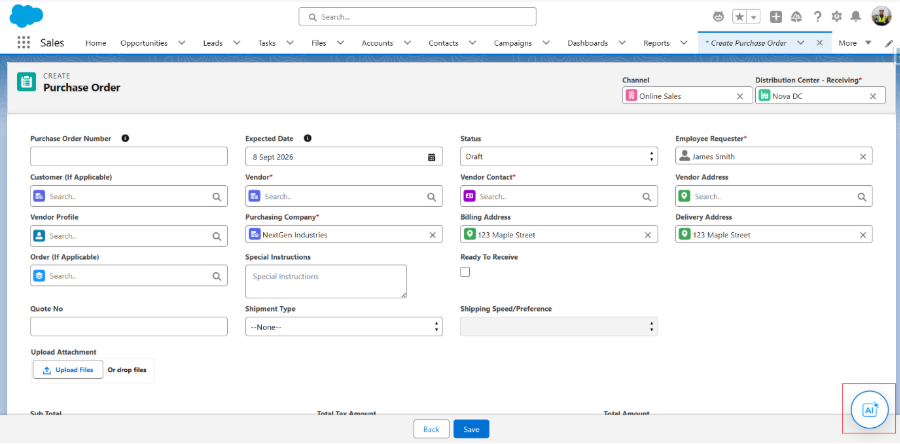
3. Click the Add Product button to add products and proceed with creating the PO.
Note: Click the link below to view the complete flow of the Create Purchase Order screen.
4. Click Save.
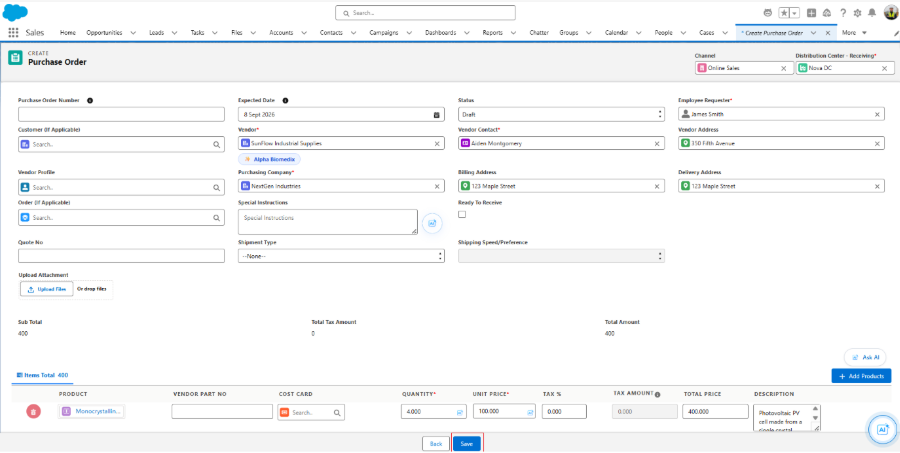
Note: The AI automatically analyses any existing Open or Partially Received Purchase Orders. If duplicates are found, the AI displays duplicate purchase warnings, quantity analysis, coverage percentage, and recommendations before allowing the user to continue.
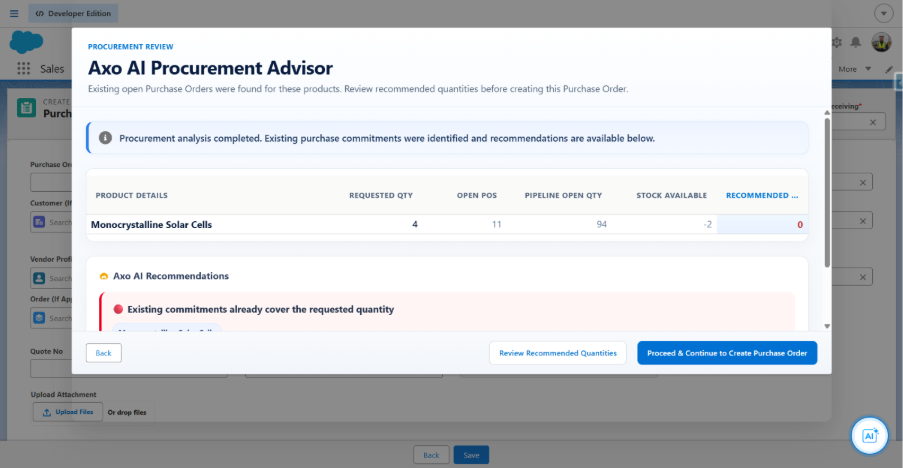
5. Review the Axo AI Procurement Advisor results: Based on the analysis, the AI displays a comparison of requested quantity, open POs, pipeline open quantity, stock available, and a recommended quantity for each product. Based on this, the user can either click Proceed & Continue to Create Purchase Order to move ahead with the new order or click Review Recommended Quantities to view the existing open POs before deciding.
2. Inventory-Based Purchase Recommendation
Screen Name: Create Purchase Order
Overview: Inventory-Based Purchase Recommendation is an AI feature on the Create Purchase Order screen. It analyses current inventory levels to identify products that require replenishment, then recommends purchase quantities, preferred vendors, and pricing insights to support faster, more informed purchasing decisions.
What It Does: When the user asks the AI Assistant about inventory or restocking needs, the AI reviews current stock levels across products and flags items that are low or out of stock. It then recommends what to purchase, how much to order, which vendors to use, and relevant pricing insights to help complete the Purchase Order.
Sample Prompt: “Suggest some products that have stock less than 5.” “Tell me what we need to buy.
Steps:
1. Navigate to the Create Purchase Order screen using the App Launcher or find the tab in the app navigation menu.
2. Click the AI Assistant chat window.
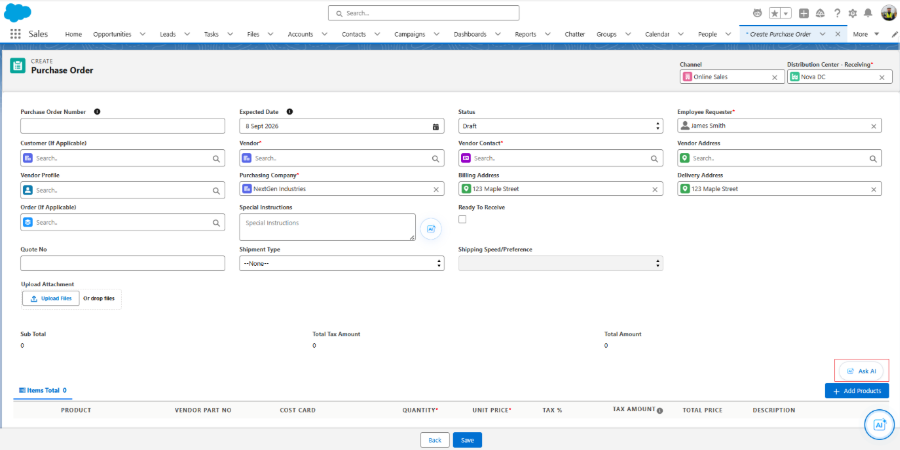
3. Enter a prompt, such as “Suggest some products that have stock less than 5” or “Tell me what we need to buy.”
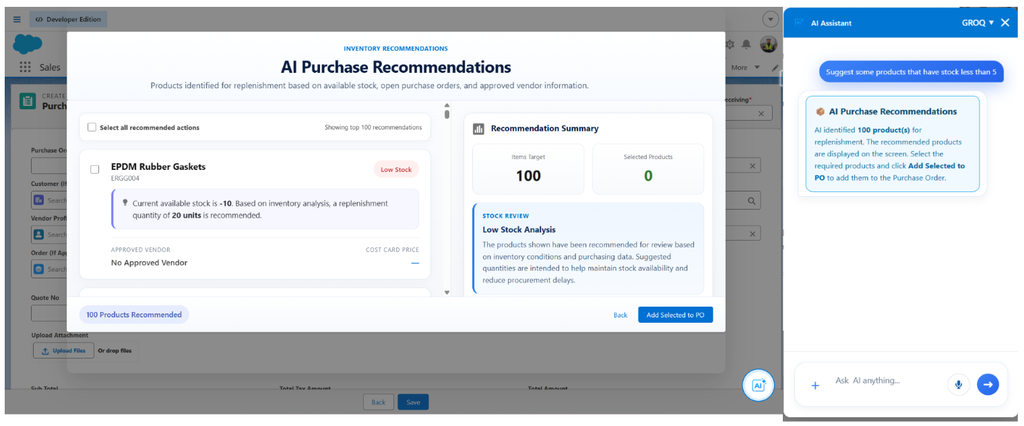
4.The AI reviews current inventory levels and available stock across products and displays the results.
5. The AI recommends products to purchase, along with suggested quantities, preferred vendors, and pricing insights.
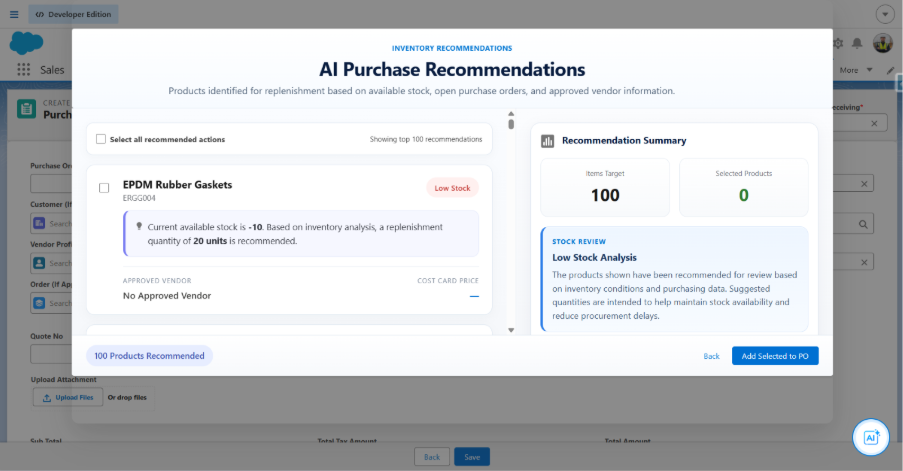
6. Review the recommendations and add the required products or select all recommendations using the Select all recommended actions checkbox, then proceed with adding them directly to the Purchase Order and creating the order.
3. AI Product Addition
Screen Name: Create Purchase Order
Overview: AI Product Addition is an AI feature on the Create Purchase Order screen. It understands product requests entered as natural language or uploaded as a PDF document, identifies matching products in the catalogue, and automatically adds them to the Purchase Order — while intelligently flagging any items that cannot be matched.
What It Does: When a product request is entered, either by typing it directly or uploading a PDF, the AI extracts or interprets the product requirements and matches them against the product catalogue. Matched products are added to the Purchase Order automatically, along with their quantity, unit price, and description. If any items cannot be matched to an existing product, the AI flags them so they can be reviewed and resolved manually
Sample Prompt: “Add products from this PDF.”, “Add 50 laptops and 20 monitors.”
Steps:
1. Navigate to the Create Purchase Order screen using the App Launcher or find the tab in the app navigation menu.
2. Click the AI Assistant chat window.
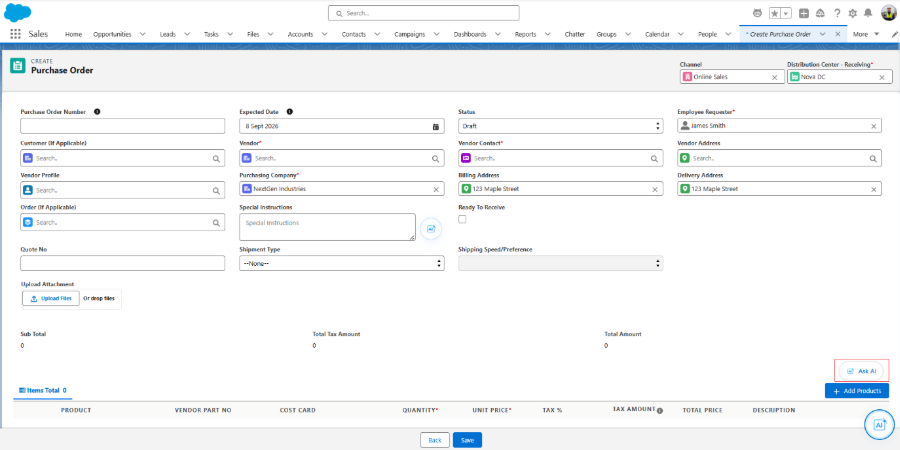
3. Upload a PDF and enter a prompt such as “Add products from this PDF,” or enter a prompt naming specific products and quantities directly.
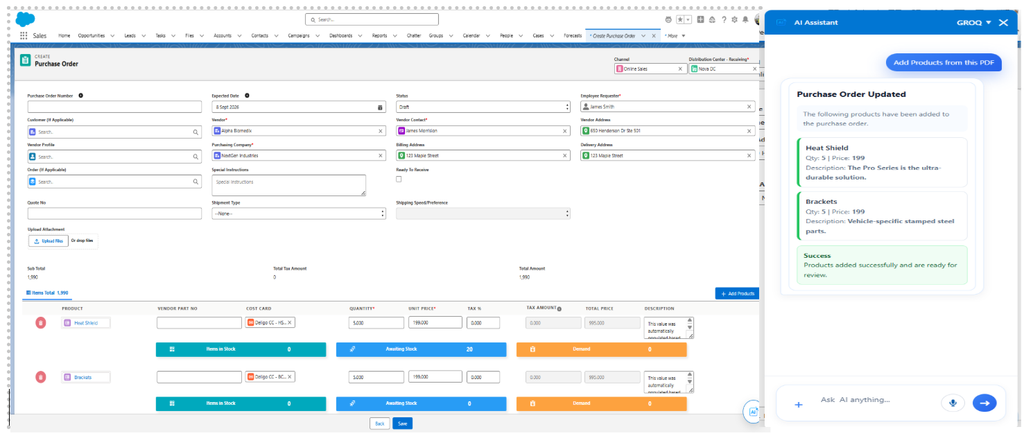
4. The AI extracts or interprets the product requirements from the request and displays the matched products in the chat panel for review.
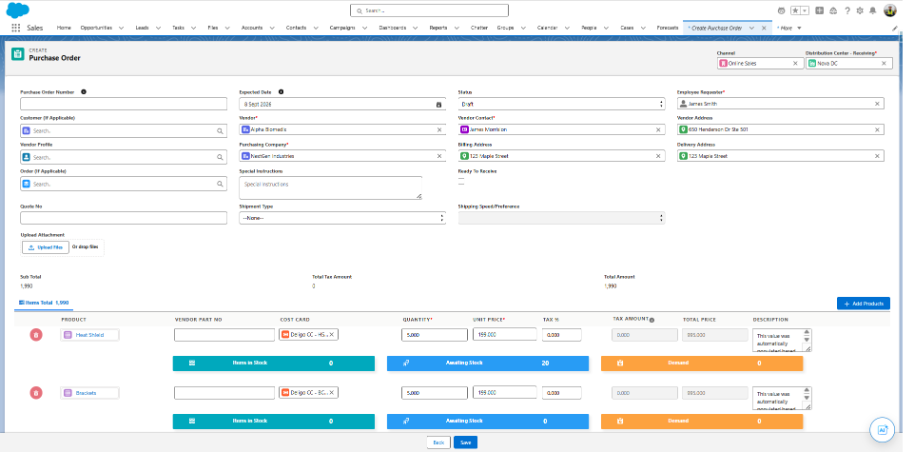
5.The AI adds the matched products to the Purchase Order, along with quantity, unit price, and description populated automatically.
Note: Review any unmatched items flagged by the AI and resolve them manually if needed — either by proceeding with the item as a custom product, removing it, or creating it as a new catalogue product for future use.
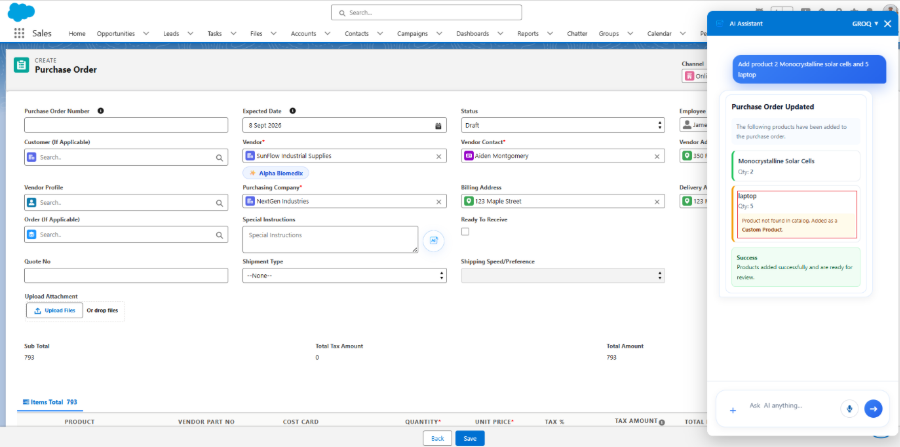
Example:– In the example shown, the prompt “Add 2 Monocrystalline Solar Cells and 5 Laptops” was entered. The Monocrystalline Solar Cells were recognized and added directly to the Purchase Order. Since “Laptop” did not match an existing catalogue product, the AI flagged it as not found and added it as a Custom Product — leaving the choice to proceed with it as-is, remove it, or add it to the catalogue as a new product.
4. Price Analysis
Screen Name: Create Purchase Order
Overview: Price Analysis is an AI feature on the Create Purchase Order screen. It continuously monitors product pricing as Purchase Order line items are added or updated, comparing the entered price against historical purchase data and alerting the user when a better price is available from a previous purchase.
What It Does: This runs automatically — no user prompt is required. When AI is enabled, the system analyses pricing whenever a product is added or modified on the Purchase Order. It compares the entered unit price against historical purchase prices for that product and vendor. If a lower price was previously paid, the AI surfaces a pricing insight — showing the vendor, previous purchase date, and previous price — and recommends applying the lower price where applicable.
Sample Prompt: Automatic (No user prompt required). AI automatically analyzes pricing whenever products are added or
modified in the Purchase Order.
Steps:
1. Navigate to the Create Purchase Order screen using the App Launcher or find the tab in the app navigation menu.
2. Enable AI on the Purchase Order screen.
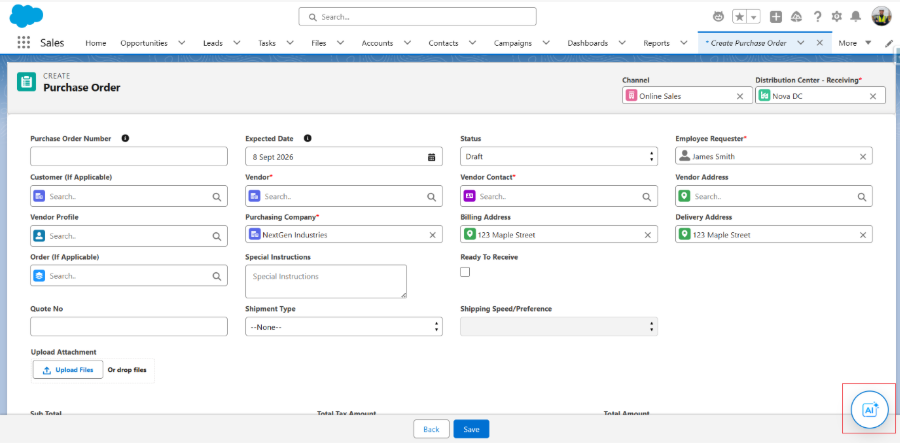
3. Use the Add Products button to add or update products on the Purchase Order.
4. The AI automatically compares the entered unit price against historical purchase prices for each product.
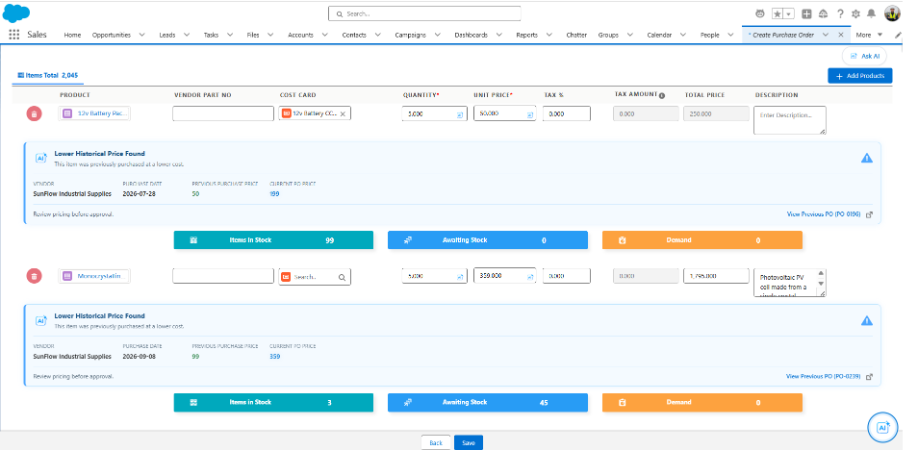
5. If a lower historical price is found, the AI displays a pricing insight with the vendor, previous purchase date, and previous price, and flags the line for price review before approval.
6. To apply the recommendation, click the previous price shown in the insight, or manually enter the updated price in the Unit Price field, then proceed with creating the Purchase Order.
5. Vendor Recommendation
Screen Name: Create Purchase Order
Overview: Vendor Recommendation is an AI feature on the Create Purchase Order screen. It automatically evaluates available and approved vendors for the selected products and recommends the most suitable vendor based on historical purchase data, pricing, and approved vendor status.
What It Does: This runs automatically — no user prompt is required. When AI is enabled, the system analyses the products added to the Purchase Order against approved vendors, historical purchase data, and pricing, then displays the recommended vendor(s) alongside the Vendor field for quick selection.
Sample Prompt: Automatic (No user prompt required). AI analyzes the selected products and recommends the best vendor automatically.
Steps:
1. Navigate to the Create Purchase Order screen using the App Launcher or find the tab in the app navigation menu.
2. Enable AI on the Purchase Order screen.
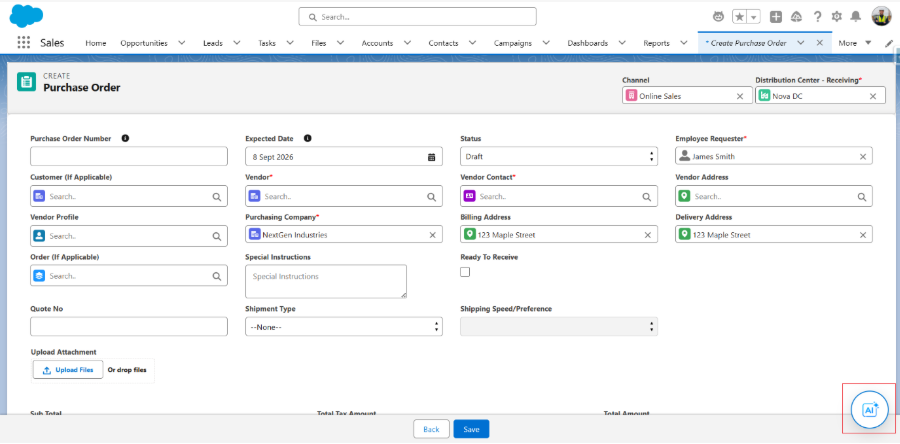
3. Use the Add Products button to add or update products on the Purchase Order.
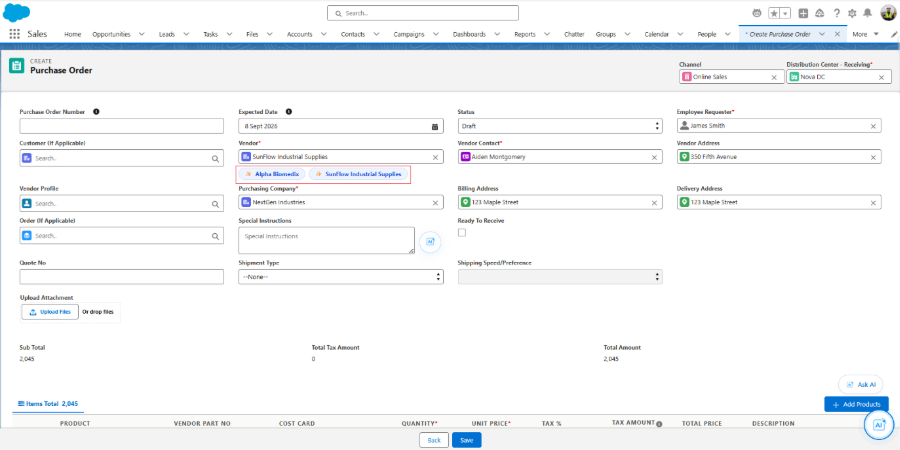
4. Once products are added, the AI displays suggested vendors as selectable chips below the Vendor field. Hover over a suggested vendor to view a recommendation card showing the final price, how it was finalized (e.g., using an approved cost card), and the reasoning behind the recommendation.
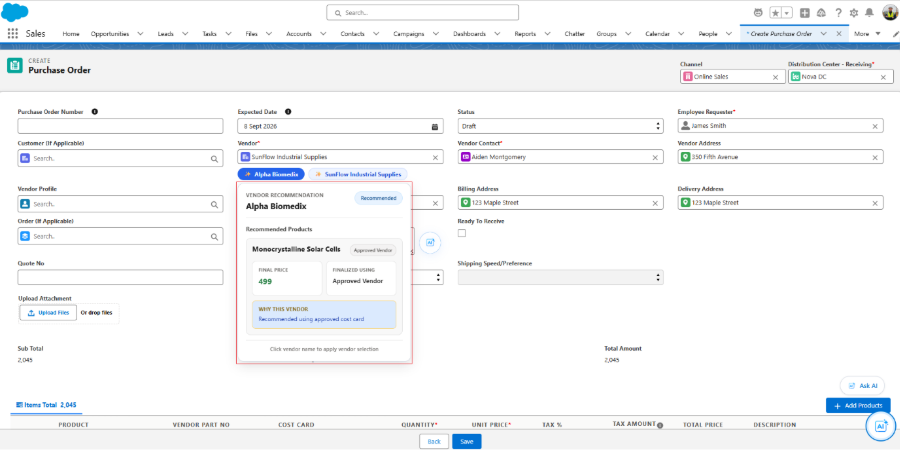
5. Click the recommended vendor to apply the selection. The Vendor, Vendor Contact, and Vendor Address fields update automatically to reflect the chosen vendor.
6. Review the updated details and proceed with creating the Purchase Order.
6. Inventory Availability Check
Screen Name: Create Purchase Order
Overview: Inventory Availability Check is an AI feature on the Create Purchase Order screen. It reviews the inventory levels of selected Purchase Order line items and determines whether additional purchasing is necessary based on available stock.
What It Does: When the user selects one or more Purchase Order line items and asks the AI Assistant to check inventory, the AI reviews the available stock for those products. It identifies items that already have sufficient stock on hand and recommends whether purchasing is required, helping avoid unnecessary orders.
Sample Prompt: “Check the selected line item inventory and see if it should be purchased or not.”
Steps:
1. Navigate to the Create Purchase Order screen using the App Launcher or find the tab in the app navigation menu.
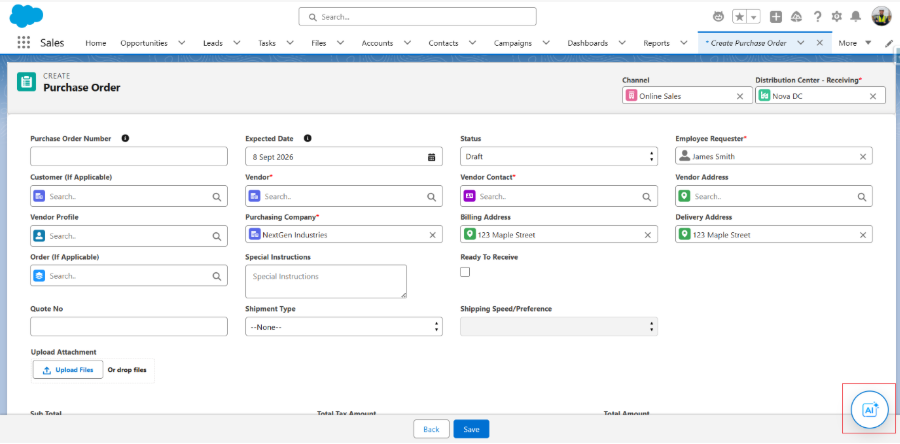
2. Select one or more Purchase Order line items.
3. Click the AI Assistant chat window.
4. Enter a prompt, such as “Check the selected line item inventory and see if it should be purchased or not.”
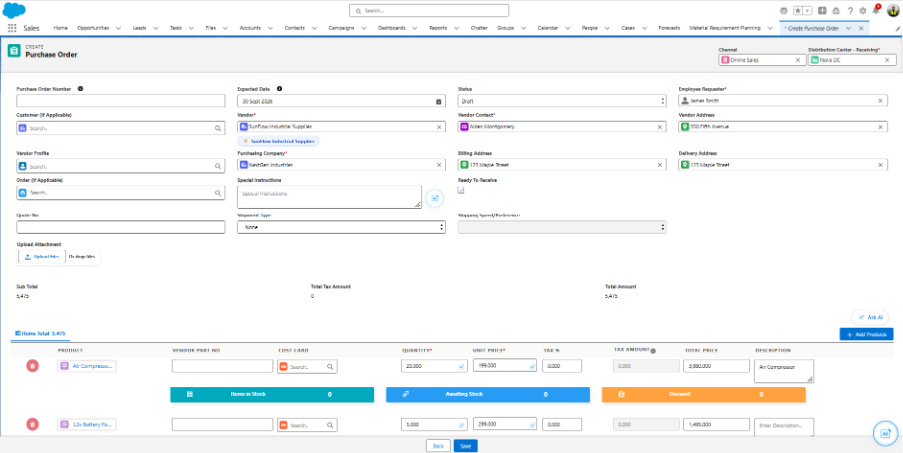
5. The AI reviews the available inventory for the selected products.
6. The AI identifies items that already have sufficient stock and recommends whether purchasing is required, allowing the user to adjust or remove line items accordingly.
7. Cost Card Analysis
Screen Name: Create Purchase Order
Overview: Cost Card Analysis is an AI feature on the Create Purchase Order screen. It automatically analyses the cost card details of the selected products and provides purchasing insights, cost comparisons, and recommendations to support informed procurement decisions.
What It Does: This runs automatically — no user prompt is required. When AI is enabled, the system reviews the associated cost card information as soon as products are added or selected on the Purchase Order. It then surfaces purchasing insights, cost comparisons, and recommendations to support better purchasing decisions.
Sample Prompt: Automatic (No user prompt required). AI automatically reviews cost card information when products are selected
Steps:
1. Navigate to the Create Purchase Order screen using the App Launcher or find the tab in the app navigation menu.
2.Enable AI on the Purchase Order screen.
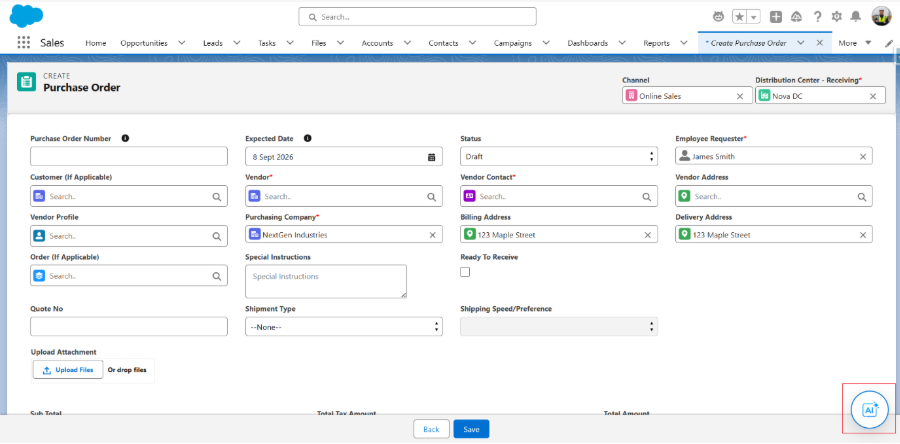
3. Use the Add Products button to add or update products on the Purchase Order.
4. The AI automatically analyses the associated cost card information for each product.
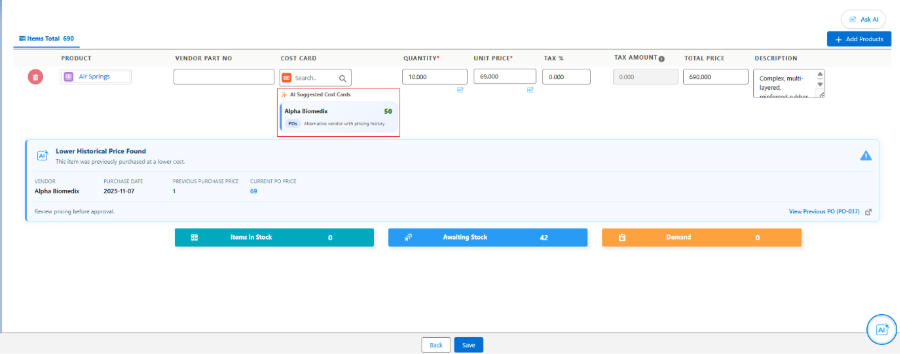
5. The AI displays purchasing insights, cost comparisons, and recommendations to support better purchasing decisions. Selecting a specific cost card updates the pricing details, accordingly, allowing the Purchase Order to be created with the selected cost card applied.
8. PO Description & Content Enhancement
Screen Name: Create Purchase Order
Overview: PO Description & Content Enhancement is an AI feature on the Create Purchase Order screen. It enhances Purchase Order descriptions by improving grammar, formatting, clarity, and readability, while preserving the original intent and business context.
What It Does: When the AI Enhance button is clicked on a description field, the AI refines the entered content by improving grammar, formatting, clarity, and readability, while keeping the original meaning and business context intact.
Sample Prompt: Click the AI Enhance button on the description field.
Steps:
1. Navigate to the Create Purchase Order screen using the App Launcher or find the tab in the app navigation menu.
2. Enable AI on the Purchase Order screen.
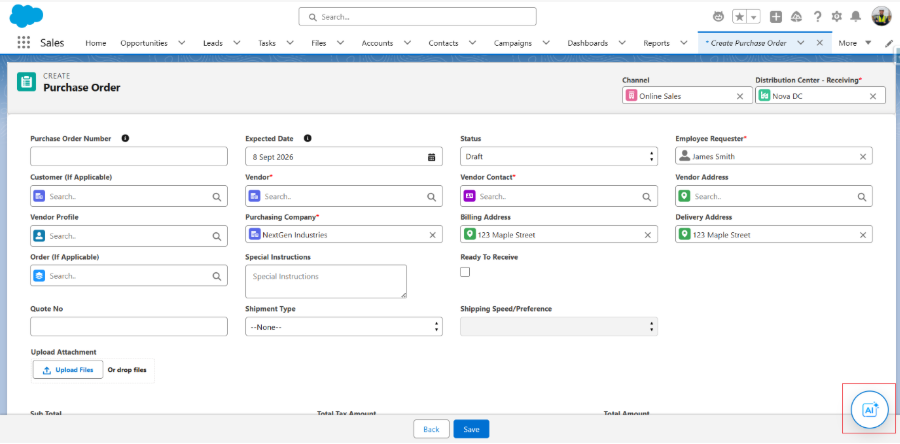
3. Enter or select the Purchase Order description.
4. Click the AI Enhance button on the description field.
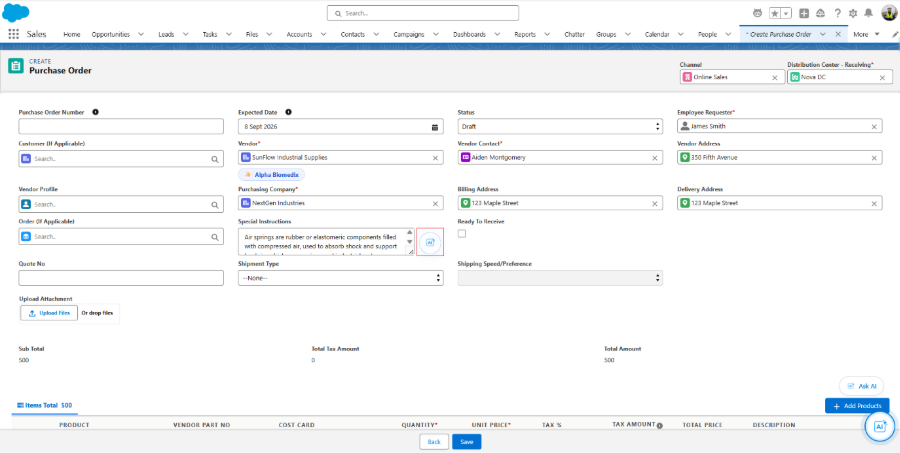
5. The AI refines the content by improving grammar, formatting, clarity, and readability, while keeping the original meaning and business context intact.
9. Purchase Order Scope Control
Screen Name: Create Purchase Order
Overview: Purchase Order Scope Control is an AI feature on the Create Purchase Order screen. It restricts the AI Assistant to Purchase Order–related activities, ensuring accurate, secure, and business-focused assistance. The AI responds only to approved Purchase Order use cases and prevents execution of unrelated requests.
What It Does: When a prompt is entered on the Create Purchase Order screen, the AI evaluates whether the request falls within approved Purchase Order use cases. Relevant requests are handled normally. If a prompt falls outside the scope of Purchase Order functionality, the AI politely declines the request and notes that it only supports Purchase Order–related activities.
Sample Prompt: Any Purchase Order–related query is supported. The AI responds only to PO-related requests and politely declines unrelated prompts.
Steps:
1. Navigate to the Create Purchase Order screen using the App Launcher or find the tab in the app navigation menu.
2. Click the AI Assistant chat window.
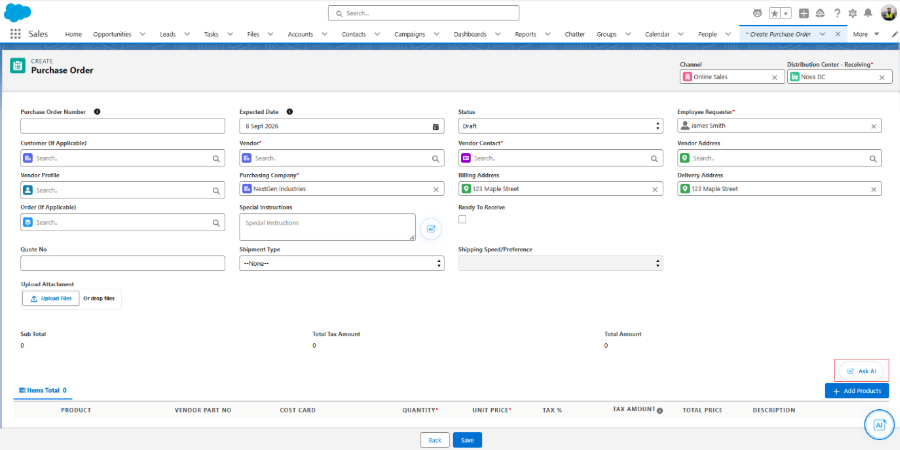
3. Enter a Purchase Order–related prompt to receive assistance.
4. If an unrelated prompt is entered, the AI politely declines the request and notes that it only supports Purchase Order functionality.
5. The AI continues to execute only approved Purchase Order use cases, keeping assistance focused and secure.
Was this article helpful?