
Serial Number
On this page
Serial numbers are unique identifiers assigned to each individual inventory item, enabling full end-to-end traceability from receipt to sale, service, or recall. Unlike batch or lot numbers that group items, serial numbers track a single unit throughout its lifecycle. They can be generated automatically during inbound receiving, assigned upon manufacturing order completion, or created manually for adjustments, repairs, or legacy stock.
Create a Serialise Product –
- To designate a product as serialized, check the Serialise checkbox on the product detail page.
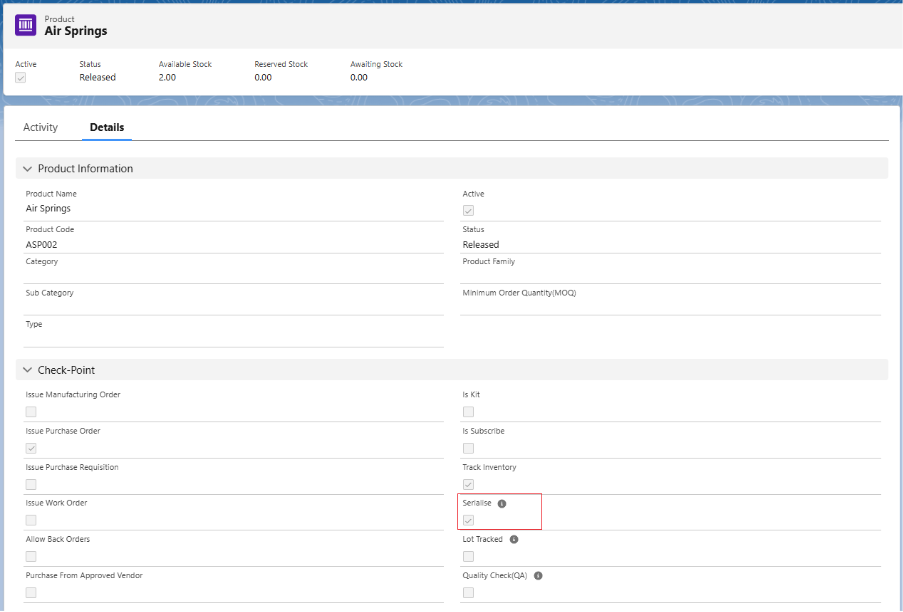
Serial number can be generated from three sections:
A. From Inbound Logistics screen.
B. From Manufacturing Workbench screen.
C. Create Serial Numbers manually.
A. From Inbound Logistics screen.
- Create a Purchase Order along with Logistic record for a serialized product via the Create Purchase Order tab.
- Then, locate the logistic from List section, select the desired entry, and click the Receive button to navigate to the Receive section
- Enter the Serial Prefix and From Serial Number in the given fields and click on Generate Serial Numbers button to generate a serial number for the Inventory/Stocks.
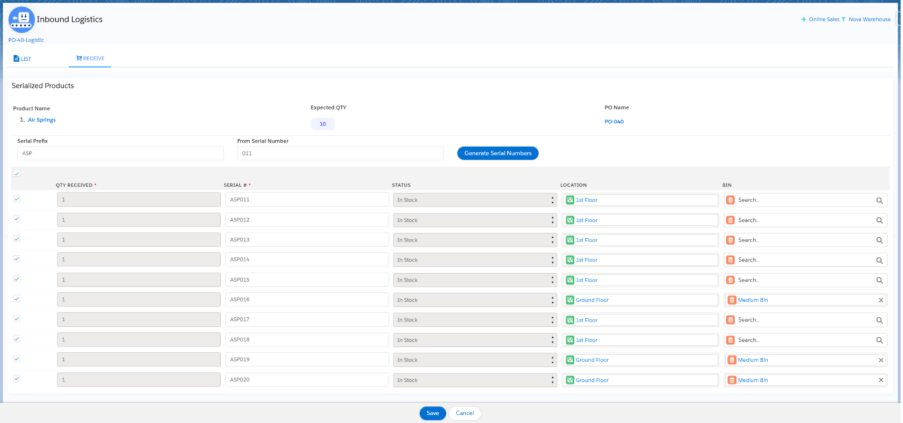
B. From Manufacturing Workbench Screen.
- Navigate to the Manufacturing Workbench and schedule a Manufacturing Order.
- In the Manufacturing Order page, go to the Serial Number/Batches section.
- The Serial number will be auto generated for each Manufacturing Order quantities.
- If needed, users can generate serial numbers in a specific format using the Generate Serial Number functionality.
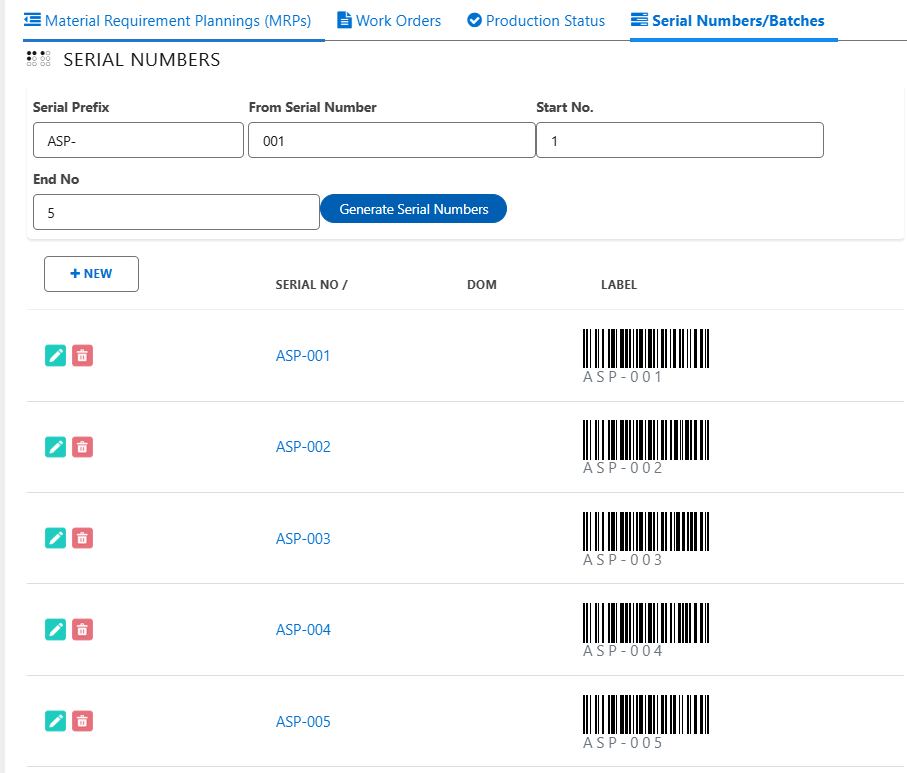
C. Create Serial Numbers manually.
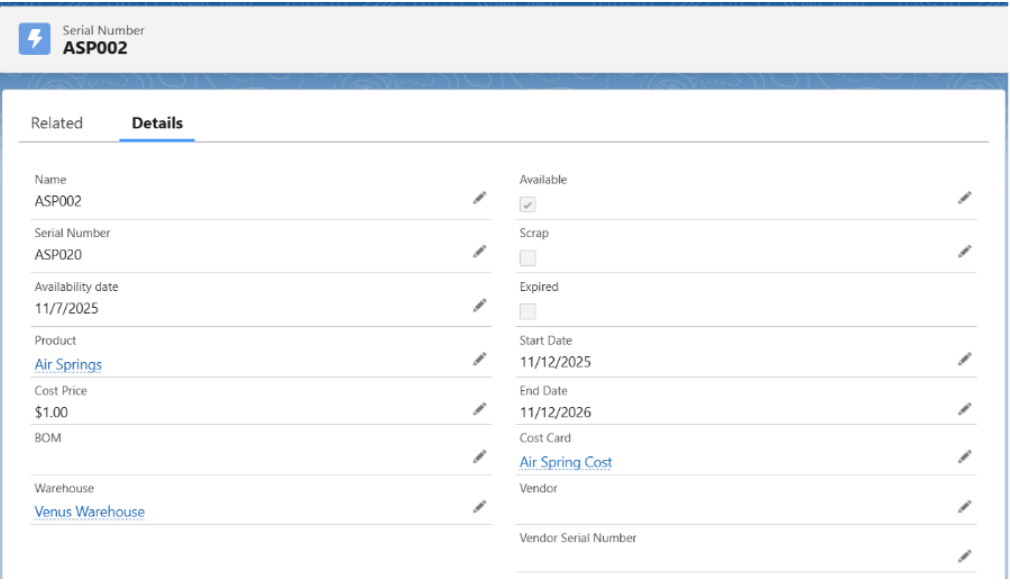
- Open the serialized product record and locate the Serial Numbers Related List.
- Click on the New button.
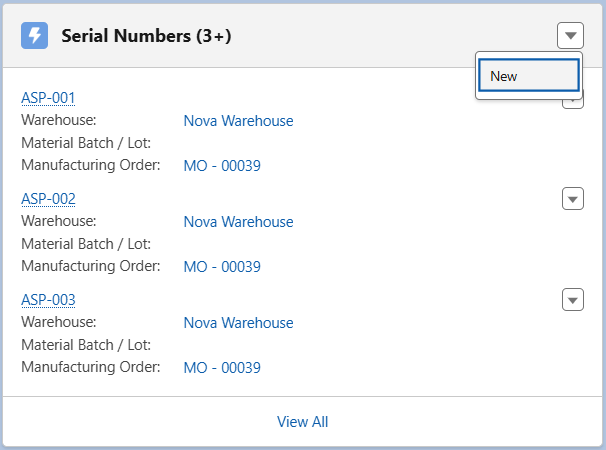
- Enter the Name, Serial Number and ensure the Available checkbox is checked.
- Make sure the Product is selected.
- Select the Warehouse and assign the Start Date and End Date.
- Select the Cost Card and enter the Price details. (if applicable)
- Click on Save.
Was this article helpful?