
AI in Action
On this page
AI in Action extends AI capabilities into the ePOS (electronic Point of Sale) interface for order creation.
The focus is on adding order creation use cases that leverage the ePOS screen so staff (or the system) can create, modify, and confirm orders more efficiently, with AI assistance visible and actionable directly on the till/terminal.
Below are the lists of AI use cases available for the EPoS users –
1. PDF Document Extraction & Smart Mapping
Screen Name: EPoS
Overview: PDF Document Extraction & Smart Mapping is an AI feature on the EPOS screen. It extracts products, quantities, and prices from an uploaded PDF, matches them against the active Pricebook, and stages the results directly in the UI for review.
What It Does: When a customer PDF is attached and a prompt is sent, the AI parses the document to identify products, quantities, and prices, then matches each item against catalogue SKUs in the active Pricebook. Matched items are staged directly in the cart, and the AI displays a summary table showing which items were matched successfully and which could not be mapped.
Sample Prompt: Attach a customer PDF and send a prompt to have the AI extract and map the items.
Steps:
1. Navigate to the EPOS screen using the App Launcher or find the tab in the app navigation menu.
2. Open the AI Assistant chat window.
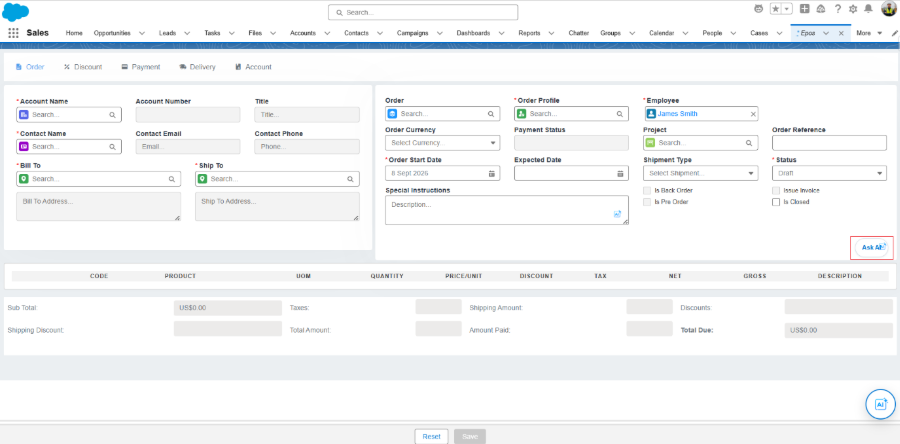
3. Attach the customer PDF containing the product list, quantities, and prices..
4. Enter a prompt, such as “Extract and map the items from this PDF.
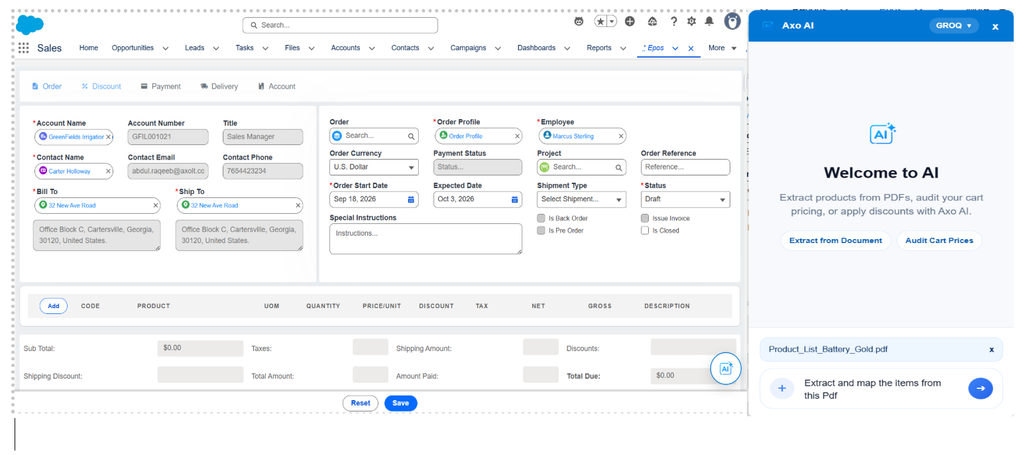
5. The AI parses the document to identify the products, quantities, and prices listed.
6. The AI matches each extracted item against catalogue SKUs in the active Pricebook.
7. Matched items are staged directly in the cart with their corresponding quantity and price
8. The AI displays a summary table showing which items were matched successfully and which could not be mapped.
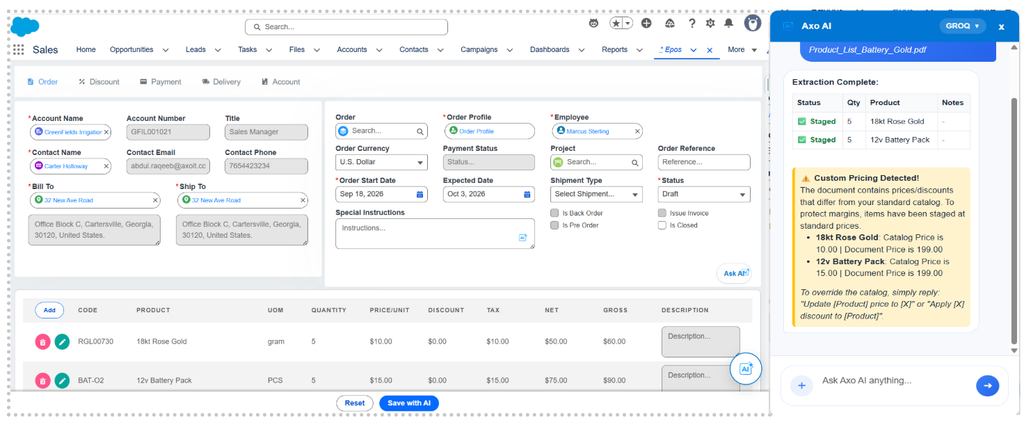
9. Review any Unmatched items and resolve them manually — either by selecting the correct catalogue product or removing the item from the cart.
2. Conversational Editing of Order Line Items
Screen Name: EPoS
Overview: Conversational Editing of Order Line Items is an AI feature on the EPOS screen. It enables cart items to be modified — updating quantities, changing prices, or removing items entirely — using natural language commands.
What It Does: When a natural language edit command is typed into the AI Assistant, the AI instantly manipulates the cart, applying the requested changes such as removing an item or updating a quantity. Taxes, discounts, and Gross/Net totals are recalculated automatically, with the cart updating in place without a page reload.
Sample Prompt: Remove the 12 GB RAM and update the Solar Generator quantity to 850.
Steps:
1. Navigate to the EPOS screen using the App Launcher or find the tab in the app navigation menu.
2. Select an Account on the EPOS screen and add the required products to the cart.
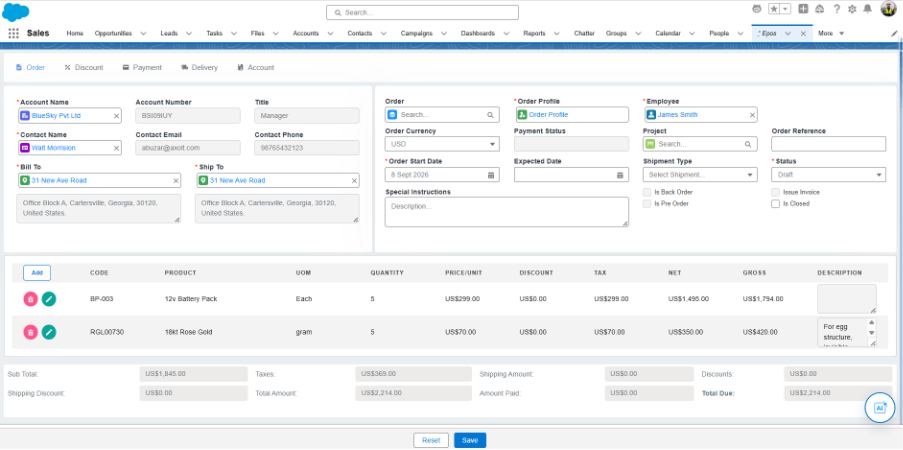
3. Open the AI Assistant chat window.
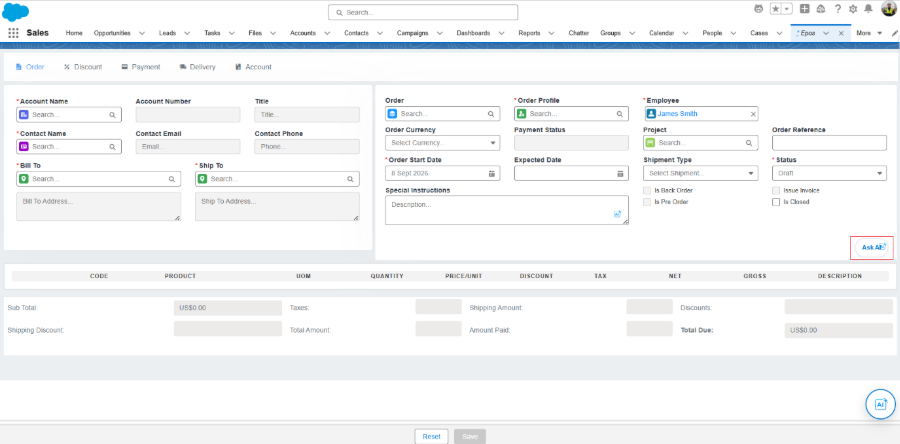
4.Type a natural language edit command describing the change, such as removing an item or updating a quantity.
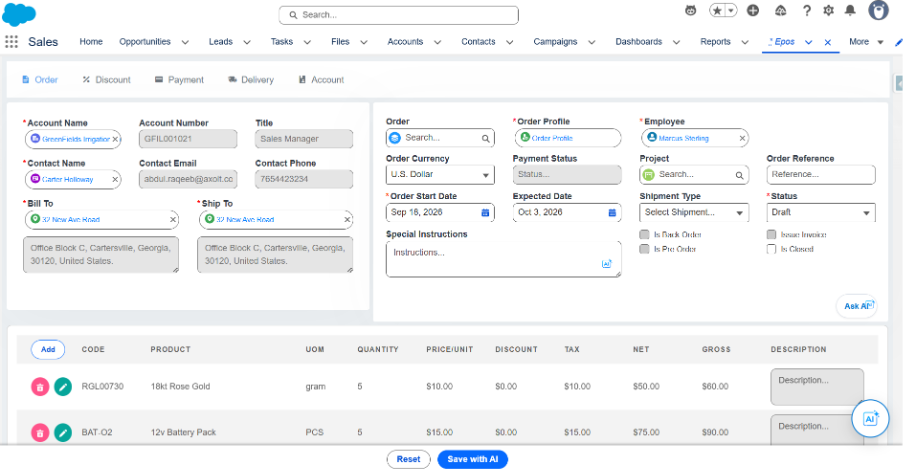
5. The AI interprets the command and applies the requested changes directly to the cart.
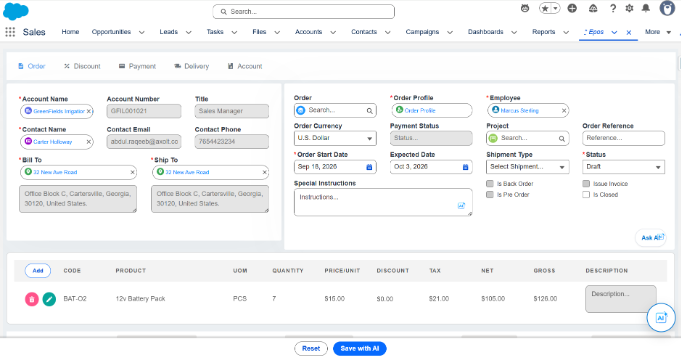
6. Taxes, discounts, and Gross/Net totals are recalculated automatically, with the cart updating in place without a page reload.
3. Historical Price Auditing & Anomaly Detection
Screen Name: EPoS
Overview: Historical Price Auditing & Anomaly Detection is an AI feature on the EPOS screen. It compares current cart prices against a specific customer’s historical purchase records to help protect margins and flag significant price drops or anomalies.
What It Does: When the AI is asked to audit the cart for a selected account, it queries the customer’s past order item data and compares it against the current cart prices. It returns a summary of any price anomalies, such as significant price drops, along with clickable hyperlinks to the relevant past orders for instant verification.
Sample Prompt: Audit my cart.
Steps:
1. Navigate to the EPOS screen using the App Launcher or find the tab in the app navigation menu.
2. Select an Account on the EPOS screen and add the required products to the cart.
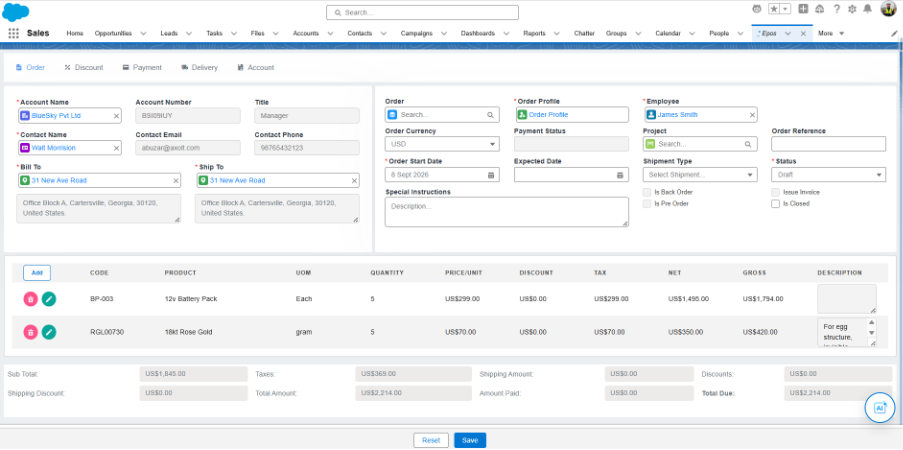
3. Open the AI Assistant chat window.
4. Enter a prompt, such as “Audit my cart.
5. The AI queries the selected customer’s past order item data and compares it against the current cart prices.
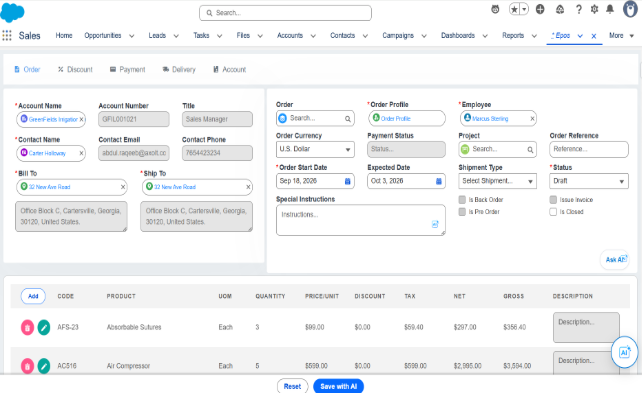
6. The AI returns a summary of any price anomalies, such as significant price drops, for review.
7. Click the hyperlinks provided alongside flagged items to view the relevant past orders for instant verification.
4. Proactive Tier Discount Application (TDA) (Issue) – AI does not notify if the discount is available
Screen Name: EPoS
Overview: Proactive Tier Discount Application (TDA) is an AI feature on the EPOS screen. It automatically scans staged products for eligible Tier Discount Allocations and allows discounts to be applied conversationally.
What It Does: This runs automatically — no user prompt is required. When AI is enabled, the system continuously scans items staged in the cart for eligible Tier Discount Allocations based on quantity thresholds. If an eligible discount is found, the AI proactively notifies the user and applies the discount upon confirmation, updating the cart totals instantly.
Sample Prompt: Automatic (No user prompt required). When AI is enabled, the system automatically checks for duplicate Purchase Orders and alerts the user if the same products with overlapping quantities already exist in active Purchase Orders.
Steps:
1.Navigate to the EPOS screen using the App Launcher or find the tab in the app navigation menu.
2. Select an Account on the EPOS screen and add the required products to the cart.
3.If a staged item qualifies for a Tier Discount Allocation, the AI proactively notifies the user of the available discount via chat.
4. Confirm the discount by responding in the chat.
5.The AI applies the exact percentage or flat discount to the eligible item and instantly updates the cart totals to reflect the change.
5. Custom Pricing & Margin Guardrails
Screen Name: EPoS
Overview: Custom Pricing & Margin Guardrails is an AI feature on the EPOS screen. It safeguards margins by detecting when a customer-provided price falls below the standard Pricebook price, staging items at the protected price by default and flagging the discrepancy for review.
What It Does: This is triggered automatically during PDF extraction. When a customer PDF containing lower custom prices is uploaded, the AI stages the items at standard Pricebook prices by default and flags the discrepancy between the catalogue price and the document price using a yellow warning table. The override to the lower price can then be authorized conversationally if desired.
Sample Prompt: Extract and map the items from the PDF. Automatic (Triggered during PDF extraction)
Steps:
1. Navigate to the EPOS screen using the App Launcher or find the tab in the app navigation menu.
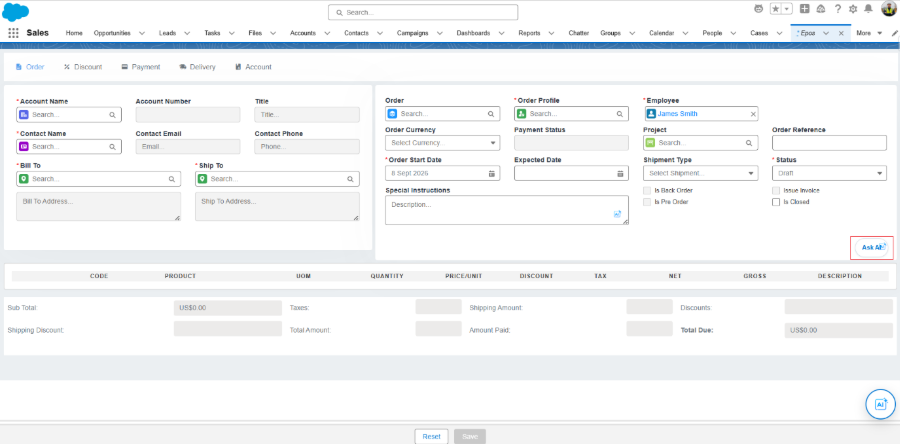
2. Upload a customer PDF containing custom prices lower than the standard Pricebook prices.
3. The AI stages the items in the cart at standard Pricebook prices to protect margins by default.
3. The AI displays a yellow warning table highlighting the discrepancy between the catalogue price and the document price for each affected item.
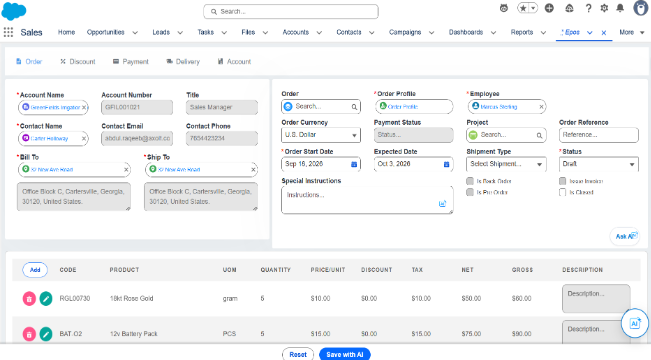
3. Review the flagged discrepancy and, if the lower price should be applied, authorize the override conversationally via the AI Assistant.
6. Custom Overdue Risk Assessment & Smart Collection – when clicking on save the page loads and still on same screen
Screen Name: EPoS
Overview: Custom Overdue Risk Assessment & Smart Collection is an AI feature on the EPOS screen. It automatically analyses a customer’s account for overdue invoices and provides real-time AI-powered risk insights, a summary, and smart collection actions before allowing order creation.
What It Does: This is triggered automatically when an order is created or saved for a customer with overdue invoices. The AI checks the customer’s account for overdue invoices and, if any are found, displays a modal summarizing the risk — including a detailed list of overdue invoices and an AI-generated risk summary. From there, an AI-drafted reminder can be sent, or the warning can be bypassed to proceed with the order.
Sample Prompt: Automatic (Triggered when user tries to create/save an order for customers with overdue invoices.)
Steps:
1. Navigate to the EPOS screen using the App Launcher or find the tab in the app navigation menu.
2. Select an Account on the EPOS screen and add the required products to the cart and click on save.
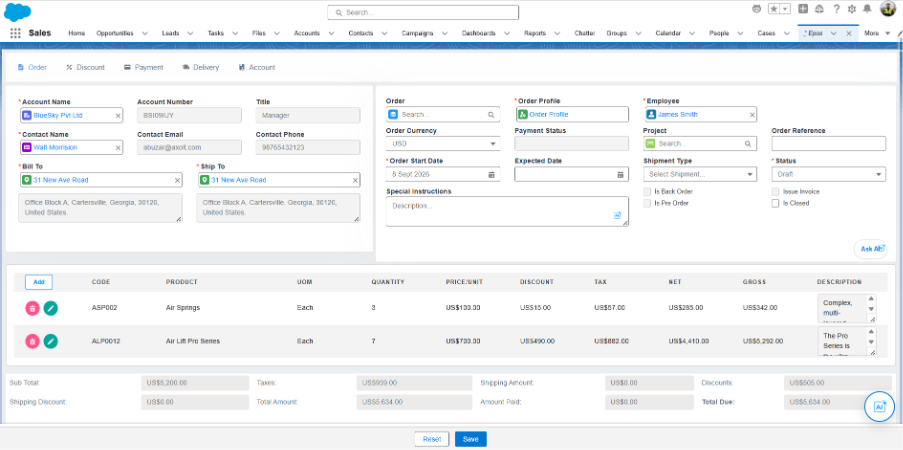
3. The system checks the customer’s account for overdue invoices using the AI engine.
4. If overdue invoices are found, a modal is displayed showing:
* Total Orders, Overdue Count, and Overdue Amount
* A detailed list of overdue invoices
* An AI-generated risk summary
* A Send Reminder smart action button
5. Send an AI-drafted reminder to the customer or bypass the warning and proceed with creating the order.
Was this article helpful?