
FedEx
On this page
- Navigate to App menu > Credential Setup
- You will land on the Credential setup page where you have Payment, Shipment and E-Commerce tabs.
- Click on the Shipment Tab
- Click “New” to add FedEx setup record.
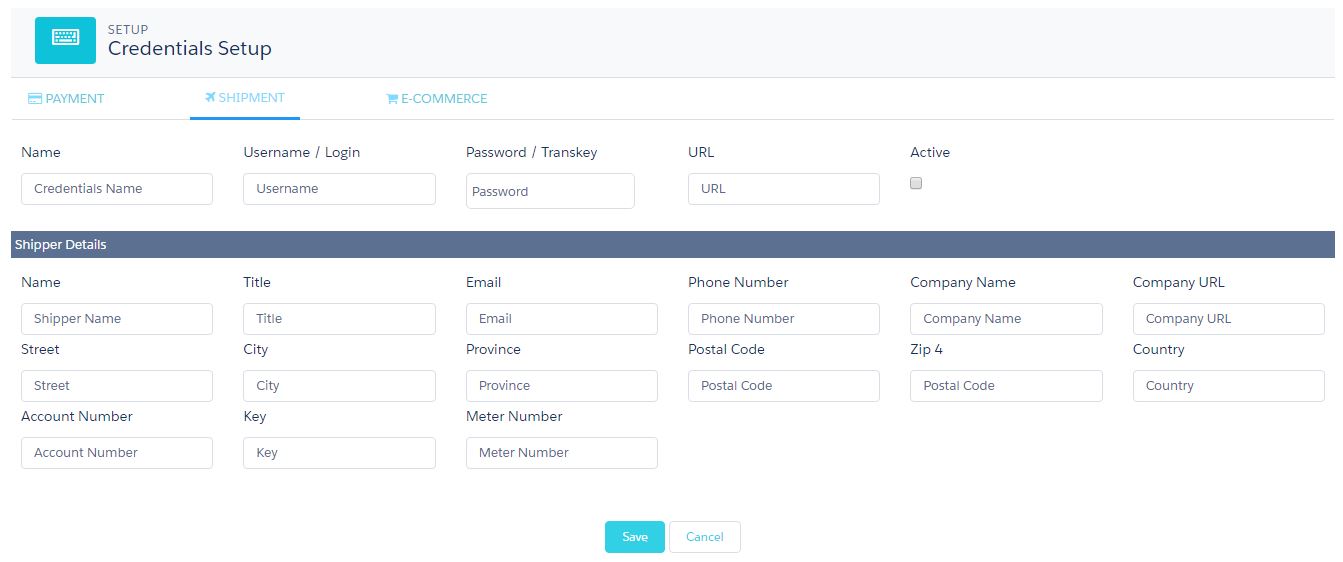
- Fill in the FedEx credentials and add in the URL to specify the test or live account and make the record active.
- Make sure to use the name as FedEx.
- Add the Shipper Details and click Save.
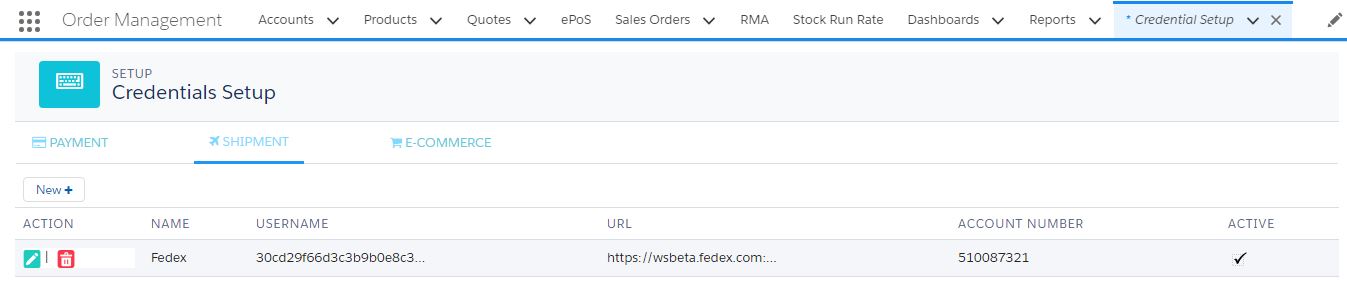
- This creates a “FedEx Record” as shown above and the password/trans key gets encrypted.
- With this setup, you can use the FedEx services for shipment.
- In the “Outbound Logistics Process” while doing the “Pick Pack Ship of the logistic orders”, select the shipment type to be “FedEx” while creating a Package.
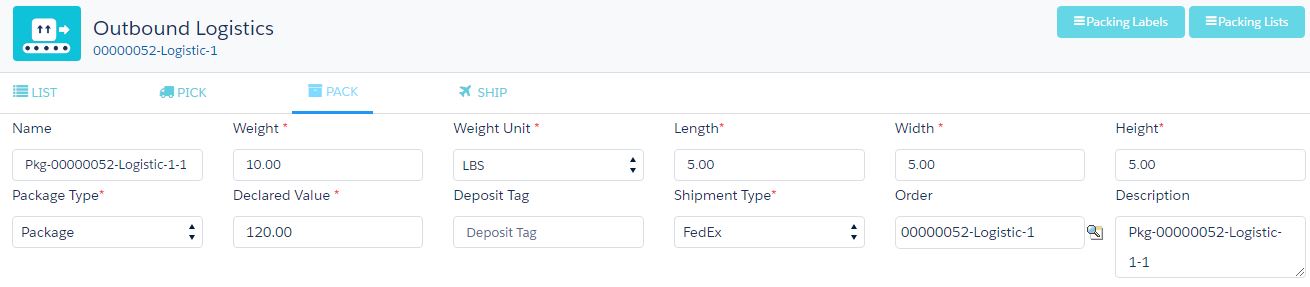
Click on “Ship” to land on the FedEx services page.
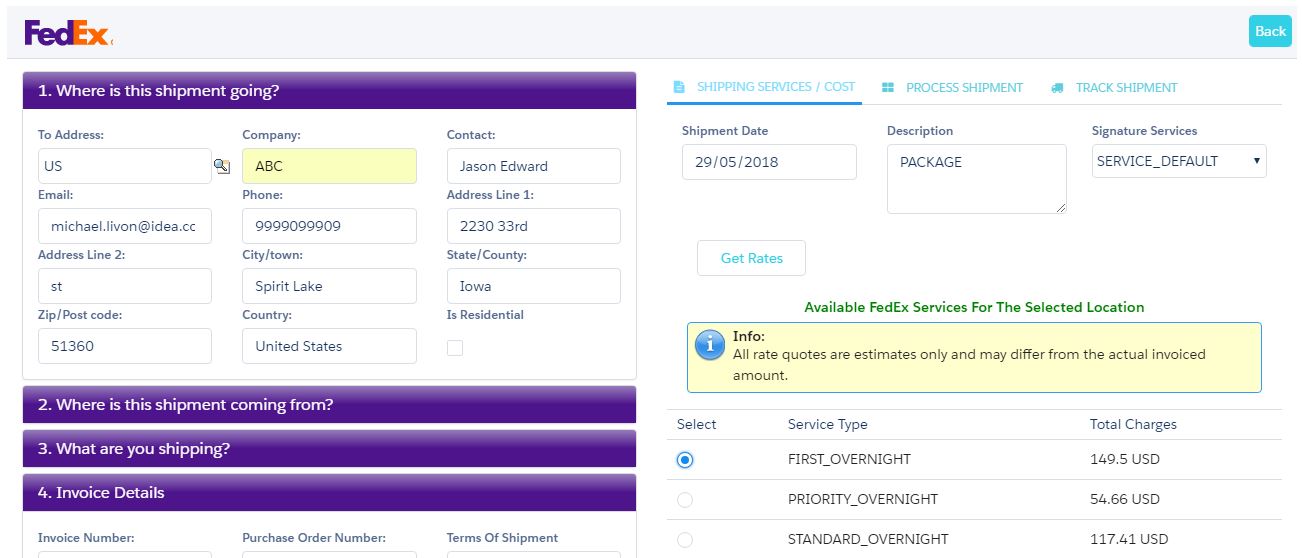
- Click on “Get Rates” and select the suitable service.
- Scroll down the services and click “Initiate Shipment” button
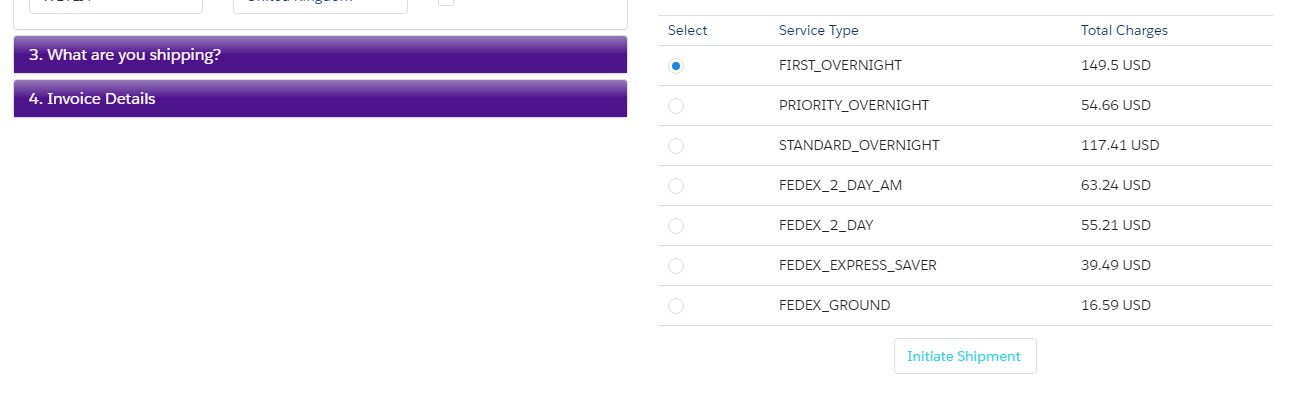
This will successfully ship the package and the tab moves to “Process Shipment” where you will see the “Shipment Status” and the “Shipment No.”
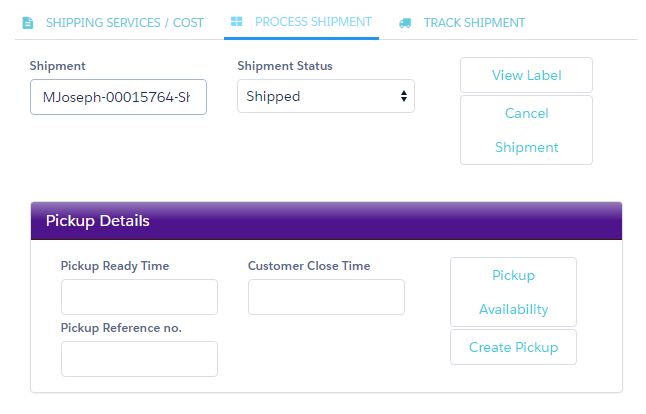
- Clicking on the “View Label” will generate the FedEx label and clicking on the “Cancel Shipment” will delete the shipment.
- Navigate to the Track Shipment tab to track the shipment.
Was this article helpful?