

Getting started with Axolt HR Management
Pre-Configuration :
- The Axolt Base Package must be installed before installing the Logistics Package.
- If the system throws an error while installing the packages, raise a case with Salesforce to increase the active filter lookup limit to 10 and the Rollup Summary field limit to 40.
Follow these steps to install the Axolt Base Package. Coming Soon…
Follow the steps below to install the Axolt Logistic Package:
- Navigate to the AppExchange and search for Results for Axolt HR & Scheduling: Salesforce Workforce, Onboarding & Shift Management .
- When the application appears, click on its Name.
On the application detail page, we have two options:
A. Get It Now – Clicking on Get It Now, you will have two options:
a. Log in with Trailblazer.me
b. Continue as Guest
B. Try It – Clicking on Try It, you will have the below option:
a. Try in your Sandbox
A. Get It Now – Install the package in a Production environment (including Developer Edition orgs).
a. Log in with Trailblazer.me
- On the application detail page, click Get It Now and follow the prompts to begin the installation process.
- After clicking Get It Now, you will be asked to select an option from the pop-up: Log In or Continue as Guest.
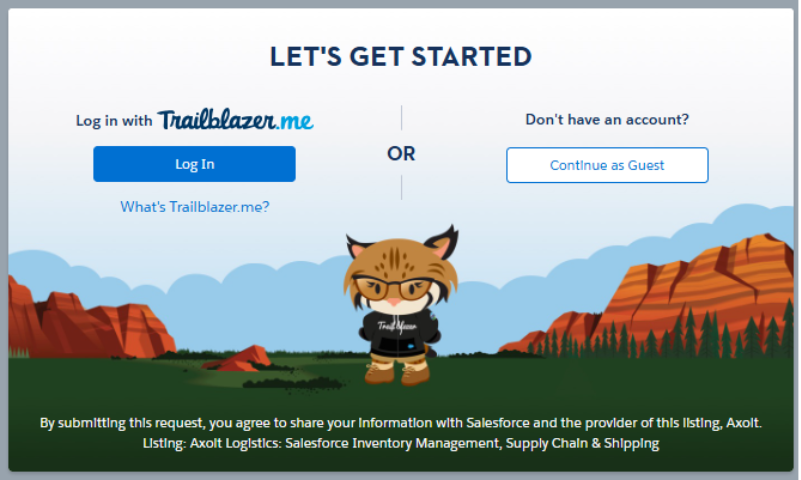
- After clicking the Login button, it will navigate to the screen below.
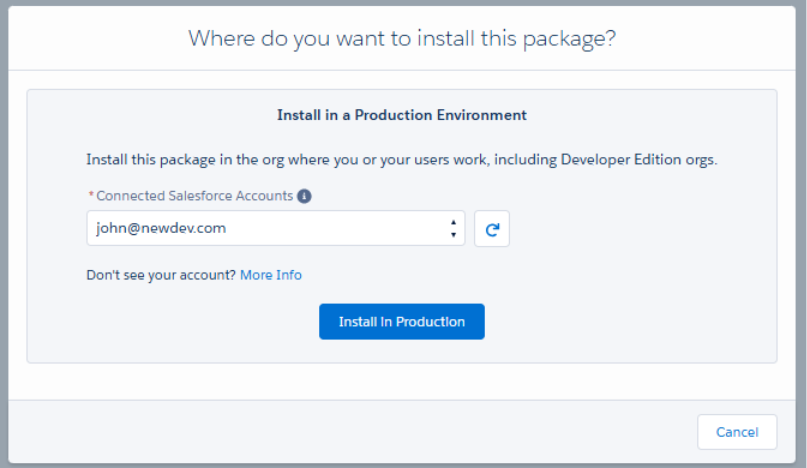
- Select the Salesforce account in which you want to install the package.
- Once an account is selected, the Install in Production button will be enabled. Click on Install in Production.
- You will then be taken to a confirmation screen. Review the details, select the checkboxes below, and click Confirm and Install.
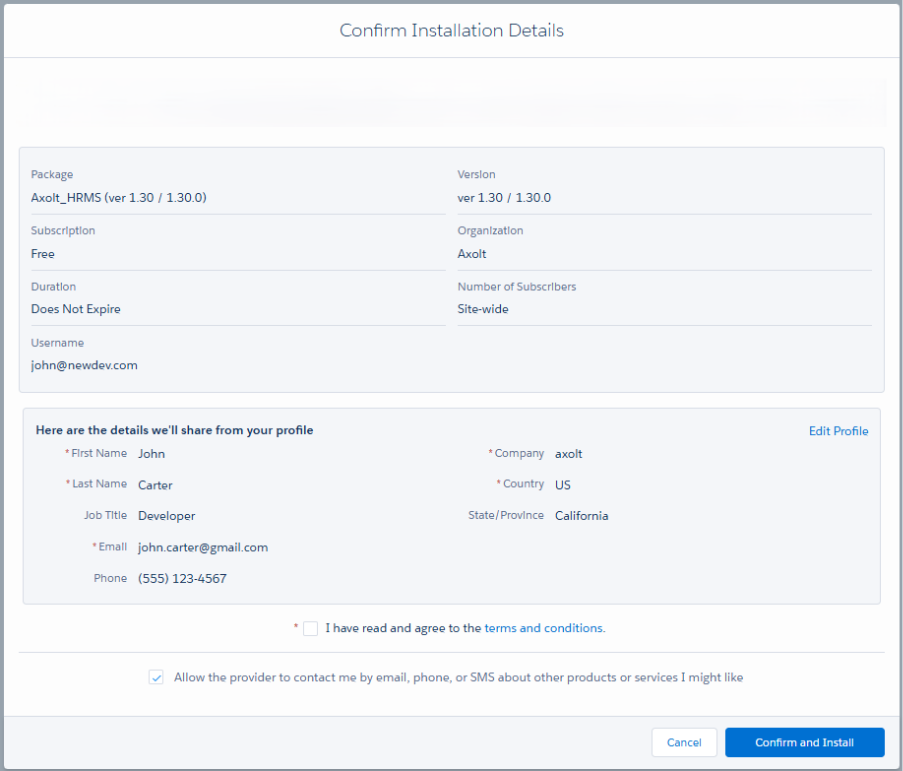
- After clicking Confirm and Install, you will be redirected to the login page.
- Enter your Username and Password, then click Log In to proceed.
- Once logged in, you will be directed to the package installation screen.
- Enter the Installation Key (“Aqxolt55”), select Install for All Users, and click Install.

- Once the package is successfully installed, users will receive a confirmation email.
b. Continue as Guest
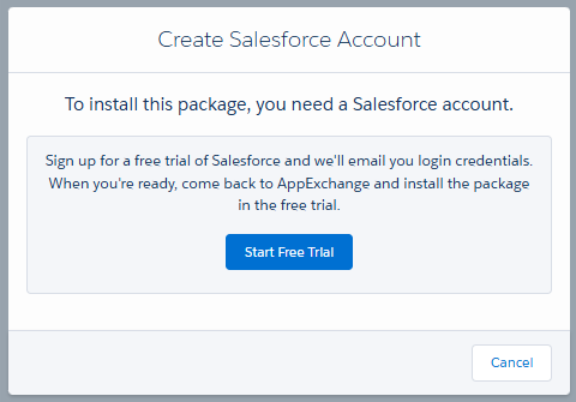
- After clicking Continue as Guest, you will be asked to create an account to install the package.
- Click Start Free Trial, and you will be navigated to the sign-up page. Create an account and continue to install.
B. Try It – Install the package in a Sandbox environment.
- Navigate to the AppExchange and search for Axolt HR & Scheduling: Salesforce Workforce, Onboarding & Shift Management.
- On the application detail page, click Try It and follow the prompts to begin the installation process.
- After clicking Try It, you will be redirected to the screen below.
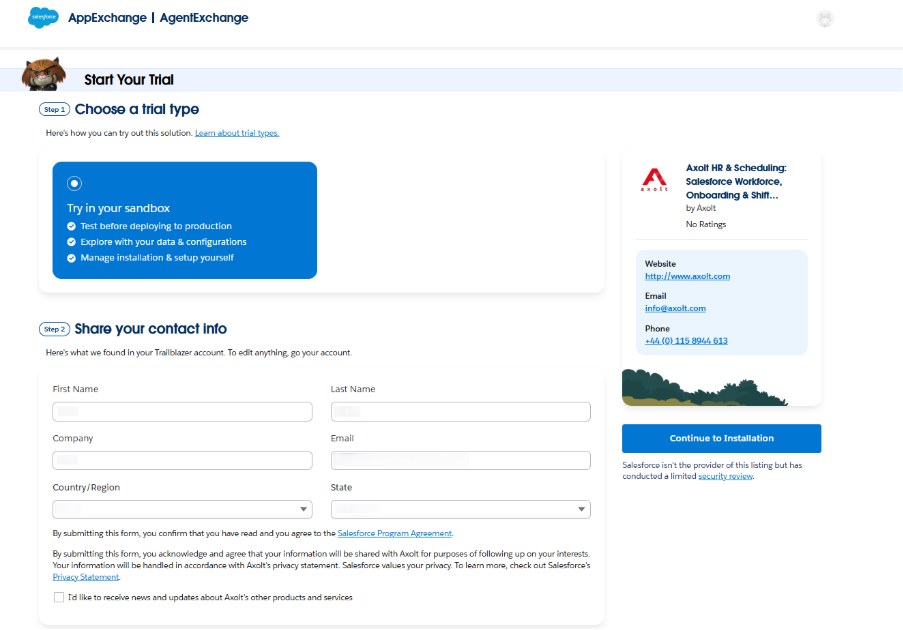
a. Try in your Sandbox
- Select Try in your sandbox option, you will be asked to fill in the required details about the user.
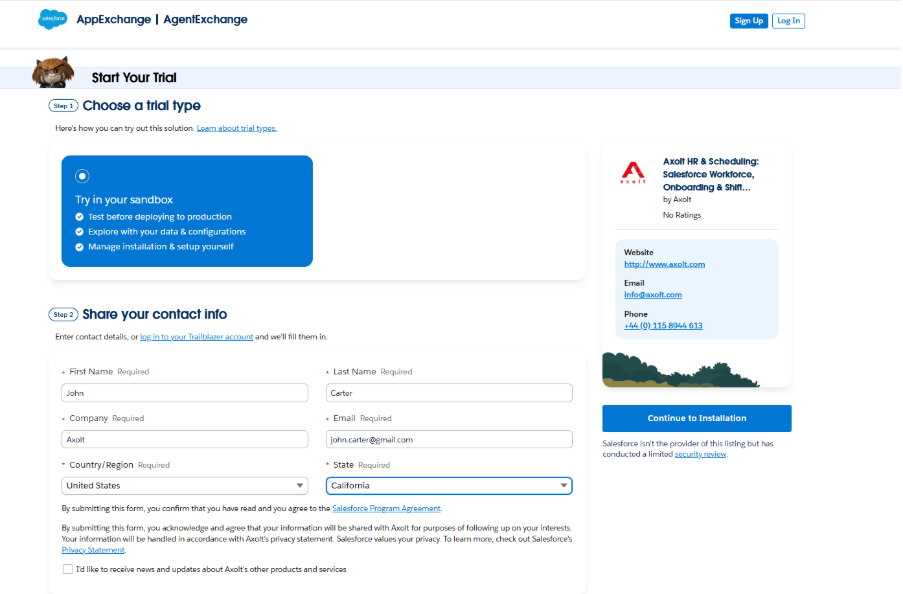
- After filling in the required details, select the checkbox below (if required and) click the Continue to Installation button.
- After clicking Continue to Installation, the below screen appears.

- Click on Log In & Install, and you will be taken to the login page.
- Enter your Username and Password, then click Log In to proceed.
- Once logged in, you will be directed to the package installation screen.
- Enter the Installation Key (“Aqxolt55”), select Install for All Users, and click Install.

- Once the package is successfully installed, users will receive a confirmation email.
