
Subscriptions
On this page
This article is not available in Français yet. You are reading the English original.
With Axolt ERP’s subscription module, you can offer a wide range of subscription frequencies, (e.g., weekly, monthly, quarterly, annually) simply by specifying the start and end dates of the subscription in the subscription plan.
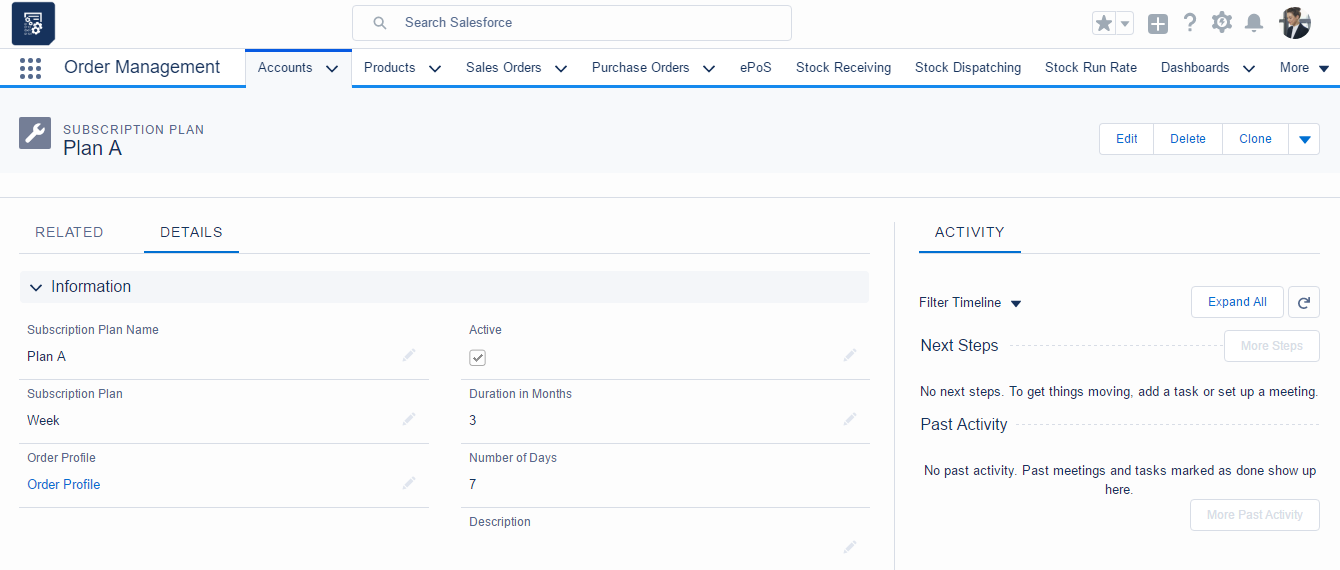
Create Subscription Plan
- Create a Tax Plan record by navigating to the Order Management app > Accounts tab.
- Once in the Accounts section, select the Organisation Account to create the subscription plan.
- In the related tab, find the Subscription Plan related list and click the “New” button.
- Enter the Subscription Plan Name and Description.
- Select the Subscription Plan, Duration in Months and Order Profile.
- Click the “Save” button to create the Subscription Plan record.
Create Product Subscription Plan Allocation
- Create a Tax Plan record by navigating to the Order Management app > Accounts tab.
- Once in the Accounts tab, you can track the Accounts that are already recorded.
- In the related tab of the organisation account, find the list related to the Subscription Plan and view the record.
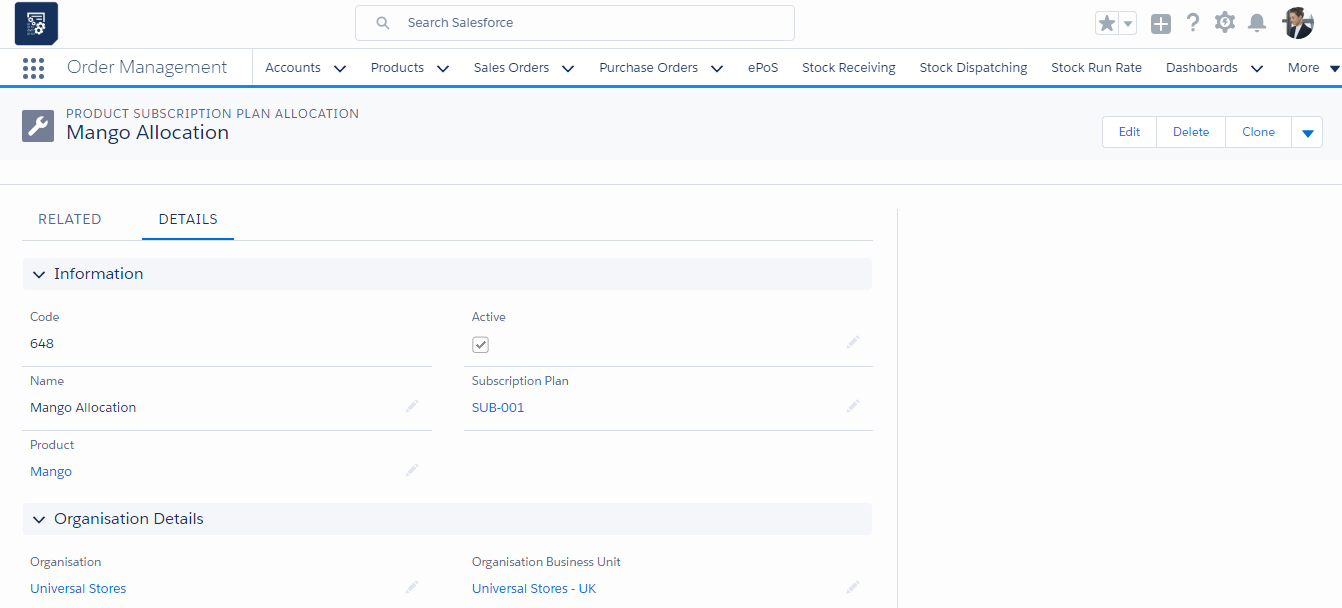
- In the related tab of the Subscription Plan, find the list related to the Product Subscription Plan Allocation and click the “New” button.
- Enter the Name. Select the Subscription Plan and Product, and then select the Active checkbox.
- Click the “Save” button to create a Product Subscription Plan Allocation Record for the associated Subscription Plan.
Create a Subscription
A subscription can be created using two methods;
- From the Subscription tab (record level)
- With the Enterprise Point of Sale tab.
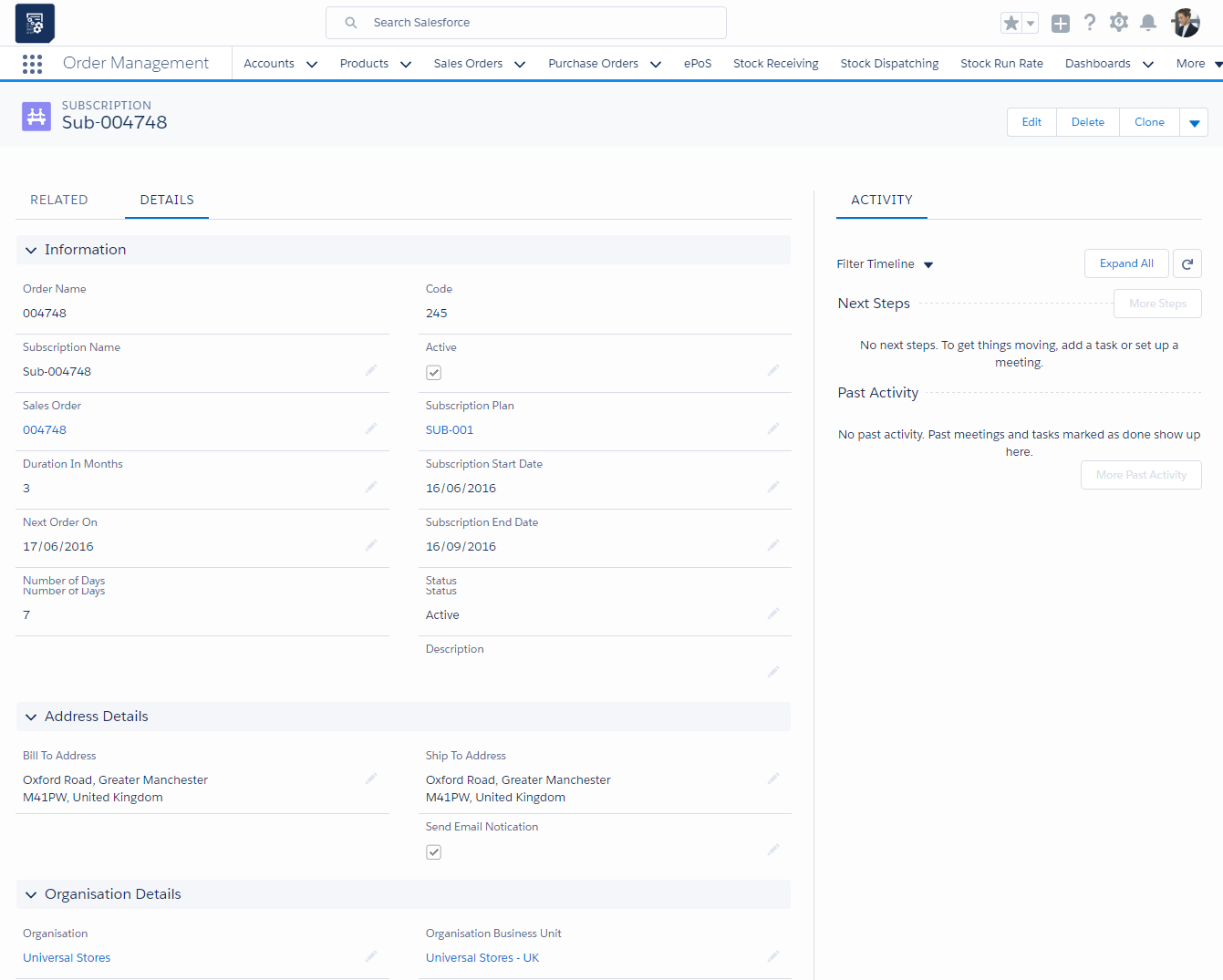
Creating a Subscription Through the Subscription Tab
- Navigate to the app menu and click on the Subscription tab.
- Once in the Subscription section, you can track the subscriptions already filled in and create a new subscription.
- When filling in a new sales order, enter the subscription name and select the Active checkbox.
- Select the sales order and subscription plan, then enter the subscription description.
- Enter the start and end dates of the subscription.
- Enter the duration in months of the subscription.
- Enter the Next Order date of the subscription and select the status – whether the subscription is On Hold, Active or Cancelled.
- Enter the address details and click the “Save” button to create a subscription order.
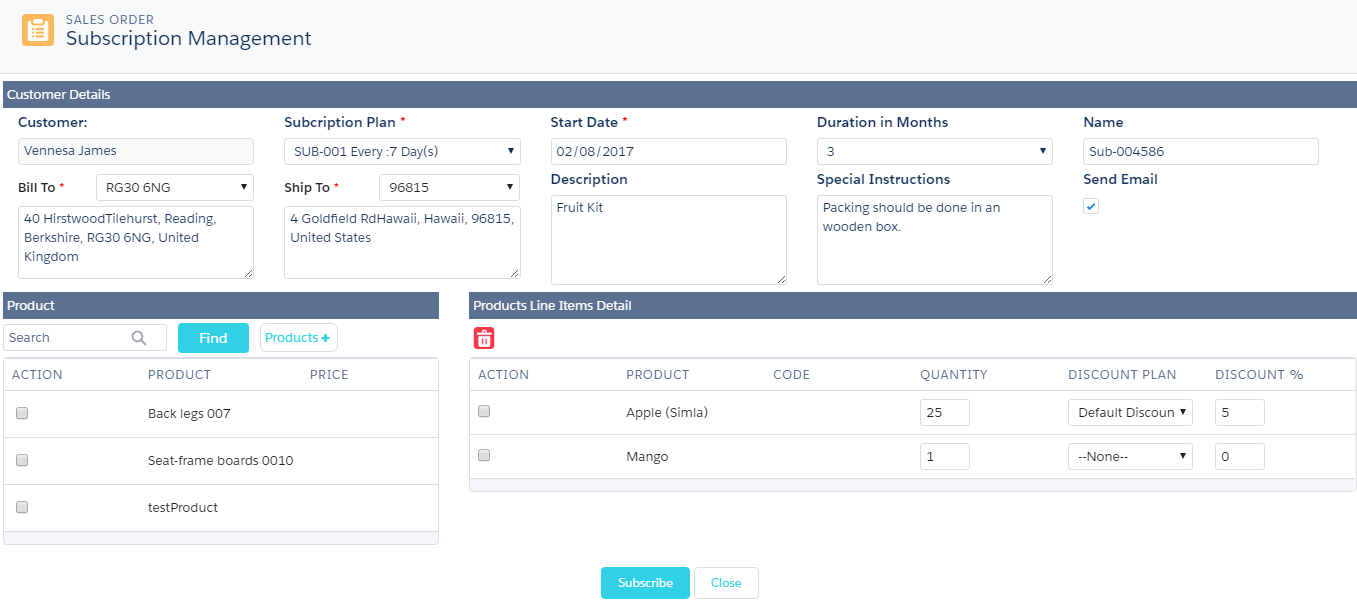
The process for creating a sales order from the Point of Sale tab is as follows:
- Create the sales order as described in Creating a sales order through the Sales Orders tab.
- Click the “Subscribe Order” button.
- Select the subscription plan and select the duration in months.
- Enter the name of the subscription. Enter its description and special instructions, if any.
- Find the products by typing the name of the product or by clicking the “Find” button. Select the products from the action column and click the “Product+” (add product) button.
- In the product’s line items details section, enter the quantity and select the discount plan, if applicable.
- Click the “Subscribe” button and complete the subscription order.
Was this article helpful?