
Stock Transfer
On this page
Pick, carry and put away stock across your warehouses
About this guide
Moving stock between warehouses usually means paper pick lists, a spreadsheet of what is on the trolley and transfer documents typed up afterwards. The Stock Transfer screen in Axolt replaces all of that with one page: you pick stock onto a cart, the cart shows exactly what it carries, and every putaway into a destination warehouse becomes a stock transfer with its document, ready to print or email.
This guide is for warehouse operatives, stock controllers and logistics supervisors. It covers two ways of working, and you can mix them at any time:
On the screen – choose a warehouse and a cart, pick products location by location, put them away at the right shelf and share the documents. Clicks, a barcode scanner or the device camera all work.
With Axo – Axolt’s assistant does the same work when you ask in your own words, typed or spoken: it opens carts, adds products, changes quantities for one line or many, picks, unpicks and puts away. Screen changes happen straight away and can be undone; anything that moves stock waits for your yes.
How to read this guide
| You see | It means |
|---|---|
| Bold text | A button, field, tab or label exactly as it appears on screen. |
| Numbered red markers on a screenshot | Each number is explained in the table beneath the screenshot. |
| “Quoted text” in a conversation | Something you type or say to Axo. Axo understands paraphrases – you do not need the exact words. |
| Tip, Note, Important, Axo boxes | Shortcuts, background details, things to watch for, and where Axo can help. |
| ⌘ / Ctrl | Use ⌘ (Command) on a Mac and Ctrl on Windows. |
About the sample data
The screenshots use sample data for Bluepeak Medical Systems, Inc., a fictional medical device distributor. Warehouses (Columbus Central DC, Dallas Service Depot, Denver Receiving DC, Phoenix Regional Warehouse, Reno Fulfillment Hub), carts, employees, product codes, serial numbers and quantities are invented for illustration. Your screens show your organization’s data.
Note Screen differences
Some fields, columns and buttons appear only when your administrator has enabled them. Everything about Axo – the Axo Chat and Axo Voice buttons, Axo’s tips and the Axo settings – appears only when AI is turned on for stock transfers for your user, profile or organization (Enable AI on Internal Stock Transfer).
Part 1 · Getting started
What a stock transfer is, and how to start one.
- 1. Stock transfer at a glance
- 2. Opening the Stock Transfer screen
- 3. Starting or resuming a transfer
1. Stock transfer at a glance
Three stages, one cart, and a document for every putaway.
A stock transfer moves physical stock from one warehouse to another. Every transfer goes through the same three stages:
| Stage | What you do | What Axolt records |
|---|---|---|
| Pick | Take stock from locations in the source warehouse and load it onto a cart – by scanning, clicking or asking Axo. | Stock leaves the source location the moment it is picked and is held on the cart. |
| Put away | Choose the destination warehouse, then the shelf or bin for each item. | Stock arrives at the destination location. Each putaway into a warehouse is a stock transfer. |
| Documents | Print, download or email the transfer documents, a cart manifest or a pick list. | Documents are produced from what was actually picked and put away – nothing to retype. |
Why it helps
Live availability – every line shows what can still be picked at the source, so shortages show up before you walk to the shelf.
Scan in any order – a barcode scanner works anywhere on the screen; the screen works out whether you scanned a warehouse, cart, location, product, serial or lot.
Serials, lots and fixed assets – tracked items are picked by number, oldest first if you like, and nothing reserved for a sales order can be picked by mistake.
One cart, many destinations – part of a cart can go to one warehouse and the rest to another; each destination gets its own transfer and document.
Hands-free with Axo – ask Axo to pick “2 of each”, reduce every line still to pick, or put the cart away, and confirm with a single yes.
The cart
Every transfer uses a cart: the trolley, tote or vehicle that carries the stock between warehouses. Your administrator sets up the carts for each warehouse in Axolt, and each cart has its own barcode. A cart picks from one source warehouse at a time and can be put away into any number of destination warehouses. A cart that still holds stock simply waits – anyone can open it later and carry on where it was left.
Key terms
| Term | Meaning |
|---|---|
| Source warehouse | The warehouse the stock is picked from. |
| Cart | What the stock travels on. It holds the picked stock until it is put away. |
| Requested quantity | How many of a product you plan to move. You can pick more or less; the screen shows the difference. |
| To pick | A line that still has a quantity to pick – nothing picked yet, or only part of it. |
| Staged line | A pick you have prepared (location, lot and quantity chosen) but not yet picked into the cart. |
| Destination warehouse | The warehouse the stock is put away into. |
| Stock transfer | Every putaway one person makes from one cart into one destination warehouse, with no more than 15 minutes between them, forms one stock transfer and one document. |
2. Opening the Stock Transfer screen
The screen is a tab in Salesforce.
Select the App Launcher (the grid icon at the top left of Salesforce) and search for Stock Transfer.
Select Stock Transfer. If your administrator has added it to your app’s navigation bar, you can open it from there instead.
The screen opens on New stock transfer, where you choose a warehouse or a cart (Chapter 3).
Return to a transfer in progress
Select Ongoing at the top right. It lists every cart that still holds stock, across all warehouses and employees; select one to open it.
Or find the cart on New stock transfer and select Resume.
Or scan the cart’s barcode – on New stock transfer a cart barcode opens that cart straight away.
Tip Your place is kept
Leaving a cart never loses its stock: what is on the cart is saved in Axolt as you pick. Only plans that are not picked yet (requested quantities and staged lines) belong to the open screen – the screen asks before you leave them behind.
3. Starting or resuming a transfer
New stock transfer shows every warehouse, every cart and what is waiting – so you can start in one click.
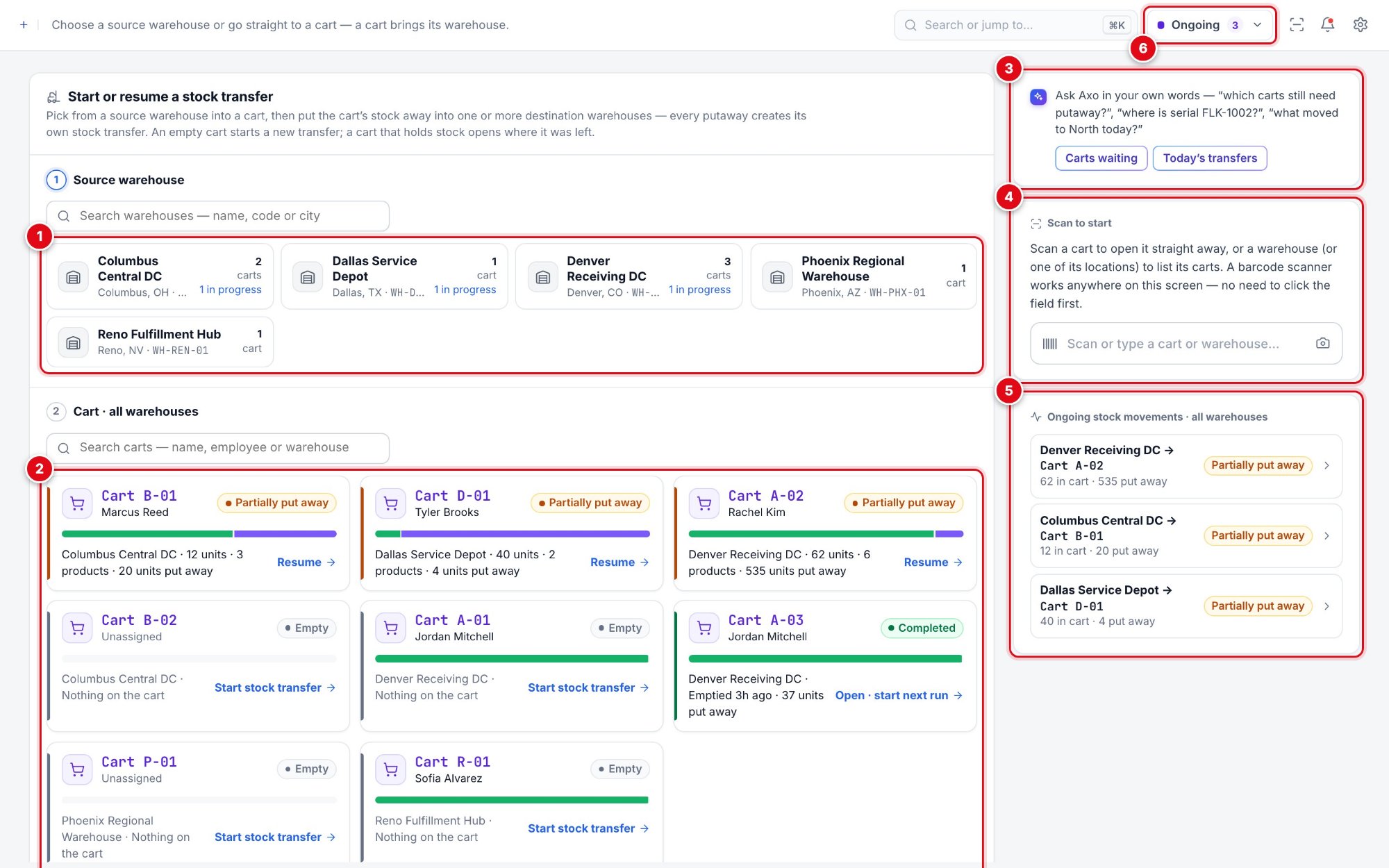
| 1 | Source warehouse | Every warehouse you can pick from, with how many carts it has and how many are in progress. Search by name, code or city. |
| 2 | Cart · all warehouses | Every cart with its state: Empty, Partially put away, Awaiting putaway or Completed. Each card says what is on it and offers Start stock transfer, Resume or Open · start next run. |
| 3 | Ask Axo | Ask in your own words, or use a suggestion such as Carts waiting. Shown when Axo is enabled. |
| 4 | Scan to start | Scan a cart to open it, or a warehouse (or one of its locations) to list its carts. |
| 5 | Ongoing stock movements | Carts that still hold stock, across all warehouses. Select one to open it. |
| 6 | Ongoing | The same list from the top bar, on every page of the screen, with New stock transfer. |
Start from a warehouse
Under Source warehouse, select the warehouse you will pick from – for example Columbus Central DC. The cart list narrows to that warehouse.
Select a cart. An empty cart opens on Pick, ready for products.
Start from a cart
Under Cart · all warehouses, select the cart directly – it brings its warehouse with it. Where it opens depends on its state:
| Cart state | What it means | Opens at |
|---|---|---|
| Empty | Nothing on the cart. | Pick |
| Awaiting putaway | Stock is on the cart and nothing has been put away yet. | Putaway |
| Partially put away | Some stock went out; the rest is still on the cart. | Putaway |
| Completed | The last run emptied the cart. | Transfers, with Pick more into the cart |
Axo Start in one sentence
“Add 10 IV Poles to Cart B-02” opens Cart B-02 and puts 10 on its pick list. “I have some products to pick” opens a product search with your recently viewed products and a quantity for each – Axo then asks for the warehouse and cart, or shows which warehouse can supply everything (Chapter 15).
Part 2 · Picking stock
Build the pick list and load the cart.
4. The workspace
Every cart has one workspace: where the stock comes from, what is on the cart and where it has gone.
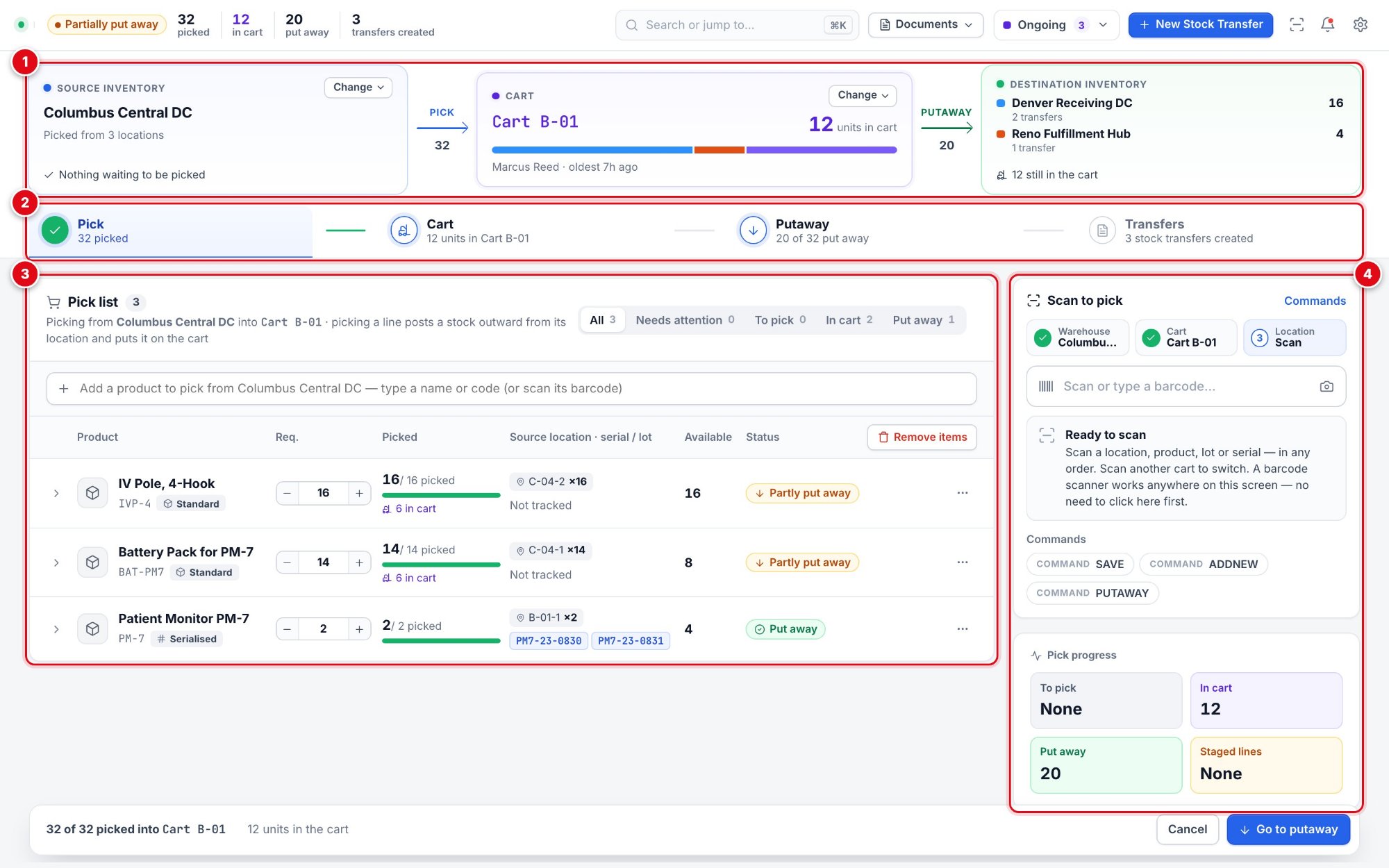
| 1 | Bridge | Source inventory, the cart and destination inventory, with live quantities. Change swaps the source warehouse or the cart. |
| 2 | Stage tabs | Pick, Cart, Putaway and Transfers. Each tab shows its count; a green tick means the stage is done. Select any tab at any time. |
| 3 | Pick list | The products to move, with requested and picked quantities, source locations and status. |
| 4 | Scan to pick | The scan station: warehouse and cart are confirmed when the cart opens; scan a location, product, lot or serial in any order. Pick progress is shown below it. |
The bridge
Source inventory – the warehouse you pick from, how many locations you picked from, and whether anything is still waiting to be picked.
Cart – the units on the cart now, who the cart belongs to and how long the oldest item has been on it. The bar shows where the cart’s stock went, one colour per destination.
Destination inventory – each warehouse stock went to from this cart, with its units and number of transfers.
The top bar sums up the cart: its state (for example Picking or Partially put away) and the units picked, in the cart and put away, with the number of transfers created.
5. The pick list
Add what you need to move, set how many, and see at a glance what is left.
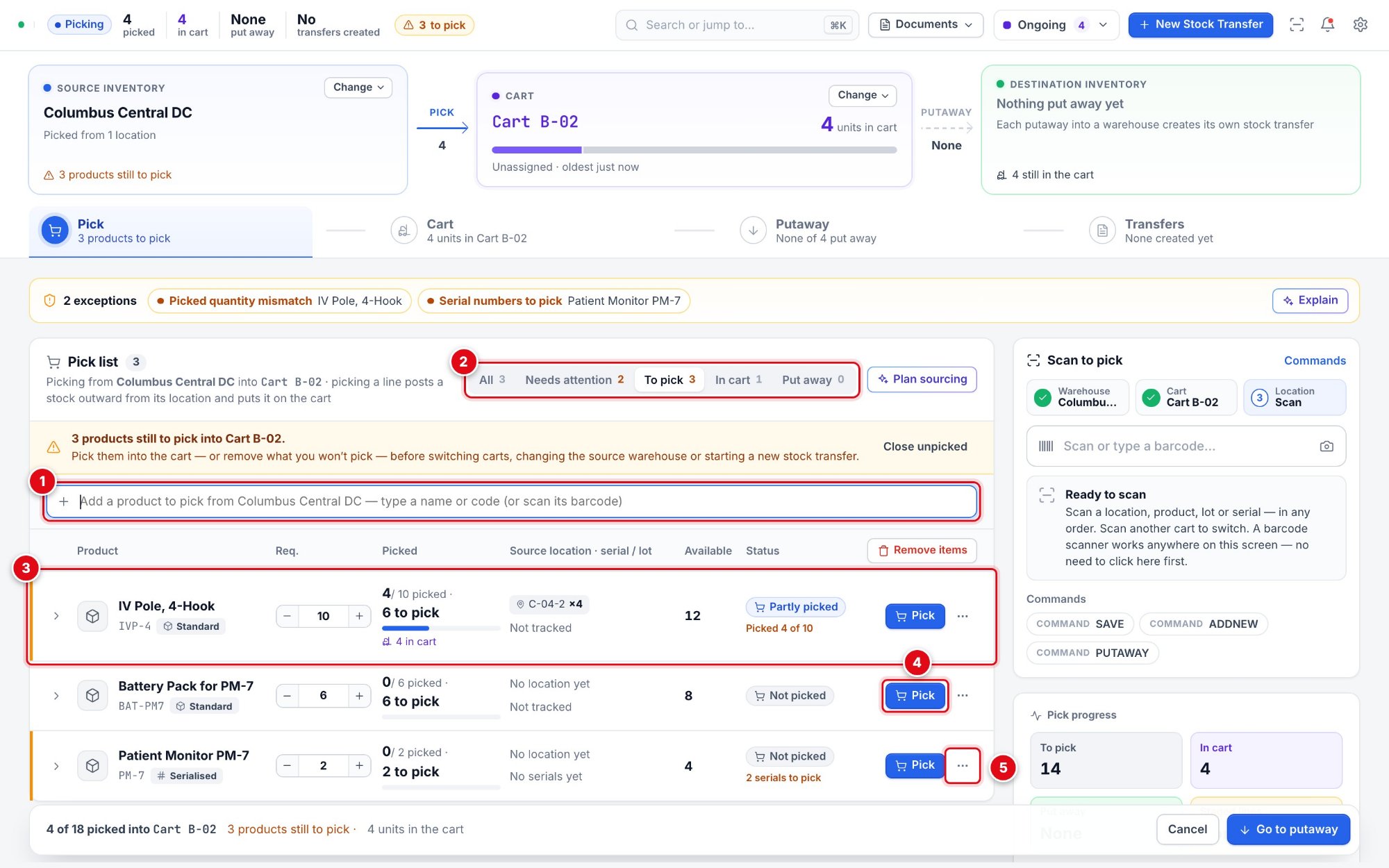
| 1 | Add a product | Type a product name, product code (SKU) or barcode – or scan it. Your recently viewed products show as soon as you click in. |
| 2 | Filters | All, Needs attention, To pick, In cart and Put away, each with its count. |
| 3 | A pick line | Requested quantity, picked so far (“4 / 10 picked · 6 to pick”), source location, available stock and status. |
| 4 | Pick | Opens the pick sheet for the line (the serial sheet for serialised products). |
| 5 | Line menu | Pick from a location, stage a line to pick later, close the rest of a partly picked line, ask Axo about the line, or Remove from the transfer. |
Add a product
Click in the Add a product bar. Your recently viewed products appear straight away.
Type the product name, the product code (SKU) or the barcode – results appear as you type, with the stock available at the source warehouse.
Select the product. It joins the list with a requested quantity of 1; selecting it again adds 1.
Set the requested quantity with − and +, or type it. A typed quantity is checked when you press Enter or leave the field.
Tip Scan instead
Scanning a product barcode anywhere on the screen adds it to the list (or adds 1 to its line) – no need to click the bar first.
Filter the list
| Filter | Shows |
|---|---|
| All | Every line. |
| Needs attention | Lines with something to check: not enough stock at the source, serial numbers still to choose, a lot not selected, staged lines not picked yet, picked more or less than requested, or stock waiting too long in the cart. |
| To pick | Lines with something left to pick – nothing picked yet, or only part of it, including staged lines. Pick opens on this filter. |
| In cart | Lines with picked stock still on the cart. |
| Put away | Lines whose stock has all been put away. |
Remove or close a line
Remove from the transfer (line menu) takes a product off the list. If some of it is on the cart, that stock goes back to the locations it was picked from.
Close the rest – keep N picked (line menu, partly picked lines) keeps what is on the cart and drops the rest of the requested quantity. Close unpicked in the yellow banner does this for every line at once. No stock moves.
Print the pick list
Select Documents in the top bar, then Pick list. The document preview opens with every pick still to do, by location, so it can go to the shelf on paper:
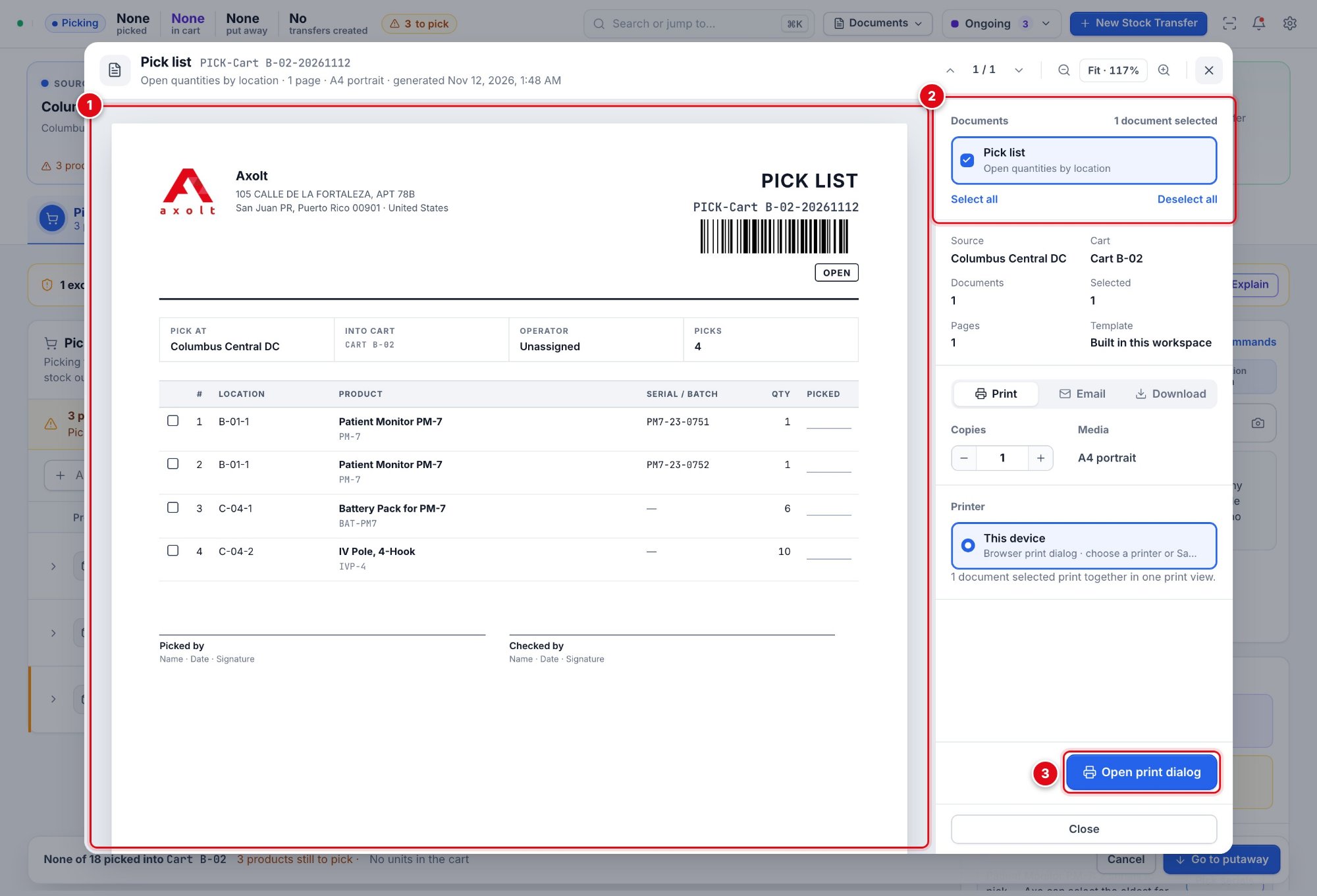
| 1 | The document | Each pick with its location, product and code, serial or batch, the quantity and a Picked column to tick, with signature lines for the picker and the checker. |
| 2 | Documents | The documents in this preview. Tick the ones to print, email or download together. |
| 3 | Open print dialog | Prints the selected documents in one go. Choose the printer – or Save as PDF – in your browser’s print dialog. Email and Download work as described in Chapter 12. |
Important Finish picking before you switch
While lines are still to pick, switching carts, changing the source warehouse or starting a new transfer asks you to pick them first or discard what is not picked. Stock already on the cart is never lost.
6. Picking a line
Choose where to pick from and how many – or let the scanner do it.
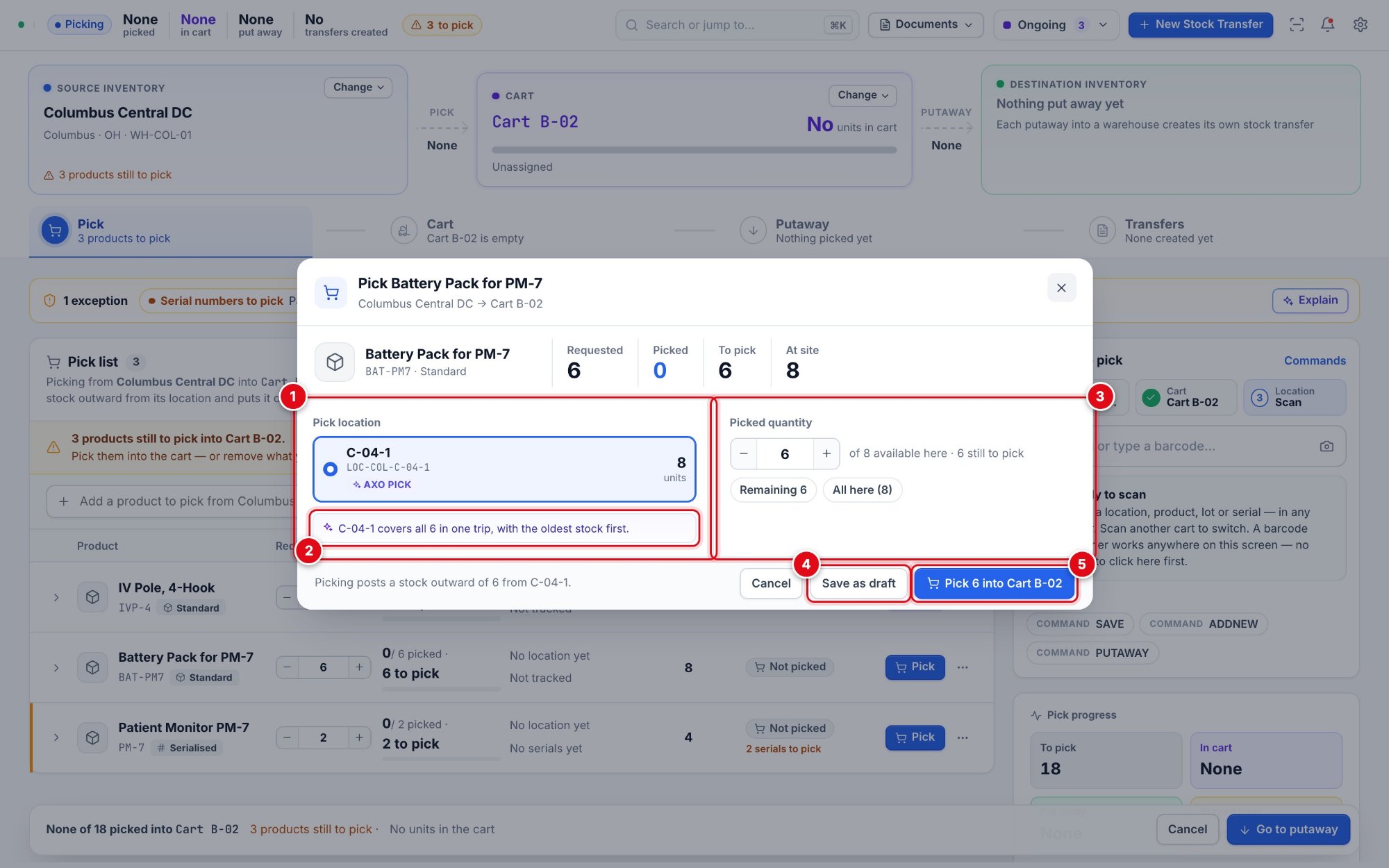
| 1 | Pick location | Every location at the source holding the product, with its quantity. Axo pick marks the location Axo recommends. |
| 2 | Why this location | Axo’s reason – for example, it covers the whole quantity in one trip with the oldest stock first, or it holds the lot that expires first. |
| 3 | Picked quantity | Set it with − and +, or choose Remaining or All here. For lot-tracked products, a lot field appears here. |
| 4 | Save as draft | Stages the line (location and quantity chosen) without picking it. Pick N staged lines picks all staged lines together later. |
| 5 | Pick N into the cart | Picks now: the stock leaves the location and is on the cart. |
Pick on the screen
Select Pick on the line. The pick sheet opens.
Choose the location – the one marked Axo pick is Axo’s recommendation – and the quantity.
Select Pick N into the cart. The line shows what was picked and from where.
Pick by scanning
Scan the location barcode. The scan station shows it as step 3.
Scan the product, lot or serial barcode. Each scan picks from that location.
Scan the next location when you move on. A barcode scanner works anywhere on the screen – you never need to click the scan field first.
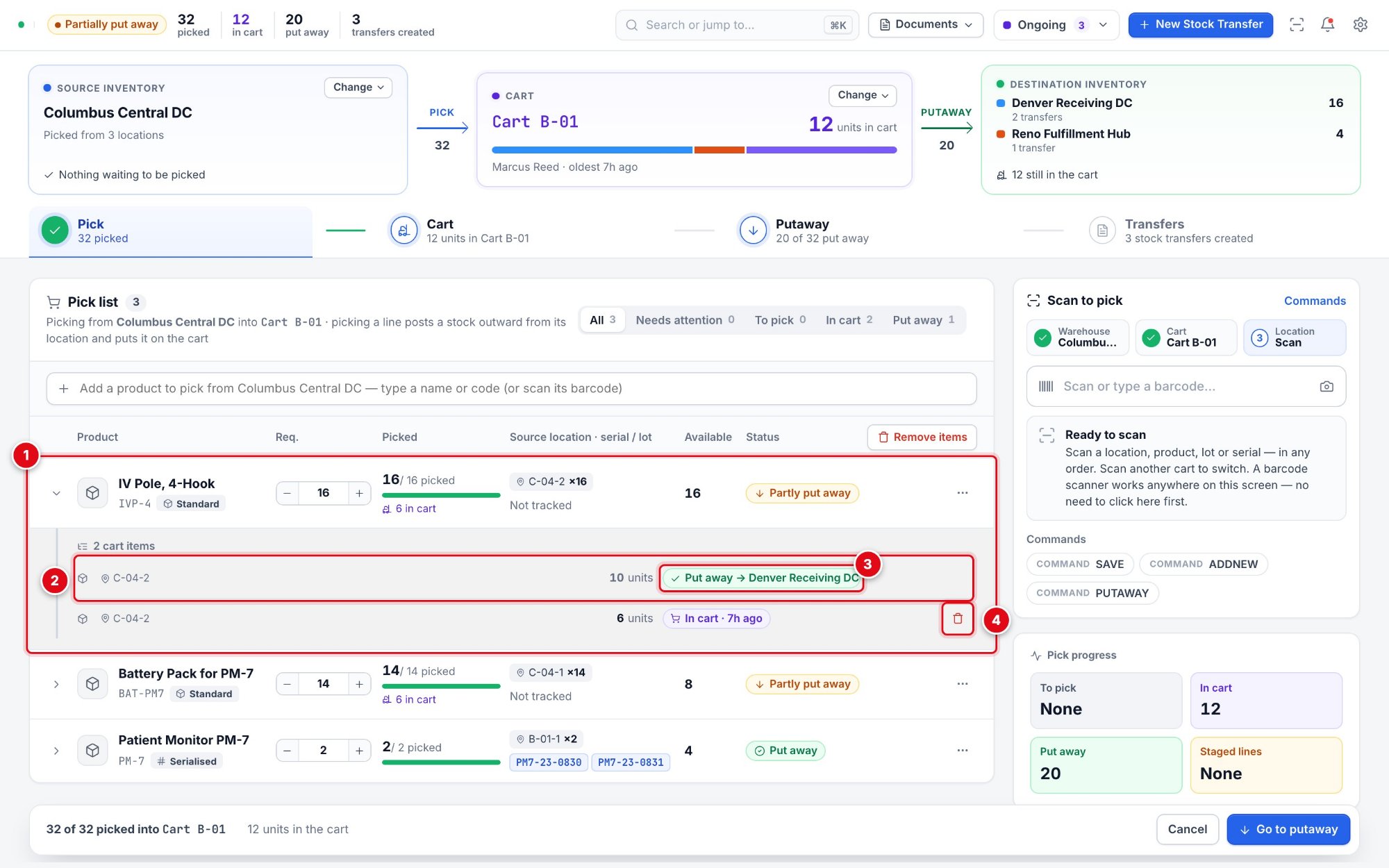
| 1 | Open a line | Click anywhere on a line (or its › arrow) to show its cart items. One line is open at a time. |
| 2 | Cart item | Each pick is a cart item: where it was picked from and how many. |
| 3 | Item status | In cart with its age, or Put away → the destination and location. |
| 4 | Delete pick | Returns that item to the location it was picked from. Items already put away cannot be deleted. |
Scan commands
Commands let you drive the screen from the scanner. Print each command as a barcode, or type it in the scan field and press Enter:
| Command | What it does |
|---|---|
SAVE |
On Pick: picks every staged line into the cart. On Putaway: puts the selected items away. While removing items: confirms the removal. |
ADDNEW |
Puts the cursor in the Add a product bar. |
PUTAWAY |
Opens the Putaway tab. |
PICK |
Goes back to Pick. In the serial sheet: picks the selected serials and opens Putaway. |
DRAFT |
In the serial sheet: picks the selected serials into the cart and stays on Pick. |
REMOVEALL |
In the serial sheet, or while removing items: clears the selection. |
The scan station lists the commands that apply to the tab you are on, and Commands shows them all.
7. Serial numbers, lots and fixed assets
Tracked products are picked by number, so the documents always say exactly which units moved.
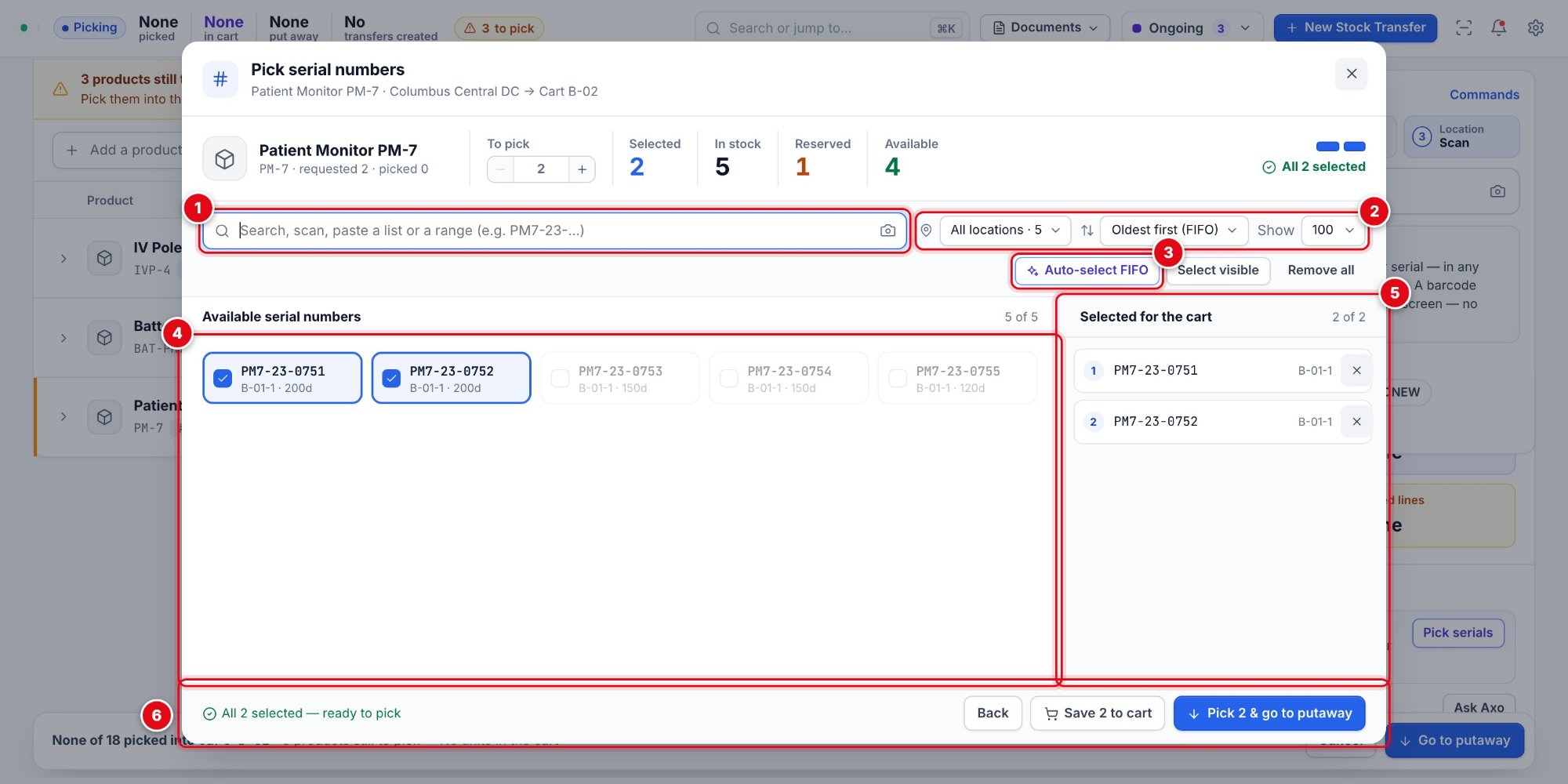
| 1 | Find serials | Search, scan, paste a list, or type a range (for example PM7-23-0751..0760). |
| 2 | Filters | Narrow by location or lot, sort oldest first (FIFO), newest first or A → Z, and choose how many to show. |
| 3 | Auto-select FIFO | Axo selects the oldest serials up to the quantity to pick. You review before picking. |
| 4 | Available serials | Every serial you can pick at the source, with its location and age. Reserved serials are not offered. |
| 5 | Selected for the cart | The serials you chose, in order; × takes one out. |
| 6 | Save or pick | Save N to cart picks them and keeps you on Pick; Pick N & go to putaway picks them and opens Putaway. |
Serial-tracked products
The serial sheet shows how many are in stock, how many are Reserved for sales orders (they cannot be picked) and how many are Available. Set To pick, then select serials by clicking, scanning, pasting or with Auto-select FIFO. Up to 50 serials are picked per save; the sheet then stays open for the rest. A serial can only be on one cart at a time.
Lot-tracked products
The pick sheet asks for the lot as well as the location; lots are offered with where they are. When Axo is on, it recommends the location holding the lot that expires first, and warns when a lot is close to its expiry date or past it. Each lot you pick becomes its own cart item.
Fixed assets
Products set up as fixed assets are tracked asset by asset. When you pick one, the pick sheet lists the assets at the chosen location and you select which one to move; the quantity is always 1. Each asset becomes its own cart item, is put away as a single unit, and appears by its asset name on the cart, in the putaway list and on the transfer document.
Axo Serials by voice
“Pick PM7-23-0751 and PM7-23-0752” selects those serials in the serial sheet and asks once before picking. “Select the 5 oldest serials” does the same with FIFO. You can say just the ending – “0751” – when it is unique.
Part 3 · The cart
What is on the cart, what has left it, and what has waited too long.
8. Cart view and inventory
Everything picked on this run – where it came from, where it went and what is still on the cart.
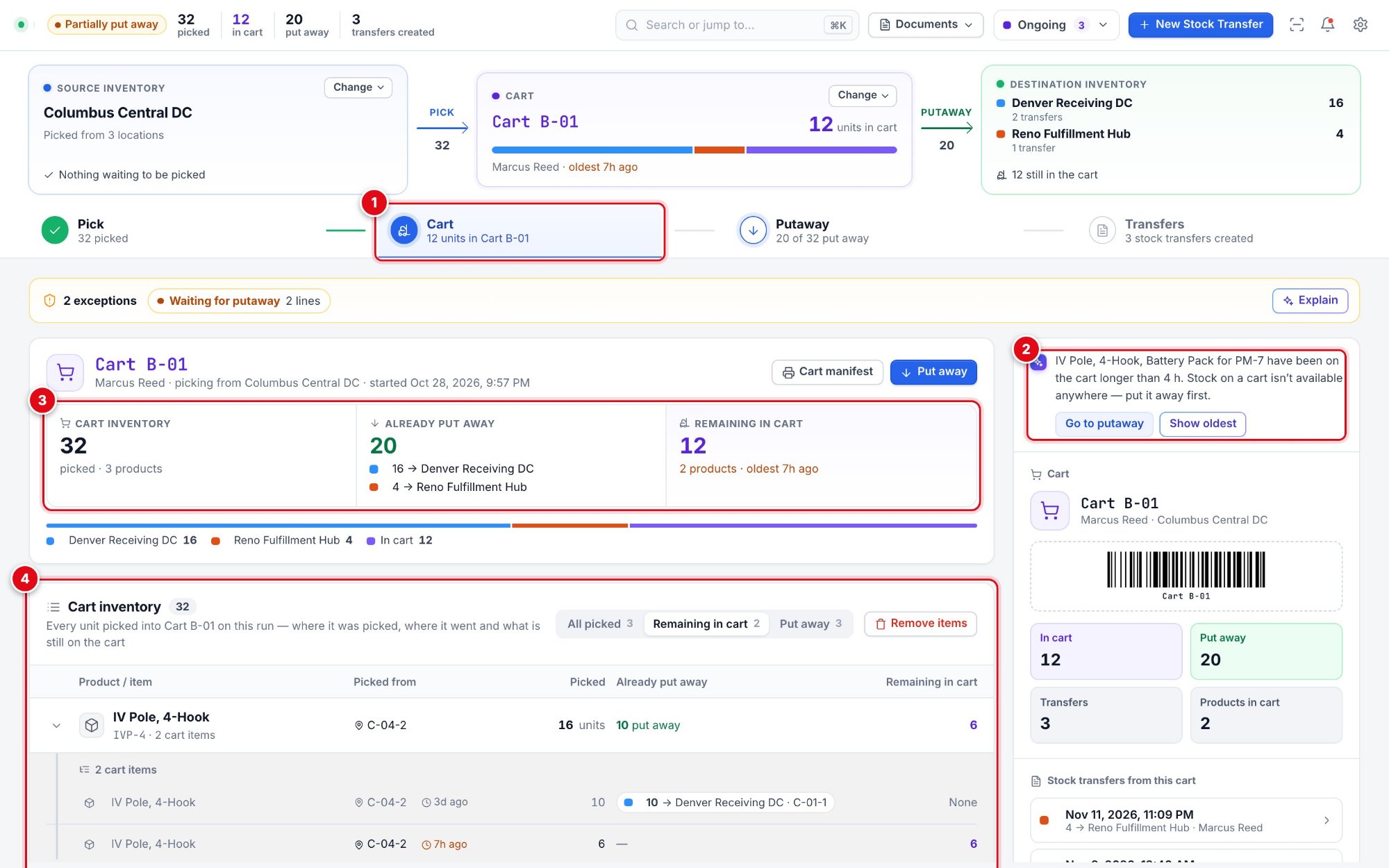
| 1 | Cart tab | Shows how many units are on the cart now. |
| 2 | Aging notice | When stock has been on the cart longer than Flag stock left in the cart after (Settings › Stock transfer settings; 18 hours unless you change it), Axo lists the products and offers Go to putaway and Show oldest. |
| 3 | Cart totals | Cart inventory (everything picked), Already put away by destination, and Remaining in cart with the oldest item’s age. The bar below shows the same in colour. |
| 4 | Cart inventory | Every cart item: picked from, picked, already put away and remaining. Filter by All picked, Remaining in cart or Put away; open a product to see its items. |
Cart manifest
Cart manifest (Cart tab, or Documents › Cart manifest) opens the document preview with what is on the cart now – useful when a cart changes hands or a supervisor checks a load.
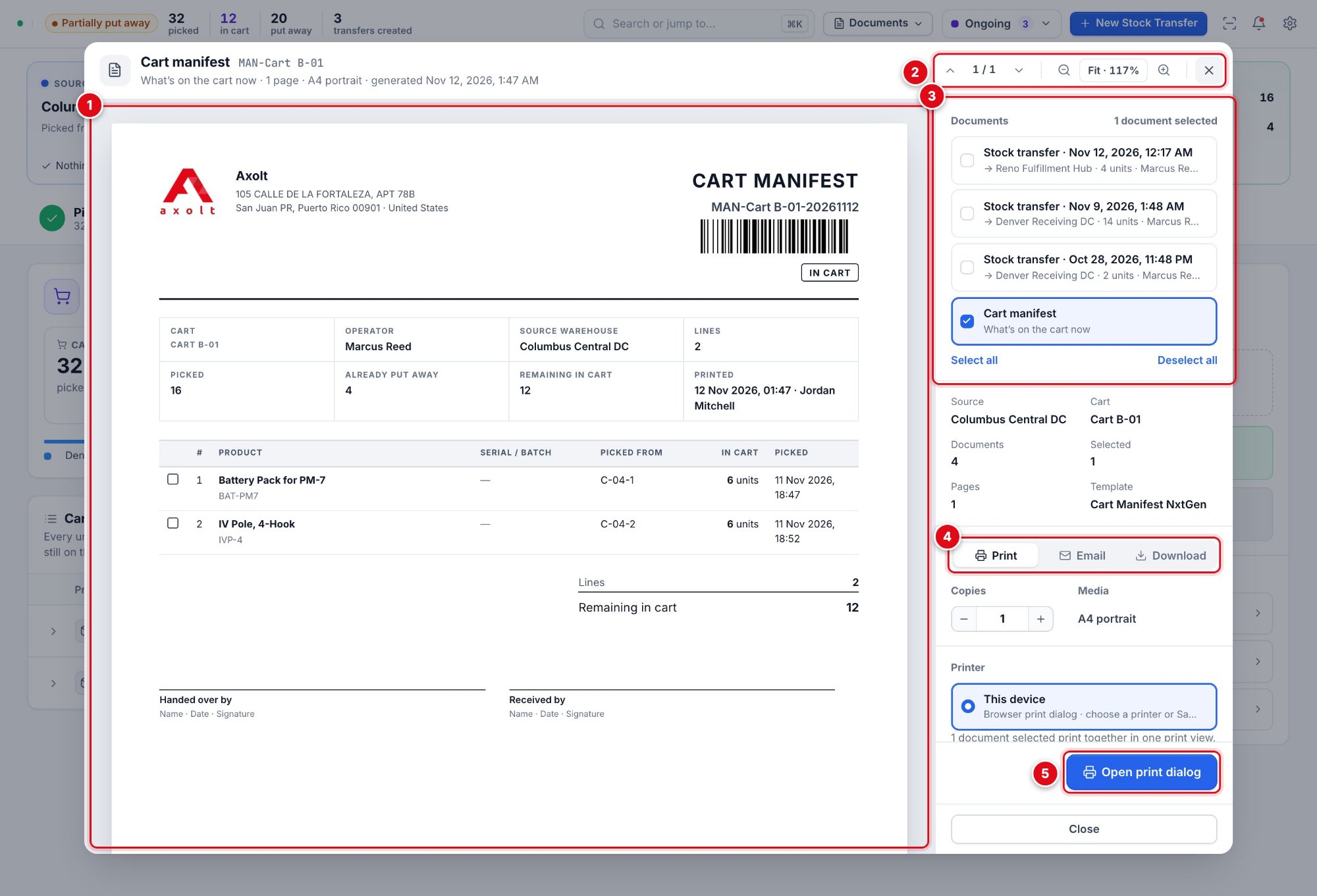
| 1 | The document | As it prints: the cart, its operator, units picked, put away and still in the cart, and each item with a tick box, its serial or batch and where it was picked. |
| 2 | Pages and zoom | Move between pages, zoom in or out, fit the page, or close the preview. |
| 3 | Documents | This cart’s documents – its stock transfers and the cart manifest. Tick the ones you want; Select all and Deselect all do it in one click. |
| 4 | Print · Email · Download | What to do with the selected documents. |
| 5 | Open print dialog | Prints the selected documents together, with the number of copies you chose. |
Take stock off the cart
Select Remove items (on the Cart or Pick tab).
Click the products, serials or lots to take off – or scan them – and lower a quantity if only part should go.
Select Remove and confirm. The stock goes back to the locations it was picked from, and the requested quantity drops by the same amount.
Part 4 · Putting stock away
Choose where the stock goes, give each item a location, and post it.
- 9. Choose a destination warehouse
- 10. Assign locations and put away
- 11. Split a cart between destinations
9. Choose a destination warehouse
Every putaway goes into one warehouse; the rest of the cart can go elsewhere afterwards.
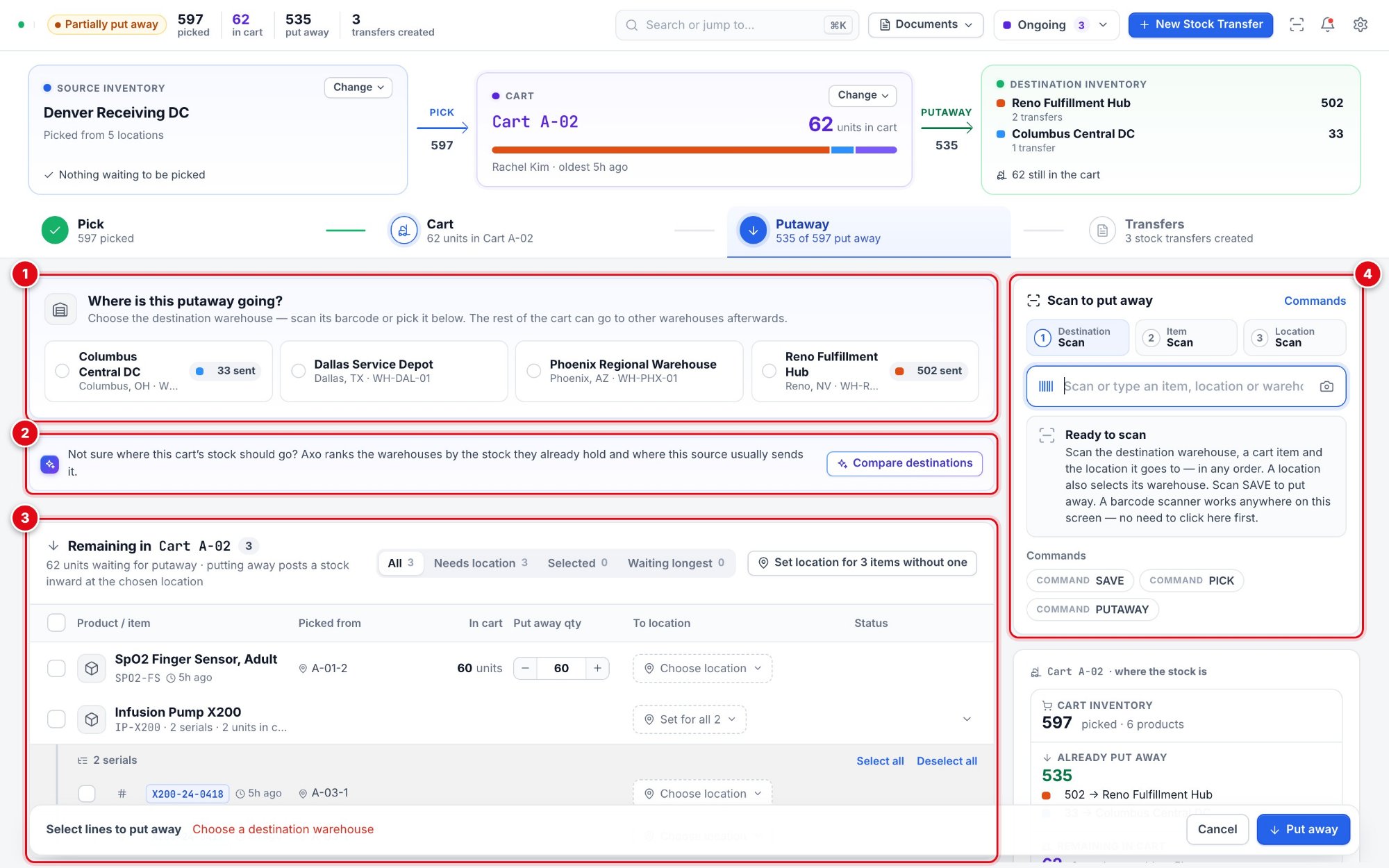
| 1 | Where is this putaway going? | Every warehouse except the source. A chip such as 33 sent shows what this cart has already sent there. |
| 2 | Compare destinations | Axo ranks the warehouses by the stock of these products they already hold and where this source usually sends stock, and shows each warehouse’s stock side by side. |
| 3 | Remaining in the cart | The items to put away, with filters All, Needs location, Selected and Waiting longest, and Set location for N items without one. |
| 4 | Scan to put away | Destination, item and location – scan them in any order. Scanning a location also selects its warehouse. |
Open the Putaway tab.
Select the destination warehouse – or scan its barcode, or one of its locations.
The header changes to Putting away to that warehouse, and the putaway button names it.
Axo Not sure where it should go?
“Which destination should I use?” or Compare destinations shows Axo’s ranking. “Put the items away to Columbus” starts a guided putaway: Axo selects the destination, numbers the items, recommends a location for each and puts them away when you say yes.
10. Assign locations and put away
Select the items, give each a location, and post them in one click.
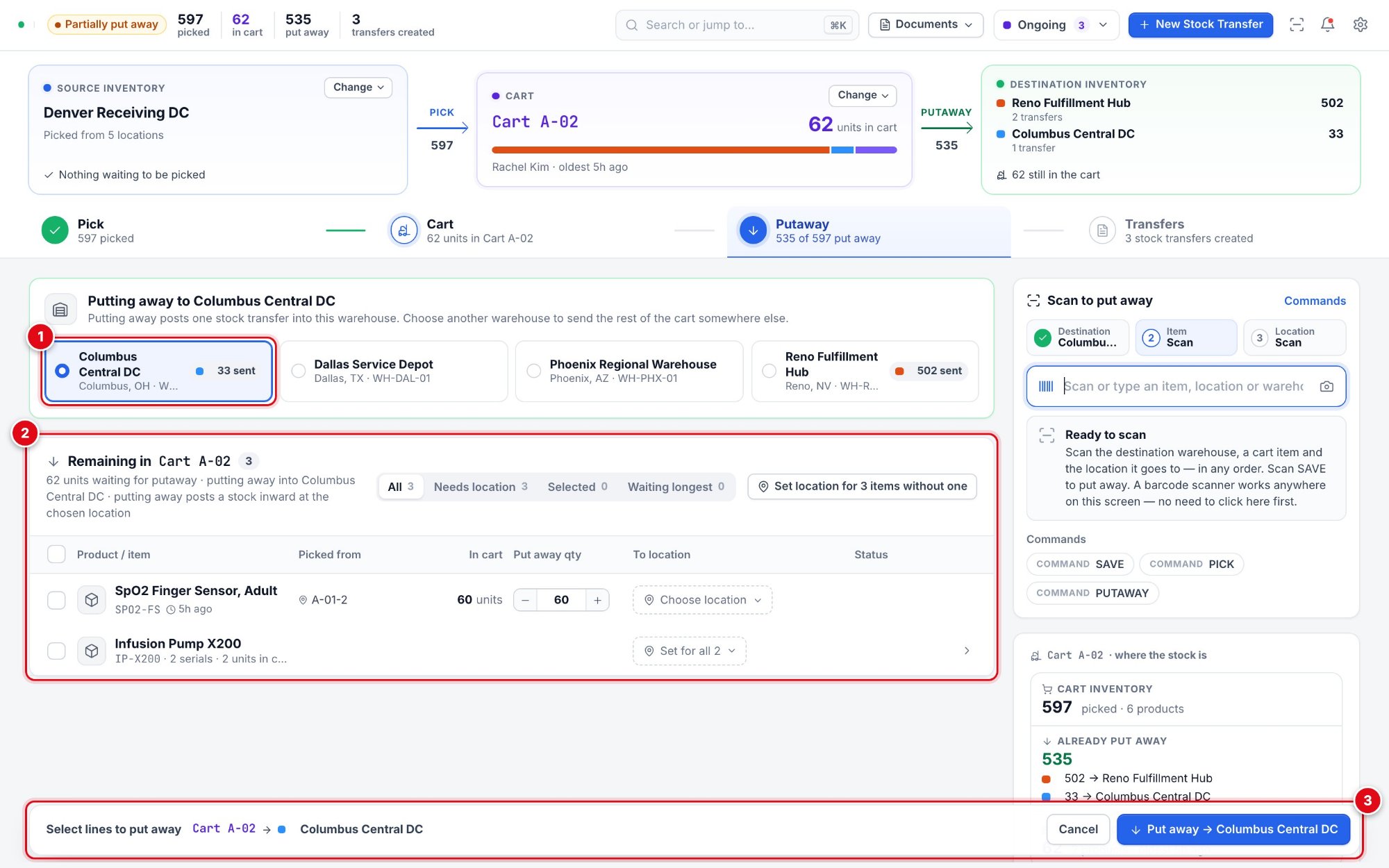
| 1 | Selected destination | The warehouse this putaway goes into. |
| 2 | Items and locations | Tick the items, adjust Put away qty, and choose the To location – per item, per product (Set for all) or for every item without one. |
| 3 | Put away | The route, and Put away → the destination. It posts the selected items at their locations. |
Assign locations
Choose location on a row sets that item’s location; on a product row, Set for all sets it for all of its serials or lots.
Set location for N items without one fills the rest in one go.
Scan a shelf or bin barcode to set it for the selected items.
When Axo is on, it suggests a location for each product (where the same product already is, or where it was put away last) and fills them when you select Use for N items.
What Put away does
Put away posts each selected item into its location at the destination. All putaways you make from this cart into this warehouse within 15 minutes form one stock transfer with one document. The items leave the remaining list, and the bridge and the Transfers tab update straight away.
Important Items without a location
An item without a location is received at site level, and the screen asks first: choose locations, use Axo’s, or put away without a location. Items at site level are flagged in History so they can be given a location later.
11. Split a cart between destinations
Send part of a cart to one warehouse and the rest to another.
Put away the first batch: select the destination, the items and their locations, then Put away.
Select another destination. Only what is still on the cart is listed.
Repeat until the cart is empty. Each destination gets its own stock transfer and document.
The bridge lists every destination this cart has sent stock to, in its own colour, with the units sent.
Part 5 · Stock transfer documents
Every putaway already has its document – print, download or email it.
12. The Transfers tab
The stock transfers this cart created on its current run.
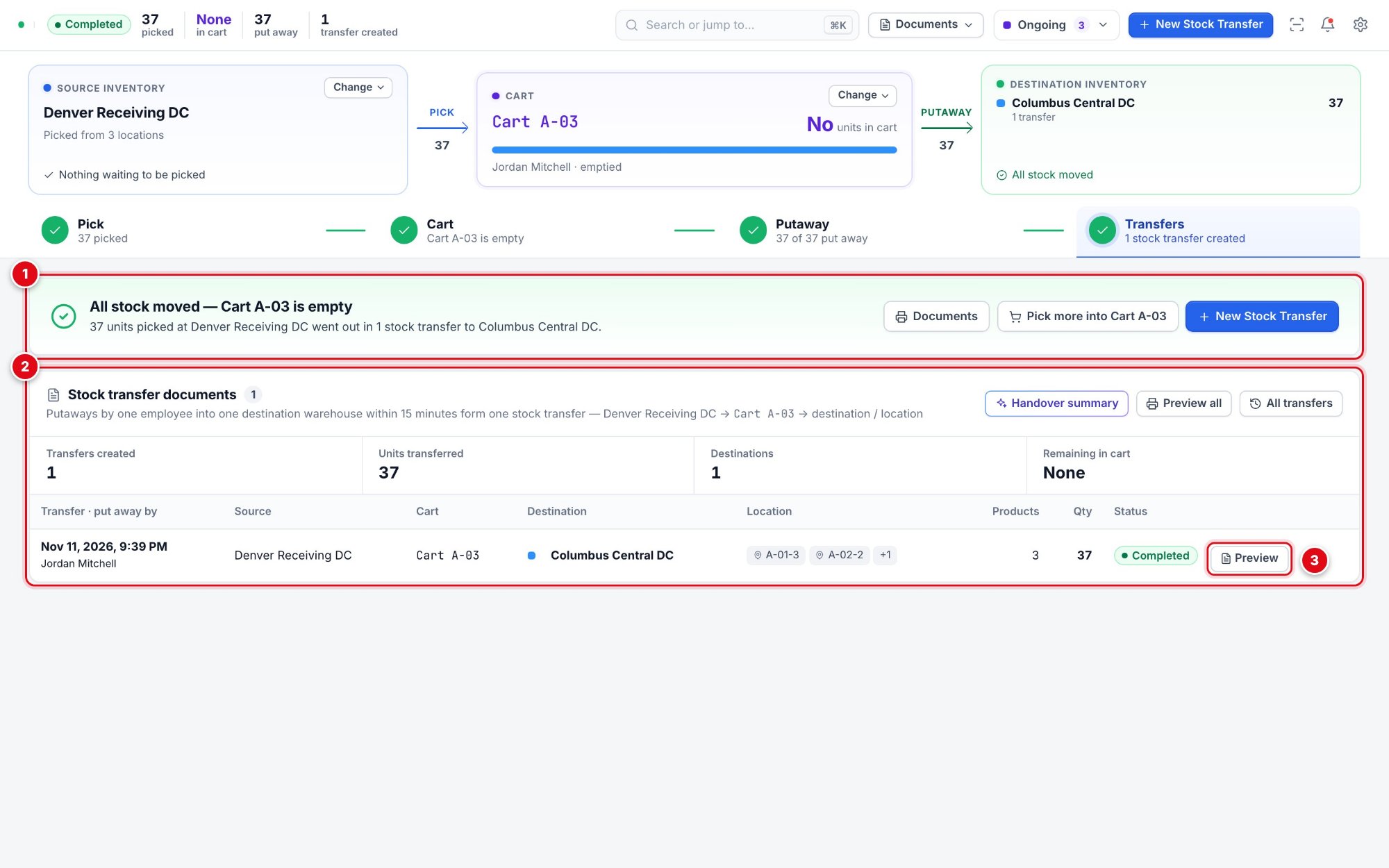
| 1 | All stock moved | Shown when the cart is empty: units, transfers and destinations, with Documents, Pick more into the cart and New Stock Transfer. |
| 2 | Stock transfer documents | Totals, and one row per transfer: when and by whom, source, cart, destination, locations, products, quantity and status. Handover summary, Preview all and All transfers are at the top. |
| 3 | Preview | Opens that transfer’s document. |
Preview, print, email or download
Select Preview on a row, Preview all, or Documents in the top bar (stock transfer documents, cart manifest or pick list).
The document preview opens. Tick the documents you want – one or several.
Choose Print, Email or Download.
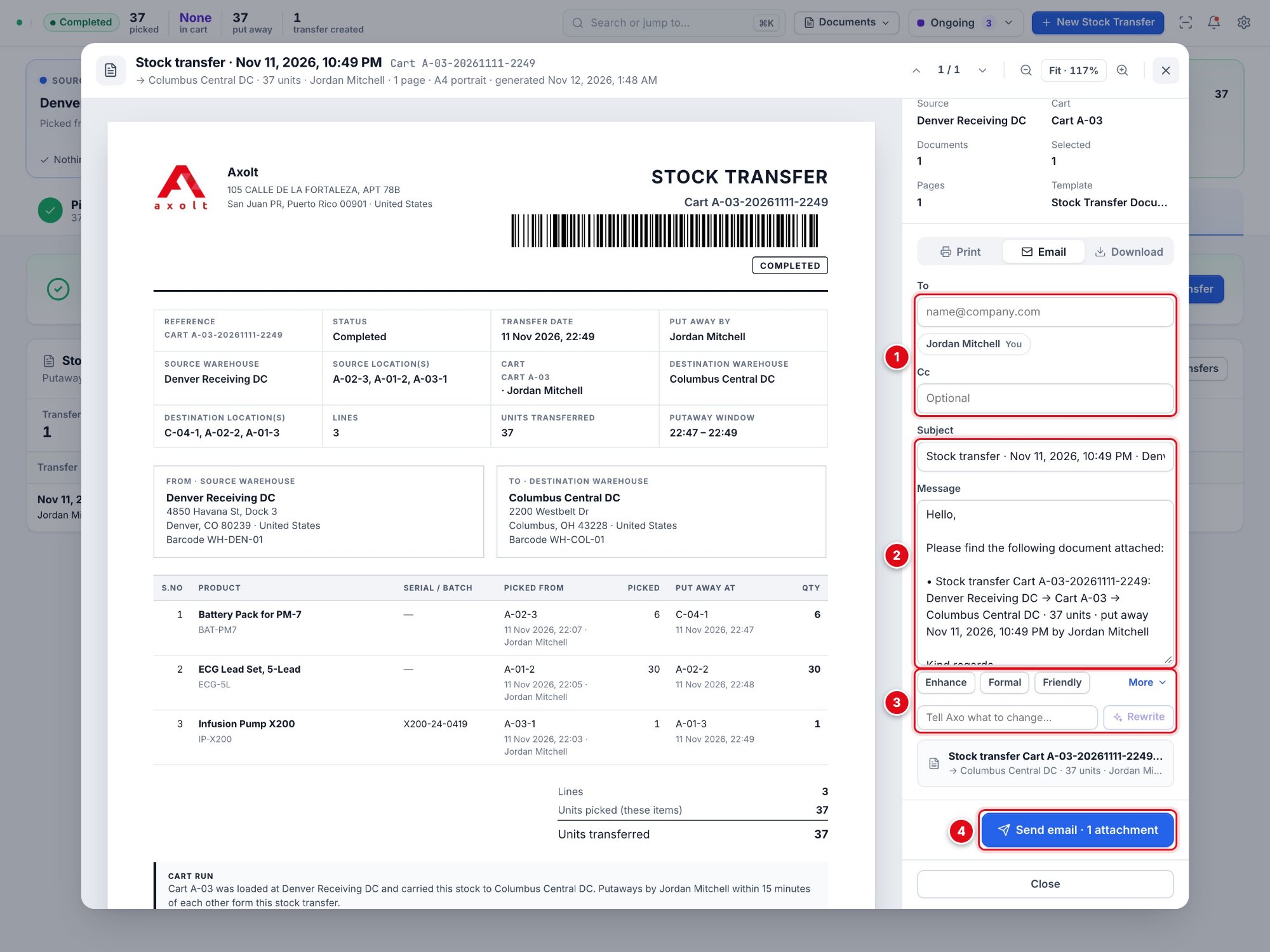
| 1 | To and Cc | Type the addresses, or select a suggestion such as yourself. |
| 2 | Subject and message | Written for you from the selected documents. Change anything you like. |
| 3 | Rewrite with Axo | Enhance, Formal, Friendly and More rewrite the message; or tell Axo what to change and select Rewrite. Undo puts the previous text back. Shown when Axo is on. |
| 4 | Send email | Sends the message with each selected document attached as its own PDF. |
The stock transfer document shows the reference, transfer date and who put the stock away; the source and destination warehouses with their locations, addresses and barcodes; the putaway window; each line with where and when it was picked and where and when it was put away; the totals; a note on the cart run; and signature lines for release, carriage and receipt.
Axo Write the email for you
With the preview open, you can also ask in Axo Chat or Axo Voice: “make the email more formal” or “add that the pallets arrive Friday”. Axo changes the message in the preview; you review it and select Send email.
Note In the Salesforce mobile app
Print and PDF downloads save the PDFs as Salesforce Files and open them in the app’s file viewer, where you can print or share them.
Axo Handover summary
Handover summary asks Axo for a short note of the cart run – source, destinations, what is still on the cart or to pick, and anything that needs attention – ready to copy into a shift handover.
13. History & documents
Every stock transfer from every cart and warehouse, with its documents.
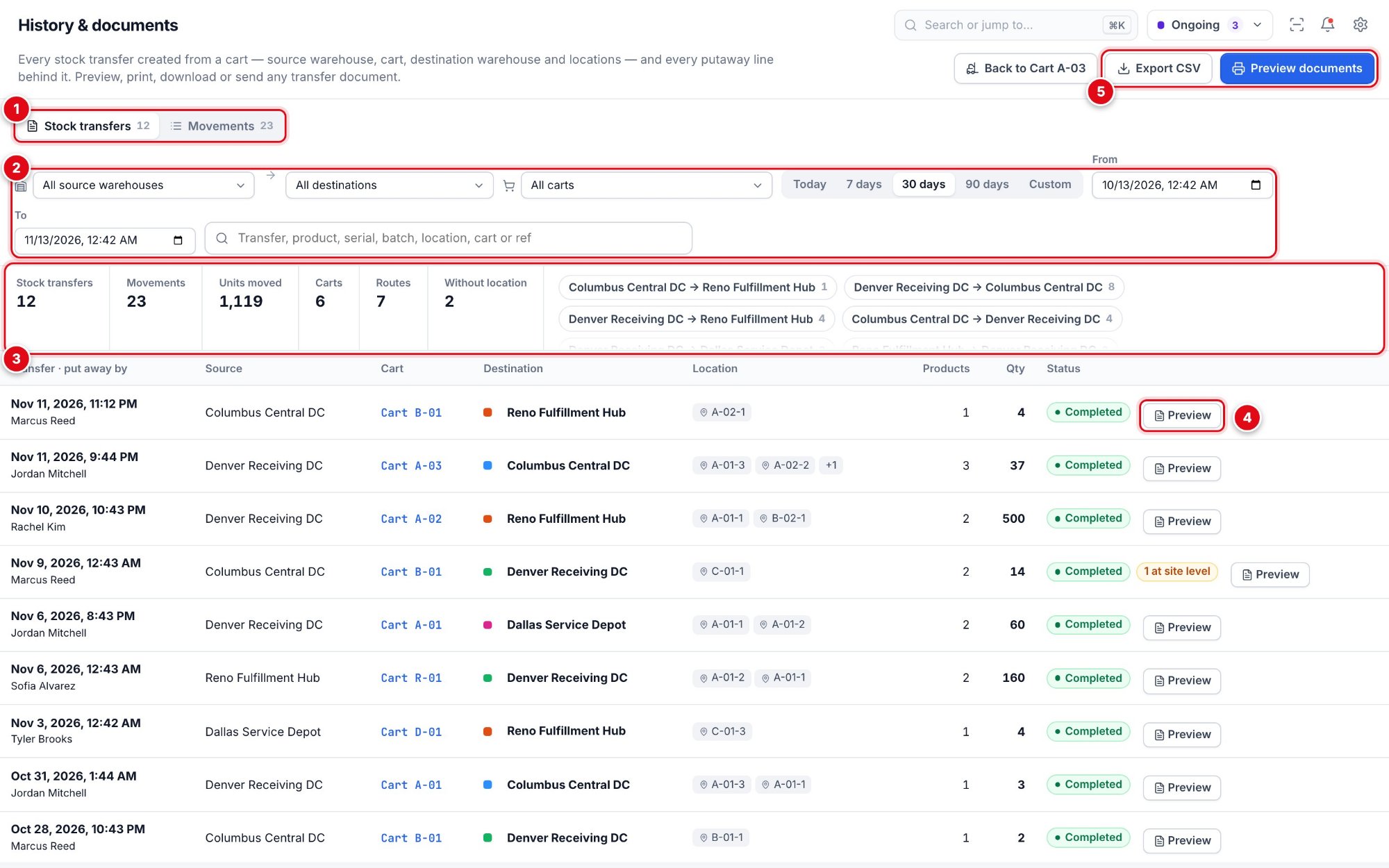
| 1 | Two views | Stock transfers (one row per transfer) or Movements (one row per item put away). |
| 2 | Filters | Source, destination and cart; Today, 7 days, 30 days, 90 days or Custom dates; and a search for a transfer, product, serial, batch, location, cart or reference. |
| 3 | Totals and routes | Stock transfers, movements, units moved, carts, routes and putaways without a location. Select a route chip to see only that route. |
| 4 | Preview | Opens the transfer’s document. Select a row for the details of each movement. |
| 5 | Export and documents | Export CSV downloads the filtered list; Preview documents opens the documents shown. |
Open History from Documents › All transfers & history, from All transfers on the Transfers tab, or from the settings menu. Back to the cart returns you to the cart you came from.
Axo Find a transfer from what you remember
“The transfer Jordan made yesterday with the infusion pumps” or “my last stock transfer” – Axo finds it from any clue (product, serial, lot, person, warehouse, cart, day or quantity), shows the matches on History and opens the document you choose.
Documents of several transfers
Preview documents opens the documents of every transfer listed – narrow the list with the filters first. Tick the ones you need, then print, email or download them together:
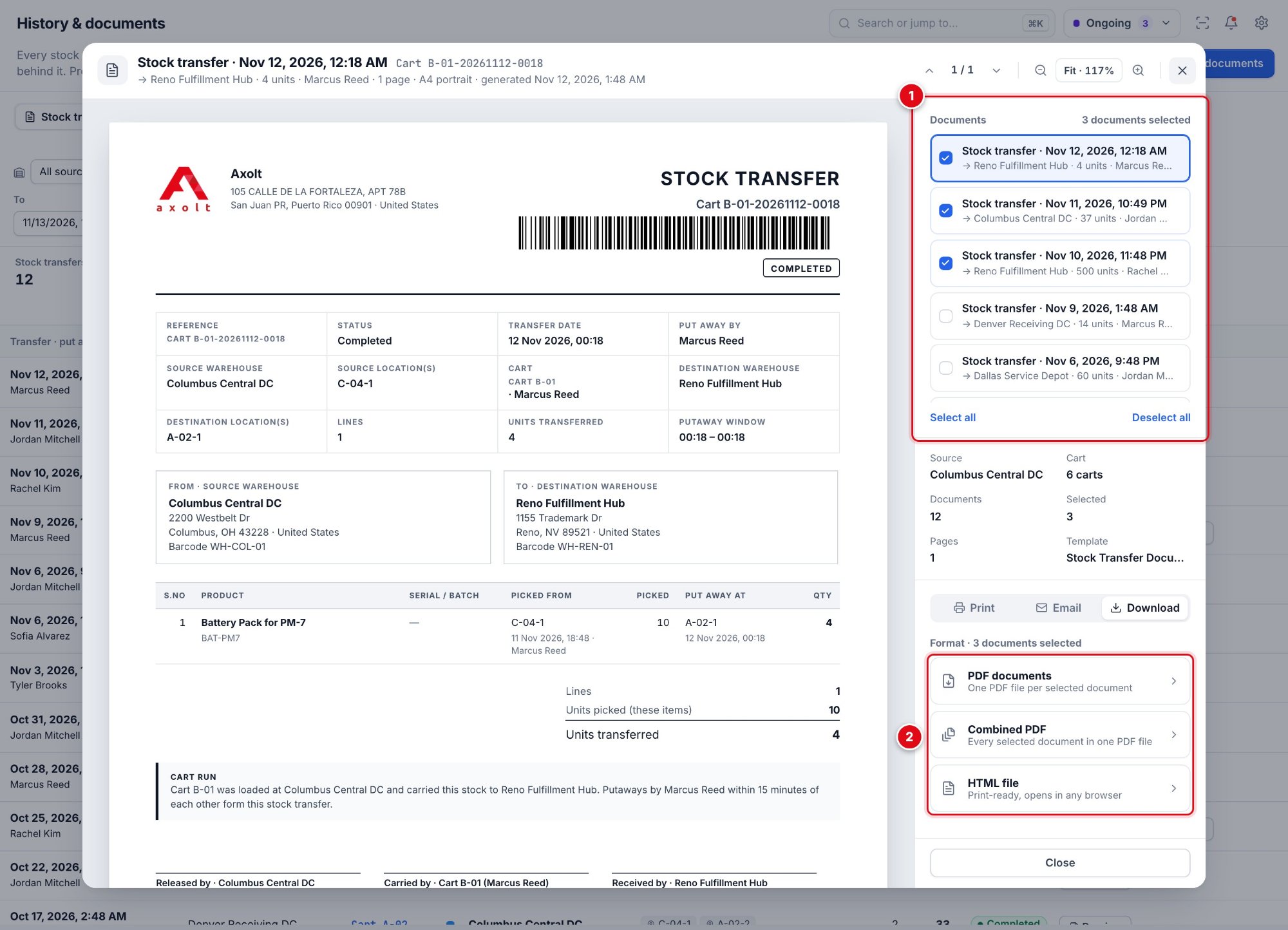
| 1 | Documents | Every transfer in the list. The ticked ones are printed, emailed or downloaded; select one to view it. |
| 2 | Download | PDF documents saves one PDF per document, Combined PDF puts every selected document in one file, and HTML file saves a print-ready page that opens in any browser. |
Part 6 · Axo – your stock transfer assistant
Ask, and Axo does the work – one line or the whole list.
14. What Axo does for you
Anything you do with clicks, Axo can do from one sentence – and for many lines at once.
Axo works from any page of the screen. Open Axo Chat (the violet button at the bottom right, or ⌘/Ctrl + J) and type, or open Axo Voice (the blue microphone) and speak. Axo reads the screen and Salesforce, so its numbers are always the real ones.
| You want to | Say, for example |
|---|---|
| Start or switch | “Select Columbus Central DC”, “Open Cart B-02”, “Add 10 IV Poles to Cart B-02” |
| Build the pick list | “Add 5 battery packs and 2 patient monitors”, “I have some products to pick” |
| Change many lines | “Reduce every line still to pick by 2”, “Set lines 1 and 3 to 10”, “Remove line 2” |
| Pick | “Pick everything still to pick”, “Pick 2 of each”, “Pick PM7-23-0751” |
| Unpick | “Unpick one IV pole”, “Return the last two lines to stock” |
| Put away | “Put the items away to Reno”, “Use the locations you suggested” |
| Find out | “What needs attention?”, “Where else is the infusion pump stocked?”, “Which carts have stock waiting?” |
| Documents | “Show my last stock transfer”, “Print the cart manifest”, “Summarize for handover” |
| Undo | “Undo”, “Put it back” |
How Axo asks – and when it does not
| What Axo does | Does it ask first? |
|---|---|
| Choose a warehouse or cart, add or remove products, change quantities, select serials, filter, select items for putaway | No – it happens straight away, marked Changed on screen, with Undo. |
| Pick, unpick, put away | Yes – Axo shows exactly what will move and from where, and waits for your yes (typed, spoken or the button). |
| Leave a cart with lines still to pick | Yes – pick them first, discard them, or stay. |
Important Undo
Every change Axo makes can be undone: say “undo” or select Undo under its answer. Screen changes are restored at once. Undoing a pick returns the stock, and undoing an unpick picks the same items again – both ask once, because stock moves. A putaway cannot be undone from this screen.
A typical exchange on Cart B-02
Add 6 battery packs and 2 patient monitors
Added to Cart B-02: 6 × Battery Pack for PM-7 and 2 × Patient Monitor PM-7.
Undo Pick them
Pick them
Pick 8 units of 2 products from Columbus Central DC into Cart B-02: 6 × Battery Pack for PM-7 – C-04-1; 2 × Patient Monitor PM-7 – serials PM7-23-0751, PM7-23-0752 (oldest first). Pick 8 units into Cart B-02?
Pick Cancel
Yes
Picked. 8 units of 2 products into Cart B-02.
Undo Go to Putaway
15. Working with Axo
Many lines at once, the product search, and one question before stock moves.
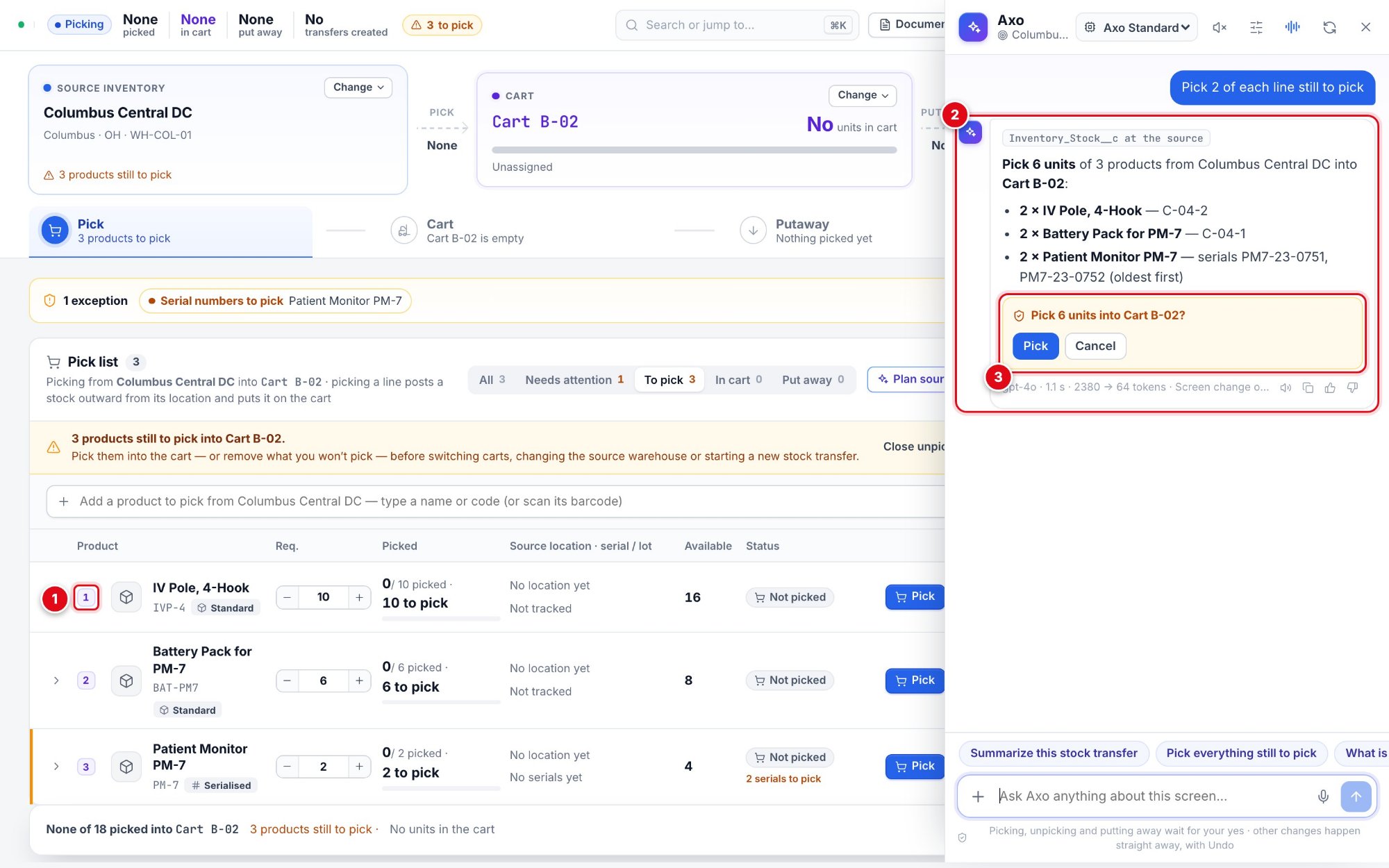
| 1 | Axo’s numbers | While Axo is open, the lines carry numbers in the order shown – “line 3”, “items 1 and 2” mean these rows. |
| 2 | What will move | For every line: how many, and the location, lot or serials Axo chose (oldest first). |
| 3 | One question | Pick posts it all through the screen’s own picking; Cancel – or “no” – leaves everything as it was. |
Many lines at once
Name lines by their number, their product, or what they have in common – “every line still to pick”, “the staged lines”, “the lines in the cart”, “all of these”. Axo works on all of them in one step and lists what changed.
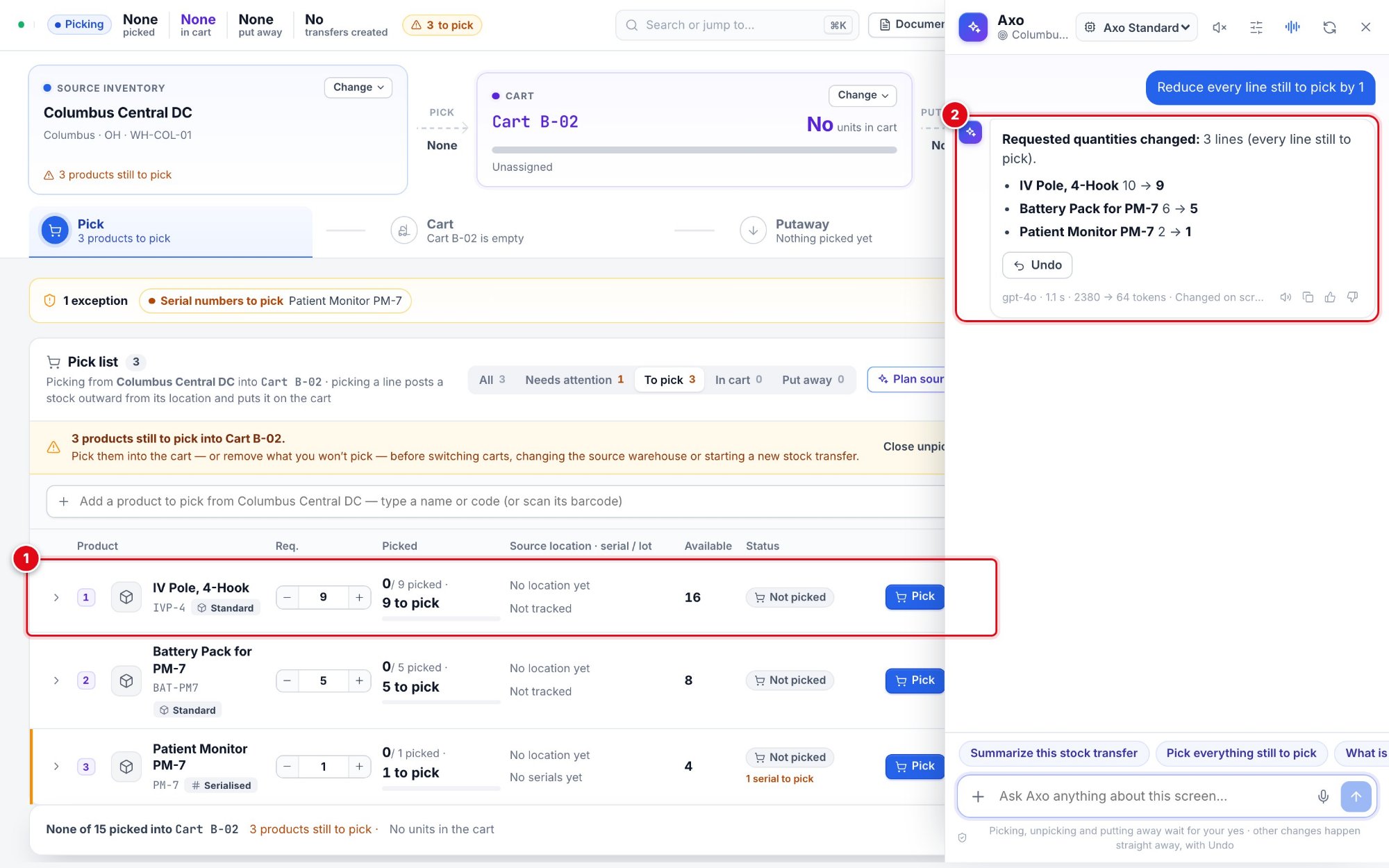
| 1 | Changed on the screen | The requested quantities change straight away. |
| 2 | What changed | Every line with its old and new quantity, and Undo. A line never goes below what is already picked or staged. |
The product search
When you ask for products without naming them – or Axo cannot find a name you said – it opens the product search with your recently viewed products:
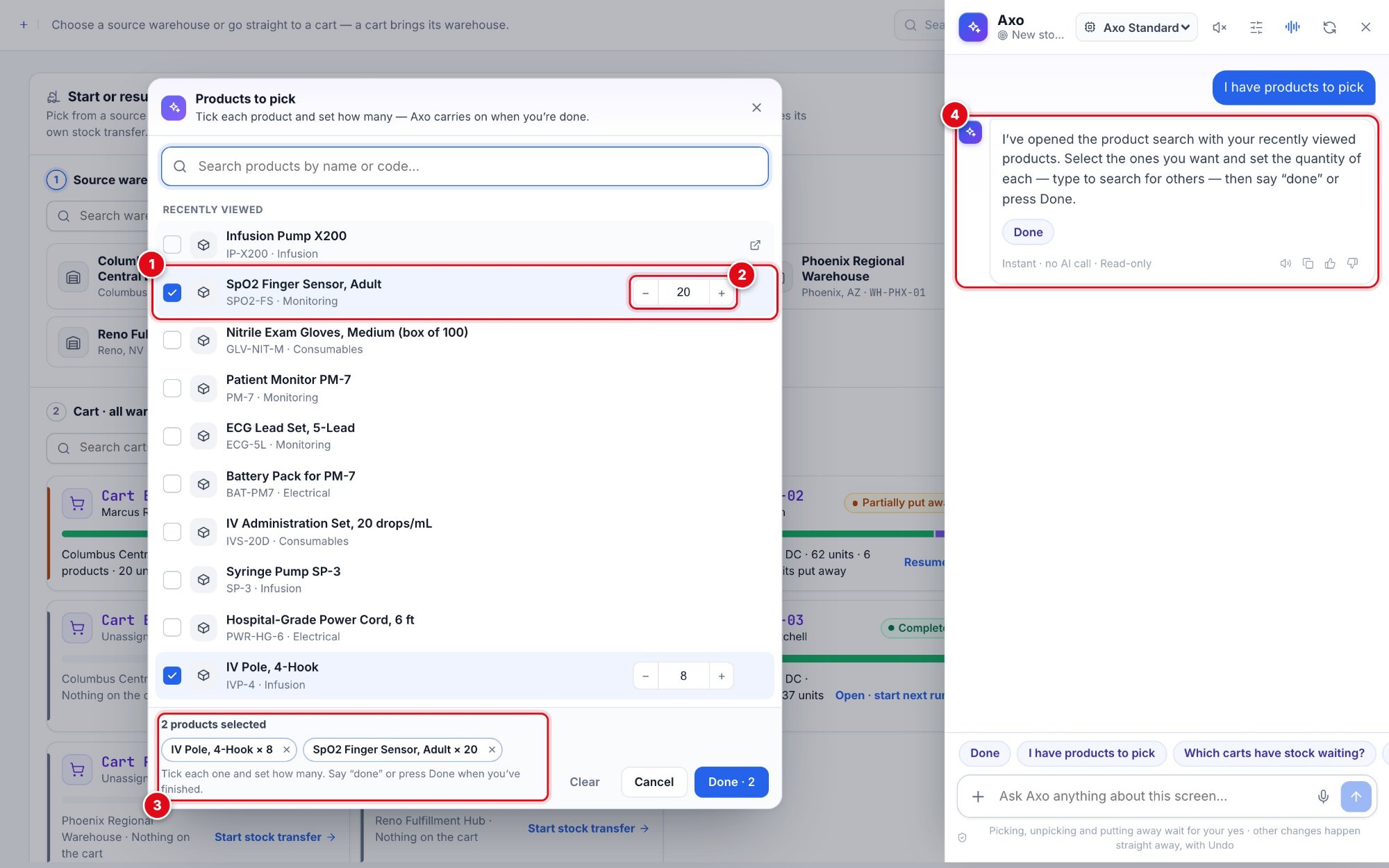
| 1 | Select products | Tick the products you want, or type to search by name or code. |
| 2 | Quantity | Set how many of each with − and +, or type it. You can also say “make the sensors 20”. |
| 3 | Your selection | Everything selected, with its quantity. |
| 4 | Axo carries on | Say “done” or select Done. With a cart open, the products join its pick list. With a warehouse named, Axo picks a free cart there (or asks which). With neither, Axo opens the stock transfer planner, which shows the warehouse that can supply everything – or a split – and loads a free cart when you say “apply the plan”. |
Answers you can act on
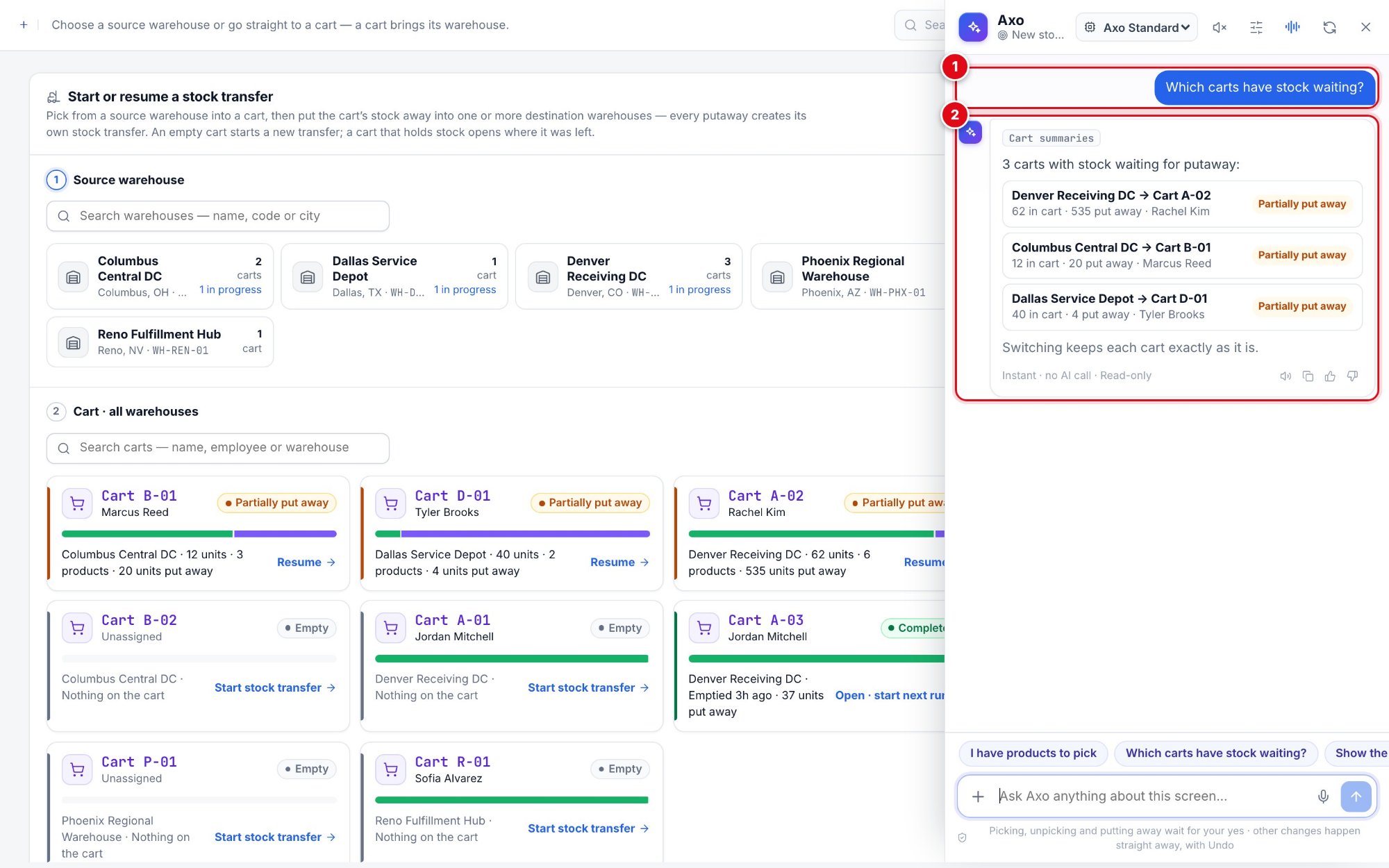
| 1 | Your question | Typed, spoken, or a suggestion chip. |
| 2 | Axo’s answer | Each cart as a card – select one to open it. Follow-up suggestions keep the conversation going. |
16. Axo Voice
Keep your hands on the scanner and the cart – and talk to Axo.
Select the blue microphone button at the bottom right. Allow the microphone if the browser asks.
Axo greets you by name and listens. There is no wake word: just speak. Starting with “Axo, …” also works.
Axo answers aloud and on screen, and listens again. When it asks a question – “Shall I pick them?” – answer in your own words.
Controls
| Control | What it does |
|---|---|
| Pause | Stops listening until you resume, so nearby conversation is not taken as a request. |
| Interrupt Axo | Stops Axo mid-answer so you can speak. ⌘/Ctrl + . also stops Axo reading aloud, on every Next Gen screen. |
| Voice & speed | Choose Axo’s voice and speaking speed (presets or a slider). The same settings apply in Axo Chat. |
| Open in Axo Chat | Shows the conversation in the chat, where you can review Axo’s answers. |
| Minimise | Shrinks Axo Voice to a small widget; it keeps working. |
Tips for a busy warehouse
Use a headset microphone where it is noisy.
Say whole requests: “Put the items away to Reno” works better than “Reno”.
Say serial numbers by their ending – “zero seven five one” – when the rest is the same for all of them.
If Axo misheard a name, it shows Understood as … with what it understood, before it acts.
Part 7 · Settings and reference
Shortcuts, settings, troubleshooting and a one-page summary.
17. Settings and keyboard shortcuts
The gear icon at the top right holds your settings.
| Settings menu | What it does |
|---|---|
| Stock transfer settings | Flag stock left in the cart after – when cart stock counts as waiting too long. |
| Scanner sounds | Turns the scan beeps on or off. |
| Keyboard & scanner shortcuts | Lists the shortcuts and scan commands. |
| Refresh Salesforce data | Reads everything again from Salesforce and keeps your place. |
| History & documents | Opens History. |
| Axo token usage | How much of each AI model’s allowance has been used (when Axo is on). |
| Axo Chat · sending messages | Enter sends or Shift + Enter sends (when Axo is on). |
Keyboard shortcuts
| Shortcut | What it does |
|---|---|
| ⌘K / Ctrl K | Search or jump to a warehouse, cart, product or command. |
| / | Puts the cursor in the scan field. |
| Esc | Closes popups and panels. |
| ⌘J / Ctrl J | Opens or closes Axo Chat (when Axo is on). |
| ⌘. / Ctrl . | Stops Axo reading aloud (when Axo is on). |
Shortcuts do not run while you are typing in a field. The bell icon lists carts waiting for putaway.
18. Troubleshooting
What to check when something does not behave as expected.
A scan does nothing
Check that the scanner types into the computer like a keyboard (most USB and Bluetooth scanners are set up this way) – that is how the screen receives scans.
If you were typing in a field of another part of the page, click an empty area of the screen first.
Turn on Scanner sounds to hear whether the screen received the scan.
The screen says a code is not recognized
The message names what the code is and why it cannot be used here – for example a location of another warehouse, or a product that is not on the list. Typical causes:
A location barcode belongs to one warehouse: when picking, scan locations of the source warehouse; when putting away, of the destination.
A serial already on a cart, put away, or reserved for a sales order cannot be picked.
During putaway, only items on this cart can be scanned. Check the Cart tab – the item may already be put away.
A product shows less available than expected
Available means what can be picked at the source now: stock reserved for sales orders is not included.
Stock on any cart is not available anywhere until it is put away.
Ask Axo “where else is it stocked?” to see every warehouse.
Something looks out of date
Select Refresh Salesforce data in the settings menu. If a pick or putaway fails, the screen says why; nothing of the failed part was posted, and what was not posted stays selected so you can try again.
19. Quick reference
The whole flow on one page.
| Stage | Where | Key action | Result |
|---|---|---|---|
| Start | New stock transfer | Choose a warehouse and cart, or scan a cart | The cart’s workspace opens |
| Pick | Pick tab | Add products, then Pick (or scan location → product) | Stock leaves the source and is on the cart |
| Check | Cart tab | Review, remove items, print the manifest | Nothing moves |
| Put away | Putaway tab | Destination → items → locations → Put away | A stock transfer into the destination |
| Share | Transfers tab, History | Preview, print, email or download | Stock transfer documents |
Scan sequences
| Task | Scan |
|---|---|
| Open a cart | The cart barcode (on New stock transfer) |
| Pick a product | Location → product (once per unit) |
| Pick a serial or lot | Location → serial or lot |
| Put away | Destination warehouse (or one of its locations) → item → location → SAVE |
| Go to putaway | PUTAWAY |
Things to say to Axo
| Say | What happens |
|---|---|
| “Open Cart B-02” | Opens the cart. |
| “Add 5 IV poles” | Adds them to the open cart’s pick list. |
| “Pick everything still to pick” | Shows what will move and picks on your yes. |
| “Reduce every line still to pick by 2” | Changes the requested quantities straight away. |
| “Put the items away to Reno” | Guided putaway: destination, items, locations, then your yes. |
| “Undo” | Reverts Axo’s last change. |
© 2026 Axolt. All rights reserved. This guide uses fictional sample data. The features available to you depend on your Axolt configuration and permissions.
Was this article helpful?