
AI in Action
On this page
This article is not available in Español yet. You are reading the English original.
Feels dynamic and practical. Highlights real results rather than theory.
See exactly how AI can be applied in real situations. Every use case comes with a proven prompt, detailed steps, visual guides, and explanations — so you can follow along and implement it yourself in minutes.
Below are the lists of AI use cases available for the CPQ users.
CPQ Use Cases:
1. Natural Language Quote Generation
Screen Name: Quote Console
Overview: Natural Language Quote Generation is an AI feature on the Quote Console screen. It enables quotes to be created using simple, conversational text prompts instead of manually adding each line item.
What It Does: When a customer is selected and a product request is entered as a natural language prompt, the AI interprets the request — including product names, quantities, and any specified discounts — and adds the corresponding line items to the quote automatically.
Sample Prompt: Add a product 3 Configurable Pulse Oximeter Pro with LCD Monochrome and LED Basic Display and also add 5 Oxygen Concentrator Unit with a discount of 5%, 7 Absorbable Sutures, 4 Aluminium Paste with a discount of 7%.”
Steps:
1. Navigate to the Quote Console screen using the App Launcher or find the tab in the app navigation menu.
1. On the Quote Console screen, select a customer.
3. Once the customer is selected, the Ask AI button is enabled. Click the Ask AI button.
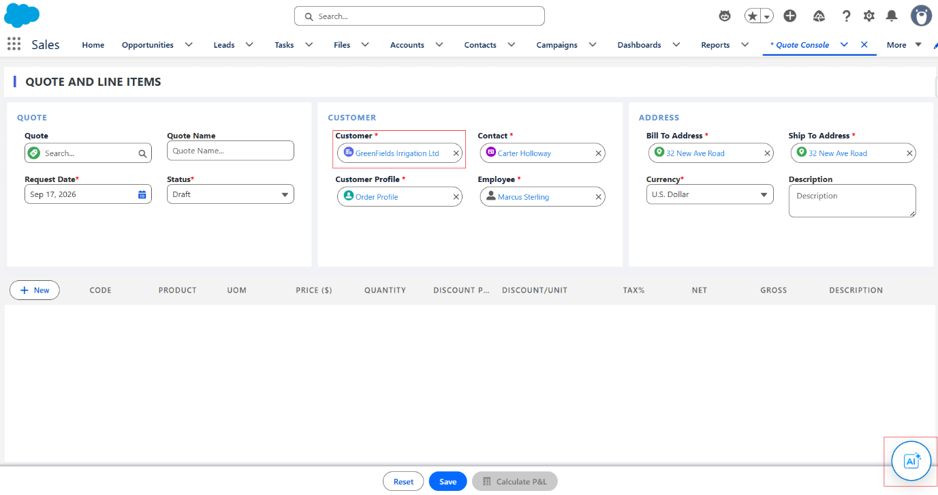
4. Enter a prompt describing the products, quantities, and any discounts to be added.
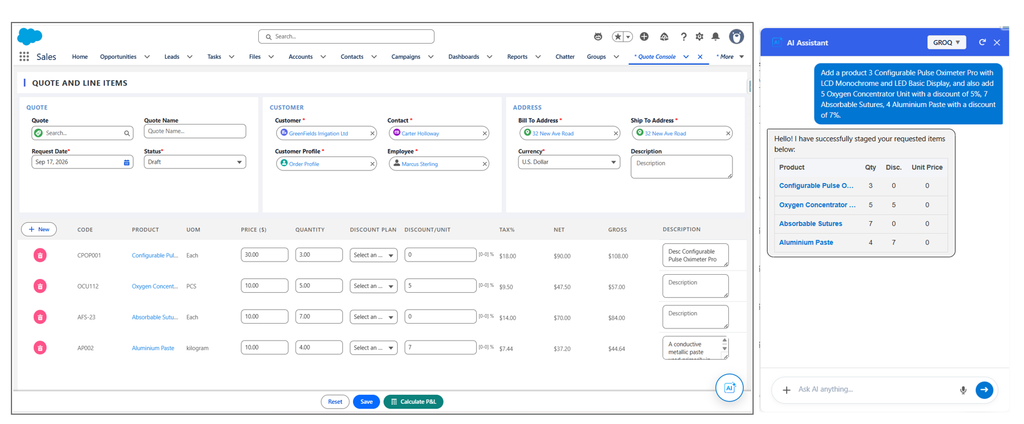
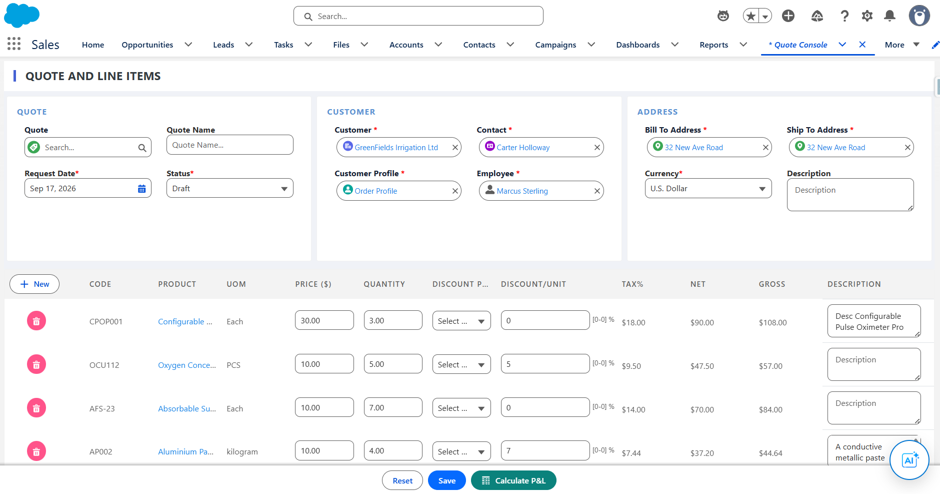
5. The AI interprets the request and adds the corresponding line items to the quote, applying the specified quantities and discounts.
6. Review the quote and proceed as needed.
2. PDF-Based Quote Creation
Screen Name: Quote Console
Overview: PDF-Based Quote Creation is an AI feature on the Quote Console screen. It enables quotes to be generated automatically by uploading a document, removing the need to manually enter product details.
What It Does: When a PDF containing product details is uploaded through the AI Assistant, the AI extracts the relevant product information from the document and generates the corresponding quote line items automatically.
Sample Prompt: Add Products from attached document” or “Add Products from this document”.
Steps:
1. Navigate to the Quote Console screen using the App Launcher or find the tab in the app navigation menu.
2. On the Quote Console screen, select a customer.
3. Once the customer is selected, the Ask AI button is enabled. Click the Ask AI button.
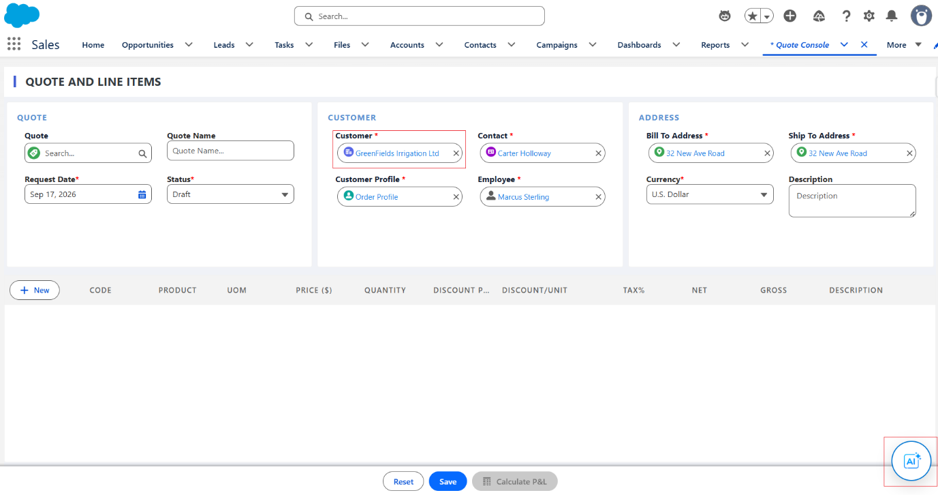
4. In the AI chat window, upload a PDF file using the file input and enter the prompt “Add the products from this document.”
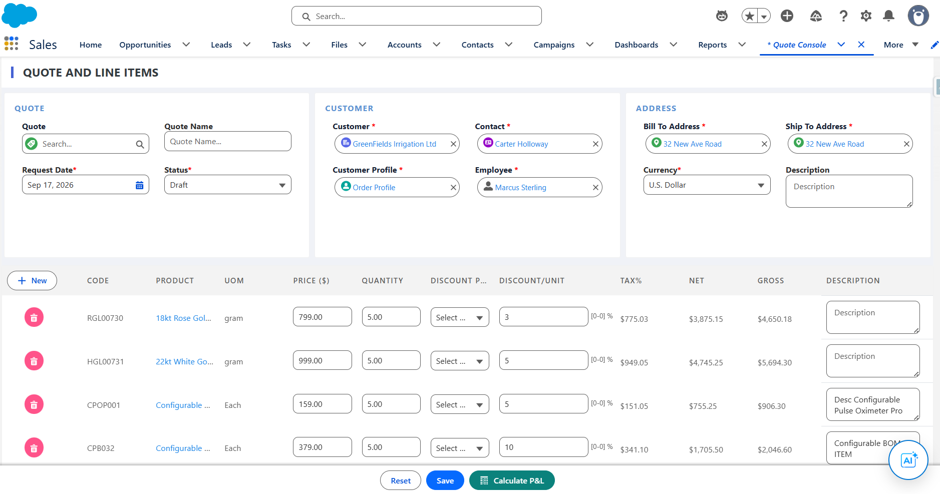
5. The AI extracts the product details from the uploaded document and generates the corresponding quote line items.
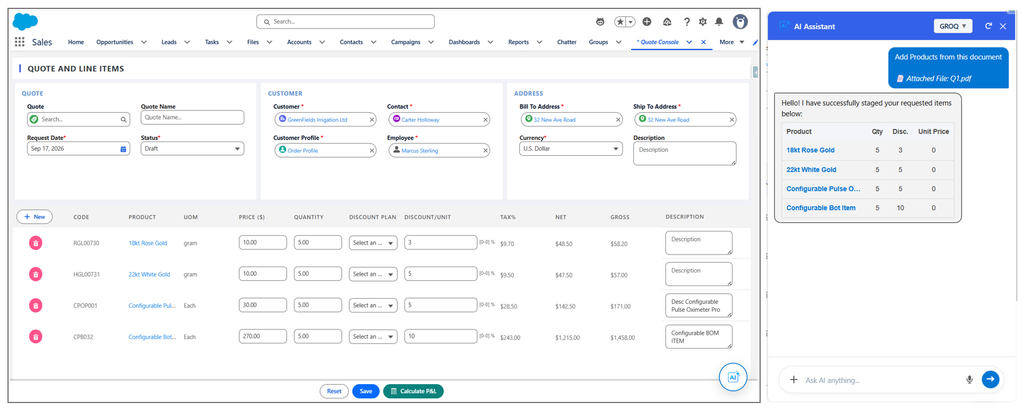
6. Review the quote and proceed as needed.
3. Missing Product Creation via Prompt
Screen Name: Quote Console
Overview: Missing Product Creation via Prompt is an AI feature on the Quote Console and Product Configuration screens. It allows a missing product to be created dynamically directly from a prompt, adding it to the quote and making it available for use as a product option.
What It Does: When a prompt names a product that does not yet exist in the system, along with its price, the AI creates the product on the fly and adds it to the quote with the specified quantity and discount. The newly created product also becomes available for use as a product option going forward.
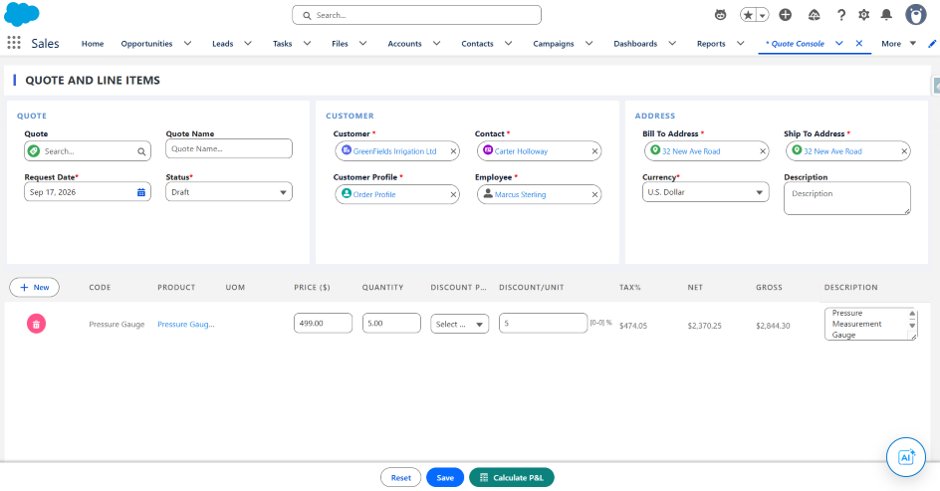
Sample Prompt: “Create a product Pressure Gauge with a price of 499 and add it to the quote with a quantity of 5 and a discount of 5%.”
Steps:
1. Navigate to the Quote Console screen using the App Launcher or find the tab in the app navigation menu.
2. On the Quote Console screen, select a customer.
3. Once the customer is selected, the Ask AI button is enabled. Click the Ask AI button.
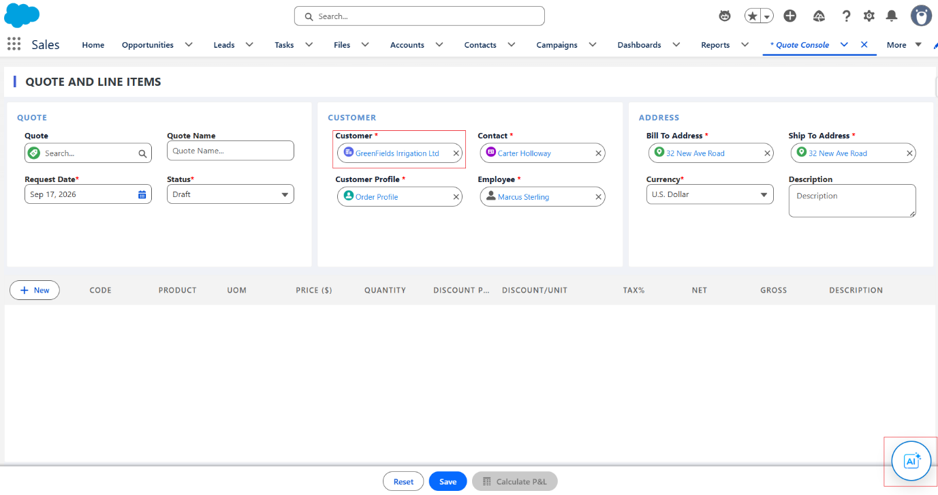
4. Enter a prompt naming the missing product, its price, and the desired quantity and discount.
5. The AI creates the product and adds it to the quote with the specified quantity and discount applied.
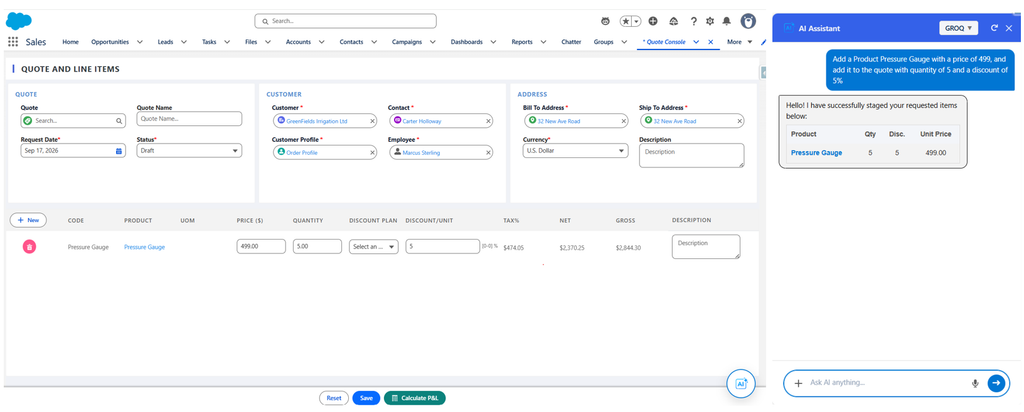
Note: When a quote is created for a product that does not exist in the system, entering a prompt to add the product causes the AI to add it to the quote with the specified quantity and discount, while also creating the product and its price book entry in the backend
6.The newly created product becomes available for selection as a product option in future use.
7.Review the quote and proceed as needed.
4. Out-of-Scope Prompt Handling
Screen Name: Quote Console & Product Configuration
Overview: Out-of-Scope Prompt Handling is an AI feature on the Quote Console and Product Configuration screens. It ensures the AI Assistant responds appropriately to irrelevant or unsupported prompts, keeping responses controlled and relevant to quote-related activities.
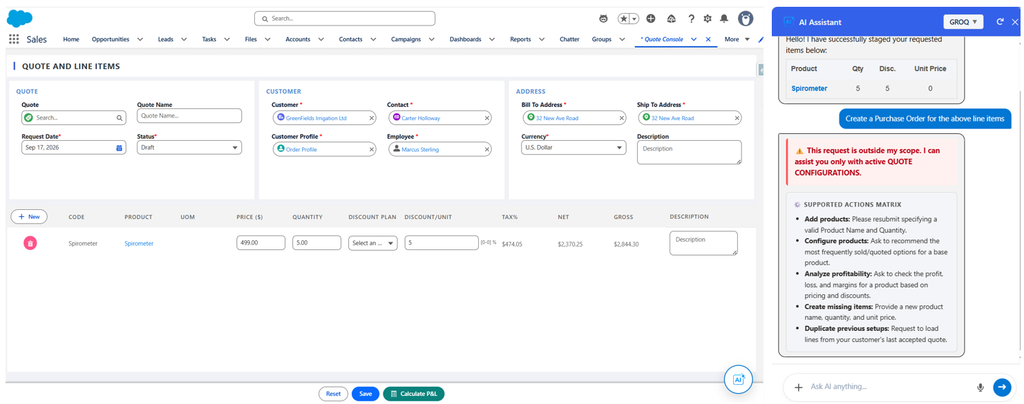
What It Does: When a prompt contains a request that falls outside the scope of quote creation — such as asking to perform an unrelated action alongside a valid quote request — the AI avoids generating incorrect or irrelevant output. It completes the supported portion of the request and guides the user toward the functionality it does support.
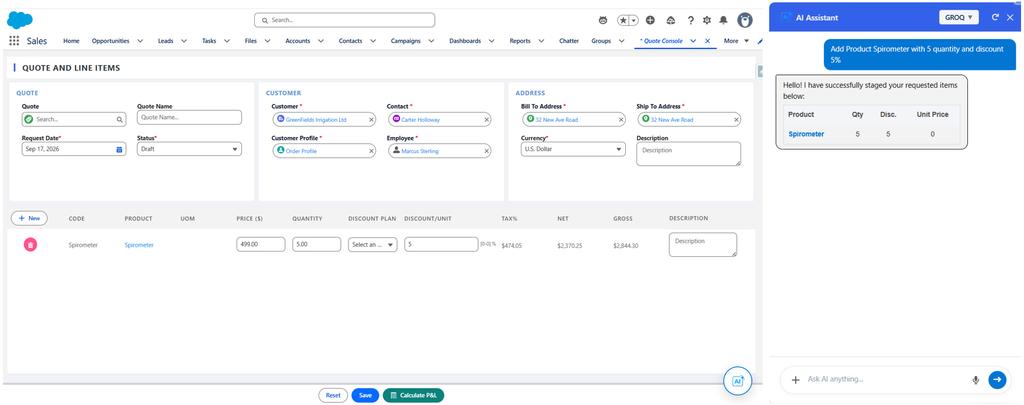
Sample Prompt: “Add Product Spirometer with 5 quantity and discount 5%” , “Create a Purchase Order for above line items” → the AI adds the product to the quote as requested but does not attempt to create a purchase order, since that action falls outside the scope of the Quote Console.
Steps:
1. Navigate to the Quote Console screen using the App Launcher or find the tab in the app navigation menu.
2. On the Quote Console screen, select a customer.
3. Once the customer is selected, the Ask AI button is enabled. Click the Ask AI button.
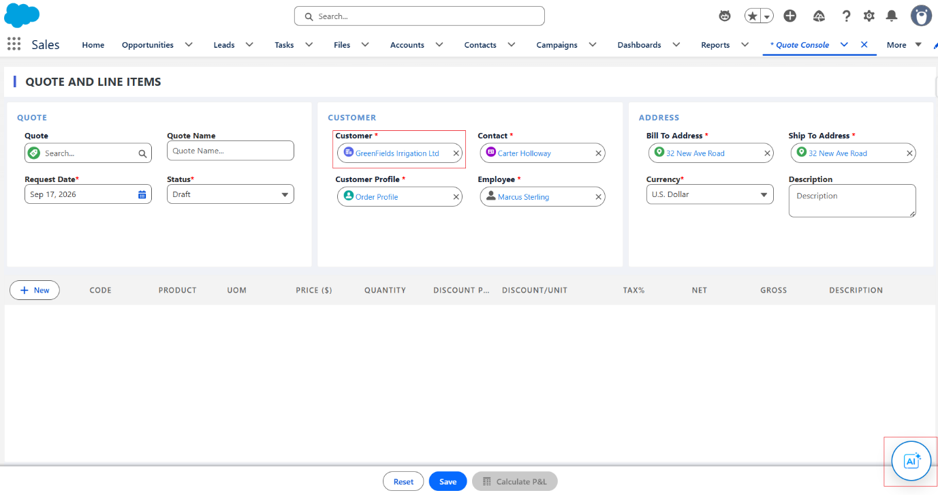
4. Enter a prompt that includes a request outside the supported scope, along with a valid quote-related request.
5. The AI completes the supported quote-related portion of the request.
6. The AI declines the unsupported portion and guides the user toward the functionality it does support.
5. Previous Quote Reuse
Screen Name: Quote Console
Overview: Previous Quote Reuse is an AI feature on the Quote Console screen. It enables previously accepted quotes for a customer to be reused, reducing the effort needed to recreate similar quotes from scratch.
What It Does: When a customer is selected and a prompt requests their latest accepted quote, the AI retrieves the details of that quote and applies them to the current quote screen. The retrieved products, quantities, and discounts can then be reviewed and modified as needed before finalizing.
Sample Prompt: “Get the latest ‘Accepted’ quote for the selected customer.”
Steps:
1. Navigate to the Quote Console screen using the App Launcher or find the tab in the app navigation menu.
2. On the Quote Console screen, select a customer.
3. Once the customer is selected, the Ask AI button is enabled. Click the Ask AI button.
4. Enter the prompt “Get the latest ‘Accepted’ quote for the selected customer.”
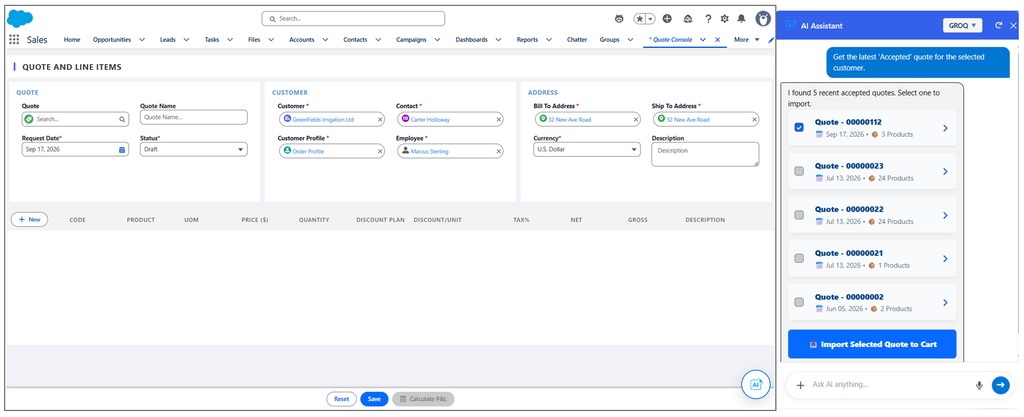
5. The AI retrieves the customer’s most recent accepted quotes. Select the required quote and click the Import Selected Quote to Cart button, and the AI applies that quote’s details to the current quote screen.
6. Review the applied products, quantities, and discounts, and modify them as needed in the input area.
6. Discount Profitability Validation Using Supplier Cost
Screen Name: Quote Console
Overview: Discount Profitability Validation Using Supplier Cost is an AI feature on the Quote Console screen. It ensures that discounts applied to quotes do not negatively impact profitability by validating them against vendor cost cards, protecting margins before a quote is finalized.
What It Does: When a question is asked about a product’s vendor contract, discount, or pricing, the AI checks the relevant cost card and contract data and calculates the resulting profit, loss, and margin instantly. This allows the impact of a discount, quantity, or price change to be reviewed before it is applied to the quote.
Sample Prompt: “Is there a valid vendor contract for the Solar Pump Motor Assembly?”, “What profit and margin do I get if I apply a discount of 45 to the product Solar Pump Motor Assembly?”, “What happens to the margin if I apply a discount of 87% to Solar Pump Motor Assembly?”, “What happens to the margins if quantity is 20, price is 9, and discount is 10% on the Solar Pump Motor Assembly?”
Steps:
1. Navigate to the Quote Console screen using the App Launcher or find the tab in the app navigation menu.
2. On the Quote Console screen, select a customer.
3. Once the customer is selected, the Ask AI button is enabled. Click the Ask AI button.
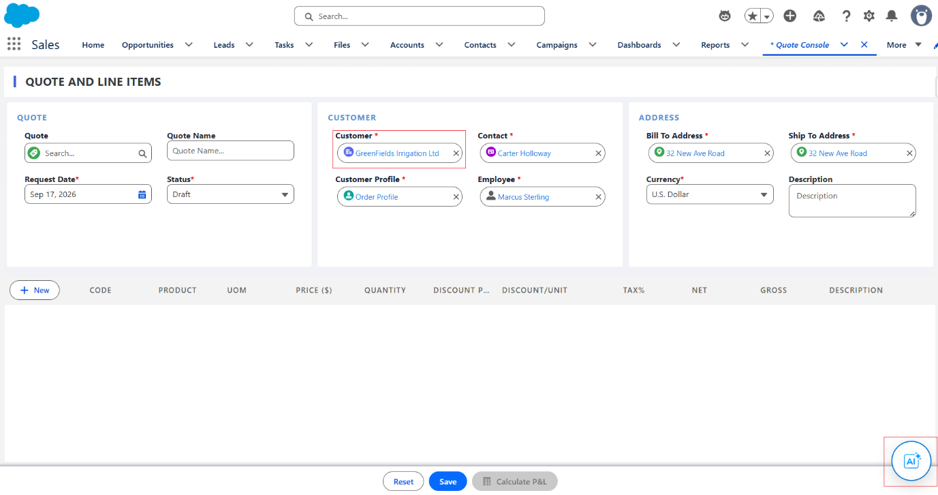
4. Enter a question about the vendor contract, discount, or pricing for a specific product. For example, in the screenshot below, a prompt was given asking for the best-suited vendor for a specific product, and the AI Assistant displayed the top recommendation to choose from, which can be modified as needed. Similarly, details about discounts, pricing, and other product information can also be requested.
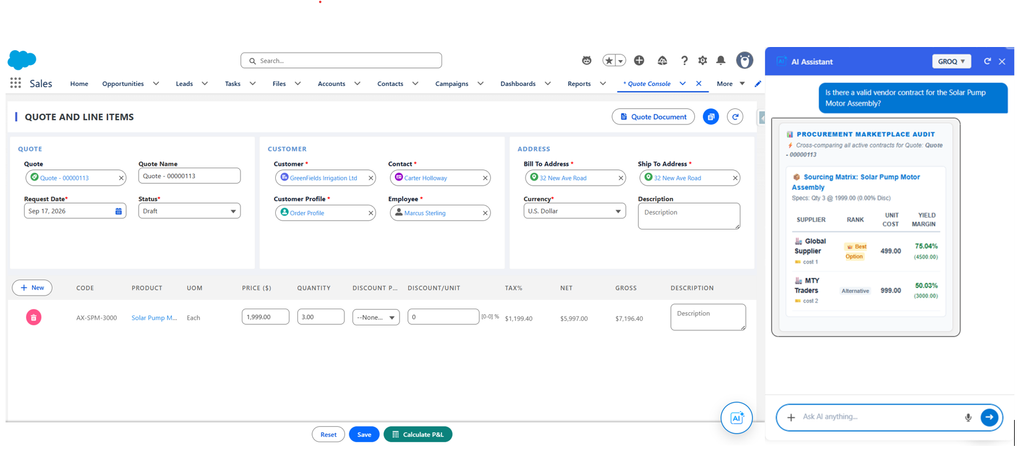
5. The AI checks the relevant cost card and contract data for that product.
6. The AI calculates and displays the resulting profit, loss, and margin based on the values provided.
7. Adjust the discount, quantity, or price as needed based on the insights shown, and proceed with the quote.
Was this article helpful?