
Making a Payment
On this page
This article is not available in Español yet. You are reading the English original.
In a scenario in which a customer walks in the store/outlet and makes a payment to the order, the Epos page helps the user complete the sales order and payment process without having to navigate to different setups.
Navigate to the Payments tab and click on any of the payment options. Payments can be made using the following four methods:
- Credit/Debit Card
- Cash
- Loyalty
- Apply Credits
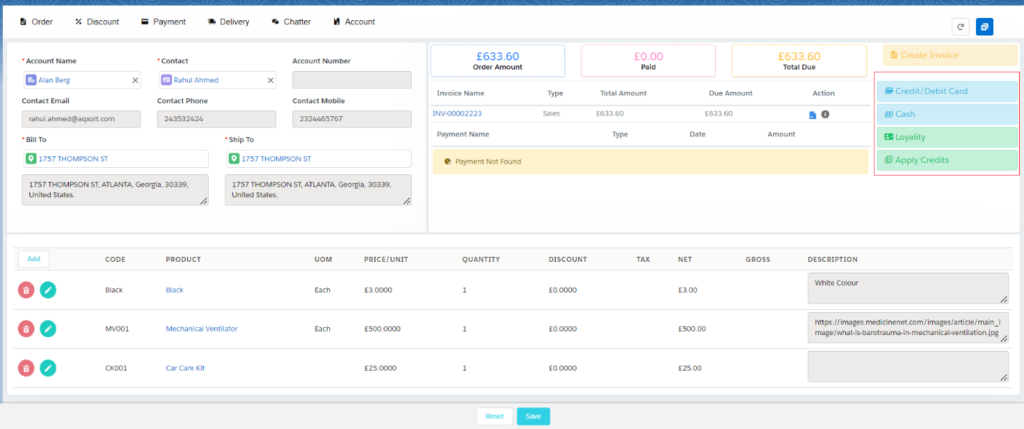
Credit/Debit Card
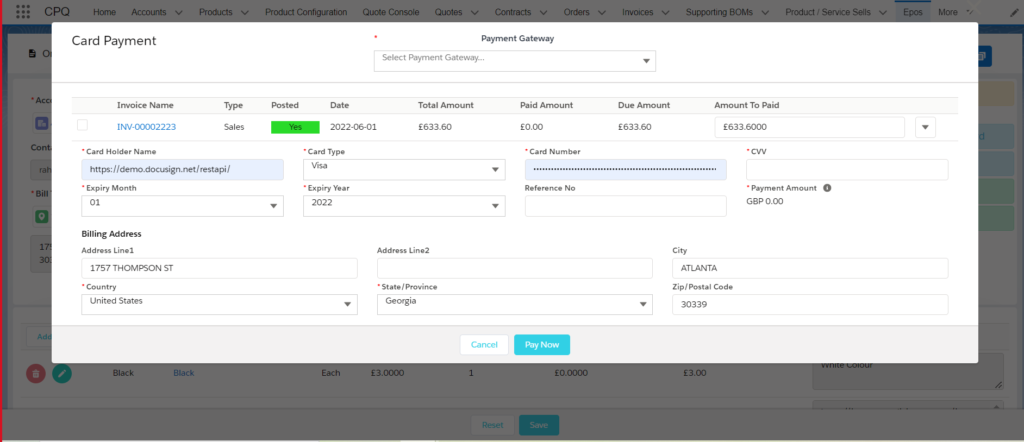
- To make the payment through Credit/Debit card, click on the “Payment’s tab” and click on the “Credit/Debit Card” button located on the right side of the screen.
- Enter the card details in the Card Information section and click the “Pay Now” button to complete the payment process for the order.
Cash
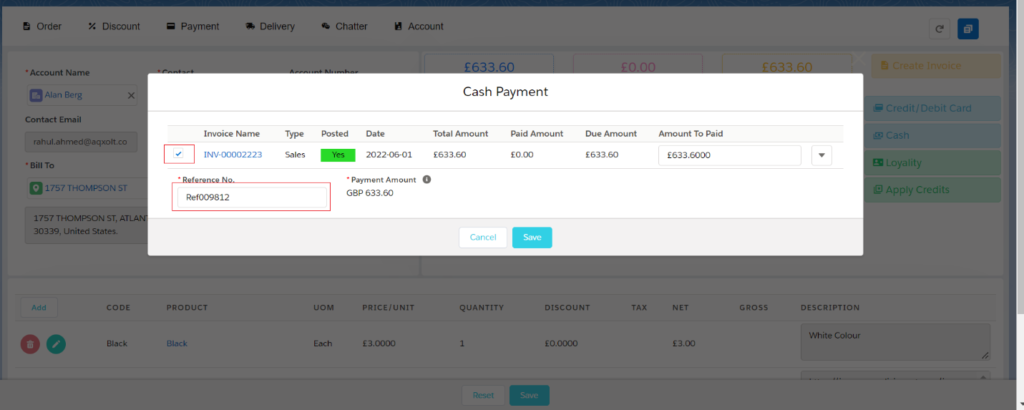
- To make the payment through Cash, click on the “Payment’s tab” and click on the “Cash” button located on the right side of the screen.
- Select the Invoice (if not Posted Post the invoice), the amount will be auto-populated, enter the reference number, and click on the Save button.
Was this article helpful?