














Support

Support

How can we help you?

Getting Started with Booking Kare

Enterprise-Grade Event , Appointment Booking And Scheduling Software

Overview

Overview

Booking Kare comprises two major modules

1. Event Module

Event Module comes with features that help Event Planners, and Organiser to organize events efficiently on a large scale with online payment options. Event planners may easily email personalized invitations to hosted events to any and all contact list members in case of the event is canceled or postponed.

Event Booking Module Includes Features Such As:

    1. Event Builder
    2. Create an event
    3. Event zone
    4. Venues
    5. Create Product Service Details
    6. Tickets
    7. Membership
    8. Speaker
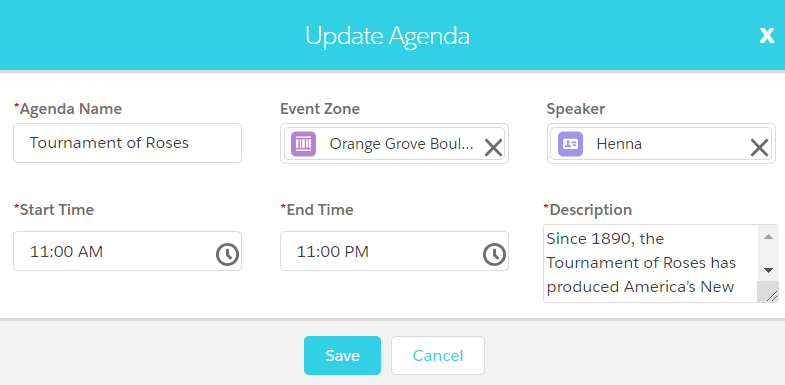
    9. Agenda
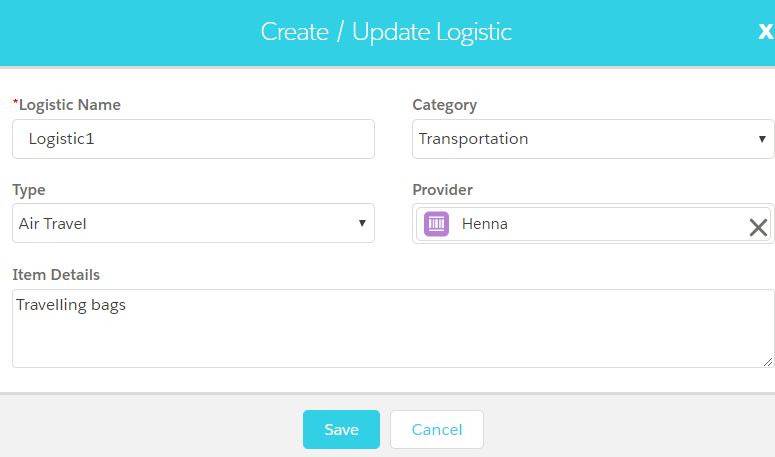
    10. Logistics
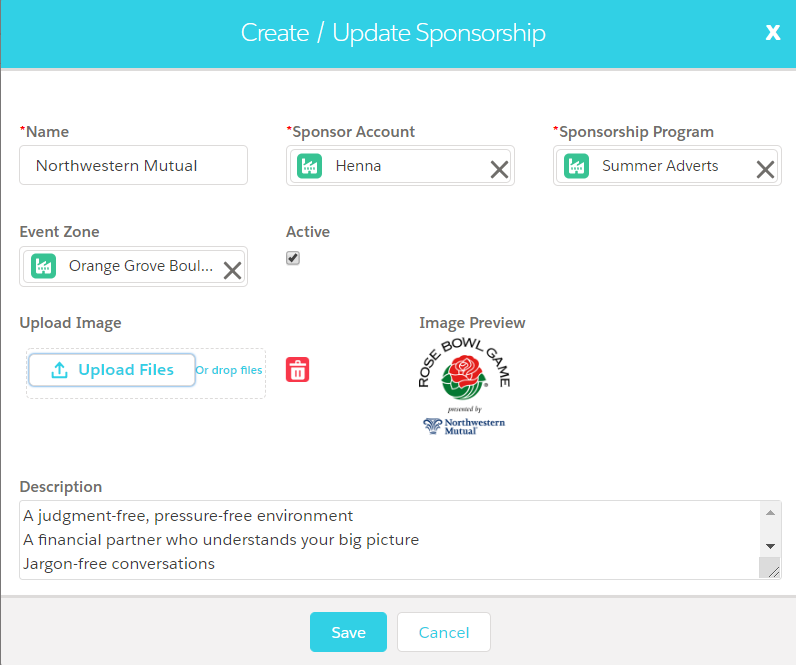
    11. Sponsorship
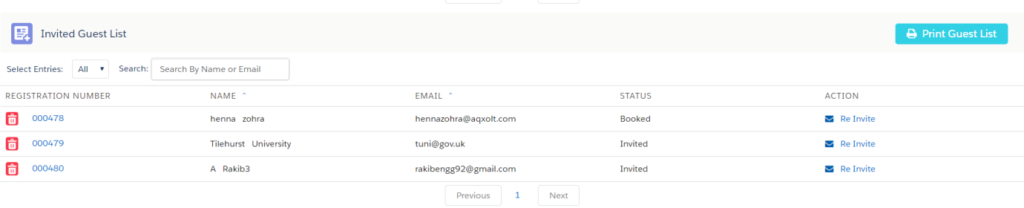
    12. Adding and Inviting Guests
    13. Send invites to accounts, Contact, and users
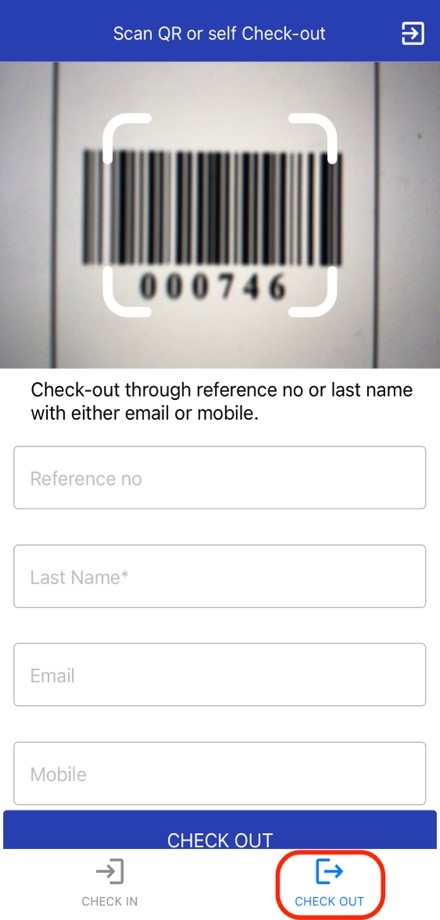
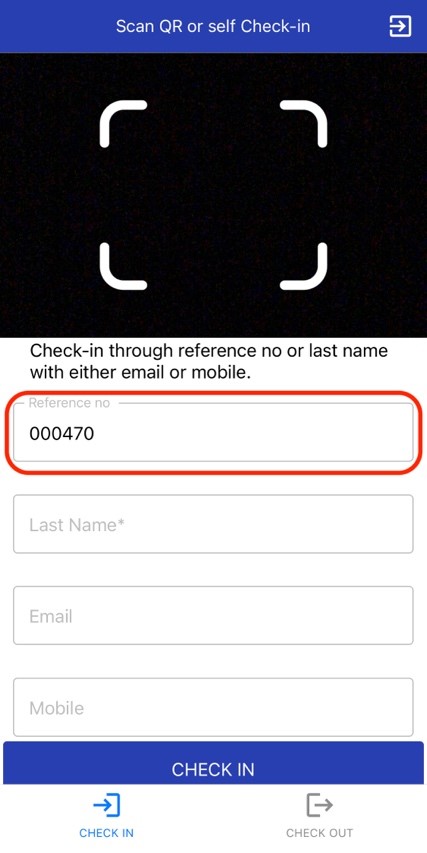
    14. Check-in and Walk-in registrations
    15. Manually check-in
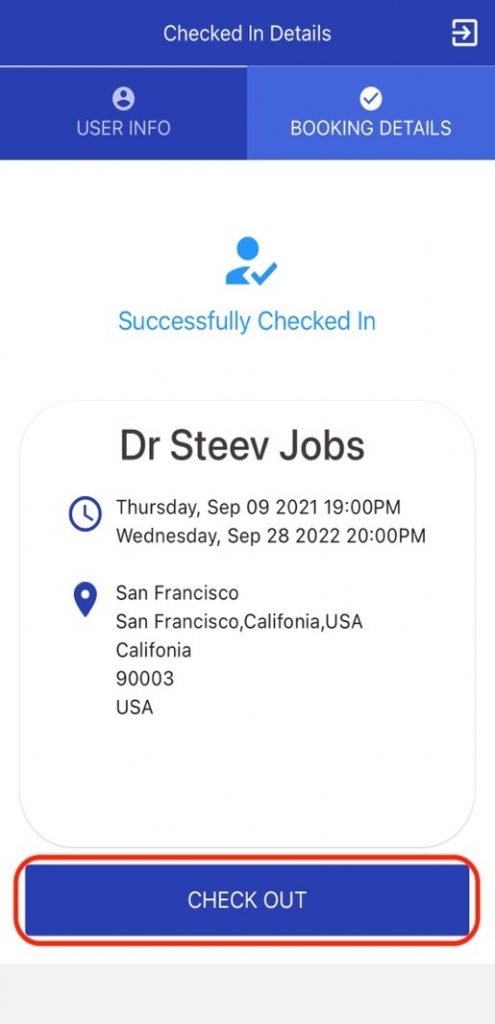
    16. Kiosk Check-in
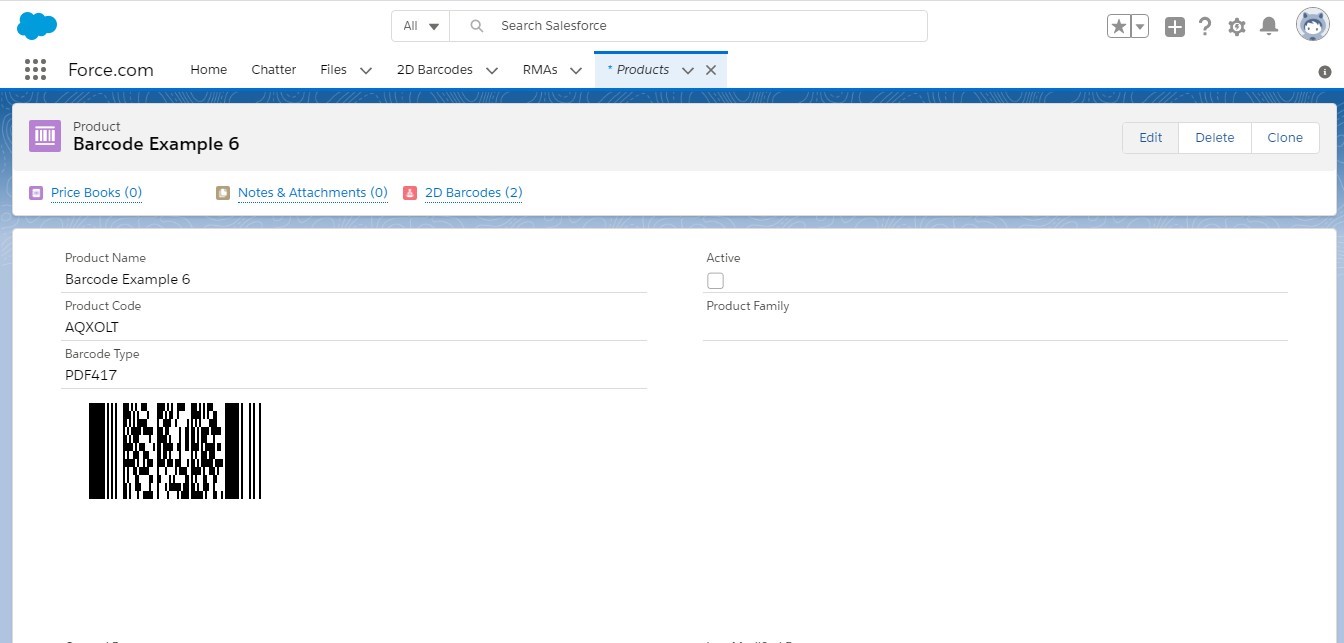
    17. Scan Bar code Check-in
    18. Event Booking
    19. Calendar

2. Appointment  Module

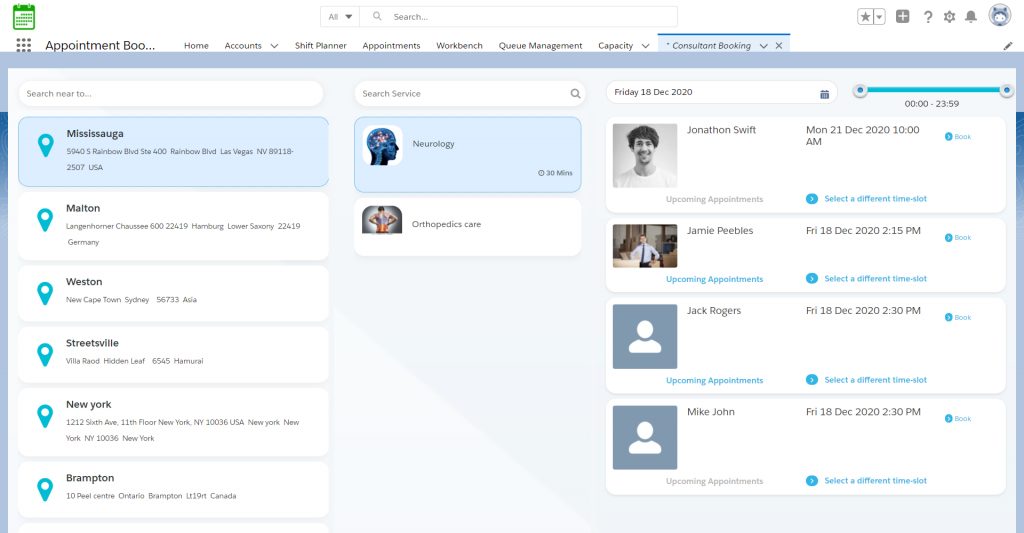
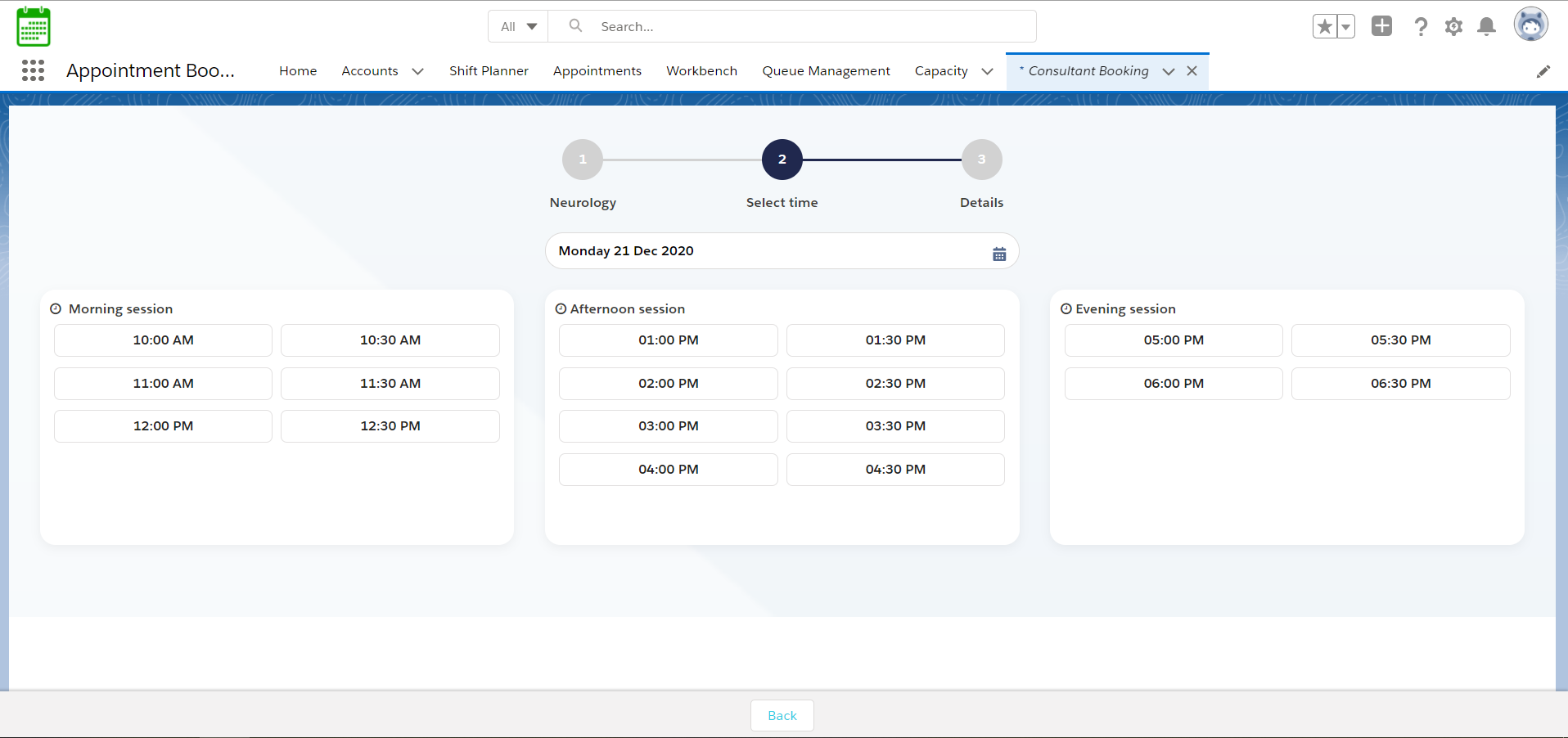
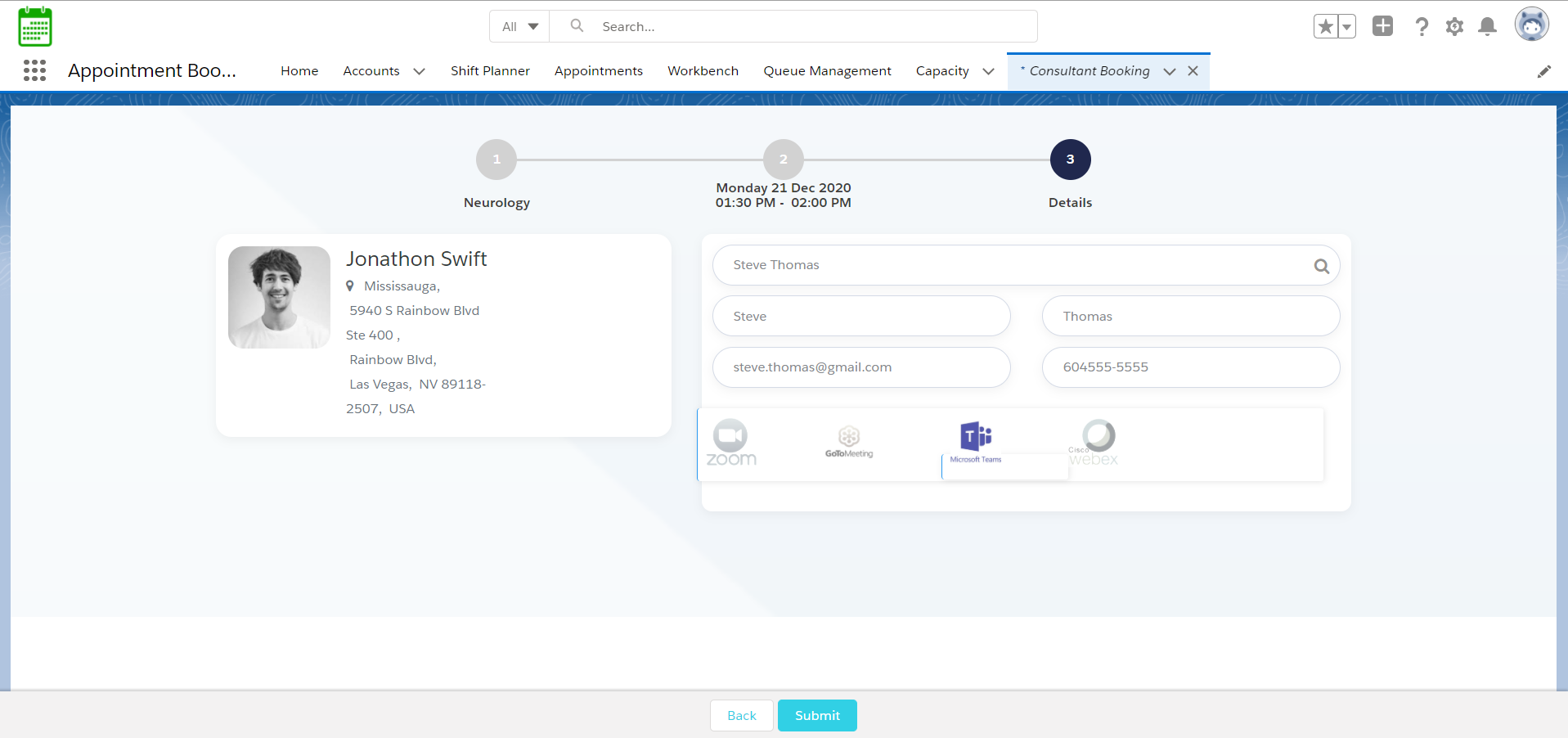
The appointment Module comes with a user-friendly appointment booking system that lets your client view the expert’s real-time availability and quickly book an appointment with the expert. The client can book appointments from anywhere, anytime using any device. Upon appointment booking, BookingKare lets you maintain customer information and appointment history for easy reference.
Appointment Booking Module Includes Features Such As:

  1. Appointment Booking
  2. Planner
  3. Teams
  4. Team members
  5. Location
  6. Membership Program
  7. Product/Service
  8. Price book
  9. Work Planner
  10. Resource group
  11. Resource
  12. Resource Requirement
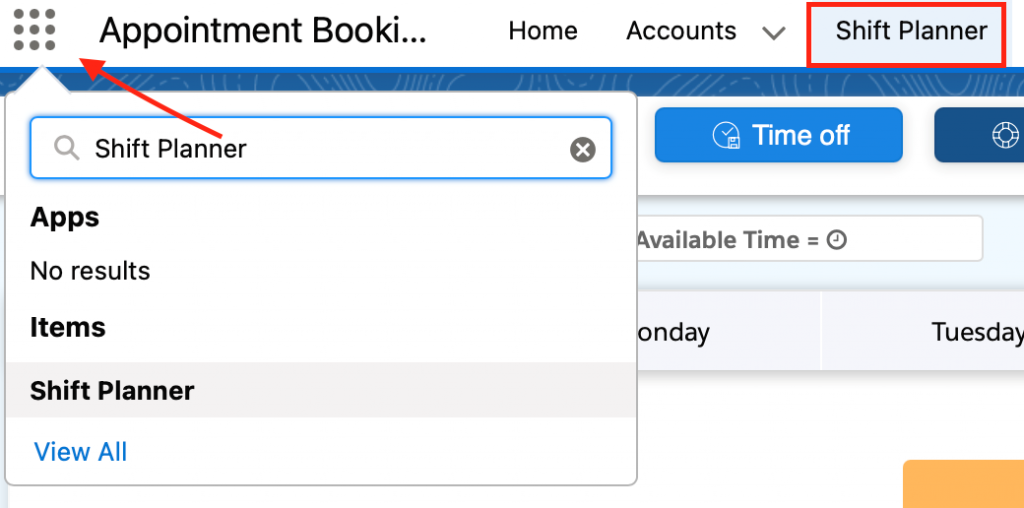
  13. Shift Planner
  14. Time management
  15. Calendar
  16. Queue management
  17. Workbench
  18. Room Reservation
  19. Logistics
  20. Payments  (Authorize.net,Paypal,Chase payment)

System Requirements

Roll out Steps:

  • Preparation involves all of the planning you need to do before you can begin using Booking Kare.
  • Identify key users of the system
  • Add licenses
  • Identify all of the users who will be using the BookingKare System and make sure you have the appropriate number of licenses.
  • Review all the technical requirements
Requirements to use Axolt BookingKare in a  system
Operating SystemAll you need is a computer that can run a web browser. It doesn’t matter what type of hardware or operating system you’re running.
BrowserGoogle Chrome™, the most recent stable version Mozilla Firefox®, most recent stable version Microsoft Internet Explorer versions 9, 10, and 11 Apple Safari® versions 5. x, 6. x and 7. x on Mac OS X
Internet ConnectionSalesforce is designed to use as little bandwidth as possible so that the site performs adequately over high-speed, dial-up, and wireless Internet connections.
Requirements to use Aqxolt BookingKare system with payment gateways
Payment GatewaysPayPal, Authorize.net,Chase payment.

Installation Guide

  •  Follow the steps if you are a new user.
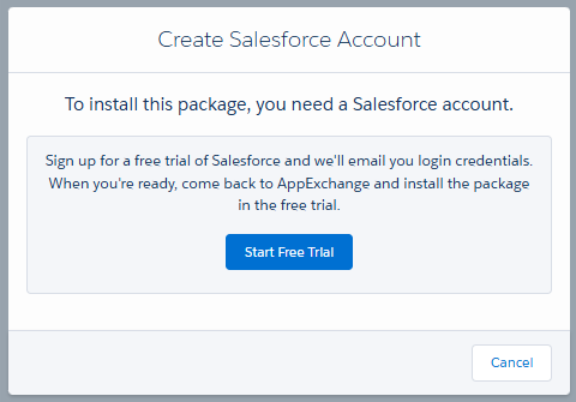
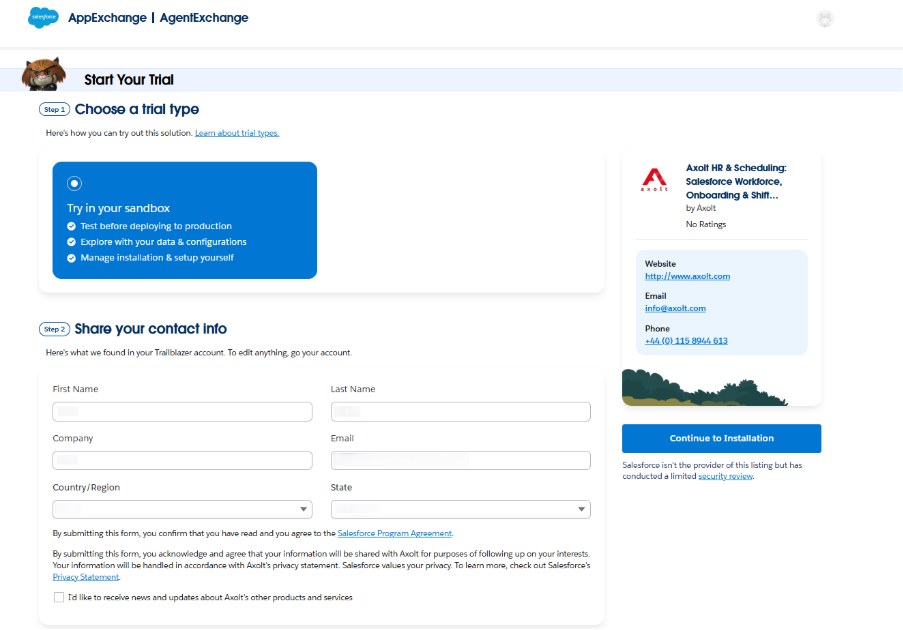
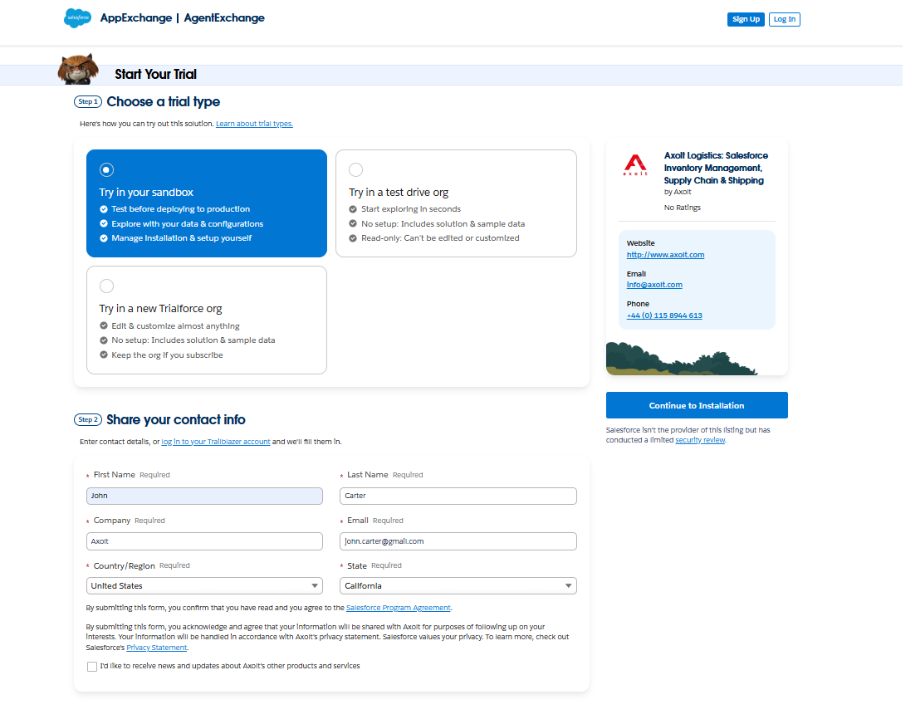
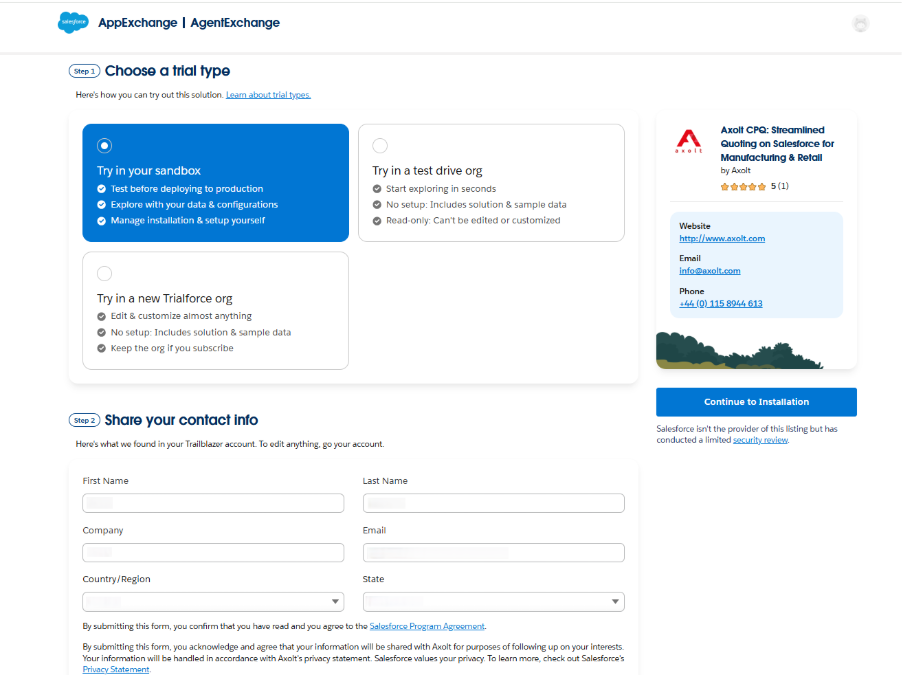
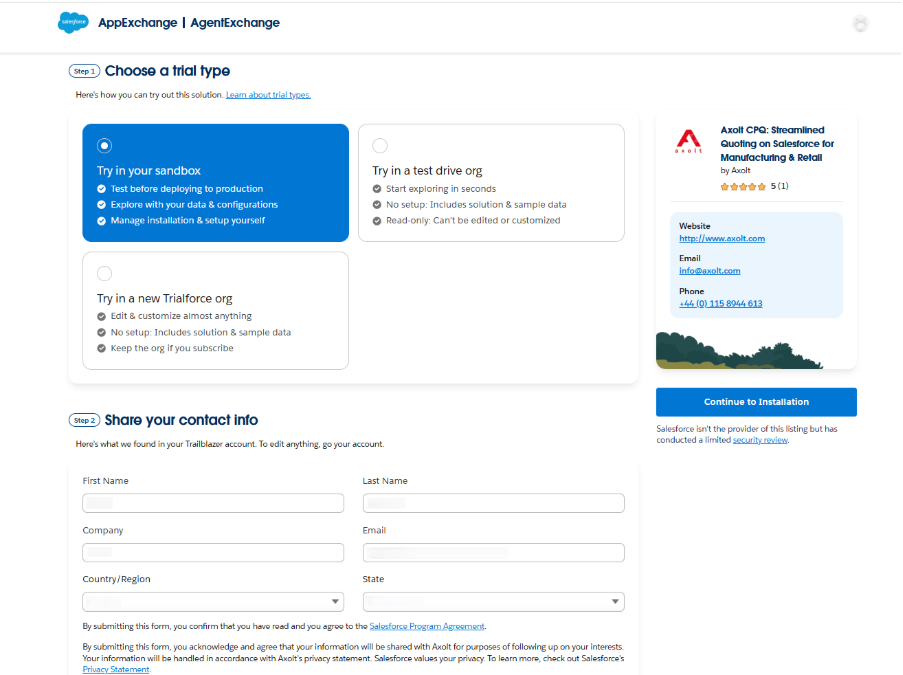
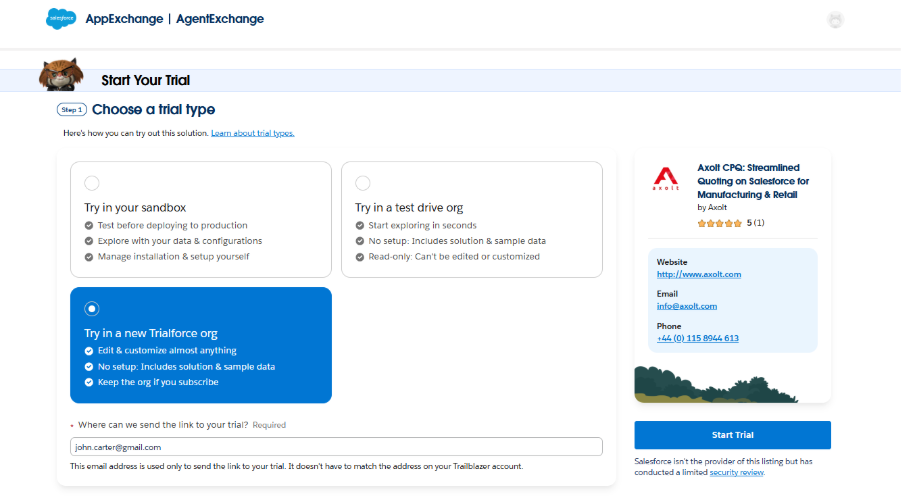
  • The quickest way to assess if BookingKare is the right fit for your organization is by creating a free trial. You’ll immediately be taken to a salesforce registration page, where you need to fill out the form and start a free trial. On the app exchange BookingKare listing click the “Get It Now” button and login to the salesforce free trial instance and from here you can start to evaluate BookingKare in depth.
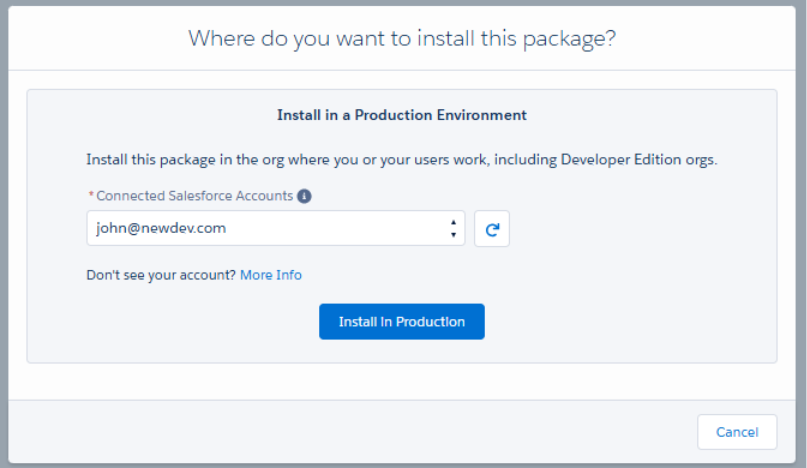
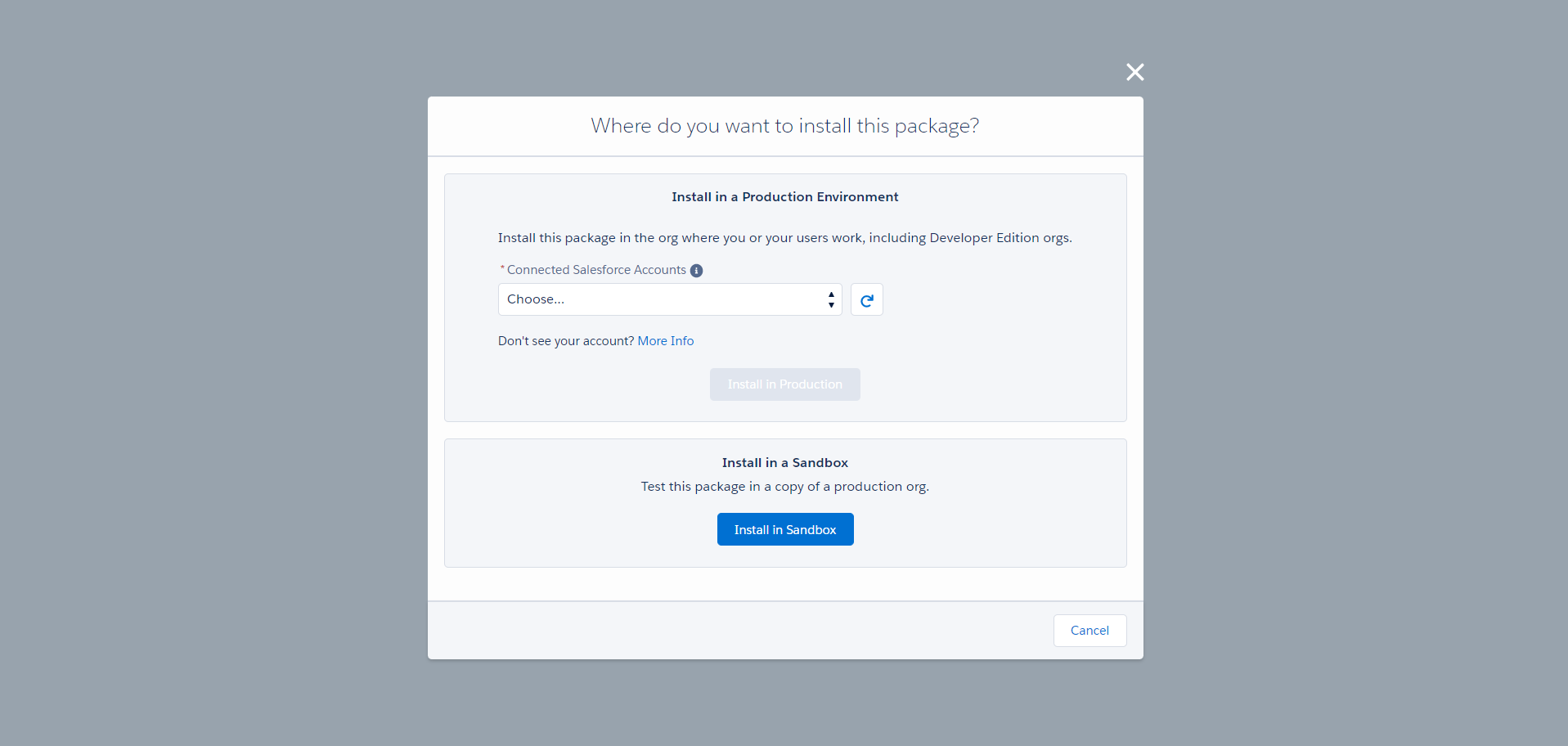
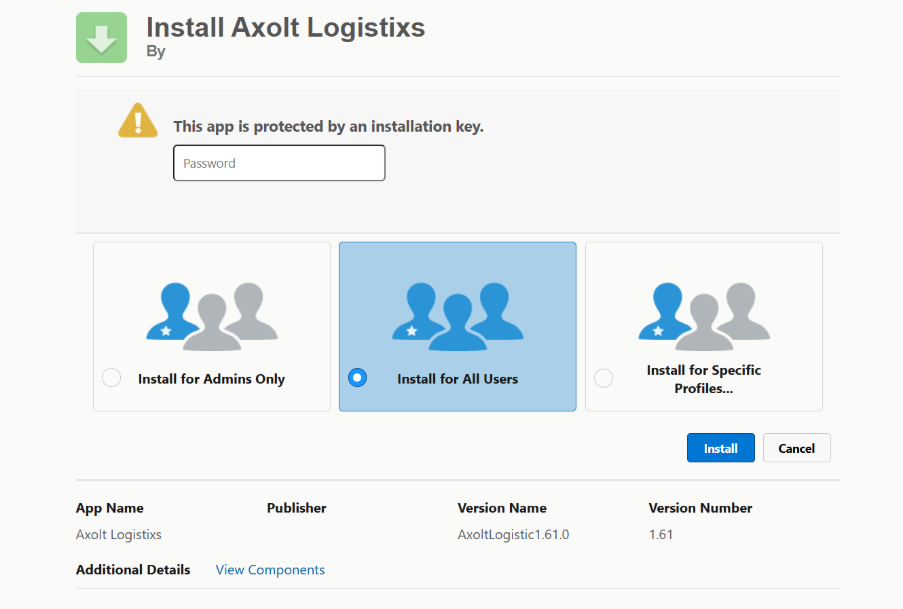
  • Installing BookingKare in your Salesforce instance
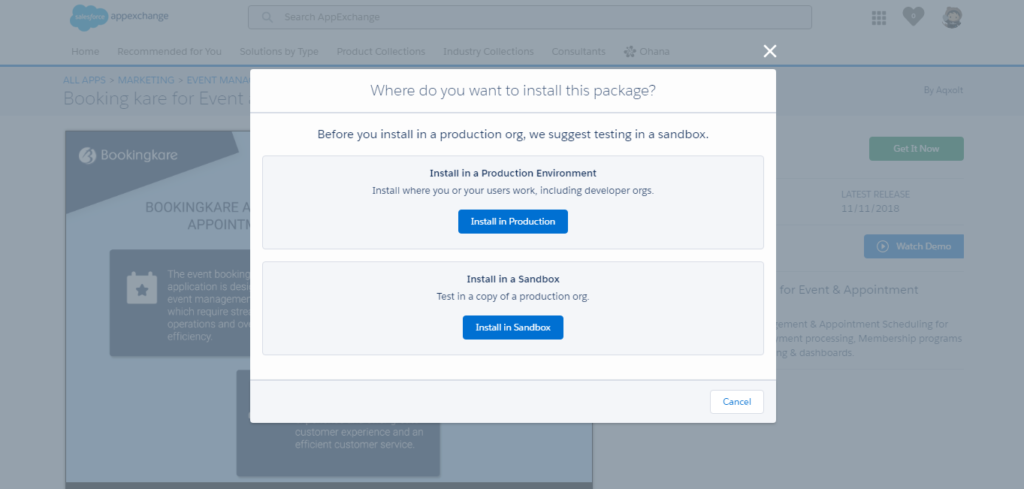
  • Follow these steps

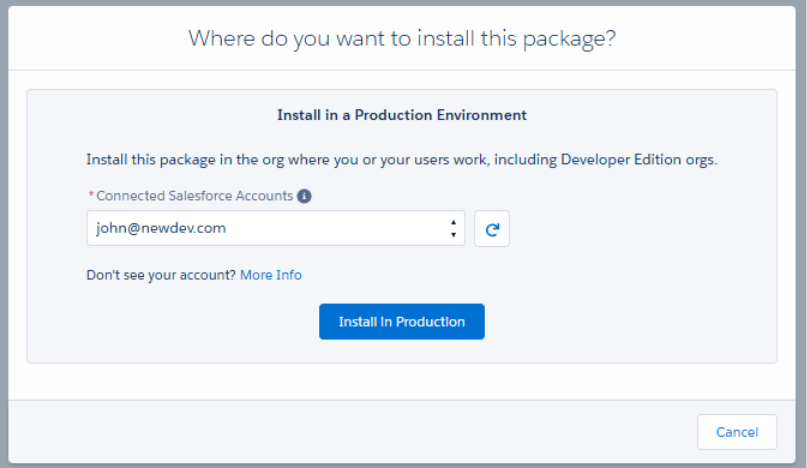
Step 1

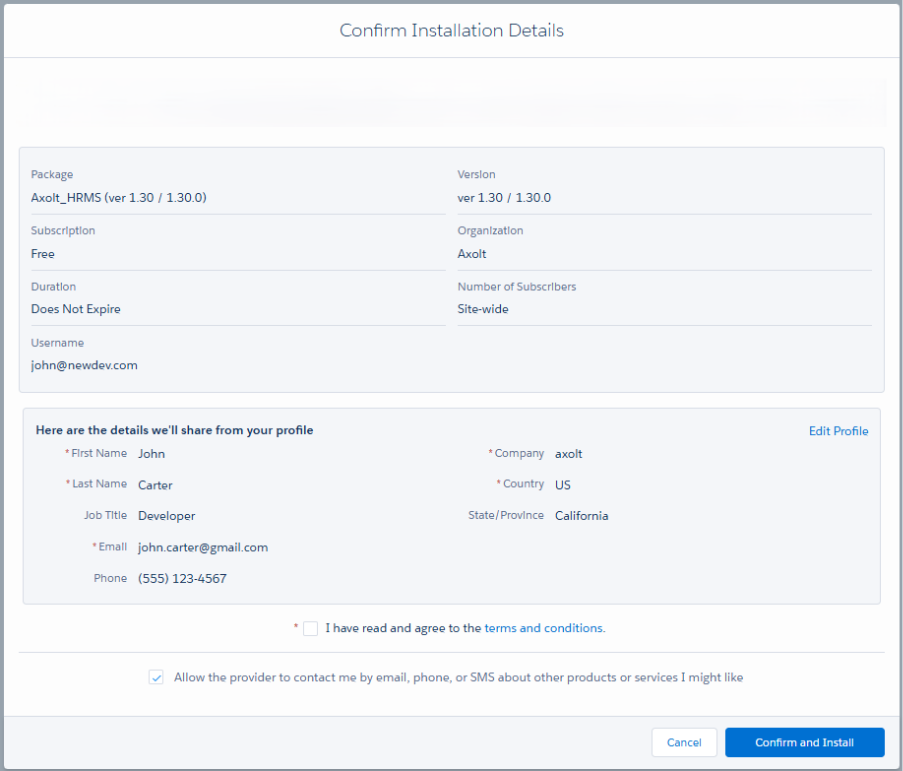
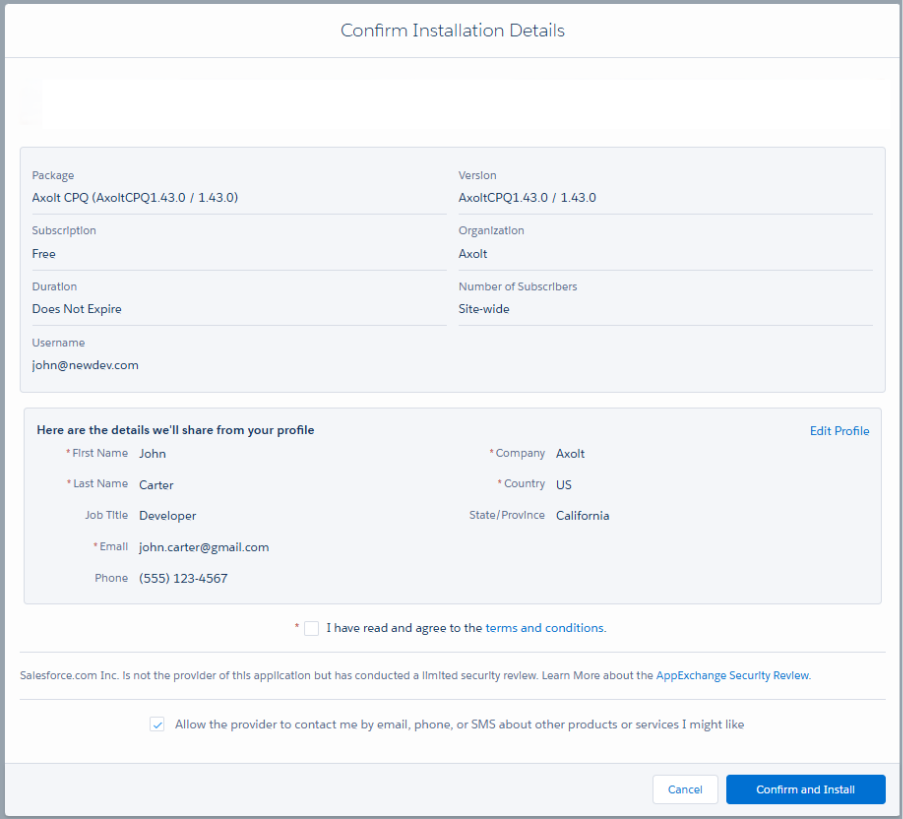
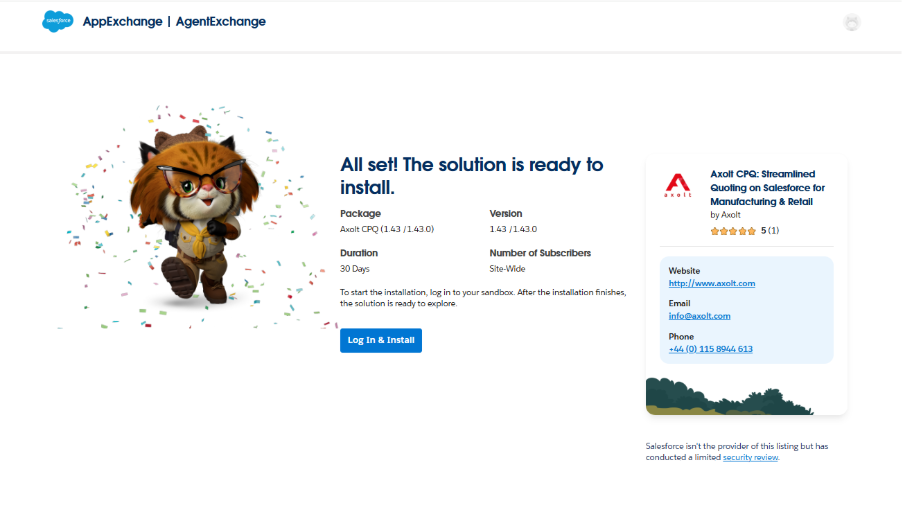
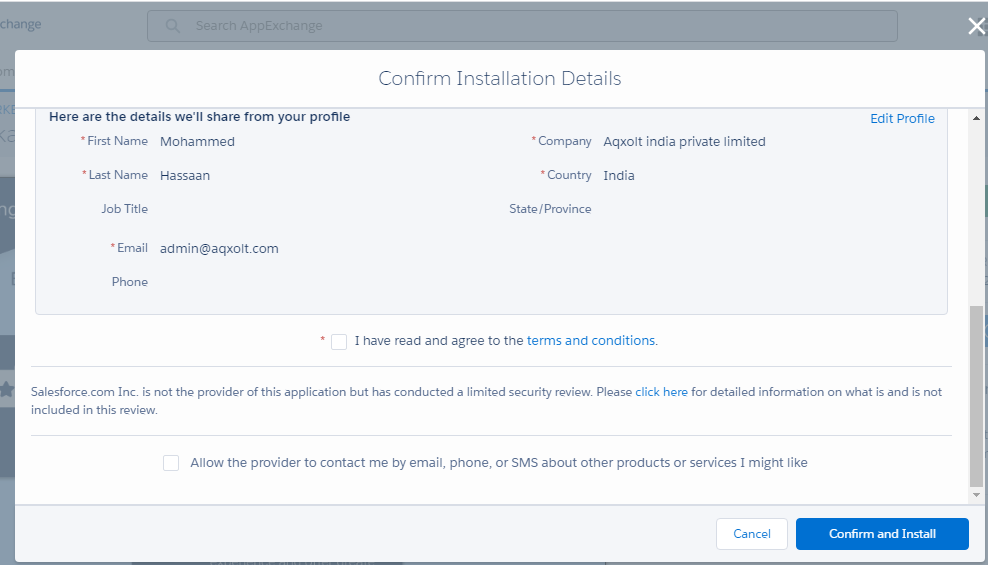
Step 2

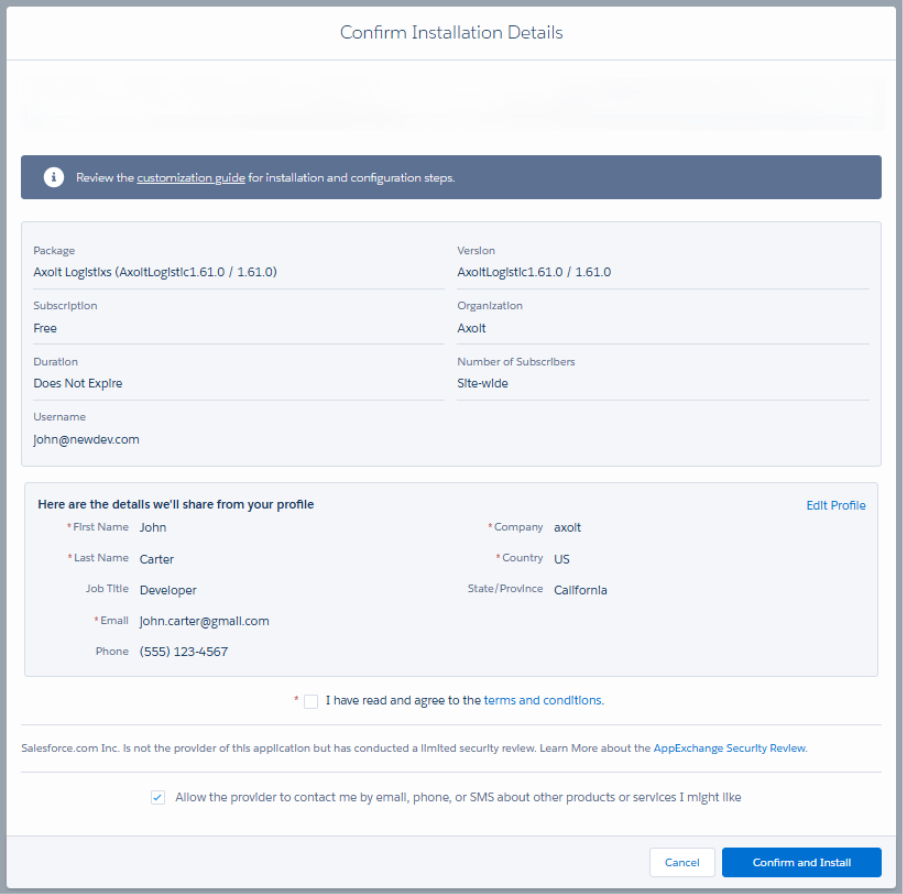
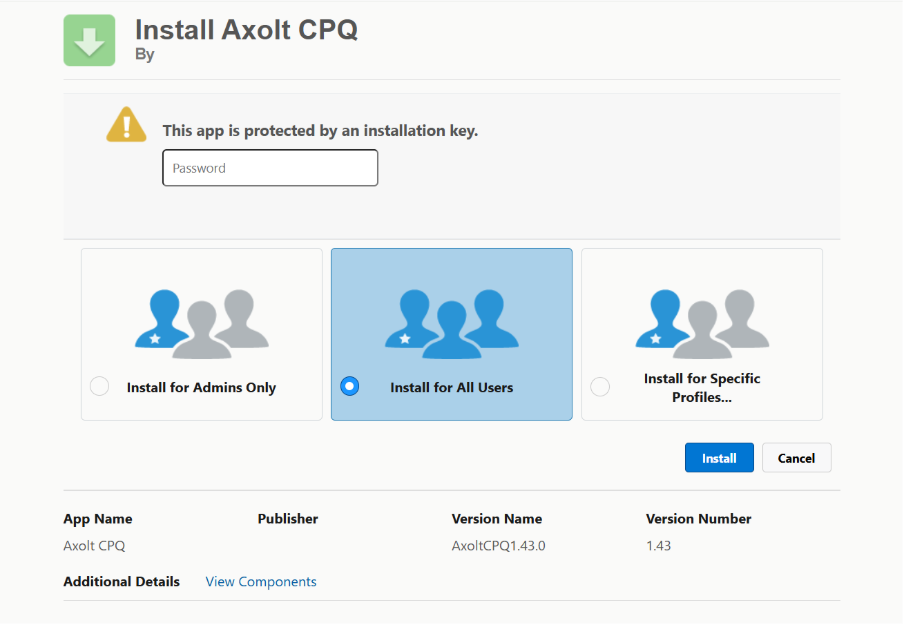
  •   Confirm the installation details and click the “Confirm and Install” button.

Step 3 Licensing Your users for BookingKare

  • Navigate to Setup> Apps > Packaging> Installed Packages.
  • In the list of installed Packages find the BookingKare app and click the “Manage Licenses” option under the actions section.
  • Click on the “Add User” button in the Licensed User section.
  • Select the user from the Available Users section; click the “Add” button.

Validate Your Installation

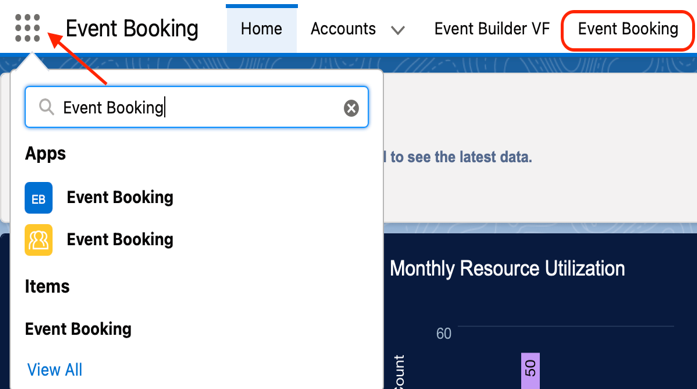
  • Click on the app launcher and notice that the “Appointment Booking” and “Event and Expert Booking” apps are available under all apps.
  • Select any of the applications from the App Launcher and notice its available Tabs.

Community Setup

Communities Overview Communities are a great way to share information and collaborate with people who are key to your business processes, such as customers, partners, or employees. Whether you call it a portal, a help forum, a support site, HR central, or something else, an online community is a great place to connect with the important folks in your life in a new and different way. Use easy point-and-click branding tools with ever-evolving Lightning templates or go with Visualforce to create branded collaboration spaces. Step 1

Enable Communities

Enabling Communities is the first step to creating communities.

Note: After you enable Communities, you can’t disable it.
If your org’s access to Communities is suspended for non-payment, all your communities are deactivated, including the communities in Preview. When Communities is re-enabled, all communities are inactive. You can activate these communities, but you can’t return to the Preview state.

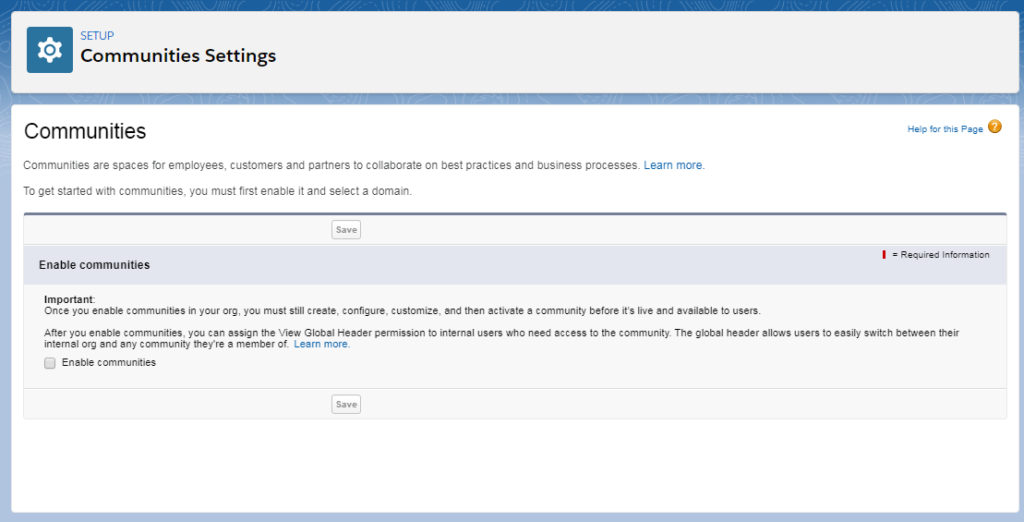
1. From Setup, enter Communities Settings in the Quick Find box, then select
Communities Settings.

Note: If you don’t see this menu, Communities might not be available for your Salesforce org. Contact your Salesforce account executive.

2. Select Enable communities.
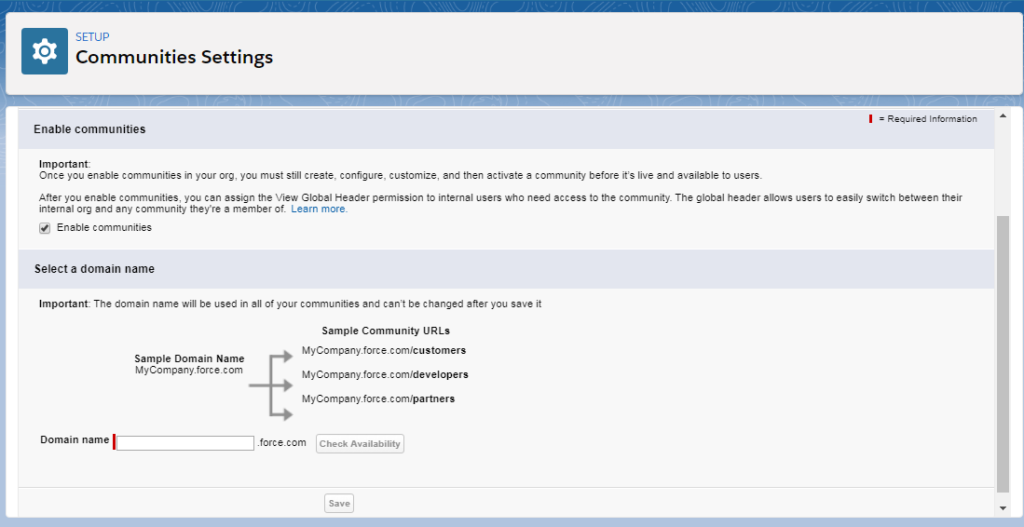
3. Select a domain name for your communities, and click Check Availability to make sure that it’s not already in use.

You use something recognizable to your users, such as your company name.
The Communities domain name is the same for all communities. You create a unique URL for each community when creating it by entering a unique name at the end of the URL. For example, if your Communities domain name is UniversalTelco.force.com and you’re creating a customer community, you can enter customers to create the unique URL UniversalTelco.force.com/customers.
Important: You can’t change the domain name after you save it.
You can designate a custom domain by entering it in on the Domain Management page.
From Setup, enter Domains in the Quick
Find box, then select Domains.
4. Click Save.

Step 2 Create Communities

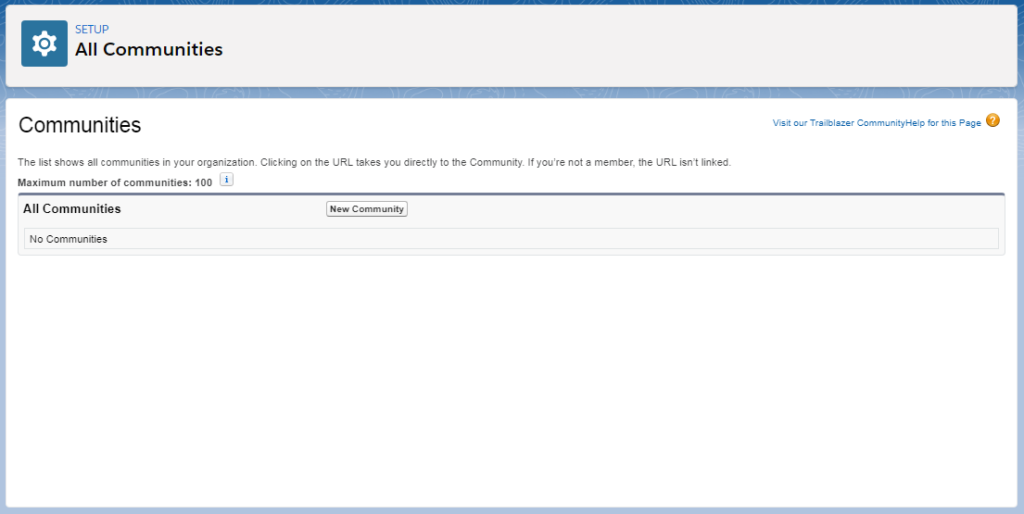
  • To create a community, from Setup, enter All in the Quick Find box, select All Communities, and then click New

Step 3 Community Template.

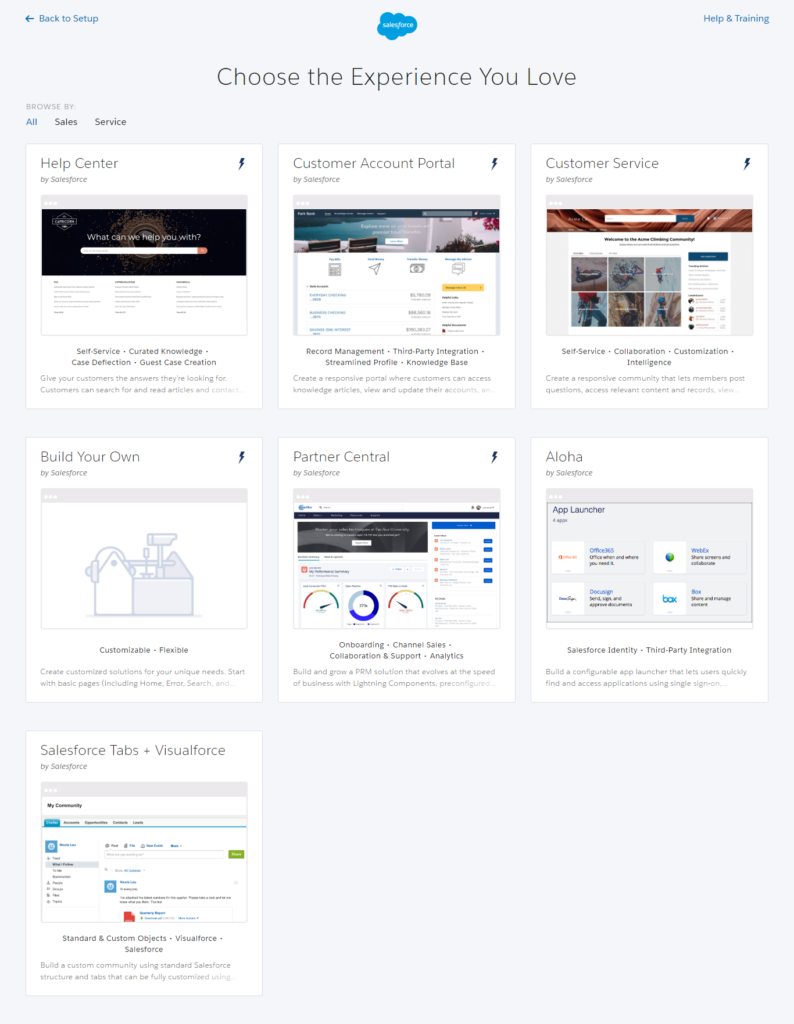
  • The Community Creation wizard opens with several templates for you to choose from. If you have Lightning Bolt solutions available in your org, they are listed in the wizard.

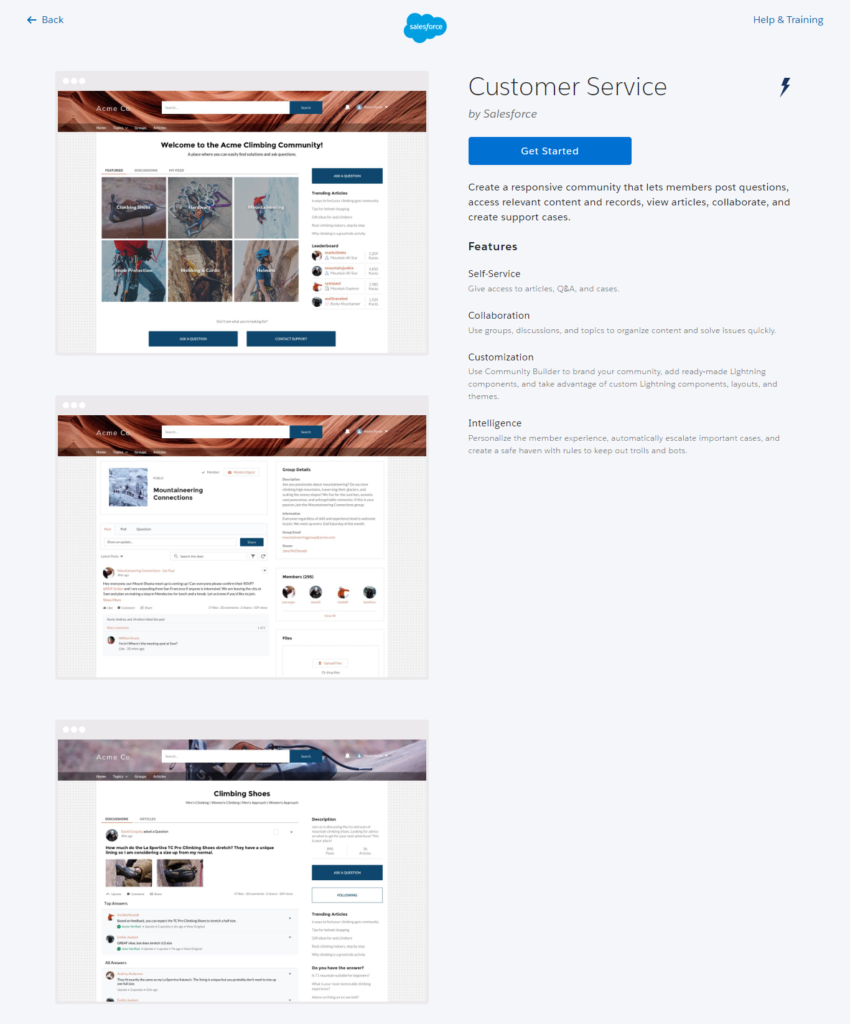
 To see more information about a template, select it. Customer Service

A powerful, responsive self-service template with multiple prebuilt theme options. The Customer Service template lets users post questions to the community, search for and view articles, collaborate and contact support agents by creating cases. Supports Knowledge, Chatter Questions, and cases.

Step 4
Experience Builder.

  • Select the template that you want to use.
  • Read the template description and key features, and click Get Started.
  • Enter a community name.

Note: If you’re creating multiple communities, differentiate the beginning of the community name. Community names are truncated in the global header drop-down menu. Users can see up to 32 characters of the name, and names include the status. Make sure that the visible part of the name allows users to distinguish between multiple communities.

For URL, enter the name of your community.

This name is appended to the Communities domain that you created when you enabled communities for this org. For example, if your Communities domain name is UniversalTelco.force.com and you’re creating a customer community, you can enter customer to create the unique URL UniversalTelco.force.com/customers.

Note: You can create one community that doesn’t have a custom URL.

  • You can change your community name and URL after the community is activated, but users aren’t redirected to the new URL. So be sure to inform your community members before changing the name or URL.
  • Click Create.

The community is created in Preview status. Now you’re ready to build and customize or manage and moderate your community.

When you create a community, Salesforce supplies default pages for login, self-registration, change password, forgot password, and your home page. These pages are based on which template you use to create your community. You can customize these default pages at any time in the Login & Registration page of the Administration workspace.

IMPORTANT After you create a community, your profile is added to the list of profiles that have access to the community. Then all users with this profile can log in to the community after it’s active. If you don’t want all users with your profile to have access to the community, remove the profile, and give yourself access through a different profile or permission set. Then create a profile specifically for your community users.Step 5 Access Experience Workspaces

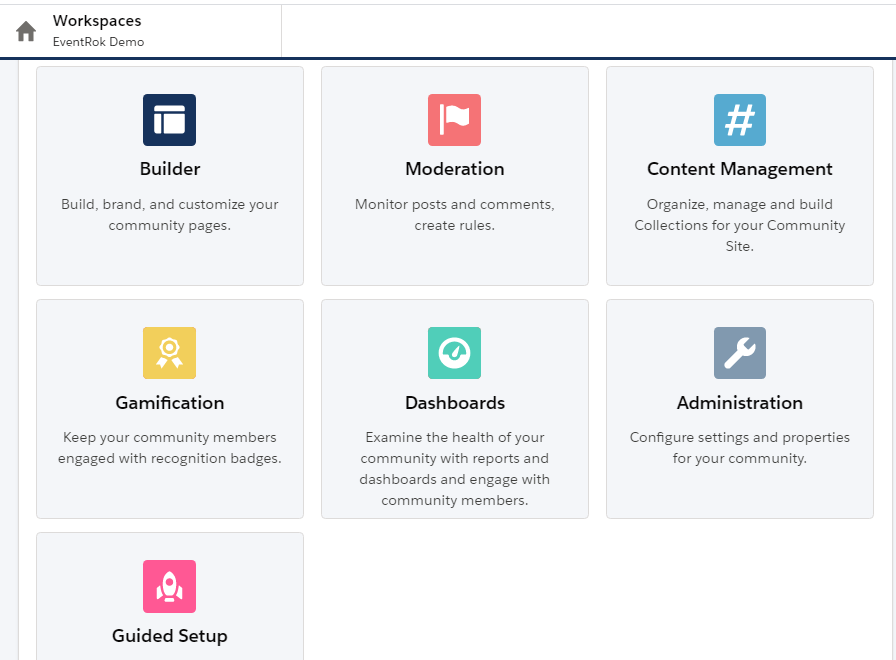
The streamlined Experience Workspaces centralizes community moderation, building, and administration. Access Experience Builder, administration, dashboards, and other features from one place.

  • From Setup, enter Communities Settings in the Quick Find box, then click Communities Settings.
  • Enable Experience Workspaces under Community Management Settings. Click Save.
  • From Setup, enter All Communities in the Quick Find box, then click All Communities. To access a community’s workspace area, click Workspaces next to its name.

Manage Your Community with Experience Workspaces Experience Workspaces is your one-stop-shop for building, setting up, and monitoring your community. You can access Experience Builder and Administration workspaces to manage your community’s setup and branding. Community managers can view dashboards for groups, members, feed activity, and license usage, and manage the community’s reputation system. Moderators can see which items have been flagged for review.

Note: You can customize your community at any time, but if you plan on making major changes, we recommend deactivating the community first.

  • To enable Experience Workspaces, in Setup, enter Communities Settings in the Quick Find box. Under Community Management Settings, select Enable Experience Workspaces. Experience Workspaces is enabled by default for all communities.
  • To go back to Community Manager, in Setup, enter Communities Settings in the Quick Find box. Under Community Management Settings, deselect Enable Experience Workspaces.

 Builder

Experience Builder lets you brand and design your community pages. Create and customize pages, modify or add Lightning components, customize the community’s navigation menu, and manage page-level settings as shown in the screenshot below.

IMPORTANT If you’re an administrator and accidentally remove yourself from a community, you can’t access the Administration settings in Experience Workspaces. To add yourself back to the community or make other membership updates, use the API.

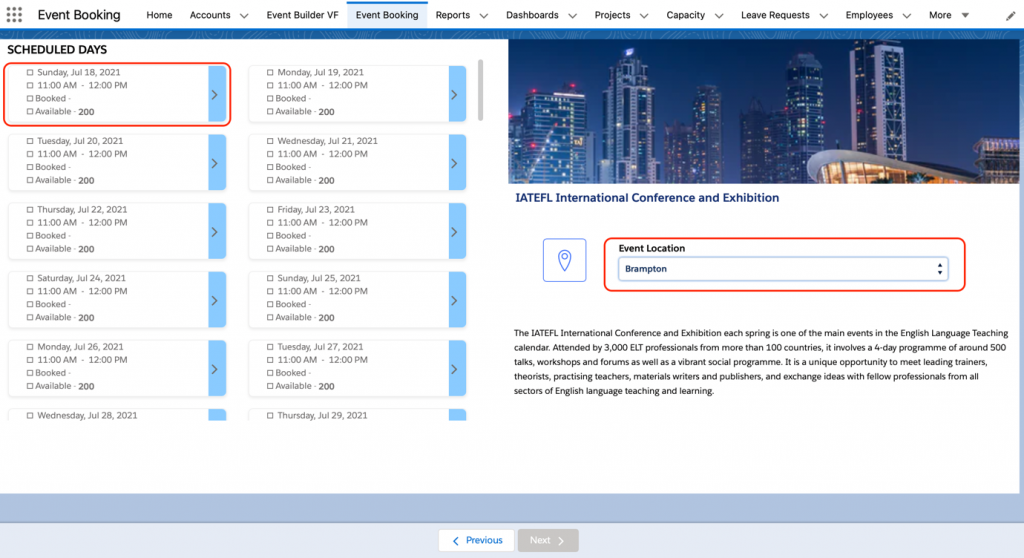
A community for Event Booking

  • For setting up a community for Event booking, follow the same 5 steps of community setup.
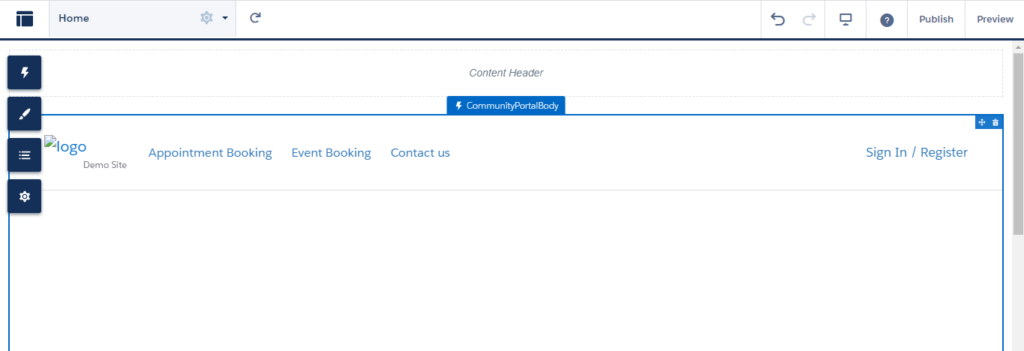
  • After reaching the builder section. You can create an Event booking component by clicking on the component option.
  • When clicking on the component button you find the list of components that can be added to the builder page.
  • Search for the Event booking component and drag it onto the builder page.

Note: If you already have the template components on the builder page, you can delete them from the delete icon of each section before adding your own component. When the component is on the page, it will appear as below.

  • Similarly, you can add as many components as required on the page and manage the page structure from the page structure button on the left.
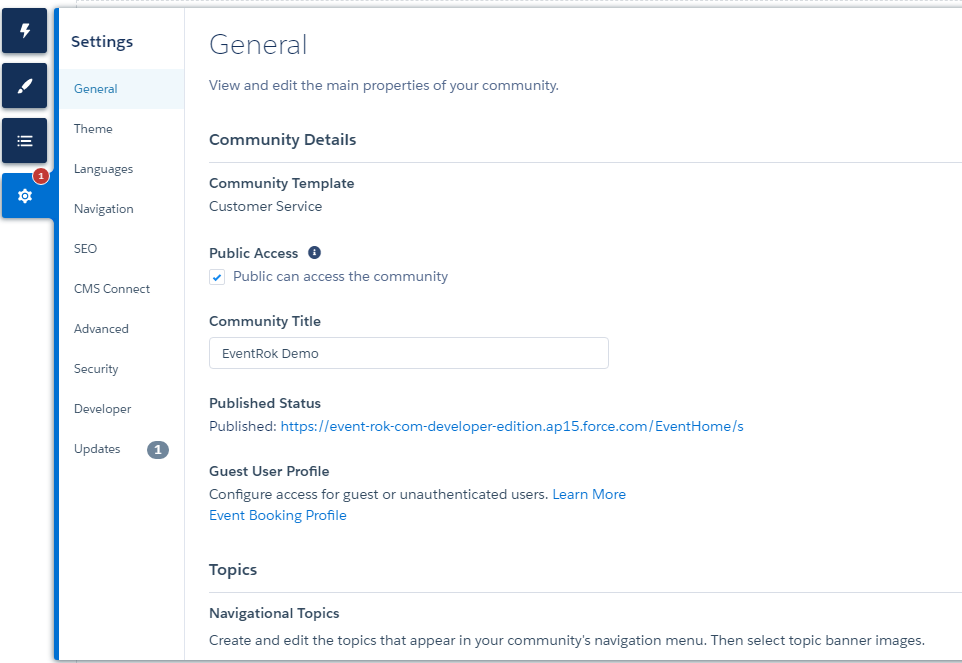
  • There is also a Setting Button-through which you can change the setting of the community page and find information regarding that. Shown below
  • In the setting, you have Public access check box, tick this box when you want the public to access this community.
  • You can give a title for the community in the Community Title box.
  • Published Status – This is a link from where customers can access the Event Booking Community.
  • Guest User Profile – This is the profile link of guest users from where you can authorize or unauthorize the user.
  • If Users have no access to the components, this can be managed by clicking on Event Booking Profile from the settings.
  • Note- Access can be given from profiles and sharing settings. In profiles make sure all the objects, fields, and tabs have access to the User. In sharing settings, check for any restrictions on the Guest user access.
  • When completed, click on the Preview button to view the page before saving to make more changes if required.
  • Click Publish button on the top right to save and publish your community.
  • You can also select the View mode button to set it for phone, Tablet, and Desktop.
  • You have now created your Event Booking Community.
  • Follow Step 6 for more information on managing your community.

A community for QR Check-In

  • For setting up a community for QR Check-In, follow the same 5 steps of community setup.
  • After reaching the builder section. You can create a QR Check-In component by clicking on the component option.
  • When clicking on the component button you find the list of components that can be added to the builder page.
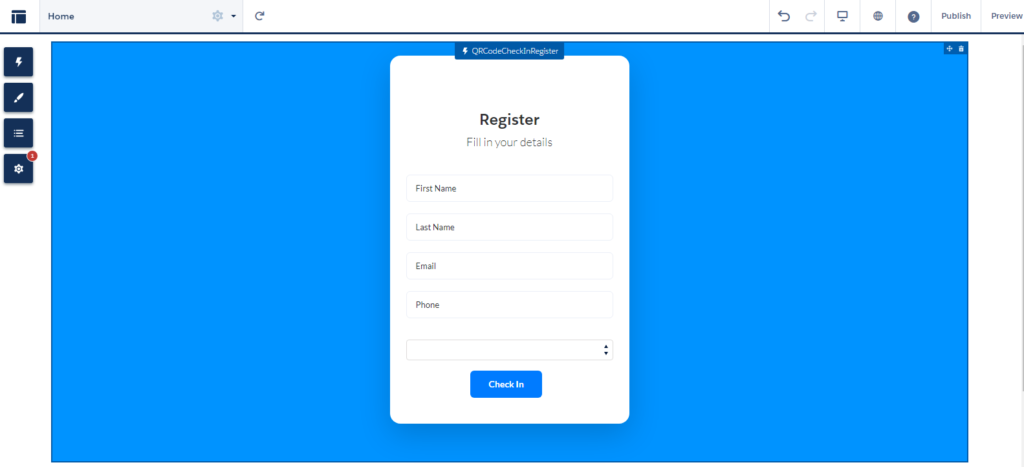
  • Search for the QRcodeCheckInRegister component and drag it onto the builder page.

Note: If you already have the template components on the builder page, you can delete them from the delete icon of each section before adding your own component. When the component is on the page, it will appear as below.

  • Similarly, you can add as many components as required on the page and manage the page structure from the page structure button on the left.
  • There is also a Setting Button-through where you can change the setting of the community page and find information regarding that.
  • In the setting, you have Public access check box, tick this box when you want the public to access this community.
  • You can give a title for the community in the Community Title box.
  • Published Status – This is a link from where customers can access QR Check-In
  • Guest User Profile – This is the profile link of guest users from where you can authorize or unauthorize the user.
  • If Users have no access to the components, this can be managed by clicking on QR Check-In Profile from the settings.
  • Note- Access can be given from profiles and sharing settings. In profiles make sure all the objects, fields, and tabs have access to the User. In sharing settings, check for any restrictions on the Guest user access.
  • When completed, click on the Preview button to view the page before saving to make more changes if required.
  • Click Publish button on the top right to save and publish your community.
  • You can also select the View mode button to set it for phone, Tablet, and Desktop.
  • You have now created your QR Check-In
  • Follow Step 6 for more information on managing your community.

A community for Appointment Booking

  • For setting up a community for Appointment Booking, follow the same 5 steps of community setup.
  • After reaching the builder section. You can create an Appointment Booking component by clicking on the component option.
  • When clicking on the component button you find the list of components that can be added to the builder page.
  • Search for the Appointment Booking component and drag it onto the builder page.
  • When the component is on the page, it will appear as below.

Note: If you already have the template components on the builder page, you can delete them from the delete icon of each section before adding your own component.

  • Similarly, you can add as many components as required on the page and manage the page structure from the page structure button on the left.
  • There is also a Setting Button-through where you can change the setting of the community page and find information regarding that.
  • In the setting, you have Public access check box, tick this box when you want the public to access this community.
  • You can give a title for the community in the Community Title box.
  • Published Status – This is the link from where customers can access Appointment Booking
  • Guest User Profile – This is the profile link of guest users from where you can authorize or unauthorize the user.
  • If Users have no access to the components, this can be managed by clicking on Appointment Booking Profile from the settings.
  • Note- Access can be given from profiles and sharing settings. In profiles make sure all the objects, fields, and tabs have access to the User. In sharing settings, check for any restrictions on the Guest user access.
  • When completed, click on the Preview button to view the page before saving to make more changes if required.
  • Click Publish button on the top right to save and publish your community.
  • You can also select the View mode button to set it for phone, Tablet, and Desktop.
  • You have now created your Appointment Booking
  • Follow Step 6 for more information on managing your community.

Step 6

Set the Default Number of Community Roles Set the default number of roles created when adding partner or customer accounts to communities. These settings apply if your community is set up with Partner Community, Customer Community Plus, or Lightning External Apps Plus user licenses. The limit is three roles; the system default is one. For example, if three partner roles are currently created when an account is enabled for your community–Executive, Manager, and User–but you need only the User role for new accounts, you can reduce the number to one role. 

1. Use Super User Access to grant specific users access to data owned by other users in their accounts.

  • From Setup, enter Communities Settings in the Quick Find box, then select Communities Settings.
  • Select the number of roles per account.
  • If you’re using Partner Community licenses, set the Number of partner roles.
  • If you’re using Customer Community Plus licenses, set the Number of customer roles.
  • Click Save.

Note: This setting does not affect the number of roles for existing accounts.

Step 7

Customize Communities Update basic community settings like your community URL, community name, members, login options, and general preferences in the Administration section of Experience Workspaces or Community Management. You can customize your community at any time, but if you plan to make major changes, we recommend deactivating the community first.

  • Open Experience Workspaces or Community Management.
  • Click Administration, then select what you want to customize.IMPORTANT: The options available in Community Management or Experience Workspaces are based on your community template selection, permissions, and preferences. For example, if your community doesn’t use topics, you don’t see the Topics section. Some options in the following list might not appear in your community by default. To display all sections, go to Administration | Preferences and enable Show all settings in Community Management or Show all settings in Experience Workspaces.
  • Members
  • Tabs
  • Branding
  • Login & Registration
  • Emails
  • Pages
  • Preferences
  • Settings
  • To share the community with stakeholders while it’s still in Preview, copy the URL displayed on the Administration | Settings page.
  • By sharing your community in Preview, you can get useful feedback to incorporate before going live. Also, by having early members post, comment, and share records, your community appears active when members log in to the community for the first time.
  • Keep in mind that you must add users as members of the community before you can share the community URL.
  • After you finish customizing your community, activate the community to make it available to members. If you enable welcome emails when you activate them, a welcome email is sent to all members. If users are new portal users, their welcome email includes their username and password.

1. Share a Link to Your Community. You can allow members to preview your community before making it active. You can only share the link for a preview community with users who were added as members of the community. Sharing a link to a community in Preview status allows you to easily gather stakeholder feedback. The community functions just as it will when you make it active, so stakeholders can try out all functionality and review your branding and customizations. Additionally, you can take advantage of having early members who can post, comment, and share records so that members enter an active community from their first login.

  • Open Experience Workspaces or Community Management.
  • Click Administration | Settings.
  • Copy the URL displayed on the page and share it with your stakeholders.
  • Keep in mind that you can only share the URL with users who you added as members of the community.

2. Update Your Community Settings. Manage your community name, description, community status, and community template all from one location. You can change your community name and URL after the community is activated, but users aren’t redirected to the new URL. So be sure to inform your community members before changing the name or URL.

  • Open Experience Workspaces or Community Management.
  • Click Administration | Settings.
  • Edit your community settings as needed.
  •  Select the pencil icon next to the community you want to change, and make your changes. You can change your URL from this page. However, if you’ve already activated your community, users aren’t redirected to the new URL.
  • Manage the status of your community.
  • Change your community template.

3. Deactivate a community.

  • You may want to deactivate a community if you need to:
  • Add or remove members
  • Add, remove, or change the order of tabs
  • Change the colour scheme
  • Change the community URL
  • Open Experience Workspaces or Community Management.
  • Click Administration | Settings.
  • Click Deactivate.
  • Your community is inactive and offline.
  • When a community is inactive, members still see it in the menu, but can’t access it unless they have the “Create and Set Up Communities” permission.

4. Enable optional community Features. Enable other optional features in your community such as user nicknames, guest access, private messages, direct messages, content flagging, and reputation levels.

  • To use these settings, Chatter must be enabled in your organization.
  • Open Experience Workspaces or Community Management.
  • Click Administration | Preferences.
  • Change the desired settings.
  • Click Save.

Step 8Community App

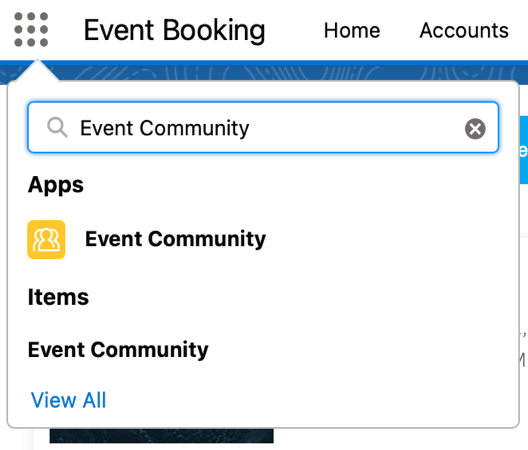
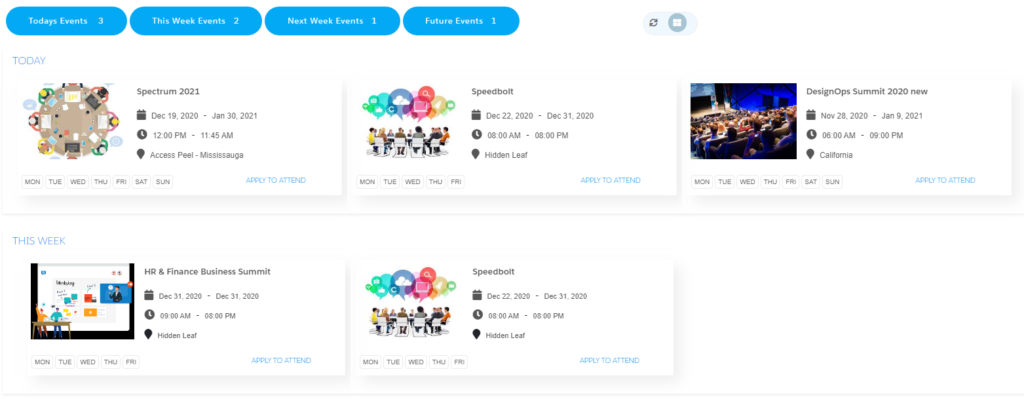
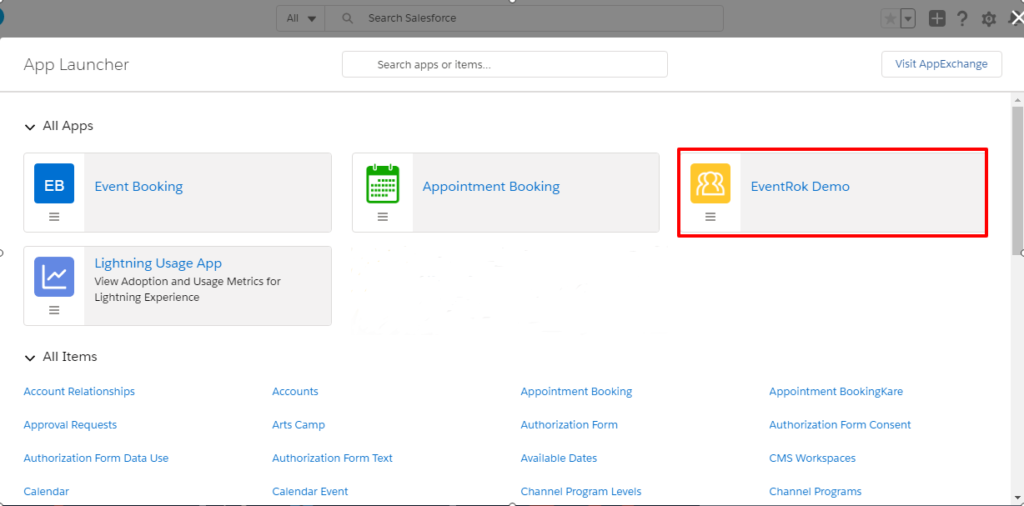
  • Users can also access the community site from the app launcher where the community app will be created with the name of that community that you create. As shown on the screen below:

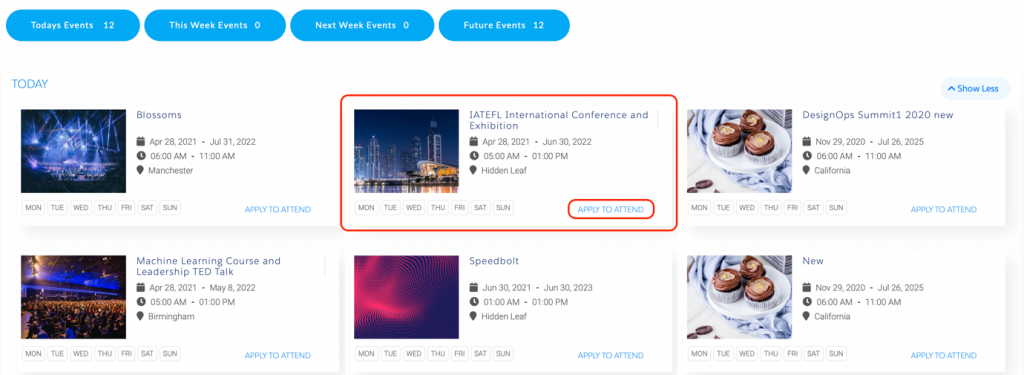
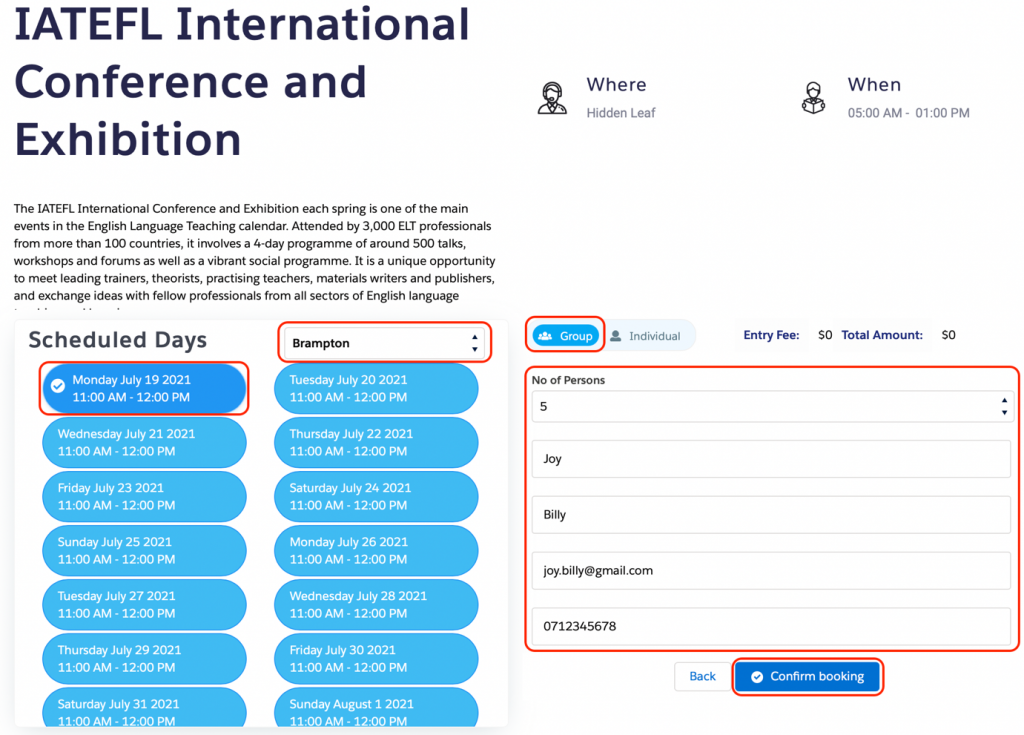
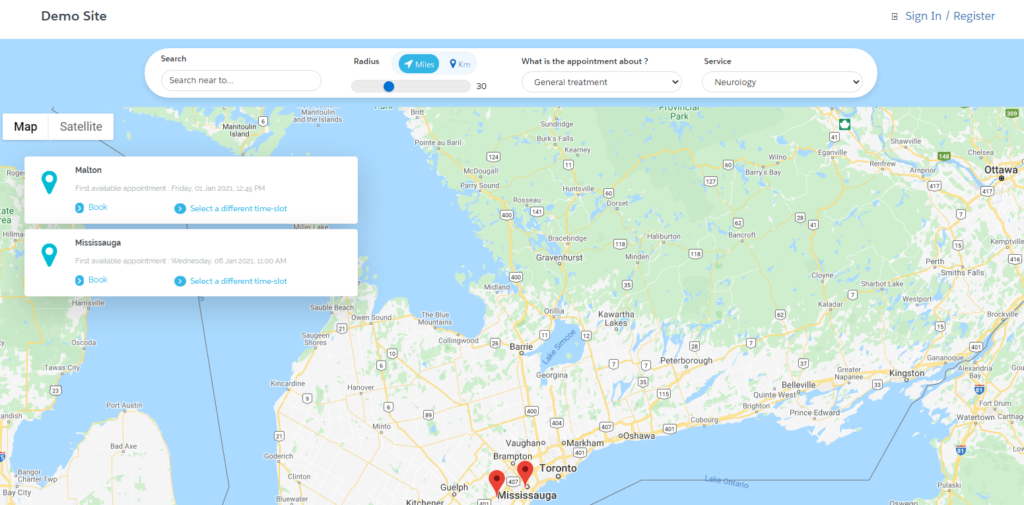
On clicking on the community app that you created you will be redirected to a similar site as shown in the screenshot below:

About CPQ

The abbreviation CPQ refers to Configure, Price, Quote. CPQ is a sales tool for companies to quickly and accurately generate quotes for orders. It provides the functionality to convert Quote to Cash in an easy way. CPQ applications works in tandem with CRM platforms, ERP programs, and other business technology, which helps ensure integrated data as well as accuracy.

Why Axolt CPQ?

Why Axolt CPQ?

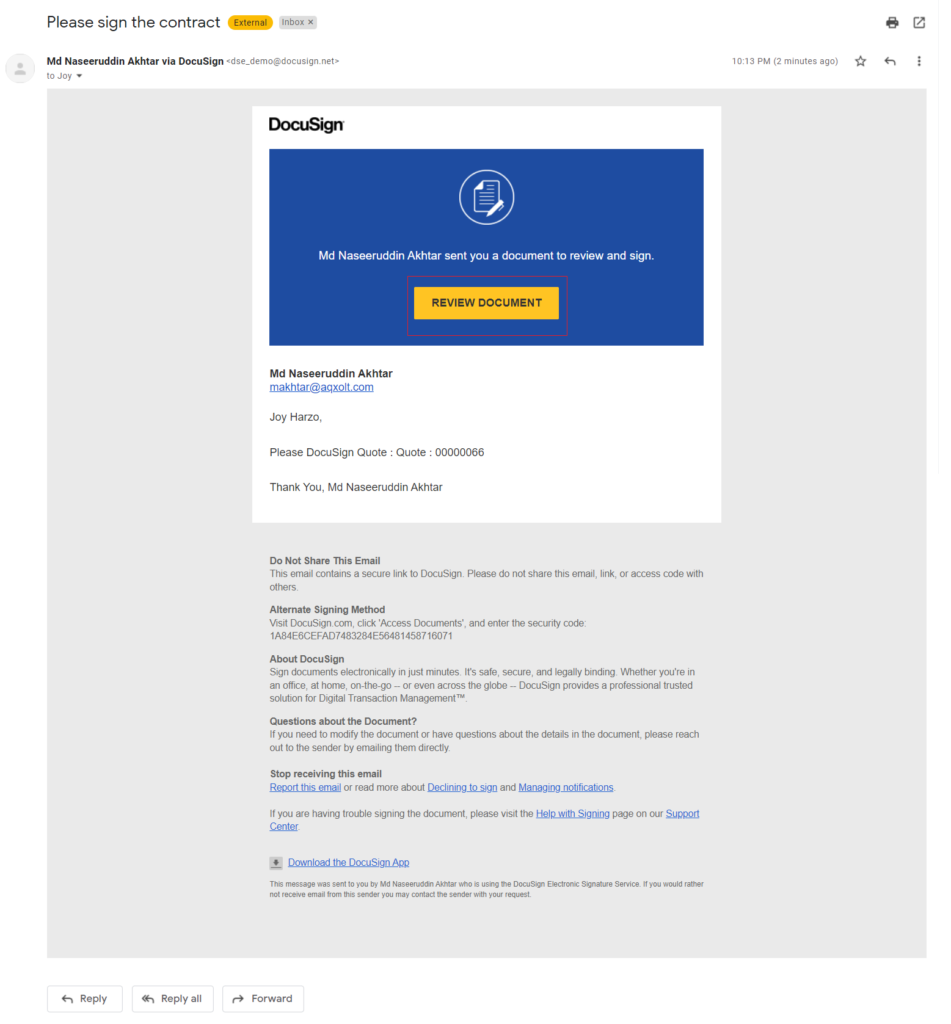
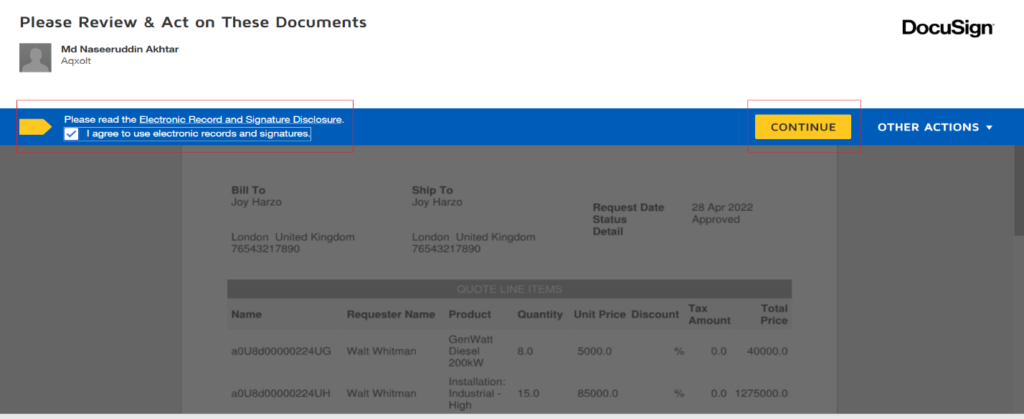
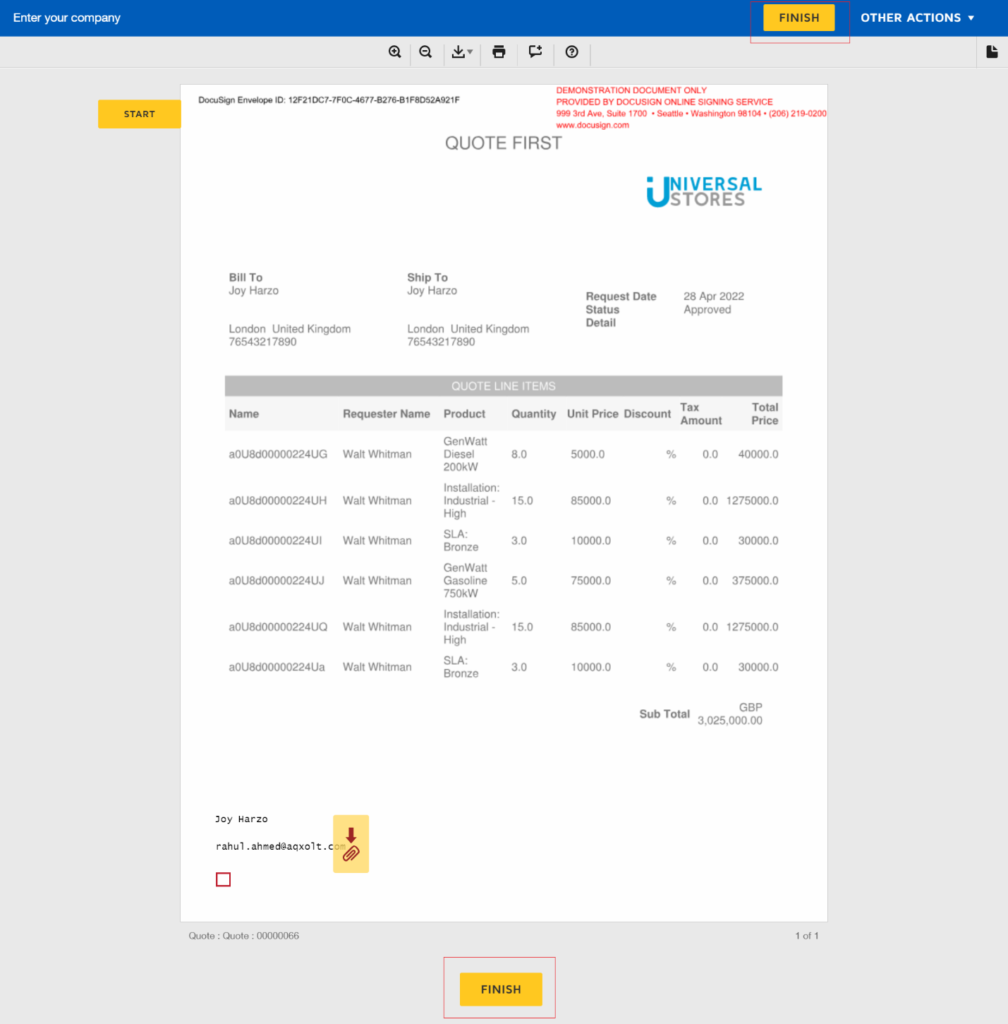
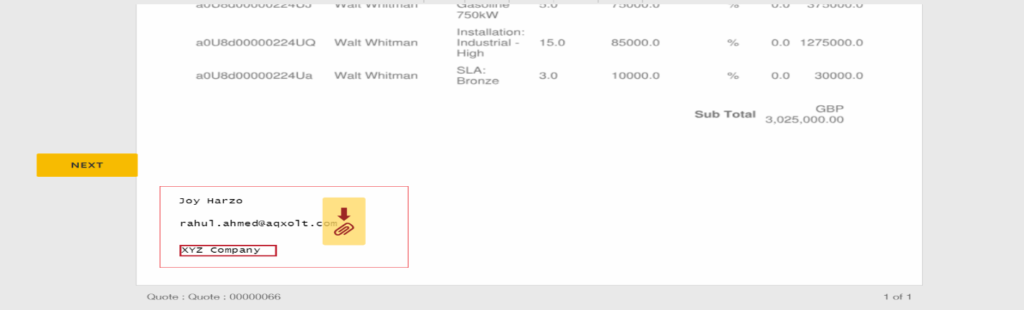
Axolt CPQ contains the out of the box functionality like Product Configurator, Quote Console, calculate profit and loss, Quote, Contracts signing process with the DocuSign, Orders, Invoices, payments from Authorize.net and PayPal, Supporting BOMs, Product/Service Sell, discount calculation, auto tax calculation and many more.

  1. Getting started with Axolt CPQ
  2. Guideline for basic setup to run the CPQ flows
  3. Organization Account, their Contact, Address, and their related records setup –   
  4. Customer accounts their Contact, Address setup.
  5. Credentials Setup
  6. Payments
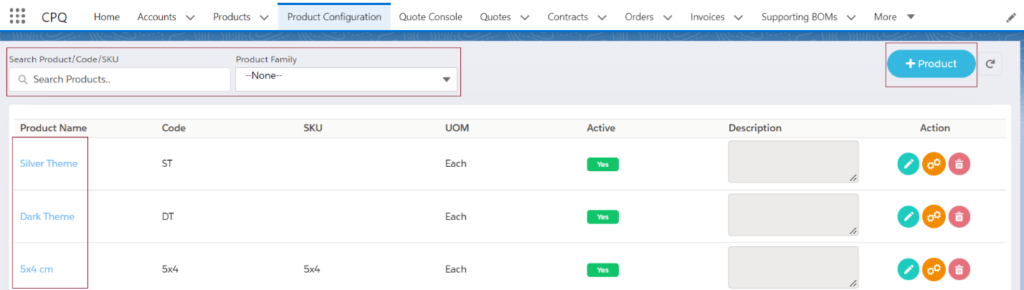
  7. Product Configuration
    1. Price Books
    2. Tier Discount Allocation
    3. Cost card
    4. Features
    5. Options
    6. Rules
    7. Inventory/Stock
    8. Product/Service Sale
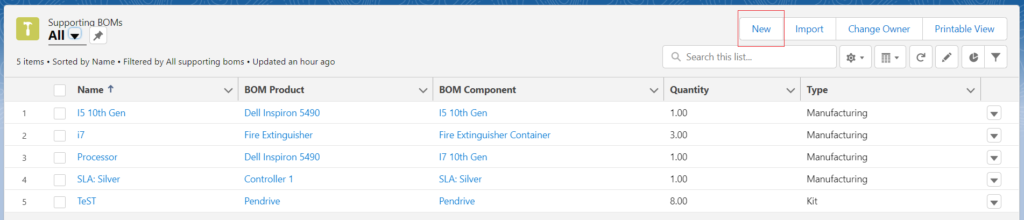
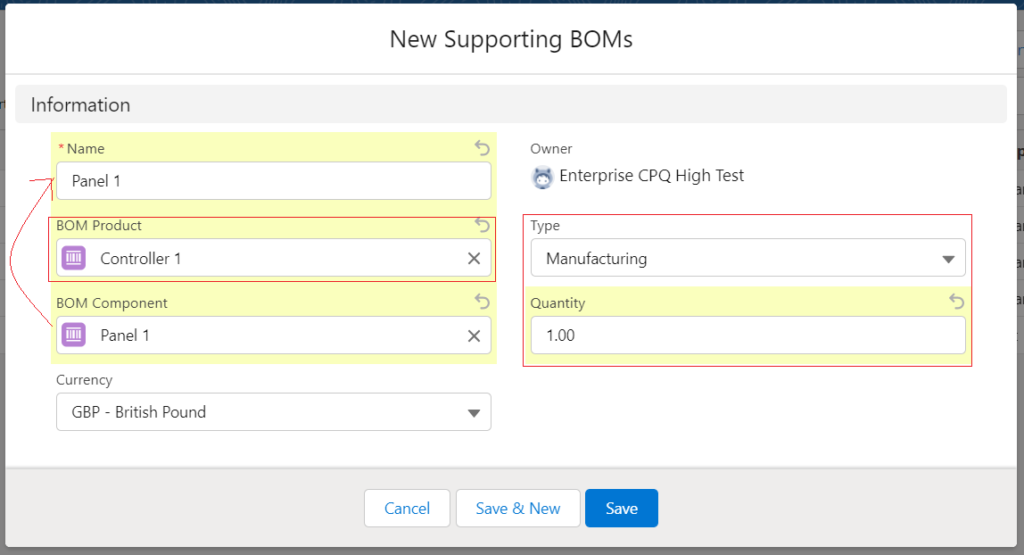
    9. Supporting BOMs
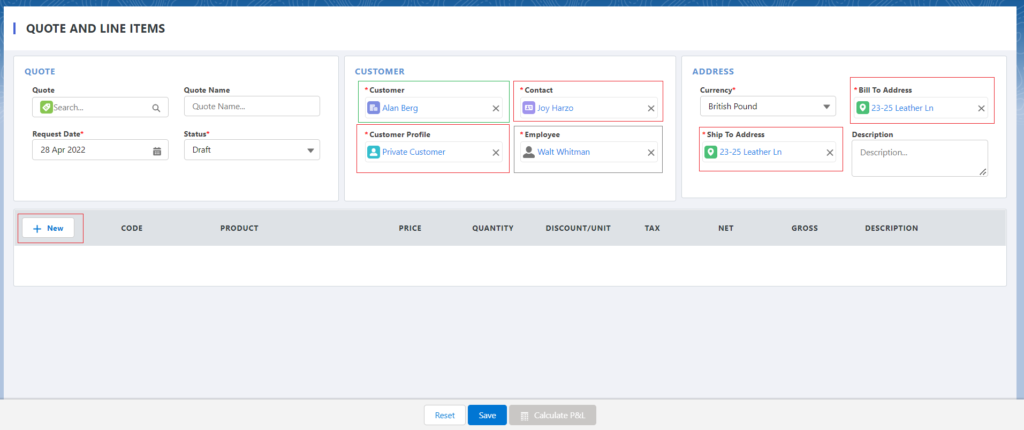
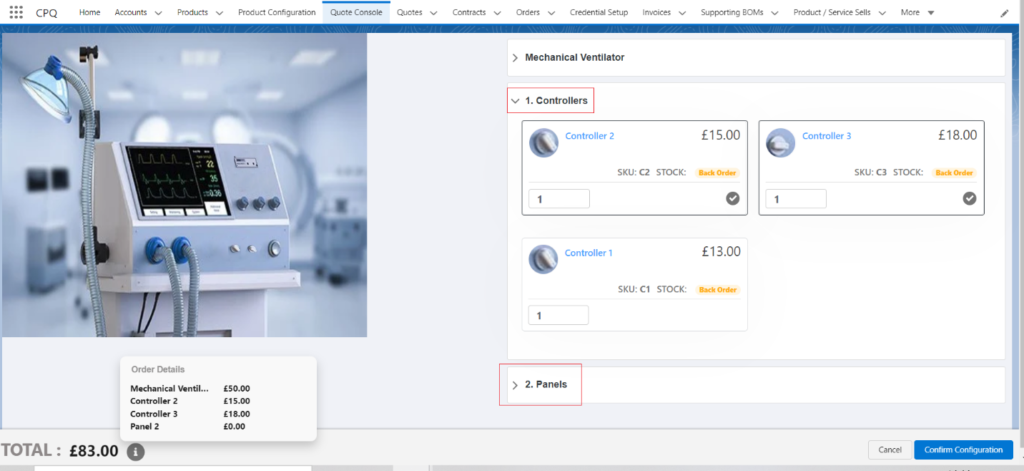
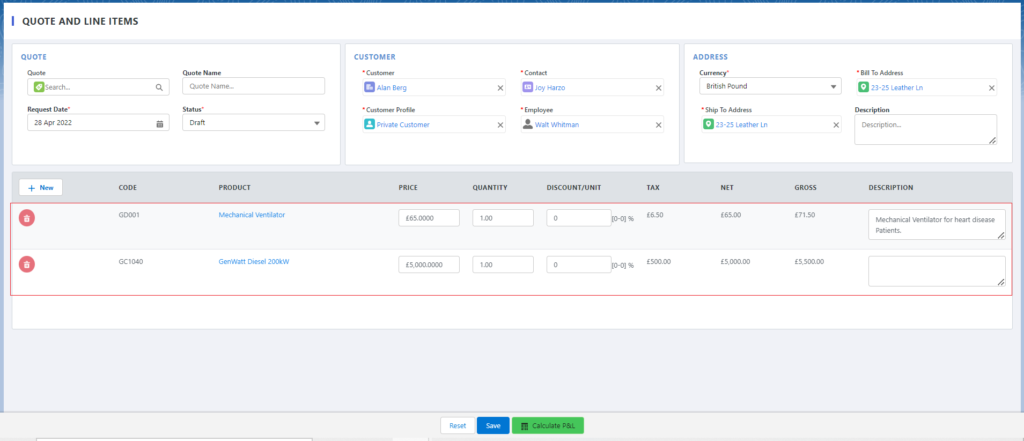
  • Creation of Quotes using ‘Quote Console’
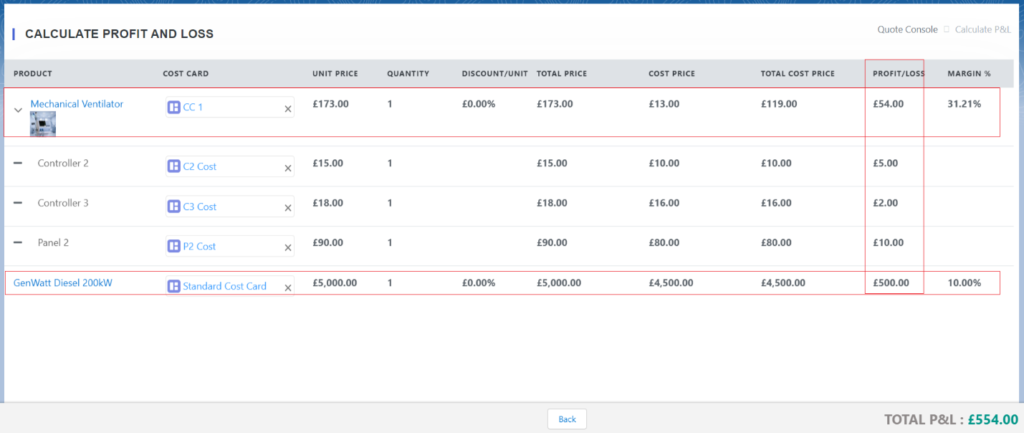
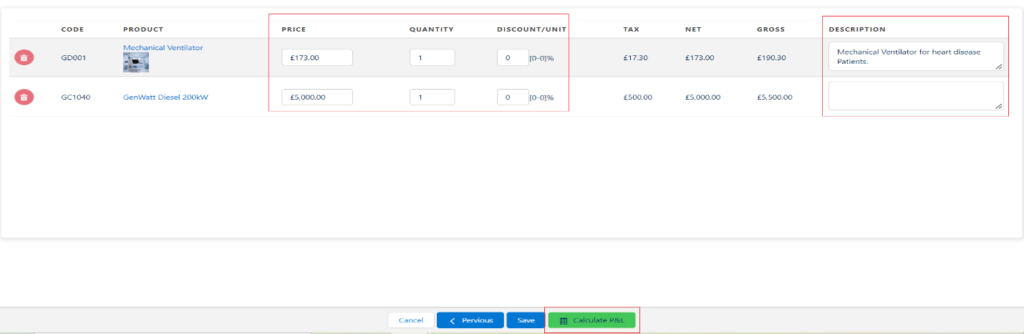
  • Calculate P&L
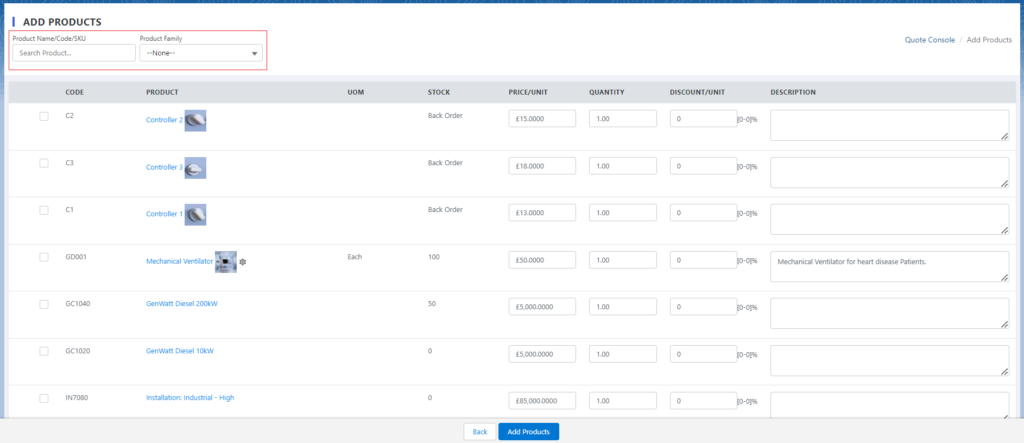
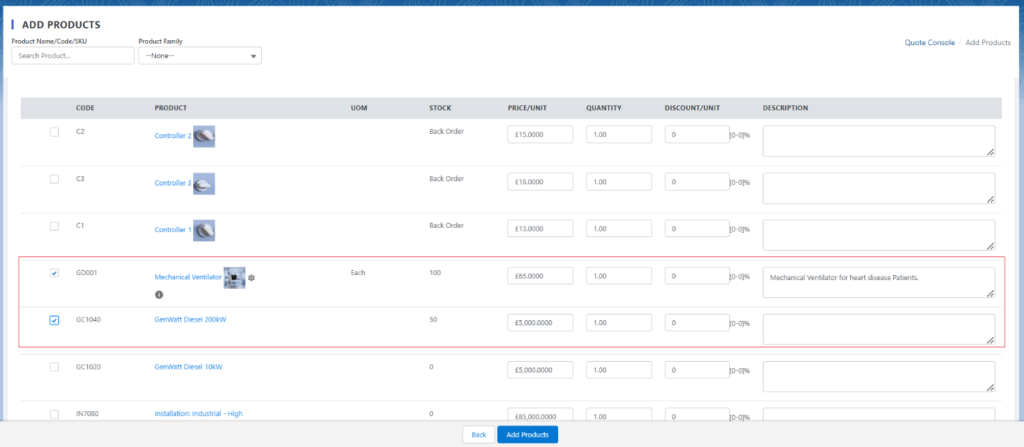
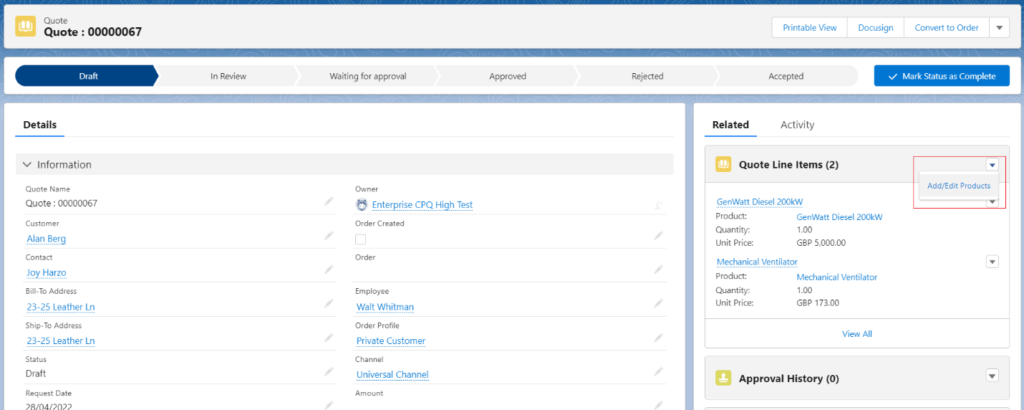
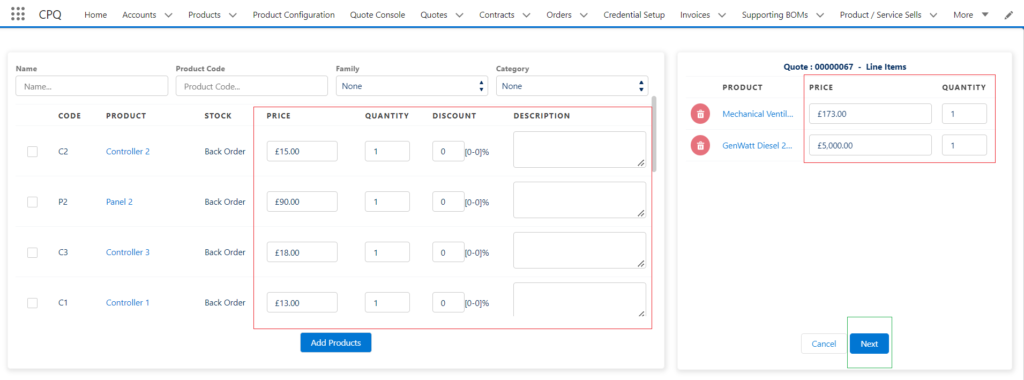
  • Add/Edit Products
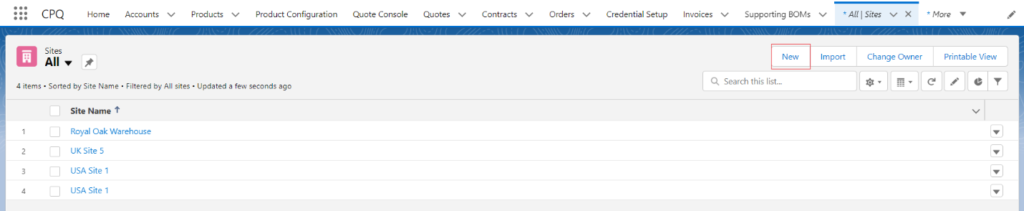
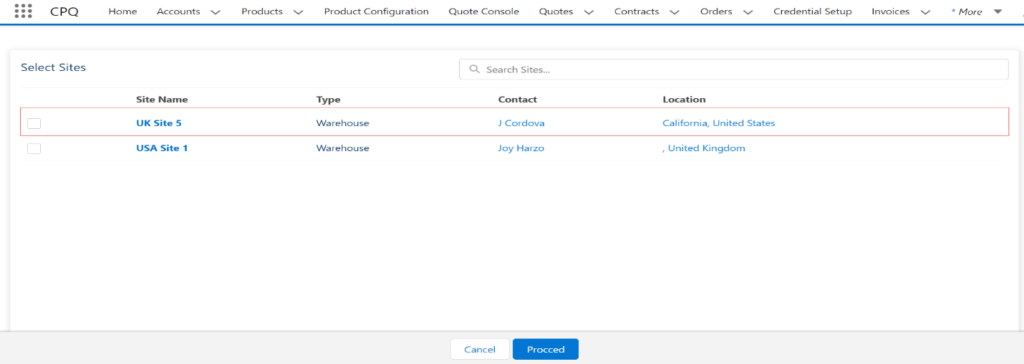
  • Site Implantation(multiple/Single)
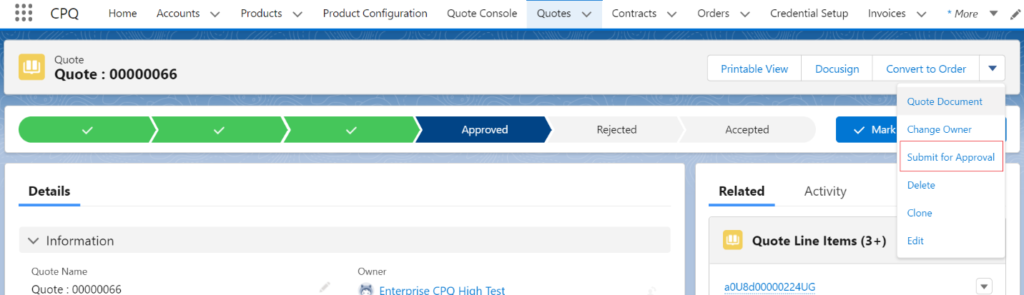
  • Send the Quotes for Manager Approval
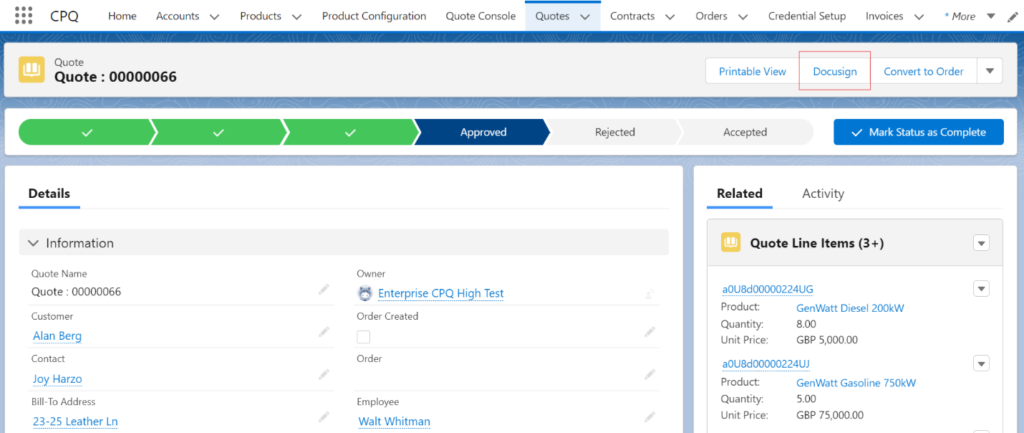
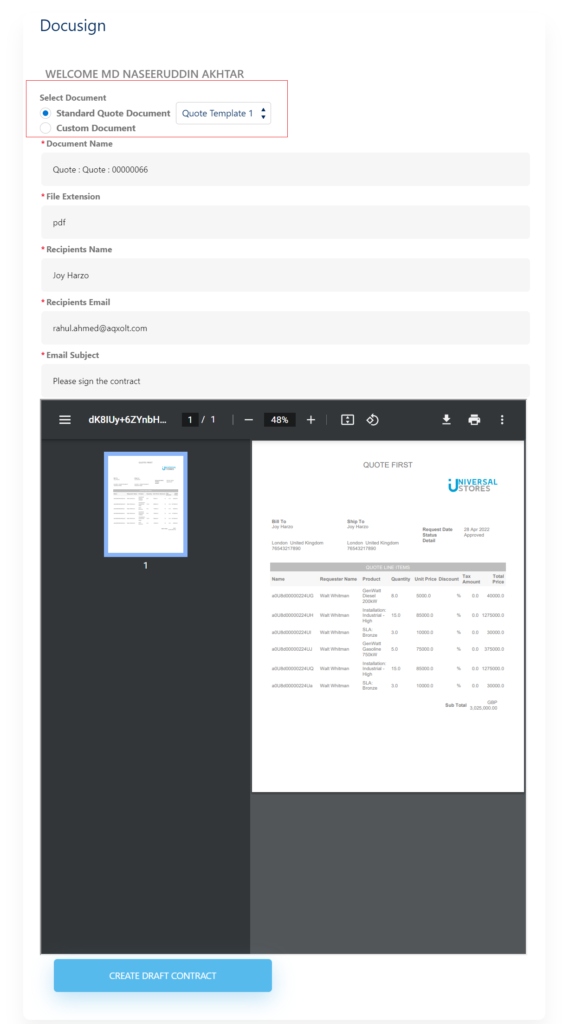
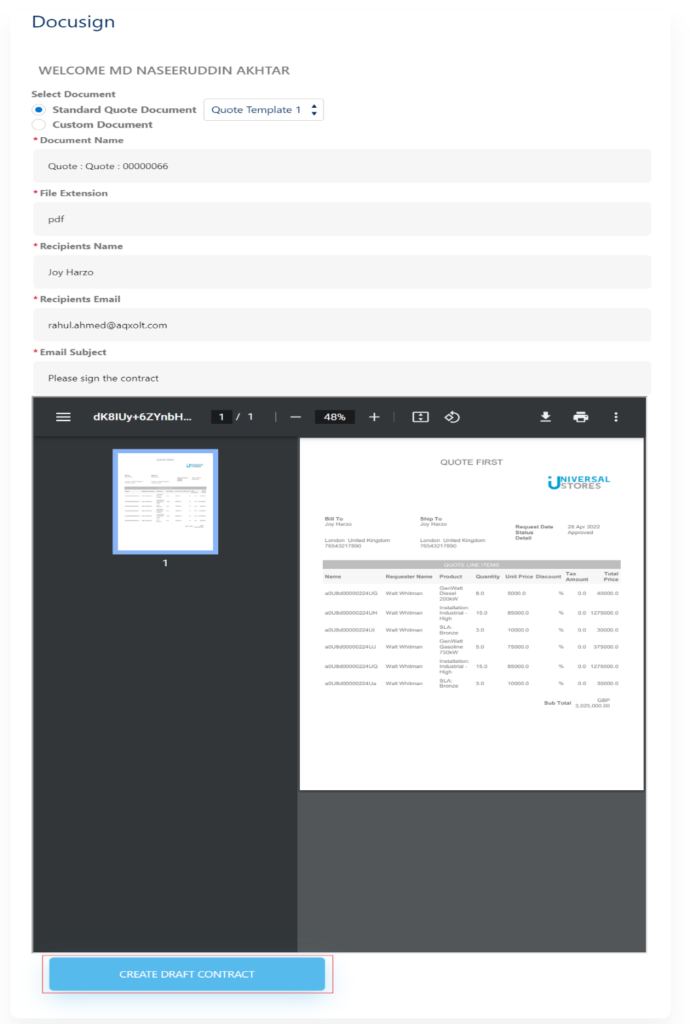
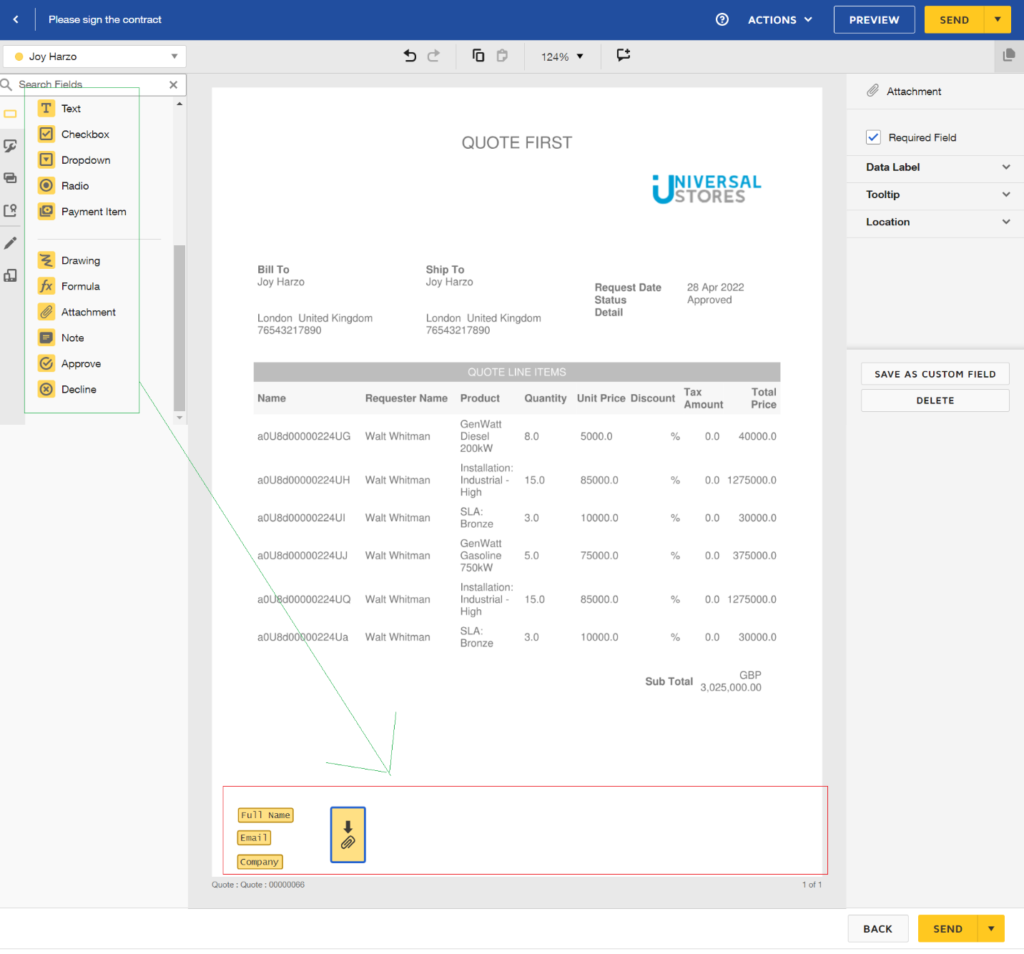
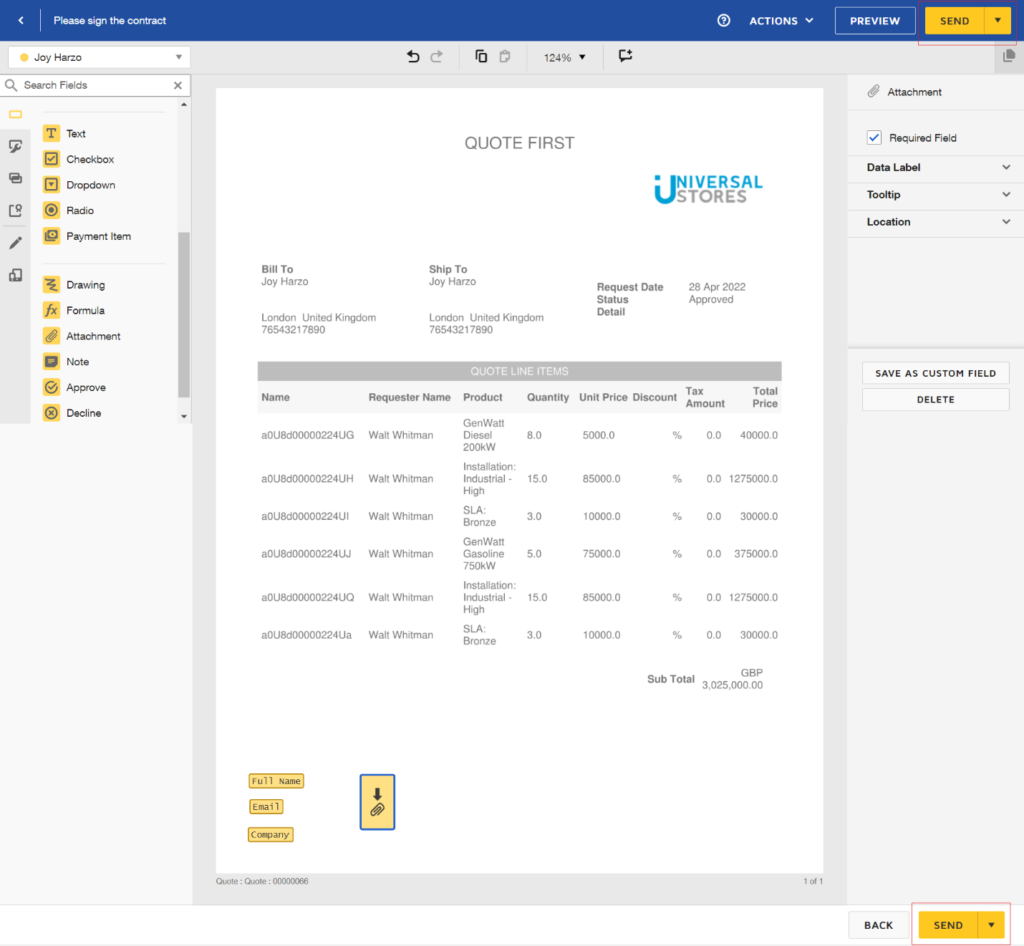
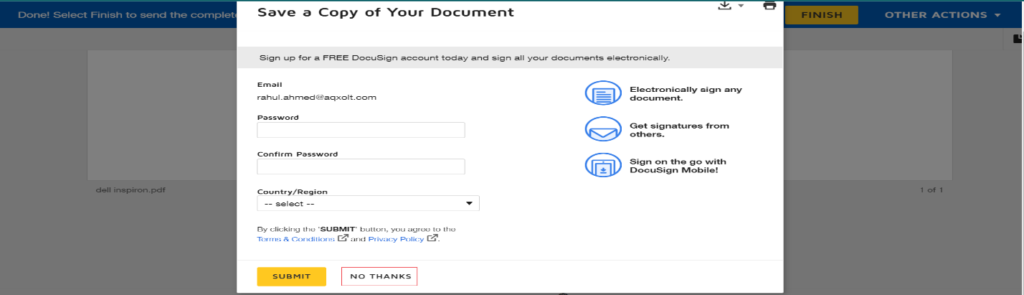
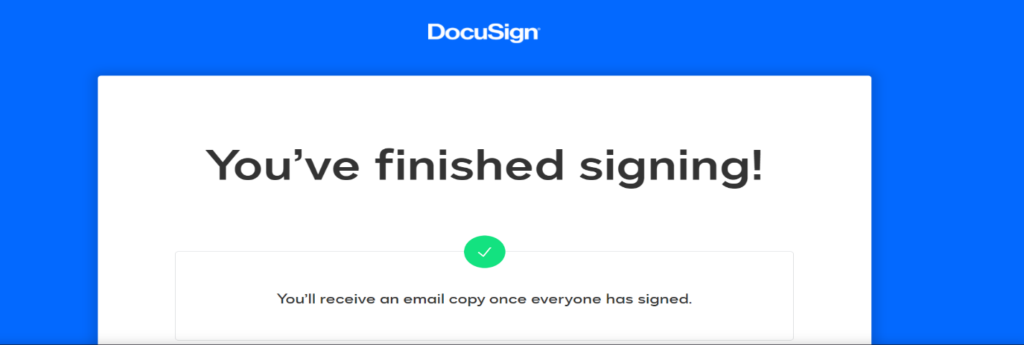
  • Send the Quotes to the Customer to sign the Contracts using DocuSign
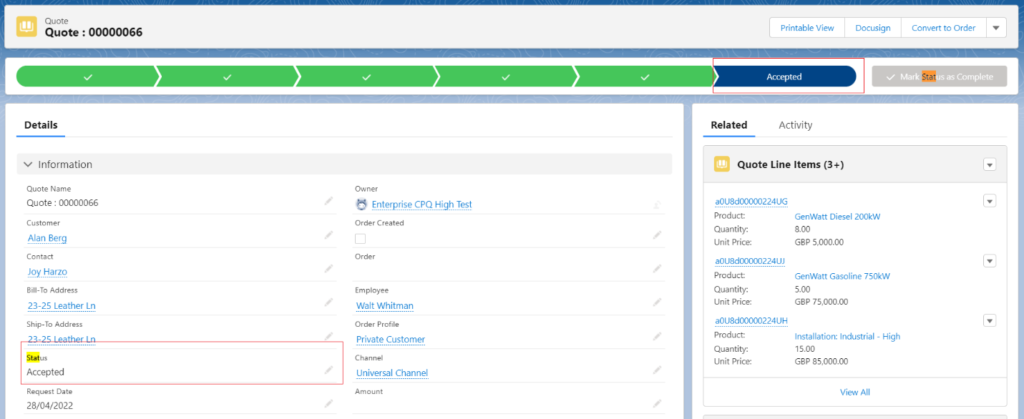
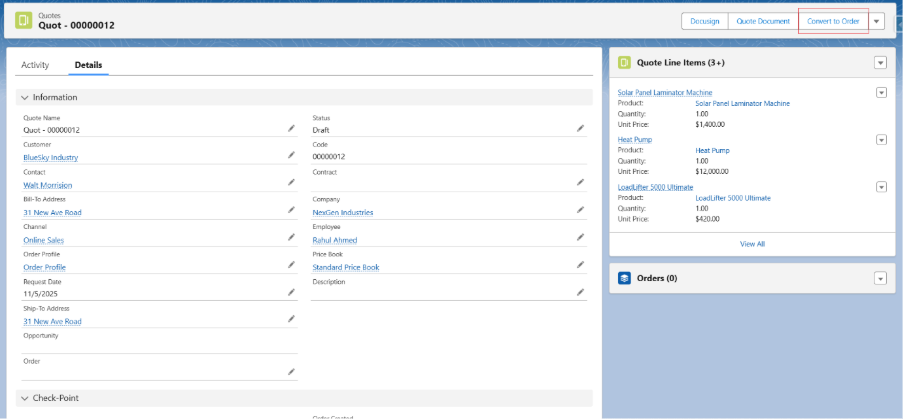
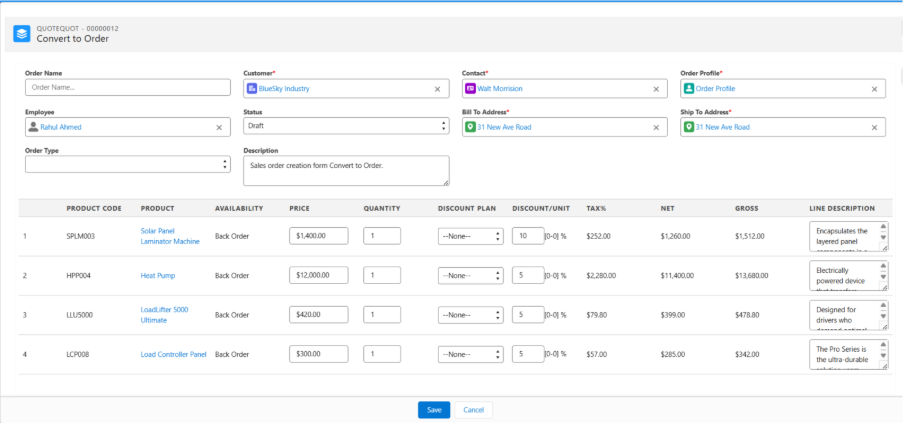
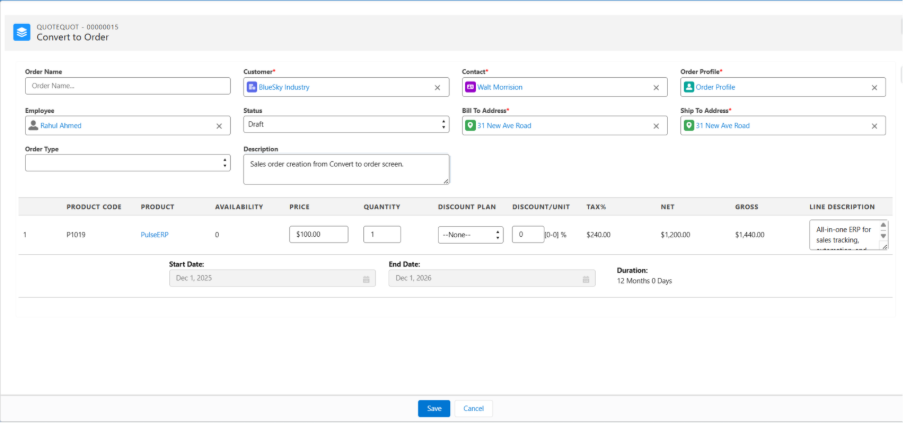
  • Convert the Quote into an Order using the ‘Convert to Order’ button.
  • Sync Quote and Orders records before Order activation.
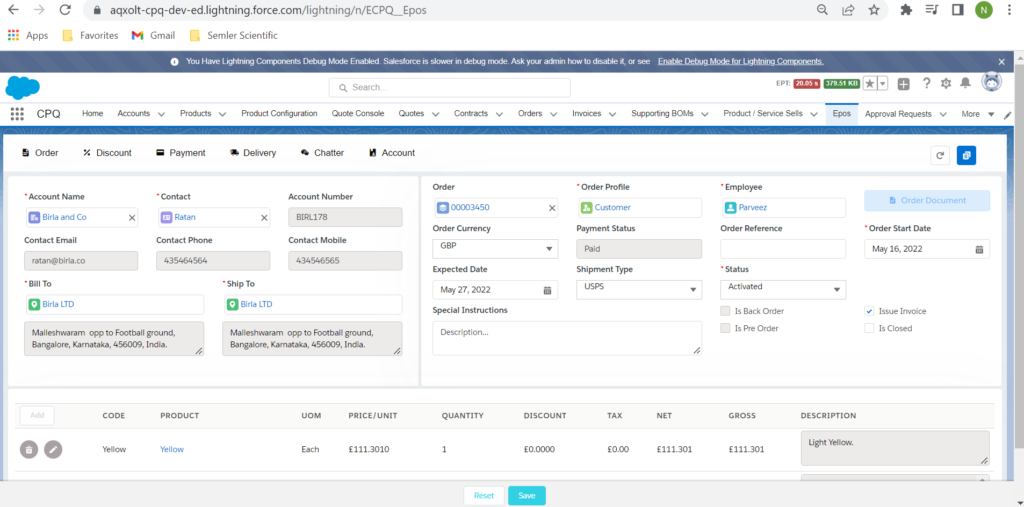
  • Create Orders from EPoS.

ERP Documentation

 Axolt ERP is a complete, modern, cloud ERP suite that provides your teams with advanced capabilities, such as AI to automate the manual processes that slow them down, analytics to react to market shifts in real-time, and automatic updates to stay current and gain a competitive advantage.

ERP - Environment Setup Guide

Basic ERP Environment Setup – Core Processes

Before using any ERP modules or flows, the initial admin setup must be fully completed — otherwise, key features and modules will not function correctly.
The following core master records and configurations are required to enable smooth operation of all ERP processes:

A. Company Account and its Contacts and Address setup
Before any transactions, products, or customer records can be used, you must create at least one Company Account representing your own organization. During creation, complete the following required details:

Company name, registration number, tax IDs, and other legal information
Contact
Billing and Shipping Addresses

This step is mandatory and must be completed first.

B. Operational Structure (Configure After the Company Account is created)
Once the Company Account with Contact and Address is created, you can then set up: (Channels, Distribution Channels, Sites (Warehouses), Locations and Storage Containers (if applicable), Carts, Profiles (Price Books & Tax Records) for pricing and taxation etc.

C. Vendor/supplier account, customer account, and their related records setup
We need to set up the vendor accounts and their contact and address records to run the Purchase Order, Return Purchase Order, and Supplier RFP flows.
We need to set up the customer accounts and their contact and address records to run the Order and RMA flows.

D. Cost Card and Approved Vendor/Supplier Setup for Products 
To purchase a particular product from the selected approved vendors, we need to have the approved vendors and cost card records. Also, the Purchase from Approved Vendor checkbox should be checked at the product record level.

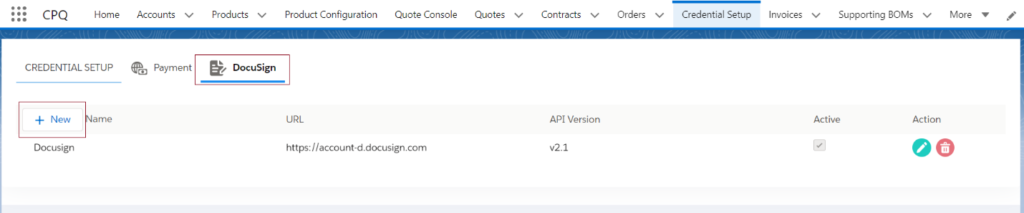
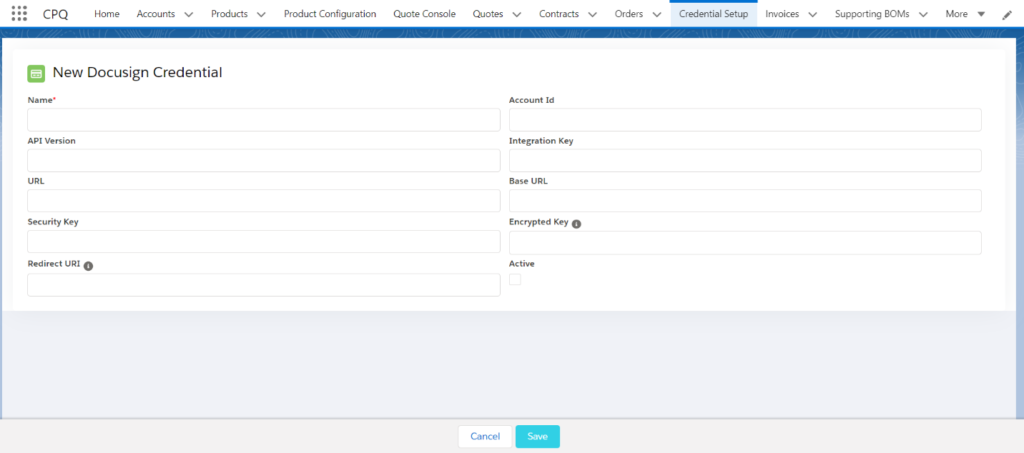
E. Credentials setup for payments, shipments, e-commerce, and docusign
To use the payment (Authorize.Net, PayPal, Stripe, etc.) and shipment (UPS, FedEx), DocuSign functionalities, we need to set up the credentials in the system.

F. User record update and employee setup –
The logged-in user’s Company record should be “solo.” Also, one employee record should be available for the logged-in user.

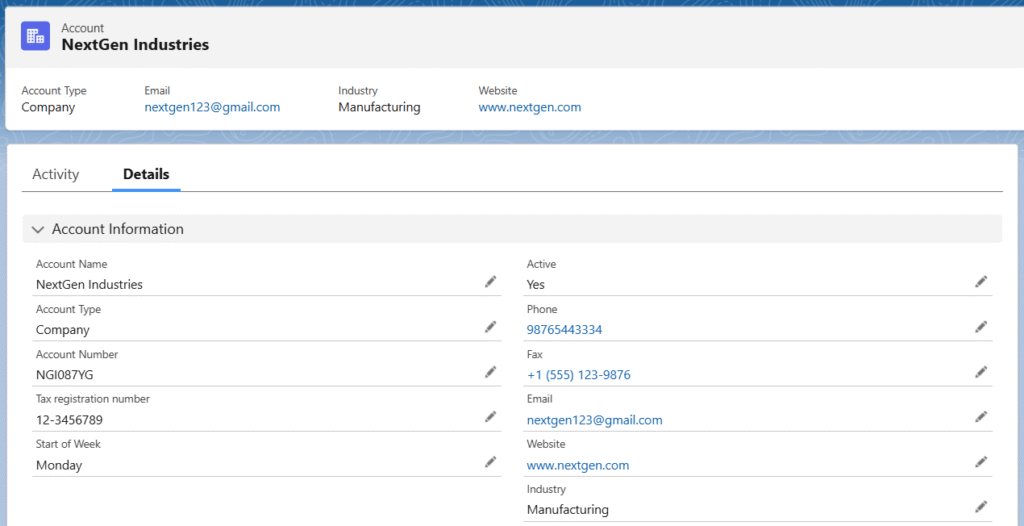
A. Company account and its related records setup – 

Company Accounts represent a legal company or organization within the platform. In Salesforce, every Organization must have at least one Company Account.
Depending on your business needs, you can create multiple Company Accounts for the same legal entity. For example:
One Company Account for the US, covering its channels, warehouses, and locations.
Another Company Account for the UK, with its own channels, warehouses, and locations.

All transactions within the Organization are categorized and tracked by the respective Company Account, giving you clear visibility and separation when needed.
Each Company Account can contain multiple Channels and their associated Distribution Channels. Every Distribution Channel can have its own Sites (Warehouses), and each Site/Warehouse can include various Locations, Storage Containers, and Carts for precise inventory management.

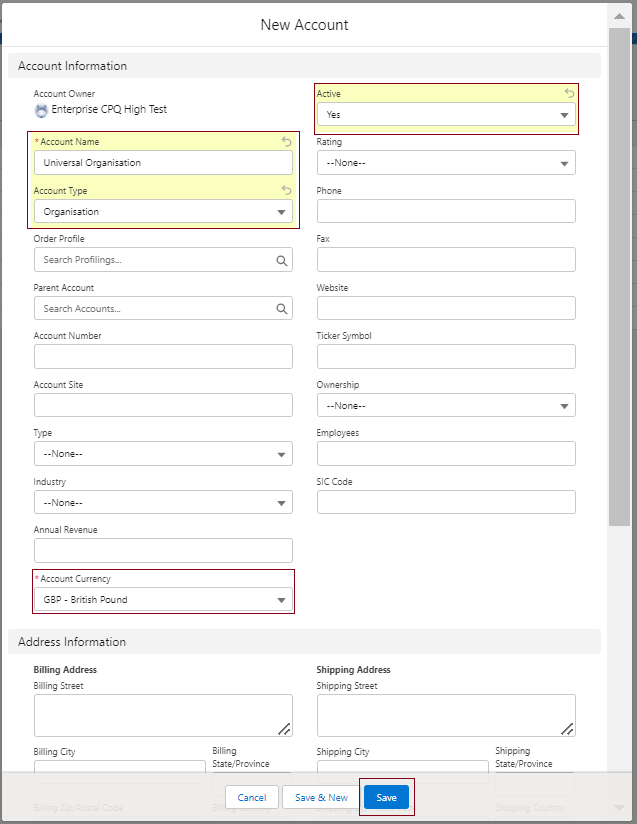
Follow the steps to create a Company account: 

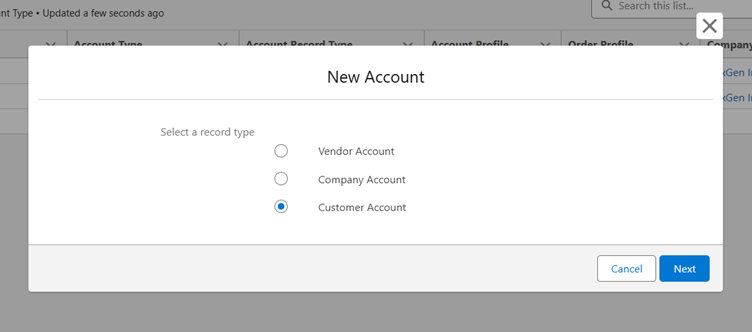
  • Navigate to the Accounts tab from the app launcher and click the + New button.
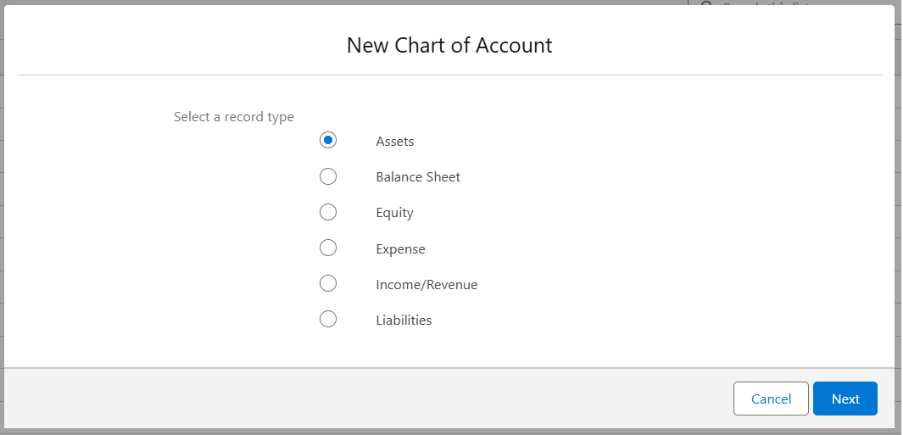
  • Select the Record Type as Company Account and click Next.
  • On the account creation page, enter the Account Name (company name).
  • Ensure the Active checkbox is selected, and the Account Type is set to Company.
  • Enter other optional information and click Save to create the Company account.

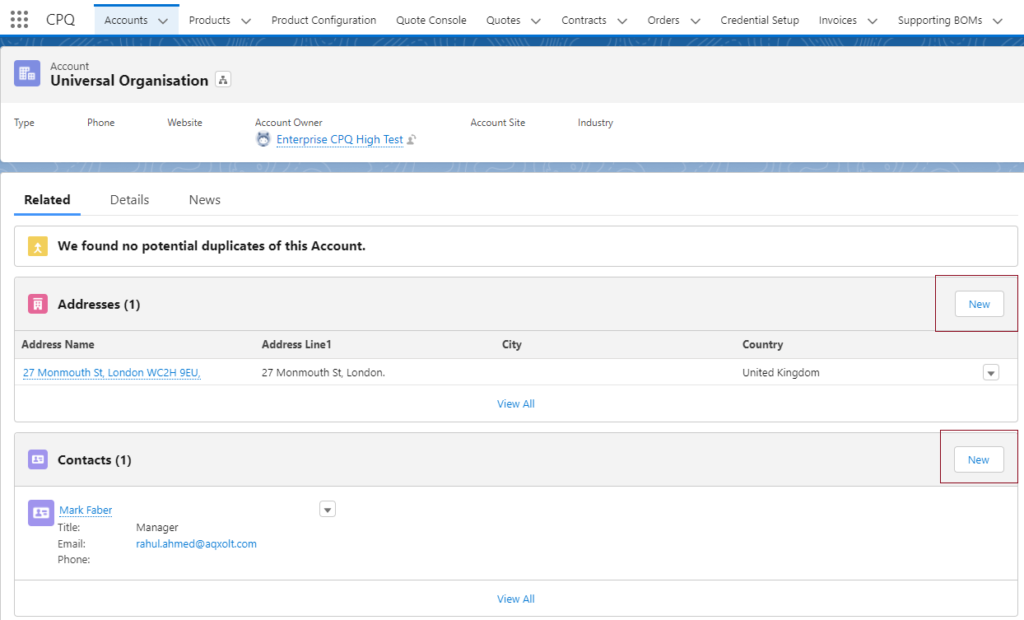
Contacts and Address setup for the Company account 

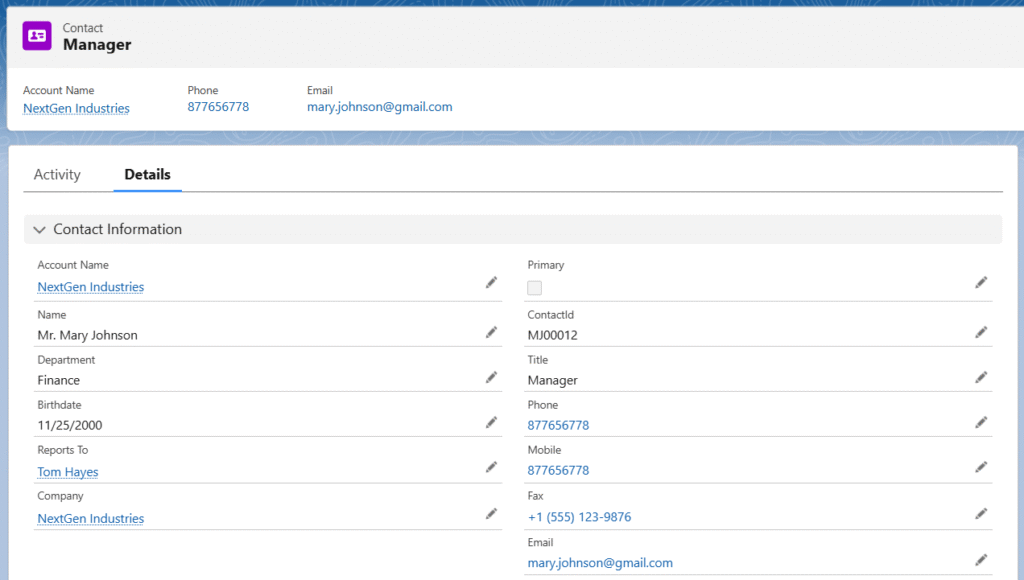
a. Contacts- Contacts serve as the primary points of communication for the company. Multiple contacts can be associated with a single company account.

Follow the steps to create a Contact record: 

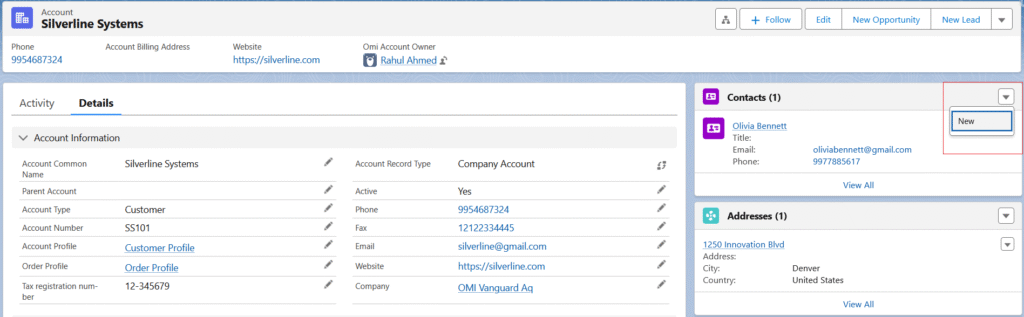
  • Navigate to the related tab of the created company account record and locate the Contacts related list.
  • Click the New button.
  • The Account Name will be auto selected. Enter the First Name and Last Name, Phone, and Title. Ensure the Contact Status is set to Active.
  • Enter other optional details if required and click Save to create the new contact record for the company.

Note 1: If the contact is a primary contact, select the Primary checkbox. (If the field is not available on the page, add it from the page layout.) 

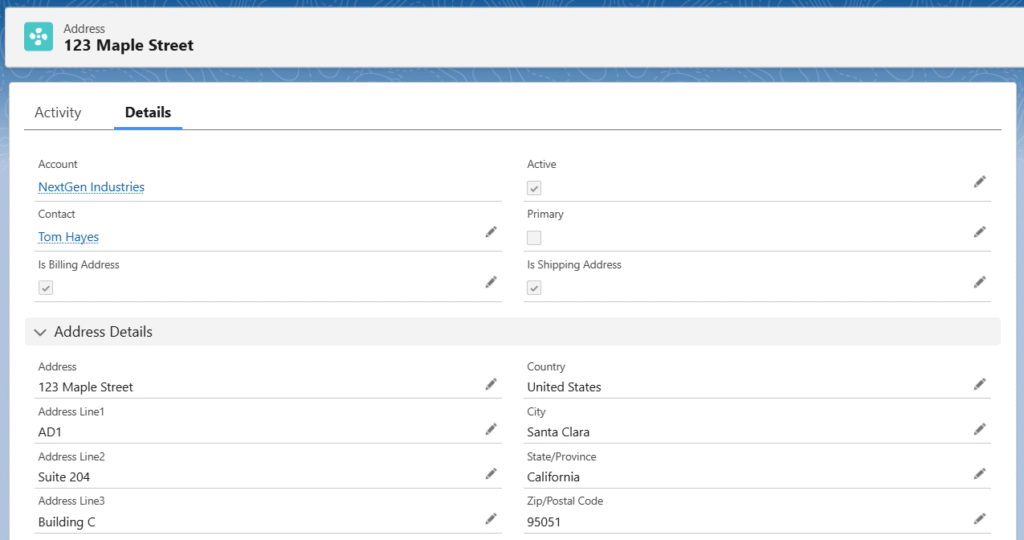
b. Address- The Address object stores complete physical address information (street, city, state/province, postal code, country, latitude/longitude etc.) as a reusable record. It allows the same validated address to be linked to multiple objects (e.g., accounts, locations, work orders, or custom objects) without duplicating data.

Follow the steps to create an Address record: 

  • Navigate to the related tab of the created company account record and locate the Address related list.
  • Click the New button.
  • The created Account will be auto selected. Select the created Contact from the Contact lookup.
  • Ensure the Active checkbox is checked.
  • Check the Primary Address checkbox if the address is the primary address. If the same address is used for both billing and shipping, check the Is Billing Address and Is Shipping Address checkboxes.
  • Enter the Address, select the Country, enter the City, select the State/Province and enter the ZIP/Postal Code.
  • Enter other optional details if required, then click Save to create the company’s address.

B. Operational Structure (Configure After the Company Account is created)

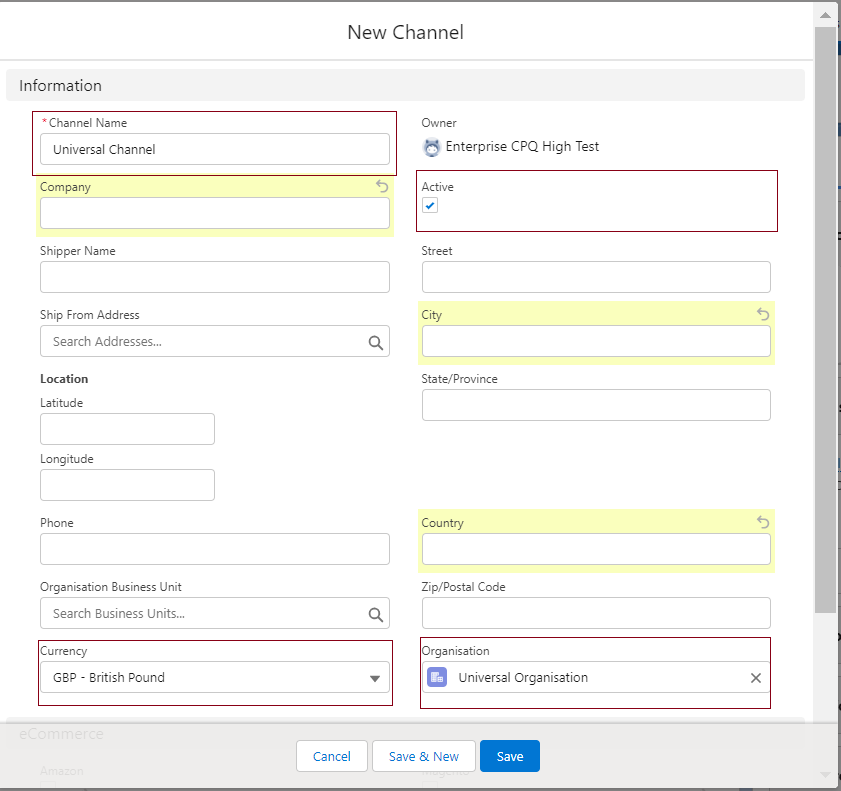
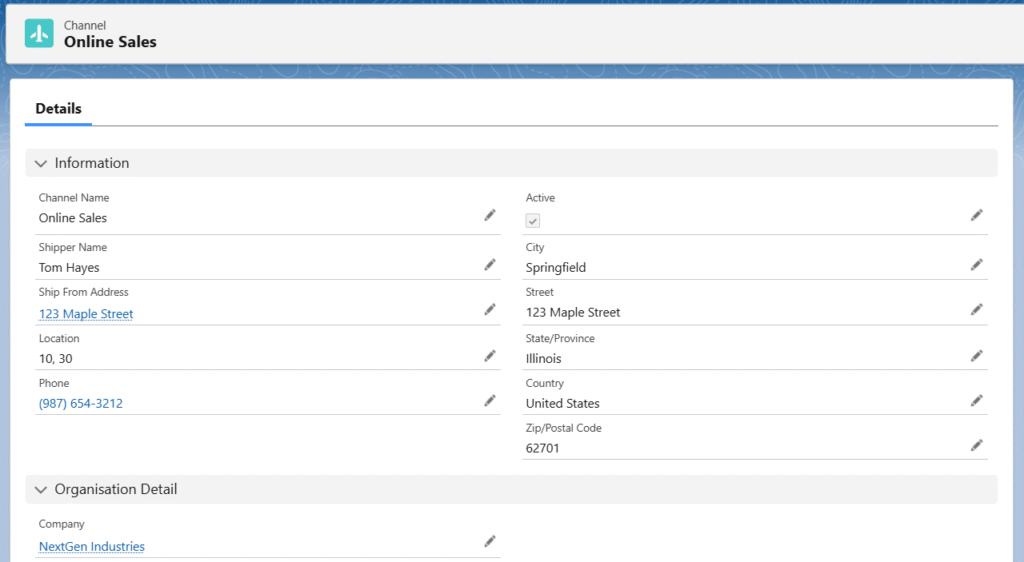
a. Channel: Channels refer to the mode of business (like retail sales, online sales, and third-party distributors).

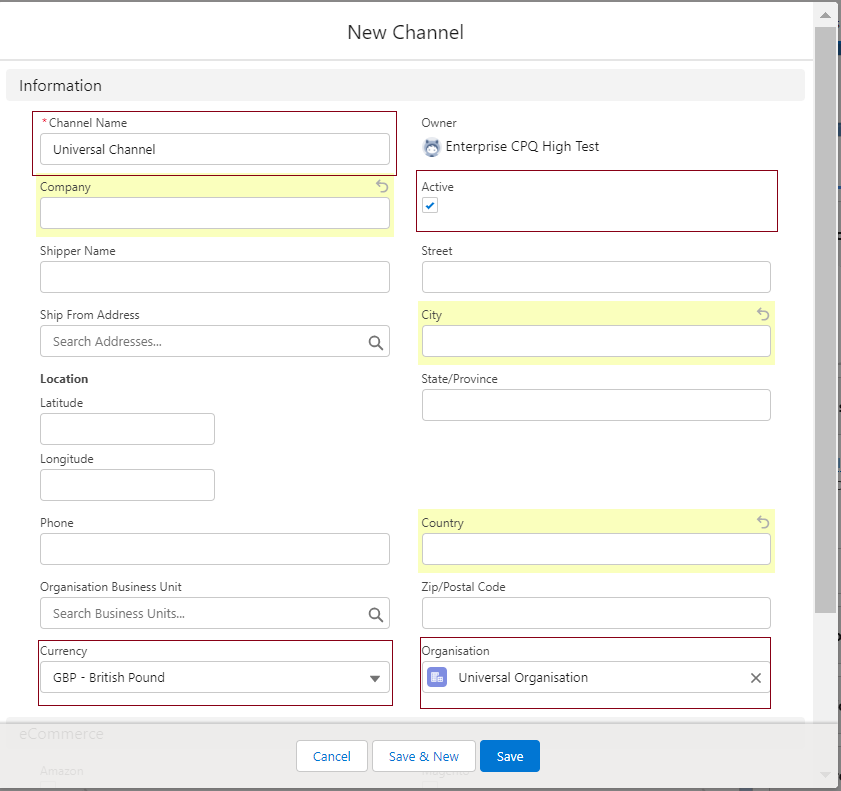
Follow the steps to create a Channel record –

  • Go to the related list of the created Company account and find the Channel object (related list).

OR

  • Find the Channels tab from the App Launcher.
  • Click the New button.
  • Enter the Channel Name, Shipper Name, select the Ship From Address, enter Phone, select the Company (created Company account), ensure the Active checkbox is checked, enter City, Street, State/Province, Country, and Zip/Postal Code,
  • Click Save to create the channel record.

Note 2: One Company can have multiple channels. 

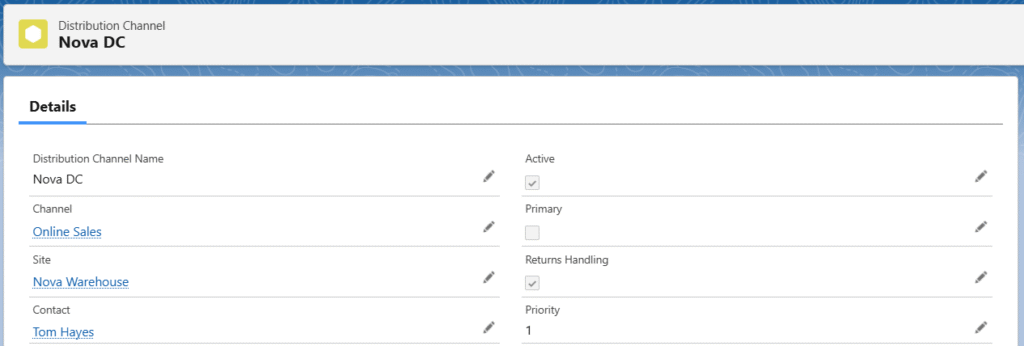
b. Distribution Channel: The distribution channel is a group of warehouses/sites from where items are shipped. 

Follow the steps to create a Distribution Channel record –

  • Go to the related list of the created channel and find the Distribution Channel object (related list),

or

  • Find the Distribution Channel tab from the App Launcher.
  • Click the New button.
  • Enter the Distribution Channel Name. The Channel Name will be auto selected. Create a new Site (refer to the Site creation process below), select or create a Contact, ensure the Active and Return Handling checkboxes are selected, check the Primary checkbox if the DC is the primary DC, select the Priority (according to the requirement).
  • Click Save to create a new distribution channel record.

Note 3: Channels can have multiple distribution channels but only one site/warehouse record should be available for each distribution channel. 

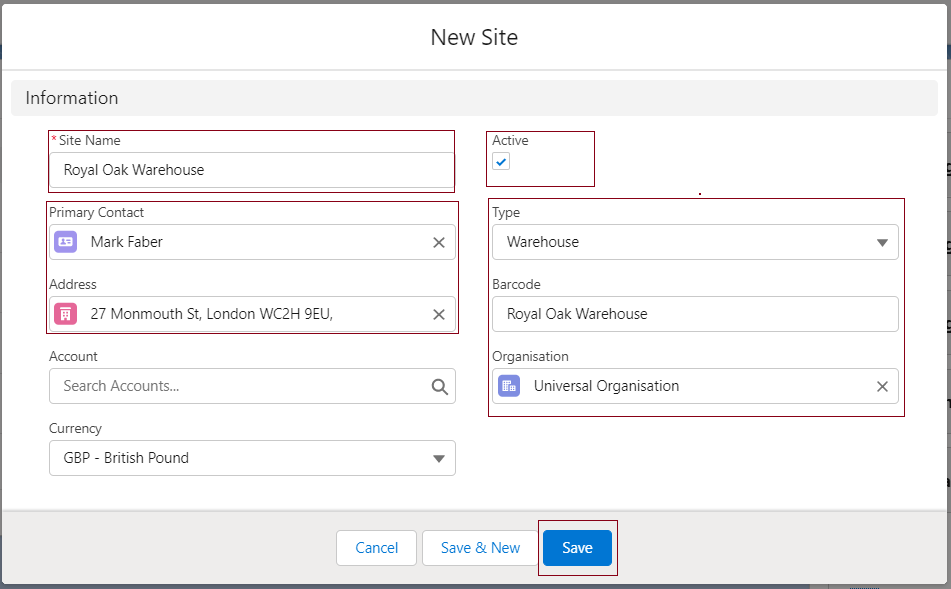
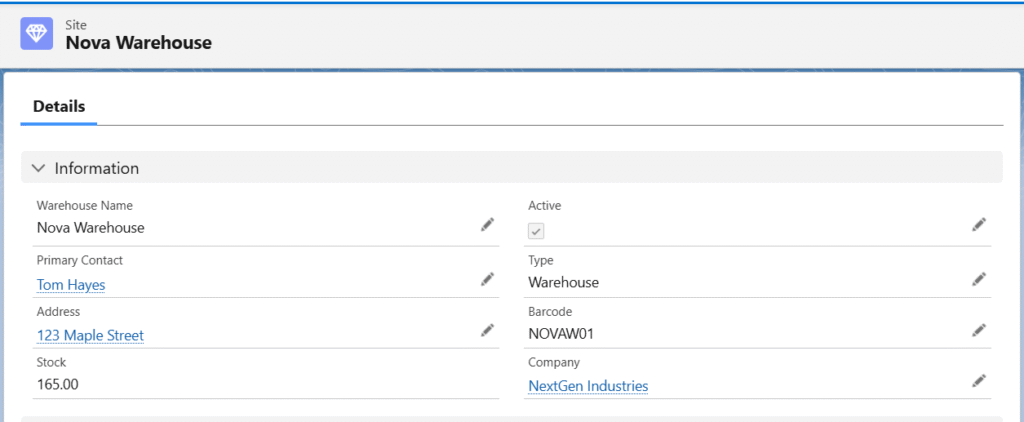
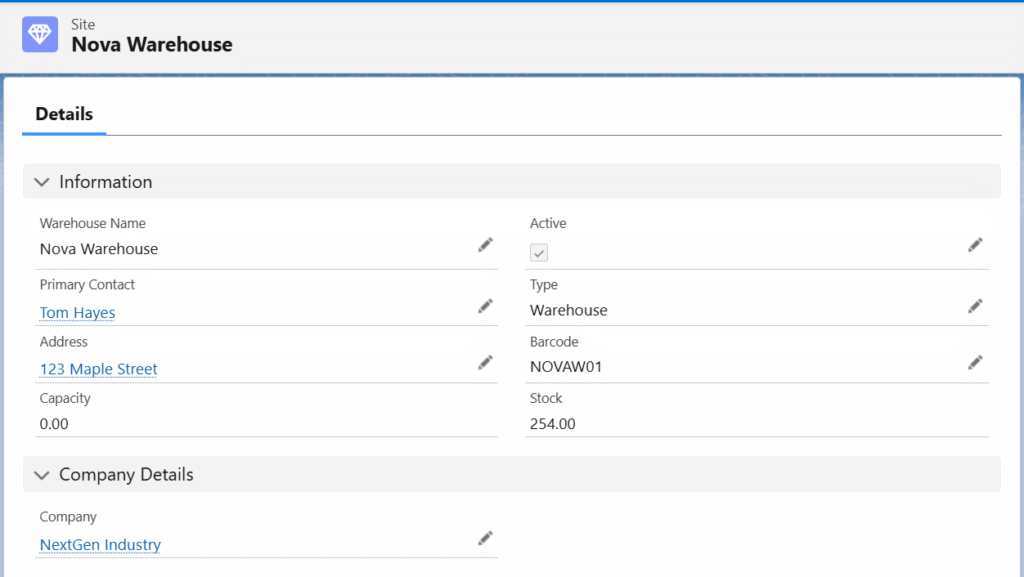
c. Site (Warehouse) – Site or Warehouse is a physical building (Ex. warehouse). 

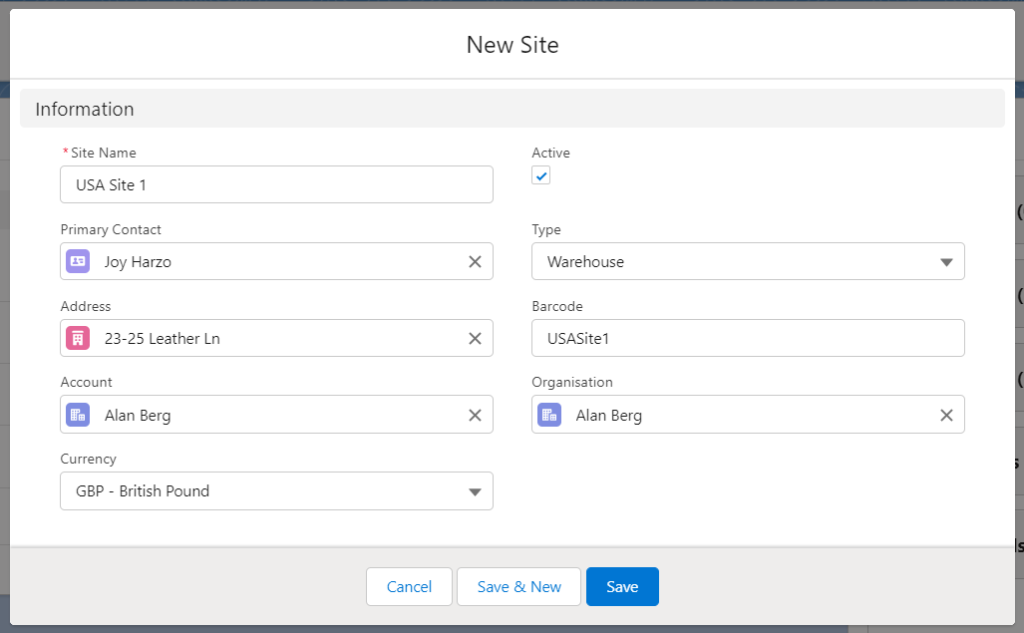
Follow the steps to create a Site record –

  • Click on the Site lookup field on the Distribution Center creation page.
  • Click on the + New Site button.
  • Enter the Warehouse Name, select the Primary Contact, enter the Capacity of the Site, Address, Company (created Company Account), Active checkbox should be checked, Type should be ‘Warehouse’, enter a Barcode.
  • Click on the Save button to create the Site/Warehouse record.

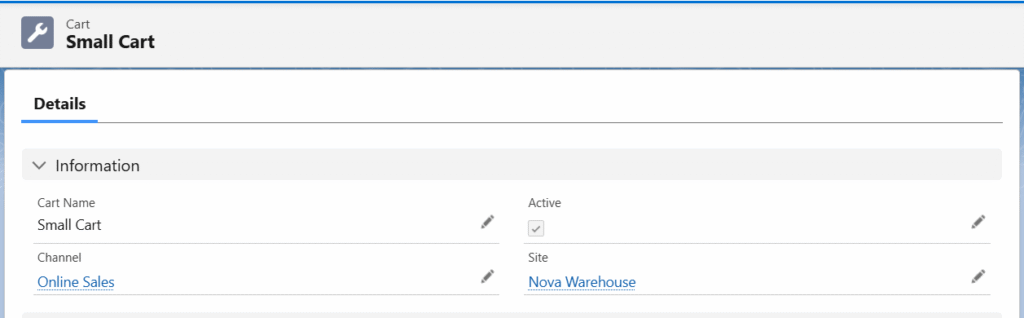
d. Cart – The cart can be used on the Stock Transfer page to transfer inventory/stocks from one site to another or from one location to another.

Follow the steps to create a Cart record –

  • Find the Cart tab from the App Launcher,

OR

  • Go to the related list of the created site and find the Cart object (related list).
  • Click the New button.
  • Enter the Cart Name. The Site will be auto selected. Ensure the Active checkbox is checked, select the Channel (created channel), enter the Account or Employee (if required).
  • Click Save to create the cart record.

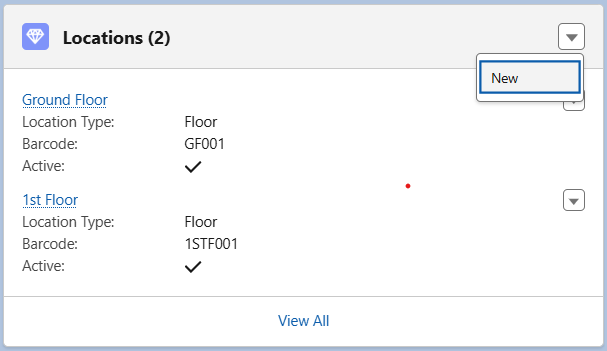
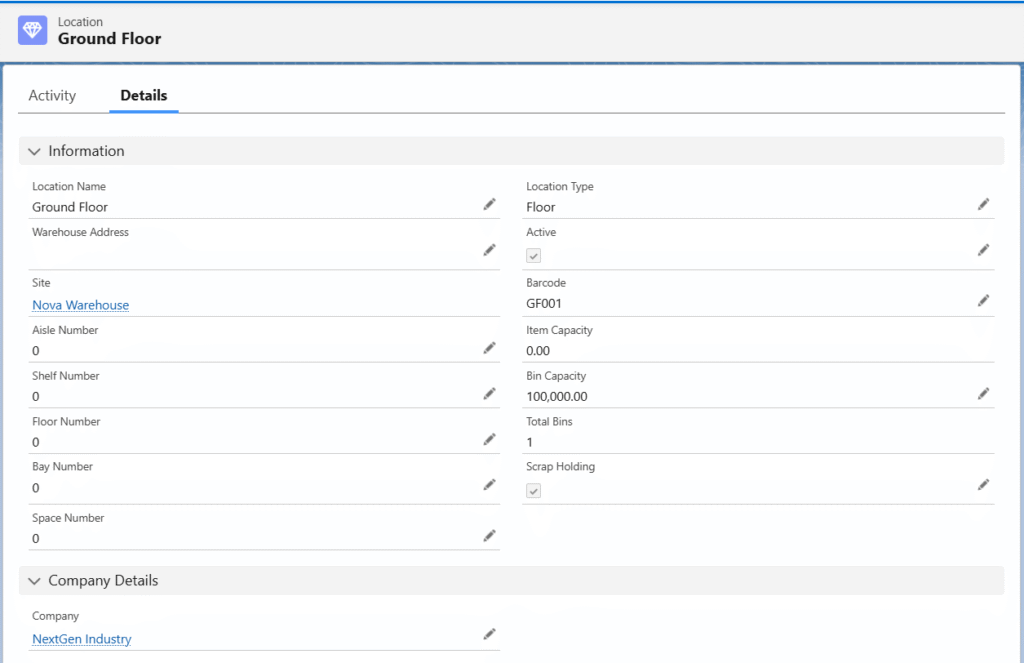
e. Location – The cardboard, bin, shelf, or a floor of the warehouse can be considered a location. 

Follow the steps to create a Location record –

  • Go to the related list of the created site and find the Locations object (related list).
  • Click the New button.
  • Enter the Location Name. The Site will be auto selected. Ensure the Active checkbox is checked, select a Location Type (any), enter the Barcode, select the Company (created company account),
  • Click Save to create the location record.

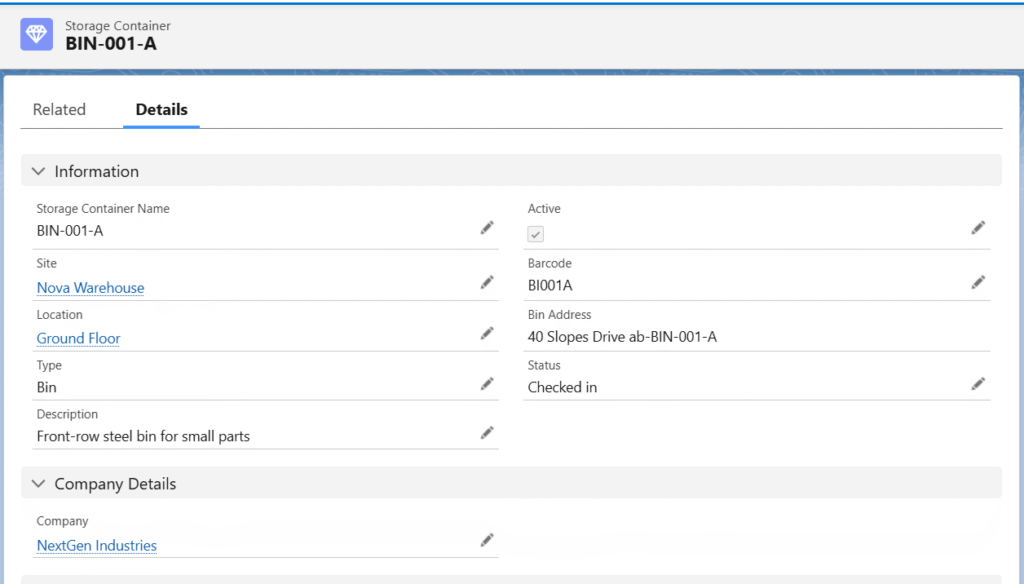
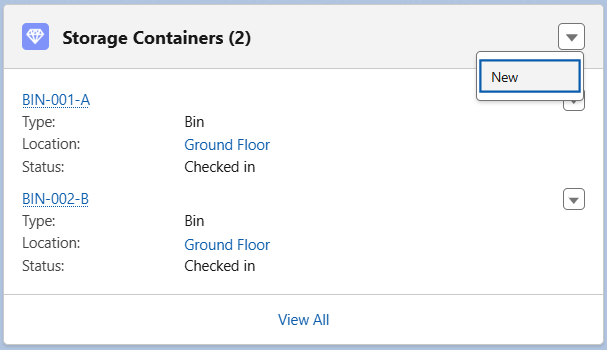
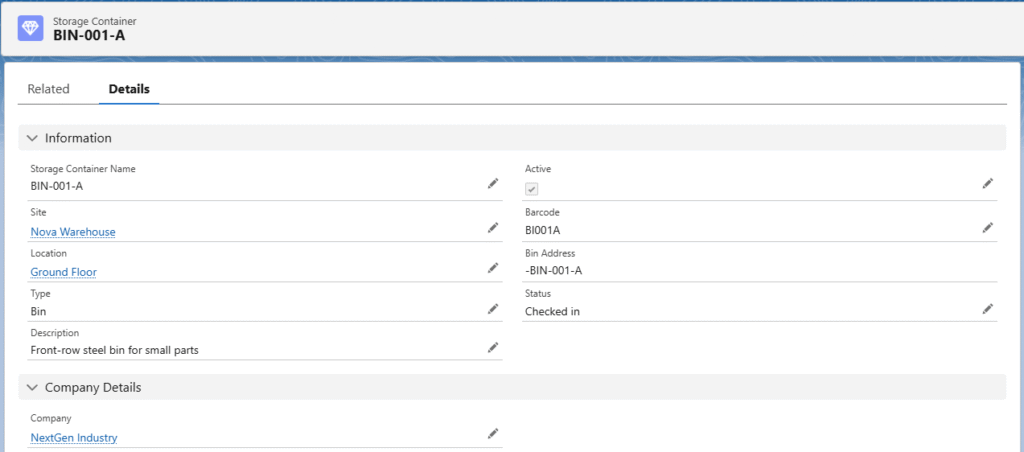
f. Storage Container – The bin, pallet, shipping container, bucket, or bottle can be considered a storage container for a location. 

Follow the steps to create a Storage Container record –

  • Go to the related list of the created site and find the Storage Container object (related list).
  • Click the New button.
  • Enter the Storage Container Name. The Site will be auto-selected. Ensure the Active checkbox is checked, select the created Location, select a Type (any), enter a Barcode, select the Company (created company account),
  • Click Save to create the storage container record.

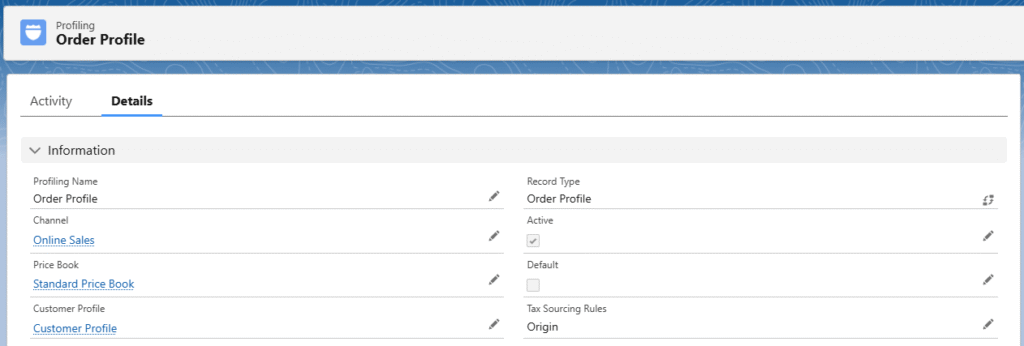
g. Profiling Profiles control tax rules, pricing strategies, and product visibility for customers.

Each Profile is linked to one Price Books that define list prices, currency, and tax settings. Profiles are assigned directly to Customer Accounts.

When creating Orders, Quotes, Opportunities, or any sales documents, the system automatically applies:
* Pricing from the Profile’s linked Price Book(s)
* Tax calculations based on the Tax Records defined for that Profile

This ensures consistent and accurate pricing across all transactions.

Follow the steps to create a Profile record: 

  • Navigate to the Profiling tab using the App Launcher or find the tab in the app navigation menu.
  • Click the New button.

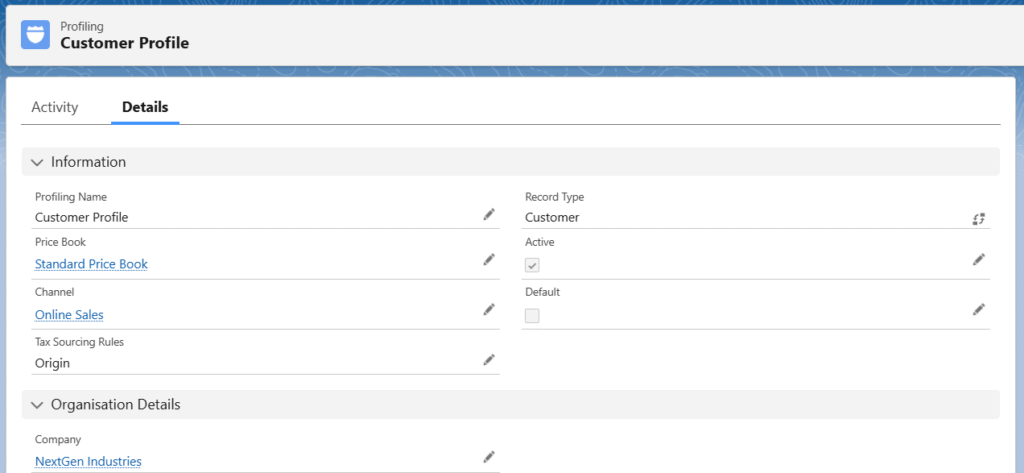
Create a Customer Profile –

  • Select the Record Type Customer to create the Customer Profile.
  • Once the record type is selected, click on the Next button.
  • Enter the Profile Name, select the Channel, and select the Tax Sourcing Rule (Origin/Destination).
  • Ensure the Company is auto selected and check the Active checkbox.
  • Click the Save button to create the Profile record.

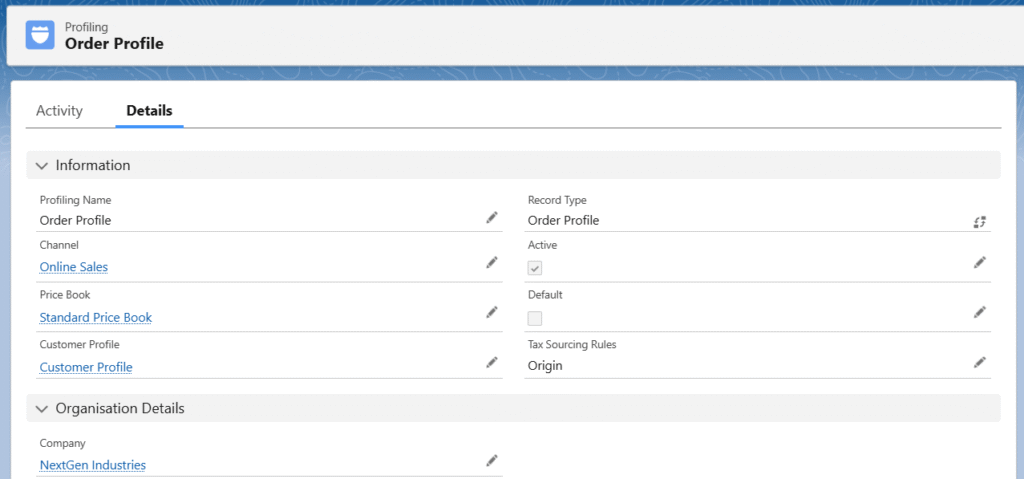
Create an Order Profile

  • Select the Record Type Order to create the Order Profile.
  • Once the record type is selected, click on the Next button.
  • Enter the Profile Name, select the Channel, select the created Account Profile (Exp – US Customer Profile), and select the Price Book.
  • Ensure the Company is auto selected, check the Active checkbox, and mark as default if this is the default Order Profile.
  • Click the Save button to create the Order Profile record.

Note 4: A Customer Profile must be assigned to the Order Profile.

C. Vendor/Supplier Account, Customer Account, and Their Related Records Setup –

a. Vendor/Supplier – Accounts classified as suppliers from whom we procure goods or services. They are selected on Purchase Orders to record and track incoming inventory or expenses.

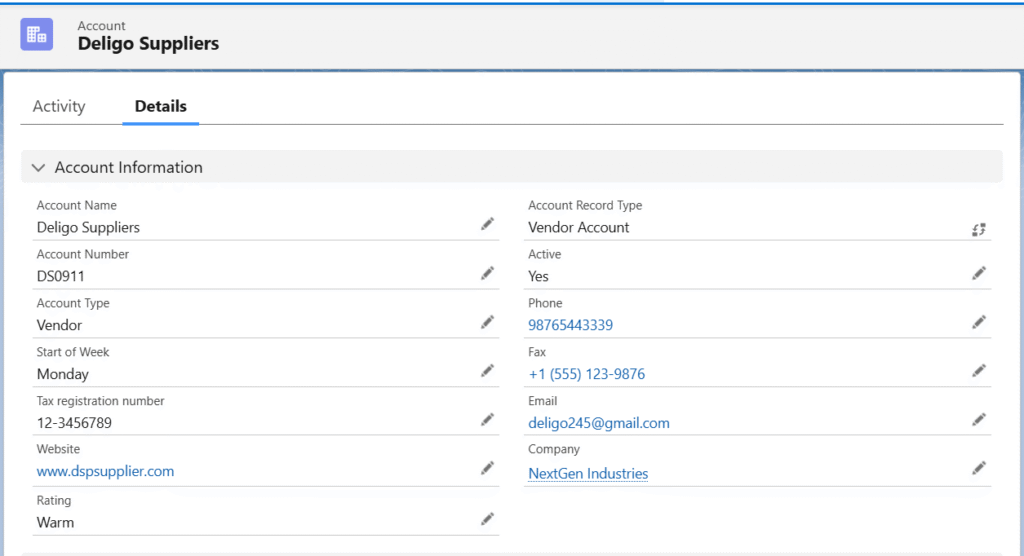
Follow these steps to create a Vendor/Supplier account –

  • Navigate to the Accounts tab using the App Launcher or find the tab in the App Navigation menu.
  • Click the New button to create a vendor account.
  • Select the Record Type as Vendor and click on the Next.
  • Enter the Account Name, set the Account Type to Vendor, and choose the Company account (created company account).
  • Set the Active to Yes and enter other optional details (if applicable).
  • Click the Save button to create the vendor account.

Note 5: If a user registers themselves in the ERP Supplier Portal Community, a Vendor Account and Contact record will be created automatically. 

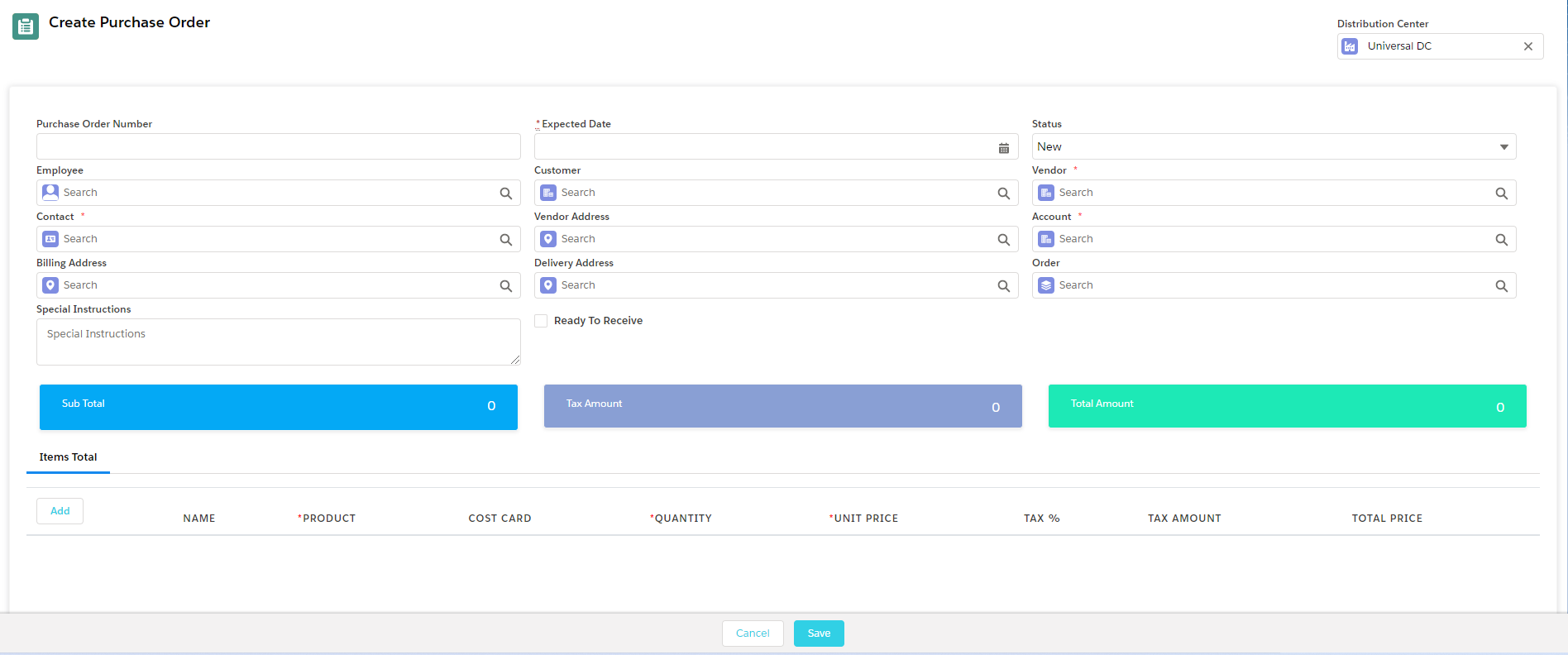
Note 6: Users can create new vendor Accounts, Contacts, and Addresses from the Create Purchase Order page by clicking on the Vendor, Vendor Contact, or Vendor Address lookup field, the new record creation button will appear. 

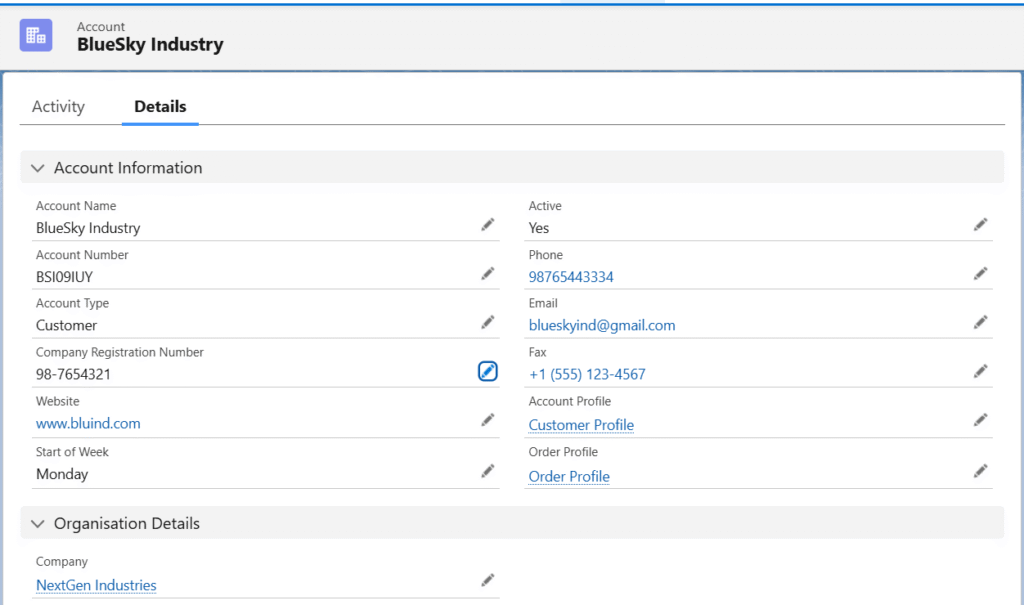
b. Customer – Accounts classified as buyers or clients to whom we sell products or services. They are associated with Opportunities, Quotes, and Sales Orders to manage the entire sales cycle from lead to revenue.

Follow the steps below to create a Customer account –

  • Navigate to the Accounts tab using the App Launcher or find the tab in the App Navigation menu.
  • Click the New button to create a vendor account.
  • Select the Record Type Customer Account.
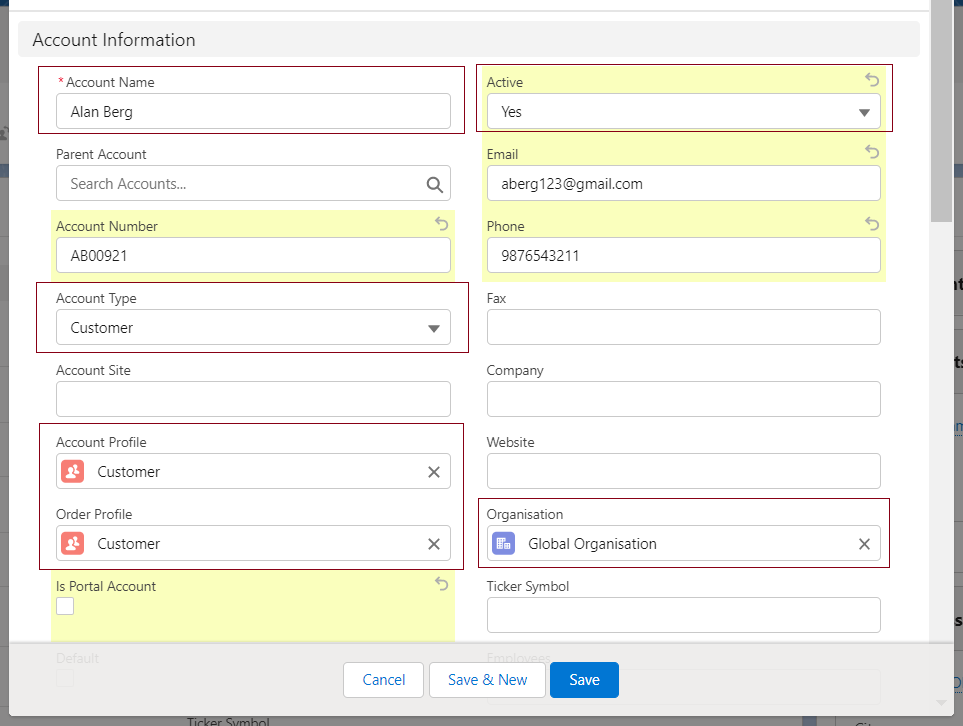
  • Enter the Name of the customer in the Account Name field and select Customer in the Account Type field.
  • Select the Company account.
  • Set the Active to Yes, select the Account Profile (created customer profile Exp- Customer Profile) and Order Profile (created order profile Exp- Order Profile).
  • Enter other optional details if required and click the Save button to create the customer account.

Note 7: Follow the same steps to create contacts and addresses for customers and the Vendors, as mentioned in the contact and address creation steps above. 

D. Cost Card and Approved Vendor/Supplier Setup for Products 

a. Cost Card –Cost Cards define the exact purchasing cost of a product from a specific Approved Vendor based on order quantity. Each Cost Card is linked to a product and vendor and includes quantity ranges along with the corresponding unit cost. Multiple Cost Cards can be added for the same product-vendor pair to reflect volume-based pricing. When creating Purchase Orders, the system makes Cost Cards selectable on the Create Purchase Order screen only when the Purchasing Vendor matches the Cost Card Vendor. It then automatically applies the correct unit cost from the active Cost Card based on the ordered quantity, ensuring accurate landed costs and adherence to negotiated pricing.

Follow the steps below to create a Cost Card –

  • From the product record, locate the Cost Cards related list.
  • Click the New button.
  • The product will be auto selected. Enter the Cost Card Name.
  • Select the created Vendor account from the Supplier lookup and enter the Vendor Part Number (if applicable).
  • The Active checkbox should be checked, enter the Start Date and End Date, Quantity and Cost per Quantity, select the Company Account, and click Save.

b. Approved Vendor – Approved Vendors can be directly linked to specific Products (or Product records) in the system.
This association designates them as trusted sources from which the product may be purchased. Once linked, only these Approved Vendors will appear as selectable options when creating Purchase Orders, Requisitions, or RFQs for that product — ensuring procurement compliance and restricting purchases to pre-qualified suppliers.

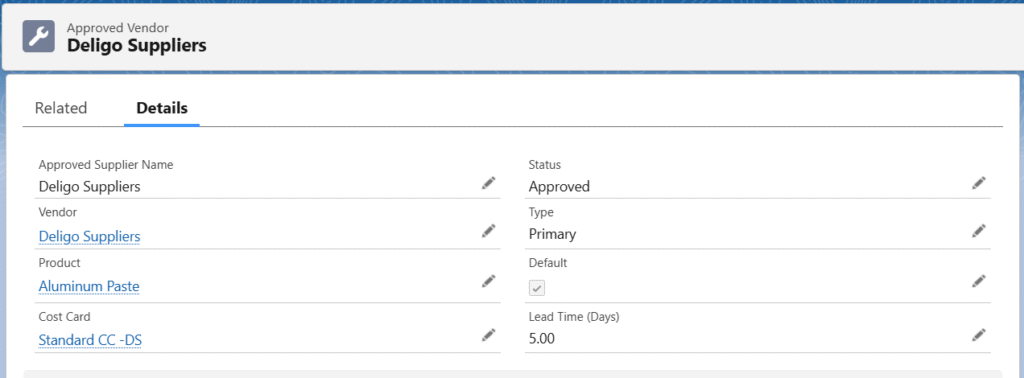
Follow the steps below to create an Approved Vendor –

  • From the product record, locate the Approved Vendors related list.
  • Click the New button. The product will be auto selected.
  • Enter the Approved Supplier Name, the Approved Supplier Name should match the vendor’s name.
  • Select the created vendor account from the Vendor lookup.
  • Create/Select the available cost card from the Cost Card lookup (if applicable). Set the Status to Approved.
  • Set the Type to Primary.
  • Enter the Lead Time (days) and click Save to create the approved vendor.

Note 8: To purchase a product from specific or approved vendors, the product must have Approved Vendors assigned, and the Purchase from Approved Vendor checkbox should be checked on the product record detail page.

E. Credentials Setup – To enable payment gateways (Authorize.Net, PayPal, Stripe, etc.), shipping carriers (UPS, FedEx, DHL, etc.), and electronic signature services (DocuSign), the required credentials and connection settings must be configured in the system.
These credentials are securely stored as Custom Settings in the system, allowing easy management, deployment across environments, and version control without exposing sensitive data in code or custom settings.

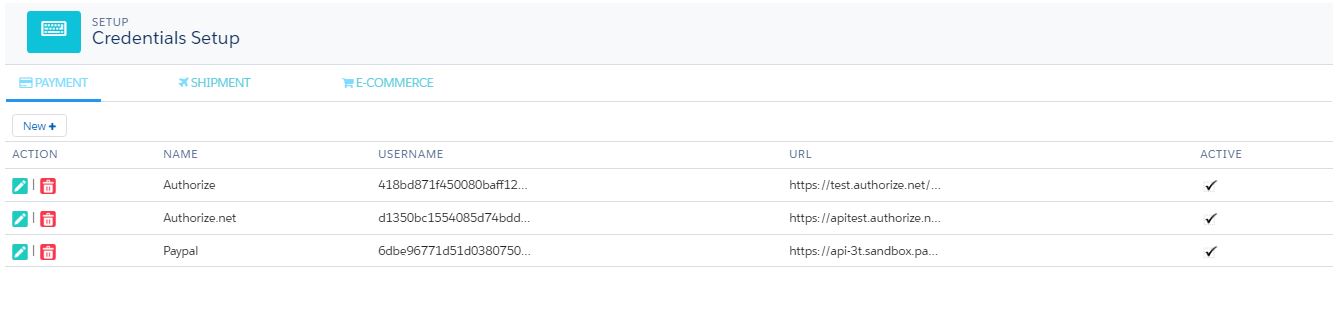
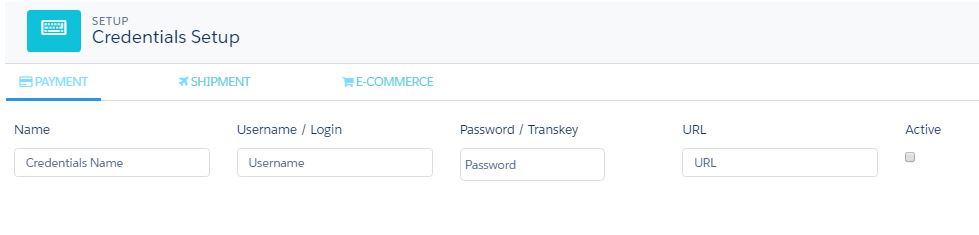
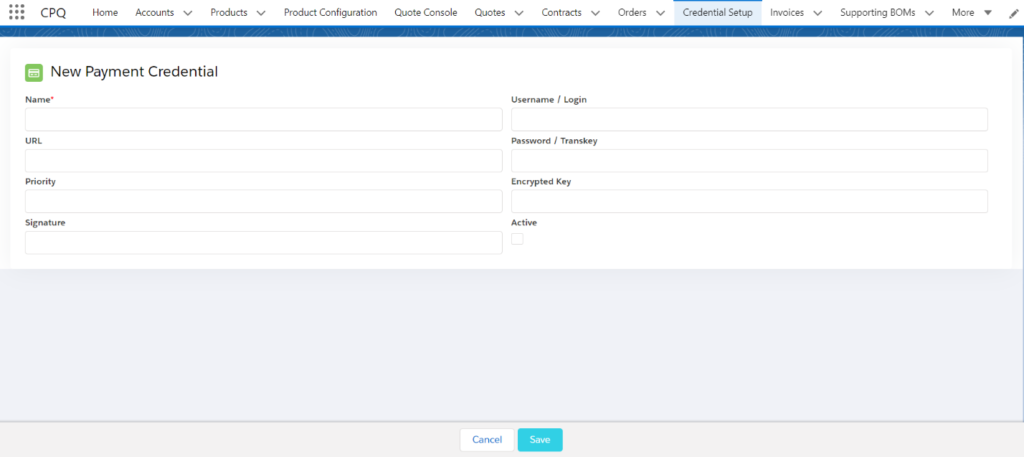
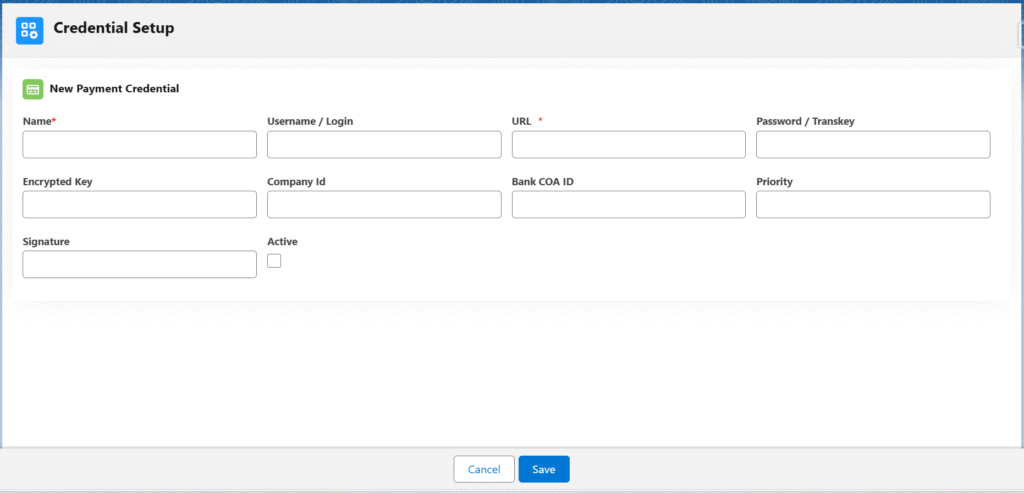
Follow the steps below to set up credentials for payment: 

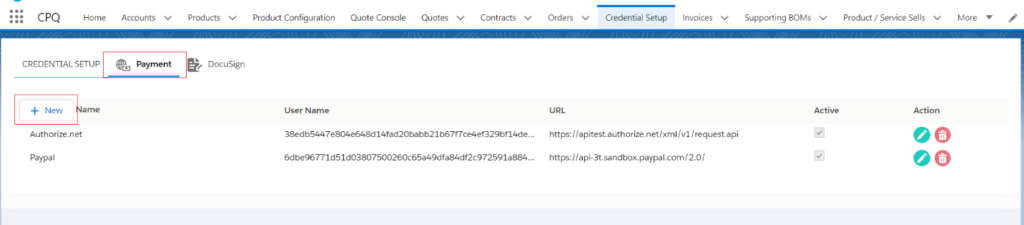
  • Navigate to the Credentials Setup tab using the App Launcher or find the tab in the App Navigation menu.
  • Click on the Payments section to set up credentials for different types of payments.
  • Click the New button.
  • On the Credentials setup page, enter the Name, Username/Login, URL, Password/Trans key, Encrypted Key, Company ID, Bank COA ID, check the Active checkbox, and click Save.

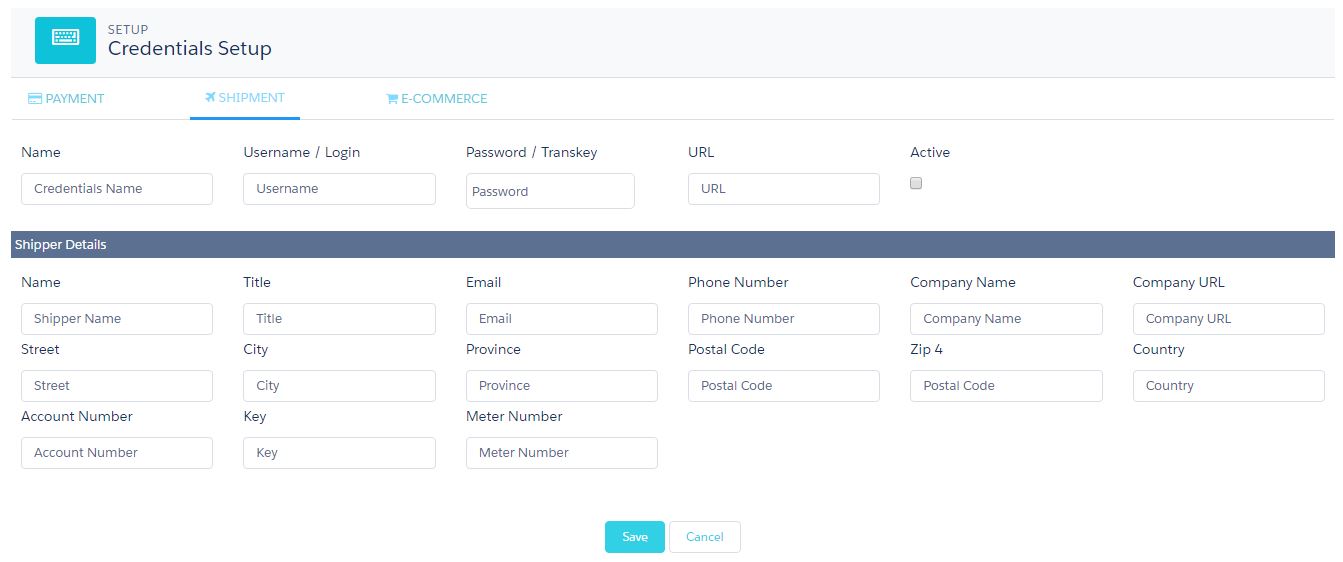
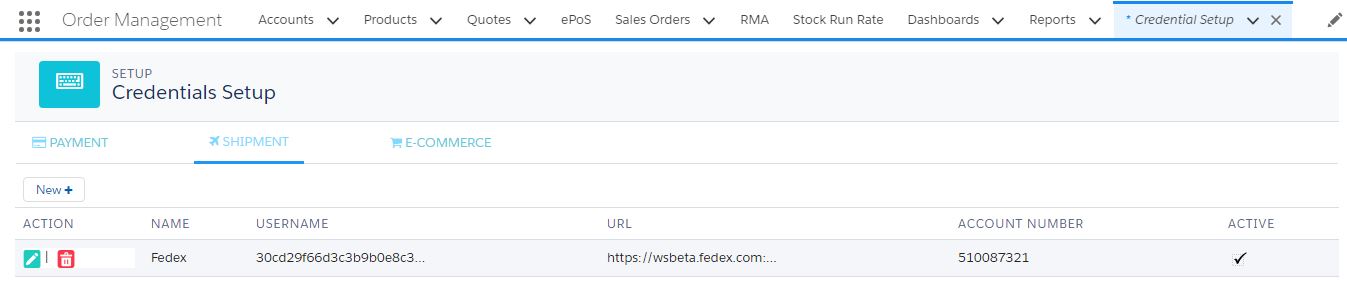
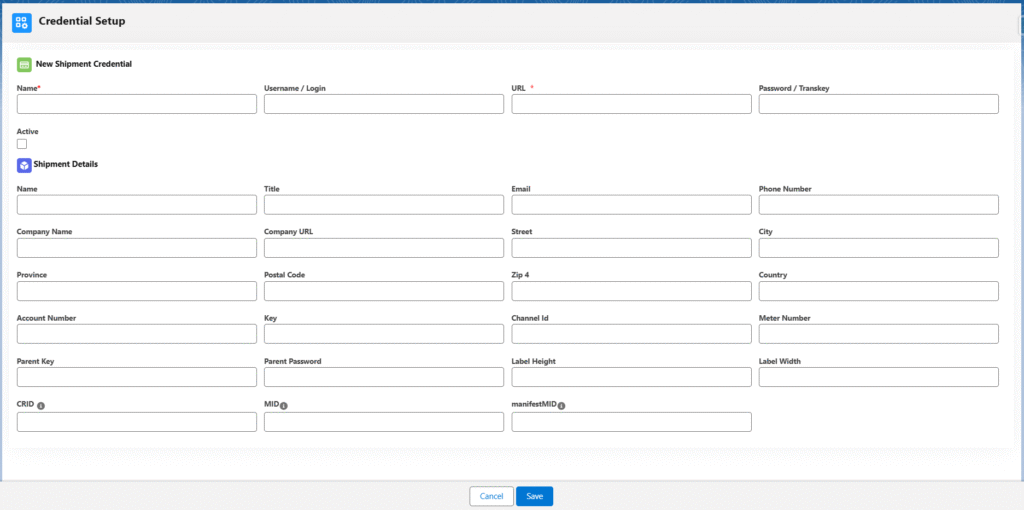
Follow the steps below to set up credentials for Shipment: 

  • Go to the Shipments section by clicking on the Shipments tab.
  • Click the New button.
  • On the Credentials setup page, enter the Name, Username/Login, URL, Password/Trans Key and check the Active checkbox in the first section.
  • In the Shipper Details section, enter the Name, Title, Email, Phone Number, Company Name, Company URL, Street, City, Province, Postal Code, Country, Account Number, Key, Meter Number, Parent Key, Parent Password, and any other optional details if required, then click Save.

Follow the steps below to set up credentials for E-Commerce: 

  • Go to the Shipments section by clicking on the E-Commerce tab.
  • Click the New button.
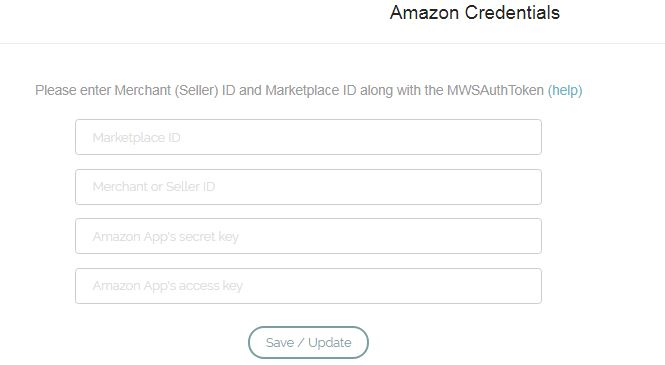
  • On the Credentials setup page, enter the Name, Seller ID, Marketplace ID, Secret Key, Access Key, URL, Order Profile ID, Communication Email ID, check the Active checkbox, and click Save.

F. User record update and Employee setup –

  • a) The logged-in user’s company needs to be marked as solo at the user record level.
  • Navigate to the setup area by clicking the Setup button in the upper-right corner.
  • Enter User in the Quick Find box. Once the User option appears, click on it.

OR

  • Click the View Profile button in the upper-right corner. Click on the Username. Once the basic user record appears, click the User Details button on the right-hand side of the user record.
  • Once the user record appears, click the Edit button, select the company picklist value SOLO and click Save.
  • Note 9: If the picklist field is not available on the user record page, add it from the page layout.

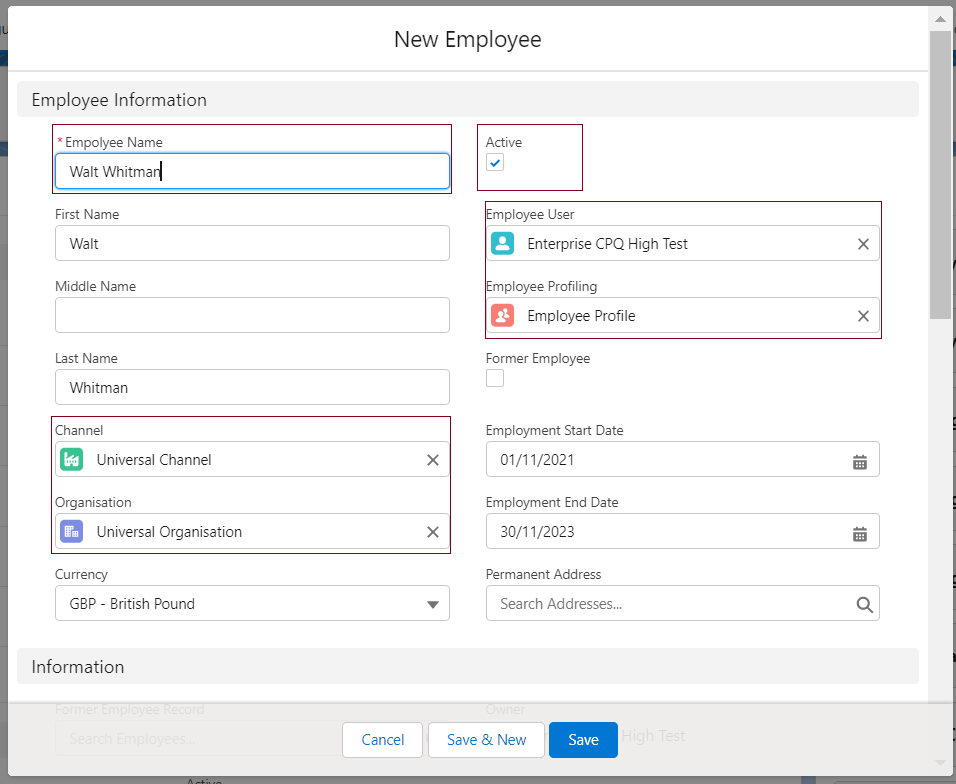
  • b) One employee record should be available for the logged-in user.
  • Find the Employee tab from the app launcher.
  • Click the New button to create a new employee record from the Employee object.
  • Note 10: Refer to the steps mentioned above to create the Company account, Channel, Profiles, etc.
  • On the employee record creation page, enter the employee’s Full Name, select the Employee User (logged-in user), Employee Profile, Channel (created channel record), and Company (created Company account). The Active checkbox should be selected.
  • Enter other optional data and click the Save button to create the employee record for the logged-in user.

Customer Accounts, Contacts and Address

A. Customer Account.

A Customer Account is a standardized record in a business system representing an individual or organizational customer. It consolidates essential data to support commercial operations, enabling the creation and management of quotes, orders, invoices, credit notes, and other transactional documents to streamline sales and financial processes.

Accounts can have multiple Contacts and Addresses associated with them.

Steps for creating Customer Account are as follows – 

1. Log in to Salesforce.
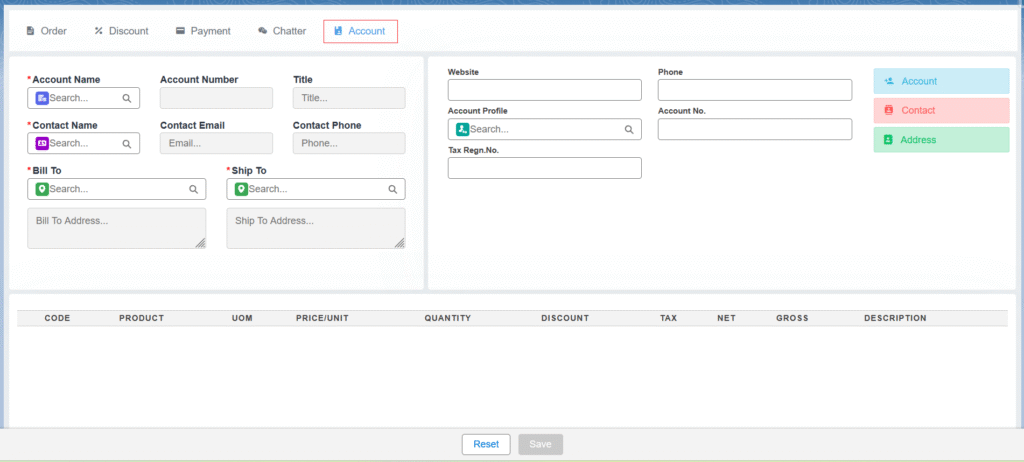
2. Navigate to the Epos screen using the App Launcher or find the tab in the app navigation menu.
3. From the Epos screen, go to the Accounts section.

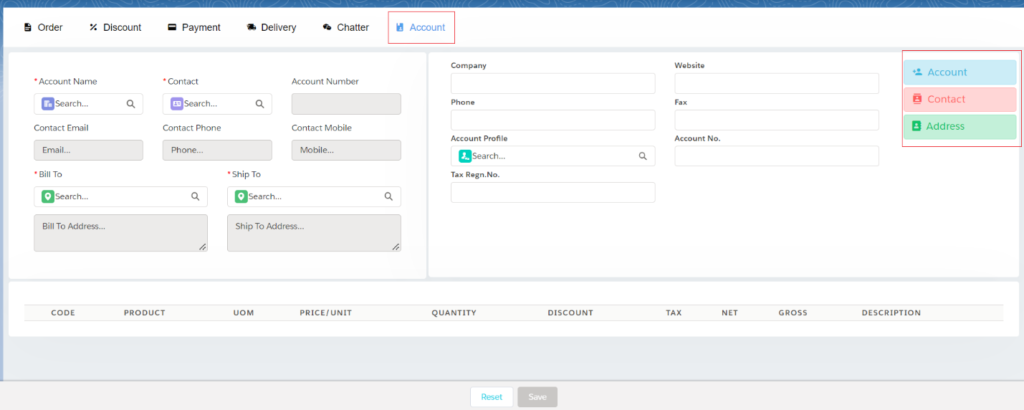
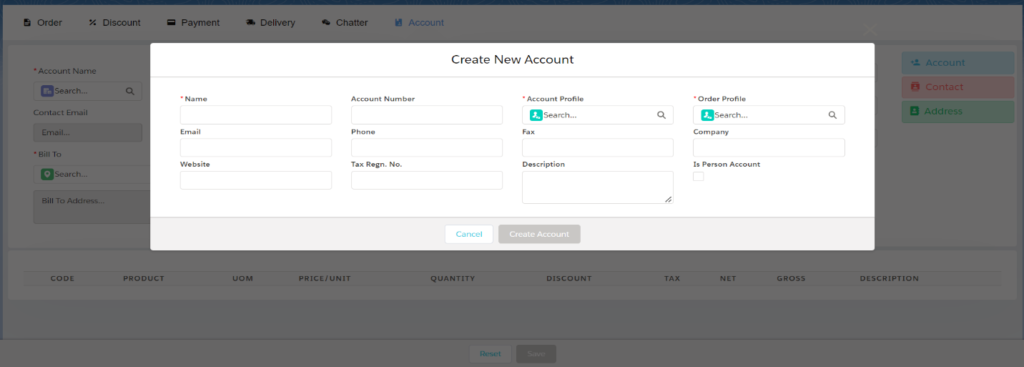
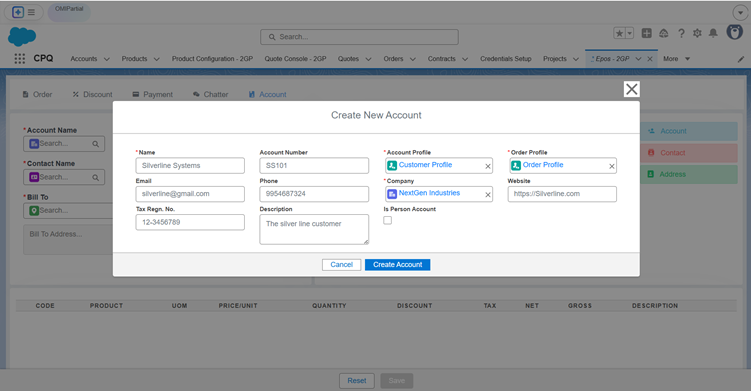
4. To create a new customer account, click on the Account button.

5. On the account creation screen, enter all the required fields such as Name, Account Profile, Order Profile, Company, and other optional details.

 6. Click on the Create Account button.

Note: Customer accounts are used to raise Opportunities, Quotes, Orders/Sales Orders, etc.

Once the account is created, it will be selected in the Account lookup on the Epos screen.

Account Field Description:

  • Name: Name of the account
  • Account Number: This is an optional field, but you can enter a unique account    number for the customer.
  • Account Profile: The account profile contains the price book and channel associated with the customer.
  • Order Profile: The order profile includes the account profile, channel, and price book associated with the customer.
  • Tax Reg No: A unique number given to a business or person by the government to identify them for tax purposes.
  • Email: Email address of the customer.
  • Phone: Phone number associated with the customer.
  • Company: The company to which the customer belongs. It can be the same as an Account name in certain scenarios.
  • Is Person Account: The account represents an individual.
  • Website:  The website of the Customer Company.

B. Contact

Contact is a standard object that represents an individual person associated with an Account. Contacts are used to store and manage information about people within a company/organization. Each contact is linked to an Account, so an Account must be created before creating a contact. Multiple contacts can be associated with a single Account.

Follow the steps below to create a Contact –

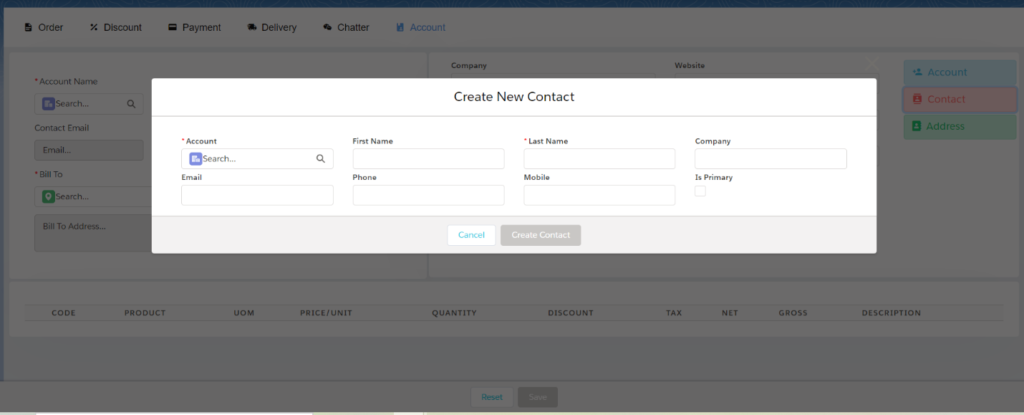
1.     From the Accounts section, click on the Contact button.

Note: The account you created should be auto populated on the contact screen. If you already have an existing account, select it from the lookup to create a contact for that account.

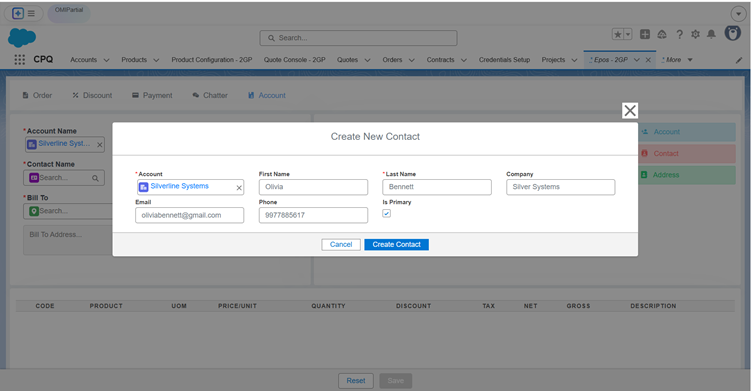
2. On the contact creation screen, enter all the required fields such as First Name, Last Name. Additional optional details, such as Company, Email, and Phone, can also be included. The Account field will be automatically populated.

3. Check the Is Primary checkbox to designate the contact as the primary one (if applicable).

4. Click on the Create Contact button.

Note: There can be multiple contacts of an account, and you can mark one of them as Primary.

The contact will be automatically selected in the Contact Name field on the Epos screen.

Contact Field Description:

  • Account: Name of the account for which you want to create a contact.
  • First Name: First name of the contact.
  • Last Name: Last name of the contact.
  • Company: The name of the company the customer is associated with.
  • Email: Email address of the contact.
  • Phone: Phone number of the contact
  • Is Primary: Select the Is Primary checkbox if you want this contact to be the primary contact when creating an order.

C. Address

Address refers to the physical location information associated with various records, such as Accounts. It typically includes details like street address, billing address, shipping address, city, state or province, postal code, and country. This information helps organizations track the geographical locations of their customers or business partners.
Note: In this context, addresses belong only to Accounts.

Follow the steps below to create an address: 

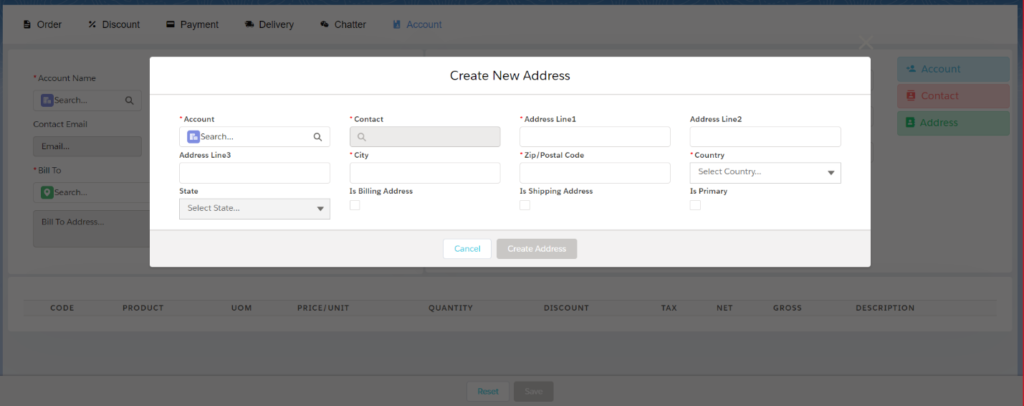
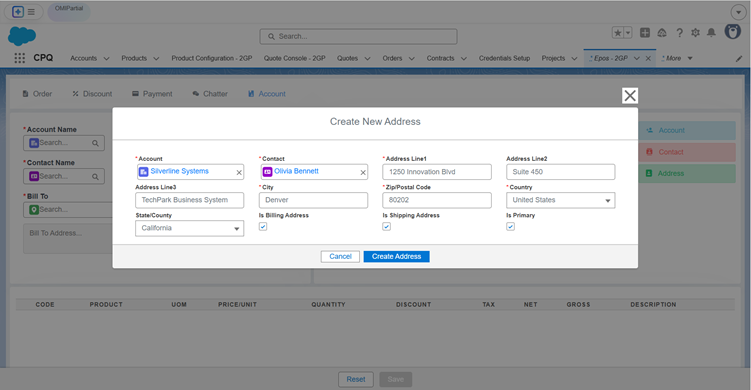
1. From the Accounts section, click on the Address button.

Note: The Account and the Contact you created should be auto populated on the address screen. If you already have an existing account contact, select it from the lookup to create an address for that account.

2. On the address creation screen, enter all the required fields such as, Address Line 1, City, Postal Code, Country, State etc. The Account and Contact fields will be automatically populated.

Note: Check the Is Billing Address checkbox to mark the address as a billing address, and check Is Shipping Address to mark it as a shipping address. If the address is marked as both, it will be considered for both billing and shipping purposes.

3. Click on the Create Address button.

The address will be automatically populated in the Bill To and Ship To fields on the EPOS screen based on the selected account and contact information.

Note: After adding the Account, along with its Contact and Address, users can utilize the Add Products feature to complete the order creation process.

Primary Function of Address – The Billing Address is required to apply Tax on the Quotes, Orders, and the Shipping Address is used to calculate Shipping Rates between the company address and the customer address.

Address Field Description

  • Account: The account for which you want to create an address.
  • Contact: This field will be auto populated when selecting the account.
  • Address Line 1:  Is the main street address.
  • Address Line 2: Adds details like apartment or building info.
  • Address Line 3:  includes optional extras like landmarks or care-of information.
  • Is Billing Address: Indicates that this is the billing address for an order.
  • Is Shipping Address: Indicates the shipping address of the customer for the shipment process.
  • Postal Code: The postal code of the city.
  • Is Primary: Select this checkbox if you want this address to be the primary address when creating an order.

A Customer Account, along with its related Contacts and Address, can also be created at the record level.

Follow these steps to create a Customer Account from the record level:

  • From the App Launcher, find and select the Accounts tab.
  • Click the New button and select the Customer Account record type and click on Next button.
  • Enter all the required details and click Save.
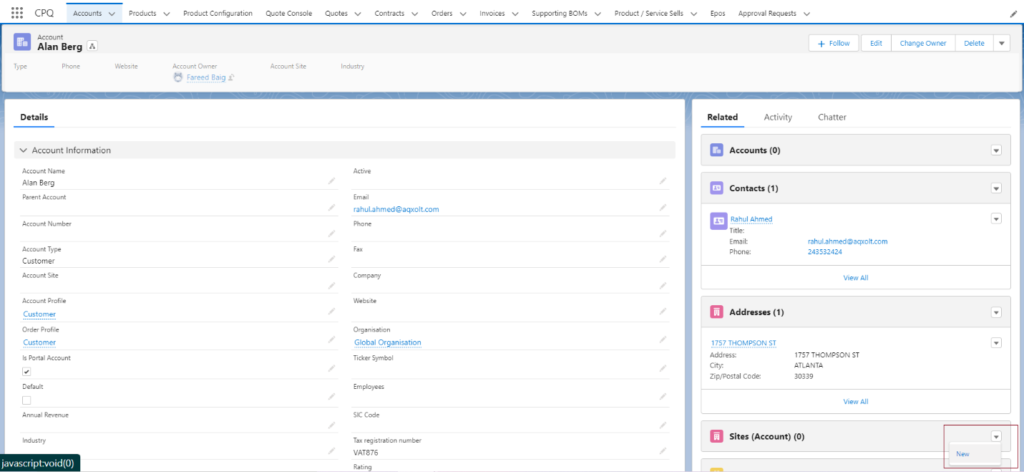
  • Now, Contacts and Addresses can be created for the customer from the related lists on the customer’s record.

Products and Its Types

Products 
Products are configurable items that are manufactured within an organization or purchased from vendors/suppliers and are sellable. Products can be stored in an organization’s site/warehouse or a third-party site/warehouse. 

The different types of products we have are:
A. Standard Products.
B. Service Products.
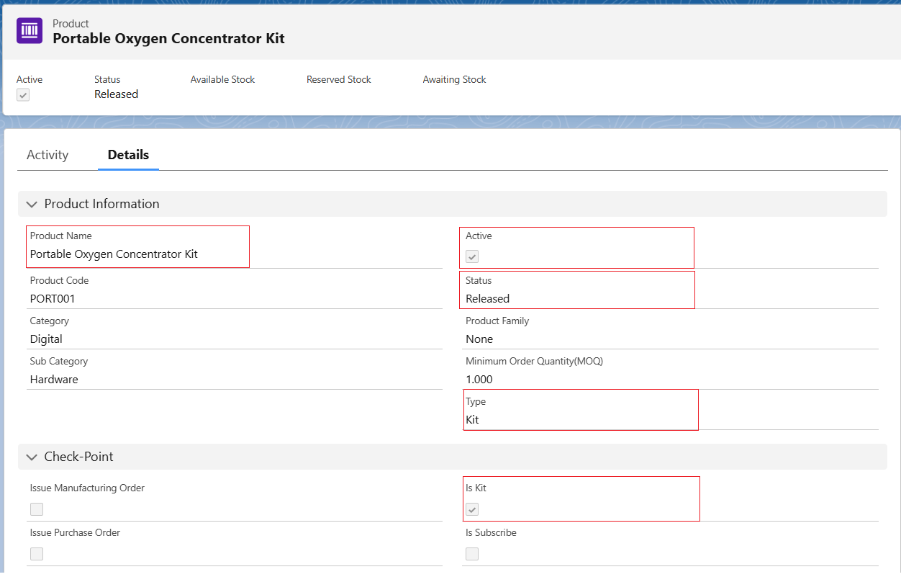
C. Kit Products.

A. Follow the below steps to set up a new Standard Product:

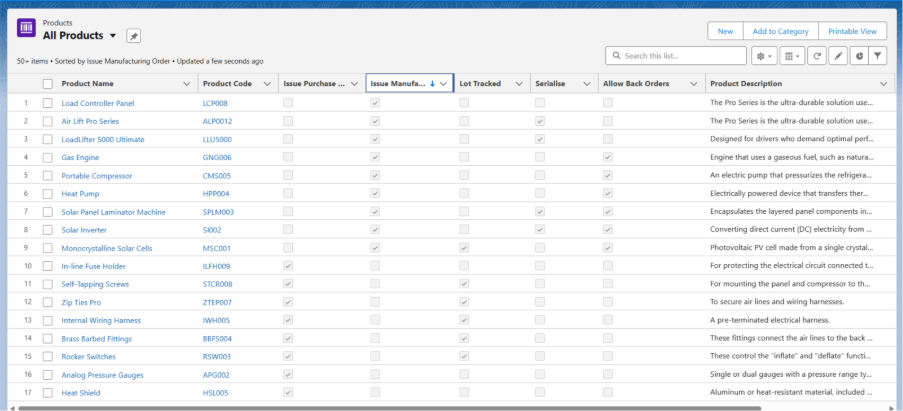
  • Navigate to the Products tab using the App Launcher or find the tab in the App Navigation menu.
  • Recently viewed products will be listed. Click on All to see all the available products in the system.
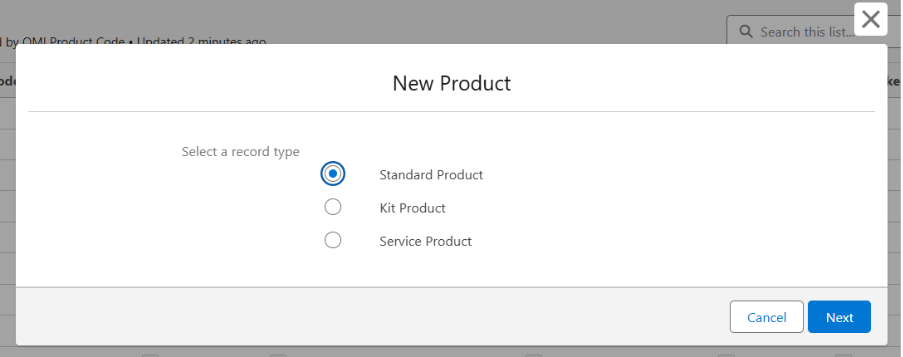
  • To create a new product, click the New button and select the Record Type as Standard Product.
  • Enter the Product Name and Product Code.
  • Select the Product Family, Category, and Subcategory (if applicable).
  • Select the Status as Released and make sure the Active checkbox is checked.
  • Select the Track Inventory checkbox for all inventory products.
  • Enter the Product Description and Barcode (if applicable).
  • Assign the Correct Quantity Unit of measure.
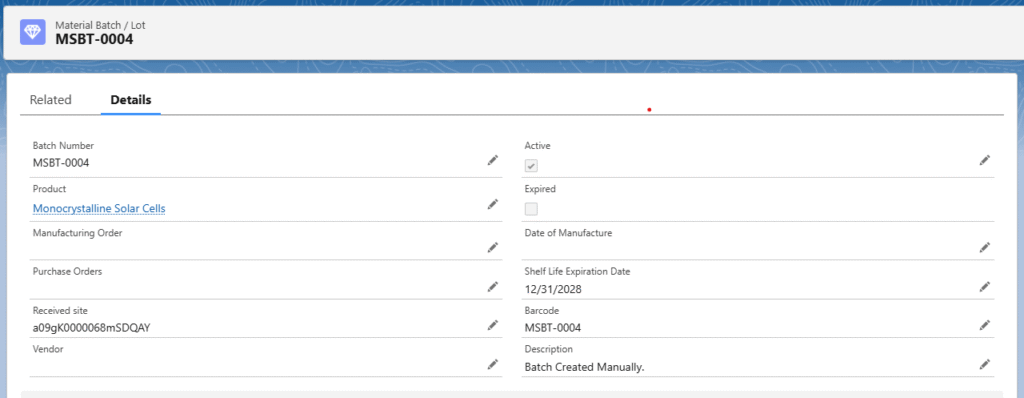
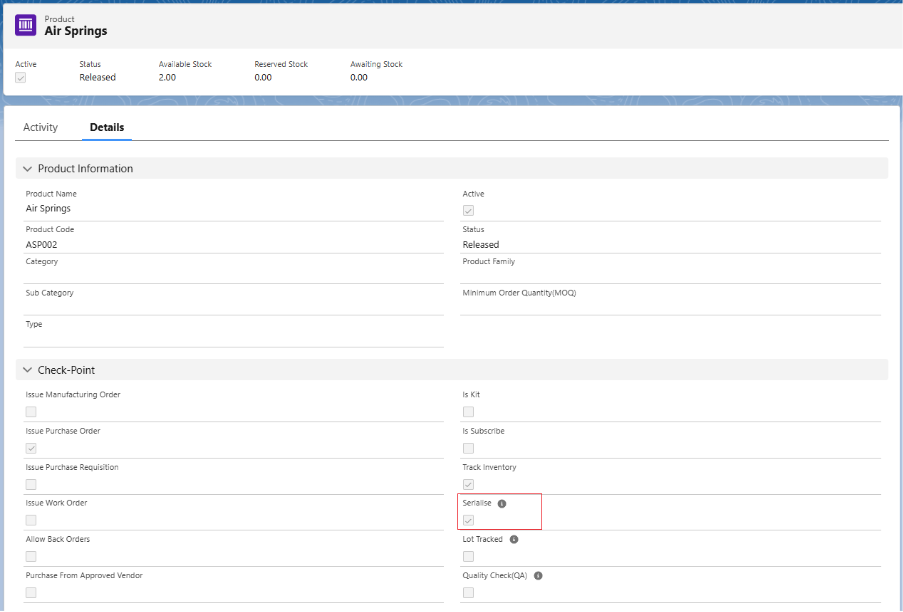
  • Check Serialise checkbox (for a serialized product), and Lot Tracked (for a batch product) depending on the product configuration needs.
  • Check the Issue Purchase Order checkbox if the Product is Purchasable, Check Issue Manufacturing Order if product is manufacturable.
  • Click on Save to create the standard product record.

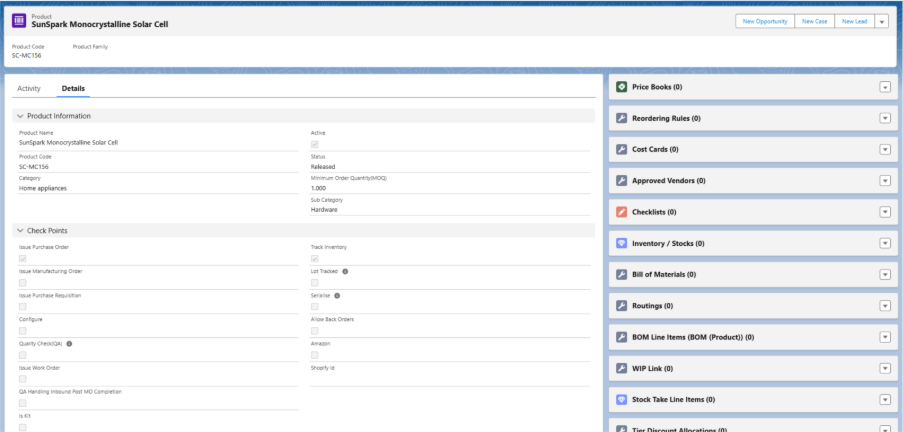
Field Description of Product Record:

  • Product Name: Name of the Product.
  • Product Code: Unique code used to identify the product.
  • Active: Indicates whether the product is currently active in the system and available for use.
  • Status: Shows the current status of the product, here the status will always be Released.
  • Is Purchase Order: Is Purchase Order checkbox is checked if the product can be purchased through a purchase order.
  • Is Manufacturing Order: Is Manufacturing Order checkbox is checked if the product is produced through a manufacturing process.
  • Track Inventory: Track Inventory checkbox should always be checked for all products except for KIT products.
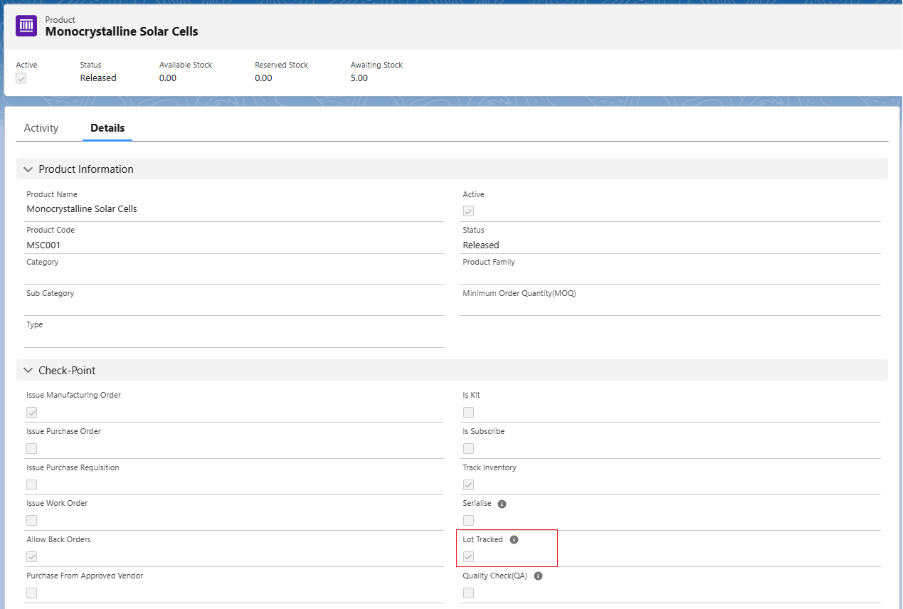
  • Lot Tracked: Lot Tracked checkbox should be checked if it is a batch product and has lot numbers associated with each.
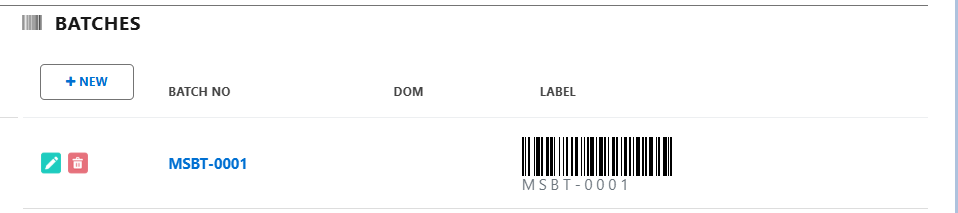
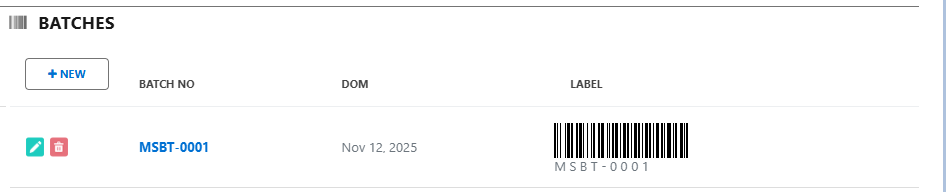
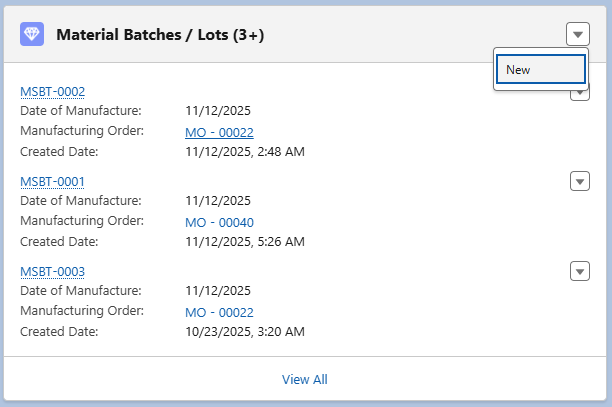
  • Note 1: The batch numbers for a product are generated through the Inbound or Manufacturing process.
  • Serialise: Serialized checkbox should be checked if it is a serialized product and each unit of the product has a unique serial number.
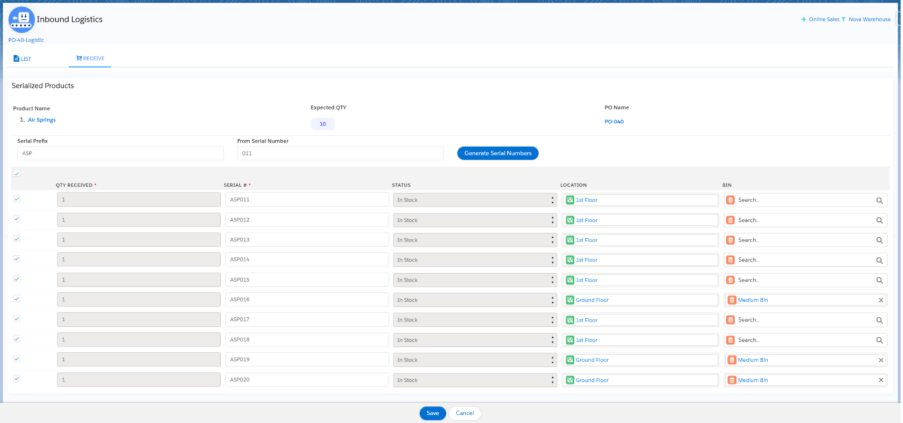
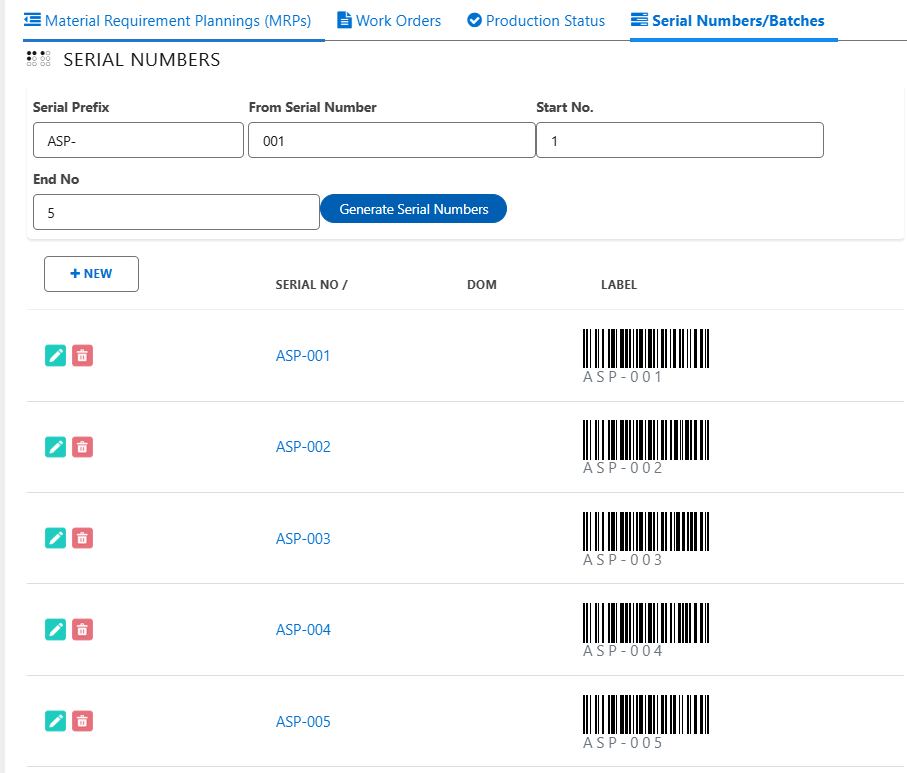
  • Note 2: The serial numbers for a product are generated through the Inbound or Manufacturing process.
  • Issue Work Order: Issue Work Order checkbox should be checked if a Product is Serviceable.
  • Allow Back Orders: Allows customers to create a and Quote Sales Orde even when the product is out of stock.
  • Is Kit: Is Kit checkbox should be checked if it is a kit product made up of multiple components.
  • Quality Check: Requires a quality check during the Inbound receive process.
  • Is Subscribe: Indicates if the product is available for subscription.
  • Purchase from Approved Vendor: Allowed to purchase the product from approved suppliers only.
  • Issue Purchase Requisition: Initiates a request to purchase required Products.
  • Configure: Allows customization of product specifications or features.
  • QA Handling Inbound Post MO Completion: Manages quality assurance processes after manufacturing order completion.
  • Alternate Quantity UOM: Specifies an alternative unit of measure for the product quantity. Used for MO UoM conversion Process.
  • Available stocks: Displays the quantity of product currently in inventory.
  • Awaiting stock: Shows the quantity of product expected but not yet received or manufactured in inventory.
  • Reserved stock: Indicates the quantity of stock allocated for specific orders, Mos or other purposes.
  • Estimated manufacturing cost: Provides the estimated price for manufacturing the particular product as this amount will be used for accounting ‘Cost Of Goods’ sold.
  • Default BOM: References the standard bill of materials for the product.
  • Default Routing: Specifies the default manufacturing process flow for the product.
  • Picture: Stores an image representing the product.
  • Preview Image: Displays a thumbnail or smaller version of the product image.
  • Barcode: Contains the product’s unique barcode identifier, this is particularly used for Scanning Purposes.
  • Revenue Account: The account used to record income from product sales.
  • Expense Account: The account used to record expenses related to products.
  • Inventory Account: The account used to track the value of product inventory.

Adding Related Records to Products

Adding Price Book for a Product:

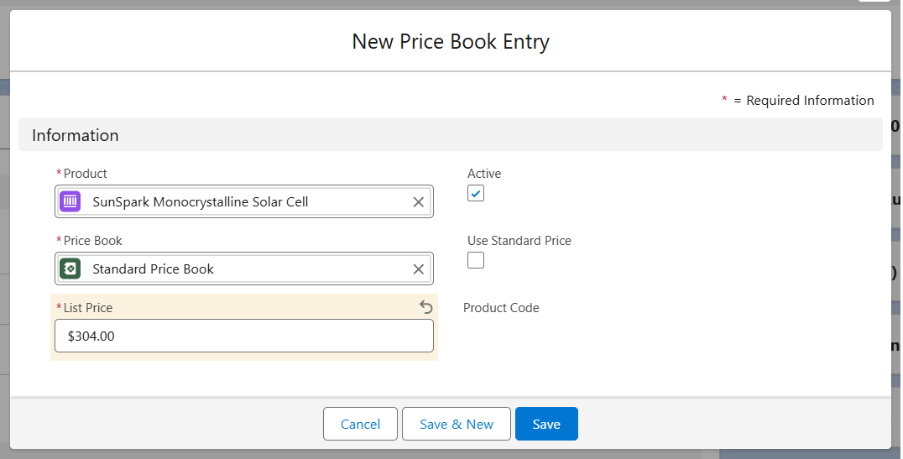
  • Navigate to the Product record level.
  • From the related list of the product, find and select Price Book.
  • Click on the dropdown and select Add Standard Price Book.
  • The Product and standard Price Book look-up will be auto populated.
  • Enter the List Price.
  • Click on Save.

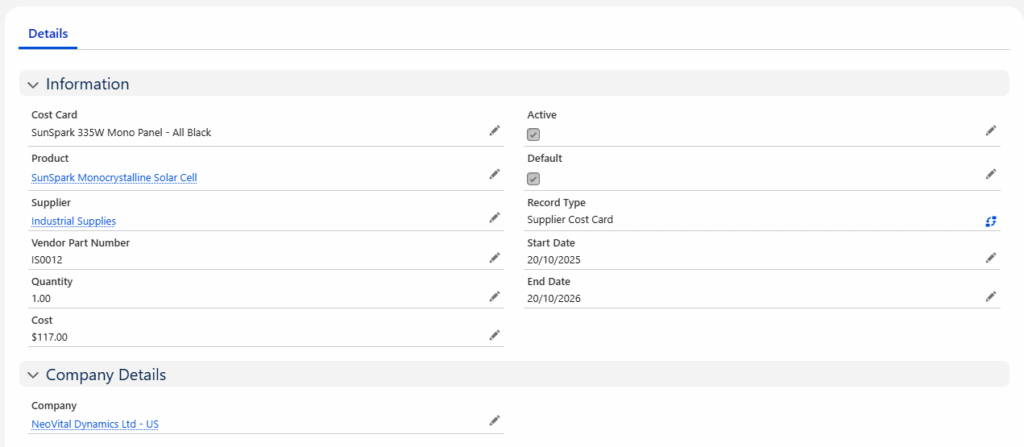
Adding Cost Cards to Products

  • Navigate to the Related list of the product and select the Cost Card object.
  • Click New and Select the Record Type as Supplier Cost Card.
  • Product Name will be auto populated.
  • Enter the Cost Card Name, Select the Vendor/Supplier, Enter Vendor Part Number (If applicable), Quantity, Cost.
  • Check the Active checkbox, check Default (If applicable), select Start Date and End Date.
  • Select the Company and click Save.
  • This creates a Cost Card record that can be used when creating a Purchase Order or even in Manufacturing Order to calculate the Raw Material Costs.

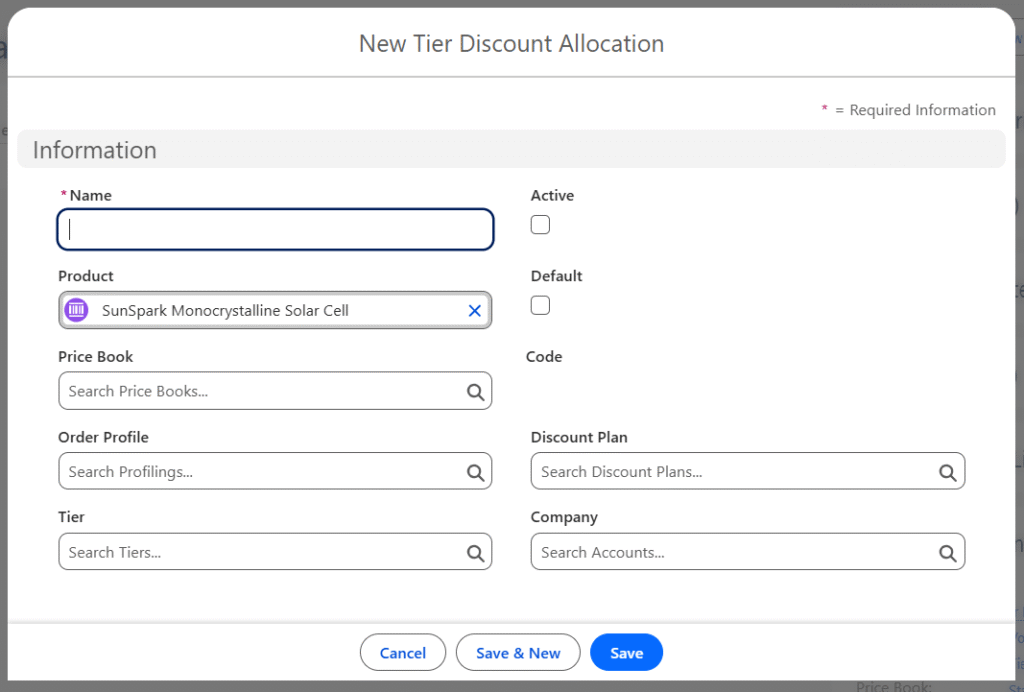
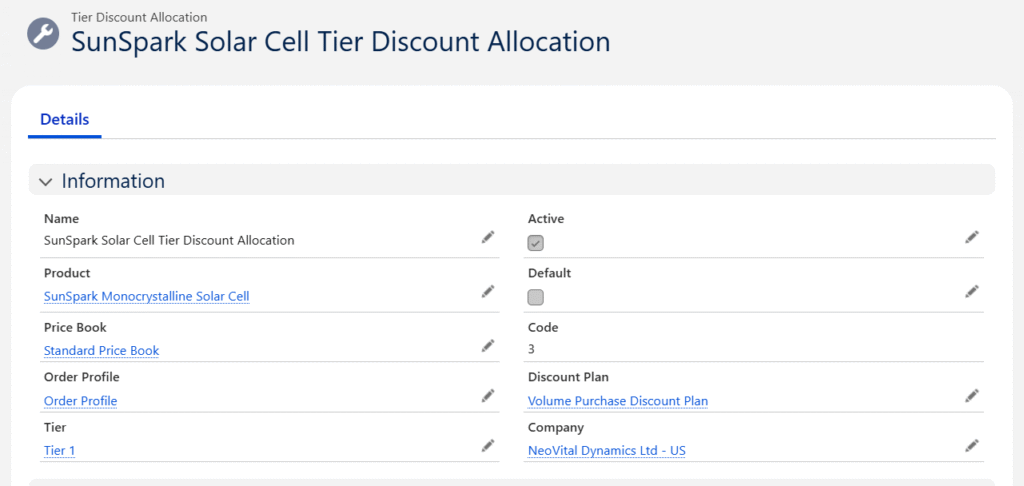
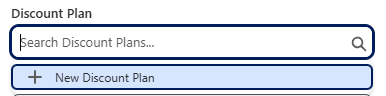
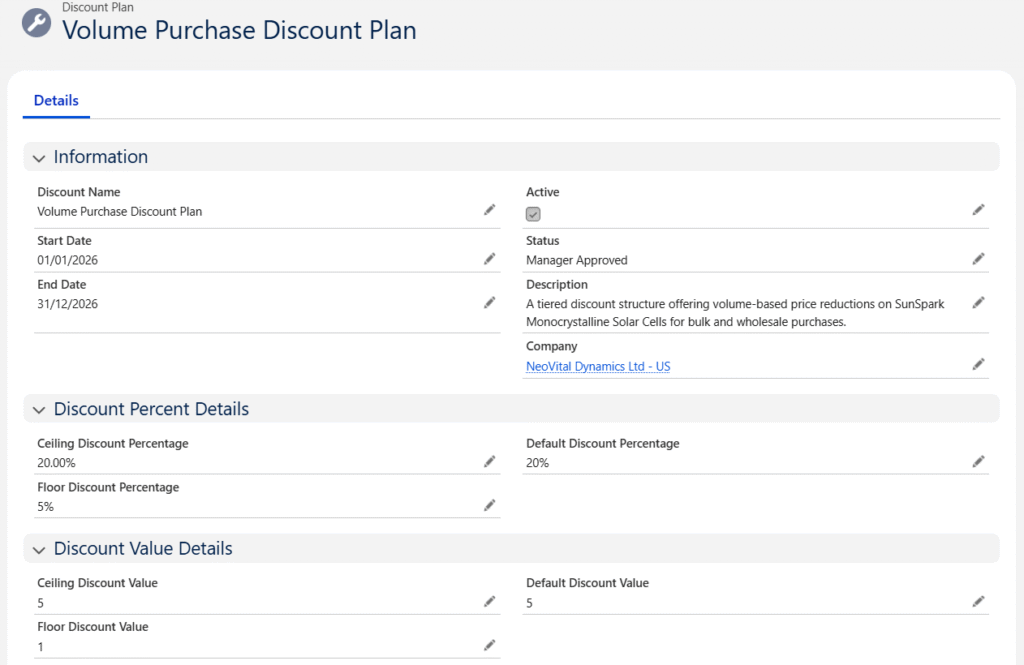
Adding Tier Discount Allocation to Products 

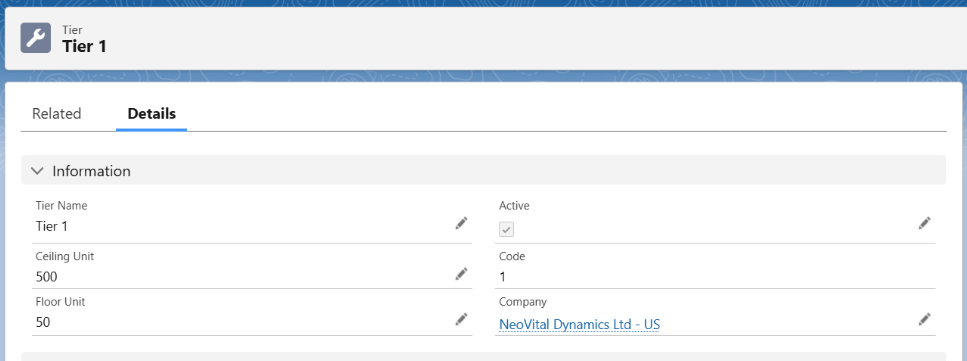
Click on the below link to create a Tier Discount Allocation for a Product. 

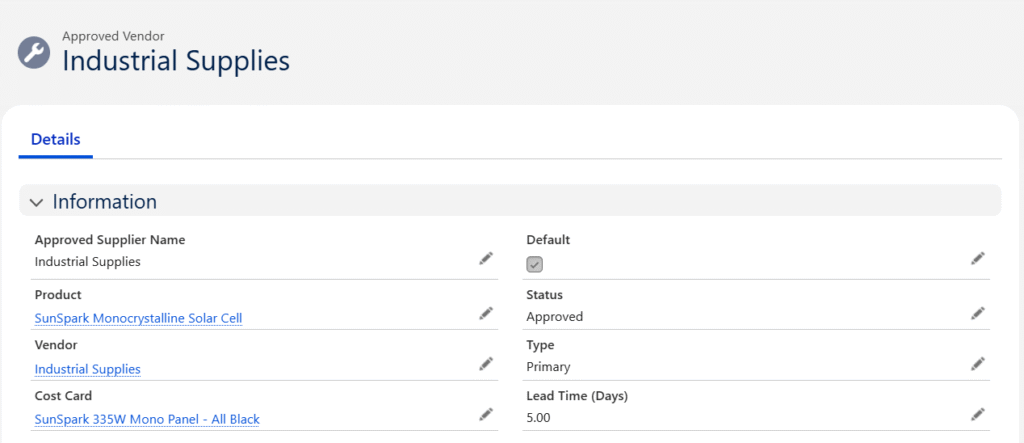
Adding Approved Vendor to Products  

  • Navigate to the Related list of the product and select the Approved Vendor object.
  • Click New and enter Approved Vendor Name, the Product look-up will be auto populated.
  • Select the status as Approved, Type as Primary and select the Vendor/Supplier from whom you want to purchase. Enter Lead Time Days (If Applicable)
  • Click on Save.

Note 3: If a product is marked as Purchase from Approved Vendor and an Approved Vendor is specified, the system will restrict purchasing that product from any other Vendors.

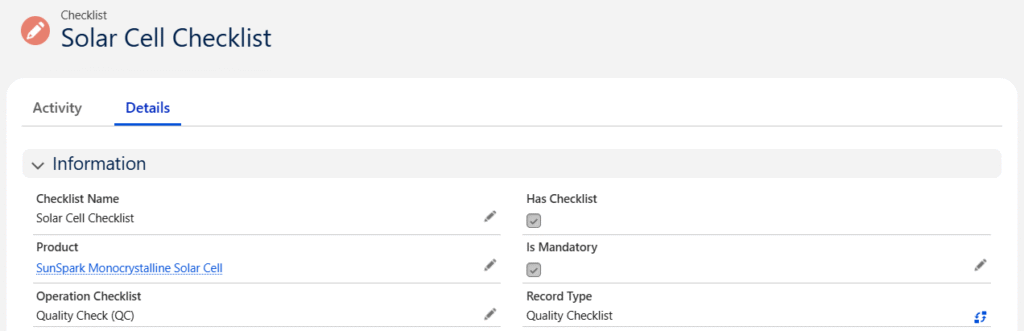
Adding Checklists to Products

  • Navigate to the Related list of the product and select the Checklist object.
  • Click New and select Quality Checklist as a Record Type and click Next.
  • Enter the Name and check the Is Mandatory Checkbox.
  • Select the Operation Checklist as Quality Check (QC).
  • Click on Save.

Inventory / Stocks

  • Product Inventory can be increased by raising a Purchase Order or Manufacturing the product.
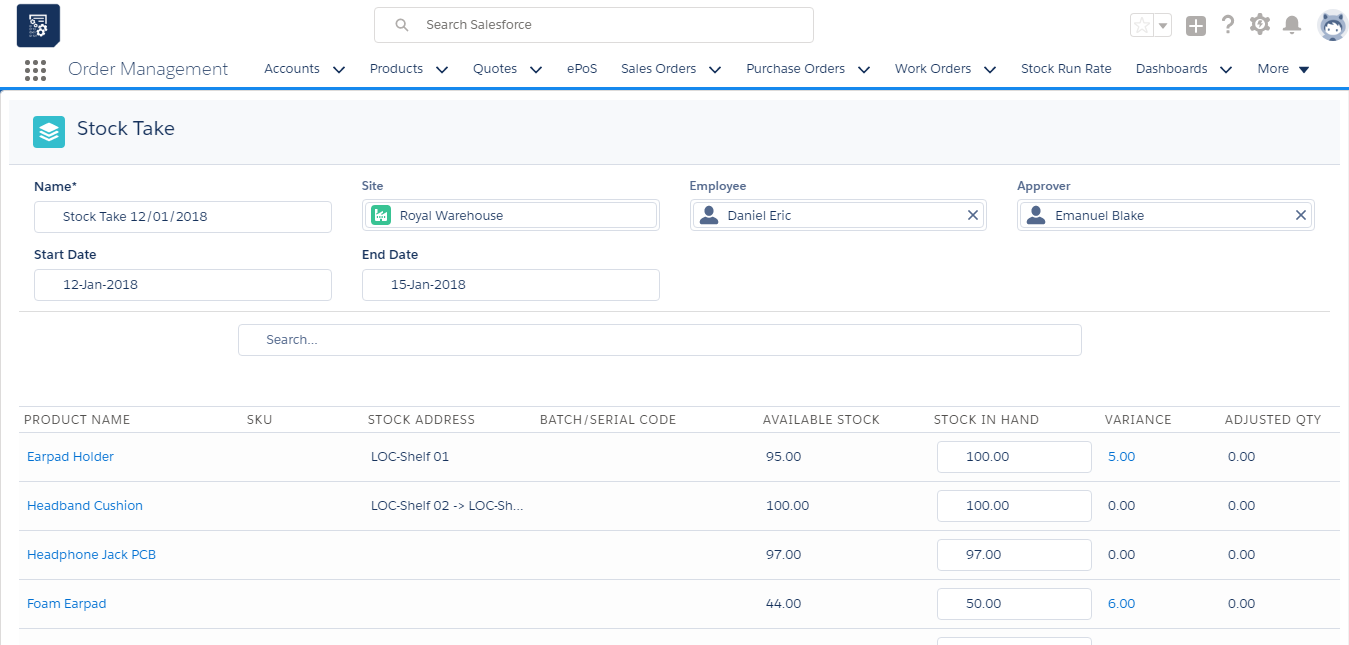
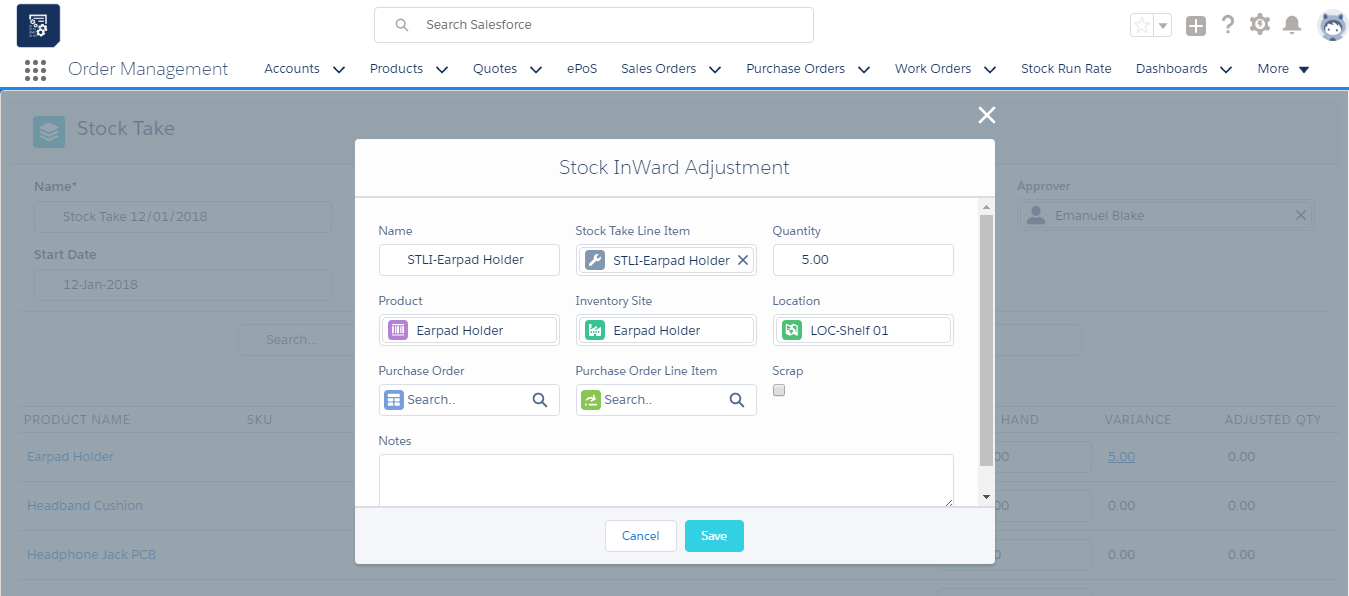
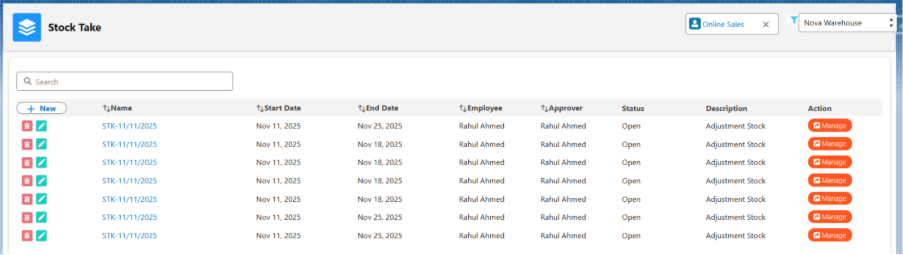
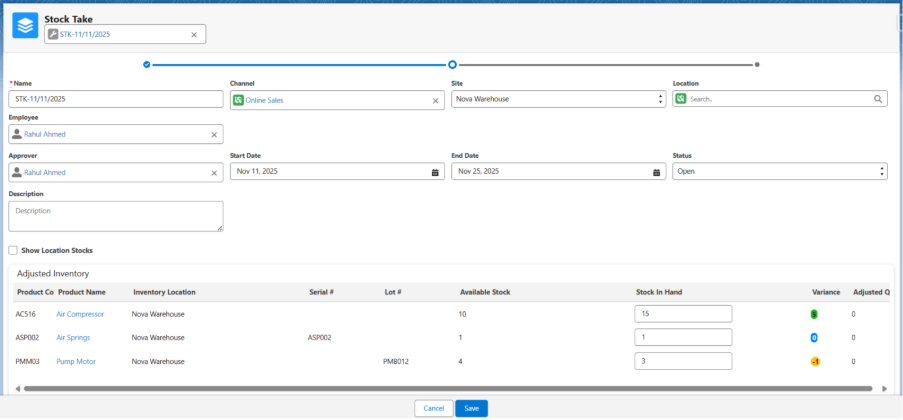
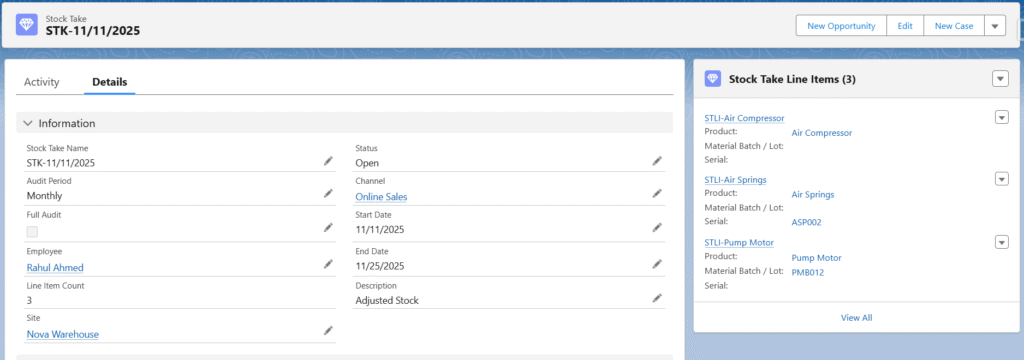
  • A Stock Take can be performed to adjust inventory levels upward or downward.
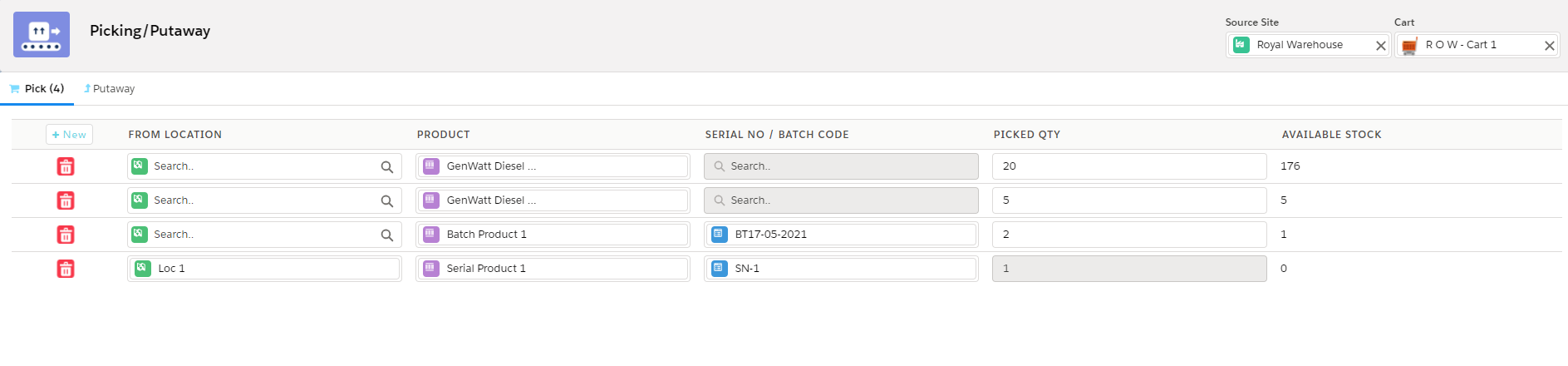
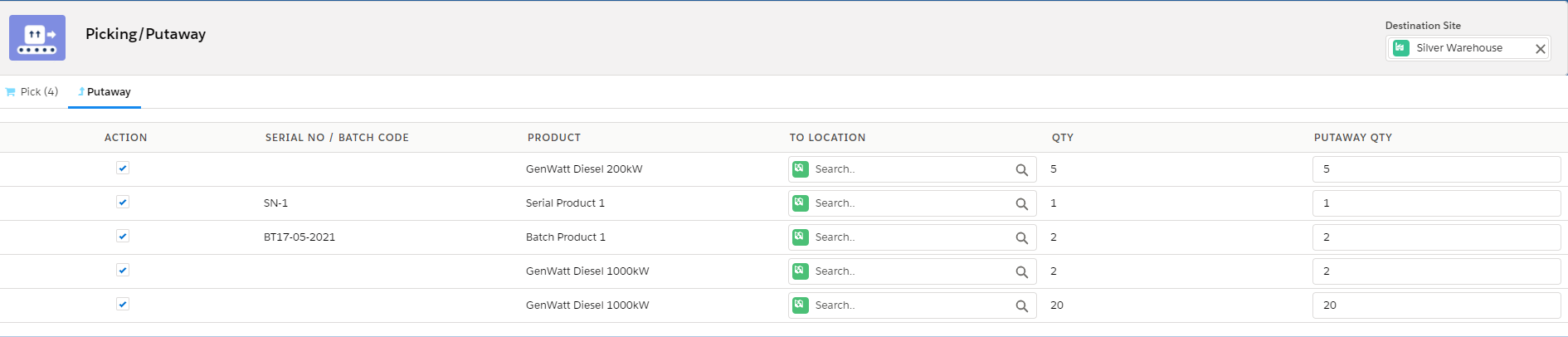
  • Existing Stock can be transferred between Warehouses or Locations using Stock Transfer.
  • A Transfer Order can be raised for stock transfers requiring shipment (e.g., via FedEx or UPS).
  • Inventory will be reduced after Stock Allocation on the MO side.
  • Inventory can be reduced by creating an RTV PO.
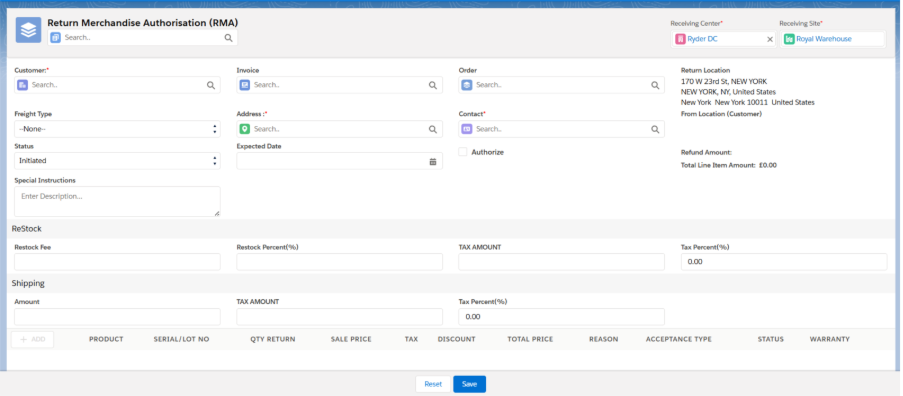
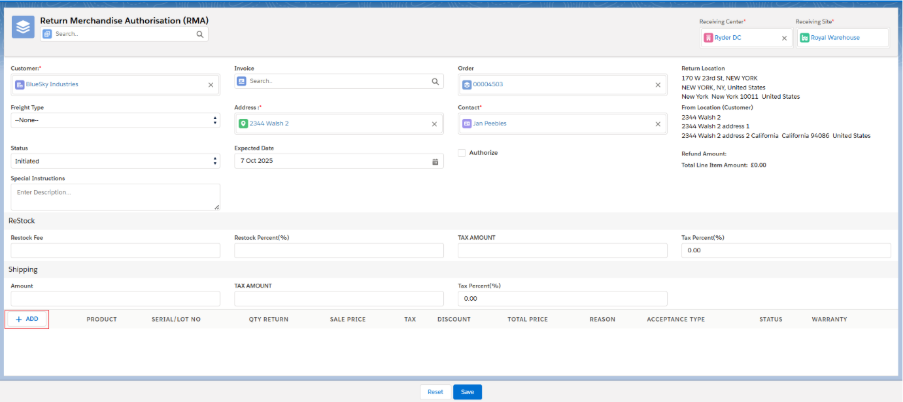
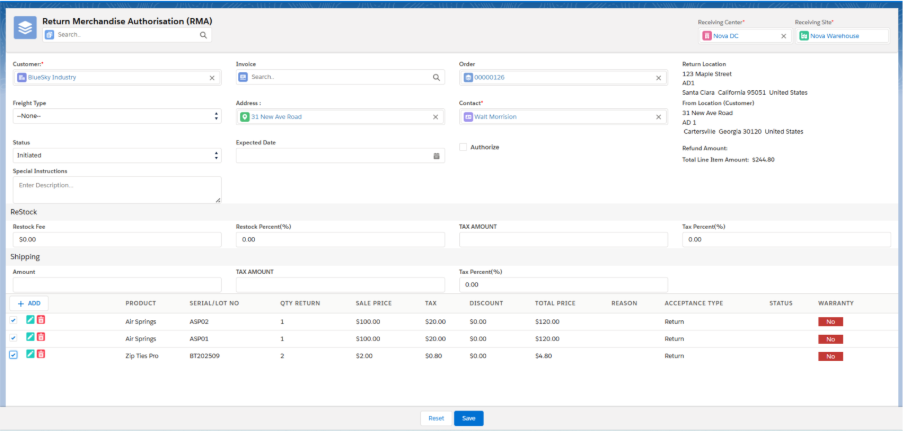
  • Inventory can be added back to the Warehouse by creating an RMA.

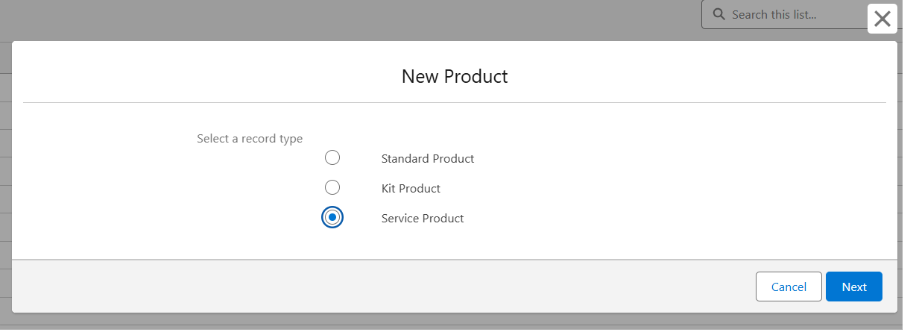
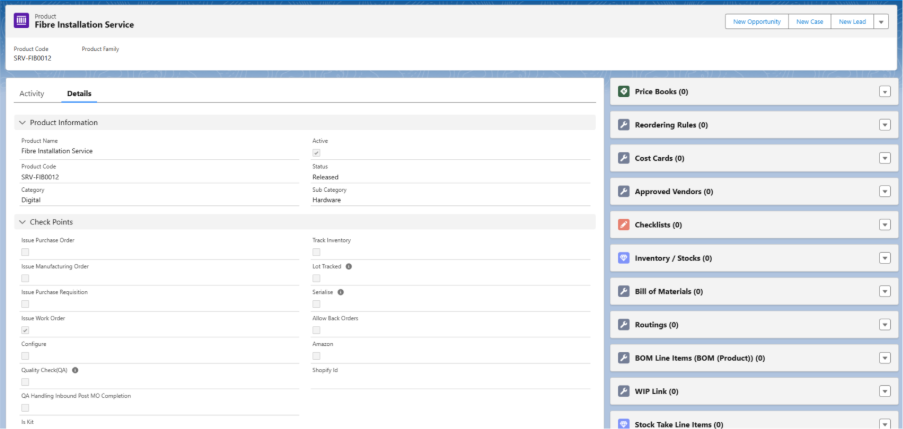
B. Follow the below steps to set up a new Service Product

  • Navigate to the Products tab using the App Launcher or find the tab in the App Navigation menu.
  • Recently viewed products will be listed. Click on All to see all the available products in the system.
  • To create a new product, click the New button and select the Record Type as Service Product.
  • Enter the Product Name and Product Code.
  • Select the Product Family, Category, and Sub-Category.
  • Select the Status as Released and ensure the Active checkbox is checked.
  • Select the Issue Work Order checkbox.
  • Save the record to create the service product.
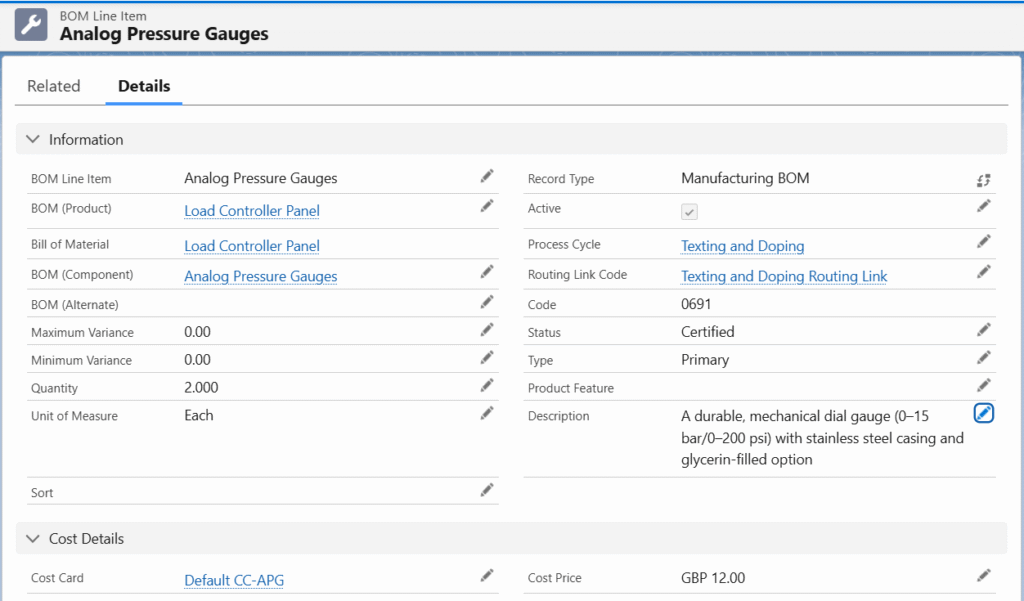
  • Upon Saving; a Service Product, a Bill of Material (Version) will be automatically created for that product. (This is handled through a custom setting.)

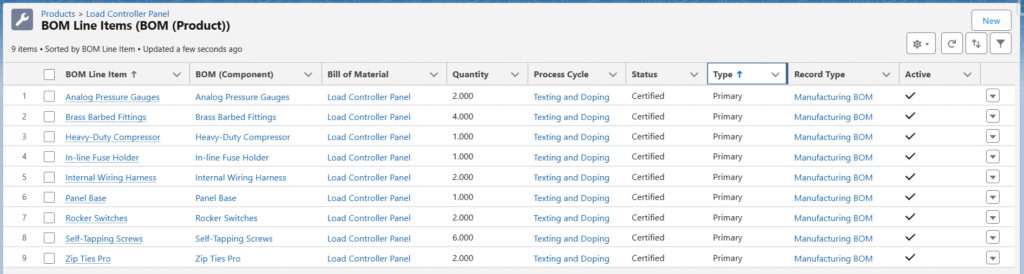
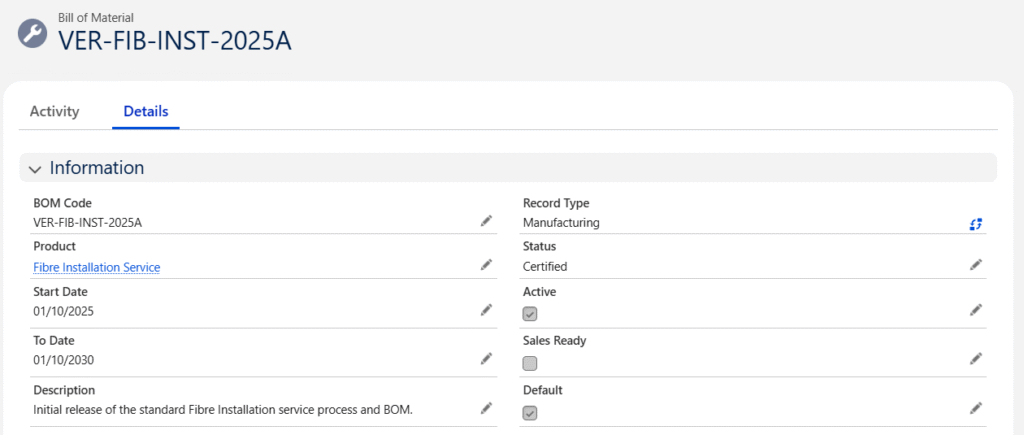
Create Bill of Materials (Version) against Product

  • On the Product Related List, search for Bill of Materials (Version) and click on New.
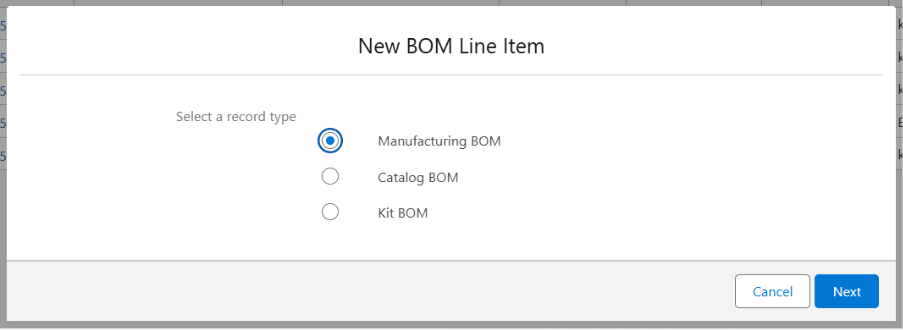
  • Clicking on New will display a pop-up, select the Manufacturing Record Type.
  • Product will be auto populated, enter the BOM Code and set the Status as Certified.
  • Check the Active checkbox, and Default checkbox if you want that Bill of Material to be the default Bill of Material of the product.
  • Select the Start Date and End Date.
  • Enter the Description (Optional).
  • Click on Save.

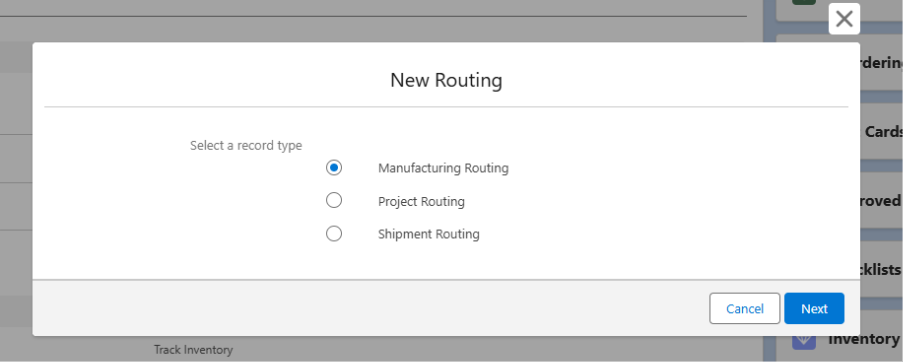
Create Routing against Product.

  • On the Product Related List, search for Routing and click on New.
  • Clicking on New will display a pop-up, select the Manufacturing Routing Record Type.
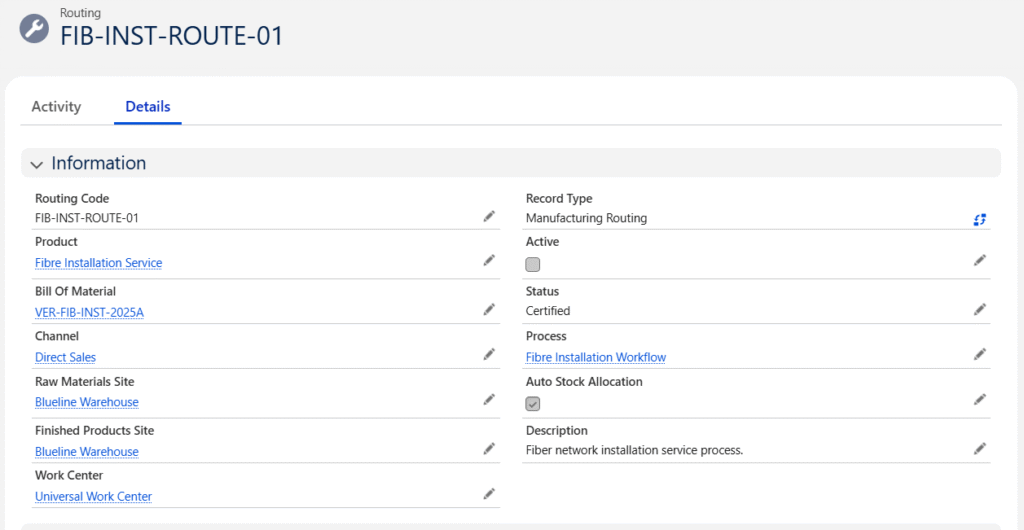
  • Enter the Routing Name and set the Status as Certified. Product Name will be auto populated.
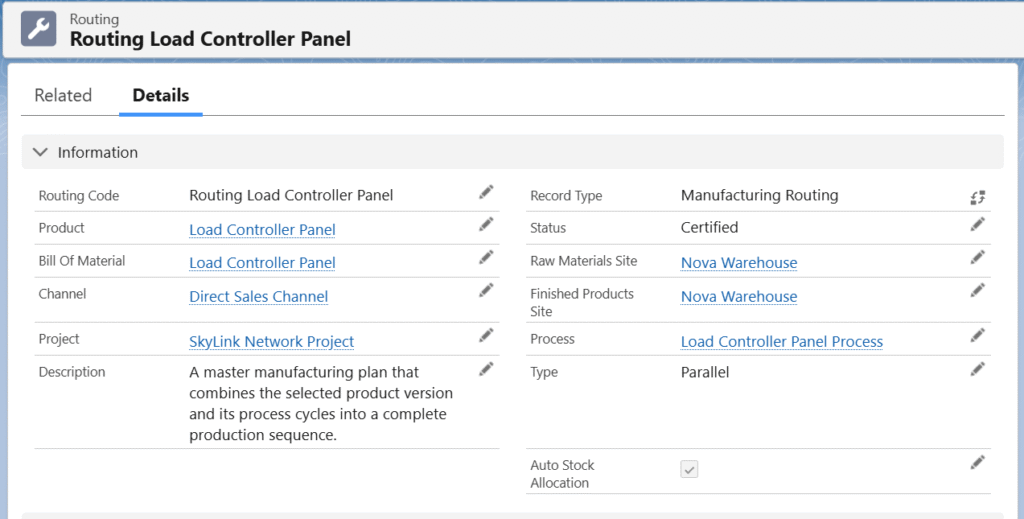
  • Select the Previously created Bill of Material, select the Channel and Process. (Follow the below mentioned steps to create a new Process.)
  • Select Raw Material Site, Finished Product Site, Work Centre.
  • Check the Auto Stock Allocation checkbox.
  • Click on Save.

Create Process for the Product

  • During Routing creation, click on Process lookup field and click on the + New Process button.
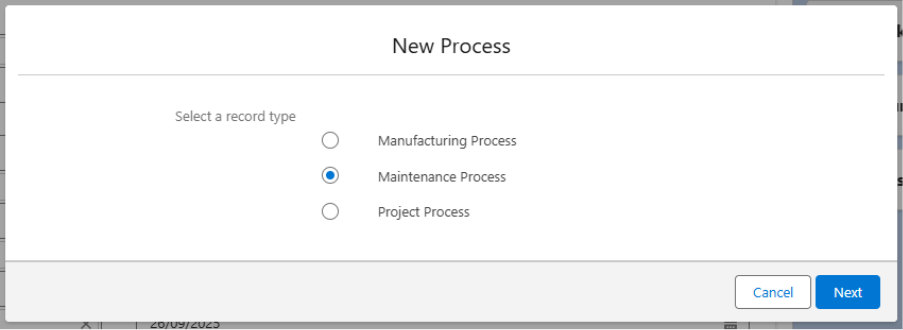
  • + New Process will display a pop-up, select the Maintenance Process Record Type.
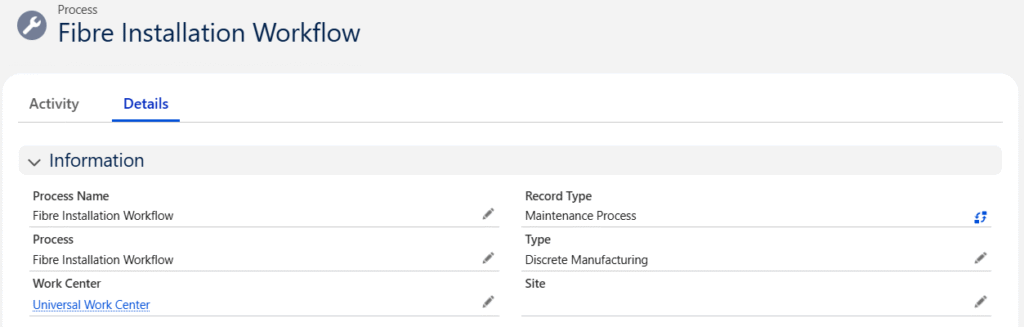
  • Enter the Process Name.
  • Select the Work Centre and Type from the lookup (Optional)
  • Click on Save.

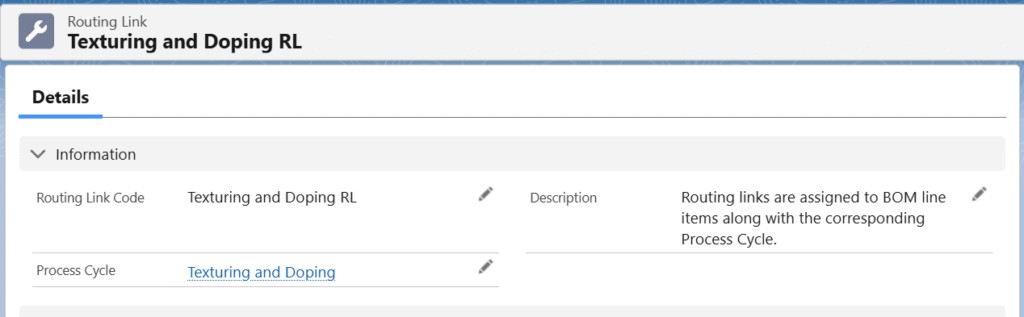
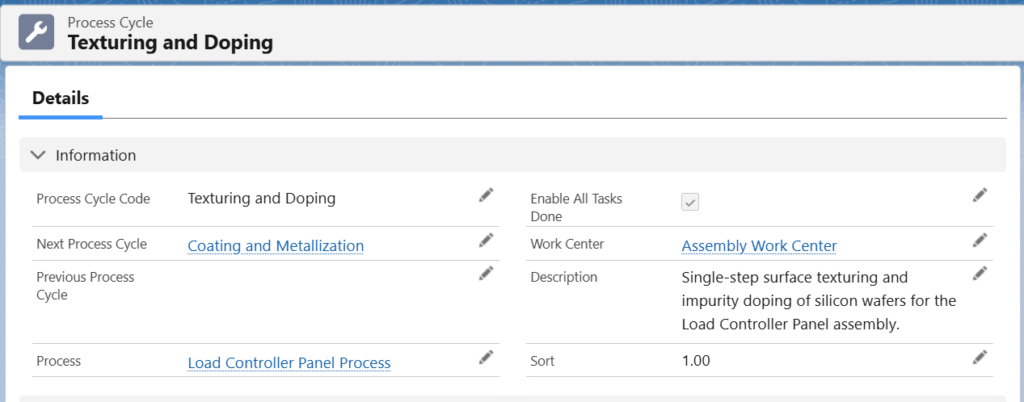
Create Process Cycles Against process

  • After creating the process, go to the Process Related List, search for Process Cycles, and click on New.
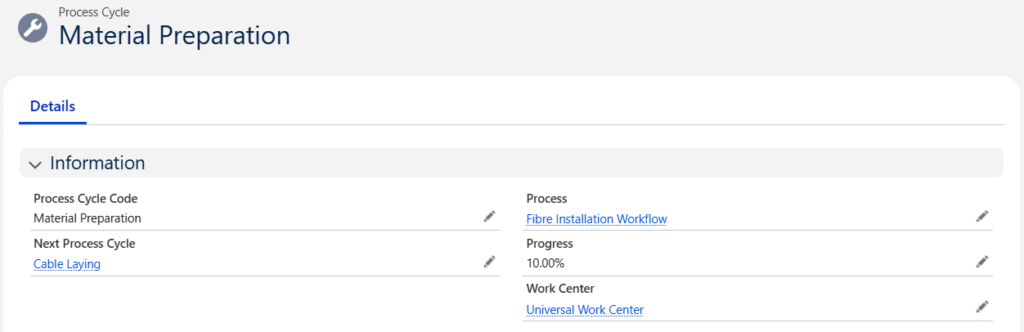
  • Enter the Process Cycle Name; the Process field will be auto populated.
  • Select the same Work Centre you selected for the process. (Optional)
  • Enter Previous Process Cycle and Next Process Cycle if available. (Optional)
  • Click on Save.

Note: Follow the same steps to create different Process Cycles.

Create Operation for Process Cycles

  • On the Process Cycle Related List, search for Operations and click on New.
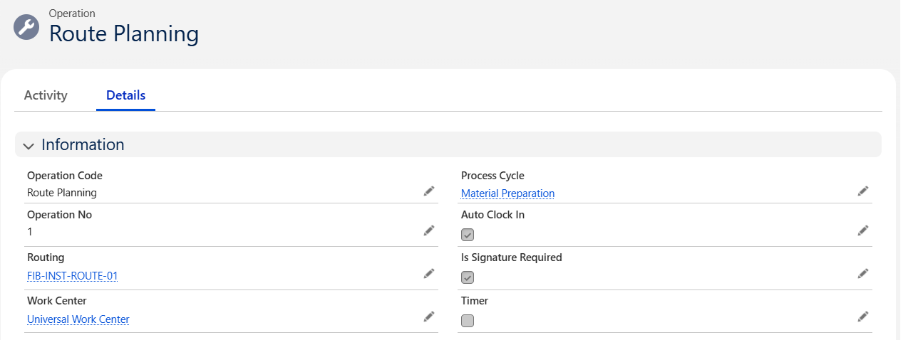
  • Enter the Operation Name, select the Work Centre and Routing.
  • The Process Cycle will be auto populated.
  • Fill other optional information if needed.
  • Click on Save.

Note 4: Follow the same steps to create different Operations.
Note 5: The Work Centre should be the same in both the Process and the Operation.

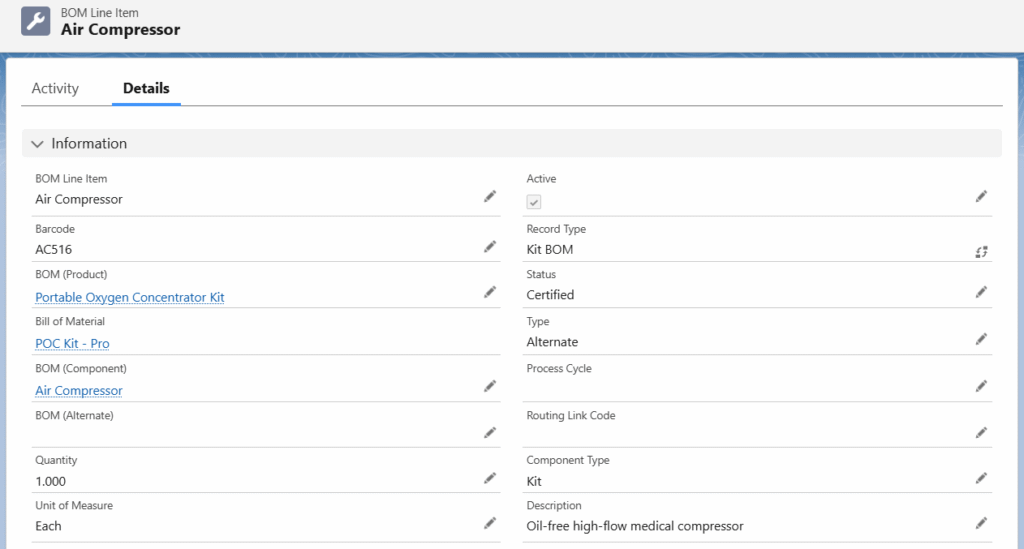
C. Follow the below steps to set up a new Kit Product:

Sales Order

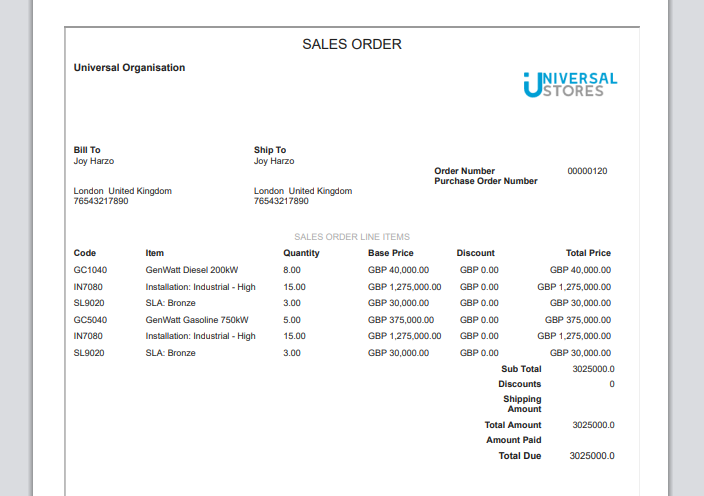
A sales order is a record that contains the products or services ordered by a business partner (client) or customer, along with the prices, terms and conditions, and other relevant details. The sales order includes the customer’s information, such as the address, contact, loyalty points earned, product details, delivery date, and payment information. Each sales order is assigned a unique sales order number, which allows the customer to confirm the order details, including the delivery date and payment information. The items sold from the inventory are then shipped or delivered to the location provided by the customer. The process of creating a sales order involves locating an existing customer or creating a new one and then establishing “Bill-To” and “Ship-To” addresses. 

Create an Order from one of two options:

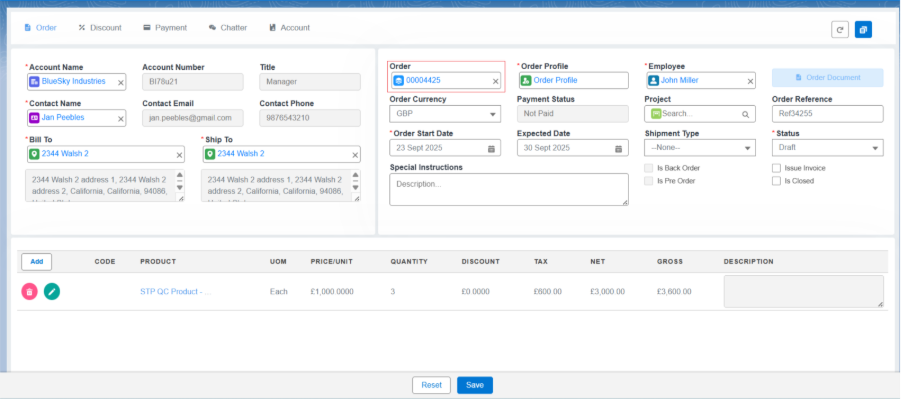
A. Initiate a new Order on the Enterprise Point of Sale (EPoS) screen.

B. Convert an existing quote into an Order.

Convert a quote into an Order.

A. Initiate a new order on the Enterprise Point of Sale screen.

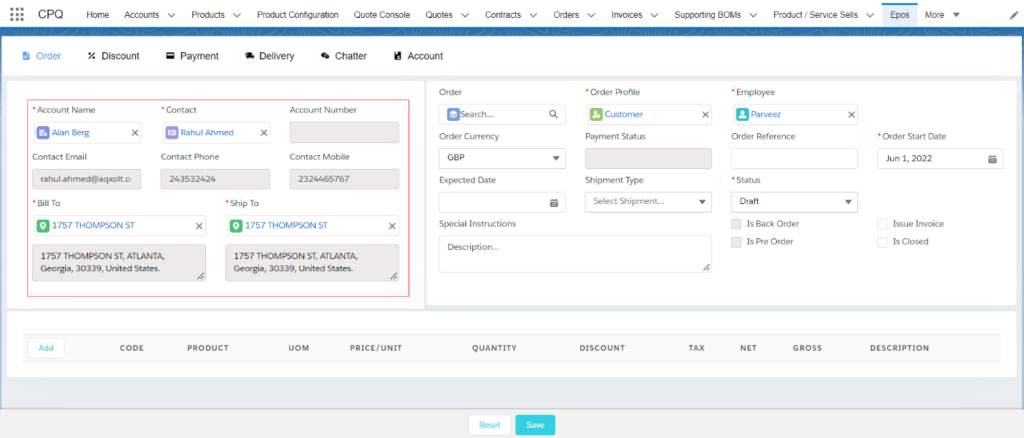
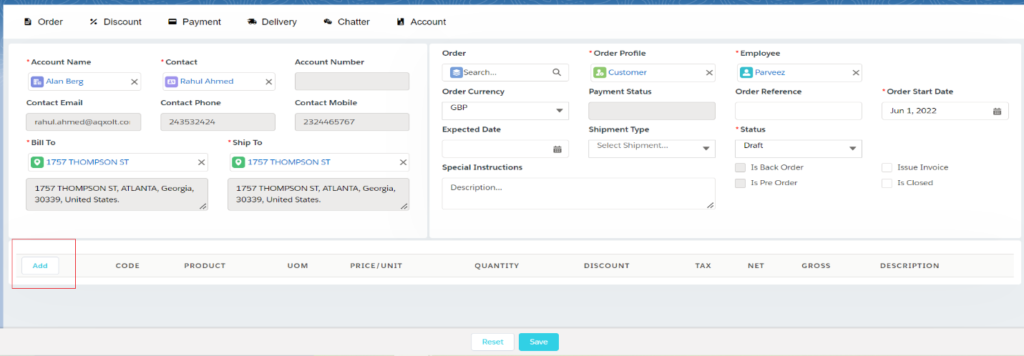
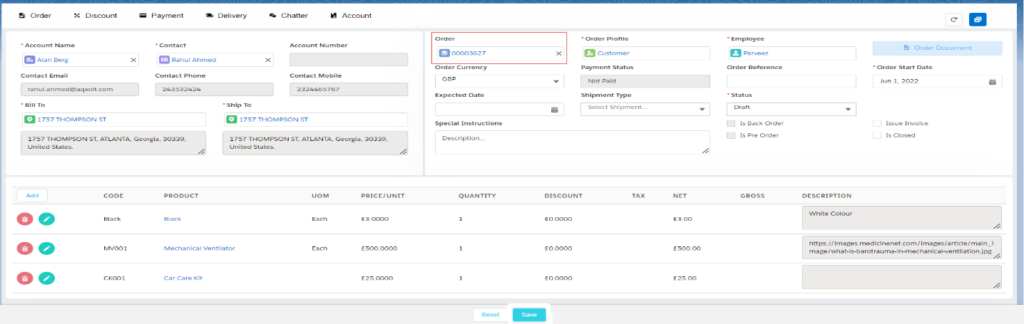
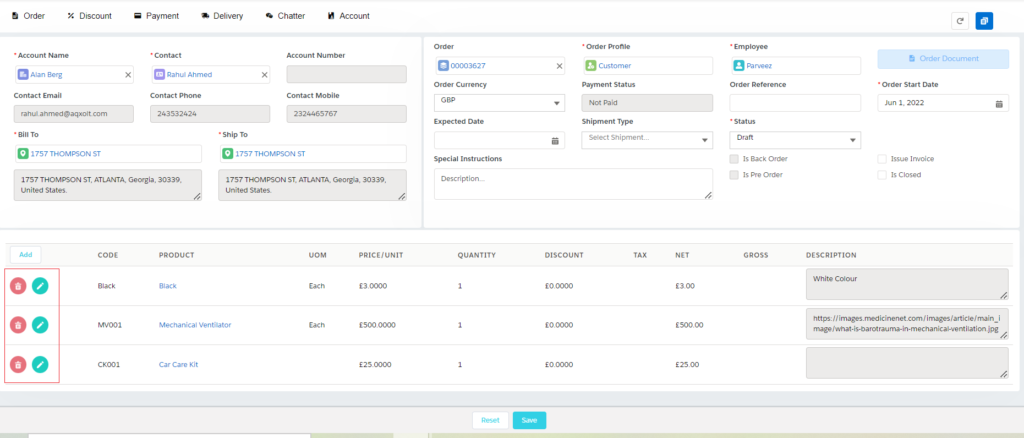
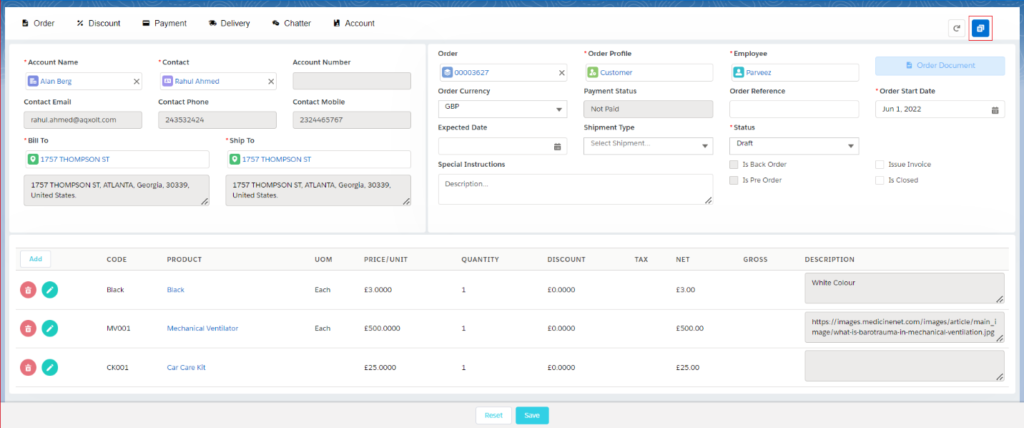
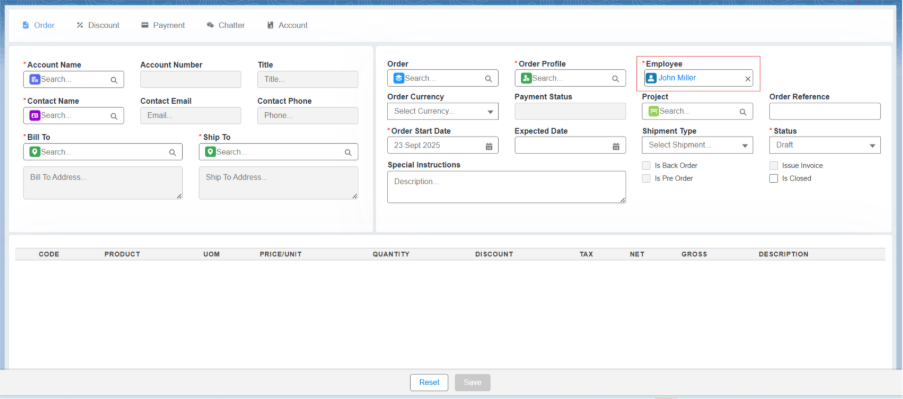
  1. Navigate to the EPoS screen using the App Launcher or find the tab in the App Navigation menu. 
  2. Employee is auto populated of the Logged-in User. 

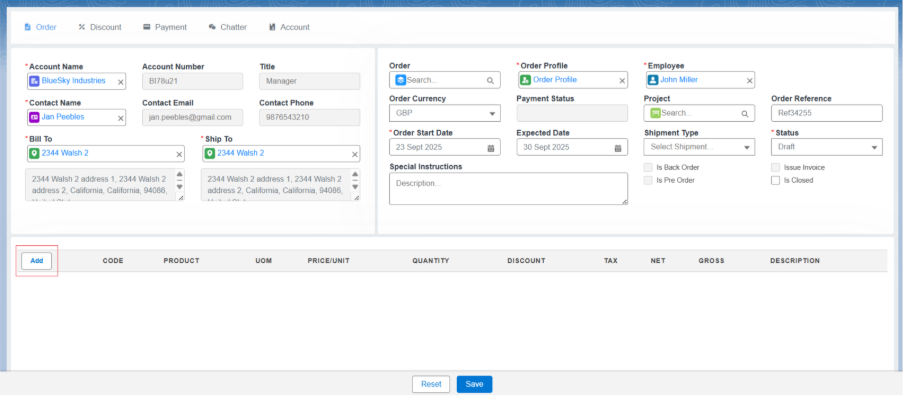
3. Under the Customer Details section, select the Customer from the look-up. Once the customer is selected, the Account Name, Account Number, Order Profile, Order Currency, along with Contact details such as Contact Title, Contact Phone, Contact Email, Bill-To, and Ship-To address of the account are auto-populated. 

Note 1: If you cannot locate the Customer name in the Account Name lookup, you can create a new customer without exiting the EPoS page by simply clicking on the Accounts section. On the Accounts section, you will be prompted to add Customer Account, Contact, and Address.

Refer to the below link to follow the steps

  1. Under the Order Details Section, other details such as the Order Start Date, Expected Date, and Status are auto populated. 
  2. The customer Currency is assigned in the customer account record. The currency can vary based on the customer’s location. 
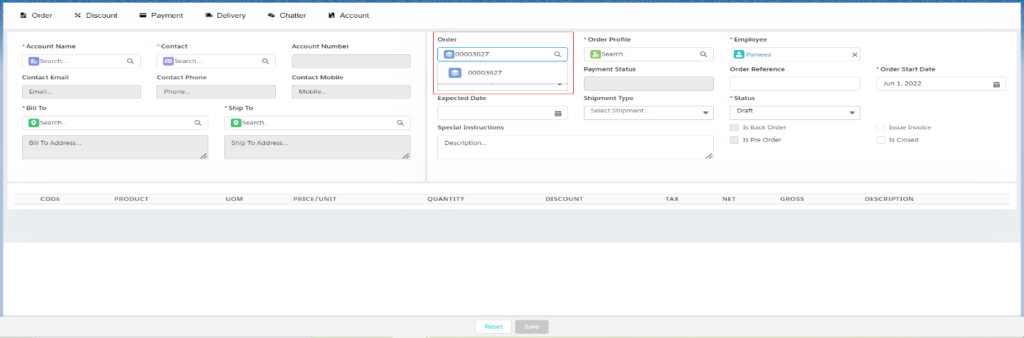
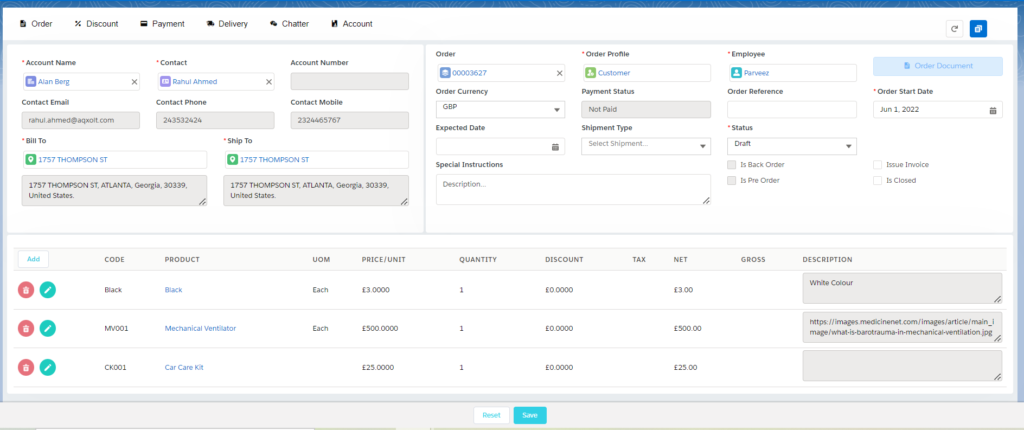
  3. If you want to select an existing sales order, click on the order lookup and select the sales order. 

Note 2: – If you are creating a new sales order, a new sales order number is generated upon Saving the order by adding the order products. 

Adding Order Product to the Sales Order 

  1. To add Order Products, click on the Add button. 
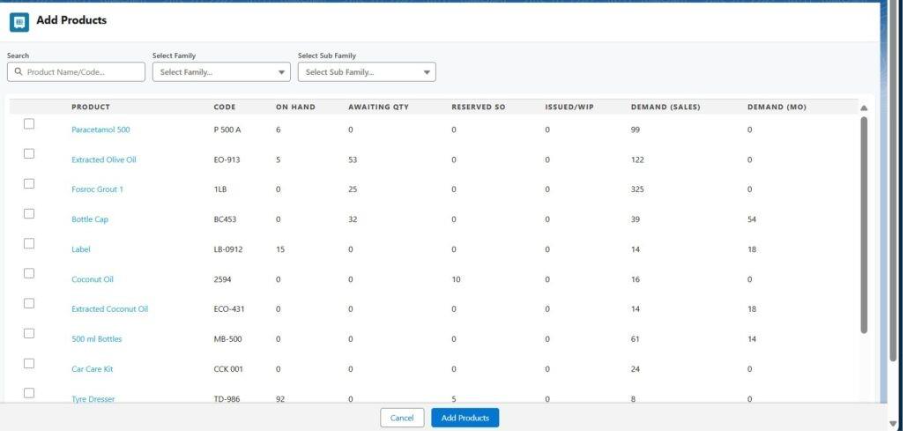
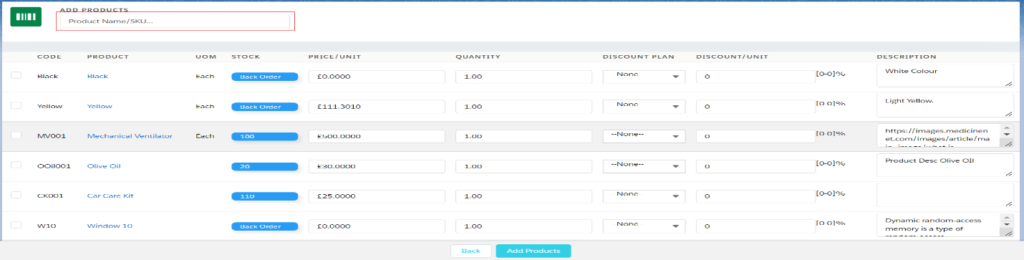
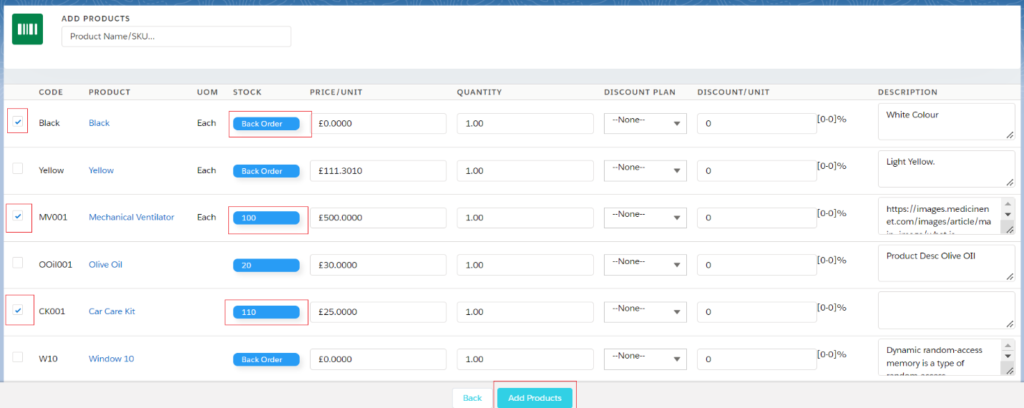
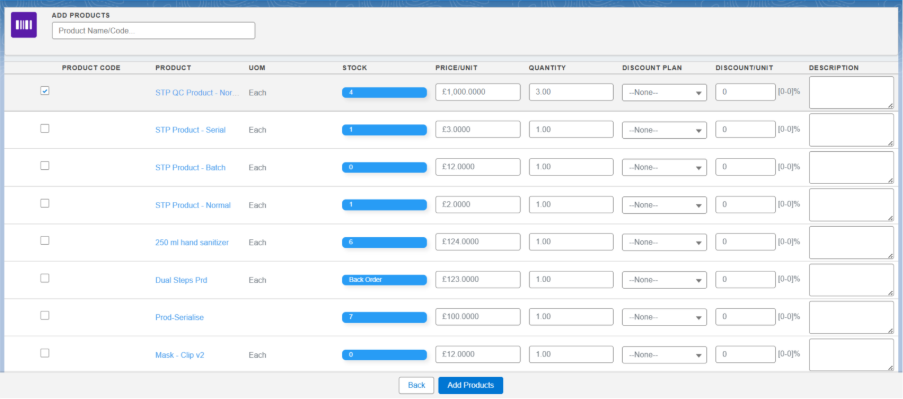
  1. In the Add Products screen, select the required/desired products by checking the Checkboxes or by using the Search Bar available at the top of the page. 
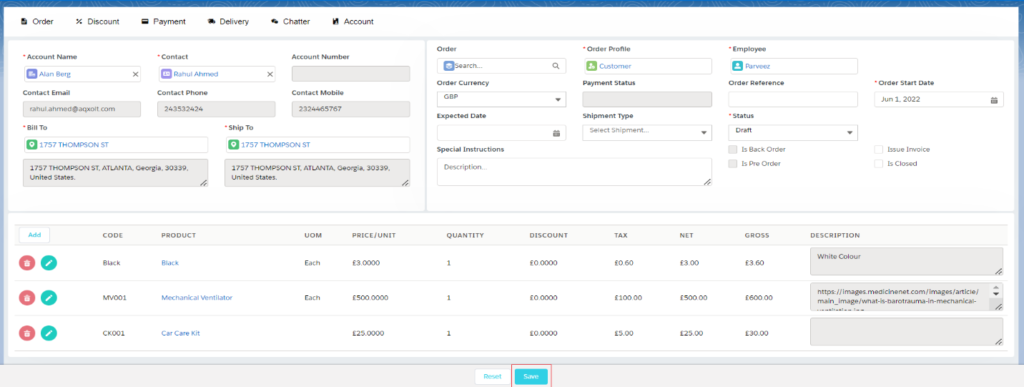
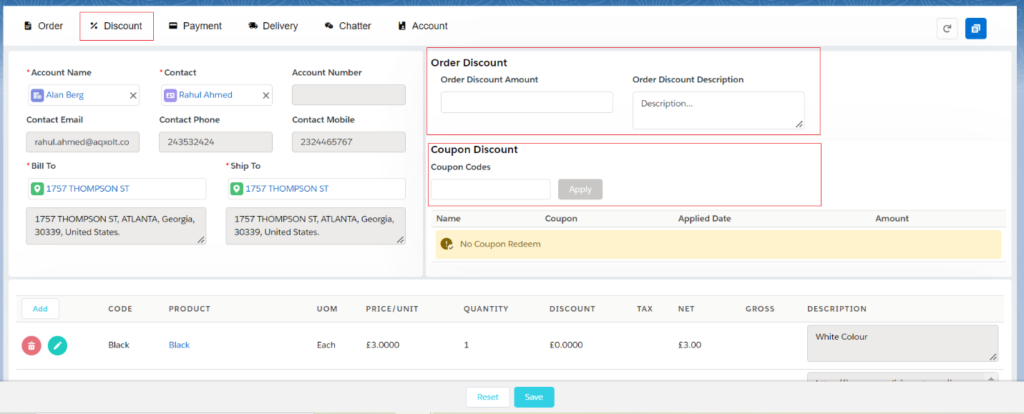
  2. Enter the Quantity and select the Discount Plan if available or enter the Discount/Unit manually. Users are allowed to Override the price/unit if needed. Click the Add Products button. The selected products will now appear in the product line-item section. 

Note 3: Products that are in Stock, marked as Allow Back Orders or classified as Kits are allowed to be added to the orders. 

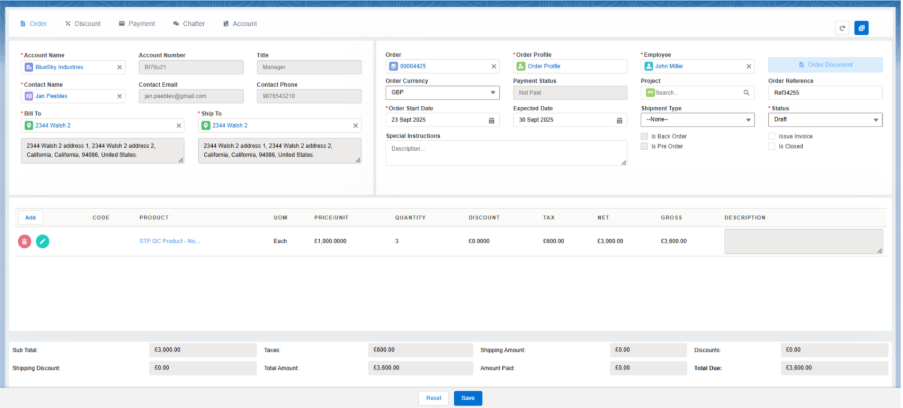
  1. To create the sales order with the selected product line items, click the Save button. This will create the Sales Order and generate a unique sales Order Number

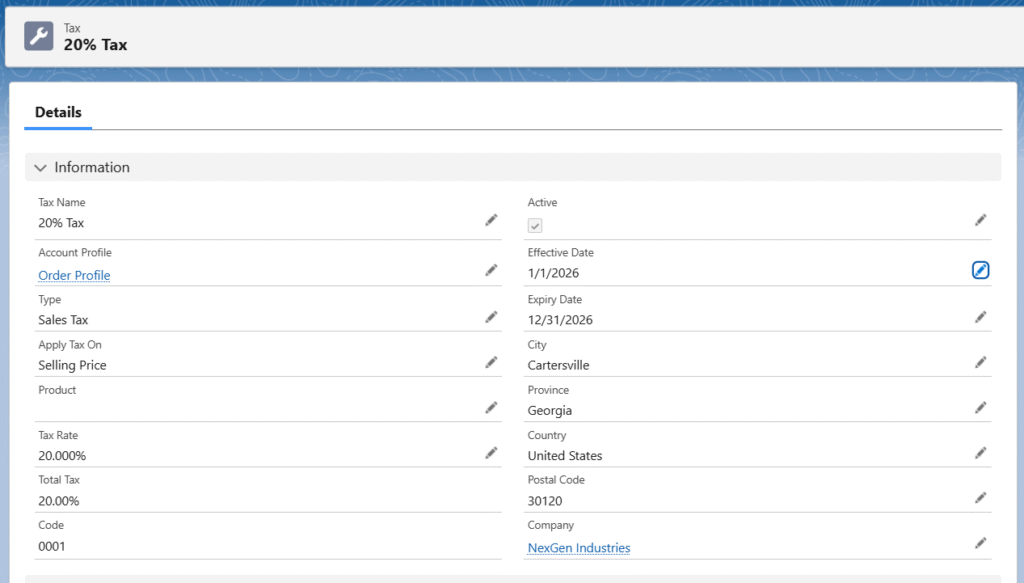
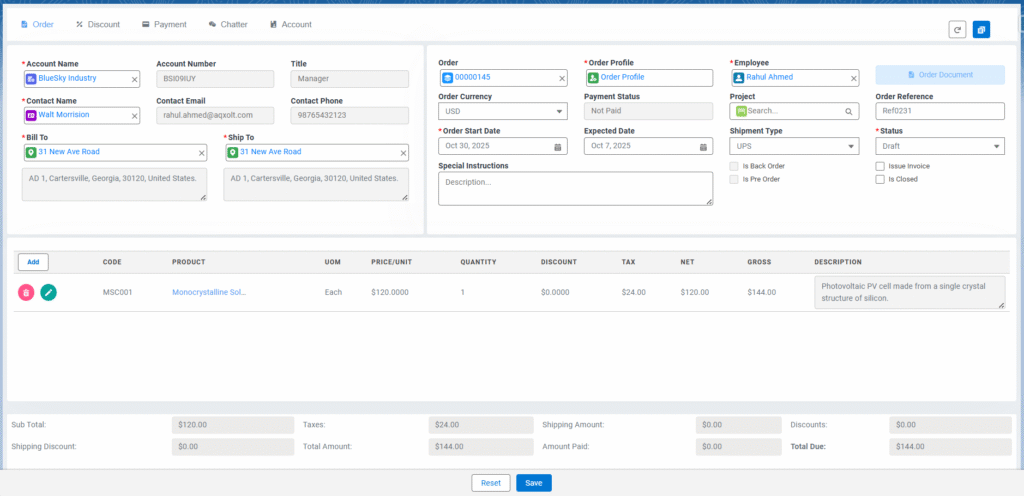
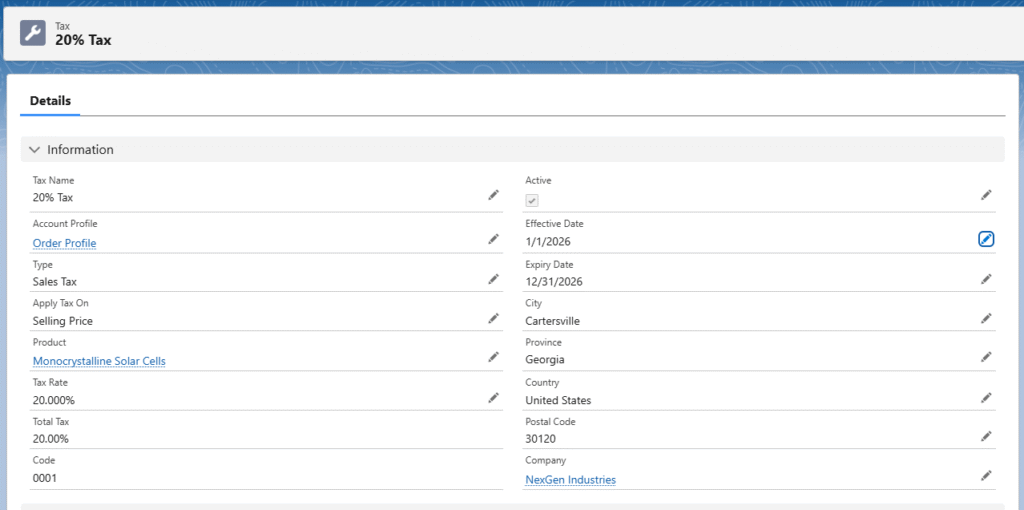
Note 4: Taxes are applied to the Net Price (total discounted price) based on the tax address and Bill-To address. The tax is calculated in the order of priority: ZIP/postal code, then City, then State, and finally Country

Field Description of Product Line-Item Section: 

Code: 
Every product is assigned a unique code in the system, and the same code is displayed in the product line-item section when the product is selected. 

Product: 

This displays the product name in the product line-item section. The products shown in the “Add Product” screen are displayed only if the product has a Price Book associated with it. 

Associate a price book with products using these steps:

• Navigate to the Product record level. 
• From the related list of the product, find and select Price Book. 
• Click on the dropdown and select Add Standard Price Book. 
• The product and standard price book look-up will be auto populated. 
• Enter the list price. 
• Click on Save. 

Note 5: Once the Standard Price Book is added, users can also associate custom Price Books with varying amounts and currencies.

Note 6: For the product to appear on the EPoS Add Products screen, the Price Book assigned to the Customer Profile must match the Product’s Price Book.

Quantity: This displays the quantity of a particular product the company is selling to the customer. 

Unit Price: The cost of a single item or unit before any discounts or taxes are applied. 

Discount: An amount subtracted from the original price to reduce the cost for the buyer. 

Tax: An additional charge added to the price by the government. 

Net Price:  Discounted Amount

Gross/Total Price: The Total Price is the amount of the product displayed after calculating the discount and taxes. 

Total Price = ((Unit Price * Quantity) – Discount Amount) + (VAT + Other Tax Amount) 

———————————————————————————————————————————————————————————————————-

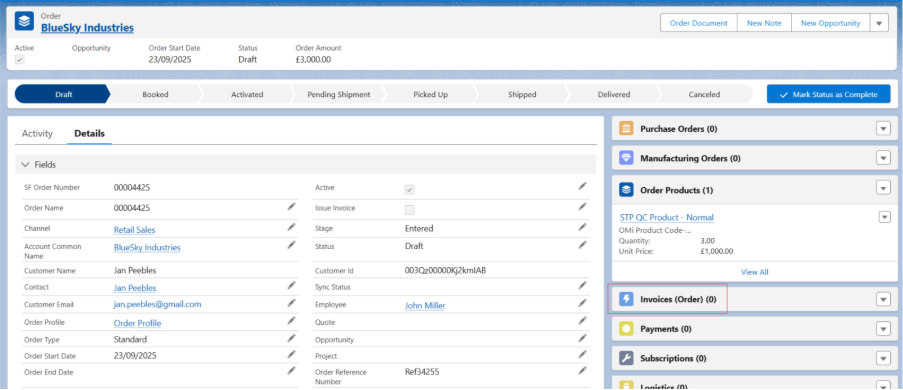
You can create Invoices and process Payments using the Enterprise Point of Sale (EPoS) screen by following these steps:

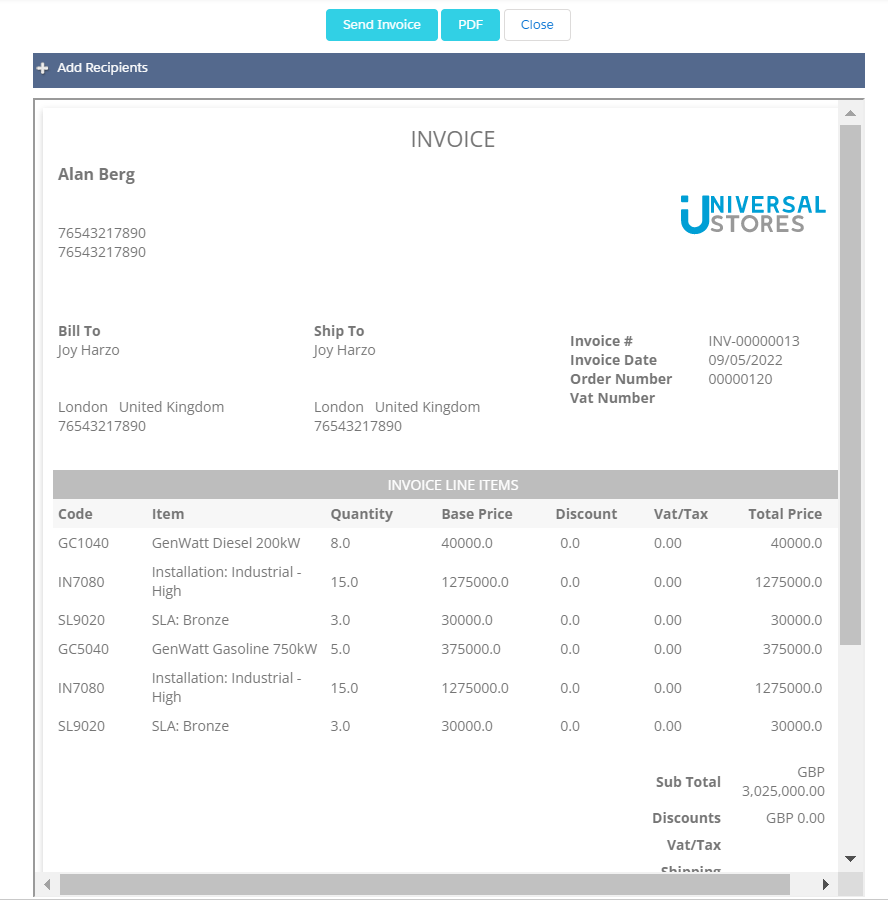
An invoice is a detailed document issued by a seller to a buyer, listing goods or services provided along with their prices. It serves as a request for payment for the products or services delivered. 

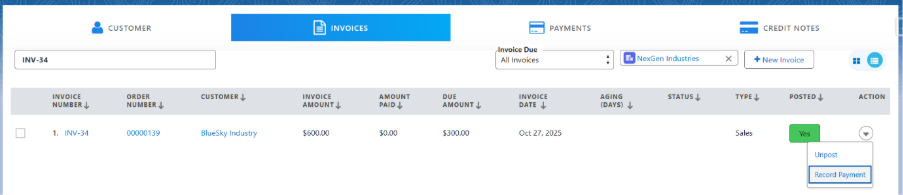
The Invoices tab is used to manage customer invoices containing order details for products sold. Users can view invoices, send them to clients via email, and generate invoice documents in PDF format. 

An invoice is created in Three ways: 

  • From the Enterprise Point of Sale Screen. (Epos).  
  • From the Sales Orders ab record level.  
  • From Accounts Receivable.  

Creating an Invoice through the Enterprise Point of Sale (Epos) Tab: 

There are two ways to create an invoice from the Epos screen: 

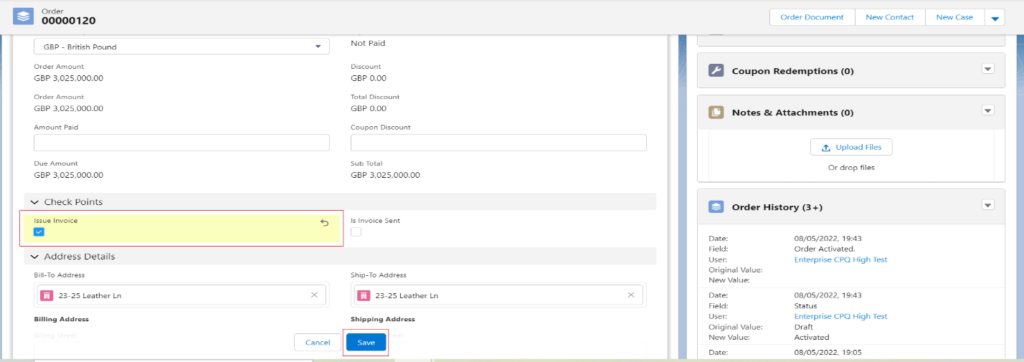
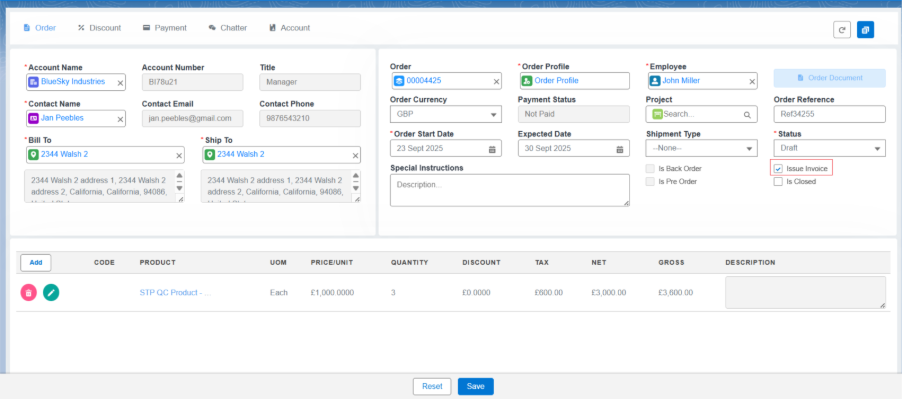
  • When the Sales Order is saved from the EPoS screen, check the Issue Invoice checkbox and click on Save, an invoice (Sales) record is automatically created with complete amount details of the products. 

Or 

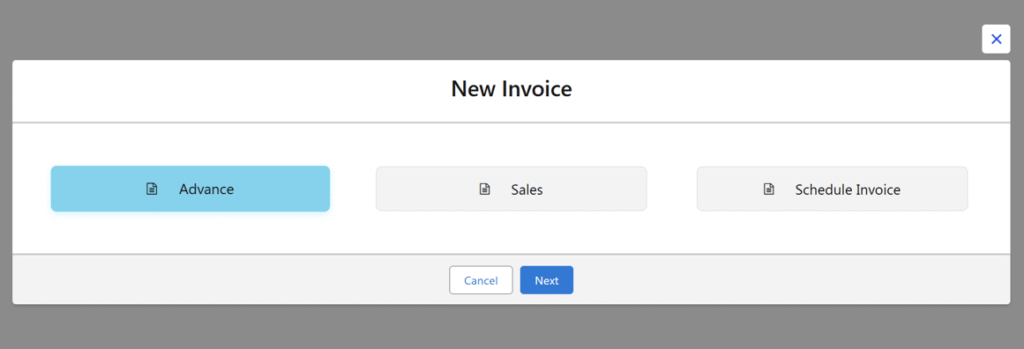
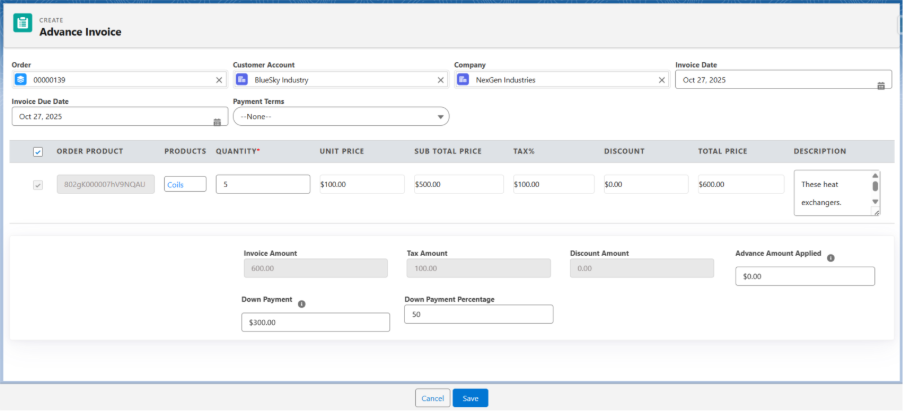
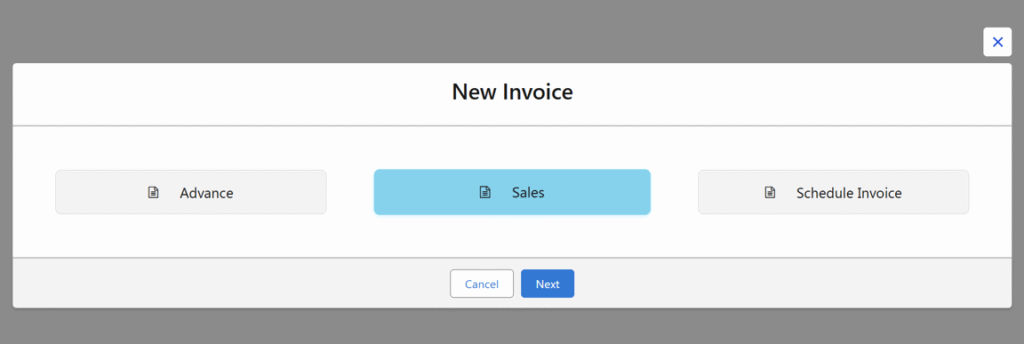
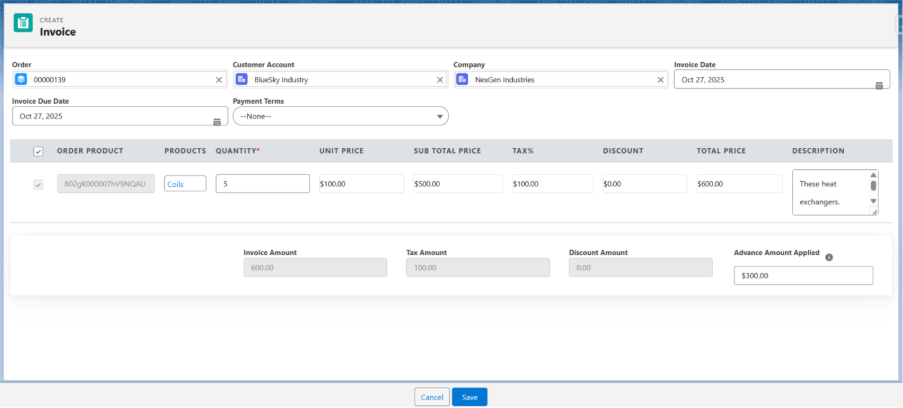
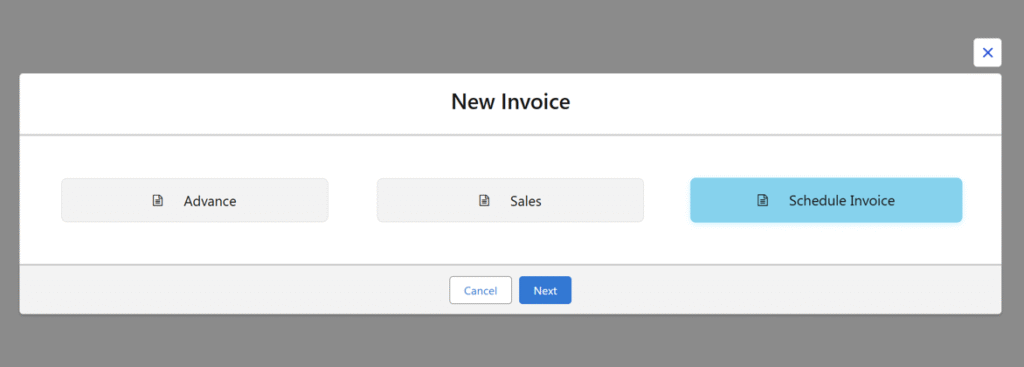
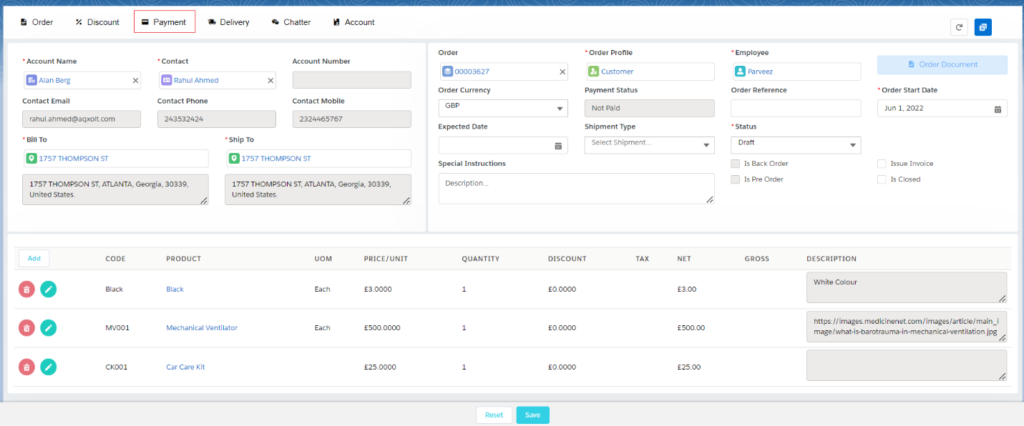
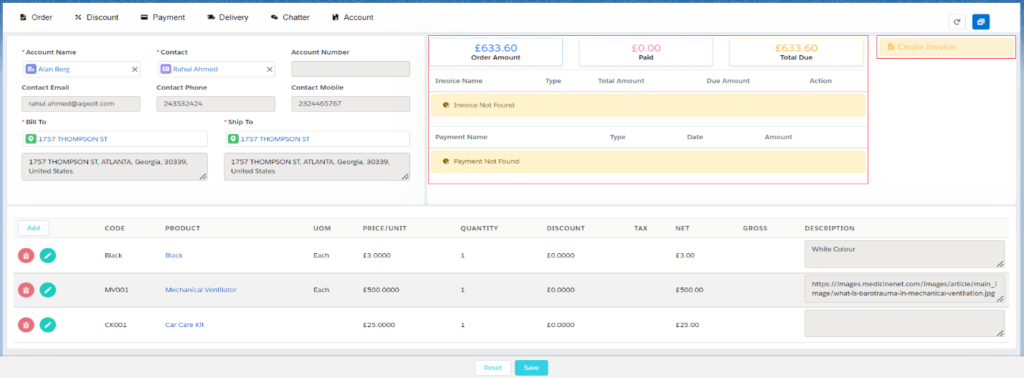
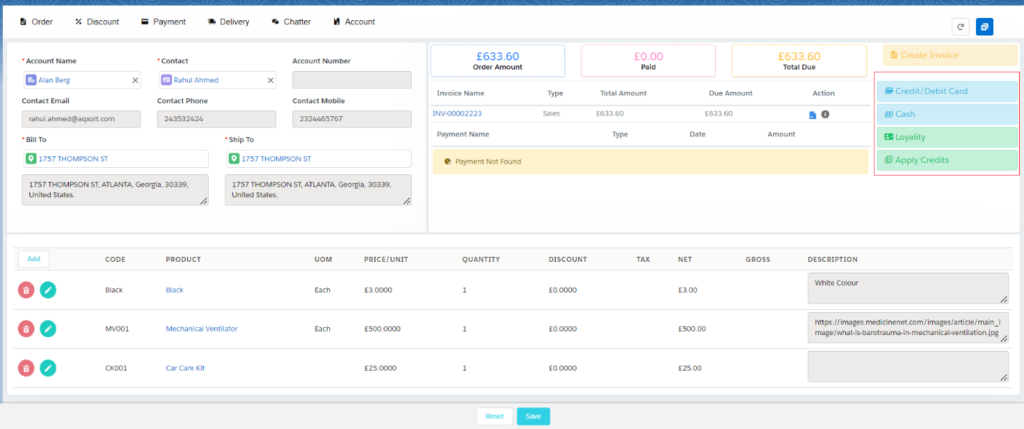
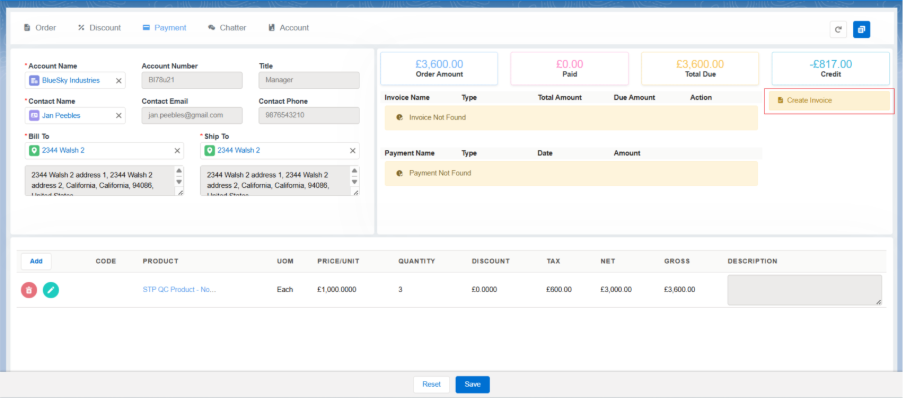
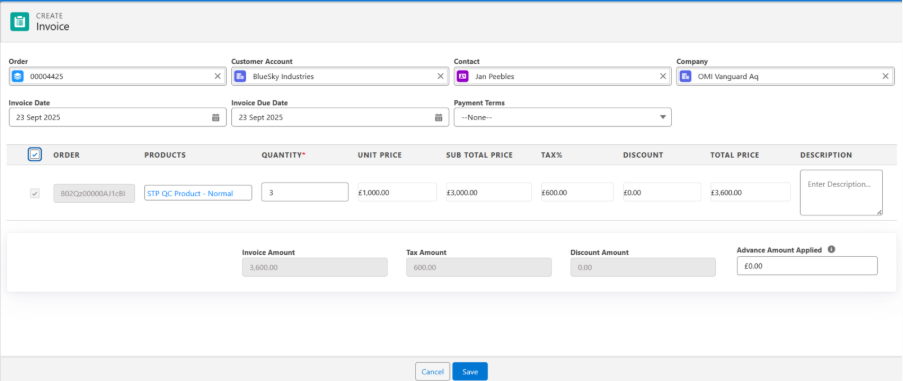
  • Use the Create Invoice button available in the Payment section to create different kinds of invoices, such as Advance, Sales, or Schedule
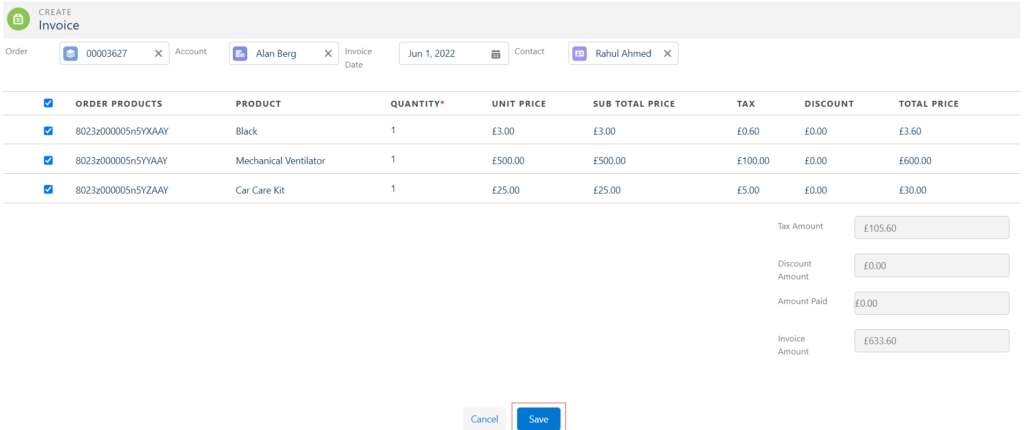
  • Clicking the Create Invoice button will direct you to the invoice creation page.
  • Refer to the below link to create different types of invoices –

Creating an invoice through the Sales Orders record level: 

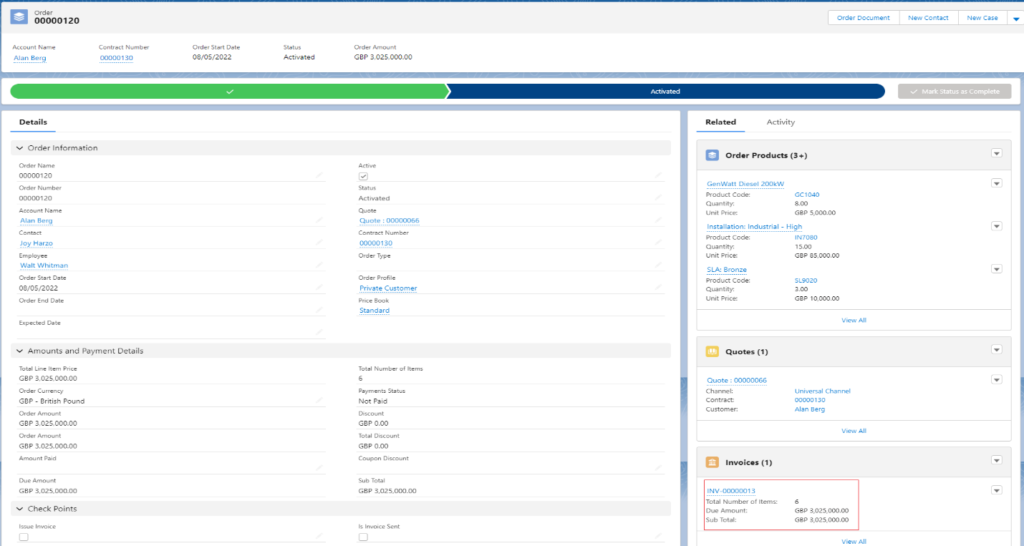
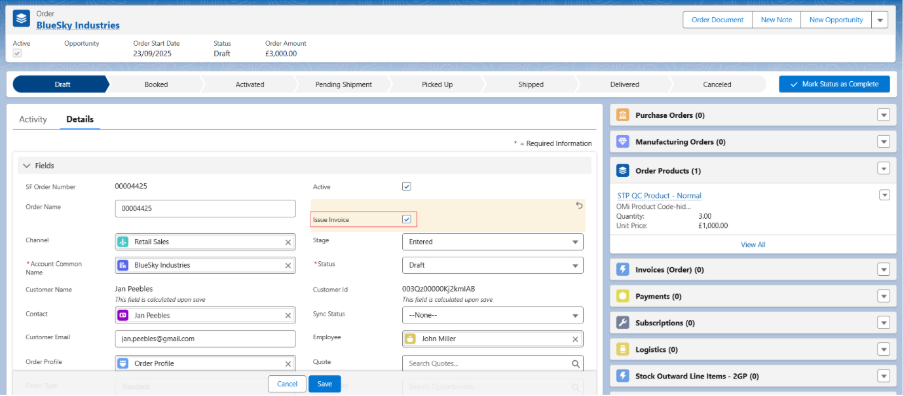
  • Open the created Sales Order record, click on Edit, check the Issue Invoice checkbox, and save the Sales Order. The system will automatically create a Sales invoice with all information. 

       Or 

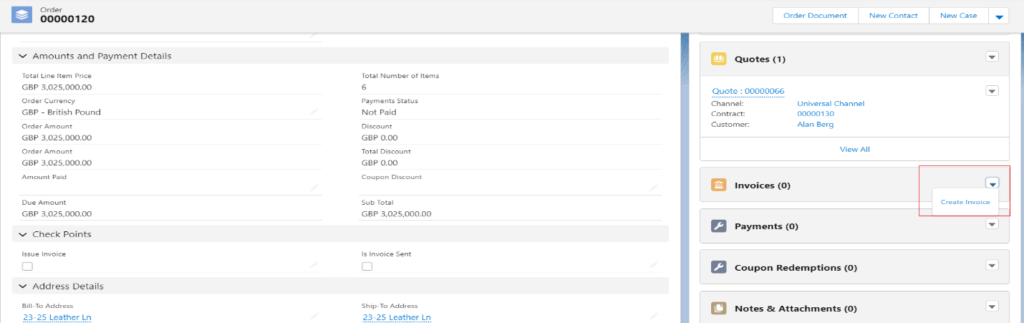
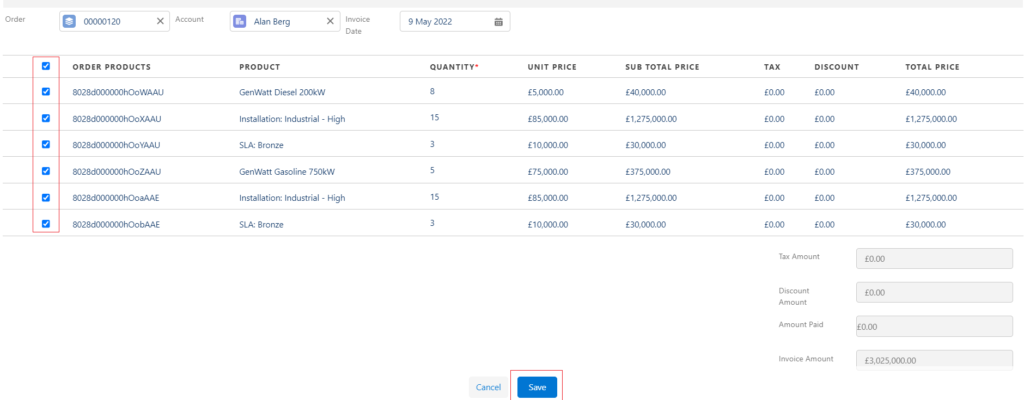
  • From the Order Related List, find Invoices and click the Create Invoice button. 
  • Select any Record Type as required and click the Next button. 
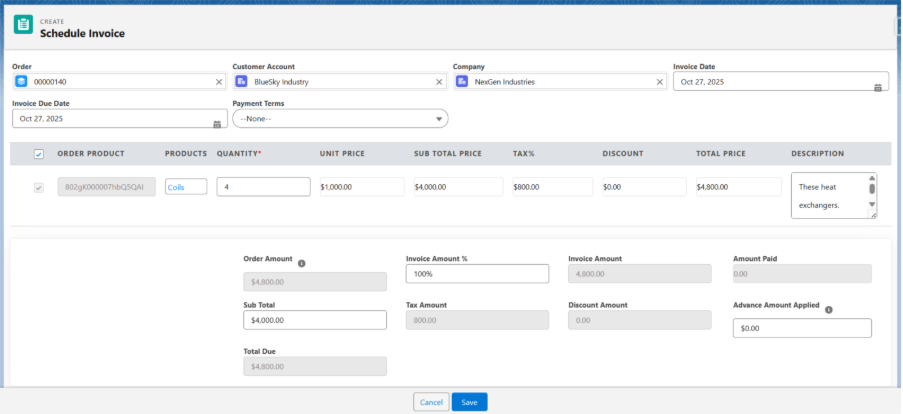
  • All invoice and invoice line-item details will be auto populated. Just select the line items and click Save to create the Sales Invoice. 

Note 6: If the record type is Advance, enter the Down Payment amount or Down Payment Percentage and click Save to create an Advance invoice

Note 7: If the record type is selected as Schedule, enter the Invoice Amount % and click Save to create the Schedule Invoice

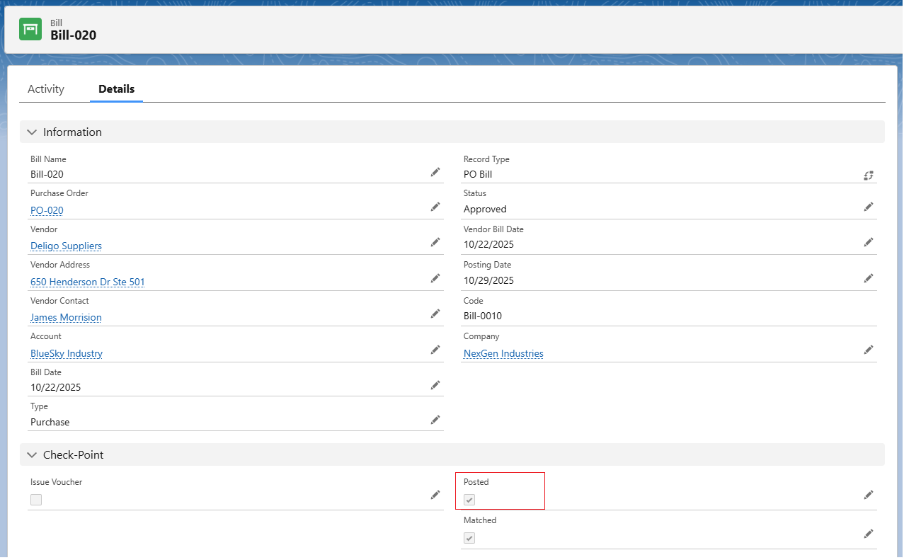
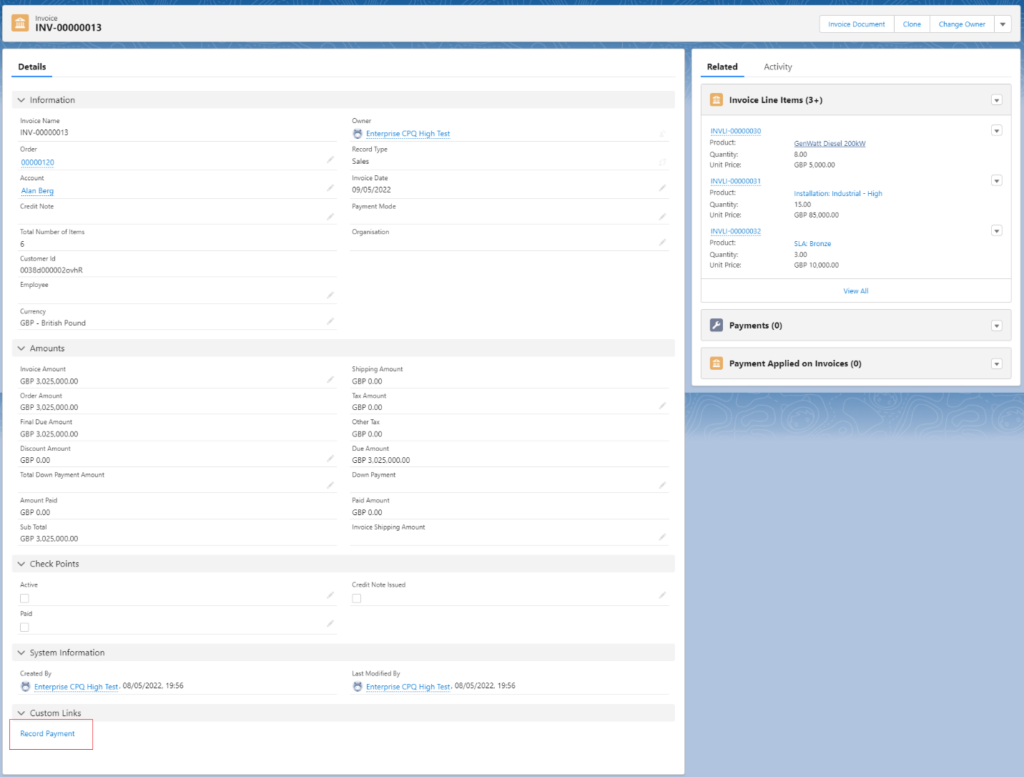
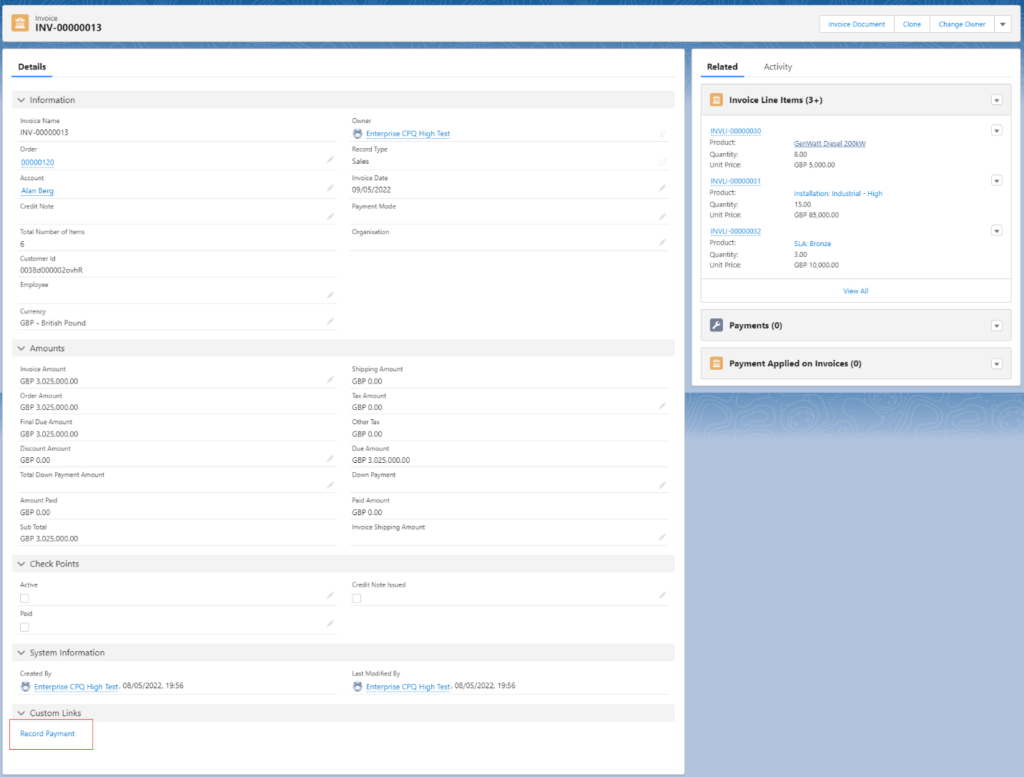
Note 8: Check the Posted checkbox of the invoice to create the Transactions and Ledger Entries for the invoice (Sales and Schedule). 

Note 9: Advance invoices cannot be posted; only their payments can be posted. 

Create Invoice from Accounts Receivable.  

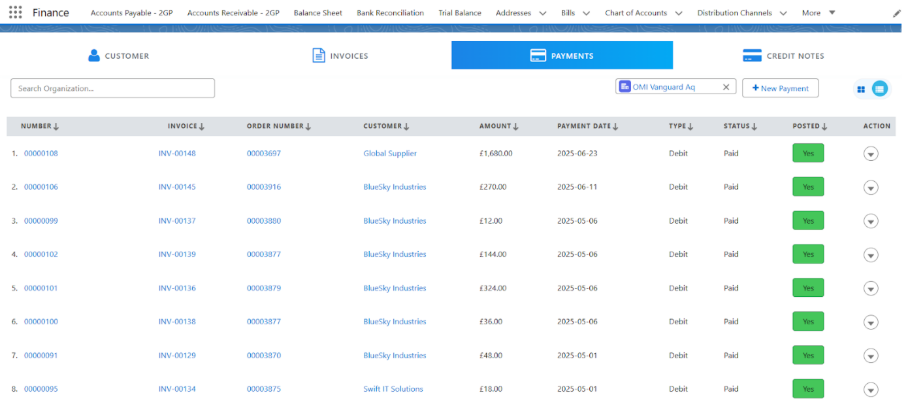
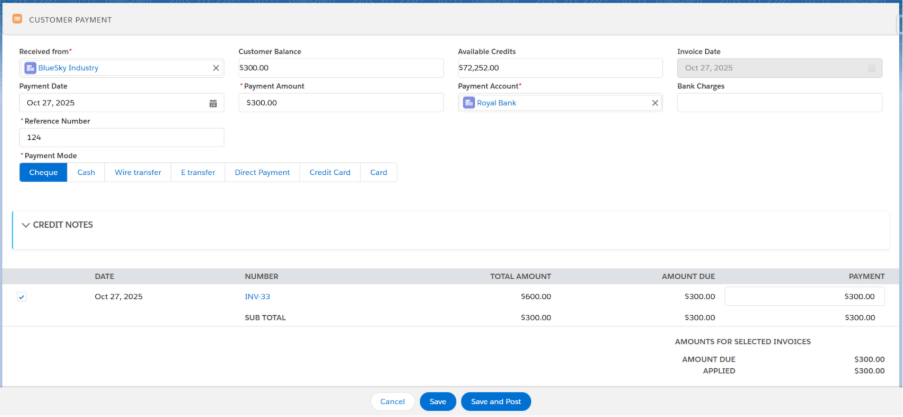
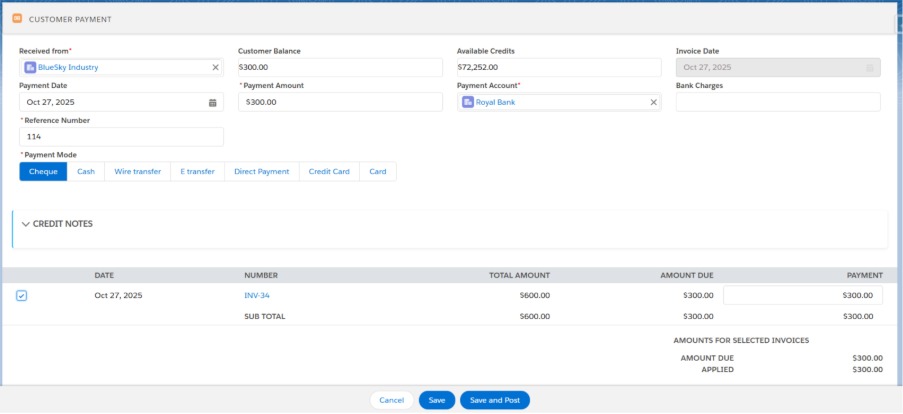
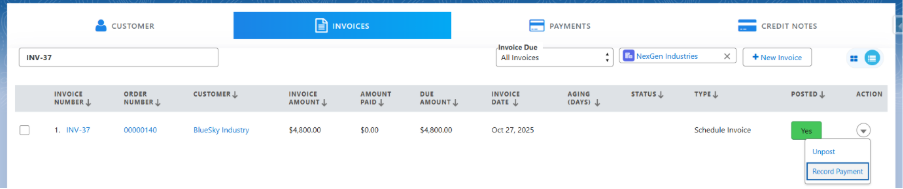
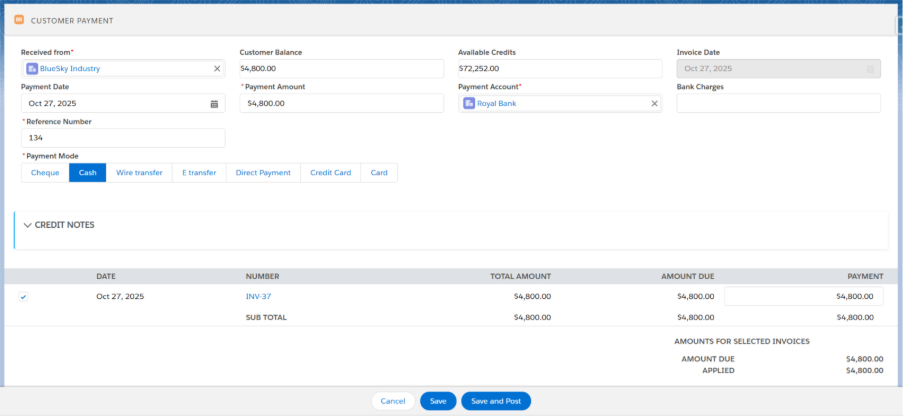
Making a Payment against the created Invoice:

Payments can be made using one of two methods: 

  • From the Enterprise Point of Sale tab (EPoS). 
  • From the Accounts Receivable 

Payments from Epos tab: 

Follow the steps to create a Payment from Epos: 

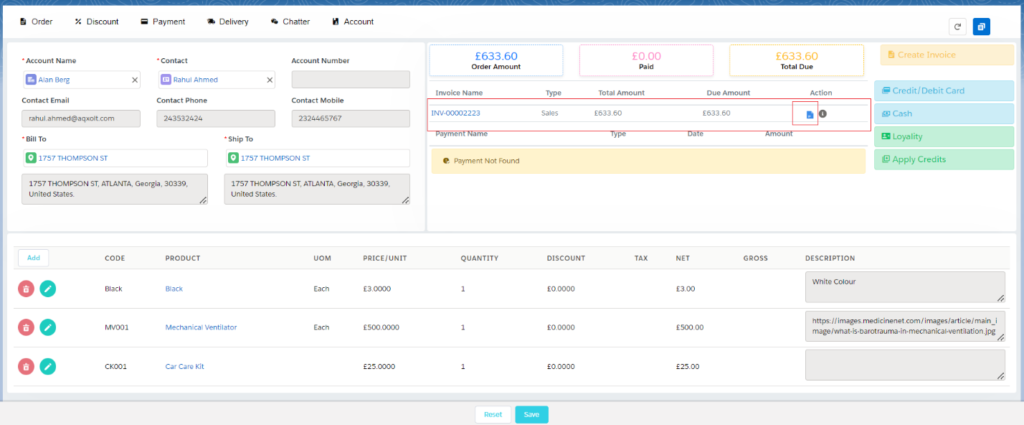
  • Invoice needs to be created and Posted before making the Payment. 
  • Navigate to the Payments tab and click on any of the payment options. Payments can be made using the following five methods: 
  1. Credit/Debit 
  2. Bank/Cheque 
  3. Cash 
  4. Loyalty
  5. Apply Credits 
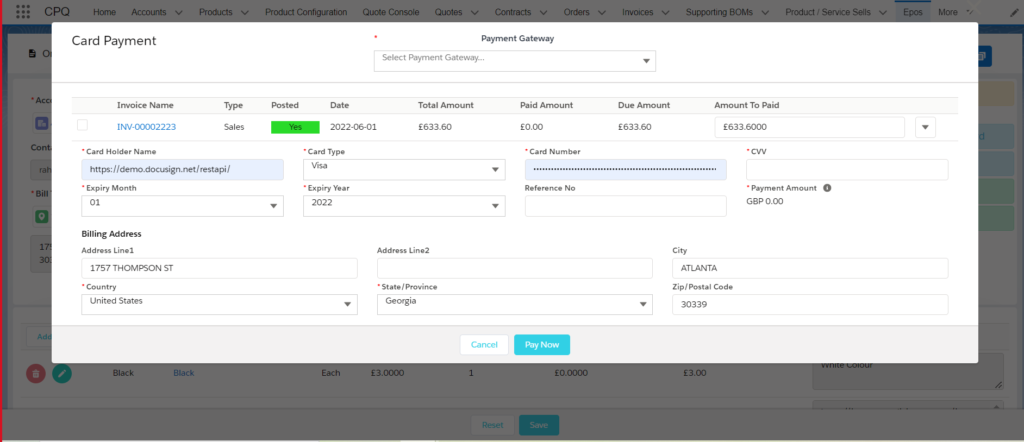
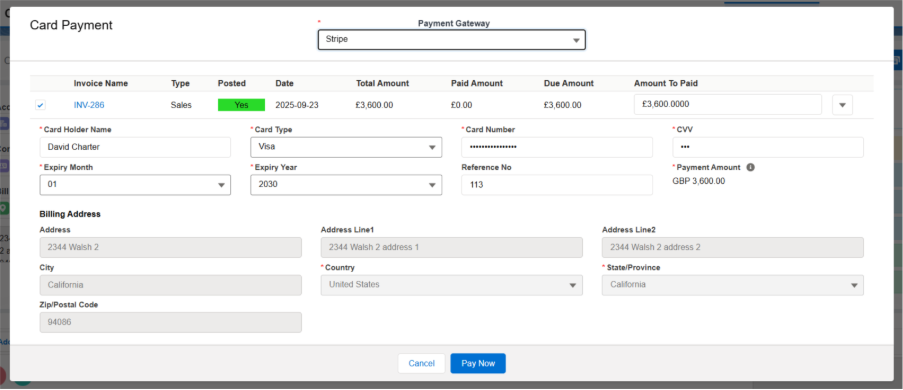
  1. Credit/Debit:  
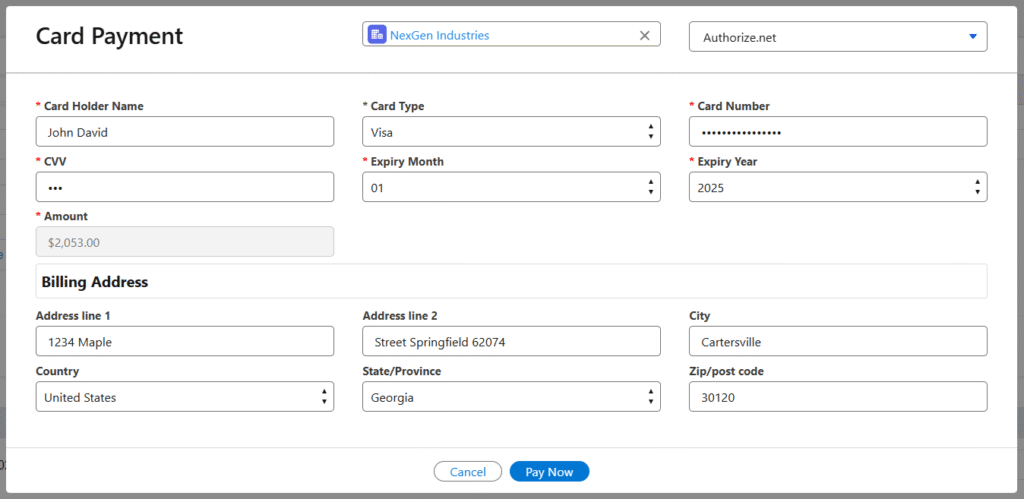
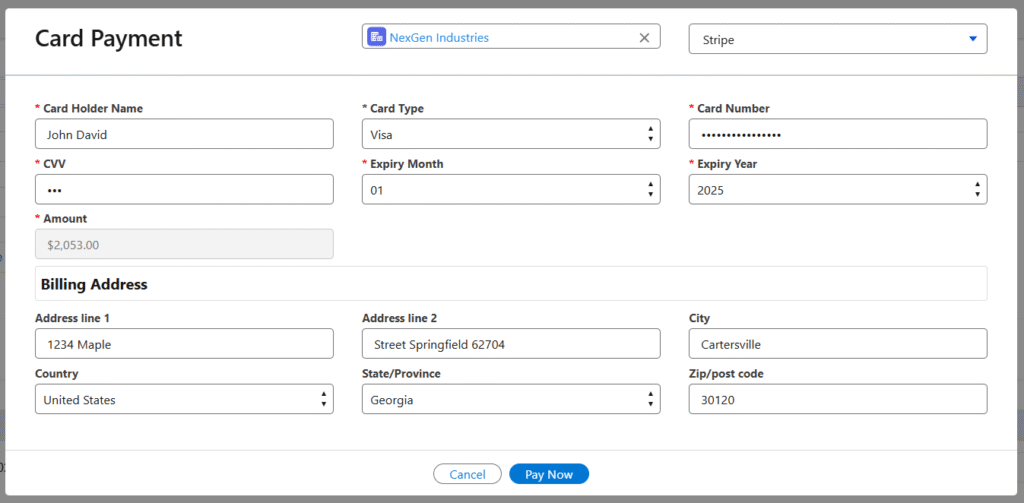
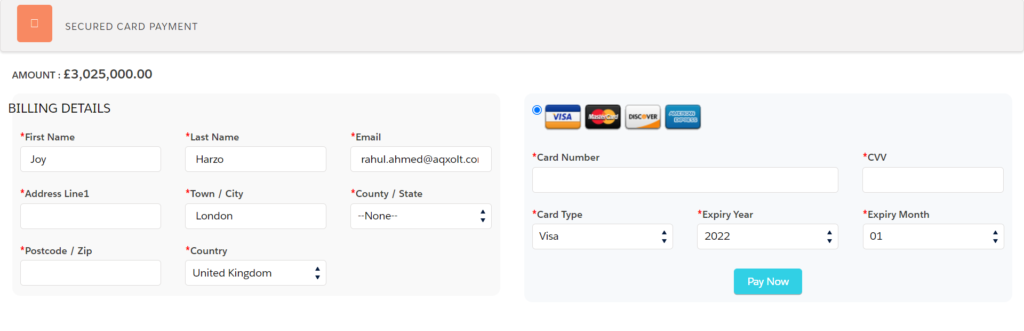
  • To make the payment through a Credit/Debit card, click on the Payments tab and then click on the Credit/Debit button located on the right side of the screen. 
  • Select the available Payment Gateway method from the top of the page. 
  • Enter the valid card details in the Card Information section and click the Pay Now button to complete the payment process for the Sales Order. 

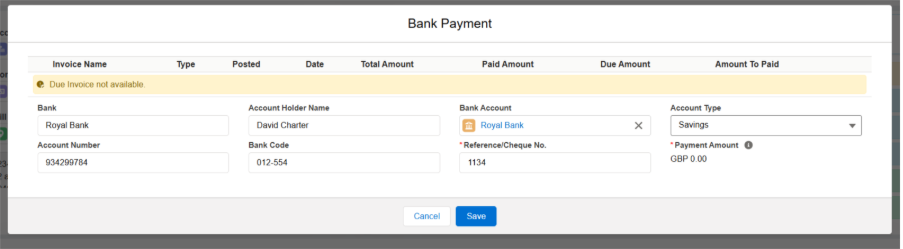
2. Bank/Cheque: 

  • To make the payment through Bank/Cheque, click on the Payments tab and then click on the Bank/Cheque button located on the right side of the screen. 
  • Enter the Bank Name, Account Holder Name, Select Payment Account from the Bank Account look up field, select Account Type, Account Number, Bank Code and the Reference/Cheque Number in the Bank Information section. Click the Save button to complete the payment process for the Sales Order. 

3. Cash: 

  • To make the payment through Cash, click on the Payments tab and then click on the Cash button located on the right side of the screen. 
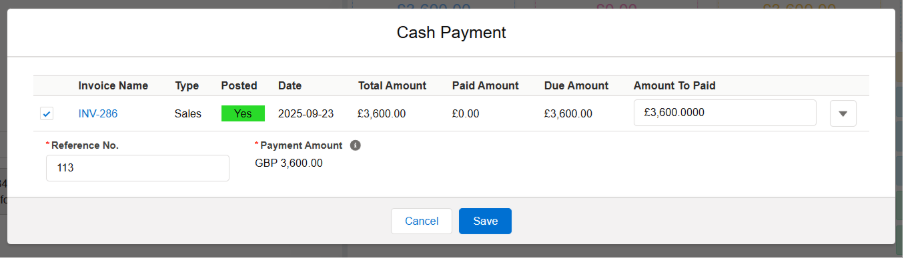
  • Complete amount will auto be populated in the Amount to Paid field. Enter Reference Number and click the Save button to complete the payment process for the Sales Order.
  • Users can do the Partial Payments as well by overriding the Amount to Paid field.

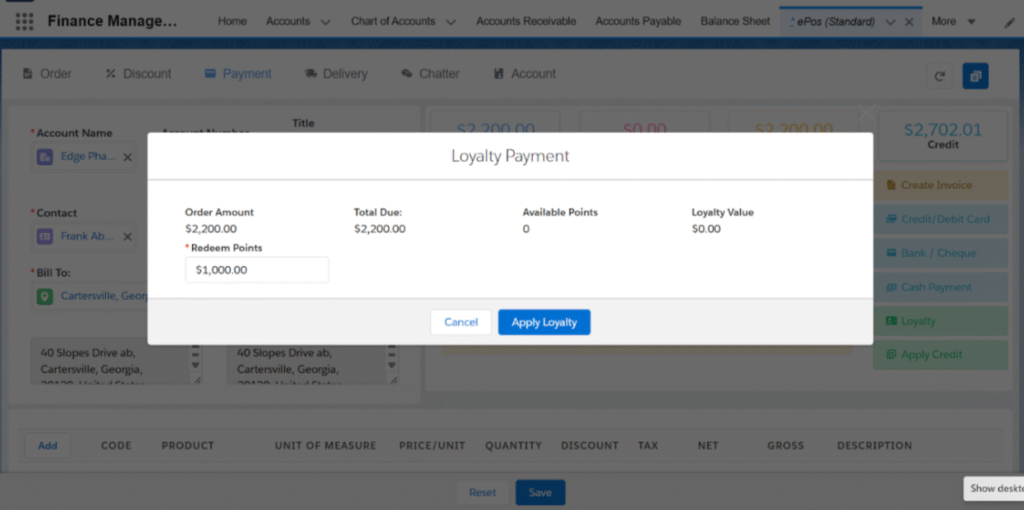
4. Loyalty:  

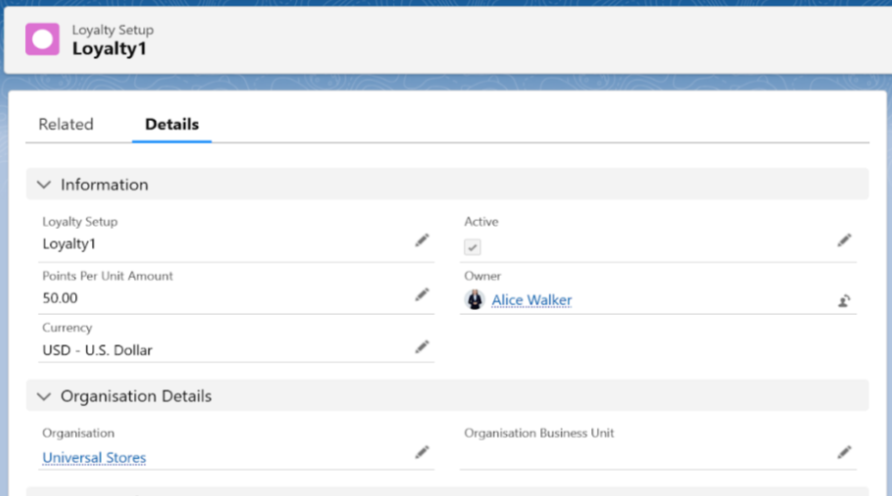
  • Regular customers earn Loyalty Points as a reward for their regular purchases with the organization. They can use these points for payments. Loyalty points can be assigned a currency value.  
  • To make the payment through Loyalty, click on the Payments tab and then click on the Loyalty payment option located on the right side of the screen. 
  • The system will automatically reduce the Amount to be Paid by the equivalent loyalty points. 
  • The customer can pay the remaining amount with any of the other payment options. 

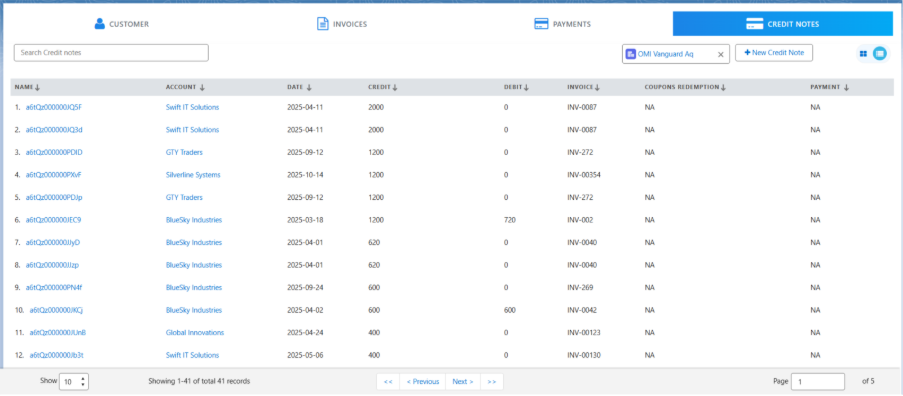
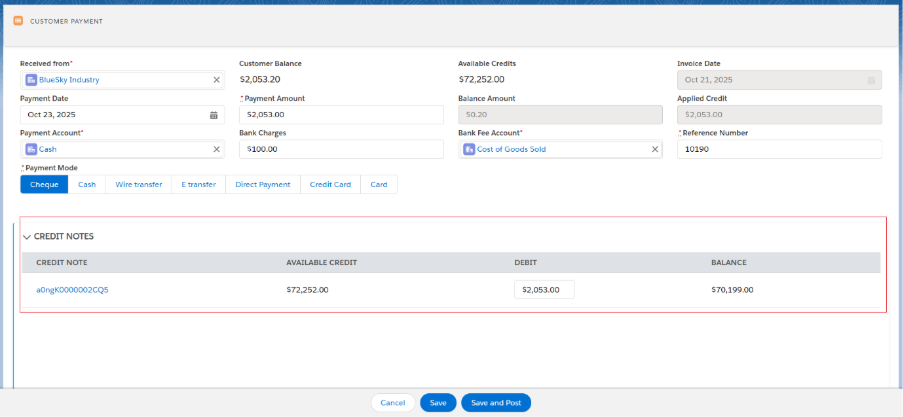
5. Apply Credits:  

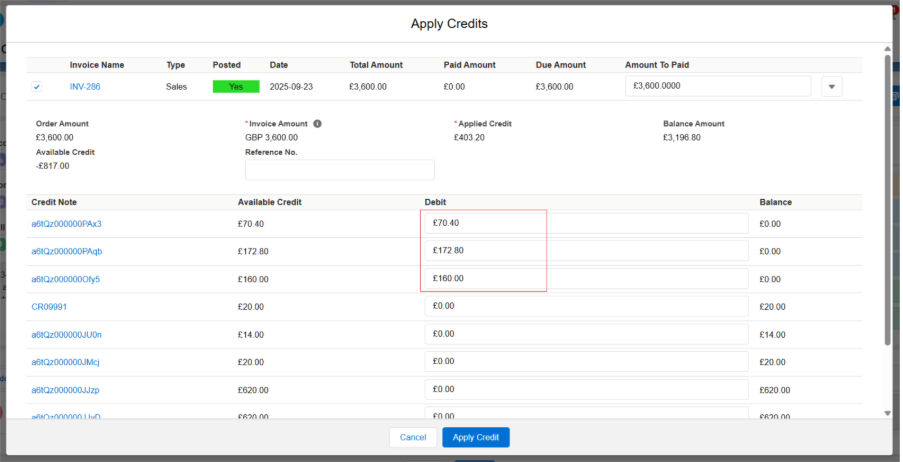
  • To make the payment through Credit Points, navigate to the Payments tab in EPoS and click on the Apply Credits button. 
  • The system will automatically fetch the invoice details and all available Credit Notes below the invoice details. 
  • Select the invoice and apply the Credits from any of the Credit Notes, then click on the Apply Credit button. 
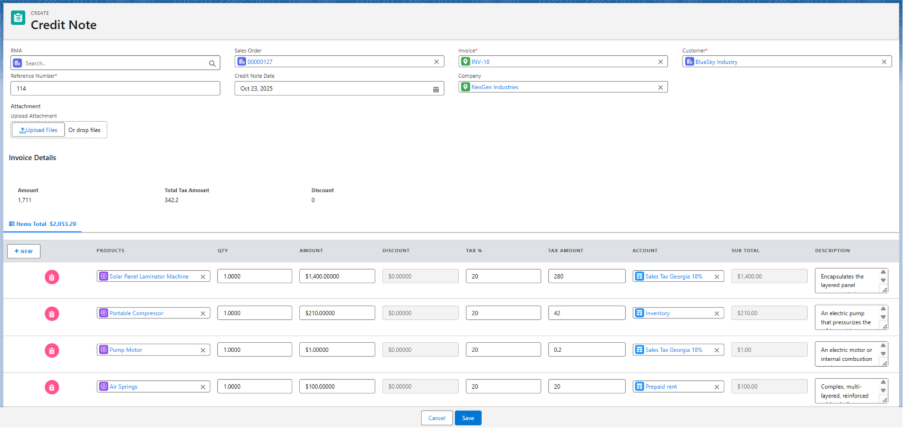
  • You will see that a Credit-Type payment record has been created. 

Shipments

Shipping is a key component of a customer’s supply chain, manufacturing, and retail success. Axolt offers a comprehensive solution to streamline the shipping process, providing accurate delivery dates and times. Axolt facilitates real-time communication with UPS, FedEx, and internal shipments, ensuring seamless integration and tracking. 

The shipping process begins with the following:

Creation of Sales Order.
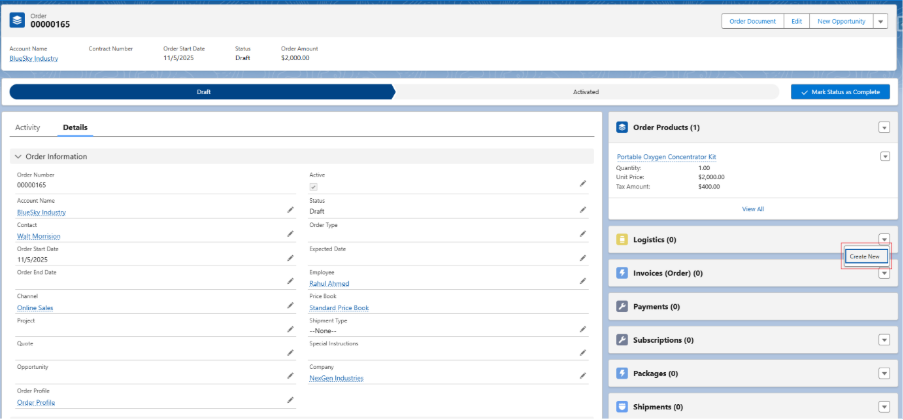
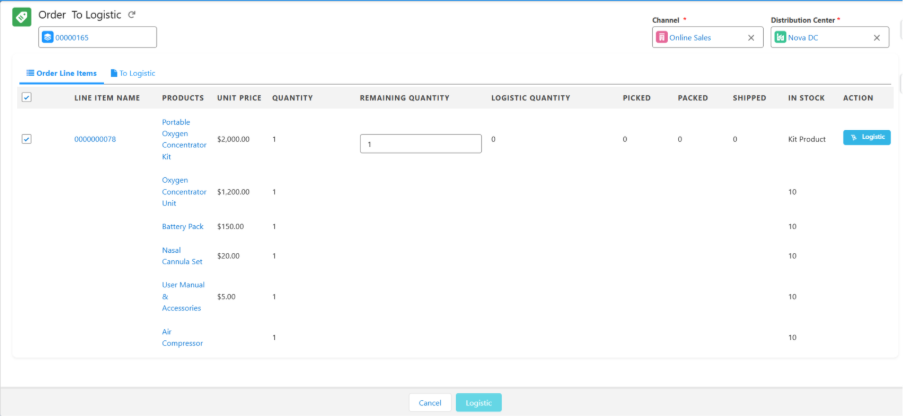
Outbound Logistic (Pick, Pack, Ship)

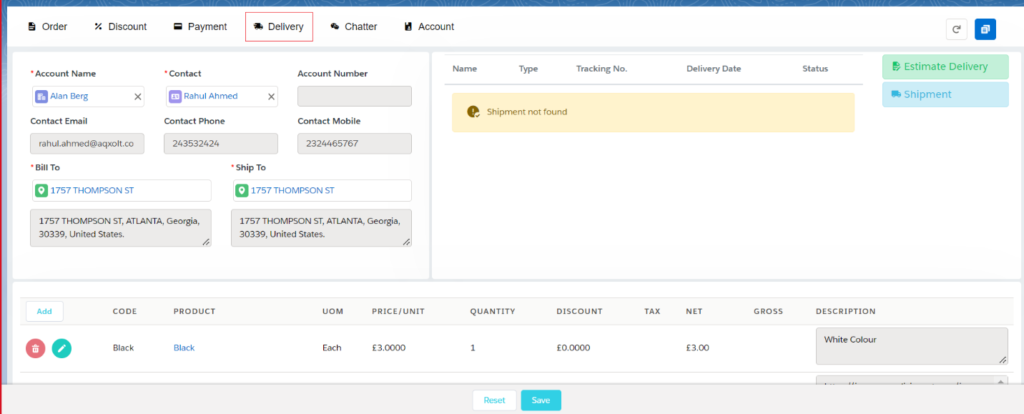
Note 1: When creating a Sales Order from the EPoS, the shipment cost can be estimated from the Delivery section of the Epos Screen.
Note 2: Once a sales order is created, it becomes available for Pick, Pack and Ship.
Note 3: Axolt supports UPS, FedEx and internal shipment.

Follow the steps to create shipment:

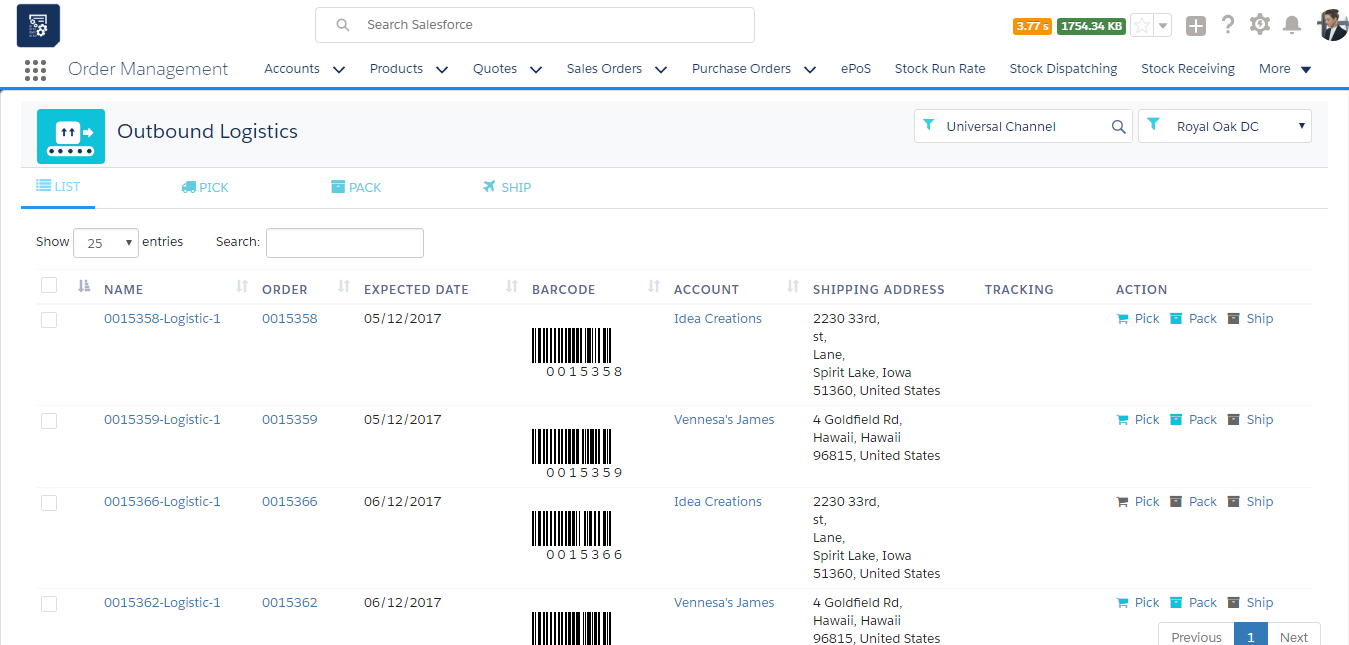
  • Navigate to the Outbound Logistic screen using the App Launcher or find the tab in the App Navigation menu.
  • Select the Sales Order to be shipped.
  • Pick all line items of the order or select partial line items, then click Save.
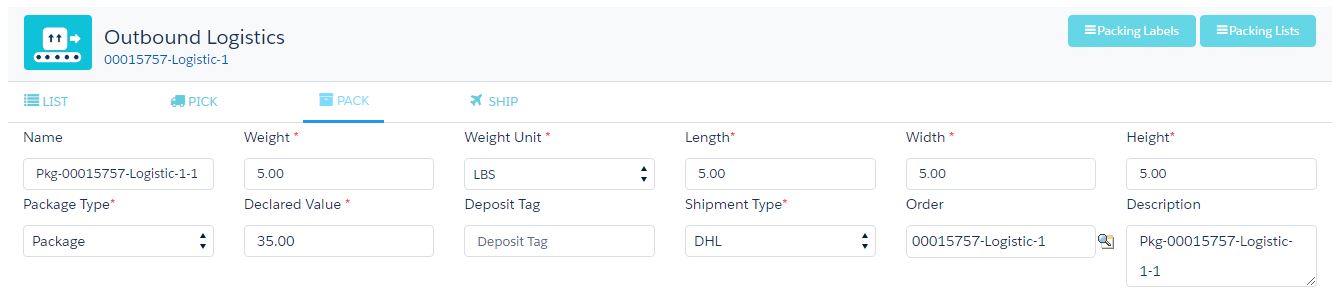
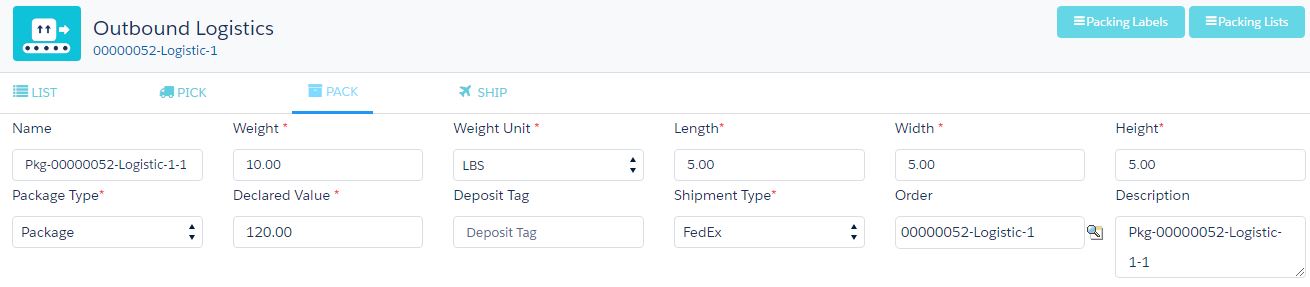
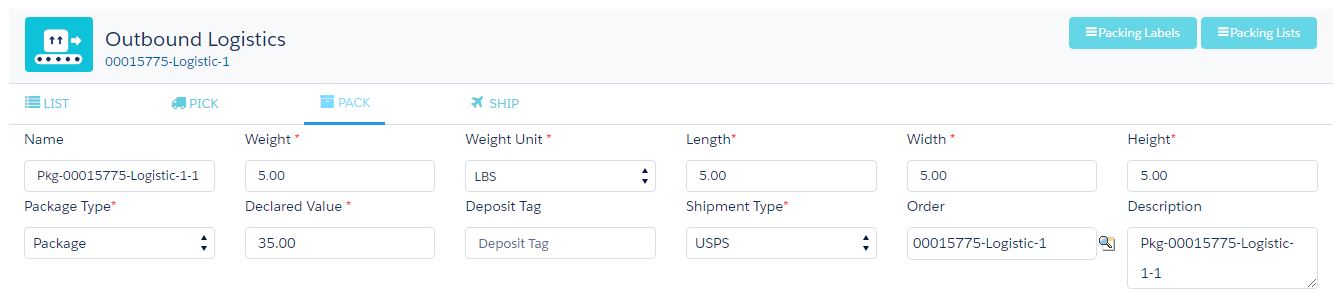
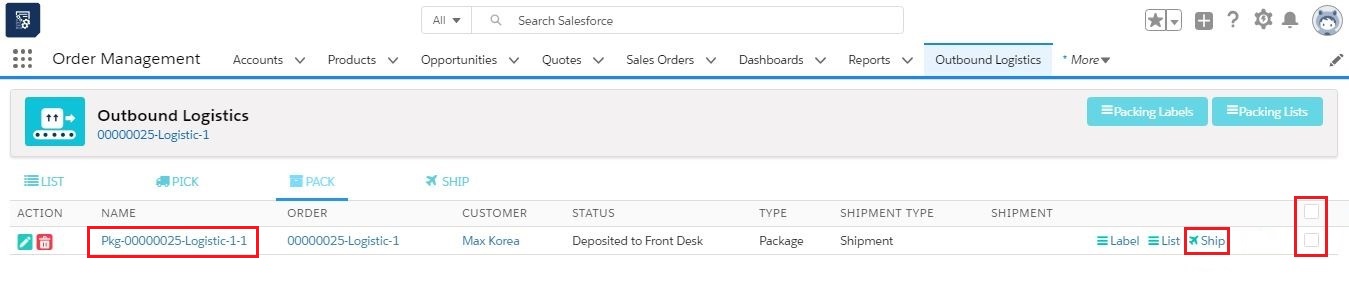
  • Click on Pack section from PICK section to navigate to the package creation page.
  • In the package detail section, select the Package Type and Shipment Type (which can be UPS, FedEx, or Internal Shipment.).
  • When selecting the Package Type, the Length, Width, Height, Weight Unit, will be auto-populated. Users need to enter the Weight manually.
  • All line items and their quantities will be auto-selected (user can modify to create packages partially).
  • Click on the Save button to create the package record.
  • Users can use the Edit button to modify the package details, or they can use the Delete button to delete any packages.
  • Note 4: To make your sales order ready for shipment, check the Ready to Ship checkbox in the logistic record of the sales order.

Note 5: Follow the link below to know the complete process of Pick and Pack from Outbound Logistic. 

Shipment Creation Process –

  1. UPS Shipment

To create a shipment with UPS, follow the steps below.

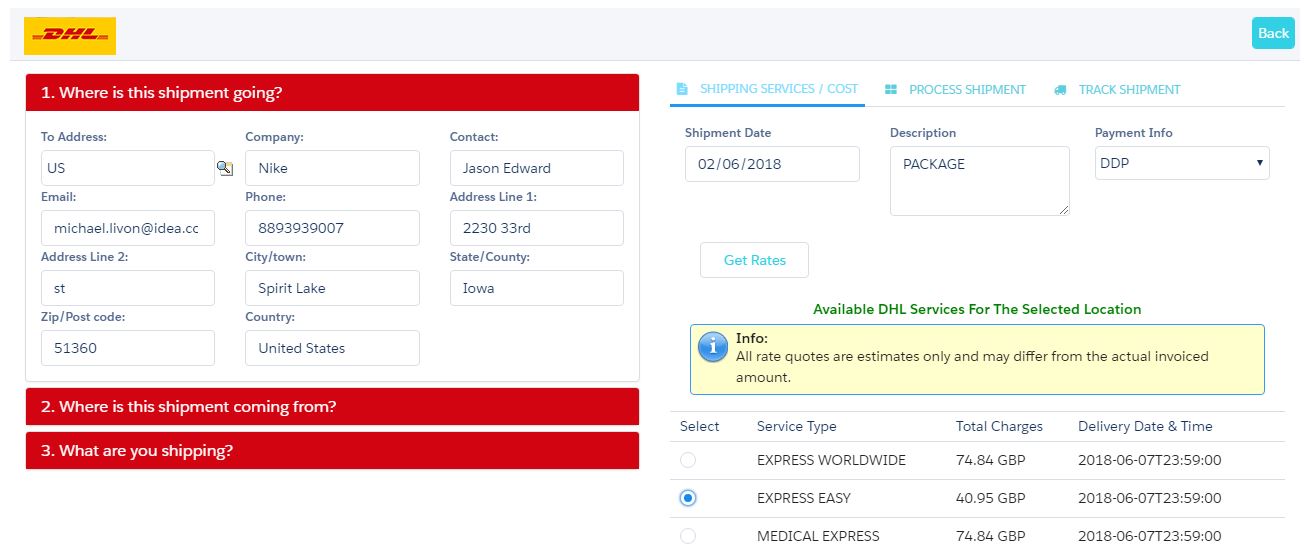
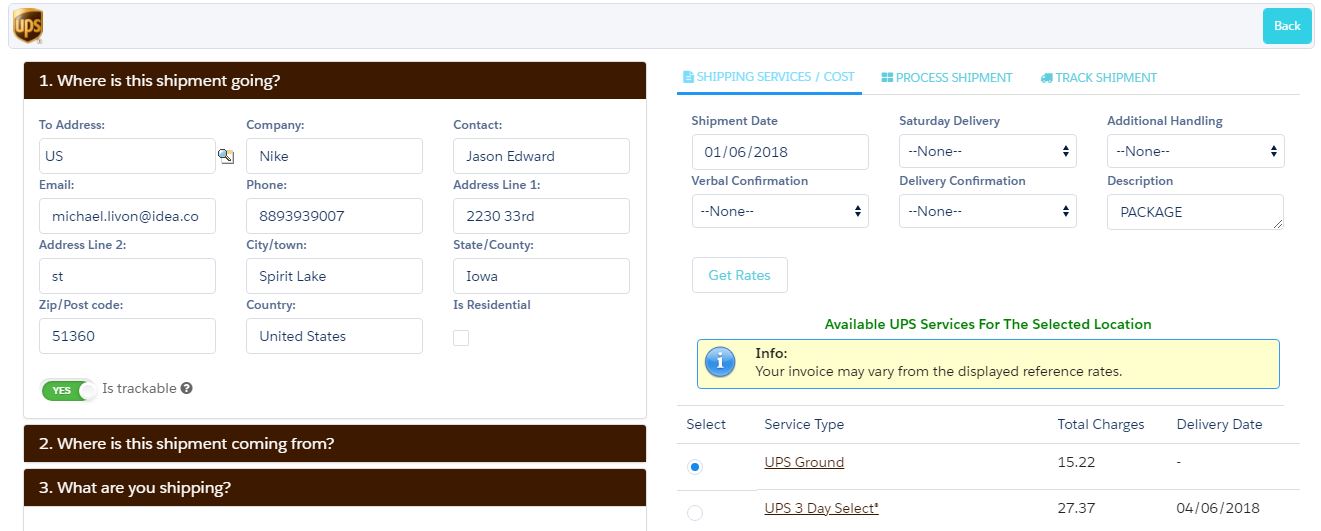
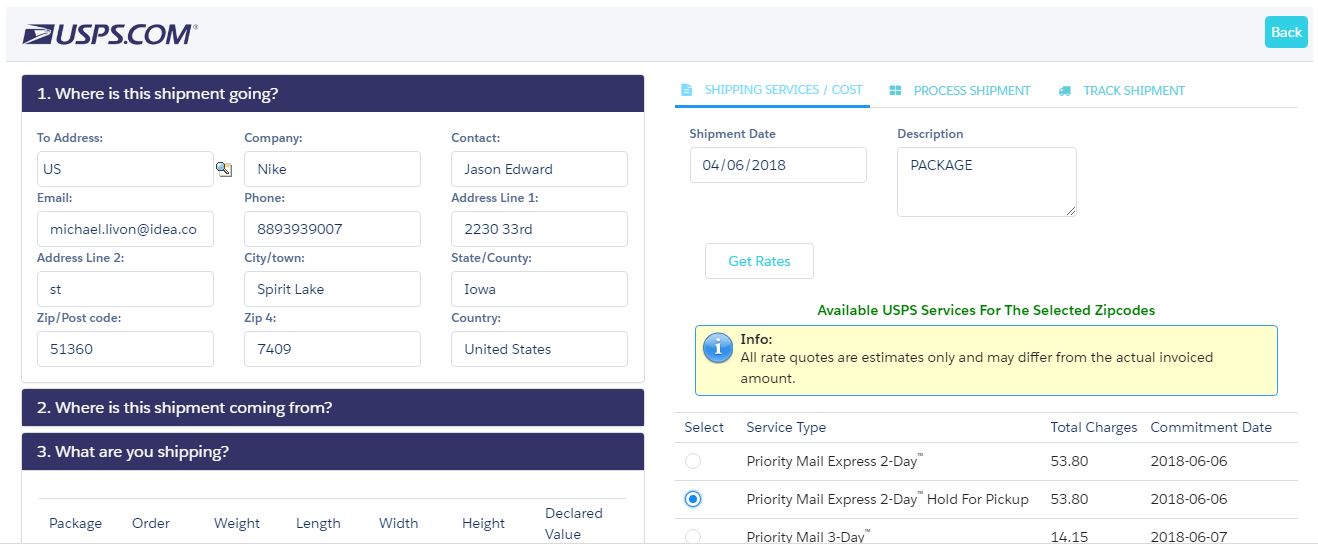
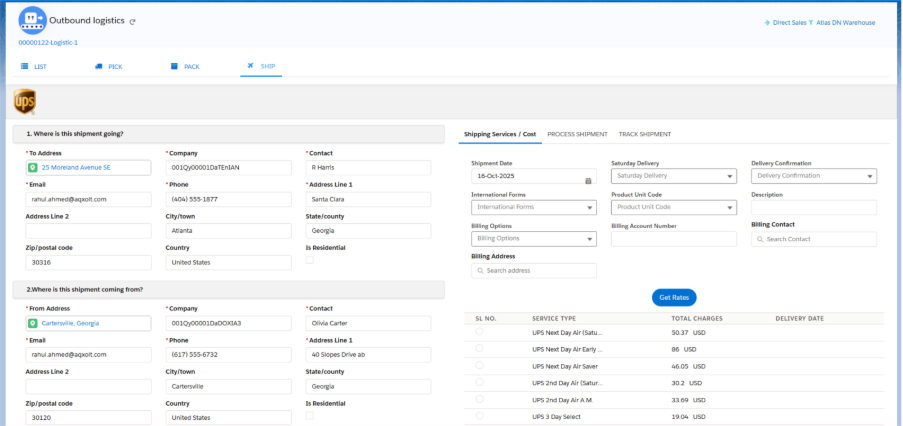
  • Click the Ship icon from the Pack section, which will direct you to the UPS shipment creation page.
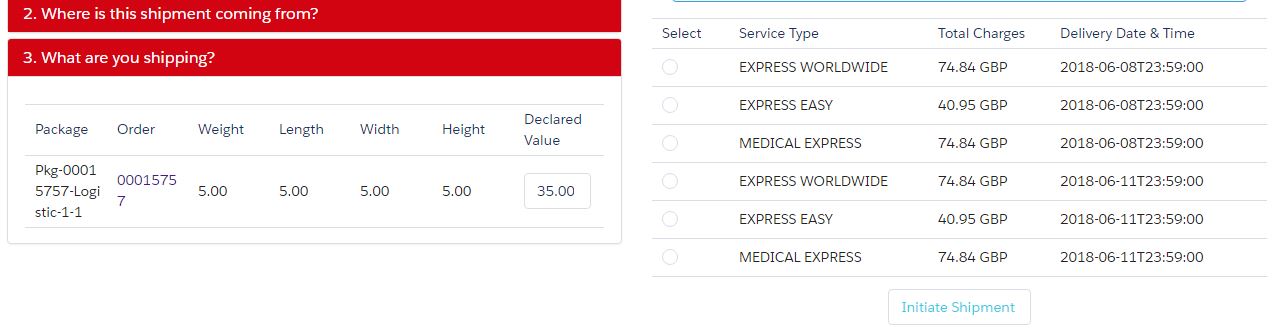
  • The left side of the shipment page includes shipping details such as the TO Address, FROM Address, and Package Details.
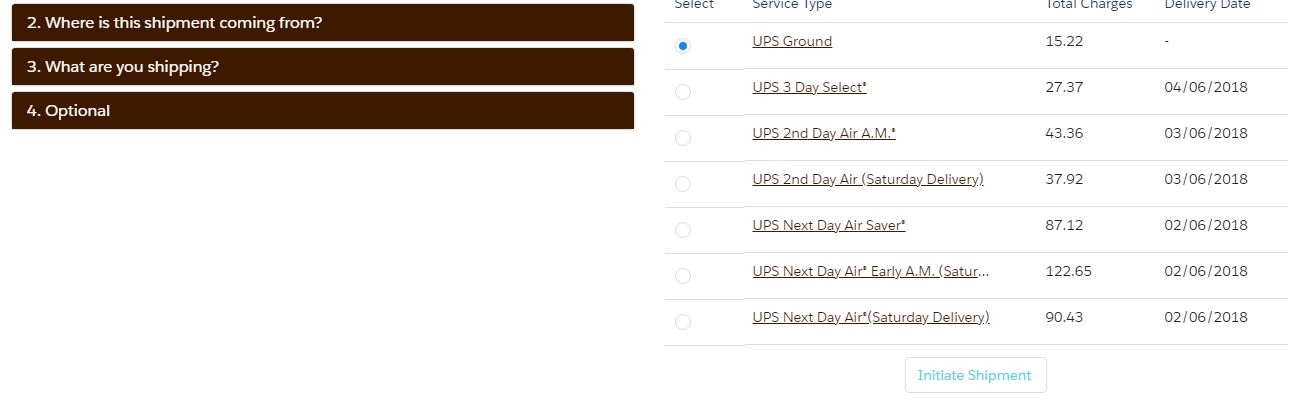
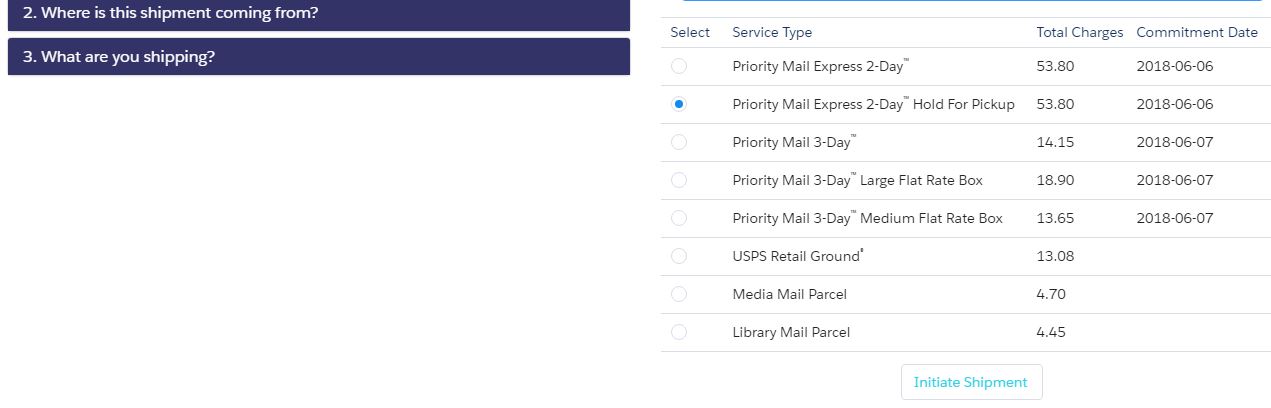
  • Click the Get Rates button to view the available UPS services.
  • After selecting a particular UPS service, the Initiate Shipment button will be enabled.
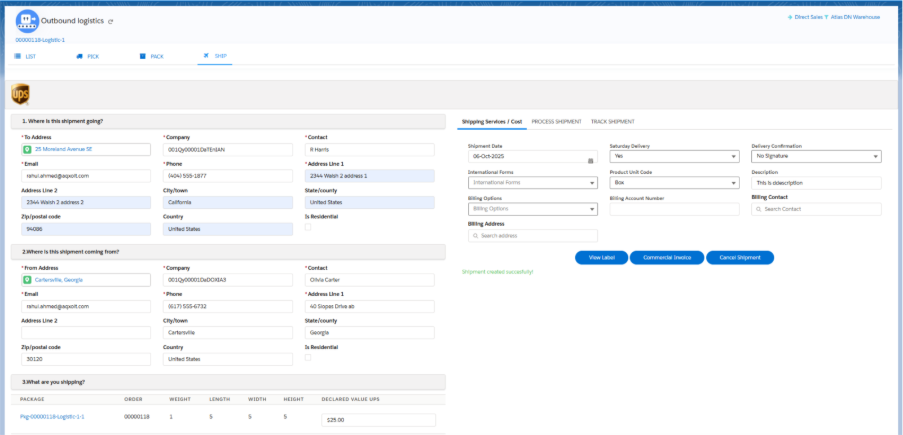
  • Click on Initiate Shipment to create the shipment.
  • The UPS shipment will be created.

The right side has three sections:

Shipping Services/Cost.
Process Shipment.
Track Shipment.

Shipping Services/Cost:

  • This section populates the Shipment Date and other details such as Weekend Delivery, International forms, Product Unit Code, Delivery Confirmation, and Description.

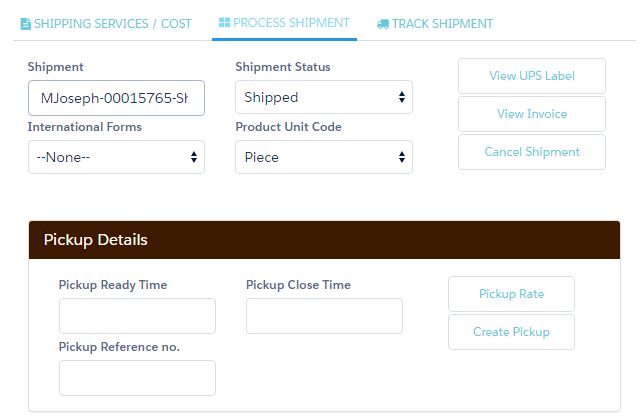
Process Shipment:

  • This section populates the Shipment Name, Shipment Status.
  • Click on View UPS Label to generate the UPS label, which can be printed and attached to the package.
  • Click on View Invoice to view the sales order invoice, which is also printable.
  • Clicking on Cancel Shipment will cancel the shipment.

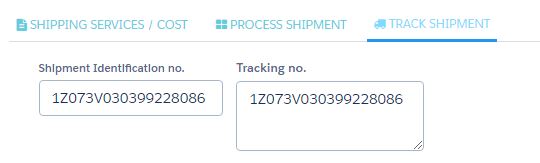
Track Shipment:

  • Once a shipment is dispatched, clicking on the Track Shipment section will generate a tracking number and provide real-time tracking of the package.

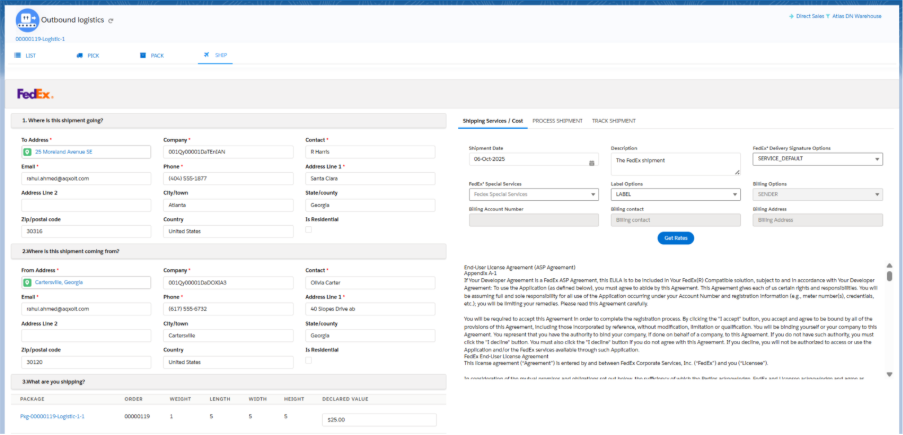
2. FedEx Shipment

To create a shipment with FedEx, follow the steps below.

Upon selecting the Shipment Type FedEx from the Package creation page, the following process continues:

  • Click the Ship icon from the Pack section, which will direct you to the FedEx shipment creation page.
  • The left side of the shipment page includes shipping details such as the To Address, From Address, and the Package Details.
  • Click on the Get Rates button to view the available FedEx services. 
  • Select a FedEx Service Type.
  • After selecting a particular FedEx service, the Initiate Shipment button will be enabled.
  • Click on Initiate Shipment to create the shipment for FedEx.

The right side has three sections:

Shipping Services/Cost
Process Shipment
Track Shipment

Shipping Services/Cost:

  • This section populates the Shipment Date and includes other details, such as Description, Signature Services and Special Services.

Process Shipment:

  • This section populates the Shipment Name, Shipment Status and other pickup details.

Track Shipment:

  • Once a shipment is dispatched, clicking on the Track Shipment section will generate a tracking number and provide real-time tracking information for the package.

3. Internal Shipment 

Upon selecting the shipment type as Shipment from Package creation page, the following process continues:

  • It brings you to the Shipment screen, where delivery details can be added.
  • Add the Delivery Date and click Save.
  • This creates a Shipment record, which can be seen on the Sales Order and Logistic Order related lists.

The right side has three sections:

PickUp/DropOff:
Checklist:
Delivery:

PickUp/DropOff:

  • Navigate to the Pickup/Dropoff tab to create delivery flows.
  • Click on New, fill in the Name, Status, and other available details, then click Save.

Checklist:

  • Navigate to the Checklist tab to verify the number of items delivered against the ordered quantity.
  • Check the checkbox and click Verify if the entire quantity has been delivered.
  • Verifying the items will make the line items non-editable.
  • By default, the Delivered quantity is set to the ordered quantity, and the Status is set to Delivered. The delivered quantity can be adjusted based on the physical delivery quantity.

Delivery:

  • Navigate to the Delivery tab and captures the customer’s signature, Name, Delivery Date, and Time.
  • Attachments and Notes can also be added.

Return Merchandise Authorisation (RMA)

A Return Merchandise Authorization (RMA) is the process of returning a product to receive a refund, replacement, or repair during the product’s warranty period.  

Creating RMA

You can create an RMA from the RMA screen.

The RMA ensures that returns are permitted only for items that have been shipped. The return process also includes the ability to create shipment flows and track those returns in the system.

  • Navigate to the RMA screen using the App Launcher or find the tab in the App Navigation menu.
  • This will navigate to the RMA page as shown below.
  • Select the Customer from the look-up and select the Order from the Order look-up for which you want to create RMA.

Note 1: By selecting the particular customer, only the orders associated with that customer will be available in the look-up.
Also, the order will only be available in the look-up if the order is Picked, Packed, and Shipped, and the Order is Closed.

  • Selecting the order from the look-up, other details will also be populated such as Address, Contact, Invoice along with Line-Item details.
  • Click on Add button to add the line Items.
  • The line item associated with that order will be displayed; select the Order Product you want to return.
  • Enter the desired Return Quantity and Reason for Return.
  • Once the return quantity and reason for return is entered, select the line item and click on Add button to add the line item to RMA.

Note 2: RMA can also be created for Batch and Serialized products. If it is a Batch Product, the Batch Number associated with that Order Product will be populated in the RMA line item. If it is a Serialized Product, the Serial Number associated with that Order Product will be populated in the RMA line item.

  • Click on Save to create a new return package.

Note 2: If the Authorise checkbox is checked, the Ready to Receive will be auto-checked and logistics will be created automatically (Type: Inbound). Then, simply receive the returned line items from Inbound Logistics.
Note 4: Logistic (Type Inbound) can also be created by initiating the Return Shipments if any shipment like FedEx, UPS, etc. is needed. Once the Return Shipment is delivered to the destination Address, users can then proceed with Inbound Logistic to add items back to Warehouse.

Follow the below steps to create a package and desired shipment from Return Shipment screen.

  • Once the RMA is created, hover on the RMA Document, and click on Return Shipment button, this will navigate to Package creation page.
  • Select the Package Type and Shipment Type and click on Save.

Note 5: Any of the shipment type can be selected, such as UPS, FedEx, Internal Shipment, etc.

  • Then go the shipment screen, TO Address, From Address and all the required details will be populated along with the Package Details.
  • Click Get Rates, select one of the available Services Type, and click Initiate Shipment button.
  • The Shipment will be created successfully.
  • Then go to the RMA record and check the Ready to Receive checkbox. Once checked, the Logistic (Type Inbound) is created, and the items can be received back into Warehouse.

Note 6: Once the Authorise checkbox is checked, it automatically creates the Logistic, or you can create the logistic by doing a Return Shipment and checking the Ready to Receive checkbox to receive the items back into Warehouse.  

Note 7: If Authorized is checked, users are not allowed to create Return Shipments as the logistic will already be created. 

Either method can be followed to create the logistics. Once created, the items can be received from the Inbound Logistic screen. 

Click on the link below to know the complete process of Inbound Logistic.

Discounts & Coupon Redemptions

Discount 

Axolt provides the ability to assign discounts to the price book, which determines the discounts for order profiles. The discount affects all products linked to the price book. 

Create Tier Discount Allocation 

  • Navigate to the App menu > Product tab.
  • Once in the Product tab, you can track the products that are already filled in.
  • Navigate to the Related List of the Product record and find the Tier Discount Allocation related list.
  • To create a new Tier Discount Allocation, click the New button. You will then be presented with the screen below.
  • Enter the Tier Discount Allocation Name.
  • Select the Discount Plan and Tier you want to associate with the product.  (The process for creating the Tier and Discount Plan is listed below.)
  • Select the Order Profile and Price Book to allocate to the product in order to apply the discount that is being set up.
  • To activate the Tier Discount Allocation, select the Active checkbox.
  • To set the default tier for the product, select the Default checkbox.
  • Select the Company.
  • Save the record to create the Tier Discount Allocation for the product.

Create Discount Plan

  • From the Tier Discount Allocation creation screen, click on the lookup of discount plan and then click + New Discount Plan.
  • Clicking on, it will take you to the Discount Plan creation screen.
  • Enter the Discount Plan Name and a Description of the discount plan.
  • To allow the discount in percentage, enter the Floor Discount and Ceiling Discount Percentages, and set the Default Discount Percentage.
  • Note 1: You can either have Discount Percentage details or Discount Value at the same time. If both the discount percentage and value are provided in the record, the precedence goes to the Discount Percentage.
  • Select the Status of the discount plan, and then select the Company.
  • To activate the discount plan, select the Active checkbox.
  • Enter the Start Date and End Date.
  • Save the record to create the Discount Plan.

Create Tier
The tier is a threshold assigned to the product when the quantity purchased falls within the floor and ceiling units. You can create the tiers by following the steps below.

  • From the Tier Discount Allocation creation screen, click on the lookup of the Tier and then click + New Tier.
  • Clicking + New Tier will take you to the Tier creation screen.
  • Enter the Tier Name, the Floor and Ceiling Units.
  • Select the Active checkbox and select the Company.
  • Save the record to create the Tier.

Coupons
With this feature, Axolt allows you to redeem coupons directly within the EPoS page, without the need to reload or navigate away. You can apply discounts to orders by redeeming active coupons. The system also enables you to create coupons with various customizable options, such as start and end dates, total value (in percentage or fixed currency), and more. 

Create a Coupon

  • Navigate to the Coupons screen using the App Launcher or find the tab in the App Navigation menu.
  • Once in the Coupons section, you can view the coupons already created and create a new coupon.
  • Click the New button to create a coupon and select the Record Type as Orders. Then click the Next button.
  • Product will be auto selected.
  • Enter the coupon Name and the Start and End Dates of the coupon.
  • Enter the Barcode of the coupon and the Maximum Allocated Vouchers.
  • Enter either the value in Currency or the value in Percent to apply a discount for the customer.
  • Save the record to create the coupon.

Issue Coupons

  • Navigate to the Related tab of the Coupon record.
  • Once in the Coupons Issued section, you can track the coupons already issued and create a new Coupon Issued record.
  • Click the New button to issue a coupon.
  • Enter the Coupon Issued Name and select the Issued Date.
  • If the coupon needs to be issued to a specific account, select the Customer account. If it needs to be issued to multiple accounts, leave the Account field empty.
  • Click the Save button to create the Coupons Issued record.

Payments Using Coupons
With Axolt ERP, you can process coupon payments directly from the EPoS page.

  • Create the Sales Order as usual from the EPoS screen.
  • Navigate to the Discount tab on the EPoS screen.
  • To redeem the coupon, enter the Coupon Code and click the Apply button.
  • A payment of type Coupon will be created.

Warranty

Axolt ERP makes it easy to record warranties for products or sales order line items.

Create Warranty and Return Policy:

  • Navigate to the App Launcher and search for Warranty & Return Policies.
  • Once in the Warranty & Return Policies tab, you can view the existing warranty and return policy details and also can create new policies.
  • To create a new warranty and return policy, click the New button.
  • Select the Company details for the warranty and return policies.
  • Choose the Policy Guidelines and the Product for which the Warranty and Return Policy are being created.
  • Enter the Name of the warranty and return policy for identification purposes. Additionally, specify the Length of the Warranty Period (in days).
  • Click the Save button to create the new warranty and return policy for the product.

Create a Warranty for the Product

  • Navigate to the Products Tab using the App Launcher or find the tab in the App Navigation menu.
  • In the Products tab, you can view the product information that has already been recorded.
  • Select the Product for which you need to create a warranty.
  • In the related tab, find the Warranties related list and click the New button.
  • Select the Company details.
  • Enter the warranty Name and select the Type of warranty – either Standard or Extended.
  • Choose the Warranty and Return Policy associated with the Product or Sales Order line item.
  • If the warranty is associated with a Sales Order line item, select the appropriate Sales Order Line Item.
  • Enter the Warranty Period by specifying the Valid From and Valid Till dates. Also, enter the Quantity.
  • Click the Save button to create a warranty for the product.

Note 1: Warranty and Return Policy can also be created from Warranty and Return Policy Look-up field by clicking on New button.

Loyalty

Enrol your customers in a loyalty program to encourage regular purchases and brand loyalty.
Create a loyalty setup

  • Navigate to the Loyalty tab using the App Launcher or find the tab in the App Navigation menu.
  • In the Loyalty Setup section, you can view existing Loyalty Setups and also create a new one.
  • To create a new Loyalty Setup, click the New button.
  • Enter the Loyalty Setup Name and the Points Per Unit Amount.
  • Select the Active checkbox and the Company.
  • Save the record to create the Loyalty record.

Create a Loyalty program

  • Navigate to the Loyalty Program tab using the App Launcher or find the tab in the App Navigation menu.
  • In the Loyalty Program section, you can view existing Loyalty Programs or create a new one.
  • To create a new Loyalty Program, click the New button.
  • Enter the program Name and select the Active checkbox.
  • Select the Priority, Tier, Loyalty Setup, and Start and End Dates for the Loyalty Program.
  • Save the record to create the Loyalty Program.

Create a Loyalty Card

  • Navigate to the Loyalty Card tab using the App Launcher or find the tab in the App Navigation menu.
  • In the Loyalty Card section, you can view existing Loyalty Cards and also create a new one.
  • To create a new Loyalty Card, click the New button.
  • Select the Loyalty Card Name and check the Active checkbox.
  • Enter the Customer Account, Contact, and Loyalty Program details.
  • Enter the Start and Expiration Dates for the card.
  • Save the record to create the Loyalty Card.

Payment Using Loyalty
With Axolt ERP, you can process loyalty payments directly from the EPoS page.

  • Create/Select the Sales Order from the EPoS screen.
  • Navigate to the Payments tab in EPoS and click the Loyalty button.
  • Enter the Redeems Points and click the Apply Loyalty button.
  • A Loyalty Payment record will be created.

Inventory & Asset Management

Inventory management tracks the stock that comes in and goes out of a company’s stores and warehouses. Asset management tracks the equipment and supplies that a company uses to run the business. In other words, inventory management and asset management both track a company’s property.

Purchase Order

Purchase order is an electronic document sent by companies to vendors to request the supply of specific goods and services. It serves as the first official communication from the buyer and includes details such as the required items, their quantities, agreed prices, and any other relevant information necessary for the fulfilment of the purchase order.

When creating a new purchase order, the following steps are followed:

Creating a Purchase Order 

  • Navigate to the Create Purchase Order tab using the App Launcher or find the tab in the app navigation menu.
  • Select the type of purchase order and click the Next button.
  • Clicking Next will auto-populate fields such as Channel, Distribution Center – Receiving, Employee Requester, Purchasing Company, Billing Address, and Delivery Address. Details are based on the logged-in user’s Employee records.
  • Enter other details like Vendor, Vendor Contact, and Vendor Address.
  • Note 2: Ready to Receive checkbox can be checked from Create Purchase Order Screen or from Purchase Order record level.
  • The Ready to Receive to indicate that the item is ready to be received.
  • Note 3: Vendor details, such as Vendor Name, Vendor Contact, and Vendor Address, can be selected from the lookup if available, or if not, a new vendor and its related contacts can be created by clicking the + New Vendor and + New Vendor Contact button in the lookup.
  • Next, click the + Add Products button to add products to your purchase order.
  • Select the desired product from the list of products.
  • Enter the Quantity as the number of units to be purchased.
  • Specify the price for each unit in the Unit Price box, along with the Tax (if applicable).
  • Enter any required descriptions in the Description box for the purchase order (if applicable).
  • Purchase line items can be deleted by clicking the Delete button.
  • Click the Save button. The purchase order will be created.

Note: A single purchase order can include multiple purchase line orders. 

Cost cards select functionality: We can enter the price of a product or create cost cards for products.
When purchasing a product, we can select its cost card, and the specific price associated with it will auto-populate.
The system will display cost cards only when the Purchase Order vendor exactly matches the vendor specified in the cost card.

Custom Products:

  • Custom Products are added to the PO to track additional expenses like transportation expense, workforce expense, etc.
  • Custom Products are added as a line without an actual product, so logistics will not be created for the custom products.

Field Description – Purchase Order

Active: Indicates that the item is available for use.
Amount Paid: Captures the amount paid, derived from the bill once payment is made.
Billed Amount: Specifies the total amount for which the bill is created.
Cancel Date: The date when the Purchase Order (PO) was cancelled. Useful if a PO cancellation process needs to be implemented.
Channel: Lookup to the Axolt Channel object.
Code: A unique, auto-generated identifier for each Purchase Order.
Customer: Lookup to the standard Account object, referring to the customer.
Delivery Address: The delivery address for the PO. This may vary depending on the PO type — Standard, RTV (Return to Vendor), Drop Ship, or Warehouse — and indicates where inventory will be stored.
Special Instructions: Additional descriptions or special instructions related to the PO.
Distribution Channel: Lookup to the distribution channel associated with the selected channel, indicating where the site and inventory are available.
Drop Ship: Indicates whether the PO is a drop-ship order.
Employee Requester: The employee who requested the PO.
Expected Date: The expected date for the Purchase Order.
Expected Delivery Date: The expected delivery date of the Purchase Order.
Inbound Total Quantity: Determines the total received quantity.
Invoice Address: The billing address associated with the PO.
Is Closed: Indicates whether the PO is closed.
Logistic Created: Set to True when logistics are created (handled through automation).
Master Purchase Orders: References the master Purchase Order created for RTV POs (applicable only for RTV PO record types).
Name: The name of the Purchase Order record.
Order: References the order for which the PO is created.
Order Date: The date when the order was created.
Company:
Indicates the company under which the PO is associated.
Payment Terms: Specifies the payment terms for the PO (e.g., Net 30 Days).
Quote No: Reference to the related quote number.
Ready To Pick & Pack: Used to create RTV PO logistics of type Outbound.
Ready To Receive: Used to create logistics of type Inbound.
Shipment Preference/Speed: Indicates shipment speed or preference for delivery.
Shipment Type: Specifies the type of shipment.
Status: Indicates the current PO status (e.g., Draft, Approved, Rejected, In Progress).
Vendor: References the vendor or supplier account.
Vendor Address: The address of the vendor.
Vendor Contact: The vendor’s contact person or details.
Billed Quantity: Total quantity billed.
Count PO Line Items: Total number of PO line items.
Logistic Quantity: Total logistics quantity.
Order Amount: Subtotal of the Purchase Order (before tax).
Packed Quantity: Quantity packed for RTV POs.
Picked Quantity: Quantity picked for RTV POs.
Tax Amount: Total tax amount applied to the PO.
Total Quantity: Total quantity in the PO.
Total Amount: Grand total of the PO, including taxes.
Total Due: Outstanding amount due for the PO.
Shipping Preference Type: Indicates the shipping preference type.
Stage: Represents the current stage of the PO process.
Currency: The currency used for the Purchase Order.

Field Description – Purchase Order Line Items

Active: Indicates the item is available for use.
Cost Card: Specifies the cost card applied to this Purchase Order (PO) line item.
Description: Provides a description of the line item.
Inventory Product: Indicates that the product is available in inventory (not a custom product).
Logistic Quantity: Quantity of logistics being created.
Master Purchase Line Items: Applicable for Return to Vendor (RTV) Purchase Orders.
Match Type: Specifies the bill matching process type (e.g., 2-way, 3-way).
Material Batch / Lot: Applicable for RTV Purchase Orders.
Order: Refers to the order for which the PO is created.
Order Product: Refers to the order item for which the PO line is created.
Company: Specifies the related company or account.
Packed Quantity: Quantity of goods that have been packed (applicable for RTV POs).
Picked Quantity: Quantity of goods that have been picked (applicable for RTV POs).
Product: Identifies the product.
Purchase Orders: References the master Purchase Order.
Quantity: Total quantity of goods or services.
Quantity Received: Number of items received from the supplier.
Return Quantity: Number of items returned.
Serialized: Indicates whether the product is serialized.
Site: Identifies the site or location related to the record.
Sort Order: Defines the display or processing order.
Stock Inward Line Item: References a related stock inward line item.
Tax: Tax amount applied to the record.
Tax Rate: Percentage rate of tax applied.
Total Price: Final price, including all charges.
Total Tax: Total calculated tax amount.
Unit Price: Price per individual unit.
Vendor: References the vendor or supplier account.
Vendor Product Name: Product name as per the vendor’s records.
Chart of Account: Links to the chart of account record for financial tracking.
Approved Vendor: References an approved vendor record.
Purchase Requisition Line Items: Connects to related purchase requisition line items.
Unit of Measure: Displays the unit of measure derived from the formula.
Purchase Requisitions: Links to the related purchase requisition record.
RTV Quantity: Quantity of goods that need to be returned to the vendor.
Debit Note Quantity: Quantity related to issued debit notes.

Purchase Requisition

A Purchase Requisition is generated before a purchase order is raised to notify the Purchasing team of the items that need to be ordered and their quantities. It provides detailed information on the desired goods and services for the organization. 

For example, John works at a warehouse and notices low inventory levels for some items. He requests the purchasing team to create purchase orders by generating a Purchase Requisition to restock the inventory. 

Steps to Create a Purchase Requisition

  • Navigate to the Purchase Requisition tab using the App Launcher or find the tab in the App Navigation menu.
  • Click next will auto populate fields such Channel, Distribution Center – Receiving, Purchasing Company, Employee Requester, Expected Delivery Date, and Status.
  • Enter delivery details like Delivery Contact and Delivery Address and Special Instructions (Optional).
  • Click on the Add button to add products.
  • Search for the Products, enter the required Quantity, and specify the Unit Price. Similarly, add more products by clicking the Add button again.
  • Click Save to create the Purchase requisition.

How to Create a Purchase order for purchase requisitions: 

Requisition to Purchase Order

  • Navigate to the Requisition to Purchase Order tab using the App Launcher or find the tab in the App Navigation menu.
  • In the Home screen, Purchase Requisition Line Items can be sorted by Product Name, Quantity, Requisition, Order, Delivery Date, Requisition By, and Default Vendors using the Sorting functionality.
  • Users can also utilize the Search Bar to locate specific Purchase Requisition Line Items. Additionally, line items can be filtered based on Channel and Distribution Channel.
  • Select the items that need to be added to the purchase order and click the Purchase Order Button.
  • It navigates to the Purchase Order creation screen, showing selected Products, Quantities, and Unit Price. Enter the Vendor and its Contact and Address details. Enter other optional details if applicable.
  • Click Save to create the Purchase Order.
  • Note 1: When a Purchase Requisition is created, its initial status is Draft. Once approved, it appears on the Requisition to Purchase Order screen, where it can be converted into a Purchase Order.
  • Note 3: Purchase Requisitions and Purchase Orders can be created for single or multiple line items.
  • Note 4: Now, follow the same process to inbound the logistics as mentioned for creating a purchase order.
  • Note 5: Once a Purchase Order is created, users can proceed with the Logistics Creation and Bill Creation processes.

Stock Take

Stock Take – Manage Variances in the Inventory 

Stock Take is the physical verification of the quantities and conditions of items held in an inventory or warehouse. This may be done to provide an audit of existing stock and is also the source of stock discrepancy information. 

Follow the steps to create Stock Take –

  • Navigate to the Stock Take tab using the App Launcher or find the tab in the App Navigation menu.
  • Clicking on the Stock Take tab navigates to the Stock Take home page, where all the created Stock Take records are available.
  • A Stock Take record can be searched using the Search Bar.
  • Stock Take records can also be filtered to show those that belong to different Channels and Sites/Warehouses.
  • Stock Takes can be updated by clicking the Manage button or by clicking on the Name of the Stock Take.
  • Note 1: The user can change the details of the Stock Take record and can Add, Edit, or Remove the Stock Take line items using the Manage functionality.
  • To create a new Stock Take record, click on the + New button.
  • Clicking on the + New button to navigates to the new Stock Take creation page.
  • Stock Take details like Name, Channel, Site, Employee, Approver, Start Date and End Date, Status, and Audit Period (Monthly) will be auto selected. Any details can be manually updated if required.
  • Users can access product inventory records from the Inventory section. They can utilize the Search Bar to locate specific records or filter inventories based on Site and Location.
  • Once the record is found, enter the Stock in Hand quantity to adjust the stock and then click Save to create a new Stock Take record.
  • Note 2: To create Stock Inward Line items or increase the stock for any product, enter a quantity greater than the Available Stock in Quantity in Hand. Follow the same process used for the Air Compressor Product. Stock Inward line item is created for Air Compressor.
  • Note 3: To create Stock Outward Line items or decrease the stock for a product, enter a quantity less than the Available Stock in Quantity in Hand. Follow the same process used for the Pump Motor Product. Stock outward line item is created for Pump Motor.
  • Note 4: To perform a stock Audit, select the Audit Period as Quarterly or Yearly, enter the actual quantities in Stock in Hand, leave other products unchanged, and click Save. The system will adjust stocks only for products with quantities entered in the Quantity in Hand field during stock take. For the remaining products, the system will create outward line-item records, and stock will decrease automatically.
  • Note 5:  Once the Stock Take record is created, Stock Inward and Stock Outward records will be generated based on the variance (entered Stock in Hand quantity).
  • Note 6: By default, Stock Inward and Outward Line Items are automatically created upon Stock Take creation to adjust inventory levels. However, to ensure controlled stock adjustments, an Approval Process can be activated, allowing these line items to be generated only after the Stock Take is approved.
  • Note 7: By default, inventory can be filtered by one location at a time. However, to view stock availability across all locations within the selected warehouse, users can select the Show Location Stocks checkbox.

Stock Transfer

A Stock Transfer is the process of moving inventory items from one location (source site) to another (destination site) within an organization. It helps maintain accurate inventory levels across multiple warehouses, stores, or sites. Stock transfers are used to ensure that products are available where they are needed most. 

  • Navigate to the Stock Transfer tab using the App Launcher or find the tab in the App Navigation menu.
  • In the Pick section, select the Source Site and the Cart associated with the source site from where the stock needs to be picked.
  • Click the + New button to create a new stock transfer.
  • Select the Product to be transferred.
  • Note 1: By default, stocks without an assigned location appear in the Available Stocks section. If stocks are tied to a specific location, that location will display in the Location Lookup. For Lot-Tracked or Serialized products, available Lot Numbers and Serial Numbers will appear in the Serial No./Batch Code lookup.
  • After selecting the Product, select the Location/Lot Number/Serial Number if applicable and enter the Quantity to be picked.
  • Click the Save icon next to each product to save and proceed with Put Away.
  • Click the Put Away tab and select the Destination Site.
  • Select the Location of the site to put away the items. If applicable
  • Select all the items and click the Put away button to complete the stock transfer process.

Stocks moved to the destination site. 

Oxygen Concentrator Unit 

Pump Motor (Lot Tracked Product) 

Pressure Switch (Serialise Product)

Stock Transfer Document: 

We can generate a document for the stock transfer of items moved from the source site to the destination site.

  • Click on Print to generate it in a document format. 

Multi-Serial Pick Functionality 

If a product is serialized, you can transfer multiple serial-numbered products from the source site to the destination site by clicking the Multi Pick button. This allows you to pick multiple serial numbers at once

  • Clicking the Multi Select button will navigate you to the Pick Multiple Serial Numbers screen.
  • To select specific serial numbers, click on each one individually. To select all serial numbers at once, click Select All, then click Add.
  • Serial numbers can also be removed by clicking Remove for individual items or Remove All to clear the entire selection.
  • After clicking Add, the selected serial numbers will appear on the right side of the selection screen.
  • Once the desired serial numbers are selected, click the Pick button.
  • Clicking the Pick button will pick the selected serial numbers and navigate to the Put Away screen.
  • In the Putaway section, select the Destination Site. Select required Serial Numbers, assign a location if applicable, and click the Putaway button.
  • Note 2: The Serial Numbers can be partially put away by selecting only the desired ones.

Transfer Order

Transfer Order contains all the necessary details required to move materials into or out of a distribution Center. In the Axolt application, users can create Transfer Orders to transfer assets and inventory between distribution Centers. A Transfer Order is created when a shipment is required and can include multiple items through line items. It helps manage and track inventory stock movements efficiently. 

Create transfer orders through the Transfer Order Tab –

  • Navigate to the Transfer Orders list using the App Launcher or find the Transfer Orders tab in the App Navigation menu.
  • Navigate to the Create Transfer Order tab using the App Launcher or find the tab in the App Navigation menu.
  • Note 1: The Transfer Order should be created with the Requested status.
  • Select From Channel and From Distribution Centre. The From fields indicate the location from which the inventory will be sent or transferred.
  • Select the To Distribution Centre, Expected Date, Delivery by Date, and set the Status as Requested. Enter any Special Instructions (if applicable).
  • Check the Ready to Pick and Pack checkbox and select the Shipment Type (if applicable).

Steps to Add Transfer Order Line Items 

  • Click the + New button to add Transfer Order line items.
  • Select the Product from the Product field. Selecting a product will auto-populate the Name, Available Quantity, and if the product is Serial or Batch controlled, the Serial or Batch lookup field will be enabled for selection.
  • Enter the Requested Quantity to be transferred and a Description if required.
  • Note 2: Additional line items can be added by clicking the +New button.
  • Once all line items are added, click Save to create the Transfer Order.

Pick, Pack and Ship the Transfer Order Items through the Outbound Logistics Tab

Once the Ready to Pick and Pack is checked, a Logistic record with Type: Outbound is automatically created and becomes visible on the Outbound Logistics screen. Users then Pick the items from the Distribution Center, Pack them against the appropriate shipments, and the designated carrier (e.g., UPS, FedEx) delivers the package to the specified shipping address.

  • Navigate to the Outbound Logistics screen to see the logistic records that are ready to be Pick, Pack and Shipped, as shown below. 

Click here to follow the complete Outbound Logistics process. Coming Soon…

Note 2: After completing the outbound logistics process for the transfer order, check the Ready to Receive checkbox to receive the items through Inbound Logistics. 

Received the Transfer Order Items through the Inbound Logistics Tab

Once the carrier delivers the package to the To Distribution Center, users must check the Ready to Receive checkbox on the Transfer Order record. This action automatically creates a Logistic record with Type: Inbound. Users then receive the Transfer Order line items via the Inbound Logistics screen and store them in the designated location or storage container.

  • Navigate to the Inbound Logistics screen to find the logistic orders that are ready to be Received, as shown below. 

Field Description:


Active: Indicates whether the transfer order is active.
Company: The company responsible for the transfer order.
Contact: Contact person related to the transfer order.
Customer: Customer linked to the transfer order.
Delivery by Date: Date by which the shipment will be delivered to the To Site.
Description: Additional details about the transfer order.
Expected Date: Date by which the items are expected to be received.
From Address: Location from where the assets/stocks will be shipped.
From Channel: Channel from where the assets/stocks will be shipped.
From Distribution Channel: Distribution Channel from where the assets/stocks will be shipped.
From Site: Site from where the assets/stocks will be shipped.
Is Closed: Indicates whether the transfer order is closed.
Packed Quantity: Quantity of items that have been packed.
Picked Quantity: Quantity of items that have been picked.
Ready to Pick & Pack: Check this when Outbound Logistic is to be created.
Ready to Receive: Check this when Inbound Logistic is to be created.
Remaining Receive Quantity: Quantity of items remaining to be received.
Remaining Ship Quantity: Quantity of items remaining to be shipped.
Requested Date: Date on which the transfer order was requested.
Ship Date: Date the order was shipped from the From Site.
Shipment Preference/Speed: Preferred shipment speed.
Shipment Type: Type of shipment.
Shipped Quantity: Quantity of items that have been shipped.
Shipping Preference Type: Type of shipping preference selected.
Status: Current status of the transfer order, such as Draft or Requested.
To Address: Address where the assets/stocks will be shipped.
To Channel: Channel where the assets/stocks will be shipped.
To Distribution Channel: Distribution Channel where the assets/stocks will be shipped.
To Site: Site where the assets/stocks will be shipped.
Total Line Items: Total number of line items in the transfer order.
Total Quantity: Total quantity of items in the transfer order.
Total Quantity Received: Total quantity of items received so far.
Total Quantity Remaining: Total quantity of items remaining to be received or shipped.
Total Quantity Requested: Number of products requested by the transfer order line to be moved.
Transfer Order Name: Name of the transfer order

Lot/Batch Number

A batch/lot product is a group of items produced or received typically with the same manufacturing date or lot number. This allows for easier tracking, quality control, and inventory management. 

Products can be manufactured or received in a lot, having a particular lot number assigned to the set of production. 

Create a Lot/Batch Product –

  • To designate a product as lot/batch-tracked, select the Lot Tracked checkbox on the product detail page.

Batch number can be generated from three sections: 

A. From Inbound Logistics screen.
B. From Manufacturing Workbench screen.
C. Create Lot/Batch Numbers manually.

A. From Inbound Logistics screen.

  • Create a Purchase Order for a Lot Tracked product via the Create Purchase Order tab.
  • Create a Purchase Order along with Logistic record for a serialized product via the Create Purchase Order tab.
  • Then, locate the logistic from List section, select the desired entry, and click the Receive button to navigate to the Receive section
  • Click the Settings icon next to the Batch/Lot Lookup to open the batch number creation page.
  • Note 1: You can either create a new batch number by clicking the Settings icon or select an existing batch number from the lookup to associate with the product.
  • Enter the Batch/Lot number; the Barcode will be auto generated. Provide additional details such as Expiry Date and Product Version, if applicable.
  • Click on Create Batch/Lot button. Once the batch is created, the Batch/Lot number will be selected automatically.

B. From Manufacturing Workbench screen.

  • Navigate to the Manufacturing Workbench and schedule a product.
  • In the Manufacturing Order page, go to the Serial Number/Batches section.
  • The Batch number will be auto generated for the scheduled product. Users can modify the Batch Number if needed.
  • Once the quantities are built, the Date of Manufacturing field will be updated

C. Create Lot/Batch Numbers manually.

  • Open the Lot Tracked product record and locate the Serial Numbers Related List.
  • Click on Create New.
  • Add the Batch Number, Shelf-Life Expiration Date, and Date of Manufacture if applicable.
  • Make sure it is Active and the Product is selected.
  • Select the Manufacturing Order, Purchase Order and enter the Price details. (if applicable)
  • Assign the Site ID in the Received Site field.
  • Click on Save.

Serial Number

Serial numbers are unique identifiers assigned to each individual inventory item, enabling full end-to-end traceability from receipt to sale, service, or recall. Unlike batch or lot numbers that group items, serial numbers track a single unit throughout its lifecycle. They can be generated automatically during inbound receiving, assigned upon manufacturing order completion, or created manually for adjustments, repairs, or legacy stock.

Create a Serialise Product –

  • To designate a product as serialized, check the Serialise checkbox on the product detail page.

Serial number can be generated from three sections: 

A. From Inbound Logistics screen.
B. From Manufacturing Workbench screen.
C. Create Serial Numbers manually.

A. From Inbound Logistics screen.

  • Create a Purchase Order along with Logistic record for a serialized product via the Create Purchase Order tab.
  • Then, locate the logistic from List section, select the desired entry, and click the Receive button to navigate to the Receive section
  • Enter the Serial Prefix and From Serial Number in the given fields and click on Generate Serial Numbers button to generate a serial number for the Inventory/Stocks.

B. From Manufacturing Workbench Screen.

  • Navigate to the Manufacturing Workbench and schedule a Manufacturing Order.
  • In the Manufacturing Order page, go to the Serial Number/Batches section.
  • The Serial number will be auto generated for each Manufacturing Order quantities.
  • If needed, users can generate serial numbers in a specific format using the Generate Serial Number functionality.

C. Create Serial Numbers manually.

  • Open the serialized product record and locate the Serial Numbers Related List.
  • Click on the New button.
  • Enter the Name, Serial Number and ensure the Available checkbox is checked. 
  • Make sure the Product is selected. 
  • Select the Warehouse and assign the Start Date and End Date.
  • Select the Cost Card and enter the Price details. (if applicable)
  • Click on Save.

Kit Product

A KIT is an assembly of many finished items grouped together to be sold; its price is calculated for each finished item. The KIT itself does not qualify as stock; each finished product is stored separately. For instance, A Company manufactures Oxygen Concentrator. When the business sells it, it sells Oxygen Concentrator, Battery pack, Nasal Cannula set and User Manual& Accessories etc. as a KIT. Thus, it is sold as a group rather than individually. 

Follow the steps below to configure a KIT product, its Version, and its stock  

KIT Product Setup –

  • Navigate to the Products tab using the App Launcher or find the tab in the App Navigation menu.
  • Click the New button to create a new KIT Product.
  • Select the product Record Type as KIT.
  • Enter the product Name, the Active checkbox must be checked, the Status must be Released. The Track Inventory checkbox should be Unchecked, 
  • The Type should be Kit, and the Is Kit check box should be checked.
  • Enter other details if required and click the Save button to create the Kit Product.

Bill of Material Setup –

  • Open the Product record, find the Bill of Materials object Related List and Click on the New Button. 
  • Select the Record Type as Kit, enter the Version Code, Product will be selected by default, Active checkbox should be checked, Status should be certified, Type should be sales, enter the Start Date and End Date. 
  • Enter other details if required and click on Save button to create the Version record. 
  • Note 1: If the product has a single version, then mark the version as Default; else, the Default checkbox need not be enabled. The user can select the required version in the Order Product.

BOM Line Items Setup –

  • Open the Product record, find the BOM Line Items Related List and click on the New Button. 
  • Select the Record Type as Kit BOM.
  • Enter the Name of BOM Line Item, main product will be selected by default on the BOM (Product) lookup field, select the created Bill of Material, select the component product from the BOM (Component) lookup, enter the Quantity, Active checkbox should be checked, Type Should be Primary, Status should be Certified.
  • Enter other details if required and click on the Save button to create the BOM Line-Item record.
  • Note 2: If you want to add any alternate BOM, select alternate Bill of Material from the BOM (Alternate) lookup field. 

Refer to the alternate BOM creation steps mentioned below.  

The logistics for kit products can be created in two ways:

A. Manual logistics creation
B. Automatic logistics creation

A. Manual logistics creation

  • Go to the related list of the Order, search for the Logistics Related List, and click on the Create New button on the logistics related list.
  • It will navigate to the Order to Logistics screen.
  • In the above screenshot, you can see that the product named Portable Oxygen Concentrator Kit is a kit product, and all the BOMs associated with this kit product are listed below.
  • You can manually select the Distribution Centre, as shown in the below screenshot. Each time you change the Distribution Centre, you can see the live available Stocks of each product at the selected Distribution Centre.
  • Once the desired Distribution Centre is selected, select all the Line Items for which you want to create logistics, and click on the Logistic button.
  • Clicking on the Logistics button will navigate you to the next screen, which lists all the logistics items that are going to be created.
  • Click on the Save button, and it will create the Outbound Logistics and its line items for the kit products.
  • Once the logistics is created, the system will simultaneously create both MRP and Stock Outward line items for all the products. Users do not need to explode the order product.

Once the Logistics get created for all Order products, you can navigate to the Outbound Logistic page to ship the items to the Customer. Refer to the Outbound Logistic guide. Coming Soon…

B. Automatic logistics creation

  • Go to the Related List of the Order and search for the Order Products related list.   
  • Find the order product, which is marked as a kit product, click the Edit button for the order product, select the Explode checkbox, and click Save.
  • After exploding the Order Product, MRPs and Stock Outward Line Items will be generated. 
  • If stock is not available for kit BOM Line Items, the MRPs and Stock Outward Line Items will be created with the Requested status.  
  • Note 3: - You need to increase the stock of Kit BOMs by manufacturing or purchasing to ship the items to the customer. 
  • The Status of MRPs and Stock Outward Line Items will be updated as Reserved once stock is available for all Kit BOMs. 
  • Once the MRPs and Stock Outward Line Items are created with Reserved Status, select the Ready to Pick and Pack checkbox on the Order Record to create the Logistics record.

Warehouse/Site

A warehouse is a facility used for the storage and management of goods, materials, and products. It serves as a central location where items are received, organized, stored, and later distributed or shipped to their next destination. Warehouses often include systems and processes for inventory control, order fulfilment, and logistics coordination to ensure efficient supply chain operations. 

Create a Warehouse Site 

  • Navigate to the Sites tab using the App Launcher or find the tab in the App Navigation menu.
  • Once in the Sites section, you can track the warehouse sites already filled in and create a new warehouse.
  • Click the New button to create a new warehouse.
  • Enter the Name of the warehouse and select the Active checkbox to activate it.
  • Enter the Barcode of the warehouse, select the Primary Contact and Address.
  • Note 1: The Barcode field is mandatory in the site record. If a site record does not have a barcode, that site will not be displayed on the Outbound Logistics screen.
  • Select the Warehouse Type (e.g., Warehouse, Plant, or other) and choose the corresponding Company.
  • Click the Save button to create the warehouse site record.

Create a Location –

  • Find the Location Related List in the Warehouse/Site record.
  • Click the New button to create a Location record.
  • Enter the Location Name and select the Location Type (e.g., Floor, Bin, Shelf, or Cardboard).
  • Enter the Floor Number, Shelf Number, Aisle Number, Bay Number and Space Number. (if applicable)
  • Enter the Bin Capacity, Company. Also, select whether the location holds Scrap.
  • Select the Active checkbox and click the Save button to create the location record.

Create a Storage Container –

  • Find the Storage Container Related List in the Warehouse record.
  • Click the New button to create a Storage Container record.
  • The Site will be auto populated; select the Location to which the bin belongs.
  • Enter the Storage Container Name and the Barcode of the container.
  • Select the container Type (e.g., Bin, Bottle, Bucket, or Pallet).
  • Enter a description of the container type in the Description field.
  • Select the Status of the container and check the Active checkbox,
  • Click the Save button to create a Storage Container record.

Stock-to-Fixed Asset

Stock-to-Asset is a unique functionality developed to help companies or teams that must fuse inventory management and asset management efforts. The feature reduces management overhead related to accounting for each process separately and delivers a simplified, operationally efficient tracking solution.Inventory-versus-Asset

Combined Inventory and Fixed Asset Control

Depending on your business process, you may need to track certain items or products as both stock inventory and assets. For example, your products are assembled or received and then stored in your warehouse inventory. Those products will be issued to a customer and installed at the customer’s location, with a foreseeable useful life of over a year. Therefore, inventory levels must be adjusted and the product reclassified as a deployed asset that requires tracking and management.

Stock to Fixed Asset Benefits

This transaction or conversion allows you to search for a serialised inventory item issued to a customer or location and assign it an asset number and model number. The quantity and associated cost are automatically adjusted in the inventory database, and you can begin tracking pertinent asset attributes such as maintenance, warranty and location.

Fixed Assets (Equipment)

Assets are also known as fixed or capital assets and typically refer to an organisation’s valuable resources and equipment. These items have long-term business use and enable their owner to produce goods or perform services. Assets are tracked as unique items that are not consumed in production.Fixed Asset1 Because the word “asset” has a different meaning in the world of finance and accounting, the phrase “asset tracking” is used to indicate the monitoring of physical asset movement and condition, not the change in the monetary value of an intangible financial asset. Fixed Asset3 Systematically tracking assets is necessary across every industry to maintain accurate accounting records as well as real-time visibility of operations. For tracking purposes, each asset is tagged with a unique barcode identifier (e.g., make, model, serial number, etc.) and associated with a custodian or location.
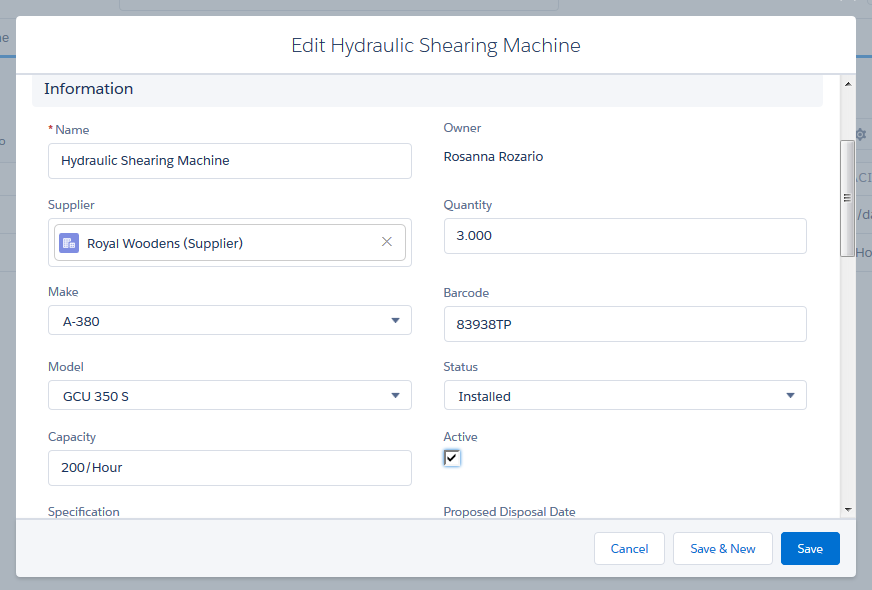
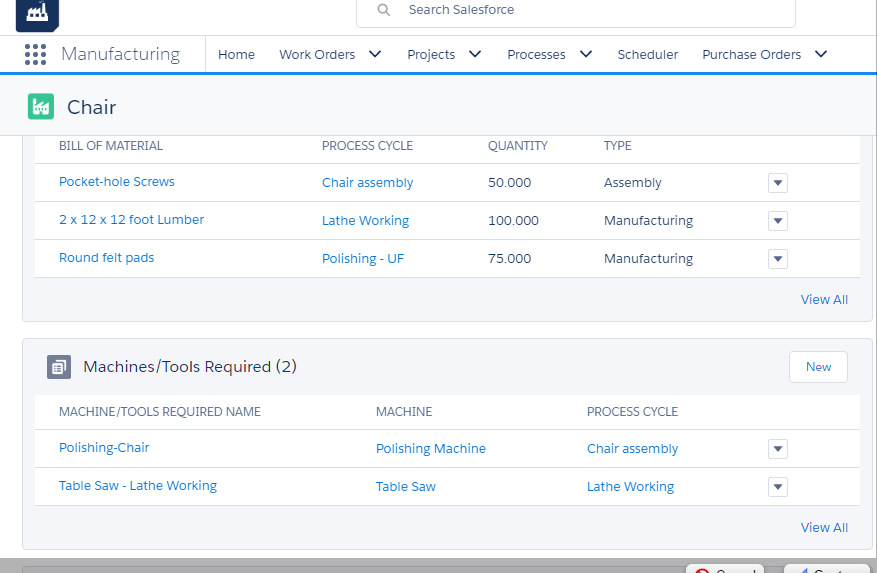
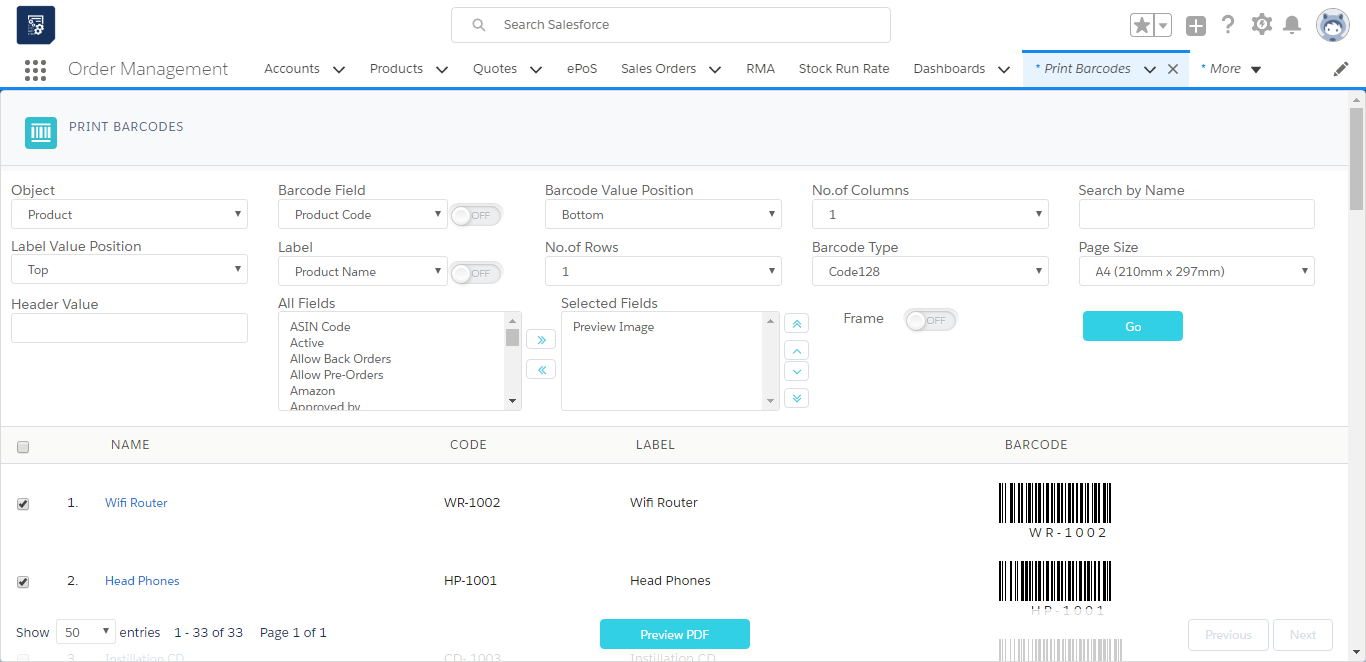
Inventory Assembly

You can easily build assemblies or finished goods from a detailed Bill of Materials. The manufacturing module allows you to specify the raw materials or components needed to manufacture each finished good.inventory assembly1

With operations that involve inventory for work-in-process and manufacturing, this functionality enables you to boost end-to-end traceability, productivity and control. In addition, you can access your product assembly inventory in Aqxolt ERP anytime, anywhere, so your team can better coordinate production machine usage and labour.

Manufacturing Benefits: 

  •   Streamline manufacturing process using barcodes
  •   Increases flexibility for multiple product variations
  •   Improves inventory control during manufacturing/process cycle
  •   Saves time and increases manufacturing productivity

Increase Manufacturing Productivity

Create predictability, better coordinate manufacturing machine usage and labour, and track raw materials and components needed to manufacture each specific product accordingly.

Easily Assemble Your Inventory

The Inventory Assembly feature allows you to efficiently track product manufacturing and associated stock quantities and costs.

Manufacturing & Service

The Manufacturing & Service Operations certification track provides a key element of the operations organization in a company. It is chartered to provide and manage resources and to convert raw materials into finished products.

Getting started with Axolt Manufacturing

Pre-Configuration :

  • The Axolt Base Package must be installed before installing the Manufacturing Package.
  • If the system throws an error while installing the packages, raise a case with Salesforce to increase the active filter lookup limit to 10 and the Rollup Summary field limit to 40.

Follow the steps below to install the Axolt Manufacturing Package: 

  • Navigate to the AppExchange and search for Axolt Manufacturing Execution on Salesforce: Production & Inventory Management.
  • When the application appears, click on its Name.

On the application detail page, we have two options:

A. Get It Now – Clicking on Get It Now, you will have two options:
a. Log in with Trailblazer.me
b. Continue as Guest

B. Try It – Clicking on Try It, the below option appears:
c. Try in your Sandbox


A. Get It Now – Install the package in a Production environment (including Developer Edition orgs).

a. Log in with Trailblazer.me

  • On the application detail page, click Get It Now and follow the prompts to begin the installation process.
  • After clicking Get It Now, you will be asked to select an option from the pop-up: Log In or Continue as Guest.
  • After clicking the Login button, it will navigate to the screen below.
  • Select the Salesforce Account in which you want to install the package. (Shows Salesforce Accounts that are linked to a Trailblazer Account and have the Manage Billing permission)
  • Once an account is selected, the Install in Production button will be enabled. Click on Install in Production.
  • You will then be taken to a confirmation screen. Review the details, select the checkboxes below, and click Confirm and Install.
  • After clicking Confirm and Install, you will be redirected to the Login Page.
  • Enter your Username and Password, then click Log In to proceed.
  • Once logged in, you will be directed to the package installation screen.
  • Enter the Installation Key (“Aqxolt55”), select Install for All Users, and click Install.
  • Once the package is successfully installed, users will receive a confirmation email.

b. Continue as Guest

  • After clicking Continue as Guest, you will be asked to create an account to install the package.
  • Click Start Free Trial, and you will be navigated to the sign-up page. Create an account and continue to install.

B. Try It – Install the package in a sandbox environment.
c. Try in your Sandbox

  • Navigate to the AppExchange and search for Axolt Manufacturing Execution on Salesforce: Production & Inventory Management.
  • On the application detail page, click Try It and follow the prompts to begin the installation process.
  • After clicking Try It, you will be redirected to the screen below.
  • Selecting Try in your Sandbox
  • Select Try in your sandbox option, you will be asked to fill in the required details about the user
  • After filling in the required details, select the checkbox below (if required and) click the Continue to Installation button.
  • After clicking Continue to Installation, the below screen appears.
  • Click on Log In & Install, and you will be taken to the login page.
  • Enter your Username and Password, then click Log In to proceed.
  • Once logged in, you will be directed to the package installation screen.
  • Enter the Installation Key (“Aqxolt55”), select Install for All Users, and click Install.
  • Once the package is successfully installed, users will receive a confirmation email.

MO Product Configuration

The MO Product Configuration screen greatly simplifies setup for administrators by eliminating the time-consuming manual creation of a manufacturable product and all its related records — End Product, Bill of Materials (BOM), BOM Line Items, Routings, and WIP products.

With just a few clicks and minutes, users can create, update, or clone complete product structures that would otherwise take hours of manual effort. This ensures nothing is missed during configuration, preventing delays or errors that could block the manufacturing process later.

Steps to create a manufacturing product 

  • Navigate to the MO Product Configuration tab using the App Launcher or find the tab in the App Navigation menu.
  • You can search for an existing manufacturable product using the search bar or create one by clicking on + New Manufacturing Product.
  • Click on the + New Manufacturing Product button to create a new manufacturable product.
  • Enter the Product Name, Product Code, and set the Status as Released.
  • Select the Active checkbox to make the product active, and select Issue Manufacturing Order, Track Inventory, and Allow Back Orders (if applicable).
  • Note 1: Select the Lot Tracked checkbox if the product is a batch product, and the Serialise checkbox if the product is a serialized product.
  • Select the Quantity Unit of Measure for the product and enter the Product Description.
  • Click Save to create the manufacturing product.
  • To update or modify an existing manufacturable product, simply click the Edit icon on the left-hand side of the screen.

Manufacturable Product Fields – Quick Description

Field NameDescriptions
Product NameThe name of the product
Product CodeA unique identifier assigned to the product
Product DescriptionDetailed description of the product
ActiveIndicates whether the product is currently active and available for use
StatusDefines the product’s lifecycle stage (e.g., Draft, Active, Discontinued, Released)
Track InventorySpecifies whether stock levels for this product are tracked in inventory
Issue Manufacturing OrderDetermines if manufacturing orders can be created for this product
SerializedWhen enabled, each unit of the product receives a unique serial number
Lot Tracked:When enabled, inventory is tracked using unique Batch/Lot numbers
Quantity Unit of MeasureThe default unit for measuring product quantities (e.g., Each, Kg, Liter)

Steps to Create Bill of Materials (BOM) and Routing –

  • After creating the product or locating it via the search bar on the MO Product Home screen, click the Create button at the end of the product row to instantly open the dedicated Version and Routing creation screen.
  • Note 2: After creating a new MO product, a pop-up will appear asking if you want to proceed with creating a Version and Routing for the product. Click Yes to instantly open the Version and Routing creation screen.
  • After clicking on the create button, system takes users to the Routing and version Creation screen.
  • On this screen, selecting the Raw Material Site and Finished Product Site will create the Routing and Process for the product.
  • In the Bill of Material Details section, the Bill of Material Name will be auto populated. Select the Default checkbox if you want to make the version the default. The Start Date and End Date will also be populated with a five-year interval between them.
  • Click Next, and it will take you to the Process Cycle Creation screen.
  • Note 3: Routing, process, and version records will be created in the backend after clicking on the Next button.

Creating Process Cycles for a Product – Process Cycles are automatically converted into Work Orders once the Manufacturing Order is scheduled.

  • Click the + New button to create a new process cycle
  • Enter the Name and select the Work Centre.
  • Click Save.
  • Note 4: Follow the same steps to add more Process Cycles for product.

Under the Process Cycles, Operations, BOM line items, Work in Progress (WIPs), Team Members, Checklists, and Design / Drawing Document need to be created.

Creating Operation for Process Cycles –

  • Click the + New button to create an operation for a process cycle.
  • Note 5: There should be at least one operation associated with a process cycle.
  • The process cycle will be auto populated and enter the Name of the operation.
  • Select the Auto Clock In, Signature Required, or Timer checkbox based on your requirement.
  • Click Save to create the operation.
  • Note 6: Follow the same steps to add more operations for process cycles.

Creating BOM Line Item for Process Cycles –

  • Click the + New button to add a BOM line item for a process cycle.
  • Clicking + New will navigate to the Add Products screen to add the BOM line item.
  • Select the Product and enter the Quantity, the Unit of Measurement will be auto populated, enter Maximum Variance and Minimum Variance, and enter multiples (if applicable).
  • Click on Add Products.
  • Note 7: Follow the same steps to add more BOM line items for process cycles.

Creating Adding Work in Progress (WIP) for Process Cycles –

  • To add Work in Progress (WIP), click the + New button, which will navigate to the Add Products screen.
  • Set the Quantity to 1, UOM (Unit of Measure) will be auto populated.
  • Click on Add products button.

Creating Team Member for the Process Cycles –

  • Click the + New button to add a Team Member for a process cycle.
  • Enter resource Name and Select Resource Group and Employee.
  • Enter Start Date and End Date.
  • Click Save.

Creating Checklist for the Process Cycles –

  • Click the + New button to add a checklist for a process cycle.
  • Select the Operation From the lookup.
  • Enter the instructions (if applicable) and select the Required checkbox to make the checklist mandatory.
  • Select the Operation Checklist from the lookup. After selecting the Operation Checklist, the Checklist Name will be auto populated.
  • Click Save.

Creating Design / Drawing Document for the Process Cycles –

  • To add the Design / Drawing Document, click the + New button from the Design/Drawing Document section.
  • Enter the Name, select the Operation from the lookup, and upload the attachment.

Click Complete Set Up to create a manufacturable product and its related records.

Manufacturing Order

Manufacturing Workbench 

The Manufacturing Workbench provides a centralized interface with three powerful tabs — Planner, Schedule, and Builder. The Planner tab displays all existing manufacturing orders with real-time status updates. The Scheduler tab enables users to easily create, reschedule, or prioritize new production orders using an intuitive drag-and-drop Gantt view. The Builder tab lists every active work order, allowing shop floor teams to start, pause, complete, or record production directly from a single screen. 

Manufacturing Workbench has three tabs

A. Planner
B. Schedule
C. Builder

A. Planner

  • Shows all Manufacturing Orders in a simple list with full details: product Name, Bill of Materials (BOM), Routing, planned Start and End Dates, Total Quantity to make, Quantity already Produced, and Status.
  • Easily filter by Status — Draft, In Progress, Completed, or Cancelled — and see the exact count for each status.
  • Just type in the Search Bar to quickly find any order by MO number, Product Code, or Product Name.
  • Click the PDF icon next to any order to open or download the complete Manufacturing Order document right away.

B. Scheduler

The Scheduler lets users quickly schedule new Manufacturing Orders right from the timeline.

The Scheduler offers three quick selection modes: Product, Sales Order, or Manufacturing Order.
Choose Product to instantly view and schedule all manufacturable products in your catalog.
Select Sales Order to see only the products linked to open customer orders that still need to be fulfilled.
Pick Manufacturing Order to display every existing MO, ready for scheduling or rescheduling with simple drag-and-drop.

Follow the steps to schedule a manufacturing order

  • Navigate to the Manufacturing Workbench tab using the App Launcher or find the tab in the App Navigation menu.
  • To Schedule a manufacturing order, click on the Schedule tab.
  • On the left-hand side, you will find all the manufacturable products, or you can search using the Search Bar provided.
  • Select the product that needs to be manufactured. You can see the Process Cycles in the scheduler to schedule these process cycles for a specific time and date.
  • Enter the required quantity to manufacture in the Quantity field provided.
  • Click on the Schedule MO button available at the bottom of the page to schedule the Manufacturing Order.
  • After clicking on the Schedule MO button, the system will take the users to the Manufacturing Order screen.

Manufacturing Order Screen

The Manufacturing Order screen displays all key production details in the upper section: Product, Production BOM, Routing, Source Order and Order Product (if applicable), Start Date, End Date, and complete cost breakdown (Labour Cost, Overhead Cost, Material Cost, and Scrapped BOM Cost if any). (Costs are calculated automatically upon completion of component allocation.)
The lower section is divided into dedicated tabs — Material Requirement Plannings (MRPs), Work Orders, Product Status, and Serial Number/Batches — each showing its respective detailed information in a clear, organized view.

Material Requirement Plannings (MRPs) –

  • This shows the Bill of Materials required to produce the final product.
  • Now allocate the stock for all the BOMs as required for the manufacturing of the product.
  • Click the Stock Allocation drop down and click Auto Stock Allocation to fulfil stock automatically.
  • When Auto Stock Allocation is selected and the end product is serialized, the system opens a popup modal requiring manual allocation of each serial number one by one.
  • Note 1: For Normal or Lot-Tracked end products, the system instantly allocates available stock automatically upon clicking the Auto Stock Allocation button — no manual one-by-one allocation is required.
  • Click the Manual Stock allocation button to allocate stock manually.
  • Clicking the Stock Allocation dropdown and selecting manual stock allocation, the below page will appear to enter the stock required for each BOM.
  • Select the MRP record and manually enter the values and click the Capture button. For serialized end products, you must manually select the required Serial Numbers.
  • Similarly, allocate the required quantities for all the BOMs.
  • When all the stock is fulfilled, click on the Work Order tab.

Work Order –

Shows all the work orders that need to be completed to produce the final product. 

  • Selecting the first work order instantly opens the Job Execution page.
  • The first work order is selected by default — simply click the Start button to begin; the work order status instantly changes to In Progress.
  • Complete each task one by one: hover over the To Do button, click the Done option that appears, and the task will be marked as completed. Repeat the same quick step for all tasks linked to the work order until everything is finished.
  • Once all tasks are completed, the Complete WO button appears — click it to mark the work order as Done.
  • Note 2: If an MRP is associated with the work order, the Build button will appear. If no MRP is linked, the Complete WO button is shown instead.
  • Clicking the Complete WO button instantly updates the work order Status to Complete.
  • Click next Work Order to automatically load and start execution of the following work order.
  • Start the work order, complete all tasks, then click the Build button.
  • Clicking the Build button opens the final production screen, where users can manufacture and scrap the end product, consume MRP components, and record any additional scrap.
  • If the end product is a serialized product: select the exact Serial Numbers to manufacture — the Total Qty Produced and TO CONSUME field auto-updates.
  • Note 3: If the end product is Normal and Lot Tracked, users need to enter the build quantity at the top.
  • Once Serial Numbers are selected, click Build / Commit to Inventory to manufacture and add the finished items to stock.
  • Clicking Build / Commit to Inventory instantly creates inventory records, generates stock inward entries, and automatically assigns the selected serial numbers to each finished item.

Production Status –

Displays real-time production status, clearly showing the quantity successfully built and the quantity scrapped.

Serial Numbers/Batches –

The system automatically generates and displays Serial Numbers (for serialized products) or Batch Numbers (for lot-tracked products). Users can regenerate serial numbers in the desired sequence using the Generate Serial Numbers button or edit batch number format anytime with the Edit functionality for consistent naming.

C. Builder

  • The Builder tab displays all active work orders from various Manufacturing Orders, neatly grouped by Work Center.
  • Click the Work Order name on the right-hand side to instantly navigate to the Job Execution screen.
  • Tap the PDF icon next to any work order to view or download its complete details.
  • Easily filter work orders by Site, Work Center, Order reference, or Duration for quick access to the exact tasks you need.
  • Work Orders can also be filtered by their current status — Issues, In Progress, Completed, or Backlog — for quick visibility and focus.

Process and Process Cycles

A. Process

A process is a functionality used by manufacturing industries to produce finished products, typically in bulk, using bills of materials and assembled components. Axolt provides a complete solution to manage business processes end-to-end, allowing efficient planning of work centers, workforce, and machine hours based on the complexity of the manufacturing process.

Creating Processes:

  • Navigate to the Products tab using the App Launcher or find the tab in the App Navigation menu.
  • Select the manufacturable product from the Product List, then open the related Routing list.
  • In the routing record, click + New Process in the process lookup to create a new process.
  • Select the Manufacturing Process record type and click Next.
  • Enter the Process Name and click Save to create the process record.
  • For reference, select the process Type, choose the Site, Work Center, and enter a Process Description if needed.

Process – Field Description:

FieldsDescriptions
ProcessThe manufacturing process name.
Record TypeSpecifies the record type of the process record. 
TypeDefines the type of the process (Discrete, Process or Repetitive)
SiteThe storage area where raw materials are received, stored, and issued for production
Work CenterThe physical location or station where the actual manufacturing process takes place.
Process DescriptionA description of the process
CompanyThe manufacturing company or organization that owns and operates the production facility.

B. Process Cycles

The Process cycles represent individual manufacturing steps that define how a product is built, with each cycle linked to a specific Work Center and arranged in a precise sequence. Users can connect previous and next cycles to ensure correct production flow, and within each cycle, they can add operations, BOM line items, WIP products, team members, checklists, and attachments. Multiple process cycles can be created to handle complex products with many stages. Once the Manufacturing Order (MO) is scheduled, all defined process cycles are automatically converted into individual Work Orders for execution on the shop floor.

Creating a Process Cycle: 

  • From the process record, locate and select the Process Cycle related list.
  • To create a new process cycle, click the New button.
  • The Process name will be auto populated.
  • Enter the Process Cycle Name and click Save to create the process cycle.
  • For reference, select the Previous and Next Process Cycle (if applicable), then choose the Work Center where this process cycle will begin and enter a clear description of the process cycle if needed.
  • Note 1: Check the Enable All Tasks Done Checkbox to complete all from the Work Order Execution screen in one go.

Process Cycle – Field Descriptions:

FieldsDescriptions
Process Cycle CodeName of the process cycle.
Next Process CycleThe following step in the process. 
Previous Process CycleThe preceding step in the process. 
ProcessThe manufacturing process name to which the process cycles belong.
Enable All Task DoneAllows users to complete all tasks directly from the Work Order Execution screen in one go..
Work Center
The physical location or station where the actual manufacturing process takes place.
Description
A description of the Process Cycle
SortUsed to sort and define the order of process cycles.

The Process and its Process Cycles can be created in just a few clicks from the MO Product Configuration screen — no need to manually fill every field one by one. Simply enter minimal key information and the system instantly generates all related records in seconds.

BOM Line Item

BOM Line Items are used to manufacture the end products. As manufacturing progresses through multiple phases, each BOM Line Item specifies exactly which components are needed at each stage, ensuring the right materials are available at the right time.
Every BOM Line Item captures key details — product name, description, required quantity, unit of measure, and procurement type — serving as a single, reliable source of truth for production.
Axolt provides full flexibility to configure different types of BOM Line Items to match your specific business requirements

Creating BOM line Items for Manufacturing Product: 

  • Navigate to the Products tab using the App Launcher or find the tab in the App Navigation menu.
  • Select the manufacturing product for which the BOM is required.
  • In the Related tab, find BOM Line Items (BOM (Product)) and click New.
  • From the BOM Line Items Record Type, select Manufacturing BOM and click Next.
  • Enter the BOM line-item Name and select the Active check box.
  • Select the Process Cycle and its Routing Link Code in which the BOM line item is used, the BOM (Product) will be auto populated.
  • Assign the Bill of Material, and BOM (Component).
  • Enter the Quantity and select the Unit of Measurement.
  • Set the Status as Certified, the Type as Primary, and add a Description if required.
  • Enter the Cost Price under the Cost Details section. (If applicable)
  • Click Save to create the BOM line-item record for the selected manufacturing product.

BOM Line Item – Field Description

FieldsDescription
BOM Line ItemsDescribes the name of the BOM being created.
BOM (Product)The main manufacturable product
Bill of MaterialThe version of the BOM for the product
BOM (Component)The actual BOM line-item product
BOM (Alternate)Alternate BOM Line Item. The MRP will automatically be created using the Alternate BOM when stock is not available for the Primary component(s).
Maximum VarianceDefines the allowable quantity deviation for a BOM component. Example: If the BOM quantity is 5:
Minimum Variance = 3 → manufacturing can be completed by consuming as low as 3 units instead of 5.
Minimum VarianceDefines the allowable quantity deviation for a BOM component. Example: If the BOM quantity is 5:
Maximum Variance = 7 → manufacturing can be completed by consuming up to 7 units instead of 5.
QuantityThe number of components required for manufacturing or purchasing
Unit of MeasureThe measurement unit in which the component is used
SortA numeric field that determines the display and processing order of the record
Cost CardA reference to the cost Card associated with the actual component. 
Cost priceThe cost of the component used in the BOM
Record TypeBOM Line Item category.
ActiveIndicates whether the BOM line item is active in the system
Process CyclesIndicates the process cycle in which the BOM component is used
Routing Link CodeSimple code created for each Process Cycle. Assign both the Process Cycle and its Routing Link code to the BOM line item to generate correct MRPs.
StatusThe status of the BOM (e.g., new, certified, closed)
TypeSpecifies the type of BOM (e.g., Alternate, Primary)
DescriptionA description of the BOM line item

The BOM Line Items can be created in just a few clicks from the MO Product Configuration screen — no need to manually fill every field one by one. Simply enter minimal key information and the system instantly generates all related records in seconds.

Material Requirement Planning (MRP)

Material Requirements Planning (MRP) supports production planning and inventory management; it ensures that materials are available for production and products are available for delivery to customers. It helps manufacturers plan production schedules, manage inventory levels, and ensure timely procurement of materials. MRP uses demand forecasts, production schedules, and current inventory data to calculate the required quantities and timing of materials needed to meet production demands. 

The Axolt system uses a standard MRP algorithm. The MRP algorithm plays a crucial role in optimizing Material Requirements Planning (MRP) by ensuring timely availability of materials for production while minimizing excess inventory.

It works by: 

Demand Calculation: Forecasting product demand based on customer orders and production schedules.
Inventory Check: Comparing existing stock with required materials to calculate net requirements.
Order Scheduling: Creating planned orders for materials, considering lead times and production schedules to prevent delays.
Order Release: Triggering Purchase or Manufacturing Orders at the right time to ensure smooth flow in the production process.

This algorithm ensures efficient material flow, reducing shortages, overstock, and production delays in MRP systems. 

MRP Algorithm Selection: Detailed Descriptions and Usage Guidelines 

Lot-for-Lot (L4L): The Lot-for-Lot algorithm is a demand-driven approach in which the order quantity matches the exact quantity required for a specific time. It does not consider any additional inventory, meaning the exact amount needed is ordered without surplus.
Usage: Ideal when inventory carrying costs are high and there is a need to minimize excess stock.

Fixed Order Quantity (FOQ): Fixed Order Quantity is a method in which a predefined quantity is ordered whenever the stock level reaches a certain reorder point. The order quantity remains constant regardless of demand fluctuations.
Usage: This is useful for products with consistent demand and where the order quantity is optimized for cost efficiency.

Economic Order Quantity (EOQ): EOQ is a classic inventory management formula that calculates the optimal order quantity to minimize total inventory costs, including ordering and holding costs. It assumes constant demand and lead time.
Usage: Best used in stable demand scenarios where the objective is to balance order size and frequency to reduce overall costs.

Period Order Quantity (POQ): The Period Order Quantity algorithm involves ordering enough inventory to cover a set number of periods or cycles. The quantity ordered is variable but always aligns with the demand forecast for the period.
Usage: Suitable for businesses that experience periodic demand and want to align orders with these cycles.

Safety Stock Method: This algorithm accounts for the need for safety stock, which is extra inventory held to prevent stockouts due to demand variability or supply delays. The system calculates the reorder point considering the safety stock level.
Usage: Useful in environments with unpredictable demand or long lead times, where avoiding stockouts is crucial.

Just-In-Time (JIT): The JIT algorithm aims to minimize inventory levels by ordering materials just in time for production. This method reduces holding costs but requires accurate demand forecasting and reliable suppliers.
Usage: Best for companies looking to reduce inventory costs and maintain strong supplier relationships to ensure timely delivery.

Demand Driven MRP (DDMRP): DDMRP is an advanced planning and execution methodology that uses strategic inventory positioning and buffer management. It focuses on real-time demand signals to drive production and inventory decisions.
Usage: Ideal for complex supply chains with variable demand, helping to balance inventory and service levels effectively.

Material Require Planning (MRP) Screen –

Navigate to the Material Require Planning (MRP) tab using the App Launcher or find the tab in the App Navigation menu. 

Family Filter: Allows users to select a broader product category, such as Furniture, Mobile, or Electronic Products. This filter helps refine the search to target a specific category of products. 

Sub-Family Filter: After selecting a Family, this filter refines the search further within that category. For instance, if Mobile is selected under Family, the Sub Family filter might provide options like Laptop, Desktop, etc. 

Site Filter:  Users can specify the location (ex: Nova Warehouse) to view MRP data relevant to that specific site. 

Date Range: Define the period for which the MRP data should be displayed using the From and To date pickers. This allows users to focus on data relevant to a specific timeframe. 

Understanding the Data Table Columns on the MRP Home Screen

SL (Serial Number): Represents a sequential number assigned to each product entry. Which makes it easier to reference specific products in the list.
Product Code: A unique identifier for each product in the system. It’s crucial for accurate tracking and inventory management.
Name: The name of the product, which helps users identify items more easily.
Vendor (Price): Displays the vendor associated with the product and the price. It’s essential for procurement and cost analysis.
Awaiting Quantity: Shows the quantity of the product that has been ordered but not yet received. This helps in tracking incoming stock.
On Hand: Represents the current stock available in the inventory. It’s critical to determine whether additional orders are necessary.
Reserved (SO): The quantity reserved for sales orders (SO). This ensures that stock is set aside for confirmed orders.

Material Requirement Planning (MRP) Section

  1. Create Manufacturing Order: This option allows users to generate a manufacturing order directly from the MRP interface. It enables the scheduling of production activities based on current material needs and available resources. 

Note 1: The Create Manufacturing Order option is enabled only for manufacturable products and requires a complete manufacturing setup (BOM, Routing, and Process Cycles etc.) to function.

  1. Create Transfer Order: Users can create transfer orders to move inventory between different Distribution Centers, Sites, or Warehouses within the Company. This ensures that materials are available where they are needed most, facilitating efficient production processes. 
  1. Stock Take: This feature is used to initiate a stock-taking process, which involves data. It helps maintain accuracy in inventory management and identifies discrepancies. 
  1. Stock Transfer: This option enables the transfer of stock from one location to another within the same Company. It is useful for balancing inventory levels across multiple sites to meet varying demand. 
  1. History Tracking: The History Tracking feature allows users to view and track past actions and changes related to material requirements, stock movements, and manufacturing orders. It provides a historical record that is essential for audit trails and for understanding the progression of inventory and production activities over time.

Note 2: The Stock Take and Stock Transfer options can be displayed on the MRP home screen by enabling the custom settings Show Stock Take and Show Stock Transfer in MRP. Once activated, users can create Stock Take and Stock Transfer records directly from the MRP screen without leaving the module.

Steps to create a Material Requirement Planning (MRP) –

  • Navigate to the Material Require Planning (MRP) tab using the App Launcher or find the tab in the App Navigation menu.
  • To create MRP, click on the + New button, this will Navigate to Create Material Require Planning (MRP) screen.
  • MRP Name is auto generated but editable; From Date defaults to January 1 of the current year, To Date defaults to today (both fully adjustable as required), and Site is automatically populated from the employee’s record. Select the desired Algorithm. These fields define the parameters for the Material Requirement Planning process.
  • After filling in all the required fields, click the + Products button.
  • Select the relevant products you want to include in the MRP, and then click the Add Products button.
  • Once you’ve selected the products, select the appropriate Reordering Rule, and then click the Save button.
  • Note 3: If the current rule is inactive. You’ll need to mark it as active before proceeding. Alternatively, you can create a new Reordering Rule by following the steps below.
  • Once you click the Save button, you will get a forecast where you will have the actual and predicted products, which can be changed.
  • After saving this, the MRP is created. By clicking on the Simulate checkbox, the Purchase Order and the Manufacturing Order will be created under the Related tab.
  • Note 4: Since we used manufacturable and purchasable product, both manufacturing order and purchase order is created after simulating.

Creating a new Reordering Rule –

  • To add a reordering rule, click on the Plus (+) icon. You can then enter Reordering Rule Name, Lead Time (in Days), Ordering Quantity, Vendor or Routing (depends on product type), Min Quantity, Max Quantity and Warning Quantity.
  • Note 5: While creating a new reordering rule, if the product is Manufacturable, select the Routing and if the product is Purchasable, select the Vendor. Rest everything is same for creating a reordering rule.

Work Center

A work center is a unit in a company where all activities associated with manufacturing processes are performed. Work Centers are used to allocate resources and work orders to complete the manufacturing process. Work centers are usually used to calculate the number of hours required to execute the process, the costs involved in project completion, and the availability of the resources within the planned duration of the project. 
 
Follow the steps to create a new work center

  • Navigate to the Work Centers tab using the App Launcher or find the tab in the app navigation menu.
  • In the Work Center tab, you can view the existing work centers and create a new Work Center record.
  • To create a new work center, click the New button.
  • Enter work center Name, select the Active and Is Manufacturing checkbox.
  • Select the Channel from lookup and set the Type as Location.
  • Enter the Start Date, End Date, Available Capacity and Planned Capacity.
  • Select the Plant, Shop Floor Warehouse and Company from the lookup.
  • Enter other details (if applicable) and click Save to create a work centre.

Field Description

FieldDescription
Work Center NameSpecifies the name of the work center and serves as its unique identifier
ActiveIndicates whether the work center is currently active and available for use
ChannelRepresents the business segment, department, or functional area in which the employee or work center operates
Start DateThe date on which the work center becomes active and operational
End DateThe date on which the work center is deactivated or discontinued
Is ManufacturingIndicates whether the work center is used for manufacturing or production-related activities
Is ServiceIndicates whether the work center is dedicated to service-related tasks, such as maintenance, repair, or support operations
PlantRefers to the physical facility or site where the work center is located
Available CapacityThe total workload or production capacity that the work center can handle
Planned CapacityThe portion of the available capacity that has been scheduled for planned operations or tasks
Maximum Capacity The Highest units the work center can produce
TypeDefines the work center Category/Type
Shop Floor WarehouseThe warehouse associated with the work center on the shop floor; specific storage locations and bins can also be assigned
CompanySpecifies the name of the company to which the work center belongs

Work Order

Work management involves creating, qualifying, dispatching, and executing requests for off-site work, called work orders. The steps and functions of the work order lifecycle work together to ensure that off-site issues are resolved in the most efficient manner possible. Users with the appropriate roles create the work orders and provide all the necessary information needed for the work order tasks. For the qualified, those work orders necessary tasks are created to complete the work order.

Creating a Work Order

In the work orders, one is able to view and edit the existing work orders, create new ones and also import a new document from the existing documentation. When creating a new work order, the following steps are followed:

A Work Order can be created in the following methods

  • From Work Order Tab (Record level)
  • From the Sales Order Tab (Converting sales order into work order)

Create work orders through a Work Order Tab

WO1
  1. Click on the Work Order tab as shown above. Once on the Work Order section, you are able to track the work orders already created and create new ones with the “New” button located on the top right corner of the work order page.
  2. Register a new work order name, the supplier of the work order along with the organisation’s name and details. Also include the details of the project, the date of approval and the lead time
  3. Other details of the budget are included covering the work order costs, along with the details of the related sales order and purchase orders.
  4. Since the work orders are used in the manufacturing or processing environments, there is a section with the details including, costs, the process, types of the process and planned and completion dates.
  5. The work order document also allows the description of the process that is being done.

For existing work orders, you have the ability to edit the details of the work order as the project goes on. The related tab that is next to the details of each work order allows that each record to be updated according to the progress of the project.

workorder_2

Creating Work order Line

The work order page includes the related page that contains the related tab with links to all documents that relate to a particular work order. The work order lines are the specific process that needs to be completed, for instance, the details of each item to be manufactured or assembled.

The works order lines would help a business in dividing the duties so that the deadlines set for completion of the work orders are met. This can be through dividing the items to departments that manufacture or assemble specific items.

New work order line items can be added to the list by clicking on the “new” button that is on the right end of the page. There are other documents in the page, which are related to the work orders open. The work orders are identified by their unique names. The records are all that relate to the work orders open. This enables the business to manage their projects smoothly so that they are successfully executed and closed.

Fields to note:

Information Section
FieldDescription
Work Order NameIt describes the name of the word order
WO SupplierIt describes the name of the supplier who supplies raw materials to complete the work order
SiteIt describes the manufacturing unit location
StatusIt defines the work order status – Completed, Issued or In progress
Ready For ShipmentIt indicates if the sales order is ready for shipping
CodeIt is a system generated unique number for every work order
BarcodeIt describes the barcode specific to the work order
Approved DateIt describes the approved date of the work order
ProjectIt describes the name of the project for which the work order is created
Lead TimeIt describes the expected time to complete the work order
OrganisationIt defines the name of the organisation/Account
Organisation Business UnitIt defines the Business Unit name of the Account/Organisation
Details Section
WO CostIt describes the complete work order cost
Sales OrderIt is the sales order related to the work order
Purchase OrderIt is the purchase order related to the work order
Manufacturing/Assembly Process
ProcessThe process by which the Work order products are manufactured
TypeIt defines the type of work order
Manufacturing/Assembly CostTotal cost for the manufacturing  of the product in the process
Planned DateIt is the date planned to start the work order process
Employee RequesterIt defines the employee name who requests the work order
Completion DateIt defines the completion date of the work order

Convert a sales order into a work order

  1. Click on the Sales Order tab as shown below
  1. Select the sales order that you would like to convert into work order and click on the down arrow in the top right-hand corner of the page and select ‘Create Work order’ as shown below.
workorder_4
  1. Fill in the work order detail section and the work order line items section,  new work order line items can also be added along with the existing line items using ‘Add New’ button.
WO2
  1. Click on ‘Save’ button which creates a new work order with a unique work order number.

The work order page offers an efficient method for the business to effectively manage the costs of a manufacturing process to ensure all orders are followed up to and addressed with simplicity. The work orders page also helps to make budgets of each project and the items required with minimum costs. For a supplier, receiving work orders also allows the organisation to understand the required items of each activity and how to deliver on each.

Service-Installations

Work Orders for Service/Installations

You can also create work orders for products that require service/installations manually by following these steps:

  • Navigate to the Maintenance app > Maintenance Schedule
  • Once in the Planner sub tab of Maintenance Schedule, you can track the capacity planning overview of the selected work center, a resource group or a resource.
  • To create a new work order, click the “+Work Order” button located on the top right corner.
  • Enter the Name of the work order and the Start and Expected Dates.
  • If the work order being created is associated with a sales order, select “Sales Order.”
  • Select the Product of type SST to maintain and select the type of work order
  • Enter the Quantity, the Production Version and the Routing.
  • Click the “Schedule Work Order” button to create the work order.

View and modify the process schedule

  • On the scheduler subtab of the Maintenance schedule, view the Gantt chart of work orders, work centers, and resources upon selecting the view.
  • To view the Gantt chart in various views like Time, Day, Week, Month and Year view, select the view options from the section above the Gantt chart.
  • To reschedule the work order associated to the individual operation, simply drag and drop it the available new date/time. The changes are reflected in the work order record.
  • To mark the percentage of progress of each work order, select the slider icon and drag it to display the progress.
  • To make further changes to the work orders, double-click the work order you will be presented with a job execution page
  • Click the work order, on the Job Execution, make the necessary changes and click the “Save” button.

Starting a work order

  • To carry out the work order click on the Builder subtab of the maintenance schedule tab.
  • Click the “Start” button to carry out the maintenance order.
  • Click the work order under each process cycle to carry out the job execution of each Action/Task associated with the work order.
  • Once in the Worksheet tab of Job Execution, you can track the Actions/Tasks that are already filled in and create a new Action/Task.
  • To carry out the Action/Task, select the action/task and click the “Start” button. Once the action/task has been started you can pause, finish and stop the Action/Task.
  • To create an action/task for a specific work order, click the “New” button.
  • To make further changes to the Action/Task select the down arrow on the right-hand side and click the “Edit” button.
  • Click the “Save” button after making necessary changes.
  • Click the “Previous” and “Next” button to view or start the Action/Tasks.
  • To view the drawings of the action/task click the Drawings tab.
  • The Time Tracking tab lets you track the time and duration of each Action/Task.
  • Click the Resources tab to allocate the resource for the selected Action/Task.

Finance Management

The Finance Management module in Axolt ERP provides a complete solution for handling all financial operations — from accounting and budgeting to reporting and compliance. It centralizes financial data, automates routine accounting tasks, and ensures accurate, real-time visibility into an organization’s fiscal performance. With integrated tools for invoicing, expense tracking, payments, and financial analytics, this module empowers businesses to make data-driven decisions, maintain transparency, and comply with regulatory standards.

Getting Started with Finance Management

To begin using the Finance Management module, follow these steps:

  1. Access the Module:
    Go to the Finance tab within the Axolt ERP main dashboard. From here, you can access submodules such as Accounts Payable, Accounts Receivable, General Ledger, and Budgeting.
  2. Configure Financial Settings:
    Set up your company’s chart of accounts, fiscal year, tax rules, and currency preferences. Ensure that financial periods are properly defined to maintain consistent reporting.
  3. Record Transactions:
    Start by entering your opening balances and linking existing accounts. Then, record transactions such as invoices, payments, receipts, and journal entries directly within the system.
  4. Manage Approvals & Workflows:
    Define approval hierarchies for expenses and payments to ensure internal control and accountability.
  5. Generate Reports:
    Use the built-in financial reporting tools to create balance sheets, income statements, and cash flow reports. Reports can be exported or shared across departments for collaboration.
  6. Integrate with Other Modules:
    Connect Finance with Sales, Inventory, and HR to enable seamless financial tracking across the entire organization.

The Finance Management module helps streamline accounting processes, improve audit readiness, and enhance strategic financial planning through automation and insightful analytics.

Getting started with Axolt Finance

Pre-Configuration :

  • The Axolt Base Package must be installed before installing the Logistics Package.
  • If the system throws an error while installing the packages, raise a case with Salesforce to increase the active filter lookup limit to 10 and the Rollup Summary field limit to 40.

Follow these steps to install the Axolt Base Package. Coming Soon…

Follow the steps below to install the Axolt Logistic Package: 

  • Navigate to the AppExchange and search for Results for Axolt Finance on Salesforce: Recivable, Payables, Budgeting, Expenses & OCR.
  • When the application appears, click on its Name.

On the application detail page, we have two options:

A. Get It Now – Clicking on Get It Now, you will have two options:
a. Log in with Trailblazer.me
b. Continue as Guest

B. Try It – Clicking on Try It, you will have the below option:
a. Try in your Sandbox

A. Get It Now – Install the package in a Production environment (including Developer Edition orgs).

a. Log in with Trailblazer.me

  • On the application detail page, click Get It Now and follow the prompts to begin the installation process.
  • After clicking Get It Now, you will be asked to select an option from the pop-up: Log in or Continue as Guest.
  • After clicking the Login button, it will navigate to the screen below.
  • Select the Salesforce Account in which you want to install the package. (Shows Salesforce Accounts that are linked to a Trailblazer Account and have the Manage Billing permission).
  • Once an account is selected, the Install in Production button will be enabled. Click on Install in Production.
  • You will then be taken to a confirmation screen. Review the details, select the checkboxes below, and click Confirm and Install.
  • After clicking Confirm and Install, you will be redirected to the Login Page.
  • Enter your Username and Password, then click Log In to proceed.
  • Once logged in, you will be directed to the package installation screen.
  • Enter the Installation Key (“Aqxolt55”), select Install for All Users, and click Install.
  • Once the package is successfully installed, users will receive a confirmation email.

b. Continue as Guest

  • After clicking Continue as Guest, you will be asked to create an account to install the package.
  • Click Start Free Trial, and you will be navigated to the sign-up page. Create an account and continue to install. 

B. Try It – Install the package in a Sandbox environment.

  • Navigate to the AppExchange and search for Axolt Finance on Salesforce: Recivable, Payables, Budgeting, Expenses & OCR.
  • On the application detail page, click Try It and follow the prompts to begin the installation process.
  • After clicking Try It, you will be redirected to the screen below.

a. Try in your Sandbox 

  • Select Try in your Sandbox and fill in the required details.
  • After filling in the required details, select the checkbox below (if required and) click the Continue to Installation button.
  • After clicking Continue to Installation, the below screen appears.
  • Click on Log In & Install, and you will be taken to the login page.
  • Enter your Username and Password, then click Log In to proceed.
  • Once logged in, you will be directed to the package installation screen.
  • Enter the Installation Key (“Aqxolt55”), select Install for All Users, and click Install.
  • Once the package is successfully installed, users will receive a confirmation email.

Accounts Payable

Accounts Payable (AP) refers to the amount of money a company owes to its suppliers or vendors for goods or services received but not yet paid for. It is recorded as a liability on the company’s balance sheet and represents short-term debt that must be settled within a specific period, usually under agreed payment terms. 
Navigate to the Accounts Payable tab using the App Launcher or find the tab in the App Navigation menu. 

Vendor Tab 

  • The Vendor tab displays a list of all vendors. 
  • Vendors can be filtered based on selected Companies, and a new vendor can be created by clicking the +New Vendor button.
  • Vendors can be searched by vendor Nameand Account Number using the Search bar. 
  • We can create new Purchase Order, new Bill, new Debit Note by clicking on the drop-down of the particular vendor. 
  • Vendor’s Account Statement can be viewed by clicking the drop-down list next to the vendor. 
  • Vendors can be sorted using Sort functionality. 
  • Selecting a particular vendor, and navigating to the purchase order tab, will only display Purchase Orders related to that vendor. 

Purchase Order Tab  

  • Under the Purchase Order tab, users can search for Purchase Orders by purchase order Number or Vendor. 
  • Purchase orders can be filtered based on selected Companies.
  • Purchase Orders can be sorted using Sorting functionality.
  • Purchase orders can be edited by using Edit Purchase Order option from the drop-down menu of the specific purchase order.
  • A new Purchase Order can also be created from the Purchase Order section using the + New Purchase Order button.
  • A new Bill can also be created from the Purchase Order section, select the particular purchase order and choose the New Bill option from the dropdown. 
  • The Purchase Order is auto populated, enter the Vendor Bill Number and upload the Attachment. You can also add more products to the same bill by clicking the Add button or delete them using the Delete button. 
  • On the product line item, add Taxes and a Description if required, select the Chart of Account to capture the amount paid. 
  • Enter other option details if required and click on Save. 

Note 1: When a bill is created from the PO section, the user is automatically redirected to the Bills section.  

Note 2: A single Bill can be created for multiple Purchase Orders from the PO section, if the vendor is the same, by selecting multiple POs and clicking the + New Bill button; available button at the top right corner of the page.  

Once the PO Bill is created, the Bill details need to be matched with the Received Items.  
The steps for the Match Bill functionality are mentioned below in the Bill section. 

Bills Tab 

  • Under the Bills tab, users can Search for bills by Bill Number, Purchase Order or Vendor. 
  • Bills can be filtered based on selected Companies. 
  • Bills can be sorted using Sort functionality. 
  • Bills can also be filtered by Bill Due Date using the Overdue Bills option. 
  • A new bill can be created by clicking on + New Bill button at the top right corner of the page. 

There are three types of bills: 

A. PO Bill: A bill is created against a purchase order for goods or services received. 
To create a PO bill from the Bill section, the user needs to select the correct Purchase Order from the Lookup on the Create Bill page. Refer to the steps mentioned above. 
B. Expense Bill: A bill recorded for business expenses. 
C. Advance to Vendor Bill: A bill representing an advance payment made to a vendor before goods or services are delivered. 

Follow the Steps to create an Expense Bill:  

  • A pop-up screen will appear, select the Expense Bill option. 
  • After selecting the Expense Bill option, you will be directed to the Create Bill page. 
  • From the Look up, select Vendor, Vendor Contact, Vendor Address, Vendor Bill Number and other details. 
  • Click on the New button to add the expense line items to the bill.
  • Select the Expense Account, Quantity, Amount, Discount (if applicable), Tax (if applicable) and other details.
  • Click on Save. 

Note 3: Expense Bill cannot be matched.  

Follow the Steps to create an Advance Bill: 

  • From Bill section click the + New Bill button from the top-right corner. 
  • A pop-up screen will appear, select the Advance to Vendor option. 
  • After selecting the Advance to Vendor option, you will be directed to the Create Bill page. 
  • Select the Purchase Order from the look-up, and all the other details will be auto-populated along with line items. 
  • Enter the Advance Amount to be paid in Amount field. 
  • Click the Save button. 

Note 4: From this point, the process to create a Voucher and make the payment remains the same. 

Note 5: The Advance to Vendor bill cannot be Posted. 

Follow the below steps to match the PO bills

  • Select the Purchase Order and click on the Bill section. Then select the bill to match and click the Match Bill button at the top right. 

Note 6: It will only allow matching the bill when the items have already been Received in the inventory. 

  • On the Match Bill page, select the Bill line items one by one and select its corresponding Stock Inward line items.  
  • Click the Save button. 
  • Now post the bill by selecting the Post option from the dropdown next to that bill. 

Note 7: Posting a bill creates a Transaction and Ledger Entries against the bill. 

  • When the bill is posted, the New Voucher option appears in dropdown.  
  • Click New Voucher to create a voucher. 
  • Click the Save button to create the voucher. 

Voucher Section 

  • Under the Voucher tab, users can search for vouchers by voucher number, Purchase order, or vendor. 
  • Vouchers can be filtered based on the selected organization. 
  • Voucher can be edited by clicking on Edit Voucher button next to the voucher. 
  • If the voucher is created from bill section, we can Approve/Un-Approve the voucher by clicking on the Approve/Un-Approved button from the drop down. 

Note 8: Once the Voucher is created, we cannot make the payment against the voucher until its Approved. 

  • Once the Voucher is approved, we can make payment by clicking the drop down button against the voucher. 
  • On the payment screen, select the Payment Date, Reference Number, Payment Account, and enter the Amount Paid. 

Screenshot…

  • Select a Payment Method, then click Save. Now, your payment is complete. 

Note 9: Debit Notes can also be used/applied to make payment if available.

Payments Tab 

  • Under the Payments tab, users can search for payments by Payment Number, Bill Number, Purchase Order, or Vendor. 
  • Payments can be filtered based on the selected Companies. 
  • Payments can be made from voucher section as mentioned above. 
  • Payments can be edited by clicking on Edit Payment button against the payment. 
  • We can Post/Un-Post the payment by clicking on the Post/Un-Post button from the drop down. 

Debit Notes Tab: 

  • The Debit Notes tab displays a list of all Debit Notes. 
  • Under the Debit Notes tab, users can search for a debit note by its name. 
  • Debit Notes can be filtered based on the selected Companies. 
  • Debit Notes can be created directly from the Debit Notes tab by clicking the + New Debit Note button, or from the Vendor tab by clicking the drop-down next to the Vendor. 

Follow the steps to create a new Debit Note: 

  • Navigate to the debit note section. 
  • Click on the + New Debit Note button; it will navigate to debit note creation screen. 
  • Select the Bill from the look-up for which you want to create a debit note for, selecting a bill other detail will be populated. 
  • Enter the Debit Note Number and upload the Attachment. 
  • Click on Save. 

Note 10: A Debit Note can be used to adjust the amount payable to a supplier when making a Payment. 

Note 11: When a debit note is applied, the amount will be reflected in the Debit Note Applied Amount field on the payment record.
Note 12: Additionally, a Debit Applied on Voucher record will be created, containing the Amount along with the Debit Note and Voucher details.

Accounts Receivable

Accounts Receivable refers to the outstanding amount a company is entitled to receive from its customers for products sold or services rendered on credit. It represents a legal obligation for the customer to pay and is recorded as a current asset on the company’s balance sheet.

  • Navigate to the Accounts Payable tab using the App Launcher or find the tab in the app navigation menu.

Customer Tab

  • The Customer tab displays a list of all Customers.
  • Customers can be filtered based on selected Companies, and a new customer can be created by clicking the + New Customer button.
  • Customers can be Searched by customer name and account number.
  • Customers can be sorted using Sort functionality.
  • A new Credit Note and Invoice can be created, and also, the customer’s Account Statement can be viewed by clicking the drop-down list next to the customer.
  • Selecting Customer and clicking on Invoice tab, will display list of Invoices related to customer.

Invoices Tab

  • Under the Invoices tab, users can Search for Invoices by Invoice Number, Order Number, or Customer.
  • Invoices can be filtered based on the selected Companies.
  • Invoices can be sorted using Sort functionality.
  • Invoice can also be filtered by selecting options such as Overdue Invoice or All Invoice from the Invoice Due drop-down.
  • An invoice can also be created directly from the Invoice tab by clicking the + New Invoice button in the top-right corner of the screen. 

Note 1: In Accounts Receivable; invoices can be created from Customer and Invoice section.

    Refer to the link below for information about invoices and their types.

  • Select the created invoice. Click the dropdown next to the invoice and select Post/Un-Post.
  • Posting the invoice creates the Transaction and Ledger Entries at the record level.
  • Un-posting the invoice will delete the related Transactions and Ledger Entries.
  • Once the invoice is posted, click the drop-down and click on the Record Payments option.
  • The Received From (Customer), Customer Balance along with other details will be auto populated.
  • Enter the Payment Amount, select the Payment Account, enter the Reference Number, and Bank Charges (if applicable). (The Bank Fees Account needs to be selected if Bank Charges are added.)
  • Select the Payment Mode (Cheque, Cash, Wire Transfer, E-Transfer, Direct Payment, Credit Card, Card(any)), then click Save or Save and Post.
  • Clicking Save records the payment, but it will need to be Posted manually. 

Payment Can be done using the Card(Debit, Credit etc..) as well.

Payment Using Cards:

  • The Received From (Customer), Customer Balance along with other details will be auto populated after navigating Record Payment screen.
  • Enter the Payment Amount, select the Payment Account, enter the Reference Number, and Bank Charges (if applicable). (The Bank Fees Account needs to be selected if Bank Charges are added.)
  • Select Card Payment Modes Click on Card Payment button available at the bottom of the page.
  • In the Card payment screen, Select the Payment Gateway (Authorize.Net, Stripe). Enter Card Holder Name, select Card Type, Card Number, CVV, Expiry Month, Expiry Year. Billing Address details will be populated.

Authorize.Net

Stripe

  • Click on Pay Now, your card payment is complete. Users can find the Transaction ID at the Payment record level.

Payments Tab 

  • The Payments tab displays a list of all payments.
  • Under the Payments tab, users can search for payments by Payment Number, Invoice Number, Order Number, or Customer.
  • Payments can be filtered based on the selected organization.
  • Payments can be sorted using Sort functionality.
  • Payments can be created directly from the Payments tab by clicking the + New Payment button, or from the Invoices tab by clicking the drop-down next to the invoice, as mentioned above.
  • Once the payment is created but not Posted. Click the drop-down next to the payment and click on Post.
  • Posting the payment creates the Transaction and Ledger Entries related to the payment.
  • Un-posting the payment deletes the associated Transactions and Ledger Entries.

Credit Notes Tab 

  • The Credit Notes tab displays a list of all credit notes.
  • Under the Credit Notes tab, users can search for a credit note by its name.
  • Credit Notes can be filtered based on the selected organization.

Note 1: Credit Notes can be created directly from the Credit Notes tab by clicking the + New Credit Note button, or from the Customer tab by clicking the drop-down next to the Customer, as mentioned above.

Follow the steps to create a new credit note:

  • Navigate to the Credit Notes tab and click on + New Credit Note button.
  • Select the Invoice from the look-up and other details such as Order, Customer and Order Line Items will be auto populated.
  • Enter the Reference Number and upload the attachment.
  • Click on Save.

Note 2: A credit note is issued to adjust or refund an Invoice when goods are returned, overcharged, or services are cancelled. It can later be applied toward payments for new invoices.

Invoice and Its Types

Invoices

An invoice is a formal document issued by a seller to a buyer, requesting payment for goods or services provided. It typically includes details such as the invoice number, date, item descriptions, prices, taxes, and total amount due. Invoices play a crucial role in tracking sales, managing cash flow, and maintaining accurate financial records. They also serve as legal proof of a transaction between the buyer and seller.


In our Axolt system, there are three different types of invoices:

A. Advance
B. Sales
C. Schedule

A. Advance Invoice

An advance invoice is a bill sent to a customer before goods or services are delivered, requesting payment in advance. It helps secure funds upfront for future work or delivery.

Steps to Create an Advance Invoice

  • Navigate to the Accounts Receivable tab using the App Launcher or find the tab in the App Navigation menu.

Note 1: An advance invoice can be created from Accounts Receivable or from the Invoice related list of an order.

  • Click on the + New Invoice button and, from the pop-up screen, select the Advance option.
  • It will be navigated to the Advance Invoice creation page.
  • From the Order lookup, select the Order. Other details like Customer Account, Company, Invoice Date, Invoice Due Date Payment Terms if applicable and Order Line Items will be auto populated.
  • Select the line item and enter the Down Payment Percentage or Down Payment Amount.
  • Click on Save.

Note 2: Advance invoice cannot be Posted. The Payment record created against the advance invoice can be posted.

Note 3: In order to make the remaining payment, we can either create a Sales invoice or a Schedule Invoice.

Steps to Make Payment for an Advance Invoice 

  • From the Invoices tab, click on the drop-down of the advance invoice and select Record Payment.
  • Clicking on Record Payment will navigate to the payment creation page.
  • Received From, Customer Balance, and Available Credits fields will be auto populated.
  • Enter the Payment Amount and Reference Number and select the Payment Account from the lookup.
  • Select the line item and click on Save or Save and Post.

Note 3: Clicking on Save will save the Payment, and you have to manually post the payment for ledger entries to be created.
Note 4: Clicking on Save and Post will create the Transaction and its Ledger Entries automatically.

B. Sales Invoice: 

A sales invoice is a formal document issued by a seller to a buyer detailing the goods or services provided, their quantities, prices, and total amount due.

It serves as an official record of the transaction and a request for payment.

Note 5: A Sales Invoice can be created for the full amount, or if an Advance Amount has been Paid, a Sales Invoice can be created for the remaining amount.

Steps to Create a Sales Invoice

  • Navigate to the Accounts Receivable tab using the App Launcher or find the tab in the App Navigation menu.

Note 6: A sales invoice can be created from Accounts Receivable tab, from the Invoice related list of an Order, or by checking the Issue Invoice checkbox from the EPOS screen and also from Order record level.

  • Click on the New Invoice button and from the pop-up screen, select the Sales option.
  • It will be navigated to the Sales Invoice creation page.
  • From the Order lookup, select the Order. Other details like Customer Account, Company, Invoice Date, Invoice Due Date Payment Terms if applicable and Order Line Items will be auto populated.

Note 7: If the invoice is created for the remaining amount of the order, the Advance Amount Applied field will be populated.

  • Select the Line Item and click on Save.
  • Click on the dropdown of the invoice and select the Post button.

Note 8: Posting the invoice will create the transactions and its ledger entries against the invoice.

  • Once the invoice is posted, the Record Payment option appears in the dropdown.
  • Clicking on the Record Payment option from the dropdown will navigate you to the Payment creation screen.
  • Enter the Payment Amount and Reference Number and select the Payment Account from the lookup.
  • Select the Payment Mode such as Cash, Cheque, Direct payment, Card etc.
  • Click on Save or Save and Post.

Note 9: Clicking on Save will save the Payment, and we have to manually post the payment for Transaction and Its ledger entries.
Note 10: Clicking on Save and Post will create the Transactions and its Ledger Entries automatically.

C. Schedule Invoice 

A schedule invoice is a type of invoice generated for recurring or installment-based payments, allowing the total amount of an order to be billed in multiple scheduled parts over a period of time.

Steps to Create a Schedule Invoice 

  • Navigate to the Accounts Receivable tab using the App Launcher or find the tab in the App Navigation menu.

Note 11: A schedule invoice can be created from Accounts Receivable tab or from the Invoice related list of an order.

  • Click on the + New Invoice button and from the pop-up screen, select the Schedule option.
  • It will be navigated to the Schedule Invoice creation page.
  • From the Order lookup, select the Order. Other details like Customer Account, Company, Invoice Date, Invoice Due Date, Payment Terms (if applicable) and Order line items will be auto populated.
  • Enter the Invoice Amount Percentage.

Note 12: In a schedule invoice, you can enter the percentage of the total order amount to be invoiced at a stage. For example, if you enter 50%, the invoice will be for half of the total amount. Later, another invoice can be created for the remaining 50%, or the full remaining amount can be paid at once.

  • Click on Save.

Note 13: If an advance invoice is created and paid, the amount will be reflected in the Paid Amount Applied field based on the schedule invoice percentage.

  • Click on the dropdown of the invoice and select the Post button.

Note 14: Posting the invoice will create the Transaction and its Ledger Entries against the invoice. 

  • Once the invoice is posted, the Record Payment option appears in the dropdown.
  • Clicking on the Record Payment option from the drop-down will navigate you to the Payment Creation screen.
  • Enter the Payment Amount and Reference Number and select the Payment Account from the lookup.
  • Select the Payment Mode such as Cash, Cheque, Direct Payment, Card etc.
  • Click on Save or Save and Post.

Note 15: Clicking on Save will save the payment, and we have to manually post the payment for ledger entries to be created.
Note 16: Clicking on Save and Post will create the ledger entries automatically.

Balance Sheet

The balance sheet is one of the core financial statements used by accountants. A financial statement that summarises a company’s assets, liabilities, and shareholder’s equity at a given point in time. It gives owners an idea as to what the company owns and owes.

To access the Balance sheet, navigate to the Financial Management module and click the Balance sheet tab.

The report generated is based on the current fiscal year. This will display amounts till the presently posted transaction.

You can use the filters and calendar tool to drill down the balance sheet and know the company’s financial position at any point in time or as opposed to a given period. The balance sheet is divided into two columns, one is for assets and the other is for liabilities and stockholders’ equity. Fundamentally, the balance sheet must balance the total amount of assets with the total amount of liabilities and stockholders’ equity.


The balance sheet is auto-calculated using the latest data from the company’s accounts, which means the balance sheet is created in real-time. With Aqxolt ERP’s balance sheet, you don’t have to be a professional to do manual calculations. Whenever a transaction record is created, all the calculations and finance general entries are created automatically, eliminating errors in the balance sheet.


View the data that matters to you by using the filters provided to you. You can import the balance sheet for the selected organization and duration in PDF/Excel format by clicking the “Download PDF / Download Excel” buttons. To make good decisions by comparing financial data, click “Compare Financial Data”. Compare the data of your interest by using filter criteria and viewing the chart data annually, quarterly and monthly. View and download the tabular data by clicking “Download PDF/ Download Excel” for the financial year.

Let’s drill down the balance sheet closely. Depending on the nature of the business, the asset side of the balance sheet may contain many items, some of the examples includes Cash, Inventory, Accounts, receivable, Checking etc.,

The basic equation of the balance sheet states that the liability and the owner’s equity of a business are equal to the total sum of its assets.

Assets = Liabilities + Owner Equity

The other side of the balance sheet displays liabilities and stockholders’ equity. Liabilities are obligations and debt payable to the other entity. Some of the examples of liabilities include Sales tax, Accounts payable, Sales tax payable, Goods received not invoiced, etc.,

Equity is the value of a company’s capital. The basic equation of assets can be used to calculate the owners’ equity

Owners’ Equity = Liabilities – Assets

If the equation returns a negative value then it is dangerous to the growth of your business and difficult to secure the finance of the company. Some of the examples of equity include Retained earnings, Owners’ equity, Remuneration, etc.,

Let’s illustrate an example to understand the balance sheet. One of the customers in Universal stores purchases a Phone and its selling price is $1200 and the cost price is $900. The system generates a sales order for the customer with the invoice amount of $1200. The profit made by the Universal store is calculated using the following equation.

Profit = Selling Price – Cost Price

Therefore, the profit made by Universal Store is $300.

The sales order summary is illustrated in the table below

Sales order SO-xxxxCustomer: Serah
QtyUnit PriceTotal Price
112001200
   
 Tax (20%)240
 Sub Total1440
 Discount (10%)144
 Total Amount1296


The payments on the balance sheet are recorded only when the invoice is posted.

When we make a sale, and Post the Invoice
Chart of AccountCreditDebit
Sales1200 
Accounts Receivable 1296
Sales Tax Payable240 
Sales Discount 144
 14401440
Balance After Sale
Sales1200
Accounts Receivable(Mckinsey)1296
Sales Tax Payable240
Sales Discount144

Customer Serah makes the payment against the Invoice

Serah Pays to InvoiceAmount
Invoice Amount1296
Cash Payment1296
Sales Order StatusPaid
Sales Order StageShipped
When a customer makes payment (Cash) to Invoice
Chart of AccountCreditDebit
Accounts Receivable (Serah)1296 
Cash 1296 
Balance After Customer Payment Against Invoice
Sales1200
Accounts Receivable (Serah)0
Sales Tax Payable240
Sales Discount144
Cash1296

Let’s illustrate an example to understand the balance sheet when sales return happens. Serah the customer of Universal Stores would like to return one of the items from the sales order purchased by her. The system generates a Return Merchandise Authorisation for the customer and the net sales are calculated by the following formula.

Net Sales Formulae = Sales – (Sales Return + Sales Discount)

When a sale Return
Chart of AccountCreditDebit
Sales Return 1200
Sales Discount144 
Cash1296 
Sales Tax Payable 240
 14401440
Balance After Sales Return
Sales1200
Accounts Receivable (Serah)0
Sales Tax Payable0
Sales Discount0
Cash0
Sales Return1200

Similarly, let’s illustrate an example understand the balance sheet when Universal stores purchase an item. Aqxolt ERP helps in the accounting of vendor invoices that the vendor bills towards the order. When the user raises the Purchase order to purchase item A and item B, the system creates a voucher against the purchase order. Every time a voucher is posted a general ledger entry is created in the system reflecting the credit and debit balance of the chart of accounts created for purchases.

Inventory
Product NameSerial NoCost Price Selling PriceProfit(SP-CP)Available StockStock Inward
Item A2345-5436-235678000900001200022
Item B2345-5436-2378880001000001200022
After Voucher is Posted the Following Ledger Entries Will be Created
COACreditDebit
Purchase 332000
Accounts Payable332000 
Inventory Accounting
COABalance
Inventory332000
Accounts payable332000
Accounts Receivable0
Sales0
Purchase0
Sales Return0
Sales Tax0
After Stock In Ward (Item A (2345-5436-2356)) is Posted The Following Ledger Entries Will be Created
COACredit Debit
Inventory 156000
Purchase156000 
After Stock In Ward (Item B (2345-5436-2378)) is Posted The Following Ledger Entries Will be Created
COACredit Debit
Inventory 176000
Purchase176000 

When a Universal store returns an item purchased the system creates a transaction entry for the return purchase order and the following chart of accounts are affected.

The Following Ledger Entries Will be Created If Not paid
COACreditDebit
Accounts payable088000
Inventory880000
The Following Ledger Entries Will be Created If Paid with Cash
COACreditDebit
Cash88000 
PurchaseReturn 88000

Income Statement

The profitability of a company for a specified period of time is shown on an Income statement. The business can choose the time period the statement covers. It is an organization’s ability to record net profit or loss over a specific accounting period. The income statement provides an overview of the organization’s sales and net income. Aqxolt ERP covers both the operating and non-operating portions of the income statement. The operating part of the income statement discloses records about expenses and revenue that are directly associated with regular business operations, whereas the non-operating part of the income statement discloses records of expenses and revenue that are not directly associated with regular business operations.

The income statement is important because investors can use it to analyze the profitability of the organization. It plays a significant role in making decisions about whether to invest in the organization.

View/Download an Income Statement

  • Navigate to the Finance Management app > Income Statement tab.
  • Once in the Income Statement tab, you can track/view the organisation’s revenue and expenses for the current fiscal year.
  • The user can use the date filter to view the income statement for a specific period of time to fetch the revenue and expense details for the specific period of time.
  • Aqxolt ERP allows users to download the income statement in a PDF/Excel format simply by clicking the “Download Excel/ Download PDF” button.

Aqxolt ERP allows the user to use the income statement for comparison. It is used to compare fiscal year data and fiscal quarter data. It typically allows users to compare the present year with two years of historical data.

  • On the Income Statement tab, click the “Compare Income Statement” sub tab.
  • To compare the data, from the filter select the fiscal year or fiscal quarter options and the date.
  • The system will display the tabular data for the selected filter criteria.
  • To download the tabular comparison data, click the “Download PDF” button.

Aqxolt ERP provides the user with accurate chart data based on the selected filter criteria. Click on the links on the right-hand side next to the chart to view the chart data Annually, Quarterly and Monthly.

Bank Reconciliation

Generally, every organisation operates its finances with at least one bank account. An organisation can have one or more bank accounts operating on multiple currencies. An organisation makes daily, weekly or monthly deposits depending on the nature of the business. The deposits could be in the form of cheques, cash or credit/debit card receipts. Aqxolt ERP’s Bank Reconciliation ensures that payments of any form are processed and deposited in the bank.

Reconciliation of Bank Records:

  • Navigate to the Finance Management app > Bank Reconciliation
  • Enter the Reconciliation Name for identification.
  • Select the organisation and the bank account associated with the organisation.
  • Enter the start and end dates for reconciling the journal entries of the specified period.
  • Click the “Save” button to create a bank reconciliation for the organisation.
  • Download the bank statement template.
  • Click the “Import Bank Statement” button and select the bank statement to reconcile. (Note that the bank statement should be in .csv format.) The bank statement entries will appear in the section below.
  • Click the “Reconcile” tab to begin the bank reconciliation for the specified period.
  • Click the bank statement entry on the left-hand side and find its match on the right-hand-side transactions section.
  • Click one or more transactions for each bank statement entry and click the “Reconcile” button.
  • To find and match the transactions, click on the “Find & Match” tab in the transactions section on the right-hand side.
  • Search the transactions by entering at least two characters of the transaction name or reference number. Also, you can search by entering the amount. Click the “Go” button to find the match.
  • To create the transaction, click the “Create” tab and select the payment type. Enter the category and amount, then click the “Reconcile” button.
  • To undo the reconcile, click the “Undo Reconcile” tab. Then click the undo button under the “Actions” section.

Trial Balance

The trial balance helps ensure that the total amount of debits is equal to the total amount of credits. The trial balance shows, for the given organization and general ledger, the account balance as of a selected date, the total sum of debits, and the total sum of credits as of the selected date. At the end of the trial balance report, the total sum of debits must equal the total sum of credits.

Use the Filters section to view the trial balance for the selected organization and the selected dated specification. Select the organization for which the trial balance is required; the trial balance post transactions of the finance general ledgers inherited by the selected organization. Select the “From” date when the total balance will be considered. Select the “To” date when the total balance will be calculated. The system offers an option to download the trial balance for the selected criteria in PDF/Excel format on your local system; click the “Download Excel/ Download PDF” button.

Budget Planner

A Budget Planner is a tool that helps users or businesses organize and manage their financial resources efficiently. It allows the creation and management of different types of budget plans based on specific projects or goals.

Key Features of Budget Planner:

  • Centralized Management: All financial planning happens within Salesforce, allowing budgets to be linked directly to projects, departments, or customers.
  • Flexibility: The planner supports three different types of budget plans, allowing diverse project management needs.
  • Tracking & Forecasting: Users can track expenses and adjust budgets accordingly as projects progress.
  • Real-Time Visibility: Since it’s integrated with Salesforce, users receive up-to-date insights into financial health and project status.

Types of Budget Plans:

A. Cost Budget:

  • A Cost Budget allows you to create budget plans with an initial budget for projects. This type of budget can be adjusted later as needed. 
  • Ideal for projects where the primary concern is controlling costs.
  • You define an overall cost limit, and the planner tracks expenses against this. It helps ensure that spending does not exceed a set limit.
  • Useful for internal projects or when managing fixed costs like overhead, salaries, and fixed resources.

B. Time and Material Budget:

  • Like the cost budget, but here the budget is allocated for both materials and time-based work, allowing for flexible tracking of resources and labour. 
  • Suitable for projects where costs are directly tied to hours worked and materials used.
  • The budget is calculated based on time (labour hours) and materials consumed during the project. It allows for flexibility, adjusting based on work done.
  • Ideal for service projects, consulting work, or construction, where time and resources fluctuate.

C. Fixed Budget:

  • It is like the cost budget plan, but once the budget is set, it cannot be changed. 
  • Best for projects with a set budget and deliverables.
  • The budget is fixed, and the project must be completed within this financial limit. Any adjustments to the scope may require re-negotiation.
  • Often used for client projects with a clear start and end, like software development or a marketing campaign.

Note 1: The budget is allocated for the projects from the Project workbench.  

Steps to Create a new Project from Project Workbench: 

  • Navigate to the Project Workbench tab using the App Launcher or find the tab in the App Navigation menu.
  • Click on the + Project button. This will navigate you to a project creation page.
  • Enter the required details, such as the project Name, Manager, Start Date, End Date, Company, Status, Account, Contact, Team and Description.
  • Click on the Save button will be renavigated to project workbench.

Note 2: budget can be allocated for the created project from the Project Workbench by using the Allocate Budget button. 

Budget Plan Creation Process:

A. Cost Budget Plan: 

  • Navigate to the Budget tab using the App Launcher or find the tab in the app navigation menu.
  • To create a New Budget Plan, click + Budget Plan, select the Budget Type (Cost Budget), and you’ll be navigated to the Budget Allocation page. Select Year and Company.
  • In the budget configuration, you can set a Threshold Limit. By default, this is set to 90%, meaning you will be notified when 90% of your budget is consumed.
  • Select the Periodicity of the budget (Monthly, Quarterly, or Yearly). By default, it is set to Monthly, meaning the budget applies to the current Month.
  • If quarterly is selected, you will be asked to enter the Budget Amount for 4 quarters.
  • If yearly is selected, you will need to enter the Budget Amount for all 12 months.
  • Choose between Posted Actual Expenditure or No Posted Actual Expenditure. If you select Posted Actual Expenditure, expenses will be reflected in the journal during billing.
  • In the project look-up, choose the Project for which the Budget is being set.
  • Select the budget Sub-Category, which will auto-populate related Account details.

Note 3: Budget Sub-Categories come from the Chart of Accounts tab. You can either select an existing sub-category or navigate there to create a new one if necessary.

Note 4: To make the chart of account available in budget category then, In the chart of account Available for budgeting Process checkbox should be checked.

  • Enter the Budget Amount for the selected sub-category. 
  • If needed, click the New button to allocate the budget for additional Sub-Categories. 
  • Click Save to save the cost Budget Plan. 
  • The budget plan will be saved for the selected company. You can find it using the search bar or by filtering by Company. Click on the name of the budget plan to edit or modify it.
  • The newly created budget plan will be saved as Draft. You can Edit or Delete it at this stage. 
  • To approve the budget plan, click the drop-down and then select Submit for Approval option, then status will be changed to Submit for Approval.

Note 5: When a budget plan is in Submitted for Approval status, it cannot be edited or deleted.. 

  • An email will be sent to the assigned user for approval. Once approved, the status will change to Approved. Alternatively, you can go to the Budget Plan tab, select the budget plan to approve, and approve it on the related page. 

B. Time and Material Budget Plan: 

  • Navigate to the Budget tab using the App Launcher or find the tab in the App Navigation menu.
  • In the budget configuration, you can set a Threshold Limit. By default, this is set to 90%, meaning you will be notified when 90% of your budget is consumed.
  • Select the Periodicity of the budget (Monthly, Quarterly, or Yearly). By default, it is set to Monthly, meaning the budget applies to the current Month.
  • If quarterly is selected, you will be asked to enter the Budget Amount for 4 quarters.
  • If yearly is selected, you will need to enter the Budget Amount for all 12 months.
  • Choose between Posted Actual Expenditure or No Posted Actual Expenditure. If you select Posted Actual Expenditure, expenses will be reflected in the journal during billing.
  • In the Project look-up, choose the Project for which the budget is being set.
  • In the Material section, select the budget Sub-Category, which will auto-populate related account details and enter the Budget Amount.
  • In the Time section, select the Activity Type, enter Charge Per Hour and Allocated Hours, then Budget Amount will be calculated automatically.

Note 6: To add more Material and Time budget click on the + Material and + Time icon. 

Note 7: Follow the same process of Submit for Approval for Time and Material Budget, as mentioned above in Cost budget. 

C. Fixed Budget Plan

The process for creating a fixed budget plan is like that of a cost budget plan. Once the budget plan is created, you will not be able to modify it.  

Since it’s a fixed budget, the only actions you can perform are:

  • Forecasting the budget.
  • Deleting the budget plan if necessary.

Manage forecasting

  • Click on the Forecasting icon to be directed to the Forecasting page. 
  • Total Budget Amount: Displays the total budget amount allocated.
  • Total Committed: Shows the total amount committed to costs. For time and material budgets, this is displayed directly as Total Consumed.
  • Total Consumed: The total amount utilized from the allocated budget.
  • Total Balance: The remaining balance, calculated by subtracting the Total Committed amount from the Total Budget Amount.
  • Amount Utilized (%): Shows the percentage of the total budget that has been utilized.

Create a Purchase Order to See Budget Plan Changes 

Steps to Create a Purchase Order

  • Add the project you previously created from the Project Workbench in the project field. 
  • In the Chart of Accounts, select the chart of accounts corresponding to the budget plan, which aligns with the project sub-category. 
  • When you create the purchase order, the amount will appear in the Committed section of the budget plan. 
  • To fully consume the purchase order, a bill needs to be created. 

Steps to Create a Bill for the Purchase Order: 

  • Navigate to the Accounts Payable tab using the App Launcher or find the tab in the App Navigation menu. 
  • In the Accounts Payable, click on the Purchase Order tab. 
  • Select the purchase order you created to create the bill for it. 
  • Click on the drop-down icon in the right corner of the purchase order and select + New Bill
  • Enter Vendor Bill Number and attach any necessary supporting attachments
  • After entering all the Bill details click on Save, once saved, the amount will move from the Committed section to the Consumed section of the budget plan. 

Observing Changes in a Time and Material Budget Plan: 

Material Budget: The process for allocating material is same as described for the Cost Budget Plan for its Sub-Categories. 

Time Allocation: 

  • Navigate to the My Timesheets tab. 
  • Select the Employee, the Project they worked on, the Activity Performed, and the Hours Worked

Note: Projects listed are based on the current user’s resource team. Ensure that the resource team for the project includes active users and they are of available dates. 

  • Save the timesheet entry. The time allocated by the employee will be recorded. 

Budget Changes:

  • Unlike the cost Budget Plan, there will be no Committed Amount. The allocated time will directly reflect in the Consumed section of the Budget Plan. 

Finance Data Setup

A. Custom Settings

  • Navigate to Setup and find Custom Settings in the Quick Find box.
  • Find the Module custom setting and click the Manage button.
  • Click the New button and create a record named Finance. Make sure the Run checkbox is selected; this controls the activation/deactivation of the Finance module.

B. Fiscal Year Setup

  • Navigate to Setup and find Fiscal Year in the Quick Find box.
  • Select Standard Fiscal Year.
  • Select the fiscal year Start Month and choose whether the fiscal year is based on the starting month or the ending month.
  • Click the Save button to confirm the changes.

C. Finance General Ledger

The Finance General Ledger is used to track all financial transactions and serves as the primary accounting record for a business. It holds the accounting information needed to prepare the company’s financial statements, including the Balance Sheet and Income Statement, and includes accounts for assets, liabilities, owner’s equity, expenses, and revenue.

  • Navigate to the Finance General Ledger tab using the App Launcher or find the tab in the App Navigation.
  • Enter the Name of the general ledger, Start Date, End Date and description if required.
  • Select the Company and click the Save button to create a general ledger record. 

D. Chart of Accounts

The Chart of Accounts (COA) is a unique record of each type of asset, liability, equity, income/revenue, and expense. An important reason for having a COA in the system is to allow users to quickly assess a company’s financial health and clearly segregate assets, revenue, liabilities, and expenses. It provides a complete listing of each account in the accounting system, and our system offers the flexibility to tailor the company’s COA to best suit its business processes. It is available for recording transactions in the Finance General Ledgers.

  • Navigate to the Chart of Account tab using the App Launcher or find the tab in the App Navigation.
  • Click New and select the Record Type for the Chart of Accounts, then click the Next button.
  • Enter the Name of the Chart of Accounts and select the Active checkbox.
  • Enter the Accounting Period Start Date and End Date
  • Select the General Ledger you created and Company from the lookup.
  • Click the Save button to create the Chart of Accounts record.

Sample Inventory COA.

The following basic chart of accounts should be created in the system.

Chart of Account NameRecord Type
InventoryAssets
CheckingAssets
CashAssets
Accounts ReceivableAssets
Retained EarningsEquity
Owner’s EquityEquity
Cost of Goods SoldExpense
RentExpense
SalesIncome/Revenue
Sales ReturnIncome/Revenue
Sales DiscountIncome/Revenue
Sales TaxLiabilities
Accounts PayableLiabilities
Sales Tax PayableLiabilities
Goods Received Not InvoicedLiabilities

To start a new business process, create a Stockholders’ Equity or Owner’s Equity COA with an Opening Balance as per the requirement.

Note 1: When creating a new Account (Company) or an existing Account (Company), make sure the field Account Type is set to Company. If the field is not available on the page, add it to the layout. Additionally, on the Account (Company) detail page, the Default checkbox should be checked.

E. Chart of Accounts Mapping

Chart of Accounts mapping allows the processing of balances and supports the ability to correlate a source chart of accounts to a target chart of accounts. The posting functionality in our system enables the Finance General Ledgers to create the relevant finance general ledger entry with the corresponding chart of account information and transactions. 

To create the Chart of Accounts mapping, follow these steps:

  • Navigate to the COA Mappings tab using the App Launcher or find the tab in the App Navigation.
  • Click New and enter the name of the COA Mapping.
  • Select the related Chart of Accounts from the lookup.
  • Select the Tax or Discount checkboxes if the COA Mapping created is for Tax or Discount purposes.
  • Click the Save button to create the COA Mapping record.

Sample COA Mapping for Finished Food Inventory

F. Accounting Period

Create the accounting period for the fiscal year, i.e., create the accounting period for all the months of the fiscal period for which the financial statements are prepared. It essentially mirrors the basic twelve-month calendar.

  • Navigate to the Accounting Period tab using the App Launcher or find the tab in the App Navigation.
  • Select the Company for which the Accounting Period records are created.
  •  Enter the Start Date and End Date of the fiscal period.
  • Click the Create button to create the accounting period records.

General Accounting

The Finance module in Aqxolt ERP Mark 7 provides real-time insight into the overall financial status of the organisation. It provides, automates and streamlines the entire financial management process, as well as simplifies user adoption and processes by its seamless integration. Aqxolt ERP Mark 7 provides a complete suite of components involved in financial processes like General Accounting, Accounts Receivable, Accounts Payable, Commission Accounting and Reconciliation with bank feeds. It has been intelligently designed to handle multiple business units. It is completely integrated with other ERP modules like Order Management, Manufacturing Management, Supply Chain Management and Employee Management. It empowers you to track all entries into comprehensive general entries. It also enhances decision making with insightful reports and dashboards. General Accounting This is a combination of all the processes related to financial activities in an organisation, such as providing the financial report form balance sheet, profit and loss statements and trial balance. To begin with the configuration every organisation requires a finance general ledger and a chart of accounts for the financial year.

Create an Accounting Period

  • Navigate to the Finance Management app > Accounting Period tab.
  • Click the “New” button to create a new Accounting Period.
  • Enter the Accounting Period Name and select the status.
  • Enter the Start Date and the End Date of the accounting period.
  • Click the “Save” button to create the accounting period record.

Create Chart of Accounts

  • Navigate to the Finance Management app > Chart of Accounts tab.
  • A chart of accounts can be created for different types of accounts, such as Sales, Liability, Assets, Equity or Income/Revenue from the available record types.
  • Click on the “Add New Chart of Accounts” button to create a new chart of accounts record for the selected record type.
coa1
  • Enter the name of the chart of account; select the financial year, account type and other details.
  • Enter the  Organisation and Business Unit details.
  • The opening balance of the account will be 0 if the account is starting in the current financial year; otherwise, the opening balance will be the closing balance of the same account in the previous financial year.
  • Enter the accounting start and end dates.
  • Click the “Save” button to create the chart of account.
Note: When creating a new Account (Organisation) or existing Account (Organisation) make sure the field Account Type is set to “Organisation”. If the field is not found on the page, add it to the layout.

Field to note:

Fields Details
Is Contra: If the contra checkbox is checked, the chart of the account will be a contra account.
Opening Balance: The balance brought forward at the beginning of a new accounting period, on the credit or the debit side of the ledger.
Closing Balance: The amount remaining in an account within a chart of accounts, positive or negative, at the end of an accounting period or at year end.
Total Credit: The total credit amount of the financial year.
Total Debit: The total debt amount of the financial year.
Financial Year: Select the financial year of the organisation; usually the financial year is the period between 1 April and 31 March.
Calculated Ending Balance: The calculated balance of the account for the given financial year. This is used to identify the starting balance of the next financial year account.
Bank Account: Selects the bank account of the organisation used to do all the accounting transactions
Account Code: A six-digit number that indicates the type of revenue, expenditure or transfer being recorded.
Account Information
Account Type: Indicates the account’s purpose. For example, the account type could be Current Liabilities or Long-Term Liabilities.
Accounting Period Start Date: Start date of the accounting period; it can be the same as the start date of the financial year.
Accounting Period End Date: End date of the accounting period, it can be the same as the end date of the financial year.

Create Finance General Ledger for the financial year

  • Navigate to the Finance Management app > Finance General Ledger tab
  • Click the “New” button to add “Finance General Ledger”.
financeGL1
  • Select the financial year and enter the start and end dates of the general ledger entry.
  • Enter the name of the finance general ledger and enter the accounting period start and end dates.
  • Select the “Active” checkbox to make the finance general ledger active

Invoice, Bill and Payment Posting

Posting invoices ensures that the transaction is recorded in the company’s Finance General Ledger. Whether the organization operates on a cash basis or an accrual basis, invoices and payments can be posted at any time.
Whenever invoices are posted, accounts receivable and sales-related ledger entries are automatically created in the system. Similarly, when payments are posted, corresponding debit and credit ledger entries are generated. It is important to ensure that all invoices are posted with a date within the current year to accurately reflect accounts receivable for the correct accounting period.

A. Invoices can be posted using two methods:

  1. From Record Level
  • Navigate to the Sales Order tab using the App Launcher or find the tab in the App Navigation menu.
  • Select the Sales Order for which the Invoice needs to be Posted.
  • On the related tab, click the invoice number to open the Invoice record.
  • Click the Edit button and select the Posted checkbox.
  • Click the Save button to apply the changes. Upon Saving the record, a Transaction and the Ledger Entries will be created

2. From Accounts Receivable

  • Navigate to the Accounts Receivable tab using the App Launcher or find the tab in the app navigation menu.
  • Go to the Invoices tab and find the invoice that must be posted.
  • Click on the drop-down button to Post the invoice. Upon Posting the Transaction and the Ledger Entries will be created.

B. Payments can be posted using two methods: 

  1. Record Level
  • Navigate to the Sales Order tab using the App Launcher or find the tab in the app navigation menu.
  • Select the sales order for which payments must be posted.
  • In the related tab, click on the payment number to open the payment record.
  • Click the Save button to apply the changes. Upon saving the record, Transaction and its credit and debit Ledger Entries are automatically created in the system for the posted payment.

Note 1: While making a payment, clicking Save will only save the Payment, and it must be posted manually. However, if you click Save and Post, the payment will be posted automatically.

2. From Accounts Receivable

  • Navigate to the Accounts Receivable tab using the App Launcher or find the tab in the App Navigation menu.
  • Go to the payments tab and select the payment that must be posted.
  • Once the payment is selected, click on the drop-down button to Post the payment.
  • Upon Posting the Payment, Transaction and its credit and debit Ledger Entries are automatically created in the system.

C. Bill and Payment Posting 

Posting bills ensures that the transaction is recorded in the company’s Finance General Ledger. Whether the organization operates on a cash basis or an accrual basis, bills and payments can be posted at any time. 

Whenever bills are posted, accounts payable and related ledger entries are automatically created in the system. Similarly, when payments are posted, corresponding debit and credit ledger entries are generated. It is important to ensure that all bills are posted with a date within the current year to accurately reflect accounts payable for the correct accounting period. 

Bills can be posted using two methods: 

  1. From the Record Level
  • Navigate to the Purchase Order tab using the App Launcher or find the tab in the App Navigation menu.
  • Select the Purchase Order for which the bill needs to be posted.
  • On the related tab, click the Bill Number to open the bill record.
  • Click the Edit button and select the Posted checkbox.
  • Click the Save button to apply the changes. Upon saving the record, the Transaction and the Finance General Ledger Entry records will be created for accounts receivable and sales accounts.

From Accounts Payable

  • Navigate to the Accounts Payable tab using the App Launcher or find the tab in the app Navigation Menu.
  • Go to the Bills tab and find the Bill that must be Posted.
  • Choose the Bill record and click on the drop-down button to Post the bill.

Bill Payments can be posted using two methods: 

From the Record Level

  • Navigate to the Purchase Order tab using the App Launcher or find the tab in the App Navigation menu.
  • Select the Purchase Order for which Payments must be Posted.
  • In the related tab, click on the Payment Number to open the Payment record.
  • Click the Save button to apply the changes. Upon saving the record, Transaction and its Credit and Debit Entries are automatically created in the system for the posted payment.

Note 2: While making a payment, clicking Save will only save the payment, and it must be posted manually. However, if you click Save and Post, the payment will be posted automatically.

From Accounts Payable

  • Navigate to the Accounts Payable tab using the App Launcher or find the tab in the App Navigation menu.
  • Go to the Payments tab and find the Payment that must be Posted.
  • Choose the Payment record and click on the drop-down button to Post the payment.

Manage Taxes

A tax is a mandatory financial charge or levy imposed by a government on individuals, businesses, or entities to fund public services, infrastructure, and government operations. It is typically collected based on income, sales, property, or other economic activities, and failure to pay can result in penalties.

Simple Example:

You’re selling a Monocrystalline Solar Cells for $120 (before tax) to a customer in a region with a 20% sales tax rate. The customer pays:
Subtotal: $120
Sales Tax: $24 (20% of $120)
Total Amount: $144

Axolt ERP enables tax calculation and eliminates manual processes that are subject to human error.

Taxes in Axolt ERP can be applied in the following ways:

  • Assign taxes on Sales Orders
  • Assign taxes on Products
  • Assign taxes on Shipments

Create a Tax Record

  • Navigate to the Profiling tab using the App Launcher or find the tab in the App Navigation menu.
  • Select the Profile you want to associate the tax with. From the selected profile, go to the Related List and choose Tax.
  • In the Tax related list, click New to create a new tax record.
  • Enter the Tax Name and select the Effective Date and Expiry Date.
  • Select the Type of the Tax, whether it is a Sales, Service, or Shipping tax.
  • Select the Country and Province; if both Country and Province are selected, then the tax will be applied for that province only.
  • If Province is not selected, then the tax is applied for the Country.
  • If Province and Country both are not selected, then the tax will be considered general and will be applicable to all orders.
  • Enter the Tax Rate in percentage.
  • Select the Account Profile to which the taxes are applied.
  • Apply Tax On field lets you apply taxes on the selling price of the product or the cost price.
  • Check the Active checkbox to make the record active.
  • To apply the tax on a specific product, select the Product from the lookup; if not, keep it blank. This tax record will be considered to apply taxes on Sales Order.
  • Click the Save button to create the tax record.
  • When a Sales Order is created for a customer with tax in their Order Profile, the system auto-applies the Tax if the Address matches.

Assign the Taxes on the Sales Order

  • Every Sales Order is generated for a customer, and the customer is associated with an Order Profile. 
  • In the related list of the Order Profile, the tax record will be available if created as mentioned in the above steps. 

Assign the Taxes on Products

When a tax record of type Sales or Service Tax is created with the product in it, the system applies the tax to the Order Product that contains the same product. 

Assign the Taxes on Shipment

  • When a tax record of type Shipping is created, the system applies the tax to the Sales Order Shipping Amount field.
  • The Shipping Tax will be calculated based on the Tax Sourcing Rule on the Customer Profile, which can be Origin or Destination.

Fields to Note:

FieldDescription
Tax CodeDescribes the Tax record Name.
CountryTax codes are unique for every country. This describes the country for which a Tax record is created.
ProvinceEvery province differs in the tax rate. This field describes the province for which the Tax record is created.
TypeDescribes the type of Tax, whether it is a Sales, Service or Shipment Tax.
Effective DateDescribes the date from when the Tax record is effective for use.
Expiry DateDescribes the date from when the Tax record can no longer be used.
Tax RateDescribes the percentage of tax applied.
ProductDescribes the product associated with the Tax record. This field is mainly used when product-specific taxes are created.
Apply Tax OnDescribes whether the tax is applied to ‘Selling’ or ‘Cost’ price of the product
Account ProfileDifferent Taxes can be applied for different Account Profiles. Order Profile should always be selected while creating a Tax record

Prepayments

Create prepayments

  • Navigate to the app menu and click the Accounts tab.
  • On the tab related to the customer account record, find the related Prepayments list.
  • Once in the Prepayments section, you can track the prepayments already filled in and create a new prepayment.
  • Click the “New” button to create a prepayment record. Select the “Credit” record type and click the “Next” button.
  • Enter the Prepayment Name, Applied Date and Credit Amount.
  • Click on the “Save” button to create a credit prepayment record.

Create payments

  • On the tab related to the Prepayment record, find the list related to Payments.
  • Once in the Payments section, you can track the payments already filled in and create a new payment.
  • Click the “New” button to create a payment record. Select the Prepayment record type and click on the “Next” button.
  • Enter the Payment Name and Amount, as well as other payment details for the prepayment.
  • Select the Payment Gateway, the Status and the Type of prepayment.
  • Click the “Save” button to create the payment record.

Payment using prepayment credit

Using Aqxolt ERP, you can make prepayments in the following ways:

  • From the ePoS page
  • From the Invoice detail page

Prepayment credit payments from the ePoS page

  • Create the sales order as described in Creating a sales order through the Sales Orders tab.
  • Navigate to the “Payments tab” in ePoS and click on the “Apply Credits” button.
  • The system will automatically fetch the Invoice Amount, Total Due and Available Credit. Enter the “Redeem Credit” and click the “Pay Now” button
  • You will see that a Credit type payment record has been created.

Prepayments from the Invoice detail page

  • Navigate to the app menu and click on the Invoices tab.
  • Once in the Invoice section, you can track the invoices already filled in and create a new invoice.
  • Select the invoice for payments. On the detail page, navigate to the “Redemptions” button.
  • Click the “Apply Credits” section on the left-hand side.
  • The Apply Credits redemption page shows the invoice and the total due amount details along with the available credit amount, as shown below.
  • Enter the Redeem Credit and click the “Pay Now” button.

HR & Project Management

Display documentation page layout variations.

Getting started with Axolt HR Management

Pre-Configuration :

  • The Axolt Base Package must be installed before installing the Logistics Package.
  • If the system throws an error while installing the packages, raise a case with Salesforce to increase the active filter lookup limit to 10 and the Rollup Summary field limit to 40.

Follow these steps to install the Axolt Base Package. Coming Soon…

Follow the steps below to install the Axolt Logistic Package: 

  • Navigate to the AppExchange and search for Results for Axolt HR & Scheduling: Salesforce Workforce, Onboarding & Shift Management .
  • When the application appears, click on its Name.

On the application detail page, we have two options:

A. Get It Now – Clicking on Get It Now, you will have two options:
a. Log in with Trailblazer.me
b. Continue as Guest

B. Try It – Clicking on Try It, you will have the below option:
a. Try in your Sandbox

A. Get It Now – Install the package in a Production environment (including Developer Edition orgs).

a. Log in with Trailblazer.me

  • On the application detail page, click Get It Now and follow the prompts to begin the installation process.
  • After clicking Get It Now, you will be asked to select an option from the pop-up: Log In or Continue as Guest.
  • After clicking the Login button, it will navigate to the screen below.
  • Select the Salesforce account in which you want to install the package.
  • Once an account is selected, the Install in Production button will be enabled. Click on Install in Production.
  • You will then be taken to a confirmation screen. Review the details, select the checkboxes below, and click Confirm and Install.
  • After clicking Confirm and Install, you will be redirected to the login page.
  • Enter your Username and Password, then click Log In to proceed.
  • Once logged in, you will be directed to the package installation screen.
  • Enter the Installation Key (“Aqxolt55”), select Install for All Users, and click Install.
  • Once the package is successfully installed, users will receive a confirmation email.

b. Continue as Guest

  • After clicking Continue as Guest, you will be asked to create an account to install the package.
  • Click Start Free Trial, and you will be navigated to the sign-up page. Create an account and continue to install. 

B. Try It – Install the package in a Sandbox environment.

  • Navigate to the AppExchange and search for Axolt HR & Scheduling: Salesforce Workforce, Onboarding & Shift Management.
  • On the application detail page, click Try It and follow the prompts to begin the installation process.
  • After clicking Try It, you will be redirected to the screen below.

a. Try in your Sandbox 

  • Select Try in your sandbox option, you will be asked to fill in the required details about the user.
  • After filling in the required details, select the checkbox below (if required and) click the Continue to Installation button.
  • After clicking Continue to Installation, the below screen appears.
  • Click on Log In & Install, and you will be taken to the login page.
  • Enter your Username and Password, then click Log In to proceed.
  • Once logged in, you will be directed to the package installation screen.
  • Enter the Installation Key (“Aqxolt55”), select Install for All Users, and click Install.
  • Once the package is successfully installed, users will receive a confirmation email.

Employee Management

One of the most important assets a company has is its human capital. A properly managed company will always have a high-quality Human Resources department. Properly managing employees and their various needs and keeping track of their work patterns can lead to better and more productive employees. The HR module in Aqxolt ERP allows you to maintain a complete employee database that includes employees’ contact information, pay details, performance evaluation details, and attendance details.

Create Employee:

  1. Navigate to the HR Management app > Employees tab.
  2. Once in the Employees tab, you can track/view the employee information already filled in and create a new employee record.employee1
  3. To create a new employee, click the “New” button.
  4. Select the organisation and business unit where the employee belongs
  5. Enter the employment details in the Employment Information section.
  6. Enter other information about the employee, such as contact details, nationality, date of birth, passport details, and social security number.
  7. Click the “Save” button to create an employee record in the organisation.

With the Aqxolt ERP, the enterprise can effortlessly manage the following key elements of employee management:

  • Payroll
  • Qualifications
  • Taxes
  • Expenses
  • Timesheets
  • Performance reviews
  • Approval processes
  • Profiling
  • Leave entitlements
  • Earnings
  • Costs
  • Commissions/Bonuses

Aqxolt ERP prides itself on setting a benchmark in the complete automation of employee management. As soon as a new employee joins the enterprise, the system calculates and manages wages from the date of his or her joining. This, and a host of other features makes the HR module as accurate and autonomous as possible.

Fields to note:

FieldDescription
No of Hours/DayDescribes the number of working hours per day
Maximum Overtime Hours/DayDescribes the maximum allowed overtime hours per day
First NameDescribes the first name of the employee
Last NameDescribes the last name of the employee
Middle NameDescribes the middle name of the employee
GenderDescribes the gender of the employee
Leave AllowanceDescribes the total number of leave allowances applied to the employee
Available AllowanceDescribes the available leaves for the employee
Leave Allowance TakeDescribes the leave allowances utilised by the employee
Former EmployeeIndicates whether the employee is a former employee
Former Employee RecordDescribes details of the former employee record
Employee UserUsed to assign a salesforce user to the employee record
Employment StatusDescribes the employment status of the employee
Job TitleDescribes the job title of the hired employee
Non-Employee TypeIndicates whether the employee is a consultant or apprentice
Employment Start DateDescribes the start date of the employee
Employment Start DateDescribes the last working day of the employee
Contract/Offer Issue DateDescribes the date when the job contract/offer was issued to the employee
First Working DayDescribes the first working day of the week assigned to the employee
Commission PlanDescribes the commission plan assigned to the employee
Organisation Business UnitDescribes the organisation business unit where the employee is hired to work
ChannelDescribes the segment of the business where the employee is hired to work
Reporting ManagerDescribes the manager under whom the employee will be working
Employee ProfilingDescribes the profile of the employee
Work StatusDescribes the work permit status of the employee
DescriptionProvides more information about the employee
Date of BirthDescribes the date of birth of the employee
Place of BirthDescribes the place of birth of the employee
Marital StatusDescribes the marital status of the employee
Number of ChildrenDescribes the number of children of the employee
Passport NumberDescribes the passport number of the employee
Passport Expiry DateDescribes the expiration date of the passport
NationalityDescribes the nationality of the employee
Social Security NumberDescribes the social security number of the employee
National Insurance NumberDescribes the national insurance number of the employee
AddressDescribes the address of the employee
Permanent AddressDescribes the permanent address of the employee
PhoneDescribes the contact phone number of the employee
EmailDescribes the email address of the employee
MobileDescribes the mobile number of the employee

Leave Management

Leave management systems helps employees to request time-offs from work, plan vacations and track holidays. Management can use the system to Approve or Deny leaves and maintain employee records.

ERP Mark 7’s Leave Management comes under HR Management App and encompasses Time offs, Leave entitlements, Available Allowance and Upcoming Holidays.

The Leave Management is specific to the employee and can be submitted for approval to the higher authorities. This helps you to track employee performance and reduce managerial time.

A Leave Management can be created in two methods:

  • From the record level
  • From the Leave Management Tab
From the record level
The steps below explain how to create a Leave request and move it from Draft status to Submitted.

1. Create a Leave request by navigating to Employee management app > Employee tab

2. Select the employee for whom a Leave request needs to be created from the list of employees

3. On the related list/tab scroll down to the Leave Requests (Employee) related list and click the ‘New’ button.

4. Enter the organization details, leave request name, select the leave entitlement and enter the approver details and leave request status. Administrators and other roles of an employee that act as approvers can see all the Leave requests submitted.

  • A Leave request can be in different stages which can be easily understood by the following statuses.
  • Click ‘Save’ to save the Leave Request
Timesheet StatusAction
DraftThe leave request that is in the Draft state can be edited to make some corrections. When in the Draft state the number of leaves will not be deducted from the total available allowance.
ApprovedWhen the leave request is approved by the work agent/ higher authority then it is marked “Approved
SubmittedOnce the employee is sure about his entries then they leave request can be moved to the submitted state seeking approval
RejectedWhen the approver rejects the Leave request, the leave request can then be available for corrections and resubmission.

Canceled


An employee had created the leave request but later decided to cancel it then the leave request can be in a cancel state and this will increment the available leave allowance.

Completed


When a Leave request is in the completed state then it signifies that the applied leave has been taken.

From the Leave Management Tab

Navigate to HR Management app > Leave Management tab

Leave Management tab has two views for viewing the records:

  • List View
  • Grid View

List View

  • On the Leave Management tab, you can view the list of all the leaves created in the list view.
  • To filter out the records based on a particular Fiscal year or time period, you can select Current FY, To Date, Previous FY, Next FY, Previous 2 FY and view the list of records.
  • To view the records which are draft, submitted, approved, rejected, or submitted for your approval or Entitlement/Holidays move to the respective sub-tabs.
  • To view the Time Off the record, click on the record name.
  • To edit the Time Off record, click on the edit icon and save the record after necessary changes are done.
  • To delete the Time Off the record, click on the delete icon and click on ok.

Grid View:

  • On the Leave Management tab, you can view the list of all the leaves created in grid view.
  • To filter out the records based on a particular Fiscal year or time period, you can select Current FY, To Date, Previous FY, Next FY, Previous 2 FY and view the list of records.
  • To view the records which are draft, submitted, approved, rejected, or submitted for your approval or Entitlement/Holidays move to the respective sub-tabs.
  • To view the Time Off the record, click on the record name.
  • To edit the Time Off the record, click on the edit icon and save the record after necessary changes are done.
  • To delete the Time Off the record, click on the delete icon and click on OK.

Fields to Note:

NameDescription
Time OffThis indicates the already taken leaves
Available AllowanceIndicates the total available leaves for the calendar year.
BookedIndicates the number of booked leaves (In Approval stage)
Upcoming HolidaysIndicates about the National/Organisation-defined holidays for the calendar year.
Book Time offThis is to create a new leave request
  • Click the  “+Time Off”  button to create a new Time Off record for the logged-in user.

  • Enter the name for the Time Off the record.
  • Every Time Off will be in “Draft” status until the user is ready to submit it to the approver. Select the approver who is authorized to review the Time Offs and decide whether to approve or reject the Time Off.
  • Enter the Start Date and End date which calculates the number of days the Time Off is being created.
  • Select the Type of Time Off indicating whether type of leave you’re opting for.
  • Mention the reason for the Time Off being created and clicking on save creates a record with Draft status.
  • Clicking on the submit button submits the leave request record for approval.
Draft/Submitted Leaves

All the leaves of status Draft and Submitted will be listed under the Draft/Submitted/Rejected Leaves section as shown below

Submitted Leaves cannot be edited or deleted, the leaves with Draft and Rejected can be Deleted or edited for submission.

Approved/Rejected Leaves:

Once the Leave is approved or rejected by the approving authority or the Approver, it will be listed under the Approved/Rejected Leaves section.

Submitted for your Approval

If you have employees working under you and you are the Approval Manager of their leaves then all the submitted leaves will be listed under the Submitted for your Approval section as shown below.

Leave Entitlement

The Leave Entitlement section indicates all the leaves entitled by the organization such as Casual leave, Sick leave, Maternity, etc, and others that can be defined here and the number of days assigned for each leave type.

The Holidays section indicates all the National/Organisation level holidays defined for the current fiscal year, next fiscal year, previous fiscal year, and previous 2 fiscal years.

Time Sheets

One of the most important assets a company has is its human capital. The role of human resources is vital in establishing an efficient and effective workforce. By tracking and analyzing timekeeping and work patterns, among other things, the HR department provides management with valuable information which they can use to plan and enhance working practices.


With the ERP Mark 7 Timesheet feature, a business can track and monitor the activities of employees on an hourly basis for a range of projects. It provides an instant status report on the activity of any individual and allows employers to plan projects efficiently, optimizing the working hours of every employee.


The timesheet is specific to each employee and can be submitted for approval to higher authorities. This helps you track the activity status of the specified task.

Timesheets can be created using one of two methods –

  • From the record level
  • From the Timesheets tab

From the Record Level

The steps below explain how to create a timesheet and move it from Draft status to Submitted status.

  • Create a timesheet by navigating to the Employee management app > Employee tab.

employee1

  • From the list of employees, select the employee for whom a timesheet must be created.
  • On the related tab scroll down and select timesheets related list and click ‘New’ buttonemployee2
  • Enter the organisation details, approver details and timesheet status details. Administrators and other employees who act as approvers can see all the time cards for the week. Time cards can have any of the following statuses.
    • Draft
    • Approved
    • Submitted
    • Rejected
  • In the timesheet, enter the start and end dates of the week.
  • Click “Save” to create the time sheet record.
FieldDescription
EmployeeDescribes the name of the employee whose timesheet is being created
Workforce Requirement PlanningDescribe the name of the workforce required for which the timesheet is created to monitor progress
ApproverOther employees who act as approvers can see all the weekly time cards for all the employees under them
Team MemberDescribes the team to which the employee belongs
StatusProvides the current status of the timesheet, such as Draft or Submitted; controls which actions can be performed against the timesheet
Start DateDescribes the start date of the week
End DateDescribes the end date of the week
Approve / Rejected DateDescribes the date on which the timesheet was approved or rejected
Approve / Rejected ReasonDescribes the reason for approval or rejection
Week Date Specifies the week’s date

A timesheet can be in different stages, which can be easily understood by the following statuses.

Timesheet StatusAction
DraftA timesheet in the Draft state can be edited to add or delete time card entries.
ApprovedWhen the timesheet is approved by the work agent/higher authority, it is marked “Approved.”
SubmittedOnce the employee is confident about his entries, the timesheet can be moved to the Submitted state when it awaits approval.
RejectedIf the approver rejects the timesheet, it becomes available for review and re-submission.

Creating Time Card Entries

Timecard entries specify the exact time spent to complete each activity of the project throughout the week. A timesheet may contain one or more time card entries. Each time card entry can be tracked by its activity status. The steps below explain how to create a timecard entry.

  • Every time sheet should be associated with one or more time card entries, which indicates the amount of time an employee spends on each project. In the related list of timesheet records, click the “New” button under “Time Card Entries”. Upon the creation of time card entries, the time sheet is in the Draft stage.

tsr2

  • Fill in the project name, which describes the name of the project for which the time card entry is being created.
  • Fill in the weekday dates and hours. Every hour mentioned can be supported by a comment to explain the outcome of the task.
  • Select the “Active” checkbox and select the activity status.
  • Click the “Save” button to create the time card entry.

Creating Time Sheets Through the Timesheets Tab:

  • Navigate to the Employee Management app > Timesheets tab.
  • Click on the “Add New Timesheet” button to create a new time sheet for the logged-in user.
  • Every time sheet will be in “Draft” status until it is ready to be submitted to the approver. Select the approver who is authorised to review the time card entries and to decision whether to approve or reject the timesheet.
  • Enter the time card entry details; select the project for which the time card entries are created.
  • Enter the activity notes, if any, and the activity status to monitor the completion of the task.
  • Enter the number of hours spent on each day of the week for the selected project and activity.
  • To create a new time card entry in the same time sheet, click the “Add New +” button.
  • Click “Save” to create the time sheet under “Draft” status.

Viewing, Editing, and Submitting the Time Sheet:

  • Navigate to the Employee Management app > Timesheets tab.
  • The system shows the total approved hours, submitted hours and rejected hours. The system shows all the time sheets that have been submitted, that are drafts and that have been rejected.
  • Under the Approved Time Sheets section, an employee can view all his approved time sheets along with the date of approval and the name of the approver.
  • To delete the time sheet, click the dustbin icon under the Action section.
  • To edit the timesheet, click on the pencil icon under the Action section.
  • To submit the time sheet to an approver, change the status from “Draft” to “Submitted” and click the “Save” button.
  • An employee is an approver; he can also approve other employees’ records from the Manager’s Approval section.

Expense

The ERP system provides an accurate, error-free platform for employees to manage their travel plans and expense claims. In ERP, it records the expense details of employees and those who are assigned for approvals.

The expense claims are specific to the employee and can be submitted for approval to higher authorities. This also helps track the approval status of the specified task.

An Expense claim can be created in two methods –

  • From the record level
  • From the Expense Tab

From the Record Level

The steps below explain how to create an expense record and move it from Draft status to Submitted.

  • Create an expense by navigating to the Employee Management app > Employee tab.
  • Select the employee from the list of employees for whom an expense claim must be created.

employee1

  • On the related tab, scroll down and select the expenses related list. Click the “New” button.

expns2

  • Enter the organisation details, approver details and expense name. Administrators and other employees who act as approvers can see all the expense line items for the week.
  • Expenses can be tracked by any of the following statuses. Select the status of the expense.
    • Draft
    • Approved
    • Submitted
    • Rejected
  • Enter the date of expense creation and the project related to the expense.
  • Select the “Active” checkbox and the “Paid” checkbox if the expense claim is paid to the employee.
  • Click the “Save” button to create the expense record.
Fields to note:
FieldDescription
EmployeeDescribes the name of the employee whose expense is being created
Expense NameDescribes the name of the expense created
ApproverOther employees who act as approvers can see all the expense claims that belong to employees under them
ProjectDescribes the name of the project for which the expense is created to monitor the progress
StatusCurrent status of the expense, such as Draft or Submitted; controls which actions can be performed against the expense
DateDescribes the date when the expense was created.
PaidIf the checkbox is selected, it indicates that the expense claim has been paid to the employee.
Approve / Rejected DateDate by which the expense claim was approved or rejected.
Approve / Rejected ReasonDescribes the reason for approval or rejection.

An expense claim can be in different stages, which can be easily understood by the following statuses.

Transfer Order StatusAction
DraftAn expense that is in the “Draft” state can be edited to add or delete time card entries.
ApprovedWhen the expense claim is approved by the work agent/higher authority, it is marked “Approved.”
SubmittedOnce the employee is confident about his entered claims, the expense can be moved to the “Submitted” state for approval.
RejectedWhen an approver rejects the expense, the expense is available for review and resubmission.

Creating Expense Line Items:

In the expense line item, an employee must specify the exact amount spent on the selected expense type and category. An expense may contain one or more expense line items. Each expense line item can be tracked by its status. expns3

The steps below explain how to create an expense line item.

  • Every expense claim should be associated with one or more expense line items, which proves the amount claimed by an employee on each project selected. In the related list of expense records, click the “New” button under “Expense Line Items”. After the creation of expense line items, the time sheet is in the Draft stage.
  • Fill in the expense line item name, the expense type and the category which describes the purpose of the expense claim created.
  • Fill in the expense date.
  • Enter the amount and VAT amount of the expenses.
  • Select the “Active” checkbox and select “Status”.
  • Click the “Save” button to create the expense line item.

Creating Expense Through Expense Tab

Navigate to the Employee management app > Expenses tab.

In the My Expenses tab, you can view the records which are in Draft, Submitted, Approved or Rejected  stages by selecting the following sub tabs:

  • Draft/Submitted.
  • Approved/Rejected.
  • Submitted for your Approval.

Draft/Submitted :

  • On the Draft/Submitted sub tab, you can view all the Expense records which has draft or submitted status.
  • To view the records in list or grid view, click on the list or grid icon.
  • To view the Expense associated to a particular Project, click on the Expense record name.
  • To edit the Expense record, click on the edit icon and save the record after necessary changes done.
  • To delete the Expense record associated to a Project, click on the delete icon and click on OK.

Approved/Rejected:

  • On the Approved/Rejected sub tab, you can view all the Expense records which has approved or rejected status.
  • To view the records in list or grid view, click on the list or grid icon.
  • To view the Expense associated to a particular Project, click on the Expense record name.
  • To edit the Expense record, click on the edit icon and save the record after necessary changes done.
  • To delete the Expense record associated to a Project, click on the delete icon and click on OK.

Submitted for your Approval:

  • On the Submitted for your Approval sub tab, the Approver can view all the Expense records which are been submitted for approval.
  • To view the records in list or grid view, click on the list or grid icon.
  • To view the Expense associated to a particular Project, click on the Expense record name.
  • To edit the Expense record, click on the edit icon and save the record after necessary changes done.
  • To delete the Expense record associated to a Project, click on the delete icon and click on OK.

From this section, the Approver can approve or reject the expenses by clicking Approve or Reject buttons as shown below.

My Expenses tab has two views for viewing the records:

  • List View
  • Grid View

List View:

  • On the My Expenses tab, you can view the list of all the Expenses created in list view.
  • To filter out the records based on a particular Fiscal year or time period, you can select Current FY, To Date, Previous FY, Next FY, Previous 2 FY and view the list of records.
  • To view the records which are draft, submitted, approved, rejected or submitted for your approval move to the respective sub tabs.
  • To view the Expense associated to a particular Project, click on the Expense record name.
  • To edit the Expense record, click on the edit icon and save the record after necessary changes done.
  • To delete the Expense record associated to a Project, click on the delete icon and click on OK.

Grid View:

  • On the My Expenses tab, you can view the list of all the Expenses created in grid view.
  • To filter out the records based on a particular Fiscal year or time period, you can select Current FY, To Date, Previous FY, Next FY, Previous 2 FY and view the list of records.
  • To view the records which are draft, submitted, approved, rejected or submitted for your approval move to the respective sub tabs.
  • To view the Expense associated to a particular Project, click on the Expense record name.
  • To edit the Expense record, click on the edit icon and save the record after necessary changes done.
  • To delete the Expense record associated to a Project, click on the delete icon and click on OK.
  • Click these “+Expense”  button to create a new expense for the logged-in user.
  • Every expense will be in “Draft” status until the user is ready to submit it to the approver. Select the approver who is authorised to review the expense claims and to decide whether to approve or reject the expense.
  • Enter the name and select the project for which the expense is claimed.
  • Enter the name of the expense line item; select the expense type and category for which the expense is claimed.
  • Enter the date on which the expense was initiated.
  • Enter the total amount spent and the VAT amount applied to the expense claims.
  • The system allows an employee to add a invoice/receipt for the expense claims.
  • To create a new expense line item for the same expense record, click  “+New” button.
  • Click “Save” to create the expense under “Draft” status.

Viewing, Editing and submitting expense

  • Navigate to the Employee management app >My Expenses tab.
  • The system shows total approved expense claims, submitted expense claims and total paid expense claims. The system shows all the expenses that have been submitted, draft and that have been rejected.
  • The system provides a filter that lets an employee view the total expense claims based on current and previous fiscal years.
  • Under the approved expenses section, an employee can view all his approved expense claims along with the date of approval and the amount claimed.
  • To edit the expense, click on the edit icon and edit the details in the Expense record.
  • To delete an expense sheet, click the delete icon.
  • To submit the expense to an approver, change the status from “Draft” to “Submitted” by editing the Expense record and click the “Save” button.
  • If an employee is an approver, he can approve other employee’s records from the Manager’s Approval section.

Note :

  • Once the Expense is submitted, you cannot edit or delete them and the expense with draft and rejected can be edited or deleted before submission.

Business Units

Business units in Aqxolt ERP is an operational unit that deals with the management of various tasks and goals of an organisation. There can be multiple business units set up based on how a business is organised. In a business, there are times when multiple projects are going on at the same time. This makes multitasking difficult for the supervisor. However, with Aqxolt ERP, it is easy. You can view progress reports and updated data about various projects simultaneously.  Not only can you look at the big picture, you can also focus your energies on the finer details. A business unit can be classified as a cost centre or a profit centre.

A business unit as a cost centre is a functional unit within an organisation that costs the organisation money to operate. Cost centres record costs with reference to the values planned. The cost centre indirectly contributes to the profit of an organisation through operational excellence and efficiency. Usually, the managers of a cost centre are responsible for keeping costs below budget. It helps managers to keep track of overhead costs in the area incurred within the organisation. It also enables managers to monitor the progress and profitability of each area and helps management utilise resources properly. It enhances managers’ decision-making powers.

A business unit as a profit centre helps generate quality results and revenue for the organisation. It is crucial for analysing which manufacturing unit generates more or less profit within the organisation and enhances decision-making on operating expenditures.

Create Business Unit:

  1. Navigate to the Organisation Management app > Business Unit tab.
  2. Once in the Business Unit section, you can track the business units already filled in and create a new business unit.businessunit1
  3. To create a new business unit, click the “New” button.
  4. Enter the business territory name and select the organisation associated with it.
  5. Select the contact for the business unit; enter the fax, phone, and website details.
  6. Select the function of the business unit, whether it is Marketing, HR, Finance, Sales, etc.
  7. Enter the address details of the business unit.
  8. Select the type of business unit, whether it is a cost centre or a profit centre.
  9. Assign the manager associated with the business unit.
  10. Click the “Save” button to create a business unit record for the organisation.

Project

The project module in Aqxolt ERP is the most intelligent solution designed to manage projects effectively and drive operational excellence. It enables you to intelligently automate project programmes while keeping a tab on the budget and related costs. It smartly consolidates expenses, labour costs and material costs and records project budgets.

The solution enables project scheduling and helps the project meet stakeholder expectations. It helps keep track of project progress and forecasts the projected revenue against each milestone.

This comprehensive solution ensures resource visibility and lets the user record resources required during project execution. The success of the project relies on the effective communication of the team, which should be built based on a similar skill set.

  • Create a Project:
  1. Navigate to the Manufacturing app > Projects tab.
  2. Once in the Project section, you can track the projects already filled in and create a new project.
  3. To create a new project, click the “New” button.
  4. Enter the project name, organisation, and business unit details.Projects1
  5.  Provide the project details under the description and assign the start and end dates of the project.
  6. Select the project manager associated with the project and assign the budget account to record account-based project budgets.
  7. Enter the labour and material cost; select the programme associated with the project
  8. To track the progress of the project, select the status of the project.
  9. Click the “Save” button to create a project record.

Field to note:

FieldDescription
Project NameDescribes the name of the project.
Project ManagerDescribes the consultant responsible for managing the workforce and delivering on time, on budget project implementation
Budget AccountDescribes the defined budget account associated with the project
DescriptionDescribes the brief requirement of the project so the team working on it is on the same page
ProgrammeDescribes the programme associated with the project
Start DateDescribes the planned start date of the project
End DateDescribes the estimated end date of the project
Labour CostIndicates estimated funds received for workforce against a project
Material CostIndicates estimated funds received for material consumption against a project
ExpenseDescribes the expenses recorded against a project
StatusDescribes the progress of the project

Programme

An organisation can have a programme and projects associated with it. A programme could be a series of future events with a start date and an end date. In ERP Mark 7, a programme can be associated with a manufacturing process created to meet the need and results of the manufacturing project. This will help organisations create better design and management of work centres and workforce systems; it also prepares a channel for growth for the organisation.

Create Programme:

  1. Navigate to the Organisation Management app > Programmes tab.
  2. Once in the Programmes section, you can track the business units already filled in and create a new programme.
  3. To create a new programme, click the “New” button.programme1
  4. Select the organisation and business units of the programme.
  5. Enter the programme name and the start and end dates of the programme.
  6. Select the budget status and the status of the programme.
  7. To track the expense incurred to execute the programme, select the budget account associated with the programme.
  8. Click the “Save” button to create a programme record for the organisation.

Shipments and Payments

The Shipments and Payments module in Axolt ERP streamlines the entire order fulfillment and financial settlement process. It provides an integrated platform to manage product dispatches, track delivery statuses, process payments, and maintain real-time visibility of logistics and financial operations. By connecting sales, inventory, and finance functions, this module ensures smooth coordination between order processing, shipment execution, and customer payment management. The result is faster order cycles, improved customer satisfaction, and greater control over revenue collection and delivery accuracy.

Authorize

Aqxolt ERP supports Authorize.net to make card payments and online payments.

Add your Authorize.net account on Aqxolt ERP.

Navigate to the Credential Setup tab from App Launcher.

The page has three tabs Payment, Shipment, and E-Commerce.

On the Payments, tab click on New

Fill in the Authorize.net account login details. Keep the Name as Authorize.net and add the username/login and Password

The URL can be tested or live depending on the Authorize.net sandbox account or live account being used.

Test URL – https://test.authorize.net/gateway/transact.dll

Live URL –

PayPal

Aqxolt ERP supports PayPal to make online and electronic payments.

Add your PayPal account on Aqxolt ERP.

Navigate to the Credential Setup tab from App Launcher.

The page has three tabs Payment, Shipment and E-Commerce.

On the Payments, tab click on New

Fill in the PayPal account login details. Keep the Name as PayPal and add the username/login and Password.

Check the Active checkbox.

The URL can be tested or live depending on the sandbox account or live account being used.

Test URL – https://api-3t.sandbox.paypal.com/2.0/

Live URL

DHL

  • Navigate to App menu > Credential Setup
  • You will land on the Credential setup page where you have Payment, Shipment and E-Commerce tabs.
  • Click on the Shipment Tab
  • Click New to add DHL setup record.
  • Fill in the DHL credentials and add in the URL to specify the test or live account and make the record active.
  • Make sure to use the name as DHL
  • Add the Shipper Details and click “Save.”
  • This creates a DHL record as shown above and the password/trans key gets encrypted.
  • With this setup, you can use the DHL services for shipment.
  • In the outbound logistics process while doing the Pick Pack Ship of the logistic orders, select the shipment type to be DHL while creating a Package.

Click on “Ship” to land on the DHL services page.

  • Click on “Get Rates” and select the suitable service.
  • Scroll down the services and click “Initiate Shipment” button

This will successfully ship the package.

  • Move to “Process Shipment” where you can see the “Shipment No” and “Shipment Status.”
  • Click “View Label” to generate the label and “View Invoice” to see the shipping invoice.
  • Click on “Cancel Shipment” to delete the shipment.

(Image)

  • Navigate to the “Track Shipment” tab to track the shipment.

FedEx

  • Navigate to App menu > Credential Setup
  • You will land on the Credential setup page where you have Payment, Shipment and E-Commerce tabs.
  • Click on the Shipment Tab
  • Click “New” to add FedEx setup record.
  • Fill in the FedEx credentials and add in the URL to specify the test or live account and make the record active.
  • Make sure to use the name as FedEx.
  • Add the Shipper Details and click Save.
  • This creates a “FedEx Record” as shown above and the password/trans key gets encrypted.
  • With this setup, you can use the FedEx services for shipment.
  • In the “Outbound Logistics Process” while doing the “Pick Pack Ship of the logistic orders”, select the shipment type to be “FedEx” while creating a Package.

Click on “Ship” to land on the FedEx services page.

  • Click on “Get Rates” and select the suitable service.
  • Scroll down the services and click “Initiate Shipment” button

This will successfully ship the package and the tab moves to “Process Shipment” where you will see the “Shipment Status” and the “Shipment No.”

  • Clicking on the “View Label” will generate the FedEx label and clicking on the “Cancel Shipment” will delete the shipment.
  • Navigate to the Track Shipment tab to track the shipment.

UPS

  • Navigate to App menu > Credential Setup
  • You will land on the Credential setup page where you have Payment, Shipment and E-Commerce tabs.
  • Click on the Shipment Tab
  • Click “New” to add UPS setup record.
  • Fill in the UPS credentials and add the URL to specify the test or live account and make the record active.
  • Make sure to use the name as UPS
  • Add the Shipper Details and click Save.
  • This creates a UPS record as shown above and the password/trans key gets encrypted.
  • With this setup, you can use the UPS services for shipment.
  • In the outbound logistics process while doing the Pick Pack Ship of the logistic orders, select the shipment type to be UPS while creating a Package.

Click on “Ship” to land on the UPS services page.

  • Click on “Get Rates” and select the suitable service.
  • Scroll down the services and click “Initiate Shipment” button

This will successfully ship the package.

  • Move to “Process Shipment” where you can see the “Shipment No” and “Shipment Status.”
  • Click “View UPS label” to generate the label and “View Invoice” to see the shipping invoice.
  • Click on “Cancel Shipment” to delete the shipment.

Navigate to the “Track Shipment” tab to track the shipment.

USPS

  • Navigate to App menu > Credential Setup
  • You will land on the Credential setup page where you have Payment, Shipment and E-Commerce tabs.
  • Click on the “Shipment Tab”
  • Click “New” to add USPS setup record.
  • Fill in the USPS credentials and add in the URL to specify the test or live account and make the record active.
  • Make sure to use the name as USPS
  • Add the Shipper Details and click Save.
  • This creates a USPS record as shown above and the password/trans key gets encrypted.
  • With this setup, you can use the USPS services for shipment.
  • In the outbound logistics process while doing the Pick Pack Ship of the logistic orders, select the shipment type to be USPS while creating a Package.
  • Click on “Ship” to land on the USPS services page.
  • Click on “Get Rates” and select the suitable service.
  • Scroll down the services and click “Initiate Shipment” button

This will successfully ship the package.

  • Move to “Process Shipment” where you can see the “Shipment No” and “Shipment Status.”
  • Click “View Label” to generate the label and “View Invoice” to see the shipping invoice.
  • Click on “Cancel Shipment” to delete the shipment.
  • Navigate to the “Track Shipment” tab to track the shipment.

Adding Custom Settings

After installing “Aqxolt ERP” to a Salesforce Instance; the following custom settings need to be uploaded before you start using the shipment processes.

  1. Country Codes
  2. Province Codes
  3. Product Unit Codes
  4. Package Details

For UPS, the following two objects have to be added along with the above three.

  1. UPS Package Type
  2. UPS Service Codes

These records are stored in “CSV files” which can be uploaded using “Data Import Wizard” or “Data Loader.”

Integration Setups

Amazon

To start with AMAZON SETUP, four(4) fields are needed to set up a store for Amazon.

  1. Marketplace ID.
  2. Merchant or Seller ID.
  3. Amazon App’s secret key.

Amazon App’s success key.

  • To get Merchant Token (Merchant ID), go to the following link:
https://sellercentral.amazon.com/sw/AccountInfo/MerchantToken/step/MerchantToken?ref_=macs_aimertok_cont_acinfohm
  • Customer to go to this link
https://sellercentral.amazon.com/gp/homepage.html
  • Log in with your store credential

You will land on the following page

  • Marketplace ID, Amazon App’s secret key, and Amazon App’s success key are added in the custom settings of the Salesforce instance.

eBay

eBay Shipping Methods –

https://developer.ebay.com/devzone/xml/docs/reference/ebay/types/ShippingServiceCodeType.html

Create sandbox accounts for testing using the following URL

Developer’s account (for creating new sandbox users)
https://developer.ebay.com/my/auth/?env=sandbox&index=0

Create two accounts considering one as a Buyer Account and one as a Seller Account.

sandbox.ebay.com

To sync Products from Salesforce to eBay selling store, product setup has to be done in a proper way making sure the following things are covered

  • Available on an e-commerce platform and is checked on the product detail page.
  • Add Product SKU and ASIN code
  • Add category and subcategory of the product
  • In the product related list, create e-commerce object record and select eBay checkbox
  • Create a Warranty and Return Policy Record
  • Create a Shipping and Handling zone record from the Shipping Zone Object. Add the Distribution Channel, Shipping Type, Flat Rate, Dispatch time, Country and State.

Go to Heroku user and click eBay. Once you are on the eBay dashboard, click on the “Add” button

  • It will redirect to the eBay login page.
  • Enter your eBay seller store credentials.
  • Agree on the Grant Application access permissions
  • Click on the “Product Sync” button on Heroku app this will create the product in the eBay seller account.

When orders are placed on the eBay store, they get synced to “Salesforce Instance” as “Sales Orders” and “Sales Order Line Items.” This has to be done manually by clicking Pending Sync for Orders on the Heroku user eBay dashboard.

As part of sandbox testing,

Copy the “Product URL” from the “Seller Account” and paste it into the “Buyer Account” and then buy the product and continue making payment by clicking “Pay Now.”

Then go to the Heroku user and sync the order, this will create a customer account and a sales order in the Salesforce instance.

Heroku App

Heroku App is a connector that connects Salesforce instances with other e-commerce and accounting sites to sync data to and from.

The following sites can be integrated with the Aqxolt ERP:

  1. Shopify
  2. eBay
  3. Amazon
  4. Magento
  5. WooCommerce
  6. Big Commerce
  7. QuickBooks
  8. Xero
  9. ETSY
  • One Heroku user can be connected to one Salesforce instance at a time.
  • Multiple sites can be connected to one Heroku
  • From Salesforce instance, products and coupons get synced to e-commerce sites (Shopify, eBay, Amazon, Magento, WooCommerce, BigCommerce) and accounts; contacts, vendor contacts, Invoices, Bills to Accounting sites (QuickBooks, Xero, ETSY)

From e-commerce sites Orders and customer Accounts, Contacts gets synced to Salesforce instance.

Salesforce org —> Shopify store –>eBay store–>Amazon store–>Magento store–>WooCommerce store

To make the connection on a Salesforce instance for Heroku App-

Go to Apps –> App Manager –> New Connected App

Fill the following

  • Connected App Name
  • API Name
  • Contact Email

Check the ‘Enable OAuth Settings’ checkbox

For Sandbox

https://aqxolt.herokuapp.com/auth/salesforcesandbox/

  • Selected OAuth Scopes

Select the following from Available OAuth Scopes –

  1. Full access
  2. Access and manage your data (API)
  3. Access your basic information (id, profile, email, address, phone)
  4. Perform requests on your behalf at any time (refresh_token, offline_access)
  5. Click Save.

Allow from 2-10 minutes for your changes to take effect on the server before using the connected app.

Click on Continue.

You will get the Consumer Key and Consumer Secret from here.

Create a user in Heroku App

  1. Log in as an admin.
  2. Navigate to the menu bar and click the ‘Manage Users’
  3. Enter the Email, Password and confirm the password.
  4. Enter the “customer key” in the “Aqxolt client field.”
  5. Enter the “consumer secret” in the “Client Secret”
  6. Click the “Save” button to complete the user creation setup

Login with the created user

  1. Log in using the created user credentials
  2. Allow the “Salesforce access” to the user
  3. Do the Auth by using the callback URL and reloading the page.

Magento

Magento is used to sync products from the Salesforce instance to the Magento store and sync orders and customer accounts from the Magento store to the Salesforce instance.

It auto-syncs every 10 minutes.

After connecting your “Heroku user” with the “Salesforce Instance” click on the “Magento app” and you will land on the “Magento dashboard.”

Click on the “Add” button and copy the “Token” to add in the “Magento Instance.”

  • Now Login to your “Magento Instance” admin account
  • On the left-hand side menu, panel Navigate to Stores > Configuration
  • You will land on the “Configuration Settings” page
  • Paste the copied “Magento Token” from Heroku Connector in the Aqxolt API token.
  • Add the “Aqxolt Backend URL” which is our Heroku user URL, e. https://aqxolt.herokuapp.com
  • In the “Salesforce Instance,” Products should have the basic “e-Commerce”
  • Available on e-commerce platform checked on the product detail page, and product SKU code should be added.
  • In the related list e-commerce record select “Magento Checkbox.”
  • And the product should have inventory.

In every 10 minutes, it syncs products to Magento instance and orders and customers to salesforce instance.

QuickBooks

QuickBooks is accounting software and can be connected with Salesforce Instance using the “Heroku Aqxolt ERP Integrator.”

All the data on salesforce instances like Products, Customers, Suppliers, Invoices, Credit Memos, Sales Payments, Purchase Orders, Bills, and Bill Payments is synced to “Quick Books Account.”

Once you have connected the “Salesforce Instance” to the “Heroku user,” log in to your “Heroku Instance” and click on the “QuickBooks app.”

You will land on the “QuickBooks Dashboard.”

  • Click on Add; it will redirect to the Quickbooks account login page.
  • Log in with your admin creds.
  • This adds a connection to the QuickBooks instance to the Heroku user.
  • Manually sink the Products, Customers and so on.
  • All the products get synced, but only those Products to which orders have created with customers and suppliers and purchase orders will have the financial details synced like Invoices, Bills, Credit Notes and Purchase Orders.
  • If no orders have been created for the products, financial data will not be synced for those products. To check if sync has started login to the QuickBooks account.You will land on the Dashboard and the left-hand side, you will see Banking, Sales, Expenses, Reports, Taxes, and Accounting.
  • Click on “Sales” to see – All Sales, Customers, Products, and Services.

“All Sales” lists the Orders synced, “Customers” will list the “Customer Contacts Synced,” and “Products and Services” will list the “Products Synchronised.

  • Click on “Expenses” to see “Expenses and ”

Use the filters to change what to see on the page.

Shopify

  1. Enter the domain of the Shopify store and click install (https://aqxolt.myshopify.com/admin)
  2. Enter store login details

Create or sync products

In Salesforce; to sync or create a new product, make sure the following actions are taken.

  • Select “Available” on “e-Commerce platform” check box.
  • Create the e-commerce record from the products related list to make the product available on various platforms like Shopify, Amazon, WooCommerce, Magento, and eBay.
  • For a product to be available on Amazon, Amazon (ASIN Code) is essential.
  • Make sure “Price Book” is active.
  • Login to the Heroku user and click “Product ”

This creates a product on the Shopify Store.

Create or sync Customer and Order

  • When on Shopify store, click on “create order”“select product” and “select
  • If you want to add a new customer, then create a new customer by filling in the customer details such as First Name, Last name, Address and Contact Number.
  • After adding the customer, click on “Mark Paid” to close the order.
  • Click on “Sync Order” on the Shopify This will sync order and customer account on to Salesforce instance.

Woo Commerce

Woo Commerce is used to sync products from the Salesforce instance to the Woo Commerce store and sync orders and customer accounts from the Woo Commerce store to the Salesforce instance.

Extensions do all the sync processes, no manual sync is required. It auto-syncs every 10 minutes.

After connecting your “Heroku user” with the “Salesforce Instance,” click on the “WooCommerce” app, and you will land on the “WooCommerce Dashboard.”

Click on the “Add” button and copy the “Token” to add in the “WooCommerce Instance.”

  • Now Login to your “WooCommerce Instance” admin account
  • On the left-hand side menu, panel Navigate to Store Name > Configuration
  • You will land on the “Store Configuration” page
  • Paste the copied “WooCommerce Token” from “Heroku Connector” in the “Aqxolt API Key.”
  • Add the “Aqxolt Base URL” which is our “Heroku user URL,” e. https://aqxolt.herokuapp.com
  • In the Salesforce instance, Products should have the basic e-commerce
  • Available on e-commerce platform checked on the product detail page, and product SKU code should be added.
  • In the related list e-commerce record select WooCommerce checkbox.
  • And the product should have inventory.
  • Customer Address should be real.

In every 10 minutes, it syncs products to woo commerce instance and orders and customers to salesforce instance.

Xero

Xero is accounting software and can be connected with “Salesforce Instance” using the “Heroku Aqxolt ERP Integrator.”

All the data on “Salesforce instance” like Products, Customers, Suppliers, Invoices, Credit Memos, Sales Payment, Purchase Orders, Bills and Bill Payments is synced to “Xero account” and the Sync is Bidirectional.

Once you have connected the Salesforce instance to the Heroku user, Login to your Heroku instance and click on the “Xero app.”

You will land on the “Xero dashboard.”

  • Click on Add(Manage); it will redirect to the Xero account login page. (xero.com)
  • Login with your admin credentials. (Username and Password)
  • Allow access for 30 minutes.
  • This adds a connection to the Xero instance to the Heroku user.
  • It auto Syncs Products, Contacts, Invoices, Credit Notes, Sales Payment, Purchase, Order Bills and Bill Payments from “Salesforce” to “Xero.”
  • But for the trail, we can sync the data manually by clicking on the Pending Sync button for all the Products.
  • Invoices are created on Aqxolt ERP.
  • Click on Invoice Pending Sync in the connector.
  • Invoice is synced on Xero.
  • Login to “Xero Account” to see if data has synced.
  • Create Payment on Xero.
  • Click on Payment Pending Sync in the connector.
  • Payment is synced to Aqxolt ERP.

https://go.xero.com/

Use the Admin Xero account credentials.

Data is synced from Salesforce instance to Xero and vice versa. i.e. if products are not on Salesforce instance and present on Xero, they get synced to Salesforce, and if products are on Salesforce instance but not on Xero, they get synced to Xero when the sync process starts.

Product Setup:

On the Product make sure the below fields has data

Product Name
Product SKU
Product Description

and Available on the eCommerce platform checkbox is true.

Create a Marketplace record on the Product related list.

Add a Custom Setting in the system as eCommerce Sync, click on Manage and create a Record.

Order Management

ERP - Environment Setup Guide

Basic ERP Environment Setup – Core Processes

Before using any ERP modules or flows, the initial admin setup must be fully completed — otherwise, key features and modules will not function correctly.
The following core master records and configurations are required to enable smooth operation of all ERP processes:

A. Company Account and its Contacts and Address setup
Before any transactions, products, or customer records can be used, you must create at least one Company Account representing your own organization. During creation, complete the following required details:

Company name, registration number, tax IDs, and other legal information
Contact
Billing and Shipping Addresses

This step is mandatory and must be completed first.

B. Operational Structure (Configure After the Company Account is created)
Once the Company Account with Contact and Address is created, you can then set up: (Channels, Distribution Channels, Sites (Warehouses), Locations and Storage Containers (if applicable), Carts, Profiles (Price Books & Tax Records) for pricing and taxation etc.

C. Vendor/supplier account, customer account, and their related records setup
We need to set up the vendor accounts and their contact and address records to run the Purchase Order, Return Purchase Order, and Supplier RFP flows.
We need to set up the customer accounts and their contact and address records to run the Order and RMA flows.

D. Cost Card and Approved Vendor/Supplier Setup for Products 
To purchase a particular product from the selected approved vendors, we need to have the approved vendors and cost card records. Also, the Purchase from Approved Vendor checkbox should be checked at the product record level.

E. Credentials setup for payments, shipments, e-commerce, and docusign
To use the payment (Authorize.Net, PayPal, Stripe, etc.) and shipment (UPS, FedEx), DocuSign functionalities, we need to set up the credentials in the system.

F. User record update and employee setup –
The logged-in user’s Company record should be “solo.” Also, one employee record should be available for the logged-in user.

A. Company account and its related records setup – 

Company Accounts represent a legal company or organization within the platform. In Salesforce, every Organization must have at least one Company Account.
Depending on your business needs, you can create multiple Company Accounts for the same legal entity. For example:
One Company Account for the US, covering its channels, warehouses, and locations.
Another Company Account for the UK, with its own channels, warehouses, and locations.

All transactions within the Organization are categorized and tracked by the respective Company Account, giving you clear visibility and separation when needed.
Each Company Account can contain multiple Channels and their associated Distribution Channels. Every Distribution Channel can have its own Sites (Warehouses), and each Site/Warehouse can include various Locations, Storage Containers, and Carts for precise inventory management.

Follow the steps to create a Company account: 

  • Navigate to the Accounts tab from the app launcher and click the + New button.
  • Select the Record Type as Company Account and click Next.
  • On the account creation page, enter the Account Name (company name).
  • Ensure the Active checkbox is selected, and the Account Type is set to Company.
  • Enter other optional information and click Save to create the Company account.

Contacts and Address setup for the Company account 

a. Contacts- Contacts serve as the primary points of communication for the company. Multiple contacts can be associated with a single company account.

Follow the steps to create a Contact record: 

  • Navigate to the related tab of the created company account record and locate the Contacts related list.
  • Click the New button.
  • The Account Name will be auto selected. Enter the First Name and Last Name, Phone, and Title. Ensure the Contact Status is set to Active.
  • Enter other optional details if required and click Save to create the new contact record for the company.

Note 1: If the contact is a primary contact, select the Primary checkbox. (If the field is not available on the page, add it from the page layout.) 

b. Address- The Address object stores complete physical address information (street, city, state/province, postal code, country, latitude/longitude etc.) as a reusable record. It allows the same validated address to be linked to multiple objects (e.g., accounts, locations, work orders, or custom objects) without duplicating data.

Follow the steps to create an Address record: 

  • Navigate to the related tab of the created company account record and locate the Address related list.
  • Click the New button.
  • The created Account will be auto selected. Select the created Contact from the Contact lookup.
  • Ensure the Active checkbox is checked.
  • Check the Primary Address checkbox if the address is the primary address. If the same address is used for both billing and shipping, check the Is Billing Address and Is Shipping Address checkboxes.
  • Enter the Address, select the Country, enter the City, select the State/Province and enter the ZIP/Postal Code.
  • Enter other optional details if required, then click Save to create the company’s address.

B. Operational Structure (Configure After the Company Account is created)

a. Channel: Channels refer to the mode of business (like retail sales, online sales, and third-party distributors).

Follow the steps to create a Channel record –

  • Go to the related list of the created Company account and find the Channel object (related list).

OR

  • Find the Channels tab from the App Launcher.
  • Click the New button.
  • Enter the Channel Name, Shipper Name, select the Ship From Address, enter Phone, select the Company (created Company account), ensure the Active checkbox is checked, enter City, Street, State/Province, Country, and Zip/Postal Code,
  • Click Save to create the channel record.

Note 2: One Company can have multiple channels. 

b. Distribution Channel: The distribution channel is a group of warehouses/sites from where items are shipped. 

Follow the steps to create a Distribution Channel record –

  • Go to the related list of the created channel and find the Distribution Channel object (related list),

or

  • Find the Distribution Channel tab from the App Launcher.
  • Click the New button.
  • Enter the Distribution Channel Name. The Channel Name will be auto selected. Create a new Site (refer to the Site creation process below), select or create a Contact, ensure the Active and Return Handling checkboxes are selected, check the Primary checkbox if the DC is the primary DC, select the Priority (according to the requirement).
  • Click Save to create a new distribution channel record.

Note 3: Channels can have multiple distribution channels but only one site/warehouse record should be available for each distribution channel. 

c. Site (Warehouse) – Site or Warehouse is a physical building (Ex. warehouse). 

Follow the steps to create a Site record –

  • Click on the Site lookup field on the Distribution Center creation page.
  • Click on the + New Site button.
  • Enter the Warehouse Name, select the Primary Contact, enter the Capacity of the Site, Address, Company (created Company Account), Active checkbox should be checked, Type should be ‘Warehouse’, enter a Barcode.
  • Click on the Save button to create the Site/Warehouse record.

d. Cart – The cart can be used on the Stock Transfer page to transfer inventory/stocks from one site to another or from one location to another.

Follow the steps to create a Cart record –

  • Find the Cart tab from the App Launcher,

OR

  • Go to the related list of the created site and find the Cart object (related list).
  • Click the New button.
  • Enter the Cart Name. The Site will be auto selected. Ensure the Active checkbox is checked, select the Channel (created channel), enter the Account or Employee (if required).
  • Click Save to create the cart record.

e. Location – The cardboard, bin, shelf, or a floor of the warehouse can be considered a location. 

Follow the steps to create a Location record –

  • Go to the related list of the created site and find the Locations object (related list).
  • Click the New button.
  • Enter the Location Name. The Site will be auto selected. Ensure the Active checkbox is checked, select a Location Type (any), enter the Barcode, select the Company (created company account),
  • Click Save to create the location record.

f. Storage Container – The bin, pallet, shipping container, bucket, or bottle can be considered a storage container for a location. 

Follow the steps to create a Storage Container record –

  • Go to the related list of the created site and find the Storage Container object (related list).
  • Click the New button.
  • Enter the Storage Container Name. The Site will be auto-selected. Ensure the Active checkbox is checked, select the created Location, select a Type (any), enter a Barcode, select the Company (created company account),
  • Click Save to create the storage container record.

g. Profiling Profiles control tax rules, pricing strategies, and product visibility for customers.

Each Profile is linked to one Price Books that define list prices, currency, and tax settings. Profiles are assigned directly to Customer Accounts.

When creating Orders, Quotes, Opportunities, or any sales documents, the system automatically applies:
* Pricing from the Profile’s linked Price Book(s)
* Tax calculations based on the Tax Records defined for that Profile

This ensures consistent and accurate pricing across all transactions.

Follow the steps to create a Profile record: 

  • Navigate to the Profiling tab using the App Launcher or find the tab in the app navigation menu.
  • Click the New button.

Create a Customer Profile –

  • Select the Record Type Customer to create the Customer Profile.
  • Once the record type is selected, click on the Next button.
  • Enter the Profile Name, select the Channel, and select the Tax Sourcing Rule (Origin/Destination).
  • Ensure the Company is auto selected and check the Active checkbox.
  • Click the Save button to create the Profile record.

Create an Order Profile

  • Select the Record Type Order to create the Order Profile.
  • Once the record type is selected, click on the Next button.
  • Enter the Profile Name, select the Channel, select the created Account Profile (Exp – US Customer Profile), and select the Price Book.
  • Ensure the Company is auto selected, check the Active checkbox, and mark as default if this is the default Order Profile.
  • Click the Save button to create the Order Profile record.

Note 4: A Customer Profile must be assigned to the Order Profile.

C. Vendor/Supplier Account, Customer Account, and Their Related Records Setup –

a. Vendor/Supplier – Accounts classified as suppliers from whom we procure goods or services. They are selected on Purchase Orders to record and track incoming inventory or expenses.

Follow these steps to create a Vendor/Supplier account –

  • Navigate to the Accounts tab using the App Launcher or find the tab in the App Navigation menu.
  • Click the New button to create a vendor account.
  • Select the Record Type as Vendor and click on the Next.
  • Enter the Account Name, set the Account Type to Vendor, and choose the Company account (created company account).
  • Set the Active to Yes and enter other optional details (if applicable).
  • Click the Save button to create the vendor account.

Note 5: If a user registers themselves in the ERP Supplier Portal Community, a Vendor Account and Contact record will be created automatically. 

Note 6: Users can create new vendor Accounts, Contacts, and Addresses from the Create Purchase Order page by clicking on the Vendor, Vendor Contact, or Vendor Address lookup field, the new record creation button will appear. 

b. Customer – Accounts classified as buyers or clients to whom we sell products or services. They are associated with Opportunities, Quotes, and Sales Orders to manage the entire sales cycle from lead to revenue.

Follow the steps below to create a Customer account –

  • Navigate to the Accounts tab using the App Launcher or find the tab in the App Navigation menu.
  • Click the New button to create a vendor account.
  • Select the Record Type Customer Account.
  • Enter the Name of the customer in the Account Name field and select Customer in the Account Type field.
  • Select the Company account.
  • Set the Active to Yes, select the Account Profile (created customer profile Exp- Customer Profile) and Order Profile (created order profile Exp- Order Profile).
  • Enter other optional details if required and click the Save button to create the customer account.

Note 7: Follow the same steps to create contacts and addresses for customers and the Vendors, as mentioned in the contact and address creation steps above. 

D. Cost Card and Approved Vendor/Supplier Setup for Products 

a. Cost Card –Cost Cards define the exact purchasing cost of a product from a specific Approved Vendor based on order quantity. Each Cost Card is linked to a product and vendor and includes quantity ranges along with the corresponding unit cost. Multiple Cost Cards can be added for the same product-vendor pair to reflect volume-based pricing. When creating Purchase Orders, the system makes Cost Cards selectable on the Create Purchase Order screen only when the Purchasing Vendor matches the Cost Card Vendor. It then automatically applies the correct unit cost from the active Cost Card based on the ordered quantity, ensuring accurate landed costs and adherence to negotiated pricing.

Follow the steps below to create a Cost Card –

  • From the product record, locate the Cost Cards related list.
  • Click the New button.
  • The product will be auto selected. Enter the Cost Card Name.
  • Select the created Vendor account from the Supplier lookup and enter the Vendor Part Number (if applicable).
  • The Active checkbox should be checked, enter the Start Date and End Date, Quantity and Cost per Quantity, select the Company Account, and click Save.

b. Approved Vendor – Approved Vendors can be directly linked to specific Products (or Product records) in the system.
This association designates them as trusted sources from which the product may be purchased. Once linked, only these Approved Vendors will appear as selectable options when creating Purchase Orders, Requisitions, or RFQs for that product — ensuring procurement compliance and restricting purchases to pre-qualified suppliers.

Follow the steps below to create an Approved Vendor –

  • From the product record, locate the Approved Vendors related list.
  • Click the New button. The product will be auto selected.
  • Enter the Approved Supplier Name, the Approved Supplier Name should match the vendor’s name.
  • Select the created vendor account from the Vendor lookup.
  • Create/Select the available cost card from the Cost Card lookup (if applicable). Set the Status to Approved.
  • Set the Type to Primary.
  • Enter the Lead Time (days) and click Save to create the approved vendor.

Note 8: To purchase a product from specific or approved vendors, the product must have Approved Vendors assigned, and the Purchase from Approved Vendor checkbox should be checked on the product record detail page.

E. Credentials Setup – To enable payment gateways (Authorize.Net, PayPal, Stripe, etc.), shipping carriers (UPS, FedEx, DHL, etc.), and electronic signature services (DocuSign), the required credentials and connection settings must be configured in the system.
These credentials are securely stored as Custom Settings in the system, allowing easy management, deployment across environments, and version control without exposing sensitive data in code or custom settings.

Follow the steps below to set up credentials for payment: 

  • Navigate to the Credentials Setup tab using the App Launcher or find the tab in the App Navigation menu.
  • Click on the Payments section to set up credentials for different types of payments.
  • Click the New button.
  • On the Credentials setup page, enter the Name, Username/Login, URL, Password/Trans key, Encrypted Key, Company ID, Bank COA ID, check the Active checkbox, and click Save.

Follow the steps below to set up credentials for Shipment: 

  • Go to the Shipments section by clicking on the Shipments tab.
  • Click the New button.
  • On the Credentials setup page, enter the Name, Username/Login, URL, Password/Trans Key and check the Active checkbox in the first section.
  • In the Shipper Details section, enter the Name, Title, Email, Phone Number, Company Name, Company URL, Street, City, Province, Postal Code, Country, Account Number, Key, Meter Number, Parent Key, Parent Password, and any other optional details if required, then click Save.

Follow the steps below to set up credentials for E-Commerce: 

  • Go to the Shipments section by clicking on the E-Commerce tab.
  • Click the New button.
  • On the Credentials setup page, enter the Name, Seller ID, Marketplace ID, Secret Key, Access Key, URL, Order Profile ID, Communication Email ID, check the Active checkbox, and click Save.

F. User record update and Employee setup –

  • a) The logged-in user’s company needs to be marked as solo at the user record level.
  • Navigate to the setup area by clicking the Setup button in the upper-right corner.
  • Enter User in the Quick Find box. Once the User option appears, click on it.

OR

  • Click the View Profile button in the upper-right corner. Click on the Username. Once the basic user record appears, click the User Details button on the right-hand side of the user record.
  • Once the user record appears, click the Edit button, select the company picklist value SOLO and click Save.
  • Note 9: If the picklist field is not available on the user record page, add it from the page layout.

  • b) One employee record should be available for the logged-in user.
  • Find the Employee tab from the app launcher.
  • Click the New button to create a new employee record from the Employee object.
  • Note 10: Refer to the steps mentioned above to create the Company account, Channel, Profiles, etc.
  • On the employee record creation page, enter the employee’s Full Name, select the Employee User (logged-in user), Employee Profile, Channel (created channel record), and Company (created Company account). The Active checkbox should be selected.
  • Enter other optional data and click the Save button to create the employee record for the logged-in user.

Customer Accounts, Contacts and Address

A. Customer Account.

A Customer Account is a standardized record in a business system representing an individual or organizational customer. It consolidates essential data to support commercial operations, enabling the creation and management of quotes, orders, invoices, credit notes, and other transactional documents to streamline sales and financial processes.

Accounts can have multiple Contacts and Addresses associated with them.

Steps for creating Customer Account are as follows – 

1. Log in to Salesforce.
2. Navigate to the Epos screen using the App Launcher or find the tab in the app navigation menu.
3. From the Epos screen, go to the Accounts section.

4. To create a new customer account, click on the Account button.

5. On the account creation screen, enter all the required fields such as Name, Account Profile, Order Profile, Company, and other optional details.

 6. Click on the Create Account button.

Note: Customer accounts are used to raise Opportunities, Quotes, Orders/Sales Orders, etc.

Once the account is created, it will be selected in the Account lookup on the Epos screen.

Account Field Description:

  • Name: Name of the account
  • Account Number: This is an optional field, but you can enter a unique account    number for the customer.
  • Account Profile: The account profile contains the price book and channel associated with the customer.
  • Order Profile: The order profile includes the account profile, channel, and price book associated with the customer.
  • Tax Reg No: A unique number given to a business or person by the government to identify them for tax purposes.
  • Email: Email address of the customer.
  • Phone: Phone number associated with the customer.
  • Company: The company to which the customer belongs. It can be the same as an Account name in certain scenarios.
  • Is Person Account: The account represents an individual.
  • Website:  The website of the Customer Company.

B. Contact

Contact is a standard object that represents an individual person associated with an Account. Contacts are used to store and manage information about people within a company/organization. Each contact is linked to an Account, so an Account must be created before creating a contact. Multiple contacts can be associated with a single Account.

Follow the steps below to create a Contact –

1.     From the Accounts section, click on the Contact button.

Note: The account you created should be auto populated on the contact screen. If you already have an existing account, select it from the lookup to create a contact for that account.

2. On the contact creation screen, enter all the required fields such as First Name, Last Name. Additional optional details, such as Company, Email, and Phone, can also be included. The Account field will be automatically populated.

3. Check the Is Primary checkbox to designate the contact as the primary one (if applicable).

4. Click on the Create Contact button.

Note: There can be multiple contacts of an account, and you can mark one of them as Primary.

The contact will be automatically selected in the Contact Name field on the Epos screen.

Contact Field Description:

  • Account: Name of the account for which you want to create a contact.
  • First Name: First name of the contact.
  • Last Name: Last name of the contact.
  • Company: The name of the company the customer is associated with.
  • Email: Email address of the contact.
  • Phone: Phone number of the contact
  • Is Primary: Select the Is Primary checkbox if you want this contact to be the primary contact when creating an order.

C. Address

Address refers to the physical location information associated with various records, such as Accounts. It typically includes details like street address, billing address, shipping address, city, state or province, postal code, and country. This information helps organizations track the geographical locations of their customers or business partners.
Note: In this context, addresses belong only to Accounts.

Follow the steps below to create an address: 

1. From the Accounts section, click on the Address button.

Note: The Account and the Contact you created should be auto populated on the address screen. If you already have an existing account contact, select it from the lookup to create an address for that account.

2. On the address creation screen, enter all the required fields such as, Address Line 1, City, Postal Code, Country, State etc. The Account and Contact fields will be automatically populated.

Note: Check the Is Billing Address checkbox to mark the address as a billing address, and check Is Shipping Address to mark it as a shipping address. If the address is marked as both, it will be considered for both billing and shipping purposes.

3. Click on the Create Address button.

The address will be automatically populated in the Bill To and Ship To fields on the EPOS screen based on the selected account and contact information.

Note: After adding the Account, along with its Contact and Address, users can utilize the Add Products feature to complete the order creation process.

Primary Function of Address – The Billing Address is required to apply Tax on the Quotes, Orders, and the Shipping Address is used to calculate Shipping Rates between the company address and the customer address.

Address Field Description

  • Account: The account for which you want to create an address.
  • Contact: This field will be auto populated when selecting the account.
  • Address Line 1:  Is the main street address.
  • Address Line 2: Adds details like apartment or building info.
  • Address Line 3:  includes optional extras like landmarks or care-of information.
  • Is Billing Address: Indicates that this is the billing address for an order.
  • Is Shipping Address: Indicates the shipping address of the customer for the shipment process.
  • Postal Code: The postal code of the city.
  • Is Primary: Select this checkbox if you want this address to be the primary address when creating an order.

A Customer Account, along with its related Contacts and Address, can also be created at the record level.

Follow these steps to create a Customer Account from the record level:

  • From the App Launcher, find and select the Accounts tab.
  • Click the New button and select the Customer Account record type and click on Next button.
  • Enter all the required details and click Save.
  • Now, Contacts and Addresses can be created for the customer from the related lists on the customer’s record.

Products and Its Types

Products 
Products are configurable items that are manufactured within an organization or purchased from vendors/suppliers and are sellable. Products can be stored in an organization’s site/warehouse or a third-party site/warehouse. 

The different types of products we have are:
A. Standard Products.
B. Service Products.
C. Kit Products.

A. Follow the below steps to set up a new Standard Product:

  • Navigate to the Products tab using the App Launcher or find the tab in the App Navigation menu.
  • Recently viewed products will be listed. Click on All to see all the available products in the system.
  • To create a new product, click the New button and select the Record Type as Standard Product.
  • Enter the Product Name and Product Code.
  • Select the Product Family, Category, and Subcategory (if applicable).
  • Select the Status as Released and make sure the Active checkbox is checked.
  • Select the Track Inventory checkbox for all inventory products.
  • Enter the Product Description and Barcode (if applicable).
  • Assign the Correct Quantity Unit of measure.
  • Check Serialise checkbox (for a serialized product), and Lot Tracked (for a batch product) depending on the product configuration needs.
  • Check the Issue Purchase Order checkbox if the Product is Purchasable, Check Issue Manufacturing Order if product is manufacturable.
  • Click on Save to create the standard product record.

Field Description of Product Record:

  • Product Name: Name of the Product.
  • Product Code: Unique code used to identify the product.
  • Active: Indicates whether the product is currently active in the system and available for use.
  • Status: Shows the current status of the product, here the status will always be Released.
  • Is Purchase Order: Is Purchase Order checkbox is checked if the product can be purchased through a purchase order.
  • Is Manufacturing Order: Is Manufacturing Order checkbox is checked if the product is produced through a manufacturing process.
  • Track Inventory: Track Inventory checkbox should always be checked for all products except for KIT products.
  • Lot Tracked: Lot Tracked checkbox should be checked if it is a batch product and has lot numbers associated with each.
  • Note 1: The batch numbers for a product are generated through the Inbound or Manufacturing process.
  • Serialise: Serialized checkbox should be checked if it is a serialized product and each unit of the product has a unique serial number.
  • Note 2: The serial numbers for a product are generated through the Inbound or Manufacturing process.
  • Issue Work Order: Issue Work Order checkbox should be checked if a Product is Serviceable.
  • Allow Back Orders: Allows customers to create a and Quote Sales Orde even when the product is out of stock.
  • Is Kit: Is Kit checkbox should be checked if it is a kit product made up of multiple components.
  • Quality Check: Requires a quality check during the Inbound receive process.
  • Is Subscribe: Indicates if the product is available for subscription.
  • Purchase from Approved Vendor: Allowed to purchase the product from approved suppliers only.
  • Issue Purchase Requisition: Initiates a request to purchase required Products.
  • Configure: Allows customization of product specifications or features.
  • QA Handling Inbound Post MO Completion: Manages quality assurance processes after manufacturing order completion.
  • Alternate Quantity UOM: Specifies an alternative unit of measure for the product quantity. Used for MO UoM conversion Process.
  • Available stocks: Displays the quantity of product currently in inventory.
  • Awaiting stock: Shows the quantity of product expected but not yet received or manufactured in inventory.
  • Reserved stock: Indicates the quantity of stock allocated for specific orders, Mos or other purposes.
  • Estimated manufacturing cost: Provides the estimated price for manufacturing the particular product as this amount will be used for accounting ‘Cost Of Goods’ sold.
  • Default BOM: References the standard bill of materials for the product.
  • Default Routing: Specifies the default manufacturing process flow for the product.
  • Picture: Stores an image representing the product.
  • Preview Image: Displays a thumbnail or smaller version of the product image.
  • Barcode: Contains the product’s unique barcode identifier, this is particularly used for Scanning Purposes.
  • Revenue Account: The account used to record income from product sales.
  • Expense Account: The account used to record expenses related to products.
  • Inventory Account: The account used to track the value of product inventory.

Adding Related Records to Products

Adding Price Book for a Product:

  • Navigate to the Product record level.
  • From the related list of the product, find and select Price Book.
  • Click on the dropdown and select Add Standard Price Book.
  • The Product and standard Price Book look-up will be auto populated.
  • Enter the List Price.
  • Click on Save.

Adding Cost Cards to Products

  • Navigate to the Related list of the product and select the Cost Card object.
  • Click New and Select the Record Type as Supplier Cost Card.
  • Product Name will be auto populated.
  • Enter the Cost Card Name, Select the Vendor/Supplier, Enter Vendor Part Number (If applicable), Quantity, Cost.
  • Check the Active checkbox, check Default (If applicable), select Start Date and End Date.
  • Select the Company and click Save.
  • This creates a Cost Card record that can be used when creating a Purchase Order or even in Manufacturing Order to calculate the Raw Material Costs.

Adding Tier Discount Allocation to Products 

Click on the below link to create a Tier Discount Allocation for a Product. 

Adding Approved Vendor to Products  

  • Navigate to the Related list of the product and select the Approved Vendor object.
  • Click New and enter Approved Vendor Name, the Product look-up will be auto populated.
  • Select the status as Approved, Type as Primary and select the Vendor/Supplier from whom you want to purchase. Enter Lead Time Days (If Applicable)
  • Click on Save.

Note 3: If a product is marked as Purchase from Approved Vendor and an Approved Vendor is specified, the system will restrict purchasing that product from any other Vendors.

Adding Checklists to Products

  • Navigate to the Related list of the product and select the Checklist object.
  • Click New and select Quality Checklist as a Record Type and click Next.
  • Enter the Name and check the Is Mandatory Checkbox.
  • Select the Operation Checklist as Quality Check (QC).
  • Click on Save.

Inventory / Stocks

  • Product Inventory can be increased by raising a Purchase Order or Manufacturing the product.
  • A Stock Take can be performed to adjust inventory levels upward or downward.
  • Existing Stock can be transferred between Warehouses or Locations using Stock Transfer.
  • A Transfer Order can be raised for stock transfers requiring shipment (e.g., via FedEx or UPS).
  • Inventory will be reduced after Stock Allocation on the MO side.
  • Inventory can be reduced by creating an RTV PO.
  • Inventory can be added back to the Warehouse by creating an RMA.

B. Follow the below steps to set up a new Service Product

  • Navigate to the Products tab using the App Launcher or find the tab in the App Navigation menu.
  • Recently viewed products will be listed. Click on All to see all the available products in the system.
  • To create a new product, click the New button and select the Record Type as Service Product.
  • Enter the Product Name and Product Code.
  • Select the Product Family, Category, and Sub-Category.
  • Select the Status as Released and ensure the Active checkbox is checked.
  • Select the Issue Work Order checkbox.
  • Save the record to create the service product.
  • Upon Saving; a Service Product, a Bill of Material (Version) will be automatically created for that product. (This is handled through a custom setting.)

Create Bill of Materials (Version) against Product

  • On the Product Related List, search for Bill of Materials (Version) and click on New.
  • Clicking on New will display a pop-up, select the Manufacturing Record Type.
  • Product will be auto populated, enter the BOM Code and set the Status as Certified.
  • Check the Active checkbox, and Default checkbox if you want that Bill of Material to be the default Bill of Material of the product.
  • Select the Start Date and End Date.
  • Enter the Description (Optional).
  • Click on Save.

Create Routing against Product.

  • On the Product Related List, search for Routing and click on New.
  • Clicking on New will display a pop-up, select the Manufacturing Routing Record Type.
  • Enter the Routing Name and set the Status as Certified. Product Name will be auto populated.
  • Select the Previously created Bill of Material, select the Channel and Process. (Follow the below mentioned steps to create a new Process.)
  • Select Raw Material Site, Finished Product Site, Work Centre.
  • Check the Auto Stock Allocation checkbox.
  • Click on Save.

Create Process for the Product

  • During Routing creation, click on Process lookup field and click on the + New Process button.
  • + New Process will display a pop-up, select the Maintenance Process Record Type.
  • Enter the Process Name.
  • Select the Work Centre and Type from the lookup (Optional)
  • Click on Save.

Create Process Cycles Against process

  • After creating the process, go to the Process Related List, search for Process Cycles, and click on New.
  • Enter the Process Cycle Name; the Process field will be auto populated.
  • Select the same Work Centre you selected for the process. (Optional)
  • Enter Previous Process Cycle and Next Process Cycle if available. (Optional)
  • Click on Save.

Note: Follow the same steps to create different Process Cycles.

Create Operation for Process Cycles

  • On the Process Cycle Related List, search for Operations and click on New.
  • Enter the Operation Name, select the Work Centre and Routing.
  • The Process Cycle will be auto populated.
  • Fill other optional information if needed.
  • Click on Save.

Note 4: Follow the same steps to create different Operations.
Note 5: The Work Centre should be the same in both the Process and the Operation.

C. Follow the below steps to set up a new Kit Product:

Sales Order

A sales order is a record that contains the products or services ordered by a business partner (client) or customer, along with the prices, terms and conditions, and other relevant details. The sales order includes the customer’s information, such as the address, contact, loyalty points earned, product details, delivery date, and payment information. Each sales order is assigned a unique sales order number, which allows the customer to confirm the order details, including the delivery date and payment information. The items sold from the inventory are then shipped or delivered to the location provided by the customer. The process of creating a sales order involves locating an existing customer or creating a new one and then establishing “Bill-To” and “Ship-To” addresses. 

Create an Order from one of two options:

A. Initiate a new Order on the Enterprise Point of Sale (EPoS) screen.

B. Convert an existing quote into an Order.

Convert a quote into an Order.

A. Initiate a new order on the Enterprise Point of Sale screen.

  1. Navigate to the EPoS screen using the App Launcher or find the tab in the App Navigation menu. 
  2. Employee is auto populated of the Logged-in User. 

3. Under the Customer Details section, select the Customer from the look-up. Once the customer is selected, the Account Name, Account Number, Order Profile, Order Currency, along with Contact details such as Contact Title, Contact Phone, Contact Email, Bill-To, and Ship-To address of the account are auto-populated. 

Note 1: If you cannot locate the Customer name in the Account Name lookup, you can create a new customer without exiting the EPoS page by simply clicking on the Accounts section. On the Accounts section, you will be prompted to add Customer Account, Contact, and Address.

Refer to the below link to follow the steps

  1. Under the Order Details Section, other details such as the Order Start Date, Expected Date, and Status are auto populated. 
  2. The customer Currency is assigned in the customer account record. The currency can vary based on the customer’s location. 
  3. If you want to select an existing sales order, click on the order lookup and select the sales order. 

Note 2: – If you are creating a new sales order, a new sales order number is generated upon Saving the order by adding the order products. 

Adding Order Product to the Sales Order 

  1. To add Order Products, click on the Add button. 
  1. In the Add Products screen, select the required/desired products by checking the Checkboxes or by using the Search Bar available at the top of the page. 
  2. Enter the Quantity and select the Discount Plan if available or enter the Discount/Unit manually. Users are allowed to Override the price/unit if needed. Click the Add Products button. The selected products will now appear in the product line-item section. 

Note 3: Products that are in Stock, marked as Allow Back Orders or classified as Kits are allowed to be added to the orders. 

  1. To create the sales order with the selected product line items, click the Save button. This will create the Sales Order and generate a unique sales Order Number

Note 4: Taxes are applied to the Net Price (total discounted price) based on the tax address and Bill-To address. The tax is calculated in the order of priority: ZIP/postal code, then City, then State, and finally Country

Field Description of Product Line-Item Section: 

Code: 
Every product is assigned a unique code in the system, and the same code is displayed in the product line-item section when the product is selected. 

Product: 

This displays the product name in the product line-item section. The products shown in the “Add Product” screen are displayed only if the product has a Price Book associated with it. 

Associate a price book with products using these steps:

• Navigate to the Product record level. 
• From the related list of the product, find and select Price Book. 
• Click on the dropdown and select Add Standard Price Book. 
• The product and standard price book look-up will be auto populated. 
• Enter the list price. 
• Click on Save. 

Note 5: Once the Standard Price Book is added, users can also associate custom Price Books with varying amounts and currencies.

Note 6: For the product to appear on the EPoS Add Products screen, the Price Book assigned to the Customer Profile must match the Product’s Price Book.

Quantity: This displays the quantity of a particular product the company is selling to the customer. 

Unit Price: The cost of a single item or unit before any discounts or taxes are applied. 

Discount: An amount subtracted from the original price to reduce the cost for the buyer. 

Tax: An additional charge added to the price by the government. 

Net Price:  Discounted Amount

Gross/Total Price: The Total Price is the amount of the product displayed after calculating the discount and taxes. 

Total Price = ((Unit Price * Quantity) – Discount Amount) + (VAT + Other Tax Amount) 

———————————————————————————————————————————————————————————————————-

You can create Invoices and process Payments using the Enterprise Point of Sale (EPoS) screen by following these steps:

An invoice is a detailed document issued by a seller to a buyer, listing goods or services provided along with their prices. It serves as a request for payment for the products or services delivered. 

The Invoices tab is used to manage customer invoices containing order details for products sold. Users can view invoices, send them to clients via email, and generate invoice documents in PDF format. 

An invoice is created in Three ways: 

  • From the Enterprise Point of Sale Screen. (Epos).  
  • From the Sales Orders ab record level.  
  • From Accounts Receivable.  

Creating an Invoice through the Enterprise Point of Sale (Epos) Tab: 

There are two ways to create an invoice from the Epos screen: 

  • When the Sales Order is saved from the EPoS screen, check the Issue Invoice checkbox and click on Save, an invoice (Sales) record is automatically created with complete amount details of the products. 

Or 

  • Use the Create Invoice button available in the Payment section to create different kinds of invoices, such as Advance, Sales, or Schedule
  • Clicking the Create Invoice button will direct you to the invoice creation page.
  • Refer to the below link to create different types of invoices –

Creating an invoice through the Sales Orders record level: 

  • Open the created Sales Order record, click on Edit, check the Issue Invoice checkbox, and save the Sales Order. The system will automatically create a Sales invoice with all information. 

       Or 

  • From the Order Related List, find Invoices and click the Create Invoice button. 
  • Select any Record Type as required and click the Next button. 
  • All invoice and invoice line-item details will be auto populated. Just select the line items and click Save to create the Sales Invoice. 

Note 6: If the record type is Advance, enter the Down Payment amount or Down Payment Percentage and click Save to create an Advance invoice

Note 7: If the record type is selected as Schedule, enter the Invoice Amount % and click Save to create the Schedule Invoice

Note 8: Check the Posted checkbox of the invoice to create the Transactions and Ledger Entries for the invoice (Sales and Schedule). 

Note 9: Advance invoices cannot be posted; only their payments can be posted. 

Create Invoice from Accounts Receivable.  

Making a Payment against the created Invoice:

Payments can be made using one of two methods: 

  • From the Enterprise Point of Sale tab (EPoS). 
  • From the Accounts Receivable 

Payments from Epos tab: 

Follow the steps to create a Payment from Epos: 

  • Invoice needs to be created and Posted before making the Payment. 
  • Navigate to the Payments tab and click on any of the payment options. Payments can be made using the following five methods: 
  1. Credit/Debit 
  2. Bank/Cheque 
  3. Cash 
  4. Loyalty
  5. Apply Credits 
  1. Credit/Debit:  
  • To make the payment through a Credit/Debit card, click on the Payments tab and then click on the Credit/Debit button located on the right side of the screen. 
  • Select the available Payment Gateway method from the top of the page. 
  • Enter the valid card details in the Card Information section and click the Pay Now button to complete the payment process for the Sales Order. 

2. Bank/Cheque: 

  • To make the payment through Bank/Cheque, click on the Payments tab and then click on the Bank/Cheque button located on the right side of the screen. 
  • Enter the Bank Name, Account Holder Name, Select Payment Account from the Bank Account look up field, select Account Type, Account Number, Bank Code and the Reference/Cheque Number in the Bank Information section. Click the Save button to complete the payment process for the Sales Order. 

3. Cash: 

  • To make the payment through Cash, click on the Payments tab and then click on the Cash button located on the right side of the screen. 
  • Complete amount will auto be populated in the Amount to Paid field. Enter Reference Number and click the Save button to complete the payment process for the Sales Order.
  • Users can do the Partial Payments as well by overriding the Amount to Paid field.

4. Loyalty:  

  • Regular customers earn Loyalty Points as a reward for their regular purchases with the organization. They can use these points for payments. Loyalty points can be assigned a currency value.  
  • To make the payment through Loyalty, click on the Payments tab and then click on the Loyalty payment option located on the right side of the screen. 
  • The system will automatically reduce the Amount to be Paid by the equivalent loyalty points. 
  • The customer can pay the remaining amount with any of the other payment options. 

5. Apply Credits:  

  • To make the payment through Credit Points, navigate to the Payments tab in EPoS and click on the Apply Credits button. 
  • The system will automatically fetch the invoice details and all available Credit Notes below the invoice details. 
  • Select the invoice and apply the Credits from any of the Credit Notes, then click on the Apply Credit button. 
  • You will see that a Credit-Type payment record has been created. 

Shipments

Shipping is a key component of a customer’s supply chain, manufacturing, and retail success. Axolt offers a comprehensive solution to streamline the shipping process, providing accurate delivery dates and times. Axolt facilitates real-time communication with UPS, FedEx, and internal shipments, ensuring seamless integration and tracking. 

The shipping process begins with the following:

Creation of Sales Order.
Outbound Logistic (Pick, Pack, Ship)

Note 1: When creating a Sales Order from the EPoS, the shipment cost can be estimated from the Delivery section of the Epos Screen.
Note 2: Once a sales order is created, it becomes available for Pick, Pack and Ship.
Note 3: Axolt supports UPS, FedEx and internal shipment.

Follow the steps to create shipment:

  • Navigate to the Outbound Logistic screen using the App Launcher or find the tab in the App Navigation menu.
  • Select the Sales Order to be shipped.
  • Pick all line items of the order or select partial line items, then click Save.
  • Click on Pack section from PICK section to navigate to the package creation page.
  • In the package detail section, select the Package Type and Shipment Type (which can be UPS, FedEx, or Internal Shipment.).
  • When selecting the Package Type, the Length, Width, Height, Weight Unit, will be auto-populated. Users need to enter the Weight manually.
  • All line items and their quantities will be auto-selected (user can modify to create packages partially).
  • Click on the Save button to create the package record.
  • Users can use the Edit button to modify the package details, or they can use the Delete button to delete any packages.
  • Note 4: To make your sales order ready for shipment, check the Ready to Ship checkbox in the logistic record of the sales order.

Note 5: Follow the link below to know the complete process of Pick and Pack from Outbound Logistic. 

Shipment Creation Process –

  1. UPS Shipment

To create a shipment with UPS, follow the steps below.

  • Click the Ship icon from the Pack section, which will direct you to the UPS shipment creation page.
  • The left side of the shipment page includes shipping details such as the TO Address, FROM Address, and Package Details.
  • Click the Get Rates button to view the available UPS services.
  • After selecting a particular UPS service, the Initiate Shipment button will be enabled.
  • Click on Initiate Shipment to create the shipment.
  • The UPS shipment will be created.

The right side has three sections:

Shipping Services/Cost.
Process Shipment.
Track Shipment.

Shipping Services/Cost:

  • This section populates the Shipment Date and other details such as Weekend Delivery, International forms, Product Unit Code, Delivery Confirmation, and Description.

Process Shipment:

  • This section populates the Shipment Name, Shipment Status.
  • Click on View UPS Label to generate the UPS label, which can be printed and attached to the package.
  • Click on View Invoice to view the sales order invoice, which is also printable.
  • Clicking on Cancel Shipment will cancel the shipment.

Track Shipment:

  • Once a shipment is dispatched, clicking on the Track Shipment section will generate a tracking number and provide real-time tracking of the package.

2. FedEx Shipment

To create a shipment with FedEx, follow the steps below.

Upon selecting the Shipment Type FedEx from the Package creation page, the following process continues:

  • Click the Ship icon from the Pack section, which will direct you to the FedEx shipment creation page.
  • The left side of the shipment page includes shipping details such as the To Address, From Address, and the Package Details.
  • Click on the Get Rates button to view the available FedEx services. 
  • Select a FedEx Service Type.
  • After selecting a particular FedEx service, the Initiate Shipment button will be enabled.
  • Click on Initiate Shipment to create the shipment for FedEx.

The right side has three sections:

Shipping Services/Cost
Process Shipment
Track Shipment

Shipping Services/Cost:

  • This section populates the Shipment Date and includes other details, such as Description, Signature Services and Special Services.

Process Shipment:

  • This section populates the Shipment Name, Shipment Status and other pickup details.

Track Shipment:

  • Once a shipment is dispatched, clicking on the Track Shipment section will generate a tracking number and provide real-time tracking information for the package.

3. Internal Shipment 

Upon selecting the shipment type as Shipment from Package creation page, the following process continues:

  • It brings you to the Shipment screen, where delivery details can be added.
  • Add the Delivery Date and click Save.
  • This creates a Shipment record, which can be seen on the Sales Order and Logistic Order related lists.

The right side has three sections:

PickUp/DropOff:
Checklist:
Delivery:

PickUp/DropOff:

  • Navigate to the Pickup/Dropoff tab to create delivery flows.
  • Click on New, fill in the Name, Status, and other available details, then click Save.

Checklist:

  • Navigate to the Checklist tab to verify the number of items delivered against the ordered quantity.
  • Check the checkbox and click Verify if the entire quantity has been delivered.
  • Verifying the items will make the line items non-editable.
  • By default, the Delivered quantity is set to the ordered quantity, and the Status is set to Delivered. The delivered quantity can be adjusted based on the physical delivery quantity.

Delivery:

  • Navigate to the Delivery tab and captures the customer’s signature, Name, Delivery Date, and Time.
  • Attachments and Notes can also be added.

Return Merchandise Authorisation (RMA)

A Return Merchandise Authorization (RMA) is the process of returning a product to receive a refund, replacement, or repair during the product’s warranty period.  

Creating RMA

You can create an RMA from the RMA screen.

The RMA ensures that returns are permitted only for items that have been shipped. The return process also includes the ability to create shipment flows and track those returns in the system.

  • Navigate to the RMA screen using the App Launcher or find the tab in the App Navigation menu.
  • This will navigate to the RMA page as shown below.
  • Select the Customer from the look-up and select the Order from the Order look-up for which you want to create RMA.

Note 1: By selecting the particular customer, only the orders associated with that customer will be available in the look-up.
Also, the order will only be available in the look-up if the order is Picked, Packed, and Shipped, and the Order is Closed.

  • Selecting the order from the look-up, other details will also be populated such as Address, Contact, Invoice along with Line-Item details.
  • Click on Add button to add the line Items.
  • The line item associated with that order will be displayed; select the Order Product you want to return.
  • Enter the desired Return Quantity and Reason for Return.
  • Once the return quantity and reason for return is entered, select the line item and click on Add button to add the line item to RMA.

Note 2: RMA can also be created for Batch and Serialized products. If it is a Batch Product, the Batch Number associated with that Order Product will be populated in the RMA line item. If it is a Serialized Product, the Serial Number associated with that Order Product will be populated in the RMA line item.

  • Click on Save to create a new return package.

Note 2: If the Authorise checkbox is checked, the Ready to Receive will be auto-checked and logistics will be created automatically (Type: Inbound). Then, simply receive the returned line items from Inbound Logistics.
Note 4: Logistic (Type Inbound) can also be created by initiating the Return Shipments if any shipment like FedEx, UPS, etc. is needed. Once the Return Shipment is delivered to the destination Address, users can then proceed with Inbound Logistic to add items back to Warehouse.

Follow the below steps to create a package and desired shipment from Return Shipment screen.

  • Once the RMA is created, hover on the RMA Document, and click on Return Shipment button, this will navigate to Package creation page.
  • Select the Package Type and Shipment Type and click on Save.

Note 5: Any of the shipment type can be selected, such as UPS, FedEx, Internal Shipment, etc.

  • Then go the shipment screen, TO Address, From Address and all the required details will be populated along with the Package Details.
  • Click Get Rates, select one of the available Services Type, and click Initiate Shipment button.
  • The Shipment will be created successfully.
  • Then go to the RMA record and check the Ready to Receive checkbox. Once checked, the Logistic (Type Inbound) is created, and the items can be received back into Warehouse.

Note 6: Once the Authorise checkbox is checked, it automatically creates the Logistic, or you can create the logistic by doing a Return Shipment and checking the Ready to Receive checkbox to receive the items back into Warehouse.  

Note 7: If Authorized is checked, users are not allowed to create Return Shipments as the logistic will already be created. 

Either method can be followed to create the logistics. Once created, the items can be received from the Inbound Logistic screen. 

Click on the link below to know the complete process of Inbound Logistic.

Discounts & Coupon Redemptions

Discount 

Axolt provides the ability to assign discounts to the price book, which determines the discounts for order profiles. The discount affects all products linked to the price book. 

Create Tier Discount Allocation 

  • Navigate to the App menu > Product tab.
  • Once in the Product tab, you can track the products that are already filled in.
  • Navigate to the Related List of the Product record and find the Tier Discount Allocation related list.
  • To create a new Tier Discount Allocation, click the New button. You will then be presented with the screen below.
  • Enter the Tier Discount Allocation Name.
  • Select the Discount Plan and Tier you want to associate with the product.  (The process for creating the Tier and Discount Plan is listed below.)
  • Select the Order Profile and Price Book to allocate to the product in order to apply the discount that is being set up.
  • To activate the Tier Discount Allocation, select the Active checkbox.
  • To set the default tier for the product, select the Default checkbox.
  • Select the Company.
  • Save the record to create the Tier Discount Allocation for the product.

Create Discount Plan

  • From the Tier Discount Allocation creation screen, click on the lookup of discount plan and then click + New Discount Plan.
  • Clicking on, it will take you to the Discount Plan creation screen.
  • Enter the Discount Plan Name and a Description of the discount plan.
  • To allow the discount in percentage, enter the Floor Discount and Ceiling Discount Percentages, and set the Default Discount Percentage.
  • Note 1: You can either have Discount Percentage details or Discount Value at the same time. If both the discount percentage and value are provided in the record, the precedence goes to the Discount Percentage.
  • Select the Status of the discount plan, and then select the Company.
  • To activate the discount plan, select the Active checkbox.
  • Enter the Start Date and End Date.
  • Save the record to create the Discount Plan.

Create Tier
The tier is a threshold assigned to the product when the quantity purchased falls within the floor and ceiling units. You can create the tiers by following the steps below.

  • From the Tier Discount Allocation creation screen, click on the lookup of the Tier and then click + New Tier.
  • Clicking + New Tier will take you to the Tier creation screen.
  • Enter the Tier Name, the Floor and Ceiling Units.
  • Select the Active checkbox and select the Company.
  • Save the record to create the Tier.

Coupons
With this feature, Axolt allows you to redeem coupons directly within the EPoS page, without the need to reload or navigate away. You can apply discounts to orders by redeeming active coupons. The system also enables you to create coupons with various customizable options, such as start and end dates, total value (in percentage or fixed currency), and more. 

Create a Coupon

  • Navigate to the Coupons screen using the App Launcher or find the tab in the App Navigation menu.
  • Once in the Coupons section, you can view the coupons already created and create a new coupon.
  • Click the New button to create a coupon and select the Record Type as Orders. Then click the Next button.
  • Product will be auto selected.
  • Enter the coupon Name and the Start and End Dates of the coupon.
  • Enter the Barcode of the coupon and the Maximum Allocated Vouchers.
  • Enter either the value in Currency or the value in Percent to apply a discount for the customer.
  • Save the record to create the coupon.

Issue Coupons

  • Navigate to the Related tab of the Coupon record.
  • Once in the Coupons Issued section, you can track the coupons already issued and create a new Coupon Issued record.
  • Click the New button to issue a coupon.
  • Enter the Coupon Issued Name and select the Issued Date.
  • If the coupon needs to be issued to a specific account, select the Customer account. If it needs to be issued to multiple accounts, leave the Account field empty.
  • Click the Save button to create the Coupons Issued record.

Payments Using Coupons
With Axolt ERP, you can process coupon payments directly from the EPoS page.

  • Create the Sales Order as usual from the EPoS screen.
  • Navigate to the Discount tab on the EPoS screen.
  • To redeem the coupon, enter the Coupon Code and click the Apply button.
  • A payment of type Coupon will be created.

Warranty

Axolt ERP makes it easy to record warranties for products or sales order line items.

Create Warranty and Return Policy:

  • Navigate to the App Launcher and search for Warranty & Return Policies.
  • Once in the Warranty & Return Policies tab, you can view the existing warranty and return policy details and also can create new policies.
  • To create a new warranty and return policy, click the New button.
  • Select the Company details for the warranty and return policies.
  • Choose the Policy Guidelines and the Product for which the Warranty and Return Policy are being created.
  • Enter the Name of the warranty and return policy for identification purposes. Additionally, specify the Length of the Warranty Period (in days).
  • Click the Save button to create the new warranty and return policy for the product.

Create a Warranty for the Product

  • Navigate to the Products Tab using the App Launcher or find the tab in the App Navigation menu.
  • In the Products tab, you can view the product information that has already been recorded.
  • Select the Product for which you need to create a warranty.
  • In the related tab, find the Warranties related list and click the New button.
  • Select the Company details.
  • Enter the warranty Name and select the Type of warranty – either Standard or Extended.
  • Choose the Warranty and Return Policy associated with the Product or Sales Order line item.
  • If the warranty is associated with a Sales Order line item, select the appropriate Sales Order Line Item.
  • Enter the Warranty Period by specifying the Valid From and Valid Till dates. Also, enter the Quantity.
  • Click the Save button to create a warranty for the product.

Note 1: Warranty and Return Policy can also be created from Warranty and Return Policy Look-up field by clicking on New button.

Loyalty

Enrol your customers in a loyalty program to encourage regular purchases and brand loyalty.
Create a loyalty setup

  • Navigate to the Loyalty tab using the App Launcher or find the tab in the App Navigation menu.
  • In the Loyalty Setup section, you can view existing Loyalty Setups and also create a new one.
  • To create a new Loyalty Setup, click the New button.
  • Enter the Loyalty Setup Name and the Points Per Unit Amount.
  • Select the Active checkbox and the Company.
  • Save the record to create the Loyalty record.

Create a Loyalty program

  • Navigate to the Loyalty Program tab using the App Launcher or find the tab in the App Navigation menu.
  • In the Loyalty Program section, you can view existing Loyalty Programs or create a new one.
  • To create a new Loyalty Program, click the New button.
  • Enter the program Name and select the Active checkbox.
  • Select the Priority, Tier, Loyalty Setup, and Start and End Dates for the Loyalty Program.
  • Save the record to create the Loyalty Program.

Create a Loyalty Card

  • Navigate to the Loyalty Card tab using the App Launcher or find the tab in the App Navigation menu.
  • In the Loyalty Card section, you can view existing Loyalty Cards and also create a new one.
  • To create a new Loyalty Card, click the New button.
  • Select the Loyalty Card Name and check the Active checkbox.
  • Enter the Customer Account, Contact, and Loyalty Program details.
  • Enter the Start and Expiration Dates for the card.
  • Save the record to create the Loyalty Card.

Payment Using Loyalty
With Axolt ERP, you can process loyalty payments directly from the EPoS page.

  • Create/Select the Sales Order from the EPoS screen.
  • Navigate to the Payments tab in EPoS and click the Loyalty button.
  • Enter the Redeems Points and click the Apply Loyalty button.
  • A Loyalty Payment record will be created.

ERP - Environment Setup Guide

Basic ERP Environment Setup – Core Processes

Before using any ERP modules or flows, the initial admin setup must be fully completed — otherwise, key features and modules will not function correctly.
The following core master records and configurations are required to enable smooth operation of all ERP processes:

A. Company Account and its Contacts and Address setup
Before any transactions, products, or customer records can be used, you must create at least one Company Account representing your own organization. During creation, complete the following required details:

Company name, registration number, tax IDs, and other legal information
Contact
Billing and Shipping Addresses

This step is mandatory and must be completed first.

B. Operational Structure (Configure After the Company Account is created)
Once the Company Account with Contact and Address is created, you can then set up: (Channels, Distribution Channels, Sites (Warehouses), Locations and Storage Containers (if applicable), Carts, Profiles (Price Books & Tax Records) for pricing and taxation etc.

C. Vendor/supplier account, customer account, and their related records setup
We need to set up the vendor accounts and their contact and address records to run the Purchase Order, Return Purchase Order, and Supplier RFP flows.
We need to set up the customer accounts and their contact and address records to run the Order and RMA flows.

D. Cost Card and Approved Vendor/Supplier Setup for Products 
To purchase a particular product from the selected approved vendors, we need to have the approved vendors and cost card records. Also, the Purchase from Approved Vendor checkbox should be checked at the product record level.

E. Credentials setup for payments, shipments, e-commerce, and docusign
To use the payment (Authorize.Net, PayPal, Stripe, etc.) and shipment (UPS, FedEx), DocuSign functionalities, we need to set up the credentials in the system.

F. User record update and employee setup –
The logged-in user’s Company record should be “solo.” Also, one employee record should be available for the logged-in user.

A. Company account and its related records setup – 

Company Accounts represent a legal company or organization within the platform. In Salesforce, every Organization must have at least one Company Account.
Depending on your business needs, you can create multiple Company Accounts for the same legal entity. For example:
One Company Account for the US, covering its channels, warehouses, and locations.
Another Company Account for the UK, with its own channels, warehouses, and locations.

All transactions within the Organization are categorized and tracked by the respective Company Account, giving you clear visibility and separation when needed.
Each Company Account can contain multiple Channels and their associated Distribution Channels. Every Distribution Channel can have its own Sites (Warehouses), and each Site/Warehouse can include various Locations, Storage Containers, and Carts for precise inventory management.

Follow the steps to create a Company account: 

  • Navigate to the Accounts tab from the app launcher and click the + New button.
  • Select the Record Type as Company Account and click Next.
  • On the account creation page, enter the Account Name (company name).
  • Ensure the Active checkbox is selected, and the Account Type is set to Company.
  • Enter other optional information and click Save to create the Company account.

Contacts and Address setup for the Company account 

a. Contacts- Contacts serve as the primary points of communication for the company. Multiple contacts can be associated with a single company account.

Follow the steps to create a Contact record: 

  • Navigate to the related tab of the created company account record and locate the Contacts related list.
  • Click the New button.
  • The Account Name will be auto selected. Enter the First Name and Last Name, Phone, and Title. Ensure the Contact Status is set to Active.
  • Enter other optional details if required and click Save to create the new contact record for the company.

Note 1: If the contact is a primary contact, select the Primary checkbox. (If the field is not available on the page, add it from the page layout.) 

b. Address- The Address object stores complete physical address information (street, city, state/province, postal code, country, latitude/longitude etc.) as a reusable record. It allows the same validated address to be linked to multiple objects (e.g., accounts, locations, work orders, or custom objects) without duplicating data.

Follow the steps to create an Address record: 

  • Navigate to the related tab of the created company account record and locate the Address related list.
  • Click the New button.
  • The created Account will be auto selected. Select the created Contact from the Contact lookup.
  • Ensure the Active checkbox is checked.
  • Check the Primary Address checkbox if the address is the primary address. If the same address is used for both billing and shipping, check the Is Billing Address and Is Shipping Address checkboxes.
  • Enter the Address, select the Country, enter the City, select the State/Province and enter the ZIP/Postal Code.
  • Enter other optional details if required, then click Save to create the company’s address.

B. Operational Structure (Configure After the Company Account is created)

a. Channel: Channels refer to the mode of business (like retail sales, online sales, and third-party distributors).

Follow the steps to create a Channel record –

  • Go to the related list of the created Company account and find the Channel object (related list).

OR

  • Find the Channels tab from the App Launcher.
  • Click the New button.
  • Enter the Channel Name, Shipper Name, select the Ship From Address, enter Phone, select the Company (created Company account), ensure the Active checkbox is checked, enter City, Street, State/Province, Country, and Zip/Postal Code,
  • Click Save to create the channel record.

Note 2: One Company can have multiple channels. 

b. Distribution Channel: The distribution channel is a group of warehouses/sites from where items are shipped. 

Follow the steps to create a Distribution Channel record –

  • Go to the related list of the created channel and find the Distribution Channel object (related list),

or

  • Find the Distribution Channel tab from the App Launcher.
  • Click the New button.
  • Enter the Distribution Channel Name. The Channel Name will be auto selected. Create a new Site (refer to the Site creation process below), select or create a Contact, ensure the Active and Return Handling checkboxes are selected, check the Primary checkbox if the DC is the primary DC, select the Priority (according to the requirement).
  • Click Save to create a new distribution channel record.

Note 3: Channels can have multiple distribution channels but only one site/warehouse record should be available for each distribution channel. 

c. Site (Warehouse) – Site or Warehouse is a physical building (Ex. warehouse). 

Follow the steps to create a Site record –

  • Click on the Site lookup field on the Distribution Center creation page.
  • Click on the + New Site button.
  • Enter the Warehouse Name, select the Primary Contact, enter the Capacity of the Site, Address, Company (created Company Account), Active checkbox should be checked, Type should be ‘Warehouse’, enter a Barcode.
  • Click on the Save button to create the Site/Warehouse record.

d. Cart – The cart can be used on the Stock Transfer page to transfer inventory/stocks from one site to another or from one location to another.

Follow the steps to create a Cart record –

  • Find the Cart tab from the App Launcher,

OR

  • Go to the related list of the created site and find the Cart object (related list).
  • Click the New button.
  • Enter the Cart Name. The Site will be auto selected. Ensure the Active checkbox is checked, select the Channel (created channel), enter the Account or Employee (if required).
  • Click Save to create the cart record.

e. Location – The cardboard, bin, shelf, or a floor of the warehouse can be considered a location. 

Follow the steps to create a Location record –

  • Go to the related list of the created site and find the Locations object (related list).
  • Click the New button.
  • Enter the Location Name. The Site will be auto selected. Ensure the Active checkbox is checked, select a Location Type (any), enter the Barcode, select the Company (created company account),
  • Click Save to create the location record.

f. Storage Container – The bin, pallet, shipping container, bucket, or bottle can be considered a storage container for a location. 

Follow the steps to create a Storage Container record –

  • Go to the related list of the created site and find the Storage Container object (related list).
  • Click the New button.
  • Enter the Storage Container Name. The Site will be auto-selected. Ensure the Active checkbox is checked, select the created Location, select a Type (any), enter a Barcode, select the Company (created company account),
  • Click Save to create the storage container record.

g. Profiling Profiles control tax rules, pricing strategies, and product visibility for customers.

Each Profile is linked to one Price Books that define list prices, currency, and tax settings. Profiles are assigned directly to Customer Accounts.

When creating Orders, Quotes, Opportunities, or any sales documents, the system automatically applies:
* Pricing from the Profile’s linked Price Book(s)
* Tax calculations based on the Tax Records defined for that Profile

This ensures consistent and accurate pricing across all transactions.

Follow the steps to create a Profile record: 

  • Navigate to the Profiling tab using the App Launcher or find the tab in the app navigation menu.
  • Click the New button.

Create a Customer Profile –

  • Select the Record Type Customer to create the Customer Profile.
  • Once the record type is selected, click on the Next button.
  • Enter the Profile Name, select the Channel, and select the Tax Sourcing Rule (Origin/Destination).
  • Ensure the Company is auto selected and check the Active checkbox.
  • Click the Save button to create the Profile record.

Create an Order Profile

  • Select the Record Type Order to create the Order Profile.
  • Once the record type is selected, click on the Next button.
  • Enter the Profile Name, select the Channel, select the created Account Profile (Exp – US Customer Profile), and select the Price Book.
  • Ensure the Company is auto selected, check the Active checkbox, and mark as default if this is the default Order Profile.
  • Click the Save button to create the Order Profile record.

Note 4: A Customer Profile must be assigned to the Order Profile.

C. Vendor/Supplier Account, Customer Account, and Their Related Records Setup –

a. Vendor/Supplier – Accounts classified as suppliers from whom we procure goods or services. They are selected on Purchase Orders to record and track incoming inventory or expenses.

Follow these steps to create a Vendor/Supplier account –

  • Navigate to the Accounts tab using the App Launcher or find the tab in the App Navigation menu.
  • Click the New button to create a vendor account.
  • Select the Record Type as Vendor and click on the Next.
  • Enter the Account Name, set the Account Type to Vendor, and choose the Company account (created company account).
  • Set the Active to Yes and enter other optional details (if applicable).
  • Click the Save button to create the vendor account.

Note 5: If a user registers themselves in the ERP Supplier Portal Community, a Vendor Account and Contact record will be created automatically. 

Note 6: Users can create new vendor Accounts, Contacts, and Addresses from the Create Purchase Order page by clicking on the Vendor, Vendor Contact, or Vendor Address lookup field, the new record creation button will appear. 

b. Customer – Accounts classified as buyers or clients to whom we sell products or services. They are associated with Opportunities, Quotes, and Sales Orders to manage the entire sales cycle from lead to revenue.

Follow the steps below to create a Customer account –

  • Navigate to the Accounts tab using the App Launcher or find the tab in the App Navigation menu.
  • Click the New button to create a vendor account.
  • Select the Record Type Customer Account.
  • Enter the Name of the customer in the Account Name field and select Customer in the Account Type field.
  • Select the Company account.
  • Set the Active to Yes, select the Account Profile (created customer profile Exp- Customer Profile) and Order Profile (created order profile Exp- Order Profile).
  • Enter other optional details if required and click the Save button to create the customer account.

Note 7: Follow the same steps to create contacts and addresses for customers and the Vendors, as mentioned in the contact and address creation steps above. 

D. Cost Card and Approved Vendor/Supplier Setup for Products 

a. Cost Card –Cost Cards define the exact purchasing cost of a product from a specific Approved Vendor based on order quantity. Each Cost Card is linked to a product and vendor and includes quantity ranges along with the corresponding unit cost. Multiple Cost Cards can be added for the same product-vendor pair to reflect volume-based pricing. When creating Purchase Orders, the system makes Cost Cards selectable on the Create Purchase Order screen only when the Purchasing Vendor matches the Cost Card Vendor. It then automatically applies the correct unit cost from the active Cost Card based on the ordered quantity, ensuring accurate landed costs and adherence to negotiated pricing.

Follow the steps below to create a Cost Card –

  • From the product record, locate the Cost Cards related list.
  • Click the New button.
  • The product will be auto selected. Enter the Cost Card Name.
  • Select the created Vendor account from the Supplier lookup and enter the Vendor Part Number (if applicable).
  • The Active checkbox should be checked, enter the Start Date and End Date, Quantity and Cost per Quantity, select the Company Account, and click Save.

b. Approved Vendor – Approved Vendors can be directly linked to specific Products (or Product records) in the system.
This association designates them as trusted sources from which the product may be purchased. Once linked, only these Approved Vendors will appear as selectable options when creating Purchase Orders, Requisitions, or RFQs for that product — ensuring procurement compliance and restricting purchases to pre-qualified suppliers.

Follow the steps below to create an Approved Vendor –

  • From the product record, locate the Approved Vendors related list.
  • Click the New button. The product will be auto selected.
  • Enter the Approved Supplier Name, the Approved Supplier Name should match the vendor’s name.
  • Select the created vendor account from the Vendor lookup.
  • Create/Select the available cost card from the Cost Card lookup (if applicable). Set the Status to Approved.
  • Set the Type to Primary.
  • Enter the Lead Time (days) and click Save to create the approved vendor.

Note 8: To purchase a product from specific or approved vendors, the product must have Approved Vendors assigned, and the Purchase from Approved Vendor checkbox should be checked on the product record detail page.

E. Credentials Setup – To enable payment gateways (Authorize.Net, PayPal, Stripe, etc.), shipping carriers (UPS, FedEx, DHL, etc.), and electronic signature services (DocuSign), the required credentials and connection settings must be configured in the system.
These credentials are securely stored as Custom Settings in the system, allowing easy management, deployment across environments, and version control without exposing sensitive data in code or custom settings.

Follow the steps below to set up credentials for payment: 

  • Navigate to the Credentials Setup tab using the App Launcher or find the tab in the App Navigation menu.
  • Click on the Payments section to set up credentials for different types of payments.
  • Click the New button.
  • On the Credentials setup page, enter the Name, Username/Login, URL, Password/Trans key, Encrypted Key, Company ID, Bank COA ID, check the Active checkbox, and click Save.

Follow the steps below to set up credentials for Shipment: 

  • Go to the Shipments section by clicking on the Shipments tab.
  • Click the New button.
  • On the Credentials setup page, enter the Name, Username/Login, URL, Password/Trans Key and check the Active checkbox in the first section.
  • In the Shipper Details section, enter the Name, Title, Email, Phone Number, Company Name, Company URL, Street, City, Province, Postal Code, Country, Account Number, Key, Meter Number, Parent Key, Parent Password, and any other optional details if required, then click Save.

Follow the steps below to set up credentials for E-Commerce: 

  • Go to the Shipments section by clicking on the E-Commerce tab.
  • Click the New button.
  • On the Credentials setup page, enter the Name, Seller ID, Marketplace ID, Secret Key, Access Key, URL, Order Profile ID, Communication Email ID, check the Active checkbox, and click Save.

F. User record update and Employee setup –

  • a) The logged-in user’s company needs to be marked as solo at the user record level.
  • Navigate to the setup area by clicking the Setup button in the upper-right corner.
  • Enter User in the Quick Find box. Once the User option appears, click on it.

OR

  • Click the View Profile button in the upper-right corner. Click on the Username. Once the basic user record appears, click the User Details button on the right-hand side of the user record.
  • Once the user record appears, click the Edit button, select the company picklist value SOLO and click Save.
  • Note 9: If the picklist field is not available on the user record page, add it from the page layout.

  • b) One employee record should be available for the logged-in user.
  • Find the Employee tab from the app launcher.
  • Click the New button to create a new employee record from the Employee object.
  • Note 10: Refer to the steps mentioned above to create the Company account, Channel, Profiles, etc.
  • On the employee record creation page, enter the employee’s Full Name, select the Employee User (logged-in user), Employee Profile, Channel (created channel record), and Company (created Company account). The Active checkbox should be selected.
  • Enter other optional data and click the Save button to create the employee record for the logged-in user.

Event Scheduling & Booking

The event booking and planning application is designed for event management companies that require streamlined operations and overall efficiency.

Give your customers a seamless scheduling/booking experience
Customize the look and feel match exactly to your company’s brand

Check-In Check-Out Mobile App

Booking Kare – Check-In/Check-out

Booking Kare is an application to process Check-In/Checkout flow i.e., checking in the clients into an event/appointment and checking them out from an event/appointment.

This app also provides an easier way for the users to check In and Check out using QR-Scanner /Barcode scanner for the members registered to any events or appointments.

How to install Booking Kare Application.

The Booking Kare application can be installed from the App Store or Play Store like any other application on your Tablet, iPad, or Phone.

Open the application and enter the username and password of your salesforce org.

Note: Log in with credentials that have registrations booked for events/Appointments.

The below screen appears when Logged in successfully.

How to scan a Barcode/ QR code to check-in customers for Events or Appointments.

  1. The ‘Registrations’ tab shows the registrations made for the particular event or Appointment.

2. Once the registration is booked, the customer receives an email with the ticket/slip which they must bring with them on the day of the event or appointment.

Enter the Number of People attending

3. Scan the barcode/QR code on the ticket.

4. The customer is checked in automatically and the ticket checker can verify details on this page.

5. Click the ‘Home’ Button to Scan the next person.

6. Click on the Booking Details tab to view Event/Appointment details.

7. You can also check out the same person from this page by clicking on the ‘Check out’ button.

How to scan a Barcode/ QR code to check out customers for Events or Appointments.

  1. Click on the ‘Check out’ Button on the Home Page and scan the code.

Note: The person should already be ‘checked In’ before using check-out process.

2. The customer is checked out successfully and click on home to scan the next person.

How to scan a Barcode/ QR code to check In/check out customers for Events or Appointments if they do not have the ticket/slip.

  1. From the home page Enter the registration number from the booked Event/appointment.

2. Click on the ‘Check In’ button. The person will be checked in Successfully!

If the Registration number is not available or lost

  1. Enter the ‘Last name’ and one of the following ‘Email or phone’

3. Click on the check-in Button the person will be ‘checked In’ successfully!

How to Check out the customer who does not have the ticket/slip.

  1. From the home page click on the ‘check-out’ button

2. Enter the details like registration number or last name and phone/Email.

3. Click on the ‘Check-out Button.

4. The person is checked out Successfully!

Check-In/Check-Out

check-in/CheckOut is a flow for checking the clients into an event and checking them out from an event. This flow provides an easier way for the users to check in and check out the members registered for a particular event.

CheckIn/CheckOut 

The users can be checked in or checked out from an event either

  1. Using the CheckIn/CheckOut button from the Event Record page.
  2. Using the CheckIn/CheckOut tab.

Using the CheckIn/CheckOut button from the Event Record page:

  • Navigate to the App menu and go to Events tab and click on a particular event to view the event details in a record page as shown below.
  • Check for the registrations with repsect ti ths event and click on the “CheckIn/CheckOut” button.
  • This navigates to the CheckIn/CheckOut tab where an user is directly navigated to view the registrations of an event as shown below.
  • Search for a particular registration by user name or its registration ID using the search box provided.
  • You can also view the count of total registrations and the number of guests awaiting, checked in and checked out members of an event by clciking on the cards displayed at the top of the page.
  • The system also provides an option to print the registration or the guest list using the print button at the top right corner of the page.
  • This navigates to a printable format of the list in PDF form as shown below.
  • You can either checkin the members manually or by scanning the QR using the scanner.
  • Select a member/ registered user whose status is booked to checkin to the event by clicking on the “Check In ” button.
  • Once an user is checked in to the event, he/she can be checked out anytime from the event using the “Check Out” button. An user who is checked out fron the event cannot checked in again to the same event.

Using the CheckIn/CheckOut tab:

  • Navigate to the App menu and click on the CheckIn/CheckOut tab where we can view the registrations related to a particular event.
  • The system pop’s up a window with a list of all the active events which has the registrations as shown above.
  • The system provides an option to search for the events using the search box.
  • Search for a particular event from the list of events in the popup.
  • This navigates to a page where the list of registrations particular to an event is listed down as shown below.
  • Search for a particular registration by user name or its registration ID using the search box provided.
  • You can also view the count of total registrations and the number of guests awaiting, checking in, and checking out members of an event by clicking on the cards displayed at the top of the page.
  • The system also provides an option to print the registration or the guest list using the print button at the top right corner of the page.
  • This navigates to a printable format of the list in PDF form as shown below.
  • You can either check in the members manually or by scanning the unique QR code using the scanner.
  • With a unique family QR code, the system makes it easier to check in all the members of a family by simply scanning their family QR Code.
  • Select a member/ registered user whose status is booked to check in to the event by clicking on the “Check-In ” button.
  • Once a user is checked in to the event, he/she can be checked out anytime from the event using the “Check Out” button. A user who is checked out from the event cannot be checked in again to the same event.

Event Builder

Event Module setup

Start planning and organising a single day or a multi-day event easily, make common customizations like adding zones, tickets, venues and more. Configure registrations to be free or paid with complex pricing rules. Configure discounts and taxes easily with various rules. Configure sponsors, speakers, and agendas and give more insight into the event to manage time with BookingKare’s Event Builder. With the Event Builder, you can reduce administration time and hassles associated with data integrity or booking conflicts.

Once you are in the Event Booking app, you can create your first event by following these steps:

Step 1

Create an event

  • Click on event builder tab and click on event details and enter the following information like enter the name of the event, select event as event type
  • Enter the Start Date /time and the End Date /time of an event.
  • Enter the Registration Start and End Dates, Check-In Start and End Dates and Ticket Sales Start and End Dates.
  • Select the organiser and Location of the organiser
  • Enter the Maximum Registrations and Entry Fee if any for the event.
  • Select the membership program and description of the event
  • Select the published checkbox, this option lets you add the event in the portal site.
  • Select the Type and Status of the event and select the Allow guest registrations checkbox, this option lets you add registration from the kiosk.
  • Enter the Invite Message and Registration Instructions of the event.
  • Click the Save button to create an Event record.
  • Once you have created the event you can start adding the zones where the events are held, so let’s start creating the zones.

Step 2

Event zone

  • Event zones are nothing but events that can occur in multiple locations based on their availability within the region.

Create an event zone

  • Click the Zones tab of the event builder from the menu bar on the left-hand side.
  • Click on Add button to create the zones
  • Enter the Name of the zone and select the Type of zone being created.
  • Enter the Start and End dates of the event and Registration dates.
  • Enter the Maximum Registrations and set the maximum registrants at each zone, enter the Descriptions applicable for the zone
  • Select the Show Day Slots fields if you want to display the days during booking.
  • Click the Save button to create a zone for an event.

Step 3

Venues

  • Configure venues, the place where your event is held. When you create a location and assign it to the zone that location information will be displayed on the event detail page.

Create a venue

  • Click the Venue tab from the menu bar on the left-hand side.
  • Click the Add button to create a new location.
  • Enter the Name of the venue and Address details
  • Select the event zone and check the active checkbox
  • Enter the description of the location
  • And click on the save button to save the venue record


Step 4

Create Product Service Details

  • Click the product details tab from the menu bar on the left-hand side.
  • Click the Add button to create a product.
  • Enter the name of the product, Adult price, and child price.
  • Enter the image URL or you can upload the image from the system.
  • Enter the description of the product and check the active checkbox
  • And click on the Save button to create a product record.


Step 5

Tickets

  • Tickets are nothing but a selling price of an event. And also we can control the number of persons to get register for an event. By using this concept we can distinguish different prices for each type of tickets for adult and child as well.

Create a ticket

  • Click the Tickets tab from the menu bar on the left-hand side.
  • Click the Add button to create a new ticket.
  • Enter the Name of the ticket and select the Product to fetch the list price and taxes for both adult and child automatically from the price-book entry of the selected product.
  • Enter the Total Quantity, Adult, and Child Quantity, this ensures the number of registrations allowed for an event.
  • Enter the Adult and Child List Price and Tax Percent manually if the product is not selected.
  • Select the Zone for which the ticket is created is assigned and select the Active checkbox to make the ticket active for use for the selected zone and event.
  • Enter the Image URL and select the Show Child checkbox, this ensures the child details are captured in the registration and the ticket price based on the child list price.
  • Select the Ticket waiting list checkbox; with this option, you will be allowing registrations even when the number of registration has reached the capacity of the event. The registrations created after the capacity is reached are the registrants with the waiting list status.
  • Enter the Ticket Sale Start dates and End dates, enter the Instructions associated with the ticket and upload image relevant to the event.
  • Click on the “Save” button to create a ticket for the event.

Step 6

Membership

  • Click on the ticket tab related list click on Membership tab
  • Click the Add button to create a new membership record.
  • Enter the value and select the status.
  • Select the start and expiration date of the membership
  • And click the “Save” button to create a membership for the event.

Step 7

Speaker

Speaker is a guest of the event, who speaks formally before an audience regarding some of the major things regarding the event and why it has been organised and expressed his ideas towards the particular event.

  • Click the Speaker tab from the menu bar on the left-hand side.
  • Click the Add button to create a new Speaker record.
  • Select the Speaker Account and Contact, the system will auto-populate phone and email details of the speaker.
  • The system allows you to upload the image of the speaker or pre-populates if it already exists.
  • Enter the description of the speaker and check the active checkbox.
  • And click the “Save” button to create a speaker for the event.

Step 8

Agenda

An agenda for the event can help you significantly in terms of planning and organising the event agenda will clearly specify every action to be held at the event.

Create an Agenda

  • Click the Agenda tab from the menu bar on the left-hand side.
  • Click the Add button to create a new Agenda record.
  • Enter the name of the Agenda and select the event zone and a speaker.
  • Enter the session Start and End time of the agenda and enter the Description of the agenda.
  • Click the Save button to create the agenda for an event.

Step 9

Logistics

Logistic is nothing but a resource management in case of events such as travel, accommodation and many more, which can be handled by the organisers of the event.

Create a logistics

  • Click the Logistics tab from the menu bar on the left-hand side.
  • Click the Add button to create a new Logistics record.
  • Enter the name of the Logistic
  • Select the Category and Type of the logistic
  • Select the logistic Provider and enter the Item Details.
  • Click the Save button to create the logistic record for the event.

Step 10

Sponsorship

  • Sponsorship is a financial invests made by the organisers for the success of Events.

Create Sponsorship

  • Click the “Sponsorship” tab from the menu bar on the left-hand side.
  • Click the “Add” button to create a new Sponsorship record.
  • Enter the Name of the sponsor and select the Sponsor Account
  • Select the Sponsorship Program and Event Zone
  • The system allows you to upload the image of sponsors
  • Select the Active checkbox and enter the Description about the sponsorship.
  • Click the save button to create the sponsorship for the event.

Adding and Inviting Guests

  • After you have planned and set up for an event, now the organizers can send email invitations to their Accounts, Contacts, Users and guests Users.

Send invites to accounts, Contact, and users

  • From Event, builder Select an Existing event And all event details will get auto-populated on the right-hand side click on the invite button And you navigate to the screen below
  • Select the source to send invitations to Accounts, Contacts, Users, and Resource individually or invite external guests in bulk by uploading a file with invitee details.
  • You can send invitations to the selected source records by clicking the Invite option in the Action section or by selecting multiple records and clicking on the Send Invites button.
  • To send invites to external users click on the source and select resource in that click on add guest button.
  • Enter the Name, Email, and phone of the invitee or external guest and click the invite button
  • Clicking on the “Invite” option in the Action section creates a new account or a contact in the system and also sends an invitation email and SMS text if configured.
  • Bookingkare provides you with an option to do the bulk invitation by simply uploading a file.
  • Download the “Event Invitation Template” and fill in the invitee’s details into the excel sheet and save the file in “.CSV” format.
  • Click the “Upload File” option and select the CSV file.
  • The uploaded guest list appears in the section below, now you can select all the guests and click the “Send Invites” button.
  • All the registrations created against the event will be listed in the Invited Guests section.
  • You will be able to control the number of registrations to display from the Select Entries option. You can also use the search bar to find the specific registrants by their Name or Email.
  • You can track the invitation with their status and forecast the number of attendees.
  • The Print Guest List button lets you print the registrations that are in booked status.

Check-In and Walk-In Registrations

After the registration of an event, the attendee can check in as they arrive at the event. Bookingkare allows Four check-in options.

  1. Manual check-in through Check In page
  2. Self-check-in through Kiosk
  3. Scan barcode check-in

Manually check-in

  • Click on event builder in the search bar enter the event name the event gets auto-populated
  • On the right hand, side corner click on the check-in button
  • It will navigate to the check-in page follow the screen below
  • All the registrations will be listed below; you can select the registration and click the Check-In button located on the top right corner of the Registration Details section.
  • Once the registration is checked-in the status of the registration changes to Attended.
  • The system also allows you to create walk-in registrations, click the “New Registration” button. You will be presented with a pop-up page.
  • Enter the details of first name, last name Email and phone and click on the Save button.  A new registration with status Attended is created in the system.
  • The Print Guest List button lets you print the check-in in attended status.

Kiosk Check-in

  • Click on the Event Builder tab and enter the Event Name in the search bar.
  • Click on the Kiosk button located on the top right corner of the page. You will be presented with the screen below.
  • The attendee should enter the Registration Id, Email and Phone. The users can enter any two out of the three options for check-in.
  • The system also allows you to create walk-in registrations at the kiosk, click the Add Me button. You will be presented with a screen below.
  • Enter the First and the Last name, enter the Email address and Mobile number and click the Save button to check-in late else click the Save and Check-in button to Check-in immediately.
  • A new registration with status Attended is created in the system.
  • And also you can print the badge on top of your name by clicking print badge.

Scan Barcode Check-in

Bookingkare allows you to scan and check-in attendees when you connect any Barcode scanner to your computer. When a valid barcode is scanned a “Green” indicator will appear on the scanner and the registration status will change to Attended. Otherwise, you can use the manual check-in process.

Event Booking Flow

The event booking application is designed for event management companies that require streamlined operations and overall efficiency, which gives your customers a seamless scheduling/booking experience. Customers can book the event from anywhere, anytime using any device.

  • How to book for an EventJoy would like to attend an event and he tries to book for an event using the event booking application.
  • Let’s help John to book an event.
  • 1. Click on the ‘Event Book’ Tab or Search for Event Booking from the App launcher.
  • 2. The screen shows the Event booking home page. Here you find the event which you want to attend.

Click each tab to see different scheduled events

3. Click on the ‘Apply to Attend’ Button to book for the Event.

4. Next page shows the details of the event, agenda, sponsors, and Speakers.

5. Enter or search your details and Confirm the Booking.

If you want to book as Group, then select Group Booking and Enter the Details.


6. Click ‘Confirm Booking’ Button to proceed to payment page.

7. Pay by Debit/Credit Card or PayPal then click the ‘Pay Now’ Button.

8. You are booked for the Event.

How to Book an Individual Booking

Click on the Individual Booking Icon and follow the same steps mentioned from 5-8

How to Book for a Free Event

1. Click on the ‘Apply to Attend’ Button to book for the Event.

2. Next page shows the details of the event, agenda, sponsors, and Speakers.

3. Enter or search your details and Confirm the Booking.

4. Clicking on ‘Confirm booking’ will directly book for the Event.

How to book an Event with Event Zone

Joy would like to book an event which is being held in different locations and zones. So, he selects the suitable location and zone that he would like to attend and books for the event.

Now, Let’s book an event

1. Click on the Apply to attend Button for an Event.

2. The Next page shows the location and zone selection. Select the suitable location zone slot and click the ‘Next’ Button.

3. Enter the details for Group booking or Individual Booking and click on Confirm Booking Button.


4. You are Booked for the Event

Event Booking Community

Event Community is a platform that allows external users or customers quickly book an event. A link will be provided to them through which customers can book for an event as guest users or create their own account and book for the events.

Joy would like to book an event as a guest user through Event Community so let’s help him out.

How to book a free Event

1. Click on the ‘Event Community’ Tab From the app launcher or click on the booking link provided by the organizers.

2. The Next page shows all the events such as today’s event, this week’s event, Next week’s event, and future events.

3. Select the Event that you want to book. Click the ‘Apply to Attend’ Button.


4. The next Page shows the Zone Location and Scheduled days and time to select and Book as Group or individual.

How to Book a Group Booking

1. Select the zone location, Scheduled Days and click on ‘Group Booking’ icon

2. Enter No. of persons attending the Event.

3. Enter the details of any one person and book the event.

4. Click the ‘Confirm Booking’ Button to book the event


sHow to book Individual booking

1. Click on Event to book and select Location and Time.

2. Click on the Individual Booking icon

3. Enter No. of persons attending and details of all the persons attending the event.

4. Click the ‘Confirm Booking’ Button to Complete

How to book for a Paid Event

Paid Events are the events that have an entry fee for the event and different levels of tickets like golden, silver, or bronze.

John would like to book for a paid event and buy’s 1 golden ticket and 2 silver tickets for the event.

Let’s help him out with the booking

1. Click on the Event’s Apply to attend button to book.

2. On this page select the Event zone location, Day, and time.

3. Now Enter the Ticket quantity for golden and silver tickets.

4. For Group booking click the group icon and enter one person’s detail

5. For Individual Booking enter the details of all the three-person details

6. Click the ‘Confirm’ Button to pay for the event

7. Enter the card details and click on the ‘Pay Now’ button.


User Journey Event Booking Flow

Event Booking

The system admin can configure sites and communities to reach the application offerings to the external audiences. This makes it convenient for guests to book an event.

For the Event flow the customer can book for the event by following these steps:

Step 1

Step 2

Selecting any event zones

  • Click on your preferred event
  • And it will navigate you to the Schedule day page.
  • All the event zones along with the day slots for the event will be shown.
  • Select one or more event zones along with the location
  • And select any day slots of the event.

Step 3

Enter the Details

  • On selecting the day slots.
  • It will navigate you to the Details page.
  • Enter your details And select the Book Now button.
  • Note: Once the booking is completed you will be presented with a confirmation screen displaying that “You have successfully registered!”.

Step 4

Payment process

Note: For the paid event you need to enter payment details here:

  • Click on your preferred event, If the event is a paid event, you will be presented with secure card payment details on the screen.
  • Enter your details and payment details on the screen.
  • The total amount to be paid will also be displayed.
  • In the card payment enter the following card details as mentioned above, and click on the payment button and our registration payment of the event booking page will be done.
  • Finally, it will navigate towards the registration success page as shown on the screen below
  • Clients will also receive Event Confirmation Mail, Invoice, and badge to registered Mail Id
  • After the Customer gets the Registration Email, he can cancel or reschedule the registration of the event by clicking on the manage Event button,  we have a cancel button if we click on that a popup will appear saying yes or no if we click on yes then the registration of the event will be canceled and the customer gets cancel notification to his email address.

Step 5 Event Confirmation Email

On successfully booking the event, an Event Confirmation email notification with the details, along with the Badge and invoice attached will be sent to the customer’s email address.

Manage Event You can manage your Event by clicking on the Manage Event button present on the email template.

  • Click on the Manage Event.
  • The page will navigate to the Event Details page which has the following features available:
  • 1. Change the Date of the event (Reschedule).
  • 2. Update event.
  • 3. Cancel the event.

Step 6 Event Reschedule (Change Date)

we have a Change Date button if we click on that we will be redirected to the reschedule page where we have to select the preferred schedule date and time and click on update, Customer gets Reschedule notification to his email address

You can reschedule your event booking according to Your preferred schedule.

  • To reschedule the event Click on the change Date button.
  • The page will navigate you to the given screen below:
  •  On selecting the preferred schedule date and time you will be navigated to the screen given below.
  • Click on the Update button.
  • Your event will be rescheduled successfully and you will be navigated to the given screen below and the customer gets rescheduled notification to his email address…

Event Rescheduled Email

  • On Rescheduling the Event i.e on Change Date of the appointment.
  • The customer gets an Event Rescheduled Confirmation notification to this email address as displayed on the screen below:

Step 6

Cancel Event

we have a cancel button if we click on that a popup will appear by saying yes or no if we click on yes then the registration of the event will be canceled and the customer gets a cancel notification to his email address.

  • Click on the Cancel button to cancel your event.
  • On clicking the cancel button, The page will navigate to the given screen below:
  • Enter the reason for cancellation.
  • Click on Yes to Cancel the Booked Event, The page will navigate to the given screen below:

Event Cancellation Email 

  • On clicking the cancel Event button.
  • Event Registration Cancelled email notification will be sent to the customer email address as displayed on the screen below.

Why Axolt CPQ?

Why Axolt CPQ?

Axolt CPQ contains the out of the box functionality like Product Configurator, Quote Console, calculate profit and loss, Quote, Contracts signing process with the DocuSign, Orders, Invoices, payments from Authorize.net and PayPal, Supporting BOMs, Product/Service Sell, discount calculation, auto tax calculation and many more.

  1. Getting started with Axolt CPQ
  2. Guideline for basic setup to run the CPQ flows
  3. Organization Account, their Contact, Address, and their related records setup –   
  4. Customer accounts their Contact, Address setup.
  5. Credentials Setup
  6. Payments
  7. Product Configuration
    1. Price Books
    2. Tier Discount Allocation
    3. Cost card
    4. Features
    5. Options
    6. Rules
    7. Inventory/Stock
    8. Product/Service Sale
    9. Supporting BOMs
  • Creation of Quotes using ‘Quote Console’
  • Calculate P&L
  • Add/Edit Products
  • Site Implantation(multiple/Single)
  • Send the Quotes for Manager Approval
  • Send the Quotes to the Customer to sign the Contracts using DocuSign
  • Convert the Quote into an Order using the ‘Convert to Order’ button.
  • Sync Quote and Orders records before Order activation.
  • Create Orders from EPoS.

Price books

Price books: – Price books track the prices of products and services that your company offers to customers.

Getting Started with Barcode Zone

To begin using BarcodeZone, ensure the module is activated within your environment. Once enabled, administrators can configure barcode settings and assign formats (such as QR codes, EAN, or Code128) based on business needs.

  1. Access the Module:
    Navigate to the Inventory or Warehouse Management section and open the BarcodeZone dashboard.
  2. Set Up Items:
    Link products or assets to unique barcode identifiers. You can generate barcodes automatically or upload existing codes from an external source.
  3. Print & Scan:
    Use connected barcode printers to print item labels, and scan them using compatible handheld devices or mobile apps for quick lookup and updates.
  4. Track & Monitor:
    Monitor real-time movements of goods across warehouses, sales, and returns directly within the ERP interface.
  5. Reporting & Insights:
    Access reports to analyze item movement, stock discrepancies, and efficiency metrics powered by integrated analytics.

With BarcodeZone, teams can quickly streamline barcode-based operations and ensure data accuracy across all touchpoints in the supply chain.

Overview

Barcode is an automatic identification technology consisting of a series of parallel,
adjacent bars and spaces. It is an optical machine-readable representation of data,
which displays certain data on products to which it is attached. This can be referred to
as the Identification number of a product. A barcode is a series of numbers and each
digit is coded with black and white stripes, representing the product information such
as the name, classification about the products, how much the tag price is, when it
expired, etc. There are a number of different standards of barcodes available in the

industry and it is used in almost all the industries including Automotive, Distribution,
Electronics, Government, Hospitality, Logistic, Manufacturing,Security etc.
Barcode Zone is a native, Software as a Service (SaaS) tool that can generate barcode in
salesforce. Barcode Zone is a Visualforce component that can be used in any of your
Visualforce page(s) / Standard Page(s) to generate linear barcodes such as Code-39,
Code-128, EAN-13 and EAN-8 and 2D barcodes such as PDF417 and QR Code. With this product, you can put barcodes on almost anything. We can make our own bar-coded name badges from Contacts, bar-coded product labels, and even barcode our
documents (PDFs, Invoices, Purchase Orders and more).

BENEFITS OF BARCODE ZONE

1. Completely Native does not need any external resources or host server.
2. Easy to integrate with Standard and Visualforce Salesforce pages.
3. Generate Invoices for the products with barcode in PDF form.
4. No additional custom objects needed.
5. Supports almost all the browsers, Internet Explorer, Firefox, Google Chrome, Safari
etc
6. Available for Developer, Enterprise and Unlimited editions.


System Requirement

Roll out Steps:

  • Preparation involves all of the planning you need to do before you can begin using Barcode Zone.
  • Identify key users of the system
  • Add licenses
  • Identify all of the users who will be using the Barcode Zone System and make sure you have the appropriate number of licenses.
  • Review all the technical requirements

Requirements to use Aqxolt Barcode Zone in a  system
Operating SystemAll you need is a computer that can run a web browser. It doesn’t matter what type of hardware or operating system you’re running.
BrowserGoogle Chrome™, the most recent stable version Mozilla Firefox®, most recent stable version Microsoft Internet Explorer versions 9, 10, and 11 Apple Safari® versions 5. x, 6. x and 7. x on Mac OS X
Internet ConnectionSalesforce is designed to use as little bandwidth as possible so that the site performs adequately over high-speed, dial-up, and wireless Internet connections.

Requirements to use Aqxolt Barcode Zone system with payment gateways
Payment GatewaysPayPal, Authorize.net
  

Installation Guide

  •  Follow the steps if you are a new user.
  • The quickest way to assess if Barcode Zone is the right fit for your organization is by creating a free trial. You’ll immediately be taken to a salesforce registration page, where you need to fill out the form and start a free trial. On the app exchange Barcode Zone listing click the “Get It Now” button and login to the salesforce free trial instance and from here you can start to evaluate Barcode Zone in depth.
  • Installing Barcode Zone in your Salesforce instance
  • Follow these steps

Step 1

Step 2

  •   Confirm the installation details and click the “Confirm and Install” button.

Step 3 Licensing Your users for Barcode Zone

  • Navigate to Setup> Apps > Packaging> Installed Packages.
  • In the list of installed Packages find the Barcode Zone app and click the “Manage Licenses” option under the actions section.
  • Click on the “Add User” button in the Licensed User section.
  •  
  • Select the user from the Available Users section; click the “Add” button.

Validate Your Installation

  • Click on the app launcher and notice that the “Print Barcodes” tab is available
  • Select any of the applications from the App Launcher and notice its available Tabs.
 

Overview

Barcode is an automatic identification technology consisting of a series of parallel,
adjacent bars and spaces. It is an optical machine-readable representation of data,
which displays certain data on products to which it is attached. This can be referred to
as the Identification number of a product. A barcode is a series of numbers and each
digit is coded with black and white stripes, representing the product information such
as the name, classification about the products, how much the tag price is, when it
expired, etc. There are a number of different standards of barcodes available in the

industry and it is used in almost all the industries including Automotive, Distribution,
Electronics, Government, Hospitality, Logistic, Manufacturing,Security etc.
Barcode Zone is a native, Software as a Service (SaaS) tool that can generate barcode in
salesforce. Barcode Zone is a Visualforce component that can be used in any of your
Visualforce page(s) / Standard Page(s) to generate linear barcodes such as Code-39,
Code-128, EAN-13 and EAN-8 and 2D barcodes such as PDF417 and QR Code. With this product, you can put barcodes on almost anything. We can make our own bar-coded name badges from Contacts, bar-coded product labels, and even barcode our
documents (PDFs, Invoices, Purchase Orders and more).

BENEFITS OF BARCODE ZONE

1. Completely Native does not need any external resources or host server.
2. Easy to integrate with Standard and Visualforce Salesforce pages.
3. Generate Invoices for the products with barcode in PDF form.
4. No additional custom objects needed.
5. Supports almost all the browsers, Internet Explorer, Firefox, Google Chrome, Safari
etc
6. Available for Developer, Enterprise and Unlimited editions.


Method Two

METHOD 2:

You can also display barcode directly from URL. For any product, need to pass ‘barcode’ in ‘Code’ variable and ‘barcode type’ in ‘Type’ variable from URL. Visualforce page will directly fetch value from URL and display barcode.

Example 1:

Barcode Code is “AQXOLT” and Barcode Type is “code39”.

Example 2:

Barcode Code is “AQXOLT” and Barcode Type is “code128”.

Example 3:

Barcode Code is “39393999” and Barcode Type is “ean8”.

Example 4:

Barcode Code is “9780201734843” and Barcode Type is “ean13”.

Example 5:

Barcode Code is “AQXOLT” and Barcode Type is “qrcode”.

Example 6:

Barcode Code is “AQXOLT” and Barcode Type is “pdf417”.


Axolt ERP - Release Notes

The Axolt ERP Release Notes provide a comprehensive overview of new features, enhancements, bug fixes, and performance improvements included in the latest versions of the Axolt ERP platform. Each update aims to deliver greater efficiency, better usability, and enhanced integration across business modules such as Finance, HR, Inventory, CRM, and Operations. This document serves as a reference for users and administrators to stay informed about product updates, system optimizations, and upcoming capabilities that strengthen business workflows and decision-making.

Release Notes October 2024

Release Notes for ERP Software – Version 1.1476
Release Date: Oct 31st, 2024

We’re thrilled to introduce version 1.1476, delivering new features, enhancements, and bug fixes for a streamlined user experience in ERP Software!

What’s New

  1. Budget Planner

The Budget Planner in Salesforce offers three budgeting models to cater to specific project needs: Cost Budget, Time and Material Budget, and Fixed Budget.

Key Features

  • Centralized Management: Link budgets directly to Salesforce projects, departments, or clients.
  • Flexibility: Supports three diverse budgeting types.
  • Tracking & Forecasting: Monitor expenses and adjust budgets as projects advance.
  • Real-Time Insights: Access up-to-date financial health metrics.

Budget Types

  1. Cost Budget: Controls costs; ideal for internal projects.
  2. Time and Material Budget: For projects with costs based on labor and materials, e.g., consulting.
  3. Fixed Budget: For fixed-budget projects like software development.

Setup Highlights

  • Project Workbench Setup: Create a project and allocate budgets.
  • Forecasting: View total budget, consumption, and remaining balance.
  • Purchase Orders & Time Tracking: Create POs linked to budgets; log time directly for time-based budgeting.

For detailed functionality, refer to Axolt Support Budget Planner.


  1. Project Workbench

The Aqxolt ERP Project Module provides automated tracking for budget, expenses, and labor across project milestones. The module allows timeline management and skill-based team assignments to enhance project visibility and execution.

Key Features

  • Automated Budget Tracking: Consolidates and monitors expenses, labor, and materials.
  • Scheduling & Milestone Tracking: Manage project timelines and forecast revenue.
  • Resource Management: Ensures visibility of required resources per phase.
  • Skill-based Team Assignments: Aligns resources by skills for better team collaboration.

For detailed functionality, refer to Axolt Support Project.


  1. Manufacturing Workbench

The Manufacturing Order (MO) system manages the end-to-end production cycle, including scheduling, resource allocation, and real-time inventory updates.

Key Features

  • Product Scheduling: Select products and allocate time slots in the Manufacturing Workbench.
  • Order Management: BOM auto-generates materials, with work orders tracking production steps.
  • Production Tracking: Real-time status updates; auto-serial and batch tracking.
  • Stock Allocation: Manual or automatic allocation of materials for BOMs.
  • Inventory Integration: Updates inventory with consumed and produced items after each work order.

Recent Enhancements

  • Scheduler View: Improved drag-and-drop for better product scheduling.
  • Serial/Batch Tracking: Enhanced tracking for serialized and LOT-tracked products.
  • Inventory Commitment: Faster updates and real-time accuracy for inventory changes.

For detailed functionality, refer to Axolt Support Manufacturing Workbench.

Bug Fixes for Version 1.1476

  1. Budget Allocation Error: Fixed allocation issues in Project Workbench.
  2. Forecast Calculation Errors: Resolved incorrect budget forecasting.
  3. Data Sync Delays: Addressed lags between Budget Planner and Project Workbench.
  4. Work Order Tracking Issue: Fixed progress display inaccuracies.
  5. Budget Planner UI Glitch: Improved responsiveness across devices.
  6. Stock Allocation Mismatch: Corrected BOM and stock allocation discrepancies.
  7. Serial/Batch Duplication: Fixed duplicate serial/batch number issues.
  8. Resource Management Crashes: Resolved crashes during concurrent edits.
  9. Skill-Based Assignment Error: Fixed errors in skill-based team allocations.
  10. Time Logging Inconsistency: Ensured accurate time logging in budgets.

Known Issues

  • UI adjustments pending for the Budget Planner Flow.

Upgrade Notes

  • Requirements: Windows 10 or later.
  • Data Backup: Recommended before updating.

For support, contact us at support@axolt.com.


Release Notes October 2025

Release Note for ERP Software – Version  ERP7 1.1534.19

Release Date: Oct 01, 2025

We’re thrilled to introduce version 1.1534.19, delivering new features, enhancements, and bug fixes for a streamlined user experience in ERP Software!

Manufacturing Enhancements

1. BOM Deletion Controls

Before:
Users were able to delete the BOM record even if a Manufacturing Order (MO) existed in Draft or In progress status for the same version.

After:
Now, deletion of a BOM is restricted if there’s an associated MO in Draft or In progress status — both from the MO Product Config screen and at the record level.

2. WIP Link Deletion Controls

Before:
WIP links could be deleted even if related MOs were still open (Draft/In Progress).

After:
A validation now prevents WIP Link deletion whenever there’s an MO in Draft or In Progress for that version. Deletion is restricted both from the MO Product Config screen and at the record level.

3. Build Screen Validation

Before:
It was possible to modify or commit inventory for MRP fields even if the consumption quantities were incorrect.

After:
MRP fields are now read-only on the Build screen, and a validation ensures that inventory cannot be committed unless the consumption quantity matches the required MRP quantities.

4. WIP & WIP Flow Deletion Restriction

Before:
Users could delete WIP or WIP Flow records even when active MOs existed.

After:
System now prevents deletion of both WIP and WIP Flow records if any MO is linked or active.

5.New Functionality – MRP Creation After MO Scheduling

Before:
Previously, once an MO was scheduled, users were unable to add new MRPs for that version. Any new product requirement discovered later required manual adjustments or re-creation of the MO.

After:
With this release, users can now create new MRPs even after the MO is scheduled.

  • The newly added MRP will automatically include its corresponding Bill of Materials (BOM).
  • On re-scheduling the same MO, the system will recognize and include these newly added MRPs seamlessly in the process.
  • This provides greater flexibility in handling late-stage product requirements or engineering updates without disrupting existing MOs

Kit Product Logic Enhancements

1. Manual Logistics Restriction on Exploded Products

Before:
Users could proceed with manual logistics creation even after the Order Product and MRP were exploded, leading to duplicate reservations.

After:
System now blocks manual logistic creation if the Order Product and MRP are already exploded.

2. Prevent Explode After Manual Logistics Creation

Before:
Users could still explode Order Products even after manual logistics were already created, leading to inconsistencies.

After:
Once a manual logistic is created, the Explode option for the same Order Product is disabled.

1. PO + Logistic (Manage PO and Record Level)

1. PO Line Item Modification

Before:
Users could not modify PO line items from the record page, and changes to Quantity, Unit Price, or Tax Rate were not reflected automatically in PO, Line Items, or related Stock Inward Line Items. Dimension records were also not updated.

After:
Users are now allowed to modify PO line items (Quantity, Unit Price, Tax Rate) at the record level, and the system automatically updates calculations at both PO and Line-Item levels.

  • If a POLI (Purchase Order Line Item) has already been received, unit price changes will reflect in Stock Inward Line Items.
  • Allocation amounts and Dimension records are now updated accordingly.

2. POLI Quantity Reduction Restriction

Before:
Users could reduce the POLI Quantity manually or from Manage PO even if the complete line item quantity had already been received, potentially causing inconsistencies in inventory and related records.

After:
If the complete line item quantity has been received, users are no longer allowed to reduce the POLI Quantity, either manually or from Manage PO.

3. POLI Quantity Modification Before Logistic Received

Before:
If a Logistic was created but not yet received, users were unable to decrease the POLI Quantity from the record level or Manage PO, causing inconsistencies in the linked Logistic Line Items.

After:
When a Logistic is created but not received, users are allowed to modify (increase or decrease) the POLI Quantity at both record level and Manage PO. Changes are automatically reflected in the associated Logistic Line Items.

4. POLI Deletion After Logistic Received

Before:
Users could delete POLI from the record level even after the associated Logistic was created and received, which could cause inconsistencies.

After:
Once the Logistic is created and received, users are not allowed to delete the POLI from the record level. This validation is also enforced in Manage PO.

5. Logistic and Logistic Line Item Deletion Restriction

Before:
Users could delete Logistic and its Line Items from the record page even after the items were received, leading to data inconsistencies.

After:
Once items are received, Logistic and its Line Items cannot be deleted from the record page. Validation has been implemented to enforce this restriction.

2. PO + Bill (Manage PO and Record Level)#

PO and POLI Deletion Restriction (PO Only, No Logistic)

Before:
Users were able to delete POLI and PO records from both the record page and Manage PO even when a Bill existed, which could lead to inconsistencies in billing.

After:
Users cannot delete POLI or PO records when a Bill is created. Validation is enforced at the record level and in Manage PO.

2. Restrict Bill Deletion When Posted

Before:
Posted Bills and their Line Items could be deleted.

After:
Deletion of Bill and Bill Line Items is now restricted once the Bill is posted.

3. PO Updates Reflecting on Bill When Not Matched

Before:
If a PO existed and a Bill was created against it, changes made to the PO’s quantity or unit price did not reflect on the Bill or Bill Line Items. This caused inconsistencies, even when the Bill was not matched.

After:
If a Bill exists against a PO and the Bill is not matched, any changes to the PO’s quantity, unit price, or tax are now automatically reflected on the Bill and Bill Line Items. This ensures that the PO and Bill remain consistent until the Bill is matched.

4. Bill and Bill Line Item Deletion Restriction When Debit Note Exists

Before:
Users could delete Bills and Bill Line Items even if a Debit Note had already been created for the same PO. This caused inconsistencies in accounting and records.

After:
Once a Debit Note is created, deletion of the Bill and Bill Line Items is restricted both at the record level and from Manage PO. This ensures data integrity and prevents accidental removal of critical financial records.

5. Bill Quantity Update Restriction After Posting

Before:
Users could modify the POLI (Purchase Order Line Item) quantity even after the Bill was posted, causing inconsistencies between PO, Bill, and Stock records.

After:
Once a Bill is posted, any changes to the POLI quantity are restricted at both the record level and from Manage PO, ensuring data consistency and preventing accidental modifications.

6. Bill Creation Quantity Validation

Before:
Users could create a Bill with a quantity greater than the corresponding PO line-item quantity, leading to mismatched records and potential accounting errors.

After:
The system now restricts Bill creation if the Bill quantity exceeds the PO line-item quantity. This validation is enforced at both the record level and during Bill creation, ensuring data accuracy.

7. Restrict Bill Changes When Posted

Before:
Users could update POLI quantities even after Bill was posted.

After:
System now restricts updates to POLI when the Bill is posted.

8. Restrict Bill Creation When Quantity Exceeds PO Quantity

Before:
Bills could be created with quantities exceeding PO quantities.

After:
Validation added to restrict Bill creation if total billed quantity exceeds PO line-item quantity.

Multiple Bills on Same PO

9. Multiple Bills on Same PO – Quantity Restriction

Before:
Users could create multiple Bills for the same PO, and modify Bill line-item quantities either from the record page or the Create Bill page, potentially exceeding the PO line-item quantity.

After:
The system now restricts any modification to Bill line-item quantities so that the total does not exceed the corresponding PO line-item quantity. This applies both from the record page and during Bill creation. 

10. Multiple Bills on Same PO – PO Update Restriction

Before:
Users could update a PO even if multiple Bills were already created against it, which could cause inconsistencies in quantities and amounts.

After:
The system now prevents any updates to a PO when multiple Bills exist for that PO. This validation ensures data integrity across PO and associated Bills.

Invoice and Payment Restrictions

11. Invoice Posted – No Changes Allowed


Before:
Users could modify posted invoices or their line items, leading to inconsistencies in accounting and reporting.
After:
Once an invoice is posted, no changes are allowed on the invoice or its line items fields like quantity, unit price.

12. Invoice Deletion Restriction When Payment is Made


Before:
Users could delete an invoice even after payment was made, causing ledger and reporting discrepancies.


After:
Invoices cannot be deleted if payment has been made. A standard alert notifies users when deletion is attempted. 

13. Payments Not Depletable When Posted


Before:
Posted payments could be deleted, affecting accounting integrity.


After:
System prevents deletion of posted payments. 

14. Approved Voucher – No Changes Allowed


Before:
Approved vouchers could be edited, leading to discrepancies in accounting and audit trails.


After:
Changes on approved vouchers are restricted.

For support, contact us at support@axolt.com.

Manufacturing

These features will be launched by June 11, 2024.

Here’s a summary of the changes:

1) Work Order Screen:
– Now appears with all tasks displayed in a list view.

2) Work Order Screen with Timer Enabled Before Task Start:
– Each task will have a play button associated with it.

3) Work Order Screen with Timer Enabled After Task Start:
– Under each task, find respective actions like complete, cancel, pause, clock in, and clock out.

4) Work Order Tasks without Timer:
– Each task has a “Done” button to complete the task and a “To Do” button to undo changes for completed tasks.

5) Work Order Screen After All Tasks Are Completed:

– Find the “All Done” button indicating all tasks completed and a “Build” button to proceed with producing and consuming products.

– If the WO doesn’t have any Bill of materials(BOMs) and Work in progress(WIPs) then you will see “All Done” and “Complete WO” button.

6) Build Screen from Work Orders – With Only BOMs:
– Displays WIP details at the top, followed by “To Produce” and “To Scrap” quantities for all BOMs and the bill of materials below.

7) Build Screen from Work Orders – With BOMs, Serials:
– Displays WIP details at the top, serials to produce list on the left, and BOMs on the right side of the serials.

8) Work Order Screen After Partially Producing the Products:
– The “Complete WO” button is available in the dropdown next to the “Build” button to complete the WO partially.

9) Work Order Screen with Tasks Associated to Quality Checklist:
– Quality checks are displayed under each associated task. If the Quality check is marked as required, you need to complete the QA before completing the respective tasks.

1) Old Workorder screen
1) New Workorder screen

Now appears with all tasks displayed in a list view.

2) Old Work Order Screen with Timer Enabled Before Task Start
2) New Work Order Screen with Timer Enabled Before Task Start

Each task will have a play button associated with it

3) Old Work Order Screen with Timer Enabled After Task Start
3) New Work Order Screen with Timer Enabled After Task Start

Under each task, find respective actions like complete, cancel, pause, clock in, and clock out.

4) Old Work Order Tasks without Timer
4) New Work Order Tasks without Timer

Each task has a “Done” button to complete the task and a “To Do” button to undo changes for completed tasks.

5) Old Work Order Screen After All Tasks Are Completed:
5) New Work Order Screen After All Tasks Are Completed:

– Find the “All Done” button indicating all tasks completed and a “Build” button to proceed with producing and consuming products.

– If the WO doesn’t have any Bill of materials(BOMs) and Work in progress(WIPs) then you will see “All Done” and “Complete WO” button.

6) Old Build Screen from Work Orders - With Only BOMs:
6) New Build Screen from Work Orders - With Only BOMs:

Displays WIP details at the top, followed by “To Produce” and “To Scrap” quantities for all BOMs and the bill of materials below.

7) Old Build Screen from Work Orders - With BOMs, Serials:
7) New Build Screen from Work Orders - With BOMs, Serials:

Displays WIP details at the top, serials to produce list on the left, and BOMs on the right side of the serials.

8) Old Work Order Screen After Partially Producing the Products:
8) New Work Order Screen After Partially Producing the Products:

The “Complete WO” button is available in the dropdown next to the “Build” button to complete the WO partially.

9) Old Work Order Screen with Tasks Associated to Quality Checklist:
9) New Work Order Screen with Tasks Associated to Quality Checklist

Quality checks are displayed under each associated task. If the Quality check is marked as required, you need to complete the QA before completing the respective tasks.

Finance

Accounts Statements

These features will be launched by June 24, 2024.

The screen will display details of any invoices, received payments, and credit notes from
customers. It will also show billing details, payments made, and debit notes from vendors.

Here are the features :

  1. Invoice Details Display

    • The screen will show details of all invoices from customers.
  2. Received Payments Display

    • The screen will display all received payments from customers.
  3. Credit Notes Display

    • The screen will show all credit notes issued to customers.
  4. Billing Details Display

    • The screen will display billing details from vendors.
  5. Payments Made Display

    • The screen will show all payments made to vendors.
  6. Debit Notes Display

    • The screen will display all debit notes received from vendors.

1. The screen will show details of all invoices from customers.

2. The screen will display all received payments from customers.

3. The screen will show all credit notes issued to customers.

4. The screen will display billing details from vendors.

5. The screen will show all payments made to vendors.

6. The screen will display all debit notes received from vendors.

Inter Company Invoicing

These features are scheduled to be launched by June 24, 2024.

The user will select specific customer orders and create a purchase order for those orders from another organization.

Once the Purchase Order is created, the user will raise intercompany orders associated with it.

Upon issuance of the order, the procurement organization will initiate the manufacturing process. Once completed, they will generate an invoice for the intercompany order and share it with the respective organization.

After the invoice is posted, it will account for expenses using the product COA mapping record setup for the specific organization.

Foreign Exchange Gain/Loss

These features are scheduled to be launched by June 24, 2024.

Whenever a bill or invoice is posted in a currency different from the organization’s currency, the exchange rate will be applied based on the vendor bill date for bills and the invoice date for invoices. The resulting difference in amount will be accounted for with ledger entries.

Accounts Statements

These features will be launched by June 24, 2024.

The screen will display details of any invoices, received payments, and credit notes from
customers. It will also show billing details, payments made, and debit notes from vendors.

Here are the features :

  1. Invoice Details Display

    • The screen will show details of all invoices from customers.
  2. Received Payments Display

    • The screen will display all received payments from customers.
  3. Credit Notes Display

    • The screen will show all credit notes issued to customers.
  4. Billing Details Display

    • The screen will display billing details from vendors.
  5. Payments Made Display

    • The screen will show all payments made to vendors.
  6. Debit Notes Display

    • The screen will display all debit notes received from vendors.

1. The screen will show details of all invoices from customers.

2. The screen will display all received payments from customers.

3. The screen will show all credit notes issued to customers.

4. The screen will display billing details from vendors.

5. The screen will show all payments made to vendors.

6. The screen will display all debit notes received from vendors.

Release Notes October 2024

Release Notes for ERP Software – Version 1.1476
Release Date: Oct 31st, 2024

We’re thrilled to introduce version 1.1476, delivering new features, enhancements, and bug fixes for a streamlined user experience in ERP Software!

What’s New

  1. Budget Planner

The Budget Planner in Salesforce offers three budgeting models to cater to specific project needs: Cost Budget, Time and Material Budget, and Fixed Budget.

Key Features

  • Centralized Management: Link budgets directly to Salesforce projects, departments, or clients.
  • Flexibility: Supports three diverse budgeting types.
  • Tracking & Forecasting: Monitor expenses and adjust budgets as projects advance.
  • Real-Time Insights: Access up-to-date financial health metrics.

Budget Types

  1. Cost Budget: Controls costs; ideal for internal projects.
  2. Time and Material Budget: For projects with costs based on labor and materials, e.g., consulting.
  3. Fixed Budget: For fixed-budget projects like software development.

Setup Highlights

  • Project Workbench Setup: Create a project and allocate budgets.
  • Forecasting: View total budget, consumption, and remaining balance.
  • Purchase Orders & Time Tracking: Create POs linked to budgets; log time directly for time-based budgeting.

For detailed functionality, refer to Axolt Support Budget Planner.


  1. Project Workbench

The Aqxolt ERP Project Module provides automated tracking for budget, expenses, and labor across project milestones. The module allows timeline management and skill-based team assignments to enhance project visibility and execution.

Key Features

  • Automated Budget Tracking: Consolidates and monitors expenses, labor, and materials.
  • Scheduling & Milestone Tracking: Manage project timelines and forecast revenue.
  • Resource Management: Ensures visibility of required resources per phase.
  • Skill-based Team Assignments: Aligns resources by skills for better team collaboration.

For detailed functionality, refer to Axolt Support Project.


  1. Manufacturing Workbench

The Manufacturing Order (MO) system manages the end-to-end production cycle, including scheduling, resource allocation, and real-time inventory updates.

Key Features

  • Product Scheduling: Select products and allocate time slots in the Manufacturing Workbench.
  • Order Management: BOM auto-generates materials, with work orders tracking production steps.
  • Production Tracking: Real-time status updates; auto-serial and batch tracking.
  • Stock Allocation: Manual or automatic allocation of materials for BOMs.
  • Inventory Integration: Updates inventory with consumed and produced items after each work order.

Recent Enhancements

  • Scheduler View: Improved drag-and-drop for better product scheduling.
  • Serial/Batch Tracking: Enhanced tracking for serialized and LOT-tracked products.
  • Inventory Commitment: Faster updates and real-time accuracy for inventory changes.

For detailed functionality, refer to Axolt Support Manufacturing Workbench.

Bug Fixes for Version 1.1476

  1. Budget Allocation Error: Fixed allocation issues in Project Workbench.
  2. Forecast Calculation Errors: Resolved incorrect budget forecasting.
  3. Data Sync Delays: Addressed lags between Budget Planner and Project Workbench.
  4. Work Order Tracking Issue: Fixed progress display inaccuracies.
  5. Budget Planner UI Glitch: Improved responsiveness across devices.
  6. Stock Allocation Mismatch: Corrected BOM and stock allocation discrepancies.
  7. Serial/Batch Duplication: Fixed duplicate serial/batch number issues.
  8. Resource Management Crashes: Resolved crashes during concurrent edits.
  9. Skill-Based Assignment Error: Fixed errors in skill-based team allocations.
  10. Time Logging Inconsistency: Ensured accurate time logging in budgets.

Known Issues

  • UI adjustments pending for the Budget Planner Flow.

Upgrade Notes

  • Requirements: Windows 10 or later.
  • Data Backup: Recommended before updating.

For support, contact us at support@axolt.com.


Getting started with Axolt Logistics

Pre-Configuration :

  • The Axolt Base Package must be installed before installing the Logistics Package.
  • If the system throws an error while installing the packages, raise a case with Salesforce to increase the active filter lookup limit to 10 and the Rollup Summary field limit to 40.

Follow these steps to install the Axolt Base Package. Coming Soon…

Follow the steps below to install the Axolt Logistic Package: 

  • Navigate to the AppExchange and search for Axolt Logistics: Salesforce Inventory Management, Supply Chain & Shipping
  • When the application appears, click on its Name.

On the application detail page, we have two options:

A. Get It Now – Clicking on Get It Now, you will have two options:
a. Log in with Trailblazer.me
b. Continue as Guest

B. Try It – Clicking on Try It, you will have three options:
a, Try in your Sandbox
b. Try in a Test Drive Org
c. Try In a new Trailforce Org

A. Get It Now – Install the package in a Production environment (including Developer Edition orgs).

a. Log in with Trailblazer.me

  • On the application detail page, click Get It Now and follow the prompts to begin the installation process.
  • After clicking Get It Now, you will be asked to select an option from the pop-up: Log In or Continue as Guest.
  • After clicking the Login button, it will navigate to the screen below.
  • Select the Salesforce Account in which you want to install the package. (Shows Salesforce Accounts that are linked to a Trailblazer Account and have the Manage Billing permission)
  • Once an account is selected, the Install in Production button will be enabled. Click on Install in Production.
  • You will then be taken to a confirmation screen. Review the details, select the checkboxes below, and click Confirm and Install.
  • After clicking Confirm and Install, you will be redirected to the Login Page.
  • Enter your Username and Password, then click Log In to proceed.
  • Once logged in, you will be directed to the package installation screen.
  • Enter the Installation Key (“Aqxolt55”), select Install for All Users, and click Install.
  • Once the package is successfully installed, users will receive a confirmation email.

b. Continue as Guest

  • After clicking Continue as Guest, you will be asked to create an account to install the package.
  • Click Start Free Trial, and you will be navigated to the sign-up page. Create an account and continue to install.

B. Try It – Install the package in a Sandbox environment. You can try it in Test Drive or in a new Trailforce org.

  • Navigate to the AppExchange and search for Axolt Logistics: Salesforce Inventory Management, Supply Chain & Shipping.
  • On the application detail page, click Try It and follow the prompts to begin the installation process.
  • After clicking Try It, you will be redirected to the screen below.

a. Try in your Sandbox 

  • Select Try in your Sandbox and fill in the required details.
  • After filling in the required details, select the checkbox below (if required and) click the Continue to Installation button.
  • After clicking Continue to Installation, the below screen appears.
  • Click on Log In & Install, and you will be taken to the login page.
  • Enter your Username and Password, then click Log In to proceed.
  • Once logged in, you will be directed to the package installation screen.
  • Enter the Installation Key (“Aqxolt55”), select Install for All Users, and click Install.
  • Once the package is successfully installed, users will receive a confirmation email.

b. Try in a test drive org. 

  • Select Try in a test drive org and fill in the required details.
  • After filling in the required details, select the checkbox below (if required and) click the Continue to Test Drive button.
  • After clicking Continue to Test Drive, the below screen appears.
  • Clicking on Start Test Drive, you will be navigated to pre-configured org to run the modules.

c. Try in a new trail force org.

  • Select Try in a new trail force org and fill in the required details.
  • After filling in the required details, select the checkbox below (if required and) click the Start Trial button.
  • After clicking Start Trial, the below screen appears.
  • Click the link in the email, and you will be taken to a Trial Force org where the package is pre-installed.

Inventory & Asset Management

Inventory management tracks the stock that comes in and goes out of a company’s stores and warehouses. Asset management tracks the equipment and supplies that a company uses to run the business. In other words, inventory management and asset management both track a company’s property.

Purchase Order

Purchase order is an electronic document sent by companies to vendors to request the supply of specific goods and services. It serves as the first official communication from the buyer and includes details such as the required items, their quantities, agreed prices, and any other relevant information necessary for the fulfilment of the purchase order.

When creating a new purchase order, the following steps are followed:

Creating a Purchase Order 

  • Navigate to the Create Purchase Order tab using the App Launcher or find the tab in the app navigation menu.
  • Select the type of purchase order and click the Next button.
  • Clicking Next will auto-populate fields such as Channel, Distribution Center – Receiving, Employee Requester, Purchasing Company, Billing Address, and Delivery Address. Details are based on the logged-in user’s Employee records.
  • Enter other details like Vendor, Vendor Contact, and Vendor Address.
  • Note 2: Ready to Receive checkbox can be checked from Create Purchase Order Screen or from Purchase Order record level.
  • The Ready to Receive to indicate that the item is ready to be received.
  • Note 3: Vendor details, such as Vendor Name, Vendor Contact, and Vendor Address, can be selected from the lookup if available, or if not, a new vendor and its related contacts can be created by clicking the + New Vendor and + New Vendor Contact button in the lookup.
  • Next, click the + Add Products button to add products to your purchase order.
  • Select the desired product from the list of products.
  • Enter the Quantity as the number of units to be purchased.
  • Specify the price for each unit in the Unit Price box, along with the Tax (if applicable).
  • Enter any required descriptions in the Description box for the purchase order (if applicable).
  • Purchase line items can be deleted by clicking the Delete button.
  • Click the Save button. The purchase order will be created.

Note: A single purchase order can include multiple purchase line orders. 

Cost cards select functionality: We can enter the price of a product or create cost cards for products.
When purchasing a product, we can select its cost card, and the specific price associated with it will auto-populate.
The system will display cost cards only when the Purchase Order vendor exactly matches the vendor specified in the cost card.

Custom Products:

  • Custom Products are added to the PO to track additional expenses like transportation expense, workforce expense, etc.
  • Custom Products are added as a line without an actual product, so logistics will not be created for the custom products.

Field Description – Purchase Order

Active: Indicates that the item is available for use.
Amount Paid: Captures the amount paid, derived from the bill once payment is made.
Billed Amount: Specifies the total amount for which the bill is created.
Cancel Date: The date when the Purchase Order (PO) was cancelled. Useful if a PO cancellation process needs to be implemented.
Channel: Lookup to the Axolt Channel object.
Code: A unique, auto-generated identifier for each Purchase Order.
Customer: Lookup to the standard Account object, referring to the customer.
Delivery Address: The delivery address for the PO. This may vary depending on the PO type — Standard, RTV (Return to Vendor), Drop Ship, or Warehouse — and indicates where inventory will be stored.
Special Instructions: Additional descriptions or special instructions related to the PO.
Distribution Channel: Lookup to the distribution channel associated with the selected channel, indicating where the site and inventory are available.
Drop Ship: Indicates whether the PO is a drop-ship order.
Employee Requester: The employee who requested the PO.
Expected Date: The expected date for the Purchase Order.
Expected Delivery Date: The expected delivery date of the Purchase Order.
Inbound Total Quantity: Determines the total received quantity.
Invoice Address: The billing address associated with the PO.
Is Closed: Indicates whether the PO is closed.
Logistic Created: Set to True when logistics are created (handled through automation).
Master Purchase Orders: References the master Purchase Order created for RTV POs (applicable only for RTV PO record types).
Name: The name of the Purchase Order record.
Order: References the order for which the PO is created.
Order Date: The date when the order was created.
Company:
Indicates the company under which the PO is associated.
Payment Terms: Specifies the payment terms for the PO (e.g., Net 30 Days).
Quote No: Reference to the related quote number.
Ready To Pick & Pack: Used to create RTV PO logistics of type Outbound.
Ready To Receive: Used to create logistics of type Inbound.
Shipment Preference/Speed: Indicates shipment speed or preference for delivery.
Shipment Type: Specifies the type of shipment.
Status: Indicates the current PO status (e.g., Draft, Approved, Rejected, In Progress).
Vendor: References the vendor or supplier account.
Vendor Address: The address of the vendor.
Vendor Contact: The vendor’s contact person or details.
Billed Quantity: Total quantity billed.
Count PO Line Items: Total number of PO line items.
Logistic Quantity: Total logistics quantity.
Order Amount: Subtotal of the Purchase Order (before tax).
Packed Quantity: Quantity packed for RTV POs.
Picked Quantity: Quantity picked for RTV POs.
Tax Amount: Total tax amount applied to the PO.
Total Quantity: Total quantity in the PO.
Total Amount: Grand total of the PO, including taxes.
Total Due: Outstanding amount due for the PO.
Shipping Preference Type: Indicates the shipping preference type.
Stage: Represents the current stage of the PO process.
Currency: The currency used for the Purchase Order.

Field Description – Purchase Order Line Items

Active: Indicates the item is available for use.
Cost Card: Specifies the cost card applied to this Purchase Order (PO) line item.
Description: Provides a description of the line item.
Inventory Product: Indicates that the product is available in inventory (not a custom product).
Logistic Quantity: Quantity of logistics being created.
Master Purchase Line Items: Applicable for Return to Vendor (RTV) Purchase Orders.
Match Type: Specifies the bill matching process type (e.g., 2-way, 3-way).
Material Batch / Lot: Applicable for RTV Purchase Orders.
Order: Refers to the order for which the PO is created.
Order Product: Refers to the order item for which the PO line is created.
Company: Specifies the related company or account.
Packed Quantity: Quantity of goods that have been packed (applicable for RTV POs).
Picked Quantity: Quantity of goods that have been picked (applicable for RTV POs).
Product: Identifies the product.
Purchase Orders: References the master Purchase Order.
Quantity: Total quantity of goods or services.
Quantity Received: Number of items received from the supplier.
Return Quantity: Number of items returned.
Serialized: Indicates whether the product is serialized.
Site: Identifies the site or location related to the record.
Sort Order: Defines the display or processing order.
Stock Inward Line Item: References a related stock inward line item.
Tax: Tax amount applied to the record.
Tax Rate: Percentage rate of tax applied.
Total Price: Final price, including all charges.
Total Tax: Total calculated tax amount.
Unit Price: Price per individual unit.
Vendor: References the vendor or supplier account.
Vendor Product Name: Product name as per the vendor’s records.
Chart of Account: Links to the chart of account record for financial tracking.
Approved Vendor: References an approved vendor record.
Purchase Requisition Line Items: Connects to related purchase requisition line items.
Unit of Measure: Displays the unit of measure derived from the formula.
Purchase Requisitions: Links to the related purchase requisition record.
RTV Quantity: Quantity of goods that need to be returned to the vendor.
Debit Note Quantity: Quantity related to issued debit notes.

Purchase Requisition

A Purchase Requisition is generated before a purchase order is raised to notify the Purchasing team of the items that need to be ordered and their quantities. It provides detailed information on the desired goods and services for the organization. 

For example, John works at a warehouse and notices low inventory levels for some items. He requests the purchasing team to create purchase orders by generating a Purchase Requisition to restock the inventory. 

Steps to Create a Purchase Requisition

  • Navigate to the Purchase Requisition tab using the App Launcher or find the tab in the App Navigation menu.
  • Click next will auto populate fields such Channel, Distribution Center – Receiving, Purchasing Company, Employee Requester, Expected Delivery Date, and Status.
  • Enter delivery details like Delivery Contact and Delivery Address and Special Instructions (Optional).
  • Click on the Add button to add products.
  • Search for the Products, enter the required Quantity, and specify the Unit Price. Similarly, add more products by clicking the Add button again.
  • Click Save to create the Purchase requisition.

How to Create a Purchase order for purchase requisitions: 

Requisition to Purchase Order

  • Navigate to the Requisition to Purchase Order tab using the App Launcher or find the tab in the App Navigation menu.
  • In the Home screen, Purchase Requisition Line Items can be sorted by Product Name, Quantity, Requisition, Order, Delivery Date, Requisition By, and Default Vendors using the Sorting functionality.
  • Users can also utilize the Search Bar to locate specific Purchase Requisition Line Items. Additionally, line items can be filtered based on Channel and Distribution Channel.
  • Select the items that need to be added to the purchase order and click the Purchase Order Button.
  • It navigates to the Purchase Order creation screen, showing selected Products, Quantities, and Unit Price. Enter the Vendor and its Contact and Address details. Enter other optional details if applicable.
  • Click Save to create the Purchase Order.
  • Note 1: When a Purchase Requisition is created, its initial status is Draft. Once approved, it appears on the Requisition to Purchase Order screen, where it can be converted into a Purchase Order.
  • Note 3: Purchase Requisitions and Purchase Orders can be created for single or multiple line items.
  • Note 4: Now, follow the same process to inbound the logistics as mentioned for creating a purchase order.
  • Note 5: Once a Purchase Order is created, users can proceed with the Logistics Creation and Bill Creation processes.

Stock Take

Stock Take – Manage Variances in the Inventory 

Stock Take is the physical verification of the quantities and conditions of items held in an inventory or warehouse. This may be done to provide an audit of existing stock and is also the source of stock discrepancy information. 

Follow the steps to create Stock Take –

  • Navigate to the Stock Take tab using the App Launcher or find the tab in the App Navigation menu.
  • Clicking on the Stock Take tab navigates to the Stock Take home page, where all the created Stock Take records are available.
  • A Stock Take record can be searched using the Search Bar.
  • Stock Take records can also be filtered to show those that belong to different Channels and Sites/Warehouses.
  • Stock Takes can be updated by clicking the Manage button or by clicking on the Name of the Stock Take.
  • Note 1: The user can change the details of the Stock Take record and can Add, Edit, or Remove the Stock Take line items using the Manage functionality.
  • To create a new Stock Take record, click on the + New button.
  • Clicking on the + New button to navigates to the new Stock Take creation page.
  • Stock Take details like Name, Channel, Site, Employee, Approver, Start Date and End Date, Status, and Audit Period (Monthly) will be auto selected. Any details can be manually updated if required.
  • Users can access product inventory records from the Inventory section. They can utilize the Search Bar to locate specific records or filter inventories based on Site and Location.
  • Once the record is found, enter the Stock in Hand quantity to adjust the stock and then click Save to create a new Stock Take record.
  • Note 2: To create Stock Inward Line items or increase the stock for any product, enter a quantity greater than the Available Stock in Quantity in Hand. Follow the same process used for the Air Compressor Product. Stock Inward line item is created for Air Compressor.
  • Note 3: To create Stock Outward Line items or decrease the stock for a product, enter a quantity less than the Available Stock in Quantity in Hand. Follow the same process used for the Pump Motor Product. Stock outward line item is created for Pump Motor.
  • Note 4: To perform a stock Audit, select the Audit Period as Quarterly or Yearly, enter the actual quantities in Stock in Hand, leave other products unchanged, and click Save. The system will adjust stocks only for products with quantities entered in the Quantity in Hand field during stock take. For the remaining products, the system will create outward line-item records, and stock will decrease automatically.
  • Note 5:  Once the Stock Take record is created, Stock Inward and Stock Outward records will be generated based on the variance (entered Stock in Hand quantity).
  • Note 6: By default, Stock Inward and Outward Line Items are automatically created upon Stock Take creation to adjust inventory levels. However, to ensure controlled stock adjustments, an Approval Process can be activated, allowing these line items to be generated only after the Stock Take is approved.
  • Note 7: By default, inventory can be filtered by one location at a time. However, to view stock availability across all locations within the selected warehouse, users can select the Show Location Stocks checkbox.

Stock Transfer

A Stock Transfer is the process of moving inventory items from one location (source site) to another (destination site) within an organization. It helps maintain accurate inventory levels across multiple warehouses, stores, or sites. Stock transfers are used to ensure that products are available where they are needed most. 

  • Navigate to the Stock Transfer tab using the App Launcher or find the tab in the App Navigation menu.
  • In the Pick section, select the Source Site and the Cart associated with the source site from where the stock needs to be picked.
  • Click the + New button to create a new stock transfer.
  • Select the Product to be transferred.
  • Note 1: By default, stocks without an assigned location appear in the Available Stocks section. If stocks are tied to a specific location, that location will display in the Location Lookup. For Lot-Tracked or Serialized products, available Lot Numbers and Serial Numbers will appear in the Serial No./Batch Code lookup.
  • After selecting the Product, select the Location/Lot Number/Serial Number if applicable and enter the Quantity to be picked.
  • Click the Save icon next to each product to save and proceed with Put Away.
  • Click the Put Away tab and select the Destination Site.
  • Select the Location of the site to put away the items. If applicable
  • Select all the items and click the Put away button to complete the stock transfer process.

Stocks moved to the destination site. 

Oxygen Concentrator Unit 

Pump Motor (Lot Tracked Product) 

Pressure Switch (Serialise Product)

Stock Transfer Document: 

We can generate a document for the stock transfer of items moved from the source site to the destination site.

  • Click on Print to generate it in a document format. 

Multi-Serial Pick Functionality 

If a product is serialized, you can transfer multiple serial-numbered products from the source site to the destination site by clicking the Multi Pick button. This allows you to pick multiple serial numbers at once

  • Clicking the Multi Select button will navigate you to the Pick Multiple Serial Numbers screen.
  • To select specific serial numbers, click on each one individually. To select all serial numbers at once, click Select All, then click Add.
  • Serial numbers can also be removed by clicking Remove for individual items or Remove All to clear the entire selection.
  • After clicking Add, the selected serial numbers will appear on the right side of the selection screen.
  • Once the desired serial numbers are selected, click the Pick button.
  • Clicking the Pick button will pick the selected serial numbers and navigate to the Put Away screen.
  • In the Putaway section, select the Destination Site. Select required Serial Numbers, assign a location if applicable, and click the Putaway button.
  • Note 2: The Serial Numbers can be partially put away by selecting only the desired ones.

Transfer Order

Transfer Order contains all the necessary details required to move materials into or out of a distribution Center. In the Axolt application, users can create Transfer Orders to transfer assets and inventory between distribution Centers. A Transfer Order is created when a shipment is required and can include multiple items through line items. It helps manage and track inventory stock movements efficiently. 

Create transfer orders through the Transfer Order Tab –

  • Navigate to the Transfer Orders list using the App Launcher or find the Transfer Orders tab in the App Navigation menu.
  • Navigate to the Create Transfer Order tab using the App Launcher or find the tab in the App Navigation menu.
  • Note 1: The Transfer Order should be created with the Requested status.
  • Select From Channel and From Distribution Centre. The From fields indicate the location from which the inventory will be sent or transferred.
  • Select the To Distribution Centre, Expected Date, Delivery by Date, and set the Status as Requested. Enter any Special Instructions (if applicable).
  • Check the Ready to Pick and Pack checkbox and select the Shipment Type (if applicable).

Steps to Add Transfer Order Line Items 

  • Click the + New button to add Transfer Order line items.
  • Select the Product from the Product field. Selecting a product will auto-populate the Name, Available Quantity, and if the product is Serial or Batch controlled, the Serial or Batch lookup field will be enabled for selection.
  • Enter the Requested Quantity to be transferred and a Description if required.
  • Note 2: Additional line items can be added by clicking the +New button.
  • Once all line items are added, click Save to create the Transfer Order.

Pick, Pack and Ship the Transfer Order Items through the Outbound Logistics Tab

Once the Ready to Pick and Pack is checked, a Logistic record with Type: Outbound is automatically created and becomes visible on the Outbound Logistics screen. Users then Pick the items from the Distribution Center, Pack them against the appropriate shipments, and the designated carrier (e.g., UPS, FedEx) delivers the package to the specified shipping address.

  • Navigate to the Outbound Logistics screen to see the logistic records that are ready to be Pick, Pack and Shipped, as shown below. 

Click here to follow the complete Outbound Logistics process. Coming Soon…

Note 2: After completing the outbound logistics process for the transfer order, check the Ready to Receive checkbox to receive the items through Inbound Logistics. 

Received the Transfer Order Items through the Inbound Logistics Tab

Once the carrier delivers the package to the To Distribution Center, users must check the Ready to Receive checkbox on the Transfer Order record. This action automatically creates a Logistic record with Type: Inbound. Users then receive the Transfer Order line items via the Inbound Logistics screen and store them in the designated location or storage container.

  • Navigate to the Inbound Logistics screen to find the logistic orders that are ready to be Received, as shown below. 

Field Description:


Active: Indicates whether the transfer order is active.
Company: The company responsible for the transfer order.
Contact: Contact person related to the transfer order.
Customer: Customer linked to the transfer order.
Delivery by Date: Date by which the shipment will be delivered to the To Site.
Description: Additional details about the transfer order.
Expected Date: Date by which the items are expected to be received.
From Address: Location from where the assets/stocks will be shipped.
From Channel: Channel from where the assets/stocks will be shipped.
From Distribution Channel: Distribution Channel from where the assets/stocks will be shipped.
From Site: Site from where the assets/stocks will be shipped.
Is Closed: Indicates whether the transfer order is closed.
Packed Quantity: Quantity of items that have been packed.
Picked Quantity: Quantity of items that have been picked.
Ready to Pick & Pack: Check this when Outbound Logistic is to be created.
Ready to Receive: Check this when Inbound Logistic is to be created.
Remaining Receive Quantity: Quantity of items remaining to be received.
Remaining Ship Quantity: Quantity of items remaining to be shipped.
Requested Date: Date on which the transfer order was requested.
Ship Date: Date the order was shipped from the From Site.
Shipment Preference/Speed: Preferred shipment speed.
Shipment Type: Type of shipment.
Shipped Quantity: Quantity of items that have been shipped.
Shipping Preference Type: Type of shipping preference selected.
Status: Current status of the transfer order, such as Draft or Requested.
To Address: Address where the assets/stocks will be shipped.
To Channel: Channel where the assets/stocks will be shipped.
To Distribution Channel: Distribution Channel where the assets/stocks will be shipped.
To Site: Site where the assets/stocks will be shipped.
Total Line Items: Total number of line items in the transfer order.
Total Quantity: Total quantity of items in the transfer order.
Total Quantity Received: Total quantity of items received so far.
Total Quantity Remaining: Total quantity of items remaining to be received or shipped.
Total Quantity Requested: Number of products requested by the transfer order line to be moved.
Transfer Order Name: Name of the transfer order

Lot/Batch Number

A batch/lot product is a group of items produced or received typically with the same manufacturing date or lot number. This allows for easier tracking, quality control, and inventory management. 

Products can be manufactured or received in a lot, having a particular lot number assigned to the set of production. 

Create a Lot/Batch Product –

  • To designate a product as lot/batch-tracked, select the Lot Tracked checkbox on the product detail page.

Batch number can be generated from three sections: 

A. From Inbound Logistics screen.
B. From Manufacturing Workbench screen.
C. Create Lot/Batch Numbers manually.

A. From Inbound Logistics screen.

  • Create a Purchase Order for a Lot Tracked product via the Create Purchase Order tab.
  • Create a Purchase Order along with Logistic record for a serialized product via the Create Purchase Order tab.
  • Then, locate the logistic from List section, select the desired entry, and click the Receive button to navigate to the Receive section
  • Click the Settings icon next to the Batch/Lot Lookup to open the batch number creation page.
  • Note 1: You can either create a new batch number by clicking the Settings icon or select an existing batch number from the lookup to associate with the product.
  • Enter the Batch/Lot number; the Barcode will be auto generated. Provide additional details such as Expiry Date and Product Version, if applicable.
  • Click on Create Batch/Lot button. Once the batch is created, the Batch/Lot number will be selected automatically.

B. From Manufacturing Workbench screen.

  • Navigate to the Manufacturing Workbench and schedule a product.
  • In the Manufacturing Order page, go to the Serial Number/Batches section.
  • The Batch number will be auto generated for the scheduled product. Users can modify the Batch Number if needed.
  • Once the quantities are built, the Date of Manufacturing field will be updated

C. Create Lot/Batch Numbers manually.

  • Open the Lot Tracked product record and locate the Serial Numbers Related List.
  • Click on Create New.
  • Add the Batch Number, Shelf-Life Expiration Date, and Date of Manufacture if applicable.
  • Make sure it is Active and the Product is selected.
  • Select the Manufacturing Order, Purchase Order and enter the Price details. (if applicable)
  • Assign the Site ID in the Received Site field.
  • Click on Save.

Serial Number

Serial numbers are unique identifiers assigned to each individual inventory item, enabling full end-to-end traceability from receipt to sale, service, or recall. Unlike batch or lot numbers that group items, serial numbers track a single unit throughout its lifecycle. They can be generated automatically during inbound receiving, assigned upon manufacturing order completion, or created manually for adjustments, repairs, or legacy stock.

Create a Serialise Product –

  • To designate a product as serialized, check the Serialise checkbox on the product detail page.

Serial number can be generated from three sections: 

A. From Inbound Logistics screen.
B. From Manufacturing Workbench screen.
C. Create Serial Numbers manually.

A. From Inbound Logistics screen.

  • Create a Purchase Order along with Logistic record for a serialized product via the Create Purchase Order tab.
  • Then, locate the logistic from List section, select the desired entry, and click the Receive button to navigate to the Receive section
  • Enter the Serial Prefix and From Serial Number in the given fields and click on Generate Serial Numbers button to generate a serial number for the Inventory/Stocks.

B. From Manufacturing Workbench Screen.

  • Navigate to the Manufacturing Workbench and schedule a Manufacturing Order.
  • In the Manufacturing Order page, go to the Serial Number/Batches section.
  • The Serial number will be auto generated for each Manufacturing Order quantities.
  • If needed, users can generate serial numbers in a specific format using the Generate Serial Number functionality.

C. Create Serial Numbers manually.

  • Open the serialized product record and locate the Serial Numbers Related List.
  • Click on the New button.
  • Enter the Name, Serial Number and ensure the Available checkbox is checked. 
  • Make sure the Product is selected. 
  • Select the Warehouse and assign the Start Date and End Date.
  • Select the Cost Card and enter the Price details. (if applicable)
  • Click on Save.

Kit Product

A KIT is an assembly of many finished items grouped together to be sold; its price is calculated for each finished item. The KIT itself does not qualify as stock; each finished product is stored separately. For instance, A Company manufactures Oxygen Concentrator. When the business sells it, it sells Oxygen Concentrator, Battery pack, Nasal Cannula set and User Manual& Accessories etc. as a KIT. Thus, it is sold as a group rather than individually. 

Follow the steps below to configure a KIT product, its Version, and its stock  

KIT Product Setup –

  • Navigate to the Products tab using the App Launcher or find the tab in the App Navigation menu.
  • Click the New button to create a new KIT Product.
  • Select the product Record Type as KIT.
  • Enter the product Name, the Active checkbox must be checked, the Status must be Released. The Track Inventory checkbox should be Unchecked, 
  • The Type should be Kit, and the Is Kit check box should be checked.
  • Enter other details if required and click the Save button to create the Kit Product.

Bill of Material Setup –

  • Open the Product record, find the Bill of Materials object Related List and Click on the New Button. 
  • Select the Record Type as Kit, enter the Version Code, Product will be selected by default, Active checkbox should be checked, Status should be certified, Type should be sales, enter the Start Date and End Date. 
  • Enter other details if required and click on Save button to create the Version record. 
  • Note 1: If the product has a single version, then mark the version as Default; else, the Default checkbox need not be enabled. The user can select the required version in the Order Product.

BOM Line Items Setup –

  • Open the Product record, find the BOM Line Items Related List and click on the New Button. 
  • Select the Record Type as Kit BOM.
  • Enter the Name of BOM Line Item, main product will be selected by default on the BOM (Product) lookup field, select the created Bill of Material, select the component product from the BOM (Component) lookup, enter the Quantity, Active checkbox should be checked, Type Should be Primary, Status should be Certified.
  • Enter other details if required and click on the Save button to create the BOM Line-Item record.
  • Note 2: If you want to add any alternate BOM, select alternate Bill of Material from the BOM (Alternate) lookup field. 

Refer to the alternate BOM creation steps mentioned below.  

The logistics for kit products can be created in two ways:

A. Manual logistics creation
B. Automatic logistics creation

A. Manual logistics creation

  • Go to the related list of the Order, search for the Logistics Related List, and click on the Create New button on the logistics related list.
  • It will navigate to the Order to Logistics screen.
  • In the above screenshot, you can see that the product named Portable Oxygen Concentrator Kit is a kit product, and all the BOMs associated with this kit product are listed below.
  • You can manually select the Distribution Centre, as shown in the below screenshot. Each time you change the Distribution Centre, you can see the live available Stocks of each product at the selected Distribution Centre.
  • Once the desired Distribution Centre is selected, select all the Line Items for which you want to create logistics, and click on the Logistic button.
  • Clicking on the Logistics button will navigate you to the next screen, which lists all the logistics items that are going to be created.
  • Click on the Save button, and it will create the Outbound Logistics and its line items for the kit products.
  • Once the logistics is created, the system will simultaneously create both MRP and Stock Outward line items for all the products. Users do not need to explode the order product.

Once the Logistics get created for all Order products, you can navigate to the Outbound Logistic page to ship the items to the Customer. Refer to the Outbound Logistic guide. Coming Soon…

B. Automatic logistics creation

  • Go to the Related List of the Order and search for the Order Products related list.   
  • Find the order product, which is marked as a kit product, click the Edit button for the order product, select the Explode checkbox, and click Save.
  • After exploding the Order Product, MRPs and Stock Outward Line Items will be generated. 
  • If stock is not available for kit BOM Line Items, the MRPs and Stock Outward Line Items will be created with the Requested status.  
  • Note 3: - You need to increase the stock of Kit BOMs by manufacturing or purchasing to ship the items to the customer. 
  • The Status of MRPs and Stock Outward Line Items will be updated as Reserved once stock is available for all Kit BOMs. 
  • Once the MRPs and Stock Outward Line Items are created with Reserved Status, select the Ready to Pick and Pack checkbox on the Order Record to create the Logistics record.

Warehouse/Site

A warehouse is a facility used for the storage and management of goods, materials, and products. It serves as a central location where items are received, organized, stored, and later distributed or shipped to their next destination. Warehouses often include systems and processes for inventory control, order fulfilment, and logistics coordination to ensure efficient supply chain operations. 

Create a Warehouse Site 

  • Navigate to the Sites tab using the App Launcher or find the tab in the App Navigation menu.
  • Once in the Sites section, you can track the warehouse sites already filled in and create a new warehouse.
  • Click the New button to create a new warehouse.
  • Enter the Name of the warehouse and select the Active checkbox to activate it.
  • Enter the Barcode of the warehouse, select the Primary Contact and Address.
  • Note 1: The Barcode field is mandatory in the site record. If a site record does not have a barcode, that site will not be displayed on the Outbound Logistics screen.
  • Select the Warehouse Type (e.g., Warehouse, Plant, or other) and choose the corresponding Company.
  • Click the Save button to create the warehouse site record.

Create a Location –

  • Find the Location Related List in the Warehouse/Site record.
  • Click the New button to create a Location record.
  • Enter the Location Name and select the Location Type (e.g., Floor, Bin, Shelf, or Cardboard).
  • Enter the Floor Number, Shelf Number, Aisle Number, Bay Number and Space Number. (if applicable)
  • Enter the Bin Capacity, Company. Also, select whether the location holds Scrap.
  • Select the Active checkbox and click the Save button to create the location record.

Create a Storage Container –

  • Find the Storage Container Related List in the Warehouse record.
  • Click the New button to create a Storage Container record.
  • The Site will be auto populated; select the Location to which the bin belongs.
  • Enter the Storage Container Name and the Barcode of the container.
  • Select the container Type (e.g., Bin, Bottle, Bucket, or Pallet).
  • Enter a description of the container type in the Description field.
  • Select the Status of the container and check the Active checkbox,
  • Click the Save button to create a Storage Container record.

Stock-to-Fixed Asset

Stock-to-Asset is a unique functionality developed to help companies or teams that must fuse inventory management and asset management efforts. The feature reduces management overhead related to accounting for each process separately and delivers a simplified, operationally efficient tracking solution.Inventory-versus-Asset

Combined Inventory and Fixed Asset Control

Depending on your business process, you may need to track certain items or products as both stock inventory and assets. For example, your products are assembled or received and then stored in your warehouse inventory. Those products will be issued to a customer and installed at the customer’s location, with a foreseeable useful life of over a year. Therefore, inventory levels must be adjusted and the product reclassified as a deployed asset that requires tracking and management.

Stock to Fixed Asset Benefits

This transaction or conversion allows you to search for a serialised inventory item issued to a customer or location and assign it an asset number and model number. The quantity and associated cost are automatically adjusted in the inventory database, and you can begin tracking pertinent asset attributes such as maintenance, warranty and location.

Fixed Assets (Equipment)

Assets are also known as fixed or capital assets and typically refer to an organisation’s valuable resources and equipment. These items have long-term business use and enable their owner to produce goods or perform services. Assets are tracked as unique items that are not consumed in production.Fixed Asset1 Because the word “asset” has a different meaning in the world of finance and accounting, the phrase “asset tracking” is used to indicate the monitoring of physical asset movement and condition, not the change in the monetary value of an intangible financial asset. Fixed Asset3 Systematically tracking assets is necessary across every industry to maintain accurate accounting records as well as real-time visibility of operations. For tracking purposes, each asset is tagged with a unique barcode identifier (e.g., make, model, serial number, etc.) and associated with a custodian or location.
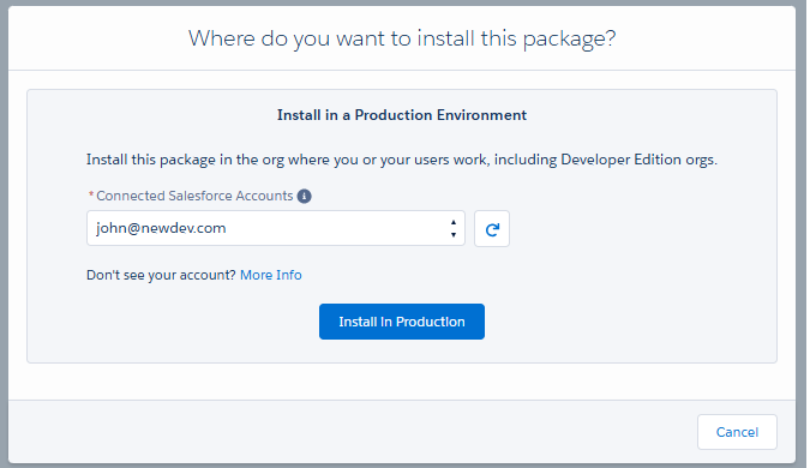
Inventory Assembly

You can easily build assemblies or finished goods from a detailed Bill of Materials. The manufacturing module allows you to specify the raw materials or components needed to manufacture each finished good.inventory assembly1

With operations that involve inventory for work-in-process and manufacturing, this functionality enables you to boost end-to-end traceability, productivity and control. In addition, you can access your product assembly inventory in Aqxolt ERP anytime, anywhere, so your team can better coordinate production machine usage and labour.

Manufacturing Benefits: 

  •   Streamline manufacturing process using barcodes
  •   Increases flexibility for multiple product variations
  •   Improves inventory control during manufacturing/process cycle
  •   Saves time and increases manufacturing productivity

Increase Manufacturing Productivity

Create predictability, better coordinate manufacturing machine usage and labour, and track raw materials and components needed to manufacture each specific product accordingly.

Easily Assemble Your Inventory

The Inventory Assembly feature allows you to efficiently track product manufacturing and associated stock quantities and costs.

Customer Accounts, Contacts and Address

A. Customer Account.

A Customer Account is a standardized record in a business system representing an individual or organizational customer. It consolidates essential data to support commercial operations, enabling the creation and management of quotes, orders, invoices, credit notes, and other transactional documents to streamline sales and financial processes.

Accounts can have multiple Contacts and Addresses associated with them.

Steps for creating Customer Account are as follows – 

1. Log in to Salesforce.
2. Navigate to the Epos screen using the App Launcher or find the tab in the app navigation menu.
3. From the Epos screen, go to the Accounts section.

4. To create a new customer account, click on the Account button.

5. On the account creation screen, enter all the required fields such as Name, Account Profile, Order Profile, Company, and other optional details.

 6. Click on the Create Account button.

Note: Customer accounts are used to raise Opportunities, Quotes, Orders/Sales Orders, etc.

Once the account is created, it will be selected in the Account lookup on the Epos screen.

Account Field Description:

  • Name: Name of the account
  • Account Number: This is an optional field, but you can enter a unique account    number for the customer.
  • Account Profile: The account profile contains the price book and channel associated with the customer.
  • Order Profile: The order profile includes the account profile, channel, and price book associated with the customer.
  • Tax Reg No: A unique number given to a business or person by the government to identify them for tax purposes.
  • Email: Email address of the customer.
  • Phone: Phone number associated with the customer.
  • Company: The company to which the customer belongs. It can be the same as an Account name in certain scenarios.
  • Is Person Account: The account represents an individual.
  • Website:  The website of the Customer Company.

B. Contact

Contact is a standard object that represents an individual person associated with an Account. Contacts are used to store and manage information about people within a company/organization. Each contact is linked to an Account, so an Account must be created before creating a contact. Multiple contacts can be associated with a single Account.

Follow the steps below to create a Contact –

1.     From the Accounts section, click on the Contact button.

Note: The account you created should be auto populated on the contact screen. If you already have an existing account, select it from the lookup to create a contact for that account.

2. On the contact creation screen, enter all the required fields such as First Name, Last Name. Additional optional details, such as Company, Email, and Phone, can also be included. The Account field will be automatically populated.

3. Check the Is Primary checkbox to designate the contact as the primary one (if applicable).

4. Click on the Create Contact button.

Note: There can be multiple contacts of an account, and you can mark one of them as Primary.

The contact will be automatically selected in the Contact Name field on the Epos screen.

Contact Field Description:

  • Account: Name of the account for which you want to create a contact.
  • First Name: First name of the contact.
  • Last Name: Last name of the contact.
  • Company: The name of the company the customer is associated with.
  • Email: Email address of the contact.
  • Phone: Phone number of the contact
  • Is Primary: Select the Is Primary checkbox if you want this contact to be the primary contact when creating an order.

C. Address

Address refers to the physical location information associated with various records, such as Accounts. It typically includes details like street address, billing address, shipping address, city, state or province, postal code, and country. This information helps organizations track the geographical locations of their customers or business partners.
Note: In this context, addresses belong only to Accounts.

Follow the steps below to create an address: 

1. From the Accounts section, click on the Address button.

Note: The Account and the Contact you created should be auto populated on the address screen. If you already have an existing account contact, select it from the lookup to create an address for that account.

2. On the address creation screen, enter all the required fields such as, Address Line 1, City, Postal Code, Country, State etc. The Account and Contact fields will be automatically populated.

Note: Check the Is Billing Address checkbox to mark the address as a billing address, and check Is Shipping Address to mark it as a shipping address. If the address is marked as both, it will be considered for both billing and shipping purposes.

3. Click on the Create Address button.

The address will be automatically populated in the Bill To and Ship To fields on the EPOS screen based on the selected account and contact information.

Note: After adding the Account, along with its Contact and Address, users can utilize the Add Products feature to complete the order creation process.

Primary Function of Address – The Billing Address is required to apply Tax on the Quotes, Orders, and the Shipping Address is used to calculate Shipping Rates between the company address and the customer address.

Address Field Description

  • Account: The account for which you want to create an address.
  • Contact: This field will be auto populated when selecting the account.
  • Address Line 1:  Is the main street address.
  • Address Line 2: Adds details like apartment or building info.
  • Address Line 3:  includes optional extras like landmarks or care-of information.
  • Is Billing Address: Indicates that this is the billing address for an order.
  • Is Shipping Address: Indicates the shipping address of the customer for the shipment process.
  • Postal Code: The postal code of the city.
  • Is Primary: Select this checkbox if you want this address to be the primary address when creating an order.

A Customer Account, along with its related Contacts and Address, can also be created at the record level.

Follow these steps to create a Customer Account from the record level:

  • From the App Launcher, find and select the Accounts tab.
  • Click the New button and select the Customer Account record type and click on Next button.
  • Enter all the required details and click Save.
  • Now, Contacts and Addresses can be created for the customer from the related lists on the customer’s record.

Booking Kare Documentation

Enterprise-Grade Event , Appointment Booking And Scheduling Software

Getting Started with Booking Kare

Enterprise-Grade Event , Appointment Booking And Scheduling Software

Overview

Overview

Booking Kare comprises two major modules

1. Event Module

Event Module comes with features that help Event Planners, and Organiser to organize events efficiently on a large scale with online payment options. Event planners may easily email personalized invitations to hosted events to any and all contact list members in case of the event is canceled or postponed.

Event Booking Module Includes Features Such As:

    1. Event Builder
    2. Create an event
    3. Event zone
    4. Venues
    5. Create Product Service Details
    6. Tickets
    7. Membership
    8. Speaker
    9. Agenda
    10. Logistics
    11. Sponsorship
    12. Adding and Inviting Guests
    13. Send invites to accounts, Contact, and users
    14. Check-in and Walk-in registrations
    15. Manually check-in
    16. Kiosk Check-in
    17. Scan Bar code Check-in
    18. Event Booking
    19. Calendar

2. Appointment  Module

The appointment Module comes with a user-friendly appointment booking system that lets your client view the expert’s real-time availability and quickly book an appointment with the expert. The client can book appointments from anywhere, anytime using any device. Upon appointment booking, BookingKare lets you maintain customer information and appointment history for easy reference.
Appointment Booking Module Includes Features Such As:

  1. Appointment Booking
  2. Planner
  3. Teams
  4. Team members
  5. Location
  6. Membership Program
  7. Product/Service
  8. Price book
  9. Work Planner
  10. Resource group
  11. Resource
  12. Resource Requirement
  13. Shift Planner
  14. Time management
  15. Calendar
  16. Queue management
  17. Workbench
  18. Room Reservation
  19. Logistics
  20. Payments  (Authorize.net,Paypal,Chase payment)

System Requirements

Roll out Steps:

  • Preparation involves all of the planning you need to do before you can begin using Booking Kare.
  • Identify key users of the system
  • Add licenses
  • Identify all of the users who will be using the BookingKare System and make sure you have the appropriate number of licenses.
  • Review all the technical requirements
Requirements to use Axolt BookingKare in a  system
Operating SystemAll you need is a computer that can run a web browser. It doesn’t matter what type of hardware or operating system you’re running.
BrowserGoogle Chrome™, the most recent stable version Mozilla Firefox®, most recent stable version Microsoft Internet Explorer versions 9, 10, and 11 Apple Safari® versions 5. x, 6. x and 7. x on Mac OS X
Internet ConnectionSalesforce is designed to use as little bandwidth as possible so that the site performs adequately over high-speed, dial-up, and wireless Internet connections.
Requirements to use Aqxolt BookingKare system with payment gateways
Payment GatewaysPayPal, Authorize.net,Chase payment.

Installation Guide

  •  Follow the steps if you are a new user.
  • The quickest way to assess if BookingKare is the right fit for your organization is by creating a free trial. You’ll immediately be taken to a salesforce registration page, where you need to fill out the form and start a free trial. On the app exchange BookingKare listing click the “Get It Now” button and login to the salesforce free trial instance and from here you can start to evaluate BookingKare in depth.
  • Installing BookingKare in your Salesforce instance
  • Follow these steps

Step 1

Step 2

  •   Confirm the installation details and click the “Confirm and Install” button.

Step 3 Licensing Your users for BookingKare

  • Navigate to Setup> Apps > Packaging> Installed Packages.
  • In the list of installed Packages find the BookingKare app and click the “Manage Licenses” option under the actions section.
  • Click on the “Add User” button in the Licensed User section.
  • Select the user from the Available Users section; click the “Add” button.

Validate Your Installation

  • Click on the app launcher and notice that the “Appointment Booking” and “Event and Expert Booking” apps are available under all apps.
  • Select any of the applications from the App Launcher and notice its available Tabs.

Community Setup

Communities Overview Communities are a great way to share information and collaborate with people who are key to your business processes, such as customers, partners, or employees. Whether you call it a portal, a help forum, a support site, HR central, or something else, an online community is a great place to connect with the important folks in your life in a new and different way. Use easy point-and-click branding tools with ever-evolving Lightning templates or go with Visualforce to create branded collaboration spaces. Step 1

Enable Communities

Enabling Communities is the first step to creating communities.

Note: After you enable Communities, you can’t disable it.
If your org’s access to Communities is suspended for non-payment, all your communities are deactivated, including the communities in Preview. When Communities is re-enabled, all communities are inactive. You can activate these communities, but you can’t return to the Preview state.

1. From Setup, enter Communities Settings in the Quick Find box, then select
Communities Settings.

Note: If you don’t see this menu, Communities might not be available for your Salesforce org. Contact your Salesforce account executive.

2. Select Enable communities.
3. Select a domain name for your communities, and click Check Availability to make sure that it’s not already in use.

You use something recognizable to your users, such as your company name.
The Communities domain name is the same for all communities. You create a unique URL for each community when creating it by entering a unique name at the end of the URL. For example, if your Communities domain name is UniversalTelco.force.com and you’re creating a customer community, you can enter customers to create the unique URL UniversalTelco.force.com/customers.
Important: You can’t change the domain name after you save it.
You can designate a custom domain by entering it in on the Domain Management page.
From Setup, enter Domains in the Quick
Find box, then select Domains.
4. Click Save.

Step 2 Create Communities

  • To create a community, from Setup, enter All in the Quick Find box, select All Communities, and then click New

Step 3 Community Template.

  • The Community Creation wizard opens with several templates for you to choose from. If you have Lightning Bolt solutions available in your org, they are listed in the wizard.

 To see more information about a template, select it. Customer Service

A powerful, responsive self-service template with multiple prebuilt theme options. The Customer Service template lets users post questions to the community, search for and view articles, collaborate and contact support agents by creating cases. Supports Knowledge, Chatter Questions, and cases.

Step 4
Experience Builder.

  • Select the template that you want to use.
  • Read the template description and key features, and click Get Started.
  • Enter a community name.

Note: If you’re creating multiple communities, differentiate the beginning of the community name. Community names are truncated in the global header drop-down menu. Users can see up to 32 characters of the name, and names include the status. Make sure that the visible part of the name allows users to distinguish between multiple communities.

For URL, enter the name of your community.

This name is appended to the Communities domain that you created when you enabled communities for this org. For example, if your Communities domain name is UniversalTelco.force.com and you’re creating a customer community, you can enter customer to create the unique URL UniversalTelco.force.com/customers.

Note: You can create one community that doesn’t have a custom URL.

  • You can change your community name and URL after the community is activated, but users aren’t redirected to the new URL. So be sure to inform your community members before changing the name or URL.
  • Click Create.

The community is created in Preview status. Now you’re ready to build and customize or manage and moderate your community.

When you create a community, Salesforce supplies default pages for login, self-registration, change password, forgot password, and your home page. These pages are based on which template you use to create your community. You can customize these default pages at any time in the Login & Registration page of the Administration workspace.

IMPORTANT After you create a community, your profile is added to the list of profiles that have access to the community. Then all users with this profile can log in to the community after it’s active. If you don’t want all users with your profile to have access to the community, remove the profile, and give yourself access through a different profile or permission set. Then create a profile specifically for your community users.Step 5 Access Experience Workspaces

The streamlined Experience Workspaces centralizes community moderation, building, and administration. Access Experience Builder, administration, dashboards, and other features from one place.

  • From Setup, enter Communities Settings in the Quick Find box, then click Communities Settings.
  • Enable Experience Workspaces under Community Management Settings. Click Save.
  • From Setup, enter All Communities in the Quick Find box, then click All Communities. To access a community’s workspace area, click Workspaces next to its name.

Manage Your Community with Experience Workspaces Experience Workspaces is your one-stop-shop for building, setting up, and monitoring your community. You can access Experience Builder and Administration workspaces to manage your community’s setup and branding. Community managers can view dashboards for groups, members, feed activity, and license usage, and manage the community’s reputation system. Moderators can see which items have been flagged for review.

Note: You can customize your community at any time, but if you plan on making major changes, we recommend deactivating the community first.

  • To enable Experience Workspaces, in Setup, enter Communities Settings in the Quick Find box. Under Community Management Settings, select Enable Experience Workspaces. Experience Workspaces is enabled by default for all communities.
  • To go back to Community Manager, in Setup, enter Communities Settings in the Quick Find box. Under Community Management Settings, deselect Enable Experience Workspaces.

 Builder

Experience Builder lets you brand and design your community pages. Create and customize pages, modify or add Lightning components, customize the community’s navigation menu, and manage page-level settings as shown in the screenshot below.

IMPORTANT If you’re an administrator and accidentally remove yourself from a community, you can’t access the Administration settings in Experience Workspaces. To add yourself back to the community or make other membership updates, use the API.

A community for Event Booking

  • For setting up a community for Event booking, follow the same 5 steps of community setup.
  • After reaching the builder section. You can create an Event booking component by clicking on the component option.
  • When clicking on the component button you find the list of components that can be added to the builder page.
  • Search for the Event booking component and drag it onto the builder page.

Note: If you already have the template components on the builder page, you can delete them from the delete icon of each section before adding your own component. When the component is on the page, it will appear as below.

  • Similarly, you can add as many components as required on the page and manage the page structure from the page structure button on the left.
  • There is also a Setting Button-through which you can change the setting of the community page and find information regarding that. Shown below
  • In the setting, you have Public access check box, tick this box when you want the public to access this community.
  • You can give a title for the community in the Community Title box.
  • Published Status – This is a link from where customers can access the Event Booking Community.
  • Guest User Profile – This is the profile link of guest users from where you can authorize or unauthorize the user.
  • If Users have no access to the components, this can be managed by clicking on Event Booking Profile from the settings.
  • Note- Access can be given from profiles and sharing settings. In profiles make sure all the objects, fields, and tabs have access to the User. In sharing settings, check for any restrictions on the Guest user access.
  • When completed, click on the Preview button to view the page before saving to make more changes if required.
  • Click Publish button on the top right to save and publish your community.
  • You can also select the View mode button to set it for phone, Tablet, and Desktop.
  • You have now created your Event Booking Community.
  • Follow Step 6 for more information on managing your community.

A community for QR Check-In

  • For setting up a community for QR Check-In, follow the same 5 steps of community setup.
  • After reaching the builder section. You can create a QR Check-In component by clicking on the component option.
  • When clicking on the component button you find the list of components that can be added to the builder page.
  • Search for the QRcodeCheckInRegister component and drag it onto the builder page.

Note: If you already have the template components on the builder page, you can delete them from the delete icon of each section before adding your own component. When the component is on the page, it will appear as below.

  • Similarly, you can add as many components as required on the page and manage the page structure from the page structure button on the left.
  • There is also a Setting Button-through where you can change the setting of the community page and find information regarding that.
  • In the setting, you have Public access check box, tick this box when you want the public to access this community.
  • You can give a title for the community in the Community Title box.
  • Published Status – This is a link from where customers can access QR Check-In
  • Guest User Profile – This is the profile link of guest users from where you can authorize or unauthorize the user.
  • If Users have no access to the components, this can be managed by clicking on QR Check-In Profile from the settings.
  • Note- Access can be given from profiles and sharing settings. In profiles make sure all the objects, fields, and tabs have access to the User. In sharing settings, check for any restrictions on the Guest user access.
  • When completed, click on the Preview button to view the page before saving to make more changes if required.
  • Click Publish button on the top right to save and publish your community.
  • You can also select the View mode button to set it for phone, Tablet, and Desktop.
  • You have now created your QR Check-In
  • Follow Step 6 for more information on managing your community.

A community for Appointment Booking

  • For setting up a community for Appointment Booking, follow the same 5 steps of community setup.
  • After reaching the builder section. You can create an Appointment Booking component by clicking on the component option.
  • When clicking on the component button you find the list of components that can be added to the builder page.
  • Search for the Appointment Booking component and drag it onto the builder page.
  • When the component is on the page, it will appear as below.

Note: If you already have the template components on the builder page, you can delete them from the delete icon of each section before adding your own component.

  • Similarly, you can add as many components as required on the page and manage the page structure from the page structure button on the left.
  • There is also a Setting Button-through where you can change the setting of the community page and find information regarding that.
  • In the setting, you have Public access check box, tick this box when you want the public to access this community.
  • You can give a title for the community in the Community Title box.
  • Published Status – This is the link from where customers can access Appointment Booking
  • Guest User Profile – This is the profile link of guest users from where you can authorize or unauthorize the user.
  • If Users have no access to the components, this can be managed by clicking on Appointment Booking Profile from the settings.
  • Note- Access can be given from profiles and sharing settings. In profiles make sure all the objects, fields, and tabs have access to the User. In sharing settings, check for any restrictions on the Guest user access.
  • When completed, click on the Preview button to view the page before saving to make more changes if required.
  • Click Publish button on the top right to save and publish your community.
  • You can also select the View mode button to set it for phone, Tablet, and Desktop.
  • You have now created your Appointment Booking
  • Follow Step 6 for more information on managing your community.

Step 6

Set the Default Number of Community Roles Set the default number of roles created when adding partner or customer accounts to communities. These settings apply if your community is set up with Partner Community, Customer Community Plus, or Lightning External Apps Plus user licenses. The limit is three roles; the system default is one. For example, if three partner roles are currently created when an account is enabled for your community–Executive, Manager, and User–but you need only the User role for new accounts, you can reduce the number to one role. 

1. Use Super User Access to grant specific users access to data owned by other users in their accounts.

  • From Setup, enter Communities Settings in the Quick Find box, then select Communities Settings.
  • Select the number of roles per account.
  • If you’re using Partner Community licenses, set the Number of partner roles.
  • If you’re using Customer Community Plus licenses, set the Number of customer roles.
  • Click Save.

Note: This setting does not affect the number of roles for existing accounts.

Step 7

Customize Communities Update basic community settings like your community URL, community name, members, login options, and general preferences in the Administration section of Experience Workspaces or Community Management. You can customize your community at any time, but if you plan to make major changes, we recommend deactivating the community first.

  • Open Experience Workspaces or Community Management.
  • Click Administration, then select what you want to customize.IMPORTANT: The options available in Community Management or Experience Workspaces are based on your community template selection, permissions, and preferences. For example, if your community doesn’t use topics, you don’t see the Topics section. Some options in the following list might not appear in your community by default. To display all sections, go to Administration | Preferences and enable Show all settings in Community Management or Show all settings in Experience Workspaces.
  • Members
  • Tabs
  • Branding
  • Login & Registration
  • Emails
  • Pages
  • Preferences
  • Settings
  • To share the community with stakeholders while it’s still in Preview, copy the URL displayed on the Administration | Settings page.
  • By sharing your community in Preview, you can get useful feedback to incorporate before going live. Also, by having early members post, comment, and share records, your community appears active when members log in to the community for the first time.
  • Keep in mind that you must add users as members of the community before you can share the community URL.
  • After you finish customizing your community, activate the community to make it available to members. If you enable welcome emails when you activate them, a welcome email is sent to all members. If users are new portal users, their welcome email includes their username and password.

1. Share a Link to Your Community. You can allow members to preview your community before making it active. You can only share the link for a preview community with users who were added as members of the community. Sharing a link to a community in Preview status allows you to easily gather stakeholder feedback. The community functions just as it will when you make it active, so stakeholders can try out all functionality and review your branding and customizations. Additionally, you can take advantage of having early members who can post, comment, and share records so that members enter an active community from their first login.

  • Open Experience Workspaces or Community Management.
  • Click Administration | Settings.
  • Copy the URL displayed on the page and share it with your stakeholders.
  • Keep in mind that you can only share the URL with users who you added as members of the community.

2. Update Your Community Settings. Manage your community name, description, community status, and community template all from one location. You can change your community name and URL after the community is activated, but users aren’t redirected to the new URL. So be sure to inform your community members before changing the name or URL.

  • Open Experience Workspaces or Community Management.
  • Click Administration | Settings.
  • Edit your community settings as needed.
  •  Select the pencil icon next to the community you want to change, and make your changes. You can change your URL from this page. However, if you’ve already activated your community, users aren’t redirected to the new URL.
  • Manage the status of your community.
  • Change your community template.

3. Deactivate a community.

  • You may want to deactivate a community if you need to:
  • Add or remove members
  • Add, remove, or change the order of tabs
  • Change the colour scheme
  • Change the community URL
  • Open Experience Workspaces or Community Management.
  • Click Administration | Settings.
  • Click Deactivate.
  • Your community is inactive and offline.
  • When a community is inactive, members still see it in the menu, but can’t access it unless they have the “Create and Set Up Communities” permission.

4. Enable optional community Features. Enable other optional features in your community such as user nicknames, guest access, private messages, direct messages, content flagging, and reputation levels.

  • To use these settings, Chatter must be enabled in your organization.
  • Open Experience Workspaces or Community Management.
  • Click Administration | Preferences.
  • Change the desired settings.
  • Click Save.

Step 8Community App

  • Users can also access the community site from the app launcher where the community app will be created with the name of that community that you create. As shown on the screen below:

On clicking on the community app that you created you will be redirected to a similar site as shown in the screenshot below:

Event Scheduling & Booking

The event booking and planning application is designed for event management companies that require streamlined operations and overall efficiency.

Give your customers a seamless scheduling/booking experience
Customize the look and feel match exactly to your company’s brand

Check-In Check-Out Mobile App

Booking Kare – Check-In/Check-out

Booking Kare is an application to process Check-In/Checkout flow i.e., checking in the clients into an event/appointment and checking them out from an event/appointment.

This app also provides an easier way for the users to check In and Check out using QR-Scanner /Barcode scanner for the members registered to any events or appointments.

How to install Booking Kare Application.

The Booking Kare application can be installed from the App Store or Play Store like any other application on your Tablet, iPad, or Phone.

Open the application and enter the username and password of your salesforce org.

Note: Log in with credentials that have registrations booked for events/Appointments.

The below screen appears when Logged in successfully.

How to scan a Barcode/ QR code to check-in customers for Events or Appointments.

  1. The ‘Registrations’ tab shows the registrations made for the particular event or Appointment.

2. Once the registration is booked, the customer receives an email with the ticket/slip which they must bring with them on the day of the event or appointment.

Enter the Number of People attending

3. Scan the barcode/QR code on the ticket.

4. The customer is checked in automatically and the ticket checker can verify details on this page.

5. Click the ‘Home’ Button to Scan the next person.

6. Click on the Booking Details tab to view Event/Appointment details.

7. You can also check out the same person from this page by clicking on the ‘Check out’ button.

How to scan a Barcode/ QR code to check out customers for Events or Appointments.

  1. Click on the ‘Check out’ Button on the Home Page and scan the code.

Note: The person should already be ‘checked In’ before using check-out process.

2. The customer is checked out successfully and click on home to scan the next person.

How to scan a Barcode/ QR code to check In/check out customers for Events or Appointments if they do not have the ticket/slip.

  1. From the home page Enter the registration number from the booked Event/appointment.

2. Click on the ‘Check In’ button. The person will be checked in Successfully!

If the Registration number is not available or lost

  1. Enter the ‘Last name’ and one of the following ‘Email or phone’

3. Click on the check-in Button the person will be ‘checked In’ successfully!

How to Check out the customer who does not have the ticket/slip.

  1. From the home page click on the ‘check-out’ button

2. Enter the details like registration number or last name and phone/Email.

3. Click on the ‘Check-out Button.

4. The person is checked out Successfully!

Check-In/Check-Out

check-in/CheckOut is a flow for checking the clients into an event and checking them out from an event. This flow provides an easier way for the users to check in and check out the members registered for a particular event.

CheckIn/CheckOut 

The users can be checked in or checked out from an event either

  1. Using the CheckIn/CheckOut button from the Event Record page.
  2. Using the CheckIn/CheckOut tab.

Using the CheckIn/CheckOut button from the Event Record page:

  • Navigate to the App menu and go to Events tab and click on a particular event to view the event details in a record page as shown below.
  • Check for the registrations with repsect ti ths event and click on the “CheckIn/CheckOut” button.
  • This navigates to the CheckIn/CheckOut tab where an user is directly navigated to view the registrations of an event as shown below.
  • Search for a particular registration by user name or its registration ID using the search box provided.
  • You can also view the count of total registrations and the number of guests awaiting, checked in and checked out members of an event by clciking on the cards displayed at the top of the page.
  • The system also provides an option to print the registration or the guest list using the print button at the top right corner of the page.
  • This navigates to a printable format of the list in PDF form as shown below.
  • You can either checkin the members manually or by scanning the QR using the scanner.
  • Select a member/ registered user whose status is booked to checkin to the event by clicking on the “Check In ” button.
  • Once an user is checked in to the event, he/she can be checked out anytime from the event using the “Check Out” button. An user who is checked out fron the event cannot checked in again to the same event.

Using the CheckIn/CheckOut tab:

  • Navigate to the App menu and click on the CheckIn/CheckOut tab where we can view the registrations related to a particular event.
  • The system pop’s up a window with a list of all the active events which has the registrations as shown above.
  • The system provides an option to search for the events using the search box.
  • Search for a particular event from the list of events in the popup.
  • This navigates to a page where the list of registrations particular to an event is listed down as shown below.
  • Search for a particular registration by user name or its registration ID using the search box provided.
  • You can also view the count of total registrations and the number of guests awaiting, checking in, and checking out members of an event by clicking on the cards displayed at the top of the page.
  • The system also provides an option to print the registration or the guest list using the print button at the top right corner of the page.
  • This navigates to a printable format of the list in PDF form as shown below.
  • You can either check in the members manually or by scanning the unique QR code using the scanner.
  • With a unique family QR code, the system makes it easier to check in all the members of a family by simply scanning their family QR Code.
  • Select a member/ registered user whose status is booked to check in to the event by clicking on the “Check-In ” button.
  • Once a user is checked in to the event, he/she can be checked out anytime from the event using the “Check Out” button. A user who is checked out from the event cannot be checked in again to the same event.

Event Builder

Event Module setup

Start planning and organising a single day or a multi-day event easily, make common customizations like adding zones, tickets, venues and more. Configure registrations to be free or paid with complex pricing rules. Configure discounts and taxes easily with various rules. Configure sponsors, speakers, and agendas and give more insight into the event to manage time with BookingKare’s Event Builder. With the Event Builder, you can reduce administration time and hassles associated with data integrity or booking conflicts.

Once you are in the Event Booking app, you can create your first event by following these steps:

Step 1

Create an event

  • Click on event builder tab and click on event details and enter the following information like enter the name of the event, select event as event type
  • Enter the Start Date /time and the End Date /time of an event.
  • Enter the Registration Start and End Dates, Check-In Start and End Dates and Ticket Sales Start and End Dates.
  • Select the organiser and Location of the organiser
  • Enter the Maximum Registrations and Entry Fee if any for the event.
  • Select the membership program and description of the event
  • Select the published checkbox, this option lets you add the event in the portal site.
  • Select the Type and Status of the event and select the Allow guest registrations checkbox, this option lets you add registration from the kiosk.
  • Enter the Invite Message and Registration Instructions of the event.
  • Click the Save button to create an Event record.
  • Once you have created the event you can start adding the zones where the events are held, so let’s start creating the zones.

Step 2

Event zone

  • Event zones are nothing but events that can occur in multiple locations based on their availability within the region.

Create an event zone

  • Click the Zones tab of the event builder from the menu bar on the left-hand side.
  • Click on Add button to create the zones
  • Enter the Name of the zone and select the Type of zone being created.
  • Enter the Start and End dates of the event and Registration dates.
  • Enter the Maximum Registrations and set the maximum registrants at each zone, enter the Descriptions applicable for the zone
  • Select the Show Day Slots fields if you want to display the days during booking.
  • Click the Save button to create a zone for an event.

Step 3

Venues

  • Configure venues, the place where your event is held. When you create a location and assign it to the zone that location information will be displayed on the event detail page.

Create a venue

  • Click the Venue tab from the menu bar on the left-hand side.
  • Click the Add button to create a new location.
  • Enter the Name of the venue and Address details
  • Select the event zone and check the active checkbox
  • Enter the description of the location
  • And click on the save button to save the venue record


Step 4

Create Product Service Details

  • Click the product details tab from the menu bar on the left-hand side.
  • Click the Add button to create a product.
  • Enter the name of the product, Adult price, and child price.
  • Enter the image URL or you can upload the image from the system.
  • Enter the description of the product and check the active checkbox
  • And click on the Save button to create a product record.


Step 5

Tickets

  • Tickets are nothing but a selling price of an event. And also we can control the number of persons to get register for an event. By using this concept we can distinguish different prices for each type of tickets for adult and child as well.

Create a ticket

  • Click the Tickets tab from the menu bar on the left-hand side.
  • Click the Add button to create a new ticket.
  • Enter the Name of the ticket and select the Product to fetch the list price and taxes for both adult and child automatically from the price-book entry of the selected product.
  • Enter the Total Quantity, Adult, and Child Quantity, this ensures the number of registrations allowed for an event.
  • Enter the Adult and Child List Price and Tax Percent manually if the product is not selected.
  • Select the Zone for which the ticket is created is assigned and select the Active checkbox to make the ticket active for use for the selected zone and event.
  • Enter the Image URL and select the Show Child checkbox, this ensures the child details are captured in the registration and the ticket price based on the child list price.
  • Select the Ticket waiting list checkbox; with this option, you will be allowing registrations even when the number of registration has reached the capacity of the event. The registrations created after the capacity is reached are the registrants with the waiting list status.
  • Enter the Ticket Sale Start dates and End dates, enter the Instructions associated with the ticket and upload image relevant to the event.
  • Click on the “Save” button to create a ticket for the event.

Step 6

Membership

  • Click on the ticket tab related list click on Membership tab
  • Click the Add button to create a new membership record.
  • Enter the value and select the status.
  • Select the start and expiration date of the membership
  • And click the “Save” button to create a membership for the event.

Step 7

Speaker

Speaker is a guest of the event, who speaks formally before an audience regarding some of the major things regarding the event and why it has been organised and expressed his ideas towards the particular event.

  • Click the Speaker tab from the menu bar on the left-hand side.
  • Click the Add button to create a new Speaker record.
  • Select the Speaker Account and Contact, the system will auto-populate phone and email details of the speaker.
  • The system allows you to upload the image of the speaker or pre-populates if it already exists.
  • Enter the description of the speaker and check the active checkbox.
  • And click the “Save” button to create a speaker for the event.

Step 8

Agenda

An agenda for the event can help you significantly in terms of planning and organising the event agenda will clearly specify every action to be held at the event.

Create an Agenda

  • Click the Agenda tab from the menu bar on the left-hand side.
  • Click the Add button to create a new Agenda record.
  • Enter the name of the Agenda and select the event zone and a speaker.
  • Enter the session Start and End time of the agenda and enter the Description of the agenda.
  • Click the Save button to create the agenda for an event.

Step 9

Logistics

Logistic is nothing but a resource management in case of events such as travel, accommodation and many more, which can be handled by the organisers of the event.

Create a logistics

  • Click the Logistics tab from the menu bar on the left-hand side.
  • Click the Add button to create a new Logistics record.
  • Enter the name of the Logistic
  • Select the Category and Type of the logistic
  • Select the logistic Provider and enter the Item Details.
  • Click the Save button to create the logistic record for the event.

Step 10

Sponsorship

  • Sponsorship is a financial invests made by the organisers for the success of Events.

Create Sponsorship

  • Click the “Sponsorship” tab from the menu bar on the left-hand side.
  • Click the “Add” button to create a new Sponsorship record.
  • Enter the Name of the sponsor and select the Sponsor Account
  • Select the Sponsorship Program and Event Zone
  • The system allows you to upload the image of sponsors
  • Select the Active checkbox and enter the Description about the sponsorship.
  • Click the save button to create the sponsorship for the event.

Adding and Inviting Guests

  • After you have planned and set up for an event, now the organizers can send email invitations to their Accounts, Contacts, Users and guests Users.

Send invites to accounts, Contact, and users

  • From Event, builder Select an Existing event And all event details will get auto-populated on the right-hand side click on the invite button And you navigate to the screen below
  • Select the source to send invitations to Accounts, Contacts, Users, and Resource individually or invite external guests in bulk by uploading a file with invitee details.
  • You can send invitations to the selected source records by clicking the Invite option in the Action section or by selecting multiple records and clicking on the Send Invites button.
  • To send invites to external users click on the source and select resource in that click on add guest button.
  • Enter the Name, Email, and phone of the invitee or external guest and click the invite button
  • Clicking on the “Invite” option in the Action section creates a new account or a contact in the system and also sends an invitation email and SMS text if configured.
  • Bookingkare provides you with an option to do the bulk invitation by simply uploading a file.
  • Download the “Event Invitation Template” and fill in the invitee’s details into the excel sheet and save the file in “.CSV” format.
  • Click the “Upload File” option and select the CSV file.
  • The uploaded guest list appears in the section below, now you can select all the guests and click the “Send Invites” button.
  • All the registrations created against the event will be listed in the Invited Guests section.
  • You will be able to control the number of registrations to display from the Select Entries option. You can also use the search bar to find the specific registrants by their Name or Email.
  • You can track the invitation with their status and forecast the number of attendees.
  • The Print Guest List button lets you print the registrations that are in booked status.

Check-In and Walk-In Registrations

After the registration of an event, the attendee can check in as they arrive at the event. Bookingkare allows Four check-in options.

  1. Manual check-in through Check In page
  2. Self-check-in through Kiosk
  3. Scan barcode check-in

Manually check-in

  • Click on event builder in the search bar enter the event name the event gets auto-populated
  • On the right hand, side corner click on the check-in button
  • It will navigate to the check-in page follow the screen below
  • All the registrations will be listed below; you can select the registration and click the Check-In button located on the top right corner of the Registration Details section.
  • Once the registration is checked-in the status of the registration changes to Attended.
  • The system also allows you to create walk-in registrations, click the “New Registration” button. You will be presented with a pop-up page.
  • Enter the details of first name, last name Email and phone and click on the Save button.  A new registration with status Attended is created in the system.
  • The Print Guest List button lets you print the check-in in attended status.

Kiosk Check-in

  • Click on the Event Builder tab and enter the Event Name in the search bar.
  • Click on the Kiosk button located on the top right corner of the page. You will be presented with the screen below.
  • The attendee should enter the Registration Id, Email and Phone. The users can enter any two out of the three options for check-in.
  • The system also allows you to create walk-in registrations at the kiosk, click the Add Me button. You will be presented with a screen below.
  • Enter the First and the Last name, enter the Email address and Mobile number and click the Save button to check-in late else click the Save and Check-in button to Check-in immediately.
  • A new registration with status Attended is created in the system.
  • And also you can print the badge on top of your name by clicking print badge.

Scan Barcode Check-in

Bookingkare allows you to scan and check-in attendees when you connect any Barcode scanner to your computer. When a valid barcode is scanned a “Green” indicator will appear on the scanner and the registration status will change to Attended. Otherwise, you can use the manual check-in process.

Event Booking Flow

The event booking application is designed for event management companies that require streamlined operations and overall efficiency, which gives your customers a seamless scheduling/booking experience. Customers can book the event from anywhere, anytime using any device.

  • How to book for an EventJoy would like to attend an event and he tries to book for an event using the event booking application.
  • Let’s help John to book an event.
  • 1. Click on the ‘Event Book’ Tab or Search for Event Booking from the App launcher.
  • 2. The screen shows the Event booking home page. Here you find the event which you want to attend.

Click each tab to see different scheduled events

3. Click on the ‘Apply to Attend’ Button to book for the Event.

4. Next page shows the details of the event, agenda, sponsors, and Speakers.

5. Enter or search your details and Confirm the Booking.

If you want to book as Group, then select Group Booking and Enter the Details.


6. Click ‘Confirm Booking’ Button to proceed to payment page.

7. Pay by Debit/Credit Card or PayPal then click the ‘Pay Now’ Button.

8. You are booked for the Event.

How to Book an Individual Booking

Click on the Individual Booking Icon and follow the same steps mentioned from 5-8

How to Book for a Free Event

1. Click on the ‘Apply to Attend’ Button to book for the Event.

2. Next page shows the details of the event, agenda, sponsors, and Speakers.

3. Enter or search your details and Confirm the Booking.

4. Clicking on ‘Confirm booking’ will directly book for the Event.

How to book an Event with Event Zone

Joy would like to book an event which is being held in different locations and zones. So, he selects the suitable location and zone that he would like to attend and books for the event.

Now, Let’s book an event

1. Click on the Apply to attend Button for an Event.

2. The Next page shows the location and zone selection. Select the suitable location zone slot and click the ‘Next’ Button.

3. Enter the details for Group booking or Individual Booking and click on Confirm Booking Button.


4. You are Booked for the Event

Event Booking Community

Event Community is a platform that allows external users or customers quickly book an event. A link will be provided to them through which customers can book for an event as guest users or create their own account and book for the events.

Joy would like to book an event as a guest user through Event Community so let’s help him out.

How to book a free Event

1. Click on the ‘Event Community’ Tab From the app launcher or click on the booking link provided by the organizers.

2. The Next page shows all the events such as today’s event, this week’s event, Next week’s event, and future events.

3. Select the Event that you want to book. Click the ‘Apply to Attend’ Button.


4. The next Page shows the Zone Location and Scheduled days and time to select and Book as Group or individual.

How to Book a Group Booking

1. Select the zone location, Scheduled Days and click on ‘Group Booking’ icon

2. Enter No. of persons attending the Event.

3. Enter the details of any one person and book the event.

4. Click the ‘Confirm Booking’ Button to book the event


sHow to book Individual booking

1. Click on Event to book and select Location and Time.

2. Click on the Individual Booking icon

3. Enter No. of persons attending and details of all the persons attending the event.

4. Click the ‘Confirm Booking’ Button to Complete

How to book for a Paid Event

Paid Events are the events that have an entry fee for the event and different levels of tickets like golden, silver, or bronze.

John would like to book for a paid event and buy’s 1 golden ticket and 2 silver tickets for the event.

Let’s help him out with the booking

1. Click on the Event’s Apply to attend button to book.

2. On this page select the Event zone location, Day, and time.

3. Now Enter the Ticket quantity for golden and silver tickets.

4. For Group booking click the group icon and enter one person’s detail

5. For Individual Booking enter the details of all the three-person details

6. Click the ‘Confirm’ Button to pay for the event

7. Enter the card details and click on the ‘Pay Now’ button.


User Journey Event Booking Flow

Event Booking

The system admin can configure sites and communities to reach the application offerings to the external audiences. This makes it convenient for guests to book an event.

For the Event flow the customer can book for the event by following these steps:

Step 1

Step 2

Selecting any event zones

  • Click on your preferred event
  • And it will navigate you to the Schedule day page.
  • All the event zones along with the day slots for the event will be shown.
  • Select one or more event zones along with the location
  • And select any day slots of the event.

Step 3

Enter the Details

  • On selecting the day slots.
  • It will navigate you to the Details page.
  • Enter your details And select the Book Now button.
  • Note: Once the booking is completed you will be presented with a confirmation screen displaying that “You have successfully registered!”.

Step 4

Payment process

Note: For the paid event you need to enter payment details here:

  • Click on your preferred event, If the event is a paid event, you will be presented with secure card payment details on the screen.
  • Enter your details and payment details on the screen.
  • The total amount to be paid will also be displayed.
  • In the card payment enter the following card details as mentioned above, and click on the payment button and our registration payment of the event booking page will be done.
  • Finally, it will navigate towards the registration success page as shown on the screen below
  • Clients will also receive Event Confirmation Mail, Invoice, and badge to registered Mail Id
  • After the Customer gets the Registration Email, he can cancel or reschedule the registration of the event by clicking on the manage Event button,  we have a cancel button if we click on that a popup will appear saying yes or no if we click on yes then the registration of the event will be canceled and the customer gets cancel notification to his email address.

Step 5 Event Confirmation Email

On successfully booking the event, an Event Confirmation email notification with the details, along with the Badge and invoice attached will be sent to the customer’s email address.

Manage Event You can manage your Event by clicking on the Manage Event button present on the email template.

  • Click on the Manage Event.
  • The page will navigate to the Event Details page which has the following features available:
  • 1. Change the Date of the event (Reschedule).
  • 2. Update event.
  • 3. Cancel the event.

Step 6 Event Reschedule (Change Date)

we have a Change Date button if we click on that we will be redirected to the reschedule page where we have to select the preferred schedule date and time and click on update, Customer gets Reschedule notification to his email address

You can reschedule your event booking according to Your preferred schedule.

  • To reschedule the event Click on the change Date button.
  • The page will navigate you to the given screen below:
  •  On selecting the preferred schedule date and time you will be navigated to the screen given below.
  • Click on the Update button.
  • Your event will be rescheduled successfully and you will be navigated to the given screen below and the customer gets rescheduled notification to his email address…

Event Rescheduled Email

  • On Rescheduling the Event i.e on Change Date of the appointment.
  • The customer gets an Event Rescheduled Confirmation notification to this email address as displayed on the screen below:

Step 6

Cancel Event

we have a cancel button if we click on that a popup will appear by saying yes or no if we click on yes then the registration of the event will be canceled and the customer gets a cancel notification to his email address.

  • Click on the Cancel button to cancel your event.
  • On clicking the cancel button, The page will navigate to the given screen below:
  • Enter the reason for cancellation.
  • Click on Yes to Cancel the Booked Event, The page will navigate to the given screen below:

Event Cancellation Email 

  • On clicking the cancel Event button.
  • Event Registration Cancelled email notification will be sent to the customer email address as displayed on the screen below.

Appointment Scheduling & Booking

The appointment booking system lets your client view the expert’s real-time availability and lets you quickly book an appointment with the expert. The client can book appointments from anywhere, anytime using any device.

Give your customers a seamless scheduling/booking experience Customize the look and feel
Match exactly to your company’s brand

Consultant Booking

A consultant booking system lets your client view the expert’s real-time availability for the services in different locations. This mainly focuses on showing the nearest location available for clients to book an appointment. The client can book the appointments from anywhere, anytime using any device.

The system is Integrated with Zoom, Microsoft Teams, GoToMeeting and Cisco WebEx virtual meeting platforms so that the users can manage and view meetings within the application. The scheduled meetings can be attended onsite or offsite. 

Consultant Booking
  • Navigate to the App menu and click on Consultant booking tab where we can view the products services and its location as shown below.
  • The system provides the search bar to find the location and services by its name.
  • The system also provides an option to select the date for booking the appointment.
  • The resources are listed down based on their availability for a particular service.
  • Select the preferred location and services for which you wish to book an appointment.
  • Select the user with whom you want to book an appointment and click on the “Book” button for booking the available slot.
  • Otherwise, click on the “Select a different time slot” button to select one or more sessions from the available time slots.
  • This page gives you the details of the resource you’re booking an appointment with and provides an option to either select an existing client or to enter new client details.
  • You can search the existing clients by its name, email or mobile number.
  • Otherwise, Enter the client details such as First Name, Last Name, Email and Mobile.
  • Choose the meeting options which you’re flexible with to attend the meeting.
  • Click on the “Submit” button to book an appointment successfully.
  • Once the appointment is booked, you need to enter the purpose of the meeting in the textbox provided.
  • Click on the “Update” button to update the appointment being booked.
Room Booking
  • You can book the room for the appointment by clicking on the “Book Room” button.
  • Select the slot in the time slot list provided which is based on the availability of the conference rooms.
  • This navigates to an appointment details page with room booking details added as shown below.
  • Choose the meeting options which you’re flexible with to attend the meeting.
  • Click on the “Update button” to update the booking details.
  • This books an appointment and a conference room for the client successfully.
Email Confirmation for the Appointment A confirmation email will be sent to the client’s email once an appointment is booked along with the ticket attached as a PDF as shown below.

Planner

Planner enables users to Request(plan) or Approve(Post on the live system) their Appointment, by creating the Resource, Resource group, Teams, Product from the App Launcher and Creating Location, Work planner, Resource requirements, Time management, Registration and Scheduler from the Planner tab.

Resource

Once the resource group is created add the right people to the group as a resource workforce. You can either add workforce or you can enable the efficiency of the activities like equipment setup, room, etc., by selecting the appropriate record type. You can add the resource by following these steps:

Create a resource

  • Navigate to app launcher and click the Resources tab.
  • Click on the new button and select a record type as Workforce.
  • Enter the resource name and Select the user.
  • Enter the Email address and phone number.
  • Select the resource group and Select team this allows a group of resources to assign the task.
  • If the resource is supervisor check the supervisor checkbox this allows you to see other resources and can manage their appointments.
  • Check Override holiday’s checkbox is true this option allows you to check that resource for the nonworking time during which the selected resource will work.
  • Enter the description and image URL
  • Enter the start and end date of the resource availability
  • Click on the Save button to create a resource record

Resource group

Create a resource group that is responsible to carry out a set of tasks or specializing in a particular skill.

Create a Resource Group

  • Navigate to the app launcher and click the Resource Group tab and click on the new button.
  • Enter the resource group name
  • Enter the Start Date and End Date
  • And save the record to create a resource group record

Teams

Managing the team helps you stay committed. Take full control over appointment activities by creating a team and managing their availability and time offs.

  • Navigate to the app launcher and select the Team.
  • On the right-hand side, the corner clicks the New button to create a new Team.
  • Enter team name and select account.
  • Enter the description of the team to determine the goals and purpose of the team is bean created.
  • And click on the Save button to create a team record.

Product/Service

Create a product

  • Navigate to the app launcher and click on the product tab.
  • Enter the product name, product code, and duration (In minutes).
  • Select qualification (this option lets the customer is to identify if the customer is eligible for the service).
  • Select the category, type, and subtype from the pick-list and select the active checkbox it will allow you to select based on location and program from the console.
  • Select the membership program and enter the session duration and description of the service.
  • Check to allow invite checkbox this option allows you to invite the customer to book an appointment.
  • Allow multi-booking checkbox allows you to book multiple slots at a time.
  • Allow voice/video checkbox this option allows you to send voice/video msgs and will appear on the registration page during booking an appointment.
  • Allow Waiting list checkbox this option allows you to check if the maximum registration is a threshold (exceeded) and if the checkbox is true then it allows the registration record in the waiting list.
  • Check the auto resource allocation checkbox this option allows the availability of the resource.
  • Allow not available slot checkbox is true, this option allows you to block out times when you will not be available for appointments.
  • Check allows purpose captures checkbox.
  • Check allows information capture checkbox is true, this option allows you to capture information of the customer for their services.
  • Allow where the (Location/Voice/Video) checkbox is true, this option allows you to share your current location through voice/video if it is checked it will be visible on the registration page.
  • Enter the URL for the image and banner image.

Price book

The standard Price book is the default (standard) price for the products and services in the standard price book. When you create a product record, Salesforce creates a  standard price book entry. Custom price book entries are the custom (list) prices for the products and services in your custom price books.

Creating a Price Book Entry

  •  Select created product and click on the related list tab
  •  Find the price book and click on the new button
  • Enter the list price and check the active checkbox
  • And save the record.

Create membership Program

  • Navigate to the app launcher and click on the membership program tab
  • Click on the new button and enter the following details
  • Enter the Program Name, Start and End date of a member
  • Enter the description and save the record to create a membership program

 Locations

  • Click on the planner tab on the sub-tab and click on new to create a new Location
  • Enter Location Name, Account, City, Country, and Address,
  • Enter the province/state and postal code and select the active checkbox.
  • And save the record to create a location.

Work Planner

Creating a Work Planner to execute an event can help simplify your work and track progress. You can create a work planner by following these steps:

  • Navigate to the app launcher and click on the Planner tab.
  • Click on the sub-tab of the work planner tab and click on Add button to create a new work planner.
  • Enter the work planner’s name.
  • Select the product/service and location of the work planner.
  • Enter the minimum and maximum threshold this option allows the resource value that can be assigned to the tasks.
  • Select the status as Approved and if you select the status as Requested that means that the task is only been planned and will not be available on the live system.
  • Enter the description of the work planner.
  • And save the record to create a work planner

Resource Requirement

Once the work is planned, figure out the resource required in your event planning, this could be a resource that belongs to a specific skill set or a resource group. You can create the resource requirement by following these steps:

  • Navigate to the Planner Tab from the app menu.
  • On the Planner tab, click the Resource Requirement sub-tab and click the new button
  • Enter resource allocation name
  • Select a work planner and select a resource group and save the record.

Time management

As a supervisor, you can manage your team members’ availability, time off, and break times easily with the Booking Kare Time management application. You can manage the time by following these steps:

  • Navigate to the time management tab and select the Team, Membership, and Location from the pick-list. You will be presented with the screen below.
  • You can view all the resources and their availability of start and end time
  • You can also change/manage the availability of the resource from the start and end time from the pick-list
  • And also can manage the resource start break time and end break time from the pick-list.
  • You can also click on the next and previous button to see other resources
  • And also can manage time off by clicking time off of the resources
  • And also you can manage other resources by lookup for which resource you need to give time off
  • Click on the book time off button and the page will navigate to time off-page
  • Select the start date and end date of the resource
  • Select the start time and end time of the resource
  • Select type and no of days
  • Enter Reason and save the record to create time off for the resource.

REGISTRATION On booking the appointment you will find all the booked appointments along with their Reference Number, Service selected, Resource, Location, Start Time, End Time Email, Type, and Status

  • Navigate to the app launcher and click on the Planner tab.
  • Click on the sub-tab of the registration tab.
  • You will be displayed with only those registered who have the Record type as Resource Service in the registration.

SCHEDULER As a superuser/supervisor/Administrator you can access the scheduler to view the registrations of a particular user or all the users based on Time, Day, Month, and also Year.

  • Navigate to the app launcher and click on the Planner tab.
  • Click on the sub-tab of the Scheduler tab.
  • You will be navigated to the screen below.
  • You can also filter by Search Location and Search Resource filter present on the screen.
  • On the left column, you will be displayed with the list of resources (users) Along with their registrations.
  • Click on the + button present before the resource to view the registrations of that particular user.
  • You can also view the scheduled appointment based on Time, Day, Week, Month, and Year.

Shift Planner

Shift Planner

A shift planner is a tool that helps manage resources efficiently across businesses. It helps in planning the staff shifts and booking appointments for a user or resource according to their availabilities. It is the best way for super users and supervisor users to manage and utilize the availability of the staff effectively.

A Superuser can manage the availabilities of all the users under the organization

A Supervisor User can manage only your team members’ availability, time offs and break-times

A user can manage only its own availability, time offs, and break-times easily with Shift Planner.

How to Find Shift Planner:

  1. Click on App Launcher
  1. Or You can click on the ‘Shift Planner’ Tab
  1. Shift Planner screen Appears

Understand the Features of Shift Planner Screen

Available – This tile represents the Available Slot for booking an appointment

Not Available – This tile represents Slot is not available for booking an appointment

Time Off – This tile represents Time off/ breaks

Out of Office – This tile represents temporarily unavailable

Holiday – This tile represents public holidays or temporary leaves

Fully Booked – This tile represents that All available slots have been completely booked..

C – Indicates the total Capacity Hours of a resource for the day

D – Indicates the total Demand Hours for the resource for the da

AC – Indicates Available capacity Hours for the resource after demands and time off

How to Book Appointment from Shift Planner:

Let’s Create an Appointment for ‘Emily’ in Mississauga to work in the OW group on Wednesday.

  1. Select the Available time slot for a resource and resource Group.

The time slot shows start time and End time, capacity, demand, and Available capacity

  1. Click the Time Slot
  1. Click on Book Appointment Button. This will take you to Appointment Booking Screen to confirm the booking.

How to Manage Availability of a Resource.

Let’s Create a new resource group for Neurology in Norwich. Let’s add ‘Ryan Lee’ and his availability who is a ‘Resource’ or ‘user’ working in the Neurology Group.

Manage Availability is a feature That allows you to manage the available slots of the users on the shift planner. From this feature, you can create a Resource Group, Resource, and multi-time slots.

  1. Click on Manage availability Button
  1. The screen shows

Enter the fields to manage the availability of that particular ‘Service, Location, group and dates’.

  1. Click on the ‘Group’ Button.
  2. Enter the Group Information for which you wish to add the new resource
  3. Enter Service, location, Group, Start date, and End date.

6. Select the Resource Name and Team then add the availability times as shown below

  1. Click the ‘Save’ Button. A new Resource group and Resource will be created and it can be viewed on the shift planner screen.

How to Manage Availabilities for Each resource

Instead of going to manage availabilities. You can also click the ‘Manage’ button from the time slots.

Let’s manage Emily’s Availability for Wednesday

  1. Click on the Time slot. The pop shows up

2. Click on the ‘Manage’ button. The next screen takes you directly to Emily’s availabilities Page to edit.

3. Once changes are made click the ‘Save’ Button.

How to create a ‘Time Off’

Emily has an urgent meeting to attend and she would be unavailable for the service. So she decides to create a Time off for that date and time.

Let’s Create a Time off for Emily for the same slot on Wednesday.

  1. Click on the ‘Time off’ Button
  2. The time off screen appears.
  1. Click the ‘Time Off’ Button. And Enter the Details of Time off.
  1. Click ‘Save’. A time off will be created for Emily and it can be viewed on the shift planner screen in blue.

Time off can also be created by directly clicking on the time slot on the shift planner screen.

  1. Click the ‘Time slot’. The pop-up shows
  2. Click on the ‘Time off’ button and follow steps 1-4 from How to create time off.

How to filter Shift Planner

A supervisor opens the shift planner and looks for Emily’s resources to book an appointment for her availability. He quickly finds using the filter icon.

Let’s find Emily’s shift schedule at the Mississauga Location for the Ontario works program.

  1. Click on the filter icon.
  1. Enter the Program, Location, Service, and Team. Emily’s resource Shows up.

How to find time slots for future dates

If you want to book an Appointment with Emily for future dates.

  1. Click on the calendar date icon to show the available time slots in the future dates
  1. The next available time slots show up for future dates.

How to Drop a Shift

Jamie is a doctor who works in a health care department. He has to drop a shift due to an emergency situation. He can do so from the shift planner by selecting the time slot that he wants to drop. This only applies to available timeslots.

Let’s find the available time slot for Jamie and drop the shift.

  1. Click on the Available Time slot
  2. The pop-up shows details. Click on the ‘Can’t work?’ Button and select ‘Drop Shift’
  1. Click ‘Yes’ to confirm
  1. The shift will be dropped and the timeslot will be greyed out which means it is ‘not available’

How to Swap a Shift

Jamie receives a notification for an urgent meeting but he has the shift to cover at the same time. So he decides to swap the shift with his colleagues by sending a swap shift request. Once the request is approved by one of his colleagues. Shift Planner swaps the available timeslots of those resources for the selected date and time.

Let’s swap a timeslot of Jamie with Noah’s timeslot.Click on the Available timeslot that has to be swapped.

  • Click on ‘Can’t work?’ Button. And click the ‘Swap Shift’ Button.
  • The next screen shows the available timeslots of other resources to swap with.
  • Select the resource timeslots that you want to send the request.
  • For Example, let’s select two different users’ time slots and send them requests.
  • Jamie sends requests to Roger and Noah.
  • Click the ‘Send Swap Offers’ Button

Noah decides to swap the shift with Jamie. So he navigates to shift planner and clicks on the Dashboard icon to approve the request.

  • Click on the Dashboard icon.
  • The screen shows all the requests received and Requests sent for approval.
  1. Noah clicks the ‘Approve’ tick mark action to approve the request and enters the reason.
  2. Clicks on the ‘Approve’ Button.
  1. Once the request is approved. Jamie can view the Timeslots swapped with Noah’s timeslot making the swapped timeslots as ‘blue’ which means Time off and Available time slot as green which means ‘Available’. Visa versa for Noah’s Timeslots.

How to Reschedule your availability

Emily would like to modify her availability on a particular day and hour as she will be unavailable for a complete length of time which was previously set up on the shift planner.

So she makes changes directly from the shift planner by clicking the timeslot that she wants to change it.

  1. Click on the timeslot on the shift planner screen for Emily’s resources.
  1. A pop-up shows up with ‘Can’t work?’ Button.
  2. Click on the ‘Reschedule’ button
  1. A pop-up shows up to change the Start and End times of the Shift.
  1. Change the times and if required you can add Break start and end times as well.
  2. Click the ‘Save’ Button
  3. The time slot changes the Start and end time of the shift and also changes the Demand and Capacity hours accordingly.

Appointment Booking

With Appointment Booking, you can carry your entire business in your pocket. Manage to schedule, Cancel, and Reschedule your appointments, etc. via this New Appointment Booking flow. Add appointments to your calendar even when you’re out for lunch.

Receive instant notifications via email when an appointment is booked, rescheduled, or canceled. Customers also receive automated appointment alerts so that they stay on top of their bookings without having to dial in.

Appointment Booking

  • Navigate to the App Launcher and click the Appointments tab, here we can view the Resources and their services and Book an appointment. The page appears as shown below.
  • The system provides the search bar to find the services, Resources, and Time slots.
  • Select any services according to the location you wish to book an appointment.
  • You can filter out services and locations using the filter icon on the search bar.
  • Then select the Resource you wish to book an appointment with and select one or more sessions from the available time slots.
  • Book Button will book the appointment with the first available time slot.
  • Also, If you wish to select a different time slot, click on the Select a different time slot button.
  • The page will navigate to the available time slot page view, below the screenshot.
  • If you wish to reserve a room for the Appointment, then click on the Book Room button.
  • On selecting the available resource and the time slots and for the reserve room option, Select the available rooms from the below screen.
  • The above page consists of information about the room, location, available capacity, and date. Search by date to check the availability of the room for reservation.
  • Select the room from the options then, fill in the details and click on the Book Appointment button.
  • When the appointment is booked you will receive a confirmation email with the appointment details.
  • If you wish to book an online meeting with the resource, then select the online meeting button on the time slots.
  • When selecting the option for an Online meeting, you will see the page below.
  • Register for the meeting by filling up the details. Search by name, email, or mobile number to fill in the details or type manually.
  • After filling in all the details, select the meeting option through which you want to have your online meeting scheduled. Then click on the ‘Update’ button.
  • If you wish to update the details, Reschedule or Cancel the Appointments from the Appointment Booking page then click on the dropdown button from the Registration Section.
  • On selecting the Dropdown Button all options will appear on the screen.
  • The Update Details page will look like the below screenshot.
  • The Reschedule page will look like the below screenshot.
  • The Cancel appointment page will look like the below screenshot

Email Notification

Different ways to navigate to the New Appointment booking page

# Client record Page

Navigate to the Client records from the Client tab, once the record page opens, you will be able to see the new Appointment Booking button.

# Member Record page

Navigate to the Member page from the Client record or from the Member tab, once the record page opens, you will be able to see the new Appointment Booking button on the Member page.

# Client Registration Page

Navigate to the Client Registration page by using the Client Registration tab, once you create any new record or select the existing records from the search bar, you will be able to see the Book Appointment button, which allows you to navigate to the new Appointment Booking page.

#ShiftPlanner page

The system also allows navigating to the new Appointment Booking page from the Shift Planner.

Navigate to Shift Planner, click on the available time slots from the Shift planner home page, the new Appointment Booking button will appears on the Popup page.

Client Registration

The Client Registration page allows creating new clients and their family members by signing the Consent. Also, allows to navigate to the Consultant Booking page and allows you to see all the booked appointments.

  • Navigate to the App Launcher and find and click on the Client Registration page. You will be able to navigate to the below page.
  • The system allows updating the existing records or creating new clients by entering the required information and signing the consent form.
  • After entering all the required information and clicking on the ‘Save’ or ‘Save & New’, below consent modals will pop up, and the system will allow signing the tier 1 and tier 2 consents. After signing these two consents Clients and Its Member record will get created.

Tier 1 Consent

Tier 2 Consent

  • While booking an appointment after expiring the consents, the system will ask to re-sign the consents while booking the appointments.
  • Also, the system gives an option to sign or update the sociodemographic information consent.
  • The system also allows updating the Consent from the Client Registration page if the consent gets expired.

Once the Client and the Member record get created by selecting or creating the family, the ‘Client’ button will appear on the Client registration home page and the system allows adding the caregivers/family members. Once you click on the Client button, the below pages will pop up and will allow you to create child or adult family members.

Child

Adult

Also, the system gives an option to navigate to the Consultant booking page by clicking on the Book Appointments button. If clients book any appointments, those appointments will be also listed on the client record page as shown below.

The users are allowed to Update, Reschedule and Cancel the appointments by clicking on the Manage Booking page.

SHIFT PLANNER to Manage The resources

As a superuser, you can manage all the users under your organization, as a supervisor you can manage only your team member’s availability, time off, and break times, and as a normal user you can manage only your availability, and time off and break-times easily with the BookingKare shift planner application.

You can manage the time by following these steps:

  • Navigate to the time shift planner you will be presented with the screen below.
  • You can view all the resources and their available timings, capacity, demands, and Available Capacity.
    • When you create a new resource, capacity will be created automatically, and after creating an appointment for your capacity, demand will be created against that capacity.
  • You can also change/manage the availability of the resources using the manage button by clicking on the time slots.
    • Also, can manage the resource start break time and end break time by clicking on the available time.
  • You can also click on the next and previous buttons to see other resources.
  • You can also manage Time Offs for all the users from the Shift Planner by clicking on the Time Off icon in the upper right corner. Once you click on the icon below screen will appear.
  • Shift planner will allow you to Create, Update or Delete any Time offs from this page.
  • To manage your Resources, click on the manage icon on the top right corner of the screen you will be navigated to the screen below.
  • You can add/edit/delete the start time and end time, start break time, and end break time of the resource.
  • You can add new resources in the Shift Planner by clicking on the add ‘Resource’ button on the screen.
  • You can also create a new group by clicking on the Add group button on the top right corner of the screen.
  • Click on the Save button to save your changes.

User Journey Appointment Booking Flow

Appointment Booking

The system admin can configure sites and communities to reach the application offerings to the external audiences. This makes it convenient for guest Users to book an appointment.

For the Appointment flow the customer can book the appointment by following these steps:

Step 1

  • Click on the Appointment booking tab and the page will navigate to the given screen below:

Step 2 Appointment Topic Select the appointment topic that you are looking forward to booking.

  • Select the membership program from the first drop-down list.
  •  And subsequently, Select the  Services that are Available for that selected membership program.
  •  Provide the answers to the following mentioned questions.
  •  Select the total number of attendees including yourself in the given box.
  • Click on the continue button, the page will navigate to the Appointment.

Step 3 Appointment Details Select the preferred date, time, and location of the appointment.

  • Select the preferred date.
  • Select the preferred location.
  • Select the preferred time slot and the page will navigate to the Appointment Contact Details Page.

Step 4 Appointment Contact Details Page Enter registration details.

  • Fill in your contact details and mandatory fields.
  • Click on Continue.
  • The page will navigate to the appointment confirmation.

Step 5 Appointment Confirmation

This is the final process of appointment booking flow, Here your appointment will be confirmed and booked successfully.

  • Appointment booking confirmation details will be presented on the screen as shown below.
  • Clients will also receive Appointment Confirmation Mail, Invoice, and badge to registered Mail Id
  • After the Customer gets the Registration Email, he can cancel or reschedule the registration of the appointment by clicking on the manage booking button, it will navigate to the booked details screen, we have a cancel button if we click on that a popup will appear by saying yes or no if we click on yes then the registration of the event will be canceled and the customer gets cancel notification to his email address.

Step 6 Appointment Confirmation Email

On successfully booking the appointment. An appointment confirmation email alert message with the details, along with the Badge attached will be sent to the registered user’s email address.

Manage Booking You can manage your appointment by clicking on the Manage Booking button present on the email template.

  • Click on the Manage button.
  • The page will navigate to the Booked Details page which has the following features available:
  • 1. Update Appointment. 2.Change Date/Time(Reschedule). 3. Cancel the Appointment.

Step 7 Update Appointment

You can update your Appointment details by clicking on the update appointment button.

  1. Modify your contact details which you like to update.
  2. Click on Update Appointment to Update your modified details.

Step 8 Appointment Reschedule (Change Date/Time)

You can reschedule your appointment according to Your preferred schedule.

  • To reschedule the appointment Click on the change Date/Time link which is been provided on the booked details page as displayed on the above screen.
  • Click on  the Change Date/Time link, The page will navigate to the given screen below:
  • Select the preferred schedule date and time and click on Update Appointment.
  • On clicking on the update Appointment the Rescheduled

Step 9 Appointment Rescheduled Email

  • On Rescheduling the Appointment i.e on Change Date/Time of the appointment.
  • An appointment Rescheduled Confirmation email alert message will be sent to the registered user email address as displayed on the screen below.

Step 10 Cancel Appointment

  • Click on the Cancel Appointment button to cancel your Appointment.
  • On clicking the cancel Appointment button, The page will navigate to the given screen below:
  • Enter the reason for cancellation.
  • Click on Yes to Cancel the Booked Appointment., The page will navigate to the given screen below:

Step 11 Appointment Cancellation Email 

  • On clicking the cancel Appointment button.
  • An appointment Cancelled email alert message will be sent to the registered email address as displayed on the screen below.

Queuing System

Create a Hassle-free waiting experience and offer great customer experience and efficient customer service. We build flexible and interactive Queue Management Solutions. Enhance customer satisfaction and let them own a better experience by providing a versatile platform.

We optimize the Queuing Management System to enhance efficiency and to enhance customer satisfaction.

Reduces costs and minimizes the expenditures by investing in more manpower requirements. Procure the greatest features with a potential streamline of the mobile workflow process of Queue Management solutions cost-effectively.

Queue

Queue

    A queue works almost on the same methodology used at banks or supermarkets, where the customer is treated according to its arrival.

Create a Queue

  1. Click on the app launcher and click on the queue tab
  2. To create a new record and click on the new button and select record type as resource service
  3. Enter queue name and select Location for which queue is created and Select status as active
  4. Select the Type of the queue whether it is a standard or a VIP queue.
  5. And click on the Save button to create a record.


Queue Allocation

    Queue allocation is nothing but allocating the queue based on their services and their resources.

Create a Queue Allocation

  1. Click on the queue tab and select any Queue record
  2. Navigate to the related list of Queue tab
  3. Once in the related list section, find the Queue Allocations and click on the new button
  4. And enter the Queue Allocation name and Select Queue
  5. And select service to allocate in the queue
  6. Select a resource to allocate in the queue and check the active checkbox
  7. And save the record to create queue allocation

Queue management

Run a well-organized queuing system for organizations with multi-locations. The queue management intelligently uses real-time data to start the countdown to manage the client and ensure clients are attended to within the defined wait time. The queue management system is configured to view the estimated wait time at a glance and generate tokens. Let’s add walk-in appointments and add them to the queue by capturing the client’s basic information like name, phone, email, services, and more. You can manage your queue by following these steps.

Queue management

This module helps to manage the Appointment queues by changing them according to the required time or status.

Let’s take an example of appointments that have already been booked from how to manage them using Queue management.

  1. Search or click on the ‘Queue management’ Tab.

2. The page shows the Filter and details to add a customer to the queue.

  1. Use a filter to search the queue by location, service, Program, and User.
  1. The screen shows the Appointments in the queue and how many are waiting.
  1. If you want to add a new appointment to the queue. Search or enter the details and click the ‘Add to Queue’ Button.
  1. If you want to ‘cancel’ or Mark as ‘No show’ for an appointment. Then click on the dropdown arrow to do so.
  1. If you want to go back to the Initial view, then click the ‘Reset’ Button.

How to manage appointments in Queue management.

Let’s see with an example.

  1. Select Location, Enter Service, First Name, Last Name then click the ‘Add to Queue’ Button.
  2. Cody will be added to the waiting list.
  1. The registration record now appears in the “Booked Registration” column, with Appointment details.

If you want to reschedule the appointment registration which is in the Queue.

  1. Click on the Booked registration.
  2. Change the Details or Time of the Appointment for example.
  1. Click on the ‘Update Queue’ Button.

If you want to cancel the Appointment.

  1. Click the dropdown button on the Booked registration that you wish to cancel
  1. Select the ‘Cancel’ Button

Arrival check in for queue process

  1. Click on the location tab and select any created location
  2. It will navigate to the location page in the top right corner click on the drop-down list and select the arrival check-in button. You will be presented with the screen below.
  3. Enter your last name, phone number or email, or reference and click on the check-in button.
  4. And it will navigate to the token page and generate the token and it will be added to the queue. And you will be presented with the screen below:
  5. Click on the print button to receive your token or click on the finish button.

Workbench

Workbench
Workbench is for the service provider where Resource can manage their customer appointments.

  1.  Click on app launcher and select workbench. You will be presented with the screenshot below:
  2. You can also filter the Location, Program, services, team and resources.
  3. You can also manage the registration by clicking on serve now button all the details get populated on the information.
  4. And you can also reschedule, no show and cancel your appointments by clicking on the action button
  5. Click on the finish button to complete your service.

Queue Wait List

Queue Wait List
Queue Wait List is the process where the waiting time of the people at a hotel, airport, hospital, seaport, or event is been displayed.

  • Click on the location tab and select any created location
  • It will navigate to the location page in the top right corner click on the drop-down list and select the Queue waitlist button. You will be presented with the screen below.
  • Here you can find the waiting time which will be running for a particular appointment.
  • Once the appointment has been started it will display the total waited time.
  • And finally when the Appointment is completed that token number will be removed from the waitlist

Room Booking

Manage meetings and appointments effortlessly. Improve employee experience by transforming workspace utilization. Use the reports and dashboards to see all your reservation activity and room availability at a glance.

Help experts find the best and most suitable room to work with their clients on the day of the appointment.

Help employees book meeting rooms on the go. Make collaboration easy, reserve the best place to work, and collaborate. Create a workplace experience that increases productivity, efficiency, and creativity in every employee.

Book conference rooms on the fly, and find and book conference rooms with the capacity and equipment you need. Customize conference rooms by setting minimum and maximum meeting lengths

Room Reservation

once you complete the room reservation you will be redirected to the booking details page where you can update your details, change room, change time, etc.

Select the Book button. You will be navigated to the previous screen, from where you can also add logistics to your booking

Logistics

Logistics is nothing but resource management in case of events such as travel, accommodation, and many more, which can be handled by the organizers of the event.

  1. Click the Logistics tab present on the Right-hand side of the room reservation page.

You can add logistics for the booking by entering the registration number of the booking in the search booking option as shown on the screen below:

Create a logistics

  • Click the Add logistics button to create a new Logistics record. and you will be navigated to the screen below
  • Enter the name of the Logistic and Quantity.
  • Select the Category and Type of the logistic
  • Select the logistic Provider and enter the Item Details.
  • Click the Save button to create the logistic record for the appointment/event. you will be navigated to the screen below:
  • click on the save button to save your added logistics in the booking.

Payments

Integrate seamlessly with Payment Gateways, webinar, and live streaming platforms

Authorize.net

Bookingkare supports Authorize .net services to make card payments and online payment processing.

So let’s start creating a payment setup by adding your Authorize.net account on BookingKare.

  1. Navigate to the app launcher tab and click on credentials
  2. Click on the subtab of authorize. net, PayPal, and chase tab
  3. Click on the new button and enter the following details
  4. Enter the Name as authorize.net
  5. Enter the user name and password
  6. The URL can be tested or live depending on the sandbox account or live account being used. Now enter the test URL https://test.authorize.net/gateway/transact.dll
  7. And enter the signature
  8. Check the checkbox to save the card number
  9. Check the checkbox to save the card data
  10. And check the active checkbox
  11. And click on the save button to create a record

Paypal

Bookingkare supports PayPal services to make electronic and online payment processing.

So let’s start creating payment set up by adding your PayPal account on BookingKare.

  1. Navigate to the app launcher tab and click on credentials.
  2. Click on the subtab of authorize.net, Paypal, and chase tab
  3. Click on the new button and enter the following details
  4. Enter the Name as Paypal
  5. Enter the user name and password
  6. The URL can be tested or live depending on the sandbox account or live account being used. Now enter the test URL https://api-3t.sandbox.paypal.com/2.0/
  7. And enter the signature
  8. Check the checkbox to save the card number
  9. Check the checkbox to save the card data
  10. And check the active checkbox
  11. And click on the Save button to create a record

Chase payment

Bookingkare supports Chase payment services to make card payments and online payment processing.

So let’s start creating a payment setup by adding your chase payment account on BookingKare.

  1. Navigate to the app launcher tab and click on credentials
  2. Click on the subtab of authorize. net, Paypal and chase tab
  3. Click on the new button and enter the following details
  4. Enter the Name as chase
  5. Enter the user name and password
  6. The URL can be tested or live depending on the sandbox account or live account being used. Now enter the test URL https://api.demo.e-xact.com
  7. And enter the signature
  8. Check the checkbox to save the card number
  9. Check the checkbox to save the card data
  10. And check the active checkbox
  11. And click on the Save button to create a record

Calendar

Calendar For Event

Want an easy, visual way to track upcoming or ongoing Events? Create a calendar from a standard or custom object: Choose a date field that represents data you want to track, and the calendar displays data in that field as calendar items. You can hide or show calendars, and you can edit and delete them. You can also track events in reports.

Create an Object Calendar for Events

Here’s how to create a calendar based on a standard or custom object

  1. Navigate to the calendar tab.
  2. Start creating a calendar by selecting the New calendar option as shown in the screen below:
    Control for creating a calendar
  3. Choose an object to base the calendar on.
    Step 1 of creating a calendar: select a Salesforce object
  4. Select fields that determine what the calendar displays (1, 2, 3).

    If you want, filter the calendar items by selecting a list view (4).

    Step 2 of creating a calendar: calendar name, field for start (1), field for end (2), field name to display (3), and choice of list view filter (4)

    The calendar displays items differently depending on the date fields you select.

    (Date) Fields
    Field name: Close Date (Date)

    The names of some date fields include (Date). If you select a (Date) field, the calendar displays items across the top (as all-day items).

    (Date/Time) Fields
    Field name: Last Modified Date (Date/Time)

    The names of other date fields include (Date/Time). If you select a (Date/Time) field in Field for Start, the calendar displays items in time slots. If you also select a field in Field for End (it’s optional) and the items’ duration exceeds 24 hours, the calendar displays the items across the top (as all-day items).

    Selecting Start and End Fields
    Fields for start and duration of calendar items: Field for Start, and Field for End

    Field for End is optional. If you use it, you must select the same type of field as you do in Field for Start. For example, if you select a (Date) field in one, you can’t select a (Date/Time) field in the other. If you select fields that generate dates in the wrong order (end before start), Salesforce displays an error message when you save the calendar.

The colour of each calendar is the colour of the object it’s based on. (If a custom object has a theme, the theme determines the colour of the calendar.) You can hide or show individual calendars.

Calendar based on Opportunity object and close date field, with opportunity close dates displayed at top
Calendar for Event Booking 

Calendar views display your own calendar and coworkers’ calendars along with list views of open tasks. On the Home tab, the Calendar section shows upcoming events, a date picker for the month, and links to other calendar and activity views. You can share your calendar with coworkers and print calendars and task lists.

Calendar Views 

Your calendar displays all events that you own on the My Events Calendar. Calendars that you create from an object display data in date fields as calendar items. View, create, and edit your events in a day, week, or month view. You can also see any calendars shared by colleagues that you’ve added to your view.

View Your Calendar

Access calendar views by:

  • Choosing the Calendar page from the navigation menu.
  • Opening a related event on a record’s activity timeline. (If your record doesn’t display the activity timeline, ask your admin to customize your page layout.)

When you click an event that you have permission to access, an overlay displays a preview with event details. Your admin configures the content of the overlays.

Grid Views

Calendar grid views display events in several ways.

  • Current date or any date that you choose. You select how the calendar displays.
  • One column with events colour coded for selected calendars
  • One column for each selected calendar to compare available times
  • One week at a time
  • One month at a time

Table View

To see specific events or more events simultaneously, open the table view. Customize an event list view to suit your needs or use the predefined lists views.

  • My Recent Events
  • My Team’s Recent Events
  • My Team’s Upcoming Events
  • My Upcoming Events
  • New This Week
  • Recently Viewed
  • Today’s Agenda

Customize your view from the calendar side panel.

  • To add calendars, click options Settings button icon.
  • To display or hide a calendar, click the calendar name.
  • To change the dates, click Left ArrowRight ArrowTodayThis Week, or This Month.
  • To add an event, remove a calendar, or view only one calendar, click my event options Calendar options icon.

Where to Select or Switch Views

You access calendar views in the following locations.

  • The Calendar section at the bottom of the Home tab. (If your Home tab doesn’t display the Calendar section, ask your admin to customize your home page layout.)
  • The Calendar shortcut in the sidebar that opens your last used calendar view. (If your admin has enabled the shortcut.)
  • The detail page for an event or a task
  • An activities list view

When you hover your mouse over an event that you have permission to access, an overlay displays event details and actions that you can perform. Your admin configures the content of the overlays.

Day, Week, Month, and Activity Views

Calendar views display events as follows:

  • A day at a time: The Day View icon or Today
  • A date that you choose using The Choose a Date icon

  • A week at a time: The Week View icon or This Week
  • In a week view, with or without weekends


  • A month at a time: The Month View icon or This Month
  • On a day that you choose: Click in the week or month view

  • In a list of activities (events and tasks): The Activity List View icon

    Inside any calendar view, you can switch views by clicking the icon for a different view. In a week or month view, click a date to see that day’s view.

Single-User View

The single-user view (Single-User View)

displays up to 1,000 events in one month in any of the following:

  • Your own calendar
  • The calendar of another user (not available in Personal Edition)
  • A public calendar
  • A resource calendar

Click Change to switch users or calendars. Click Share My Calendar to allow other users to view your calendar. To reset your view to your own calendar, click Back to My Calendar.

Multi-User View
The multi-user view(Multi-User View icon)

displays several users’ calendars and activities together. Choose an existing list view of users from the View drop-down list or click Create New View.

The view shows each person’s availability. A legend in the view shows busy and out-of-office time. If an event is set to show the time as free, then multi-user views don’t display it.
The multi-user calendar works differently in the partner portal. For example, partners can view events only on the calendars of people in their own company and their channel manager.

Share Your Calendar 

Give coworkers access to view or add events to your My Events calendar.

Admins can set organization-wide calendar sharing levels to control how much access coworkers have to each others’ calendars. Admins can’t give coworkers access to event details.

Give coworkers more access to your calendar by changing your calendar sharing options.

  1. From the Calendar tab, click calendar options next to your My Events calendar.
  2. Search and select the name of the coworker who you want to share your calendar with.
  3. Select the level of access that you want your coworker to have to your calendar.
    Hide Details
    Coworkers can see whether given times are available but can’t see any other information about the nature of events in their calendar.
     Hide Details and Add Events
    Coworkers can see whether given times are available but can’t see details of events. They can insert events into your calendar.
     Show Details
    Coworkers can see detailed information about events in your calendar.
     Show Details and Add Events
    Coworkers can see detailed information about events in your calendar, and they can insert events in your calendar.
  4. Click Who Has Access to see who has access to your calendar, and at what level.
  5. Click Done.

Coworkers can see your calendar by adding it to their Other Calendars list.

View Coworkers’ Calendars.

When coworkers share them My Events calendar with you, then you can view it in Lightning Experience. Add several calendars to your calendar view at one time with user list calendars.


Add user lists to calendar views in the Lightning Experience option from Activity Settings in Setup.
  1. From the Calendar page, click calendar options next to Other Calendars.
  2. Select Add Calendars.
  3. Select People or User Lists.
  4. Search for and select the name of the coworker or user list you want to add to your calendar view.
  5. Click Add.
    After you add a shared calendar or user list, you see their events overlaid on your calendar view.

Use the availability view to compare different calendars side by side.

Calendar For Appointment

Want an easy, visual way to track upcoming or ongoing Appointments? Create a calendar from a standard or custom object: Choose a date field that represents data you want to track, and the calendar displays data in that field as calendar items. You can hide or show calendars, and you can edit and delete them.

Create an Object Calendar for Appointments

Here’s how to create a calendar based on a standard or custom object

  1. Navigate to the calendar tab.
  2. Start creating a calendar by selecting the New calendar option as shown in the screen below:

    Control for creating a calendar

  3. Choose an object to base the calendar on.

    Step 1 of creating a calendar: select a Salesforce object

  4. Select fields that determine what the calendar displays (1, 2, 3).
  5. If you want, filter the calendar items by selecting a list view (4).
    Step 2 of creating a calendar: calendar name, field for start (1), field for end (2), field name to display (3), and choice of list view filter (4)

    The calendar displays items differently depending on the date fields you select.

    (Date) Fields
    Field name: Close Date (Date)

    The names of some date fields include (Date). If you select a (Date) field, the calendar displays items across the top (as all-day items).

    (Date/Time) Fields
    Field name: Last Modified Date (Date/Time)

    The names of other date fields include (Date/Time). If you select a (Date/Time) field in Field for Start, the calendar displays items in time slots. If you also select a field in Field for End (it’s optional) and the items’ duration exceeds 24 hours, the calendar displays the items across the top (as all-day items).

    Selecting Start and End Fields
    Fields for start and duration of calendar items: Field for Start, and Field for End

    Field for End is optional. If you use it, you must select the same type of field as you do in Field for Start. For example, if you select a (Date) field in one, you can’t select a (Date/Time) field in the other. If you select fields that generate dates in the wrong order (end before start), It displays an error message when you save the calendar.

The colour of each calendar is the colour of the object it’s based on. (If a custom object has a theme, the theme determines the colour of the calendar.) You can hide or show individual calendars.

Calendar based on Opportunity object and close date field, with opportunity close dates displayed at top

Calendar for Appointment booking flow

Calendar views display your own calendar and coworkers’ calendars along with list views of open tasks. On the Home tab, the Calendar section shows upcoming Appointments, a date picker for the month, and links to other calendar and activity views. You can share your calendar with coworkers and print calendars and task lists.


Calendar Views 

Your calendar displays all Appointments that you own on the My Events Calendar. Calendars that you create from an object display data in date fields as calendar items. View, create, and edit your events in a day, week, or month view. You can also see any calendars shared by colleagues that you’ve added to your view.

View Your Calendar

Access calendar views by:

  • Choosing the Calendar page from the navigation menu.
  • Opening a related event on a record’s activity timeline. (If your record doesn’t display the activity timeline, ask your admin to customize your page layout.)

When you click an event that you have permission to access, an overlay displays a preview with event details. Your admin configures the content of the overlays.

Grid Views

Calendar grid views display appointments in several ways.

  • Current date or any date that you choose. You select how the calendar displays.
  • One column with Appointment color-coded for selected calendars
  • One column for each selected calendar to compare available times
  • One week at a time
  • One month at a time

Table View

To see a specific appointment or more appointments simultaneously, open the table view. Customize an appointment list view to suit your needs or use the predefined list views.

  • My Recent Appointment
  • My Team’s Recent Appointment
  • My Team’s Upcoming Appointment
  • My Upcoming Appointment
  • New This Week
  • Recently Viewed
  • Today’s Agenda

Customize your view from the calendar side panel.

  • Customize your view from the calendar side panel.
    1. To add calendars, click options. Settings button icon
    2. To display or hide a calendar, click the calendar name.
    3. To change the dates, click Left ArrowRight ArrowTodayThis Week, or This Month.
    4. To add an event, remove a calendar, or view only one calendar, click my event options Calendar options icon.

Where to Select or Switch Views

You access calendar views in the following locations.

  • The Calendar section at the bottom of the Home tab. (If your Home tab doesn’t display the Calendar section, ask your admin to customize your home page layout.)
  • The Calendar shortcut in the sidebar that opens your last used calendar view. (If your admin has enabled the shortcut.)
  • The detail page for an event or a task
  • An activities list view

When you hover your mouse over an event that you have permission to access, an overlay displays event details and actions that you can perform. Your admin configures the content of the overlays.

Day, Week, Month, and Activity Views

Calendar views display events as follows:

  • A day at a time: The Day View icon or Today
  • A date that you choose using The Choose a Date icon

  • A week at a time: The Week View icon or This Week
  • In a week view, with or without weekends

  • A month at a time: The Month View icon or This Month
  • On a day that you choose: Click in the week or month view
  • In a list of activities (events and tasks): The Activity List View icon

    Inside any calendar view, you can switch views by clicking the icon for a different view. In a week or month view, click a date to see that day’s view.

Single-User View

The single-user view (Single-User View)

displays up to 1,000 events in one month in any of the following:

  • Your own calendar
  • The calendar of another user (not available in Personal Edition)
  • A public calendar
  • A resource calendar

Click Change to switch users or calendars. Click Share My Calendar to allow other users to view your calendar. To reset your view to your own calendar, click Back to My Calendar.

Multi-User View
The multi-user view (Multi-User View icon)

displays several users’ calendars and activities together. Choose an existing list view of users from the View drop-down list or click Create New View.

The view shows each person’s availability. A legend in the view shows busy and out-of-office time. If an event is set to show the time as free, then multi-user views don’t display it.
The multi-user calendar works differently in the partner portal. For example, partners can view events only on the calendars of people in their own company and their channel manager.

Share Your Calendar 

Give coworkers access to view or add events to your My Events calendar.

Admins can set organization-wide calendar sharing levels to control how much access coworkers have to each others’ calendars. Admins can’t give coworkers access to event details.

Give coworkers more access to your calendar by changing your calendar sharing options.

  1. From the Calendar tab, click calendar options next to your My Events calendar.
  2. Search and select the name of the coworker who you want to share your calendar with.
  3. Select the level of access that you want your coworker to have to your calendar.
    Hide Details
    Coworkers can see whether given times are available but can’t see any other information about the nature of the Appointment in your calendar.
     Hide Details and Add Appointment
    Coworkers can see whether given times are available but can’t see details of events. They can insert an Appointment in your calendar.
     Show Details
    Coworkers can see detailed information about Appointments in your calendar.
     Show Details and Add Appointment
    Coworkers can see detailed information about Appointments in your calendar, and they can insert Appointments in your calendar.
  4. Click Who Has Access to see who has access to your calendar, and at what level.
  5. Click Done.

Coworkers can see your calendar by adding it to their Other Calendars list.

View Coworkers’ Calendars.

When coworkers share them My Events calendar with you, then you can view it in Lightning Experience. Add several calendars to your calendar view at one time with user list calendars.


Add user lists to calendar views in the Lightning Experience option from Activity Settings in Setup.
  1. From the Calendar page, click calendar options next to Other Calendars.
  2. Select Add Calendars.
  3. Select People or User Lists.
  4. Search for and select the name of the coworker or user list you want to add to your calendar view.
  5. Click Add.
    After you add a shared calendar or user list, you see their events overlaid on your calendar view.

Use the availability view to compare different calendars side by side.

Overview

Overview

Booking Kare comprises two major modules

1. Event Module

Event Module comes with features that help Event Planners, and Organiser to organize events efficiently on a large scale with online payment options. Event planners may easily email personalized invitations to hosted events to any and all contact list members in case of the event is canceled or postponed.

Event Booking Module Includes Features Such As:

    1. Event Builder
    2. Create an event
    3. Event zone
    4. Venues
    5. Create Product Service Details
    6. Tickets
    7. Membership
    8. Speaker
    9. Agenda
    10. Logistics
    11. Sponsorship
    12. Adding and Inviting Guests
    13. Send invites to accounts, Contact, and users
    14. Check-in and Walk-in registrations
    15. Manually check-in
    16. Kiosk Check-in
    17. Scan Bar code Check-in
    18. Event Booking
    19. Calendar

2. Appointment  Module

The appointment Module comes with a user-friendly appointment booking system that lets your client view the expert’s real-time availability and quickly book an appointment with the expert. The client can book appointments from anywhere, anytime using any device. Upon appointment booking, BookingKare lets you maintain customer information and appointment history for easy reference.
Appointment Booking Module Includes Features Such As:

  1. Appointment Booking
  2. Planner
  3. Teams
  4. Team members
  5. Location
  6. Membership Program
  7. Product/Service
  8. Price book
  9. Work Planner
  10. Resource group
  11. Resource
  12. Resource Requirement
  13. Shift Planner
  14. Time management
  15. Calendar
  16. Queue management
  17. Workbench
  18. Room Reservation
  19. Logistics
  20. Payments  (Authorize.net,Paypal,Chase payment)

Check-In Check-Out Mobile App

Booking Kare – Check-In/Check-out

Booking Kare is an application to process Check-In/Checkout flow i.e., checking in the clients into an event/appointment and checking them out from an event/appointment.

This app also provides an easier way for the users to check In and Check out using QR-Scanner /Barcode scanner for the members registered to any events or appointments.

How to install Booking Kare Application.

The Booking Kare application can be installed from the App Store or Play Store like any other application on your Tablet, iPad, or Phone.

Open the application and enter the username and password of your salesforce org.

Note: Log in with credentials that have registrations booked for events/Appointments.

The below screen appears when Logged in successfully.

How to scan a Barcode/ QR code to check-in customers for Events or Appointments.

  1. The ‘Registrations’ tab shows the registrations made for the particular event or Appointment.

2. Once the registration is booked, the customer receives an email with the ticket/slip which they must bring with them on the day of the event or appointment.

Enter the Number of People attending

3. Scan the barcode/QR code on the ticket.

4. The customer is checked in automatically and the ticket checker can verify details on this page.

5. Click the ‘Home’ Button to Scan the next person.

6. Click on the Booking Details tab to view Event/Appointment details.

7. You can also check out the same person from this page by clicking on the ‘Check out’ button.

How to scan a Barcode/ QR code to check out customers for Events or Appointments.

  1. Click on the ‘Check out’ Button on the Home Page and scan the code.

Note: The person should already be ‘checked In’ before using check-out process.

2. The customer is checked out successfully and click on home to scan the next person.

How to scan a Barcode/ QR code to check In/check out customers for Events or Appointments if they do not have the ticket/slip.

  1. From the home page Enter the registration number from the booked Event/appointment.

2. Click on the ‘Check In’ button. The person will be checked in Successfully!

If the Registration number is not available or lost

  1. Enter the ‘Last name’ and one of the following ‘Email or phone’

3. Click on the check-in Button the person will be ‘checked In’ successfully!

How to Check out the customer who does not have the ticket/slip.

  1. From the home page click on the ‘check-out’ button

2. Enter the details like registration number or last name and phone/Email.

3. Click on the ‘Check-out Button.

4. The person is checked out Successfully!

Consultant Booking

A consultant booking system lets your client view the expert’s real-time availability for the services in different locations. This mainly focuses on showing the nearest location available for clients to book an appointment. The client can book the appointments from anywhere, anytime using any device.

The system is Integrated with Zoom, Microsoft Teams, GoToMeeting and Cisco WebEx virtual meeting platforms so that the users can manage and view meetings within the application. The scheduled meetings can be attended onsite or offsite. 

Consultant Booking
  • Navigate to the App menu and click on Consultant booking tab where we can view the products services and its location as shown below.
  • The system provides the search bar to find the location and services by its name.
  • The system also provides an option to select the date for booking the appointment.
  • The resources are listed down based on their availability for a particular service.
  • Select the preferred location and services for which you wish to book an appointment.
  • Select the user with whom you want to book an appointment and click on the “Book” button for booking the available slot.
  • Otherwise, click on the “Select a different time slot” button to select one or more sessions from the available time slots.
  • This page gives you the details of the resource you’re booking an appointment with and provides an option to either select an existing client or to enter new client details.
  • You can search the existing clients by its name, email or mobile number.
  • Otherwise, Enter the client details such as First Name, Last Name, Email and Mobile.
  • Choose the meeting options which you’re flexible with to attend the meeting.
  • Click on the “Submit” button to book an appointment successfully.
  • Once the appointment is booked, you need to enter the purpose of the meeting in the textbox provided.
  • Click on the “Update” button to update the appointment being booked.
Room Booking
  • You can book the room for the appointment by clicking on the “Book Room” button.
  • Select the slot in the time slot list provided which is based on the availability of the conference rooms.
  • This navigates to an appointment details page with room booking details added as shown below.
  • Choose the meeting options which you’re flexible with to attend the meeting.
  • Click on the “Update button” to update the booking details.
  • This books an appointment and a conference room for the client successfully.
Email Confirmation for the Appointment A confirmation email will be sent to the client’s email once an appointment is booked along with the ticket attached as a PDF as shown below.

Appointment Scheduling & Booking

The appointment booking system lets your client view the expert’s real-time availability and lets you quickly book an appointment with the expert. The client can book appointments from anywhere, anytime using any device.

Give your customers a seamless scheduling/booking experience Customize the look and feel
Match exactly to your company’s brand

Consultant Booking

A consultant booking system lets your client view the expert’s real-time availability for the services in different locations. This mainly focuses on showing the nearest location available for clients to book an appointment. The client can book the appointments from anywhere, anytime using any device.

The system is Integrated with Zoom, Microsoft Teams, GoToMeeting and Cisco WebEx virtual meeting platforms so that the users can manage and view meetings within the application. The scheduled meetings can be attended onsite or offsite. 

Consultant Booking
  • Navigate to the App menu and click on Consultant booking tab where we can view the products services and its location as shown below.
  • The system provides the search bar to find the location and services by its name.
  • The system also provides an option to select the date for booking the appointment.
  • The resources are listed down based on their availability for a particular service.
  • Select the preferred location and services for which you wish to book an appointment.
  • Select the user with whom you want to book an appointment and click on the “Book” button for booking the available slot.
  • Otherwise, click on the “Select a different time slot” button to select one or more sessions from the available time slots.
  • This page gives you the details of the resource you’re booking an appointment with and provides an option to either select an existing client or to enter new client details.
  • You can search the existing clients by its name, email or mobile number.
  • Otherwise, Enter the client details such as First Name, Last Name, Email and Mobile.
  • Choose the meeting options which you’re flexible with to attend the meeting.
  • Click on the “Submit” button to book an appointment successfully.
  • Once the appointment is booked, you need to enter the purpose of the meeting in the textbox provided.
  • Click on the “Update” button to update the appointment being booked.
Room Booking
  • You can book the room for the appointment by clicking on the “Book Room” button.
  • Select the slot in the time slot list provided which is based on the availability of the conference rooms.
  • This navigates to an appointment details page with room booking details added as shown below.
  • Choose the meeting options which you’re flexible with to attend the meeting.
  • Click on the “Update button” to update the booking details.
  • This books an appointment and a conference room for the client successfully.
Email Confirmation for the Appointment A confirmation email will be sent to the client’s email once an appointment is booked along with the ticket attached as a PDF as shown below.

Planner

Planner enables users to Request(plan) or Approve(Post on the live system) their Appointment, by creating the Resource, Resource group, Teams, Product from the App Launcher and Creating Location, Work planner, Resource requirements, Time management, Registration and Scheduler from the Planner tab.

Resource

Once the resource group is created add the right people to the group as a resource workforce. You can either add workforce or you can enable the efficiency of the activities like equipment setup, room, etc., by selecting the appropriate record type. You can add the resource by following these steps:

Create a resource

  • Navigate to app launcher and click the Resources tab.
  • Click on the new button and select a record type as Workforce.
  • Enter the resource name and Select the user.
  • Enter the Email address and phone number.
  • Select the resource group and Select team this allows a group of resources to assign the task.
  • If the resource is supervisor check the supervisor checkbox this allows you to see other resources and can manage their appointments.
  • Check Override holiday’s checkbox is true this option allows you to check that resource for the nonworking time during which the selected resource will work.
  • Enter the description and image URL
  • Enter the start and end date of the resource availability
  • Click on the Save button to create a resource record

Resource group

Create a resource group that is responsible to carry out a set of tasks or specializing in a particular skill.

Create a Resource Group

  • Navigate to the app launcher and click the Resource Group tab and click on the new button.
  • Enter the resource group name
  • Enter the Start Date and End Date
  • And save the record to create a resource group record

Teams

Managing the team helps you stay committed. Take full control over appointment activities by creating a team and managing their availability and time offs.

  • Navigate to the app launcher and select the Team.
  • On the right-hand side, the corner clicks the New button to create a new Team.
  • Enter team name and select account.
  • Enter the description of the team to determine the goals and purpose of the team is bean created.
  • And click on the Save button to create a team record.

Product/Service

Create a product

  • Navigate to the app launcher and click on the product tab.
  • Enter the product name, product code, and duration (In minutes).
  • Select qualification (this option lets the customer is to identify if the customer is eligible for the service).
  • Select the category, type, and subtype from the pick-list and select the active checkbox it will allow you to select based on location and program from the console.
  • Select the membership program and enter the session duration and description of the service.
  • Check to allow invite checkbox this option allows you to invite the customer to book an appointment.
  • Allow multi-booking checkbox allows you to book multiple slots at a time.
  • Allow voice/video checkbox this option allows you to send voice/video msgs and will appear on the registration page during booking an appointment.
  • Allow Waiting list checkbox this option allows you to check if the maximum registration is a threshold (exceeded) and if the checkbox is true then it allows the registration record in the waiting list.
  • Check the auto resource allocation checkbox this option allows the availability of the resource.
  • Allow not available slot checkbox is true, this option allows you to block out times when you will not be available for appointments.
  • Check allows purpose captures checkbox.
  • Check allows information capture checkbox is true, this option allows you to capture information of the customer for their services.
  • Allow where the (Location/Voice/Video) checkbox is true, this option allows you to share your current location through voice/video if it is checked it will be visible on the registration page.
  • Enter the URL for the image and banner image.

Price book

The standard Price book is the default (standard) price for the products and services in the standard price book. When you create a product record, Salesforce creates a  standard price book entry. Custom price book entries are the custom (list) prices for the products and services in your custom price books.

Creating a Price Book Entry

  •  Select created product and click on the related list tab
  •  Find the price book and click on the new button
  • Enter the list price and check the active checkbox
  • And save the record.

Create membership Program

  • Navigate to the app launcher and click on the membership program tab
  • Click on the new button and enter the following details
  • Enter the Program Name, Start and End date of a member
  • Enter the description and save the record to create a membership program

 Locations

  • Click on the planner tab on the sub-tab and click on new to create a new Location
  • Enter Location Name, Account, City, Country, and Address,
  • Enter the province/state and postal code and select the active checkbox.
  • And save the record to create a location.

Work Planner

Creating a Work Planner to execute an event can help simplify your work and track progress. You can create a work planner by following these steps:

  • Navigate to the app launcher and click on the Planner tab.
  • Click on the sub-tab of the work planner tab and click on Add button to create a new work planner.
  • Enter the work planner’s name.
  • Select the product/service and location of the work planner.
  • Enter the minimum and maximum threshold this option allows the resource value that can be assigned to the tasks.
  • Select the status as Approved and if you select the status as Requested that means that the task is only been planned and will not be available on the live system.
  • Enter the description of the work planner.
  • And save the record to create a work planner

Resource Requirement

Once the work is planned, figure out the resource required in your event planning, this could be a resource that belongs to a specific skill set or a resource group. You can create the resource requirement by following these steps:

  • Navigate to the Planner Tab from the app menu.
  • On the Planner tab, click the Resource Requirement sub-tab and click the new button
  • Enter resource allocation name
  • Select a work planner and select a resource group and save the record.

Time management

As a supervisor, you can manage your team members’ availability, time off, and break times easily with the Booking Kare Time management application. You can manage the time by following these steps:

  • Navigate to the time management tab and select the Team, Membership, and Location from the pick-list. You will be presented with the screen below.
  • You can view all the resources and their availability of start and end time
  • You can also change/manage the availability of the resource from the start and end time from the pick-list
  • And also can manage the resource start break time and end break time from the pick-list.
  • You can also click on the next and previous button to see other resources
  • And also can manage time off by clicking time off of the resources
  • And also you can manage other resources by lookup for which resource you need to give time off
  • Click on the book time off button and the page will navigate to time off-page
  • Select the start date and end date of the resource
  • Select the start time and end time of the resource
  • Select type and no of days
  • Enter Reason and save the record to create time off for the resource.

REGISTRATION On booking the appointment you will find all the booked appointments along with their Reference Number, Service selected, Resource, Location, Start Time, End Time Email, Type, and Status

  • Navigate to the app launcher and click on the Planner tab.
  • Click on the sub-tab of the registration tab.
  • You will be displayed with only those registered who have the Record type as Resource Service in the registration.

SCHEDULER As a superuser/supervisor/Administrator you can access the scheduler to view the registrations of a particular user or all the users based on Time, Day, Month, and also Year.

  • Navigate to the app launcher and click on the Planner tab.
  • Click on the sub-tab of the Scheduler tab.
  • You will be navigated to the screen below.
  • You can also filter by Search Location and Search Resource filter present on the screen.
  • On the left column, you will be displayed with the list of resources (users) Along with their registrations.
  • Click on the + button present before the resource to view the registrations of that particular user.
  • You can also view the scheduled appointment based on Time, Day, Week, Month, and Year.

Shift Planner

Shift Planner

A shift planner is a tool that helps manage resources efficiently across businesses. It helps in planning the staff shifts and booking appointments for a user or resource according to their availabilities. It is the best way for super users and supervisor users to manage and utilize the availability of the staff effectively.

A Superuser can manage the availabilities of all the users under the organization

A Supervisor User can manage only your team members’ availability, time offs and break-times

A user can manage only its own availability, time offs, and break-times easily with Shift Planner.

How to Find Shift Planner:

  1. Click on App Launcher
  1. Or You can click on the ‘Shift Planner’ Tab
  1. Shift Planner screen Appears

Understand the Features of Shift Planner Screen

Available – This tile represents the Available Slot for booking an appointment

Not Available – This tile represents Slot is not available for booking an appointment

Time Off – This tile represents Time off/ breaks

Out of Office – This tile represents temporarily unavailable

Holiday – This tile represents public holidays or temporary leaves

Fully Booked – This tile represents that All available slots have been completely booked..

C – Indicates the total Capacity Hours of a resource for the day

D – Indicates the total Demand Hours for the resource for the da

AC – Indicates Available capacity Hours for the resource after demands and time off

How to Book Appointment from Shift Planner:

Let’s Create an Appointment for ‘Emily’ in Mississauga to work in the OW group on Wednesday.

  1. Select the Available time slot for a resource and resource Group.

The time slot shows start time and End time, capacity, demand, and Available capacity

  1. Click the Time Slot
  1. Click on Book Appointment Button. This will take you to Appointment Booking Screen to confirm the booking.

How to Manage Availability of a Resource.

Let’s Create a new resource group for Neurology in Norwich. Let’s add ‘Ryan Lee’ and his availability who is a ‘Resource’ or ‘user’ working in the Neurology Group.

Manage Availability is a feature That allows you to manage the available slots of the users on the shift planner. From this feature, you can create a Resource Group, Resource, and multi-time slots.

  1. Click on Manage availability Button
  1. The screen shows

Enter the fields to manage the availability of that particular ‘Service, Location, group and dates’.

  1. Click on the ‘Group’ Button.
  2. Enter the Group Information for which you wish to add the new resource
  3. Enter Service, location, Group, Start date, and End date.

6. Select the Resource Name and Team then add the availability times as shown below

  1. Click the ‘Save’ Button. A new Resource group and Resource will be created and it can be viewed on the shift planner screen.

How to Manage Availabilities for Each resource

Instead of going to manage availabilities. You can also click the ‘Manage’ button from the time slots.

Let’s manage Emily’s Availability for Wednesday

  1. Click on the Time slot. The pop shows up

2. Click on the ‘Manage’ button. The next screen takes you directly to Emily’s availabilities Page to edit.

3. Once changes are made click the ‘Save’ Button.

How to create a ‘Time Off’

Emily has an urgent meeting to attend and she would be unavailable for the service. So she decides to create a Time off for that date and time.

Let’s Create a Time off for Emily for the same slot on Wednesday.

  1. Click on the ‘Time off’ Button
  2. The time off screen appears.
  1. Click the ‘Time Off’ Button. And Enter the Details of Time off.
  1. Click ‘Save’. A time off will be created for Emily and it can be viewed on the shift planner screen in blue.

Time off can also be created by directly clicking on the time slot on the shift planner screen.

  1. Click the ‘Time slot’. The pop-up shows
  2. Click on the ‘Time off’ button and follow steps 1-4 from How to create time off.

How to filter Shift Planner

A supervisor opens the shift planner and looks for Emily’s resources to book an appointment for her availability. He quickly finds using the filter icon.

Let’s find Emily’s shift schedule at the Mississauga Location for the Ontario works program.

  1. Click on the filter icon.
  1. Enter the Program, Location, Service, and Team. Emily’s resource Shows up.

How to find time slots for future dates

If you want to book an Appointment with Emily for future dates.

  1. Click on the calendar date icon to show the available time slots in the future dates
  1. The next available time slots show up for future dates.

How to Drop a Shift

Jamie is a doctor who works in a health care department. He has to drop a shift due to an emergency situation. He can do so from the shift planner by selecting the time slot that he wants to drop. This only applies to available timeslots.

Let’s find the available time slot for Jamie and drop the shift.

  1. Click on the Available Time slot
  2. The pop-up shows details. Click on the ‘Can’t work?’ Button and select ‘Drop Shift’
  1. Click ‘Yes’ to confirm
  1. The shift will be dropped and the timeslot will be greyed out which means it is ‘not available’

How to Swap a Shift

Jamie receives a notification for an urgent meeting but he has the shift to cover at the same time. So he decides to swap the shift with his colleagues by sending a swap shift request. Once the request is approved by one of his colleagues. Shift Planner swaps the available timeslots of those resources for the selected date and time.

Let’s swap a timeslot of Jamie with Noah’s timeslot.Click on the Available timeslot that has to be swapped.

  • Click on ‘Can’t work?’ Button. And click the ‘Swap Shift’ Button.
  • The next screen shows the available timeslots of other resources to swap with.
  • Select the resource timeslots that you want to send the request.
  • For Example, let’s select two different users’ time slots and send them requests.
  • Jamie sends requests to Roger and Noah.
  • Click the ‘Send Swap Offers’ Button

Noah decides to swap the shift with Jamie. So he navigates to shift planner and clicks on the Dashboard icon to approve the request.

  • Click on the Dashboard icon.
  • The screen shows all the requests received and Requests sent for approval.
  1. Noah clicks the ‘Approve’ tick mark action to approve the request and enters the reason.
  2. Clicks on the ‘Approve’ Button.
  1. Once the request is approved. Jamie can view the Timeslots swapped with Noah’s timeslot making the swapped timeslots as ‘blue’ which means Time off and Available time slot as green which means ‘Available’. Visa versa for Noah’s Timeslots.

How to Reschedule your availability

Emily would like to modify her availability on a particular day and hour as she will be unavailable for a complete length of time which was previously set up on the shift planner.

So she makes changes directly from the shift planner by clicking the timeslot that she wants to change it.

  1. Click on the timeslot on the shift planner screen for Emily’s resources.
  1. A pop-up shows up with ‘Can’t work?’ Button.
  2. Click on the ‘Reschedule’ button
  1. A pop-up shows up to change the Start and End times of the Shift.
  1. Change the times and if required you can add Break start and end times as well.
  2. Click the ‘Save’ Button
  3. The time slot changes the Start and end time of the shift and also changes the Demand and Capacity hours accordingly.

Appointment Booking

With Appointment Booking, you can carry your entire business in your pocket. Manage to schedule, Cancel, and Reschedule your appointments, etc. via this New Appointment Booking flow. Add appointments to your calendar even when you’re out for lunch.

Receive instant notifications via email when an appointment is booked, rescheduled, or canceled. Customers also receive automated appointment alerts so that they stay on top of their bookings without having to dial in.

Appointment Booking

  • Navigate to the App Launcher and click the Appointments tab, here we can view the Resources and their services and Book an appointment. The page appears as shown below.
  • The system provides the search bar to find the services, Resources, and Time slots.
  • Select any services according to the location you wish to book an appointment.
  • You can filter out services and locations using the filter icon on the search bar.
  • Then select the Resource you wish to book an appointment with and select one or more sessions from the available time slots.
  • Book Button will book the appointment with the first available time slot.
  • Also, If you wish to select a different time slot, click on the Select a different time slot button.
  • The page will navigate to the available time slot page view, below the screenshot.
  • If you wish to reserve a room for the Appointment, then click on the Book Room button.
  • On selecting the available resource and the time slots and for the reserve room option, Select the available rooms from the below screen.
  • The above page consists of information about the room, location, available capacity, and date. Search by date to check the availability of the room for reservation.
  • Select the room from the options then, fill in the details and click on the Book Appointment button.
  • When the appointment is booked you will receive a confirmation email with the appointment details.
  • If you wish to book an online meeting with the resource, then select the online meeting button on the time slots.
  • When selecting the option for an Online meeting, you will see the page below.
  • Register for the meeting by filling up the details. Search by name, email, or mobile number to fill in the details or type manually.
  • After filling in all the details, select the meeting option through which you want to have your online meeting scheduled. Then click on the ‘Update’ button.
  • If you wish to update the details, Reschedule or Cancel the Appointments from the Appointment Booking page then click on the dropdown button from the Registration Section.
  • On selecting the Dropdown Button all options will appear on the screen.
  • The Update Details page will look like the below screenshot.
  • The Reschedule page will look like the below screenshot.
  • The Cancel appointment page will look like the below screenshot

Email Notification

Different ways to navigate to the New Appointment booking page

# Client record Page

Navigate to the Client records from the Client tab, once the record page opens, you will be able to see the new Appointment Booking button.

# Member Record page

Navigate to the Member page from the Client record or from the Member tab, once the record page opens, you will be able to see the new Appointment Booking button on the Member page.

# Client Registration Page

Navigate to the Client Registration page by using the Client Registration tab, once you create any new record or select the existing records from the search bar, you will be able to see the Book Appointment button, which allows you to navigate to the new Appointment Booking page.

#ShiftPlanner page

The system also allows navigating to the new Appointment Booking page from the Shift Planner.

Navigate to Shift Planner, click on the available time slots from the Shift planner home page, the new Appointment Booking button will appears on the Popup page.

Client Registration

The Client Registration page allows creating new clients and their family members by signing the Consent. Also, allows to navigate to the Consultant Booking page and allows you to see all the booked appointments.

  • Navigate to the App Launcher and find and click on the Client Registration page. You will be able to navigate to the below page.
  • The system allows updating the existing records or creating new clients by entering the required information and signing the consent form.
  • After entering all the required information and clicking on the ‘Save’ or ‘Save & New’, below consent modals will pop up, and the system will allow signing the tier 1 and tier 2 consents. After signing these two consents Clients and Its Member record will get created.

Tier 1 Consent

Tier 2 Consent

  • While booking an appointment after expiring the consents, the system will ask to re-sign the consents while booking the appointments.
  • Also, the system gives an option to sign or update the sociodemographic information consent.
  • The system also allows updating the Consent from the Client Registration page if the consent gets expired.

Once the Client and the Member record get created by selecting or creating the family, the ‘Client’ button will appear on the Client registration home page and the system allows adding the caregivers/family members. Once you click on the Client button, the below pages will pop up and will allow you to create child or adult family members.

Child

Adult

Also, the system gives an option to navigate to the Consultant booking page by clicking on the Book Appointments button. If clients book any appointments, those appointments will be also listed on the client record page as shown below.

The users are allowed to Update, Reschedule and Cancel the appointments by clicking on the Manage Booking page.

SHIFT PLANNER to Manage The resources

As a superuser, you can manage all the users under your organization, as a supervisor you can manage only your team member’s availability, time off, and break times, and as a normal user you can manage only your availability, and time off and break-times easily with the BookingKare shift planner application.

You can manage the time by following these steps:

  • Navigate to the time shift planner you will be presented with the screen below.
  • You can view all the resources and their available timings, capacity, demands, and Available Capacity.
    • When you create a new resource, capacity will be created automatically, and after creating an appointment for your capacity, demand will be created against that capacity.
  • You can also change/manage the availability of the resources using the manage button by clicking on the time slots.
    • Also, can manage the resource start break time and end break time by clicking on the available time.
  • You can also click on the next and previous buttons to see other resources.
  • You can also manage Time Offs for all the users from the Shift Planner by clicking on the Time Off icon in the upper right corner. Once you click on the icon below screen will appear.
  • Shift planner will allow you to Create, Update or Delete any Time offs from this page.
  • To manage your Resources, click on the manage icon on the top right corner of the screen you will be navigated to the screen below.
  • You can add/edit/delete the start time and end time, start break time, and end break time of the resource.
  • You can add new resources in the Shift Planner by clicking on the add ‘Resource’ button on the screen.
  • You can also create a new group by clicking on the Add group button on the top right corner of the screen.
  • Click on the Save button to save your changes.

User Journey Appointment Booking Flow

Appointment Booking

The system admin can configure sites and communities to reach the application offerings to the external audiences. This makes it convenient for guest Users to book an appointment.

For the Appointment flow the customer can book the appointment by following these steps:

Step 1

  • Click on the Appointment booking tab and the page will navigate to the given screen below:

Step 2 Appointment Topic Select the appointment topic that you are looking forward to booking.

  • Select the membership program from the first drop-down list.
  •  And subsequently, Select the  Services that are Available for that selected membership program.
  •  Provide the answers to the following mentioned questions.
  •  Select the total number of attendees including yourself in the given box.
  • Click on the continue button, the page will navigate to the Appointment.

Step 3 Appointment Details Select the preferred date, time, and location of the appointment.

  • Select the preferred date.
  • Select the preferred location.
  • Select the preferred time slot and the page will navigate to the Appointment Contact Details Page.

Step 4 Appointment Contact Details Page Enter registration details.

  • Fill in your contact details and mandatory fields.
  • Click on Continue.
  • The page will navigate to the appointment confirmation.

Step 5 Appointment Confirmation

This is the final process of appointment booking flow, Here your appointment will be confirmed and booked successfully.

  • Appointment booking confirmation details will be presented on the screen as shown below.
  • Clients will also receive Appointment Confirmation Mail, Invoice, and badge to registered Mail Id
  • After the Customer gets the Registration Email, he can cancel or reschedule the registration of the appointment by clicking on the manage booking button, it will navigate to the booked details screen, we have a cancel button if we click on that a popup will appear by saying yes or no if we click on yes then the registration of the event will be canceled and the customer gets cancel notification to his email address.

Step 6 Appointment Confirmation Email

On successfully booking the appointment. An appointment confirmation email alert message with the details, along with the Badge attached will be sent to the registered user’s email address.

Manage Booking You can manage your appointment by clicking on the Manage Booking button present on the email template.

  • Click on the Manage button.
  • The page will navigate to the Booked Details page which has the following features available:
  • 1. Update Appointment. 2.Change Date/Time(Reschedule). 3. Cancel the Appointment.

Step 7 Update Appointment

You can update your Appointment details by clicking on the update appointment button.

  1. Modify your contact details which you like to update.
  2. Click on Update Appointment to Update your modified details.

Step 8 Appointment Reschedule (Change Date/Time)

You can reschedule your appointment according to Your preferred schedule.

  • To reschedule the appointment Click on the change Date/Time link which is been provided on the booked details page as displayed on the above screen.
  • Click on  the Change Date/Time link, The page will navigate to the given screen below:
  • Select the preferred schedule date and time and click on Update Appointment.
  • On clicking on the update Appointment the Rescheduled

Step 9 Appointment Rescheduled Email

  • On Rescheduling the Appointment i.e on Change Date/Time of the appointment.
  • An appointment Rescheduled Confirmation email alert message will be sent to the registered user email address as displayed on the screen below.

Step 10 Cancel Appointment

  • Click on the Cancel Appointment button to cancel your Appointment.
  • On clicking the cancel Appointment button, The page will navigate to the given screen below:
  • Enter the reason for cancellation.
  • Click on Yes to Cancel the Booked Appointment., The page will navigate to the given screen below:

Step 11 Appointment Cancellation Email 

  • On clicking the cancel Appointment button.
  • An appointment Cancelled email alert message will be sent to the registered email address as displayed on the screen below.

Queue

Queue

    A queue works almost on the same methodology used at banks or supermarkets, where the customer is treated according to its arrival.

Create a Queue

  1. Click on the app launcher and click on the queue tab
  2. To create a new record and click on the new button and select record type as resource service
  3. Enter queue name and select Location for which queue is created and Select status as active
  4. Select the Type of the queue whether it is a standard or a VIP queue.
  5. And click on the Save button to create a record.


Queue Allocation

    Queue allocation is nothing but allocating the queue based on their services and their resources.

Create a Queue Allocation

  1. Click on the queue tab and select any Queue record
  2. Navigate to the related list of Queue tab
  3. Once in the related list section, find the Queue Allocations and click on the new button
  4. And enter the Queue Allocation name and Select Queue
  5. And select service to allocate in the queue
  6. Select a resource to allocate in the queue and check the active checkbox
  7. And save the record to create queue allocation

Room Reservation

once you complete the room reservation you will be redirected to the booking details page where you can update your details, change room, change time, etc.

Select the Book button. You will be navigated to the previous screen, from where you can also add logistics to your booking

Logistics

Logistics is nothing but resource management in case of events such as travel, accommodation, and many more, which can be handled by the organizers of the event.

  1. Click the Logistics tab present on the Right-hand side of the room reservation page.

You can add logistics for the booking by entering the registration number of the booking in the search booking option as shown on the screen below:

Create a logistics

  • Click the Add logistics button to create a new Logistics record. and you will be navigated to the screen below
  • Enter the name of the Logistic and Quantity.
  • Select the Category and Type of the logistic
  • Select the logistic Provider and enter the Item Details.
  • Click the Save button to create the logistic record for the appointment/event. you will be navigated to the screen below:
  • click on the save button to save your added logistics in the booking.

Authorize.net

Bookingkare supports Authorize .net services to make card payments and online payment processing.

So let’s start creating a payment setup by adding your Authorize.net account on BookingKare.

  1. Navigate to the app launcher tab and click on credentials
  2. Click on the subtab of authorize. net, PayPal, and chase tab
  3. Click on the new button and enter the following details
  4. Enter the Name as authorize.net
  5. Enter the user name and password
  6. The URL can be tested or live depending on the sandbox account or live account being used. Now enter the test URL https://test.authorize.net/gateway/transact.dll
  7. And enter the signature
  8. Check the checkbox to save the card number
  9. Check the checkbox to save the card data
  10. And check the active checkbox
  11. And click on the save button to create a record

Tier Discount Allocation

Tier Discount Allocation: – Tier discount is a model in which products or services are sold within a particular price range. By reaching certain tiers, buyers get a different price. The more items shoppers purchase, the greater the discount they get. By offering customers multiple pricing levels, you give them a choice to pay for products they can afford.

Calendar For Event

Want an easy, visual way to track upcoming or ongoing Events? Create a calendar from a standard or custom object: Choose a date field that represents data you want to track, and the calendar displays data in that field as calendar items. You can hide or show calendars, and you can edit and delete them. You can also track events in reports.

Create an Object Calendar for Events

Here’s how to create a calendar based on a standard or custom object

  1. Navigate to the calendar tab.
  2. Start creating a calendar by selecting the New calendar option as shown in the screen below:
    Control for creating a calendar
  3. Choose an object to base the calendar on.
    Step 1 of creating a calendar: select a Salesforce object
  4. Select fields that determine what the calendar displays (1, 2, 3).

    If you want, filter the calendar items by selecting a list view (4).

    Step 2 of creating a calendar: calendar name, field for start (1), field for end (2), field name to display (3), and choice of list view filter (4)

    The calendar displays items differently depending on the date fields you select.

    (Date) Fields
    Field name: Close Date (Date)

    The names of some date fields include (Date). If you select a (Date) field, the calendar displays items across the top (as all-day items).

    (Date/Time) Fields
    Field name: Last Modified Date (Date/Time)

    The names of other date fields include (Date/Time). If you select a (Date/Time) field in Field for Start, the calendar displays items in time slots. If you also select a field in Field for End (it’s optional) and the items’ duration exceeds 24 hours, the calendar displays the items across the top (as all-day items).

    Selecting Start and End Fields
    Fields for start and duration of calendar items: Field for Start, and Field for End

    Field for End is optional. If you use it, you must select the same type of field as you do in Field for Start. For example, if you select a (Date) field in one, you can’t select a (Date/Time) field in the other. If you select fields that generate dates in the wrong order (end before start), Salesforce displays an error message when you save the calendar.

The colour of each calendar is the colour of the object it’s based on. (If a custom object has a theme, the theme determines the colour of the calendar.) You can hide or show individual calendars.

Calendar based on Opportunity object and close date field, with opportunity close dates displayed at top
Calendar for Event Booking 

Calendar views display your own calendar and coworkers’ calendars along with list views of open tasks. On the Home tab, the Calendar section shows upcoming events, a date picker for the month, and links to other calendar and activity views. You can share your calendar with coworkers and print calendars and task lists.

Calendar Views 

Your calendar displays all events that you own on the My Events Calendar. Calendars that you create from an object display data in date fields as calendar items. View, create, and edit your events in a day, week, or month view. You can also see any calendars shared by colleagues that you’ve added to your view.

View Your Calendar

Access calendar views by:

  • Choosing the Calendar page from the navigation menu.
  • Opening a related event on a record’s activity timeline. (If your record doesn’t display the activity timeline, ask your admin to customize your page layout.)

When you click an event that you have permission to access, an overlay displays a preview with event details. Your admin configures the content of the overlays.

Grid Views

Calendar grid views display events in several ways.

  • Current date or any date that you choose. You select how the calendar displays.
  • One column with events colour coded for selected calendars
  • One column for each selected calendar to compare available times
  • One week at a time
  • One month at a time

Table View

To see specific events or more events simultaneously, open the table view. Customize an event list view to suit your needs or use the predefined lists views.

  • My Recent Events
  • My Team’s Recent Events
  • My Team’s Upcoming Events
  • My Upcoming Events
  • New This Week
  • Recently Viewed
  • Today’s Agenda

Customize your view from the calendar side panel.

  • To add calendars, click options Settings button icon.
  • To display or hide a calendar, click the calendar name.
  • To change the dates, click Left ArrowRight ArrowTodayThis Week, or This Month.
  • To add an event, remove a calendar, or view only one calendar, click my event options Calendar options icon.

Where to Select or Switch Views

You access calendar views in the following locations.

  • The Calendar section at the bottom of the Home tab. (If your Home tab doesn’t display the Calendar section, ask your admin to customize your home page layout.)
  • The Calendar shortcut in the sidebar that opens your last used calendar view. (If your admin has enabled the shortcut.)
  • The detail page for an event or a task
  • An activities list view

When you hover your mouse over an event that you have permission to access, an overlay displays event details and actions that you can perform. Your admin configures the content of the overlays.

Day, Week, Month, and Activity Views

Calendar views display events as follows:

  • A day at a time: The Day View icon or Today
  • A date that you choose using The Choose a Date icon

  • A week at a time: The Week View icon or This Week
  • In a week view, with or without weekends


  • A month at a time: The Month View icon or This Month
  • On a day that you choose: Click in the week or month view

  • In a list of activities (events and tasks): The Activity List View icon

    Inside any calendar view, you can switch views by clicking the icon for a different view. In a week or month view, click a date to see that day’s view.

Single-User View

The single-user view (Single-User View)

displays up to 1,000 events in one month in any of the following:

  • Your own calendar
  • The calendar of another user (not available in Personal Edition)
  • A public calendar
  • A resource calendar

Click Change to switch users or calendars. Click Share My Calendar to allow other users to view your calendar. To reset your view to your own calendar, click Back to My Calendar.

Multi-User View
The multi-user view(Multi-User View icon)

displays several users’ calendars and activities together. Choose an existing list view of users from the View drop-down list or click Create New View.

The view shows each person’s availability. A legend in the view shows busy and out-of-office time. If an event is set to show the time as free, then multi-user views don’t display it.
The multi-user calendar works differently in the partner portal. For example, partners can view events only on the calendars of people in their own company and their channel manager.

Share Your Calendar 

Give coworkers access to view or add events to your My Events calendar.

Admins can set organization-wide calendar sharing levels to control how much access coworkers have to each others’ calendars. Admins can’t give coworkers access to event details.

Give coworkers more access to your calendar by changing your calendar sharing options.

  1. From the Calendar tab, click calendar options next to your My Events calendar.
  2. Search and select the name of the coworker who you want to share your calendar with.
  3. Select the level of access that you want your coworker to have to your calendar.
    Hide Details
    Coworkers can see whether given times are available but can’t see any other information about the nature of events in their calendar.
     Hide Details and Add Events
    Coworkers can see whether given times are available but can’t see details of events. They can insert events into your calendar.
     Show Details
    Coworkers can see detailed information about events in your calendar.
     Show Details and Add Events
    Coworkers can see detailed information about events in your calendar, and they can insert events in your calendar.
  4. Click Who Has Access to see who has access to your calendar, and at what level.
  5. Click Done.

Coworkers can see your calendar by adding it to their Other Calendars list.

View Coworkers’ Calendars.

When coworkers share them My Events calendar with you, then you can view it in Lightning Experience. Add several calendars to your calendar view at one time with user list calendars.


Add user lists to calendar views in the Lightning Experience option from Activity Settings in Setup.
  1. From the Calendar page, click calendar options next to Other Calendars.
  2. Select Add Calendars.
  3. Select People or User Lists.
  4. Search for and select the name of the coworker or user list you want to add to your calendar view.
  5. Click Add.
    After you add a shared calendar or user list, you see their events overlaid on your calendar view.

Use the availability view to compare different calendars side by side.

Creating Purchase Order

As a customer, I need the ability to create purchase orders with minimum details to be entered, able to search products, add and remove the products, and be able to select cost cards based on vendor.

When the customer wishes to buy the raw materials or products from the supplier either store them in the warehouse or resell them. The customer needs to create a purchase order against that vendor.

The warehouse management team checks for product/ raw material need or demand stock; they raise a requirement to the supplier/vendor by creating a purchase order.

Preconditions:

  • Have a vendor account created and related contact and address.
  • Be specific in which warehouse you want to receive.
  • Products available in the system for which you want to create purchase orders with ‘Issue Purchase Order’ enabled.
  • (optional) Available cost cards to be set up against those products and vendors.

Termination Outcome:

  • If a user will enter all the required information on the create purchase order screen and clicks on the ‘Save’ button, a purchase order will be created and the user will navigate to the purchase order to see all the entered information.
  • If the required information is not set up correctly in the system, the user may not be able to create a purchase order.

Conditions affecting termination outcome:

  • If the warehouse is not set up with a distribution center, the user will not be able to select the distribution center based on the assigned warehouse.
  • If an employee is not assigned to the distribution center, the user will see a warning message to assign the employee to the distribution center to proceed.
  • The user needs to enter all the required fields on the create purchase order screen like expected date, vendor, vendor contact, organization, and at least one product/line item need to be added to create a purchase order successfully.

User Story Associations: Creating a purchase order against a vendor is a prerequisite for a use case on Inbound Logistics.

The user should enter the following information,

  • An expected date which cannot be in the past.
  • A distribution center should be selected, in order to receive the inventory in the warehouse associated with that distribution center.
  • Select a vendor and associated contact from whom you would like to purchase the products.
  • Enable the ‘Ready to Receive’ checkbox, if you are ready to move the products into the warehouse.
  • Add all the products you are buying and enter the quantity and unit price corresponding to each product.

Output Summary:

  • A purchase order will be created and the products entered by the user are added as the purchase order line items.
  • If a user has enabled the ‘Ready to Receive’ checkbox, then the logistics will be created of type ‘Inbound’ with logistic line items mapped from purchase order line items.

System Requirement

Roll out Steps:

  • Preparation involves all of the planning you need to do before you can begin using Barcode Zone.
  • Identify key users of the system
  • Add licenses
  • Identify all of the users who will be using the Barcode Zone System and make sure you have the appropriate number of licenses.
  • Review all the technical requirements

Requirements to use Aqxolt Barcode Zone in a  system
Operating SystemAll you need is a computer that can run a web browser. It doesn’t matter what type of hardware or operating system you’re running.
BrowserGoogle Chrome™, the most recent stable version Mozilla Firefox®, most recent stable version Microsoft Internet Explorer versions 9, 10, and 11 Apple Safari® versions 5. x, 6. x and 7. x on Mac OS X
Internet ConnectionSalesforce is designed to use as little bandwidth as possible so that the site performs adequately over high-speed, dial-up, and wireless Internet connections.

Requirements to use Aqxolt Barcode Zone system with payment gateways
Payment GatewaysPayPal, Authorize.net
  

How Barcode Zone App Works ?

Once the package is installed visualforce components and Lightning components are created in your org. Barcode Zone works on visualforce pages. For each object (like Product), you need to add the barcode visualforce page into the object page layout (or the record detail page).

For Lightning Components

METHOD 1:

There are three steps to display the barcode on your standard record detail page:
  1. Add a custom field into the object which you want to display the
  2. Create a visual force page to generate the
  3. Add the visual force page into the page layout.

Step1: Create a custom picklist field

Example: Barcode Type with the values listed below.

  1. code128
  2. code39
  3. ean13
  4. ean8
  5. qrcode
  6. pdf417

Step 2: Create a Visualforce Page.

Note: Please re-type the single and double quotes in the Visualforce page code.

Example: For custom controller or extension:


For e.g., our case, we create a new Visualforce Page and add the below code for standard controller:

Attribute Name

Attribute Type

Description

barvalue

String

Barcode value for which the barcode will be generated

barType

String

Type of the barcode to be generated

ILLUSTRATIONS 

  1. Select any Product from the Product list or create a new
  2. Enter the ‘Barcode Value’ to be generated and select the ‘Barcode Type’.

Example 1:

Barcode Value is “AQXOLT” and Barcode Type is “code39”.

Example 2:

Barcode Value is “AQXOLT” and Barcode Type is “code128”.

Example 3:

Barcode Value is “9780201734843” and Barcode Type is “ean13”.

Example 4:

Barcode Value is “83939399” and Barcode Type is “ean8”.

Example 5:

Barcode Value is “AQXOLT” and Barcode Type is “qrcode”.

Example 6:

Barcode Value is “83939399” and Barcode Type is “pdf417”.


Method Two

METHOD 2:

You can also display barcode directly from URL. For any product, need to pass ‘barcode’ in ‘Code’ variable and ‘barcode type’ in ‘Type’ variable from URL. Visualforce page will directly fetch value from URL and display barcode.

Example 1:

Barcode Code is “AQXOLT” and Barcode Type is “code39”.

Example 2:

Barcode Code is “AQXOLT” and Barcode Type is “code128”.

Example 3:

Barcode Code is “39393999” and Barcode Type is “ean8”.

Example 4:

Barcode Code is “9780201734843” and Barcode Type is “ean13”.

Example 5:

Barcode Code is “AQXOLT” and Barcode Type is “qrcode”.

Example 6:

Barcode Code is “AQXOLT” and Barcode Type is “pdf417”.


Inter Company Invoicing

These features are scheduled to be launched by June 24, 2024.

The user will select specific customer orders and create a purchase order for those orders from another organization.

Once the Purchase Order is created, the user will raise intercompany orders associated with it.

Upon issuance of the order, the procurement organization will initiate the manufacturing process. Once completed, they will generate an invoice for the intercompany order and share it with the respective organization.

After the invoice is posted, it will account for expenses using the product COA mapping record setup for the specific organization.

Release Notes October 2025

Release Note for ERP Software – Version  ERP7 1.1534.19

Release Date: Oct 01, 2025

We’re thrilled to introduce version 1.1534.19, delivering new features, enhancements, and bug fixes for a streamlined user experience in ERP Software!

Manufacturing Enhancements

1. BOM Deletion Controls

Before:
Users were able to delete the BOM record even if a Manufacturing Order (MO) existed in Draft or In progress status for the same version.

After:
Now, deletion of a BOM is restricted if there’s an associated MO in Draft or In progress status — both from the MO Product Config screen and at the record level.

2. WIP Link Deletion Controls

Before:
WIP links could be deleted even if related MOs were still open (Draft/In Progress).

After:
A validation now prevents WIP Link deletion whenever there’s an MO in Draft or In Progress for that version. Deletion is restricted both from the MO Product Config screen and at the record level.

3. Build Screen Validation

Before:
It was possible to modify or commit inventory for MRP fields even if the consumption quantities were incorrect.

After:
MRP fields are now read-only on the Build screen, and a validation ensures that inventory cannot be committed unless the consumption quantity matches the required MRP quantities.

4. WIP & WIP Flow Deletion Restriction

Before:
Users could delete WIP or WIP Flow records even when active MOs existed.

After:
System now prevents deletion of both WIP and WIP Flow records if any MO is linked or active.

5.New Functionality – MRP Creation After MO Scheduling

Before:
Previously, once an MO was scheduled, users were unable to add new MRPs for that version. Any new product requirement discovered later required manual adjustments or re-creation of the MO.

After:
With this release, users can now create new MRPs even after the MO is scheduled.

  • The newly added MRP will automatically include its corresponding Bill of Materials (BOM).
  • On re-scheduling the same MO, the system will recognize and include these newly added MRPs seamlessly in the process.
  • This provides greater flexibility in handling late-stage product requirements or engineering updates without disrupting existing MOs

Kit Product Logic Enhancements

1. Manual Logistics Restriction on Exploded Products

Before:
Users could proceed with manual logistics creation even after the Order Product and MRP were exploded, leading to duplicate reservations.

After:
System now blocks manual logistic creation if the Order Product and MRP are already exploded.

2. Prevent Explode After Manual Logistics Creation

Before:
Users could still explode Order Products even after manual logistics were already created, leading to inconsistencies.

After:
Once a manual logistic is created, the Explode option for the same Order Product is disabled.

1. PO + Logistic (Manage PO and Record Level)

1. PO Line Item Modification

Before:
Users could not modify PO line items from the record page, and changes to Quantity, Unit Price, or Tax Rate were not reflected automatically in PO, Line Items, or related Stock Inward Line Items. Dimension records were also not updated.

After:
Users are now allowed to modify PO line items (Quantity, Unit Price, Tax Rate) at the record level, and the system automatically updates calculations at both PO and Line-Item levels.

  • If a POLI (Purchase Order Line Item) has already been received, unit price changes will reflect in Stock Inward Line Items.
  • Allocation amounts and Dimension records are now updated accordingly.

2. POLI Quantity Reduction Restriction

Before:
Users could reduce the POLI Quantity manually or from Manage PO even if the complete line item quantity had already been received, potentially causing inconsistencies in inventory and related records.

After:
If the complete line item quantity has been received, users are no longer allowed to reduce the POLI Quantity, either manually or from Manage PO.

3. POLI Quantity Modification Before Logistic Received

Before:
If a Logistic was created but not yet received, users were unable to decrease the POLI Quantity from the record level or Manage PO, causing inconsistencies in the linked Logistic Line Items.

After:
When a Logistic is created but not received, users are allowed to modify (increase or decrease) the POLI Quantity at both record level and Manage PO. Changes are automatically reflected in the associated Logistic Line Items.

4. POLI Deletion After Logistic Received

Before:
Users could delete POLI from the record level even after the associated Logistic was created and received, which could cause inconsistencies.

After:
Once the Logistic is created and received, users are not allowed to delete the POLI from the record level. This validation is also enforced in Manage PO.

5. Logistic and Logistic Line Item Deletion Restriction

Before:
Users could delete Logistic and its Line Items from the record page even after the items were received, leading to data inconsistencies.

After:
Once items are received, Logistic and its Line Items cannot be deleted from the record page. Validation has been implemented to enforce this restriction.

2. PO + Bill (Manage PO and Record Level)#

PO and POLI Deletion Restriction (PO Only, No Logistic)

Before:
Users were able to delete POLI and PO records from both the record page and Manage PO even when a Bill existed, which could lead to inconsistencies in billing.

After:
Users cannot delete POLI or PO records when a Bill is created. Validation is enforced at the record level and in Manage PO.

2. Restrict Bill Deletion When Posted

Before:
Posted Bills and their Line Items could be deleted.

After:
Deletion of Bill and Bill Line Items is now restricted once the Bill is posted.

3. PO Updates Reflecting on Bill When Not Matched

Before:
If a PO existed and a Bill was created against it, changes made to the PO’s quantity or unit price did not reflect on the Bill or Bill Line Items. This caused inconsistencies, even when the Bill was not matched.

After:
If a Bill exists against a PO and the Bill is not matched, any changes to the PO’s quantity, unit price, or tax are now automatically reflected on the Bill and Bill Line Items. This ensures that the PO and Bill remain consistent until the Bill is matched.

4. Bill and Bill Line Item Deletion Restriction When Debit Note Exists

Before:
Users could delete Bills and Bill Line Items even if a Debit Note had already been created for the same PO. This caused inconsistencies in accounting and records.

After:
Once a Debit Note is created, deletion of the Bill and Bill Line Items is restricted both at the record level and from Manage PO. This ensures data integrity and prevents accidental removal of critical financial records.

5. Bill Quantity Update Restriction After Posting

Before:
Users could modify the POLI (Purchase Order Line Item) quantity even after the Bill was posted, causing inconsistencies between PO, Bill, and Stock records.

After:
Once a Bill is posted, any changes to the POLI quantity are restricted at both the record level and from Manage PO, ensuring data consistency and preventing accidental modifications.

6. Bill Creation Quantity Validation

Before:
Users could create a Bill with a quantity greater than the corresponding PO line-item quantity, leading to mismatched records and potential accounting errors.

After:
The system now restricts Bill creation if the Bill quantity exceeds the PO line-item quantity. This validation is enforced at both the record level and during Bill creation, ensuring data accuracy.

7. Restrict Bill Changes When Posted

Before:
Users could update POLI quantities even after Bill was posted.

After:
System now restricts updates to POLI when the Bill is posted.

8. Restrict Bill Creation When Quantity Exceeds PO Quantity

Before:
Bills could be created with quantities exceeding PO quantities.

After:
Validation added to restrict Bill creation if total billed quantity exceeds PO line-item quantity.

Multiple Bills on Same PO

9. Multiple Bills on Same PO – Quantity Restriction

Before:
Users could create multiple Bills for the same PO, and modify Bill line-item quantities either from the record page or the Create Bill page, potentially exceeding the PO line-item quantity.

After:
The system now restricts any modification to Bill line-item quantities so that the total does not exceed the corresponding PO line-item quantity. This applies both from the record page and during Bill creation. 

10. Multiple Bills on Same PO – PO Update Restriction

Before:
Users could update a PO even if multiple Bills were already created against it, which could cause inconsistencies in quantities and amounts.

After:
The system now prevents any updates to a PO when multiple Bills exist for that PO. This validation ensures data integrity across PO and associated Bills.

Invoice and Payment Restrictions

11. Invoice Posted – No Changes Allowed


Before:
Users could modify posted invoices or their line items, leading to inconsistencies in accounting and reporting.
After:
Once an invoice is posted, no changes are allowed on the invoice or its line items fields like quantity, unit price.

12. Invoice Deletion Restriction When Payment is Made


Before:
Users could delete an invoice even after payment was made, causing ledger and reporting discrepancies.


After:
Invoices cannot be deleted if payment has been made. A standard alert notifies users when deletion is attempted. 

13. Payments Not Depletable When Posted


Before:
Posted payments could be deleted, affecting accounting integrity.


After:
System prevents deletion of posted payments. 

14. Approved Voucher – No Changes Allowed


Before:
Approved vouchers could be edited, leading to discrepancies in accounting and audit trails.


After:
Changes on approved vouchers are restricted.

For support, contact us at support@axolt.com.

Getting started with Axolt CPQ

Pre-Configuration :

  • The Axolt Base Package must be installed before installing the Logistics Package.
  • If the system throws an error while installing the packages, raise a case with Salesforce to increase the active filter lookup limit to 10 and the Rollup Summary field limit to 40.

Follow these steps to install the Axolt Base Package. Coming Soon…

Follow the steps below to install the Axolt Logistic Package: 

  • Navigate to the AppExchange and search for Axolt Logistics: Salesforce Inventory Management, Supply Chain & Shipping
  • When the application appears, click on its Name.

On the application detail page, we have two options:

A. Get It Now – Clicking on Get It Now, you will have below option:
a. Log in with Trailblazer.me

B. Try It – Clicking on Try It, you will have three options:
a, Try in your Sandbox
b. Try in a Test Drive Org
c. Try In a new Trailforce Org

A. Get It Now – Install the package in a Production environment (including Developer Edition orgs).

a. Log in with Trailblazer.me

  • After clicking the Get It Now button, it will navigate to the screen below.
  • Once an account is selected, the Install in Production button will be enabled. Click on Install in Production.
  • Once an account is selected, the Install in Production button will be enabled. Click on Install in Production.
  • You will then be taken to a confirmation screen. Review the details, select the checkboxes below, and click Confirm and Install.
  • After clicking Confirm and Install, you will be redirected to the login page.
  • Enter your Username and Password, then click Log In to proceed.
  • Once logged in, you will be directed to the package installation screen.
  • Enter the Installation Key (“Aqxolt55”), select Install for All Users, and click Install.
  • Once the package is successfully installed, users will receive a confirmation email.

B. Try It – Install the package in a Sandbox environment. You can try it in Test Drive or in a new Trailforce org.

  • Navigate to the AppExchange and search for Axolt CPQ: Streamlined Quoting on Salesforce for Manufacturing & Retail.
  • On the application detail page, click Try It and follow the prompts to begin the installation process.
  • After clicking Try It, you will be redirected to the screen below.

a. Try in your Sandbox 

  • Select Try in your Sandbox and fill in the required details.
  • After filling in the required details, select the checkbox below (if required and) click the Continue to Installation button.
  • After clicking Continue to Installation, the below screen appears.
  • Click on Log In & Install, and you will be taken to the login page.
  • Enter your Username and Password, then click Log In to proceed.
  • Once logged in, you will be directed to the package installation screen.
  • Enter the Installation Key (“Aqxolt55”), select Install for All Users, and click Install.
  • Once the package is successfully installed, users will receive a confirmation email.

b.Try in a test drive org. 

  • Select Try in a test drive org and fill in the required details.
  • After filling in the required details, select the checkbox below (if required and) click the Continue to Test Drive button.
  • After clicking Continue to Test Drive, the below screen appears.
  • Clicking on Start Test Drive, you will be navigated to pre-configured org and package will be already available.

c. Try in a new trail force org.

  • Select Try in a new trail force org and fill in the required details.
  • After filling in the required details, select the checkbox below (if required and) click the Start Trial button.
  • After clicking Start Trial, the below screen appears.
  • Click the link in the email, and you will be taken to a Trial Force org where the package is pre-installed.

CPQ Documentation

CPQ stands for Configure, Price, Quote. CPQ provides the functionality to convert Quote to Cash in an easy way.

Why Axolt CPQ?

Axolt CPQ contains the box functionality like Product Configurator, Quote Console, calculate profit and loss, Quote, Contracts signing process with the Docusign, Order, Invoices, payments from Authorize.net and PayPal, Supporting BOMs, Product/Service Sell, discount calculation, auto tax calculation and many more.

About CPQ

The abbreviation CPQ refers to Configure, Price, Quote. CPQ is a sales tool for companies to quickly and accurately generate quotes for orders. It provides the functionality to convert Quote to Cash in an easy way. CPQ applications works in tandem with CRM platforms, ERP programs, and other business technology, which helps ensure integrated data as well as accuracy.

Why Axolt CPQ?

Why Axolt CPQ?

Axolt CPQ contains the out of the box functionality like Product Configurator, Quote Console, calculate profit and loss, Quote, Contracts signing process with the DocuSign, Orders, Invoices, payments from Authorize.net and PayPal, Supporting BOMs, Product/Service Sell, discount calculation, auto tax calculation and many more.

  1. Getting started with Axolt CPQ
  2. Guideline for basic setup to run the CPQ flows
  3. Organization Account, their Contact, Address, and their related records setup –   
  4. Customer accounts their Contact, Address setup.
  5. Credentials Setup
  6. Payments
  7. Product Configuration
    1. Price Books
    2. Tier Discount Allocation
    3. Cost card
    4. Features
    5. Options
    6. Rules
    7. Inventory/Stock
    8. Product/Service Sale
    9. Supporting BOMs
  • Creation of Quotes using ‘Quote Console’
  • Calculate P&L
  • Add/Edit Products
  • Site Implantation(multiple/Single)
  • Send the Quotes for Manager Approval
  • Send the Quotes to the Customer to sign the Contracts using DocuSign
  • Convert the Quote into an Order using the ‘Convert to Order’ button.
  • Sync Quote and Orders records before Order activation.
  • Create Orders from EPoS.

Getting started with Axolt CPQ

Pre-Configuration :

  • The Axolt Base Package must be installed before installing the Logistics Package.
  • If the system throws an error while installing the packages, raise a case with Salesforce to increase the active filter lookup limit to 10 and the Rollup Summary field limit to 40.

Follow these steps to install the Axolt Base Package. Coming Soon…

Follow the steps below to install the Axolt Logistic Package: 

  • Navigate to the AppExchange and search for Axolt Logistics: Salesforce Inventory Management, Supply Chain & Shipping
  • When the application appears, click on its Name.

On the application detail page, we have two options:

A. Get It Now – Clicking on Get It Now, you will have below option:
a. Log in with Trailblazer.me

B. Try It – Clicking on Try It, you will have three options:
a, Try in your Sandbox
b. Try in a Test Drive Org
c. Try In a new Trailforce Org

A. Get It Now – Install the package in a Production environment (including Developer Edition orgs).

a. Log in with Trailblazer.me

  • After clicking the Get It Now button, it will navigate to the screen below.
  • Once an account is selected, the Install in Production button will be enabled. Click on Install in Production.
  • Once an account is selected, the Install in Production button will be enabled. Click on Install in Production.
  • You will then be taken to a confirmation screen. Review the details, select the checkboxes below, and click Confirm and Install.
  • After clicking Confirm and Install, you will be redirected to the login page.
  • Enter your Username and Password, then click Log In to proceed.
  • Once logged in, you will be directed to the package installation screen.
  • Enter the Installation Key (“Aqxolt55”), select Install for All Users, and click Install.
  • Once the package is successfully installed, users will receive a confirmation email.

B. Try It – Install the package in a Sandbox environment. You can try it in Test Drive or in a new Trailforce org.

  • Navigate to the AppExchange and search for Axolt CPQ: Streamlined Quoting on Salesforce for Manufacturing & Retail.
  • On the application detail page, click Try It and follow the prompts to begin the installation process.
  • After clicking Try It, you will be redirected to the screen below.

a. Try in your Sandbox 

  • Select Try in your Sandbox and fill in the required details.
  • After filling in the required details, select the checkbox below (if required and) click the Continue to Installation button.
  • After clicking Continue to Installation, the below screen appears.
  • Click on Log In & Install, and you will be taken to the login page.
  • Enter your Username and Password, then click Log In to proceed.
  • Once logged in, you will be directed to the package installation screen.
  • Enter the Installation Key (“Aqxolt55”), select Install for All Users, and click Install.
  • Once the package is successfully installed, users will receive a confirmation email.

b.Try in a test drive org. 

  • Select Try in a test drive org and fill in the required details.
  • After filling in the required details, select the checkbox below (if required and) click the Continue to Test Drive button.
  • After clicking Continue to Test Drive, the below screen appears.
  • Clicking on Start Test Drive, you will be navigated to pre-configured org and package will be already available.

c. Try in a new trail force org.

  • Select Try in a new trail force org and fill in the required details.
  • After filling in the required details, select the checkbox below (if required and) click the Start Trial button.
  • After clicking Start Trial, the below screen appears.
  • Click the link in the email, and you will be taken to a Trial Force org where the package is pre-installed.

Guideline for basic setup

Guideline for basic setup to run the CPQ flows

  • Organization Account, their Contact, Address, and their related records setup –   
  • Customer accounts their Contact, Address setup.
  • Credentials Setup
  • Payments
  • Product Configuration
    • Price Books
    • Tier Discount Allocation
    • Cost card
    • Features
    • Options
    • Rules
    • Inventory/Stock
    • Product/Service Sale
    • Supporting BOMs

Customer Accounts and their Contact, Address

  1. Customer Accounts and their Contact, Address: – The Customer Account represents an individual customer or organization involved with the business. The Customer accounts can be used to create the Quotes and the Orders.

Create the Customer Account: –

  • Find the Accounts tab from the App Launcher.
  • Click on the “New” button, available in the top right-hand corner of the page.

Enter the Name of the Customer in the Account Name field, Account Type should Customer, Select the Account Profile (created customer profile) and the Order Profile (created Order profile), Active field should be checked, Select the Organization (created Organization Account), enter other information if required and click on Save button to create the Customer Account.

Create the Address and the Contact record for Customer Account: – The address can the shipping or the billing address for the created Customer and the Contact is the point of contact for the Customer.

  • Open the created Customer Account, go the related list and create the contact and the Address by clicking on the New button.

Site implementation for the Customer

  1. Site implementation for the Customer: – If want to create a quote/order from a specific Site then you need to assign the Sites to a customer.
  • Open the created Customer Account, go the related list, find the Site object (related list) and create a Site by click on New button.

Credentials Setup

To setup the Payment (Authorized.Net, PayPal, Stripe etc.) and DocuSign Credentials in Aqxolt CPQ, navigate to the Credentials Setup page and setup the Credentials.

Find the Credential Setup tab from the App Launcher.

Open the tab and Navigate to the Payments section to setup the Credentials for different types of Payments.

Click on the New button, once Credentials setup page appear, enter all the required information, and click on Save.

Navigate to the DocuSign section by clicking on DocuSign section.

Click on the New button, once Credentials setup page appear, enter all the required information, and click on Save.

Product Configuration

Product Configuration: – The Product Configuration page allows the users to configure or allow to setup related list records for each of the Products. So that the user can select the configured options while creating the Quotes.

Find the Product Configuration tab from the App launcher.

  • Open the tab, On the landing page, you can see all the available products. You can search the Products using the Search Bar or you can filter the products by Product Family wise.

Also, the +Product button is available in the upper right-hand corner to add/create the new products.

Also, you can edit or delete any existing product from the landing page.

To Configure the products or add the related list records, click on the Configure button.

If the Products has any related records, then you can see all the available related records on the Configuration page.

The users can add the new related records (Price books, Tier Discount Allocation, Cost Cards, Features, Options, Rules, Inventory/Stock, and the Product service Sale) by clicking on the +New button.

Price books

Price books: – Price books track the prices of products and services that your company offers to customers.

Tier Discount Allocation

Tier Discount Allocation: – Tier discount is a model in which products or services are sold within a particular price range. By reaching certain tiers, buyers get a different price. The more items shoppers purchase, the greater the discount they get. By offering customers multiple pricing levels, you give them a choice to pay for products they can afford.

Cost Cards

Cost Cards: – A standard cost card contains an itemization of the standard amounts of materials, labor, and overhead required to create one unit of a product. The card also multiplies the standard cost of each of these line items by the quantities required to arrive at the total standard cost of a product.

Features

Features: – The feature object is related to products, and it “sits” within bundles. They are categories of products within a configuration, or better said: categories of options within a bundle. A bundle can have multiple Features (or none whatsoever because Features are not mandatory) and a Feature can have multiple Options.

Options

Options: – Product options are what really brings the bundle together. A bundle is created when you add Options to a Product in the Options related list. They are like children that sit under the bundle parent. You could think of the Product Option as a junction object linking two product records because it details the relationship between the Parent product in the bundle.

Rules

Rules: –product rules allow you to evaluate product options within a bundle, or a quote, or a quote line against some conditions and then perform actions in response. They are very useful in enforcing business logic during configuration and in giving feedback to sales reps regarding product selection.

Inventory/Stock

Inventory/Stock: – Stock refers to the number of finished or purchased products that are ready to be sold to the end-user. It can also include raw materials if the retailer sells the items directly to customers to earn a profit (e.g., some forms of B2B eCommerce).

Product service Sale

Product service Sale: – Provides a place to record the status of the support or service provided to the product. Ex Extended warranty.

Supporting BOMs

Supporting BOMs: – Supporting BOMs are used for the Configurable products while creating the Quotes Quote Console. If you assign any Supporting BOM to a Product, that supports BOM will be displayed as a Bill of Material in the Product Version after creating the Quotes.

Steps: –

  • Find the Supporting BOMs tab from the App Launcher.

Click on the New button from the Supporting BOMs records page.

Enter the Name (name should be same as BOM Component), select BOM Product, Quantity, Type and click on Save.

In the below screenshot, Panel 1 is the Supporting BOM of Controller 1.

You can associate a product as a Supporting BOM to another Product using the Supporting BOMs tab.

Quotes using ‘Quote Console’

  1. Quote Console allows the users to create the Quotes for the available customers.
  • Click on the Quote Console from the App Navigation, available in the CPQ App.

OR

  • Find the Quote Console tab from the App Launcher.
  • Click on the tab and the system will take you to the Quote Console’s Home page.
  • On the Home page, select the created Customer Account. After selecting the Customer account system will pull its Contact, and Address (Ship-To-Address and Bill-TO-Address) records automatically.
  • Logged-In user’s Employee record will be auto-selected and the created Customer Profile will be auto-selected
  • Once you select the Customer, click on the +New Button the system will take you to Add Products screen to add the Quote Line Items.

On the Add Products screen, you can search any product using the Search Bar or filter out any Product by Product’s Family wise.

You can see the details of Products on the Add Products screen. Product Code, Product Name, Unit of Measure, Price per Unit (Price/Unit coming from Price Book record), Quantity (default quantity will be 1, but you can select more than one quantity at a time), Discount per Unit (Coming from Tier Discount Allocation record or you can enter manually), Description of the product (you can enter manually if require).

Note: – Mechanical Ventilator is a Configurable Product, if you select that product the system will take you to the Configuration page, from the three you can configure this product by selecting different Feature Options. See the below screenshot.

Once you configure a configurable product and select it or select a normal product from the Add Products page, click on the Add Product button to add the Products in the Quote.

Once you hit the Add Products button the Products will be added to the Quote record.

Calculate P & L

  • You can edit the records like Price, Quantity, Discount/Unit, and the Description of the added products.
  • You can see the Profit and Loss calculation on the Calculate P&L page. Click on the green color Calculate P&L button and the system will take you to the Calculate Profit and Loss page.

Note: – The system calculates the Profit and Loss based on Unit Price (Unit Piece coming from Price Book, also editable) and Cost Price (Cost Price coming from Cost Card).

  • Click on the Back button from the Calculate P&L page, on Quote and Line Items page check all the records, and click on the Save button to create the Quote.

Add/Edit Products

Add/Edit Products: – Using the Add/Edit button you can add a new product to the Quote, or you can edit the existing Quote Line Items.  

  • Once you create the Quote open the Quote record and click on the Add/Edit Products button available for the Quote Line-Item related list.

You can Add or Edit the Line item records from the Add/Edit Products home page.

You can Edit the Line item records and see the Calculation Profit and Loss from the Add/Edit Products final page. Click on the Next button available on the home page, see the above screenshot.

Site Implantation

Site Implantation(multiple/Single): – If you assign a Site to a customer, then the customer will be able to add the products on Quote for the selected Sites only.

  • Find the Site tab from the App Launcher, and click on the tab.
  • Once you are on the Site record page, click on the New button.

On the New Site creation page, enter the Site Name, select Primary Contact, Address, and Currency, and select the Customer Account for which you want to create the Site. The active checkbox should be checked, Type should be Warehouse, enter Barcode, select the created Organisation Account, and click on Save.

Once you create the Sites for a customer, they can select those Sites while adding Products to the Quote using the Add/Edit button.

Quotes for Manager Approval

Once you create the Quotes, you can submit the Quotes for approval using Submit for Approval.

  • Open the Quote record, click on the Submit for Approval button to submit the Quote for Manager Approval.

Contracts using DocuSign

Aqxolt CPQ is integrated with DocuSign so that you can send the Quotes to the customer to sign the contract.

Send the Quotes to Customer to sign the Contracts using DocuSign

  1. Aqxolt CPQ is integrated with DocuSign so that you can send the Quotes to the customer to sign the contract.
  • Open the created quote, and click on the DocuSign button, available in the Quote header.

Once you click on the DocuSign button, the system will ask you to log in. Log in to DocuSign and the system will take you to the Contract creation page.

Note: –

  1. You need to set up the DocuSign Credentials in the system using the Credentials Setup page. Refer to the Credentials Setup steps mentioned above.
  2. You can change the templates from the Standard Quote Documentation option, or you can upload a Custom template using the Custom Document option.
  • After selecting the Standard Quote Document or uploading the Custom Template, click on the Create Draft Contract button available below the Template.

After clicking on the Create Draft Contact button, the system will you to the DocuSign page, where you can drag ad drop the required fields into the template. You can drop the fields anywhere in the template.

Once you drag and drop the field in the template, send the template to Customer by clicking on the Send button available in the upper right and bottom right corner.

  • Once you click on the Send button, an email will be sent to the Customer and the Contact record will gets created. The user can see the created Contract number on the Quote record page.
  • The Customer need to open the email and need to click on the Review Document.

Once the Customer click on the Review Document button from the email, the system will take the customer next screen where the customer needs to sign the consent form and click on continue button.

After clicking on the Continue button, the system will allow to review the document and allow to Finish the Contract Sign process by clicking on Finish button.

Note: – Enter the details on the input fields or attach any file if there are any input fields or any option to attach file.

After click on the finish button system will ask to Sign-up to DocuSign. The customer can skip this option by clicking on the No Thanks option.

Once the Customer click on the No Thanks option, the contact signing process will be completed.

  • Once the Customer successfully sign the Contact, the Quote will be Accepted automatically. Open the Quote records and check the Quote Status.
  • Once the Quoted Accepted, you are allowed to convert the Quote into an Order.

Subscriptions

With Aqxolt ERP’s subscription module, you can offer a wide range of subscription frequencies, (e.g., weekly, monthly, quarterly, annually) simply by specifying the start and end dates of the subscription in the subscription plan.

Create Subscription Plan

  • Create a Tax Plan record by navigating to the Order Management app > Accounts tab.
  • Once in the Accounts section, select the Organisation Account to create the subscription plan.
  • In the related tab, find the Subscription Plan related list and click the “New” button.
  • Enter the Subscription Plan Name and Description.
  • Select the Subscription Plan, Duration in Months and Order Profile.
  • Click the “Save” button to create the Subscription Plan record.

Create Product Subscription Plan Allocation

  • Create a Tax Plan record by navigating to the Order Management app > Accounts tab.
  • Once in the Accounts tab, you can track the Accounts that are already recorded.
  • In the related tab of the organisation account, find the list related to the Subscription Plan and view the record.
  • In the related tab of the Subscription Plan, find the list related to the Product Subscription Plan Allocation and click the “New” button.
  • Enter the Name. Select the Subscription Plan and Product, and then select the Active checkbox.
  • Click the “Save” button to create a Product Subscription Plan Allocation Record for the associated Subscription Plan.

Create a Subscription

A subscription can be created using two methods;

  • From the Subscription tab (record level)
  • With the Enterprise Point of Sale tab.

Creating a Subscription Through the Subscription Tab

  • Navigate to the app menu and click on the Subscription tab.
  • Once in the Subscription section, you can track the subscriptions already filled in and create a new subscription.
  • When filling in a new sales order, enter the subscription name and select the Active checkbox.
  • Select the sales order and subscription plan, then enter the subscription description.
  • Enter the start and end dates of the subscription.
  • Enter the duration in months of the subscription.
  • Enter the Next Order date of the subscription and select the status – whether the subscription is On Hold, Active or Cancelled.
  • Enter the address details and click the “Save” button to create a subscription order.

The process for creating a sales order from the Point of Sale tab is as follows:

  • Create the sales order as described in Creating a sales order through the Sales Orders tab.
  • Click the “Subscribe Order” button.
  • Select the subscription plan and select the duration in months.
  • Enter the name of the subscription. Enter its description and special instructions, if any.
  • Find the products by typing the name of the product or by clicking the “Find” button. Select the products from the action column and click the “Product+” (add product) button.
  • In the product’s line items details section, enter the quantity and select the discount plan, if applicable.
  • Click the “Subscribe” button and complete the subscription order.

Order using Convert to Order

The Aqxolt CPQ allows creating the Orders for the Accepted Quotes using the Convert to Order button.

Convert a Quote into an Order

On the Convert to Order page, users can seamlessly transform a quote into a confirmed order by clicking the Convert to Order button directly from the Quote record.
This action automatically transfers all essential details from the quote, including customer information, contact details, address, profiles, and other fields, into the new Order record. Additionally, Quote Line-Item details—such as product, quantity, unit price, tax, discount, and description—are accurately mapped to the corresponding Order Product records, ensuring data integrity and eliminating manual re-entry while maintaining consistency across the sales process

Convert the Quote into an Order using the ‘Convert to Order’ button: 

Follow the steps to create a Quote from Quote Console

The Axolt CPQ enables users to create orders from accepted quotes by simply clicking the Convert to Order button.

  • Once the Quote is created, open the Quote record.
  • Click on the Convert to Order button, available in the upper right corner.
  • After clicking on the Convert to Order button, the system will take you to the order creation page. On the order creation page, you can see all the details along with the Line Items.
  • On the Order creation page Price, Quantity, will be auto populated, select the Discount Plan if available or manually enter the Discount Percentage, enter the order Description if applicable.
  • Click on the Save button to create an Order.
  • Once you click on the Save button, an Order will be created with Draft status. You can see the created Quote record on the Order detail page.
  • Note 1: – You can edit the existing Order Products or add new Products on the Order before activating the Order.

Quote Conversion for Subscription Products

Once the quote is created for subscription product, from the quote record, click on Convert to Order button. 

Note 2: Follow the same steps as mentioned above to convert a subscription product as well. All processes remain identical, with the addition of Start Date, End Date, and Duration fields displayed directly within the Line-Item section for subscription products. These details are stored in the Order Product record.

Note 3: Upon order creation for subscription products, subscription records are not generated immediately. Users must first generate an invoice, after which the subscription record is created in Draft status. The subscription activates only after successful payment.

Refer to the Subscription Process steps for detailed guidance.

Sync Quote and Orders records

  • If you edit Order records or Add/Edit Line-item records on the Order level, Aqxolt CPQ will sync the data from Order to Quote.

Or

If you edit Quote records or Add/Edit Line-item records on Quote level, Aqxolt CPQ will sync the data from Quote to Order.

Create Orders from EPoS

The orders are created through Enterprise Point of Sale for a situation when a customer walks into a store/outlet, orders a product, pays for it, and takes the product home or opts for the available shipment options. Upon confirming the sales order, the sales invoice is created automatically. Each sales order has a unique number to enable simple tracking. The order console where the sale orders are processed is as shown below. It is referred to as Enterprise Point of Sale (EPOS) in Aqxolt CPQ. Click on the Epos tab as shown below.

Creating the sales order from Enterprise Point of Sale (EPoS) Tab

The orders are created through Enterprise Point of Sale for a situation when a customer walks into a store/outlet, orders a product, pays for it, and takes the product home or opts for the available shipment options. Upon confirming the sales order, the sales invoice is created automatically. Each sales order has a unique number to enable simple tracking. The order console where the sale orders are processed is as shown below. It is referred to as Enterprise Point of Sale (EPOS) in Aqxolt CPQ. Click on the Epos tab as shown below.

  • Click on the Epos from the App Navigation, available in the CPQ App.

OR

  • Find the Epos tab from the App Launcher.

Once you click on the Epos tab system will take you to the Epos home page.

Under the Customer Details section Select the Customer Name from the Account Name Lookup field, once you select the customer’s name the system will automatically pull the Contact and the Billing and Shipping address. (The customer account needs to have the Contact and the address records).

If you cannot locate the customer’s name in the Account Name lookup field, you can create a new customer account without exiting the Epos page or switch to other windows. Simply click on the Account tab located on the right-hand side of the screen. On the Account tab, you will be prompted to add:

  1. Account
  2. Contact
  3. Address

You will be able to add a new Customer account, a new contact for the new or existing customer and both the “Bill To” and “Ship To” addresses, for the new or existing customer. Based on the selection made, the relevant screens appear to add information.

  1. Click on the Account tab to create a new customer account.
  • Enter account name, assign the Account Profile and Order profile. Enter other details and click on Create Account button.

2. Click on the Contact tab to create a new contact for the Created customer.

Account Name will be auto populated, enter First and Last Name, enter other details if required and click on the Create Contact button.

3. Click on the Address tab to create a new Bill To and Ship To address for the Created customer.

Account will be auto-selected, select the created Contact, enter Address Line 1, City, Zip/Postal Code, Country, and other details if required, and click on the Create Address button.

Note:-

  • Once you select the customer’s name from the Account Name lookup field, the contact details, such as contact name, email address, phone number, account ID, customer profile, and address details, are retrieved automatically.
  •  You may select the retrieved “bill to” address or select a different “bill to” address if one or more “bill to” addresses are saved for the selected customer, this change will be made for this order only and not on the customer account.
  • A single “bill to” address/a single customer may have several “ship to” addresses. Select the “ship to” address from the available picklist for the selected customer.
  • The “ship to” address describes the location where the order is to be shipped. If the “ship to” address required for the order has not been saved in the customer account, click on the Accounts tab to create new address information.
  •  If you want to select an existing sales order then, click on the lookup and select the sales order.
  •  If you are creating a new sales order, then a new sales order number is generated after adding the product line items and saving the order.

Once you Select the customer, add the products into the Order

Click on the Add button, to add the line items into the order.

After clicking on the Add button, the system will take you to the Add Products page where you can find the products and add them as Order Products.

You can scroll the page or use the search bar to find a product.

Once you found the products select that product, enter quantity, select discount plan or enter discount amount if applicable, and click on the Add Product button available at the bottom of the page.

Note: – The system will not allow to add those products, which doesn’t have any stock. The products need to have stock, or the products should a back-order product.

Once you click on the Add Products, the selected products will be added to order and the epos page will look like the below screen.

Once you add the products, click on the Save button to create the Order.

After clicking on the Save button system will generate a unique order number.

You can Edit or Delete the line items if you want.

View/ Edit Orders of an existing customers

The Epos screen allow you to view the existing or update it.

For example, if the order was created but the logistic was not initiated, the customer can return and inquire about/update the order at any time in the future. The customer can either remove the products or add a few more products to the order.

The process to view/edit a sales order is discussed below.

  1. On the Orders section located on the right-hand side of the screen, enter the unique order number in the “Order’ Lookup field.

The system displays the details of the selected order. You may add products to the product line item section or you can Edit or delete the existing order products.

Creating an invoice through the Epos tab:

The epos tab also allows you to create an Invoice record for the existing orders or the newly created one.

            Click on the Payment option, to create the invoice.

Once you click on the Payment option, you can see the Amount details along with the Invoice creation option.

Click on the Create Invoice button, Select the record type (Sales or Advance), Select the Line items and click on the Save button.

Once you click on the Save button, the system will create the invoice record and you will be able to see the created invoice records in the payments section, you can click on the Invoice Document icon if you want to print the document or send it to the customer.

The function is used to receive payments from customers who have purchased your products and services and who have not already paid for them.

When you sell a product/service, the order is created through order processing. The order processing functionality provides for the entry of payments and can be done via the following payment methods.

  • Cash
  • Bank/Cheque
  • Credit Card/Debit Card
  • Loyalty

The system can accept partial payments and can record multiple payments for each order.

When the customer books an order, the system typically creates an invoice in the system which can be sent to the customer’s email ID.

Making a Payment

In a scenario in which a customer walks in the store/outlet and makes a payment to the order, the Epos page helps the user complete the sales order and payment process without having to navigate to different setups.

Navigate to the Payments tab and click on any of the payment options. Payments can be made using the following four methods:

  • Credit/Debit Card
  • Cash
  • Loyalty
  • Apply Credits

Credit/Debit Card

  • To make the payment through Credit/Debit card, click on the “Payment’s tab” and click on the “Credit/Debit Card” button located on the right side of the screen.
  • Enter the card details in the Card Information section and click the “Pay Now” button to complete the payment process for the order.

Cash 

  • To make the payment through Cash, click on the “Payment’s tab” and click on the “Cash” button located on the right side of the screen.
  • Select the Invoice (if not Posted Post the invoice), the amount will be auto-populated, enter the reference number, and click on the Save button.

Loyalty

Regular customers earn loyalty points as a reward for their regular purchases with the organisation. They can use these points for payments. Loyalty points can be assigned to currency values. For example, 1 loyalty point = 1 pound or as per the organisation’s decision.

  • To make the payment through Loyalty, click on the “Payment’s tab” and click on the “Loyalty” payment option located on the right side of the screen.
  • The system will automatically reduce the amount to be paid by the equivalent loyalty points.
  • The customer can pay the rest of the amount with any of the other payment options.

Apply Credits

  • To make the payment through Credit points, navigate to the “Payment’s tab” in Epos and click on the “Apply Credits” button.
  • The system will automatically fetch the Invoice Amount, Total Due and Available Credit. Enter the “Redeem Credit” amount and click the “Pay Now” button.
  • You will see that a Credit type payment record has been created.

Discount

% Discount: –

On the discount section, you can see the Order Discount on the Order Discount

 Section.

Also, you if you have any Coupon Code, you can apply that coupon as a coupon discount.

Delivery

The Delivery section would display Shipment details if the user subscribed to the ERP Mark 7 package.

Chatter

Use this section to collaborate with Community Users

Clone the Order

Epos allows you to clone any orders using the clone button. Just click on the Clone button and confirm.

Create Sales or Advance Invoices

Create Sales or Advance Invoices for the Orders

The Aqxolt CPQ allows you to create a Sales Invoice record for activated orders just in two clicks.

Also, you can create Sales or Advance Invoices for orders manually.

  1. Create the invoice record for activated orders from Order level automatically: –
  • Open the Order record, click on edit, check the Issue Invoice checkbox, and click on the Save button. Your Invoice record will gets created.

2. Create the Sale or Advance invoice record for activated orders from the Order level.

Open the Order record, find the Invoice object (related list of Order) and click on the Create New button.

Select any record type (Sales) and click on the Next button, the system will take you to the Invoice creation page. Select the Line Items and click on Save button to create the Invoice record.

After clicking on the Save button system will create the Invoice record and will take you to the Order record page again.

Note: – If you want, you can create an Advance Invoice for the Orders by selecting the record type Advance on the record type selection page.

Payments

The Aqxolt CPQ is integrated with PayPal and Authorized.net, so that the customer can make payments against the Invoices easily.

Receive Payments using PayPal and Authorized.net

The Aqxolt CPQ is integrated with PayPal and Authorized.net, so that the customer can make payments against the Invoices easily.

  • Open the Invoice record and find the Record Payment option.

Once you click on the Record payment link, the system will take you to the next page to make the payment.

On the Record Payment page, you can fill the card data and make the payment for the created invoice.

Documents

The Aqxolt CPQ allows you to generate the documents for the created Quotes, Orders, and the Invoices. You can Send, Print, or Download the documents easily using Apxolt CPQ.

Documents for Quotes, Orders, and Invoices

  1. The Aqxolt CPQ allows you to generate the documents for the created Quotes, Orders, and the Invoices. You can Send, Print or Download the documents easily using Apxolt CPQ.
    1. Quote Document: – Open the Quote record and click on the Quote Document button.
  • Invoice Document: – Open the Invoice record and click on the Invoice Document button.

Order Document: – Open the Order record and click on the Order Document button.

Product Catalogue

ERP Product Catalogue is the best way to present the products of your company. You can group the products by product categories and sell them or receive purchase requests

Open the created Community/Site from the App launcher.

Once you click on the Community/Site, the system will take you to the Products catalogue Community home page.

On the home page, you can see the Products, their price, and the available stocks, also you can search any products using the search bar and you can filter the products by Category wise.

  • You can add the products into your cart if products have stocks by clicking on the Cart icon or Add to Cart Button.
    • You can delete the added products from your cart or increase or decrease the quantities.

Once you added products into the cart, you can make the payments using the Proceed to Checkout.

Once you added products into the cart, you can make the payments using the Proceed to Checkout

Manufacturing & Service

The Manufacturing & Service Operations certification track provides a key element of the operations organization in a company. It is chartered to provide and manage resources and to convert raw materials into finished products.

Getting started with Axolt Manufacturing

Pre-Configuration :

  • The Axolt Base Package must be installed before installing the Manufacturing Package.
  • If the system throws an error while installing the packages, raise a case with Salesforce to increase the active filter lookup limit to 10 and the Rollup Summary field limit to 40.

Follow the steps below to install the Axolt Manufacturing Package: 

  • Navigate to the AppExchange and search for Axolt Manufacturing Execution on Salesforce: Production & Inventory Management.
  • When the application appears, click on its Name.

On the application detail page, we have two options:

A. Get It Now – Clicking on Get It Now, you will have two options:
a. Log in with Trailblazer.me
b. Continue as Guest

B. Try It – Clicking on Try It, the below option appears:
c. Try in your Sandbox


A. Get It Now – Install the package in a Production environment (including Developer Edition orgs).

a. Log in with Trailblazer.me

  • On the application detail page, click Get It Now and follow the prompts to begin the installation process.
  • After clicking Get It Now, you will be asked to select an option from the pop-up: Log In or Continue as Guest.
  • After clicking the Login button, it will navigate to the screen below.
  • Select the Salesforce Account in which you want to install the package. (Shows Salesforce Accounts that are linked to a Trailblazer Account and have the Manage Billing permission)
  • Once an account is selected, the Install in Production button will be enabled. Click on Install in Production.
  • You will then be taken to a confirmation screen. Review the details, select the checkboxes below, and click Confirm and Install.
  • After clicking Confirm and Install, you will be redirected to the Login Page.
  • Enter your Username and Password, then click Log In to proceed.
  • Once logged in, you will be directed to the package installation screen.
  • Enter the Installation Key (“Aqxolt55”), select Install for All Users, and click Install.
  • Once the package is successfully installed, users will receive a confirmation email.

b. Continue as Guest

  • After clicking Continue as Guest, you will be asked to create an account to install the package.
  • Click Start Free Trial, and you will be navigated to the sign-up page. Create an account and continue to install.

B. Try It – Install the package in a sandbox environment.
c. Try in your Sandbox

  • Navigate to the AppExchange and search for Axolt Manufacturing Execution on Salesforce: Production & Inventory Management.
  • On the application detail page, click Try It and follow the prompts to begin the installation process.
  • After clicking Try It, you will be redirected to the screen below.
  • Selecting Try in your Sandbox
  • Select Try in your sandbox option, you will be asked to fill in the required details about the user
  • After filling in the required details, select the checkbox below (if required and) click the Continue to Installation button.
  • After clicking Continue to Installation, the below screen appears.
  • Click on Log In & Install, and you will be taken to the login page.
  • Enter your Username and Password, then click Log In to proceed.
  • Once logged in, you will be directed to the package installation screen.
  • Enter the Installation Key (“Aqxolt55”), select Install for All Users, and click Install.
  • Once the package is successfully installed, users will receive a confirmation email.

MO Product Configuration

The MO Product Configuration screen greatly simplifies setup for administrators by eliminating the time-consuming manual creation of a manufacturable product and all its related records — End Product, Bill of Materials (BOM), BOM Line Items, Routings, and WIP products.

With just a few clicks and minutes, users can create, update, or clone complete product structures that would otherwise take hours of manual effort. This ensures nothing is missed during configuration, preventing delays or errors that could block the manufacturing process later.

Steps to create a manufacturing product 

  • Navigate to the MO Product Configuration tab using the App Launcher or find the tab in the App Navigation menu.
  • You can search for an existing manufacturable product using the search bar or create one by clicking on + New Manufacturing Product.
  • Click on the + New Manufacturing Product button to create a new manufacturable product.
  • Enter the Product Name, Product Code, and set the Status as Released.
  • Select the Active checkbox to make the product active, and select Issue Manufacturing Order, Track Inventory, and Allow Back Orders (if applicable).
  • Note 1: Select the Lot Tracked checkbox if the product is a batch product, and the Serialise checkbox if the product is a serialized product.
  • Select the Quantity Unit of Measure for the product and enter the Product Description.
  • Click Save to create the manufacturing product.
  • To update or modify an existing manufacturable product, simply click the Edit icon on the left-hand side of the screen.

Manufacturable Product Fields – Quick Description

Field NameDescriptions
Product NameThe name of the product
Product CodeA unique identifier assigned to the product
Product DescriptionDetailed description of the product
ActiveIndicates whether the product is currently active and available for use
StatusDefines the product’s lifecycle stage (e.g., Draft, Active, Discontinued, Released)
Track InventorySpecifies whether stock levels for this product are tracked in inventory
Issue Manufacturing OrderDetermines if manufacturing orders can be created for this product
SerializedWhen enabled, each unit of the product receives a unique serial number
Lot Tracked:When enabled, inventory is tracked using unique Batch/Lot numbers
Quantity Unit of MeasureThe default unit for measuring product quantities (e.g., Each, Kg, Liter)

Steps to Create Bill of Materials (BOM) and Routing –

  • After creating the product or locating it via the search bar on the MO Product Home screen, click the Create button at the end of the product row to instantly open the dedicated Version and Routing creation screen.
  • Note 2: After creating a new MO product, a pop-up will appear asking if you want to proceed with creating a Version and Routing for the product. Click Yes to instantly open the Version and Routing creation screen.
  • After clicking on the create button, system takes users to the Routing and version Creation screen.
  • On this screen, selecting the Raw Material Site and Finished Product Site will create the Routing and Process for the product.
  • In the Bill of Material Details section, the Bill of Material Name will be auto populated. Select the Default checkbox if you want to make the version the default. The Start Date and End Date will also be populated with a five-year interval between them.
  • Click Next, and it will take you to the Process Cycle Creation screen.
  • Note 3: Routing, process, and version records will be created in the backend after clicking on the Next button.

Creating Process Cycles for a Product – Process Cycles are automatically converted into Work Orders once the Manufacturing Order is scheduled.

  • Click the + New button to create a new process cycle
  • Enter the Name and select the Work Centre.
  • Click Save.
  • Note 4: Follow the same steps to add more Process Cycles for product.

Under the Process Cycles, Operations, BOM line items, Work in Progress (WIPs), Team Members, Checklists, and Design / Drawing Document need to be created.

Creating Operation for Process Cycles –

  • Click the + New button to create an operation for a process cycle.
  • Note 5: There should be at least one operation associated with a process cycle.
  • The process cycle will be auto populated and enter the Name of the operation.
  • Select the Auto Clock In, Signature Required, or Timer checkbox based on your requirement.
  • Click Save to create the operation.
  • Note 6: Follow the same steps to add more operations for process cycles.

Creating BOM Line Item for Process Cycles –

  • Click the + New button to add a BOM line item for a process cycle.
  • Clicking + New will navigate to the Add Products screen to add the BOM line item.
  • Select the Product and enter the Quantity, the Unit of Measurement will be auto populated, enter Maximum Variance and Minimum Variance, and enter multiples (if applicable).
  • Click on Add Products.
  • Note 7: Follow the same steps to add more BOM line items for process cycles.

Creating Adding Work in Progress (WIP) for Process Cycles –

  • To add Work in Progress (WIP), click the + New button, which will navigate to the Add Products screen.
  • Set the Quantity to 1, UOM (Unit of Measure) will be auto populated.
  • Click on Add products button.

Creating Team Member for the Process Cycles –

  • Click the + New button to add a Team Member for a process cycle.
  • Enter resource Name and Select Resource Group and Employee.
  • Enter Start Date and End Date.
  • Click Save.

Creating Checklist for the Process Cycles –

  • Click the + New button to add a checklist for a process cycle.
  • Select the Operation From the lookup.
  • Enter the instructions (if applicable) and select the Required checkbox to make the checklist mandatory.
  • Select the Operation Checklist from the lookup. After selecting the Operation Checklist, the Checklist Name will be auto populated.
  • Click Save.

Creating Design / Drawing Document for the Process Cycles –

  • To add the Design / Drawing Document, click the + New button from the Design/Drawing Document section.
  • Enter the Name, select the Operation from the lookup, and upload the attachment.

Click Complete Set Up to create a manufacturable product and its related records.

Manufacturing Order

Manufacturing Workbench 

The Manufacturing Workbench provides a centralized interface with three powerful tabs — Planner, Schedule, and Builder. The Planner tab displays all existing manufacturing orders with real-time status updates. The Scheduler tab enables users to easily create, reschedule, or prioritize new production orders using an intuitive drag-and-drop Gantt view. The Builder tab lists every active work order, allowing shop floor teams to start, pause, complete, or record production directly from a single screen. 

Manufacturing Workbench has three tabs

A. Planner
B. Schedule
C. Builder

A. Planner

  • Shows all Manufacturing Orders in a simple list with full details: product Name, Bill of Materials (BOM), Routing, planned Start and End Dates, Total Quantity to make, Quantity already Produced, and Status.
  • Easily filter by Status — Draft, In Progress, Completed, or Cancelled — and see the exact count for each status.
  • Just type in the Search Bar to quickly find any order by MO number, Product Code, or Product Name.
  • Click the PDF icon next to any order to open or download the complete Manufacturing Order document right away.

B. Scheduler

The Scheduler lets users quickly schedule new Manufacturing Orders right from the timeline.

The Scheduler offers three quick selection modes: Product, Sales Order, or Manufacturing Order.
Choose Product to instantly view and schedule all manufacturable products in your catalog.
Select Sales Order to see only the products linked to open customer orders that still need to be fulfilled.
Pick Manufacturing Order to display every existing MO, ready for scheduling or rescheduling with simple drag-and-drop.

Follow the steps to schedule a manufacturing order

  • Navigate to the Manufacturing Workbench tab using the App Launcher or find the tab in the App Navigation menu.
  • To Schedule a manufacturing order, click on the Schedule tab.
  • On the left-hand side, you will find all the manufacturable products, or you can search using the Search Bar provided.
  • Select the product that needs to be manufactured. You can see the Process Cycles in the scheduler to schedule these process cycles for a specific time and date.
  • Enter the required quantity to manufacture in the Quantity field provided.
  • Click on the Schedule MO button available at the bottom of the page to schedule the Manufacturing Order.
  • After clicking on the Schedule MO button, the system will take the users to the Manufacturing Order screen.

Manufacturing Order Screen

The Manufacturing Order screen displays all key production details in the upper section: Product, Production BOM, Routing, Source Order and Order Product (if applicable), Start Date, End Date, and complete cost breakdown (Labour Cost, Overhead Cost, Material Cost, and Scrapped BOM Cost if any). (Costs are calculated automatically upon completion of component allocation.)
The lower section is divided into dedicated tabs — Material Requirement Plannings (MRPs), Work Orders, Product Status, and Serial Number/Batches — each showing its respective detailed information in a clear, organized view.

Material Requirement Plannings (MRPs) –

  • This shows the Bill of Materials required to produce the final product.
  • Now allocate the stock for all the BOMs as required for the manufacturing of the product.
  • Click the Stock Allocation drop down and click Auto Stock Allocation to fulfil stock automatically.
  • When Auto Stock Allocation is selected and the end product is serialized, the system opens a popup modal requiring manual allocation of each serial number one by one.
  • Note 1: For Normal or Lot-Tracked end products, the system instantly allocates available stock automatically upon clicking the Auto Stock Allocation button — no manual one-by-one allocation is required.
  • Click the Manual Stock allocation button to allocate stock manually.
  • Clicking the Stock Allocation dropdown and selecting manual stock allocation, the below page will appear to enter the stock required for each BOM.
  • Select the MRP record and manually enter the values and click the Capture button. For serialized end products, you must manually select the required Serial Numbers.
  • Similarly, allocate the required quantities for all the BOMs.
  • When all the stock is fulfilled, click on the Work Order tab.

Work Order –

Shows all the work orders that need to be completed to produce the final product. 

  • Selecting the first work order instantly opens the Job Execution page.
  • The first work order is selected by default — simply click the Start button to begin; the work order status instantly changes to In Progress.
  • Complete each task one by one: hover over the To Do button, click the Done option that appears, and the task will be marked as completed. Repeat the same quick step for all tasks linked to the work order until everything is finished.
  • Once all tasks are completed, the Complete WO button appears — click it to mark the work order as Done.
  • Note 2: If an MRP is associated with the work order, the Build button will appear. If no MRP is linked, the Complete WO button is shown instead.
  • Clicking the Complete WO button instantly updates the work order Status to Complete.
  • Click next Work Order to automatically load and start execution of the following work order.
  • Start the work order, complete all tasks, then click the Build button.
  • Clicking the Build button opens the final production screen, where users can manufacture and scrap the end product, consume MRP components, and record any additional scrap.
  • If the end product is a serialized product: select the exact Serial Numbers to manufacture — the Total Qty Produced and TO CONSUME field auto-updates.
  • Note 3: If the end product is Normal and Lot Tracked, users need to enter the build quantity at the top.
  • Once Serial Numbers are selected, click Build / Commit to Inventory to manufacture and add the finished items to stock.
  • Clicking Build / Commit to Inventory instantly creates inventory records, generates stock inward entries, and automatically assigns the selected serial numbers to each finished item.

Production Status –

Displays real-time production status, clearly showing the quantity successfully built and the quantity scrapped.

Serial Numbers/Batches –

The system automatically generates and displays Serial Numbers (for serialized products) or Batch Numbers (for lot-tracked products). Users can regenerate serial numbers in the desired sequence using the Generate Serial Numbers button or edit batch number format anytime with the Edit functionality for consistent naming.

C. Builder

  • The Builder tab displays all active work orders from various Manufacturing Orders, neatly grouped by Work Center.
  • Click the Work Order name on the right-hand side to instantly navigate to the Job Execution screen.
  • Tap the PDF icon next to any work order to view or download its complete details.
  • Easily filter work orders by Site, Work Center, Order reference, or Duration for quick access to the exact tasks you need.
  • Work Orders can also be filtered by their current status — Issues, In Progress, Completed, or Backlog — for quick visibility and focus.

Process and Process Cycles

A. Process

A process is a functionality used by manufacturing industries to produce finished products, typically in bulk, using bills of materials and assembled components. Axolt provides a complete solution to manage business processes end-to-end, allowing efficient planning of work centers, workforce, and machine hours based on the complexity of the manufacturing process.

Creating Processes:

  • Navigate to the Products tab using the App Launcher or find the tab in the App Navigation menu.
  • Select the manufacturable product from the Product List, then open the related Routing list.
  • In the routing record, click + New Process in the process lookup to create a new process.
  • Select the Manufacturing Process record type and click Next.
  • Enter the Process Name and click Save to create the process record.
  • For reference, select the process Type, choose the Site, Work Center, and enter a Process Description if needed.

Process – Field Description:

FieldsDescriptions
ProcessThe manufacturing process name.
Record TypeSpecifies the record type of the process record. 
TypeDefines the type of the process (Discrete, Process or Repetitive)
SiteThe storage area where raw materials are received, stored, and issued for production
Work CenterThe physical location or station where the actual manufacturing process takes place.
Process DescriptionA description of the process
CompanyThe manufacturing company or organization that owns and operates the production facility.

B. Process Cycles

The Process cycles represent individual manufacturing steps that define how a product is built, with each cycle linked to a specific Work Center and arranged in a precise sequence. Users can connect previous and next cycles to ensure correct production flow, and within each cycle, they can add operations, BOM line items, WIP products, team members, checklists, and attachments. Multiple process cycles can be created to handle complex products with many stages. Once the Manufacturing Order (MO) is scheduled, all defined process cycles are automatically converted into individual Work Orders for execution on the shop floor.

Creating a Process Cycle: 

  • From the process record, locate and select the Process Cycle related list.
  • To create a new process cycle, click the New button.
  • The Process name will be auto populated.
  • Enter the Process Cycle Name and click Save to create the process cycle.
  • For reference, select the Previous and Next Process Cycle (if applicable), then choose the Work Center where this process cycle will begin and enter a clear description of the process cycle if needed.
  • Note 1: Check the Enable All Tasks Done Checkbox to complete all from the Work Order Execution screen in one go.

Process Cycle – Field Descriptions:

FieldsDescriptions
Process Cycle CodeName of the process cycle.
Next Process CycleThe following step in the process. 
Previous Process CycleThe preceding step in the process. 
ProcessThe manufacturing process name to which the process cycles belong.
Enable All Task DoneAllows users to complete all tasks directly from the Work Order Execution screen in one go..
Work Center
The physical location or station where the actual manufacturing process takes place.
Description
A description of the Process Cycle
SortUsed to sort and define the order of process cycles.

The Process and its Process Cycles can be created in just a few clicks from the MO Product Configuration screen — no need to manually fill every field one by one. Simply enter minimal key information and the system instantly generates all related records in seconds.

BOM Line Item

BOM Line Items are used to manufacture the end products. As manufacturing progresses through multiple phases, each BOM Line Item specifies exactly which components are needed at each stage, ensuring the right materials are available at the right time.
Every BOM Line Item captures key details — product name, description, required quantity, unit of measure, and procurement type — serving as a single, reliable source of truth for production.
Axolt provides full flexibility to configure different types of BOM Line Items to match your specific business requirements

Creating BOM line Items for Manufacturing Product: 

  • Navigate to the Products tab using the App Launcher or find the tab in the App Navigation menu.
  • Select the manufacturing product for which the BOM is required.
  • In the Related tab, find BOM Line Items (BOM (Product)) and click New.
  • From the BOM Line Items Record Type, select Manufacturing BOM and click Next.
  • Enter the BOM line-item Name and select the Active check box.
  • Select the Process Cycle and its Routing Link Code in which the BOM line item is used, the BOM (Product) will be auto populated.
  • Assign the Bill of Material, and BOM (Component).
  • Enter the Quantity and select the Unit of Measurement.
  • Set the Status as Certified, the Type as Primary, and add a Description if required.
  • Enter the Cost Price under the Cost Details section. (If applicable)
  • Click Save to create the BOM line-item record for the selected manufacturing product.

BOM Line Item – Field Description

FieldsDescription
BOM Line ItemsDescribes the name of the BOM being created.
BOM (Product)The main manufacturable product
Bill of MaterialThe version of the BOM for the product
BOM (Component)The actual BOM line-item product
BOM (Alternate)Alternate BOM Line Item. The MRP will automatically be created using the Alternate BOM when stock is not available for the Primary component(s).
Maximum VarianceDefines the allowable quantity deviation for a BOM component. Example: If the BOM quantity is 5:
Minimum Variance = 3 → manufacturing can be completed by consuming as low as 3 units instead of 5.
Minimum VarianceDefines the allowable quantity deviation for a BOM component. Example: If the BOM quantity is 5:
Maximum Variance = 7 → manufacturing can be completed by consuming up to 7 units instead of 5.
QuantityThe number of components required for manufacturing or purchasing
Unit of MeasureThe measurement unit in which the component is used
SortA numeric field that determines the display and processing order of the record
Cost CardA reference to the cost Card associated with the actual component. 
Cost priceThe cost of the component used in the BOM
Record TypeBOM Line Item category.
ActiveIndicates whether the BOM line item is active in the system
Process CyclesIndicates the process cycle in which the BOM component is used
Routing Link CodeSimple code created for each Process Cycle. Assign both the Process Cycle and its Routing Link code to the BOM line item to generate correct MRPs.
StatusThe status of the BOM (e.g., new, certified, closed)
TypeSpecifies the type of BOM (e.g., Alternate, Primary)
DescriptionA description of the BOM line item

The BOM Line Items can be created in just a few clicks from the MO Product Configuration screen — no need to manually fill every field one by one. Simply enter minimal key information and the system instantly generates all related records in seconds.

Material Requirement Planning (MRP)

Material Requirements Planning (MRP) supports production planning and inventory management; it ensures that materials are available for production and products are available for delivery to customers. It helps manufacturers plan production schedules, manage inventory levels, and ensure timely procurement of materials. MRP uses demand forecasts, production schedules, and current inventory data to calculate the required quantities and timing of materials needed to meet production demands. 

The Axolt system uses a standard MRP algorithm. The MRP algorithm plays a crucial role in optimizing Material Requirements Planning (MRP) by ensuring timely availability of materials for production while minimizing excess inventory.

It works by: 

Demand Calculation: Forecasting product demand based on customer orders and production schedules.
Inventory Check: Comparing existing stock with required materials to calculate net requirements.
Order Scheduling: Creating planned orders for materials, considering lead times and production schedules to prevent delays.
Order Release: Triggering Purchase or Manufacturing Orders at the right time to ensure smooth flow in the production process.

This algorithm ensures efficient material flow, reducing shortages, overstock, and production delays in MRP systems. 

MRP Algorithm Selection: Detailed Descriptions and Usage Guidelines 

Lot-for-Lot (L4L): The Lot-for-Lot algorithm is a demand-driven approach in which the order quantity matches the exact quantity required for a specific time. It does not consider any additional inventory, meaning the exact amount needed is ordered without surplus.
Usage: Ideal when inventory carrying costs are high and there is a need to minimize excess stock.

Fixed Order Quantity (FOQ): Fixed Order Quantity is a method in which a predefined quantity is ordered whenever the stock level reaches a certain reorder point. The order quantity remains constant regardless of demand fluctuations.
Usage: This is useful for products with consistent demand and where the order quantity is optimized for cost efficiency.

Economic Order Quantity (EOQ): EOQ is a classic inventory management formula that calculates the optimal order quantity to minimize total inventory costs, including ordering and holding costs. It assumes constant demand and lead time.
Usage: Best used in stable demand scenarios where the objective is to balance order size and frequency to reduce overall costs.

Period Order Quantity (POQ): The Period Order Quantity algorithm involves ordering enough inventory to cover a set number of periods or cycles. The quantity ordered is variable but always aligns with the demand forecast for the period.
Usage: Suitable for businesses that experience periodic demand and want to align orders with these cycles.

Safety Stock Method: This algorithm accounts for the need for safety stock, which is extra inventory held to prevent stockouts due to demand variability or supply delays. The system calculates the reorder point considering the safety stock level.
Usage: Useful in environments with unpredictable demand or long lead times, where avoiding stockouts is crucial.

Just-In-Time (JIT): The JIT algorithm aims to minimize inventory levels by ordering materials just in time for production. This method reduces holding costs but requires accurate demand forecasting and reliable suppliers.
Usage: Best for companies looking to reduce inventory costs and maintain strong supplier relationships to ensure timely delivery.

Demand Driven MRP (DDMRP): DDMRP is an advanced planning and execution methodology that uses strategic inventory positioning and buffer management. It focuses on real-time demand signals to drive production and inventory decisions.
Usage: Ideal for complex supply chains with variable demand, helping to balance inventory and service levels effectively.

Material Require Planning (MRP) Screen –

Navigate to the Material Require Planning (MRP) tab using the App Launcher or find the tab in the App Navigation menu. 

Family Filter: Allows users to select a broader product category, such as Furniture, Mobile, or Electronic Products. This filter helps refine the search to target a specific category of products. 

Sub-Family Filter: After selecting a Family, this filter refines the search further within that category. For instance, if Mobile is selected under Family, the Sub Family filter might provide options like Laptop, Desktop, etc. 

Site Filter:  Users can specify the location (ex: Nova Warehouse) to view MRP data relevant to that specific site. 

Date Range: Define the period for which the MRP data should be displayed using the From and To date pickers. This allows users to focus on data relevant to a specific timeframe. 

Understanding the Data Table Columns on the MRP Home Screen

SL (Serial Number): Represents a sequential number assigned to each product entry. Which makes it easier to reference specific products in the list.
Product Code: A unique identifier for each product in the system. It’s crucial for accurate tracking and inventory management.
Name: The name of the product, which helps users identify items more easily.
Vendor (Price): Displays the vendor associated with the product and the price. It’s essential for procurement and cost analysis.
Awaiting Quantity: Shows the quantity of the product that has been ordered but not yet received. This helps in tracking incoming stock.
On Hand: Represents the current stock available in the inventory. It’s critical to determine whether additional orders are necessary.
Reserved (SO): The quantity reserved for sales orders (SO). This ensures that stock is set aside for confirmed orders.

Material Requirement Planning (MRP) Section

  1. Create Manufacturing Order: This option allows users to generate a manufacturing order directly from the MRP interface. It enables the scheduling of production activities based on current material needs and available resources. 

Note 1: The Create Manufacturing Order option is enabled only for manufacturable products and requires a complete manufacturing setup (BOM, Routing, and Process Cycles etc.) to function.

  1. Create Transfer Order: Users can create transfer orders to move inventory between different Distribution Centers, Sites, or Warehouses within the Company. This ensures that materials are available where they are needed most, facilitating efficient production processes. 
  1. Stock Take: This feature is used to initiate a stock-taking process, which involves data. It helps maintain accuracy in inventory management and identifies discrepancies. 
  1. Stock Transfer: This option enables the transfer of stock from one location to another within the same Company. It is useful for balancing inventory levels across multiple sites to meet varying demand. 
  1. History Tracking: The History Tracking feature allows users to view and track past actions and changes related to material requirements, stock movements, and manufacturing orders. It provides a historical record that is essential for audit trails and for understanding the progression of inventory and production activities over time.

Note 2: The Stock Take and Stock Transfer options can be displayed on the MRP home screen by enabling the custom settings Show Stock Take and Show Stock Transfer in MRP. Once activated, users can create Stock Take and Stock Transfer records directly from the MRP screen without leaving the module.

Steps to create a Material Requirement Planning (MRP) –

  • Navigate to the Material Require Planning (MRP) tab using the App Launcher or find the tab in the App Navigation menu.
  • To create MRP, click on the + New button, this will Navigate to Create Material Require Planning (MRP) screen.
  • MRP Name is auto generated but editable; From Date defaults to January 1 of the current year, To Date defaults to today (both fully adjustable as required), and Site is automatically populated from the employee’s record. Select the desired Algorithm. These fields define the parameters for the Material Requirement Planning process.
  • After filling in all the required fields, click the + Products button.
  • Select the relevant products you want to include in the MRP, and then click the Add Products button.
  • Once you’ve selected the products, select the appropriate Reordering Rule, and then click the Save button.
  • Note 3: If the current rule is inactive. You’ll need to mark it as active before proceeding. Alternatively, you can create a new Reordering Rule by following the steps below.
  • Once you click the Save button, you will get a forecast where you will have the actual and predicted products, which can be changed.
  • After saving this, the MRP is created. By clicking on the Simulate checkbox, the Purchase Order and the Manufacturing Order will be created under the Related tab.
  • Note 4: Since we used manufacturable and purchasable product, both manufacturing order and purchase order is created after simulating.

Creating a new Reordering Rule –

  • To add a reordering rule, click on the Plus (+) icon. You can then enter Reordering Rule Name, Lead Time (in Days), Ordering Quantity, Vendor or Routing (depends on product type), Min Quantity, Max Quantity and Warning Quantity.
  • Note 5: While creating a new reordering rule, if the product is Manufacturable, select the Routing and if the product is Purchasable, select the Vendor. Rest everything is same for creating a reordering rule.

Work Center

A work center is a unit in a company where all activities associated with manufacturing processes are performed. Work Centers are used to allocate resources and work orders to complete the manufacturing process. Work centers are usually used to calculate the number of hours required to execute the process, the costs involved in project completion, and the availability of the resources within the planned duration of the project. 
 
Follow the steps to create a new work center

  • Navigate to the Work Centers tab using the App Launcher or find the tab in the app navigation menu.
  • In the Work Center tab, you can view the existing work centers and create a new Work Center record.
  • To create a new work center, click the New button.
  • Enter work center Name, select the Active and Is Manufacturing checkbox.
  • Select the Channel from lookup and set the Type as Location.
  • Enter the Start Date, End Date, Available Capacity and Planned Capacity.
  • Select the Plant, Shop Floor Warehouse and Company from the lookup.
  • Enter other details (if applicable) and click Save to create a work centre.

Field Description

FieldDescription
Work Center NameSpecifies the name of the work center and serves as its unique identifier
ActiveIndicates whether the work center is currently active and available for use
ChannelRepresents the business segment, department, or functional area in which the employee or work center operates
Start DateThe date on which the work center becomes active and operational
End DateThe date on which the work center is deactivated or discontinued
Is ManufacturingIndicates whether the work center is used for manufacturing or production-related activities
Is ServiceIndicates whether the work center is dedicated to service-related tasks, such as maintenance, repair, or support operations
PlantRefers to the physical facility or site where the work center is located
Available CapacityThe total workload or production capacity that the work center can handle
Planned CapacityThe portion of the available capacity that has been scheduled for planned operations or tasks
Maximum Capacity The Highest units the work center can produce
TypeDefines the work center Category/Type
Shop Floor WarehouseThe warehouse associated with the work center on the shop floor; specific storage locations and bins can also be assigned
CompanySpecifies the name of the company to which the work center belongs

Work Order

Work management involves creating, qualifying, dispatching, and executing requests for off-site work, called work orders. The steps and functions of the work order lifecycle work together to ensure that off-site issues are resolved in the most efficient manner possible. Users with the appropriate roles create the work orders and provide all the necessary information needed for the work order tasks. For the qualified, those work orders necessary tasks are created to complete the work order.

Creating a Work Order

In the work orders, one is able to view and edit the existing work orders, create new ones and also import a new document from the existing documentation. When creating a new work order, the following steps are followed:

A Work Order can be created in the following methods

  • From Work Order Tab (Record level)
  • From the Sales Order Tab (Converting sales order into work order)

Create work orders through a Work Order Tab

WO1
  1. Click on the Work Order tab as shown above. Once on the Work Order section, you are able to track the work orders already created and create new ones with the “New” button located on the top right corner of the work order page.
  2. Register a new work order name, the supplier of the work order along with the organisation’s name and details. Also include the details of the project, the date of approval and the lead time
  3. Other details of the budget are included covering the work order costs, along with the details of the related sales order and purchase orders.
  4. Since the work orders are used in the manufacturing or processing environments, there is a section with the details including, costs, the process, types of the process and planned and completion dates.
  5. The work order document also allows the description of the process that is being done.

For existing work orders, you have the ability to edit the details of the work order as the project goes on. The related tab that is next to the details of each work order allows that each record to be updated according to the progress of the project.

workorder_2

Creating Work order Line

The work order page includes the related page that contains the related tab with links to all documents that relate to a particular work order. The work order lines are the specific process that needs to be completed, for instance, the details of each item to be manufactured or assembled.

The works order lines would help a business in dividing the duties so that the deadlines set for completion of the work orders are met. This can be through dividing the items to departments that manufacture or assemble specific items.

New work order line items can be added to the list by clicking on the “new” button that is on the right end of the page. There are other documents in the page, which are related to the work orders open. The work orders are identified by their unique names. The records are all that relate to the work orders open. This enables the business to manage their projects smoothly so that they are successfully executed and closed.

Fields to note:

Information Section
FieldDescription
Work Order NameIt describes the name of the word order
WO SupplierIt describes the name of the supplier who supplies raw materials to complete the work order
SiteIt describes the manufacturing unit location
StatusIt defines the work order status – Completed, Issued or In progress
Ready For ShipmentIt indicates if the sales order is ready for shipping
CodeIt is a system generated unique number for every work order
BarcodeIt describes the barcode specific to the work order
Approved DateIt describes the approved date of the work order
ProjectIt describes the name of the project for which the work order is created
Lead TimeIt describes the expected time to complete the work order
OrganisationIt defines the name of the organisation/Account
Organisation Business UnitIt defines the Business Unit name of the Account/Organisation
Details Section
WO CostIt describes the complete work order cost
Sales OrderIt is the sales order related to the work order
Purchase OrderIt is the purchase order related to the work order
Manufacturing/Assembly Process
ProcessThe process by which the Work order products are manufactured
TypeIt defines the type of work order
Manufacturing/Assembly CostTotal cost for the manufacturing  of the product in the process
Planned DateIt is the date planned to start the work order process
Employee RequesterIt defines the employee name who requests the work order
Completion DateIt defines the completion date of the work order

Convert a sales order into a work order

  1. Click on the Sales Order tab as shown below
  1. Select the sales order that you would like to convert into work order and click on the down arrow in the top right-hand corner of the page and select ‘Create Work order’ as shown below.
workorder_4
  1. Fill in the work order detail section and the work order line items section,  new work order line items can also be added along with the existing line items using ‘Add New’ button.
WO2
  1. Click on ‘Save’ button which creates a new work order with a unique work order number.

The work order page offers an efficient method for the business to effectively manage the costs of a manufacturing process to ensure all orders are followed up to and addressed with simplicity. The work orders page also helps to make budgets of each project and the items required with minimum costs. For a supplier, receiving work orders also allows the organisation to understand the required items of each activity and how to deliver on each.

Service-Installations

Work Orders for Service/Installations

You can also create work orders for products that require service/installations manually by following these steps:

  • Navigate to the Maintenance app > Maintenance Schedule
  • Once in the Planner sub tab of Maintenance Schedule, you can track the capacity planning overview of the selected work center, a resource group or a resource.
  • To create a new work order, click the “+Work Order” button located on the top right corner.
  • Enter the Name of the work order and the Start and Expected Dates.
  • If the work order being created is associated with a sales order, select “Sales Order.”
  • Select the Product of type SST to maintain and select the type of work order
  • Enter the Quantity, the Production Version and the Routing.
  • Click the “Schedule Work Order” button to create the work order.

View and modify the process schedule

  • On the scheduler subtab of the Maintenance schedule, view the Gantt chart of work orders, work centers, and resources upon selecting the view.
  • To view the Gantt chart in various views like Time, Day, Week, Month and Year view, select the view options from the section above the Gantt chart.
  • To reschedule the work order associated to the individual operation, simply drag and drop it the available new date/time. The changes are reflected in the work order record.
  • To mark the percentage of progress of each work order, select the slider icon and drag it to display the progress.
  • To make further changes to the work orders, double-click the work order you will be presented with a job execution page
  • Click the work order, on the Job Execution, make the necessary changes and click the “Save” button.

Starting a work order

  • To carry out the work order click on the Builder subtab of the maintenance schedule tab.
  • Click the “Start” button to carry out the maintenance order.
  • Click the work order under each process cycle to carry out the job execution of each Action/Task associated with the work order.
  • Once in the Worksheet tab of Job Execution, you can track the Actions/Tasks that are already filled in and create a new Action/Task.
  • To carry out the Action/Task, select the action/task and click the “Start” button. Once the action/task has been started you can pause, finish and stop the Action/Task.
  • To create an action/task for a specific work order, click the “New” button.
  • To make further changes to the Action/Task select the down arrow on the right-hand side and click the “Edit” button.
  • Click the “Save” button after making necessary changes.
  • Click the “Previous” and “Next” button to view or start the Action/Tasks.
  • To view the drawings of the action/task click the Drawings tab.
  • The Time Tracking tab lets you track the time and duration of each Action/Task.
  • Click the Resources tab to allocate the resource for the selected Action/Task.

Customer Accounts and their Contact, Address

  1. Customer Accounts and their Contact, Address: – The Customer Account represents an individual customer or organization involved with the business. The Customer accounts can be used to create the Quotes and the Orders.

Create the Customer Account: –

  • Find the Accounts tab from the App Launcher.
  • Click on the “New” button, available in the top right-hand corner of the page.

Enter the Name of the Customer in the Account Name field, Account Type should Customer, Select the Account Profile (created customer profile) and the Order Profile (created Order profile), Active field should be checked, Select the Organization (created Organization Account), enter other information if required and click on Save button to create the Customer Account.

Create the Address and the Contact record for Customer Account: – The address can the shipping or the billing address for the created Customer and the Contact is the point of contact for the Customer.

  • Open the created Customer Account, go the related list and create the contact and the Address by clicking on the New button.

Guideline for basic setup

Guideline for basic setup to run the CPQ flows

  • Organization Account, their Contact, Address, and their related records setup –   
  • Customer accounts their Contact, Address setup.
  • Credentials Setup
  • Payments
  • Product Configuration
    • Price Books
    • Tier Discount Allocation
    • Cost card
    • Features
    • Options
    • Rules
    • Inventory/Stock
    • Product/Service Sale
    • Supporting BOMs

Customer Accounts and their Contact, Address

  1. Customer Accounts and their Contact, Address: – The Customer Account represents an individual customer or organization involved with the business. The Customer accounts can be used to create the Quotes and the Orders.

Create the Customer Account: –

  • Find the Accounts tab from the App Launcher.
  • Click on the “New” button, available in the top right-hand corner of the page.

Enter the Name of the Customer in the Account Name field, Account Type should Customer, Select the Account Profile (created customer profile) and the Order Profile (created Order profile), Active field should be checked, Select the Organization (created Organization Account), enter other information if required and click on Save button to create the Customer Account.

Create the Address and the Contact record for Customer Account: – The address can the shipping or the billing address for the created Customer and the Contact is the point of contact for the Customer.

  • Open the created Customer Account, go the related list and create the contact and the Address by clicking on the New button.

Site implementation for the Customer

  1. Site implementation for the Customer: – If want to create a quote/order from a specific Site then you need to assign the Sites to a customer.
  • Open the created Customer Account, go the related list, find the Site object (related list) and create a Site by click on New button.

Credentials Setup

To setup the Payment (Authorized.Net, PayPal, Stripe etc.) and DocuSign Credentials in Aqxolt CPQ, navigate to the Credentials Setup page and setup the Credentials.

Find the Credential Setup tab from the App Launcher.

Open the tab and Navigate to the Payments section to setup the Credentials for different types of Payments.

Click on the New button, once Credentials setup page appear, enter all the required information, and click on Save.

Navigate to the DocuSign section by clicking on DocuSign section.

Click on the New button, once Credentials setup page appear, enter all the required information, and click on Save.

Product Configuration

Product Configuration: – The Product Configuration page allows the users to configure or allow to setup related list records for each of the Products. So that the user can select the configured options while creating the Quotes.

Find the Product Configuration tab from the App launcher.

  • Open the tab, On the landing page, you can see all the available products. You can search the Products using the Search Bar or you can filter the products by Product Family wise.

Also, the +Product button is available in the upper right-hand corner to add/create the new products.

Also, you can edit or delete any existing product from the landing page.

To Configure the products or add the related list records, click on the Configure button.

If the Products has any related records, then you can see all the available related records on the Configuration page.

The users can add the new related records (Price books, Tier Discount Allocation, Cost Cards, Features, Options, Rules, Inventory/Stock, and the Product service Sale) by clicking on the +New button.

Price books

Price books: – Price books track the prices of products and services that your company offers to customers.

Tier Discount Allocation

Tier Discount Allocation: – Tier discount is a model in which products or services are sold within a particular price range. By reaching certain tiers, buyers get a different price. The more items shoppers purchase, the greater the discount they get. By offering customers multiple pricing levels, you give them a choice to pay for products they can afford.

Cost Cards

Cost Cards: – A standard cost card contains an itemization of the standard amounts of materials, labor, and overhead required to create one unit of a product. The card also multiplies the standard cost of each of these line items by the quantities required to arrive at the total standard cost of a product.

Features

Features: – The feature object is related to products, and it “sits” within bundles. They are categories of products within a configuration, or better said: categories of options within a bundle. A bundle can have multiple Features (or none whatsoever because Features are not mandatory) and a Feature can have multiple Options.

Options

Options: – Product options are what really brings the bundle together. A bundle is created when you add Options to a Product in the Options related list. They are like children that sit under the bundle parent. You could think of the Product Option as a junction object linking two product records because it details the relationship between the Parent product in the bundle.

Rules

Rules: –product rules allow you to evaluate product options within a bundle, or a quote, or a quote line against some conditions and then perform actions in response. They are very useful in enforcing business logic during configuration and in giving feedback to sales reps regarding product selection.

Inventory/Stock

Inventory/Stock: – Stock refers to the number of finished or purchased products that are ready to be sold to the end-user. It can also include raw materials if the retailer sells the items directly to customers to earn a profit (e.g., some forms of B2B eCommerce).

Product service Sale

Product service Sale: – Provides a place to record the status of the support or service provided to the product. Ex Extended warranty.

Supporting BOMs

Supporting BOMs: – Supporting BOMs are used for the Configurable products while creating the Quotes Quote Console. If you assign any Supporting BOM to a Product, that supports BOM will be displayed as a Bill of Material in the Product Version after creating the Quotes.

Steps: –

  • Find the Supporting BOMs tab from the App Launcher.

Click on the New button from the Supporting BOMs records page.

Enter the Name (name should be same as BOM Component), select BOM Product, Quantity, Type and click on Save.

In the below screenshot, Panel 1 is the Supporting BOM of Controller 1.

You can associate a product as a Supporting BOM to another Product using the Supporting BOMs tab.

System Requirements

Roll out Steps:

  • Preparation involves all of the planning you need to do before you can begin using Booking Kare.
  • Identify key users of the system
  • Add licenses
  • Identify all of the users who will be using the BookingKare System and make sure you have the appropriate number of licenses.
  • Review all the technical requirements
Requirements to use Axolt BookingKare in a  system
Operating SystemAll you need is a computer that can run a web browser. It doesn’t matter what type of hardware or operating system you’re running.
BrowserGoogle Chrome™, the most recent stable version Mozilla Firefox®, most recent stable version Microsoft Internet Explorer versions 9, 10, and 11 Apple Safari® versions 5. x, 6. x and 7. x on Mac OS X
Internet ConnectionSalesforce is designed to use as little bandwidth as possible so that the site performs adequately over high-speed, dial-up, and wireless Internet connections.
Requirements to use Aqxolt BookingKare system with payment gateways
Payment GatewaysPayPal, Authorize.net,Chase payment.

Check-In/Check-Out

check-in/CheckOut is a flow for checking the clients into an event and checking them out from an event. This flow provides an easier way for the users to check in and check out the members registered for a particular event.

CheckIn/CheckOut 

The users can be checked in or checked out from an event either

  1. Using the CheckIn/CheckOut button from the Event Record page.
  2. Using the CheckIn/CheckOut tab.

Using the CheckIn/CheckOut button from the Event Record page:

  • Navigate to the App menu and go to Events tab and click on a particular event to view the event details in a record page as shown below.
  • Check for the registrations with repsect ti ths event and click on the “CheckIn/CheckOut” button.
  • This navigates to the CheckIn/CheckOut tab where an user is directly navigated to view the registrations of an event as shown below.
  • Search for a particular registration by user name or its registration ID using the search box provided.
  • You can also view the count of total registrations and the number of guests awaiting, checked in and checked out members of an event by clciking on the cards displayed at the top of the page.
  • The system also provides an option to print the registration or the guest list using the print button at the top right corner of the page.
  • This navigates to a printable format of the list in PDF form as shown below.
  • You can either checkin the members manually or by scanning the QR using the scanner.
  • Select a member/ registered user whose status is booked to checkin to the event by clicking on the “Check In ” button.
  • Once an user is checked in to the event, he/she can be checked out anytime from the event using the “Check Out” button. An user who is checked out fron the event cannot checked in again to the same event.

Using the CheckIn/CheckOut tab:

  • Navigate to the App menu and click on the CheckIn/CheckOut tab where we can view the registrations related to a particular event.
  • The system pop’s up a window with a list of all the active events which has the registrations as shown above.
  • The system provides an option to search for the events using the search box.
  • Search for a particular event from the list of events in the popup.
  • This navigates to a page where the list of registrations particular to an event is listed down as shown below.
  • Search for a particular registration by user name or its registration ID using the search box provided.
  • You can also view the count of total registrations and the number of guests awaiting, checking in, and checking out members of an event by clicking on the cards displayed at the top of the page.
  • The system also provides an option to print the registration or the guest list using the print button at the top right corner of the page.
  • This navigates to a printable format of the list in PDF form as shown below.
  • You can either check in the members manually or by scanning the unique QR code using the scanner.
  • With a unique family QR code, the system makes it easier to check in all the members of a family by simply scanning their family QR Code.
  • Select a member/ registered user whose status is booked to check in to the event by clicking on the “Check-In ” button.
  • Once a user is checked in to the event, he/she can be checked out anytime from the event using the “Check Out” button. A user who is checked out from the event cannot be checked in again to the same event.

Planner

Planner enables users to Request(plan) or Approve(Post on the live system) their Appointment, by creating the Resource, Resource group, Teams, Product from the App Launcher and Creating Location, Work planner, Resource requirements, Time management, Registration and Scheduler from the Planner tab.

Resource

Once the resource group is created add the right people to the group as a resource workforce. You can either add workforce or you can enable the efficiency of the activities like equipment setup, room, etc., by selecting the appropriate record type. You can add the resource by following these steps:

Create a resource

  • Navigate to app launcher and click the Resources tab.
  • Click on the new button and select a record type as Workforce.
  • Enter the resource name and Select the user.
  • Enter the Email address and phone number.
  • Select the resource group and Select team this allows a group of resources to assign the task.
  • If the resource is supervisor check the supervisor checkbox this allows you to see other resources and can manage their appointments.
  • Check Override holiday’s checkbox is true this option allows you to check that resource for the nonworking time during which the selected resource will work.
  • Enter the description and image URL
  • Enter the start and end date of the resource availability
  • Click on the Save button to create a resource record

Resource group

Create a resource group that is responsible to carry out a set of tasks or specializing in a particular skill.

Create a Resource Group

  • Navigate to the app launcher and click the Resource Group tab and click on the new button.
  • Enter the resource group name
  • Enter the Start Date and End Date
  • And save the record to create a resource group record

Teams

Managing the team helps you stay committed. Take full control over appointment activities by creating a team and managing their availability and time offs.

  • Navigate to the app launcher and select the Team.
  • On the right-hand side, the corner clicks the New button to create a new Team.
  • Enter team name and select account.
  • Enter the description of the team to determine the goals and purpose of the team is bean created.
  • And click on the Save button to create a team record.

Product/Service

Create a product

  • Navigate to the app launcher and click on the product tab.
  • Enter the product name, product code, and duration (In minutes).
  • Select qualification (this option lets the customer is to identify if the customer is eligible for the service).
  • Select the category, type, and subtype from the pick-list and select the active checkbox it will allow you to select based on location and program from the console.
  • Select the membership program and enter the session duration and description of the service.
  • Check to allow invite checkbox this option allows you to invite the customer to book an appointment.
  • Allow multi-booking checkbox allows you to book multiple slots at a time.
  • Allow voice/video checkbox this option allows you to send voice/video msgs and will appear on the registration page during booking an appointment.
  • Allow Waiting list checkbox this option allows you to check if the maximum registration is a threshold (exceeded) and if the checkbox is true then it allows the registration record in the waiting list.
  • Check the auto resource allocation checkbox this option allows the availability of the resource.
  • Allow not available slot checkbox is true, this option allows you to block out times when you will not be available for appointments.
  • Check allows purpose captures checkbox.
  • Check allows information capture checkbox is true, this option allows you to capture information of the customer for their services.
  • Allow where the (Location/Voice/Video) checkbox is true, this option allows you to share your current location through voice/video if it is checked it will be visible on the registration page.
  • Enter the URL for the image and banner image.

Price book

The standard Price book is the default (standard) price for the products and services in the standard price book. When you create a product record, Salesforce creates a  standard price book entry. Custom price book entries are the custom (list) prices for the products and services in your custom price books.

Creating a Price Book Entry

  •  Select created product and click on the related list tab
  •  Find the price book and click on the new button
  • Enter the list price and check the active checkbox
  • And save the record.

Create membership Program

  • Navigate to the app launcher and click on the membership program tab
  • Click on the new button and enter the following details
  • Enter the Program Name, Start and End date of a member
  • Enter the description and save the record to create a membership program

 Locations

  • Click on the planner tab on the sub-tab and click on new to create a new Location
  • Enter Location Name, Account, City, Country, and Address,
  • Enter the province/state and postal code and select the active checkbox.
  • And save the record to create a location.

Work Planner

Creating a Work Planner to execute an event can help simplify your work and track progress. You can create a work planner by following these steps:

  • Navigate to the app launcher and click on the Planner tab.
  • Click on the sub-tab of the work planner tab and click on Add button to create a new work planner.
  • Enter the work planner’s name.
  • Select the product/service and location of the work planner.
  • Enter the minimum and maximum threshold this option allows the resource value that can be assigned to the tasks.
  • Select the status as Approved and if you select the status as Requested that means that the task is only been planned and will not be available on the live system.
  • Enter the description of the work planner.
  • And save the record to create a work planner

Resource Requirement

Once the work is planned, figure out the resource required in your event planning, this could be a resource that belongs to a specific skill set or a resource group. You can create the resource requirement by following these steps:

  • Navigate to the Planner Tab from the app menu.
  • On the Planner tab, click the Resource Requirement sub-tab and click the new button
  • Enter resource allocation name
  • Select a work planner and select a resource group and save the record.

Time management

As a supervisor, you can manage your team members’ availability, time off, and break times easily with the Booking Kare Time management application. You can manage the time by following these steps:

  • Navigate to the time management tab and select the Team, Membership, and Location from the pick-list. You will be presented with the screen below.
  • You can view all the resources and their availability of start and end time
  • You can also change/manage the availability of the resource from the start and end time from the pick-list
  • And also can manage the resource start break time and end break time from the pick-list.
  • You can also click on the next and previous button to see other resources
  • And also can manage time off by clicking time off of the resources
  • And also you can manage other resources by lookup for which resource you need to give time off
  • Click on the book time off button and the page will navigate to time off-page
  • Select the start date and end date of the resource
  • Select the start time and end time of the resource
  • Select type and no of days
  • Enter Reason and save the record to create time off for the resource.

REGISTRATION On booking the appointment you will find all the booked appointments along with their Reference Number, Service selected, Resource, Location, Start Time, End Time Email, Type, and Status

  • Navigate to the app launcher and click on the Planner tab.
  • Click on the sub-tab of the registration tab.
  • You will be displayed with only those registered who have the Record type as Resource Service in the registration.

SCHEDULER As a superuser/supervisor/Administrator you can access the scheduler to view the registrations of a particular user or all the users based on Time, Day, Month, and also Year.

  • Navigate to the app launcher and click on the Planner tab.
  • Click on the sub-tab of the Scheduler tab.
  • You will be navigated to the screen below.
  • You can also filter by Search Location and Search Resource filter present on the screen.
  • On the left column, you will be displayed with the list of resources (users) Along with their registrations.
  • Click on the + button present before the resource to view the registrations of that particular user.
  • You can also view the scheduled appointment based on Time, Day, Week, Month, and Year.

Queuing System

Create a Hassle-free waiting experience and offer great customer experience and efficient customer service. We build flexible and interactive Queue Management Solutions. Enhance customer satisfaction and let them own a better experience by providing a versatile platform.

We optimize the Queuing Management System to enhance efficiency and to enhance customer satisfaction.

Reduces costs and minimizes the expenditures by investing in more manpower requirements. Procure the greatest features with a potential streamline of the mobile workflow process of Queue Management solutions cost-effectively.

Queue

Queue

    A queue works almost on the same methodology used at banks or supermarkets, where the customer is treated according to its arrival.

Create a Queue

  1. Click on the app launcher and click on the queue tab
  2. To create a new record and click on the new button and select record type as resource service
  3. Enter queue name and select Location for which queue is created and Select status as active
  4. Select the Type of the queue whether it is a standard or a VIP queue.
  5. And click on the Save button to create a record.


Queue Allocation

    Queue allocation is nothing but allocating the queue based on their services and their resources.

Create a Queue Allocation

  1. Click on the queue tab and select any Queue record
  2. Navigate to the related list of Queue tab
  3. Once in the related list section, find the Queue Allocations and click on the new button
  4. And enter the Queue Allocation name and Select Queue
  5. And select service to allocate in the queue
  6. Select a resource to allocate in the queue and check the active checkbox
  7. And save the record to create queue allocation

Queue management

Run a well-organized queuing system for organizations with multi-locations. The queue management intelligently uses real-time data to start the countdown to manage the client and ensure clients are attended to within the defined wait time. The queue management system is configured to view the estimated wait time at a glance and generate tokens. Let’s add walk-in appointments and add them to the queue by capturing the client’s basic information like name, phone, email, services, and more. You can manage your queue by following these steps.

Queue management

This module helps to manage the Appointment queues by changing them according to the required time or status.

Let’s take an example of appointments that have already been booked from how to manage them using Queue management.

  1. Search or click on the ‘Queue management’ Tab.

2. The page shows the Filter and details to add a customer to the queue.

  1. Use a filter to search the queue by location, service, Program, and User.
  1. The screen shows the Appointments in the queue and how many are waiting.
  1. If you want to add a new appointment to the queue. Search or enter the details and click the ‘Add to Queue’ Button.
  1. If you want to ‘cancel’ or Mark as ‘No show’ for an appointment. Then click on the dropdown arrow to do so.
  1. If you want to go back to the Initial view, then click the ‘Reset’ Button.

How to manage appointments in Queue management.

Let’s see with an example.

  1. Select Location, Enter Service, First Name, Last Name then click the ‘Add to Queue’ Button.
  2. Cody will be added to the waiting list.
  1. The registration record now appears in the “Booked Registration” column, with Appointment details.

If you want to reschedule the appointment registration which is in the Queue.

  1. Click on the Booked registration.
  2. Change the Details or Time of the Appointment for example.
  1. Click on the ‘Update Queue’ Button.

If you want to cancel the Appointment.

  1. Click the dropdown button on the Booked registration that you wish to cancel
  1. Select the ‘Cancel’ Button

Arrival check in for queue process

  1. Click on the location tab and select any created location
  2. It will navigate to the location page in the top right corner click on the drop-down list and select the arrival check-in button. You will be presented with the screen below.
  3. Enter your last name, phone number or email, or reference and click on the check-in button.
  4. And it will navigate to the token page and generate the token and it will be added to the queue. And you will be presented with the screen below:
  5. Click on the print button to receive your token or click on the finish button.

Workbench

Workbench
Workbench is for the service provider where Resource can manage their customer appointments.

  1.  Click on app launcher and select workbench. You will be presented with the screenshot below:
  2. You can also filter the Location, Program, services, team and resources.
  3. You can also manage the registration by clicking on serve now button all the details get populated on the information.
  4. And you can also reschedule, no show and cancel your appointments by clicking on the action button
  5. Click on the finish button to complete your service.

Queue Wait List

Queue Wait List
Queue Wait List is the process where the waiting time of the people at a hotel, airport, hospital, seaport, or event is been displayed.

  • Click on the location tab and select any created location
  • It will navigate to the location page in the top right corner click on the drop-down list and select the Queue waitlist button. You will be presented with the screen below.
  • Here you can find the waiting time which will be running for a particular appointment.
  • Once the appointment has been started it will display the total waited time.
  • And finally when the Appointment is completed that token number will be removed from the waitlist

Queue management

Run a well-organized queuing system for organizations with multi-locations. The queue management intelligently uses real-time data to start the countdown to manage the client and ensure clients are attended to within the defined wait time. The queue management system is configured to view the estimated wait time at a glance and generate tokens. Let’s add walk-in appointments and add them to the queue by capturing the client’s basic information like name, phone, email, services, and more. You can manage your queue by following these steps.

Queue management

This module helps to manage the Appointment queues by changing them according to the required time or status.

Let’s take an example of appointments that have already been booked from how to manage them using Queue management.

  1. Search or click on the ‘Queue management’ Tab.

2. The page shows the Filter and details to add a customer to the queue.

  1. Use a filter to search the queue by location, service, Program, and User.
  1. The screen shows the Appointments in the queue and how many are waiting.
  1. If you want to add a new appointment to the queue. Search or enter the details and click the ‘Add to Queue’ Button.
  1. If you want to ‘cancel’ or Mark as ‘No show’ for an appointment. Then click on the dropdown arrow to do so.
  1. If you want to go back to the Initial view, then click the ‘Reset’ Button.

How to manage appointments in Queue management.

Let’s see with an example.

  1. Select Location, Enter Service, First Name, Last Name then click the ‘Add to Queue’ Button.
  2. Cody will be added to the waiting list.
  1. The registration record now appears in the “Booked Registration” column, with Appointment details.

If you want to reschedule the appointment registration which is in the Queue.

  1. Click on the Booked registration.
  2. Change the Details or Time of the Appointment for example.
  1. Click on the ‘Update Queue’ Button.

If you want to cancel the Appointment.

  1. Click the dropdown button on the Booked registration that you wish to cancel
  1. Select the ‘Cancel’ Button

Paypal

Bookingkare supports PayPal services to make electronic and online payment processing.

So let’s start creating payment set up by adding your PayPal account on BookingKare.

  1. Navigate to the app launcher tab and click on credentials.
  2. Click on the subtab of authorize.net, Paypal, and chase tab
  3. Click on the new button and enter the following details
  4. Enter the Name as Paypal
  5. Enter the user name and password
  6. The URL can be tested or live depending on the sandbox account or live account being used. Now enter the test URL https://api-3t.sandbox.paypal.com/2.0/
  7. And enter the signature
  8. Check the checkbox to save the card number
  9. Check the checkbox to save the card data
  10. And check the active checkbox
  11. And click on the Save button to create a record

Cost Cards

Cost Cards: – A standard cost card contains an itemization of the standard amounts of materials, labor, and overhead required to create one unit of a product. The card also multiplies the standard cost of each of these line items by the quantities required to arrive at the total standard cost of a product.

Calendar For Appointment

Want an easy, visual way to track upcoming or ongoing Appointments? Create a calendar from a standard or custom object: Choose a date field that represents data you want to track, and the calendar displays data in that field as calendar items. You can hide or show calendars, and you can edit and delete them.

Create an Object Calendar for Appointments

Here’s how to create a calendar based on a standard or custom object

  1. Navigate to the calendar tab.
  2. Start creating a calendar by selecting the New calendar option as shown in the screen below:

    Control for creating a calendar

  3. Choose an object to base the calendar on.

    Step 1 of creating a calendar: select a Salesforce object

  4. Select fields that determine what the calendar displays (1, 2, 3).
  5. If you want, filter the calendar items by selecting a list view (4).
    Step 2 of creating a calendar: calendar name, field for start (1), field for end (2), field name to display (3), and choice of list view filter (4)

    The calendar displays items differently depending on the date fields you select.

    (Date) Fields
    Field name: Close Date (Date)

    The names of some date fields include (Date). If you select a (Date) field, the calendar displays items across the top (as all-day items).

    (Date/Time) Fields
    Field name: Last Modified Date (Date/Time)

    The names of other date fields include (Date/Time). If you select a (Date/Time) field in Field for Start, the calendar displays items in time slots. If you also select a field in Field for End (it’s optional) and the items’ duration exceeds 24 hours, the calendar displays the items across the top (as all-day items).

    Selecting Start and End Fields
    Fields for start and duration of calendar items: Field for Start, and Field for End

    Field for End is optional. If you use it, you must select the same type of field as you do in Field for Start. For example, if you select a (Date) field in one, you can’t select a (Date/Time) field in the other. If you select fields that generate dates in the wrong order (end before start), It displays an error message when you save the calendar.

The colour of each calendar is the colour of the object it’s based on. (If a custom object has a theme, the theme determines the colour of the calendar.) You can hide or show individual calendars.

Calendar based on Opportunity object and close date field, with opportunity close dates displayed at top

Calendar for Appointment booking flow

Calendar views display your own calendar and coworkers’ calendars along with list views of open tasks. On the Home tab, the Calendar section shows upcoming Appointments, a date picker for the month, and links to other calendar and activity views. You can share your calendar with coworkers and print calendars and task lists.


Calendar Views 

Your calendar displays all Appointments that you own on the My Events Calendar. Calendars that you create from an object display data in date fields as calendar items. View, create, and edit your events in a day, week, or month view. You can also see any calendars shared by colleagues that you’ve added to your view.

View Your Calendar

Access calendar views by:

  • Choosing the Calendar page from the navigation menu.
  • Opening a related event on a record’s activity timeline. (If your record doesn’t display the activity timeline, ask your admin to customize your page layout.)

When you click an event that you have permission to access, an overlay displays a preview with event details. Your admin configures the content of the overlays.

Grid Views

Calendar grid views display appointments in several ways.

  • Current date or any date that you choose. You select how the calendar displays.
  • One column with Appointment color-coded for selected calendars
  • One column for each selected calendar to compare available times
  • One week at a time
  • One month at a time

Table View

To see a specific appointment or more appointments simultaneously, open the table view. Customize an appointment list view to suit your needs or use the predefined list views.

  • My Recent Appointment
  • My Team’s Recent Appointment
  • My Team’s Upcoming Appointment
  • My Upcoming Appointment
  • New This Week
  • Recently Viewed
  • Today’s Agenda

Customize your view from the calendar side panel.

  • Customize your view from the calendar side panel.
    1. To add calendars, click options. Settings button icon
    2. To display or hide a calendar, click the calendar name.
    3. To change the dates, click Left ArrowRight ArrowTodayThis Week, or This Month.
    4. To add an event, remove a calendar, or view only one calendar, click my event options Calendar options icon.

Where to Select or Switch Views

You access calendar views in the following locations.

  • The Calendar section at the bottom of the Home tab. (If your Home tab doesn’t display the Calendar section, ask your admin to customize your home page layout.)
  • The Calendar shortcut in the sidebar that opens your last used calendar view. (If your admin has enabled the shortcut.)
  • The detail page for an event or a task
  • An activities list view

When you hover your mouse over an event that you have permission to access, an overlay displays event details and actions that you can perform. Your admin configures the content of the overlays.

Day, Week, Month, and Activity Views

Calendar views display events as follows:

  • A day at a time: The Day View icon or Today
  • A date that you choose using The Choose a Date icon

  • A week at a time: The Week View icon or This Week
  • In a week view, with or without weekends

  • A month at a time: The Month View icon or This Month
  • On a day that you choose: Click in the week or month view
  • In a list of activities (events and tasks): The Activity List View icon

    Inside any calendar view, you can switch views by clicking the icon for a different view. In a week or month view, click a date to see that day’s view.

Single-User View

The single-user view (Single-User View)

displays up to 1,000 events in one month in any of the following:

  • Your own calendar
  • The calendar of another user (not available in Personal Edition)
  • A public calendar
  • A resource calendar

Click Change to switch users or calendars. Click Share My Calendar to allow other users to view your calendar. To reset your view to your own calendar, click Back to My Calendar.

Multi-User View
The multi-user view (Multi-User View icon)

displays several users’ calendars and activities together. Choose an existing list view of users from the View drop-down list or click Create New View.

The view shows each person’s availability. A legend in the view shows busy and out-of-office time. If an event is set to show the time as free, then multi-user views don’t display it.
The multi-user calendar works differently in the partner portal. For example, partners can view events only on the calendars of people in their own company and their channel manager.

Share Your Calendar 

Give coworkers access to view or add events to your My Events calendar.

Admins can set organization-wide calendar sharing levels to control how much access coworkers have to each others’ calendars. Admins can’t give coworkers access to event details.

Give coworkers more access to your calendar by changing your calendar sharing options.

  1. From the Calendar tab, click calendar options next to your My Events calendar.
  2. Search and select the name of the coworker who you want to share your calendar with.
  3. Select the level of access that you want your coworker to have to your calendar.
    Hide Details
    Coworkers can see whether given times are available but can’t see any other information about the nature of the Appointment in your calendar.
     Hide Details and Add Appointment
    Coworkers can see whether given times are available but can’t see details of events. They can insert an Appointment in your calendar.
     Show Details
    Coworkers can see detailed information about Appointments in your calendar.
     Show Details and Add Appointment
    Coworkers can see detailed information about Appointments in your calendar, and they can insert Appointments in your calendar.
  4. Click Who Has Access to see who has access to your calendar, and at what level.
  5. Click Done.

Coworkers can see your calendar by adding it to their Other Calendars list.

View Coworkers’ Calendars.

When coworkers share them My Events calendar with you, then you can view it in Lightning Experience. Add several calendars to your calendar view at one time with user list calendars.


Add user lists to calendar views in the Lightning Experience option from Activity Settings in Setup.
  1. From the Calendar page, click calendar options next to Other Calendars.
  2. Select Add Calendars.
  3. Select People or User Lists.
  4. Search for and select the name of the coworker or user list you want to add to your calendar view.
  5. Click Add.
    After you add a shared calendar or user list, you see their events overlaid on your calendar view.

Use the availability view to compare different calendars side by side.

Creating Multiple Purchase Orders

As a customer, I need the ability to create multiple purchase orders against different vendors, able to see the in-demand products, add and remove the products, and be able to select cost cards based on vendor.

When the customer wishes to buy the raw materials or products from the supplier either store them in the warehouse or resell them. The customer needs to create a purchase order against that vendor and needs to create multiple at once.

The warehouse management team checks for product/ raw material need or demand stock, they raise a requirement to the supplier/vendor by creating a purchase order.

Preconditions:

  • Have a vendor account created and related contact and address.
  • Products available in the system for which you want to create purchase orders with ‘Issue Purchase Order’ enabled.
  • Products should be set up with cost cards and approved vendors. The vendor on the cost card and the approved vendor should be the same.
  • Be specific in which warehouse you want to receive.
  • In-demand products should be available. (optional)

Termination Outcome:

  • If a user will enter all the required information on the create purchase orders screen and clicks on the ‘Save’ button, multiple purchase orders will be created and the user can navigate to the required purchase order to see all the entered information.
  • If the required information is not set up correctly in the system, the user may not be able to create a purchase order.

Conditions affecting termination outcome:

  • If the warehouse is not set up with a distribution center, the user will not be able to select the distribution center based on the assigned warehouse.
  • If an employee is not assigned to the distribution center, the user will see a warning message to assign the employee to the distribution center to proceed.
  • If the approved vendor and the cost card are not set up with the same vendor, the user will not be able to see the list of vendors available. They will see a warning message as ‘No Approved Vendors Available for the selected product’.

User Story Associations: Creating a purchase order against a vendor is a prerequisite for a use case on Inbound Logistics.

Input Summary:

The user will go through two steps to create multiple purchase orders,

Step 1: When a user navigates to a create purchase orders tab if there are in-demand products the screen populates them by default.

  • In this first screen, a distribution center should be selected, in order to receive the inventory in the warehouse associated with that distribution center.
  • Then the user needs to select the products, and select the approved vendor. It populates the cost card automatically along with its unit price and quantity.
  • After adding all the products and entering the required information, the user needs to click on the ‘Next’ button.

Step 2: The second screen is similar to the ‘Create Purchase Order’ tab. It will map the vendors and products and show the products as line items of the purchase orders that have the same approved vendor selected.

The user needs to enter the following details in this screen,

  • An expected date which cannot be in the past.
  • Select a vendor contact associated with that vendor.
  • Enable the ‘Ready to Receive’ checkbox, if you are ready to move the products into the warehouse.
  • Add all the above details for all the vendors against whom the purchase order will be created.

After entering the details, when a user clicks on the ‘Save’ button multiple purchase orders will be created and it will show all the created purchase orders.

  • Multiple purchase orders will be created and the products entered by the user are added as the purchase order line items associated with each individual vendor.
  • If a user has enabled the ‘Ready to Receive’ checkbox, then the logistics will be created of type ‘Inbound’ with logistic line items mapped from purchase order line items.

Installation Guide

  •  Follow the steps if you are a new user.
  • The quickest way to assess if Barcode Zone is the right fit for your organization is by creating a free trial. You’ll immediately be taken to a salesforce registration page, where you need to fill out the form and start a free trial. On the app exchange Barcode Zone listing click the “Get It Now” button and login to the salesforce free trial instance and from here you can start to evaluate Barcode Zone in depth.
  • Installing Barcode Zone in your Salesforce instance
  • Follow these steps

Step 1

Step 2

  •   Confirm the installation details and click the “Confirm and Install” button.

Step 3 Licensing Your users for Barcode Zone

  • Navigate to Setup> Apps > Packaging> Installed Packages.
  • In the list of installed Packages find the Barcode Zone app and click the “Manage Licenses” option under the actions section.
  • Click on the “Add User” button in the Licensed User section.
  •  
  • Select the user from the Available Users section; click the “Add” button.

Validate Your Installation

  • Click on the app launcher and notice that the “Print Barcodes” tab is available
  • Select any of the applications from the App Launcher and notice its available Tabs.
 

Add/ Scan Products on Opportunity

In Barcode Zone on opportunity, we can manually add the products or you can use barcode scanner to add the products to the opportunity line items.

Get started

  1. Click on the App launcher.
  2. Type “Opportunities” in the Search Box & Select Opportunities.

  1. List of existing Opportunities will be displayed.
  • user can either create a New Opportunity by clicking on the New Button in the Top right-hand side of the screen
  • or select any existing Opportunity.

  1. Once the User clicks on the opportunity, they will be taken to the Opportunity Details Page.

  1. In order to Add a New product to the opportunity, the User can click on the Products dropdown button located towards the right hand side of the Details Page.
  2. Click on Add Products option.

  1. The User will be displayed with a screen where he can Add the Products.
  2. By using the Searchbox functionality, the User can type in the Product Name and search for the desired Product.

  1. Using the Filter functionality located in the top right corner of the screen, the User can Filter the Products either by entering the Product Code or through Product Family.
  2. Or the User can select the Product by enabling the Checkbox on the left-hand side of the Product Name.
  3. Once the Product/Products are selected, the Next button on the bottom right side will be Enabled.
  4. Click on the Next Button.

  1. The user will be navigated to the Edit Selected Products page.
  2. Here the Product and the Sales Price will be auto-populated.
  3. The User can edit the Sales Price if required.
  4. Then enter the Quantity in the text field, select the Date and enter the Description in the Line Description field.

  1. Also the User can delete the selected product by clicking on the Inline Delete Action button.

  1. Click on the Save Button the Products will be added from the Opportunities.


Manufacturing

These features will be launched by June 11, 2024.

Here’s a summary of the changes:

1) Work Order Screen:
– Now appears with all tasks displayed in a list view.

2) Work Order Screen with Timer Enabled Before Task Start:
– Each task will have a play button associated with it.

3) Work Order Screen with Timer Enabled After Task Start:
– Under each task, find respective actions like complete, cancel, pause, clock in, and clock out.

4) Work Order Tasks without Timer:
– Each task has a “Done” button to complete the task and a “To Do” button to undo changes for completed tasks.

5) Work Order Screen After All Tasks Are Completed:

– Find the “All Done” button indicating all tasks completed and a “Build” button to proceed with producing and consuming products.

– If the WO doesn’t have any Bill of materials(BOMs) and Work in progress(WIPs) then you will see “All Done” and “Complete WO” button.

6) Build Screen from Work Orders – With Only BOMs:
– Displays WIP details at the top, followed by “To Produce” and “To Scrap” quantities for all BOMs and the bill of materials below.

7) Build Screen from Work Orders – With BOMs, Serials:
– Displays WIP details at the top, serials to produce list on the left, and BOMs on the right side of the serials.

8) Work Order Screen After Partially Producing the Products:
– The “Complete WO” button is available in the dropdown next to the “Build” button to complete the WO partially.

9) Work Order Screen with Tasks Associated to Quality Checklist:
– Quality checks are displayed under each associated task. If the Quality check is marked as required, you need to complete the QA before completing the respective tasks.

1) Old Workorder screen
1) New Workorder screen

Now appears with all tasks displayed in a list view.

2) Old Work Order Screen with Timer Enabled Before Task Start
2) New Work Order Screen with Timer Enabled Before Task Start

Each task will have a play button associated with it

3) Old Work Order Screen with Timer Enabled After Task Start
3) New Work Order Screen with Timer Enabled After Task Start

Under each task, find respective actions like complete, cancel, pause, clock in, and clock out.

4) Old Work Order Tasks without Timer
4) New Work Order Tasks without Timer

Each task has a “Done” button to complete the task and a “To Do” button to undo changes for completed tasks.

5) Old Work Order Screen After All Tasks Are Completed:
5) New Work Order Screen After All Tasks Are Completed:

– Find the “All Done” button indicating all tasks completed and a “Build” button to proceed with producing and consuming products.

– If the WO doesn’t have any Bill of materials(BOMs) and Work in progress(WIPs) then you will see “All Done” and “Complete WO” button.

6) Old Build Screen from Work Orders - With Only BOMs:
6) New Build Screen from Work Orders - With Only BOMs:

Displays WIP details at the top, followed by “To Produce” and “To Scrap” quantities for all BOMs and the bill of materials below.

7) Old Build Screen from Work Orders - With BOMs, Serials:
7) New Build Screen from Work Orders - With BOMs, Serials:

Displays WIP details at the top, serials to produce list on the left, and BOMs on the right side of the serials.

8) Old Work Order Screen After Partially Producing the Products:
8) New Work Order Screen After Partially Producing the Products:

The “Complete WO” button is available in the dropdown next to the “Build” button to complete the WO partially.

9) Old Work Order Screen with Tasks Associated to Quality Checklist:
9) New Work Order Screen with Tasks Associated to Quality Checklist

Quality checks are displayed under each associated task. If the Quality check is marked as required, you need to complete the QA before completing the respective tasks.

Foreign Exchange Gain/Loss

These features are scheduled to be launched by June 24, 2024.

Whenever a bill or invoice is posted in a currency different from the organization’s currency, the exchange rate will be applied based on the vendor bill date for bills and the invoice date for invoices. The resulting difference in amount will be accounted for with ledger entries.

Automation of Stock Transfer

📅Use Case Introduction:

The Automation of Stock Transfer use case streamlines the process of moving product stock between warehouses and specific locations within them. Through the use of
Salesforce Agentforce, warehouse managers and agents can execute complex stock movement operations using simple conversational prompts. This intelligent automation
eliminates the inefficiencies and errors common in manual systems.

💼Business Benefits over Manual Systems:

Real-Time Stock Visibility: Instantly view available stock across multiple
warehouses and locations (e.g., “Direct Sales Warehouse – 3rd Floor: 15 units”),
eliminating the need for manual stock checks or Excel tracking.

Error-Free Serial and Batch Product Handling: Selection of Serial Number and Batch Numbers made easy by providing the list of available serial or batch numbers along with their quantity in the selected source warehouse.

Error Reduction & Compliance: Validates stock availability before transfer. Ensures that the correct batch/serial numbers are assigned.

Seamless Location Management: Agentforce suggests destination warehouse locations and allows selecting or continuing stock transfer without selecting the
destination location.

Audit Trail & Confirmation: Provides a detailed transfer summary (serial numbers, quantities, timestamps)

🌟Key Highlight:
“This automation provides an intelligent overview of entire stock quantities across all warehouses and respective locations, helping organizations make data-driven inventory decisions.”

📄Agent Prompts & Detailed Responses:

🔍Prompt 1: “Transfer Stocks for Product: Lot-Serial for P”

Explanation: This initial prompt shows all warehouses where the product Lot-Serial for P
is available. It provides clear stock figures along with the exact location (e.g., 3rd Floor,  Ground Floor ) if present. This helps you to make better decisions about where to initiate a transfer from.

Prompt 2: “Transfer 3 quantities of ‘Lot-Serial for P’ from the Direct
Sales Warehouse to the Ryder Warehouse”

Explanation: After initiating the transfer, Agentforce asks the user to choose the receiving location inside the destination warehouse (Ryder). Available options like “1st Floor”, “Royal – Ground Floor”, and “Royal – Second Floor” are displayed for user selection. In case if user wants to continue the stock transfer without selecting any location of the destination warehouse, even that could be done by just mentioning in the prompt “Continue without location”.

🔍Prompt 3: Select the serial numbers to transfer from the provided list

After selecting the Destination location, if the product is serialized or lot-tracked, then  Agentforce provides the list of available serial and batch numbers along with their quantity in the selected source warehouse.

Explanation: Since the product is batch-serialized, Agentforce dynamically shows available serial numbers from the specified batch in the source warehouse (Direct Sales Warehouse). This ensures that the user can select exact serial numbers for traceability and compliance.

🔍Prompt 4: “Stock Transfer Successful” Confirmation

Explanation: Once the stock transfer is completed, Agentforce confirms it visually. It
includes the number of quantities moved, the product, source and destination warehouses, serial numbers transferred, and the exact time of transfer. This confirmation
closes the loop, ensuring full traceability and audit readiness. 

📊Summary:
By using Agentforce for stock transfers: – Warehouse managers save time with guided, validated actions. – Errors are minimized through serial and location confirmations. – Every action is tracked and summarized instantly in the chat. – Inventory updates happen live across all systems

Products and Its Types

Products 
Products are configurable items that are manufactured within an organization or purchased from vendors/suppliers and are sellable. Products can be stored in an organization’s site/warehouse or a third-party site/warehouse. 

The different types of products we have are:
A. Standard Products.
B. Service Products.
C. Kit Products.

A. Follow the below steps to set up a new Standard Product:

  • Navigate to the Products tab using the App Launcher or find the tab in the App Navigation menu.
  • Recently viewed products will be listed. Click on All to see all the available products in the system.
  • To create a new product, click the New button and select the Record Type as Standard Product.
  • Enter the Product Name and Product Code.
  • Select the Product Family, Category, and Subcategory (if applicable).
  • Select the Status as Released and make sure the Active checkbox is checked.
  • Select the Track Inventory checkbox for all inventory products.
  • Enter the Product Description and Barcode (if applicable).
  • Assign the Correct Quantity Unit of measure.
  • Check Serialise checkbox (for a serialized product), and Lot Tracked (for a batch product) depending on the product configuration needs.
  • Check the Issue Purchase Order checkbox if the Product is Purchasable, Check Issue Manufacturing Order if product is manufacturable.
  • Click on Save to create the standard product record.

Field Description of Product Record:

  • Product Name: Name of the Product.
  • Product Code: Unique code used to identify the product.
  • Active: Indicates whether the product is currently active in the system and available for use.
  • Status: Shows the current status of the product, here the status will always be Released.
  • Is Purchase Order: Is Purchase Order checkbox is checked if the product can be purchased through a purchase order.
  • Is Manufacturing Order: Is Manufacturing Order checkbox is checked if the product is produced through a manufacturing process.
  • Track Inventory: Track Inventory checkbox should always be checked for all products except for KIT products.
  • Lot Tracked: Lot Tracked checkbox should be checked if it is a batch product and has lot numbers associated with each.
  • Note 1: The batch numbers for a product are generated through the Inbound or Manufacturing process.
  • Serialise: Serialized checkbox should be checked if it is a serialized product and each unit of the product has a unique serial number.
  • Note 2: The serial numbers for a product are generated through the Inbound or Manufacturing process.
  • Issue Work Order: Issue Work Order checkbox should be checked if a Product is Serviceable.
  • Allow Back Orders: Allows customers to create a and Quote Sales Orde even when the product is out of stock.
  • Is Kit: Is Kit checkbox should be checked if it is a kit product made up of multiple components.
  • Quality Check: Requires a quality check during the Inbound receive process.
  • Is Subscribe: Indicates if the product is available for subscription.
  • Purchase from Approved Vendor: Allowed to purchase the product from approved suppliers only.
  • Issue Purchase Requisition: Initiates a request to purchase required Products.
  • Configure: Allows customization of product specifications or features.
  • QA Handling Inbound Post MO Completion: Manages quality assurance processes after manufacturing order completion.
  • Alternate Quantity UOM: Specifies an alternative unit of measure for the product quantity. Used for MO UoM conversion Process.
  • Available stocks: Displays the quantity of product currently in inventory.
  • Awaiting stock: Shows the quantity of product expected but not yet received or manufactured in inventory.
  • Reserved stock: Indicates the quantity of stock allocated for specific orders, Mos or other purposes.
  • Estimated manufacturing cost: Provides the estimated price for manufacturing the particular product as this amount will be used for accounting ‘Cost Of Goods’ sold.
  • Default BOM: References the standard bill of materials for the product.
  • Default Routing: Specifies the default manufacturing process flow for the product.
  • Picture: Stores an image representing the product.
  • Preview Image: Displays a thumbnail or smaller version of the product image.
  • Barcode: Contains the product’s unique barcode identifier, this is particularly used for Scanning Purposes.
  • Revenue Account: The account used to record income from product sales.
  • Expense Account: The account used to record expenses related to products.
  • Inventory Account: The account used to track the value of product inventory.

Adding Related Records to Products

Adding Price Book for a Product:

  • Navigate to the Product record level.
  • From the related list of the product, find and select Price Book.
  • Click on the dropdown and select Add Standard Price Book.
  • The Product and standard Price Book look-up will be auto populated.
  • Enter the List Price.
  • Click on Save.

Adding Cost Cards to Products

  • Navigate to the Related list of the product and select the Cost Card object.
  • Click New and Select the Record Type as Supplier Cost Card.
  • Product Name will be auto populated.
  • Enter the Cost Card Name, Select the Vendor/Supplier, Enter Vendor Part Number (If applicable), Quantity, Cost.
  • Check the Active checkbox, check Default (If applicable), select Start Date and End Date.
  • Select the Company and click Save.
  • This creates a Cost Card record that can be used when creating a Purchase Order or even in Manufacturing Order to calculate the Raw Material Costs.

Adding Tier Discount Allocation to Products 

Click on the below link to create a Tier Discount Allocation for a Product. 

Adding Approved Vendor to Products  

  • Navigate to the Related list of the product and select the Approved Vendor object.
  • Click New and enter Approved Vendor Name, the Product look-up will be auto populated.
  • Select the status as Approved, Type as Primary and select the Vendor/Supplier from whom you want to purchase. Enter Lead Time Days (If Applicable)
  • Click on Save.

Note 3: If a product is marked as Purchase from Approved Vendor and an Approved Vendor is specified, the system will restrict purchasing that product from any other Vendors.

Adding Checklists to Products

  • Navigate to the Related list of the product and select the Checklist object.
  • Click New and select Quality Checklist as a Record Type and click Next.
  • Enter the Name and check the Is Mandatory Checkbox.
  • Select the Operation Checklist as Quality Check (QC).
  • Click on Save.

Inventory / Stocks

  • Product Inventory can be increased by raising a Purchase Order or Manufacturing the product.
  • A Stock Take can be performed to adjust inventory levels upward or downward.
  • Existing Stock can be transferred between Warehouses or Locations using Stock Transfer.
  • A Transfer Order can be raised for stock transfers requiring shipment (e.g., via FedEx or UPS).
  • Inventory will be reduced after Stock Allocation on the MO side.
  • Inventory can be reduced by creating an RTV PO.
  • Inventory can be added back to the Warehouse by creating an RMA.

B. Follow the below steps to set up a new Service Product

  • Navigate to the Products tab using the App Launcher or find the tab in the App Navigation menu.
  • Recently viewed products will be listed. Click on All to see all the available products in the system.
  • To create a new product, click the New button and select the Record Type as Service Product.
  • Enter the Product Name and Product Code.
  • Select the Product Family, Category, and Sub-Category.
  • Select the Status as Released and ensure the Active checkbox is checked.
  • Select the Issue Work Order checkbox.
  • Save the record to create the service product.
  • Upon Saving; a Service Product, a Bill of Material (Version) will be automatically created for that product. (This is handled through a custom setting.)

Create Bill of Materials (Version) against Product

  • On the Product Related List, search for Bill of Materials (Version) and click on New.
  • Clicking on New will display a pop-up, select the Manufacturing Record Type.
  • Product will be auto populated, enter the BOM Code and set the Status as Certified.
  • Check the Active checkbox, and Default checkbox if you want that Bill of Material to be the default Bill of Material of the product.
  • Select the Start Date and End Date.
  • Enter the Description (Optional).
  • Click on Save.

Create Routing against Product.

  • On the Product Related List, search for Routing and click on New.
  • Clicking on New will display a pop-up, select the Manufacturing Routing Record Type.
  • Enter the Routing Name and set the Status as Certified. Product Name will be auto populated.
  • Select the Previously created Bill of Material, select the Channel and Process. (Follow the below mentioned steps to create a new Process.)
  • Select Raw Material Site, Finished Product Site, Work Centre.
  • Check the Auto Stock Allocation checkbox.
  • Click on Save.

Create Process for the Product

  • During Routing creation, click on Process lookup field and click on the + New Process button.
  • + New Process will display a pop-up, select the Maintenance Process Record Type.
  • Enter the Process Name.
  • Select the Work Centre and Type from the lookup (Optional)
  • Click on Save.

Create Process Cycles Against process

  • After creating the process, go to the Process Related List, search for Process Cycles, and click on New.
  • Enter the Process Cycle Name; the Process field will be auto populated.
  • Select the same Work Centre you selected for the process. (Optional)
  • Enter Previous Process Cycle and Next Process Cycle if available. (Optional)
  • Click on Save.

Note: Follow the same steps to create different Process Cycles.

Create Operation for Process Cycles

  • On the Process Cycle Related List, search for Operations and click on New.
  • Enter the Operation Name, select the Work Centre and Routing.
  • The Process Cycle will be auto populated.
  • Fill other optional information if needed.
  • Click on Save.

Note 4: Follow the same steps to create different Operations.
Note 5: The Work Centre should be the same in both the Process and the Operation.

C. Follow the below steps to set up a new Kit Product:

Finance Management

The Finance Management module in Axolt ERP provides a complete solution for handling all financial operations — from accounting and budgeting to reporting and compliance. It centralizes financial data, automates routine accounting tasks, and ensures accurate, real-time visibility into an organization’s fiscal performance. With integrated tools for invoicing, expense tracking, payments, and financial analytics, this module empowers businesses to make data-driven decisions, maintain transparency, and comply with regulatory standards.

Getting Started with Finance Management

To begin using the Finance Management module, follow these steps:

  1. Access the Module:
    Go to the Finance tab within the Axolt ERP main dashboard. From here, you can access submodules such as Accounts Payable, Accounts Receivable, General Ledger, and Budgeting.
  2. Configure Financial Settings:
    Set up your company’s chart of accounts, fiscal year, tax rules, and currency preferences. Ensure that financial periods are properly defined to maintain consistent reporting.
  3. Record Transactions:
    Start by entering your opening balances and linking existing accounts. Then, record transactions such as invoices, payments, receipts, and journal entries directly within the system.
  4. Manage Approvals & Workflows:
    Define approval hierarchies for expenses and payments to ensure internal control and accountability.
  5. Generate Reports:
    Use the built-in financial reporting tools to create balance sheets, income statements, and cash flow reports. Reports can be exported or shared across departments for collaboration.
  6. Integrate with Other Modules:
    Connect Finance with Sales, Inventory, and HR to enable seamless financial tracking across the entire organization.

The Finance Management module helps streamline accounting processes, improve audit readiness, and enhance strategic financial planning through automation and insightful analytics.

Getting started with Axolt Finance

Pre-Configuration :

  • The Axolt Base Package must be installed before installing the Logistics Package.
  • If the system throws an error while installing the packages, raise a case with Salesforce to increase the active filter lookup limit to 10 and the Rollup Summary field limit to 40.

Follow these steps to install the Axolt Base Package. Coming Soon…

Follow the steps below to install the Axolt Logistic Package: 

  • Navigate to the AppExchange and search for Results for Axolt Finance on Salesforce: Recivable, Payables, Budgeting, Expenses & OCR.
  • When the application appears, click on its Name.

On the application detail page, we have two options:

A. Get It Now – Clicking on Get It Now, you will have two options:
a. Log in with Trailblazer.me
b. Continue as Guest

B. Try It – Clicking on Try It, you will have the below option:
a. Try in your Sandbox

A. Get It Now – Install the package in a Production environment (including Developer Edition orgs).

a. Log in with Trailblazer.me

  • On the application detail page, click Get It Now and follow the prompts to begin the installation process.
  • After clicking Get It Now, you will be asked to select an option from the pop-up: Log in or Continue as Guest.
  • After clicking the Login button, it will navigate to the screen below.
  • Select the Salesforce Account in which you want to install the package. (Shows Salesforce Accounts that are linked to a Trailblazer Account and have the Manage Billing permission).
  • Once an account is selected, the Install in Production button will be enabled. Click on Install in Production.
  • You will then be taken to a confirmation screen. Review the details, select the checkboxes below, and click Confirm and Install.
  • After clicking Confirm and Install, you will be redirected to the Login Page.
  • Enter your Username and Password, then click Log In to proceed.
  • Once logged in, you will be directed to the package installation screen.
  • Enter the Installation Key (“Aqxolt55”), select Install for All Users, and click Install.
  • Once the package is successfully installed, users will receive a confirmation email.

b. Continue as Guest

  • After clicking Continue as Guest, you will be asked to create an account to install the package.
  • Click Start Free Trial, and you will be navigated to the sign-up page. Create an account and continue to install. 

B. Try It – Install the package in a Sandbox environment.

  • Navigate to the AppExchange and search for Axolt Finance on Salesforce: Recivable, Payables, Budgeting, Expenses & OCR.
  • On the application detail page, click Try It and follow the prompts to begin the installation process.
  • After clicking Try It, you will be redirected to the screen below.

a. Try in your Sandbox 

  • Select Try in your Sandbox and fill in the required details.
  • After filling in the required details, select the checkbox below (if required and) click the Continue to Installation button.
  • After clicking Continue to Installation, the below screen appears.
  • Click on Log In & Install, and you will be taken to the login page.
  • Enter your Username and Password, then click Log In to proceed.
  • Once logged in, you will be directed to the package installation screen.
  • Enter the Installation Key (“Aqxolt55”), select Install for All Users, and click Install.
  • Once the package is successfully installed, users will receive a confirmation email.

Accounts Payable

Accounts Payable (AP) refers to the amount of money a company owes to its suppliers or vendors for goods or services received but not yet paid for. It is recorded as a liability on the company’s balance sheet and represents short-term debt that must be settled within a specific period, usually under agreed payment terms. 
Navigate to the Accounts Payable tab using the App Launcher or find the tab in the App Navigation menu. 

Vendor Tab 

  • The Vendor tab displays a list of all vendors. 
  • Vendors can be filtered based on selected Companies, and a new vendor can be created by clicking the +New Vendor button.
  • Vendors can be searched by vendor Nameand Account Number using the Search bar. 
  • We can create new Purchase Order, new Bill, new Debit Note by clicking on the drop-down of the particular vendor. 
  • Vendor’s Account Statement can be viewed by clicking the drop-down list next to the vendor. 
  • Vendors can be sorted using Sort functionality. 
  • Selecting a particular vendor, and navigating to the purchase order tab, will only display Purchase Orders related to that vendor. 

Purchase Order Tab  

  • Under the Purchase Order tab, users can search for Purchase Orders by purchase order Number or Vendor. 
  • Purchase orders can be filtered based on selected Companies.
  • Purchase Orders can be sorted using Sorting functionality.
  • Purchase orders can be edited by using Edit Purchase Order option from the drop-down menu of the specific purchase order.
  • A new Purchase Order can also be created from the Purchase Order section using the + New Purchase Order button.
  • A new Bill can also be created from the Purchase Order section, select the particular purchase order and choose the New Bill option from the dropdown. 
  • The Purchase Order is auto populated, enter the Vendor Bill Number and upload the Attachment. You can also add more products to the same bill by clicking the Add button or delete them using the Delete button. 
  • On the product line item, add Taxes and a Description if required, select the Chart of Account to capture the amount paid. 
  • Enter other option details if required and click on Save. 

Note 1: When a bill is created from the PO section, the user is automatically redirected to the Bills section.  

Note 2: A single Bill can be created for multiple Purchase Orders from the PO section, if the vendor is the same, by selecting multiple POs and clicking the + New Bill button; available button at the top right corner of the page.  

Once the PO Bill is created, the Bill details need to be matched with the Received Items.  
The steps for the Match Bill functionality are mentioned below in the Bill section. 

Bills Tab 

  • Under the Bills tab, users can Search for bills by Bill Number, Purchase Order or Vendor. 
  • Bills can be filtered based on selected Companies. 
  • Bills can be sorted using Sort functionality. 
  • Bills can also be filtered by Bill Due Date using the Overdue Bills option. 
  • A new bill can be created by clicking on + New Bill button at the top right corner of the page. 

There are three types of bills: 

A. PO Bill: A bill is created against a purchase order for goods or services received. 
To create a PO bill from the Bill section, the user needs to select the correct Purchase Order from the Lookup on the Create Bill page. Refer to the steps mentioned above. 
B. Expense Bill: A bill recorded for business expenses. 
C. Advance to Vendor Bill: A bill representing an advance payment made to a vendor before goods or services are delivered. 

Follow the Steps to create an Expense Bill:  

  • A pop-up screen will appear, select the Expense Bill option. 
  • After selecting the Expense Bill option, you will be directed to the Create Bill page. 
  • From the Look up, select Vendor, Vendor Contact, Vendor Address, Vendor Bill Number and other details. 
  • Click on the New button to add the expense line items to the bill.
  • Select the Expense Account, Quantity, Amount, Discount (if applicable), Tax (if applicable) and other details.
  • Click on Save. 

Note 3: Expense Bill cannot be matched.  

Follow the Steps to create an Advance Bill: 

  • From Bill section click the + New Bill button from the top-right corner. 
  • A pop-up screen will appear, select the Advance to Vendor option. 
  • After selecting the Advance to Vendor option, you will be directed to the Create Bill page. 
  • Select the Purchase Order from the look-up, and all the other details will be auto-populated along with line items. 
  • Enter the Advance Amount to be paid in Amount field. 
  • Click the Save button. 

Note 4: From this point, the process to create a Voucher and make the payment remains the same. 

Note 5: The Advance to Vendor bill cannot be Posted. 

Follow the below steps to match the PO bills

  • Select the Purchase Order and click on the Bill section. Then select the bill to match and click the Match Bill button at the top right. 

Note 6: It will only allow matching the bill when the items have already been Received in the inventory. 

  • On the Match Bill page, select the Bill line items one by one and select its corresponding Stock Inward line items.  
  • Click the Save button. 
  • Now post the bill by selecting the Post option from the dropdown next to that bill. 

Note 7: Posting a bill creates a Transaction and Ledger Entries against the bill. 

  • When the bill is posted, the New Voucher option appears in dropdown.  
  • Click New Voucher to create a voucher. 
  • Click the Save button to create the voucher. 

Voucher Section 

  • Under the Voucher tab, users can search for vouchers by voucher number, Purchase order, or vendor. 
  • Vouchers can be filtered based on the selected organization. 
  • Voucher can be edited by clicking on Edit Voucher button next to the voucher. 
  • If the voucher is created from bill section, we can Approve/Un-Approve the voucher by clicking on the Approve/Un-Approved button from the drop down. 

Note 8: Once the Voucher is created, we cannot make the payment against the voucher until its Approved. 

  • Once the Voucher is approved, we can make payment by clicking the drop down button against the voucher. 
  • On the payment screen, select the Payment Date, Reference Number, Payment Account, and enter the Amount Paid. 

Screenshot…

  • Select a Payment Method, then click Save. Now, your payment is complete. 

Note 9: Debit Notes can also be used/applied to make payment if available.

Payments Tab 

  • Under the Payments tab, users can search for payments by Payment Number, Bill Number, Purchase Order, or Vendor. 
  • Payments can be filtered based on the selected Companies. 
  • Payments can be made from voucher section as mentioned above. 
  • Payments can be edited by clicking on Edit Payment button against the payment. 
  • We can Post/Un-Post the payment by clicking on the Post/Un-Post button from the drop down. 

Debit Notes Tab: 

  • The Debit Notes tab displays a list of all Debit Notes. 
  • Under the Debit Notes tab, users can search for a debit note by its name. 
  • Debit Notes can be filtered based on the selected Companies. 
  • Debit Notes can be created directly from the Debit Notes tab by clicking the + New Debit Note button, or from the Vendor tab by clicking the drop-down next to the Vendor. 

Follow the steps to create a new Debit Note: 

  • Navigate to the debit note section. 
  • Click on the + New Debit Note button; it will navigate to debit note creation screen. 
  • Select the Bill from the look-up for which you want to create a debit note for, selecting a bill other detail will be populated. 
  • Enter the Debit Note Number and upload the Attachment. 
  • Click on Save. 

Note 10: A Debit Note can be used to adjust the amount payable to a supplier when making a Payment. 

Note 11: When a debit note is applied, the amount will be reflected in the Debit Note Applied Amount field on the payment record.
Note 12: Additionally, a Debit Applied on Voucher record will be created, containing the Amount along with the Debit Note and Voucher details.

Accounts Receivable

Accounts Receivable refers to the outstanding amount a company is entitled to receive from its customers for products sold or services rendered on credit. It represents a legal obligation for the customer to pay and is recorded as a current asset on the company’s balance sheet.

  • Navigate to the Accounts Payable tab using the App Launcher or find the tab in the app navigation menu.

Customer Tab

  • The Customer tab displays a list of all Customers.
  • Customers can be filtered based on selected Companies, and a new customer can be created by clicking the + New Customer button.
  • Customers can be Searched by customer name and account number.
  • Customers can be sorted using Sort functionality.
  • A new Credit Note and Invoice can be created, and also, the customer’s Account Statement can be viewed by clicking the drop-down list next to the customer.
  • Selecting Customer and clicking on Invoice tab, will display list of Invoices related to customer.

Invoices Tab

  • Under the Invoices tab, users can Search for Invoices by Invoice Number, Order Number, or Customer.
  • Invoices can be filtered based on the selected Companies.
  • Invoices can be sorted using Sort functionality.
  • Invoice can also be filtered by selecting options such as Overdue Invoice or All Invoice from the Invoice Due drop-down.
  • An invoice can also be created directly from the Invoice tab by clicking the + New Invoice button in the top-right corner of the screen. 

Note 1: In Accounts Receivable; invoices can be created from Customer and Invoice section.

    Refer to the link below for information about invoices and their types.

  • Select the created invoice. Click the dropdown next to the invoice and select Post/Un-Post.
  • Posting the invoice creates the Transaction and Ledger Entries at the record level.
  • Un-posting the invoice will delete the related Transactions and Ledger Entries.
  • Once the invoice is posted, click the drop-down and click on the Record Payments option.
  • The Received From (Customer), Customer Balance along with other details will be auto populated.
  • Enter the Payment Amount, select the Payment Account, enter the Reference Number, and Bank Charges (if applicable). (The Bank Fees Account needs to be selected if Bank Charges are added.)
  • Select the Payment Mode (Cheque, Cash, Wire Transfer, E-Transfer, Direct Payment, Credit Card, Card(any)), then click Save or Save and Post.
  • Clicking Save records the payment, but it will need to be Posted manually. 

Payment Can be done using the Card(Debit, Credit etc..) as well.

Payment Using Cards:

  • The Received From (Customer), Customer Balance along with other details will be auto populated after navigating Record Payment screen.
  • Enter the Payment Amount, select the Payment Account, enter the Reference Number, and Bank Charges (if applicable). (The Bank Fees Account needs to be selected if Bank Charges are added.)
  • Select Card Payment Modes Click on Card Payment button available at the bottom of the page.
  • In the Card payment screen, Select the Payment Gateway (Authorize.Net, Stripe). Enter Card Holder Name, select Card Type, Card Number, CVV, Expiry Month, Expiry Year. Billing Address details will be populated.

Authorize.Net

Stripe

  • Click on Pay Now, your card payment is complete. Users can find the Transaction ID at the Payment record level.

Payments Tab 

  • The Payments tab displays a list of all payments.
  • Under the Payments tab, users can search for payments by Payment Number, Invoice Number, Order Number, or Customer.
  • Payments can be filtered based on the selected organization.
  • Payments can be sorted using Sort functionality.
  • Payments can be created directly from the Payments tab by clicking the + New Payment button, or from the Invoices tab by clicking the drop-down next to the invoice, as mentioned above.
  • Once the payment is created but not Posted. Click the drop-down next to the payment and click on Post.
  • Posting the payment creates the Transaction and Ledger Entries related to the payment.
  • Un-posting the payment deletes the associated Transactions and Ledger Entries.

Credit Notes Tab 

  • The Credit Notes tab displays a list of all credit notes.
  • Under the Credit Notes tab, users can search for a credit note by its name.
  • Credit Notes can be filtered based on the selected organization.

Note 1: Credit Notes can be created directly from the Credit Notes tab by clicking the + New Credit Note button, or from the Customer tab by clicking the drop-down next to the Customer, as mentioned above.

Follow the steps to create a new credit note:

  • Navigate to the Credit Notes tab and click on + New Credit Note button.
  • Select the Invoice from the look-up and other details such as Order, Customer and Order Line Items will be auto populated.
  • Enter the Reference Number and upload the attachment.
  • Click on Save.

Note 2: A credit note is issued to adjust or refund an Invoice when goods are returned, overcharged, or services are cancelled. It can later be applied toward payments for new invoices.

Invoice and Its Types

Invoices

An invoice is a formal document issued by a seller to a buyer, requesting payment for goods or services provided. It typically includes details such as the invoice number, date, item descriptions, prices, taxes, and total amount due. Invoices play a crucial role in tracking sales, managing cash flow, and maintaining accurate financial records. They also serve as legal proof of a transaction between the buyer and seller.


In our Axolt system, there are three different types of invoices:

A. Advance
B. Sales
C. Schedule

A. Advance Invoice

An advance invoice is a bill sent to a customer before goods or services are delivered, requesting payment in advance. It helps secure funds upfront for future work or delivery.

Steps to Create an Advance Invoice

  • Navigate to the Accounts Receivable tab using the App Launcher or find the tab in the App Navigation menu.

Note 1: An advance invoice can be created from Accounts Receivable or from the Invoice related list of an order.

  • Click on the + New Invoice button and, from the pop-up screen, select the Advance option.
  • It will be navigated to the Advance Invoice creation page.
  • From the Order lookup, select the Order. Other details like Customer Account, Company, Invoice Date, Invoice Due Date Payment Terms if applicable and Order Line Items will be auto populated.
  • Select the line item and enter the Down Payment Percentage or Down Payment Amount.
  • Click on Save.

Note 2: Advance invoice cannot be Posted. The Payment record created against the advance invoice can be posted.

Note 3: In order to make the remaining payment, we can either create a Sales invoice or a Schedule Invoice.

Steps to Make Payment for an Advance Invoice 

  • From the Invoices tab, click on the drop-down of the advance invoice and select Record Payment.
  • Clicking on Record Payment will navigate to the payment creation page.
  • Received From, Customer Balance, and Available Credits fields will be auto populated.
  • Enter the Payment Amount and Reference Number and select the Payment Account from the lookup.
  • Select the line item and click on Save or Save and Post.

Note 3: Clicking on Save will save the Payment, and you have to manually post the payment for ledger entries to be created.
Note 4: Clicking on Save and Post will create the Transaction and its Ledger Entries automatically.

B. Sales Invoice: 

A sales invoice is a formal document issued by a seller to a buyer detailing the goods or services provided, their quantities, prices, and total amount due.

It serves as an official record of the transaction and a request for payment.

Note 5: A Sales Invoice can be created for the full amount, or if an Advance Amount has been Paid, a Sales Invoice can be created for the remaining amount.

Steps to Create a Sales Invoice

  • Navigate to the Accounts Receivable tab using the App Launcher or find the tab in the App Navigation menu.

Note 6: A sales invoice can be created from Accounts Receivable tab, from the Invoice related list of an Order, or by checking the Issue Invoice checkbox from the EPOS screen and also from Order record level.

  • Click on the New Invoice button and from the pop-up screen, select the Sales option.
  • It will be navigated to the Sales Invoice creation page.
  • From the Order lookup, select the Order. Other details like Customer Account, Company, Invoice Date, Invoice Due Date Payment Terms if applicable and Order Line Items will be auto populated.

Note 7: If the invoice is created for the remaining amount of the order, the Advance Amount Applied field will be populated.

  • Select the Line Item and click on Save.
  • Click on the dropdown of the invoice and select the Post button.

Note 8: Posting the invoice will create the transactions and its ledger entries against the invoice.

  • Once the invoice is posted, the Record Payment option appears in the dropdown.
  • Clicking on the Record Payment option from the dropdown will navigate you to the Payment creation screen.
  • Enter the Payment Amount and Reference Number and select the Payment Account from the lookup.
  • Select the Payment Mode such as Cash, Cheque, Direct payment, Card etc.
  • Click on Save or Save and Post.

Note 9: Clicking on Save will save the Payment, and we have to manually post the payment for Transaction and Its ledger entries.
Note 10: Clicking on Save and Post will create the Transactions and its Ledger Entries automatically.

C. Schedule Invoice 

A schedule invoice is a type of invoice generated for recurring or installment-based payments, allowing the total amount of an order to be billed in multiple scheduled parts over a period of time.

Steps to Create a Schedule Invoice 

  • Navigate to the Accounts Receivable tab using the App Launcher or find the tab in the App Navigation menu.

Note 11: A schedule invoice can be created from Accounts Receivable tab or from the Invoice related list of an order.

  • Click on the + New Invoice button and from the pop-up screen, select the Schedule option.
  • It will be navigated to the Schedule Invoice creation page.
  • From the Order lookup, select the Order. Other details like Customer Account, Company, Invoice Date, Invoice Due Date, Payment Terms (if applicable) and Order line items will be auto populated.
  • Enter the Invoice Amount Percentage.

Note 12: In a schedule invoice, you can enter the percentage of the total order amount to be invoiced at a stage. For example, if you enter 50%, the invoice will be for half of the total amount. Later, another invoice can be created for the remaining 50%, or the full remaining amount can be paid at once.

  • Click on Save.

Note 13: If an advance invoice is created and paid, the amount will be reflected in the Paid Amount Applied field based on the schedule invoice percentage.

  • Click on the dropdown of the invoice and select the Post button.

Note 14: Posting the invoice will create the Transaction and its Ledger Entries against the invoice. 

  • Once the invoice is posted, the Record Payment option appears in the dropdown.
  • Clicking on the Record Payment option from the drop-down will navigate you to the Payment Creation screen.
  • Enter the Payment Amount and Reference Number and select the Payment Account from the lookup.
  • Select the Payment Mode such as Cash, Cheque, Direct Payment, Card etc.
  • Click on Save or Save and Post.

Note 15: Clicking on Save will save the payment, and we have to manually post the payment for ledger entries to be created.
Note 16: Clicking on Save and Post will create the ledger entries automatically.

Balance Sheet

The balance sheet is one of the core financial statements used by accountants. A financial statement that summarises a company’s assets, liabilities, and shareholder’s equity at a given point in time. It gives owners an idea as to what the company owns and owes.

To access the Balance sheet, navigate to the Financial Management module and click the Balance sheet tab.

The report generated is based on the current fiscal year. This will display amounts till the presently posted transaction.

You can use the filters and calendar tool to drill down the balance sheet and know the company’s financial position at any point in time or as opposed to a given period. The balance sheet is divided into two columns, one is for assets and the other is for liabilities and stockholders’ equity. Fundamentally, the balance sheet must balance the total amount of assets with the total amount of liabilities and stockholders’ equity.


The balance sheet is auto-calculated using the latest data from the company’s accounts, which means the balance sheet is created in real-time. With Aqxolt ERP’s balance sheet, you don’t have to be a professional to do manual calculations. Whenever a transaction record is created, all the calculations and finance general entries are created automatically, eliminating errors in the balance sheet.


View the data that matters to you by using the filters provided to you. You can import the balance sheet for the selected organization and duration in PDF/Excel format by clicking the “Download PDF / Download Excel” buttons. To make good decisions by comparing financial data, click “Compare Financial Data”. Compare the data of your interest by using filter criteria and viewing the chart data annually, quarterly and monthly. View and download the tabular data by clicking “Download PDF/ Download Excel” for the financial year.

Let’s drill down the balance sheet closely. Depending on the nature of the business, the asset side of the balance sheet may contain many items, some of the examples includes Cash, Inventory, Accounts, receivable, Checking etc.,

The basic equation of the balance sheet states that the liability and the owner’s equity of a business are equal to the total sum of its assets.

Assets = Liabilities + Owner Equity

The other side of the balance sheet displays liabilities and stockholders’ equity. Liabilities are obligations and debt payable to the other entity. Some of the examples of liabilities include Sales tax, Accounts payable, Sales tax payable, Goods received not invoiced, etc.,

Equity is the value of a company’s capital. The basic equation of assets can be used to calculate the owners’ equity

Owners’ Equity = Liabilities – Assets

If the equation returns a negative value then it is dangerous to the growth of your business and difficult to secure the finance of the company. Some of the examples of equity include Retained earnings, Owners’ equity, Remuneration, etc.,

Let’s illustrate an example to understand the balance sheet. One of the customers in Universal stores purchases a Phone and its selling price is $1200 and the cost price is $900. The system generates a sales order for the customer with the invoice amount of $1200. The profit made by the Universal store is calculated using the following equation.

Profit = Selling Price – Cost Price

Therefore, the profit made by Universal Store is $300.

The sales order summary is illustrated in the table below

Sales order SO-xxxxCustomer: Serah
QtyUnit PriceTotal Price
112001200
   
 Tax (20%)240
 Sub Total1440
 Discount (10%)144
 Total Amount1296


The payments on the balance sheet are recorded only when the invoice is posted.

When we make a sale, and Post the Invoice
Chart of AccountCreditDebit
Sales1200 
Accounts Receivable 1296
Sales Tax Payable240 
Sales Discount 144
 14401440
Balance After Sale
Sales1200
Accounts Receivable(Mckinsey)1296
Sales Tax Payable240
Sales Discount144

Customer Serah makes the payment against the Invoice

Serah Pays to InvoiceAmount
Invoice Amount1296
Cash Payment1296
Sales Order StatusPaid
Sales Order StageShipped
When a customer makes payment (Cash) to Invoice
Chart of AccountCreditDebit
Accounts Receivable (Serah)1296 
Cash 1296 
Balance After Customer Payment Against Invoice
Sales1200
Accounts Receivable (Serah)0
Sales Tax Payable240
Sales Discount144
Cash1296

Let’s illustrate an example to understand the balance sheet when sales return happens. Serah the customer of Universal Stores would like to return one of the items from the sales order purchased by her. The system generates a Return Merchandise Authorisation for the customer and the net sales are calculated by the following formula.

Net Sales Formulae = Sales – (Sales Return + Sales Discount)

When a sale Return
Chart of AccountCreditDebit
Sales Return 1200
Sales Discount144 
Cash1296 
Sales Tax Payable 240
 14401440
Balance After Sales Return
Sales1200
Accounts Receivable (Serah)0
Sales Tax Payable0
Sales Discount0
Cash0
Sales Return1200

Similarly, let’s illustrate an example understand the balance sheet when Universal stores purchase an item. Aqxolt ERP helps in the accounting of vendor invoices that the vendor bills towards the order. When the user raises the Purchase order to purchase item A and item B, the system creates a voucher against the purchase order. Every time a voucher is posted a general ledger entry is created in the system reflecting the credit and debit balance of the chart of accounts created for purchases.

Inventory
Product NameSerial NoCost Price Selling PriceProfit(SP-CP)Available StockStock Inward
Item A2345-5436-235678000900001200022
Item B2345-5436-2378880001000001200022
After Voucher is Posted the Following Ledger Entries Will be Created
COACreditDebit
Purchase 332000
Accounts Payable332000 
Inventory Accounting
COABalance
Inventory332000
Accounts payable332000
Accounts Receivable0
Sales0
Purchase0
Sales Return0
Sales Tax0
After Stock In Ward (Item A (2345-5436-2356)) is Posted The Following Ledger Entries Will be Created
COACredit Debit
Inventory 156000
Purchase156000 
After Stock In Ward (Item B (2345-5436-2378)) is Posted The Following Ledger Entries Will be Created
COACredit Debit
Inventory 176000
Purchase176000 

When a Universal store returns an item purchased the system creates a transaction entry for the return purchase order and the following chart of accounts are affected.

The Following Ledger Entries Will be Created If Not paid
COACreditDebit
Accounts payable088000
Inventory880000
The Following Ledger Entries Will be Created If Paid with Cash
COACreditDebit
Cash88000 
PurchaseReturn 88000

Income Statement

The profitability of a company for a specified period of time is shown on an Income statement. The business can choose the time period the statement covers. It is an organization’s ability to record net profit or loss over a specific accounting period. The income statement provides an overview of the organization’s sales and net income. Aqxolt ERP covers both the operating and non-operating portions of the income statement. The operating part of the income statement discloses records about expenses and revenue that are directly associated with regular business operations, whereas the non-operating part of the income statement discloses records of expenses and revenue that are not directly associated with regular business operations.

The income statement is important because investors can use it to analyze the profitability of the organization. It plays a significant role in making decisions about whether to invest in the organization.

View/Download an Income Statement

  • Navigate to the Finance Management app > Income Statement tab.
  • Once in the Income Statement tab, you can track/view the organisation’s revenue and expenses for the current fiscal year.
  • The user can use the date filter to view the income statement for a specific period of time to fetch the revenue and expense details for the specific period of time.
  • Aqxolt ERP allows users to download the income statement in a PDF/Excel format simply by clicking the “Download Excel/ Download PDF” button.

Aqxolt ERP allows the user to use the income statement for comparison. It is used to compare fiscal year data and fiscal quarter data. It typically allows users to compare the present year with two years of historical data.

  • On the Income Statement tab, click the “Compare Income Statement” sub tab.
  • To compare the data, from the filter select the fiscal year or fiscal quarter options and the date.
  • The system will display the tabular data for the selected filter criteria.
  • To download the tabular comparison data, click the “Download PDF” button.

Aqxolt ERP provides the user with accurate chart data based on the selected filter criteria. Click on the links on the right-hand side next to the chart to view the chart data Annually, Quarterly and Monthly.

Bank Reconciliation

Generally, every organisation operates its finances with at least one bank account. An organisation can have one or more bank accounts operating on multiple currencies. An organisation makes daily, weekly or monthly deposits depending on the nature of the business. The deposits could be in the form of cheques, cash or credit/debit card receipts. Aqxolt ERP’s Bank Reconciliation ensures that payments of any form are processed and deposited in the bank.

Reconciliation of Bank Records:

  • Navigate to the Finance Management app > Bank Reconciliation
  • Enter the Reconciliation Name for identification.
  • Select the organisation and the bank account associated with the organisation.
  • Enter the start and end dates for reconciling the journal entries of the specified period.
  • Click the “Save” button to create a bank reconciliation for the organisation.
  • Download the bank statement template.
  • Click the “Import Bank Statement” button and select the bank statement to reconcile. (Note that the bank statement should be in .csv format.) The bank statement entries will appear in the section below.
  • Click the “Reconcile” tab to begin the bank reconciliation for the specified period.
  • Click the bank statement entry on the left-hand side and find its match on the right-hand-side transactions section.
  • Click one or more transactions for each bank statement entry and click the “Reconcile” button.
  • To find and match the transactions, click on the “Find & Match” tab in the transactions section on the right-hand side.
  • Search the transactions by entering at least two characters of the transaction name or reference number. Also, you can search by entering the amount. Click the “Go” button to find the match.
  • To create the transaction, click the “Create” tab and select the payment type. Enter the category and amount, then click the “Reconcile” button.
  • To undo the reconcile, click the “Undo Reconcile” tab. Then click the undo button under the “Actions” section.

Trial Balance

The trial balance helps ensure that the total amount of debits is equal to the total amount of credits. The trial balance shows, for the given organization and general ledger, the account balance as of a selected date, the total sum of debits, and the total sum of credits as of the selected date. At the end of the trial balance report, the total sum of debits must equal the total sum of credits.

Use the Filters section to view the trial balance for the selected organization and the selected dated specification. Select the organization for which the trial balance is required; the trial balance post transactions of the finance general ledgers inherited by the selected organization. Select the “From” date when the total balance will be considered. Select the “To” date when the total balance will be calculated. The system offers an option to download the trial balance for the selected criteria in PDF/Excel format on your local system; click the “Download Excel/ Download PDF” button.

Budget Planner

A Budget Planner is a tool that helps users or businesses organize and manage their financial resources efficiently. It allows the creation and management of different types of budget plans based on specific projects or goals.

Key Features of Budget Planner:

  • Centralized Management: All financial planning happens within Salesforce, allowing budgets to be linked directly to projects, departments, or customers.
  • Flexibility: The planner supports three different types of budget plans, allowing diverse project management needs.
  • Tracking & Forecasting: Users can track expenses and adjust budgets accordingly as projects progress.
  • Real-Time Visibility: Since it’s integrated with Salesforce, users receive up-to-date insights into financial health and project status.

Types of Budget Plans:

A. Cost Budget:

  • A Cost Budget allows you to create budget plans with an initial budget for projects. This type of budget can be adjusted later as needed. 
  • Ideal for projects where the primary concern is controlling costs.
  • You define an overall cost limit, and the planner tracks expenses against this. It helps ensure that spending does not exceed a set limit.
  • Useful for internal projects or when managing fixed costs like overhead, salaries, and fixed resources.

B. Time and Material Budget:

  • Like the cost budget, but here the budget is allocated for both materials and time-based work, allowing for flexible tracking of resources and labour. 
  • Suitable for projects where costs are directly tied to hours worked and materials used.
  • The budget is calculated based on time (labour hours) and materials consumed during the project. It allows for flexibility, adjusting based on work done.
  • Ideal for service projects, consulting work, or construction, where time and resources fluctuate.

C. Fixed Budget:

  • It is like the cost budget plan, but once the budget is set, it cannot be changed. 
  • Best for projects with a set budget and deliverables.
  • The budget is fixed, and the project must be completed within this financial limit. Any adjustments to the scope may require re-negotiation.
  • Often used for client projects with a clear start and end, like software development or a marketing campaign.

Note 1: The budget is allocated for the projects from the Project workbench.  

Steps to Create a new Project from Project Workbench: 

  • Navigate to the Project Workbench tab using the App Launcher or find the tab in the App Navigation menu.
  • Click on the + Project button. This will navigate you to a project creation page.
  • Enter the required details, such as the project Name, Manager, Start Date, End Date, Company, Status, Account, Contact, Team and Description.
  • Click on the Save button will be renavigated to project workbench.

Note 2: budget can be allocated for the created project from the Project Workbench by using the Allocate Budget button. 

Budget Plan Creation Process:

A. Cost Budget Plan: 

  • Navigate to the Budget tab using the App Launcher or find the tab in the app navigation menu.
  • To create a New Budget Plan, click + Budget Plan, select the Budget Type (Cost Budget), and you’ll be navigated to the Budget Allocation page. Select Year and Company.
  • In the budget configuration, you can set a Threshold Limit. By default, this is set to 90%, meaning you will be notified when 90% of your budget is consumed.
  • Select the Periodicity of the budget (Monthly, Quarterly, or Yearly). By default, it is set to Monthly, meaning the budget applies to the current Month.
  • If quarterly is selected, you will be asked to enter the Budget Amount for 4 quarters.
  • If yearly is selected, you will need to enter the Budget Amount for all 12 months.
  • Choose between Posted Actual Expenditure or No Posted Actual Expenditure. If you select Posted Actual Expenditure, expenses will be reflected in the journal during billing.
  • In the project look-up, choose the Project for which the Budget is being set.
  • Select the budget Sub-Category, which will auto-populate related Account details.

Note 3: Budget Sub-Categories come from the Chart of Accounts tab. You can either select an existing sub-category or navigate there to create a new one if necessary.

Note 4: To make the chart of account available in budget category then, In the chart of account Available for budgeting Process checkbox should be checked.

  • Enter the Budget Amount for the selected sub-category. 
  • If needed, click the New button to allocate the budget for additional Sub-Categories. 
  • Click Save to save the cost Budget Plan. 
  • The budget plan will be saved for the selected company. You can find it using the search bar or by filtering by Company. Click on the name of the budget plan to edit or modify it.
  • The newly created budget plan will be saved as Draft. You can Edit or Delete it at this stage. 
  • To approve the budget plan, click the drop-down and then select Submit for Approval option, then status will be changed to Submit for Approval.

Note 5: When a budget plan is in Submitted for Approval status, it cannot be edited or deleted.. 

  • An email will be sent to the assigned user for approval. Once approved, the status will change to Approved. Alternatively, you can go to the Budget Plan tab, select the budget plan to approve, and approve it on the related page. 

B. Time and Material Budget Plan: 

  • Navigate to the Budget tab using the App Launcher or find the tab in the App Navigation menu.
  • In the budget configuration, you can set a Threshold Limit. By default, this is set to 90%, meaning you will be notified when 90% of your budget is consumed.
  • Select the Periodicity of the budget (Monthly, Quarterly, or Yearly). By default, it is set to Monthly, meaning the budget applies to the current Month.
  • If quarterly is selected, you will be asked to enter the Budget Amount for 4 quarters.
  • If yearly is selected, you will need to enter the Budget Amount for all 12 months.
  • Choose between Posted Actual Expenditure or No Posted Actual Expenditure. If you select Posted Actual Expenditure, expenses will be reflected in the journal during billing.
  • In the Project look-up, choose the Project for which the budget is being set.
  • In the Material section, select the budget Sub-Category, which will auto-populate related account details and enter the Budget Amount.
  • In the Time section, select the Activity Type, enter Charge Per Hour and Allocated Hours, then Budget Amount will be calculated automatically.

Note 6: To add more Material and Time budget click on the + Material and + Time icon. 

Note 7: Follow the same process of Submit for Approval for Time and Material Budget, as mentioned above in Cost budget. 

C. Fixed Budget Plan

The process for creating a fixed budget plan is like that of a cost budget plan. Once the budget plan is created, you will not be able to modify it.  

Since it’s a fixed budget, the only actions you can perform are:

  • Forecasting the budget.
  • Deleting the budget plan if necessary.

Manage forecasting

  • Click on the Forecasting icon to be directed to the Forecasting page. 
  • Total Budget Amount: Displays the total budget amount allocated.
  • Total Committed: Shows the total amount committed to costs. For time and material budgets, this is displayed directly as Total Consumed.
  • Total Consumed: The total amount utilized from the allocated budget.
  • Total Balance: The remaining balance, calculated by subtracting the Total Committed amount from the Total Budget Amount.
  • Amount Utilized (%): Shows the percentage of the total budget that has been utilized.

Create a Purchase Order to See Budget Plan Changes 

Steps to Create a Purchase Order

  • Add the project you previously created from the Project Workbench in the project field. 
  • In the Chart of Accounts, select the chart of accounts corresponding to the budget plan, which aligns with the project sub-category. 
  • When you create the purchase order, the amount will appear in the Committed section of the budget plan. 
  • To fully consume the purchase order, a bill needs to be created. 

Steps to Create a Bill for the Purchase Order: 

  • Navigate to the Accounts Payable tab using the App Launcher or find the tab in the App Navigation menu. 
  • In the Accounts Payable, click on the Purchase Order tab. 
  • Select the purchase order you created to create the bill for it. 
  • Click on the drop-down icon in the right corner of the purchase order and select + New Bill
  • Enter Vendor Bill Number and attach any necessary supporting attachments
  • After entering all the Bill details click on Save, once saved, the amount will move from the Committed section to the Consumed section of the budget plan. 

Observing Changes in a Time and Material Budget Plan: 

Material Budget: The process for allocating material is same as described for the Cost Budget Plan for its Sub-Categories. 

Time Allocation: 

  • Navigate to the My Timesheets tab. 
  • Select the Employee, the Project they worked on, the Activity Performed, and the Hours Worked

Note: Projects listed are based on the current user’s resource team. Ensure that the resource team for the project includes active users and they are of available dates. 

  • Save the timesheet entry. The time allocated by the employee will be recorded. 

Budget Changes:

  • Unlike the cost Budget Plan, there will be no Committed Amount. The allocated time will directly reflect in the Consumed section of the Budget Plan. 

Finance Data Setup

A. Custom Settings

  • Navigate to Setup and find Custom Settings in the Quick Find box.
  • Find the Module custom setting and click the Manage button.
  • Click the New button and create a record named Finance. Make sure the Run checkbox is selected; this controls the activation/deactivation of the Finance module.

B. Fiscal Year Setup

  • Navigate to Setup and find Fiscal Year in the Quick Find box.
  • Select Standard Fiscal Year.
  • Select the fiscal year Start Month and choose whether the fiscal year is based on the starting month or the ending month.
  • Click the Save button to confirm the changes.

C. Finance General Ledger

The Finance General Ledger is used to track all financial transactions and serves as the primary accounting record for a business. It holds the accounting information needed to prepare the company’s financial statements, including the Balance Sheet and Income Statement, and includes accounts for assets, liabilities, owner’s equity, expenses, and revenue.

  • Navigate to the Finance General Ledger tab using the App Launcher or find the tab in the App Navigation.
  • Enter the Name of the general ledger, Start Date, End Date and description if required.
  • Select the Company and click the Save button to create a general ledger record. 

D. Chart of Accounts

The Chart of Accounts (COA) is a unique record of each type of asset, liability, equity, income/revenue, and expense. An important reason for having a COA in the system is to allow users to quickly assess a company’s financial health and clearly segregate assets, revenue, liabilities, and expenses. It provides a complete listing of each account in the accounting system, and our system offers the flexibility to tailor the company’s COA to best suit its business processes. It is available for recording transactions in the Finance General Ledgers.

  • Navigate to the Chart of Account tab using the App Launcher or find the tab in the App Navigation.
  • Click New and select the Record Type for the Chart of Accounts, then click the Next button.
  • Enter the Name of the Chart of Accounts and select the Active checkbox.
  • Enter the Accounting Period Start Date and End Date
  • Select the General Ledger you created and Company from the lookup.
  • Click the Save button to create the Chart of Accounts record.

Sample Inventory COA.

The following basic chart of accounts should be created in the system.

Chart of Account NameRecord Type
InventoryAssets
CheckingAssets
CashAssets
Accounts ReceivableAssets
Retained EarningsEquity
Owner’s EquityEquity
Cost of Goods SoldExpense
RentExpense
SalesIncome/Revenue
Sales ReturnIncome/Revenue
Sales DiscountIncome/Revenue
Sales TaxLiabilities
Accounts PayableLiabilities
Sales Tax PayableLiabilities
Goods Received Not InvoicedLiabilities

To start a new business process, create a Stockholders’ Equity or Owner’s Equity COA with an Opening Balance as per the requirement.

Note 1: When creating a new Account (Company) or an existing Account (Company), make sure the field Account Type is set to Company. If the field is not available on the page, add it to the layout. Additionally, on the Account (Company) detail page, the Default checkbox should be checked.

E. Chart of Accounts Mapping

Chart of Accounts mapping allows the processing of balances and supports the ability to correlate a source chart of accounts to a target chart of accounts. The posting functionality in our system enables the Finance General Ledgers to create the relevant finance general ledger entry with the corresponding chart of account information and transactions. 

To create the Chart of Accounts mapping, follow these steps:

  • Navigate to the COA Mappings tab using the App Launcher or find the tab in the App Navigation.
  • Click New and enter the name of the COA Mapping.
  • Select the related Chart of Accounts from the lookup.
  • Select the Tax or Discount checkboxes if the COA Mapping created is for Tax or Discount purposes.
  • Click the Save button to create the COA Mapping record.

Sample COA Mapping for Finished Food Inventory

F. Accounting Period

Create the accounting period for the fiscal year, i.e., create the accounting period for all the months of the fiscal period for which the financial statements are prepared. It essentially mirrors the basic twelve-month calendar.

  • Navigate to the Accounting Period tab using the App Launcher or find the tab in the App Navigation.
  • Select the Company for which the Accounting Period records are created.
  •  Enter the Start Date and End Date of the fiscal period.
  • Click the Create button to create the accounting period records.

General Accounting

The Finance module in Aqxolt ERP Mark 7 provides real-time insight into the overall financial status of the organisation. It provides, automates and streamlines the entire financial management process, as well as simplifies user adoption and processes by its seamless integration. Aqxolt ERP Mark 7 provides a complete suite of components involved in financial processes like General Accounting, Accounts Receivable, Accounts Payable, Commission Accounting and Reconciliation with bank feeds. It has been intelligently designed to handle multiple business units. It is completely integrated with other ERP modules like Order Management, Manufacturing Management, Supply Chain Management and Employee Management. It empowers you to track all entries into comprehensive general entries. It also enhances decision making with insightful reports and dashboards. General Accounting This is a combination of all the processes related to financial activities in an organisation, such as providing the financial report form balance sheet, profit and loss statements and trial balance. To begin with the configuration every organisation requires a finance general ledger and a chart of accounts for the financial year.

Create an Accounting Period

  • Navigate to the Finance Management app > Accounting Period tab.
  • Click the “New” button to create a new Accounting Period.
  • Enter the Accounting Period Name and select the status.
  • Enter the Start Date and the End Date of the accounting period.
  • Click the “Save” button to create the accounting period record.

Create Chart of Accounts

  • Navigate to the Finance Management app > Chart of Accounts tab.
  • A chart of accounts can be created for different types of accounts, such as Sales, Liability, Assets, Equity or Income/Revenue from the available record types.
  • Click on the “Add New Chart of Accounts” button to create a new chart of accounts record for the selected record type.
coa1
  • Enter the name of the chart of account; select the financial year, account type and other details.
  • Enter the  Organisation and Business Unit details.
  • The opening balance of the account will be 0 if the account is starting in the current financial year; otherwise, the opening balance will be the closing balance of the same account in the previous financial year.
  • Enter the accounting start and end dates.
  • Click the “Save” button to create the chart of account.
Note: When creating a new Account (Organisation) or existing Account (Organisation) make sure the field Account Type is set to “Organisation”. If the field is not found on the page, add it to the layout.

Field to note:

Fields Details
Is Contra: If the contra checkbox is checked, the chart of the account will be a contra account.
Opening Balance: The balance brought forward at the beginning of a new accounting period, on the credit or the debit side of the ledger.
Closing Balance: The amount remaining in an account within a chart of accounts, positive or negative, at the end of an accounting period or at year end.
Total Credit: The total credit amount of the financial year.
Total Debit: The total debt amount of the financial year.
Financial Year: Select the financial year of the organisation; usually the financial year is the period between 1 April and 31 March.
Calculated Ending Balance: The calculated balance of the account for the given financial year. This is used to identify the starting balance of the next financial year account.
Bank Account: Selects the bank account of the organisation used to do all the accounting transactions
Account Code: A six-digit number that indicates the type of revenue, expenditure or transfer being recorded.
Account Information
Account Type: Indicates the account’s purpose. For example, the account type could be Current Liabilities or Long-Term Liabilities.
Accounting Period Start Date: Start date of the accounting period; it can be the same as the start date of the financial year.
Accounting Period End Date: End date of the accounting period, it can be the same as the end date of the financial year.

Create Finance General Ledger for the financial year

  • Navigate to the Finance Management app > Finance General Ledger tab
  • Click the “New” button to add “Finance General Ledger”.
financeGL1
  • Select the financial year and enter the start and end dates of the general ledger entry.
  • Enter the name of the finance general ledger and enter the accounting period start and end dates.
  • Select the “Active” checkbox to make the finance general ledger active

Invoice, Bill and Payment Posting

Posting invoices ensures that the transaction is recorded in the company’s Finance General Ledger. Whether the organization operates on a cash basis or an accrual basis, invoices and payments can be posted at any time.
Whenever invoices are posted, accounts receivable and sales-related ledger entries are automatically created in the system. Similarly, when payments are posted, corresponding debit and credit ledger entries are generated. It is important to ensure that all invoices are posted with a date within the current year to accurately reflect accounts receivable for the correct accounting period.

A. Invoices can be posted using two methods:

  1. From Record Level
  • Navigate to the Sales Order tab using the App Launcher or find the tab in the App Navigation menu.
  • Select the Sales Order for which the Invoice needs to be Posted.
  • On the related tab, click the invoice number to open the Invoice record.
  • Click the Edit button and select the Posted checkbox.
  • Click the Save button to apply the changes. Upon Saving the record, a Transaction and the Ledger Entries will be created

2. From Accounts Receivable

  • Navigate to the Accounts Receivable tab using the App Launcher or find the tab in the app navigation menu.
  • Go to the Invoices tab and find the invoice that must be posted.
  • Click on the drop-down button to Post the invoice. Upon Posting the Transaction and the Ledger Entries will be created.

B. Payments can be posted using two methods: 

  1. Record Level
  • Navigate to the Sales Order tab using the App Launcher or find the tab in the app navigation menu.
  • Select the sales order for which payments must be posted.
  • In the related tab, click on the payment number to open the payment record.
  • Click the Save button to apply the changes. Upon saving the record, Transaction and its credit and debit Ledger Entries are automatically created in the system for the posted payment.

Note 1: While making a payment, clicking Save will only save the Payment, and it must be posted manually. However, if you click Save and Post, the payment will be posted automatically.

2. From Accounts Receivable

  • Navigate to the Accounts Receivable tab using the App Launcher or find the tab in the App Navigation menu.
  • Go to the payments tab and select the payment that must be posted.
  • Once the payment is selected, click on the drop-down button to Post the payment.
  • Upon Posting the Payment, Transaction and its credit and debit Ledger Entries are automatically created in the system.

C. Bill and Payment Posting 

Posting bills ensures that the transaction is recorded in the company’s Finance General Ledger. Whether the organization operates on a cash basis or an accrual basis, bills and payments can be posted at any time. 

Whenever bills are posted, accounts payable and related ledger entries are automatically created in the system. Similarly, when payments are posted, corresponding debit and credit ledger entries are generated. It is important to ensure that all bills are posted with a date within the current year to accurately reflect accounts payable for the correct accounting period. 

Bills can be posted using two methods: 

  1. From the Record Level
  • Navigate to the Purchase Order tab using the App Launcher or find the tab in the App Navigation menu.
  • Select the Purchase Order for which the bill needs to be posted.
  • On the related tab, click the Bill Number to open the bill record.
  • Click the Edit button and select the Posted checkbox.
  • Click the Save button to apply the changes. Upon saving the record, the Transaction and the Finance General Ledger Entry records will be created for accounts receivable and sales accounts.

From Accounts Payable

  • Navigate to the Accounts Payable tab using the App Launcher or find the tab in the app Navigation Menu.
  • Go to the Bills tab and find the Bill that must be Posted.
  • Choose the Bill record and click on the drop-down button to Post the bill.

Bill Payments can be posted using two methods: 

From the Record Level

  • Navigate to the Purchase Order tab using the App Launcher or find the tab in the App Navigation menu.
  • Select the Purchase Order for which Payments must be Posted.
  • In the related tab, click on the Payment Number to open the Payment record.
  • Click the Save button to apply the changes. Upon saving the record, Transaction and its Credit and Debit Entries are automatically created in the system for the posted payment.

Note 2: While making a payment, clicking Save will only save the payment, and it must be posted manually. However, if you click Save and Post, the payment will be posted automatically.

From Accounts Payable

  • Navigate to the Accounts Payable tab using the App Launcher or find the tab in the App Navigation menu.
  • Go to the Payments tab and find the Payment that must be Posted.
  • Choose the Payment record and click on the drop-down button to Post the payment.

Manage Taxes

A tax is a mandatory financial charge or levy imposed by a government on individuals, businesses, or entities to fund public services, infrastructure, and government operations. It is typically collected based on income, sales, property, or other economic activities, and failure to pay can result in penalties.

Simple Example:

You’re selling a Monocrystalline Solar Cells for $120 (before tax) to a customer in a region with a 20% sales tax rate. The customer pays:
Subtotal: $120
Sales Tax: $24 (20% of $120)
Total Amount: $144

Axolt ERP enables tax calculation and eliminates manual processes that are subject to human error.

Taxes in Axolt ERP can be applied in the following ways:

  • Assign taxes on Sales Orders
  • Assign taxes on Products
  • Assign taxes on Shipments

Create a Tax Record

  • Navigate to the Profiling tab using the App Launcher or find the tab in the App Navigation menu.
  • Select the Profile you want to associate the tax with. From the selected profile, go to the Related List and choose Tax.
  • In the Tax related list, click New to create a new tax record.
  • Enter the Tax Name and select the Effective Date and Expiry Date.
  • Select the Type of the Tax, whether it is a Sales, Service, or Shipping tax.
  • Select the Country and Province; if both Country and Province are selected, then the tax will be applied for that province only.
  • If Province is not selected, then the tax is applied for the Country.
  • If Province and Country both are not selected, then the tax will be considered general and will be applicable to all orders.
  • Enter the Tax Rate in percentage.
  • Select the Account Profile to which the taxes are applied.
  • Apply Tax On field lets you apply taxes on the selling price of the product or the cost price.
  • Check the Active checkbox to make the record active.
  • To apply the tax on a specific product, select the Product from the lookup; if not, keep it blank. This tax record will be considered to apply taxes on Sales Order.
  • Click the Save button to create the tax record.
  • When a Sales Order is created for a customer with tax in their Order Profile, the system auto-applies the Tax if the Address matches.

Assign the Taxes on the Sales Order

  • Every Sales Order is generated for a customer, and the customer is associated with an Order Profile. 
  • In the related list of the Order Profile, the tax record will be available if created as mentioned in the above steps. 

Assign the Taxes on Products

When a tax record of type Sales or Service Tax is created with the product in it, the system applies the tax to the Order Product that contains the same product. 

Assign the Taxes on Shipment

  • When a tax record of type Shipping is created, the system applies the tax to the Sales Order Shipping Amount field.
  • The Shipping Tax will be calculated based on the Tax Sourcing Rule on the Customer Profile, which can be Origin or Destination.

Fields to Note:

FieldDescription
Tax CodeDescribes the Tax record Name.
CountryTax codes are unique for every country. This describes the country for which a Tax record is created.
ProvinceEvery province differs in the tax rate. This field describes the province for which the Tax record is created.
TypeDescribes the type of Tax, whether it is a Sales, Service or Shipment Tax.
Effective DateDescribes the date from when the Tax record is effective for use.
Expiry DateDescribes the date from when the Tax record can no longer be used.
Tax RateDescribes the percentage of tax applied.
ProductDescribes the product associated with the Tax record. This field is mainly used when product-specific taxes are created.
Apply Tax OnDescribes whether the tax is applied to ‘Selling’ or ‘Cost’ price of the product
Account ProfileDifferent Taxes can be applied for different Account Profiles. Order Profile should always be selected while creating a Tax record

Prepayments

Create prepayments

  • Navigate to the app menu and click the Accounts tab.
  • On the tab related to the customer account record, find the related Prepayments list.
  • Once in the Prepayments section, you can track the prepayments already filled in and create a new prepayment.
  • Click the “New” button to create a prepayment record. Select the “Credit” record type and click the “Next” button.
  • Enter the Prepayment Name, Applied Date and Credit Amount.
  • Click on the “Save” button to create a credit prepayment record.

Create payments

  • On the tab related to the Prepayment record, find the list related to Payments.
  • Once in the Payments section, you can track the payments already filled in and create a new payment.
  • Click the “New” button to create a payment record. Select the Prepayment record type and click on the “Next” button.
  • Enter the Payment Name and Amount, as well as other payment details for the prepayment.
  • Select the Payment Gateway, the Status and the Type of prepayment.
  • Click the “Save” button to create the payment record.

Payment using prepayment credit

Using Aqxolt ERP, you can make prepayments in the following ways:

  • From the ePoS page
  • From the Invoice detail page

Prepayment credit payments from the ePoS page

  • Create the sales order as described in Creating a sales order through the Sales Orders tab.
  • Navigate to the “Payments tab” in ePoS and click on the “Apply Credits” button.
  • The system will automatically fetch the Invoice Amount, Total Due and Available Credit. Enter the “Redeem Credit” and click the “Pay Now” button
  • You will see that a Credit type payment record has been created.

Prepayments from the Invoice detail page

  • Navigate to the app menu and click on the Invoices tab.
  • Once in the Invoice section, you can track the invoices already filled in and create a new invoice.
  • Select the invoice for payments. On the detail page, navigate to the “Redemptions” button.
  • Click the “Apply Credits” section on the left-hand side.
  • The Apply Credits redemption page shows the invoice and the total due amount details along with the available credit amount, as shown below.
  • Enter the Redeem Credit and click the “Pay Now” button.

Site implementation for the Customer

  1. Site implementation for the Customer: – If want to create a quote/order from a specific Site then you need to assign the Sites to a customer.
  • Open the created Customer Account, go the related list, find the Site object (related list) and create a Site by click on New button.

Quotes using ‘Quote Console’

  1. Quote Console allows the users to create the Quotes for the available customers.
  • Click on the Quote Console from the App Navigation, available in the CPQ App.

OR

  • Find the Quote Console tab from the App Launcher.
  • Click on the tab and the system will take you to the Quote Console’s Home page.
  • On the Home page, select the created Customer Account. After selecting the Customer account system will pull its Contact, and Address (Ship-To-Address and Bill-TO-Address) records automatically.
  • Logged-In user’s Employee record will be auto-selected and the created Customer Profile will be auto-selected
  • Once you select the Customer, click on the +New Button the system will take you to Add Products screen to add the Quote Line Items.

On the Add Products screen, you can search any product using the Search Bar or filter out any Product by Product’s Family wise.

You can see the details of Products on the Add Products screen. Product Code, Product Name, Unit of Measure, Price per Unit (Price/Unit coming from Price Book record), Quantity (default quantity will be 1, but you can select more than one quantity at a time), Discount per Unit (Coming from Tier Discount Allocation record or you can enter manually), Description of the product (you can enter manually if require).

Note: – Mechanical Ventilator is a Configurable Product, if you select that product the system will take you to the Configuration page, from the three you can configure this product by selecting different Feature Options. See the below screenshot.

Once you configure a configurable product and select it or select a normal product from the Add Products page, click on the Add Product button to add the Products in the Quote.

Once you hit the Add Products button the Products will be added to the Quote record.

Calculate P & L

  • You can edit the records like Price, Quantity, Discount/Unit, and the Description of the added products.
  • You can see the Profit and Loss calculation on the Calculate P&L page. Click on the green color Calculate P&L button and the system will take you to the Calculate Profit and Loss page.

Note: – The system calculates the Profit and Loss based on Unit Price (Unit Piece coming from Price Book, also editable) and Cost Price (Cost Price coming from Cost Card).

  • Click on the Back button from the Calculate P&L page, on Quote and Line Items page check all the records, and click on the Save button to create the Quote.

Add/Edit Products

Add/Edit Products: – Using the Add/Edit button you can add a new product to the Quote, or you can edit the existing Quote Line Items.  

  • Once you create the Quote open the Quote record and click on the Add/Edit Products button available for the Quote Line-Item related list.

You can Add or Edit the Line item records from the Add/Edit Products home page.

You can Edit the Line item records and see the Calculation Profit and Loss from the Add/Edit Products final page. Click on the Next button available on the home page, see the above screenshot.

Site Implantation

Site Implantation(multiple/Single): – If you assign a Site to a customer, then the customer will be able to add the products on Quote for the selected Sites only.

  • Find the Site tab from the App Launcher, and click on the tab.
  • Once you are on the Site record page, click on the New button.

On the New Site creation page, enter the Site Name, select Primary Contact, Address, and Currency, and select the Customer Account for which you want to create the Site. The active checkbox should be checked, Type should be Warehouse, enter Barcode, select the created Organisation Account, and click on Save.

Once you create the Sites for a customer, they can select those Sites while adding Products to the Quote using the Add/Edit button.

Installation Guide

  •  Follow the steps if you are a new user.
  • The quickest way to assess if BookingKare is the right fit for your organization is by creating a free trial. You’ll immediately be taken to a salesforce registration page, where you need to fill out the form and start a free trial. On the app exchange BookingKare listing click the “Get It Now” button and login to the salesforce free trial instance and from here you can start to evaluate BookingKare in depth.
  • Installing BookingKare in your Salesforce instance
  • Follow these steps

Step 1

Step 2

  •   Confirm the installation details and click the “Confirm and Install” button.

Step 3 Licensing Your users for BookingKare

  • Navigate to Setup> Apps > Packaging> Installed Packages.
  • In the list of installed Packages find the BookingKare app and click the “Manage Licenses” option under the actions section.
  • Click on the “Add User” button in the Licensed User section.
  • Select the user from the Available Users section; click the “Add” button.

Validate Your Installation

  • Click on the app launcher and notice that the “Appointment Booking” and “Event and Expert Booking” apps are available under all apps.
  • Select any of the applications from the App Launcher and notice its available Tabs.

Event Builder

Event Module setup

Start planning and organising a single day or a multi-day event easily, make common customizations like adding zones, tickets, venues and more. Configure registrations to be free or paid with complex pricing rules. Configure discounts and taxes easily with various rules. Configure sponsors, speakers, and agendas and give more insight into the event to manage time with BookingKare’s Event Builder. With the Event Builder, you can reduce administration time and hassles associated with data integrity or booking conflicts.

Once you are in the Event Booking app, you can create your first event by following these steps:

Step 1

Create an event

  • Click on event builder tab and click on event details and enter the following information like enter the name of the event, select event as event type
  • Enter the Start Date /time and the End Date /time of an event.
  • Enter the Registration Start and End Dates, Check-In Start and End Dates and Ticket Sales Start and End Dates.
  • Select the organiser and Location of the organiser
  • Enter the Maximum Registrations and Entry Fee if any for the event.
  • Select the membership program and description of the event
  • Select the published checkbox, this option lets you add the event in the portal site.
  • Select the Type and Status of the event and select the Allow guest registrations checkbox, this option lets you add registration from the kiosk.
  • Enter the Invite Message and Registration Instructions of the event.
  • Click the Save button to create an Event record.
  • Once you have created the event you can start adding the zones where the events are held, so let’s start creating the zones.

Step 2

Event zone

  • Event zones are nothing but events that can occur in multiple locations based on their availability within the region.

Create an event zone

  • Click the Zones tab of the event builder from the menu bar on the left-hand side.
  • Click on Add button to create the zones
  • Enter the Name of the zone and select the Type of zone being created.
  • Enter the Start and End dates of the event and Registration dates.
  • Enter the Maximum Registrations and set the maximum registrants at each zone, enter the Descriptions applicable for the zone
  • Select the Show Day Slots fields if you want to display the days during booking.
  • Click the Save button to create a zone for an event.

Step 3

Venues

  • Configure venues, the place where your event is held. When you create a location and assign it to the zone that location information will be displayed on the event detail page.

Create a venue

  • Click the Venue tab from the menu bar on the left-hand side.
  • Click the Add button to create a new location.
  • Enter the Name of the venue and Address details
  • Select the event zone and check the active checkbox
  • Enter the description of the location
  • And click on the save button to save the venue record


Step 4

Create Product Service Details

  • Click the product details tab from the menu bar on the left-hand side.
  • Click the Add button to create a product.
  • Enter the name of the product, Adult price, and child price.
  • Enter the image URL or you can upload the image from the system.
  • Enter the description of the product and check the active checkbox
  • And click on the Save button to create a product record.


Step 5

Tickets

  • Tickets are nothing but a selling price of an event. And also we can control the number of persons to get register for an event. By using this concept we can distinguish different prices for each type of tickets for adult and child as well.

Create a ticket

  • Click the Tickets tab from the menu bar on the left-hand side.
  • Click the Add button to create a new ticket.
  • Enter the Name of the ticket and select the Product to fetch the list price and taxes for both adult and child automatically from the price-book entry of the selected product.
  • Enter the Total Quantity, Adult, and Child Quantity, this ensures the number of registrations allowed for an event.
  • Enter the Adult and Child List Price and Tax Percent manually if the product is not selected.
  • Select the Zone for which the ticket is created is assigned and select the Active checkbox to make the ticket active for use for the selected zone and event.
  • Enter the Image URL and select the Show Child checkbox, this ensures the child details are captured in the registration and the ticket price based on the child list price.
  • Select the Ticket waiting list checkbox; with this option, you will be allowing registrations even when the number of registration has reached the capacity of the event. The registrations created after the capacity is reached are the registrants with the waiting list status.
  • Enter the Ticket Sale Start dates and End dates, enter the Instructions associated with the ticket and upload image relevant to the event.
  • Click on the “Save” button to create a ticket for the event.

Step 6

Membership

  • Click on the ticket tab related list click on Membership tab
  • Click the Add button to create a new membership record.
  • Enter the value and select the status.
  • Select the start and expiration date of the membership
  • And click the “Save” button to create a membership for the event.

Step 7

Speaker

Speaker is a guest of the event, who speaks formally before an audience regarding some of the major things regarding the event and why it has been organised and expressed his ideas towards the particular event.

  • Click the Speaker tab from the menu bar on the left-hand side.
  • Click the Add button to create a new Speaker record.
  • Select the Speaker Account and Contact, the system will auto-populate phone and email details of the speaker.
  • The system allows you to upload the image of the speaker or pre-populates if it already exists.
  • Enter the description of the speaker and check the active checkbox.
  • And click the “Save” button to create a speaker for the event.

Step 8

Agenda

An agenda for the event can help you significantly in terms of planning and organising the event agenda will clearly specify every action to be held at the event.

Create an Agenda

  • Click the Agenda tab from the menu bar on the left-hand side.
  • Click the Add button to create a new Agenda record.
  • Enter the name of the Agenda and select the event zone and a speaker.
  • Enter the session Start and End time of the agenda and enter the Description of the agenda.
  • Click the Save button to create the agenda for an event.

Step 9

Logistics

Logistic is nothing but a resource management in case of events such as travel, accommodation and many more, which can be handled by the organisers of the event.

Create a logistics

  • Click the Logistics tab from the menu bar on the left-hand side.
  • Click the Add button to create a new Logistics record.
  • Enter the name of the Logistic
  • Select the Category and Type of the logistic
  • Select the logistic Provider and enter the Item Details.
  • Click the Save button to create the logistic record for the event.

Step 10

Sponsorship

  • Sponsorship is a financial invests made by the organisers for the success of Events.

Create Sponsorship

  • Click the “Sponsorship” tab from the menu bar on the left-hand side.
  • Click the “Add” button to create a new Sponsorship record.
  • Enter the Name of the sponsor and select the Sponsor Account
  • Select the Sponsorship Program and Event Zone
  • The system allows you to upload the image of sponsors
  • Select the Active checkbox and enter the Description about the sponsorship.
  • Click the save button to create the sponsorship for the event.

Shift Planner

Shift Planner

A shift planner is a tool that helps manage resources efficiently across businesses. It helps in planning the staff shifts and booking appointments for a user or resource according to their availabilities. It is the best way for super users and supervisor users to manage and utilize the availability of the staff effectively.

A Superuser can manage the availabilities of all the users under the organization

A Supervisor User can manage only your team members’ availability, time offs and break-times

A user can manage only its own availability, time offs, and break-times easily with Shift Planner.

How to Find Shift Planner:

  1. Click on App Launcher
  1. Or You can click on the ‘Shift Planner’ Tab
  1. Shift Planner screen Appears

Understand the Features of Shift Planner Screen

Available – This tile represents the Available Slot for booking an appointment

Not Available – This tile represents Slot is not available for booking an appointment

Time Off – This tile represents Time off/ breaks

Out of Office – This tile represents temporarily unavailable

Holiday – This tile represents public holidays or temporary leaves

Fully Booked – This tile represents that All available slots have been completely booked..

C – Indicates the total Capacity Hours of a resource for the day

D – Indicates the total Demand Hours for the resource for the da

AC – Indicates Available capacity Hours for the resource after demands and time off

How to Book Appointment from Shift Planner:

Let’s Create an Appointment for ‘Emily’ in Mississauga to work in the OW group on Wednesday.

  1. Select the Available time slot for a resource and resource Group.

The time slot shows start time and End time, capacity, demand, and Available capacity

  1. Click the Time Slot
  1. Click on Book Appointment Button. This will take you to Appointment Booking Screen to confirm the booking.

How to Manage Availability of a Resource.

Let’s Create a new resource group for Neurology in Norwich. Let’s add ‘Ryan Lee’ and his availability who is a ‘Resource’ or ‘user’ working in the Neurology Group.

Manage Availability is a feature That allows you to manage the available slots of the users on the shift planner. From this feature, you can create a Resource Group, Resource, and multi-time slots.

  1. Click on Manage availability Button
  1. The screen shows

Enter the fields to manage the availability of that particular ‘Service, Location, group and dates’.

  1. Click on the ‘Group’ Button.
  2. Enter the Group Information for which you wish to add the new resource
  3. Enter Service, location, Group, Start date, and End date.

6. Select the Resource Name and Team then add the availability times as shown below

  1. Click the ‘Save’ Button. A new Resource group and Resource will be created and it can be viewed on the shift planner screen.

How to Manage Availabilities for Each resource

Instead of going to manage availabilities. You can also click the ‘Manage’ button from the time slots.

Let’s manage Emily’s Availability for Wednesday

  1. Click on the Time slot. The pop shows up

2. Click on the ‘Manage’ button. The next screen takes you directly to Emily’s availabilities Page to edit.

3. Once changes are made click the ‘Save’ Button.

How to create a ‘Time Off’

Emily has an urgent meeting to attend and she would be unavailable for the service. So she decides to create a Time off for that date and time.

Let’s Create a Time off for Emily for the same slot on Wednesday.

  1. Click on the ‘Time off’ Button
  2. The time off screen appears.
  1. Click the ‘Time Off’ Button. And Enter the Details of Time off.
  1. Click ‘Save’. A time off will be created for Emily and it can be viewed on the shift planner screen in blue.

Time off can also be created by directly clicking on the time slot on the shift planner screen.

  1. Click the ‘Time slot’. The pop-up shows
  2. Click on the ‘Time off’ button and follow steps 1-4 from How to create time off.

How to filter Shift Planner

A supervisor opens the shift planner and looks for Emily’s resources to book an appointment for her availability. He quickly finds using the filter icon.

Let’s find Emily’s shift schedule at the Mississauga Location for the Ontario works program.

  1. Click on the filter icon.
  1. Enter the Program, Location, Service, and Team. Emily’s resource Shows up.

How to find time slots for future dates

If you want to book an Appointment with Emily for future dates.

  1. Click on the calendar date icon to show the available time slots in the future dates
  1. The next available time slots show up for future dates.

How to Drop a Shift

Jamie is a doctor who works in a health care department. He has to drop a shift due to an emergency situation. He can do so from the shift planner by selecting the time slot that he wants to drop. This only applies to available timeslots.

Let’s find the available time slot for Jamie and drop the shift.

  1. Click on the Available Time slot
  2. The pop-up shows details. Click on the ‘Can’t work?’ Button and select ‘Drop Shift’
  1. Click ‘Yes’ to confirm
  1. The shift will be dropped and the timeslot will be greyed out which means it is ‘not available’

How to Swap a Shift

Jamie receives a notification for an urgent meeting but he has the shift to cover at the same time. So he decides to swap the shift with his colleagues by sending a swap shift request. Once the request is approved by one of his colleagues. Shift Planner swaps the available timeslots of those resources for the selected date and time.

Let’s swap a timeslot of Jamie with Noah’s timeslot.Click on the Available timeslot that has to be swapped.

  • Click on ‘Can’t work?’ Button. And click the ‘Swap Shift’ Button.
  • The next screen shows the available timeslots of other resources to swap with.
  • Select the resource timeslots that you want to send the request.
  • For Example, let’s select two different users’ time slots and send them requests.
  • Jamie sends requests to Roger and Noah.
  • Click the ‘Send Swap Offers’ Button

Noah decides to swap the shift with Jamie. So he navigates to shift planner and clicks on the Dashboard icon to approve the request.

  • Click on the Dashboard icon.
  • The screen shows all the requests received and Requests sent for approval.
  1. Noah clicks the ‘Approve’ tick mark action to approve the request and enters the reason.
  2. Clicks on the ‘Approve’ Button.
  1. Once the request is approved. Jamie can view the Timeslots swapped with Noah’s timeslot making the swapped timeslots as ‘blue’ which means Time off and Available time slot as green which means ‘Available’. Visa versa for Noah’s Timeslots.

How to Reschedule your availability

Emily would like to modify her availability on a particular day and hour as she will be unavailable for a complete length of time which was previously set up on the shift planner.

So she makes changes directly from the shift planner by clicking the timeslot that she wants to change it.

  1. Click on the timeslot on the shift planner screen for Emily’s resources.
  1. A pop-up shows up with ‘Can’t work?’ Button.
  2. Click on the ‘Reschedule’ button
  1. A pop-up shows up to change the Start and End times of the Shift.
  1. Change the times and if required you can add Break start and end times as well.
  2. Click the ‘Save’ Button
  3. The time slot changes the Start and end time of the shift and also changes the Demand and Capacity hours accordingly.

Arrival check in for queue process

  1. Click on the location tab and select any created location
  2. It will navigate to the location page in the top right corner click on the drop-down list and select the arrival check-in button. You will be presented with the screen below.
  3. Enter your last name, phone number or email, or reference and click on the check-in button.
  4. And it will navigate to the token page and generate the token and it will be added to the queue. And you will be presented with the screen below:
  5. Click on the print button to receive your token or click on the finish button.

Room Booking

Manage meetings and appointments effortlessly. Improve employee experience by transforming workspace utilization. Use the reports and dashboards to see all your reservation activity and room availability at a glance.

Help experts find the best and most suitable room to work with their clients on the day of the appointment.

Help employees book meeting rooms on the go. Make collaboration easy, reserve the best place to work, and collaborate. Create a workplace experience that increases productivity, efficiency, and creativity in every employee.

Book conference rooms on the fly, and find and book conference rooms with the capacity and equipment you need. Customize conference rooms by setting minimum and maximum meeting lengths

Room Reservation

once you complete the room reservation you will be redirected to the booking details page where you can update your details, change room, change time, etc.

Select the Book button. You will be navigated to the previous screen, from where you can also add logistics to your booking

Logistics

Logistics is nothing but resource management in case of events such as travel, accommodation, and many more, which can be handled by the organizers of the event.

  1. Click the Logistics tab present on the Right-hand side of the room reservation page.

You can add logistics for the booking by entering the registration number of the booking in the search booking option as shown on the screen below:

Create a logistics

  • Click the Add logistics button to create a new Logistics record. and you will be navigated to the screen below
  • Enter the name of the Logistic and Quantity.
  • Select the Category and Type of the logistic
  • Select the logistic Provider and enter the Item Details.
  • Click the Save button to create the logistic record for the appointment/event. you will be navigated to the screen below:
  • click on the save button to save your added logistics in the booking.

Chase payment

Bookingkare supports Chase payment services to make card payments and online payment processing.

So let’s start creating a payment setup by adding your chase payment account on BookingKare.

  1. Navigate to the app launcher tab and click on credentials
  2. Click on the subtab of authorize. net, Paypal and chase tab
  3. Click on the new button and enter the following details
  4. Enter the Name as chase
  5. Enter the user name and password
  6. The URL can be tested or live depending on the sandbox account or live account being used. Now enter the test URL https://api.demo.e-xact.com
  7. And enter the signature
  8. Check the checkbox to save the card number
  9. Check the checkbox to save the card data
  10. And check the active checkbox
  11. And click on the Save button to create a record

Features

Features: – The feature object is related to products, and it “sits” within bundles. They are categories of products within a configuration, or better said: categories of options within a bundle. A bundle can have multiple Features (or none whatsoever because Features are not mandatory) and a Feature can have multiple Options.

Sales Order

A sales order is a record that contains the products or services ordered by a business partner (client) or customer, along with the prices, terms and conditions, and other relevant details. The sales order includes the customer’s information, such as the address, contact, loyalty points earned, product details, delivery date, and payment information. Each sales order is assigned a unique sales order number, which allows the customer to confirm the order details, including the delivery date and payment information. The items sold from the inventory are then shipped or delivered to the location provided by the customer. The process of creating a sales order involves locating an existing customer or creating a new one and then establishing “Bill-To” and “Ship-To” addresses. 

Create an Order from one of two options:

A. Initiate a new Order on the Enterprise Point of Sale (EPoS) screen.

B. Convert an existing quote into an Order.

Convert a quote into an Order.

A. Initiate a new order on the Enterprise Point of Sale screen.

  1. Navigate to the EPoS screen using the App Launcher or find the tab in the App Navigation menu. 
  2. Employee is auto populated of the Logged-in User. 

3. Under the Customer Details section, select the Customer from the look-up. Once the customer is selected, the Account Name, Account Number, Order Profile, Order Currency, along with Contact details such as Contact Title, Contact Phone, Contact Email, Bill-To, and Ship-To address of the account are auto-populated. 

Note 1: If you cannot locate the Customer name in the Account Name lookup, you can create a new customer without exiting the EPoS page by simply clicking on the Accounts section. On the Accounts section, you will be prompted to add Customer Account, Contact, and Address.

Refer to the below link to follow the steps

  1. Under the Order Details Section, other details such as the Order Start Date, Expected Date, and Status are auto populated. 
  2. The customer Currency is assigned in the customer account record. The currency can vary based on the customer’s location. 
  3. If you want to select an existing sales order, click on the order lookup and select the sales order. 

Note 2: – If you are creating a new sales order, a new sales order number is generated upon Saving the order by adding the order products. 

Adding Order Product to the Sales Order 

  1. To add Order Products, click on the Add button. 
  1. In the Add Products screen, select the required/desired products by checking the Checkboxes or by using the Search Bar available at the top of the page. 
  2. Enter the Quantity and select the Discount Plan if available or enter the Discount/Unit manually. Users are allowed to Override the price/unit if needed. Click the Add Products button. The selected products will now appear in the product line-item section. 

Note 3: Products that are in Stock, marked as Allow Back Orders or classified as Kits are allowed to be added to the orders. 

  1. To create the sales order with the selected product line items, click the Save button. This will create the Sales Order and generate a unique sales Order Number

Note 4: Taxes are applied to the Net Price (total discounted price) based on the tax address and Bill-To address. The tax is calculated in the order of priority: ZIP/postal code, then City, then State, and finally Country

Field Description of Product Line-Item Section: 

Code: 
Every product is assigned a unique code in the system, and the same code is displayed in the product line-item section when the product is selected. 

Product: 

This displays the product name in the product line-item section. The products shown in the “Add Product” screen are displayed only if the product has a Price Book associated with it. 

Associate a price book with products using these steps:

• Navigate to the Product record level. 
• From the related list of the product, find and select Price Book. 
• Click on the dropdown and select Add Standard Price Book. 
• The product and standard price book look-up will be auto populated. 
• Enter the list price. 
• Click on Save. 

Note 5: Once the Standard Price Book is added, users can also associate custom Price Books with varying amounts and currencies.

Note 6: For the product to appear on the EPoS Add Products screen, the Price Book assigned to the Customer Profile must match the Product’s Price Book.

Quantity: This displays the quantity of a particular product the company is selling to the customer. 

Unit Price: The cost of a single item or unit before any discounts or taxes are applied. 

Discount: An amount subtracted from the original price to reduce the cost for the buyer. 

Tax: An additional charge added to the price by the government. 

Net Price:  Discounted Amount

Gross/Total Price: The Total Price is the amount of the product displayed after calculating the discount and taxes. 

Total Price = ((Unit Price * Quantity) – Discount Amount) + (VAT + Other Tax Amount) 

———————————————————————————————————————————————————————————————————-

You can create Invoices and process Payments using the Enterprise Point of Sale (EPoS) screen by following these steps:

An invoice is a detailed document issued by a seller to a buyer, listing goods or services provided along with their prices. It serves as a request for payment for the products or services delivered. 

The Invoices tab is used to manage customer invoices containing order details for products sold. Users can view invoices, send them to clients via email, and generate invoice documents in PDF format. 

An invoice is created in Three ways: 

  • From the Enterprise Point of Sale Screen. (Epos).  
  • From the Sales Orders ab record level.  
  • From Accounts Receivable.  

Creating an Invoice through the Enterprise Point of Sale (Epos) Tab: 

There are two ways to create an invoice from the Epos screen: 

  • When the Sales Order is saved from the EPoS screen, check the Issue Invoice checkbox and click on Save, an invoice (Sales) record is automatically created with complete amount details of the products. 

Or 

  • Use the Create Invoice button available in the Payment section to create different kinds of invoices, such as Advance, Sales, or Schedule
  • Clicking the Create Invoice button will direct you to the invoice creation page.
  • Refer to the below link to create different types of invoices –

Creating an invoice through the Sales Orders record level: 

  • Open the created Sales Order record, click on Edit, check the Issue Invoice checkbox, and save the Sales Order. The system will automatically create a Sales invoice with all information. 

       Or 

  • From the Order Related List, find Invoices and click the Create Invoice button. 
  • Select any Record Type as required and click the Next button. 
  • All invoice and invoice line-item details will be auto populated. Just select the line items and click Save to create the Sales Invoice. 

Note 6: If the record type is Advance, enter the Down Payment amount or Down Payment Percentage and click Save to create an Advance invoice

Note 7: If the record type is selected as Schedule, enter the Invoice Amount % and click Save to create the Schedule Invoice

Note 8: Check the Posted checkbox of the invoice to create the Transactions and Ledger Entries for the invoice (Sales and Schedule). 

Note 9: Advance invoices cannot be posted; only their payments can be posted. 

Create Invoice from Accounts Receivable.  

Making a Payment against the created Invoice:

Payments can be made using one of two methods: 

  • From the Enterprise Point of Sale tab (EPoS). 
  • From the Accounts Receivable 

Payments from Epos tab: 

Follow the steps to create a Payment from Epos: 

  • Invoice needs to be created and Posted before making the Payment. 
  • Navigate to the Payments tab and click on any of the payment options. Payments can be made using the following five methods: 
  1. Credit/Debit 
  2. Bank/Cheque 
  3. Cash 
  4. Loyalty
  5. Apply Credits 
  1. Credit/Debit:  
  • To make the payment through a Credit/Debit card, click on the Payments tab and then click on the Credit/Debit button located on the right side of the screen. 
  • Select the available Payment Gateway method from the top of the page. 
  • Enter the valid card details in the Card Information section and click the Pay Now button to complete the payment process for the Sales Order. 

2. Bank/Cheque: 

  • To make the payment through Bank/Cheque, click on the Payments tab and then click on the Bank/Cheque button located on the right side of the screen. 
  • Enter the Bank Name, Account Holder Name, Select Payment Account from the Bank Account look up field, select Account Type, Account Number, Bank Code and the Reference/Cheque Number in the Bank Information section. Click the Save button to complete the payment process for the Sales Order. 

3. Cash: 

  • To make the payment through Cash, click on the Payments tab and then click on the Cash button located on the right side of the screen. 
  • Complete amount will auto be populated in the Amount to Paid field. Enter Reference Number and click the Save button to complete the payment process for the Sales Order.
  • Users can do the Partial Payments as well by overriding the Amount to Paid field.

4. Loyalty:  

  • Regular customers earn Loyalty Points as a reward for their regular purchases with the organization. They can use these points for payments. Loyalty points can be assigned a currency value.  
  • To make the payment through Loyalty, click on the Payments tab and then click on the Loyalty payment option located on the right side of the screen. 
  • The system will automatically reduce the Amount to be Paid by the equivalent loyalty points. 
  • The customer can pay the remaining amount with any of the other payment options. 

5. Apply Credits:  

  • To make the payment through Credit Points, navigate to the Payments tab in EPoS and click on the Apply Credits button. 
  • The system will automatically fetch the invoice details and all available Credit Notes below the invoice details. 
  • Select the invoice and apply the Credits from any of the Credit Notes, then click on the Apply Credit button. 
  • You will see that a Credit-Type payment record has been created. 

Inbound Logistics

Inbound Logistics enables users to search and manage records linked to Purchase Orders (PO), Transfer Orders (TO), Return Merchandise Authorizations (RMA), and more, with filters for source type, reference number, and status. The Receive page supports handling Normal, Batch, Serialized, and Batch-Serialized products; users can select existing batches or create new ones, generate sequential serial numbers for each serialized inventory item, and perform quality checks during receipt. Users can also assign received inventory to specific locations and bins for accurate storage and tracking.

Inbound Logistics includes two sections:

A. List
B. Receive

Use the List section to locate logistics records, and the Receive section to start the receiving process.

A. List – Locating logistics records

  • Navigate to the Inbound/Receive Logistic tab using the App Launcher or find the tab in the App Navigation menu.
  • In the upper right corner, the default Channel and Priority 1 Distribution Channel will be selected (select the correct Channel, Distribution Channel if applicable).

Note 1: Users will only see Logistics records related to the selected Channel, and Distribution Channel.

  • Additionally, you can filter logistics records based on the Accounts(vendors/Suppliers).
  • Use the Search Bar to find the specific logistics record linked to a Purchase Order (PO), Transfer Order (TO), or Return Merchandise Authorization (RMA).
  • Logistics can also be filtered using the available filters (No Items Received, Partially Received, Fully Received, Awaiting Quality Check). By default, No Items Received is selected.
  • Use the Sort functionality to sort the logistics records.

Note 2: Document Upload: Users can attach documents (such as bills or product details) by clicking the ‘Upload Files’ icon. The uploaded file will be stored in the ‘Notes and Attachments’ section of the logistics record.

  • Once the desired record is found, users can navigate to the Receive page by click the on Receive button.

Note 3: Optional: Bulk Receiving Bulk: Users can select multiple Logistics records and click Receive Section to process all items at once.

B. Receive – Receiving products and entering details.

  • After navigating to the Receive section, users can see all associated products, grouped by tracking type (Normal, Batch, Serialized and Serialized Batch).

Receive a Normal Product:

  • Check the checkbox to select the line items you are receiving.
  • Enter the quantity you want to receive in the Quantity input field. The total quantity is auto filled by default; enter a lower quantity for a partial receive.
  • Select the Location and Storage Container (Exp: Bin, Pallet etc.) where you want to store the inventory.
  • Click the Save button.
  • Users can attach files to Logistic Line Items using the Attach File option.

Receive a Lot Tracked Product:

  • Lot-Tracked (Batch) Products: For Batch/Lot products, you can create a new batch or select an existing one.
  • If assigning a new batch number during receipt for a lot-tracked product, follow these steps –
  • Click on the Settings Icon ⚙️ next to the Batch/Lot lookup field. A pop-up will appear.
  • Enter the Batch or Lot Number, Expiry Date, and select a Version (if applicable).
  • Click the Create Batch/Lot button. The new Batch/Lot will be created and automatically allocated to the product for the incoming inventory.
  • Enter the quantity you want to receive in the Quantity input field. The total quantity is auto filled by default; enter a lower quantity for a partial receive.
  • Select the Location and Storage Container (Exp: Bin, Pallet etc.) where you want to store the inventory.
  • Click the Save button.
  • Users can attach files to Logistic Line Items using the Attach File option.

Receive a Serialized or Serialized Batch Product:

  • Serialized Products: If a product is serialize and you need to assign the serial numbers upon receive, follow these steps:
  • Find the serialise product, enter the Serial Prefix and From Serial Number and click on Generate Serial Numbers.
  • Once serial numbers are generated select the Line items.
  • For serialized products, the Quantity defaults to 1. Users can deselect line items to receive serial numbers partially.
  • Select the Location and Storage Container (Exp: Bin, Pallet etc.) where you want to store the inventory.
  • Click the Save button.
  • Users can attach files to Logistic Line Items using the Attach File option.
  • Note 5: Serial numbers are designed to uniquely identify each inventory of a product, if the generated serial number already exists in your inventory, you cannot receive with the same serial, instead you will have to change the serial to a unique one.
  • Also, if the product is serialized Batch, you need unique serial numbers, and you can create a new batch or select an existing batch.

Receiving the items & Completion

  • Partially Received: If you receive a partial quantity, the system will display the received line items below, and the remainder will stay pending.
  • The logistics record will be moved to Partially Received section if you want to complete that logistic later.
  • Fully Received: Once all items are received, the system will display an “All Items Received” message, and the items will be moved to the Received Line Items section.
  • The logistics record will be moved to Fully Received section if you want to see that logistic later.

Quality Check (QC) Process

The Quality Check feature allows users to inspect incoming goods against defined parameters before the inventory is committed to stock.

The QC process will start after you select the products and click the Receive button.

  • After clicking Receive in the Inbound/Receive Logistics screen, locate the item being checked.
  • The initial QC Status will be Pending, you can then Pass or Fail the received product based on the check.
  • Select the Status of the received product from the picklist (In Stock, Quality Check (QA) is the default value).
  • Attach relevant documents/files for the Quality Check outcome.

For Lightning Components

METHOD 1:

There are three steps to display the barcode on your standard record detail page:
  1. Add a custom field into the object which you want to display the
  2. Create a visual force page to generate the
  3. Add the visual force page into the page layout.

Step1: Create a custom picklist field

Example: Barcode Type with the values listed below.

  1. code128
  2. code39
  3. ean13
  4. ean8
  5. qrcode
  6. pdf417

Step 2: Create a Visualforce Page.

Note: Please re-type the single and double quotes in the Visualforce page code.

Example: For custom controller or extension:


For e.g., our case, we create a new Visualforce Page and add the below code for standard controller:

Attribute Name

Attribute Type

Description

barvalue

String

Barcode value for which the barcode will be generated

barType

String

Type of the barcode to be generated

ILLUSTRATIONS 

  1. Select any Product from the Product list or create a new
  2. Enter the ‘Barcode Value’ to be generated and select the ‘Barcode Type’.

Example 1:

Barcode Value is “AQXOLT” and Barcode Type is “code39”.

Example 2:

Barcode Value is “AQXOLT” and Barcode Type is “code128”.

Example 3:

Barcode Value is “9780201734843” and Barcode Type is “ean13”.

Example 4:

Barcode Value is “83939399” and Barcode Type is “ean8”.

Example 5:

Barcode Value is “AQXOLT” and Barcode Type is “qrcode”.

Example 6:

Barcode Value is “83939399” and Barcode Type is “pdf417”.


Articles

Method Two

METHOD 2:

You can also display barcode directly from URL. For any product, need to pass ‘barcode’ in ‘Code’ variable and ‘barcode type’ in ‘Type’ variable from URL. Visualforce page will directly fetch value from URL and display barcode.

Example 1:

Barcode Code is “AQXOLT” and Barcode Type is “code39”.

Example 2:

Barcode Code is “AQXOLT” and Barcode Type is “code128”.

Example 3:

Barcode Code is “39393999” and Barcode Type is “ean8”.

Example 4:

Barcode Code is “9780201734843” and Barcode Type is “ean13”.

Example 5:

Barcode Code is “AQXOLT” and Barcode Type is “qrcode”.

Example 6:

Barcode Code is “AQXOLT” and Barcode Type is “pdf417”.


Finance

Accounts Statements

These features will be launched by June 24, 2024.

The screen will display details of any invoices, received payments, and credit notes from
customers. It will also show billing details, payments made, and debit notes from vendors.

Here are the features :

  1. Invoice Details Display

    • The screen will show details of all invoices from customers.
  2. Received Payments Display

    • The screen will display all received payments from customers.
  3. Credit Notes Display

    • The screen will show all credit notes issued to customers.
  4. Billing Details Display

    • The screen will display billing details from vendors.
  5. Payments Made Display

    • The screen will show all payments made to vendors.
  6. Debit Notes Display

    • The screen will display all debit notes received from vendors.

1. The screen will show details of all invoices from customers.

2. The screen will display all received payments from customers.

3. The screen will show all credit notes issued to customers.

4. The screen will display billing details from vendors.

5. The screen will show all payments made to vendors.

6. The screen will display all debit notes received from vendors.

Inter Company Invoicing

These features are scheduled to be launched by June 24, 2024.

The user will select specific customer orders and create a purchase order for those orders from another organization.

Once the Purchase Order is created, the user will raise intercompany orders associated with it.

Upon issuance of the order, the procurement organization will initiate the manufacturing process. Once completed, they will generate an invoice for the intercompany order and share it with the respective organization.

After the invoice is posted, it will account for expenses using the product COA mapping record setup for the specific organization.

Foreign Exchange Gain/Loss

These features are scheduled to be launched by June 24, 2024.

Whenever a bill or invoice is posted in a currency different from the organization’s currency, the exchange rate will be applied based on the vendor bill date for bills and the invoice date for invoices. The resulting difference in amount will be accounted for with ledger entries.

Quotes for Manager Approval

Once you create the Quotes, you can submit the Quotes for approval using Submit for Approval.

  • Open the Quote record, click on the Submit for Approval button to submit the Quote for Manager Approval.

HR & Project Management

Display documentation page layout variations.

Getting started with Axolt HR Management

Pre-Configuration :

  • The Axolt Base Package must be installed before installing the Logistics Package.
  • If the system throws an error while installing the packages, raise a case with Salesforce to increase the active filter lookup limit to 10 and the Rollup Summary field limit to 40.

Follow these steps to install the Axolt Base Package. Coming Soon…

Follow the steps below to install the Axolt Logistic Package: 

  • Navigate to the AppExchange and search for Results for Axolt HR & Scheduling: Salesforce Workforce, Onboarding & Shift Management .
  • When the application appears, click on its Name.

On the application detail page, we have two options:

A. Get It Now – Clicking on Get It Now, you will have two options:
a. Log in with Trailblazer.me
b. Continue as Guest

B. Try It – Clicking on Try It, you will have the below option:
a. Try in your Sandbox

A. Get It Now – Install the package in a Production environment (including Developer Edition orgs).

a. Log in with Trailblazer.me

  • On the application detail page, click Get It Now and follow the prompts to begin the installation process.
  • After clicking Get It Now, you will be asked to select an option from the pop-up: Log In or Continue as Guest.
  • After clicking the Login button, it will navigate to the screen below.
  • Select the Salesforce account in which you want to install the package.
  • Once an account is selected, the Install in Production button will be enabled. Click on Install in Production.
  • You will then be taken to a confirmation screen. Review the details, select the checkboxes below, and click Confirm and Install.
  • After clicking Confirm and Install, you will be redirected to the login page.
  • Enter your Username and Password, then click Log In to proceed.
  • Once logged in, you will be directed to the package installation screen.
  • Enter the Installation Key (“Aqxolt55”), select Install for All Users, and click Install.
  • Once the package is successfully installed, users will receive a confirmation email.

b. Continue as Guest

  • After clicking Continue as Guest, you will be asked to create an account to install the package.
  • Click Start Free Trial, and you will be navigated to the sign-up page. Create an account and continue to install. 

B. Try It – Install the package in a Sandbox environment.

  • Navigate to the AppExchange and search for Axolt HR & Scheduling: Salesforce Workforce, Onboarding & Shift Management.
  • On the application detail page, click Try It and follow the prompts to begin the installation process.
  • After clicking Try It, you will be redirected to the screen below.

a. Try in your Sandbox 

  • Select Try in your sandbox option, you will be asked to fill in the required details about the user.
  • After filling in the required details, select the checkbox below (if required and) click the Continue to Installation button.
  • After clicking Continue to Installation, the below screen appears.
  • Click on Log In & Install, and you will be taken to the login page.
  • Enter your Username and Password, then click Log In to proceed.
  • Once logged in, you will be directed to the package installation screen.
  • Enter the Installation Key (“Aqxolt55”), select Install for All Users, and click Install.
  • Once the package is successfully installed, users will receive a confirmation email.

Employee Management

One of the most important assets a company has is its human capital. A properly managed company will always have a high-quality Human Resources department. Properly managing employees and their various needs and keeping track of their work patterns can lead to better and more productive employees. The HR module in Aqxolt ERP allows you to maintain a complete employee database that includes employees’ contact information, pay details, performance evaluation details, and attendance details.

Create Employee:

  1. Navigate to the HR Management app > Employees tab.
  2. Once in the Employees tab, you can track/view the employee information already filled in and create a new employee record.employee1
  3. To create a new employee, click the “New” button.
  4. Select the organisation and business unit where the employee belongs
  5. Enter the employment details in the Employment Information section.
  6. Enter other information about the employee, such as contact details, nationality, date of birth, passport details, and social security number.
  7. Click the “Save” button to create an employee record in the organisation.

With the Aqxolt ERP, the enterprise can effortlessly manage the following key elements of employee management:

  • Payroll
  • Qualifications
  • Taxes
  • Expenses
  • Timesheets
  • Performance reviews
  • Approval processes
  • Profiling
  • Leave entitlements
  • Earnings
  • Costs
  • Commissions/Bonuses

Aqxolt ERP prides itself on setting a benchmark in the complete automation of employee management. As soon as a new employee joins the enterprise, the system calculates and manages wages from the date of his or her joining. This, and a host of other features makes the HR module as accurate and autonomous as possible.

Fields to note:

FieldDescription
No of Hours/DayDescribes the number of working hours per day
Maximum Overtime Hours/DayDescribes the maximum allowed overtime hours per day
First NameDescribes the first name of the employee
Last NameDescribes the last name of the employee
Middle NameDescribes the middle name of the employee
GenderDescribes the gender of the employee
Leave AllowanceDescribes the total number of leave allowances applied to the employee
Available AllowanceDescribes the available leaves for the employee
Leave Allowance TakeDescribes the leave allowances utilised by the employee
Former EmployeeIndicates whether the employee is a former employee
Former Employee RecordDescribes details of the former employee record
Employee UserUsed to assign a salesforce user to the employee record
Employment StatusDescribes the employment status of the employee
Job TitleDescribes the job title of the hired employee
Non-Employee TypeIndicates whether the employee is a consultant or apprentice
Employment Start DateDescribes the start date of the employee
Employment Start DateDescribes the last working day of the employee
Contract/Offer Issue DateDescribes the date when the job contract/offer was issued to the employee
First Working DayDescribes the first working day of the week assigned to the employee
Commission PlanDescribes the commission plan assigned to the employee
Organisation Business UnitDescribes the organisation business unit where the employee is hired to work
ChannelDescribes the segment of the business where the employee is hired to work
Reporting ManagerDescribes the manager under whom the employee will be working
Employee ProfilingDescribes the profile of the employee
Work StatusDescribes the work permit status of the employee
DescriptionProvides more information about the employee
Date of BirthDescribes the date of birth of the employee
Place of BirthDescribes the place of birth of the employee
Marital StatusDescribes the marital status of the employee
Number of ChildrenDescribes the number of children of the employee
Passport NumberDescribes the passport number of the employee
Passport Expiry DateDescribes the expiration date of the passport
NationalityDescribes the nationality of the employee
Social Security NumberDescribes the social security number of the employee
National Insurance NumberDescribes the national insurance number of the employee
AddressDescribes the address of the employee
Permanent AddressDescribes the permanent address of the employee
PhoneDescribes the contact phone number of the employee
EmailDescribes the email address of the employee
MobileDescribes the mobile number of the employee

Leave Management

Leave management systems helps employees to request time-offs from work, plan vacations and track holidays. Management can use the system to Approve or Deny leaves and maintain employee records.

ERP Mark 7’s Leave Management comes under HR Management App and encompasses Time offs, Leave entitlements, Available Allowance and Upcoming Holidays.

The Leave Management is specific to the employee and can be submitted for approval to the higher authorities. This helps you to track employee performance and reduce managerial time.

A Leave Management can be created in two methods:

  • From the record level
  • From the Leave Management Tab
From the record level
The steps below explain how to create a Leave request and move it from Draft status to Submitted.

1. Create a Leave request by navigating to Employee management app > Employee tab

2. Select the employee for whom a Leave request needs to be created from the list of employees

3. On the related list/tab scroll down to the Leave Requests (Employee) related list and click the ‘New’ button.

4. Enter the organization details, leave request name, select the leave entitlement and enter the approver details and leave request status. Administrators and other roles of an employee that act as approvers can see all the Leave requests submitted.

  • A Leave request can be in different stages which can be easily understood by the following statuses.
  • Click ‘Save’ to save the Leave Request
Timesheet StatusAction
DraftThe leave request that is in the Draft state can be edited to make some corrections. When in the Draft state the number of leaves will not be deducted from the total available allowance.
ApprovedWhen the leave request is approved by the work agent/ higher authority then it is marked “Approved
SubmittedOnce the employee is sure about his entries then they leave request can be moved to the submitted state seeking approval
RejectedWhen the approver rejects the Leave request, the leave request can then be available for corrections and resubmission.

Canceled


An employee had created the leave request but later decided to cancel it then the leave request can be in a cancel state and this will increment the available leave allowance.

Completed


When a Leave request is in the completed state then it signifies that the applied leave has been taken.

From the Leave Management Tab

Navigate to HR Management app > Leave Management tab

Leave Management tab has two views for viewing the records:

  • List View
  • Grid View

List View

  • On the Leave Management tab, you can view the list of all the leaves created in the list view.
  • To filter out the records based on a particular Fiscal year or time period, you can select Current FY, To Date, Previous FY, Next FY, Previous 2 FY and view the list of records.
  • To view the records which are draft, submitted, approved, rejected, or submitted for your approval or Entitlement/Holidays move to the respective sub-tabs.
  • To view the Time Off the record, click on the record name.
  • To edit the Time Off record, click on the edit icon and save the record after necessary changes are done.
  • To delete the Time Off the record, click on the delete icon and click on ok.

Grid View:

  • On the Leave Management tab, you can view the list of all the leaves created in grid view.
  • To filter out the records based on a particular Fiscal year or time period, you can select Current FY, To Date, Previous FY, Next FY, Previous 2 FY and view the list of records.
  • To view the records which are draft, submitted, approved, rejected, or submitted for your approval or Entitlement/Holidays move to the respective sub-tabs.
  • To view the Time Off the record, click on the record name.
  • To edit the Time Off the record, click on the edit icon and save the record after necessary changes are done.
  • To delete the Time Off the record, click on the delete icon and click on OK.

Fields to Note:

NameDescription
Time OffThis indicates the already taken leaves
Available AllowanceIndicates the total available leaves for the calendar year.
BookedIndicates the number of booked leaves (In Approval stage)
Upcoming HolidaysIndicates about the National/Organisation-defined holidays for the calendar year.
Book Time offThis is to create a new leave request
  • Click the  “+Time Off”  button to create a new Time Off record for the logged-in user.

  • Enter the name for the Time Off the record.
  • Every Time Off will be in “Draft” status until the user is ready to submit it to the approver. Select the approver who is authorized to review the Time Offs and decide whether to approve or reject the Time Off.
  • Enter the Start Date and End date which calculates the number of days the Time Off is being created.
  • Select the Type of Time Off indicating whether type of leave you’re opting for.
  • Mention the reason for the Time Off being created and clicking on save creates a record with Draft status.
  • Clicking on the submit button submits the leave request record for approval.
Draft/Submitted Leaves

All the leaves of status Draft and Submitted will be listed under the Draft/Submitted/Rejected Leaves section as shown below

Submitted Leaves cannot be edited or deleted, the leaves with Draft and Rejected can be Deleted or edited for submission.

Approved/Rejected Leaves:

Once the Leave is approved or rejected by the approving authority or the Approver, it will be listed under the Approved/Rejected Leaves section.

Submitted for your Approval

If you have employees working under you and you are the Approval Manager of their leaves then all the submitted leaves will be listed under the Submitted for your Approval section as shown below.

Leave Entitlement

The Leave Entitlement section indicates all the leaves entitled by the organization such as Casual leave, Sick leave, Maternity, etc, and others that can be defined here and the number of days assigned for each leave type.

The Holidays section indicates all the National/Organisation level holidays defined for the current fiscal year, next fiscal year, previous fiscal year, and previous 2 fiscal years.

Time Sheets

One of the most important assets a company has is its human capital. The role of human resources is vital in establishing an efficient and effective workforce. By tracking and analyzing timekeeping and work patterns, among other things, the HR department provides management with valuable information which they can use to plan and enhance working practices.


With the ERP Mark 7 Timesheet feature, a business can track and monitor the activities of employees on an hourly basis for a range of projects. It provides an instant status report on the activity of any individual and allows employers to plan projects efficiently, optimizing the working hours of every employee.


The timesheet is specific to each employee and can be submitted for approval to higher authorities. This helps you track the activity status of the specified task.

Timesheets can be created using one of two methods –

  • From the record level
  • From the Timesheets tab

From the Record Level

The steps below explain how to create a timesheet and move it from Draft status to Submitted status.

  • Create a timesheet by navigating to the Employee management app > Employee tab.

employee1

  • From the list of employees, select the employee for whom a timesheet must be created.
  • On the related tab scroll down and select timesheets related list and click ‘New’ buttonemployee2
  • Enter the organisation details, approver details and timesheet status details. Administrators and other employees who act as approvers can see all the time cards for the week. Time cards can have any of the following statuses.
    • Draft
    • Approved
    • Submitted
    • Rejected
  • In the timesheet, enter the start and end dates of the week.
  • Click “Save” to create the time sheet record.
FieldDescription
EmployeeDescribes the name of the employee whose timesheet is being created
Workforce Requirement PlanningDescribe the name of the workforce required for which the timesheet is created to monitor progress
ApproverOther employees who act as approvers can see all the weekly time cards for all the employees under them
Team MemberDescribes the team to which the employee belongs
StatusProvides the current status of the timesheet, such as Draft or Submitted; controls which actions can be performed against the timesheet
Start DateDescribes the start date of the week
End DateDescribes the end date of the week
Approve / Rejected DateDescribes the date on which the timesheet was approved or rejected
Approve / Rejected ReasonDescribes the reason for approval or rejection
Week Date Specifies the week’s date

A timesheet can be in different stages, which can be easily understood by the following statuses.

Timesheet StatusAction
DraftA timesheet in the Draft state can be edited to add or delete time card entries.
ApprovedWhen the timesheet is approved by the work agent/higher authority, it is marked “Approved.”
SubmittedOnce the employee is confident about his entries, the timesheet can be moved to the Submitted state when it awaits approval.
RejectedIf the approver rejects the timesheet, it becomes available for review and re-submission.

Creating Time Card Entries

Timecard entries specify the exact time spent to complete each activity of the project throughout the week. A timesheet may contain one or more time card entries. Each time card entry can be tracked by its activity status. The steps below explain how to create a timecard entry.

  • Every time sheet should be associated with one or more time card entries, which indicates the amount of time an employee spends on each project. In the related list of timesheet records, click the “New” button under “Time Card Entries”. Upon the creation of time card entries, the time sheet is in the Draft stage.

tsr2

  • Fill in the project name, which describes the name of the project for which the time card entry is being created.
  • Fill in the weekday dates and hours. Every hour mentioned can be supported by a comment to explain the outcome of the task.
  • Select the “Active” checkbox and select the activity status.
  • Click the “Save” button to create the time card entry.

Creating Time Sheets Through the Timesheets Tab:

  • Navigate to the Employee Management app > Timesheets tab.
  • Click on the “Add New Timesheet” button to create a new time sheet for the logged-in user.
  • Every time sheet will be in “Draft” status until it is ready to be submitted to the approver. Select the approver who is authorised to review the time card entries and to decision whether to approve or reject the timesheet.
  • Enter the time card entry details; select the project for which the time card entries are created.
  • Enter the activity notes, if any, and the activity status to monitor the completion of the task.
  • Enter the number of hours spent on each day of the week for the selected project and activity.
  • To create a new time card entry in the same time sheet, click the “Add New +” button.
  • Click “Save” to create the time sheet under “Draft” status.

Viewing, Editing, and Submitting the Time Sheet:

  • Navigate to the Employee Management app > Timesheets tab.
  • The system shows the total approved hours, submitted hours and rejected hours. The system shows all the time sheets that have been submitted, that are drafts and that have been rejected.
  • Under the Approved Time Sheets section, an employee can view all his approved time sheets along with the date of approval and the name of the approver.
  • To delete the time sheet, click the dustbin icon under the Action section.
  • To edit the timesheet, click on the pencil icon under the Action section.
  • To submit the time sheet to an approver, change the status from “Draft” to “Submitted” and click the “Save” button.
  • An employee is an approver; he can also approve other employees’ records from the Manager’s Approval section.

Expense

The ERP system provides an accurate, error-free platform for employees to manage their travel plans and expense claims. In ERP, it records the expense details of employees and those who are assigned for approvals.

The expense claims are specific to the employee and can be submitted for approval to higher authorities. This also helps track the approval status of the specified task.

An Expense claim can be created in two methods –

  • From the record level
  • From the Expense Tab

From the Record Level

The steps below explain how to create an expense record and move it from Draft status to Submitted.

  • Create an expense by navigating to the Employee Management app > Employee tab.
  • Select the employee from the list of employees for whom an expense claim must be created.

employee1

  • On the related tab, scroll down and select the expenses related list. Click the “New” button.

expns2

  • Enter the organisation details, approver details and expense name. Administrators and other employees who act as approvers can see all the expense line items for the week.
  • Expenses can be tracked by any of the following statuses. Select the status of the expense.
    • Draft
    • Approved
    • Submitted
    • Rejected
  • Enter the date of expense creation and the project related to the expense.
  • Select the “Active” checkbox and the “Paid” checkbox if the expense claim is paid to the employee.
  • Click the “Save” button to create the expense record.
Fields to note:
FieldDescription
EmployeeDescribes the name of the employee whose expense is being created
Expense NameDescribes the name of the expense created
ApproverOther employees who act as approvers can see all the expense claims that belong to employees under them
ProjectDescribes the name of the project for which the expense is created to monitor the progress
StatusCurrent status of the expense, such as Draft or Submitted; controls which actions can be performed against the expense
DateDescribes the date when the expense was created.
PaidIf the checkbox is selected, it indicates that the expense claim has been paid to the employee.
Approve / Rejected DateDate by which the expense claim was approved or rejected.
Approve / Rejected ReasonDescribes the reason for approval or rejection.

An expense claim can be in different stages, which can be easily understood by the following statuses.

Transfer Order StatusAction
DraftAn expense that is in the “Draft” state can be edited to add or delete time card entries.
ApprovedWhen the expense claim is approved by the work agent/higher authority, it is marked “Approved.”
SubmittedOnce the employee is confident about his entered claims, the expense can be moved to the “Submitted” state for approval.
RejectedWhen an approver rejects the expense, the expense is available for review and resubmission.

Creating Expense Line Items:

In the expense line item, an employee must specify the exact amount spent on the selected expense type and category. An expense may contain one or more expense line items. Each expense line item can be tracked by its status. expns3

The steps below explain how to create an expense line item.

  • Every expense claim should be associated with one or more expense line items, which proves the amount claimed by an employee on each project selected. In the related list of expense records, click the “New” button under “Expense Line Items”. After the creation of expense line items, the time sheet is in the Draft stage.
  • Fill in the expense line item name, the expense type and the category which describes the purpose of the expense claim created.
  • Fill in the expense date.
  • Enter the amount and VAT amount of the expenses.
  • Select the “Active” checkbox and select “Status”.
  • Click the “Save” button to create the expense line item.

Creating Expense Through Expense Tab

Navigate to the Employee management app > Expenses tab.

In the My Expenses tab, you can view the records which are in Draft, Submitted, Approved or Rejected  stages by selecting the following sub tabs:

  • Draft/Submitted.
  • Approved/Rejected.
  • Submitted for your Approval.

Draft/Submitted :

  • On the Draft/Submitted sub tab, you can view all the Expense records which has draft or submitted status.
  • To view the records in list or grid view, click on the list or grid icon.
  • To view the Expense associated to a particular Project, click on the Expense record name.
  • To edit the Expense record, click on the edit icon and save the record after necessary changes done.
  • To delete the Expense record associated to a Project, click on the delete icon and click on OK.

Approved/Rejected:

  • On the Approved/Rejected sub tab, you can view all the Expense records which has approved or rejected status.
  • To view the records in list or grid view, click on the list or grid icon.
  • To view the Expense associated to a particular Project, click on the Expense record name.
  • To edit the Expense record, click on the edit icon and save the record after necessary changes done.
  • To delete the Expense record associated to a Project, click on the delete icon and click on OK.

Submitted for your Approval:

  • On the Submitted for your Approval sub tab, the Approver can view all the Expense records which are been submitted for approval.
  • To view the records in list or grid view, click on the list or grid icon.
  • To view the Expense associated to a particular Project, click on the Expense record name.
  • To edit the Expense record, click on the edit icon and save the record after necessary changes done.
  • To delete the Expense record associated to a Project, click on the delete icon and click on OK.

From this section, the Approver can approve or reject the expenses by clicking Approve or Reject buttons as shown below.

My Expenses tab has two views for viewing the records:

  • List View
  • Grid View

List View:

  • On the My Expenses tab, you can view the list of all the Expenses created in list view.
  • To filter out the records based on a particular Fiscal year or time period, you can select Current FY, To Date, Previous FY, Next FY, Previous 2 FY and view the list of records.
  • To view the records which are draft, submitted, approved, rejected or submitted for your approval move to the respective sub tabs.
  • To view the Expense associated to a particular Project, click on the Expense record name.
  • To edit the Expense record, click on the edit icon and save the record after necessary changes done.
  • To delete the Expense record associated to a Project, click on the delete icon and click on OK.

Grid View:

  • On the My Expenses tab, you can view the list of all the Expenses created in grid view.
  • To filter out the records based on a particular Fiscal year or time period, you can select Current FY, To Date, Previous FY, Next FY, Previous 2 FY and view the list of records.
  • To view the records which are draft, submitted, approved, rejected or submitted for your approval move to the respective sub tabs.
  • To view the Expense associated to a particular Project, click on the Expense record name.
  • To edit the Expense record, click on the edit icon and save the record after necessary changes done.
  • To delete the Expense record associated to a Project, click on the delete icon and click on OK.
  • Click these “+Expense”  button to create a new expense for the logged-in user.
  • Every expense will be in “Draft” status until the user is ready to submit it to the approver. Select the approver who is authorised to review the expense claims and to decide whether to approve or reject the expense.
  • Enter the name and select the project for which the expense is claimed.
  • Enter the name of the expense line item; select the expense type and category for which the expense is claimed.
  • Enter the date on which the expense was initiated.
  • Enter the total amount spent and the VAT amount applied to the expense claims.
  • The system allows an employee to add a invoice/receipt for the expense claims.
  • To create a new expense line item for the same expense record, click  “+New” button.
  • Click “Save” to create the expense under “Draft” status.

Viewing, Editing and submitting expense

  • Navigate to the Employee management app >My Expenses tab.
  • The system shows total approved expense claims, submitted expense claims and total paid expense claims. The system shows all the expenses that have been submitted, draft and that have been rejected.
  • The system provides a filter that lets an employee view the total expense claims based on current and previous fiscal years.
  • Under the approved expenses section, an employee can view all his approved expense claims along with the date of approval and the amount claimed.
  • To edit the expense, click on the edit icon and edit the details in the Expense record.
  • To delete an expense sheet, click the delete icon.
  • To submit the expense to an approver, change the status from “Draft” to “Submitted” by editing the Expense record and click the “Save” button.
  • If an employee is an approver, he can approve other employee’s records from the Manager’s Approval section.

Note :

  • Once the Expense is submitted, you cannot edit or delete them and the expense with draft and rejected can be edited or deleted before submission.

Business Units

Business units in Aqxolt ERP is an operational unit that deals with the management of various tasks and goals of an organisation. There can be multiple business units set up based on how a business is organised. In a business, there are times when multiple projects are going on at the same time. This makes multitasking difficult for the supervisor. However, with Aqxolt ERP, it is easy. You can view progress reports and updated data about various projects simultaneously.  Not only can you look at the big picture, you can also focus your energies on the finer details. A business unit can be classified as a cost centre or a profit centre.

A business unit as a cost centre is a functional unit within an organisation that costs the organisation money to operate. Cost centres record costs with reference to the values planned. The cost centre indirectly contributes to the profit of an organisation through operational excellence and efficiency. Usually, the managers of a cost centre are responsible for keeping costs below budget. It helps managers to keep track of overhead costs in the area incurred within the organisation. It also enables managers to monitor the progress and profitability of each area and helps management utilise resources properly. It enhances managers’ decision-making powers.

A business unit as a profit centre helps generate quality results and revenue for the organisation. It is crucial for analysing which manufacturing unit generates more or less profit within the organisation and enhances decision-making on operating expenditures.

Create Business Unit:

  1. Navigate to the Organisation Management app > Business Unit tab.
  2. Once in the Business Unit section, you can track the business units already filled in and create a new business unit.businessunit1
  3. To create a new business unit, click the “New” button.
  4. Enter the business territory name and select the organisation associated with it.
  5. Select the contact for the business unit; enter the fax, phone, and website details.
  6. Select the function of the business unit, whether it is Marketing, HR, Finance, Sales, etc.
  7. Enter the address details of the business unit.
  8. Select the type of business unit, whether it is a cost centre or a profit centre.
  9. Assign the manager associated with the business unit.
  10. Click the “Save” button to create a business unit record for the organisation.

Project

The project module in Aqxolt ERP is the most intelligent solution designed to manage projects effectively and drive operational excellence. It enables you to intelligently automate project programmes while keeping a tab on the budget and related costs. It smartly consolidates expenses, labour costs and material costs and records project budgets.

The solution enables project scheduling and helps the project meet stakeholder expectations. It helps keep track of project progress and forecasts the projected revenue against each milestone.

This comprehensive solution ensures resource visibility and lets the user record resources required during project execution. The success of the project relies on the effective communication of the team, which should be built based on a similar skill set.

  • Create a Project:
  1. Navigate to the Manufacturing app > Projects tab.
  2. Once in the Project section, you can track the projects already filled in and create a new project.
  3. To create a new project, click the “New” button.
  4. Enter the project name, organisation, and business unit details.Projects1
  5.  Provide the project details under the description and assign the start and end dates of the project.
  6. Select the project manager associated with the project and assign the budget account to record account-based project budgets.
  7. Enter the labour and material cost; select the programme associated with the project
  8. To track the progress of the project, select the status of the project.
  9. Click the “Save” button to create a project record.

Field to note:

FieldDescription
Project NameDescribes the name of the project.
Project ManagerDescribes the consultant responsible for managing the workforce and delivering on time, on budget project implementation
Budget AccountDescribes the defined budget account associated with the project
DescriptionDescribes the brief requirement of the project so the team working on it is on the same page
ProgrammeDescribes the programme associated with the project
Start DateDescribes the planned start date of the project
End DateDescribes the estimated end date of the project
Labour CostIndicates estimated funds received for workforce against a project
Material CostIndicates estimated funds received for material consumption against a project
ExpenseDescribes the expenses recorded against a project
StatusDescribes the progress of the project

Programme

An organisation can have a programme and projects associated with it. A programme could be a series of future events with a start date and an end date. In ERP Mark 7, a programme can be associated with a manufacturing process created to meet the need and results of the manufacturing project. This will help organisations create better design and management of work centres and workforce systems; it also prepares a channel for growth for the organisation.

Create Programme:

  1. Navigate to the Organisation Management app > Programmes tab.
  2. Once in the Programmes section, you can track the business units already filled in and create a new programme.
  3. To create a new programme, click the “New” button.programme1
  4. Select the organisation and business units of the programme.
  5. Enter the programme name and the start and end dates of the programme.
  6. Select the budget status and the status of the programme.
  7. To track the expense incurred to execute the programme, select the budget account associated with the programme.
  8. Click the “Save” button to create a programme record for the organisation.

Credentials Setup

To setup the Payment (Authorized.Net, PayPal, Stripe etc.) and DocuSign Credentials in Aqxolt CPQ, navigate to the Credentials Setup page and setup the Credentials.

Find the Credential Setup tab from the App Launcher.

Open the tab and Navigate to the Payments section to setup the Credentials for different types of Payments.

Click on the New button, once Credentials setup page appear, enter all the required information, and click on Save.

Navigate to the DocuSign section by clicking on DocuSign section.

Click on the New button, once Credentials setup page appear, enter all the required information, and click on Save.

Community Setup

Communities Overview Communities are a great way to share information and collaborate with people who are key to your business processes, such as customers, partners, or employees. Whether you call it a portal, a help forum, a support site, HR central, or something else, an online community is a great place to connect with the important folks in your life in a new and different way. Use easy point-and-click branding tools with ever-evolving Lightning templates or go with Visualforce to create branded collaboration spaces. Step 1

Enable Communities

Enabling Communities is the first step to creating communities.

Note: After you enable Communities, you can’t disable it.
If your org’s access to Communities is suspended for non-payment, all your communities are deactivated, including the communities in Preview. When Communities is re-enabled, all communities are inactive. You can activate these communities, but you can’t return to the Preview state.

1. From Setup, enter Communities Settings in the Quick Find box, then select
Communities Settings.

Note: If you don’t see this menu, Communities might not be available for your Salesforce org. Contact your Salesforce account executive.

2. Select Enable communities.
3. Select a domain name for your communities, and click Check Availability to make sure that it’s not already in use.

You use something recognizable to your users, such as your company name.
The Communities domain name is the same for all communities. You create a unique URL for each community when creating it by entering a unique name at the end of the URL. For example, if your Communities domain name is UniversalTelco.force.com and you’re creating a customer community, you can enter customers to create the unique URL UniversalTelco.force.com/customers.
Important: You can’t change the domain name after you save it.
You can designate a custom domain by entering it in on the Domain Management page.
From Setup, enter Domains in the Quick
Find box, then select Domains.
4. Click Save.

Step 2 Create Communities

  • To create a community, from Setup, enter All in the Quick Find box, select All Communities, and then click New

Step 3 Community Template.

  • The Community Creation wizard opens with several templates for you to choose from. If you have Lightning Bolt solutions available in your org, they are listed in the wizard.

 To see more information about a template, select it. Customer Service

A powerful, responsive self-service template with multiple prebuilt theme options. The Customer Service template lets users post questions to the community, search for and view articles, collaborate and contact support agents by creating cases. Supports Knowledge, Chatter Questions, and cases.

Step 4
Experience Builder.

  • Select the template that you want to use.
  • Read the template description and key features, and click Get Started.
  • Enter a community name.

Note: If you’re creating multiple communities, differentiate the beginning of the community name. Community names are truncated in the global header drop-down menu. Users can see up to 32 characters of the name, and names include the status. Make sure that the visible part of the name allows users to distinguish between multiple communities.

For URL, enter the name of your community.

This name is appended to the Communities domain that you created when you enabled communities for this org. For example, if your Communities domain name is UniversalTelco.force.com and you’re creating a customer community, you can enter customer to create the unique URL UniversalTelco.force.com/customers.

Note: You can create one community that doesn’t have a custom URL.

  • You can change your community name and URL after the community is activated, but users aren’t redirected to the new URL. So be sure to inform your community members before changing the name or URL.
  • Click Create.

The community is created in Preview status. Now you’re ready to build and customize or manage and moderate your community.

When you create a community, Salesforce supplies default pages for login, self-registration, change password, forgot password, and your home page. These pages are based on which template you use to create your community. You can customize these default pages at any time in the Login & Registration page of the Administration workspace.

IMPORTANT After you create a community, your profile is added to the list of profiles that have access to the community. Then all users with this profile can log in to the community after it’s active. If you don’t want all users with your profile to have access to the community, remove the profile, and give yourself access through a different profile or permission set. Then create a profile specifically for your community users.Step 5 Access Experience Workspaces

The streamlined Experience Workspaces centralizes community moderation, building, and administration. Access Experience Builder, administration, dashboards, and other features from one place.

  • From Setup, enter Communities Settings in the Quick Find box, then click Communities Settings.
  • Enable Experience Workspaces under Community Management Settings. Click Save.
  • From Setup, enter All Communities in the Quick Find box, then click All Communities. To access a community’s workspace area, click Workspaces next to its name.

Manage Your Community with Experience Workspaces Experience Workspaces is your one-stop-shop for building, setting up, and monitoring your community. You can access Experience Builder and Administration workspaces to manage your community’s setup and branding. Community managers can view dashboards for groups, members, feed activity, and license usage, and manage the community’s reputation system. Moderators can see which items have been flagged for review.

Note: You can customize your community at any time, but if you plan on making major changes, we recommend deactivating the community first.

  • To enable Experience Workspaces, in Setup, enter Communities Settings in the Quick Find box. Under Community Management Settings, select Enable Experience Workspaces. Experience Workspaces is enabled by default for all communities.
  • To go back to Community Manager, in Setup, enter Communities Settings in the Quick Find box. Under Community Management Settings, deselect Enable Experience Workspaces.

 Builder

Experience Builder lets you brand and design your community pages. Create and customize pages, modify or add Lightning components, customize the community’s navigation menu, and manage page-level settings as shown in the screenshot below.

IMPORTANT If you’re an administrator and accidentally remove yourself from a community, you can’t access the Administration settings in Experience Workspaces. To add yourself back to the community or make other membership updates, use the API.

A community for Event Booking

  • For setting up a community for Event booking, follow the same 5 steps of community setup.
  • After reaching the builder section. You can create an Event booking component by clicking on the component option.
  • When clicking on the component button you find the list of components that can be added to the builder page.
  • Search for the Event booking component and drag it onto the builder page.

Note: If you already have the template components on the builder page, you can delete them from the delete icon of each section before adding your own component. When the component is on the page, it will appear as below.

  • Similarly, you can add as many components as required on the page and manage the page structure from the page structure button on the left.
  • There is also a Setting Button-through which you can change the setting of the community page and find information regarding that. Shown below
  • In the setting, you have Public access check box, tick this box when you want the public to access this community.
  • You can give a title for the community in the Community Title box.
  • Published Status – This is a link from where customers can access the Event Booking Community.
  • Guest User Profile – This is the profile link of guest users from where you can authorize or unauthorize the user.
  • If Users have no access to the components, this can be managed by clicking on Event Booking Profile from the settings.
  • Note- Access can be given from profiles and sharing settings. In profiles make sure all the objects, fields, and tabs have access to the User. In sharing settings, check for any restrictions on the Guest user access.
  • When completed, click on the Preview button to view the page before saving to make more changes if required.
  • Click Publish button on the top right to save and publish your community.
  • You can also select the View mode button to set it for phone, Tablet, and Desktop.
  • You have now created your Event Booking Community.
  • Follow Step 6 for more information on managing your community.

A community for QR Check-In

  • For setting up a community for QR Check-In, follow the same 5 steps of community setup.
  • After reaching the builder section. You can create a QR Check-In component by clicking on the component option.
  • When clicking on the component button you find the list of components that can be added to the builder page.
  • Search for the QRcodeCheckInRegister component and drag it onto the builder page.

Note: If you already have the template components on the builder page, you can delete them from the delete icon of each section before adding your own component. When the component is on the page, it will appear as below.

  • Similarly, you can add as many components as required on the page and manage the page structure from the page structure button on the left.
  • There is also a Setting Button-through where you can change the setting of the community page and find information regarding that.
  • In the setting, you have Public access check box, tick this box when you want the public to access this community.
  • You can give a title for the community in the Community Title box.
  • Published Status – This is a link from where customers can access QR Check-In
  • Guest User Profile – This is the profile link of guest users from where you can authorize or unauthorize the user.
  • If Users have no access to the components, this can be managed by clicking on QR Check-In Profile from the settings.
  • Note- Access can be given from profiles and sharing settings. In profiles make sure all the objects, fields, and tabs have access to the User. In sharing settings, check for any restrictions on the Guest user access.
  • When completed, click on the Preview button to view the page before saving to make more changes if required.
  • Click Publish button on the top right to save and publish your community.
  • You can also select the View mode button to set it for phone, Tablet, and Desktop.
  • You have now created your QR Check-In
  • Follow Step 6 for more information on managing your community.

A community for Appointment Booking

  • For setting up a community for Appointment Booking, follow the same 5 steps of community setup.
  • After reaching the builder section. You can create an Appointment Booking component by clicking on the component option.
  • When clicking on the component button you find the list of components that can be added to the builder page.
  • Search for the Appointment Booking component and drag it onto the builder page.
  • When the component is on the page, it will appear as below.

Note: If you already have the template components on the builder page, you can delete them from the delete icon of each section before adding your own component.

  • Similarly, you can add as many components as required on the page and manage the page structure from the page structure button on the left.
  • There is also a Setting Button-through where you can change the setting of the community page and find information regarding that.
  • In the setting, you have Public access check box, tick this box when you want the public to access this community.
  • You can give a title for the community in the Community Title box.
  • Published Status – This is the link from where customers can access Appointment Booking
  • Guest User Profile – This is the profile link of guest users from where you can authorize or unauthorize the user.
  • If Users have no access to the components, this can be managed by clicking on Appointment Booking Profile from the settings.
  • Note- Access can be given from profiles and sharing settings. In profiles make sure all the objects, fields, and tabs have access to the User. In sharing settings, check for any restrictions on the Guest user access.
  • When completed, click on the Preview button to view the page before saving to make more changes if required.
  • Click Publish button on the top right to save and publish your community.
  • You can also select the View mode button to set it for phone, Tablet, and Desktop.
  • You have now created your Appointment Booking
  • Follow Step 6 for more information on managing your community.

Step 6

Set the Default Number of Community Roles Set the default number of roles created when adding partner or customer accounts to communities. These settings apply if your community is set up with Partner Community, Customer Community Plus, or Lightning External Apps Plus user licenses. The limit is three roles; the system default is one. For example, if three partner roles are currently created when an account is enabled for your community–Executive, Manager, and User–but you need only the User role for new accounts, you can reduce the number to one role. 

1. Use Super User Access to grant specific users access to data owned by other users in their accounts.

  • From Setup, enter Communities Settings in the Quick Find box, then select Communities Settings.
  • Select the number of roles per account.
  • If you’re using Partner Community licenses, set the Number of partner roles.
  • If you’re using Customer Community Plus licenses, set the Number of customer roles.
  • Click Save.

Note: This setting does not affect the number of roles for existing accounts.

Step 7

Customize Communities Update basic community settings like your community URL, community name, members, login options, and general preferences in the Administration section of Experience Workspaces or Community Management. You can customize your community at any time, but if you plan to make major changes, we recommend deactivating the community first.

  • Open Experience Workspaces or Community Management.
  • Click Administration, then select what you want to customize.IMPORTANT: The options available in Community Management or Experience Workspaces are based on your community template selection, permissions, and preferences. For example, if your community doesn’t use topics, you don’t see the Topics section. Some options in the following list might not appear in your community by default. To display all sections, go to Administration | Preferences and enable Show all settings in Community Management or Show all settings in Experience Workspaces.
  • Members
  • Tabs
  • Branding
  • Login & Registration
  • Emails
  • Pages
  • Preferences
  • Settings
  • To share the community with stakeholders while it’s still in Preview, copy the URL displayed on the Administration | Settings page.
  • By sharing your community in Preview, you can get useful feedback to incorporate before going live. Also, by having early members post, comment, and share records, your community appears active when members log in to the community for the first time.
  • Keep in mind that you must add users as members of the community before you can share the community URL.
  • After you finish customizing your community, activate the community to make it available to members. If you enable welcome emails when you activate them, a welcome email is sent to all members. If users are new portal users, their welcome email includes their username and password.

1. Share a Link to Your Community. You can allow members to preview your community before making it active. You can only share the link for a preview community with users who were added as members of the community. Sharing a link to a community in Preview status allows you to easily gather stakeholder feedback. The community functions just as it will when you make it active, so stakeholders can try out all functionality and review your branding and customizations. Additionally, you can take advantage of having early members who can post, comment, and share records so that members enter an active community from their first login.

  • Open Experience Workspaces or Community Management.
  • Click Administration | Settings.
  • Copy the URL displayed on the page and share it with your stakeholders.
  • Keep in mind that you can only share the URL with users who you added as members of the community.

2. Update Your Community Settings. Manage your community name, description, community status, and community template all from one location. You can change your community name and URL after the community is activated, but users aren’t redirected to the new URL. So be sure to inform your community members before changing the name or URL.

  • Open Experience Workspaces or Community Management.
  • Click Administration | Settings.
  • Edit your community settings as needed.
  •  Select the pencil icon next to the community you want to change, and make your changes. You can change your URL from this page. However, if you’ve already activated your community, users aren’t redirected to the new URL.
  • Manage the status of your community.
  • Change your community template.

3. Deactivate a community.

  • You may want to deactivate a community if you need to:
  • Add or remove members
  • Add, remove, or change the order of tabs
  • Change the colour scheme
  • Change the community URL
  • Open Experience Workspaces or Community Management.
  • Click Administration | Settings.
  • Click Deactivate.
  • Your community is inactive and offline.
  • When a community is inactive, members still see it in the menu, but can’t access it unless they have the “Create and Set Up Communities” permission.

4. Enable optional community Features. Enable other optional features in your community such as user nicknames, guest access, private messages, direct messages, content flagging, and reputation levels.

  • To use these settings, Chatter must be enabled in your organization.
  • Open Experience Workspaces or Community Management.
  • Click Administration | Preferences.
  • Change the desired settings.
  • Click Save.

Step 8Community App

  • Users can also access the community site from the app launcher where the community app will be created with the name of that community that you create. As shown on the screen below:

On clicking on the community app that you created you will be redirected to a similar site as shown in the screenshot below:

Adding and Inviting Guests

  • After you have planned and set up for an event, now the organizers can send email invitations to their Accounts, Contacts, Users and guests Users.

Send invites to accounts, Contact, and users

  • From Event, builder Select an Existing event And all event details will get auto-populated on the right-hand side click on the invite button And you navigate to the screen below
  • Select the source to send invitations to Accounts, Contacts, Users, and Resource individually or invite external guests in bulk by uploading a file with invitee details.
  • You can send invitations to the selected source records by clicking the Invite option in the Action section or by selecting multiple records and clicking on the Send Invites button.
  • To send invites to external users click on the source and select resource in that click on add guest button.
  • Enter the Name, Email, and phone of the invitee or external guest and click the invite button
  • Clicking on the “Invite” option in the Action section creates a new account or a contact in the system and also sends an invitation email and SMS text if configured.
  • Bookingkare provides you with an option to do the bulk invitation by simply uploading a file.
  • Download the “Event Invitation Template” and fill in the invitee’s details into the excel sheet and save the file in “.CSV” format.
  • Click the “Upload File” option and select the CSV file.
  • The uploaded guest list appears in the section below, now you can select all the guests and click the “Send Invites” button.
  • All the registrations created against the event will be listed in the Invited Guests section.
  • You will be able to control the number of registrations to display from the Select Entries option. You can also use the search bar to find the specific registrants by their Name or Email.
  • You can track the invitation with their status and forecast the number of attendees.
  • The Print Guest List button lets you print the registrations that are in booked status.

Appointment Booking

With Appointment Booking, you can carry your entire business in your pocket. Manage to schedule, Cancel, and Reschedule your appointments, etc. via this New Appointment Booking flow. Add appointments to your calendar even when you’re out for lunch.

Receive instant notifications via email when an appointment is booked, rescheduled, or canceled. Customers also receive automated appointment alerts so that they stay on top of their bookings without having to dial in.

Appointment Booking

  • Navigate to the App Launcher and click the Appointments tab, here we can view the Resources and their services and Book an appointment. The page appears as shown below.
  • The system provides the search bar to find the services, Resources, and Time slots.
  • Select any services according to the location you wish to book an appointment.
  • You can filter out services and locations using the filter icon on the search bar.
  • Then select the Resource you wish to book an appointment with and select one or more sessions from the available time slots.
  • Book Button will book the appointment with the first available time slot.
  • Also, If you wish to select a different time slot, click on the Select a different time slot button.
  • The page will navigate to the available time slot page view, below the screenshot.
  • If you wish to reserve a room for the Appointment, then click on the Book Room button.
  • On selecting the available resource and the time slots and for the reserve room option, Select the available rooms from the below screen.
  • The above page consists of information about the room, location, available capacity, and date. Search by date to check the availability of the room for reservation.
  • Select the room from the options then, fill in the details and click on the Book Appointment button.
  • When the appointment is booked you will receive a confirmation email with the appointment details.
  • If you wish to book an online meeting with the resource, then select the online meeting button on the time slots.
  • When selecting the option for an Online meeting, you will see the page below.
  • Register for the meeting by filling up the details. Search by name, email, or mobile number to fill in the details or type manually.
  • After filling in all the details, select the meeting option through which you want to have your online meeting scheduled. Then click on the ‘Update’ button.
  • If you wish to update the details, Reschedule or Cancel the Appointments from the Appointment Booking page then click on the dropdown button from the Registration Section.
  • On selecting the Dropdown Button all options will appear on the screen.
  • The Update Details page will look like the below screenshot.
  • The Reschedule page will look like the below screenshot.
  • The Cancel appointment page will look like the below screenshot

Email Notification

Different ways to navigate to the New Appointment booking page

# Client record Page

Navigate to the Client records from the Client tab, once the record page opens, you will be able to see the new Appointment Booking button.

# Member Record page

Navigate to the Member page from the Client record or from the Member tab, once the record page opens, you will be able to see the new Appointment Booking button on the Member page.

# Client Registration Page

Navigate to the Client Registration page by using the Client Registration tab, once you create any new record or select the existing records from the search bar, you will be able to see the Book Appointment button, which allows you to navigate to the new Appointment Booking page.

#ShiftPlanner page

The system also allows navigating to the new Appointment Booking page from the Shift Planner.

Navigate to Shift Planner, click on the available time slots from the Shift planner home page, the new Appointment Booking button will appears on the Popup page.

Client Registration

The Client Registration page allows creating new clients and their family members by signing the Consent. Also, allows to navigate to the Consultant Booking page and allows you to see all the booked appointments.

  • Navigate to the App Launcher and find and click on the Client Registration page. You will be able to navigate to the below page.
  • The system allows updating the existing records or creating new clients by entering the required information and signing the consent form.
  • After entering all the required information and clicking on the ‘Save’ or ‘Save & New’, below consent modals will pop up, and the system will allow signing the tier 1 and tier 2 consents. After signing these two consents Clients and Its Member record will get created.

Tier 1 Consent

Tier 2 Consent

  • While booking an appointment after expiring the consents, the system will ask to re-sign the consents while booking the appointments.
  • Also, the system gives an option to sign or update the sociodemographic information consent.
  • The system also allows updating the Consent from the Client Registration page if the consent gets expired.

Once the Client and the Member record get created by selecting or creating the family, the ‘Client’ button will appear on the Client registration home page and the system allows adding the caregivers/family members. Once you click on the Client button, the below pages will pop up and will allow you to create child or adult family members.

Child

Adult

Also, the system gives an option to navigate to the Consultant booking page by clicking on the Book Appointments button. If clients book any appointments, those appointments will be also listed on the client record page as shown below.

The users are allowed to Update, Reschedule and Cancel the appointments by clicking on the Manage Booking page.

SHIFT PLANNER to Manage The resources

As a superuser, you can manage all the users under your organization, as a supervisor you can manage only your team member’s availability, time off, and break times, and as a normal user you can manage only your availability, and time off and break-times easily with the BookingKare shift planner application.

You can manage the time by following these steps:

  • Navigate to the time shift planner you will be presented with the screen below.
  • You can view all the resources and their available timings, capacity, demands, and Available Capacity.
    • When you create a new resource, capacity will be created automatically, and after creating an appointment for your capacity, demand will be created against that capacity.
  • You can also change/manage the availability of the resources using the manage button by clicking on the time slots.
    • Also, can manage the resource start break time and end break time by clicking on the available time.
  • You can also click on the next and previous buttons to see other resources.
  • You can also manage Time Offs for all the users from the Shift Planner by clicking on the Time Off icon in the upper right corner. Once you click on the icon below screen will appear.
  • Shift planner will allow you to Create, Update or Delete any Time offs from this page.
  • To manage your Resources, click on the manage icon on the top right corner of the screen you will be navigated to the screen below.
  • You can add/edit/delete the start time and end time, start break time, and end break time of the resource.
  • You can add new resources in the Shift Planner by clicking on the add ‘Resource’ button on the screen.
  • You can also create a new group by clicking on the Add group button on the top right corner of the screen.
  • Click on the Save button to save your changes.

Workbench

Workbench
Workbench is for the service provider where Resource can manage their customer appointments.

  1.  Click on app launcher and select workbench. You will be presented with the screenshot below:
  2. You can also filter the Location, Program, services, team and resources.
  3. You can also manage the registration by clicking on serve now button all the details get populated on the information.
  4. And you can also reschedule, no show and cancel your appointments by clicking on the action button
  5. Click on the finish button to complete your service.

Payments

Integrate seamlessly with Payment Gateways, webinar, and live streaming platforms

Authorize.net

Bookingkare supports Authorize .net services to make card payments and online payment processing.

So let’s start creating a payment setup by adding your Authorize.net account on BookingKare.

  1. Navigate to the app launcher tab and click on credentials
  2. Click on the subtab of authorize. net, PayPal, and chase tab
  3. Click on the new button and enter the following details
  4. Enter the Name as authorize.net
  5. Enter the user name and password
  6. The URL can be tested or live depending on the sandbox account or live account being used. Now enter the test URL https://test.authorize.net/gateway/transact.dll
  7. And enter the signature
  8. Check the checkbox to save the card number
  9. Check the checkbox to save the card data
  10. And check the active checkbox
  11. And click on the save button to create a record

Paypal

Bookingkare supports PayPal services to make electronic and online payment processing.

So let’s start creating payment set up by adding your PayPal account on BookingKare.

  1. Navigate to the app launcher tab and click on credentials.
  2. Click on the subtab of authorize.net, Paypal, and chase tab
  3. Click on the new button and enter the following details
  4. Enter the Name as Paypal
  5. Enter the user name and password
  6. The URL can be tested or live depending on the sandbox account or live account being used. Now enter the test URL https://api-3t.sandbox.paypal.com/2.0/
  7. And enter the signature
  8. Check the checkbox to save the card number
  9. Check the checkbox to save the card data
  10. And check the active checkbox
  11. And click on the Save button to create a record

Chase payment

Bookingkare supports Chase payment services to make card payments and online payment processing.

So let’s start creating a payment setup by adding your chase payment account on BookingKare.

  1. Navigate to the app launcher tab and click on credentials
  2. Click on the subtab of authorize. net, Paypal and chase tab
  3. Click on the new button and enter the following details
  4. Enter the Name as chase
  5. Enter the user name and password
  6. The URL can be tested or live depending on the sandbox account or live account being used. Now enter the test URL https://api.demo.e-xact.com
  7. And enter the signature
  8. Check the checkbox to save the card number
  9. Check the checkbox to save the card data
  10. And check the active checkbox
  11. And click on the Save button to create a record

Options

Options: – Product options are what really brings the bundle together. A bundle is created when you add Options to a Product in the Options related list. They are like children that sit under the bundle parent. You could think of the Product Option as a junction object linking two product records because it details the relationship between the Parent product in the bundle.

Logistixs Documentation

Logistics offers automatic and streamlined order processing, tracking, and completes the requests for purchases and orders. Manage efficient Supply Chain and Distribution Operations. The presence of updated inventory data means checking product availability at any time is easy and simple.

Getting started with Axolt Logistics

Pre-Configuration :

  • The Axolt Base Package must be installed before installing the Logistics Package.
  • If the system throws an error while installing the packages, raise a case with Salesforce to increase the active filter lookup limit to 10 and the Rollup Summary field limit to 40.

Follow these steps to install the Axolt Base Package. Coming Soon…

Follow the steps below to install the Axolt Logistic Package: 

  • Navigate to the AppExchange and search for Axolt Logistics: Salesforce Inventory Management, Supply Chain & Shipping
  • When the application appears, click on its Name.

On the application detail page, we have two options:

A. Get It Now – Clicking on Get It Now, you will have two options:
a. Log in with Trailblazer.me
b. Continue as Guest

B. Try It – Clicking on Try It, you will have three options:
a, Try in your Sandbox
b. Try in a Test Drive Org
c. Try In a new Trailforce Org

A. Get It Now – Install the package in a Production environment (including Developer Edition orgs).

a. Log in with Trailblazer.me

  • On the application detail page, click Get It Now and follow the prompts to begin the installation process.
  • After clicking Get It Now, you will be asked to select an option from the pop-up: Log In or Continue as Guest.
  • After clicking the Login button, it will navigate to the screen below.
  • Select the Salesforce Account in which you want to install the package. (Shows Salesforce Accounts that are linked to a Trailblazer Account and have the Manage Billing permission)
  • Once an account is selected, the Install in Production button will be enabled. Click on Install in Production.
  • You will then be taken to a confirmation screen. Review the details, select the checkboxes below, and click Confirm and Install.
  • After clicking Confirm and Install, you will be redirected to the Login Page.
  • Enter your Username and Password, then click Log In to proceed.
  • Once logged in, you will be directed to the package installation screen.
  • Enter the Installation Key (“Aqxolt55”), select Install for All Users, and click Install.
  • Once the package is successfully installed, users will receive a confirmation email.

b. Continue as Guest

  • After clicking Continue as Guest, you will be asked to create an account to install the package.
  • Click Start Free Trial, and you will be navigated to the sign-up page. Create an account and continue to install.

B. Try It – Install the package in a Sandbox environment. You can try it in Test Drive or in a new Trailforce org.

  • Navigate to the AppExchange and search for Axolt Logistics: Salesforce Inventory Management, Supply Chain & Shipping.
  • On the application detail page, click Try It and follow the prompts to begin the installation process.
  • After clicking Try It, you will be redirected to the screen below.

a. Try in your Sandbox 

  • Select Try in your Sandbox and fill in the required details.
  • After filling in the required details, select the checkbox below (if required and) click the Continue to Installation button.
  • After clicking Continue to Installation, the below screen appears.
  • Click on Log In & Install, and you will be taken to the login page.
  • Enter your Username and Password, then click Log In to proceed.
  • Once logged in, you will be directed to the package installation screen.
  • Enter the Installation Key (“Aqxolt55”), select Install for All Users, and click Install.
  • Once the package is successfully installed, users will receive a confirmation email.

b. Try in a test drive org. 

  • Select Try in a test drive org and fill in the required details.
  • After filling in the required details, select the checkbox below (if required and) click the Continue to Test Drive button.
  • After clicking Continue to Test Drive, the below screen appears.
  • Clicking on Start Test Drive, you will be navigated to pre-configured org to run the modules.

c. Try in a new trail force org.

  • Select Try in a new trail force org and fill in the required details.
  • After filling in the required details, select the checkbox below (if required and) click the Start Trial button.
  • After clicking Start Trial, the below screen appears.
  • Click the link in the email, and you will be taken to a Trial Force org where the package is pre-installed.

Creating Purchase Order

As a customer, I need the ability to create purchase orders with minimum details to be entered, able to search products, add and remove the products, and be able to select cost cards based on vendor.

When the customer wishes to buy the raw materials or products from the supplier either store them in the warehouse or resell them. The customer needs to create a purchase order against that vendor.

The warehouse management team checks for product/ raw material need or demand stock; they raise a requirement to the supplier/vendor by creating a purchase order.

Preconditions:

  • Have a vendor account created and related contact and address.
  • Be specific in which warehouse you want to receive.
  • Products available in the system for which you want to create purchase orders with ‘Issue Purchase Order’ enabled.
  • (optional) Available cost cards to be set up against those products and vendors.

Termination Outcome:

  • If a user will enter all the required information on the create purchase order screen and clicks on the ‘Save’ button, a purchase order will be created and the user will navigate to the purchase order to see all the entered information.
  • If the required information is not set up correctly in the system, the user may not be able to create a purchase order.

Conditions affecting termination outcome:

  • If the warehouse is not set up with a distribution center, the user will not be able to select the distribution center based on the assigned warehouse.
  • If an employee is not assigned to the distribution center, the user will see a warning message to assign the employee to the distribution center to proceed.
  • The user needs to enter all the required fields on the create purchase order screen like expected date, vendor, vendor contact, organization, and at least one product/line item need to be added to create a purchase order successfully.

User Story Associations: Creating a purchase order against a vendor is a prerequisite for a use case on Inbound Logistics.

The user should enter the following information,

  • An expected date which cannot be in the past.
  • A distribution center should be selected, in order to receive the inventory in the warehouse associated with that distribution center.
  • Select a vendor and associated contact from whom you would like to purchase the products.
  • Enable the ‘Ready to Receive’ checkbox, if you are ready to move the products into the warehouse.
  • Add all the products you are buying and enter the quantity and unit price corresponding to each product.

Output Summary:

  • A purchase order will be created and the products entered by the user are added as the purchase order line items.
  • If a user has enabled the ‘Ready to Receive’ checkbox, then the logistics will be created of type ‘Inbound’ with logistic line items mapped from purchase order line items.

Creating Multiple Purchase Orders

As a customer, I need the ability to create multiple purchase orders against different vendors, able to see the in-demand products, add and remove the products, and be able to select cost cards based on vendor.

When the customer wishes to buy the raw materials or products from the supplier either store them in the warehouse or resell them. The customer needs to create a purchase order against that vendor and needs to create multiple at once.

The warehouse management team checks for product/ raw material need or demand stock, they raise a requirement to the supplier/vendor by creating a purchase order.

Preconditions:

  • Have a vendor account created and related contact and address.
  • Products available in the system for which you want to create purchase orders with ‘Issue Purchase Order’ enabled.
  • Products should be set up with cost cards and approved vendors. The vendor on the cost card and the approved vendor should be the same.
  • Be specific in which warehouse you want to receive.
  • In-demand products should be available. (optional)

Termination Outcome:

  • If a user will enter all the required information on the create purchase orders screen and clicks on the ‘Save’ button, multiple purchase orders will be created and the user can navigate to the required purchase order to see all the entered information.
  • If the required information is not set up correctly in the system, the user may not be able to create a purchase order.

Conditions affecting termination outcome:

  • If the warehouse is not set up with a distribution center, the user will not be able to select the distribution center based on the assigned warehouse.
  • If an employee is not assigned to the distribution center, the user will see a warning message to assign the employee to the distribution center to proceed.
  • If the approved vendor and the cost card are not set up with the same vendor, the user will not be able to see the list of vendors available. They will see a warning message as ‘No Approved Vendors Available for the selected product’.

User Story Associations: Creating a purchase order against a vendor is a prerequisite for a use case on Inbound Logistics.

Input Summary:

The user will go through two steps to create multiple purchase orders,

Step 1: When a user navigates to a create purchase orders tab if there are in-demand products the screen populates them by default.

  • In this first screen, a distribution center should be selected, in order to receive the inventory in the warehouse associated with that distribution center.
  • Then the user needs to select the products, and select the approved vendor. It populates the cost card automatically along with its unit price and quantity.
  • After adding all the products and entering the required information, the user needs to click on the ‘Next’ button.

Step 2: The second screen is similar to the ‘Create Purchase Order’ tab. It will map the vendors and products and show the products as line items of the purchase orders that have the same approved vendor selected.

The user needs to enter the following details in this screen,

  • An expected date which cannot be in the past.
  • Select a vendor contact associated with that vendor.
  • Enable the ‘Ready to Receive’ checkbox, if you are ready to move the products into the warehouse.
  • Add all the above details for all the vendors against whom the purchase order will be created.

After entering the details, when a user clicks on the ‘Save’ button multiple purchase orders will be created and it will show all the created purchase orders.

  • Multiple purchase orders will be created and the products entered by the user are added as the purchase order line items associated with each individual vendor.
  • If a user has enabled the ‘Ready to Receive’ checkbox, then the logistics will be created of type ‘Inbound’ with logistic line items mapped from purchase order line items.

Inbound Logistics

Inbound Logistics enables users to search and manage records linked to Purchase Orders (PO), Transfer Orders (TO), Return Merchandise Authorizations (RMA), and more, with filters for source type, reference number, and status. The Receive page supports handling Normal, Batch, Serialized, and Batch-Serialized products; users can select existing batches or create new ones, generate sequential serial numbers for each serialized inventory item, and perform quality checks during receipt. Users can also assign received inventory to specific locations and bins for accurate storage and tracking.

Inbound Logistics includes two sections:

A. List
B. Receive

Use the List section to locate logistics records, and the Receive section to start the receiving process.

A. List – Locating logistics records

  • Navigate to the Inbound/Receive Logistic tab using the App Launcher or find the tab in the App Navigation menu.
  • In the upper right corner, the default Channel and Priority 1 Distribution Channel will be selected (select the correct Channel, Distribution Channel if applicable).

Note 1: Users will only see Logistics records related to the selected Channel, and Distribution Channel.

  • Additionally, you can filter logistics records based on the Accounts(vendors/Suppliers).
  • Use the Search Bar to find the specific logistics record linked to a Purchase Order (PO), Transfer Order (TO), or Return Merchandise Authorization (RMA).
  • Logistics can also be filtered using the available filters (No Items Received, Partially Received, Fully Received, Awaiting Quality Check). By default, No Items Received is selected.
  • Use the Sort functionality to sort the logistics records.

Note 2: Document Upload: Users can attach documents (such as bills or product details) by clicking the ‘Upload Files’ icon. The uploaded file will be stored in the ‘Notes and Attachments’ section of the logistics record.

  • Once the desired record is found, users can navigate to the Receive page by click the on Receive button.

Note 3: Optional: Bulk Receiving Bulk: Users can select multiple Logistics records and click Receive Section to process all items at once.

B. Receive – Receiving products and entering details.

  • After navigating to the Receive section, users can see all associated products, grouped by tracking type (Normal, Batch, Serialized and Serialized Batch).

Receive a Normal Product:

  • Check the checkbox to select the line items you are receiving.
  • Enter the quantity you want to receive in the Quantity input field. The total quantity is auto filled by default; enter a lower quantity for a partial receive.
  • Select the Location and Storage Container (Exp: Bin, Pallet etc.) where you want to store the inventory.
  • Click the Save button.
  • Users can attach files to Logistic Line Items using the Attach File option.

Receive a Lot Tracked Product:

  • Lot-Tracked (Batch) Products: For Batch/Lot products, you can create a new batch or select an existing one.
  • If assigning a new batch number during receipt for a lot-tracked product, follow these steps –
  • Click on the Settings Icon ⚙️ next to the Batch/Lot lookup field. A pop-up will appear.
  • Enter the Batch or Lot Number, Expiry Date, and select a Version (if applicable).
  • Click the Create Batch/Lot button. The new Batch/Lot will be created and automatically allocated to the product for the incoming inventory.
  • Enter the quantity you want to receive in the Quantity input field. The total quantity is auto filled by default; enter a lower quantity for a partial receive.
  • Select the Location and Storage Container (Exp: Bin, Pallet etc.) where you want to store the inventory.
  • Click the Save button.
  • Users can attach files to Logistic Line Items using the Attach File option.

Receive a Serialized or Serialized Batch Product:

  • Serialized Products: If a product is serialize and you need to assign the serial numbers upon receive, follow these steps:
  • Find the serialise product, enter the Serial Prefix and From Serial Number and click on Generate Serial Numbers.
  • Once serial numbers are generated select the Line items.
  • For serialized products, the Quantity defaults to 1. Users can deselect line items to receive serial numbers partially.
  • Select the Location and Storage Container (Exp: Bin, Pallet etc.) where you want to store the inventory.
  • Click the Save button.
  • Users can attach files to Logistic Line Items using the Attach File option.
  • Note 5: Serial numbers are designed to uniquely identify each inventory of a product, if the generated serial number already exists in your inventory, you cannot receive with the same serial, instead you will have to change the serial to a unique one.
  • Also, if the product is serialized Batch, you need unique serial numbers, and you can create a new batch or select an existing batch.

Receiving the items & Completion

  • Partially Received: If you receive a partial quantity, the system will display the received line items below, and the remainder will stay pending.
  • The logistics record will be moved to Partially Received section if you want to complete that logistic later.
  • Fully Received: Once all items are received, the system will display an “All Items Received” message, and the items will be moved to the Received Line Items section.
  • The logistics record will be moved to Fully Received section if you want to see that logistic later.

Quality Check (QC) Process

The Quality Check feature allows users to inspect incoming goods against defined parameters before the inventory is committed to stock.

The QC process will start after you select the products and click the Receive button.

  • After clicking Receive in the Inbound/Receive Logistics screen, locate the item being checked.
  • The initial QC Status will be Pending, you can then Pass or Fail the received product based on the check.
  • Select the Status of the received product from the picklist (In Stock, Quality Check (QA) is the default value).
  • Attach relevant documents/files for the Quality Check outcome.

Outbound Logistics

The Outbound Logistics module of Aqxolt Logistixs ensures that all kinds of orders are dispatched accurately to the provided shipping address. The outbound logistics allows items to be placed in the specific packages for shipment. The system allows the user to scan an order reference number for items required for shipment. Stock dispatching is applied mainly to modules like sales orders, purchase returns, work orders, and transfer orders.

  • Navigate to Order Management app > Outbound Logistics tab
  • The List tab shows the logistics orders that are ready to be Picked and Packed.

  • Select the logistic order to complete the stock dispatching process
  • Click the “Pick” button to pick the products from the available stock address.

  • Select the outbound logistic line item and click the “Pick” button at the bottom right-hand corner of the page.
  • If all the Qty of the line items are picked, the screen moves to the Pack page
  • If all Qty is not picked the page remains in the same(Pick) screen until all the Qty is Picked
  • On the Pack tab, select the chosen item and select the package type and enter the deposit tag number to identify the package.

  • Select the quantity to pack, select the shipping type and click the “Save” button. Make sure Picked and Packed Qty are same.
  • The Package will be listed as shown

  • Multiple packages can also be created by selecting only the required line items in the Pack screen.
  • To ship the package, select the checkbox and click the “Ship” button.
  • Depending on the Shipment type selected UPS/FedEx or Internal shipment, the screen navigates to Shipment page.

Stock Take

Stock Takes is the physical verification of the quantities and condition of items held in an inventory or warehouse. This may be done to provide an audit of existing stock. It is also the source of stock discrepancy information.

Steps to create a Stock Take entry

  • Navigate to the Order Management app >Stock Takes Tab.
  • Once in the Stock takes tab switch to ‘All’ view from Recently viewed, all created stock takes will be

  • Click the “Create Stock Take” button on the right-hand top corner to create a new stock take record.
  • Enter the Site whose Audit of the physical inventory has to be performed.
  • Enter the Start and End dates of the stock counting.
  • Count the physical inventory and enter the Stock in Hand.
  • Click the ‘Save’ button and the system will navigate to the stock take record.
  • To manage the stock adjustments, click the stock take record.
  • Click the “Manage Stock Take” button to create stock adjustment records.

  • Click the stock variance and click the ‘Save’ button to create the stock inward adjustment record.
  • If the variance is in positive number Stock Inward Line Item is created and if the variance is in negative Stock Outward Line Item is created.

  • Click the “Save” button to create the stock adjustment.


Inventory/Stock Transfer

As a customer, I need the ability to transfer the products from one warehouse to another warehouse or from one location to another within the same warehouse in a simpler way. Also need the ability to store it in the cart and transfer based on the requirement of products.

  • Navigate to the App Launcher and select the Stock Transfer Tab.
  • In the Stock Transfer section, select the Source Site and the Cart associated with the source site.
  • Click the “New” button item to pick the items and transfer.

  • Select the Location from where the item is picked.
  • Select the product that needs to be transferred.
  • Select the Serial No/ Batch Code of the product after selecting the product if the product is batch/serialized.
  • Enter the Quantity to be picked.
  • Click the Putaway tab and select the Destination Site.

  • Select the Location of the site to put away the items.
  • Select the items in the action section and click the “Putaway” button to complete the stock transfer process.

Sales Orders to logistics

As a customer, I need the ability to create an Outbound Logistic from multiple sales orders and to create a partial logistic from the selected sales order either by entering available quantity or by selecting the required line items.

When the customer wants to create a logistic from multiple sales orders or to create a partial logistic.

  • Navigate to the App Launcher and select the ‘Orders to Logistic’ tab. It will show all the orders for which the ‘Ready to Pick & Pack’ check box is not enabled.
  • You can search for the order by entering the name of the order in the search box.

  • Select the orders and click on the ‘Create Logistic’ button.


  • Enter the required details and click on the ‘Save’ button to create a logistic.


Purchase Orders to logistics

As a customer, I need the ability to create an Inbound Logistic from multiple purchase orders and to create a partial logistic from the selected purchase orders either by entering available quantity or by selecting the required line items.

When the customer wants to create a logistic from multiple purchase orders or to create a partial logistic of type inbound.

  • Navigate to the App Launcher and select the ‘Purchase Orders to Logistic’ tab. It will show all the purchase orders for which the ‘Ready to Receive’ check box is not enabled.
  • You can search for the purchase order by entering the name of the order in the search box.

  • Select the purchase orders and click on the ‘Create Logistic’ button.

  • Enter the required details and click on the ‘Save’ button to create a logistic.


RMA Process

As a customer, I need the ability to handle the products returned from our customers with all the required functionality from refund to the replacement during the warranty period.

When the customer receives the product returned from their customer a user needs to create an RMA.

A Return Merchandise Authorization (RMA) is part of the process of returning a product to receive a refund, replacement or repair during the product’s warranty period. Returned merchandise requires management after the return and has a second lifecycle after the return.

  • The Sales order must be available whose stage is closed to return the purchased product as shown below.

Termination Outcome: 

  • An account should be associated with the RMA for refund.
  • The RMA record will be created with the returned product as its line items.

Input Summary:  

· RMA from Sales Order Tab: Select the sales order whose stage is closed to return the purchased product as shown below.

  • In the related tab, find the Return Merchandise Authorization and click the “New” button.

  • Enter the RMA code and click the “Save” button to create the RMA record.
  • In the related tab, click the “New” button to create an RMA line item.
  • Enter the organisation details.

  • Fill in the RMA number, the sales order line-item number, and the quantity to return. Mention the reason for the return.
  • Select the Authorize, Is Closed and Ready to Receive checkboxes.
  • Click the “Save” button to create an RMA line-item record.

    The RMA must be associated with a sales order and a shipment. This ensures that returns are permitted only for those items that have been shipped. The return process includes the ability to create the shipment flows and tracks those returns in the system.

  • Select the sales order record to return the purchased products.
  • Click the “RMA” button; this will navigate to the RMA page as shown below.

The system auto-fetches the sales order details and customer details.

  • Click the edit icon and enter the desired return quantity and the reason for return.
  • Select the return status and click “Save” to create a new return package.

Fields to note:

Field

Description

Added Back to Inventory

A check box that indicates the RMA line item has been returned to inventory for resale

Batch/Lot Code

A code assigned to shipment of RMA

RMA Line-Item Name

Describes the name of the RMA line item

Sales Order Line Item

Describes the Original Sales Order Line Item the product for the Customer RMA was purchased

Return Merchandise Authorization

Describes the name of the RMA to which the RMA line item belongs

Return Reason

Describes the reason for the item that is returned; essentially helps identify issues or problem with the returned item

Return Status

Provides the status of the product being returned

Total Deduction

The amount of the product that has been deducted

Site Item Inventory Stock

Specifies the total amount of inventory in the site

Number of Items In Quality Check

Specifies the total number of returned items in the quality check process

Number of Items to Resell

Specifies the total number of returned items that are sellable

Number of Items Discarded

Specifies the total number of returned items that are discarded


Create Inbound Logistics for PO, TO, and RMA.

Follow these steps to create Inbound Logistics for Purchase Orders (PO), Transfer Orders (TO), and Return Merchandise Authorizations (RMA) –

A. Purchase Order Logistics –

This is the standard process for receiving goods purchased from a vendor.

Steps

  • Navigate to the Create Purchase Order tab using the App Launcher or find the tab in the app navigation menu.
  • Select The Record Type (Standard) and click on Next.
  • Fill in the required fields along with the products and click Save to create the Purchase Order.

Note 1: To create the Logistic record immediately, check the Ready to Receive checkbox while creating the Purchase Order.

  • Alternatively, if you create the Purchase Order without checking the Ready to Receive, you must navigate to the Purchase Order record and manually check ‘Ready to Receive’ to create the Logistic record.

B. Transfer Order Logistics –

This process moves goods between two Distribution Centers within the same company.

Steps –

  • Navigate to the Create Transfer Order tab using the App Launcher or find the tab in the App Navigation menu.
  • Fill in the required fields, add the products, and click Save to create the Transfer Order record.
  • For Transfer Orders, inventory is moved from the Source Distribution Center using Outbound Logistics.
  • Create the Outbound Logistics record by checking the Ready to Pick & Pack check box and complete the Pick, Pack, and Ship process.
  • Once Pick, Pack, and Ship is complete and inventory reaches the Destination Distribution Centre, users can create Logistics (type Inbound) record by selecting the Ready to Receive checkbox.

C. Return Merchandise Authorisation (RMA) Logistics 

This process handles receiving goods returned from a Customer or back to a Vendor.

Steps –

  • Navigate to the RMA tab using the App Launcher or find the tab in the App Navigation menu.
  • Fill in the required fields and click on Save to create the RMA record.
  • The Return Shipment can be created before creating the Inbound logistic for RMA if applicable.
  • To receive the returned goods, open the desired RMA record page and check the Ready to Receive checkbox. This creates a Logistics record of type Inbound.

Note 2: If the Authorized checkbox is checked during RMA creation, the system will automatically select the Ready to Receive checkbox and create the Inbound Logistics record.

Outbound Logistics

The Outbound Logistics module of Aqxolt Logistixs ensures that all kinds of orders are dispatched accurately to the provided shipping address. The outbound logistics allows items to be placed in the specific packages for shipment. The system allows the user to scan an order reference number for items required for shipment. Stock dispatching is applied mainly to modules like sales orders, purchase returns, work orders, and transfer orders.

  • Navigate to Order Management app > Outbound Logistics tab
  • The List tab shows the logistics orders that are ready to be Picked and Packed.

  • Select the logistic order to complete the stock dispatching process
  • Click the “Pick” button to pick the products from the available stock address.

  • Select the outbound logistic line item and click the “Pick” button at the bottom right-hand corner of the page.
  • If all the Qty of the line items are picked, the screen moves to the Pack page
  • If all Qty is not picked the page remains in the same(Pick) screen until all the Qty is Picked
  • On the Pack tab, select the chosen item and select the package type and enter the deposit tag number to identify the package.

  • Select the quantity to pack, select the shipping type and click the “Save” button. Make sure Picked and Packed Qty are same.
  • The Package will be listed as shown

  • Multiple packages can also be created by selecting only the required line items in the Pack screen.
  • To ship the package, select the checkbox and click the “Ship” button.
  • Depending on the Shipment type selected UPS/FedEx or Internal shipment, the screen navigates to Shipment page.

Shipments

Shipping is a key component of a customer’s supply chain, manufacturing, and retail success. Axolt offers a comprehensive solution to streamline the shipping process, providing accurate delivery dates and times. Axolt facilitates real-time communication with UPS, FedEx, and internal shipments, ensuring seamless integration and tracking. 

The shipping process begins with the following:

Creation of Sales Order.
Outbound Logistic (Pick, Pack, Ship)

Note 1: When creating a Sales Order from the EPoS, the shipment cost can be estimated from the Delivery section of the Epos Screen.
Note 2: Once a sales order is created, it becomes available for Pick, Pack and Ship.
Note 3: Axolt supports UPS, FedEx and internal shipment.

Follow the steps to create shipment:

  • Navigate to the Outbound Logistic screen using the App Launcher or find the tab in the App Navigation menu.
  • Select the Sales Order to be shipped.
  • Pick all line items of the order or select partial line items, then click Save.
  • Click on Pack section from PICK section to navigate to the package creation page.
  • In the package detail section, select the Package Type and Shipment Type (which can be UPS, FedEx, or Internal Shipment.).
  • When selecting the Package Type, the Length, Width, Height, Weight Unit, will be auto-populated. Users need to enter the Weight manually.
  • All line items and their quantities will be auto-selected (user can modify to create packages partially).
  • Click on the Save button to create the package record.
  • Users can use the Edit button to modify the package details, or they can use the Delete button to delete any packages.
  • Note 4: To make your sales order ready for shipment, check the Ready to Ship checkbox in the logistic record of the sales order.

Note 5: Follow the link below to know the complete process of Pick and Pack from Outbound Logistic. 

Shipment Creation Process –

  1. UPS Shipment

To create a shipment with UPS, follow the steps below.

  • Click the Ship icon from the Pack section, which will direct you to the UPS shipment creation page.
  • The left side of the shipment page includes shipping details such as the TO Address, FROM Address, and Package Details.
  • Click the Get Rates button to view the available UPS services.
  • After selecting a particular UPS service, the Initiate Shipment button will be enabled.
  • Click on Initiate Shipment to create the shipment.
  • The UPS shipment will be created.

The right side has three sections:

Shipping Services/Cost.
Process Shipment.
Track Shipment.

Shipping Services/Cost:

  • This section populates the Shipment Date and other details such as Weekend Delivery, International forms, Product Unit Code, Delivery Confirmation, and Description.

Process Shipment:

  • This section populates the Shipment Name, Shipment Status.
  • Click on View UPS Label to generate the UPS label, which can be printed and attached to the package.
  • Click on View Invoice to view the sales order invoice, which is also printable.
  • Clicking on Cancel Shipment will cancel the shipment.

Track Shipment:

  • Once a shipment is dispatched, clicking on the Track Shipment section will generate a tracking number and provide real-time tracking of the package.

2. FedEx Shipment

To create a shipment with FedEx, follow the steps below.

Upon selecting the Shipment Type FedEx from the Package creation page, the following process continues:

  • Click the Ship icon from the Pack section, which will direct you to the FedEx shipment creation page.
  • The left side of the shipment page includes shipping details such as the To Address, From Address, and the Package Details.
  • Click on the Get Rates button to view the available FedEx services. 
  • Select a FedEx Service Type.
  • After selecting a particular FedEx service, the Initiate Shipment button will be enabled.
  • Click on Initiate Shipment to create the shipment for FedEx.

The right side has three sections:

Shipping Services/Cost
Process Shipment
Track Shipment

Shipping Services/Cost:

  • This section populates the Shipment Date and includes other details, such as Description, Signature Services and Special Services.

Process Shipment:

  • This section populates the Shipment Name, Shipment Status and other pickup details.

Track Shipment:

  • Once a shipment is dispatched, clicking on the Track Shipment section will generate a tracking number and provide real-time tracking information for the package.

3. Internal Shipment 

Upon selecting the shipment type as Shipment from Package creation page, the following process continues:

  • It brings you to the Shipment screen, where delivery details can be added.
  • Add the Delivery Date and click Save.
  • This creates a Shipment record, which can be seen on the Sales Order and Logistic Order related lists.

The right side has three sections:

PickUp/DropOff:
Checklist:
Delivery:

PickUp/DropOff:

  • Navigate to the Pickup/Dropoff tab to create delivery flows.
  • Click on New, fill in the Name, Status, and other available details, then click Save.

Checklist:

  • Navigate to the Checklist tab to verify the number of items delivered against the ordered quantity.
  • Check the checkbox and click Verify if the entire quantity has been delivered.
  • Verifying the items will make the line items non-editable.
  • By default, the Delivered quantity is set to the ordered quantity, and the Status is set to Delivered. The delivered quantity can be adjusted based on the physical delivery quantity.

Delivery:

  • Navigate to the Delivery tab and captures the customer’s signature, Name, Delivery Date, and Time.
  • Attachments and Notes can also be added.

Shipments and Payments

The Shipments and Payments module in Axolt ERP streamlines the entire order fulfillment and financial settlement process. It provides an integrated platform to manage product dispatches, track delivery statuses, process payments, and maintain real-time visibility of logistics and financial operations. By connecting sales, inventory, and finance functions, this module ensures smooth coordination between order processing, shipment execution, and customer payment management. The result is faster order cycles, improved customer satisfaction, and greater control over revenue collection and delivery accuracy.

Authorize

Aqxolt ERP supports Authorize.net to make card payments and online payments.

Add your Authorize.net account on Aqxolt ERP.

Navigate to the Credential Setup tab from App Launcher.

The page has three tabs Payment, Shipment, and E-Commerce.

On the Payments, tab click on New

Fill in the Authorize.net account login details. Keep the Name as Authorize.net and add the username/login and Password

The URL can be tested or live depending on the Authorize.net sandbox account or live account being used.

Test URL – https://test.authorize.net/gateway/transact.dll

Live URL –

PayPal

Aqxolt ERP supports PayPal to make online and electronic payments.

Add your PayPal account on Aqxolt ERP.

Navigate to the Credential Setup tab from App Launcher.

The page has three tabs Payment, Shipment and E-Commerce.

On the Payments, tab click on New

Fill in the PayPal account login details. Keep the Name as PayPal and add the username/login and Password.

Check the Active checkbox.

The URL can be tested or live depending on the sandbox account or live account being used.

Test URL – https://api-3t.sandbox.paypal.com/2.0/

Live URL

DHL

  • Navigate to App menu > Credential Setup
  • You will land on the Credential setup page where you have Payment, Shipment and E-Commerce tabs.
  • Click on the Shipment Tab
  • Click New to add DHL setup record.
  • Fill in the DHL credentials and add in the URL to specify the test or live account and make the record active.
  • Make sure to use the name as DHL
  • Add the Shipper Details and click “Save.”
  • This creates a DHL record as shown above and the password/trans key gets encrypted.
  • With this setup, you can use the DHL services for shipment.
  • In the outbound logistics process while doing the Pick Pack Ship of the logistic orders, select the shipment type to be DHL while creating a Package.

Click on “Ship” to land on the DHL services page.

  • Click on “Get Rates” and select the suitable service.
  • Scroll down the services and click “Initiate Shipment” button

This will successfully ship the package.

  • Move to “Process Shipment” where you can see the “Shipment No” and “Shipment Status.”
  • Click “View Label” to generate the label and “View Invoice” to see the shipping invoice.
  • Click on “Cancel Shipment” to delete the shipment.

(Image)

  • Navigate to the “Track Shipment” tab to track the shipment.

FedEx

  • Navigate to App menu > Credential Setup
  • You will land on the Credential setup page where you have Payment, Shipment and E-Commerce tabs.
  • Click on the Shipment Tab
  • Click “New” to add FedEx setup record.
  • Fill in the FedEx credentials and add in the URL to specify the test or live account and make the record active.
  • Make sure to use the name as FedEx.
  • Add the Shipper Details and click Save.
  • This creates a “FedEx Record” as shown above and the password/trans key gets encrypted.
  • With this setup, you can use the FedEx services for shipment.
  • In the “Outbound Logistics Process” while doing the “Pick Pack Ship of the logistic orders”, select the shipment type to be “FedEx” while creating a Package.

Click on “Ship” to land on the FedEx services page.

  • Click on “Get Rates” and select the suitable service.
  • Scroll down the services and click “Initiate Shipment” button

This will successfully ship the package and the tab moves to “Process Shipment” where you will see the “Shipment Status” and the “Shipment No.”

  • Clicking on the “View Label” will generate the FedEx label and clicking on the “Cancel Shipment” will delete the shipment.
  • Navigate to the Track Shipment tab to track the shipment.

UPS

  • Navigate to App menu > Credential Setup
  • You will land on the Credential setup page where you have Payment, Shipment and E-Commerce tabs.
  • Click on the Shipment Tab
  • Click “New” to add UPS setup record.
  • Fill in the UPS credentials and add the URL to specify the test or live account and make the record active.
  • Make sure to use the name as UPS
  • Add the Shipper Details and click Save.
  • This creates a UPS record as shown above and the password/trans key gets encrypted.
  • With this setup, you can use the UPS services for shipment.
  • In the outbound logistics process while doing the Pick Pack Ship of the logistic orders, select the shipment type to be UPS while creating a Package.

Click on “Ship” to land on the UPS services page.

  • Click on “Get Rates” and select the suitable service.
  • Scroll down the services and click “Initiate Shipment” button

This will successfully ship the package.

  • Move to “Process Shipment” where you can see the “Shipment No” and “Shipment Status.”
  • Click “View UPS label” to generate the label and “View Invoice” to see the shipping invoice.
  • Click on “Cancel Shipment” to delete the shipment.

Navigate to the “Track Shipment” tab to track the shipment.

USPS

  • Navigate to App menu > Credential Setup
  • You will land on the Credential setup page where you have Payment, Shipment and E-Commerce tabs.
  • Click on the “Shipment Tab”
  • Click “New” to add USPS setup record.
  • Fill in the USPS credentials and add in the URL to specify the test or live account and make the record active.
  • Make sure to use the name as USPS
  • Add the Shipper Details and click Save.
  • This creates a USPS record as shown above and the password/trans key gets encrypted.
  • With this setup, you can use the USPS services for shipment.
  • In the outbound logistics process while doing the Pick Pack Ship of the logistic orders, select the shipment type to be USPS while creating a Package.
  • Click on “Ship” to land on the USPS services page.
  • Click on “Get Rates” and select the suitable service.
  • Scroll down the services and click “Initiate Shipment” button

This will successfully ship the package.

  • Move to “Process Shipment” where you can see the “Shipment No” and “Shipment Status.”
  • Click “View Label” to generate the label and “View Invoice” to see the shipping invoice.
  • Click on “Cancel Shipment” to delete the shipment.
  • Navigate to the “Track Shipment” tab to track the shipment.

Adding Custom Settings

After installing “Aqxolt ERP” to a Salesforce Instance; the following custom settings need to be uploaded before you start using the shipment processes.

  1. Country Codes
  2. Province Codes
  3. Product Unit Codes
  4. Package Details

For UPS, the following two objects have to be added along with the above three.

  1. UPS Package Type
  2. UPS Service Codes

These records are stored in “CSV files” which can be uploaded using “Data Import Wizard” or “Data Loader.”

Contracts using DocuSign

Aqxolt CPQ is integrated with DocuSign so that you can send the Quotes to the customer to sign the contract.

Send the Quotes to Customer to sign the Contracts using DocuSign

  1. Aqxolt CPQ is integrated with DocuSign so that you can send the Quotes to the customer to sign the contract.
  • Open the created quote, and click on the DocuSign button, available in the Quote header.

Once you click on the DocuSign button, the system will ask you to log in. Log in to DocuSign and the system will take you to the Contract creation page.

Note: –

  1. You need to set up the DocuSign Credentials in the system using the Credentials Setup page. Refer to the Credentials Setup steps mentioned above.
  2. You can change the templates from the Standard Quote Documentation option, or you can upload a Custom template using the Custom Document option.
  • After selecting the Standard Quote Document or uploading the Custom Template, click on the Create Draft Contract button available below the Template.

After clicking on the Create Draft Contact button, the system will you to the DocuSign page, where you can drag ad drop the required fields into the template. You can drop the fields anywhere in the template.

Once you drag and drop the field in the template, send the template to Customer by clicking on the Send button available in the upper right and bottom right corner.

  • Once you click on the Send button, an email will be sent to the Customer and the Contact record will gets created. The user can see the created Contract number on the Quote record page.
  • The Customer need to open the email and need to click on the Review Document.

Once the Customer click on the Review Document button from the email, the system will take the customer next screen where the customer needs to sign the consent form and click on continue button.

After clicking on the Continue button, the system will allow to review the document and allow to Finish the Contract Sign process by clicking on Finish button.

Note: – Enter the details on the input fields or attach any file if there are any input fields or any option to attach file.

After click on the finish button system will ask to Sign-up to DocuSign. The customer can skip this option by clicking on the No Thanks option.

Once the Customer click on the No Thanks option, the contact signing process will be completed.

  • Once the Customer successfully sign the Contact, the Quote will be Accepted automatically. Open the Quote records and check the Quote Status.
  • Once the Quoted Accepted, you are allowed to convert the Quote into an Order.

Product Configuration

Product Configuration: – The Product Configuration page allows the users to configure or allow to setup related list records for each of the Products. So that the user can select the configured options while creating the Quotes.

Find the Product Configuration tab from the App launcher.

  • Open the tab, On the landing page, you can see all the available products. You can search the Products using the Search Bar or you can filter the products by Product Family wise.

Also, the +Product button is available in the upper right-hand corner to add/create the new products.

Also, you can edit or delete any existing product from the landing page.

To Configure the products or add the related list records, click on the Configure button.

If the Products has any related records, then you can see all the available related records on the Configuration page.

The users can add the new related records (Price books, Tier Discount Allocation, Cost Cards, Features, Options, Rules, Inventory/Stock, and the Product service Sale) by clicking on the +New button.

Price books

Price books: – Price books track the prices of products and services that your company offers to customers.

Tier Discount Allocation

Tier Discount Allocation: – Tier discount is a model in which products or services are sold within a particular price range. By reaching certain tiers, buyers get a different price. The more items shoppers purchase, the greater the discount they get. By offering customers multiple pricing levels, you give them a choice to pay for products they can afford.

Cost Cards

Cost Cards: – A standard cost card contains an itemization of the standard amounts of materials, labor, and overhead required to create one unit of a product. The card also multiplies the standard cost of each of these line items by the quantities required to arrive at the total standard cost of a product.

Features

Features: – The feature object is related to products, and it “sits” within bundles. They are categories of products within a configuration, or better said: categories of options within a bundle. A bundle can have multiple Features (or none whatsoever because Features are not mandatory) and a Feature can have multiple Options.

Options

Options: – Product options are what really brings the bundle together. A bundle is created when you add Options to a Product in the Options related list. They are like children that sit under the bundle parent. You could think of the Product Option as a junction object linking two product records because it details the relationship between the Parent product in the bundle.

Rules

Rules: –product rules allow you to evaluate product options within a bundle, or a quote, or a quote line against some conditions and then perform actions in response. They are very useful in enforcing business logic during configuration and in giving feedback to sales reps regarding product selection.

Inventory/Stock

Inventory/Stock: – Stock refers to the number of finished or purchased products that are ready to be sold to the end-user. It can also include raw materials if the retailer sells the items directly to customers to earn a profit (e.g., some forms of B2B eCommerce).

Product service Sale

Product service Sale: – Provides a place to record the status of the support or service provided to the product. Ex Extended warranty.

Supporting BOMs

Supporting BOMs: – Supporting BOMs are used for the Configurable products while creating the Quotes Quote Console. If you assign any Supporting BOM to a Product, that supports BOM will be displayed as a Bill of Material in the Product Version after creating the Quotes.

Steps: –

  • Find the Supporting BOMs tab from the App Launcher.

Click on the New button from the Supporting BOMs records page.

Enter the Name (name should be same as BOM Component), select BOM Product, Quantity, Type and click on Save.

In the below screenshot, Panel 1 is the Supporting BOM of Controller 1.

You can associate a product as a Supporting BOM to another Product using the Supporting BOMs tab.

Check-In and Walk-In Registrations

After the registration of an event, the attendee can check in as they arrive at the event. Bookingkare allows Four check-in options.

  1. Manual check-in through Check In page
  2. Self-check-in through Kiosk
  3. Scan barcode check-in

Manually check-in

  • Click on event builder in the search bar enter the event name the event gets auto-populated
  • On the right hand, side corner click on the check-in button
  • It will navigate to the check-in page follow the screen below
  • All the registrations will be listed below; you can select the registration and click the Check-In button located on the top right corner of the Registration Details section.
  • Once the registration is checked-in the status of the registration changes to Attended.
  • The system also allows you to create walk-in registrations, click the “New Registration” button. You will be presented with a pop-up page.
  • Enter the details of first name, last name Email and phone and click on the Save button.  A new registration with status Attended is created in the system.
  • The Print Guest List button lets you print the check-in in attended status.

Kiosk Check-in

  • Click on the Event Builder tab and enter the Event Name in the search bar.
  • Click on the Kiosk button located on the top right corner of the page. You will be presented with the screen below.
  • The attendee should enter the Registration Id, Email and Phone. The users can enter any two out of the three options for check-in.
  • The system also allows you to create walk-in registrations at the kiosk, click the Add Me button. You will be presented with a screen below.
  • Enter the First and the Last name, enter the Email address and Mobile number and click the Save button to check-in late else click the Save and Check-in button to Check-in immediately.
  • A new registration with status Attended is created in the system.
  • And also you can print the badge on top of your name by clicking print badge.

Scan Barcode Check-in

Bookingkare allows you to scan and check-in attendees when you connect any Barcode scanner to your computer. When a valid barcode is scanned a “Green” indicator will appear on the scanner and the registration status will change to Attended. Otherwise, you can use the manual check-in process.

User Journey Appointment Booking Flow

Appointment Booking

The system admin can configure sites and communities to reach the application offerings to the external audiences. This makes it convenient for guest Users to book an appointment.

For the Appointment flow the customer can book the appointment by following these steps:

Step 1

  • Click on the Appointment booking tab and the page will navigate to the given screen below:

Step 2 Appointment Topic Select the appointment topic that you are looking forward to booking.

  • Select the membership program from the first drop-down list.
  •  And subsequently, Select the  Services that are Available for that selected membership program.
  •  Provide the answers to the following mentioned questions.
  •  Select the total number of attendees including yourself in the given box.
  • Click on the continue button, the page will navigate to the Appointment.

Step 3 Appointment Details Select the preferred date, time, and location of the appointment.

  • Select the preferred date.
  • Select the preferred location.
  • Select the preferred time slot and the page will navigate to the Appointment Contact Details Page.

Step 4 Appointment Contact Details Page Enter registration details.

  • Fill in your contact details and mandatory fields.
  • Click on Continue.
  • The page will navigate to the appointment confirmation.

Step 5 Appointment Confirmation

This is the final process of appointment booking flow, Here your appointment will be confirmed and booked successfully.

  • Appointment booking confirmation details will be presented on the screen as shown below.
  • Clients will also receive Appointment Confirmation Mail, Invoice, and badge to registered Mail Id
  • After the Customer gets the Registration Email, he can cancel or reschedule the registration of the appointment by clicking on the manage booking button, it will navigate to the booked details screen, we have a cancel button if we click on that a popup will appear by saying yes or no if we click on yes then the registration of the event will be canceled and the customer gets cancel notification to his email address.

Step 6 Appointment Confirmation Email

On successfully booking the appointment. An appointment confirmation email alert message with the details, along with the Badge attached will be sent to the registered user’s email address.

Manage Booking You can manage your appointment by clicking on the Manage Booking button present on the email template.

  • Click on the Manage button.
  • The page will navigate to the Booked Details page which has the following features available:
  • 1. Update Appointment. 2.Change Date/Time(Reschedule). 3. Cancel the Appointment.

Step 7 Update Appointment

You can update your Appointment details by clicking on the update appointment button.

  1. Modify your contact details which you like to update.
  2. Click on Update Appointment to Update your modified details.

Step 8 Appointment Reschedule (Change Date/Time)

You can reschedule your appointment according to Your preferred schedule.

  • To reschedule the appointment Click on the change Date/Time link which is been provided on the booked details page as displayed on the above screen.
  • Click on  the Change Date/Time link, The page will navigate to the given screen below:
  • Select the preferred schedule date and time and click on Update Appointment.
  • On clicking on the update Appointment the Rescheduled

Step 9 Appointment Rescheduled Email

  • On Rescheduling the Appointment i.e on Change Date/Time of the appointment.
  • An appointment Rescheduled Confirmation email alert message will be sent to the registered user email address as displayed on the screen below.

Step 10 Cancel Appointment

  • Click on the Cancel Appointment button to cancel your Appointment.
  • On clicking the cancel Appointment button, The page will navigate to the given screen below:
  • Enter the reason for cancellation.
  • Click on Yes to Cancel the Booked Appointment., The page will navigate to the given screen below:

Step 11 Appointment Cancellation Email 

  • On clicking the cancel Appointment button.
  • An appointment Cancelled email alert message will be sent to the registered email address as displayed on the screen below.

Queue Wait List

Queue Wait List
Queue Wait List is the process where the waiting time of the people at a hotel, airport, hospital, seaport, or event is been displayed.

  • Click on the location tab and select any created location
  • It will navigate to the location page in the top right corner click on the drop-down list and select the Queue waitlist button. You will be presented with the screen below.
  • Here you can find the waiting time which will be running for a particular appointment.
  • Once the appointment has been started it will display the total waited time.
  • And finally when the Appointment is completed that token number will be removed from the waitlist

Calendar

Calendar For Event

Want an easy, visual way to track upcoming or ongoing Events? Create a calendar from a standard or custom object: Choose a date field that represents data you want to track, and the calendar displays data in that field as calendar items. You can hide or show calendars, and you can edit and delete them. You can also track events in reports.

Create an Object Calendar for Events

Here’s how to create a calendar based on a standard or custom object

  1. Navigate to the calendar tab.
  2. Start creating a calendar by selecting the New calendar option as shown in the screen below:
    Control for creating a calendar
  3. Choose an object to base the calendar on.
    Step 1 of creating a calendar: select a Salesforce object
  4. Select fields that determine what the calendar displays (1, 2, 3).

    If you want, filter the calendar items by selecting a list view (4).

    Step 2 of creating a calendar: calendar name, field for start (1), field for end (2), field name to display (3), and choice of list view filter (4)

    The calendar displays items differently depending on the date fields you select.

    (Date) Fields
    Field name: Close Date (Date)

    The names of some date fields include (Date). If you select a (Date) field, the calendar displays items across the top (as all-day items).

    (Date/Time) Fields
    Field name: Last Modified Date (Date/Time)

    The names of other date fields include (Date/Time). If you select a (Date/Time) field in Field for Start, the calendar displays items in time slots. If you also select a field in Field for End (it’s optional) and the items’ duration exceeds 24 hours, the calendar displays the items across the top (as all-day items).

    Selecting Start and End Fields
    Fields for start and duration of calendar items: Field for Start, and Field for End

    Field for End is optional. If you use it, you must select the same type of field as you do in Field for Start. For example, if you select a (Date) field in one, you can’t select a (Date/Time) field in the other. If you select fields that generate dates in the wrong order (end before start), Salesforce displays an error message when you save the calendar.

The colour of each calendar is the colour of the object it’s based on. (If a custom object has a theme, the theme determines the colour of the calendar.) You can hide or show individual calendars.

Calendar based on Opportunity object and close date field, with opportunity close dates displayed at top
Calendar for Event Booking 

Calendar views display your own calendar and coworkers’ calendars along with list views of open tasks. On the Home tab, the Calendar section shows upcoming events, a date picker for the month, and links to other calendar and activity views. You can share your calendar with coworkers and print calendars and task lists.

Calendar Views 

Your calendar displays all events that you own on the My Events Calendar. Calendars that you create from an object display data in date fields as calendar items. View, create, and edit your events in a day, week, or month view. You can also see any calendars shared by colleagues that you’ve added to your view.

View Your Calendar

Access calendar views by:

  • Choosing the Calendar page from the navigation menu.
  • Opening a related event on a record’s activity timeline. (If your record doesn’t display the activity timeline, ask your admin to customize your page layout.)

When you click an event that you have permission to access, an overlay displays a preview with event details. Your admin configures the content of the overlays.

Grid Views

Calendar grid views display events in several ways.

  • Current date or any date that you choose. You select how the calendar displays.
  • One column with events colour coded for selected calendars
  • One column for each selected calendar to compare available times
  • One week at a time
  • One month at a time

Table View

To see specific events or more events simultaneously, open the table view. Customize an event list view to suit your needs or use the predefined lists views.

  • My Recent Events
  • My Team’s Recent Events
  • My Team’s Upcoming Events
  • My Upcoming Events
  • New This Week
  • Recently Viewed
  • Today’s Agenda

Customize your view from the calendar side panel.

  • To add calendars, click options Settings button icon.
  • To display or hide a calendar, click the calendar name.
  • To change the dates, click Left ArrowRight ArrowTodayThis Week, or This Month.
  • To add an event, remove a calendar, or view only one calendar, click my event options Calendar options icon.

Where to Select or Switch Views

You access calendar views in the following locations.

  • The Calendar section at the bottom of the Home tab. (If your Home tab doesn’t display the Calendar section, ask your admin to customize your home page layout.)
  • The Calendar shortcut in the sidebar that opens your last used calendar view. (If your admin has enabled the shortcut.)
  • The detail page for an event or a task
  • An activities list view

When you hover your mouse over an event that you have permission to access, an overlay displays event details and actions that you can perform. Your admin configures the content of the overlays.

Day, Week, Month, and Activity Views

Calendar views display events as follows:

  • A day at a time: The Day View icon or Today
  • A date that you choose using The Choose a Date icon

  • A week at a time: The Week View icon or This Week
  • In a week view, with or without weekends


  • A month at a time: The Month View icon or This Month
  • On a day that you choose: Click in the week or month view

  • In a list of activities (events and tasks): The Activity List View icon

    Inside any calendar view, you can switch views by clicking the icon for a different view. In a week or month view, click a date to see that day’s view.

Single-User View

The single-user view (Single-User View)

displays up to 1,000 events in one month in any of the following:

  • Your own calendar
  • The calendar of another user (not available in Personal Edition)
  • A public calendar
  • A resource calendar

Click Change to switch users or calendars. Click Share My Calendar to allow other users to view your calendar. To reset your view to your own calendar, click Back to My Calendar.

Multi-User View
The multi-user view(Multi-User View icon)

displays several users’ calendars and activities together. Choose an existing list view of users from the View drop-down list or click Create New View.

The view shows each person’s availability. A legend in the view shows busy and out-of-office time. If an event is set to show the time as free, then multi-user views don’t display it.
The multi-user calendar works differently in the partner portal. For example, partners can view events only on the calendars of people in their own company and their channel manager.

Share Your Calendar 

Give coworkers access to view or add events to your My Events calendar.

Admins can set organization-wide calendar sharing levels to control how much access coworkers have to each others’ calendars. Admins can’t give coworkers access to event details.

Give coworkers more access to your calendar by changing your calendar sharing options.

  1. From the Calendar tab, click calendar options next to your My Events calendar.
  2. Search and select the name of the coworker who you want to share your calendar with.
  3. Select the level of access that you want your coworker to have to your calendar.
    Hide Details
    Coworkers can see whether given times are available but can’t see any other information about the nature of events in their calendar.
     Hide Details and Add Events
    Coworkers can see whether given times are available but can’t see details of events. They can insert events into your calendar.
     Show Details
    Coworkers can see detailed information about events in your calendar.
     Show Details and Add Events
    Coworkers can see detailed information about events in your calendar, and they can insert events in your calendar.
  4. Click Who Has Access to see who has access to your calendar, and at what level.
  5. Click Done.

Coworkers can see your calendar by adding it to their Other Calendars list.

View Coworkers’ Calendars.

When coworkers share them My Events calendar with you, then you can view it in Lightning Experience. Add several calendars to your calendar view at one time with user list calendars.


Add user lists to calendar views in the Lightning Experience option from Activity Settings in Setup.
  1. From the Calendar page, click calendar options next to Other Calendars.
  2. Select Add Calendars.
  3. Select People or User Lists.
  4. Search for and select the name of the coworker or user list you want to add to your calendar view.
  5. Click Add.
    After you add a shared calendar or user list, you see their events overlaid on your calendar view.

Use the availability view to compare different calendars side by side.

Calendar For Appointment

Want an easy, visual way to track upcoming or ongoing Appointments? Create a calendar from a standard or custom object: Choose a date field that represents data you want to track, and the calendar displays data in that field as calendar items. You can hide or show calendars, and you can edit and delete them.

Create an Object Calendar for Appointments

Here’s how to create a calendar based on a standard or custom object

  1. Navigate to the calendar tab.
  2. Start creating a calendar by selecting the New calendar option as shown in the screen below:

    Control for creating a calendar

  3. Choose an object to base the calendar on.

    Step 1 of creating a calendar: select a Salesforce object

  4. Select fields that determine what the calendar displays (1, 2, 3).
  5. If you want, filter the calendar items by selecting a list view (4).
    Step 2 of creating a calendar: calendar name, field for start (1), field for end (2), field name to display (3), and choice of list view filter (4)

    The calendar displays items differently depending on the date fields you select.

    (Date) Fields
    Field name: Close Date (Date)

    The names of some date fields include (Date). If you select a (Date) field, the calendar displays items across the top (as all-day items).

    (Date/Time) Fields
    Field name: Last Modified Date (Date/Time)

    The names of other date fields include (Date/Time). If you select a (Date/Time) field in Field for Start, the calendar displays items in time slots. If you also select a field in Field for End (it’s optional) and the items’ duration exceeds 24 hours, the calendar displays the items across the top (as all-day items).

    Selecting Start and End Fields
    Fields for start and duration of calendar items: Field for Start, and Field for End

    Field for End is optional. If you use it, you must select the same type of field as you do in Field for Start. For example, if you select a (Date) field in one, you can’t select a (Date/Time) field in the other. If you select fields that generate dates in the wrong order (end before start), It displays an error message when you save the calendar.

The colour of each calendar is the colour of the object it’s based on. (If a custom object has a theme, the theme determines the colour of the calendar.) You can hide or show individual calendars.

Calendar based on Opportunity object and close date field, with opportunity close dates displayed at top

Calendar for Appointment booking flow

Calendar views display your own calendar and coworkers’ calendars along with list views of open tasks. On the Home tab, the Calendar section shows upcoming Appointments, a date picker for the month, and links to other calendar and activity views. You can share your calendar with coworkers and print calendars and task lists.


Calendar Views 

Your calendar displays all Appointments that you own on the My Events Calendar. Calendars that you create from an object display data in date fields as calendar items. View, create, and edit your events in a day, week, or month view. You can also see any calendars shared by colleagues that you’ve added to your view.

View Your Calendar

Access calendar views by:

  • Choosing the Calendar page from the navigation menu.
  • Opening a related event on a record’s activity timeline. (If your record doesn’t display the activity timeline, ask your admin to customize your page layout.)

When you click an event that you have permission to access, an overlay displays a preview with event details. Your admin configures the content of the overlays.

Grid Views

Calendar grid views display appointments in several ways.

  • Current date or any date that you choose. You select how the calendar displays.
  • One column with Appointment color-coded for selected calendars
  • One column for each selected calendar to compare available times
  • One week at a time
  • One month at a time

Table View

To see a specific appointment or more appointments simultaneously, open the table view. Customize an appointment list view to suit your needs or use the predefined list views.

  • My Recent Appointment
  • My Team’s Recent Appointment
  • My Team’s Upcoming Appointment
  • My Upcoming Appointment
  • New This Week
  • Recently Viewed
  • Today’s Agenda

Customize your view from the calendar side panel.

  • Customize your view from the calendar side panel.
    1. To add calendars, click options. Settings button icon
    2. To display or hide a calendar, click the calendar name.
    3. To change the dates, click Left ArrowRight ArrowTodayThis Week, or This Month.
    4. To add an event, remove a calendar, or view only one calendar, click my event options Calendar options icon.

Where to Select or Switch Views

You access calendar views in the following locations.

  • The Calendar section at the bottom of the Home tab. (If your Home tab doesn’t display the Calendar section, ask your admin to customize your home page layout.)
  • The Calendar shortcut in the sidebar that opens your last used calendar view. (If your admin has enabled the shortcut.)
  • The detail page for an event or a task
  • An activities list view

When you hover your mouse over an event that you have permission to access, an overlay displays event details and actions that you can perform. Your admin configures the content of the overlays.

Day, Week, Month, and Activity Views

Calendar views display events as follows:

  • A day at a time: The Day View icon or Today
  • A date that you choose using The Choose a Date icon

  • A week at a time: The Week View icon or This Week
  • In a week view, with or without weekends

  • A month at a time: The Month View icon or This Month
  • On a day that you choose: Click in the week or month view
  • In a list of activities (events and tasks): The Activity List View icon

    Inside any calendar view, you can switch views by clicking the icon for a different view. In a week or month view, click a date to see that day’s view.

Single-User View

The single-user view (Single-User View)

displays up to 1,000 events in one month in any of the following:

  • Your own calendar
  • The calendar of another user (not available in Personal Edition)
  • A public calendar
  • A resource calendar

Click Change to switch users or calendars. Click Share My Calendar to allow other users to view your calendar. To reset your view to your own calendar, click Back to My Calendar.

Multi-User View
The multi-user view (Multi-User View icon)

displays several users’ calendars and activities together. Choose an existing list view of users from the View drop-down list or click Create New View.

The view shows each person’s availability. A legend in the view shows busy and out-of-office time. If an event is set to show the time as free, then multi-user views don’t display it.
The multi-user calendar works differently in the partner portal. For example, partners can view events only on the calendars of people in their own company and their channel manager.

Share Your Calendar 

Give coworkers access to view or add events to your My Events calendar.

Admins can set organization-wide calendar sharing levels to control how much access coworkers have to each others’ calendars. Admins can’t give coworkers access to event details.

Give coworkers more access to your calendar by changing your calendar sharing options.

  1. From the Calendar tab, click calendar options next to your My Events calendar.
  2. Search and select the name of the coworker who you want to share your calendar with.
  3. Select the level of access that you want your coworker to have to your calendar.
    Hide Details
    Coworkers can see whether given times are available but can’t see any other information about the nature of the Appointment in your calendar.
     Hide Details and Add Appointment
    Coworkers can see whether given times are available but can’t see details of events. They can insert an Appointment in your calendar.
     Show Details
    Coworkers can see detailed information about Appointments in your calendar.
     Show Details and Add Appointment
    Coworkers can see detailed information about Appointments in your calendar, and they can insert Appointments in your calendar.
  4. Click Who Has Access to see who has access to your calendar, and at what level.
  5. Click Done.

Coworkers can see your calendar by adding it to their Other Calendars list.

View Coworkers’ Calendars.

When coworkers share them My Events calendar with you, then you can view it in Lightning Experience. Add several calendars to your calendar view at one time with user list calendars.


Add user lists to calendar views in the Lightning Experience option from Activity Settings in Setup.
  1. From the Calendar page, click calendar options next to Other Calendars.
  2. Select Add Calendars.
  3. Select People or User Lists.
  4. Search for and select the name of the coworker or user list you want to add to your calendar view.
  5. Click Add.
    After you add a shared calendar or user list, you see their events overlaid on your calendar view.

Use the availability view to compare different calendars side by side.

Rules

Rules: –product rules allow you to evaluate product options within a bundle, or a quote, or a quote line against some conditions and then perform actions in response. They are very useful in enforcing business logic during configuration and in giving feedback to sales reps regarding product selection.

Stock Take

Stock Takes is the physical verification of the quantities and condition of items held in an inventory or warehouse. This may be done to provide an audit of existing stock. It is also the source of stock discrepancy information.

Steps to create a Stock Take entry

  • Navigate to the Order Management app >Stock Takes Tab.
  • Once in the Stock takes tab switch to ‘All’ view from Recently viewed, all created stock takes will be

  • Click the “Create Stock Take” button on the right-hand top corner to create a new stock take record.
  • Enter the Site whose Audit of the physical inventory has to be performed.
  • Enter the Start and End dates of the stock counting.
  • Count the physical inventory and enter the Stock in Hand.
  • Click the ‘Save’ button and the system will navigate to the stock take record.
  • To manage the stock adjustments, click the stock take record.
  • Click the “Manage Stock Take” button to create stock adjustment records.

  • Click the stock variance and click the ‘Save’ button to create the stock inward adjustment record.
  • If the variance is in positive number Stock Inward Line Item is created and if the variance is in negative Stock Outward Line Item is created.

  • Click the “Save” button to create the stock adjustment.


BarcodeZone Documentation

BarcodeZone is an integrated barcode management solution within the Axolt ERP suite, designed to simplify product tracking, inventory control, and logistics operations. It enables seamless barcode generation, scanning, and verification across multiple business processes — ensuring accuracy, speed, and transparency in stock handling. With BarcodeZone, users can efficiently manage warehouse activities, reduce manual entry errors, and improve overall supply chain visibility through real-time barcode-based automation.

Getting Started with Barcode Zone

To begin using BarcodeZone, ensure the module is activated within your environment. Once enabled, administrators can configure barcode settings and assign formats (such as QR codes, EAN, or Code128) based on business needs.

  1. Access the Module:
    Navigate to the Inventory or Warehouse Management section and open the BarcodeZone dashboard.
  2. Set Up Items:
    Link products or assets to unique barcode identifiers. You can generate barcodes automatically or upload existing codes from an external source.
  3. Print & Scan:
    Use connected barcode printers to print item labels, and scan them using compatible handheld devices or mobile apps for quick lookup and updates.
  4. Track & Monitor:
    Monitor real-time movements of goods across warehouses, sales, and returns directly within the ERP interface.
  5. Reporting & Insights:
    Access reports to analyze item movement, stock discrepancies, and efficiency metrics powered by integrated analytics.

With BarcodeZone, teams can quickly streamline barcode-based operations and ensure data accuracy across all touchpoints in the supply chain.

Overview

Barcode is an automatic identification technology consisting of a series of parallel,
adjacent bars and spaces. It is an optical machine-readable representation of data,
which displays certain data on products to which it is attached. This can be referred to
as the Identification number of a product. A barcode is a series of numbers and each
digit is coded with black and white stripes, representing the product information such
as the name, classification about the products, how much the tag price is, when it
expired, etc. There are a number of different standards of barcodes available in the

industry and it is used in almost all the industries including Automotive, Distribution,
Electronics, Government, Hospitality, Logistic, Manufacturing,Security etc.
Barcode Zone is a native, Software as a Service (SaaS) tool that can generate barcode in
salesforce. Barcode Zone is a Visualforce component that can be used in any of your
Visualforce page(s) / Standard Page(s) to generate linear barcodes such as Code-39,
Code-128, EAN-13 and EAN-8 and 2D barcodes such as PDF417 and QR Code. With this product, you can put barcodes on almost anything. We can make our own bar-coded name badges from Contacts, bar-coded product labels, and even barcode our
documents (PDFs, Invoices, Purchase Orders and more).

BENEFITS OF BARCODE ZONE

1. Completely Native does not need any external resources or host server.
2. Easy to integrate with Standard and Visualforce Salesforce pages.
3. Generate Invoices for the products with barcode in PDF form.
4. No additional custom objects needed.
5. Supports almost all the browsers, Internet Explorer, Firefox, Google Chrome, Safari
etc
6. Available for Developer, Enterprise and Unlimited editions.


System Requirement

Roll out Steps:

  • Preparation involves all of the planning you need to do before you can begin using Barcode Zone.
  • Identify key users of the system
  • Add licenses
  • Identify all of the users who will be using the Barcode Zone System and make sure you have the appropriate number of licenses.
  • Review all the technical requirements

Requirements to use Aqxolt Barcode Zone in a  system
Operating SystemAll you need is a computer that can run a web browser. It doesn’t matter what type of hardware or operating system you’re running.
BrowserGoogle Chrome™, the most recent stable version Mozilla Firefox®, most recent stable version Microsoft Internet Explorer versions 9, 10, and 11 Apple Safari® versions 5. x, 6. x and 7. x on Mac OS X
Internet ConnectionSalesforce is designed to use as little bandwidth as possible so that the site performs adequately over high-speed, dial-up, and wireless Internet connections.

Requirements to use Aqxolt Barcode Zone system with payment gateways
Payment GatewaysPayPal, Authorize.net
  

Installation Guide

  •  Follow the steps if you are a new user.
  • The quickest way to assess if Barcode Zone is the right fit for your organization is by creating a free trial. You’ll immediately be taken to a salesforce registration page, where you need to fill out the form and start a free trial. On the app exchange Barcode Zone listing click the “Get It Now” button and login to the salesforce free trial instance and from here you can start to evaluate Barcode Zone in depth.
  • Installing Barcode Zone in your Salesforce instance
  • Follow these steps

Step 1

Step 2

  •   Confirm the installation details and click the “Confirm and Install” button.

Step 3 Licensing Your users for Barcode Zone

  • Navigate to Setup> Apps > Packaging> Installed Packages.
  • In the list of installed Packages find the Barcode Zone app and click the “Manage Licenses” option under the actions section.
  • Click on the “Add User” button in the Licensed User section.
  •  
  • Select the user from the Available Users section; click the “Add” button.

Validate Your Installation

  • Click on the app launcher and notice that the “Print Barcodes” tab is available
  • Select any of the applications from the App Launcher and notice its available Tabs.
 

How Barcode Zone App Works ?

Once the package is installed visualforce components and Lightning components are created in your org. Barcode Zone works on visualforce pages. For each object (like Product), you need to add the barcode visualforce page into the object page layout (or the record detail page).

For Lightning Components

METHOD 1:

There are three steps to display the barcode on your standard record detail page:
  1. Add a custom field into the object which you want to display the
  2. Create a visual force page to generate the
  3. Add the visual force page into the page layout.

Step1: Create a custom picklist field

Example: Barcode Type with the values listed below.

  1. code128
  2. code39
  3. ean13
  4. ean8
  5. qrcode
  6. pdf417

Step 2: Create a Visualforce Page.

Note: Please re-type the single and double quotes in the Visualforce page code.

Example: For custom controller or extension:


For e.g., our case, we create a new Visualforce Page and add the below code for standard controller:

Attribute Name

Attribute Type

Description

barvalue

String

Barcode value for which the barcode will be generated

barType

String

Type of the barcode to be generated

ILLUSTRATIONS 

  1. Select any Product from the Product list or create a new
  2. Enter the ‘Barcode Value’ to be generated and select the ‘Barcode Type’.

Example 1:

Barcode Value is “AQXOLT” and Barcode Type is “code39”.

Example 2:

Barcode Value is “AQXOLT” and Barcode Type is “code128”.

Example 3:

Barcode Value is “9780201734843” and Barcode Type is “ean13”.

Example 4:

Barcode Value is “83939399” and Barcode Type is “ean8”.

Example 5:

Barcode Value is “AQXOLT” and Barcode Type is “qrcode”.

Example 6:

Barcode Value is “83939399” and Barcode Type is “pdf417”.


Method Two

METHOD 2:

You can also display barcode directly from URL. For any product, need to pass ‘barcode’ in ‘Code’ variable and ‘barcode type’ in ‘Type’ variable from URL. Visualforce page will directly fetch value from URL and display barcode.

Example 1:

Barcode Code is “AQXOLT” and Barcode Type is “code39”.

Example 2:

Barcode Code is “AQXOLT” and Barcode Type is “code128”.

Example 3:

Barcode Code is “39393999” and Barcode Type is “ean8”.

Example 4:

Barcode Code is “9780201734843” and Barcode Type is “ean13”.

Example 5:

Barcode Code is “AQXOLT” and Barcode Type is “qrcode”.

Example 6:

Barcode Code is “AQXOLT” and Barcode Type is “pdf417”.


Add/ Scan Products on Opportunity

In Barcode Zone on opportunity, we can manually add the products or you can use barcode scanner to add the products to the opportunity line items.

Get started

  1. Click on the App launcher.
  2. Type “Opportunities” in the Search Box & Select Opportunities.

  1. List of existing Opportunities will be displayed.
  • user can either create a New Opportunity by clicking on the New Button in the Top right-hand side of the screen
  • or select any existing Opportunity.

  1. Once the User clicks on the opportunity, they will be taken to the Opportunity Details Page.

  1. In order to Add a New product to the opportunity, the User can click on the Products dropdown button located towards the right hand side of the Details Page.
  2. Click on Add Products option.

  1. The User will be displayed with a screen where he can Add the Products.
  2. By using the Searchbox functionality, the User can type in the Product Name and search for the desired Product.

  1. Using the Filter functionality located in the top right corner of the screen, the User can Filter the Products either by entering the Product Code or through Product Family.
  2. Or the User can select the Product by enabling the Checkbox on the left-hand side of the Product Name.
  3. Once the Product/Products are selected, the Next button on the bottom right side will be Enabled.
  4. Click on the Next Button.

  1. The user will be navigated to the Edit Selected Products page.
  2. Here the Product and the Sales Price will be auto-populated.
  3. The User can edit the Sales Price if required.
  4. Then enter the Quantity in the text field, select the Date and enter the Description in the Line Description field.

  1. Also the User can delete the selected product by clicking on the Inline Delete Action button.

  1. Click on the Save Button the Products will be added from the Opportunities.


Return Merchandise Authorisation (RMA)

A Return Merchandise Authorization (RMA) is the process of returning a product to receive a refund, replacement, or repair during the product’s warranty period.  

Creating RMA

You can create an RMA from the RMA screen.

The RMA ensures that returns are permitted only for items that have been shipped. The return process also includes the ability to create shipment flows and track those returns in the system.

  • Navigate to the RMA screen using the App Launcher or find the tab in the App Navigation menu.
  • This will navigate to the RMA page as shown below.
  • Select the Customer from the look-up and select the Order from the Order look-up for which you want to create RMA.

Note 1: By selecting the particular customer, only the orders associated with that customer will be available in the look-up.
Also, the order will only be available in the look-up if the order is Picked, Packed, and Shipped, and the Order is Closed.

  • Selecting the order from the look-up, other details will also be populated such as Address, Contact, Invoice along with Line-Item details.
  • Click on Add button to add the line Items.
  • The line item associated with that order will be displayed; select the Order Product you want to return.
  • Enter the desired Return Quantity and Reason for Return.
  • Once the return quantity and reason for return is entered, select the line item and click on Add button to add the line item to RMA.

Note 2: RMA can also be created for Batch and Serialized products. If it is a Batch Product, the Batch Number associated with that Order Product will be populated in the RMA line item. If it is a Serialized Product, the Serial Number associated with that Order Product will be populated in the RMA line item.

  • Click on Save to create a new return package.

Note 2: If the Authorise checkbox is checked, the Ready to Receive will be auto-checked and logistics will be created automatically (Type: Inbound). Then, simply receive the returned line items from Inbound Logistics.
Note 4: Logistic (Type Inbound) can also be created by initiating the Return Shipments if any shipment like FedEx, UPS, etc. is needed. Once the Return Shipment is delivered to the destination Address, users can then proceed with Inbound Logistic to add items back to Warehouse.

Follow the below steps to create a package and desired shipment from Return Shipment screen.

  • Once the RMA is created, hover on the RMA Document, and click on Return Shipment button, this will navigate to Package creation page.
  • Select the Package Type and Shipment Type and click on Save.

Note 5: Any of the shipment type can be selected, such as UPS, FedEx, Internal Shipment, etc.

  • Then go the shipment screen, TO Address, From Address and all the required details will be populated along with the Package Details.
  • Click Get Rates, select one of the available Services Type, and click Initiate Shipment button.
  • The Shipment will be created successfully.
  • Then go to the RMA record and check the Ready to Receive checkbox. Once checked, the Logistic (Type Inbound) is created, and the items can be received back into Warehouse.

Note 6: Once the Authorise checkbox is checked, it automatically creates the Logistic, or you can create the logistic by doing a Return Shipment and checking the Ready to Receive checkbox to receive the items back into Warehouse.  

Note 7: If Authorized is checked, users are not allowed to create Return Shipments as the logistic will already be created. 

Either method can be followed to create the logistics. Once created, the items can be received from the Inbound Logistic screen. 

Click on the link below to know the complete process of Inbound Logistic.

Integration Setups

Amazon

To start with AMAZON SETUP, four(4) fields are needed to set up a store for Amazon.

  1. Marketplace ID.
  2. Merchant or Seller ID.
  3. Amazon App’s secret key.

Amazon App’s success key.

  • To get Merchant Token (Merchant ID), go to the following link:
https://sellercentral.amazon.com/sw/AccountInfo/MerchantToken/step/MerchantToken?ref_=macs_aimertok_cont_acinfohm
  • Customer to go to this link
https://sellercentral.amazon.com/gp/homepage.html
  • Log in with your store credential

You will land on the following page

  • Marketplace ID, Amazon App’s secret key, and Amazon App’s success key are added in the custom settings of the Salesforce instance.

eBay

eBay Shipping Methods –

https://developer.ebay.com/devzone/xml/docs/reference/ebay/types/ShippingServiceCodeType.html

Create sandbox accounts for testing using the following URL

Developer’s account (for creating new sandbox users)
https://developer.ebay.com/my/auth/?env=sandbox&index=0

Create two accounts considering one as a Buyer Account and one as a Seller Account.

sandbox.ebay.com

To sync Products from Salesforce to eBay selling store, product setup has to be done in a proper way making sure the following things are covered

  • Available on an e-commerce platform and is checked on the product detail page.
  • Add Product SKU and ASIN code
  • Add category and subcategory of the product
  • In the product related list, create e-commerce object record and select eBay checkbox
  • Create a Warranty and Return Policy Record
  • Create a Shipping and Handling zone record from the Shipping Zone Object. Add the Distribution Channel, Shipping Type, Flat Rate, Dispatch time, Country and State.

Go to Heroku user and click eBay. Once you are on the eBay dashboard, click on the “Add” button

  • It will redirect to the eBay login page.
  • Enter your eBay seller store credentials.
  • Agree on the Grant Application access permissions
  • Click on the “Product Sync” button on Heroku app this will create the product in the eBay seller account.

When orders are placed on the eBay store, they get synced to “Salesforce Instance” as “Sales Orders” and “Sales Order Line Items.” This has to be done manually by clicking Pending Sync for Orders on the Heroku user eBay dashboard.

As part of sandbox testing,

Copy the “Product URL” from the “Seller Account” and paste it into the “Buyer Account” and then buy the product and continue making payment by clicking “Pay Now.”

Then go to the Heroku user and sync the order, this will create a customer account and a sales order in the Salesforce instance.

Heroku App

Heroku App is a connector that connects Salesforce instances with other e-commerce and accounting sites to sync data to and from.

The following sites can be integrated with the Aqxolt ERP:

  1. Shopify
  2. eBay
  3. Amazon
  4. Magento
  5. WooCommerce
  6. Big Commerce
  7. QuickBooks
  8. Xero
  9. ETSY
  • One Heroku user can be connected to one Salesforce instance at a time.
  • Multiple sites can be connected to one Heroku
  • From Salesforce instance, products and coupons get synced to e-commerce sites (Shopify, eBay, Amazon, Magento, WooCommerce, BigCommerce) and accounts; contacts, vendor contacts, Invoices, Bills to Accounting sites (QuickBooks, Xero, ETSY)

From e-commerce sites Orders and customer Accounts, Contacts gets synced to Salesforce instance.

Salesforce org —> Shopify store –>eBay store–>Amazon store–>Magento store–>WooCommerce store

To make the connection on a Salesforce instance for Heroku App-

Go to Apps –> App Manager –> New Connected App

Fill the following

  • Connected App Name
  • API Name
  • Contact Email

Check the ‘Enable OAuth Settings’ checkbox

For Sandbox

https://aqxolt.herokuapp.com/auth/salesforcesandbox/

  • Selected OAuth Scopes

Select the following from Available OAuth Scopes –

  1. Full access
  2. Access and manage your data (API)
  3. Access your basic information (id, profile, email, address, phone)
  4. Perform requests on your behalf at any time (refresh_token, offline_access)
  5. Click Save.

Allow from 2-10 minutes for your changes to take effect on the server before using the connected app.

Click on Continue.

You will get the Consumer Key and Consumer Secret from here.

Create a user in Heroku App

  1. Log in as an admin.
  2. Navigate to the menu bar and click the ‘Manage Users’
  3. Enter the Email, Password and confirm the password.
  4. Enter the “customer key” in the “Aqxolt client field.”
  5. Enter the “consumer secret” in the “Client Secret”
  6. Click the “Save” button to complete the user creation setup

Login with the created user

  1. Log in using the created user credentials
  2. Allow the “Salesforce access” to the user
  3. Do the Auth by using the callback URL and reloading the page.

Magento

Magento is used to sync products from the Salesforce instance to the Magento store and sync orders and customer accounts from the Magento store to the Salesforce instance.

It auto-syncs every 10 minutes.

After connecting your “Heroku user” with the “Salesforce Instance” click on the “Magento app” and you will land on the “Magento dashboard.”

Click on the “Add” button and copy the “Token” to add in the “Magento Instance.”

  • Now Login to your “Magento Instance” admin account
  • On the left-hand side menu, panel Navigate to Stores > Configuration
  • You will land on the “Configuration Settings” page
  • Paste the copied “Magento Token” from Heroku Connector in the Aqxolt API token.
  • Add the “Aqxolt Backend URL” which is our Heroku user URL, e. https://aqxolt.herokuapp.com
  • In the “Salesforce Instance,” Products should have the basic “e-Commerce”
  • Available on e-commerce platform checked on the product detail page, and product SKU code should be added.
  • In the related list e-commerce record select “Magento Checkbox.”
  • And the product should have inventory.

In every 10 minutes, it syncs products to Magento instance and orders and customers to salesforce instance.

QuickBooks

QuickBooks is accounting software and can be connected with Salesforce Instance using the “Heroku Aqxolt ERP Integrator.”

All the data on salesforce instances like Products, Customers, Suppliers, Invoices, Credit Memos, Sales Payments, Purchase Orders, Bills, and Bill Payments is synced to “Quick Books Account.”

Once you have connected the “Salesforce Instance” to the “Heroku user,” log in to your “Heroku Instance” and click on the “QuickBooks app.”

You will land on the “QuickBooks Dashboard.”

  • Click on Add; it will redirect to the Quickbooks account login page.
  • Log in with your admin creds.
  • This adds a connection to the QuickBooks instance to the Heroku user.
  • Manually sink the Products, Customers and so on.
  • All the products get synced, but only those Products to which orders have created with customers and suppliers and purchase orders will have the financial details synced like Invoices, Bills, Credit Notes and Purchase Orders.
  • If no orders have been created for the products, financial data will not be synced for those products. To check if sync has started login to the QuickBooks account.You will land on the Dashboard and the left-hand side, you will see Banking, Sales, Expenses, Reports, Taxes, and Accounting.
  • Click on “Sales” to see – All Sales, Customers, Products, and Services.

“All Sales” lists the Orders synced, “Customers” will list the “Customer Contacts Synced,” and “Products and Services” will list the “Products Synchronised.

  • Click on “Expenses” to see “Expenses and ”

Use the filters to change what to see on the page.

Shopify

  1. Enter the domain of the Shopify store and click install (https://aqxolt.myshopify.com/admin)
  2. Enter store login details

Create or sync products

In Salesforce; to sync or create a new product, make sure the following actions are taken.

  • Select “Available” on “e-Commerce platform” check box.
  • Create the e-commerce record from the products related list to make the product available on various platforms like Shopify, Amazon, WooCommerce, Magento, and eBay.
  • For a product to be available on Amazon, Amazon (ASIN Code) is essential.
  • Make sure “Price Book” is active.
  • Login to the Heroku user and click “Product ”

This creates a product on the Shopify Store.

Create or sync Customer and Order

  • When on Shopify store, click on “create order”“select product” and “select
  • If you want to add a new customer, then create a new customer by filling in the customer details such as First Name, Last name, Address and Contact Number.
  • After adding the customer, click on “Mark Paid” to close the order.
  • Click on “Sync Order” on the Shopify This will sync order and customer account on to Salesforce instance.

Woo Commerce

Woo Commerce is used to sync products from the Salesforce instance to the Woo Commerce store and sync orders and customer accounts from the Woo Commerce store to the Salesforce instance.

Extensions do all the sync processes, no manual sync is required. It auto-syncs every 10 minutes.

After connecting your “Heroku user” with the “Salesforce Instance,” click on the “WooCommerce” app, and you will land on the “WooCommerce Dashboard.”

Click on the “Add” button and copy the “Token” to add in the “WooCommerce Instance.”

  • Now Login to your “WooCommerce Instance” admin account
  • On the left-hand side menu, panel Navigate to Store Name > Configuration
  • You will land on the “Store Configuration” page
  • Paste the copied “WooCommerce Token” from “Heroku Connector” in the “Aqxolt API Key.”
  • Add the “Aqxolt Base URL” which is our “Heroku user URL,” e. https://aqxolt.herokuapp.com
  • In the Salesforce instance, Products should have the basic e-commerce
  • Available on e-commerce platform checked on the product detail page, and product SKU code should be added.
  • In the related list e-commerce record select WooCommerce checkbox.
  • And the product should have inventory.
  • Customer Address should be real.

In every 10 minutes, it syncs products to woo commerce instance and orders and customers to salesforce instance.

Xero

Xero is accounting software and can be connected with “Salesforce Instance” using the “Heroku Aqxolt ERP Integrator.”

All the data on “Salesforce instance” like Products, Customers, Suppliers, Invoices, Credit Memos, Sales Payment, Purchase Orders, Bills and Bill Payments is synced to “Xero account” and the Sync is Bidirectional.

Once you have connected the Salesforce instance to the Heroku user, Login to your Heroku instance and click on the “Xero app.”

You will land on the “Xero dashboard.”

  • Click on Add(Manage); it will redirect to the Xero account login page. (xero.com)
  • Login with your admin credentials. (Username and Password)
  • Allow access for 30 minutes.
  • This adds a connection to the Xero instance to the Heroku user.
  • It auto Syncs Products, Contacts, Invoices, Credit Notes, Sales Payment, Purchase, Order Bills and Bill Payments from “Salesforce” to “Xero.”
  • But for the trail, we can sync the data manually by clicking on the Pending Sync button for all the Products.
  • Invoices are created on Aqxolt ERP.
  • Click on Invoice Pending Sync in the connector.
  • Invoice is synced on Xero.
  • Login to “Xero Account” to see if data has synced.
  • Create Payment on Xero.
  • Click on Payment Pending Sync in the connector.
  • Payment is synced to Aqxolt ERP.

https://go.xero.com/

Use the Admin Xero account credentials.

Data is synced from Salesforce instance to Xero and vice versa. i.e. if products are not on Salesforce instance and present on Xero, they get synced to Salesforce, and if products are on Salesforce instance but not on Xero, they get synced to Xero when the sync process starts.

Product Setup:

On the Product make sure the below fields has data

Product Name
Product SKU
Product Description

and Available on the eCommerce platform checkbox is true.

Create a Marketplace record on the Product related list.

Add a Custom Setting in the system as eCommerce Sync, click on Manage and create a Record.

Calculate P & L

  • You can edit the records like Price, Quantity, Discount/Unit, and the Description of the added products.
  • You can see the Profit and Loss calculation on the Calculate P&L page. Click on the green color Calculate P&L button and the system will take you to the Calculate Profit and Loss page.

Note: – The system calculates the Profit and Loss based on Unit Price (Unit Piece coming from Price Book, also editable) and Cost Price (Cost Price coming from Cost Card).

  • Click on the Back button from the Calculate P&L page, on Quote and Line Items page check all the records, and click on the Save button to create the Quote.

Event Booking Flow

The event booking application is designed for event management companies that require streamlined operations and overall efficiency, which gives your customers a seamless scheduling/booking experience. Customers can book the event from anywhere, anytime using any device.

  • How to book for an EventJoy would like to attend an event and he tries to book for an event using the event booking application.
  • Let’s help John to book an event.
  • 1. Click on the ‘Event Book’ Tab or Search for Event Booking from the App launcher.
  • 2. The screen shows the Event booking home page. Here you find the event which you want to attend.

Click each tab to see different scheduled events

3. Click on the ‘Apply to Attend’ Button to book for the Event.

4. Next page shows the details of the event, agenda, sponsors, and Speakers.

5. Enter or search your details and Confirm the Booking.

If you want to book as Group, then select Group Booking and Enter the Details.


6. Click ‘Confirm Booking’ Button to proceed to payment page.

7. Pay by Debit/Credit Card or PayPal then click the ‘Pay Now’ Button.

8. You are booked for the Event.

How to Book an Individual Booking

Click on the Individual Booking Icon and follow the same steps mentioned from 5-8

How to Book for a Free Event

1. Click on the ‘Apply to Attend’ Button to book for the Event.

2. Next page shows the details of the event, agenda, sponsors, and Speakers.

3. Enter or search your details and Confirm the Booking.

4. Clicking on ‘Confirm booking’ will directly book for the Event.

How to book an Event with Event Zone

Joy would like to book an event which is being held in different locations and zones. So, he selects the suitable location and zone that he would like to attend and books for the event.

Now, Let’s book an event

1. Click on the Apply to attend Button for an Event.

2. The Next page shows the location and zone selection. Select the suitable location zone slot and click the ‘Next’ Button.

3. Enter the details for Group booking or Individual Booking and click on Confirm Booking Button.


4. You are Booked for the Event

Event Booking Community

Event Community is a platform that allows external users or customers quickly book an event. A link will be provided to them through which customers can book for an event as guest users or create their own account and book for the events.

Joy would like to book an event as a guest user through Event Community so let’s help him out.

How to book a free Event

1. Click on the ‘Event Community’ Tab From the app launcher or click on the booking link provided by the organizers.

2. The Next page shows all the events such as today’s event, this week’s event, Next week’s event, and future events.

3. Select the Event that you want to book. Click the ‘Apply to Attend’ Button.


4. The next Page shows the Zone Location and Scheduled days and time to select and Book as Group or individual.

How to Book a Group Booking

1. Select the zone location, Scheduled Days and click on ‘Group Booking’ icon

2. Enter No. of persons attending the Event.

3. Enter the details of any one person and book the event.

4. Click the ‘Confirm Booking’ Button to book the event


sHow to book Individual booking

1. Click on Event to book and select Location and Time.

2. Click on the Individual Booking icon

3. Enter No. of persons attending and details of all the persons attending the event.

4. Click the ‘Confirm Booking’ Button to Complete

How to book for a Paid Event

Paid Events are the events that have an entry fee for the event and different levels of tickets like golden, silver, or bronze.

John would like to book for a paid event and buy’s 1 golden ticket and 2 silver tickets for the event.

Let’s help him out with the booking

1. Click on the Event’s Apply to attend button to book.

2. On this page select the Event zone location, Day, and time.

3. Now Enter the Ticket quantity for golden and silver tickets.

4. For Group booking click the group icon and enter one person’s detail

5. For Individual Booking enter the details of all the three-person details

6. Click the ‘Confirm’ Button to pay for the event

7. Enter the card details and click on the ‘Pay Now’ button.


Inventory/Stock

Inventory/Stock: – Stock refers to the number of finished or purchased products that are ready to be sold to the end-user. It can also include raw materials if the retailer sells the items directly to customers to earn a profit (e.g., some forms of B2B eCommerce).

Inventory/Stock Transfer

As a customer, I need the ability to transfer the products from one warehouse to another warehouse or from one location to another within the same warehouse in a simpler way. Also need the ability to store it in the cart and transfer based on the requirement of products.

  • Navigate to the App Launcher and select the Stock Transfer Tab.
  • In the Stock Transfer section, select the Source Site and the Cart associated with the source site.
  • Click the “New” button item to pick the items and transfer.

  • Select the Location from where the item is picked.
  • Select the product that needs to be transferred.
  • Select the Serial No/ Batch Code of the product after selecting the product if the product is batch/serialized.
  • Enter the Quantity to be picked.
  • Click the Putaway tab and select the Destination Site.

  • Select the Location of the site to put away the items.
  • Select the items in the action section and click the “Putaway” button to complete the stock transfer process.

Release Notes

The Axolt ERP Release Notes provide a comprehensive overview of new features, enhancements, bug fixes, and performance improvements included in the latest versions of the Axolt ERP platform. Each update aims to deliver greater efficiency, better usability, and enhanced integration across business modules such as Finance, HR, Inventory, CRM, and Operations. This document serves as a reference for users and administrators to stay informed about product updates, system optimizations, and upcoming capabilities that strengthen business workflows and decision-making.

Axolt ERP - Release Notes

The Axolt ERP Release Notes provide a comprehensive overview of new features, enhancements, bug fixes, and performance improvements included in the latest versions of the Axolt ERP platform. Each update aims to deliver greater efficiency, better usability, and enhanced integration across business modules such as Finance, HR, Inventory, CRM, and Operations. This document serves as a reference for users and administrators to stay informed about product updates, system optimizations, and upcoming capabilities that strengthen business workflows and decision-making.

Release Notes October 2024

Release Notes for ERP Software – Version 1.1476
Release Date: Oct 31st, 2024

We’re thrilled to introduce version 1.1476, delivering new features, enhancements, and bug fixes for a streamlined user experience in ERP Software!

What’s New

  1. Budget Planner

The Budget Planner in Salesforce offers three budgeting models to cater to specific project needs: Cost Budget, Time and Material Budget, and Fixed Budget.

Key Features

  • Centralized Management: Link budgets directly to Salesforce projects, departments, or clients.
  • Flexibility: Supports three diverse budgeting types.
  • Tracking & Forecasting: Monitor expenses and adjust budgets as projects advance.
  • Real-Time Insights: Access up-to-date financial health metrics.

Budget Types

  1. Cost Budget: Controls costs; ideal for internal projects.
  2. Time and Material Budget: For projects with costs based on labor and materials, e.g., consulting.
  3. Fixed Budget: For fixed-budget projects like software development.

Setup Highlights

  • Project Workbench Setup: Create a project and allocate budgets.
  • Forecasting: View total budget, consumption, and remaining balance.
  • Purchase Orders & Time Tracking: Create POs linked to budgets; log time directly for time-based budgeting.

For detailed functionality, refer to Axolt Support Budget Planner.


  1. Project Workbench

The Aqxolt ERP Project Module provides automated tracking for budget, expenses, and labor across project milestones. The module allows timeline management and skill-based team assignments to enhance project visibility and execution.

Key Features

  • Automated Budget Tracking: Consolidates and monitors expenses, labor, and materials.
  • Scheduling & Milestone Tracking: Manage project timelines and forecast revenue.
  • Resource Management: Ensures visibility of required resources per phase.
  • Skill-based Team Assignments: Aligns resources by skills for better team collaboration.

For detailed functionality, refer to Axolt Support Project.


  1. Manufacturing Workbench

The Manufacturing Order (MO) system manages the end-to-end production cycle, including scheduling, resource allocation, and real-time inventory updates.

Key Features

  • Product Scheduling: Select products and allocate time slots in the Manufacturing Workbench.
  • Order Management: BOM auto-generates materials, with work orders tracking production steps.
  • Production Tracking: Real-time status updates; auto-serial and batch tracking.
  • Stock Allocation: Manual or automatic allocation of materials for BOMs.
  • Inventory Integration: Updates inventory with consumed and produced items after each work order.

Recent Enhancements

  • Scheduler View: Improved drag-and-drop for better product scheduling.
  • Serial/Batch Tracking: Enhanced tracking for serialized and LOT-tracked products.
  • Inventory Commitment: Faster updates and real-time accuracy for inventory changes.

For detailed functionality, refer to Axolt Support Manufacturing Workbench.

Bug Fixes for Version 1.1476

  1. Budget Allocation Error: Fixed allocation issues in Project Workbench.
  2. Forecast Calculation Errors: Resolved incorrect budget forecasting.
  3. Data Sync Delays: Addressed lags between Budget Planner and Project Workbench.
  4. Work Order Tracking Issue: Fixed progress display inaccuracies.
  5. Budget Planner UI Glitch: Improved responsiveness across devices.
  6. Stock Allocation Mismatch: Corrected BOM and stock allocation discrepancies.
  7. Serial/Batch Duplication: Fixed duplicate serial/batch number issues.
  8. Resource Management Crashes: Resolved crashes during concurrent edits.
  9. Skill-Based Assignment Error: Fixed errors in skill-based team allocations.
  10. Time Logging Inconsistency: Ensured accurate time logging in budgets.

Known Issues

  • UI adjustments pending for the Budget Planner Flow.

Upgrade Notes

  • Requirements: Windows 10 or later.
  • Data Backup: Recommended before updating.

For support, contact us at support@axolt.com.


Release Notes October 2025

Release Note for ERP Software – Version  ERP7 1.1534.19

Release Date: Oct 01, 2025

We’re thrilled to introduce version 1.1534.19, delivering new features, enhancements, and bug fixes for a streamlined user experience in ERP Software!

Manufacturing Enhancements

1. BOM Deletion Controls

Before:
Users were able to delete the BOM record even if a Manufacturing Order (MO) existed in Draft or In progress status for the same version.

After:
Now, deletion of a BOM is restricted if there’s an associated MO in Draft or In progress status — both from the MO Product Config screen and at the record level.

2. WIP Link Deletion Controls

Before:
WIP links could be deleted even if related MOs were still open (Draft/In Progress).

After:
A validation now prevents WIP Link deletion whenever there’s an MO in Draft or In Progress for that version. Deletion is restricted both from the MO Product Config screen and at the record level.

3. Build Screen Validation

Before:
It was possible to modify or commit inventory for MRP fields even if the consumption quantities were incorrect.

After:
MRP fields are now read-only on the Build screen, and a validation ensures that inventory cannot be committed unless the consumption quantity matches the required MRP quantities.

4. WIP & WIP Flow Deletion Restriction

Before:
Users could delete WIP or WIP Flow records even when active MOs existed.

After:
System now prevents deletion of both WIP and WIP Flow records if any MO is linked or active.

5.New Functionality – MRP Creation After MO Scheduling

Before:
Previously, once an MO was scheduled, users were unable to add new MRPs for that version. Any new product requirement discovered later required manual adjustments or re-creation of the MO.

After:
With this release, users can now create new MRPs even after the MO is scheduled.

  • The newly added MRP will automatically include its corresponding Bill of Materials (BOM).
  • On re-scheduling the same MO, the system will recognize and include these newly added MRPs seamlessly in the process.
  • This provides greater flexibility in handling late-stage product requirements or engineering updates without disrupting existing MOs

Kit Product Logic Enhancements

1. Manual Logistics Restriction on Exploded Products

Before:
Users could proceed with manual logistics creation even after the Order Product and MRP were exploded, leading to duplicate reservations.

After:
System now blocks manual logistic creation if the Order Product and MRP are already exploded.

2. Prevent Explode After Manual Logistics Creation

Before:
Users could still explode Order Products even after manual logistics were already created, leading to inconsistencies.

After:
Once a manual logistic is created, the Explode option for the same Order Product is disabled.

1. PO + Logistic (Manage PO and Record Level)

1. PO Line Item Modification

Before:
Users could not modify PO line items from the record page, and changes to Quantity, Unit Price, or Tax Rate were not reflected automatically in PO, Line Items, or related Stock Inward Line Items. Dimension records were also not updated.

After:
Users are now allowed to modify PO line items (Quantity, Unit Price, Tax Rate) at the record level, and the system automatically updates calculations at both PO and Line-Item levels.

  • If a POLI (Purchase Order Line Item) has already been received, unit price changes will reflect in Stock Inward Line Items.
  • Allocation amounts and Dimension records are now updated accordingly.

2. POLI Quantity Reduction Restriction

Before:
Users could reduce the POLI Quantity manually or from Manage PO even if the complete line item quantity had already been received, potentially causing inconsistencies in inventory and related records.

After:
If the complete line item quantity has been received, users are no longer allowed to reduce the POLI Quantity, either manually or from Manage PO.

3. POLI Quantity Modification Before Logistic Received

Before:
If a Logistic was created but not yet received, users were unable to decrease the POLI Quantity from the record level or Manage PO, causing inconsistencies in the linked Logistic Line Items.

After:
When a Logistic is created but not received, users are allowed to modify (increase or decrease) the POLI Quantity at both record level and Manage PO. Changes are automatically reflected in the associated Logistic Line Items.

4. POLI Deletion After Logistic Received

Before:
Users could delete POLI from the record level even after the associated Logistic was created and received, which could cause inconsistencies.

After:
Once the Logistic is created and received, users are not allowed to delete the POLI from the record level. This validation is also enforced in Manage PO.

5. Logistic and Logistic Line Item Deletion Restriction

Before:
Users could delete Logistic and its Line Items from the record page even after the items were received, leading to data inconsistencies.

After:
Once items are received, Logistic and its Line Items cannot be deleted from the record page. Validation has been implemented to enforce this restriction.

2. PO + Bill (Manage PO and Record Level)#

PO and POLI Deletion Restriction (PO Only, No Logistic)

Before:
Users were able to delete POLI and PO records from both the record page and Manage PO even when a Bill existed, which could lead to inconsistencies in billing.

After:
Users cannot delete POLI or PO records when a Bill is created. Validation is enforced at the record level and in Manage PO.

2. Restrict Bill Deletion When Posted

Before:
Posted Bills and their Line Items could be deleted.

After:
Deletion of Bill and Bill Line Items is now restricted once the Bill is posted.

3. PO Updates Reflecting on Bill When Not Matched

Before:
If a PO existed and a Bill was created against it, changes made to the PO’s quantity or unit price did not reflect on the Bill or Bill Line Items. This caused inconsistencies, even when the Bill was not matched.

After:
If a Bill exists against a PO and the Bill is not matched, any changes to the PO’s quantity, unit price, or tax are now automatically reflected on the Bill and Bill Line Items. This ensures that the PO and Bill remain consistent until the Bill is matched.

4. Bill and Bill Line Item Deletion Restriction When Debit Note Exists

Before:
Users could delete Bills and Bill Line Items even if a Debit Note had already been created for the same PO. This caused inconsistencies in accounting and records.

After:
Once a Debit Note is created, deletion of the Bill and Bill Line Items is restricted both at the record level and from Manage PO. This ensures data integrity and prevents accidental removal of critical financial records.

5. Bill Quantity Update Restriction After Posting

Before:
Users could modify the POLI (Purchase Order Line Item) quantity even after the Bill was posted, causing inconsistencies between PO, Bill, and Stock records.

After:
Once a Bill is posted, any changes to the POLI quantity are restricted at both the record level and from Manage PO, ensuring data consistency and preventing accidental modifications.

6. Bill Creation Quantity Validation

Before:
Users could create a Bill with a quantity greater than the corresponding PO line-item quantity, leading to mismatched records and potential accounting errors.

After:
The system now restricts Bill creation if the Bill quantity exceeds the PO line-item quantity. This validation is enforced at both the record level and during Bill creation, ensuring data accuracy.

7. Restrict Bill Changes When Posted

Before:
Users could update POLI quantities even after Bill was posted.

After:
System now restricts updates to POLI when the Bill is posted.

8. Restrict Bill Creation When Quantity Exceeds PO Quantity

Before:
Bills could be created with quantities exceeding PO quantities.

After:
Validation added to restrict Bill creation if total billed quantity exceeds PO line-item quantity.

Multiple Bills on Same PO

9. Multiple Bills on Same PO – Quantity Restriction

Before:
Users could create multiple Bills for the same PO, and modify Bill line-item quantities either from the record page or the Create Bill page, potentially exceeding the PO line-item quantity.

After:
The system now restricts any modification to Bill line-item quantities so that the total does not exceed the corresponding PO line-item quantity. This applies both from the record page and during Bill creation. 

10. Multiple Bills on Same PO – PO Update Restriction

Before:
Users could update a PO even if multiple Bills were already created against it, which could cause inconsistencies in quantities and amounts.

After:
The system now prevents any updates to a PO when multiple Bills exist for that PO. This validation ensures data integrity across PO and associated Bills.

Invoice and Payment Restrictions

11. Invoice Posted – No Changes Allowed


Before:
Users could modify posted invoices or their line items, leading to inconsistencies in accounting and reporting.
After:
Once an invoice is posted, no changes are allowed on the invoice or its line items fields like quantity, unit price.

12. Invoice Deletion Restriction When Payment is Made


Before:
Users could delete an invoice even after payment was made, causing ledger and reporting discrepancies.


After:
Invoices cannot be deleted if payment has been made. A standard alert notifies users when deletion is attempted. 

13. Payments Not Depletable When Posted


Before:
Posted payments could be deleted, affecting accounting integrity.


After:
System prevents deletion of posted payments. 

14. Approved Voucher – No Changes Allowed


Before:
Approved vouchers could be edited, leading to discrepancies in accounting and audit trails.


After:
Changes on approved vouchers are restricted.

For support, contact us at support@axolt.com.

Manufacturing

These features will be launched by June 11, 2024.

Here’s a summary of the changes:

1) Work Order Screen:
– Now appears with all tasks displayed in a list view.

2) Work Order Screen with Timer Enabled Before Task Start:
– Each task will have a play button associated with it.

3) Work Order Screen with Timer Enabled After Task Start:
– Under each task, find respective actions like complete, cancel, pause, clock in, and clock out.

4) Work Order Tasks without Timer:
– Each task has a “Done” button to complete the task and a “To Do” button to undo changes for completed tasks.

5) Work Order Screen After All Tasks Are Completed:

– Find the “All Done” button indicating all tasks completed and a “Build” button to proceed with producing and consuming products.

– If the WO doesn’t have any Bill of materials(BOMs) and Work in progress(WIPs) then you will see “All Done” and “Complete WO” button.

6) Build Screen from Work Orders – With Only BOMs:
– Displays WIP details at the top, followed by “To Produce” and “To Scrap” quantities for all BOMs and the bill of materials below.

7) Build Screen from Work Orders – With BOMs, Serials:
– Displays WIP details at the top, serials to produce list on the left, and BOMs on the right side of the serials.

8) Work Order Screen After Partially Producing the Products:
– The “Complete WO” button is available in the dropdown next to the “Build” button to complete the WO partially.

9) Work Order Screen with Tasks Associated to Quality Checklist:
– Quality checks are displayed under each associated task. If the Quality check is marked as required, you need to complete the QA before completing the respective tasks.

1) Old Workorder screen
1) New Workorder screen

Now appears with all tasks displayed in a list view.

2) Old Work Order Screen with Timer Enabled Before Task Start
2) New Work Order Screen with Timer Enabled Before Task Start

Each task will have a play button associated with it

3) Old Work Order Screen with Timer Enabled After Task Start
3) New Work Order Screen with Timer Enabled After Task Start

Under each task, find respective actions like complete, cancel, pause, clock in, and clock out.

4) Old Work Order Tasks without Timer
4) New Work Order Tasks without Timer

Each task has a “Done” button to complete the task and a “To Do” button to undo changes for completed tasks.

5) Old Work Order Screen After All Tasks Are Completed:
5) New Work Order Screen After All Tasks Are Completed:

– Find the “All Done” button indicating all tasks completed and a “Build” button to proceed with producing and consuming products.

– If the WO doesn’t have any Bill of materials(BOMs) and Work in progress(WIPs) then you will see “All Done” and “Complete WO” button.

6) Old Build Screen from Work Orders - With Only BOMs:
6) New Build Screen from Work Orders - With Only BOMs:

Displays WIP details at the top, followed by “To Produce” and “To Scrap” quantities for all BOMs and the bill of materials below.

7) Old Build Screen from Work Orders - With BOMs, Serials:
7) New Build Screen from Work Orders - With BOMs, Serials:

Displays WIP details at the top, serials to produce list on the left, and BOMs on the right side of the serials.

8) Old Work Order Screen After Partially Producing the Products:
8) New Work Order Screen After Partially Producing the Products:

The “Complete WO” button is available in the dropdown next to the “Build” button to complete the WO partially.

9) Old Work Order Screen with Tasks Associated to Quality Checklist:
9) New Work Order Screen with Tasks Associated to Quality Checklist

Quality checks are displayed under each associated task. If the Quality check is marked as required, you need to complete the QA before completing the respective tasks.

Finance

Accounts Statements

These features will be launched by June 24, 2024.

The screen will display details of any invoices, received payments, and credit notes from
customers. It will also show billing details, payments made, and debit notes from vendors.

Here are the features :

  1. Invoice Details Display

    • The screen will show details of all invoices from customers.
  2. Received Payments Display

    • The screen will display all received payments from customers.
  3. Credit Notes Display

    • The screen will show all credit notes issued to customers.
  4. Billing Details Display

    • The screen will display billing details from vendors.
  5. Payments Made Display

    • The screen will show all payments made to vendors.
  6. Debit Notes Display

    • The screen will display all debit notes received from vendors.

1. The screen will show details of all invoices from customers.

2. The screen will display all received payments from customers.

3. The screen will show all credit notes issued to customers.

4. The screen will display billing details from vendors.

5. The screen will show all payments made to vendors.

6. The screen will display all debit notes received from vendors.

Inter Company Invoicing

These features are scheduled to be launched by June 24, 2024.

The user will select specific customer orders and create a purchase order for those orders from another organization.

Once the Purchase Order is created, the user will raise intercompany orders associated with it.

Upon issuance of the order, the procurement organization will initiate the manufacturing process. Once completed, they will generate an invoice for the intercompany order and share it with the respective organization.

After the invoice is posted, it will account for expenses using the product COA mapping record setup for the specific organization.

Foreign Exchange Gain/Loss

These features are scheduled to be launched by June 24, 2024.

Whenever a bill or invoice is posted in a currency different from the organization’s currency, the exchange rate will be applied based on the vendor bill date for bills and the invoice date for invoices. The resulting difference in amount will be accounted for with ledger entries.

Subscriptions

With Aqxolt ERP’s subscription module, you can offer a wide range of subscription frequencies, (e.g., weekly, monthly, quarterly, annually) simply by specifying the start and end dates of the subscription in the subscription plan.

Create Subscription Plan

  • Create a Tax Plan record by navigating to the Order Management app > Accounts tab.
  • Once in the Accounts section, select the Organisation Account to create the subscription plan.
  • In the related tab, find the Subscription Plan related list and click the “New” button.
  • Enter the Subscription Plan Name and Description.
  • Select the Subscription Plan, Duration in Months and Order Profile.
  • Click the “Save” button to create the Subscription Plan record.

Create Product Subscription Plan Allocation

  • Create a Tax Plan record by navigating to the Order Management app > Accounts tab.
  • Once in the Accounts tab, you can track the Accounts that are already recorded.
  • In the related tab of the organisation account, find the list related to the Subscription Plan and view the record.
  • In the related tab of the Subscription Plan, find the list related to the Product Subscription Plan Allocation and click the “New” button.
  • Enter the Name. Select the Subscription Plan and Product, and then select the Active checkbox.
  • Click the “Save” button to create a Product Subscription Plan Allocation Record for the associated Subscription Plan.

Create a Subscription

A subscription can be created using two methods;

  • From the Subscription tab (record level)
  • With the Enterprise Point of Sale tab.

Creating a Subscription Through the Subscription Tab

  • Navigate to the app menu and click on the Subscription tab.
  • Once in the Subscription section, you can track the subscriptions already filled in and create a new subscription.
  • When filling in a new sales order, enter the subscription name and select the Active checkbox.
  • Select the sales order and subscription plan, then enter the subscription description.
  • Enter the start and end dates of the subscription.
  • Enter the duration in months of the subscription.
  • Enter the Next Order date of the subscription and select the status – whether the subscription is On Hold, Active or Cancelled.
  • Enter the address details and click the “Save” button to create a subscription order.

The process for creating a sales order from the Point of Sale tab is as follows:

  • Create the sales order as described in Creating a sales order through the Sales Orders tab.
  • Click the “Subscribe Order” button.
  • Select the subscription plan and select the duration in months.
  • Enter the name of the subscription. Enter its description and special instructions, if any.
  • Find the products by typing the name of the product or by clicking the “Find” button. Select the products from the action column and click the “Product+” (add product) button.
  • In the product’s line items details section, enter the quantity and select the discount plan, if applicable.
  • Click the “Subscribe” button and complete the subscription order.

Discounts & Coupon Redemptions

Discount 

Axolt provides the ability to assign discounts to the price book, which determines the discounts for order profiles. The discount affects all products linked to the price book. 

Create Tier Discount Allocation 

  • Navigate to the App menu > Product tab.
  • Once in the Product tab, you can track the products that are already filled in.
  • Navigate to the Related List of the Product record and find the Tier Discount Allocation related list.
  • To create a new Tier Discount Allocation, click the New button. You will then be presented with the screen below.
  • Enter the Tier Discount Allocation Name.
  • Select the Discount Plan and Tier you want to associate with the product.  (The process for creating the Tier and Discount Plan is listed below.)
  • Select the Order Profile and Price Book to allocate to the product in order to apply the discount that is being set up.
  • To activate the Tier Discount Allocation, select the Active checkbox.
  • To set the default tier for the product, select the Default checkbox.
  • Select the Company.
  • Save the record to create the Tier Discount Allocation for the product.

Create Discount Plan

  • From the Tier Discount Allocation creation screen, click on the lookup of discount plan and then click + New Discount Plan.
  • Clicking on, it will take you to the Discount Plan creation screen.
  • Enter the Discount Plan Name and a Description of the discount plan.
  • To allow the discount in percentage, enter the Floor Discount and Ceiling Discount Percentages, and set the Default Discount Percentage.
  • Note 1: You can either have Discount Percentage details or Discount Value at the same time. If both the discount percentage and value are provided in the record, the precedence goes to the Discount Percentage.
  • Select the Status of the discount plan, and then select the Company.
  • To activate the discount plan, select the Active checkbox.
  • Enter the Start Date and End Date.
  • Save the record to create the Discount Plan.

Create Tier
The tier is a threshold assigned to the product when the quantity purchased falls within the floor and ceiling units. You can create the tiers by following the steps below.

  • From the Tier Discount Allocation creation screen, click on the lookup of the Tier and then click + New Tier.
  • Clicking + New Tier will take you to the Tier creation screen.
  • Enter the Tier Name, the Floor and Ceiling Units.
  • Select the Active checkbox and select the Company.
  • Save the record to create the Tier.

Coupons
With this feature, Axolt allows you to redeem coupons directly within the EPoS page, without the need to reload or navigate away. You can apply discounts to orders by redeeming active coupons. The system also enables you to create coupons with various customizable options, such as start and end dates, total value (in percentage or fixed currency), and more. 

Create a Coupon

  • Navigate to the Coupons screen using the App Launcher or find the tab in the App Navigation menu.
  • Once in the Coupons section, you can view the coupons already created and create a new coupon.
  • Click the New button to create a coupon and select the Record Type as Orders. Then click the Next button.
  • Product will be auto selected.
  • Enter the coupon Name and the Start and End Dates of the coupon.
  • Enter the Barcode of the coupon and the Maximum Allocated Vouchers.
  • Enter either the value in Currency or the value in Percent to apply a discount for the customer.
  • Save the record to create the coupon.

Issue Coupons

  • Navigate to the Related tab of the Coupon record.
  • Once in the Coupons Issued section, you can track the coupons already issued and create a new Coupon Issued record.
  • Click the New button to issue a coupon.
  • Enter the Coupon Issued Name and select the Issued Date.
  • If the coupon needs to be issued to a specific account, select the Customer account. If it needs to be issued to multiple accounts, leave the Account field empty.
  • Click the Save button to create the Coupons Issued record.

Payments Using Coupons
With Axolt ERP, you can process coupon payments directly from the EPoS page.

  • Create the Sales Order as usual from the EPoS screen.
  • Navigate to the Discount tab on the EPoS screen.
  • To redeem the coupon, enter the Coupon Code and click the Apply button.
  • A payment of type Coupon will be created.

Add/Edit Products

Add/Edit Products: – Using the Add/Edit button you can add a new product to the Quote, or you can edit the existing Quote Line Items.  

  • Once you create the Quote open the Quote record and click on the Add/Edit Products button available for the Quote Line-Item related list.

You can Add or Edit the Line item records from the Add/Edit Products home page.

You can Edit the Line item records and see the Calculation Profit and Loss from the Add/Edit Products final page. Click on the Next button available on the home page, see the above screenshot.

User Journey Event Booking Flow

Event Booking

The system admin can configure sites and communities to reach the application offerings to the external audiences. This makes it convenient for guests to book an event.

For the Event flow the customer can book for the event by following these steps:

Step 1

Step 2

Selecting any event zones

  • Click on your preferred event
  • And it will navigate you to the Schedule day page.
  • All the event zones along with the day slots for the event will be shown.
  • Select one or more event zones along with the location
  • And select any day slots of the event.

Step 3

Enter the Details

  • On selecting the day slots.
  • It will navigate you to the Details page.
  • Enter your details And select the Book Now button.
  • Note: Once the booking is completed you will be presented with a confirmation screen displaying that “You have successfully registered!”.

Step 4

Payment process

Note: For the paid event you need to enter payment details here:

  • Click on your preferred event, If the event is a paid event, you will be presented with secure card payment details on the screen.
  • Enter your details and payment details on the screen.
  • The total amount to be paid will also be displayed.
  • In the card payment enter the following card details as mentioned above, and click on the payment button and our registration payment of the event booking page will be done.
  • Finally, it will navigate towards the registration success page as shown on the screen below
  • Clients will also receive Event Confirmation Mail, Invoice, and badge to registered Mail Id
  • After the Customer gets the Registration Email, he can cancel or reschedule the registration of the event by clicking on the manage Event button,  we have a cancel button if we click on that a popup will appear saying yes or no if we click on yes then the registration of the event will be canceled and the customer gets cancel notification to his email address.

Step 5 Event Confirmation Email

On successfully booking the event, an Event Confirmation email notification with the details, along with the Badge and invoice attached will be sent to the customer’s email address.

Manage Event You can manage your Event by clicking on the Manage Event button present on the email template.

  • Click on the Manage Event.
  • The page will navigate to the Event Details page which has the following features available:
  • 1. Change the Date of the event (Reschedule).
  • 2. Update event.
  • 3. Cancel the event.

Step 6 Event Reschedule (Change Date)

we have a Change Date button if we click on that we will be redirected to the reschedule page where we have to select the preferred schedule date and time and click on update, Customer gets Reschedule notification to his email address

You can reschedule your event booking according to Your preferred schedule.

  • To reschedule the event Click on the change Date button.
  • The page will navigate you to the given screen below:
  •  On selecting the preferred schedule date and time you will be navigated to the screen given below.
  • Click on the Update button.
  • Your event will be rescheduled successfully and you will be navigated to the given screen below and the customer gets rescheduled notification to his email address…

Event Rescheduled Email

  • On Rescheduling the Event i.e on Change Date of the appointment.
  • The customer gets an Event Rescheduled Confirmation notification to this email address as displayed on the screen below:

Step 6

Cancel Event

we have a cancel button if we click on that a popup will appear by saying yes or no if we click on yes then the registration of the event will be canceled and the customer gets a cancel notification to his email address.

  • Click on the Cancel button to cancel your event.
  • On clicking the cancel button, The page will navigate to the given screen below:
  • Enter the reason for cancellation.
  • Click on Yes to Cancel the Booked Event, The page will navigate to the given screen below:

Event Cancellation Email 

  • On clicking the cancel Event button.
  • Event Registration Cancelled email notification will be sent to the customer email address as displayed on the screen below.

Product service Sale

Product service Sale: – Provides a place to record the status of the support or service provided to the product. Ex Extended warranty.

Order using Convert to Order

The Aqxolt CPQ allows creating the Orders for the Accepted Quotes using the Convert to Order button.

Convert a Quote into an Order

On the Convert to Order page, users can seamlessly transform a quote into a confirmed order by clicking the Convert to Order button directly from the Quote record.
This action automatically transfers all essential details from the quote, including customer information, contact details, address, profiles, and other fields, into the new Order record. Additionally, Quote Line-Item details—such as product, quantity, unit price, tax, discount, and description—are accurately mapped to the corresponding Order Product records, ensuring data integrity and eliminating manual re-entry while maintaining consistency across the sales process

Convert the Quote into an Order using the ‘Convert to Order’ button: 

Follow the steps to create a Quote from Quote Console

The Axolt CPQ enables users to create orders from accepted quotes by simply clicking the Convert to Order button.

  • Once the Quote is created, open the Quote record.
  • Click on the Convert to Order button, available in the upper right corner.
  • After clicking on the Convert to Order button, the system will take you to the order creation page. On the order creation page, you can see all the details along with the Line Items.
  • On the Order creation page Price, Quantity, will be auto populated, select the Discount Plan if available or manually enter the Discount Percentage, enter the order Description if applicable.
  • Click on the Save button to create an Order.
  • Once you click on the Save button, an Order will be created with Draft status. You can see the created Quote record on the Order detail page.
  • Note 1: – You can edit the existing Order Products or add new Products on the Order before activating the Order.

Quote Conversion for Subscription Products

Once the quote is created for subscription product, from the quote record, click on Convert to Order button. 

Note 2: Follow the same steps as mentioned above to convert a subscription product as well. All processes remain identical, with the addition of Start Date, End Date, and Duration fields displayed directly within the Line-Item section for subscription products. These details are stored in the Order Product record.

Note 3: Upon order creation for subscription products, subscription records are not generated immediately. Users must first generate an invoice, after which the subscription record is created in Draft status. The subscription activates only after successful payment.

Refer to the Subscription Process steps for detailed guidance.

Sales Orders to logistics

As a customer, I need the ability to create an Outbound Logistic from multiple sales orders and to create a partial logistic from the selected sales order either by entering available quantity or by selecting the required line items.

When the customer wants to create a logistic from multiple sales orders or to create a partial logistic.

  • Navigate to the App Launcher and select the ‘Orders to Logistic’ tab. It will show all the orders for which the ‘Ready to Pick & Pack’ check box is not enabled.
  • You can search for the order by entering the name of the order in the search box.

  • Select the orders and click on the ‘Create Logistic’ button.


  • Enter the required details and click on the ‘Save’ button to create a logistic.


Axo AI Assistance

Axo AI Assistance is an intelligent companion integrated within the Axolt ERP ecosystem to enhance user productivity and decision-making. It leverages advanced AI algorithms to automate routine tasks, provide actionable insights, and support natural language interactions across modules. From data-driven recommendations to real-time query resolution, Axo AI empowers teams to work smarter, reduce manual effort, and streamline operations through intelligent automation and contextual guidance.

Automation of Stock Transfer

📅Use Case Introduction:

The Automation of Stock Transfer use case streamlines the process of moving product stock between warehouses and specific locations within them. Through the use of
Salesforce Agentforce, warehouse managers and agents can execute complex stock movement operations using simple conversational prompts. This intelligent automation
eliminates the inefficiencies and errors common in manual systems.

💼Business Benefits over Manual Systems:

Real-Time Stock Visibility: Instantly view available stock across multiple
warehouses and locations (e.g., “Direct Sales Warehouse – 3rd Floor: 15 units”),
eliminating the need for manual stock checks or Excel tracking.

Error-Free Serial and Batch Product Handling: Selection of Serial Number and Batch Numbers made easy by providing the list of available serial or batch numbers along with their quantity in the selected source warehouse.

Error Reduction & Compliance: Validates stock availability before transfer. Ensures that the correct batch/serial numbers are assigned.

Seamless Location Management: Agentforce suggests destination warehouse locations and allows selecting or continuing stock transfer without selecting the
destination location.

Audit Trail & Confirmation: Provides a detailed transfer summary (serial numbers, quantities, timestamps)

🌟Key Highlight:
“This automation provides an intelligent overview of entire stock quantities across all warehouses and respective locations, helping organizations make data-driven inventory decisions.”

📄Agent Prompts & Detailed Responses:

🔍Prompt 1: “Transfer Stocks for Product: Lot-Serial for P”

Explanation: This initial prompt shows all warehouses where the product Lot-Serial for P
is available. It provides clear stock figures along with the exact location (e.g., 3rd Floor,  Ground Floor ) if present. This helps you to make better decisions about where to initiate a transfer from.

Prompt 2: “Transfer 3 quantities of ‘Lot-Serial for P’ from the Direct
Sales Warehouse to the Ryder Warehouse”

Explanation: After initiating the transfer, Agentforce asks the user to choose the receiving location inside the destination warehouse (Ryder). Available options like “1st Floor”, “Royal – Ground Floor”, and “Royal – Second Floor” are displayed for user selection. In case if user wants to continue the stock transfer without selecting any location of the destination warehouse, even that could be done by just mentioning in the prompt “Continue without location”.

🔍Prompt 3: Select the serial numbers to transfer from the provided list

After selecting the Destination location, if the product is serialized or lot-tracked, then  Agentforce provides the list of available serial and batch numbers along with their quantity in the selected source warehouse.

Explanation: Since the product is batch-serialized, Agentforce dynamically shows available serial numbers from the specified batch in the source warehouse (Direct Sales Warehouse). This ensures that the user can select exact serial numbers for traceability and compliance.

🔍Prompt 4: “Stock Transfer Successful” Confirmation

Explanation: Once the stock transfer is completed, Agentforce confirms it visually. It
includes the number of quantities moved, the product, source and destination warehouses, serial numbers transferred, and the exact time of transfer. This confirmation
closes the loop, ensuring full traceability and audit readiness. 

📊Summary:
By using Agentforce for stock transfers: – Warehouse managers save time with guided, validated actions. – Errors are minimized through serial and location confirmations. – Every action is tracked and summarized instantly in the chat. – Inventory updates happen live across all systems

Warranty

Axolt ERP makes it easy to record warranties for products or sales order line items.

Create Warranty and Return Policy:

  • Navigate to the App Launcher and search for Warranty & Return Policies.
  • Once in the Warranty & Return Policies tab, you can view the existing warranty and return policy details and also can create new policies.
  • To create a new warranty and return policy, click the New button.
  • Select the Company details for the warranty and return policies.
  • Choose the Policy Guidelines and the Product for which the Warranty and Return Policy are being created.
  • Enter the Name of the warranty and return policy for identification purposes. Additionally, specify the Length of the Warranty Period (in days).
  • Click the Save button to create the new warranty and return policy for the product.

Create a Warranty for the Product

  • Navigate to the Products Tab using the App Launcher or find the tab in the App Navigation menu.
  • In the Products tab, you can view the product information that has already been recorded.
  • Select the Product for which you need to create a warranty.
  • In the related tab, find the Warranties related list and click the New button.
  • Select the Company details.
  • Enter the warranty Name and select the Type of warranty – either Standard or Extended.
  • Choose the Warranty and Return Policy associated with the Product or Sales Order line item.
  • If the warranty is associated with a Sales Order line item, select the appropriate Sales Order Line Item.
  • Enter the Warranty Period by specifying the Valid From and Valid Till dates. Also, enter the Quantity.
  • Click the Save button to create a warranty for the product.

Note 1: Warranty and Return Policy can also be created from Warranty and Return Policy Look-up field by clicking on New button.

Sync Quote and Orders records

  • If you edit Order records or Add/Edit Line-item records on the Order level, Aqxolt CPQ will sync the data from Order to Quote.

Or

If you edit Quote records or Add/Edit Line-item records on Quote level, Aqxolt CPQ will sync the data from Quote to Order.

Site Implantation

Site Implantation(multiple/Single): – If you assign a Site to a customer, then the customer will be able to add the products on Quote for the selected Sites only.

  • Find the Site tab from the App Launcher, and click on the tab.
  • Once you are on the Site record page, click on the New button.

On the New Site creation page, enter the Site Name, select Primary Contact, Address, and Currency, and select the Customer Account for which you want to create the Site. The active checkbox should be checked, Type should be Warehouse, enter Barcode, select the created Organisation Account, and click on Save.

Once you create the Sites for a customer, they can select those Sites while adding Products to the Quote using the Add/Edit button.

Supporting BOMs

Supporting BOMs: – Supporting BOMs are used for the Configurable products while creating the Quotes Quote Console. If you assign any Supporting BOM to a Product, that supports BOM will be displayed as a Bill of Material in the Product Version after creating the Quotes.

Steps: –

  • Find the Supporting BOMs tab from the App Launcher.

Click on the New button from the Supporting BOMs records page.

Enter the Name (name should be same as BOM Component), select BOM Product, Quantity, Type and click on Save.

In the below screenshot, Panel 1 is the Supporting BOM of Controller 1.

You can associate a product as a Supporting BOM to another Product using the Supporting BOMs tab.

Purchase Orders to logistics

As a customer, I need the ability to create an Inbound Logistic from multiple purchase orders and to create a partial logistic from the selected purchase orders either by entering available quantity or by selecting the required line items.

When the customer wants to create a logistic from multiple purchase orders or to create a partial logistic of type inbound.

  • Navigate to the App Launcher and select the ‘Purchase Orders to Logistic’ tab. It will show all the purchase orders for which the ‘Ready to Receive’ check box is not enabled.
  • You can search for the purchase order by entering the name of the order in the search box.

  • Select the purchase orders and click on the ‘Create Logistic’ button.

  • Enter the required details and click on the ‘Save’ button to create a logistic.


Loyalty

Enrol your customers in a loyalty program to encourage regular purchases and brand loyalty.
Create a loyalty setup

  • Navigate to the Loyalty tab using the App Launcher or find the tab in the App Navigation menu.
  • In the Loyalty Setup section, you can view existing Loyalty Setups and also create a new one.
  • To create a new Loyalty Setup, click the New button.
  • Enter the Loyalty Setup Name and the Points Per Unit Amount.
  • Select the Active checkbox and the Company.
  • Save the record to create the Loyalty record.

Create a Loyalty program

  • Navigate to the Loyalty Program tab using the App Launcher or find the tab in the App Navigation menu.
  • In the Loyalty Program section, you can view existing Loyalty Programs or create a new one.
  • To create a new Loyalty Program, click the New button.
  • Enter the program Name and select the Active checkbox.
  • Select the Priority, Tier, Loyalty Setup, and Start and End Dates for the Loyalty Program.
  • Save the record to create the Loyalty Program.

Create a Loyalty Card

  • Navigate to the Loyalty Card tab using the App Launcher or find the tab in the App Navigation menu.
  • In the Loyalty Card section, you can view existing Loyalty Cards and also create a new one.
  • To create a new Loyalty Card, click the New button.
  • Select the Loyalty Card Name and check the Active checkbox.
  • Enter the Customer Account, Contact, and Loyalty Program details.
  • Enter the Start and Expiration Dates for the card.
  • Save the record to create the Loyalty Card.

Payment Using Loyalty
With Axolt ERP, you can process loyalty payments directly from the EPoS page.

  • Create/Select the Sales Order from the EPoS screen.
  • Navigate to the Payments tab in EPoS and click the Loyalty button.
  • Enter the Redeems Points and click the Apply Loyalty button.
  • A Loyalty Payment record will be created.

Send the Quotes to Customer to sign the Contracts using DocuSign

  1. Aqxolt CPQ is integrated with DocuSign so that you can send the Quotes to the customer to sign the contract.
  • Open the created quote, and click on the DocuSign button, available in the Quote header.

Once you click on the DocuSign button, the system will ask you to log in. Log in to DocuSign and the system will take you to the Contract creation page.

Note: –

  1. You need to set up the DocuSign Credentials in the system using the Credentials Setup page. Refer to the Credentials Setup steps mentioned above.
  2. You can change the templates from the Standard Quote Documentation option, or you can upload a Custom template using the Custom Document option.
  • After selecting the Standard Quote Document or uploading the Custom Template, click on the Create Draft Contract button available below the Template.

After clicking on the Create Draft Contact button, the system will you to the DocuSign page, where you can drag ad drop the required fields into the template. You can drop the fields anywhere in the template.

Once you drag and drop the field in the template, send the template to Customer by clicking on the Send button available in the upper right and bottom right corner.

  • Once you click on the Send button, an email will be sent to the Customer and the Contact record will gets created. The user can see the created Contract number on the Quote record page.
  • The Customer need to open the email and need to click on the Review Document.

Once the Customer click on the Review Document button from the email, the system will take the customer next screen where the customer needs to sign the consent form and click on continue button.

After clicking on the Continue button, the system will allow to review the document and allow to Finish the Contract Sign process by clicking on Finish button.

Note: – Enter the details on the input fields or attach any file if there are any input fields or any option to attach file.

After click on the finish button system will ask to Sign-up to DocuSign. The customer can skip this option by clicking on the No Thanks option.

Once the Customer click on the No Thanks option, the contact signing process will be completed.

  • Once the Customer successfully sign the Contact, the Quote will be Accepted automatically. Open the Quote records and check the Quote Status.
  • Once the Quoted Accepted, you are allowed to convert the Quote into an Order.

Create Orders from EPoS

The orders are created through Enterprise Point of Sale for a situation when a customer walks into a store/outlet, orders a product, pays for it, and takes the product home or opts for the available shipment options. Upon confirming the sales order, the sales invoice is created automatically. Each sales order has a unique number to enable simple tracking. The order console where the sale orders are processed is as shown below. It is referred to as Enterprise Point of Sale (EPOS) in Aqxolt CPQ. Click on the Epos tab as shown below.

Creating the sales order from Enterprise Point of Sale (EPoS) Tab

The orders are created through Enterprise Point of Sale for a situation when a customer walks into a store/outlet, orders a product, pays for it, and takes the product home or opts for the available shipment options. Upon confirming the sales order, the sales invoice is created automatically. Each sales order has a unique number to enable simple tracking. The order console where the sale orders are processed is as shown below. It is referred to as Enterprise Point of Sale (EPOS) in Aqxolt CPQ. Click on the Epos tab as shown below.

  • Click on the Epos from the App Navigation, available in the CPQ App.

OR

  • Find the Epos tab from the App Launcher.

Once you click on the Epos tab system will take you to the Epos home page.

Under the Customer Details section Select the Customer Name from the Account Name Lookup field, once you select the customer’s name the system will automatically pull the Contact and the Billing and Shipping address. (The customer account needs to have the Contact and the address records).

If you cannot locate the customer’s name in the Account Name lookup field, you can create a new customer account without exiting the Epos page or switch to other windows. Simply click on the Account tab located on the right-hand side of the screen. On the Account tab, you will be prompted to add:

  1. Account
  2. Contact
  3. Address

You will be able to add a new Customer account, a new contact for the new or existing customer and both the “Bill To” and “Ship To” addresses, for the new or existing customer. Based on the selection made, the relevant screens appear to add information.

  1. Click on the Account tab to create a new customer account.
  • Enter account name, assign the Account Profile and Order profile. Enter other details and click on Create Account button.

2. Click on the Contact tab to create a new contact for the Created customer.

Account Name will be auto populated, enter First and Last Name, enter other details if required and click on the Create Contact button.

3. Click on the Address tab to create a new Bill To and Ship To address for the Created customer.

Account will be auto-selected, select the created Contact, enter Address Line 1, City, Zip/Postal Code, Country, and other details if required, and click on the Create Address button.

Note:-

  • Once you select the customer’s name from the Account Name lookup field, the contact details, such as contact name, email address, phone number, account ID, customer profile, and address details, are retrieved automatically.
  •  You may select the retrieved “bill to” address or select a different “bill to” address if one or more “bill to” addresses are saved for the selected customer, this change will be made for this order only and not on the customer account.
  • A single “bill to” address/a single customer may have several “ship to” addresses. Select the “ship to” address from the available picklist for the selected customer.
  • The “ship to” address describes the location where the order is to be shipped. If the “ship to” address required for the order has not been saved in the customer account, click on the Accounts tab to create new address information.
  •  If you want to select an existing sales order then, click on the lookup and select the sales order.
  •  If you are creating a new sales order, then a new sales order number is generated after adding the product line items and saving the order.

Once you Select the customer, add the products into the Order

Click on the Add button, to add the line items into the order.

After clicking on the Add button, the system will take you to the Add Products page where you can find the products and add them as Order Products.

You can scroll the page or use the search bar to find a product.

Once you found the products select that product, enter quantity, select discount plan or enter discount amount if applicable, and click on the Add Product button available at the bottom of the page.

Note: – The system will not allow to add those products, which doesn’t have any stock. The products need to have stock, or the products should a back-order product.

Once you click on the Add Products, the selected products will be added to order and the epos page will look like the below screen.

Once you add the products, click on the Save button to create the Order.

After clicking on the Save button system will generate a unique order number.

You can Edit or Delete the line items if you want.

View/ Edit Orders of an existing customers

The Epos screen allow you to view the existing or update it.

For example, if the order was created but the logistic was not initiated, the customer can return and inquire about/update the order at any time in the future. The customer can either remove the products or add a few more products to the order.

The process to view/edit a sales order is discussed below.

  1. On the Orders section located on the right-hand side of the screen, enter the unique order number in the “Order’ Lookup field.

The system displays the details of the selected order. You may add products to the product line item section or you can Edit or delete the existing order products.

Creating an invoice through the Epos tab:

The epos tab also allows you to create an Invoice record for the existing orders or the newly created one.

            Click on the Payment option, to create the invoice.

Once you click on the Payment option, you can see the Amount details along with the Invoice creation option.

Click on the Create Invoice button, Select the record type (Sales or Advance), Select the Line items and click on the Save button.

Once you click on the Save button, the system will create the invoice record and you will be able to see the created invoice records in the payments section, you can click on the Invoice Document icon if you want to print the document or send it to the customer.

The function is used to receive payments from customers who have purchased your products and services and who have not already paid for them.

When you sell a product/service, the order is created through order processing. The order processing functionality provides for the entry of payments and can be done via the following payment methods.

  • Cash
  • Bank/Cheque
  • Credit Card/Debit Card
  • Loyalty

The system can accept partial payments and can record multiple payments for each order.

When the customer books an order, the system typically creates an invoice in the system which can be sent to the customer’s email ID.

Making a Payment

In a scenario in which a customer walks in the store/outlet and makes a payment to the order, the Epos page helps the user complete the sales order and payment process without having to navigate to different setups.

Navigate to the Payments tab and click on any of the payment options. Payments can be made using the following four methods:

  • Credit/Debit Card
  • Cash
  • Loyalty
  • Apply Credits

Credit/Debit Card

  • To make the payment through Credit/Debit card, click on the “Payment’s tab” and click on the “Credit/Debit Card” button located on the right side of the screen.
  • Enter the card details in the Card Information section and click the “Pay Now” button to complete the payment process for the order.

Cash 

  • To make the payment through Cash, click on the “Payment’s tab” and click on the “Cash” button located on the right side of the screen.
  • Select the Invoice (if not Posted Post the invoice), the amount will be auto-populated, enter the reference number, and click on the Save button.

Loyalty

Regular customers earn loyalty points as a reward for their regular purchases with the organisation. They can use these points for payments. Loyalty points can be assigned to currency values. For example, 1 loyalty point = 1 pound or as per the organisation’s decision.

  • To make the payment through Loyalty, click on the “Payment’s tab” and click on the “Loyalty” payment option located on the right side of the screen.
  • The system will automatically reduce the amount to be paid by the equivalent loyalty points.
  • The customer can pay the rest of the amount with any of the other payment options.

Apply Credits

  • To make the payment through Credit points, navigate to the “Payment’s tab” in Epos and click on the “Apply Credits” button.
  • The system will automatically fetch the Invoice Amount, Total Due and Available Credit. Enter the “Redeem Credit” amount and click the “Pay Now” button.
  • You will see that a Credit type payment record has been created.

Discount

% Discount: –

On the discount section, you can see the Order Discount on the Order Discount

 Section.

Also, you if you have any Coupon Code, you can apply that coupon as a coupon discount.

Delivery

The Delivery section would display Shipment details if the user subscribed to the ERP Mark 7 package.

Chatter

Use this section to collaborate with Community Users

Clone the Order

Epos allows you to clone any orders using the clone button. Just click on the Clone button and confirm.

RMA Process

As a customer, I need the ability to handle the products returned from our customers with all the required functionality from refund to the replacement during the warranty period.

When the customer receives the product returned from their customer a user needs to create an RMA.

A Return Merchandise Authorization (RMA) is part of the process of returning a product to receive a refund, replacement or repair during the product’s warranty period. Returned merchandise requires management after the return and has a second lifecycle after the return.

  • The Sales order must be available whose stage is closed to return the purchased product as shown below.

Termination Outcome: 

  • An account should be associated with the RMA for refund.
  • The RMA record will be created with the returned product as its line items.

Input Summary:  

· RMA from Sales Order Tab: Select the sales order whose stage is closed to return the purchased product as shown below.

  • In the related tab, find the Return Merchandise Authorization and click the “New” button.

  • Enter the RMA code and click the “Save” button to create the RMA record.
  • In the related tab, click the “New” button to create an RMA line item.
  • Enter the organisation details.

  • Fill in the RMA number, the sales order line-item number, and the quantity to return. Mention the reason for the return.
  • Select the Authorize, Is Closed and Ready to Receive checkboxes.
  • Click the “Save” button to create an RMA line-item record.

    The RMA must be associated with a sales order and a shipment. This ensures that returns are permitted only for those items that have been shipped. The return process includes the ability to create the shipment flows and tracks those returns in the system.

  • Select the sales order record to return the purchased products.
  • Click the “RMA” button; this will navigate to the RMA page as shown below.

The system auto-fetches the sales order details and customer details.

  • Click the edit icon and enter the desired return quantity and the reason for return.
  • Select the return status and click “Save” to create a new return package.

Fields to note:

Field

Description

Added Back to Inventory

A check box that indicates the RMA line item has been returned to inventory for resale

Batch/Lot Code

A code assigned to shipment of RMA

RMA Line-Item Name

Describes the name of the RMA line item

Sales Order Line Item

Describes the Original Sales Order Line Item the product for the Customer RMA was purchased

Return Merchandise Authorization

Describes the name of the RMA to which the RMA line item belongs

Return Reason

Describes the reason for the item that is returned; essentially helps identify issues or problem with the returned item

Return Status

Provides the status of the product being returned

Total Deduction

The amount of the product that has been deducted

Site Item Inventory Stock

Specifies the total amount of inventory in the site

Number of Items In Quality Check

Specifies the total number of returned items in the quality check process

Number of Items to Resell

Specifies the total number of returned items that are sellable

Number of Items Discarded

Specifies the total number of returned items that are discarded


Purchase Order

Purchase order is an electronic document sent by companies to vendors to request the supply of specific goods and services. It serves as the first official communication from the buyer and includes details such as the required items, their quantities, agreed prices, and any other relevant information necessary for the fulfilment of the purchase order.

When creating a new purchase order, the following steps are followed:

Creating a Purchase Order 

  • Navigate to the Create Purchase Order tab using the App Launcher or find the tab in the app navigation menu.
  • Select the type of purchase order and click the Next button.
  • Clicking Next will auto-populate fields such as Channel, Distribution Center – Receiving, Employee Requester, Purchasing Company, Billing Address, and Delivery Address. Details are based on the logged-in user’s Employee records.
  • Enter other details like Vendor, Vendor Contact, and Vendor Address.
  • Note 2: Ready to Receive checkbox can be checked from Create Purchase Order Screen or from Purchase Order record level.
  • The Ready to Receive to indicate that the item is ready to be received.
  • Note 3: Vendor details, such as Vendor Name, Vendor Contact, and Vendor Address, can be selected from the lookup if available, or if not, a new vendor and its related contacts can be created by clicking the + New Vendor and + New Vendor Contact button in the lookup.
  • Next, click the + Add Products button to add products to your purchase order.
  • Select the desired product from the list of products.
  • Enter the Quantity as the number of units to be purchased.
  • Specify the price for each unit in the Unit Price box, along with the Tax (if applicable).
  • Enter any required descriptions in the Description box for the purchase order (if applicable).
  • Purchase line items can be deleted by clicking the Delete button.
  • Click the Save button. The purchase order will be created.

Note: A single purchase order can include multiple purchase line orders. 

Cost cards select functionality: We can enter the price of a product or create cost cards for products.
When purchasing a product, we can select its cost card, and the specific price associated with it will auto-populate.
The system will display cost cards only when the Purchase Order vendor exactly matches the vendor specified in the cost card.

Custom Products:

  • Custom Products are added to the PO to track additional expenses like transportation expense, workforce expense, etc.
  • Custom Products are added as a line without an actual product, so logistics will not be created for the custom products.

Field Description – Purchase Order

Active: Indicates that the item is available for use.
Amount Paid: Captures the amount paid, derived from the bill once payment is made.
Billed Amount: Specifies the total amount for which the bill is created.
Cancel Date: The date when the Purchase Order (PO) was cancelled. Useful if a PO cancellation process needs to be implemented.
Channel: Lookup to the Axolt Channel object.
Code: A unique, auto-generated identifier for each Purchase Order.
Customer: Lookup to the standard Account object, referring to the customer.
Delivery Address: The delivery address for the PO. This may vary depending on the PO type — Standard, RTV (Return to Vendor), Drop Ship, or Warehouse — and indicates where inventory will be stored.
Special Instructions: Additional descriptions or special instructions related to the PO.
Distribution Channel: Lookup to the distribution channel associated with the selected channel, indicating where the site and inventory are available.
Drop Ship: Indicates whether the PO is a drop-ship order.
Employee Requester: The employee who requested the PO.
Expected Date: The expected date for the Purchase Order.
Expected Delivery Date: The expected delivery date of the Purchase Order.
Inbound Total Quantity: Determines the total received quantity.
Invoice Address: The billing address associated with the PO.
Is Closed: Indicates whether the PO is closed.
Logistic Created: Set to True when logistics are created (handled through automation).
Master Purchase Orders: References the master Purchase Order created for RTV POs (applicable only for RTV PO record types).
Name: The name of the Purchase Order record.
Order: References the order for which the PO is created.
Order Date: The date when the order was created.
Company:
Indicates the company under which the PO is associated.
Payment Terms: Specifies the payment terms for the PO (e.g., Net 30 Days).
Quote No: Reference to the related quote number.
Ready To Pick & Pack: Used to create RTV PO logistics of type Outbound.
Ready To Receive: Used to create logistics of type Inbound.
Shipment Preference/Speed: Indicates shipment speed or preference for delivery.
Shipment Type: Specifies the type of shipment.
Status: Indicates the current PO status (e.g., Draft, Approved, Rejected, In Progress).
Vendor: References the vendor or supplier account.
Vendor Address: The address of the vendor.
Vendor Contact: The vendor’s contact person or details.
Billed Quantity: Total quantity billed.
Count PO Line Items: Total number of PO line items.
Logistic Quantity: Total logistics quantity.
Order Amount: Subtotal of the Purchase Order (before tax).
Packed Quantity: Quantity packed for RTV POs.
Picked Quantity: Quantity picked for RTV POs.
Tax Amount: Total tax amount applied to the PO.
Total Quantity: Total quantity in the PO.
Total Amount: Grand total of the PO, including taxes.
Total Due: Outstanding amount due for the PO.
Shipping Preference Type: Indicates the shipping preference type.
Stage: Represents the current stage of the PO process.
Currency: The currency used for the Purchase Order.

Field Description – Purchase Order Line Items

Active: Indicates the item is available for use.
Cost Card: Specifies the cost card applied to this Purchase Order (PO) line item.
Description: Provides a description of the line item.
Inventory Product: Indicates that the product is available in inventory (not a custom product).
Logistic Quantity: Quantity of logistics being created.
Master Purchase Line Items: Applicable for Return to Vendor (RTV) Purchase Orders.
Match Type: Specifies the bill matching process type (e.g., 2-way, 3-way).
Material Batch / Lot: Applicable for RTV Purchase Orders.
Order: Refers to the order for which the PO is created.
Order Product: Refers to the order item for which the PO line is created.
Company: Specifies the related company or account.
Packed Quantity: Quantity of goods that have been packed (applicable for RTV POs).
Picked Quantity: Quantity of goods that have been picked (applicable for RTV POs).
Product: Identifies the product.
Purchase Orders: References the master Purchase Order.
Quantity: Total quantity of goods or services.
Quantity Received: Number of items received from the supplier.
Return Quantity: Number of items returned.
Serialized: Indicates whether the product is serialized.
Site: Identifies the site or location related to the record.
Sort Order: Defines the display or processing order.
Stock Inward Line Item: References a related stock inward line item.
Tax: Tax amount applied to the record.
Tax Rate: Percentage rate of tax applied.
Total Price: Final price, including all charges.
Total Tax: Total calculated tax amount.
Unit Price: Price per individual unit.
Vendor: References the vendor or supplier account.
Vendor Product Name: Product name as per the vendor’s records.
Chart of Account: Links to the chart of account record for financial tracking.
Approved Vendor: References an approved vendor record.
Purchase Requisition Line Items: Connects to related purchase requisition line items.
Unit of Measure: Displays the unit of measure derived from the formula.
Purchase Requisitions: Links to the related purchase requisition record.
RTV Quantity: Quantity of goods that need to be returned to the vendor.
Debit Note Quantity: Quantity related to issued debit notes.

Create Sales or Advance Invoices

Create Sales or Advance Invoices for the Orders

The Aqxolt CPQ allows you to create a Sales Invoice record for activated orders just in two clicks.

Also, you can create Sales or Advance Invoices for orders manually.

  1. Create the invoice record for activated orders from Order level automatically: –
  • Open the Order record, click on edit, check the Issue Invoice checkbox, and click on the Save button. Your Invoice record will gets created.

2. Create the Sale or Advance invoice record for activated orders from the Order level.

Open the Order record, find the Invoice object (related list of Order) and click on the Create New button.

Select any record type (Sales) and click on the Next button, the system will take you to the Invoice creation page. Select the Line Items and click on Save button to create the Invoice record.

After clicking on the Save button system will create the Invoice record and will take you to the Order record page again.

Note: – If you want, you can create an Advance Invoice for the Orders by selecting the record type Advance on the record type selection page.

Purchase Requisition

A Purchase Requisition is generated before a purchase order is raised to notify the Purchasing team of the items that need to be ordered and their quantities. It provides detailed information on the desired goods and services for the organization. 

For example, John works at a warehouse and notices low inventory levels for some items. He requests the purchasing team to create purchase orders by generating a Purchase Requisition to restock the inventory. 

Steps to Create a Purchase Requisition

  • Navigate to the Purchase Requisition tab using the App Launcher or find the tab in the App Navigation menu.
  • Click next will auto populate fields such Channel, Distribution Center – Receiving, Purchasing Company, Employee Requester, Expected Delivery Date, and Status.
  • Enter delivery details like Delivery Contact and Delivery Address and Special Instructions (Optional).
  • Click on the Add button to add products.
  • Search for the Products, enter the required Quantity, and specify the Unit Price. Similarly, add more products by clicking the Add button again.
  • Click Save to create the Purchase requisition.

How to Create a Purchase order for purchase requisitions: 

Requisition to Purchase Order

  • Navigate to the Requisition to Purchase Order tab using the App Launcher or find the tab in the App Navigation menu.
  • In the Home screen, Purchase Requisition Line Items can be sorted by Product Name, Quantity, Requisition, Order, Delivery Date, Requisition By, and Default Vendors using the Sorting functionality.
  • Users can also utilize the Search Bar to locate specific Purchase Requisition Line Items. Additionally, line items can be filtered based on Channel and Distribution Channel.
  • Select the items that need to be added to the purchase order and click the Purchase Order Button.
  • It navigates to the Purchase Order creation screen, showing selected Products, Quantities, and Unit Price. Enter the Vendor and its Contact and Address details. Enter other optional details if applicable.
  • Click Save to create the Purchase Order.
  • Note 1: When a Purchase Requisition is created, its initial status is Draft. Once approved, it appears on the Requisition to Purchase Order screen, where it can be converted into a Purchase Order.
  • Note 3: Purchase Requisitions and Purchase Orders can be created for single or multiple line items.
  • Note 4: Now, follow the same process to inbound the logistics as mentioned for creating a purchase order.
  • Note 5: Once a Purchase Order is created, users can proceed with the Logistics Creation and Bill Creation processes.

Convert a Quote into an Order

On the Convert to Order page, users can seamlessly transform a quote into a confirmed order by clicking the Convert to Order button directly from the Quote record.
This action automatically transfers all essential details from the quote, including customer information, contact details, address, profiles, and other fields, into the new Order record. Additionally, Quote Line-Item details—such as product, quantity, unit price, tax, discount, and description—are accurately mapped to the corresponding Order Product records, ensuring data integrity and eliminating manual re-entry while maintaining consistency across the sales process

Convert the Quote into an Order using the ‘Convert to Order’ button: 

Follow the steps to create a Quote from Quote Console

The Axolt CPQ enables users to create orders from accepted quotes by simply clicking the Convert to Order button.

  • Once the Quote is created, open the Quote record.
  • Click on the Convert to Order button, available in the upper right corner.
  • After clicking on the Convert to Order button, the system will take you to the order creation page. On the order creation page, you can see all the details along with the Line Items.
  • On the Order creation page Price, Quantity, will be auto populated, select the Discount Plan if available or manually enter the Discount Percentage, enter the order Description if applicable.
  • Click on the Save button to create an Order.
  • Once you click on the Save button, an Order will be created with Draft status. You can see the created Quote record on the Order detail page.
  • Note 1: – You can edit the existing Order Products or add new Products on the Order before activating the Order.

Quote Conversion for Subscription Products

Once the quote is created for subscription product, from the quote record, click on Convert to Order button. 

Note 2: Follow the same steps as mentioned above to convert a subscription product as well. All processes remain identical, with the addition of Start Date, End Date, and Duration fields displayed directly within the Line-Item section for subscription products. These details are stored in the Order Product record.

Note 3: Upon order creation for subscription products, subscription records are not generated immediately. Users must first generate an invoice, after which the subscription record is created in Draft status. The subscription activates only after successful payment.

Refer to the Subscription Process steps for detailed guidance.

Create Inbound Logistics for PO, TO, and RMA.

Follow these steps to create Inbound Logistics for Purchase Orders (PO), Transfer Orders (TO), and Return Merchandise Authorizations (RMA) –

A. Purchase Order Logistics –

This is the standard process for receiving goods purchased from a vendor.

Steps

  • Navigate to the Create Purchase Order tab using the App Launcher or find the tab in the app navigation menu.
  • Select The Record Type (Standard) and click on Next.
  • Fill in the required fields along with the products and click Save to create the Purchase Order.

Note 1: To create the Logistic record immediately, check the Ready to Receive checkbox while creating the Purchase Order.

  • Alternatively, if you create the Purchase Order without checking the Ready to Receive, you must navigate to the Purchase Order record and manually check ‘Ready to Receive’ to create the Logistic record.

B. Transfer Order Logistics –

This process moves goods between two Distribution Centers within the same company.

Steps –

  • Navigate to the Create Transfer Order tab using the App Launcher or find the tab in the App Navigation menu.
  • Fill in the required fields, add the products, and click Save to create the Transfer Order record.
  • For Transfer Orders, inventory is moved from the Source Distribution Center using Outbound Logistics.
  • Create the Outbound Logistics record by checking the Ready to Pick & Pack check box and complete the Pick, Pack, and Ship process.
  • Once Pick, Pack, and Ship is complete and inventory reaches the Destination Distribution Centre, users can create Logistics (type Inbound) record by selecting the Ready to Receive checkbox.

C. Return Merchandise Authorisation (RMA) Logistics 

This process handles receiving goods returned from a Customer or back to a Vendor.

Steps –

  • Navigate to the RMA tab using the App Launcher or find the tab in the App Navigation menu.
  • Fill in the required fields and click on Save to create the RMA record.
  • The Return Shipment can be created before creating the Inbound logistic for RMA if applicable.
  • To receive the returned goods, open the desired RMA record page and check the Ready to Receive checkbox. This creates a Logistics record of type Inbound.

Note 2: If the Authorized checkbox is checked during RMA creation, the system will automatically select the Ready to Receive checkbox and create the Inbound Logistics record.

Creating the sales order from Enterprise Point of Sale (EPoS) Tab

The orders are created through Enterprise Point of Sale for a situation when a customer walks into a store/outlet, orders a product, pays for it, and takes the product home or opts for the available shipment options. Upon confirming the sales order, the sales invoice is created automatically. Each sales order has a unique number to enable simple tracking. The order console where the sale orders are processed is as shown below. It is referred to as Enterprise Point of Sale (EPOS) in Aqxolt CPQ. Click on the Epos tab as shown below.

  • Click on the Epos from the App Navigation, available in the CPQ App.

OR

  • Find the Epos tab from the App Launcher.

Once you click on the Epos tab system will take you to the Epos home page.

Under the Customer Details section Select the Customer Name from the Account Name Lookup field, once you select the customer’s name the system will automatically pull the Contact and the Billing and Shipping address. (The customer account needs to have the Contact and the address records).

If you cannot locate the customer’s name in the Account Name lookup field, you can create a new customer account without exiting the Epos page or switch to other windows. Simply click on the Account tab located on the right-hand side of the screen. On the Account tab, you will be prompted to add:

  1. Account
  2. Contact
  3. Address

You will be able to add a new Customer account, a new contact for the new or existing customer and both the “Bill To” and “Ship To” addresses, for the new or existing customer. Based on the selection made, the relevant screens appear to add information.

  1. Click on the Account tab to create a new customer account.
  • Enter account name, assign the Account Profile and Order profile. Enter other details and click on Create Account button.

2. Click on the Contact tab to create a new contact for the Created customer.

Account Name will be auto populated, enter First and Last Name, enter other details if required and click on the Create Contact button.

3. Click on the Address tab to create a new Bill To and Ship To address for the Created customer.

Account will be auto-selected, select the created Contact, enter Address Line 1, City, Zip/Postal Code, Country, and other details if required, and click on the Create Address button.

Note:-

  • Once you select the customer’s name from the Account Name lookup field, the contact details, such as contact name, email address, phone number, account ID, customer profile, and address details, are retrieved automatically.
  •  You may select the retrieved “bill to” address or select a different “bill to” address if one or more “bill to” addresses are saved for the selected customer, this change will be made for this order only and not on the customer account.
  • A single “bill to” address/a single customer may have several “ship to” addresses. Select the “ship to” address from the available picklist for the selected customer.
  • The “ship to” address describes the location where the order is to be shipped. If the “ship to” address required for the order has not been saved in the customer account, click on the Accounts tab to create new address information.
  •  If you want to select an existing sales order then, click on the lookup and select the sales order.
  •  If you are creating a new sales order, then a new sales order number is generated after adding the product line items and saving the order.

Once you Select the customer, add the products into the Order

Click on the Add button, to add the line items into the order.

After clicking on the Add button, the system will take you to the Add Products page where you can find the products and add them as Order Products.

You can scroll the page or use the search bar to find a product.

Once you found the products select that product, enter quantity, select discount plan or enter discount amount if applicable, and click on the Add Product button available at the bottom of the page.

Note: – The system will not allow to add those products, which doesn’t have any stock. The products need to have stock, or the products should a back-order product.

Once you click on the Add Products, the selected products will be added to order and the epos page will look like the below screen.

Once you add the products, click on the Save button to create the Order.

After clicking on the Save button system will generate a unique order number.

You can Edit or Delete the line items if you want.

Payments

The Aqxolt CPQ is integrated with PayPal and Authorized.net, so that the customer can make payments against the Invoices easily.

Receive Payments using PayPal and Authorized.net

The Aqxolt CPQ is integrated with PayPal and Authorized.net, so that the customer can make payments against the Invoices easily.

  • Open the Invoice record and find the Record Payment option.

Once you click on the Record payment link, the system will take you to the next page to make the payment.

On the Record Payment page, you can fill the card data and make the payment for the created invoice.

Stock Take

Stock Take – Manage Variances in the Inventory 

Stock Take is the physical verification of the quantities and conditions of items held in an inventory or warehouse. This may be done to provide an audit of existing stock and is also the source of stock discrepancy information. 

Follow the steps to create Stock Take –

  • Navigate to the Stock Take tab using the App Launcher or find the tab in the App Navigation menu.
  • Clicking on the Stock Take tab navigates to the Stock Take home page, where all the created Stock Take records are available.
  • A Stock Take record can be searched using the Search Bar.
  • Stock Take records can also be filtered to show those that belong to different Channels and Sites/Warehouses.
  • Stock Takes can be updated by clicking the Manage button or by clicking on the Name of the Stock Take.
  • Note 1: The user can change the details of the Stock Take record and can Add, Edit, or Remove the Stock Take line items using the Manage functionality.
  • To create a new Stock Take record, click on the + New button.
  • Clicking on the + New button to navigates to the new Stock Take creation page.
  • Stock Take details like Name, Channel, Site, Employee, Approver, Start Date and End Date, Status, and Audit Period (Monthly) will be auto selected. Any details can be manually updated if required.
  • Users can access product inventory records from the Inventory section. They can utilize the Search Bar to locate specific records or filter inventories based on Site and Location.
  • Once the record is found, enter the Stock in Hand quantity to adjust the stock and then click Save to create a new Stock Take record.
  • Note 2: To create Stock Inward Line items or increase the stock for any product, enter a quantity greater than the Available Stock in Quantity in Hand. Follow the same process used for the Air Compressor Product. Stock Inward line item is created for Air Compressor.
  • Note 3: To create Stock Outward Line items or decrease the stock for a product, enter a quantity less than the Available Stock in Quantity in Hand. Follow the same process used for the Pump Motor Product. Stock outward line item is created for Pump Motor.
  • Note 4: To perform a stock Audit, select the Audit Period as Quarterly or Yearly, enter the actual quantities in Stock in Hand, leave other products unchanged, and click Save. The system will adjust stocks only for products with quantities entered in the Quantity in Hand field during stock take. For the remaining products, the system will create outward line-item records, and stock will decrease automatically.
  • Note 5:  Once the Stock Take record is created, Stock Inward and Stock Outward records will be generated based on the variance (entered Stock in Hand quantity).
  • Note 6: By default, Stock Inward and Outward Line Items are automatically created upon Stock Take creation to adjust inventory levels. However, to ensure controlled stock adjustments, an Approval Process can be activated, allowing these line items to be generated only after the Stock Take is approved.
  • Note 7: By default, inventory can be filtered by one location at a time. However, to view stock availability across all locations within the selected warehouse, users can select the Show Location Stocks checkbox.

Stock Transfer

A Stock Transfer is the process of moving inventory items from one location (source site) to another (destination site) within an organization. It helps maintain accurate inventory levels across multiple warehouses, stores, or sites. Stock transfers are used to ensure that products are available where they are needed most. 

  • Navigate to the Stock Transfer tab using the App Launcher or find the tab in the App Navigation menu.
  • In the Pick section, select the Source Site and the Cart associated with the source site from where the stock needs to be picked.
  • Click the + New button to create a new stock transfer.
  • Select the Product to be transferred.
  • Note 1: By default, stocks without an assigned location appear in the Available Stocks section. If stocks are tied to a specific location, that location will display in the Location Lookup. For Lot-Tracked or Serialized products, available Lot Numbers and Serial Numbers will appear in the Serial No./Batch Code lookup.
  • After selecting the Product, select the Location/Lot Number/Serial Number if applicable and enter the Quantity to be picked.
  • Click the Save icon next to each product to save and proceed with Put Away.
  • Click the Put Away tab and select the Destination Site.
  • Select the Location of the site to put away the items. If applicable
  • Select all the items and click the Put away button to complete the stock transfer process.

Stocks moved to the destination site. 

Oxygen Concentrator Unit 

Pump Motor (Lot Tracked Product) 

Pressure Switch (Serialise Product)

Stock Transfer Document: 

We can generate a document for the stock transfer of items moved from the source site to the destination site.

  • Click on Print to generate it in a document format. 

Multi-Serial Pick Functionality 

If a product is serialized, you can transfer multiple serial-numbered products from the source site to the destination site by clicking the Multi Pick button. This allows you to pick multiple serial numbers at once

  • Clicking the Multi Select button will navigate you to the Pick Multiple Serial Numbers screen.
  • To select specific serial numbers, click on each one individually. To select all serial numbers at once, click Select All, then click Add.
  • Serial numbers can also be removed by clicking Remove for individual items or Remove All to clear the entire selection.
  • After clicking Add, the selected serial numbers will appear on the right side of the selection screen.
  • Once the desired serial numbers are selected, click the Pick button.
  • Clicking the Pick button will pick the selected serial numbers and navigate to the Put Away screen.
  • In the Putaway section, select the Destination Site. Select required Serial Numbers, assign a location if applicable, and click the Putaway button.
  • Note 2: The Serial Numbers can be partially put away by selecting only the desired ones.

View/ Edit Orders of an existing customers

The Epos screen allow you to view the existing or update it.

For example, if the order was created but the logistic was not initiated, the customer can return and inquire about/update the order at any time in the future. The customer can either remove the products or add a few more products to the order.

The process to view/edit a sales order is discussed below.

  1. On the Orders section located on the right-hand side of the screen, enter the unique order number in the “Order’ Lookup field.

The system displays the details of the selected order. You may add products to the product line item section or you can Edit or delete the existing order products.

Creating an invoice through the Epos tab:

The epos tab also allows you to create an Invoice record for the existing orders or the newly created one.

            Click on the Payment option, to create the invoice.

Once you click on the Payment option, you can see the Amount details along with the Invoice creation option.

Click on the Create Invoice button, Select the record type (Sales or Advance), Select the Line items and click on the Save button.

Once you click on the Save button, the system will create the invoice record and you will be able to see the created invoice records in the payments section, you can click on the Invoice Document icon if you want to print the document or send it to the customer.

The function is used to receive payments from customers who have purchased your products and services and who have not already paid for them.

When you sell a product/service, the order is created through order processing. The order processing functionality provides for the entry of payments and can be done via the following payment methods.

  • Cash
  • Bank/Cheque
  • Credit Card/Debit Card
  • Loyalty

The system can accept partial payments and can record multiple payments for each order.

When the customer books an order, the system typically creates an invoice in the system which can be sent to the customer’s email ID.

Documents

The Aqxolt CPQ allows you to generate the documents for the created Quotes, Orders, and the Invoices. You can Send, Print, or Download the documents easily using Apxolt CPQ.

Documents for Quotes, Orders, and Invoices

  1. The Aqxolt CPQ allows you to generate the documents for the created Quotes, Orders, and the Invoices. You can Send, Print or Download the documents easily using Apxolt CPQ.
    1. Quote Document: – Open the Quote record and click on the Quote Document button.
  • Invoice Document: – Open the Invoice record and click on the Invoice Document button.

Order Document: – Open the Order record and click on the Order Document button.

Making a Payment

In a scenario in which a customer walks in the store/outlet and makes a payment to the order, the Epos page helps the user complete the sales order and payment process without having to navigate to different setups.

Navigate to the Payments tab and click on any of the payment options. Payments can be made using the following four methods:

  • Credit/Debit Card
  • Cash
  • Loyalty
  • Apply Credits

Credit/Debit Card

  • To make the payment through Credit/Debit card, click on the “Payment’s tab” and click on the “Credit/Debit Card” button located on the right side of the screen.
  • Enter the card details in the Card Information section and click the “Pay Now” button to complete the payment process for the order.

Cash 

  • To make the payment through Cash, click on the “Payment’s tab” and click on the “Cash” button located on the right side of the screen.
  • Select the Invoice (if not Posted Post the invoice), the amount will be auto-populated, enter the reference number, and click on the Save button.

Product Catalogue

ERP Product Catalogue is the best way to present the products of your company. You can group the products by product categories and sell them or receive purchase requests

Open the created Community/Site from the App launcher.

Once you click on the Community/Site, the system will take you to the Products catalogue Community home page.

On the home page, you can see the Products, their price, and the available stocks, also you can search any products using the search bar and you can filter the products by Category wise.

  • You can add the products into your cart if products have stocks by clicking on the Cart icon or Add to Cart Button.
    • You can delete the added products from your cart or increase or decrease the quantities.

Once you added products into the cart, you can make the payments using the Proceed to Checkout.

Once you added products into the cart, you can make the payments using the Proceed to Checkout

Transfer Order

Transfer Order contains all the necessary details required to move materials into or out of a distribution Center. In the Axolt application, users can create Transfer Orders to transfer assets and inventory between distribution Centers. A Transfer Order is created when a shipment is required and can include multiple items through line items. It helps manage and track inventory stock movements efficiently. 

Create transfer orders through the Transfer Order Tab –

  • Navigate to the Transfer Orders list using the App Launcher or find the Transfer Orders tab in the App Navigation menu.
  • Navigate to the Create Transfer Order tab using the App Launcher or find the tab in the App Navigation menu.
  • Note 1: The Transfer Order should be created with the Requested status.
  • Select From Channel and From Distribution Centre. The From fields indicate the location from which the inventory will be sent or transferred.
  • Select the To Distribution Centre, Expected Date, Delivery by Date, and set the Status as Requested. Enter any Special Instructions (if applicable).
  • Check the Ready to Pick and Pack checkbox and select the Shipment Type (if applicable).

Steps to Add Transfer Order Line Items 

  • Click the + New button to add Transfer Order line items.
  • Select the Product from the Product field. Selecting a product will auto-populate the Name, Available Quantity, and if the product is Serial or Batch controlled, the Serial or Batch lookup field will be enabled for selection.
  • Enter the Requested Quantity to be transferred and a Description if required.
  • Note 2: Additional line items can be added by clicking the +New button.
  • Once all line items are added, click Save to create the Transfer Order.

Pick, Pack and Ship the Transfer Order Items through the Outbound Logistics Tab

Once the Ready to Pick and Pack is checked, a Logistic record with Type: Outbound is automatically created and becomes visible on the Outbound Logistics screen. Users then Pick the items from the Distribution Center, Pack them against the appropriate shipments, and the designated carrier (e.g., UPS, FedEx) delivers the package to the specified shipping address.

  • Navigate to the Outbound Logistics screen to see the logistic records that are ready to be Pick, Pack and Shipped, as shown below. 

Click here to follow the complete Outbound Logistics process. Coming Soon…

Note 2: After completing the outbound logistics process for the transfer order, check the Ready to Receive checkbox to receive the items through Inbound Logistics. 

Received the Transfer Order Items through the Inbound Logistics Tab

Once the carrier delivers the package to the To Distribution Center, users must check the Ready to Receive checkbox on the Transfer Order record. This action automatically creates a Logistic record with Type: Inbound. Users then receive the Transfer Order line items via the Inbound Logistics screen and store them in the designated location or storage container.

  • Navigate to the Inbound Logistics screen to find the logistic orders that are ready to be Received, as shown below. 

Field Description:


Active: Indicates whether the transfer order is active.
Company: The company responsible for the transfer order.
Contact: Contact person related to the transfer order.
Customer: Customer linked to the transfer order.
Delivery by Date: Date by which the shipment will be delivered to the To Site.
Description: Additional details about the transfer order.
Expected Date: Date by which the items are expected to be received.
From Address: Location from where the assets/stocks will be shipped.
From Channel: Channel from where the assets/stocks will be shipped.
From Distribution Channel: Distribution Channel from where the assets/stocks will be shipped.
From Site: Site from where the assets/stocks will be shipped.
Is Closed: Indicates whether the transfer order is closed.
Packed Quantity: Quantity of items that have been packed.
Picked Quantity: Quantity of items that have been picked.
Ready to Pick & Pack: Check this when Outbound Logistic is to be created.
Ready to Receive: Check this when Inbound Logistic is to be created.
Remaining Receive Quantity: Quantity of items remaining to be received.
Remaining Ship Quantity: Quantity of items remaining to be shipped.
Requested Date: Date on which the transfer order was requested.
Ship Date: Date the order was shipped from the From Site.
Shipment Preference/Speed: Preferred shipment speed.
Shipment Type: Type of shipment.
Shipped Quantity: Quantity of items that have been shipped.
Shipping Preference Type: Type of shipping preference selected.
Status: Current status of the transfer order, such as Draft or Requested.
To Address: Address where the assets/stocks will be shipped.
To Channel: Channel where the assets/stocks will be shipped.
To Distribution Channel: Distribution Channel where the assets/stocks will be shipped.
To Site: Site where the assets/stocks will be shipped.
Total Line Items: Total number of line items in the transfer order.
Total Quantity: Total quantity of items in the transfer order.
Total Quantity Received: Total quantity of items received so far.
Total Quantity Remaining: Total quantity of items remaining to be received or shipped.
Total Quantity Requested: Number of products requested by the transfer order line to be moved.
Transfer Order Name: Name of the transfer order

Loyalty

Regular customers earn loyalty points as a reward for their regular purchases with the organisation. They can use these points for payments. Loyalty points can be assigned to currency values. For example, 1 loyalty point = 1 pound or as per the organisation’s decision.

  • To make the payment through Loyalty, click on the “Payment’s tab” and click on the “Loyalty” payment option located on the right side of the screen.
  • The system will automatically reduce the amount to be paid by the equivalent loyalty points.
  • The customer can pay the rest of the amount with any of the other payment options.

Lot/Batch Number

A batch/lot product is a group of items produced or received typically with the same manufacturing date or lot number. This allows for easier tracking, quality control, and inventory management. 

Products can be manufactured or received in a lot, having a particular lot number assigned to the set of production. 

Create a Lot/Batch Product –

  • To designate a product as lot/batch-tracked, select the Lot Tracked checkbox on the product detail page.

Batch number can be generated from three sections: 

A. From Inbound Logistics screen.
B. From Manufacturing Workbench screen.
C. Create Lot/Batch Numbers manually.

A. From Inbound Logistics screen.

  • Create a Purchase Order for a Lot Tracked product via the Create Purchase Order tab.
  • Create a Purchase Order along with Logistic record for a serialized product via the Create Purchase Order tab.
  • Then, locate the logistic from List section, select the desired entry, and click the Receive button to navigate to the Receive section
  • Click the Settings icon next to the Batch/Lot Lookup to open the batch number creation page.
  • Note 1: You can either create a new batch number by clicking the Settings icon or select an existing batch number from the lookup to associate with the product.
  • Enter the Batch/Lot number; the Barcode will be auto generated. Provide additional details such as Expiry Date and Product Version, if applicable.
  • Click on Create Batch/Lot button. Once the batch is created, the Batch/Lot number will be selected automatically.

B. From Manufacturing Workbench screen.

  • Navigate to the Manufacturing Workbench and schedule a product.
  • In the Manufacturing Order page, go to the Serial Number/Batches section.
  • The Batch number will be auto generated for the scheduled product. Users can modify the Batch Number if needed.
  • Once the quantities are built, the Date of Manufacturing field will be updated

C. Create Lot/Batch Numbers manually.

  • Open the Lot Tracked product record and locate the Serial Numbers Related List.
  • Click on Create New.
  • Add the Batch Number, Shelf-Life Expiration Date, and Date of Manufacture if applicable.
  • Make sure it is Active and the Product is selected.
  • Select the Manufacturing Order, Purchase Order and enter the Price details. (if applicable)
  • Assign the Site ID in the Received Site field.
  • Click on Save.

Serial Number

Serial numbers are unique identifiers assigned to each individual inventory item, enabling full end-to-end traceability from receipt to sale, service, or recall. Unlike batch or lot numbers that group items, serial numbers track a single unit throughout its lifecycle. They can be generated automatically during inbound receiving, assigned upon manufacturing order completion, or created manually for adjustments, repairs, or legacy stock.

Create a Serialise Product –

  • To designate a product as serialized, check the Serialise checkbox on the product detail page.

Serial number can be generated from three sections: 

A. From Inbound Logistics screen.
B. From Manufacturing Workbench screen.
C. Create Serial Numbers manually.

A. From Inbound Logistics screen.

  • Create a Purchase Order along with Logistic record for a serialized product via the Create Purchase Order tab.
  • Then, locate the logistic from List section, select the desired entry, and click the Receive button to navigate to the Receive section
  • Enter the Serial Prefix and From Serial Number in the given fields and click on Generate Serial Numbers button to generate a serial number for the Inventory/Stocks.

B. From Manufacturing Workbench Screen.

  • Navigate to the Manufacturing Workbench and schedule a Manufacturing Order.
  • In the Manufacturing Order page, go to the Serial Number/Batches section.
  • The Serial number will be auto generated for each Manufacturing Order quantities.
  • If needed, users can generate serial numbers in a specific format using the Generate Serial Number functionality.

C. Create Serial Numbers manually.

  • Open the serialized product record and locate the Serial Numbers Related List.
  • Click on the New button.
  • Enter the Name, Serial Number and ensure the Available checkbox is checked. 
  • Make sure the Product is selected. 
  • Select the Warehouse and assign the Start Date and End Date.
  • Select the Cost Card and enter the Price details. (if applicable)
  • Click on Save.

Apply Credits

  • To make the payment through Credit points, navigate to the “Payment’s tab” in Epos and click on the “Apply Credits” button.
  • The system will automatically fetch the Invoice Amount, Total Due and Available Credit. Enter the “Redeem Credit” amount and click the “Pay Now” button.
  • You will see that a Credit type payment record has been created.

Discount

% Discount: –

On the discount section, you can see the Order Discount on the Order Discount

 Section.

Also, you if you have any Coupon Code, you can apply that coupon as a coupon discount.

Kit Product

A KIT is an assembly of many finished items grouped together to be sold; its price is calculated for each finished item. The KIT itself does not qualify as stock; each finished product is stored separately. For instance, A Company manufactures Oxygen Concentrator. When the business sells it, it sells Oxygen Concentrator, Battery pack, Nasal Cannula set and User Manual& Accessories etc. as a KIT. Thus, it is sold as a group rather than individually. 

Follow the steps below to configure a KIT product, its Version, and its stock  

KIT Product Setup –

  • Navigate to the Products tab using the App Launcher or find the tab in the App Navigation menu.
  • Click the New button to create a new KIT Product.
  • Select the product Record Type as KIT.
  • Enter the product Name, the Active checkbox must be checked, the Status must be Released. The Track Inventory checkbox should be Unchecked, 
  • The Type should be Kit, and the Is Kit check box should be checked.
  • Enter other details if required and click the Save button to create the Kit Product.

Bill of Material Setup –

  • Open the Product record, find the Bill of Materials object Related List and Click on the New Button. 
  • Select the Record Type as Kit, enter the Version Code, Product will be selected by default, Active checkbox should be checked, Status should be certified, Type should be sales, enter the Start Date and End Date. 
  • Enter other details if required and click on Save button to create the Version record. 
  • Note 1: If the product has a single version, then mark the version as Default; else, the Default checkbox need not be enabled. The user can select the required version in the Order Product.

BOM Line Items Setup –

  • Open the Product record, find the BOM Line Items Related List and click on the New Button. 
  • Select the Record Type as Kit BOM.
  • Enter the Name of BOM Line Item, main product will be selected by default on the BOM (Product) lookup field, select the created Bill of Material, select the component product from the BOM (Component) lookup, enter the Quantity, Active checkbox should be checked, Type Should be Primary, Status should be Certified.
  • Enter other details if required and click on the Save button to create the BOM Line-Item record.
  • Note 2: If you want to add any alternate BOM, select alternate Bill of Material from the BOM (Alternate) lookup field. 

Refer to the alternate BOM creation steps mentioned below.  

The logistics for kit products can be created in two ways:

A. Manual logistics creation
B. Automatic logistics creation

A. Manual logistics creation

  • Go to the related list of the Order, search for the Logistics Related List, and click on the Create New button on the logistics related list.
  • It will navigate to the Order to Logistics screen.
  • In the above screenshot, you can see that the product named Portable Oxygen Concentrator Kit is a kit product, and all the BOMs associated with this kit product are listed below.
  • You can manually select the Distribution Centre, as shown in the below screenshot. Each time you change the Distribution Centre, you can see the live available Stocks of each product at the selected Distribution Centre.
  • Once the desired Distribution Centre is selected, select all the Line Items for which you want to create logistics, and click on the Logistic button.
  • Clicking on the Logistics button will navigate you to the next screen, which lists all the logistics items that are going to be created.
  • Click on the Save button, and it will create the Outbound Logistics and its line items for the kit products.
  • Once the logistics is created, the system will simultaneously create both MRP and Stock Outward line items for all the products. Users do not need to explode the order product.

Once the Logistics get created for all Order products, you can navigate to the Outbound Logistic page to ship the items to the Customer. Refer to the Outbound Logistic guide. Coming Soon…

B. Automatic logistics creation

  • Go to the Related List of the Order and search for the Order Products related list.   
  • Find the order product, which is marked as a kit product, click the Edit button for the order product, select the Explode checkbox, and click Save.
  • After exploding the Order Product, MRPs and Stock Outward Line Items will be generated. 
  • If stock is not available for kit BOM Line Items, the MRPs and Stock Outward Line Items will be created with the Requested status.  
  • Note 3: - You need to increase the stock of Kit BOMs by manufacturing or purchasing to ship the items to the customer. 
  • The Status of MRPs and Stock Outward Line Items will be updated as Reserved once stock is available for all Kit BOMs. 
  • Once the MRPs and Stock Outward Line Items are created with Reserved Status, select the Ready to Pick and Pack checkbox on the Order Record to create the Logistics record.

Delivery

The Delivery section would display Shipment details if the user subscribed to the ERP Mark 7 package.

Warehouse/Site

A warehouse is a facility used for the storage and management of goods, materials, and products. It serves as a central location where items are received, organized, stored, and later distributed or shipped to their next destination. Warehouses often include systems and processes for inventory control, order fulfilment, and logistics coordination to ensure efficient supply chain operations. 

Create a Warehouse Site 

  • Navigate to the Sites tab using the App Launcher or find the tab in the App Navigation menu.
  • Once in the Sites section, you can track the warehouse sites already filled in and create a new warehouse.
  • Click the New button to create a new warehouse.
  • Enter the Name of the warehouse and select the Active checkbox to activate it.
  • Enter the Barcode of the warehouse, select the Primary Contact and Address.
  • Note 1: The Barcode field is mandatory in the site record. If a site record does not have a barcode, that site will not be displayed on the Outbound Logistics screen.
  • Select the Warehouse Type (e.g., Warehouse, Plant, or other) and choose the corresponding Company.
  • Click the Save button to create the warehouse site record.

Create a Location –

  • Find the Location Related List in the Warehouse/Site record.
  • Click the New button to create a Location record.
  • Enter the Location Name and select the Location Type (e.g., Floor, Bin, Shelf, or Cardboard).
  • Enter the Floor Number, Shelf Number, Aisle Number, Bay Number and Space Number. (if applicable)
  • Enter the Bin Capacity, Company. Also, select whether the location holds Scrap.
  • Select the Active checkbox and click the Save button to create the location record.

Create a Storage Container –

  • Find the Storage Container Related List in the Warehouse record.
  • Click the New button to create a Storage Container record.
  • The Site will be auto populated; select the Location to which the bin belongs.
  • Enter the Storage Container Name and the Barcode of the container.
  • Select the container Type (e.g., Bin, Bottle, Bucket, or Pallet).
  • Enter a description of the container type in the Description field.
  • Select the Status of the container and check the Active checkbox,
  • Click the Save button to create a Storage Container record.

Stock-to-Fixed Asset

Stock-to-Asset is a unique functionality developed to help companies or teams that must fuse inventory management and asset management efforts. The feature reduces management overhead related to accounting for each process separately and delivers a simplified, operationally efficient tracking solution.Inventory-versus-Asset

Combined Inventory and Fixed Asset Control

Depending on your business process, you may need to track certain items or products as both stock inventory and assets. For example, your products are assembled or received and then stored in your warehouse inventory. Those products will be issued to a customer and installed at the customer’s location, with a foreseeable useful life of over a year. Therefore, inventory levels must be adjusted and the product reclassified as a deployed asset that requires tracking and management.

Stock to Fixed Asset Benefits

This transaction or conversion allows you to search for a serialised inventory item issued to a customer or location and assign it an asset number and model number. The quantity and associated cost are automatically adjusted in the inventory database, and you can begin tracking pertinent asset attributes such as maintenance, warranty and location.

Chatter

Use this section to collaborate with Community Users

Fixed Assets (Equipment)

Assets are also known as fixed or capital assets and typically refer to an organisation’s valuable resources and equipment. These items have long-term business use and enable their owner to produce goods or perform services. Assets are tracked as unique items that are not consumed in production.Fixed Asset1 Because the word “asset” has a different meaning in the world of finance and accounting, the phrase “asset tracking” is used to indicate the monitoring of physical asset movement and condition, not the change in the monetary value of an intangible financial asset. Fixed Asset3 Systematically tracking assets is necessary across every industry to maintain accurate accounting records as well as real-time visibility of operations. For tracking purposes, each asset is tagged with a unique barcode identifier (e.g., make, model, serial number, etc.) and associated with a custodian or location.

Clone the Order

Epos allows you to clone any orders using the clone button. Just click on the Clone button and confirm.

Inventory Assembly

You can easily build assemblies or finished goods from a detailed Bill of Materials. The manufacturing module allows you to specify the raw materials or components needed to manufacture each finished good.inventory assembly1

With operations that involve inventory for work-in-process and manufacturing, this functionality enables you to boost end-to-end traceability, productivity and control. In addition, you can access your product assembly inventory in Aqxolt ERP anytime, anywhere, so your team can better coordinate production machine usage and labour.

Manufacturing Benefits: 

  •   Streamline manufacturing process using barcodes
  •   Increases flexibility for multiple product variations
  •   Improves inventory control during manufacturing/process cycle
  •   Saves time and increases manufacturing productivity

Increase Manufacturing Productivity

Create predictability, better coordinate manufacturing machine usage and labour, and track raw materials and components needed to manufacture each specific product accordingly.

Easily Assemble Your Inventory

The Inventory Assembly feature allows you to efficiently track product manufacturing and associated stock quantities and costs.

Create Sales or Advance Invoices for the Orders

The Aqxolt CPQ allows you to create a Sales Invoice record for activated orders just in two clicks.

Also, you can create Sales or Advance Invoices for orders manually.

  1. Create the invoice record for activated orders from Order level automatically: –
  • Open the Order record, click on edit, check the Issue Invoice checkbox, and click on the Save button. Your Invoice record will gets created.

2. Create the Sale or Advance invoice record for activated orders from the Order level.

Open the Order record, find the Invoice object (related list of Order) and click on the Create New button.

Select any record type (Sales) and click on the Next button, the system will take you to the Invoice creation page. Select the Line Items and click on Save button to create the Invoice record.

After clicking on the Save button system will create the Invoice record and will take you to the Order record page again.

Note: – If you want, you can create an Advance Invoice for the Orders by selecting the record type Advance on the record type selection page.

Receive Payments using PayPal and Authorized.net

The Aqxolt CPQ is integrated with PayPal and Authorized.net, so that the customer can make payments against the Invoices easily.

  • Open the Invoice record and find the Record Payment option.

Once you click on the Record payment link, the system will take you to the next page to make the payment.

On the Record Payment page, you can fill the card data and make the payment for the created invoice.

Documents for Quotes, Orders, and Invoices

  1. The Aqxolt CPQ allows you to generate the documents for the created Quotes, Orders, and the Invoices. You can Send, Print or Download the documents easily using Apxolt CPQ.
    1. Quote Document: – Open the Quote record and click on the Quote Document button.
  • Invoice Document: – Open the Invoice record and click on the Invoice Document button.

Order Document: – Open the Order record and click on the Order Document button.

Getting started with Axolt Manufacturing

Pre-Configuration :

  • The Axolt Base Package must be installed before installing the Manufacturing Package.
  • If the system throws an error while installing the packages, raise a case with Salesforce to increase the active filter lookup limit to 10 and the Rollup Summary field limit to 40.

Follow the steps below to install the Axolt Manufacturing Package: 

  • Navigate to the AppExchange and search for Axolt Manufacturing Execution on Salesforce: Production & Inventory Management.
  • When the application appears, click on its Name.

On the application detail page, we have two options:

A. Get It Now – Clicking on Get It Now, you will have two options:
a. Log in with Trailblazer.me
b. Continue as Guest

B. Try It – Clicking on Try It, the below option appears:
c. Try in your Sandbox


A. Get It Now – Install the package in a Production environment (including Developer Edition orgs).

a. Log in with Trailblazer.me

  • On the application detail page, click Get It Now and follow the prompts to begin the installation process.
  • After clicking Get It Now, you will be asked to select an option from the pop-up: Log In or Continue as Guest.
  • After clicking the Login button, it will navigate to the screen below.
  • Select the Salesforce Account in which you want to install the package. (Shows Salesforce Accounts that are linked to a Trailblazer Account and have the Manage Billing permission)
  • Once an account is selected, the Install in Production button will be enabled. Click on Install in Production.
  • You will then be taken to a confirmation screen. Review the details, select the checkboxes below, and click Confirm and Install.
  • After clicking Confirm and Install, you will be redirected to the Login Page.
  • Enter your Username and Password, then click Log In to proceed.
  • Once logged in, you will be directed to the package installation screen.
  • Enter the Installation Key (“Aqxolt55”), select Install for All Users, and click Install.
  • Once the package is successfully installed, users will receive a confirmation email.

b. Continue as Guest

  • After clicking Continue as Guest, you will be asked to create an account to install the package.
  • Click Start Free Trial, and you will be navigated to the sign-up page. Create an account and continue to install.

B. Try It – Install the package in a sandbox environment.
c. Try in your Sandbox

  • Navigate to the AppExchange and search for Axolt Manufacturing Execution on Salesforce: Production & Inventory Management.
  • On the application detail page, click Try It and follow the prompts to begin the installation process.
  • After clicking Try It, you will be redirected to the screen below.
  • Selecting Try in your Sandbox
  • Select Try in your sandbox option, you will be asked to fill in the required details about the user
  • After filling in the required details, select the checkbox below (if required and) click the Continue to Installation button.
  • After clicking Continue to Installation, the below screen appears.
  • Click on Log In & Install, and you will be taken to the login page.
  • Enter your Username and Password, then click Log In to proceed.
  • Once logged in, you will be directed to the package installation screen.
  • Enter the Installation Key (“Aqxolt55”), select Install for All Users, and click Install.
  • Once the package is successfully installed, users will receive a confirmation email.

MO Product Configuration

The MO Product Configuration screen greatly simplifies setup for administrators by eliminating the time-consuming manual creation of a manufacturable product and all its related records — End Product, Bill of Materials (BOM), BOM Line Items, Routings, and WIP products.

With just a few clicks and minutes, users can create, update, or clone complete product structures that would otherwise take hours of manual effort. This ensures nothing is missed during configuration, preventing delays or errors that could block the manufacturing process later.

Steps to create a manufacturing product 

  • Navigate to the MO Product Configuration tab using the App Launcher or find the tab in the App Navigation menu.
  • You can search for an existing manufacturable product using the search bar or create one by clicking on + New Manufacturing Product.
  • Click on the + New Manufacturing Product button to create a new manufacturable product.
  • Enter the Product Name, Product Code, and set the Status as Released.
  • Select the Active checkbox to make the product active, and select Issue Manufacturing Order, Track Inventory, and Allow Back Orders (if applicable).
  • Note 1: Select the Lot Tracked checkbox if the product is a batch product, and the Serialise checkbox if the product is a serialized product.
  • Select the Quantity Unit of Measure for the product and enter the Product Description.
  • Click Save to create the manufacturing product.
  • To update or modify an existing manufacturable product, simply click the Edit icon on the left-hand side of the screen.

Manufacturable Product Fields – Quick Description

Field NameDescriptions
Product NameThe name of the product
Product CodeA unique identifier assigned to the product
Product DescriptionDetailed description of the product
ActiveIndicates whether the product is currently active and available for use
StatusDefines the product’s lifecycle stage (e.g., Draft, Active, Discontinued, Released)
Track InventorySpecifies whether stock levels for this product are tracked in inventory
Issue Manufacturing OrderDetermines if manufacturing orders can be created for this product
SerializedWhen enabled, each unit of the product receives a unique serial number
Lot Tracked:When enabled, inventory is tracked using unique Batch/Lot numbers
Quantity Unit of MeasureThe default unit for measuring product quantities (e.g., Each, Kg, Liter)

Steps to Create Bill of Materials (BOM) and Routing –

  • After creating the product or locating it via the search bar on the MO Product Home screen, click the Create button at the end of the product row to instantly open the dedicated Version and Routing creation screen.
  • Note 2: After creating a new MO product, a pop-up will appear asking if you want to proceed with creating a Version and Routing for the product. Click Yes to instantly open the Version and Routing creation screen.
  • After clicking on the create button, system takes users to the Routing and version Creation screen.
  • On this screen, selecting the Raw Material Site and Finished Product Site will create the Routing and Process for the product.
  • In the Bill of Material Details section, the Bill of Material Name will be auto populated. Select the Default checkbox if you want to make the version the default. The Start Date and End Date will also be populated with a five-year interval between them.
  • Click Next, and it will take you to the Process Cycle Creation screen.
  • Note 3: Routing, process, and version records will be created in the backend after clicking on the Next button.

Creating Process Cycles for a Product – Process Cycles are automatically converted into Work Orders once the Manufacturing Order is scheduled.

  • Click the + New button to create a new process cycle
  • Enter the Name and select the Work Centre.
  • Click Save.
  • Note 4: Follow the same steps to add more Process Cycles for product.

Under the Process Cycles, Operations, BOM line items, Work in Progress (WIPs), Team Members, Checklists, and Design / Drawing Document need to be created.

Creating Operation for Process Cycles –

  • Click the + New button to create an operation for a process cycle.
  • Note 5: There should be at least one operation associated with a process cycle.
  • The process cycle will be auto populated and enter the Name of the operation.
  • Select the Auto Clock In, Signature Required, or Timer checkbox based on your requirement.
  • Click Save to create the operation.
  • Note 6: Follow the same steps to add more operations for process cycles.

Creating BOM Line Item for Process Cycles –

  • Click the + New button to add a BOM line item for a process cycle.
  • Clicking + New will navigate to the Add Products screen to add the BOM line item.
  • Select the Product and enter the Quantity, the Unit of Measurement will be auto populated, enter Maximum Variance and Minimum Variance, and enter multiples (if applicable).
  • Click on Add Products.
  • Note 7: Follow the same steps to add more BOM line items for process cycles.

Creating Adding Work in Progress (WIP) for Process Cycles –

  • To add Work in Progress (WIP), click the + New button, which will navigate to the Add Products screen.
  • Set the Quantity to 1, UOM (Unit of Measure) will be auto populated.
  • Click on Add products button.

Creating Team Member for the Process Cycles –

  • Click the + New button to add a Team Member for a process cycle.
  • Enter resource Name and Select Resource Group and Employee.
  • Enter Start Date and End Date.
  • Click Save.

Creating Checklist for the Process Cycles –

  • Click the + New button to add a checklist for a process cycle.
  • Select the Operation From the lookup.
  • Enter the instructions (if applicable) and select the Required checkbox to make the checklist mandatory.
  • Select the Operation Checklist from the lookup. After selecting the Operation Checklist, the Checklist Name will be auto populated.
  • Click Save.

Creating Design / Drawing Document for the Process Cycles –

  • To add the Design / Drawing Document, click the + New button from the Design/Drawing Document section.
  • Enter the Name, select the Operation from the lookup, and upload the attachment.

Click Complete Set Up to create a manufacturable product and its related records.

Manufacturing Order

Manufacturing Workbench 

The Manufacturing Workbench provides a centralized interface with three powerful tabs — Planner, Schedule, and Builder. The Planner tab displays all existing manufacturing orders with real-time status updates. The Scheduler tab enables users to easily create, reschedule, or prioritize new production orders using an intuitive drag-and-drop Gantt view. The Builder tab lists every active work order, allowing shop floor teams to start, pause, complete, or record production directly from a single screen. 

Manufacturing Workbench has three tabs

A. Planner
B. Schedule
C. Builder

A. Planner

  • Shows all Manufacturing Orders in a simple list with full details: product Name, Bill of Materials (BOM), Routing, planned Start and End Dates, Total Quantity to make, Quantity already Produced, and Status.
  • Easily filter by Status — Draft, In Progress, Completed, or Cancelled — and see the exact count for each status.
  • Just type in the Search Bar to quickly find any order by MO number, Product Code, or Product Name.
  • Click the PDF icon next to any order to open or download the complete Manufacturing Order document right away.

B. Scheduler

The Scheduler lets users quickly schedule new Manufacturing Orders right from the timeline.

The Scheduler offers three quick selection modes: Product, Sales Order, or Manufacturing Order.
Choose Product to instantly view and schedule all manufacturable products in your catalog.
Select Sales Order to see only the products linked to open customer orders that still need to be fulfilled.
Pick Manufacturing Order to display every existing MO, ready for scheduling or rescheduling with simple drag-and-drop.

Follow the steps to schedule a manufacturing order

  • Navigate to the Manufacturing Workbench tab using the App Launcher or find the tab in the App Navigation menu.
  • To Schedule a manufacturing order, click on the Schedule tab.
  • On the left-hand side, you will find all the manufacturable products, or you can search using the Search Bar provided.
  • Select the product that needs to be manufactured. You can see the Process Cycles in the scheduler to schedule these process cycles for a specific time and date.
  • Enter the required quantity to manufacture in the Quantity field provided.
  • Click on the Schedule MO button available at the bottom of the page to schedule the Manufacturing Order.
  • After clicking on the Schedule MO button, the system will take the users to the Manufacturing Order screen.

Manufacturing Order Screen

The Manufacturing Order screen displays all key production details in the upper section: Product, Production BOM, Routing, Source Order and Order Product (if applicable), Start Date, End Date, and complete cost breakdown (Labour Cost, Overhead Cost, Material Cost, and Scrapped BOM Cost if any). (Costs are calculated automatically upon completion of component allocation.)
The lower section is divided into dedicated tabs — Material Requirement Plannings (MRPs), Work Orders, Product Status, and Serial Number/Batches — each showing its respective detailed information in a clear, organized view.

Material Requirement Plannings (MRPs) –

  • This shows the Bill of Materials required to produce the final product.
  • Now allocate the stock for all the BOMs as required for the manufacturing of the product.
  • Click the Stock Allocation drop down and click Auto Stock Allocation to fulfil stock automatically.
  • When Auto Stock Allocation is selected and the end product is serialized, the system opens a popup modal requiring manual allocation of each serial number one by one.
  • Note 1: For Normal or Lot-Tracked end products, the system instantly allocates available stock automatically upon clicking the Auto Stock Allocation button — no manual one-by-one allocation is required.
  • Click the Manual Stock allocation button to allocate stock manually.
  • Clicking the Stock Allocation dropdown and selecting manual stock allocation, the below page will appear to enter the stock required for each BOM.
  • Select the MRP record and manually enter the values and click the Capture button. For serialized end products, you must manually select the required Serial Numbers.
  • Similarly, allocate the required quantities for all the BOMs.
  • When all the stock is fulfilled, click on the Work Order tab.

Work Order –

Shows all the work orders that need to be completed to produce the final product. 

  • Selecting the first work order instantly opens the Job Execution page.
  • The first work order is selected by default — simply click the Start button to begin; the work order status instantly changes to In Progress.
  • Complete each task one by one: hover over the To Do button, click the Done option that appears, and the task will be marked as completed. Repeat the same quick step for all tasks linked to the work order until everything is finished.
  • Once all tasks are completed, the Complete WO button appears — click it to mark the work order as Done.
  • Note 2: If an MRP is associated with the work order, the Build button will appear. If no MRP is linked, the Complete WO button is shown instead.
  • Clicking the Complete WO button instantly updates the work order Status to Complete.
  • Click next Work Order to automatically load and start execution of the following work order.
  • Start the work order, complete all tasks, then click the Build button.
  • Clicking the Build button opens the final production screen, where users can manufacture and scrap the end product, consume MRP components, and record any additional scrap.
  • If the end product is a serialized product: select the exact Serial Numbers to manufacture — the Total Qty Produced and TO CONSUME field auto-updates.
  • Note 3: If the end product is Normal and Lot Tracked, users need to enter the build quantity at the top.
  • Once Serial Numbers are selected, click Build / Commit to Inventory to manufacture and add the finished items to stock.
  • Clicking Build / Commit to Inventory instantly creates inventory records, generates stock inward entries, and automatically assigns the selected serial numbers to each finished item.

Production Status –

Displays real-time production status, clearly showing the quantity successfully built and the quantity scrapped.

Serial Numbers/Batches –

The system automatically generates and displays Serial Numbers (for serialized products) or Batch Numbers (for lot-tracked products). Users can regenerate serial numbers in the desired sequence using the Generate Serial Numbers button or edit batch number format anytime with the Edit functionality for consistent naming.

C. Builder

  • The Builder tab displays all active work orders from various Manufacturing Orders, neatly grouped by Work Center.
  • Click the Work Order name on the right-hand side to instantly navigate to the Job Execution screen.
  • Tap the PDF icon next to any work order to view or download its complete details.
  • Easily filter work orders by Site, Work Center, Order reference, or Duration for quick access to the exact tasks you need.
  • Work Orders can also be filtered by their current status — Issues, In Progress, Completed, or Backlog — for quick visibility and focus.

Process and Process Cycles

A. Process

A process is a functionality used by manufacturing industries to produce finished products, typically in bulk, using bills of materials and assembled components. Axolt provides a complete solution to manage business processes end-to-end, allowing efficient planning of work centers, workforce, and machine hours based on the complexity of the manufacturing process.

Creating Processes:

  • Navigate to the Products tab using the App Launcher or find the tab in the App Navigation menu.
  • Select the manufacturable product from the Product List, then open the related Routing list.
  • In the routing record, click + New Process in the process lookup to create a new process.
  • Select the Manufacturing Process record type and click Next.
  • Enter the Process Name and click Save to create the process record.
  • For reference, select the process Type, choose the Site, Work Center, and enter a Process Description if needed.

Process – Field Description:

FieldsDescriptions
ProcessThe manufacturing process name.
Record TypeSpecifies the record type of the process record. 
TypeDefines the type of the process (Discrete, Process or Repetitive)
SiteThe storage area where raw materials are received, stored, and issued for production
Work CenterThe physical location or station where the actual manufacturing process takes place.
Process DescriptionA description of the process
CompanyThe manufacturing company or organization that owns and operates the production facility.

B. Process Cycles

The Process cycles represent individual manufacturing steps that define how a product is built, with each cycle linked to a specific Work Center and arranged in a precise sequence. Users can connect previous and next cycles to ensure correct production flow, and within each cycle, they can add operations, BOM line items, WIP products, team members, checklists, and attachments. Multiple process cycles can be created to handle complex products with many stages. Once the Manufacturing Order (MO) is scheduled, all defined process cycles are automatically converted into individual Work Orders for execution on the shop floor.

Creating a Process Cycle: 

  • From the process record, locate and select the Process Cycle related list.
  • To create a new process cycle, click the New button.
  • The Process name will be auto populated.
  • Enter the Process Cycle Name and click Save to create the process cycle.
  • For reference, select the Previous and Next Process Cycle (if applicable), then choose the Work Center where this process cycle will begin and enter a clear description of the process cycle if needed.
  • Note 1: Check the Enable All Tasks Done Checkbox to complete all from the Work Order Execution screen in one go.

Process Cycle – Field Descriptions:

FieldsDescriptions
Process Cycle CodeName of the process cycle.
Next Process CycleThe following step in the process. 
Previous Process CycleThe preceding step in the process. 
ProcessThe manufacturing process name to which the process cycles belong.
Enable All Task DoneAllows users to complete all tasks directly from the Work Order Execution screen in one go..
Work Center
The physical location or station where the actual manufacturing process takes place.
Description
A description of the Process Cycle
SortUsed to sort and define the order of process cycles.

The Process and its Process Cycles can be created in just a few clicks from the MO Product Configuration screen — no need to manually fill every field one by one. Simply enter minimal key information and the system instantly generates all related records in seconds.

BOM Line Item

BOM Line Items are used to manufacture the end products. As manufacturing progresses through multiple phases, each BOM Line Item specifies exactly which components are needed at each stage, ensuring the right materials are available at the right time.
Every BOM Line Item captures key details — product name, description, required quantity, unit of measure, and procurement type — serving as a single, reliable source of truth for production.
Axolt provides full flexibility to configure different types of BOM Line Items to match your specific business requirements

Creating BOM line Items for Manufacturing Product: 

  • Navigate to the Products tab using the App Launcher or find the tab in the App Navigation menu.
  • Select the manufacturing product for which the BOM is required.
  • In the Related tab, find BOM Line Items (BOM (Product)) and click New.
  • From the BOM Line Items Record Type, select Manufacturing BOM and click Next.
  • Enter the BOM line-item Name and select the Active check box.
  • Select the Process Cycle and its Routing Link Code in which the BOM line item is used, the BOM (Product) will be auto populated.
  • Assign the Bill of Material, and BOM (Component).
  • Enter the Quantity and select the Unit of Measurement.
  • Set the Status as Certified, the Type as Primary, and add a Description if required.
  • Enter the Cost Price under the Cost Details section. (If applicable)
  • Click Save to create the BOM line-item record for the selected manufacturing product.

BOM Line Item – Field Description

FieldsDescription
BOM Line ItemsDescribes the name of the BOM being created.
BOM (Product)The main manufacturable product
Bill of MaterialThe version of the BOM for the product
BOM (Component)The actual BOM line-item product
BOM (Alternate)Alternate BOM Line Item. The MRP will automatically be created using the Alternate BOM when stock is not available for the Primary component(s).
Maximum VarianceDefines the allowable quantity deviation for a BOM component. Example: If the BOM quantity is 5:
Minimum Variance = 3 → manufacturing can be completed by consuming as low as 3 units instead of 5.
Minimum VarianceDefines the allowable quantity deviation for a BOM component. Example: If the BOM quantity is 5:
Maximum Variance = 7 → manufacturing can be completed by consuming up to 7 units instead of 5.
QuantityThe number of components required for manufacturing or purchasing
Unit of MeasureThe measurement unit in which the component is used
SortA numeric field that determines the display and processing order of the record
Cost CardA reference to the cost Card associated with the actual component. 
Cost priceThe cost of the component used in the BOM
Record TypeBOM Line Item category.
ActiveIndicates whether the BOM line item is active in the system
Process CyclesIndicates the process cycle in which the BOM component is used
Routing Link CodeSimple code created for each Process Cycle. Assign both the Process Cycle and its Routing Link code to the BOM line item to generate correct MRPs.
StatusThe status of the BOM (e.g., new, certified, closed)
TypeSpecifies the type of BOM (e.g., Alternate, Primary)
DescriptionA description of the BOM line item

The BOM Line Items can be created in just a few clicks from the MO Product Configuration screen — no need to manually fill every field one by one. Simply enter minimal key information and the system instantly generates all related records in seconds.

Material Requirement Planning (MRP)

Material Requirements Planning (MRP) supports production planning and inventory management; it ensures that materials are available for production and products are available for delivery to customers. It helps manufacturers plan production schedules, manage inventory levels, and ensure timely procurement of materials. MRP uses demand forecasts, production schedules, and current inventory data to calculate the required quantities and timing of materials needed to meet production demands. 

The Axolt system uses a standard MRP algorithm. The MRP algorithm plays a crucial role in optimizing Material Requirements Planning (MRP) by ensuring timely availability of materials for production while minimizing excess inventory.

It works by: 

Demand Calculation: Forecasting product demand based on customer orders and production schedules.
Inventory Check: Comparing existing stock with required materials to calculate net requirements.
Order Scheduling: Creating planned orders for materials, considering lead times and production schedules to prevent delays.
Order Release: Triggering Purchase or Manufacturing Orders at the right time to ensure smooth flow in the production process.

This algorithm ensures efficient material flow, reducing shortages, overstock, and production delays in MRP systems. 

MRP Algorithm Selection: Detailed Descriptions and Usage Guidelines 

Lot-for-Lot (L4L): The Lot-for-Lot algorithm is a demand-driven approach in which the order quantity matches the exact quantity required for a specific time. It does not consider any additional inventory, meaning the exact amount needed is ordered without surplus.
Usage: Ideal when inventory carrying costs are high and there is a need to minimize excess stock.

Fixed Order Quantity (FOQ): Fixed Order Quantity is a method in which a predefined quantity is ordered whenever the stock level reaches a certain reorder point. The order quantity remains constant regardless of demand fluctuations.
Usage: This is useful for products with consistent demand and where the order quantity is optimized for cost efficiency.

Economic Order Quantity (EOQ): EOQ is a classic inventory management formula that calculates the optimal order quantity to minimize total inventory costs, including ordering and holding costs. It assumes constant demand and lead time.
Usage: Best used in stable demand scenarios where the objective is to balance order size and frequency to reduce overall costs.

Period Order Quantity (POQ): The Period Order Quantity algorithm involves ordering enough inventory to cover a set number of periods or cycles. The quantity ordered is variable but always aligns with the demand forecast for the period.
Usage: Suitable for businesses that experience periodic demand and want to align orders with these cycles.

Safety Stock Method: This algorithm accounts for the need for safety stock, which is extra inventory held to prevent stockouts due to demand variability or supply delays. The system calculates the reorder point considering the safety stock level.
Usage: Useful in environments with unpredictable demand or long lead times, where avoiding stockouts is crucial.

Just-In-Time (JIT): The JIT algorithm aims to minimize inventory levels by ordering materials just in time for production. This method reduces holding costs but requires accurate demand forecasting and reliable suppliers.
Usage: Best for companies looking to reduce inventory costs and maintain strong supplier relationships to ensure timely delivery.

Demand Driven MRP (DDMRP): DDMRP is an advanced planning and execution methodology that uses strategic inventory positioning and buffer management. It focuses on real-time demand signals to drive production and inventory decisions.
Usage: Ideal for complex supply chains with variable demand, helping to balance inventory and service levels effectively.

Material Require Planning (MRP) Screen –

Navigate to the Material Require Planning (MRP) tab using the App Launcher or find the tab in the App Navigation menu. 

Family Filter: Allows users to select a broader product category, such as Furniture, Mobile, or Electronic Products. This filter helps refine the search to target a specific category of products. 

Sub-Family Filter: After selecting a Family, this filter refines the search further within that category. For instance, if Mobile is selected under Family, the Sub Family filter might provide options like Laptop, Desktop, etc. 

Site Filter:  Users can specify the location (ex: Nova Warehouse) to view MRP data relevant to that specific site. 

Date Range: Define the period for which the MRP data should be displayed using the From and To date pickers. This allows users to focus on data relevant to a specific timeframe. 

Understanding the Data Table Columns on the MRP Home Screen

SL (Serial Number): Represents a sequential number assigned to each product entry. Which makes it easier to reference specific products in the list.
Product Code: A unique identifier for each product in the system. It’s crucial for accurate tracking and inventory management.
Name: The name of the product, which helps users identify items more easily.
Vendor (Price): Displays the vendor associated with the product and the price. It’s essential for procurement and cost analysis.
Awaiting Quantity: Shows the quantity of the product that has been ordered but not yet received. This helps in tracking incoming stock.
On Hand: Represents the current stock available in the inventory. It’s critical to determine whether additional orders are necessary.
Reserved (SO): The quantity reserved for sales orders (SO). This ensures that stock is set aside for confirmed orders.

Material Requirement Planning (MRP) Section

  1. Create Manufacturing Order: This option allows users to generate a manufacturing order directly from the MRP interface. It enables the scheduling of production activities based on current material needs and available resources. 

Note 1: The Create Manufacturing Order option is enabled only for manufacturable products and requires a complete manufacturing setup (BOM, Routing, and Process Cycles etc.) to function.

  1. Create Transfer Order: Users can create transfer orders to move inventory between different Distribution Centers, Sites, or Warehouses within the Company. This ensures that materials are available where they are needed most, facilitating efficient production processes. 
  1. Stock Take: This feature is used to initiate a stock-taking process, which involves data. It helps maintain accuracy in inventory management and identifies discrepancies. 
  1. Stock Transfer: This option enables the transfer of stock from one location to another within the same Company. It is useful for balancing inventory levels across multiple sites to meet varying demand. 
  1. History Tracking: The History Tracking feature allows users to view and track past actions and changes related to material requirements, stock movements, and manufacturing orders. It provides a historical record that is essential for audit trails and for understanding the progression of inventory and production activities over time.

Note 2: The Stock Take and Stock Transfer options can be displayed on the MRP home screen by enabling the custom settings Show Stock Take and Show Stock Transfer in MRP. Once activated, users can create Stock Take and Stock Transfer records directly from the MRP screen without leaving the module.

Steps to create a Material Requirement Planning (MRP) –

  • Navigate to the Material Require Planning (MRP) tab using the App Launcher or find the tab in the App Navigation menu.
  • To create MRP, click on the + New button, this will Navigate to Create Material Require Planning (MRP) screen.
  • MRP Name is auto generated but editable; From Date defaults to January 1 of the current year, To Date defaults to today (both fully adjustable as required), and Site is automatically populated from the employee’s record. Select the desired Algorithm. These fields define the parameters for the Material Requirement Planning process.
  • After filling in all the required fields, click the + Products button.
  • Select the relevant products you want to include in the MRP, and then click the Add Products button.
  • Once you’ve selected the products, select the appropriate Reordering Rule, and then click the Save button.
  • Note 3: If the current rule is inactive. You’ll need to mark it as active before proceeding. Alternatively, you can create a new Reordering Rule by following the steps below.
  • Once you click the Save button, you will get a forecast where you will have the actual and predicted products, which can be changed.
  • After saving this, the MRP is created. By clicking on the Simulate checkbox, the Purchase Order and the Manufacturing Order will be created under the Related tab.
  • Note 4: Since we used manufacturable and purchasable product, both manufacturing order and purchase order is created after simulating.

Creating a new Reordering Rule –

  • To add a reordering rule, click on the Plus (+) icon. You can then enter Reordering Rule Name, Lead Time (in Days), Ordering Quantity, Vendor or Routing (depends on product type), Min Quantity, Max Quantity and Warning Quantity.
  • Note 5: While creating a new reordering rule, if the product is Manufacturable, select the Routing and if the product is Purchasable, select the Vendor. Rest everything is same for creating a reordering rule.

Work Center

A work center is a unit in a company where all activities associated with manufacturing processes are performed. Work Centers are used to allocate resources and work orders to complete the manufacturing process. Work centers are usually used to calculate the number of hours required to execute the process, the costs involved in project completion, and the availability of the resources within the planned duration of the project. 
 
Follow the steps to create a new work center

  • Navigate to the Work Centers tab using the App Launcher or find the tab in the app navigation menu.
  • In the Work Center tab, you can view the existing work centers and create a new Work Center record.
  • To create a new work center, click the New button.
  • Enter work center Name, select the Active and Is Manufacturing checkbox.
  • Select the Channel from lookup and set the Type as Location.
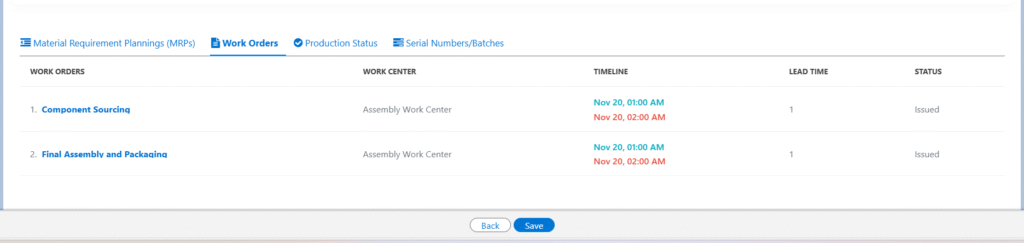
  • Enter the Start Date, End Date, Available Capacity and Planned Capacity.
  • Select the Plant, Shop Floor Warehouse and Company from the lookup.
  • Enter other details (if applicable) and click Save to create a work centre.

Field Description

FieldDescription
Work Center NameSpecifies the name of the work center and serves as its unique identifier
ActiveIndicates whether the work center is currently active and available for use
ChannelRepresents the business segment, department, or functional area in which the employee or work center operates
Start DateThe date on which the work center becomes active and operational
End DateThe date on which the work center is deactivated or discontinued
Is ManufacturingIndicates whether the work center is used for manufacturing or production-related activities
Is ServiceIndicates whether the work center is dedicated to service-related tasks, such as maintenance, repair, or support operations
PlantRefers to the physical facility or site where the work center is located
Available CapacityThe total workload or production capacity that the work center can handle
Planned CapacityThe portion of the available capacity that has been scheduled for planned operations or tasks
Maximum Capacity The Highest units the work center can produce
TypeDefines the work center Category/Type
Shop Floor WarehouseThe warehouse associated with the work center on the shop floor; specific storage locations and bins can also be assigned
CompanySpecifies the name of the company to which the work center belongs

Work Order

Work management involves creating, qualifying, dispatching, and executing requests for off-site work, called work orders. The steps and functions of the work order lifecycle work together to ensure that off-site issues are resolved in the most efficient manner possible. Users with the appropriate roles create the work orders and provide all the necessary information needed for the work order tasks. For the qualified, those work orders necessary tasks are created to complete the work order.

Creating a Work Order

In the work orders, one is able to view and edit the existing work orders, create new ones and also import a new document from the existing documentation. When creating a new work order, the following steps are followed:

A Work Order can be created in the following methods

  • From Work Order Tab (Record level)
  • From the Sales Order Tab (Converting sales order into work order)

Create work orders through a Work Order Tab

WO1
  1. Click on the Work Order tab as shown above. Once on the Work Order section, you are able to track the work orders already created and create new ones with the “New” button located on the top right corner of the work order page.
  2. Register a new work order name, the supplier of the work order along with the organisation’s name and details. Also include the details of the project, the date of approval and the lead time
  3. Other details of the budget are included covering the work order costs, along with the details of the related sales order and purchase orders.
  4. Since the work orders are used in the manufacturing or processing environments, there is a section with the details including, costs, the process, types of the process and planned and completion dates.
  5. The work order document also allows the description of the process that is being done.

For existing work orders, you have the ability to edit the details of the work order as the project goes on. The related tab that is next to the details of each work order allows that each record to be updated according to the progress of the project.

workorder_2

Creating Work order Line

The work order page includes the related page that contains the related tab with links to all documents that relate to a particular work order. The work order lines are the specific process that needs to be completed, for instance, the details of each item to be manufactured or assembled.

The works order lines would help a business in dividing the duties so that the deadlines set for completion of the work orders are met. This can be through dividing the items to departments that manufacture or assemble specific items.

New work order line items can be added to the list by clicking on the “new” button that is on the right end of the page. There are other documents in the page, which are related to the work orders open. The work orders are identified by their unique names. The records are all that relate to the work orders open. This enables the business to manage their projects smoothly so that they are successfully executed and closed.

Fields to note:

Information Section
FieldDescription
Work Order NameIt describes the name of the word order
WO SupplierIt describes the name of the supplier who supplies raw materials to complete the work order
SiteIt describes the manufacturing unit location
StatusIt defines the work order status – Completed, Issued or In progress
Ready For ShipmentIt indicates if the sales order is ready for shipping
CodeIt is a system generated unique number for every work order
BarcodeIt describes the barcode specific to the work order
Approved DateIt describes the approved date of the work order
ProjectIt describes the name of the project for which the work order is created
Lead TimeIt describes the expected time to complete the work order
OrganisationIt defines the name of the organisation/Account
Organisation Business UnitIt defines the Business Unit name of the Account/Organisation
Details Section
WO CostIt describes the complete work order cost
Sales OrderIt is the sales order related to the work order
Purchase OrderIt is the purchase order related to the work order
Manufacturing/Assembly Process
ProcessThe process by which the Work order products are manufactured
TypeIt defines the type of work order
Manufacturing/Assembly CostTotal cost for the manufacturing  of the product in the process
Planned DateIt is the date planned to start the work order process
Employee RequesterIt defines the employee name who requests the work order
Completion DateIt defines the completion date of the work order

Convert a sales order into a work order

  1. Click on the Sales Order tab as shown below
  1. Select the sales order that you would like to convert into work order and click on the down arrow in the top right-hand corner of the page and select ‘Create Work order’ as shown below.
workorder_4
  1. Fill in the work order detail section and the work order line items section,  new work order line items can also be added along with the existing line items using ‘Add New’ button.
WO2
  1. Click on ‘Save’ button which creates a new work order with a unique work order number.

The work order page offers an efficient method for the business to effectively manage the costs of a manufacturing process to ensure all orders are followed up to and addressed with simplicity. The work orders page also helps to make budgets of each project and the items required with minimum costs. For a supplier, receiving work orders also allows the organisation to understand the required items of each activity and how to deliver on each.

Service-Installations

Work Orders for Service/Installations

You can also create work orders for products that require service/installations manually by following these steps:

  • Navigate to the Maintenance app > Maintenance Schedule
  • Once in the Planner sub tab of Maintenance Schedule, you can track the capacity planning overview of the selected work center, a resource group or a resource.
  • To create a new work order, click the “+Work Order” button located on the top right corner.
  • Enter the Name of the work order and the Start and Expected Dates.
  • If the work order being created is associated with a sales order, select “Sales Order.”
  • Select the Product of type SST to maintain and select the type of work order
  • Enter the Quantity, the Production Version and the Routing.
  • Click the “Schedule Work Order” button to create the work order.

View and modify the process schedule

  • On the scheduler subtab of the Maintenance schedule, view the Gantt chart of work orders, work centers, and resources upon selecting the view.
  • To view the Gantt chart in various views like Time, Day, Week, Month and Year view, select the view options from the section above the Gantt chart.
  • To reschedule the work order associated to the individual operation, simply drag and drop it the available new date/time. The changes are reflected in the work order record.
  • To mark the percentage of progress of each work order, select the slider icon and drag it to display the progress.
  • To make further changes to the work orders, double-click the work order you will be presented with a job execution page
  • Click the work order, on the Job Execution, make the necessary changes and click the “Save” button.

Starting a work order

  • To carry out the work order click on the Builder subtab of the maintenance schedule tab.
  • Click the “Start” button to carry out the maintenance order.
  • Click the work order under each process cycle to carry out the job execution of each Action/Task associated with the work order.
  • Once in the Worksheet tab of Job Execution, you can track the Actions/Tasks that are already filled in and create a new Action/Task.
  • To carry out the Action/Task, select the action/task and click the “Start” button. Once the action/task has been started you can pause, finish and stop the Action/Task.
  • To create an action/task for a specific work order, click the “New” button.
  • To make further changes to the Action/Task select the down arrow on the right-hand side and click the “Edit” button.
  • Click the “Save” button after making necessary changes.
  • Click the “Previous” and “Next” button to view or start the Action/Tasks.
  • To view the drawings of the action/task click the Drawings tab.
  • The Time Tracking tab lets you track the time and duration of each Action/Task.
  • Click the Resources tab to allocate the resource for the selected Action/Task.

Getting started with Axolt Finance

Pre-Configuration :

  • The Axolt Base Package must be installed before installing the Logistics Package.
  • If the system throws an error while installing the packages, raise a case with Salesforce to increase the active filter lookup limit to 10 and the Rollup Summary field limit to 40.

Follow these steps to install the Axolt Base Package. Coming Soon…

Follow the steps below to install the Axolt Logistic Package: 

  • Navigate to the AppExchange and search for Results for Axolt Finance on Salesforce: Recivable, Payables, Budgeting, Expenses & OCR.
  • When the application appears, click on its Name.

On the application detail page, we have two options:

A. Get It Now – Clicking on Get It Now, you will have two options:
a. Log in with Trailblazer.me
b. Continue as Guest

B. Try It – Clicking on Try It, you will have the below option:
a. Try in your Sandbox

A. Get It Now – Install the package in a Production environment (including Developer Edition orgs).

a. Log in with Trailblazer.me

  • On the application detail page, click Get It Now and follow the prompts to begin the installation process.
  • After clicking Get It Now, you will be asked to select an option from the pop-up: Log in or Continue as Guest.
  • After clicking the Login button, it will navigate to the screen below.
  • Select the Salesforce Account in which you want to install the package. (Shows Salesforce Accounts that are linked to a Trailblazer Account and have the Manage Billing permission).
  • Once an account is selected, the Install in Production button will be enabled. Click on Install in Production.
  • You will then be taken to a confirmation screen. Review the details, select the checkboxes below, and click Confirm and Install.
  • After clicking Confirm and Install, you will be redirected to the Login Page.
  • Enter your Username and Password, then click Log In to proceed.
  • Once logged in, you will be directed to the package installation screen.
  • Enter the Installation Key (“Aqxolt55”), select Install for All Users, and click Install.
  • Once the package is successfully installed, users will receive a confirmation email.

b. Continue as Guest

  • After clicking Continue as Guest, you will be asked to create an account to install the package.
  • Click Start Free Trial, and you will be navigated to the sign-up page. Create an account and continue to install. 

B. Try It – Install the package in a Sandbox environment.

  • Navigate to the AppExchange and search for Axolt Finance on Salesforce: Recivable, Payables, Budgeting, Expenses & OCR.
  • On the application detail page, click Try It and follow the prompts to begin the installation process.
  • After clicking Try It, you will be redirected to the screen below.

a. Try in your Sandbox 

  • Select Try in your Sandbox and fill in the required details.
  • After filling in the required details, select the checkbox below (if required and) click the Continue to Installation button.
  • After clicking Continue to Installation, the below screen appears.
  • Click on Log In & Install, and you will be taken to the login page.
  • Enter your Username and Password, then click Log In to proceed.
  • Once logged in, you will be directed to the package installation screen.
  • Enter the Installation Key (“Aqxolt55”), select Install for All Users, and click Install.
  • Once the package is successfully installed, users will receive a confirmation email.

Accounts Payable

Accounts Payable (AP) refers to the amount of money a company owes to its suppliers or vendors for goods or services received but not yet paid for. It is recorded as a liability on the company’s balance sheet and represents short-term debt that must be settled within a specific period, usually under agreed payment terms. 
Navigate to the Accounts Payable tab using the App Launcher or find the tab in the App Navigation menu. 

Vendor Tab 

  • The Vendor tab displays a list of all vendors. 
  • Vendors can be filtered based on selected Companies, and a new vendor can be created by clicking the +New Vendor button.
  • Vendors can be searched by vendor Nameand Account Number using the Search bar. 
  • We can create new Purchase Order, new Bill, new Debit Note by clicking on the drop-down of the particular vendor. 
  • Vendor’s Account Statement can be viewed by clicking the drop-down list next to the vendor. 
  • Vendors can be sorted using Sort functionality. 
  • Selecting a particular vendor, and navigating to the purchase order tab, will only display Purchase Orders related to that vendor. 

Purchase Order Tab  

  • Under the Purchase Order tab, users can search for Purchase Orders by purchase order Number or Vendor. 
  • Purchase orders can be filtered based on selected Companies.
  • Purchase Orders can be sorted using Sorting functionality.
  • Purchase orders can be edited by using Edit Purchase Order option from the drop-down menu of the specific purchase order.
  • A new Purchase Order can also be created from the Purchase Order section using the + New Purchase Order button.
  • A new Bill can also be created from the Purchase Order section, select the particular purchase order and choose the New Bill option from the dropdown. 
  • The Purchase Order is auto populated, enter the Vendor Bill Number and upload the Attachment. You can also add more products to the same bill by clicking the Add button or delete them using the Delete button. 
  • On the product line item, add Taxes and a Description if required, select the Chart of Account to capture the amount paid. 
  • Enter other option details if required and click on Save. 

Note 1: When a bill is created from the PO section, the user is automatically redirected to the Bills section.  

Note 2: A single Bill can be created for multiple Purchase Orders from the PO section, if the vendor is the same, by selecting multiple POs and clicking the + New Bill button; available button at the top right corner of the page.  

Once the PO Bill is created, the Bill details need to be matched with the Received Items.  
The steps for the Match Bill functionality are mentioned below in the Bill section. 

Bills Tab 

  • Under the Bills tab, users can Search for bills by Bill Number, Purchase Order or Vendor. 
  • Bills can be filtered based on selected Companies. 
  • Bills can be sorted using Sort functionality. 
  • Bills can also be filtered by Bill Due Date using the Overdue Bills option. 
  • A new bill can be created by clicking on + New Bill button at the top right corner of the page. 

There are three types of bills: 

A. PO Bill: A bill is created against a purchase order for goods or services received. 
To create a PO bill from the Bill section, the user needs to select the correct Purchase Order from the Lookup on the Create Bill page. Refer to the steps mentioned above. 
B. Expense Bill: A bill recorded for business expenses. 
C. Advance to Vendor Bill: A bill representing an advance payment made to a vendor before goods or services are delivered. 

Follow the Steps to create an Expense Bill:  

  • A pop-up screen will appear, select the Expense Bill option. 
  • After selecting the Expense Bill option, you will be directed to the Create Bill page. 
  • From the Look up, select Vendor, Vendor Contact, Vendor Address, Vendor Bill Number and other details. 
  • Click on the New button to add the expense line items to the bill.
  • Select the Expense Account, Quantity, Amount, Discount (if applicable), Tax (if applicable) and other details.
  • Click on Save. 

Note 3: Expense Bill cannot be matched.  

Follow the Steps to create an Advance Bill: 

  • From Bill section click the + New Bill button from the top-right corner. 
  • A pop-up screen will appear, select the Advance to Vendor option. 
  • After selecting the Advance to Vendor option, you will be directed to the Create Bill page. 
  • Select the Purchase Order from the look-up, and all the other details will be auto-populated along with line items. 
  • Enter the Advance Amount to be paid in Amount field. 
  • Click the Save button. 

Note 4: From this point, the process to create a Voucher and make the payment remains the same. 

Note 5: The Advance to Vendor bill cannot be Posted. 

Follow the below steps to match the PO bills

  • Select the Purchase Order and click on the Bill section. Then select the bill to match and click the Match Bill button at the top right. 

Note 6: It will only allow matching the bill when the items have already been Received in the inventory. 

  • On the Match Bill page, select the Bill line items one by one and select its corresponding Stock Inward line items.  
  • Click the Save button. 
  • Now post the bill by selecting the Post option from the dropdown next to that bill. 

Note 7: Posting a bill creates a Transaction and Ledger Entries against the bill. 

  • When the bill is posted, the New Voucher option appears in dropdown.  
  • Click New Voucher to create a voucher. 
  • Click the Save button to create the voucher. 

Voucher Section 

  • Under the Voucher tab, users can search for vouchers by voucher number, Purchase order, or vendor. 
  • Vouchers can be filtered based on the selected organization. 
  • Voucher can be edited by clicking on Edit Voucher button next to the voucher. 
  • If the voucher is created from bill section, we can Approve/Un-Approve the voucher by clicking on the Approve/Un-Approved button from the drop down. 

Note 8: Once the Voucher is created, we cannot make the payment against the voucher until its Approved. 

  • Once the Voucher is approved, we can make payment by clicking the drop down button against the voucher. 
  • On the payment screen, select the Payment Date, Reference Number, Payment Account, and enter the Amount Paid. 

Screenshot…

  • Select a Payment Method, then click Save. Now, your payment is complete. 

Note 9: Debit Notes can also be used/applied to make payment if available.

Payments Tab 

  • Under the Payments tab, users can search for payments by Payment Number, Bill Number, Purchase Order, or Vendor. 
  • Payments can be filtered based on the selected Companies. 
  • Payments can be made from voucher section as mentioned above. 
  • Payments can be edited by clicking on Edit Payment button against the payment. 
  • We can Post/Un-Post the payment by clicking on the Post/Un-Post button from the drop down. 

Debit Notes Tab: 

  • The Debit Notes tab displays a list of all Debit Notes. 
  • Under the Debit Notes tab, users can search for a debit note by its name. 
  • Debit Notes can be filtered based on the selected Companies. 
  • Debit Notes can be created directly from the Debit Notes tab by clicking the + New Debit Note button, or from the Vendor tab by clicking the drop-down next to the Vendor. 

Follow the steps to create a new Debit Note: 

  • Navigate to the debit note section. 
  • Click on the + New Debit Note button; it will navigate to debit note creation screen. 
  • Select the Bill from the look-up for which you want to create a debit note for, selecting a bill other detail will be populated. 
  • Enter the Debit Note Number and upload the Attachment. 
  • Click on Save. 

Note 10: A Debit Note can be used to adjust the amount payable to a supplier when making a Payment. 

Note 11: When a debit note is applied, the amount will be reflected in the Debit Note Applied Amount field on the payment record.
Note 12: Additionally, a Debit Applied on Voucher record will be created, containing the Amount along with the Debit Note and Voucher details.

Accounts Receivable

Accounts Receivable refers to the outstanding amount a company is entitled to receive from its customers for products sold or services rendered on credit. It represents a legal obligation for the customer to pay and is recorded as a current asset on the company’s balance sheet.

  • Navigate to the Accounts Payable tab using the App Launcher or find the tab in the app navigation menu.

Customer Tab

  • The Customer tab displays a list of all Customers.
  • Customers can be filtered based on selected Companies, and a new customer can be created by clicking the + New Customer button.
  • Customers can be Searched by customer name and account number.
  • Customers can be sorted using Sort functionality.
  • A new Credit Note and Invoice can be created, and also, the customer’s Account Statement can be viewed by clicking the drop-down list next to the customer.
  • Selecting Customer and clicking on Invoice tab, will display list of Invoices related to customer.

Invoices Tab

  • Under the Invoices tab, users can Search for Invoices by Invoice Number, Order Number, or Customer.
  • Invoices can be filtered based on the selected Companies.
  • Invoices can be sorted using Sort functionality.
  • Invoice can also be filtered by selecting options such as Overdue Invoice or All Invoice from the Invoice Due drop-down.
  • An invoice can also be created directly from the Invoice tab by clicking the + New Invoice button in the top-right corner of the screen. 

Note 1: In Accounts Receivable; invoices can be created from Customer and Invoice section.

    Refer to the link below for information about invoices and their types.

  • Select the created invoice. Click the dropdown next to the invoice and select Post/Un-Post.
  • Posting the invoice creates the Transaction and Ledger Entries at the record level.
  • Un-posting the invoice will delete the related Transactions and Ledger Entries.
  • Once the invoice is posted, click the drop-down and click on the Record Payments option.
  • The Received From (Customer), Customer Balance along with other details will be auto populated.
  • Enter the Payment Amount, select the Payment Account, enter the Reference Number, and Bank Charges (if applicable). (The Bank Fees Account needs to be selected if Bank Charges are added.)
  • Select the Payment Mode (Cheque, Cash, Wire Transfer, E-Transfer, Direct Payment, Credit Card, Card(any)), then click Save or Save and Post.
  • Clicking Save records the payment, but it will need to be Posted manually. 

Payment Can be done using the Card(Debit, Credit etc..) as well.

Payment Using Cards:

  • The Received From (Customer), Customer Balance along with other details will be auto populated after navigating Record Payment screen.
  • Enter the Payment Amount, select the Payment Account, enter the Reference Number, and Bank Charges (if applicable). (The Bank Fees Account needs to be selected if Bank Charges are added.)
  • Select Card Payment Modes Click on Card Payment button available at the bottom of the page.
  • In the Card payment screen, Select the Payment Gateway (Authorize.Net, Stripe). Enter Card Holder Name, select Card Type, Card Number, CVV, Expiry Month, Expiry Year. Billing Address details will be populated.

Authorize.Net

Stripe

  • Click on Pay Now, your card payment is complete. Users can find the Transaction ID at the Payment record level.

Payments Tab 

  • The Payments tab displays a list of all payments.
  • Under the Payments tab, users can search for payments by Payment Number, Invoice Number, Order Number, or Customer.
  • Payments can be filtered based on the selected organization.
  • Payments can be sorted using Sort functionality.
  • Payments can be created directly from the Payments tab by clicking the + New Payment button, or from the Invoices tab by clicking the drop-down next to the invoice, as mentioned above.
  • Once the payment is created but not Posted. Click the drop-down next to the payment and click on Post.
  • Posting the payment creates the Transaction and Ledger Entries related to the payment.
  • Un-posting the payment deletes the associated Transactions and Ledger Entries.

Credit Notes Tab 

  • The Credit Notes tab displays a list of all credit notes.
  • Under the Credit Notes tab, users can search for a credit note by its name.
  • Credit Notes can be filtered based on the selected organization.

Note 1: Credit Notes can be created directly from the Credit Notes tab by clicking the + New Credit Note button, or from the Customer tab by clicking the drop-down next to the Customer, as mentioned above.

Follow the steps to create a new credit note:

  • Navigate to the Credit Notes tab and click on + New Credit Note button.
  • Select the Invoice from the look-up and other details such as Order, Customer and Order Line Items will be auto populated.
  • Enter the Reference Number and upload the attachment.
  • Click on Save.

Note 2: A credit note is issued to adjust or refund an Invoice when goods are returned, overcharged, or services are cancelled. It can later be applied toward payments for new invoices.

Invoice and Its Types

Invoices

An invoice is a formal document issued by a seller to a buyer, requesting payment for goods or services provided. It typically includes details such as the invoice number, date, item descriptions, prices, taxes, and total amount due. Invoices play a crucial role in tracking sales, managing cash flow, and maintaining accurate financial records. They also serve as legal proof of a transaction between the buyer and seller.


In our Axolt system, there are three different types of invoices:

A. Advance
B. Sales
C. Schedule

A. Advance Invoice

An advance invoice is a bill sent to a customer before goods or services are delivered, requesting payment in advance. It helps secure funds upfront for future work or delivery.

Steps to Create an Advance Invoice

  • Navigate to the Accounts Receivable tab using the App Launcher or find the tab in the App Navigation menu.

Note 1: An advance invoice can be created from Accounts Receivable or from the Invoice related list of an order.

  • Click on the + New Invoice button and, from the pop-up screen, select the Advance option.
  • It will be navigated to the Advance Invoice creation page.
  • From the Order lookup, select the Order. Other details like Customer Account, Company, Invoice Date, Invoice Due Date Payment Terms if applicable and Order Line Items will be auto populated.
  • Select the line item and enter the Down Payment Percentage or Down Payment Amount.
  • Click on Save.

Note 2: Advance invoice cannot be Posted. The Payment record created against the advance invoice can be posted.

Note 3: In order to make the remaining payment, we can either create a Sales invoice or a Schedule Invoice.

Steps to Make Payment for an Advance Invoice 

  • From the Invoices tab, click on the drop-down of the advance invoice and select Record Payment.
  • Clicking on Record Payment will navigate to the payment creation page.
  • Received From, Customer Balance, and Available Credits fields will be auto populated.
  • Enter the Payment Amount and Reference Number and select the Payment Account from the lookup.
  • Select the line item and click on Save or Save and Post.

Note 3: Clicking on Save will save the Payment, and you have to manually post the payment for ledger entries to be created.
Note 4: Clicking on Save and Post will create the Transaction and its Ledger Entries automatically.

B. Sales Invoice: 

A sales invoice is a formal document issued by a seller to a buyer detailing the goods or services provided, their quantities, prices, and total amount due.

It serves as an official record of the transaction and a request for payment.

Note 5: A Sales Invoice can be created for the full amount, or if an Advance Amount has been Paid, a Sales Invoice can be created for the remaining amount.

Steps to Create a Sales Invoice

  • Navigate to the Accounts Receivable tab using the App Launcher or find the tab in the App Navigation menu.

Note 6: A sales invoice can be created from Accounts Receivable tab, from the Invoice related list of an Order, or by checking the Issue Invoice checkbox from the EPOS screen and also from Order record level.

  • Click on the New Invoice button and from the pop-up screen, select the Sales option.
  • It will be navigated to the Sales Invoice creation page.
  • From the Order lookup, select the Order. Other details like Customer Account, Company, Invoice Date, Invoice Due Date Payment Terms if applicable and Order Line Items will be auto populated.

Note 7: If the invoice is created for the remaining amount of the order, the Advance Amount Applied field will be populated.

  • Select the Line Item and click on Save.
  • Click on the dropdown of the invoice and select the Post button.

Note 8: Posting the invoice will create the transactions and its ledger entries against the invoice.

  • Once the invoice is posted, the Record Payment option appears in the dropdown.
  • Clicking on the Record Payment option from the dropdown will navigate you to the Payment creation screen.
  • Enter the Payment Amount and Reference Number and select the Payment Account from the lookup.
  • Select the Payment Mode such as Cash, Cheque, Direct payment, Card etc.
  • Click on Save or Save and Post.

Note 9: Clicking on Save will save the Payment, and we have to manually post the payment for Transaction and Its ledger entries.
Note 10: Clicking on Save and Post will create the Transactions and its Ledger Entries automatically.

C. Schedule Invoice 

A schedule invoice is a type of invoice generated for recurring or installment-based payments, allowing the total amount of an order to be billed in multiple scheduled parts over a period of time.

Steps to Create a Schedule Invoice 

  • Navigate to the Accounts Receivable tab using the App Launcher or find the tab in the App Navigation menu.

Note 11: A schedule invoice can be created from Accounts Receivable tab or from the Invoice related list of an order.

  • Click on the + New Invoice button and from the pop-up screen, select the Schedule option.
  • It will be navigated to the Schedule Invoice creation page.
  • From the Order lookup, select the Order. Other details like Customer Account, Company, Invoice Date, Invoice Due Date, Payment Terms (if applicable) and Order line items will be auto populated.
  • Enter the Invoice Amount Percentage.

Note 12: In a schedule invoice, you can enter the percentage of the total order amount to be invoiced at a stage. For example, if you enter 50%, the invoice will be for half of the total amount. Later, another invoice can be created for the remaining 50%, or the full remaining amount can be paid at once.

  • Click on Save.

Note 13: If an advance invoice is created and paid, the amount will be reflected in the Paid Amount Applied field based on the schedule invoice percentage.

  • Click on the dropdown of the invoice and select the Post button.

Note 14: Posting the invoice will create the Transaction and its Ledger Entries against the invoice. 

  • Once the invoice is posted, the Record Payment option appears in the dropdown.
  • Clicking on the Record Payment option from the drop-down will navigate you to the Payment Creation screen.
  • Enter the Payment Amount and Reference Number and select the Payment Account from the lookup.
  • Select the Payment Mode such as Cash, Cheque, Direct Payment, Card etc.
  • Click on Save or Save and Post.

Note 15: Clicking on Save will save the payment, and we have to manually post the payment for ledger entries to be created.
Note 16: Clicking on Save and Post will create the ledger entries automatically.

Balance Sheet

The balance sheet is one of the core financial statements used by accountants. A financial statement that summarises a company’s assets, liabilities, and shareholder’s equity at a given point in time. It gives owners an idea as to what the company owns and owes.

To access the Balance sheet, navigate to the Financial Management module and click the Balance sheet tab.

The report generated is based on the current fiscal year. This will display amounts till the presently posted transaction.

You can use the filters and calendar tool to drill down the balance sheet and know the company’s financial position at any point in time or as opposed to a given period. The balance sheet is divided into two columns, one is for assets and the other is for liabilities and stockholders’ equity. Fundamentally, the balance sheet must balance the total amount of assets with the total amount of liabilities and stockholders’ equity.


The balance sheet is auto-calculated using the latest data from the company’s accounts, which means the balance sheet is created in real-time. With Aqxolt ERP’s balance sheet, you don’t have to be a professional to do manual calculations. Whenever a transaction record is created, all the calculations and finance general entries are created automatically, eliminating errors in the balance sheet.


View the data that matters to you by using the filters provided to you. You can import the balance sheet for the selected organization and duration in PDF/Excel format by clicking the “Download PDF / Download Excel” buttons. To make good decisions by comparing financial data, click “Compare Financial Data”. Compare the data of your interest by using filter criteria and viewing the chart data annually, quarterly and monthly. View and download the tabular data by clicking “Download PDF/ Download Excel” for the financial year.

Let’s drill down the balance sheet closely. Depending on the nature of the business, the asset side of the balance sheet may contain many items, some of the examples includes Cash, Inventory, Accounts, receivable, Checking etc.,

The basic equation of the balance sheet states that the liability and the owner’s equity of a business are equal to the total sum of its assets.

Assets = Liabilities + Owner Equity

The other side of the balance sheet displays liabilities and stockholders’ equity. Liabilities are obligations and debt payable to the other entity. Some of the examples of liabilities include Sales tax, Accounts payable, Sales tax payable, Goods received not invoiced, etc.,

Equity is the value of a company’s capital. The basic equation of assets can be used to calculate the owners’ equity

Owners’ Equity = Liabilities – Assets

If the equation returns a negative value then it is dangerous to the growth of your business and difficult to secure the finance of the company. Some of the examples of equity include Retained earnings, Owners’ equity, Remuneration, etc.,

Let’s illustrate an example to understand the balance sheet. One of the customers in Universal stores purchases a Phone and its selling price is $1200 and the cost price is $900. The system generates a sales order for the customer with the invoice amount of $1200. The profit made by the Universal store is calculated using the following equation.

Profit = Selling Price – Cost Price

Therefore, the profit made by Universal Store is $300.

The sales order summary is illustrated in the table below

Sales order SO-xxxxCustomer: Serah
QtyUnit PriceTotal Price
112001200
   
 Tax (20%)240
 Sub Total1440
 Discount (10%)144
 Total Amount1296


The payments on the balance sheet are recorded only when the invoice is posted.

When we make a sale, and Post the Invoice
Chart of AccountCreditDebit
Sales1200 
Accounts Receivable 1296
Sales Tax Payable240 
Sales Discount 144
 14401440
Balance After Sale
Sales1200
Accounts Receivable(Mckinsey)1296
Sales Tax Payable240
Sales Discount144

Customer Serah makes the payment against the Invoice

Serah Pays to InvoiceAmount
Invoice Amount1296
Cash Payment1296
Sales Order StatusPaid
Sales Order StageShipped
When a customer makes payment (Cash) to Invoice
Chart of AccountCreditDebit
Accounts Receivable (Serah)1296 
Cash 1296 
Balance After Customer Payment Against Invoice
Sales1200
Accounts Receivable (Serah)0
Sales Tax Payable240
Sales Discount144
Cash1296

Let’s illustrate an example to understand the balance sheet when sales return happens. Serah the customer of Universal Stores would like to return one of the items from the sales order purchased by her. The system generates a Return Merchandise Authorisation for the customer and the net sales are calculated by the following formula.

Net Sales Formulae = Sales – (Sales Return + Sales Discount)

When a sale Return
Chart of AccountCreditDebit
Sales Return 1200
Sales Discount144 
Cash1296 
Sales Tax Payable 240
 14401440
Balance After Sales Return
Sales1200
Accounts Receivable (Serah)0
Sales Tax Payable0
Sales Discount0
Cash0
Sales Return1200

Similarly, let’s illustrate an example understand the balance sheet when Universal stores purchase an item. Aqxolt ERP helps in the accounting of vendor invoices that the vendor bills towards the order. When the user raises the Purchase order to purchase item A and item B, the system creates a voucher against the purchase order. Every time a voucher is posted a general ledger entry is created in the system reflecting the credit and debit balance of the chart of accounts created for purchases.

Inventory
Product NameSerial NoCost Price Selling PriceProfit(SP-CP)Available StockStock Inward
Item A2345-5436-235678000900001200022
Item B2345-5436-2378880001000001200022
After Voucher is Posted the Following Ledger Entries Will be Created
COACreditDebit
Purchase 332000
Accounts Payable332000 
Inventory Accounting
COABalance
Inventory332000
Accounts payable332000
Accounts Receivable0
Sales0
Purchase0
Sales Return0
Sales Tax0
After Stock In Ward (Item A (2345-5436-2356)) is Posted The Following Ledger Entries Will be Created
COACredit Debit
Inventory 156000
Purchase156000 
After Stock In Ward (Item B (2345-5436-2378)) is Posted The Following Ledger Entries Will be Created
COACredit Debit
Inventory 176000
Purchase176000 

When a Universal store returns an item purchased the system creates a transaction entry for the return purchase order and the following chart of accounts are affected.

The Following Ledger Entries Will be Created If Not paid
COACreditDebit
Accounts payable088000
Inventory880000
The Following Ledger Entries Will be Created If Paid with Cash
COACreditDebit
Cash88000 
PurchaseReturn 88000

Income Statement

The profitability of a company for a specified period of time is shown on an Income statement. The business can choose the time period the statement covers. It is an organization’s ability to record net profit or loss over a specific accounting period. The income statement provides an overview of the organization’s sales and net income. Aqxolt ERP covers both the operating and non-operating portions of the income statement. The operating part of the income statement discloses records about expenses and revenue that are directly associated with regular business operations, whereas the non-operating part of the income statement discloses records of expenses and revenue that are not directly associated with regular business operations.

The income statement is important because investors can use it to analyze the profitability of the organization. It plays a significant role in making decisions about whether to invest in the organization.

View/Download an Income Statement

  • Navigate to the Finance Management app > Income Statement tab.
  • Once in the Income Statement tab, you can track/view the organisation’s revenue and expenses for the current fiscal year.
  • The user can use the date filter to view the income statement for a specific period of time to fetch the revenue and expense details for the specific period of time.
  • Aqxolt ERP allows users to download the income statement in a PDF/Excel format simply by clicking the “Download Excel/ Download PDF” button.

Aqxolt ERP allows the user to use the income statement for comparison. It is used to compare fiscal year data and fiscal quarter data. It typically allows users to compare the present year with two years of historical data.

  • On the Income Statement tab, click the “Compare Income Statement” sub tab.
  • To compare the data, from the filter select the fiscal year or fiscal quarter options and the date.
  • The system will display the tabular data for the selected filter criteria.
  • To download the tabular comparison data, click the “Download PDF” button.

Aqxolt ERP provides the user with accurate chart data based on the selected filter criteria. Click on the links on the right-hand side next to the chart to view the chart data Annually, Quarterly and Monthly.

Bank Reconciliation

Generally, every organisation operates its finances with at least one bank account. An organisation can have one or more bank accounts operating on multiple currencies. An organisation makes daily, weekly or monthly deposits depending on the nature of the business. The deposits could be in the form of cheques, cash or credit/debit card receipts. Aqxolt ERP’s Bank Reconciliation ensures that payments of any form are processed and deposited in the bank.

Reconciliation of Bank Records:

  • Navigate to the Finance Management app > Bank Reconciliation
  • Enter the Reconciliation Name for identification.
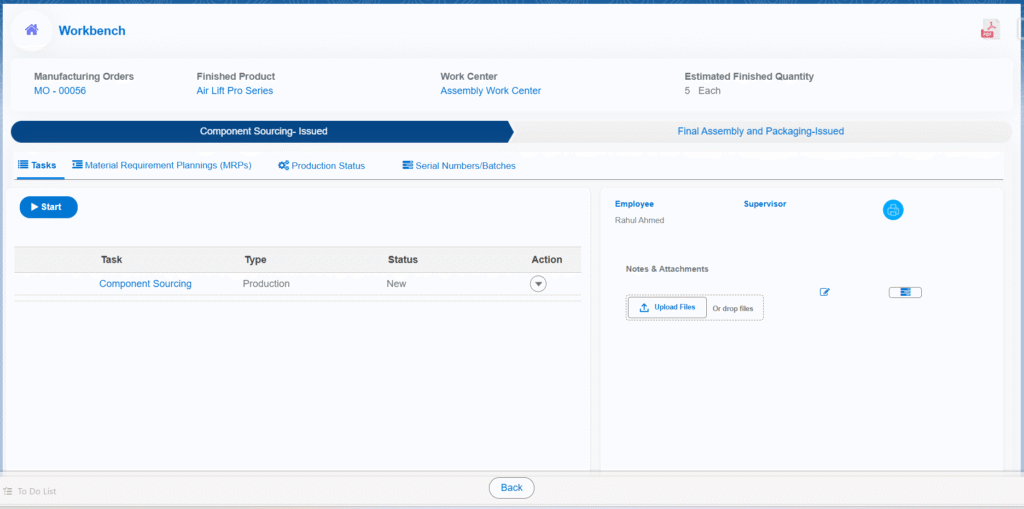
  • Select the organisation and the bank account associated with the organisation.
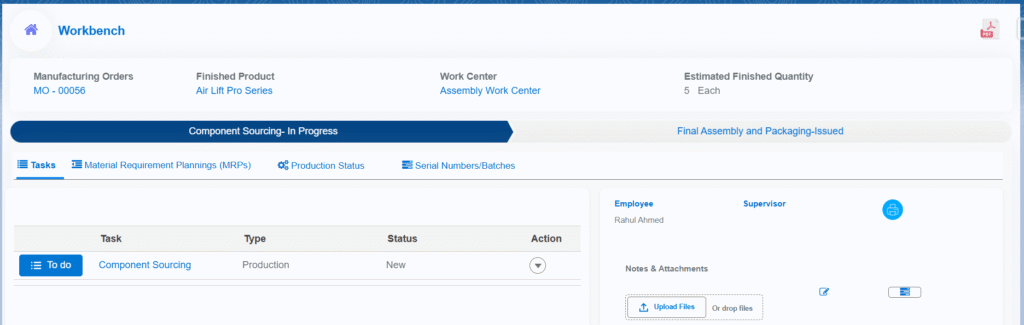
  • Enter the start and end dates for reconciling the journal entries of the specified period.
  • Click the “Save” button to create a bank reconciliation for the organisation.
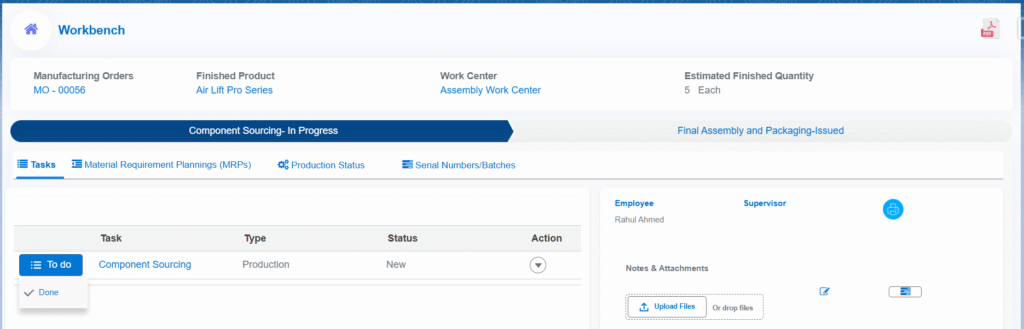
  • Download the bank statement template.
  • Click the “Import Bank Statement” button and select the bank statement to reconcile. (Note that the bank statement should be in .csv format.) The bank statement entries will appear in the section below.
  • Click the “Reconcile” tab to begin the bank reconciliation for the specified period.
  • Click the bank statement entry on the left-hand side and find its match on the right-hand-side transactions section.
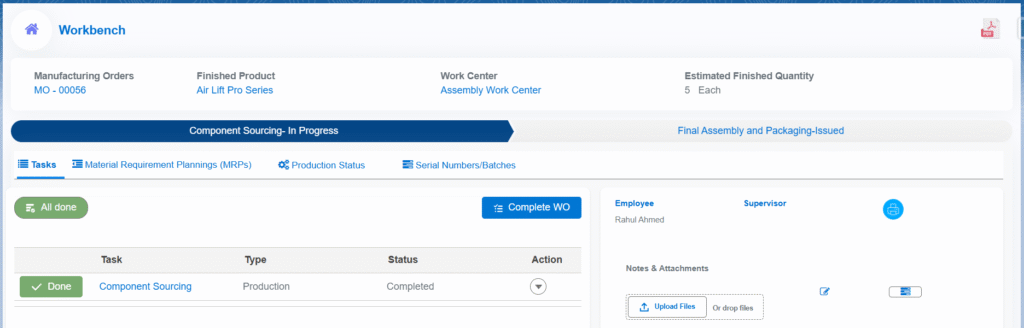
  • Click one or more transactions for each bank statement entry and click the “Reconcile” button.
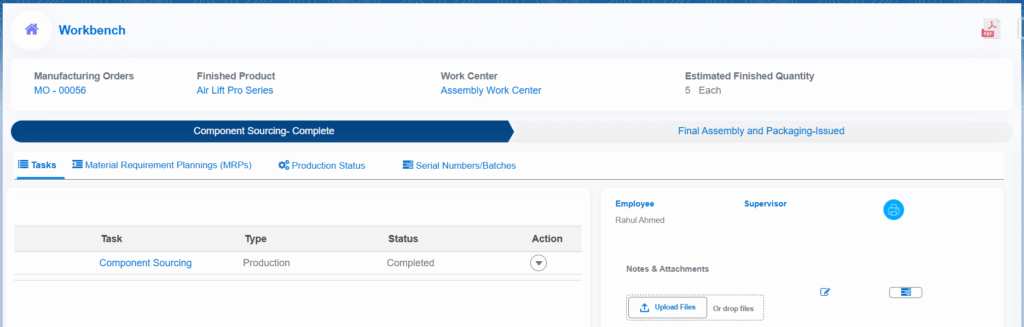
  • To find and match the transactions, click on the “Find & Match” tab in the transactions section on the right-hand side.
  • Search the transactions by entering at least two characters of the transaction name or reference number. Also, you can search by entering the amount. Click the “Go” button to find the match.
  • To create the transaction, click the “Create” tab and select the payment type. Enter the category and amount, then click the “Reconcile” button.
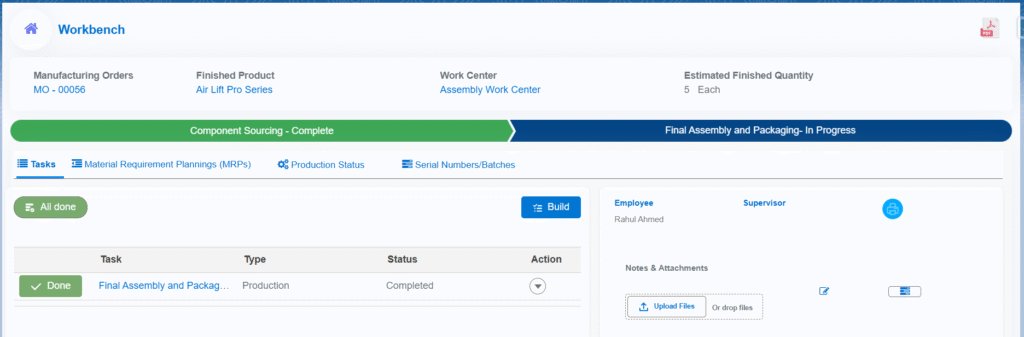
  • To undo the reconcile, click the “Undo Reconcile” tab. Then click the undo button under the “Actions” section.
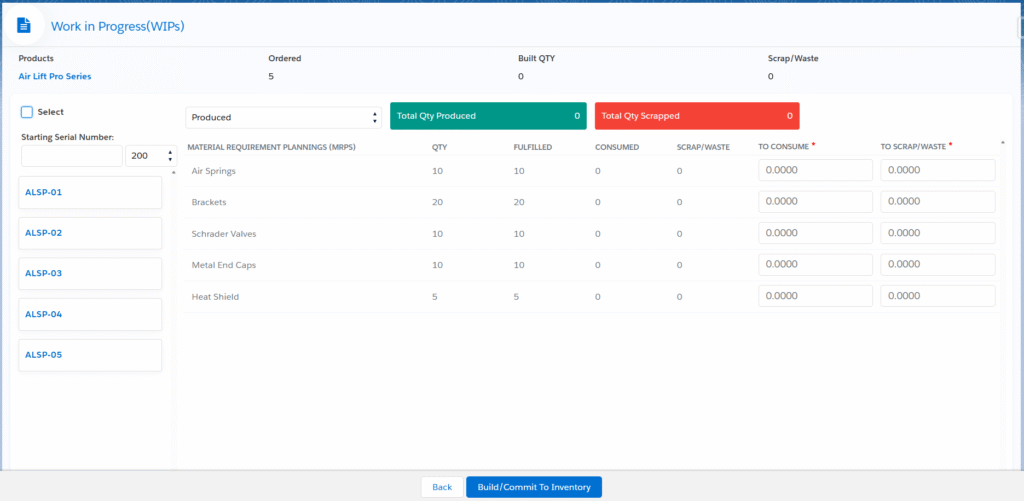
Trial Balance

The trial balance helps ensure that the total amount of debits is equal to the total amount of credits. The trial balance shows, for the given organization and general ledger, the account balance as of a selected date, the total sum of debits, and the total sum of credits as of the selected date. At the end of the trial balance report, the total sum of debits must equal the total sum of credits.

Use the Filters section to view the trial balance for the selected organization and the selected dated specification. Select the organization for which the trial balance is required; the trial balance post transactions of the finance general ledgers inherited by the selected organization. Select the “From” date when the total balance will be considered. Select the “To” date when the total balance will be calculated. The system offers an option to download the trial balance for the selected criteria in PDF/Excel format on your local system; click the “Download Excel/ Download PDF” button.

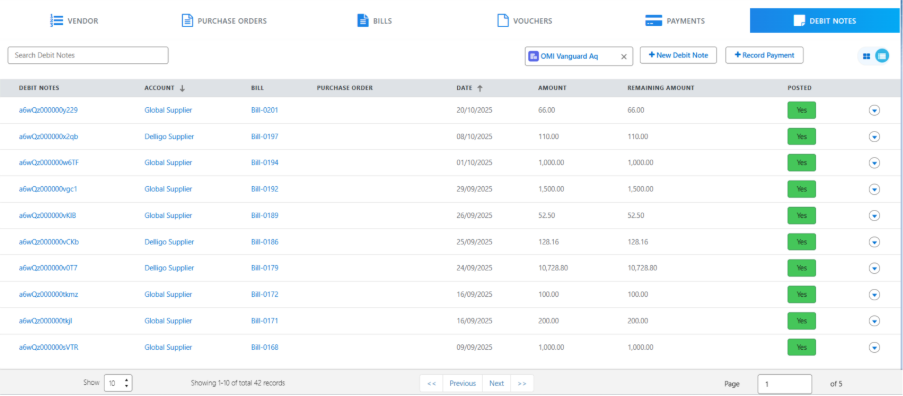
Budget Planner

A Budget Planner is a tool that helps users or businesses organize and manage their financial resources efficiently. It allows the creation and management of different types of budget plans based on specific projects or goals.

Key Features of Budget Planner:

  • Centralized Management: All financial planning happens within Salesforce, allowing budgets to be linked directly to projects, departments, or customers.
  • Flexibility: The planner supports three different types of budget plans, allowing diverse project management needs.
  • Tracking & Forecasting: Users can track expenses and adjust budgets accordingly as projects progress.
  • Real-Time Visibility: Since it’s integrated with Salesforce, users receive up-to-date insights into financial health and project status.

Types of Budget Plans:

A. Cost Budget:

  • A Cost Budget allows you to create budget plans with an initial budget for projects. This type of budget can be adjusted later as needed. 
  • Ideal for projects where the primary concern is controlling costs.
  • You define an overall cost limit, and the planner tracks expenses against this. It helps ensure that spending does not exceed a set limit.
  • Useful for internal projects or when managing fixed costs like overhead, salaries, and fixed resources.

B. Time and Material Budget:

  • Like the cost budget, but here the budget is allocated for both materials and time-based work, allowing for flexible tracking of resources and labour. 
  • Suitable for projects where costs are directly tied to hours worked and materials used.
  • The budget is calculated based on time (labour hours) and materials consumed during the project. It allows for flexibility, adjusting based on work done.
  • Ideal for service projects, consulting work, or construction, where time and resources fluctuate.

C. Fixed Budget:

  • It is like the cost budget plan, but once the budget is set, it cannot be changed. 
  • Best for projects with a set budget and deliverables.
  • The budget is fixed, and the project must be completed within this financial limit. Any adjustments to the scope may require re-negotiation.
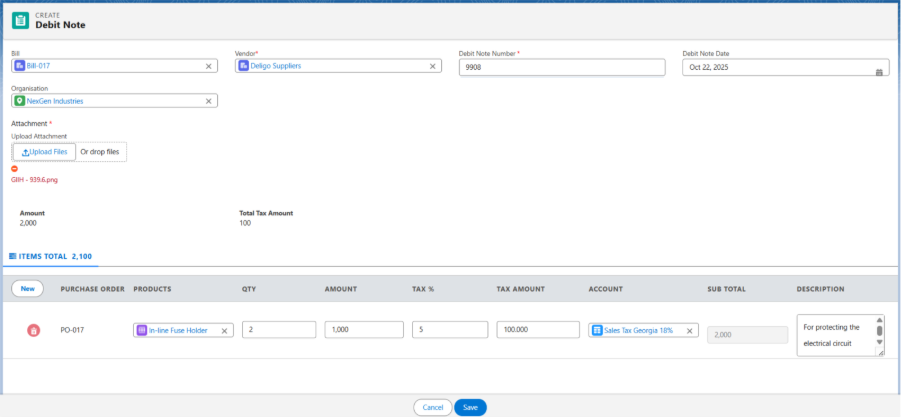
  • Often used for client projects with a clear start and end, like software development or a marketing campaign.

Note 1: The budget is allocated for the projects from the Project workbench.  

Steps to Create a new Project from Project Workbench: 

  • Navigate to the Project Workbench tab using the App Launcher or find the tab in the App Navigation menu.
  • Click on the + Project button. This will navigate you to a project creation page.
  • Enter the required details, such as the project Name, Manager, Start Date, End Date, Company, Status, Account, Contact, Team and Description.
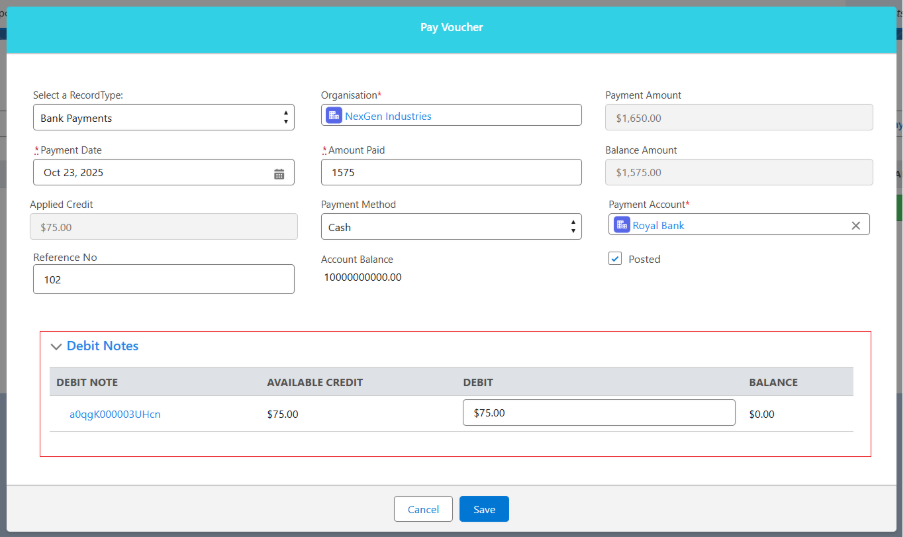
  • Click on the Save button will be renavigated to project workbench.

Note 2: budget can be allocated for the created project from the Project Workbench by using the Allocate Budget button. 
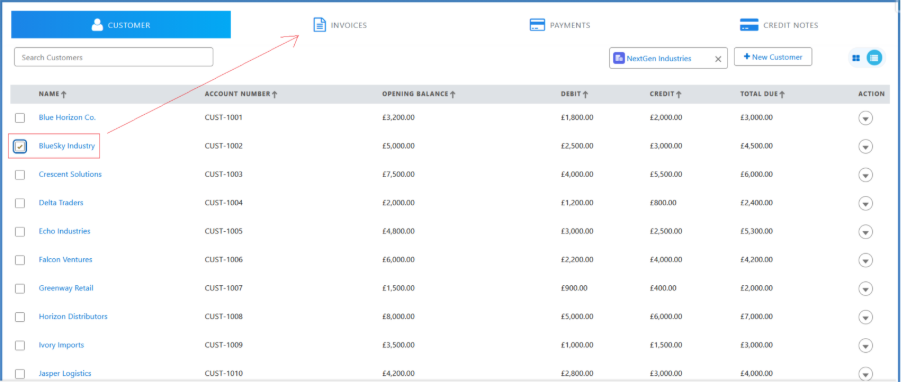
Budget Plan Creation Process:

A. Cost Budget Plan: 

  • Navigate to the Budget tab using the App Launcher or find the tab in the app navigation menu.
  • To create a New Budget Plan, click + Budget Plan, select the Budget Type (Cost Budget), and you’ll be navigated to the Budget Allocation page. Select Year and Company.
  • In the budget configuration, you can set a Threshold Limit. By default, this is set to 90%, meaning you will be notified when 90% of your budget is consumed.
  • Select the Periodicity of the budget (Monthly, Quarterly, or Yearly). By default, it is set to Monthly, meaning the budget applies to the current Month.
  • If quarterly is selected, you will be asked to enter the Budget Amount for 4 quarters.
  • If yearly is selected, you will need to enter the Budget Amount for all 12 months.
  • Choose between Posted Actual Expenditure or No Posted Actual Expenditure. If you select Posted Actual Expenditure, expenses will be reflected in the journal during billing.
  • In the project look-up, choose the Project for which the Budget is being set.
  • Select the budget Sub-Category, which will auto-populate related Account details.

Note 3: Budget Sub-Categories come from the Chart of Accounts tab. You can either select an existing sub-category or navigate there to create a new one if necessary.

Note 4: To make the chart of account available in budget category then, In the chart of account Available for budgeting Process checkbox should be checked.

  • Enter the Budget Amount for the selected sub-category. 
  • If needed, click the New button to allocate the budget for additional Sub-Categories. 
  • Click Save to save the cost Budget Plan. 
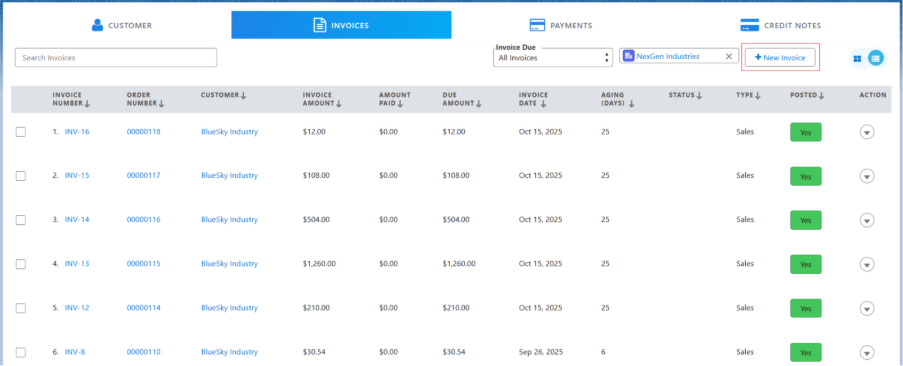
  • The budget plan will be saved for the selected company. You can find it using the search bar or by filtering by Company. Click on the name of the budget plan to edit or modify it.

  • The newly created budget plan will be saved as Draft. You can Edit or Delete it at this stage. 
  • To approve the budget plan, click the drop-down and then select Submit for Approval option, then status will be changed to Submit for Approval.

Note 5: When a budget plan is in Submitted for Approval status, it cannot be edited or deleted.. 

  • An email will be sent to the assigned user for approval. Once approved, the status will change to Approved. Alternatively, you can go to the Budget Plan tab, select the budget plan to approve, and approve it on the related page. 

B. Time and Material Budget Plan: 

  • Navigate to the Budget tab using the App Launcher or find the tab in the App Navigation menu.
  • In the budget configuration, you can set a Threshold Limit. By default, this is set to 90%, meaning you will be notified when 90% of your budget is consumed.
  • Select the Periodicity of the budget (Monthly, Quarterly, or Yearly). By default, it is set to Monthly, meaning the budget applies to the current Month.
  • If quarterly is selected, you will be asked to enter the Budget Amount for 4 quarters.
  • If yearly is selected, you will need to enter the Budget Amount for all 12 months.
  • Choose between Posted Actual Expenditure or No Posted Actual Expenditure. If you select Posted Actual Expenditure, expenses will be reflected in the journal during billing.
  • In the Project look-up, choose the Project for which the budget is being set.
  • In the Material section, select the budget Sub-Category, which will auto-populate related account details and enter the Budget Amount.
  • In the Time section, select the Activity Type, enter Charge Per Hour and Allocated Hours, then Budget Amount will be calculated automatically.

Note 6: To add more Material and Time budget click on the + Material and + Time icon. 

Note 7: Follow the same process of Submit for Approval for Time and Material Budget, as mentioned above in Cost budget. 

C. Fixed Budget Plan

The process for creating a fixed budget plan is like that of a cost budget plan. Once the budget plan is created, you will not be able to modify it.  

Since it’s a fixed budget, the only actions you can perform are:

  • Forecasting the budget.
  • Deleting the budget plan if necessary.

Manage forecasting

  • Click on the Forecasting icon to be directed to the Forecasting page. 
  • Total Budget Amount: Displays the total budget amount allocated.
  • Total Committed: Shows the total amount committed to costs. For time and material budgets, this is displayed directly as Total Consumed.
  • Total Consumed: The total amount utilized from the allocated budget.
  • Total Balance: The remaining balance, calculated by subtracting the Total Committed amount from the Total Budget Amount.
  • Amount Utilized (%): Shows the percentage of the total budget that has been utilized.

Create a Purchase Order to See Budget Plan Changes 

Steps to Create a Purchase Order

  • Add the project you previously created from the Project Workbench in the project field. 
  • In the Chart of Accounts, select the chart of accounts corresponding to the budget plan, which aligns with the project sub-category. 
  • When you create the purchase order, the amount will appear in the Committed section of the budget plan. 
  • To fully consume the purchase order, a bill needs to be created. 

Steps to Create a Bill for the Purchase Order: 

  • Navigate to the Accounts Payable tab using the App Launcher or find the tab in the App Navigation menu. 
  • In the Accounts Payable, click on the Purchase Order tab. 
  • Select the purchase order you created to create the bill for it. 
  • Click on the drop-down icon in the right corner of the purchase order and select + New Bill
  • Enter Vendor Bill Number and attach any necessary supporting attachments
  • After entering all the Bill details click on Save, once saved, the amount will move from the Committed section to the Consumed section of the budget plan. 

Observing Changes in a Time and Material Budget Plan: 

Material Budget: The process for allocating material is same as described for the Cost Budget Plan for its Sub-Categories. 

Time Allocation: 

  • Navigate to the My Timesheets tab. 
  • Select the Employee, the Project they worked on, the Activity Performed, and the Hours Worked

Note: Projects listed are based on the current user’s resource team. Ensure that the resource team for the project includes active users and they are of available dates. 

  • Save the timesheet entry. The time allocated by the employee will be recorded. 

Budget Changes:

  • Unlike the cost Budget Plan, there will be no Committed Amount. The allocated time will directly reflect in the Consumed section of the Budget Plan. 

Finance Data Setup

A. Custom Settings

  • Navigate to Setup and find Custom Settings in the Quick Find box.
  • Find the Module custom setting and click the Manage button.
  • Click the New button and create a record named Finance. Make sure the Run checkbox is selected; this controls the activation/deactivation of the Finance module.

B. Fiscal Year Setup

  • Navigate to Setup and find Fiscal Year in the Quick Find box.
  • Select Standard Fiscal Year.
  • Select the fiscal year Start Month and choose whether the fiscal year is based on the starting month or the ending month.
  • Click the Save button to confirm the changes.

C. Finance General Ledger

The Finance General Ledger is used to track all financial transactions and serves as the primary accounting record for a business. It holds the accounting information needed to prepare the company’s financial statements, including the Balance Sheet and Income Statement, and includes accounts for assets, liabilities, owner’s equity, expenses, and revenue.

  • Navigate to the Finance General Ledger tab using the App Launcher or find the tab in the App Navigation.
  • Enter the Name of the general ledger, Start Date, End Date and description if required.
  • Select the Company and click the Save button to create a general ledger record. 

D. Chart of Accounts

The Chart of Accounts (COA) is a unique record of each type of asset, liability, equity, income/revenue, and expense. An important reason for having a COA in the system is to allow users to quickly assess a company’s financial health and clearly segregate assets, revenue, liabilities, and expenses. It provides a complete listing of each account in the accounting system, and our system offers the flexibility to tailor the company’s COA to best suit its business processes. It is available for recording transactions in the Finance General Ledgers.

  • Navigate to the Chart of Account tab using the App Launcher or find the tab in the App Navigation.
  • Click New and select the Record Type for the Chart of Accounts, then click the Next button.
  • Enter the Name of the Chart of Accounts and select the Active checkbox.
  • Enter the Accounting Period Start Date and End Date
  • Select the General Ledger you created and Company from the lookup.
  • Click the Save button to create the Chart of Accounts record.

Sample Inventory COA.

The following basic chart of accounts should be created in the system.

Chart of Account NameRecord Type
InventoryAssets
CheckingAssets
CashAssets
Accounts ReceivableAssets
Retained EarningsEquity
Owner’s EquityEquity
Cost of Goods SoldExpense
RentExpense
SalesIncome/Revenue
Sales ReturnIncome/Revenue
Sales DiscountIncome/Revenue
Sales TaxLiabilities
Accounts PayableLiabilities
Sales Tax PayableLiabilities
Goods Received Not InvoicedLiabilities

To start a new business process, create a Stockholders’ Equity or Owner’s Equity COA with an Opening Balance as per the requirement.

Note 1: When creating a new Account (Company) or an existing Account (Company), make sure the field Account Type is set to Company. If the field is not available on the page, add it to the layout. Additionally, on the Account (Company) detail page, the Default checkbox should be checked.

E. Chart of Accounts Mapping

Chart of Accounts mapping allows the processing of balances and supports the ability to correlate a source chart of accounts to a target chart of accounts. The posting functionality in our system enables the Finance General Ledgers to create the relevant finance general ledger entry with the corresponding chart of account information and transactions. 

To create the Chart of Accounts mapping, follow these steps:

  • Navigate to the COA Mappings tab using the App Launcher or find the tab in the App Navigation.
  • Click New and enter the name of the COA Mapping.
  • Select the related Chart of Accounts from the lookup.
  • Select the Tax or Discount checkboxes if the COA Mapping created is for Tax or Discount purposes.
  • Click the Save button to create the COA Mapping record.

Sample COA Mapping for Finished Food Inventory

F. Accounting Period

Create the accounting period for the fiscal year, i.e., create the accounting period for all the months of the fiscal period for which the financial statements are prepared. It essentially mirrors the basic twelve-month calendar.

  • Navigate to the Accounting Period tab using the App Launcher or find the tab in the App Navigation.
  • Select the Company for which the Accounting Period records are created.
  •  Enter the Start Date and End Date of the fiscal period.
  • Click the Create button to create the accounting period records.

General Accounting

The Finance module in Aqxolt ERP Mark 7 provides real-time insight into the overall financial status of the organisation. It provides, automates and streamlines the entire financial management process, as well as simplifies user adoption and processes by its seamless integration. Aqxolt ERP Mark 7 provides a complete suite of components involved in financial processes like General Accounting, Accounts Receivable, Accounts Payable, Commission Accounting and Reconciliation with bank feeds. It has been intelligently designed to handle multiple business units. It is completely integrated with other ERP modules like Order Management, Manufacturing Management, Supply Chain Management and Employee Management. It empowers you to track all entries into comprehensive general entries. It also enhances decision making with insightful reports and dashboards. General Accounting This is a combination of all the processes related to financial activities in an organisation, such as providing the financial report form balance sheet, profit and loss statements and trial balance. To begin with the configuration every organisation requires a finance general ledger and a chart of accounts for the financial year.

Create an Accounting Period

  • Navigate to the Finance Management app > Accounting Period tab.
  • Click the “New” button to create a new Accounting Period.
  • Enter the Accounting Period Name and select the status.
  • Enter the Start Date and the End Date of the accounting period.
  • Click the “Save” button to create the accounting period record.

Create Chart of Accounts

  • Navigate to the Finance Management app > Chart of Accounts tab.
  • A chart of accounts can be created for different types of accounts, such as Sales, Liability, Assets, Equity or Income/Revenue from the available record types.
  • Click on the “Add New Chart of Accounts” button to create a new chart of accounts record for the selected record type.
coa1
  • Enter the name of the chart of account; select the financial year, account type and other details.
  • Enter the  Organisation and Business Unit details.
  • The opening balance of the account will be 0 if the account is starting in the current financial year; otherwise, the opening balance will be the closing balance of the same account in the previous financial year.
  • Enter the accounting start and end dates.
  • Click the “Save” button to create the chart of account.
Note: When creating a new Account (Organisation) or existing Account (Organisation) make sure the field Account Type is set to “Organisation”. If the field is not found on the page, add it to the layout.

Field to note:

Fields Details
Is Contra: If the contra checkbox is checked, the chart of the account will be a contra account.
Opening Balance: The balance brought forward at the beginning of a new accounting period, on the credit or the debit side of the ledger.
Closing Balance: The amount remaining in an account within a chart of accounts, positive or negative, at the end of an accounting period or at year end.
Total Credit: The total credit amount of the financial year.
Total Debit: The total debt amount of the financial year.
Financial Year: Select the financial year of the organisation; usually the financial year is the period between 1 April and 31 March.
Calculated Ending Balance: The calculated balance of the account for the given financial year. This is used to identify the starting balance of the next financial year account.
Bank Account: Selects the bank account of the organisation used to do all the accounting transactions
Account Code: A six-digit number that indicates the type of revenue, expenditure or transfer being recorded.
Account Information
Account Type: Indicates the account’s purpose. For example, the account type could be Current Liabilities or Long-Term Liabilities.
Accounting Period Start Date: Start date of the accounting period; it can be the same as the start date of the financial year.
Accounting Period End Date: End date of the accounting period, it can be the same as the end date of the financial year.

Create Finance General Ledger for the financial year

  • Navigate to the Finance Management app > Finance General Ledger tab
  • Click the “New” button to add “Finance General Ledger”.
financeGL1
  • Select the financial year and enter the start and end dates of the general ledger entry.
  • Enter the name of the finance general ledger and enter the accounting period start and end dates.
  • Select the “Active” checkbox to make the finance general ledger active

Invoice, Bill and Payment Posting

Posting invoices ensures that the transaction is recorded in the company’s Finance General Ledger. Whether the organization operates on a cash basis or an accrual basis, invoices and payments can be posted at any time.
Whenever invoices are posted, accounts receivable and sales-related ledger entries are automatically created in the system. Similarly, when payments are posted, corresponding debit and credit ledger entries are generated. It is important to ensure that all invoices are posted with a date within the current year to accurately reflect accounts receivable for the correct accounting period.

A. Invoices can be posted using two methods:

  1. From Record Level
  • Navigate to the Sales Order tab using the App Launcher or find the tab in the App Navigation menu.
  • Select the Sales Order for which the Invoice needs to be Posted.
  • On the related tab, click the invoice number to open the Invoice record.
  • Click the Edit button and select the Posted checkbox.
  • Click the Save button to apply the changes. Upon Saving the record, a Transaction and the Ledger Entries will be created

2. From Accounts Receivable

  • Navigate to the Accounts Receivable tab using the App Launcher or find the tab in the app navigation menu.
  • Go to the Invoices tab and find the invoice that must be posted.
  • Click on the drop-down button to Post the invoice. Upon Posting the Transaction and the Ledger Entries will be created.

B. Payments can be posted using two methods: 

  1. Record Level
  • Navigate to the Sales Order tab using the App Launcher or find the tab in the app navigation menu.
  • Select the sales order for which payments must be posted.
  • In the related tab, click on the payment number to open the payment record.
  • Click the Save button to apply the changes. Upon saving the record, Transaction and its credit and debit Ledger Entries are automatically created in the system for the posted payment.

Note 1: While making a payment, clicking Save will only save the Payment, and it must be posted manually. However, if you click Save and Post, the payment will be posted automatically.

2. From Accounts Receivable

  • Navigate to the Accounts Receivable tab using the App Launcher or find the tab in the App Navigation menu.
  • Go to the payments tab and select the payment that must be posted.
  • Once the payment is selected, click on the drop-down button to Post the payment.
  • Upon Posting the Payment, Transaction and its credit and debit Ledger Entries are automatically created in the system.

C. Bill and Payment Posting 

Posting bills ensures that the transaction is recorded in the company’s Finance General Ledger. Whether the organization operates on a cash basis or an accrual basis, bills and payments can be posted at any time. 

Whenever bills are posted, accounts payable and related ledger entries are automatically created in the system. Similarly, when payments are posted, corresponding debit and credit ledger entries are generated. It is important to ensure that all bills are posted with a date within the current year to accurately reflect accounts payable for the correct accounting period. 

Bills can be posted using two methods: 

  1. From the Record Level
  • Navigate to the Purchase Order tab using the App Launcher or find the tab in the App Navigation menu.
  • Select the Purchase Order for which the bill needs to be posted.
  • On the related tab, click the Bill Number to open the bill record.
  • Click the Edit button and select the Posted checkbox.
  • Click the Save button to apply the changes. Upon saving the record, the Transaction and the Finance General Ledger Entry records will be created for accounts receivable and sales accounts.

From Accounts Payable

  • Navigate to the Accounts Payable tab using the App Launcher or find the tab in the app Navigation Menu.
  • Go to the Bills tab and find the Bill that must be Posted.
  • Choose the Bill record and click on the drop-down button to Post the bill.

Bill Payments can be posted using two methods: 

From the Record Level

  • Navigate to the Purchase Order tab using the App Launcher or find the tab in the App Navigation menu.
  • Select the Purchase Order for which Payments must be Posted.
  • In the related tab, click on the Payment Number to open the Payment record.
  • Click the Save button to apply the changes. Upon saving the record, Transaction and its Credit and Debit Entries are automatically created in the system for the posted payment.

Note 2: While making a payment, clicking Save will only save the payment, and it must be posted manually. However, if you click Save and Post, the payment will be posted automatically.

From Accounts Payable

  • Navigate to the Accounts Payable tab using the App Launcher or find the tab in the App Navigation menu.
  • Go to the Payments tab and find the Payment that must be Posted.
  • Choose the Payment record and click on the drop-down button to Post the payment.

Manage Taxes

A tax is a mandatory financial charge or levy imposed by a government on individuals, businesses, or entities to fund public services, infrastructure, and government operations. It is typically collected based on income, sales, property, or other economic activities, and failure to pay can result in penalties.

Simple Example:

You’re selling a Monocrystalline Solar Cells for $120 (before tax) to a customer in a region with a 20% sales tax rate. The customer pays:
Subtotal: $120
Sales Tax: $24 (20% of $120)
Total Amount: $144

Axolt ERP enables tax calculation and eliminates manual processes that are subject to human error.

Taxes in Axolt ERP can be applied in the following ways:

  • Assign taxes on Sales Orders
  • Assign taxes on Products
  • Assign taxes on Shipments

Create a Tax Record

  • Navigate to the Profiling tab using the App Launcher or find the tab in the App Navigation menu.
  • Select the Profile you want to associate the tax with. From the selected profile, go to the Related List and choose Tax.
  • In the Tax related list, click New to create a new tax record.
  • Enter the Tax Name and select the Effective Date and Expiry Date.
  • Select the Type of the Tax, whether it is a Sales, Service, or Shipping tax.
  • Select the Country and Province; if both Country and Province are selected, then the tax will be applied for that province only.
  • If Province is not selected, then the tax is applied for the Country.
  • If Province and Country both are not selected, then the tax will be considered general and will be applicable to all orders.
  • Enter the Tax Rate in percentage.
  • Select the Account Profile to which the taxes are applied.
  • Apply Tax On field lets you apply taxes on the selling price of the product or the cost price.
  • Check the Active checkbox to make the record active.
  • To apply the tax on a specific product, select the Product from the lookup; if not, keep it blank. This tax record will be considered to apply taxes on Sales Order.
  • Click the Save button to create the tax record.
  • When a Sales Order is created for a customer with tax in their Order Profile, the system auto-applies the Tax if the Address matches.

Assign the Taxes on the Sales Order

  • Every Sales Order is generated for a customer, and the customer is associated with an Order Profile. 
  • In the related list of the Order Profile, the tax record will be available if created as mentioned in the above steps. 

Assign the Taxes on Products

When a tax record of type Sales or Service Tax is created with the product in it, the system applies the tax to the Order Product that contains the same product. 

Assign the Taxes on Shipment

  • When a tax record of type Shipping is created, the system applies the tax to the Sales Order Shipping Amount field.
  • The Shipping Tax will be calculated based on the Tax Sourcing Rule on the Customer Profile, which can be Origin or Destination.

Fields to Note:

FieldDescription
Tax CodeDescribes the Tax record Name.
CountryTax codes are unique for every country. This describes the country for which a Tax record is created.
ProvinceEvery province differs in the tax rate. This field describes the province for which the Tax record is created.
TypeDescribes the type of Tax, whether it is a Sales, Service or Shipment Tax.
Effective DateDescribes the date from when the Tax record is effective for use.
Expiry DateDescribes the date from when the Tax record can no longer be used.
Tax RateDescribes the percentage of tax applied.
ProductDescribes the product associated with the Tax record. This field is mainly used when product-specific taxes are created.
Apply Tax OnDescribes whether the tax is applied to ‘Selling’ or ‘Cost’ price of the product
Account ProfileDifferent Taxes can be applied for different Account Profiles. Order Profile should always be selected while creating a Tax record

Prepayments

Create prepayments

  • Navigate to the app menu and click the Accounts tab.
  • On the tab related to the customer account record, find the related Prepayments list.
  • Once in the Prepayments section, you can track the prepayments already filled in and create a new prepayment.
  • Click the “New” button to create a prepayment record. Select the “Credit” record type and click the “Next” button.
  • Enter the Prepayment Name, Applied Date and Credit Amount.
  • Click on the “Save” button to create a credit prepayment record.

Create payments

  • On the tab related to the Prepayment record, find the list related to Payments.
  • Once in the Payments section, you can track the payments already filled in and create a new payment.
  • Click the “New” button to create a payment record. Select the Prepayment record type and click on the “Next” button.
  • Enter the Payment Name and Amount, as well as other payment details for the prepayment.
  • Select the Payment Gateway, the Status and the Type of prepayment.
  • Click the “Save” button to create the payment record.

Payment using prepayment credit

Using Aqxolt ERP, you can make prepayments in the following ways:

  • From the ePoS page
  • From the Invoice detail page

Prepayment credit payments from the ePoS page

  • Create the sales order as described in Creating a sales order through the Sales Orders tab.
  • Navigate to the “Payments tab” in ePoS and click on the “Apply Credits” button.
  • The system will automatically fetch the Invoice Amount, Total Due and Available Credit. Enter the “Redeem Credit” and click the “Pay Now” button
  • You will see that a Credit type payment record has been created.

Prepayments from the Invoice detail page

  • Navigate to the app menu and click on the Invoices tab.
  • Once in the Invoice section, you can track the invoices already filled in and create a new invoice.
  • Select the invoice for payments. On the detail page, navigate to the “Redemptions” button.
  • Click the “Apply Credits” section on the left-hand side.
  • The Apply Credits redemption page shows the invoice and the total due amount details along with the available credit amount, as shown below.
  • Enter the Redeem Credit and click the “Pay Now” button.

Getting started with Axolt HR Management

Pre-Configuration :

  • The Axolt Base Package must be installed before installing the Logistics Package.
  • If the system throws an error while installing the packages, raise a case with Salesforce to increase the active filter lookup limit to 10 and the Rollup Summary field limit to 40.

Follow these steps to install the Axolt Base Package. Coming Soon…

Follow the steps below to install the Axolt Logistic Package: 

  • Navigate to the AppExchange and search for Results for Axolt HR & Scheduling: Salesforce Workforce, Onboarding & Shift Management .
  • When the application appears, click on its Name.

On the application detail page, we have two options:

A. Get It Now – Clicking on Get It Now, you will have two options:
a. Log in with Trailblazer.me
b. Continue as Guest

B. Try It – Clicking on Try It, you will have the below option:
a. Try in your Sandbox

A. Get It Now – Install the package in a Production environment (including Developer Edition orgs).

a. Log in with Trailblazer.me

  • On the application detail page, click Get It Now and follow the prompts to begin the installation process.
  • After clicking Get It Now, you will be asked to select an option from the pop-up: Log In or Continue as Guest.
  • After clicking the Login button, it will navigate to the screen below.
  • Select the Salesforce account in which you want to install the package.
  • Once an account is selected, the Install in Production button will be enabled. Click on Install in Production.
  • You will then be taken to a confirmation screen. Review the details, select the checkboxes below, and click Confirm and Install.
  • After clicking Confirm and Install, you will be redirected to the login page.
  • Enter your Username and Password, then click Log In to proceed.
  • Once logged in, you will be directed to the package installation screen.
  • Enter the Installation Key (“Aqxolt55”), select Install for All Users, and click Install.
  • Once the package is successfully installed, users will receive a confirmation email.

b. Continue as Guest

  • After clicking Continue as Guest, you will be asked to create an account to install the package.
  • Click Start Free Trial, and you will be navigated to the sign-up page. Create an account and continue to install. 

B. Try It – Install the package in a Sandbox environment.

  • Navigate to the AppExchange and search for Axolt HR & Scheduling: Salesforce Workforce, Onboarding & Shift Management.
  • On the application detail page, click Try It and follow the prompts to begin the installation process.
  • After clicking Try It, you will be redirected to the screen below.

a. Try in your Sandbox 

  • Select Try in your sandbox option, you will be asked to fill in the required details about the user.
  • After filling in the required details, select the checkbox below (if required and) click the Continue to Installation button.
  • After clicking Continue to Installation, the below screen appears.
  • Click on Log In & Install, and you will be taken to the login page.
  • Enter your Username and Password, then click Log In to proceed.
  • Once logged in, you will be directed to the package installation screen.
  • Enter the Installation Key (“Aqxolt55”), select Install for All Users, and click Install.
  • Once the package is successfully installed, users will receive a confirmation email.

Employee Management

One of the most important assets a company has is its human capital. A properly managed company will always have a high-quality Human Resources department. Properly managing employees and their various needs and keeping track of their work patterns can lead to better and more productive employees. The HR module in Aqxolt ERP allows you to maintain a complete employee database that includes employees’ contact information, pay details, performance evaluation details, and attendance details.

Create Employee:

  1. Navigate to the HR Management app > Employees tab.
  2. Once in the Employees tab, you can track/view the employee information already filled in and create a new employee record.employee1
  3. To create a new employee, click the “New” button.
  4. Select the organisation and business unit where the employee belongs
  5. Enter the employment details in the Employment Information section.
  6. Enter other information about the employee, such as contact details, nationality, date of birth, passport details, and social security number.
  7. Click the “Save” button to create an employee record in the organisation.

With the Aqxolt ERP, the enterprise can effortlessly manage the following key elements of employee management:

  • Payroll
  • Qualifications
  • Taxes
  • Expenses
  • Timesheets
  • Performance reviews
  • Approval processes
  • Profiling
  • Leave entitlements
  • Earnings
  • Costs
  • Commissions/Bonuses

Aqxolt ERP prides itself on setting a benchmark in the complete automation of employee management. As soon as a new employee joins the enterprise, the system calculates and manages wages from the date of his or her joining. This, and a host of other features makes the HR module as accurate and autonomous as possible.

Fields to note:

FieldDescription
No of Hours/DayDescribes the number of working hours per day
Maximum Overtime Hours/DayDescribes the maximum allowed overtime hours per day
First NameDescribes the first name of the employee
Last NameDescribes the last name of the employee
Middle NameDescribes the middle name of the employee
GenderDescribes the gender of the employee
Leave AllowanceDescribes the total number of leave allowances applied to the employee
Available AllowanceDescribes the available leaves for the employee
Leave Allowance TakeDescribes the leave allowances utilised by the employee
Former EmployeeIndicates whether the employee is a former employee
Former Employee RecordDescribes details of the former employee record
Employee UserUsed to assign a salesforce user to the employee record
Employment StatusDescribes the employment status of the employee
Job TitleDescribes the job title of the hired employee
Non-Employee TypeIndicates whether the employee is a consultant or apprentice
Employment Start DateDescribes the start date of the employee
Employment Start DateDescribes the last working day of the employee
Contract/Offer Issue DateDescribes the date when the job contract/offer was issued to the employee
First Working DayDescribes the first working day of the week assigned to the employee
Commission PlanDescribes the commission plan assigned to the employee
Organisation Business UnitDescribes the organisation business unit where the employee is hired to work
ChannelDescribes the segment of the business where the employee is hired to work
Reporting ManagerDescribes the manager under whom the employee will be working
Employee ProfilingDescribes the profile of the employee
Work StatusDescribes the work permit status of the employee
DescriptionProvides more information about the employee
Date of BirthDescribes the date of birth of the employee
Place of BirthDescribes the place of birth of the employee
Marital StatusDescribes the marital status of the employee
Number of ChildrenDescribes the number of children of the employee
Passport NumberDescribes the passport number of the employee
Passport Expiry DateDescribes the expiration date of the passport
NationalityDescribes the nationality of the employee
Social Security NumberDescribes the social security number of the employee
National Insurance NumberDescribes the national insurance number of the employee
AddressDescribes the address of the employee
Permanent AddressDescribes the permanent address of the employee
PhoneDescribes the contact phone number of the employee
EmailDescribes the email address of the employee
MobileDescribes the mobile number of the employee

Leave Management

Leave management systems helps employees to request time-offs from work, plan vacations and track holidays. Management can use the system to Approve or Deny leaves and maintain employee records.

ERP Mark 7’s Leave Management comes under HR Management App and encompasses Time offs, Leave entitlements, Available Allowance and Upcoming Holidays.

The Leave Management is specific to the employee and can be submitted for approval to the higher authorities. This helps you to track employee performance and reduce managerial time.

A Leave Management can be created in two methods:

  • From the record level
  • From the Leave Management Tab
From the record level
The steps below explain how to create a Leave request and move it from Draft status to Submitted.

1. Create a Leave request by navigating to Employee management app > Employee tab

2. Select the employee for whom a Leave request needs to be created from the list of employees
3. On the related list/tab scroll down to the Leave Requests (Employee) related list and click the ‘New’ button.

4. Enter the organization details, leave request name, select the leave entitlement and enter the approver details and leave request status. Administrators and other roles of an employee that act as approvers can see all the Leave requests submitted.

  • A Leave request can be in different stages which can be easily understood by the following statuses.
  • Click ‘Save’ to save the Leave Request
Timesheet StatusAction
DraftThe leave request that is in the Draft state can be edited to make some corrections. When in the Draft state the number of leaves will not be deducted from the total available allowance.
ApprovedWhen the leave request is approved by the work agent/ higher authority then it is marked “Approved
SubmittedOnce the employee is sure about his entries then they leave request can be moved to the submitted state seeking approval
RejectedWhen the approver rejects the Leave request, the leave request can then be available for corrections and resubmission.

Canceled


An employee had created the leave request but later decided to cancel it then the leave request can be in a cancel state and this will increment the available leave allowance.

Completed


When a Leave request is in the completed state then it signifies that the applied leave has been taken.

From the Leave Management Tab

Navigate to HR Management app > Leave Management tab

Leave Management tab has two views for viewing the records:

  • List View
  • Grid View

List View

  • On the Leave Management tab, you can view the list of all the leaves created in the list view.
  • To filter out the records based on a particular Fiscal year or time period, you can select Current FY, To Date, Previous FY, Next FY, Previous 2 FY and view the list of records.
  • To view the records which are draft, submitted, approved, rejected, or submitted for your approval or Entitlement/Holidays move to the respective sub-tabs.
  • To view the Time Off the record, click on the record name.
  • To edit the Time Off record, click on the edit icon and save the record after necessary changes are done.
  • To delete the Time Off the record, click on the delete icon and click on ok.

Grid View:

  • On the Leave Management tab, you can view the list of all the leaves created in grid view.
  • To filter out the records based on a particular Fiscal year or time period, you can select Current FY, To Date, Previous FY, Next FY, Previous 2 FY and view the list of records.
  • To view the records which are draft, submitted, approved, rejected, or submitted for your approval or Entitlement/Holidays move to the respective sub-tabs.
  • To view the Time Off the record, click on the record name.
  • To edit the Time Off the record, click on the edit icon and save the record after necessary changes are done.
  • To delete the Time Off the record, click on the delete icon and click on OK.

Fields to Note:

NameDescription
Time OffThis indicates the already taken leaves
Available AllowanceIndicates the total available leaves for the calendar year.
BookedIndicates the number of booked leaves (In Approval stage)
Upcoming HolidaysIndicates about the National/Organisation-defined holidays for the calendar year.
Book Time offThis is to create a new leave request
  • Click the  “+Time Off”  button to create a new Time Off record for the logged-in user.

  • Enter the name for the Time Off the record.
  • Every Time Off will be in “Draft” status until the user is ready to submit it to the approver. Select the approver who is authorized to review the Time Offs and decide whether to approve or reject the Time Off.
  • Enter the Start Date and End date which calculates the number of days the Time Off is being created.
  • Select the Type of Time Off indicating whether type of leave you’re opting for.
  • Mention the reason for the Time Off being created and clicking on save creates a record with Draft status.
  • Clicking on the submit button submits the leave request record for approval.
Draft/Submitted Leaves

All the leaves of status Draft and Submitted will be listed under the Draft/Submitted/Rejected Leaves section as shown below

Submitted Leaves cannot be edited or deleted, the leaves with Draft and Rejected can be Deleted or edited for submission.

Approved/Rejected Leaves:

Once the Leave is approved or rejected by the approving authority or the Approver, it will be listed under the Approved/Rejected Leaves section.

Submitted for your Approval

If you have employees working under you and you are the Approval Manager of their leaves then all the submitted leaves will be listed under the Submitted for your Approval section as shown below.

Leave Entitlement
The Leave Entitlement section indicates all the leaves entitled by the organization such as Casual leave, Sick leave, Maternity, etc, and others that can be defined here and the number of days assigned for each leave type.
The Holidays section indicates all the National/Organisation level holidays defined for the current fiscal year, next fiscal year, previous fiscal year, and previous 2 fiscal years.

Time Sheets

One of the most important assets a company has is its human capital. The role of human resources is vital in establishing an efficient and effective workforce. By tracking and analyzing timekeeping and work patterns, among other things, the HR department provides management with valuable information which they can use to plan and enhance working practices.
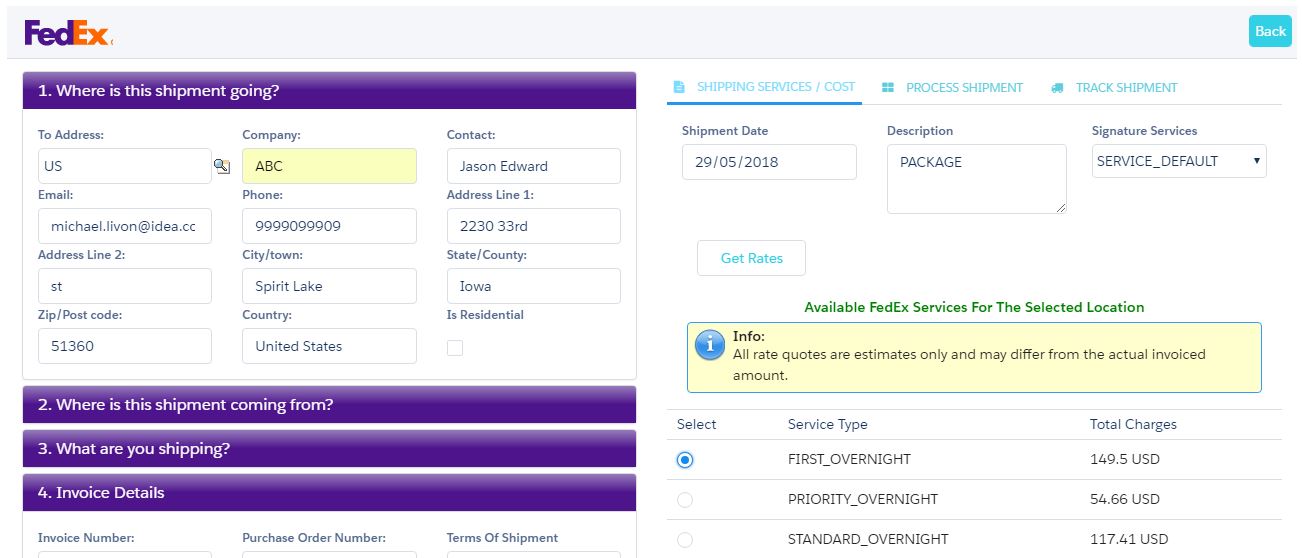

With the ERP Mark 7 Timesheet feature, a business can track and monitor the activities of employees on an hourly basis for a range of projects. It provides an instant status report on the activity of any individual and allows employers to plan projects efficiently, optimizing the working hours of every employee.


The timesheet is specific to each employee and can be submitted for approval to higher authorities. This helps you track the activity status of the specified task.

Timesheets can be created using one of two methods –

  • From the record level
  • From the Timesheets tab

From the Record Level

The steps below explain how to create a timesheet and move it from Draft status to Submitted status.

  • Create a timesheet by navigating to the Employee management app > Employee tab.
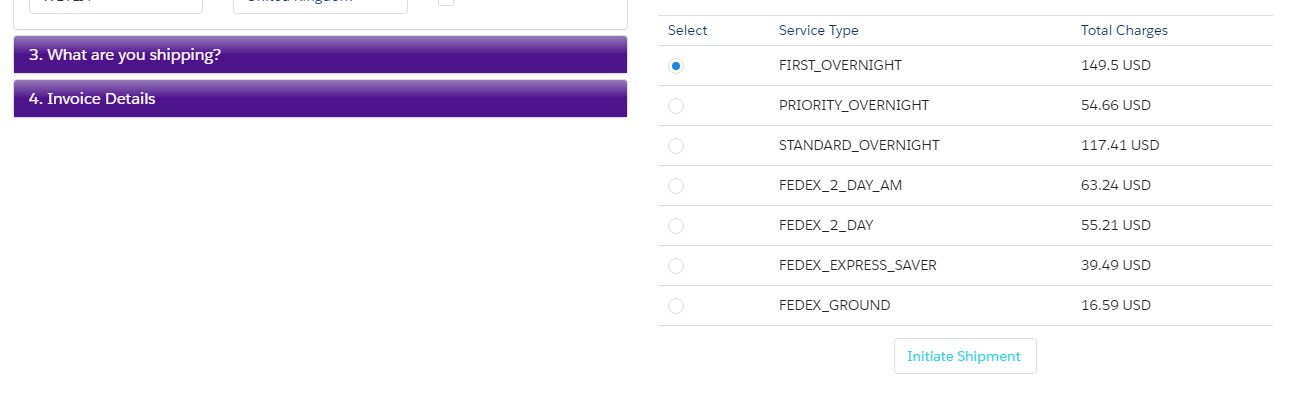
employee1

  • From the list of employees, select the employee for whom a timesheet must be created.
  • On the related tab scroll down and select timesheets related list and click ‘New’ buttonemployee2
  • Enter the organisation details, approver details and timesheet status details. Administrators and other employees who act as approvers can see all the time cards for the week. Time cards can have any of the following statuses.
    • Draft
    • Approved
    • Submitted
    • Rejected
  • In the timesheet, enter the start and end dates of the week.
  • Click “Save” to create the time sheet record.
FieldDescription
EmployeeDescribes the name of the employee whose timesheet is being created
Workforce Requirement PlanningDescribe the name of the workforce required for which the timesheet is created to monitor progress
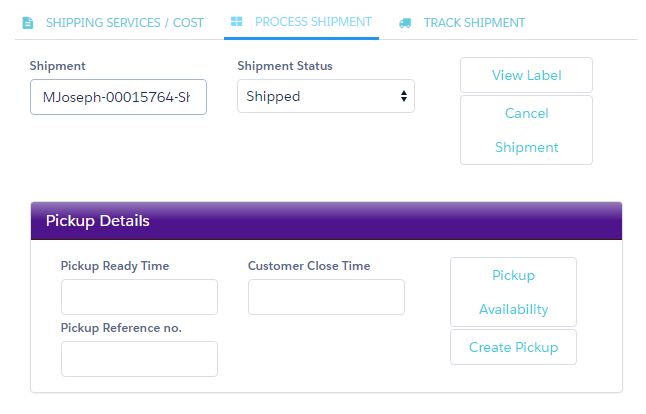
ApproverOther employees who act as approvers can see all the weekly time cards for all the employees under them
Team MemberDescribes the team to which the employee belongs
StatusProvides the current status of the timesheet, such as Draft or Submitted; controls which actions can be performed against the timesheet
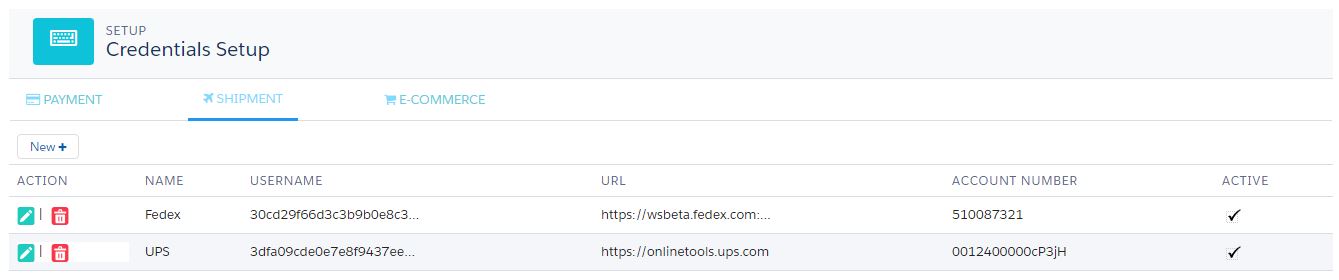
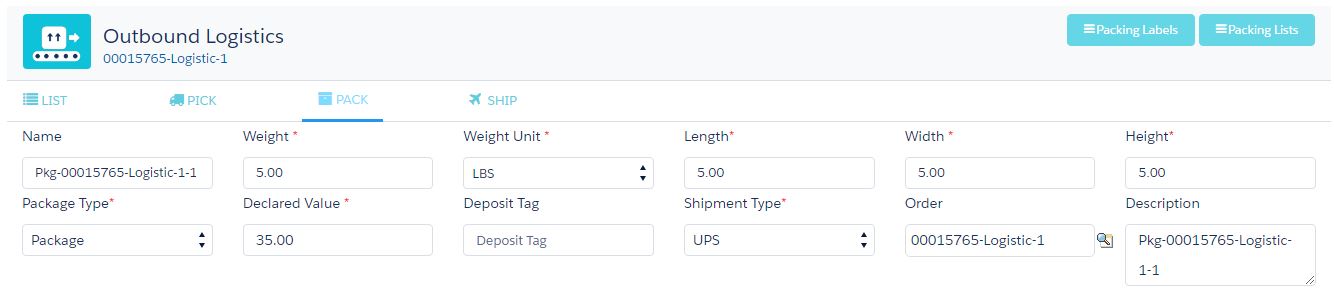
Start DateDescribes the start date of the week
End DateDescribes the end date of the week
Approve / Rejected DateDescribes the date on which the timesheet was approved or rejected
Approve / Rejected ReasonDescribes the reason for approval or rejection
Week Date Specifies the week’s date

A timesheet can be in different stages, which can be easily understood by the following statuses.

Timesheet StatusAction
DraftA timesheet in the Draft state can be edited to add or delete time card entries.
ApprovedWhen the timesheet is approved by the work agent/higher authority, it is marked “Approved.”
SubmittedOnce the employee is confident about his entries, the timesheet can be moved to the Submitted state when it awaits approval.
RejectedIf the approver rejects the timesheet, it becomes available for review and re-submission.

Creating Time Card Entries

Timecard entries specify the exact time spent to complete each activity of the project throughout the week. A timesheet may contain one or more time card entries. Each time card entry can be tracked by its activity status. The steps below explain how to create a timecard entry.

  • Every time sheet should be associated with one or more time card entries, which indicates the amount of time an employee spends on each project. In the related list of timesheet records, click the “New” button under “Time Card Entries”. Upon the creation of time card entries, the time sheet is in the Draft stage.

tsr2

  • Fill in the project name, which describes the name of the project for which the time card entry is being created.
  • Fill in the weekday dates and hours. Every hour mentioned can be supported by a comment to explain the outcome of the task.
  • Select the “Active” checkbox and select the activity status.
  • Click the “Save” button to create the time card entry.

Creating Time Sheets Through the Timesheets Tab:

  • Navigate to the Employee Management app > Timesheets tab.
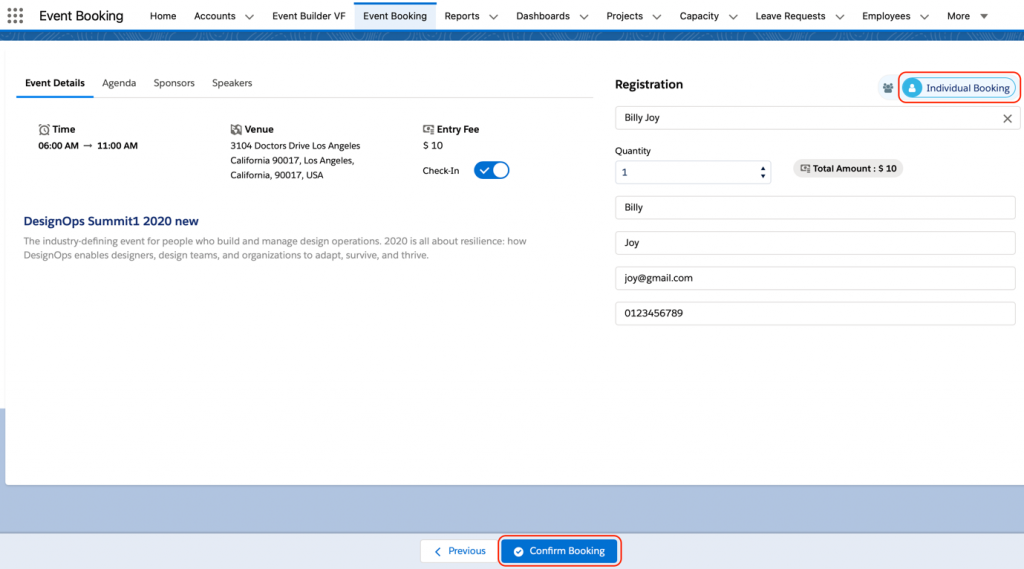
  • Click on the “Add New Timesheet” button to create a new time sheet for the logged-in user.
  • Every time sheet will be in “Draft” status until it is ready to be submitted to the approver. Select the approver who is authorised to review the time card entries and to decision whether to approve or reject the timesheet.
  • Enter the time card entry details; select the project for which the time card entries are created.
  • Enter the activity notes, if any, and the activity status to monitor the completion of the task.
  • Enter the number of hours spent on each day of the week for the selected project and activity.
  • To create a new time card entry in the same time sheet, click the “Add New +” button.
  • Click “Save” to create the time sheet under “Draft” status.

Viewing, Editing, and Submitting the Time Sheet:

  • Navigate to the Employee Management app > Timesheets tab.
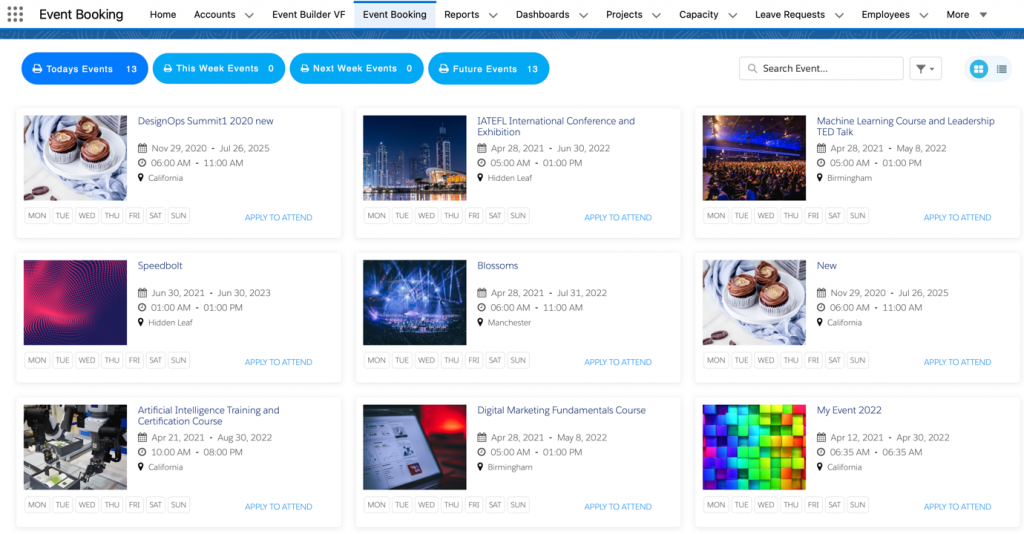
  • The system shows the total approved hours, submitted hours and rejected hours. The system shows all the time sheets that have been submitted, that are drafts and that have been rejected.
  • Under the Approved Time Sheets section, an employee can view all his approved time sheets along with the date of approval and the name of the approver.
  • To delete the time sheet, click the dustbin icon under the Action section.
  • To edit the timesheet, click on the pencil icon under the Action section.
  • To submit the time sheet to an approver, change the status from “Draft” to “Submitted” and click the “Save” button.
  • An employee is an approver; he can also approve other employees’ records from the Manager’s Approval section.

Expense

The ERP system provides an accurate, error-free platform for employees to manage their travel plans and expense claims. In ERP, it records the expense details of employees and those who are assigned for approvals.

The expense claims are specific to the employee and can be submitted for approval to higher authorities. This also helps track the approval status of the specified task.

An Expense claim can be created in two methods –

  • From the record level
  • From the Expense Tab

From the Record Level

The steps below explain how to create an expense record and move it from Draft status to Submitted.

  • Create an expense by navigating to the Employee Management app > Employee tab.
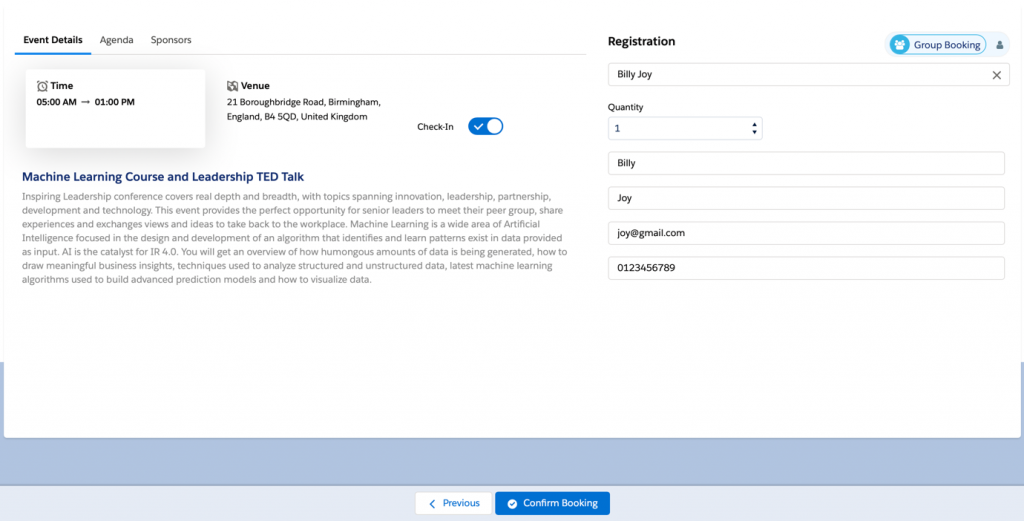
  • Select the employee from the list of employees for whom an expense claim must be created.

employee1

  • On the related tab, scroll down and select the expenses related list. Click the “New” button.

expns2

  • Enter the organisation details, approver details and expense name. Administrators and other employees who act as approvers can see all the expense line items for the week.
  • Expenses can be tracked by any of the following statuses. Select the status of the expense.
    • Draft
    • Approved
    • Submitted
    • Rejected
  • Enter the date of expense creation and the project related to the expense.
  • Select the “Active” checkbox and the “Paid” checkbox if the expense claim is paid to the employee.
  • Click the “Save” button to create the expense record.
Fields to note:
FieldDescription
EmployeeDescribes the name of the employee whose expense is being created
Expense NameDescribes the name of the expense created
ApproverOther employees who act as approvers can see all the expense claims that belong to employees under them
ProjectDescribes the name of the project for which the expense is created to monitor the progress
StatusCurrent status of the expense, such as Draft or Submitted; controls which actions can be performed against the expense
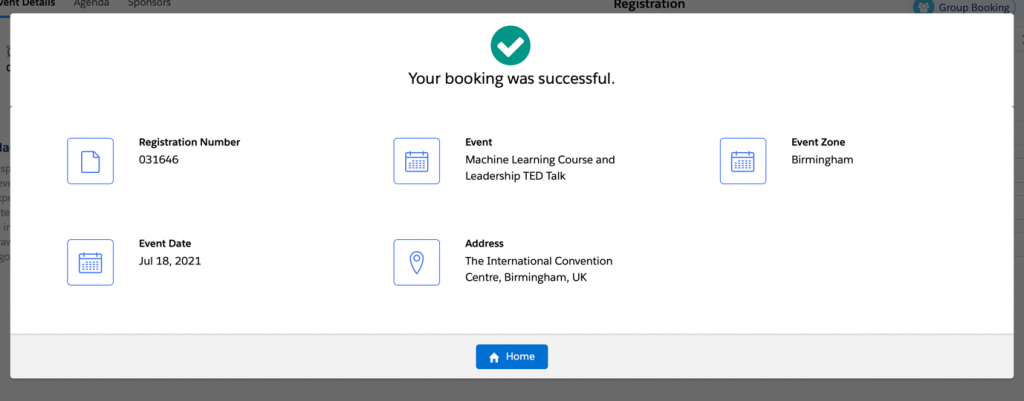
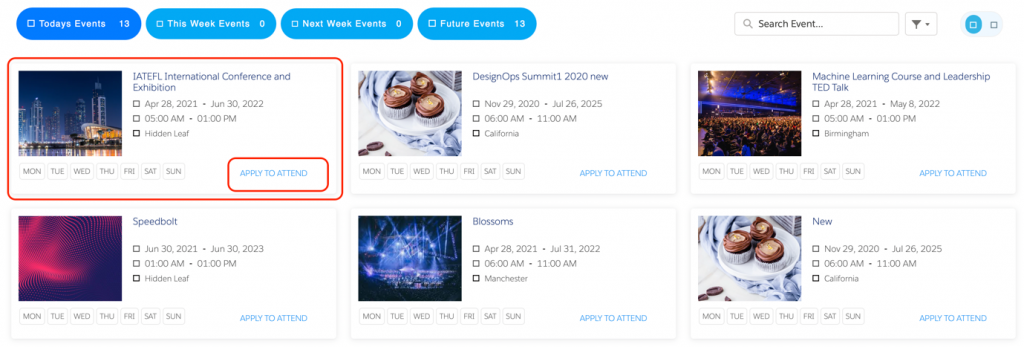
DateDescribes the date when the expense was created.
PaidIf the checkbox is selected, it indicates that the expense claim has been paid to the employee.
Approve / Rejected DateDate by which the expense claim was approved or rejected.
Approve / Rejected ReasonDescribes the reason for approval or rejection.

An expense claim can be in different stages, which can be easily understood by the following statuses.

Transfer Order StatusAction
DraftAn expense that is in the “Draft” state can be edited to add or delete time card entries.
ApprovedWhen the expense claim is approved by the work agent/higher authority, it is marked “Approved.”
SubmittedOnce the employee is confident about his entered claims, the expense can be moved to the “Submitted” state for approval.
RejectedWhen an approver rejects the expense, the expense is available for review and resubmission.

Creating Expense Line Items:

In the expense line item, an employee must specify the exact amount spent on the selected expense type and category. An expense may contain one or more expense line items. Each expense line item can be tracked by its status. expns3

The steps below explain how to create an expense line item.

  • Every expense claim should be associated with one or more expense line items, which proves the amount claimed by an employee on each project selected. In the related list of expense records, click the “New” button under “Expense Line Items”. After the creation of expense line items, the time sheet is in the Draft stage.
  • Fill in the expense line item name, the expense type and the category which describes the purpose of the expense claim created.
  • Fill in the expense date.
  • Enter the amount and VAT amount of the expenses.
  • Select the “Active” checkbox and select “Status”.
  • Click the “Save” button to create the expense line item.

Creating Expense Through Expense Tab

Navigate to the Employee management app > Expenses tab.

In the My Expenses tab, you can view the records which are in Draft, Submitted, Approved or Rejected  stages by selecting the following sub tabs:

  • Draft/Submitted.
  • Approved/Rejected.
  • Submitted for your Approval.

Draft/Submitted :

  • On the Draft/Submitted sub tab, you can view all the Expense records which has draft or submitted status.
  • To view the records in list or grid view, click on the list or grid icon.
  • To view the Expense associated to a particular Project, click on the Expense record name.
  • To edit the Expense record, click on the edit icon and save the record after necessary changes done.
  • To delete the Expense record associated to a Project, click on the delete icon and click on OK.

Approved/Rejected:

  • On the Approved/Rejected sub tab, you can view all the Expense records which has approved or rejected status.
  • To view the records in list or grid view, click on the list or grid icon.
  • To view the Expense associated to a particular Project, click on the Expense record name.
  • To edit the Expense record, click on the edit icon and save the record after necessary changes done.
  • To delete the Expense record associated to a Project, click on the delete icon and click on OK.

Submitted for your Approval:

  • On the Submitted for your Approval sub tab, the Approver can view all the Expense records which are been submitted for approval.
  • To view the records in list or grid view, click on the list or grid icon.
  • To view the Expense associated to a particular Project, click on the Expense record name.
  • To edit the Expense record, click on the edit icon and save the record after necessary changes done.
  • To delete the Expense record associated to a Project, click on the delete icon and click on OK.

From this section, the Approver can approve or reject the expenses by clicking Approve or Reject buttons as shown below.

My Expenses tab has two views for viewing the records:

  • List View
  • Grid View

List View:

  • On the My Expenses tab, you can view the list of all the Expenses created in list view.
  • To filter out the records based on a particular Fiscal year or time period, you can select Current FY, To Date, Previous FY, Next FY, Previous 2 FY and view the list of records.
  • To view the records which are draft, submitted, approved, rejected or submitted for your approval move to the respective sub tabs.
  • To view the Expense associated to a particular Project, click on the Expense record name.
  • To edit the Expense record, click on the edit icon and save the record after necessary changes done.
  • To delete the Expense record associated to a Project, click on the delete icon and click on OK.

Grid View:

  • On the My Expenses tab, you can view the list of all the Expenses created in grid view.
  • To filter out the records based on a particular Fiscal year or time period, you can select Current FY, To Date, Previous FY, Next FY, Previous 2 FY and view the list of records.
  • To view the records which are draft, submitted, approved, rejected or submitted for your approval move to the respective sub tabs.
  • To view the Expense associated to a particular Project, click on the Expense record name.
  • To edit the Expense record, click on the edit icon and save the record after necessary changes done.
  • To delete the Expense record associated to a Project, click on the delete icon and click on OK.
  • Click these “+Expense”  button to create a new expense for the logged-in user.
  • Every expense will be in “Draft” status until the user is ready to submit it to the approver. Select the approver who is authorised to review the expense claims and to decide whether to approve or reject the expense.
  • Enter the name and select the project for which the expense is claimed.
  • Enter the name of the expense line item; select the expense type and category for which the expense is claimed.
  • Enter the date on which the expense was initiated.
  • Enter the total amount spent and the VAT amount applied to the expense claims.
  • The system allows an employee to add a invoice/receipt for the expense claims.
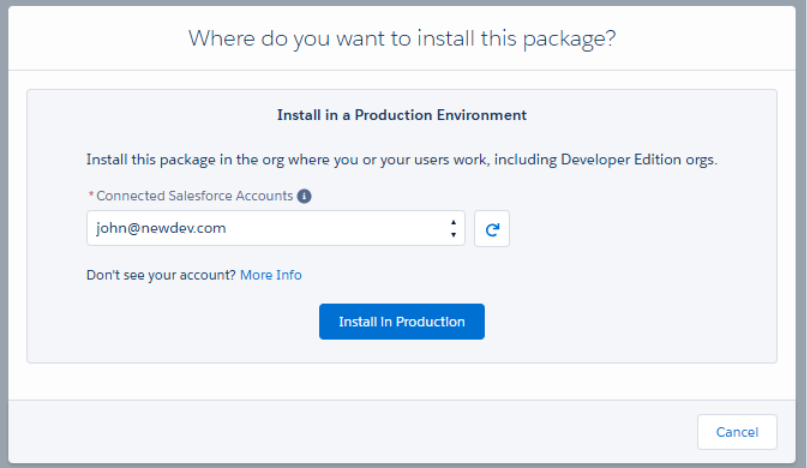
  • To create a new expense line item for the same expense record, click  “+New” button.
  • Click “Save” to create the expense under “Draft” status.

Viewing, Editing and submitting expense

  • Navigate to the Employee management app >My Expenses tab.
  • The system shows total approved expense claims, submitted expense claims and total paid expense claims. The system shows all the expenses that have been submitted, draft and that have been rejected.
  • The system provides a filter that lets an employee view the total expense claims based on current and previous fiscal years.
  • Under the approved expenses section, an employee can view all his approved expense claims along with the date of approval and the amount claimed.
  • To edit the expense, click on the edit icon and edit the details in the Expense record.
  • To delete an expense sheet, click the delete icon.
  • To submit the expense to an approver, change the status from “Draft” to “Submitted” by editing the Expense record and click the “Save” button.
  • If an employee is an approver, he can approve other employee’s records from the Manager’s Approval section.

Note :

  • Once the Expense is submitted, you cannot edit or delete them and the expense with draft and rejected can be edited or deleted before submission.

Business Units

Business units in Aqxolt ERP is an operational unit that deals with the management of various tasks and goals of an organisation. There can be multiple business units set up based on how a business is organised. In a business, there are times when multiple projects are going on at the same time. This makes multitasking difficult for the supervisor. However, with Aqxolt ERP, it is easy. You can view progress reports and updated data about various projects simultaneously.  Not only can you look at the big picture, you can also focus your energies on the finer details. A business unit can be classified as a cost centre or a profit centre.

A business unit as a cost centre is a functional unit within an organisation that costs the organisation money to operate. Cost centres record costs with reference to the values planned. The cost centre indirectly contributes to the profit of an organisation through operational excellence and efficiency. Usually, the managers of a cost centre are responsible for keeping costs below budget. It helps managers to keep track of overhead costs in the area incurred within the organisation. It also enables managers to monitor the progress and profitability of each area and helps management utilise resources properly. It enhances managers’ decision-making powers.

A business unit as a profit centre helps generate quality results and revenue for the organisation. It is crucial for analysing which manufacturing unit generates more or less profit within the organisation and enhances decision-making on operating expenditures.

Create Business Unit:

  1. Navigate to the Organisation Management app > Business Unit tab.
  2. Once in the Business Unit section, you can track the business units already filled in and create a new business unit.businessunit1
  3. To create a new business unit, click the “New” button.
  4. Enter the business territory name and select the organisation associated with it.
  5. Select the contact for the business unit; enter the fax, phone, and website details.
  6. Select the function of the business unit, whether it is Marketing, HR, Finance, Sales, etc.
  7. Enter the address details of the business unit.
  8. Select the type of business unit, whether it is a cost centre or a profit centre.
  9. Assign the manager associated with the business unit.
  10. Click the “Save” button to create a business unit record for the organisation.

Project

The project module in Aqxolt ERP is the most intelligent solution designed to manage projects effectively and drive operational excellence. It enables you to intelligently automate project programmes while keeping a tab on the budget and related costs. It smartly consolidates expenses, labour costs and material costs and records project budgets.

The solution enables project scheduling and helps the project meet stakeholder expectations. It helps keep track of project progress and forecasts the projected revenue against each milestone.

This comprehensive solution ensures resource visibility and lets the user record resources required during project execution. The success of the project relies on the effective communication of the team, which should be built based on a similar skill set.

  • Create a Project:
  1. Navigate to the Manufacturing app > Projects tab.
  2. Once in the Project section, you can track the projects already filled in and create a new project.
  3. To create a new project, click the “New” button.
  4. Enter the project name, organisation, and business unit details.Projects1
  5.  Provide the project details under the description and assign the start and end dates of the project.
  6. Select the project manager associated with the project and assign the budget account to record account-based project budgets.
  7. Enter the labour and material cost; select the programme associated with the project
  8. To track the progress of the project, select the status of the project.
  9. Click the “Save” button to create a project record.

Field to note:

FieldDescription
Project NameDescribes the name of the project.
Project ManagerDescribes the consultant responsible for managing the workforce and delivering on time, on budget project implementation
Budget AccountDescribes the defined budget account associated with the project
DescriptionDescribes the brief requirement of the project so the team working on it is on the same page
ProgrammeDescribes the programme associated with the project
Start DateDescribes the planned start date of the project
End DateDescribes the estimated end date of the project
Labour CostIndicates estimated funds received for workforce against a project
Material CostIndicates estimated funds received for material consumption against a project
ExpenseDescribes the expenses recorded against a project
StatusDescribes the progress of the project

Programme

An organisation can have a programme and projects associated with it. A programme could be a series of future events with a start date and an end date. In ERP Mark 7, a programme can be associated with a manufacturing process created to meet the need and results of the manufacturing project. This will help organisations create better design and management of work centres and workforce systems; it also prepares a channel for growth for the organisation.

Create Programme:

  1. Navigate to the Organisation Management app > Programmes tab.
  2. Once in the Programmes section, you can track the business units already filled in and create a new programme.
  3. To create a new programme, click the “New” button.programme1
  4. Select the organisation and business units of the programme.
  5. Enter the programme name and the start and end dates of the programme.
  6. Select the budget status and the status of the programme.
  7. To track the expense incurred to execute the programme, select the budget account associated with the programme.
  8. Click the “Save” button to create a programme record for the organisation.

Authorize

Aqxolt ERP supports Authorize.net to make card payments and online payments.

Add your Authorize.net account on Aqxolt ERP.

Navigate to the Credential Setup tab from App Launcher.

The page has three tabs Payment, Shipment, and E-Commerce.

On the Payments, tab click on New

Fill in the Authorize.net account login details. Keep the Name as Authorize.net and add the username/login and Password

The URL can be tested or live depending on the Authorize.net sandbox account or live account being used.

Test URL – https://test.authorize.net/gateway/transact.dll

Live URL –

PayPal

Aqxolt ERP supports PayPal to make online and electronic payments.

Add your PayPal account on Aqxolt ERP.

Navigate to the Credential Setup tab from App Launcher.

The page has three tabs Payment, Shipment and E-Commerce.

On the Payments, tab click on New

Fill in the PayPal account login details. Keep the Name as PayPal and add the username/login and Password.

Check the Active checkbox.

The URL can be tested or live depending on the sandbox account or live account being used.

Test URL – https://api-3t.sandbox.paypal.com/2.0/

Live URL

DHL

  • Navigate to App menu > Credential Setup
  • You will land on the Credential setup page where you have Payment, Shipment and E-Commerce tabs.
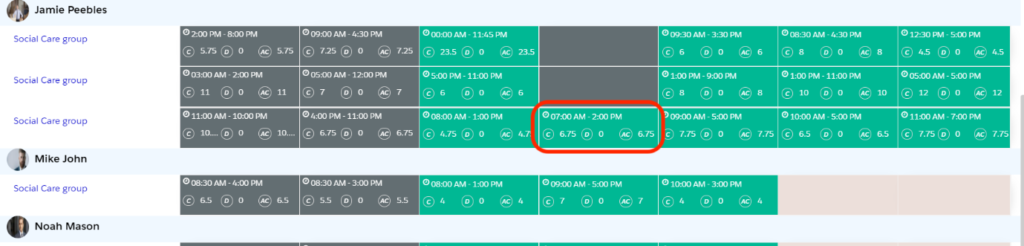
  • Click on the Shipment Tab
  • Click New to add DHL setup record.
  • Fill in the DHL credentials and add in the URL to specify the test or live account and make the record active.
  • Make sure to use the name as DHL
  • Add the Shipper Details and click “Save.”
  • This creates a DHL record as shown above and the password/trans key gets encrypted.
  • With this setup, you can use the DHL services for shipment.
  • In the outbound logistics process while doing the Pick Pack Ship of the logistic orders, select the shipment type to be DHL while creating a Package.

Click on “Ship” to land on the DHL services page.

  • Click on “Get Rates” and select the suitable service.
  • Scroll down the services and click “Initiate Shipment” button

This will successfully ship the package.

  • Move to “Process Shipment” where you can see the “Shipment No” and “Shipment Status.”
  • Click “View Label” to generate the label and “View Invoice” to see the shipping invoice.
  • Click on “Cancel Shipment” to delete the shipment.

(Image)

  • Navigate to the “Track Shipment” tab to track the shipment.

FedEx

  • Navigate to App menu > Credential Setup
  • You will land on the Credential setup page where you have Payment, Shipment and E-Commerce tabs.
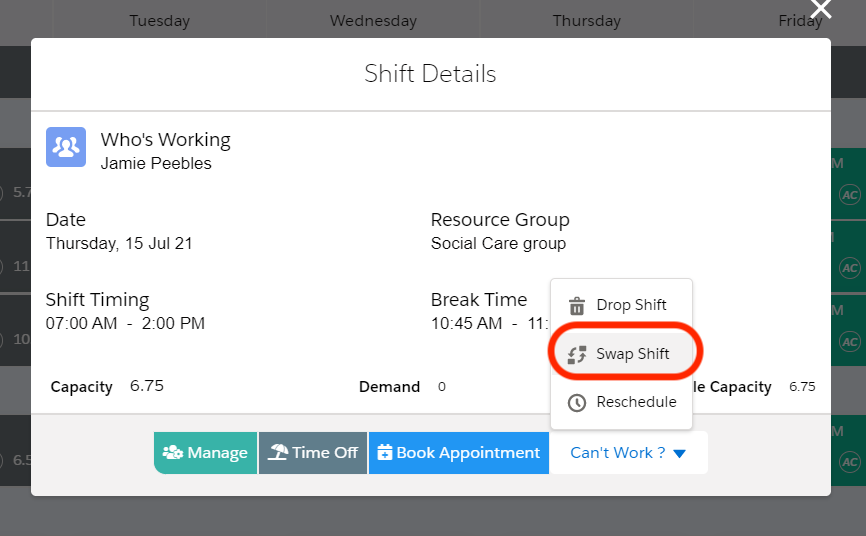
  • Click on the Shipment Tab
  • Click “New” to add FedEx setup record.
  • Fill in the FedEx credentials and add in the URL to specify the test or live account and make the record active.
  • Make sure to use the name as FedEx.
  • Add the Shipper Details and click Save.
  • This creates a “FedEx Record” as shown above and the password/trans key gets encrypted.
  • With this setup, you can use the FedEx services for shipment.
  • In the “Outbound Logistics Process” while doing the “Pick Pack Ship of the logistic orders”, select the shipment type to be “FedEx” while creating a Package.

Click on “Ship” to land on the FedEx services page.

  • Click on “Get Rates” and select the suitable service.
  • Scroll down the services and click “Initiate Shipment” button

This will successfully ship the package and the tab moves to “Process Shipment” where you will see the “Shipment Status” and the “Shipment No.”

  • Clicking on the “View Label” will generate the FedEx label and clicking on the “Cancel Shipment” will delete the shipment.
  • Navigate to the Track Shipment tab to track the shipment.

UPS

  • Navigate to App menu > Credential Setup
  • You will land on the Credential setup page where you have Payment, Shipment and E-Commerce tabs.
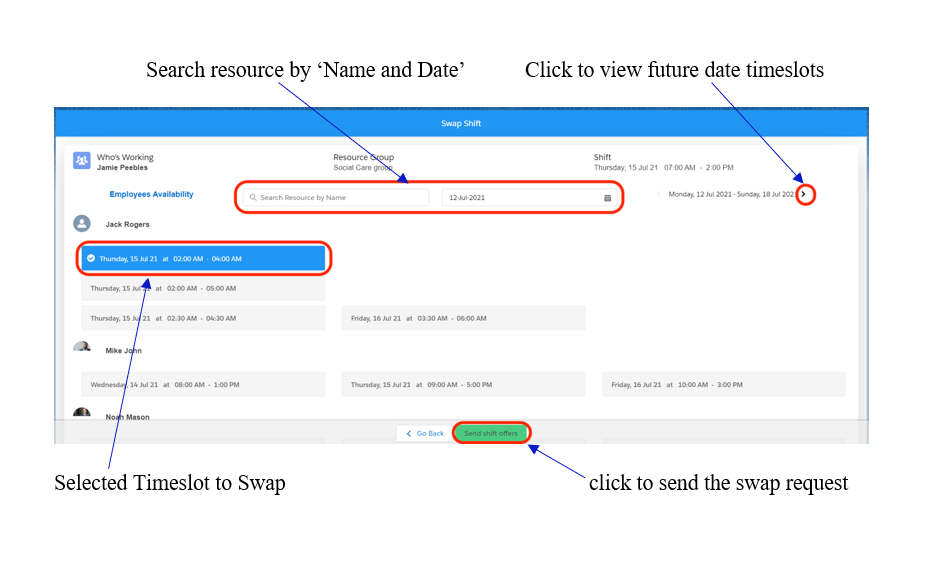
  • Click on the Shipment Tab
  • Click “New” to add UPS setup record.
  • Fill in the UPS credentials and add the URL to specify the test or live account and make the record active.

  • Make sure to use the name as UPS
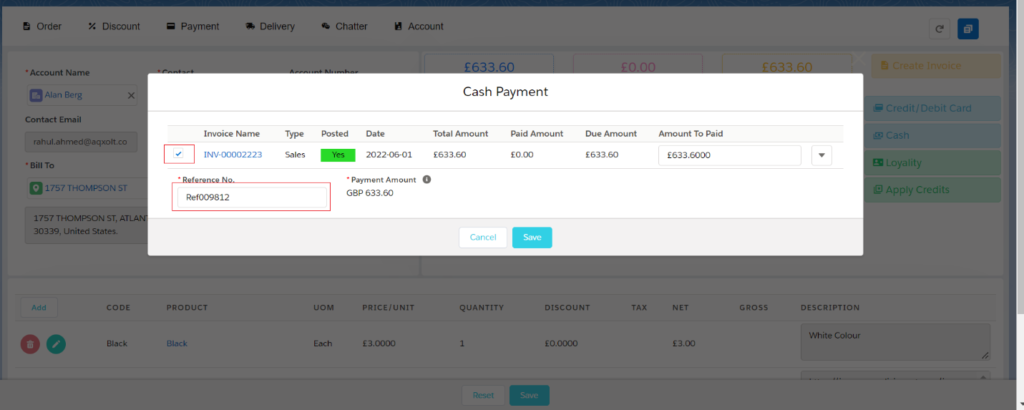
  • Add the Shipper Details and click Save.
  • This creates a UPS record as shown above and the password/trans key gets encrypted.
  • With this setup, you can use the UPS services for shipment.
  • In the outbound logistics process while doing the Pick Pack Ship of the logistic orders, select the shipment type to be UPS while creating a Package.

Click on “Ship” to land on the UPS services page.

  • Click on “Get Rates” and select the suitable service.
  • Scroll down the services and click “Initiate Shipment” button

This will successfully ship the package.

  • Move to “Process Shipment” where you can see the “Shipment No” and “Shipment Status.”
  • Click “View UPS label” to generate the label and “View Invoice” to see the shipping invoice.
  • Click on “Cancel Shipment” to delete the shipment.

Navigate to the “Track Shipment” tab to track the shipment.

USPS

  • Navigate to App menu > Credential Setup
  • You will land on the Credential setup page where you have Payment, Shipment and E-Commerce tabs.
  • Click on the “Shipment Tab”
  • Click “New” to add USPS setup record.
  • Fill in the USPS credentials and add in the URL to specify the test or live account and make the record active.
  • Make sure to use the name as USPS
  • Add the Shipper Details and click Save.
  • This creates a USPS record as shown above and the password/trans key gets encrypted.
  • With this setup, you can use the USPS services for shipment.
  • In the outbound logistics process while doing the Pick Pack Ship of the logistic orders, select the shipment type to be USPS while creating a Package.
  • Click on “Ship” to land on the USPS services page.
  • Click on “Get Rates” and select the suitable service.
  • Scroll down the services and click “Initiate Shipment” button

This will successfully ship the package.

  • Move to “Process Shipment” where you can see the “Shipment No” and “Shipment Status.”
  • Click “View Label” to generate the label and “View Invoice” to see the shipping invoice.
  • Click on “Cancel Shipment” to delete the shipment.
  • Navigate to the “Track Shipment” tab to track the shipment.

Adding Custom Settings

After installing “Aqxolt ERP” to a Salesforce Instance; the following custom settings need to be uploaded before you start using the shipment processes.

  1. Country Codes
  2. Province Codes
  3. Product Unit Codes
  4. Package Details

For UPS, the following two objects have to be added along with the above three.

  1. UPS Package Type
  2. UPS Service Codes

These records are stored in “CSV files” which can be uploaded using “Data Import Wizard” or “Data Loader.”

Amazon

To start with AMAZON SETUP, four(4) fields are needed to set up a store for Amazon.

  1. Marketplace ID.
  2. Merchant or Seller ID.
  3. Amazon App’s secret key.

Amazon App’s success key.

  • To get Merchant Token (Merchant ID), go to the following link:
https://sellercentral.amazon.com/sw/AccountInfo/MerchantToken/step/MerchantToken?ref_=macs_aimertok_cont_acinfohm
  • Customer to go to this link
https://sellercentral.amazon.com/gp/homepage.html
  • Log in with your store credential

You will land on the following page

  • Marketplace ID, Amazon App’s secret key, and Amazon App’s success key are added in the custom settings of the Salesforce instance.

eBay

eBay Shipping Methods –

https://developer.ebay.com/devzone/xml/docs/reference/ebay/types/ShippingServiceCodeType.html

Create sandbox accounts for testing using the following URL

Developer’s account (for creating new sandbox users)
https://developer.ebay.com/my/auth/?env=sandbox&index=0

Create two accounts considering one as a Buyer Account and one as a Seller Account.

sandbox.ebay.com

To sync Products from Salesforce to eBay selling store, product setup has to be done in a proper way making sure the following things are covered

  • Available on an e-commerce platform and is checked on the product detail page.
  • Add Product SKU and ASIN code
  • Add category and subcategory of the product
  • In the product related list, create e-commerce object record and select eBay checkbox
  • Create a Warranty and Return Policy Record
  • Create a Shipping and Handling zone record from the Shipping Zone Object. Add the Distribution Channel, Shipping Type, Flat Rate, Dispatch time, Country and State.

Go to Heroku user and click eBay. Once you are on the eBay dashboard, click on the “Add” button

  • It will redirect to the eBay login page.
  • Enter your eBay seller store credentials.
  • Agree on the Grant Application access permissions
  • Click on the “Product Sync” button on Heroku app this will create the product in the eBay seller account.

When orders are placed on the eBay store, they get synced to “Salesforce Instance” as “Sales Orders” and “Sales Order Line Items.” This has to be done manually by clicking Pending Sync for Orders on the Heroku user eBay dashboard.

As part of sandbox testing,

Copy the “Product URL” from the “Seller Account” and paste it into the “Buyer Account” and then buy the product and continue making payment by clicking “Pay Now.”

Then go to the Heroku user and sync the order, this will create a customer account and a sales order in the Salesforce instance.

Heroku App

Heroku App is a connector that connects Salesforce instances with other e-commerce and accounting sites to sync data to and from.

The following sites can be integrated with the Aqxolt ERP:

  1. Shopify
  2. eBay
  3. Amazon
  4. Magento
  5. WooCommerce
  6. Big Commerce
  7. QuickBooks
  8. Xero
  9. ETSY
  • One Heroku user can be connected to one Salesforce instance at a time.
  • Multiple sites can be connected to one Heroku
  • From Salesforce instance, products and coupons get synced to e-commerce sites (Shopify, eBay, Amazon, Magento, WooCommerce, BigCommerce) and accounts; contacts, vendor contacts, Invoices, Bills to Accounting sites (QuickBooks, Xero, ETSY)

From e-commerce sites Orders and customer Accounts, Contacts gets synced to Salesforce instance.

Salesforce org —> Shopify store –>eBay store–>Amazon store–>Magento store–>WooCommerce store

To make the connection on a Salesforce instance for Heroku App-

Go to Apps –> App Manager –> New Connected App

Fill the following

  • Connected App Name
  • API Name
  • Contact Email

Check the ‘Enable OAuth Settings’ checkbox

For Sandbox

https://aqxolt.herokuapp.com/auth/salesforcesandbox/

  • Selected OAuth Scopes

Select the following from Available OAuth Scopes –

  1. Full access
  2. Access and manage your data (API)
  3. Access your basic information (id, profile, email, address, phone)
  4. Perform requests on your behalf at any time (refresh_token, offline_access)
  5. Click Save.

Allow from 2-10 minutes for your changes to take effect on the server before using the connected app.

Click on Continue.

You will get the Consumer Key and Consumer Secret from here.

Create a user in Heroku App

  1. Log in as an admin.
  2. Navigate to the menu bar and click the ‘Manage Users’
  3. Enter the Email, Password and confirm the password.
  4. Enter the “customer key” in the “Aqxolt client field.”
  5. Enter the “consumer secret” in the “Client Secret”
  6. Click the “Save” button to complete the user creation setup

Login with the created user

  1. Log in using the created user credentials
  2. Allow the “Salesforce access” to the user
  3. Do the Auth by using the callback URL and reloading the page.

Magento

Magento is used to sync products from the Salesforce instance to the Magento store and sync orders and customer accounts from the Magento store to the Salesforce instance.

It auto-syncs every 10 minutes.

After connecting your “Heroku user” with the “Salesforce Instance” click on the “Magento app” and you will land on the “Magento dashboard.”

Click on the “Add” button and copy the “Token” to add in the “Magento Instance.”

  • Now Login to your “Magento Instance” admin account
  • On the left-hand side menu, panel Navigate to Stores > Configuration
  • You will land on the “Configuration Settings” page
  • Paste the copied “Magento Token” from Heroku Connector in the Aqxolt API token.
  • Add the “Aqxolt Backend URL” which is our Heroku user URL, e. https://aqxolt.herokuapp.com
  • In the “Salesforce Instance,” Products should have the basic “e-Commerce”
  • Available on e-commerce platform checked on the product detail page, and product SKU code should be added.
  • In the related list e-commerce record select “Magento Checkbox.”
  • And the product should have inventory.

In every 10 minutes, it syncs products to Magento instance and orders and customers to salesforce instance.

QuickBooks

QuickBooks is accounting software and can be connected with Salesforce Instance using the “Heroku Aqxolt ERP Integrator.”

All the data on salesforce instances like Products, Customers, Suppliers, Invoices, Credit Memos, Sales Payments, Purchase Orders, Bills, and Bill Payments is synced to “Quick Books Account.”

Once you have connected the “Salesforce Instance” to the “Heroku user,” log in to your “Heroku Instance” and click on the “QuickBooks app.”

You will land on the “QuickBooks Dashboard.”

  • Click on Add; it will redirect to the Quickbooks account login page.
  • Log in with your admin creds.
  • This adds a connection to the QuickBooks instance to the Heroku user.
  • Manually sink the Products, Customers and so on.
  • All the products get synced, but only those Products to which orders have created with customers and suppliers and purchase orders will have the financial details synced like Invoices, Bills, Credit Notes and Purchase Orders.
  • If no orders have been created for the products, financial data will not be synced for those products. To check if sync has started login to the QuickBooks account.You will land on the Dashboard and the left-hand side, you will see Banking, Sales, Expenses, Reports, Taxes, and Accounting.
  • Click on “Sales” to see – All Sales, Customers, Products, and Services.

“All Sales” lists the Orders synced, “Customers” will list the “Customer Contacts Synced,” and “Products and Services” will list the “Products Synchronised.

  • Click on “Expenses” to see “Expenses and ”

Use the filters to change what to see on the page.

Shopify

  1. Enter the domain of the Shopify store and click install (https://aqxolt.myshopify.com/admin)
  2. Enter store login details

Create or sync products

In Salesforce; to sync or create a new product, make sure the following actions are taken.

  • Select “Available” on “e-Commerce platform” check box.
  • Create the e-commerce record from the products related list to make the product available on various platforms like Shopify, Amazon, WooCommerce, Magento, and eBay.
  • For a product to be available on Amazon, Amazon (ASIN Code) is essential.
  • Make sure “Price Book” is active.
  • Login to the Heroku user and click “Product ”

This creates a product on the Shopify Store.

Create or sync Customer and Order

  • When on Shopify store, click on “create order”“select product” and “select
  • If you want to add a new customer, then create a new customer by filling in the customer details such as First Name, Last name, Address and Contact Number.
  • After adding the customer, click on “Mark Paid” to close the order.
  • Click on “Sync Order” on the Shopify This will sync order and customer account on to Salesforce instance.

Woo Commerce

Woo Commerce is used to sync products from the Salesforce instance to the Woo Commerce store and sync orders and customer accounts from the Woo Commerce store to the Salesforce instance.

Extensions do all the sync processes, no manual sync is required. It auto-syncs every 10 minutes.

After connecting your “Heroku user” with the “Salesforce Instance,” click on the “WooCommerce” app, and you will land on the “WooCommerce Dashboard.”

Click on the “Add” button and copy the “Token” to add in the “WooCommerce Instance.”

  • Now Login to your “WooCommerce Instance” admin account
  • On the left-hand side menu, panel Navigate to Store Name > Configuration
  • You will land on the “Store Configuration” page
  • Paste the copied “WooCommerce Token” from “Heroku Connector” in the “Aqxolt API Key.”
  • Add the “Aqxolt Base URL” which is our “Heroku user URL,” e. https://aqxolt.herokuapp.com
  • In the Salesforce instance, Products should have the basic e-commerce
  • Available on e-commerce platform checked on the product detail page, and product SKU code should be added.
  • In the related list e-commerce record select WooCommerce checkbox.
  • And the product should have inventory.
  • Customer Address should be real.

In every 10 minutes, it syncs products to woo commerce instance and orders and customers to salesforce instance.

Xero

Xero is accounting software and can be connected with “Salesforce Instance” using the “Heroku Aqxolt ERP Integrator.”

All the data on “Salesforce instance” like Products, Customers, Suppliers, Invoices, Credit Memos, Sales Payment, Purchase Orders, Bills and Bill Payments is synced to “Xero account” and the Sync is Bidirectional.

Once you have connected the Salesforce instance to the Heroku user, Login to your Heroku instance and click on the “Xero app.”

You will land on the “Xero dashboard.”

  • Click on Add(Manage); it will redirect to the Xero account login page. (xero.com)
  • Login with your admin credentials. (Username and Password)
  • Allow access for 30 minutes.
  • This adds a connection to the Xero instance to the Heroku user.
  • It auto Syncs Products, Contacts, Invoices, Credit Notes, Sales Payment, Purchase, Order Bills and Bill Payments from “Salesforce” to “Xero.”
  • But for the trail, we can sync the data manually by clicking on the Pending Sync button for all the Products.
  • Invoices are created on Aqxolt ERP.
  • Click on Invoice Pending Sync in the connector.
  • Invoice is synced on Xero.
  • Login to “Xero Account” to see if data has synced.
  • Create Payment on Xero.
  • Click on Payment Pending Sync in the connector.
  • Payment is synced to Aqxolt ERP.

https://go.xero.com/

Use the Admin Xero account credentials.

Data is synced from Salesforce instance to Xero and vice versa. i.e. if products are not on Salesforce instance and present on Xero, they get synced to Salesforce, and if products are on Salesforce instance but not on Xero, they get synced to Xero when the sync process starts.

Product Setup:

On the Product make sure the below fields has data

Product Name
Product SKU
Product Description

and Available on the eCommerce platform checkbox is true.

Create a Marketplace record on the Product related list.

Add a Custom Setting in the system as eCommerce Sync, click on Manage and create a Record.