
Stock Take
On this page
Stock Takes is the physical verification of the quantities and condition of items held in an inventory or warehouse. This may be done to provide an audit of existing stock. It is also the source of stock discrepancy information.
Steps to create a Stock Take entry
- Navigate to the Order Management app >Stock Takes Tab.
- Once in the Stock takes tab switch to ‘All’ view from Recently viewed, all created stock takes will be
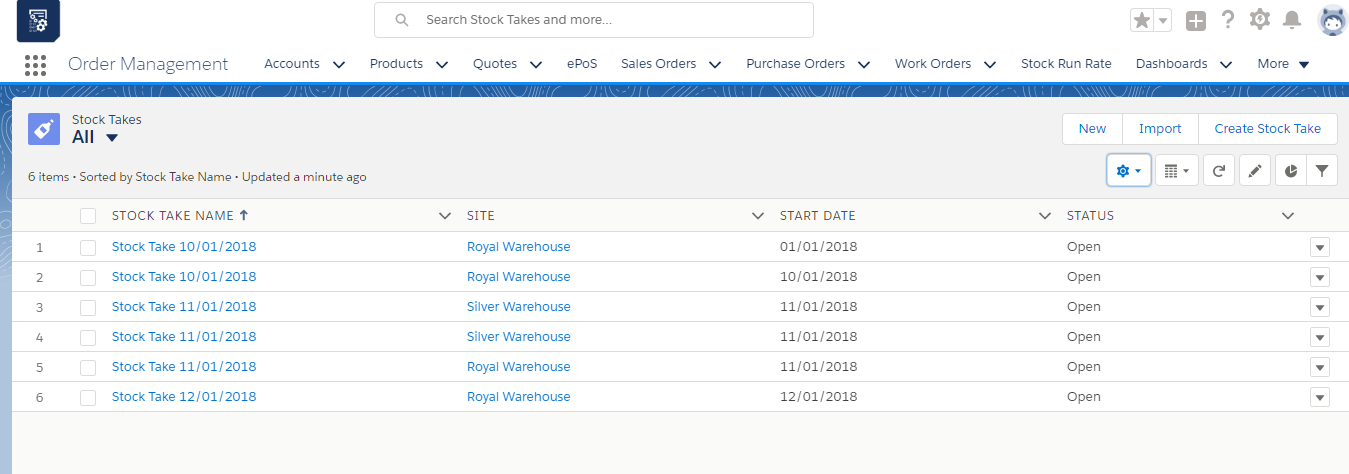
- Click the “Create Stock Take” button on the right-hand top corner to create a new stock take record.
- Enter the Site whose Audit of the physical inventory has to be performed.
- Enter the Start and End dates of the stock counting.
- Count the physical inventory and enter the Stock in Hand.
- Click the ‘Save’ button and the system will navigate to the stock take record.
- To manage the stock adjustments, click the stock take record.
- Click the “Manage Stock Take” button to create stock adjustment records.
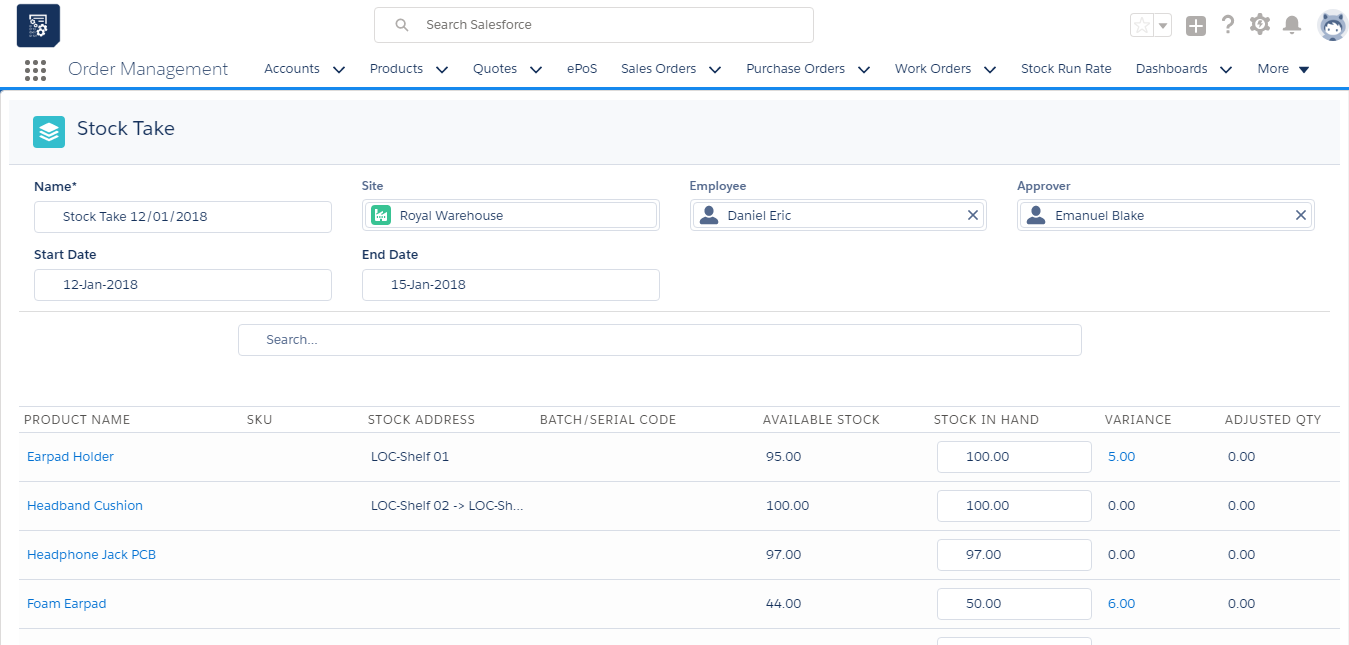
- Click the stock variance and click the ‘Save’ button to create the stock inward adjustment record.
- If the variance is in positive number Stock Inward Line Item is created and if the variance is in negative Stock Outward Line Item is created.
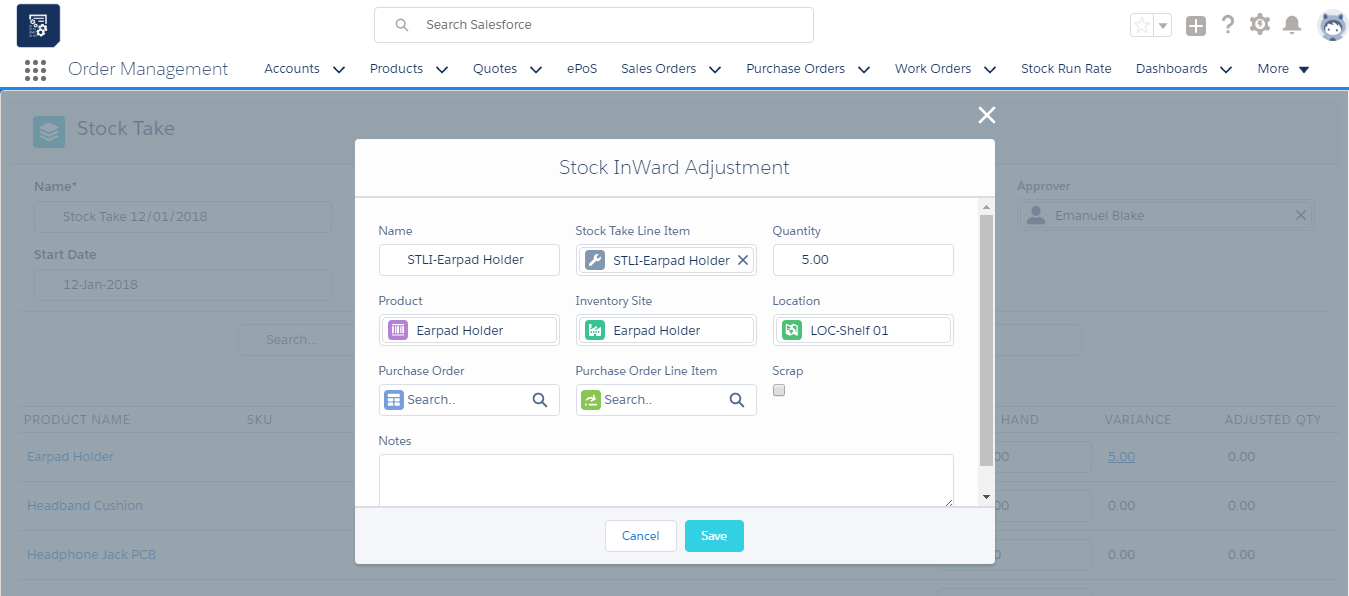
- Click the “Save” button to create the stock adjustment.
Was this article helpful?