
Room Reservation
On this page
This article is not available in 日本語 yet. You are reading the English original.
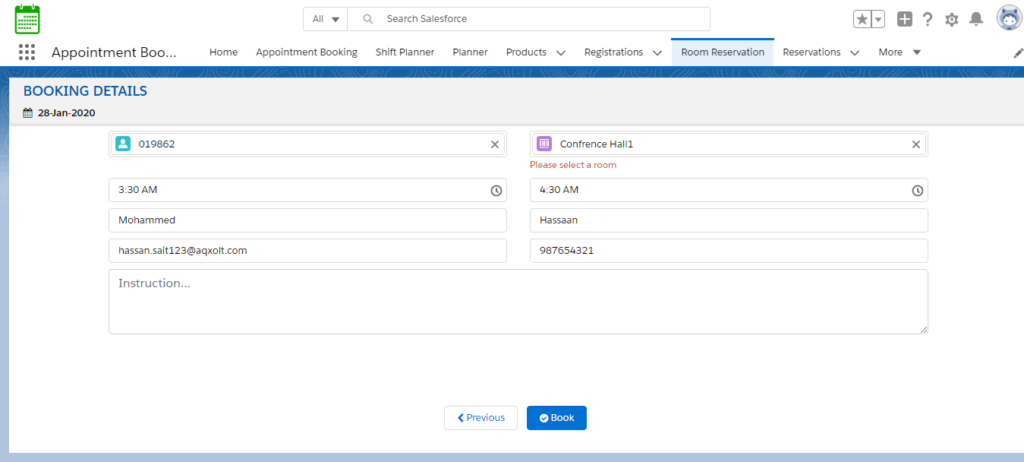
once you complete the room reservation you will be redirected to the booking details page where you can update your details, change room, change time, etc.
Select the Book button. You will be navigated to the previous screen, from where you can also add logistics to your booking
Logistics
Logistics is nothing but resource management in case of events such as travel, accommodation, and many more, which can be handled by the organizers of the event.
- Click the Logistics tab present on the Right-hand side of the room reservation page.
You can add logistics for the booking by entering the registration number of the booking in the search booking option as shown on the screen below:
Create a logistics
- Click the Add logistics button to create a new Logistics record. and you will be navigated to the screen below
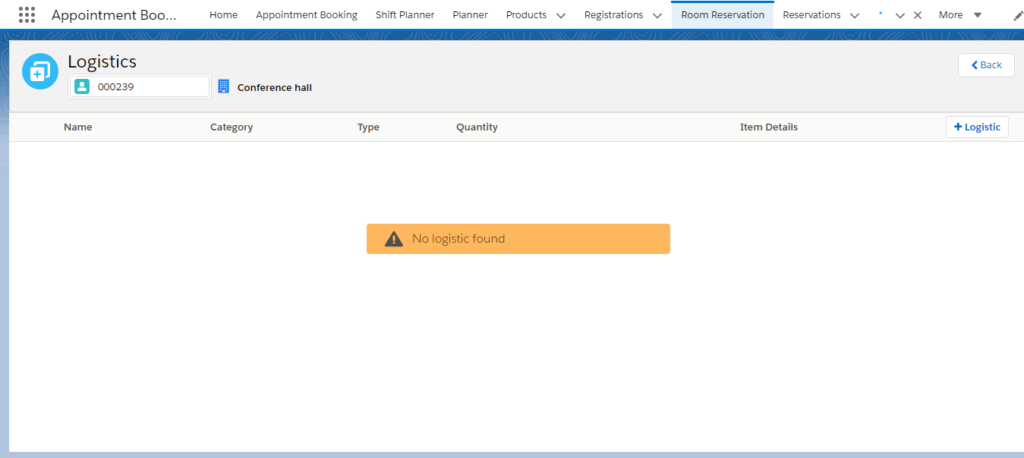
- Enter the name of the Logistic and Quantity.
- Select the Category and Type of the logistic
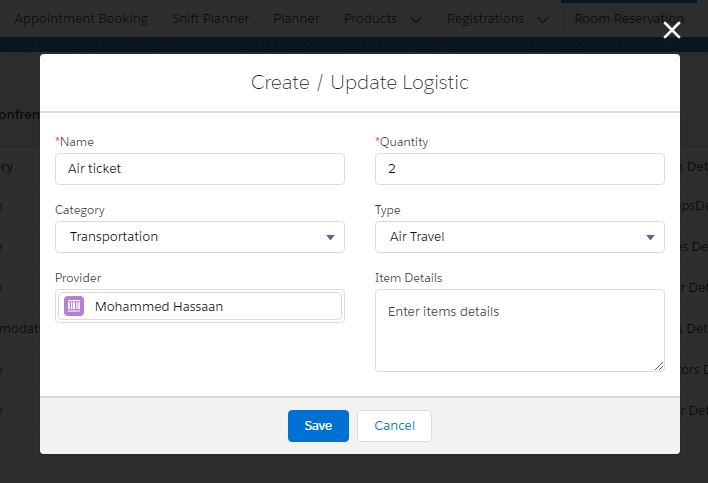
- Select the logistic Provider and enter the Item Details.
- Click the Save button to create the logistic record for the appointment/event. you will be navigated to the screen below:
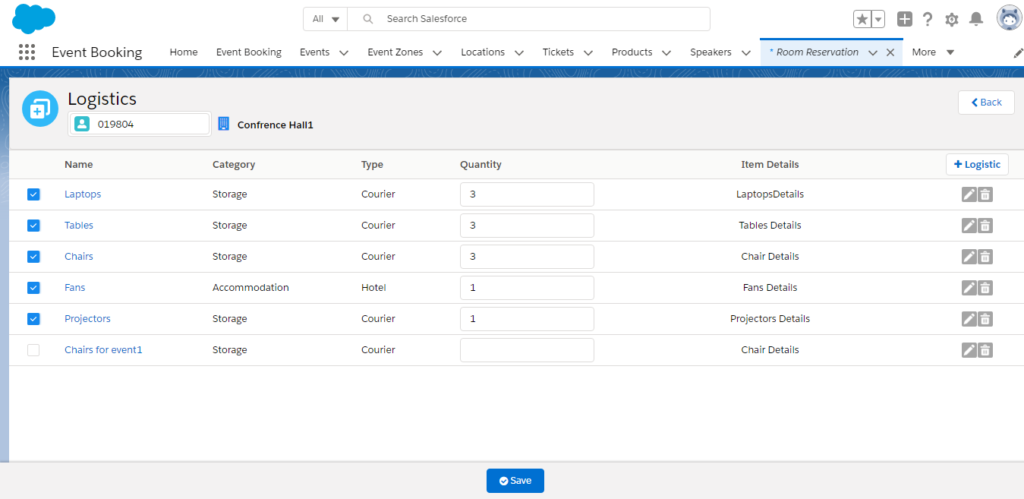
- click on the save button to save your added logistics in the booking.
Was this article helpful?