Skip to content
Support Centre

For Lightning Components

BarcodeZone Updated 6 juin 2024

This article is not available in Français yet. You are reading the English original.

METHOD 1:

There are three steps to display the barcode on your standard record detail page:
  1. Add a custom field into the object which you want to display the
  2. Create a visual force page to generate the
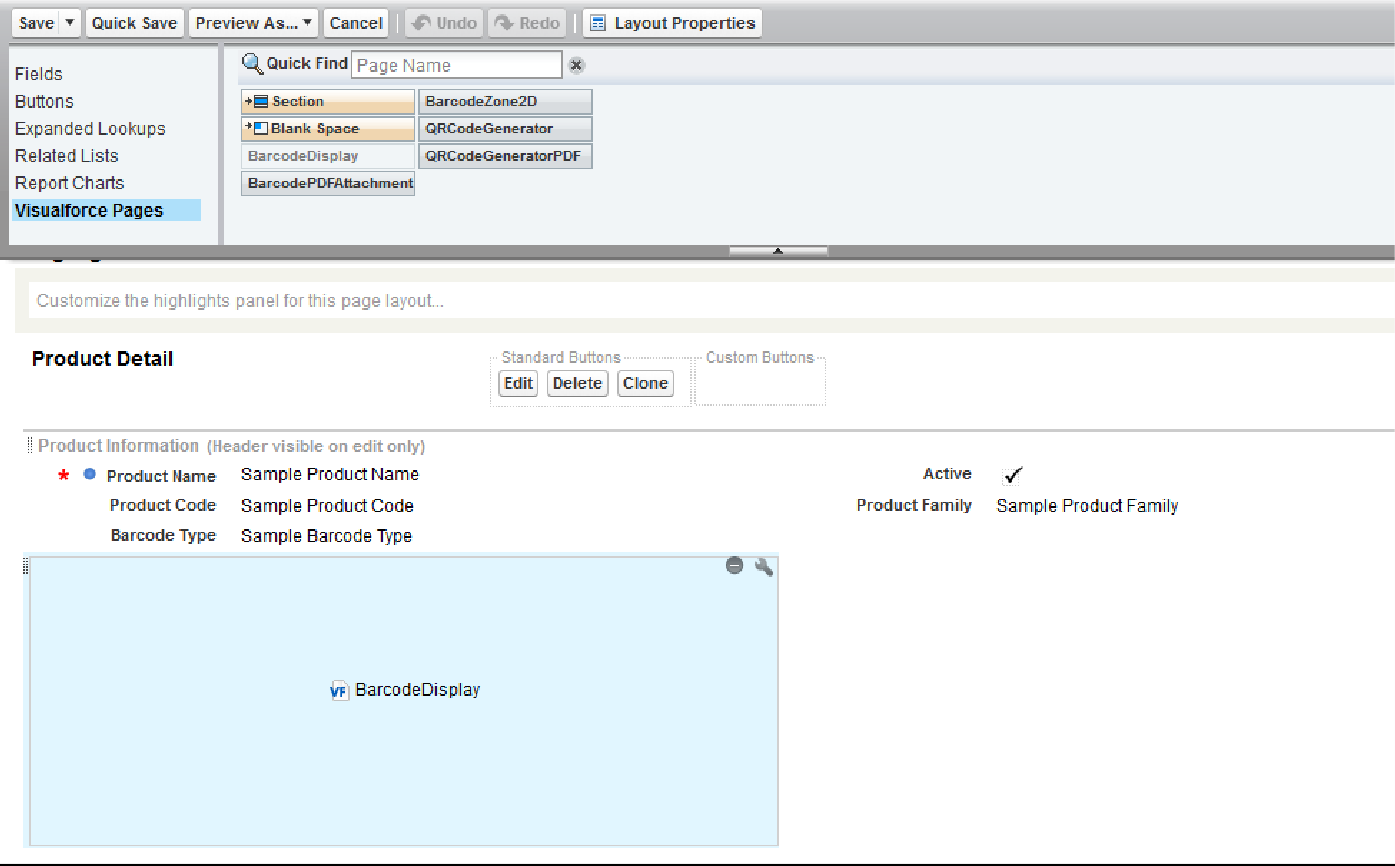
  3. Add the visual force page into the page layout.

Step1: Create a custom picklist field

Example: Barcode Type with the values listed below.

  1. code128
  2. code39
  3. ean13
  4. ean8
  5. qrcode
  6. pdf417

Step 2: Create a Visualforce Page.

Note: Please re-type the single and double quotes in the Visualforce page code.

Example: For custom controller or extension:


For e.g., our case, we create a new Visualforce Page and add the below code for standard controller:

Attribute Name

Attribute Type

Description

barvalue

String

Barcode value for which the barcode will be generated

barType

String

Type of the barcode to be generated

ILLUSTRATIONS 

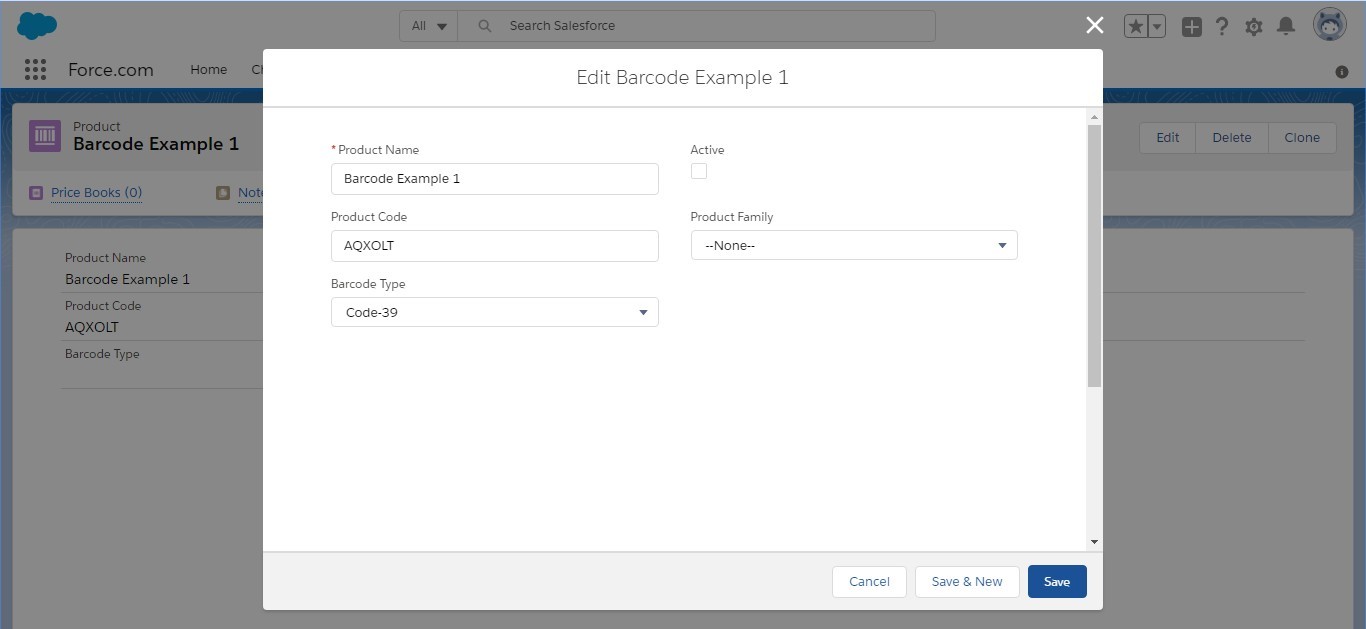
  1. Select any Product from the Product list or create a new
  2. Enter the ‘Barcode Value’ to be generated and select the ‘Barcode Type’.

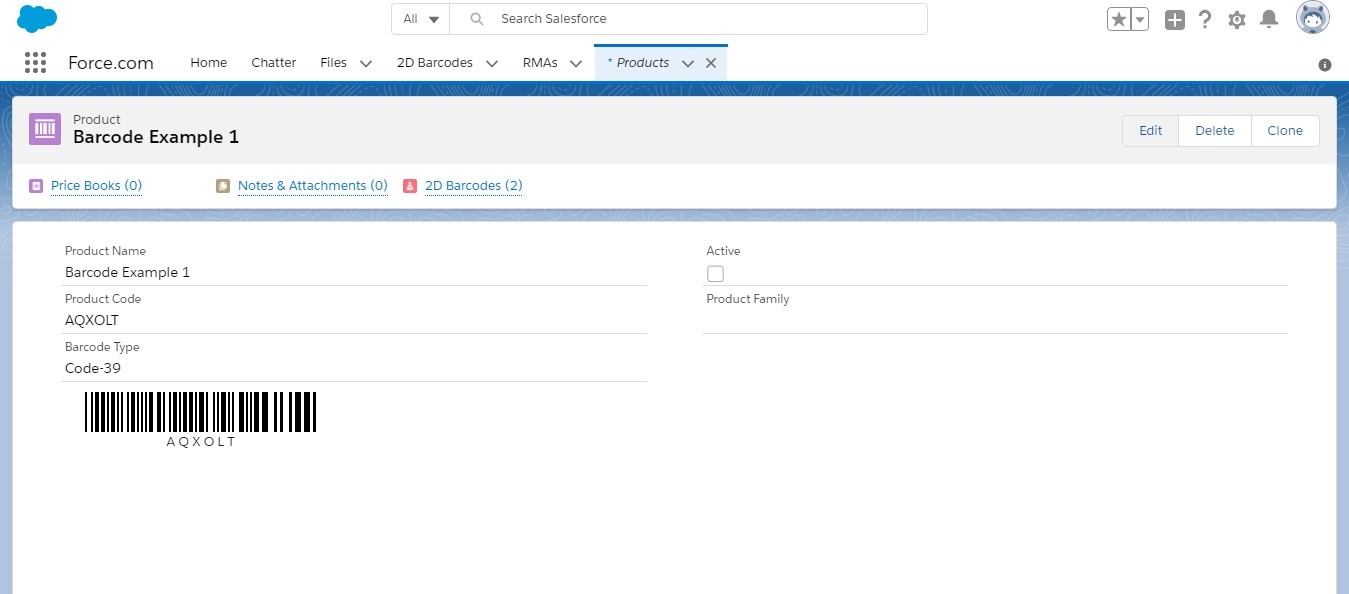
Example 1:

Barcode Value is “AQXOLT” and Barcode Type is “code39”.
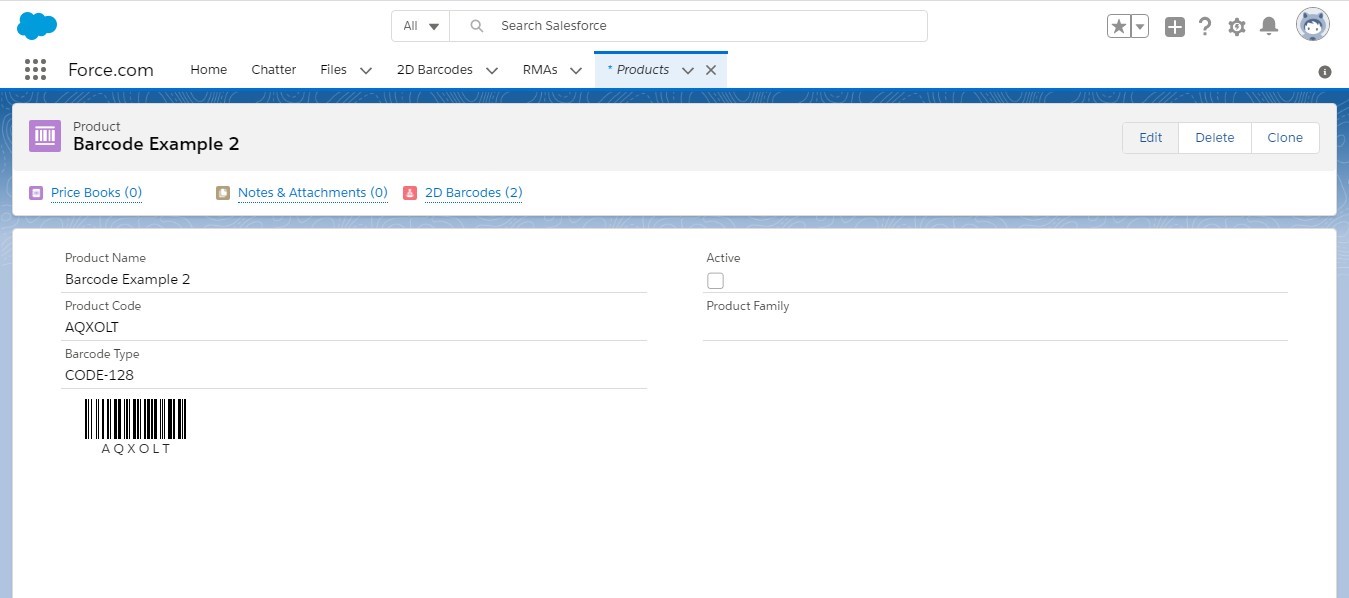
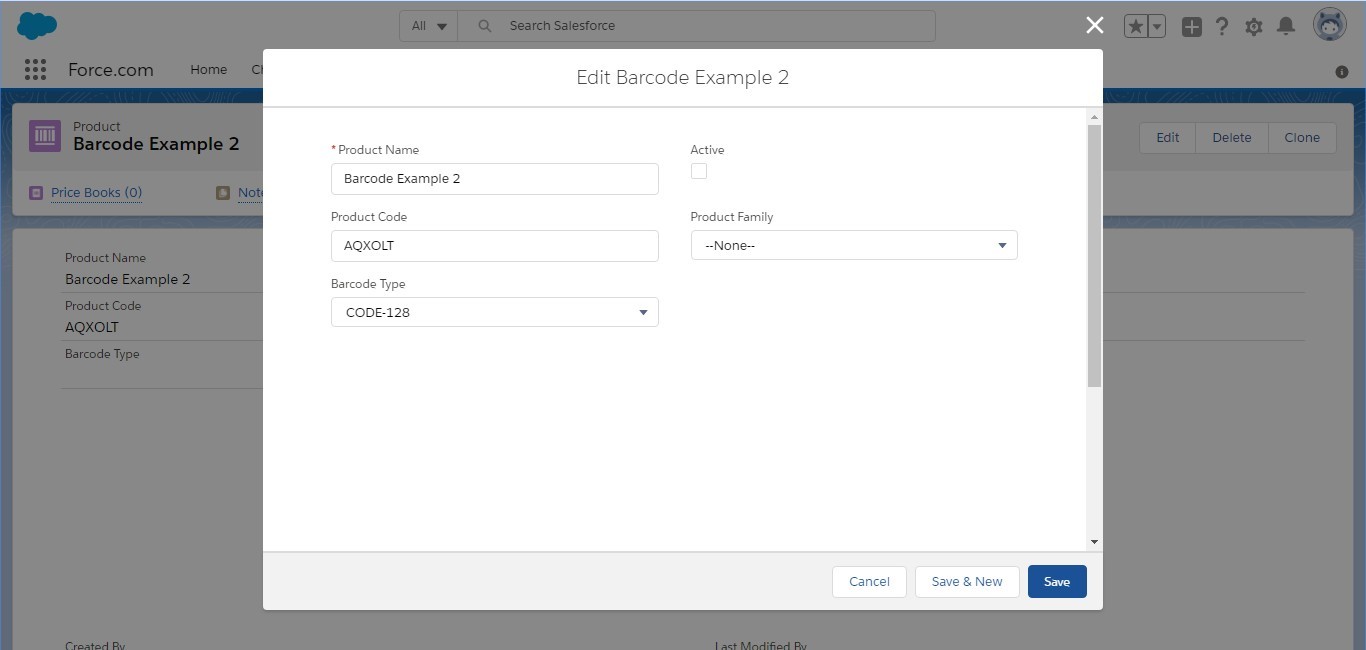
Example 2:

Barcode Value is “AQXOLT” and Barcode Type is “code128”.
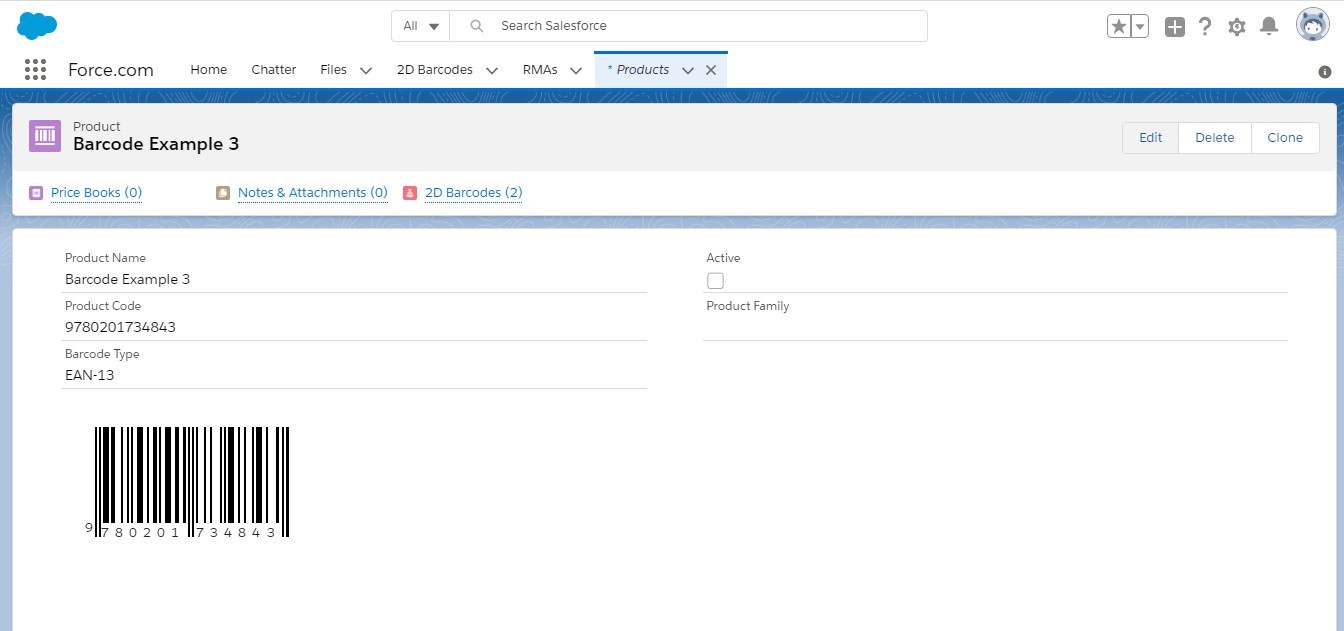
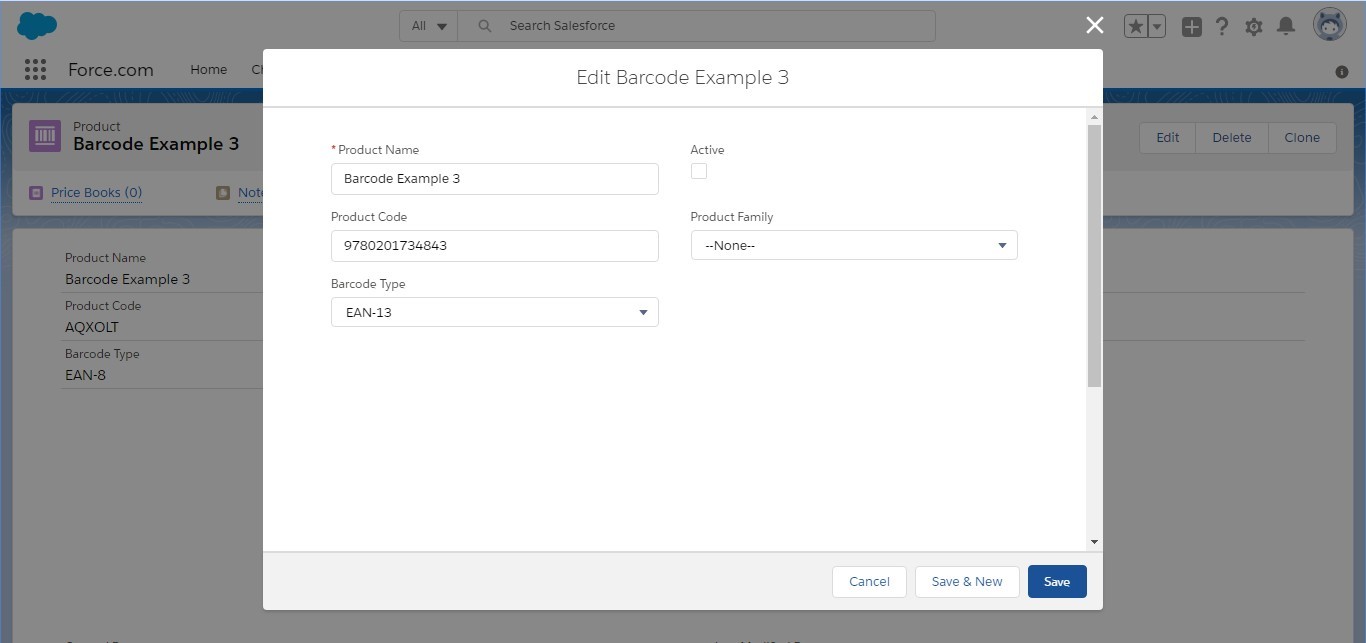
Example 3:

Barcode Value is “9780201734843” and Barcode Type is “ean13”.
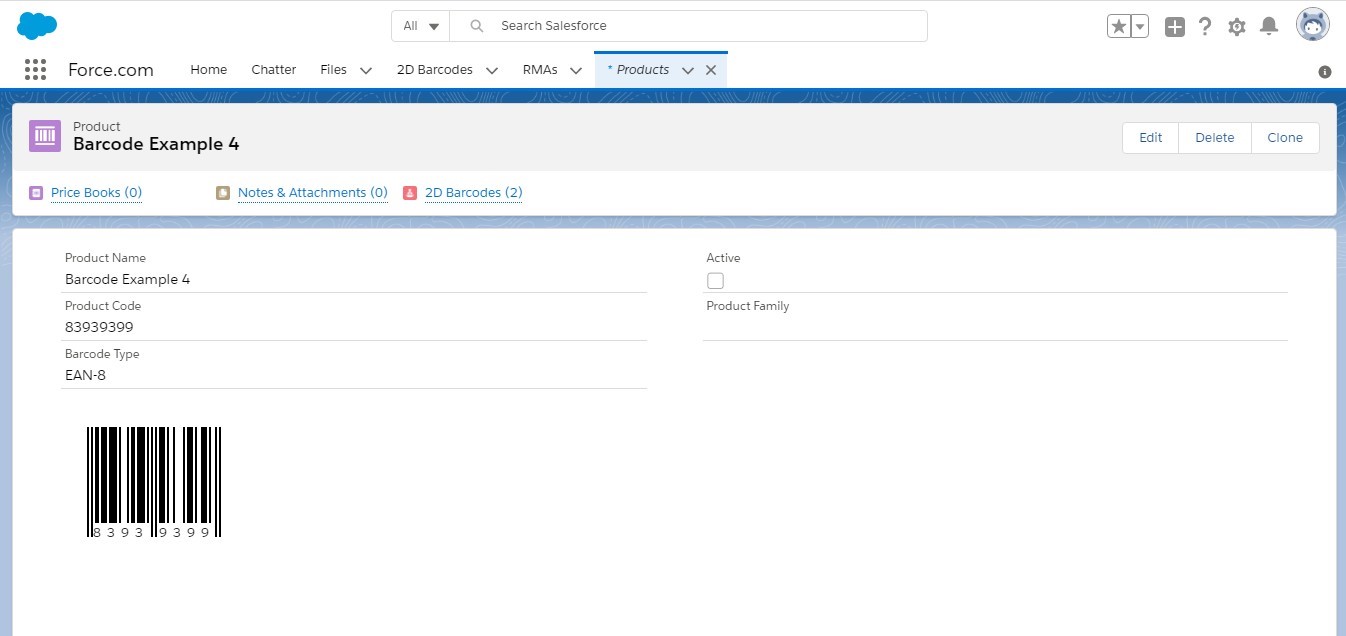
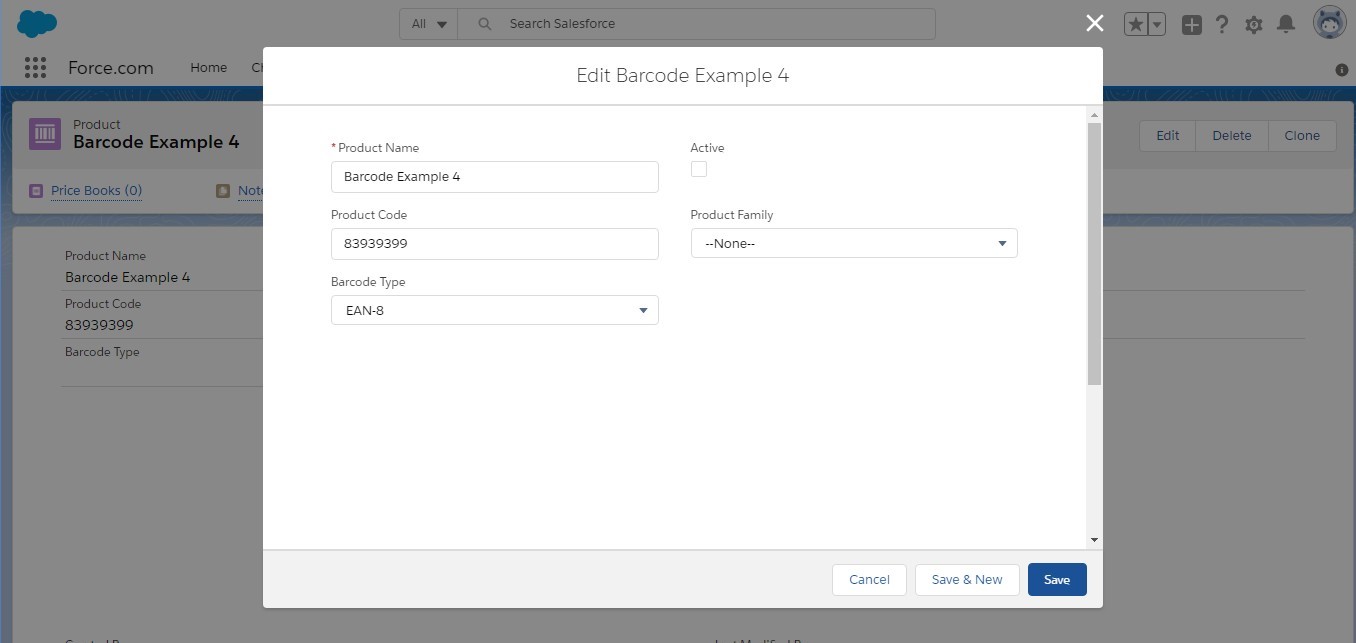
Example 4:

Barcode Value is “83939399” and Barcode Type is “ean8”.
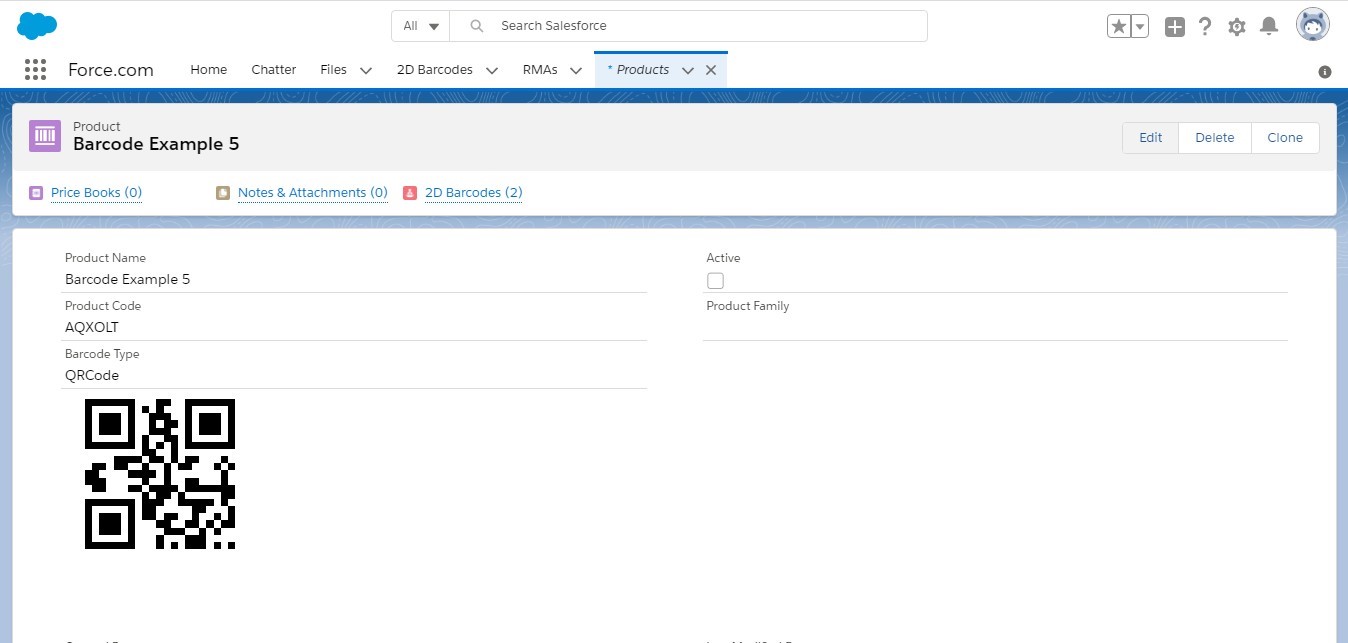
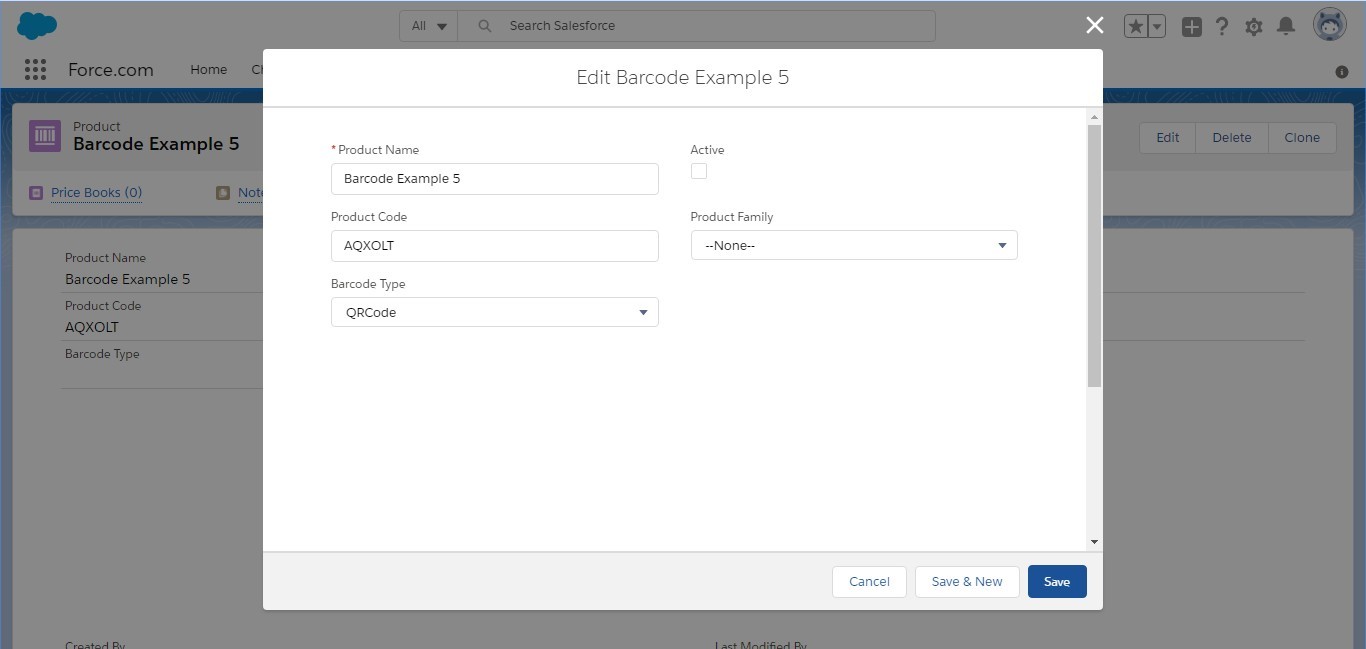
Example 5:

Barcode Value is “AQXOLT” and Barcode Type is “qrcode”.
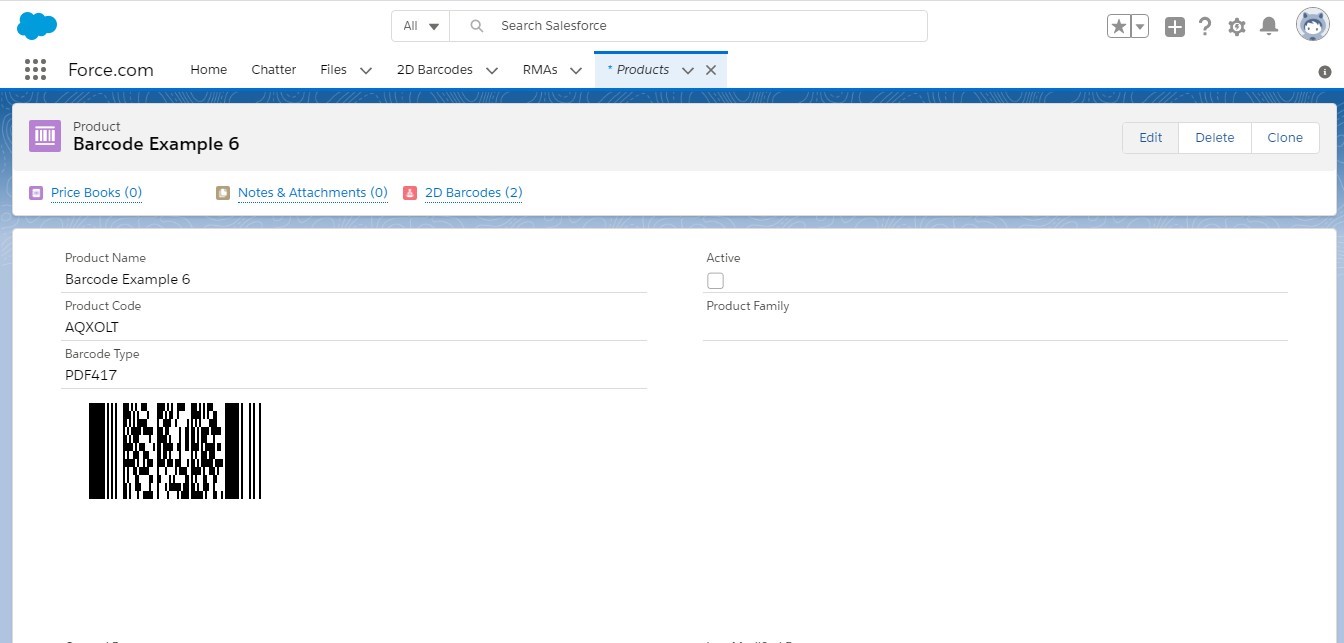
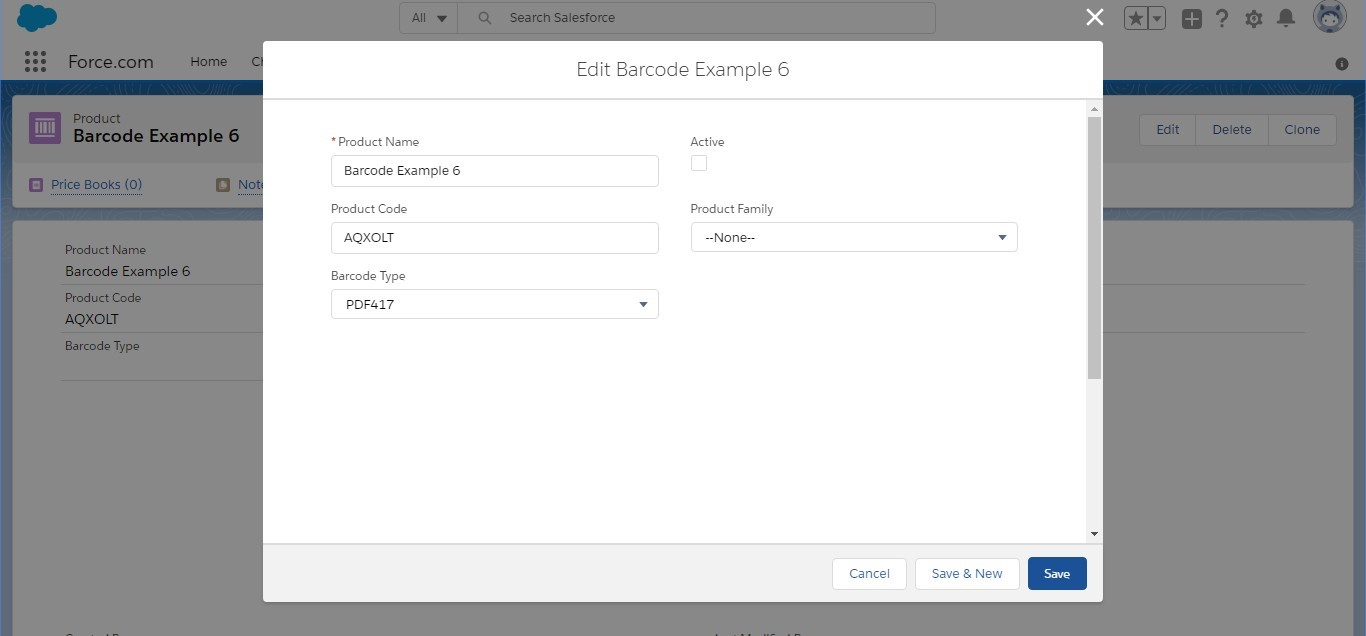
Example 6:

Barcode Value is “83939399” and Barcode Type is “pdf417”.


Axo

Hi, I’m Axo. Ask me how to do something in Axolt and I’ll answer from the documentation, with links to the articles I used.

AI answers are not switched on yet, so I’ll show the best-matching articles.

Answers come only from published Axolt documentation. Check important steps against the linked article.

Click or press Z to zoom. Drag to move.