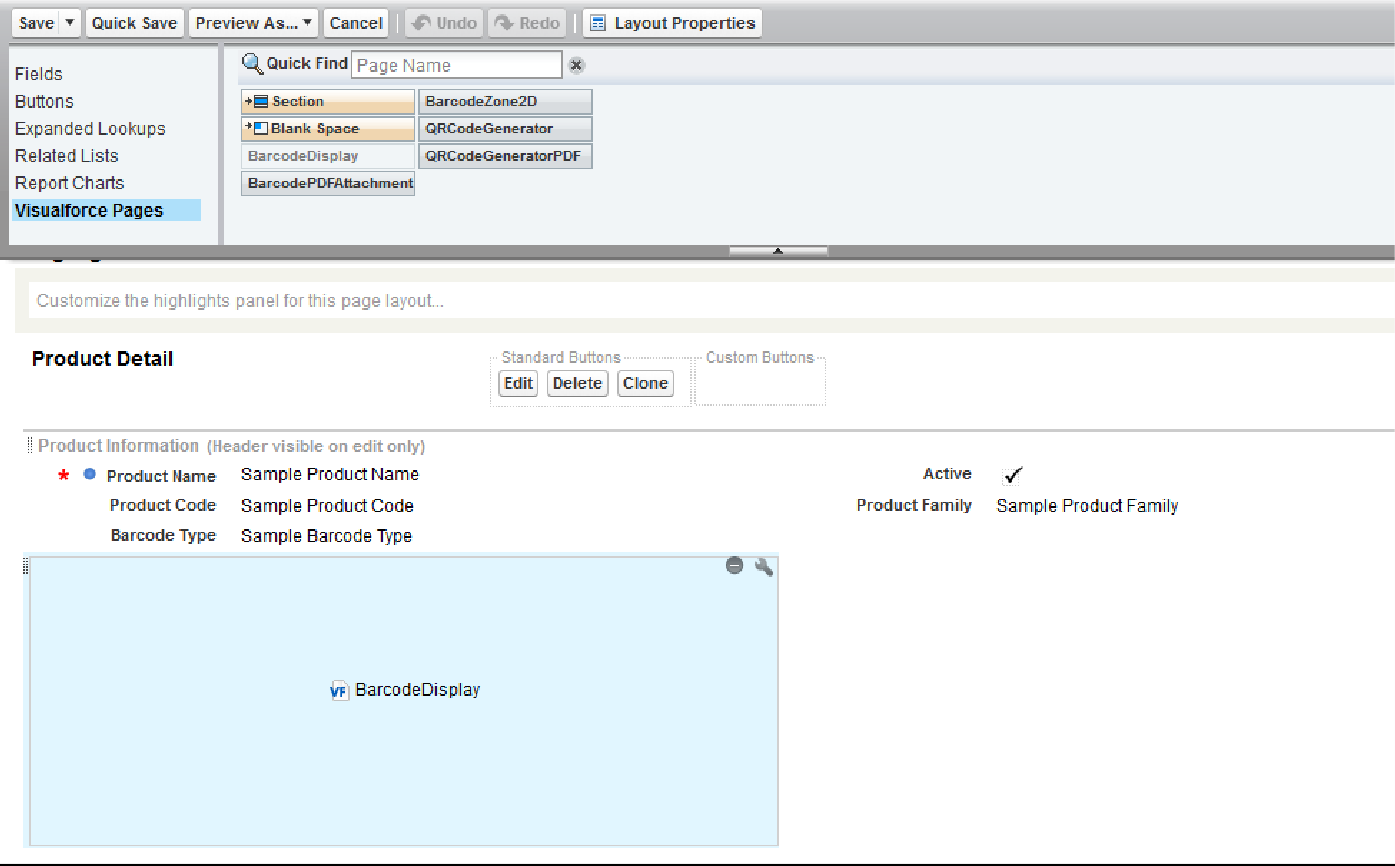
For Lightning Components
On this page
This article is not available in Español yet. You are reading the English original.
Attribute Name | Attribute Type | Description |
barvalue | String | Barcode value for which the barcode will be generated |
barType | String | Type of the barcode to be generated |
 ILLUSTRATIONS
- Select any Product from the Product list or create a new
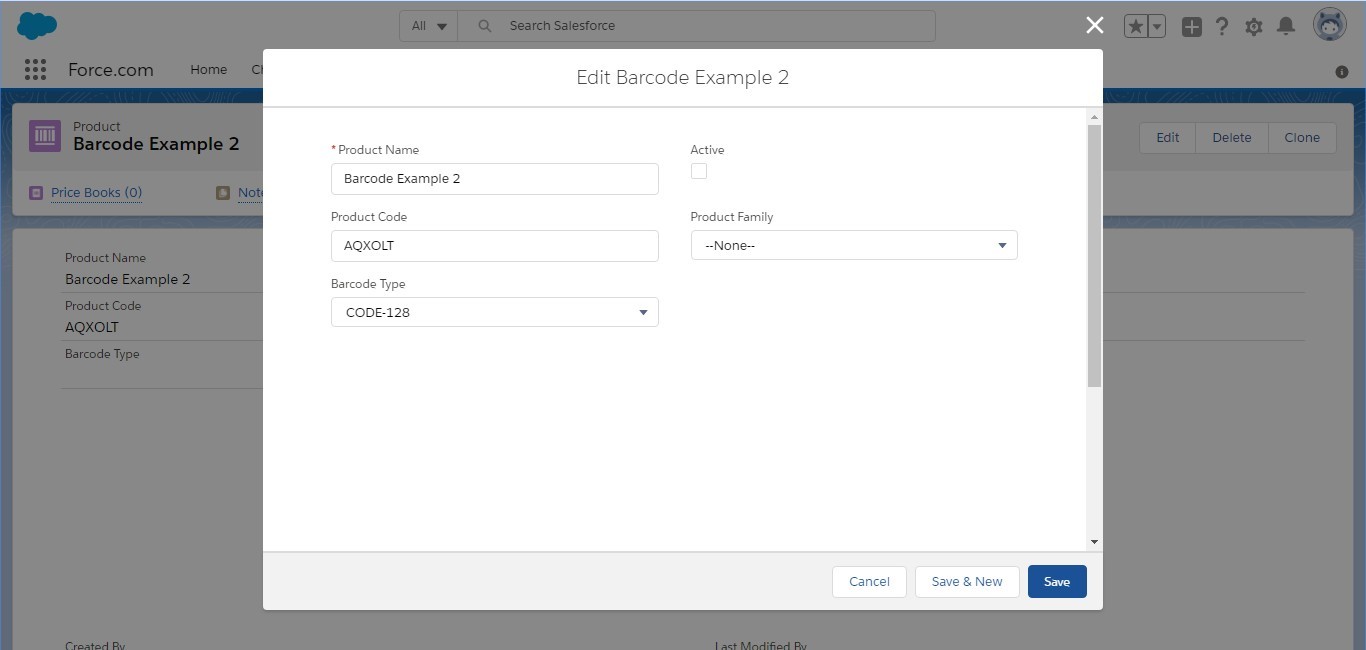
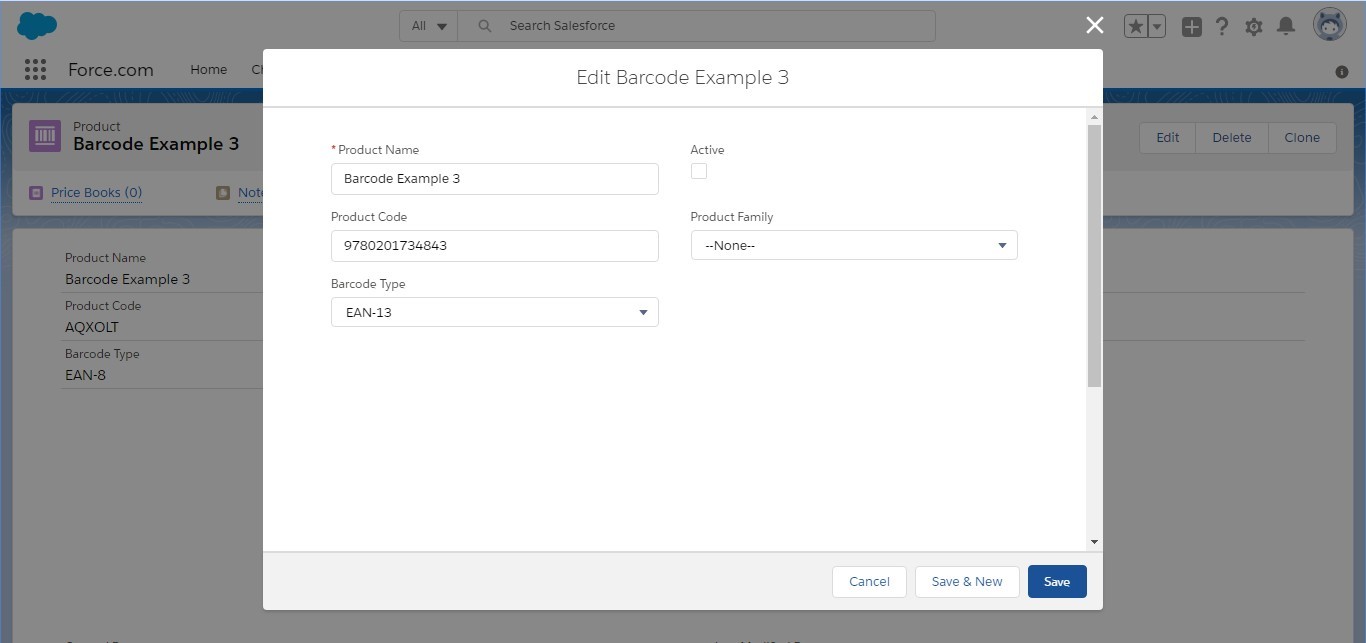
- Enter the ‘Barcode Value’ to be generated and select the ‘Barcode Type’.
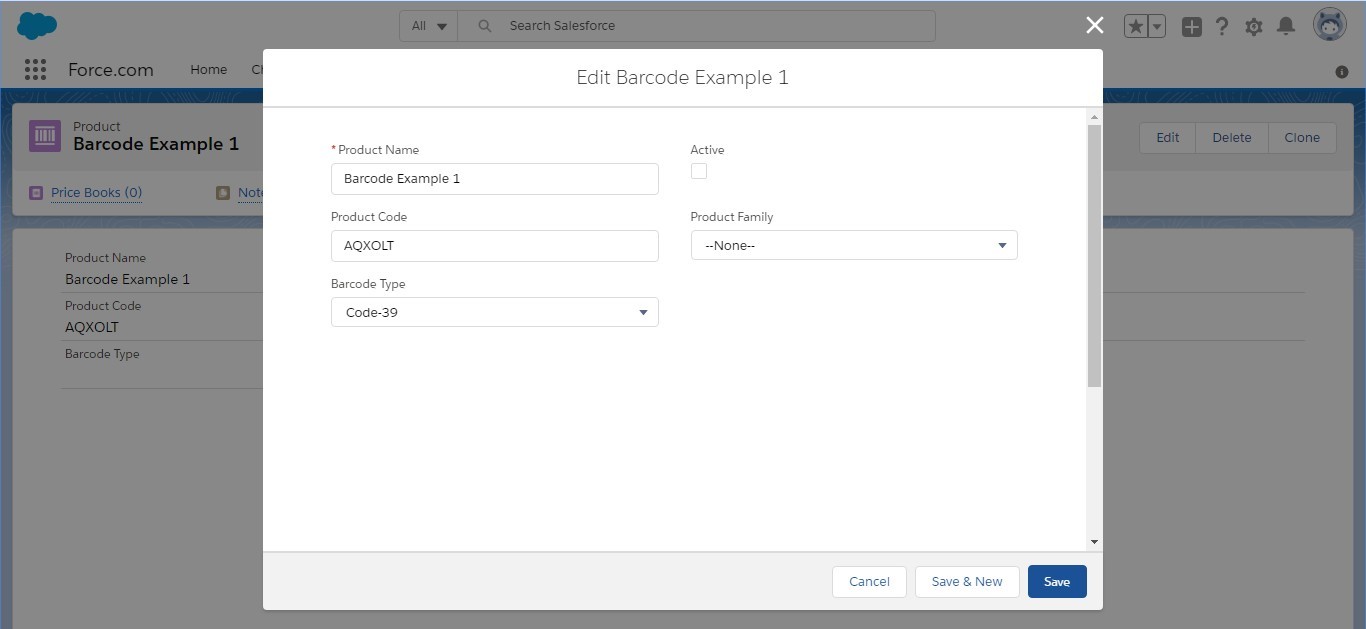
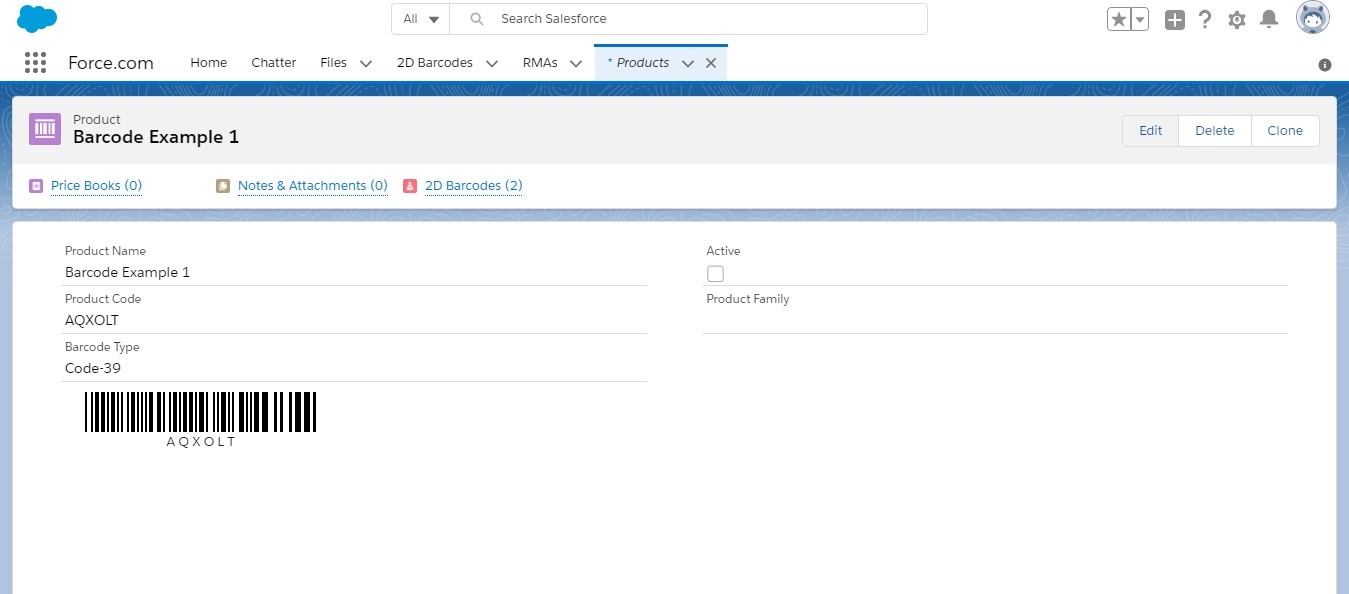
Example 1:
Barcode Value is “AQXOLT” and Barcode Type is “code39”.
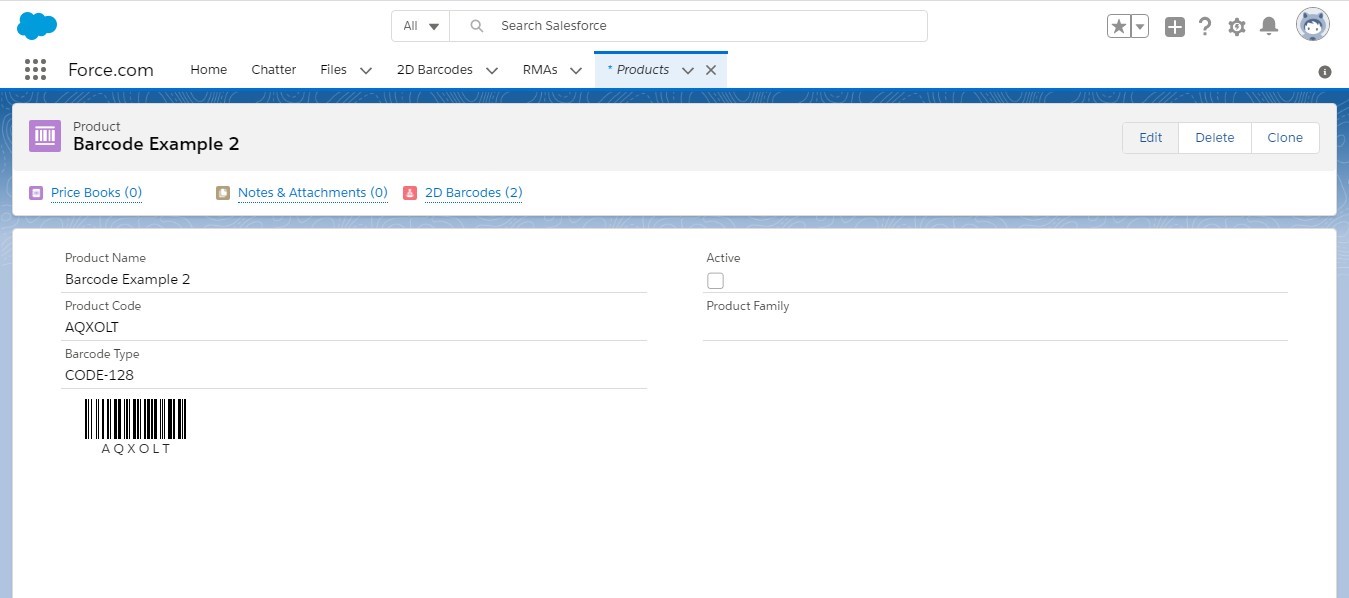
Example 2:
Barcode Value is “AQXOLT” and Barcode Type is “code128”.
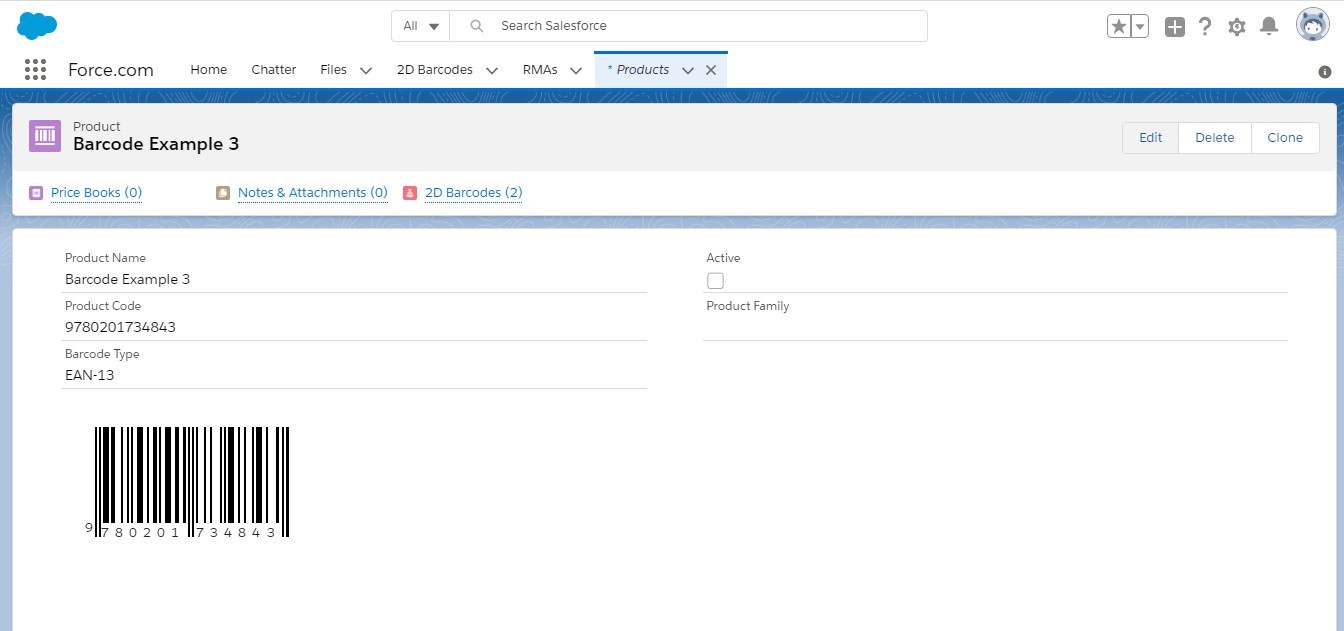
Example 3:
Barcode Value is “9780201734843” and Barcode Type is “ean13”.
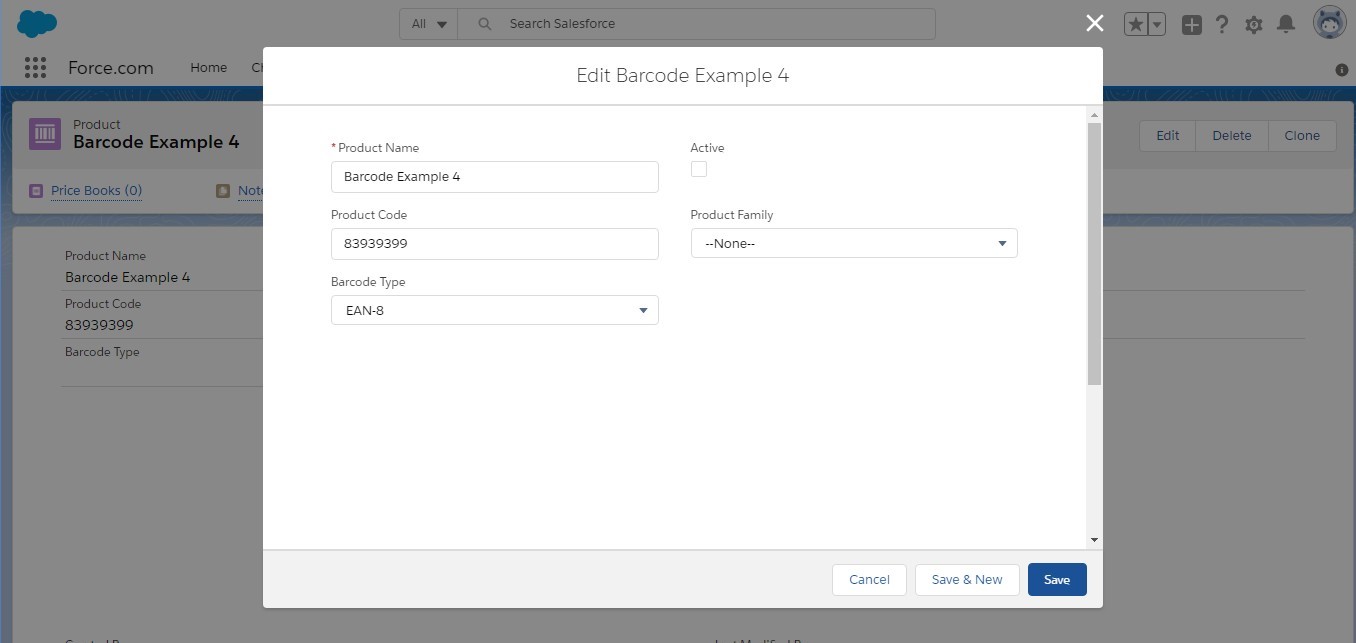
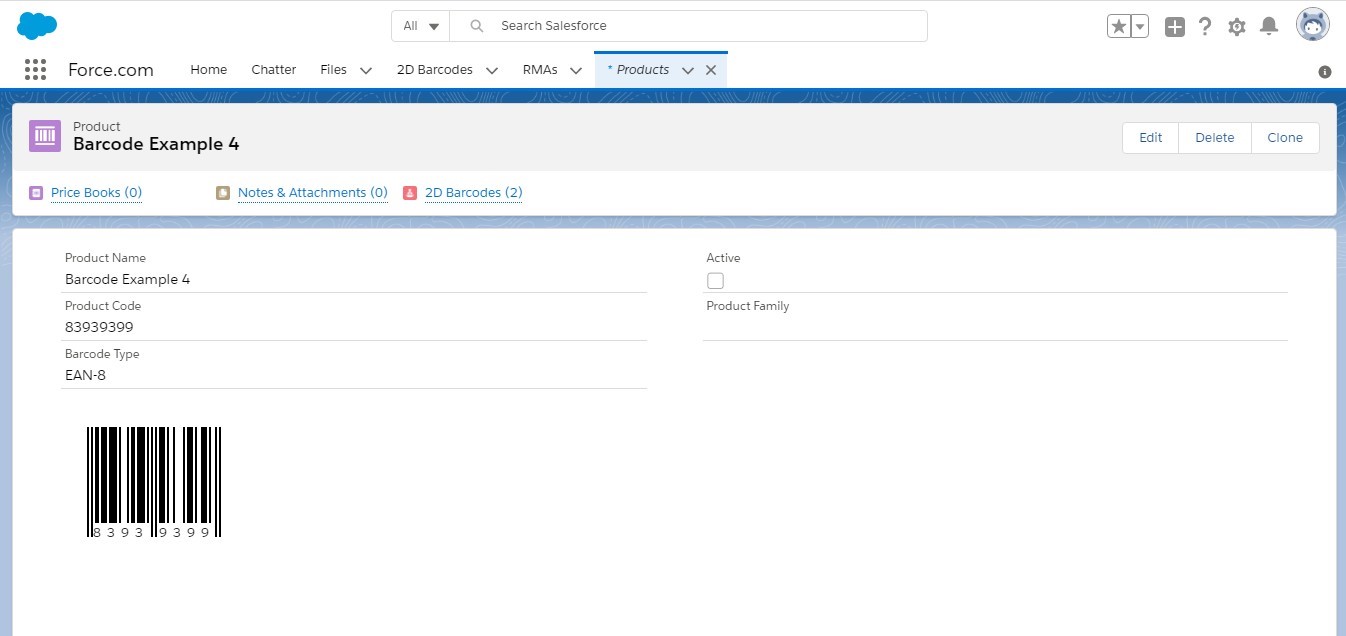
Example 4:
Barcode Value is “83939399” and Barcode Type is “ean8”.
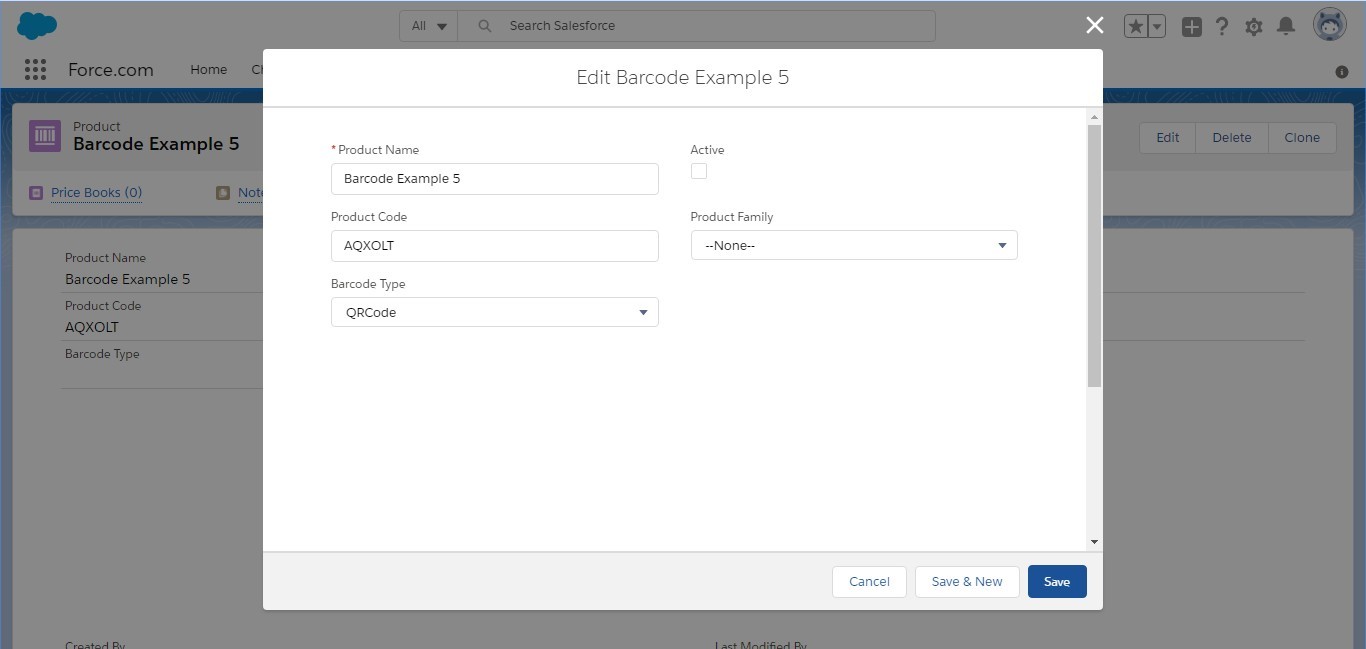
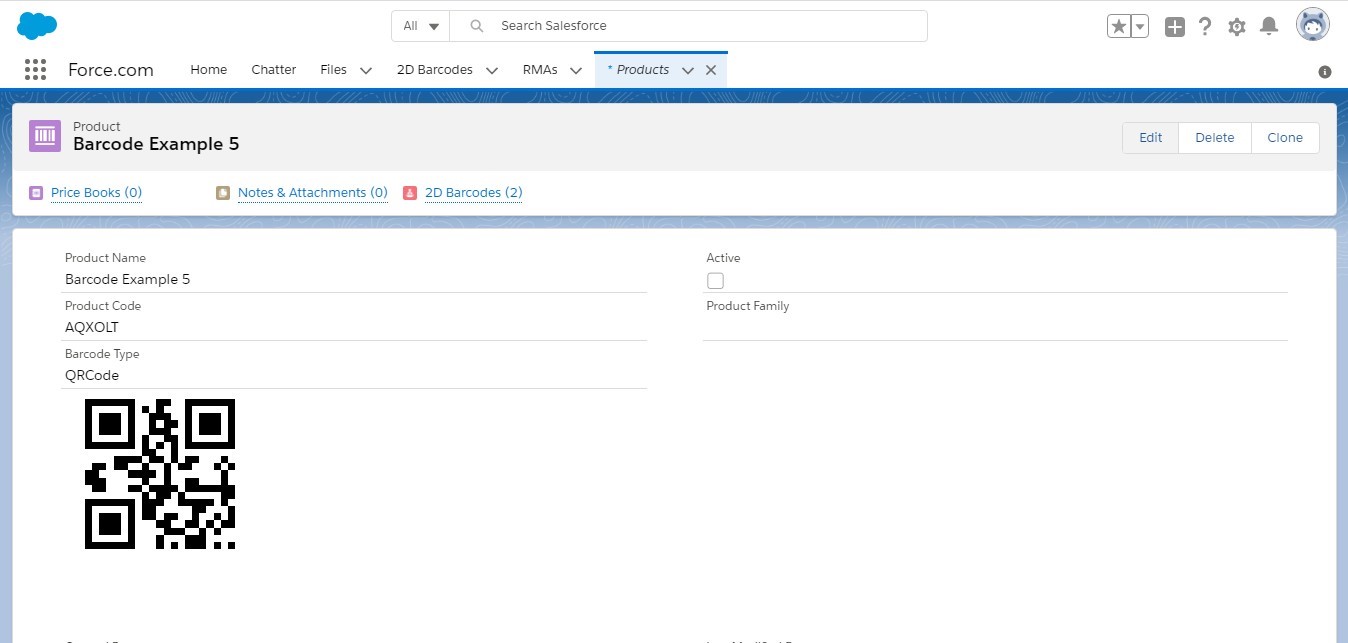
Example 5:
Barcode Value is “AQXOLT” and Barcode Type is “qrcode”.
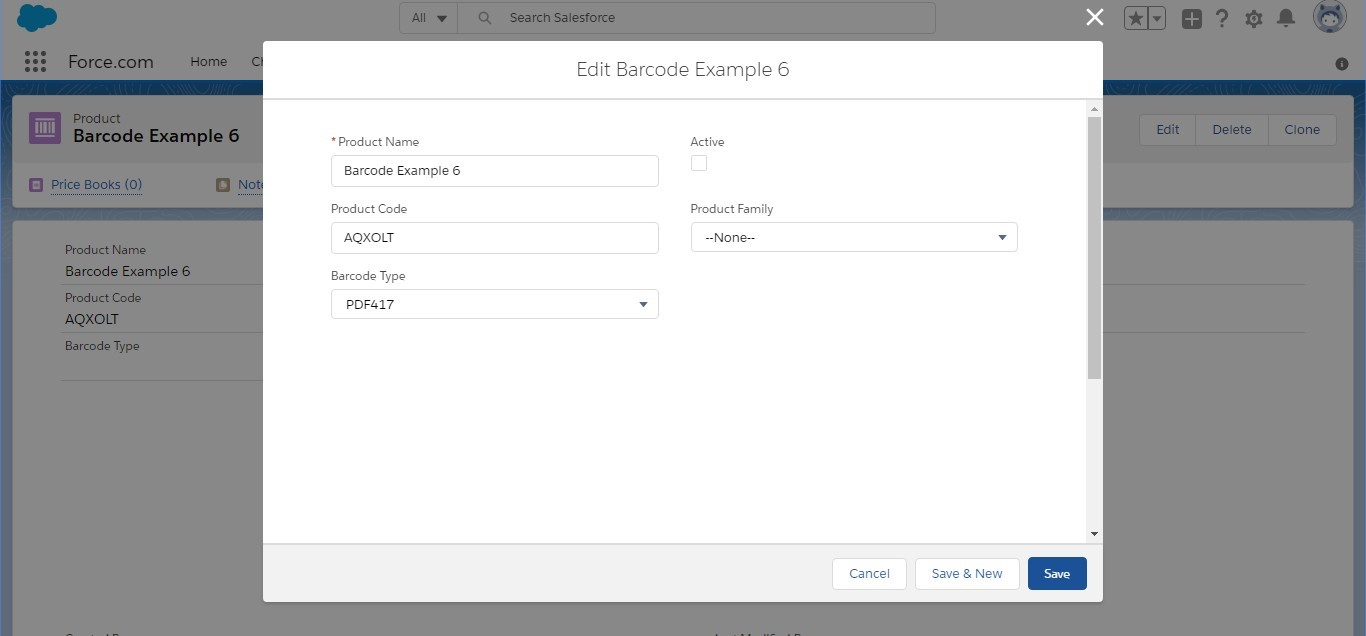
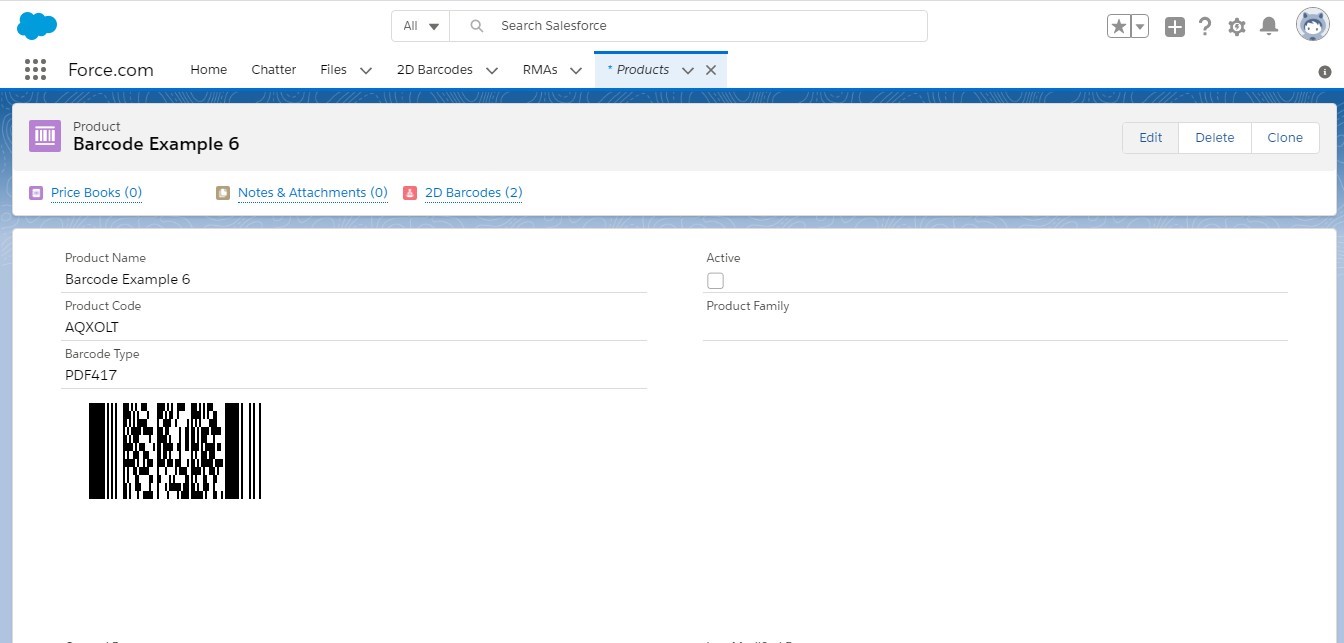
Example 6:
Barcode Value is “83939399” and Barcode Type is “pdf417”.