
Print Barcodes
On this page
This article is not available in Español yet. You are reading the English original.
Print Barcodes page allows to Generate Barcodes for different objects with different Barcode Type and Page Size and Print them.
Products, Fixed Assets, Sites, Accounts, and Contacts can have Barcodes and the system is capable of reading barcodes through a barcode scanner.
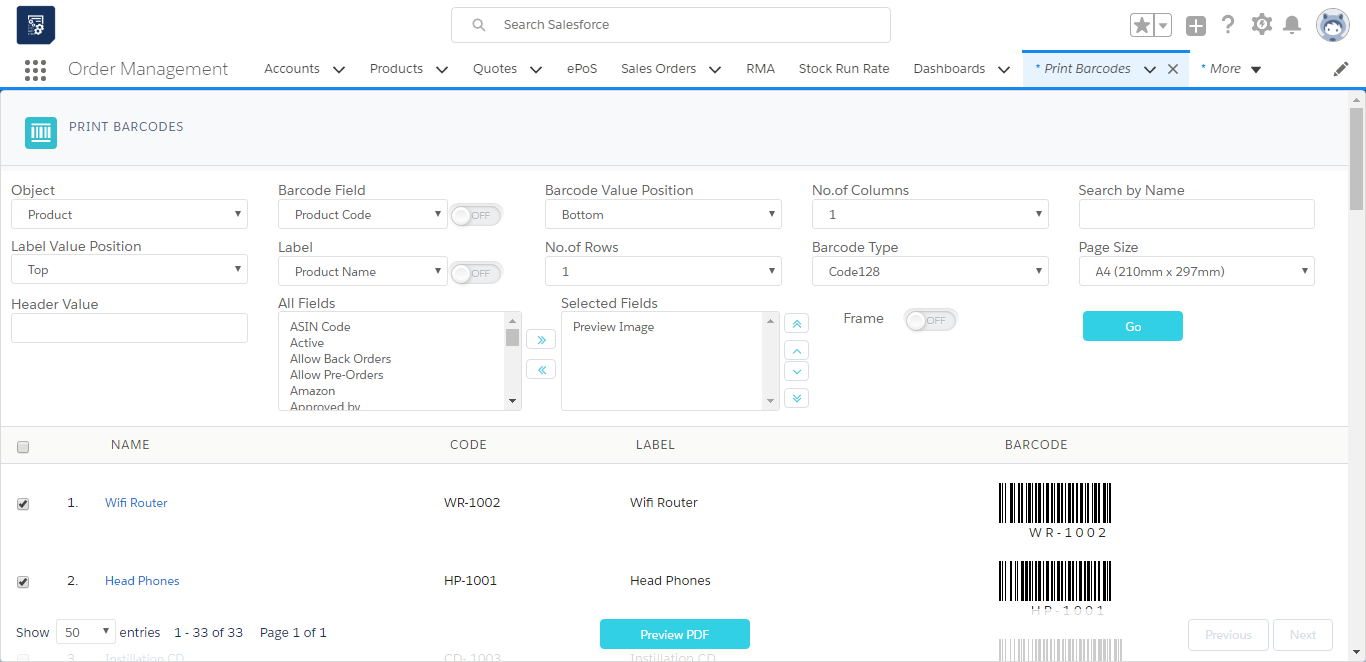
- Navigate to App Menu > Print Barcodes
- The object defaults to Product and all the available products are listed below with their Barcodes.
- Select the object you want to generate barcodes.
- Select the “Barcode Field and Label.”
- Additional fields can be added to print by moving fields from all fields column to selected fields column.
- Page size and Barcode Type can be managed.
- The frame can be added to the Print page by turning on the Frame.
- After making the required settings, select the Items you want to take, print barcodes and click “Preview PDF button.”
Was this article helpful?