
Income Statement
On this page
This article is not available in Español yet. You are reading the English original.
The profitability of a company for a specified period of time is shown on an Income statement. The business can choose the time period the statement covers. It is an organization’s ability to record net profit or loss over a specific accounting period. The income statement provides an overview of the organization’s sales and net income. Aqxolt ERP covers both the operating and non-operating portions of the income statement. The operating part of the income statement discloses records about expenses and revenue that are directly associated with regular business operations, whereas the non-operating part of the income statement discloses records of expenses and revenue that are not directly associated with regular business operations.
The income statement is important because investors can use it to analyze the profitability of the organization. It plays a significant role in making decisions about whether to invest in the organization.
View/Download an Income Statement
- Navigate to the Finance Management app > Income Statement tab.
- Once in the Income Statement tab, you can track/view the organisation’s revenue and expenses for the current fiscal year.

- The user can use the date filter to view the income statement for a specific period of time to fetch the revenue and expense details for the specific period of time.

- Aqxolt ERP allows users to download the income statement in a PDF/Excel format simply by clicking the “Download Excel/ Download PDF” button.
Aqxolt ERP allows the user to use the income statement for comparison. It is used to compare fiscal year data and fiscal quarter data. It typically allows users to compare the present year with two years of historical data.
- On the Income Statement tab, click the “Compare Income Statement” sub tab.
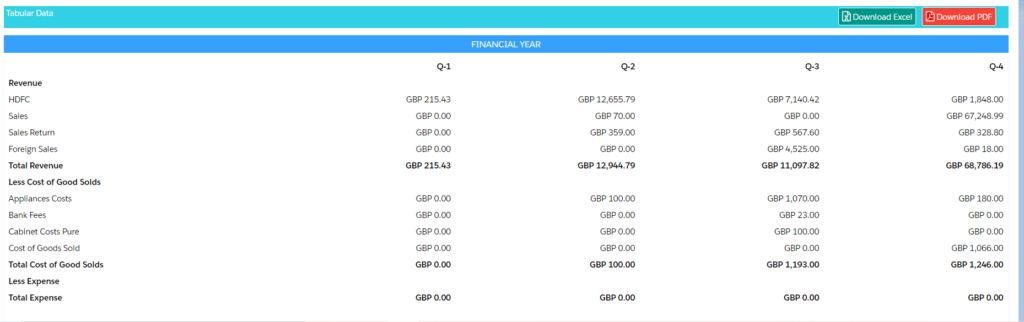
- To compare the data, from the filter select the fiscal year or fiscal quarter options and the date.
- The system will display the tabular data for the selected filter criteria.
- To download the tabular comparison data, click the “Download PDF” button.
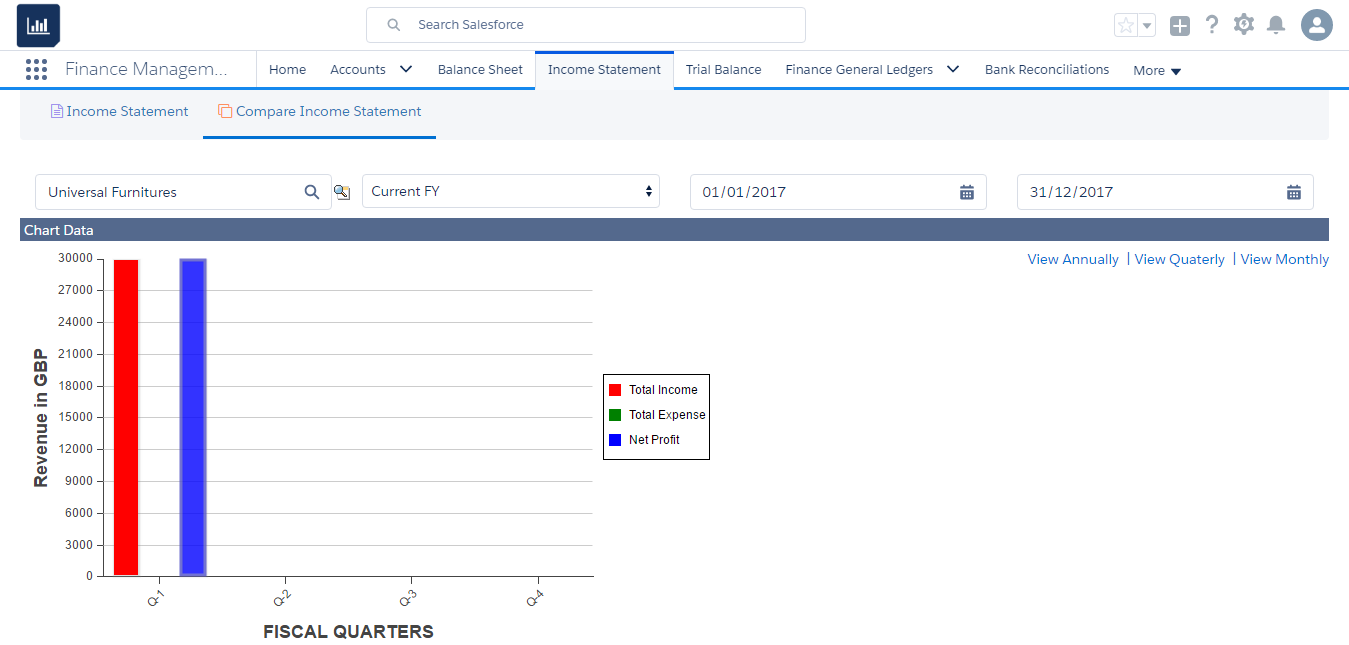
Aqxolt ERP provides the user with accurate chart data based on the selected filter criteria. Click on the links on the right-hand side next to the chart to view the chart data Annually, Quarterly and Monthly.
Was this article helpful?