
Lot/Batch Number
On this page
This article is not available in Español yet. You are reading the English original.
A batch/lot product is a group of items produced or received typically with the same manufacturing date or lot number. This allows for easier tracking, quality control, and inventory management.
Products can be manufactured or received in a lot, having a particular lot number assigned to the set of production.
Create a Lot/Batch Product –
- To designate a product as lot/batch-tracked, select the Lot Tracked checkbox on the product detail page.
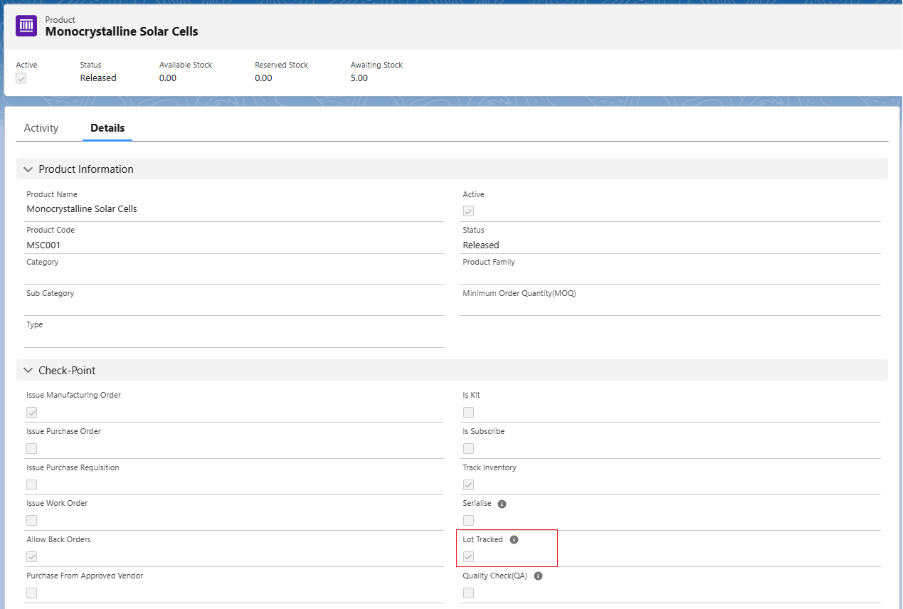
Batch number can be generated from three sections:
A. From Inbound Logistics screen.
B. From Manufacturing Workbench screen.
C. Create Lot/Batch Numbers manually.
A. From Inbound Logistics screen.
- Create a Purchase Order for a Lot Tracked product via the Create Purchase Order tab.
- Create a Purchase Order along with Logistic record for a serialized product via the Create Purchase Order tab.
- Then, locate the logistic from List section, select the desired entry, and click the Receive button to navigate to the Receive section
- Click the Settings icon next to the Batch/Lot Lookup to open the batch number creation page.
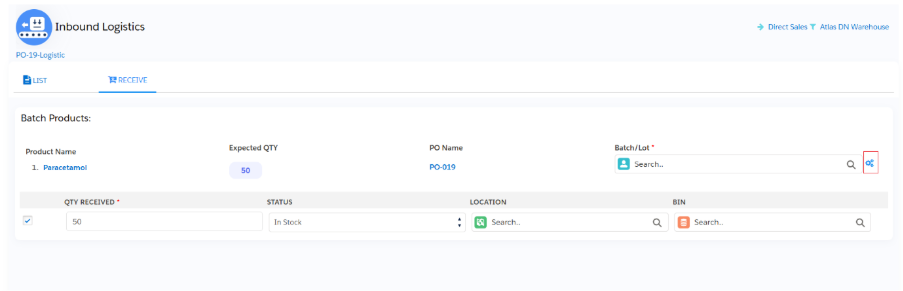
- Note 1: You can either create a new batch number by clicking the Settings icon or select an existing batch number from the lookup to associate with the product.
- Enter the Batch/Lot number; the Barcode will be auto generated. Provide additional details such as Expiry Date and Product Version, if applicable.
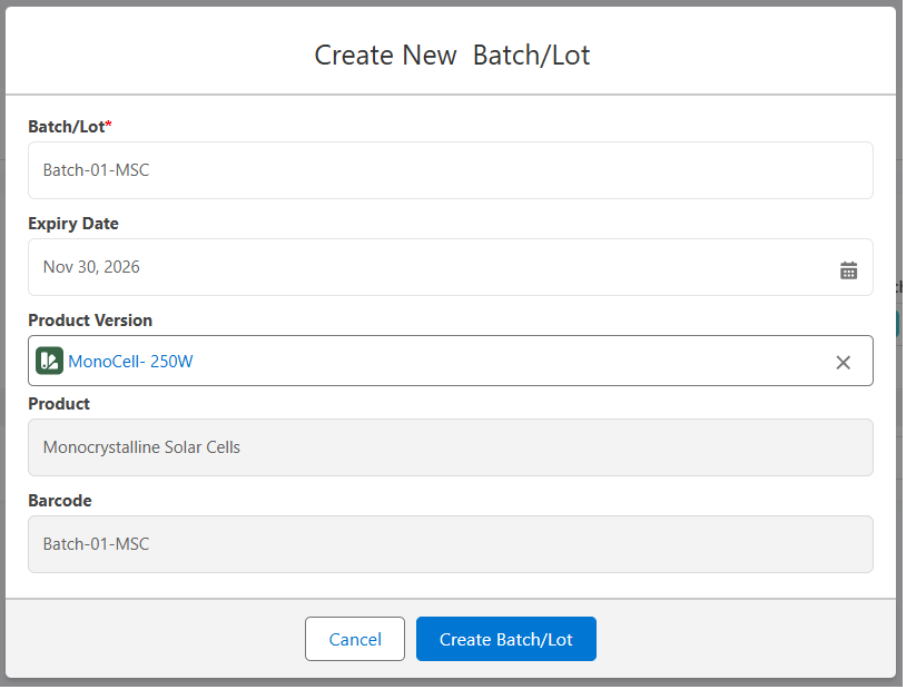
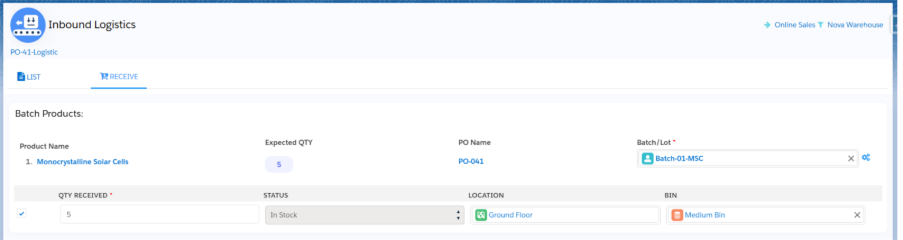
- Click on Create Batch/Lot button. Once the batch is created, the Batch/Lot number will be selected automatically.
B. From Manufacturing Workbench screen.
- Navigate to the Manufacturing Workbench and schedule a product.
- In the Manufacturing Order page, go to the Serial Number/Batches section.
- The Batch number will be auto generated for the scheduled product. Users can modify the Batch Number if needed.
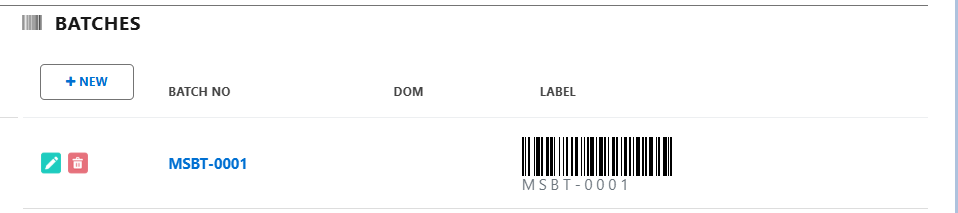
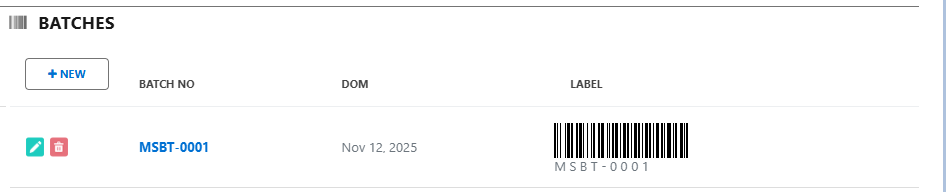
- Once the quantities are built, the Date of Manufacturing field will be updated
C. Create Lot/Batch Numbers manually.
- Open the Lot Tracked product record and locate the Serial Numbers Related List.
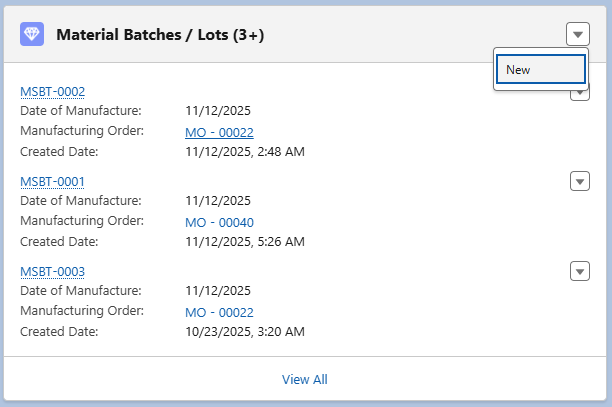
- Click on Create New.
- Add the Batch Number, Shelf-Life Expiration Date, and Date of Manufacture if applicable.
- Make sure it is Active and the Product is selected.
- Select the Manufacturing Order, Purchase Order and enter the Price details. (if applicable)
- Assign the Site ID in the Received Site field.
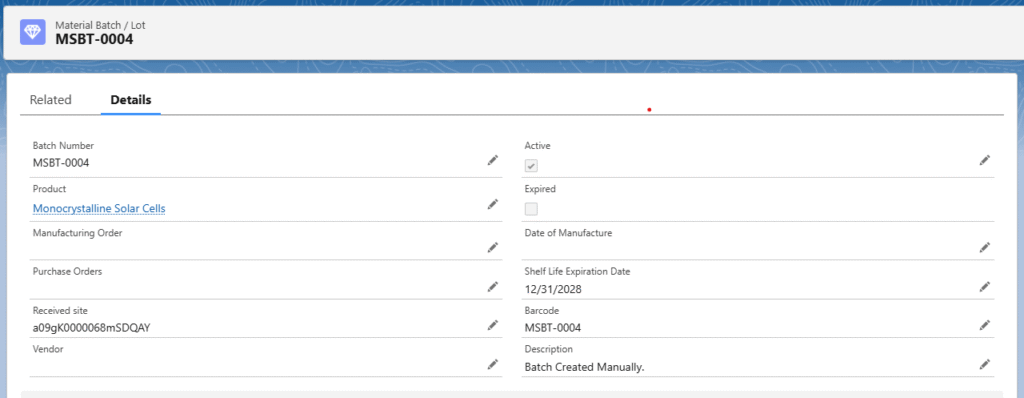
- Click on Save.
Was this article helpful?