
Create Inbound Logistics for PO, TO, and RMA.
On this page
This article is not available in 日本語 yet. You are reading the English original.
Follow these steps to create Inbound Logistics for Purchase Orders (PO), Transfer Orders (TO), and Return Merchandise Authorizations (RMA) –
A. Purchase Order Logistics –
This is the standard process for receiving goods purchased from a vendor.
Steps –
- Navigate to the Create Purchase Order tab using the App Launcher or find the tab in the app navigation menu.
- Select The Record Type (Standard) and click on Next.
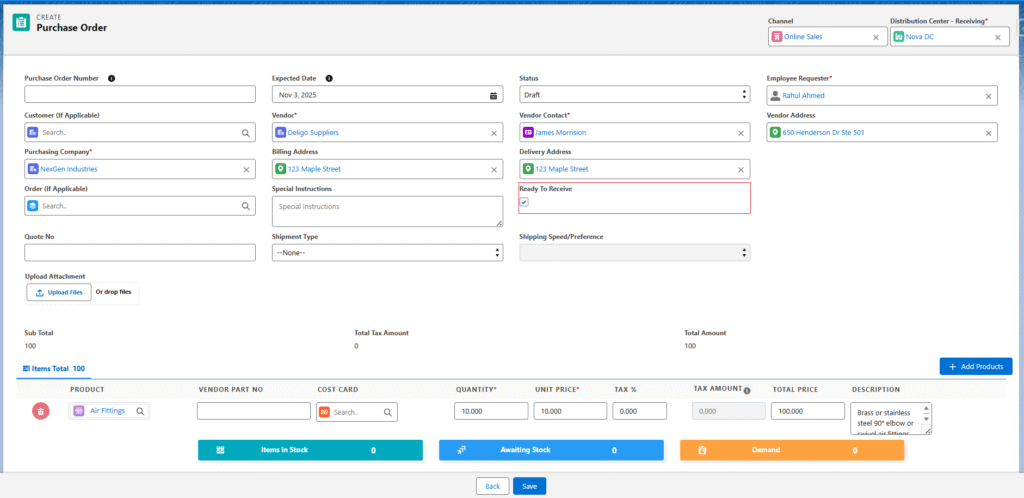
- Fill in the required fields along with the products and click Save to create the Purchase Order.
Note 1: To create the Logistic record immediately, check the Ready to Receive checkbox while creating the Purchase Order.
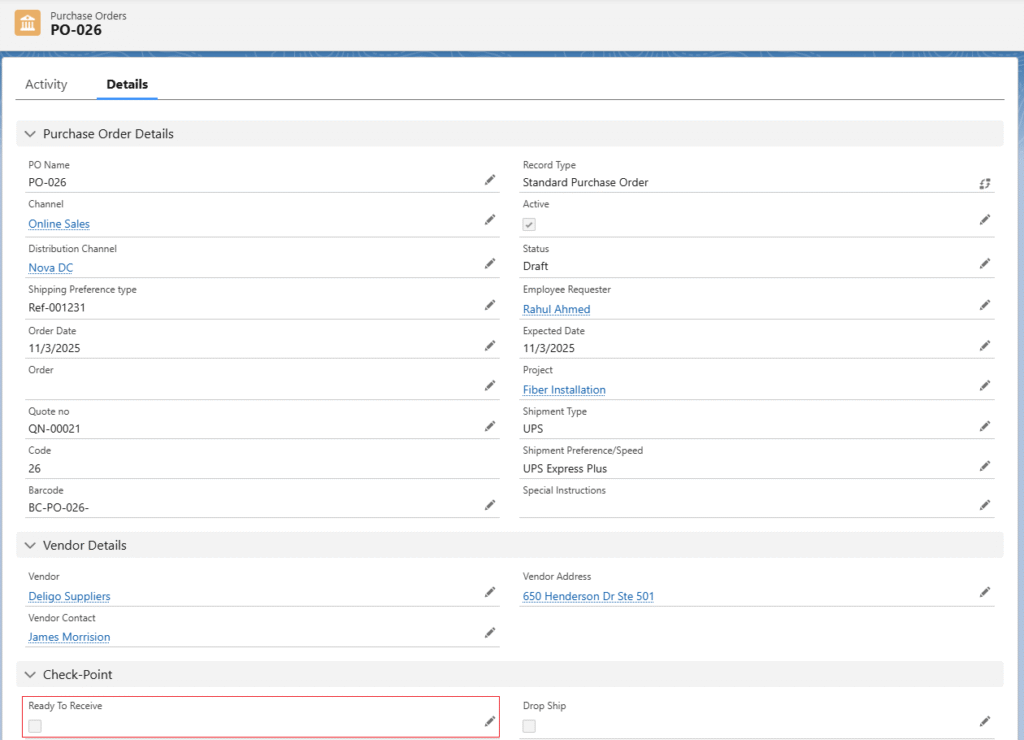
- Alternatively, if you create the Purchase Order without checking the Ready to Receive, you must navigate to the Purchase Order record and manually check ‘Ready to Receive’ to create the Logistic record.
B. Transfer Order Logistics –
This process moves goods between two Distribution Centers within the same company.
Steps –
- Navigate to the Create Transfer Order tab using the App Launcher or find the tab in the App Navigation menu.
- Fill in the required fields, add the products, and click Save to create the Transfer Order record.
- For Transfer Orders, inventory is moved from the Source Distribution Center using Outbound Logistics.
- Create the Outbound Logistics record by checking the Ready to Pick & Pack check box and complete the Pick, Pack, and Ship process.
- Once Pick, Pack, and Ship is complete and inventory reaches the Destination Distribution Centre, users can create Logistics (type Inbound) record by selecting the Ready to Receive checkbox.

C. Return Merchandise Authorisation (RMA) Logistics
This process handles receiving goods returned from a Customer or back to a Vendor.
Steps –
- Navigate to the RMA tab using the App Launcher or find the tab in the App Navigation menu.
- Fill in the required fields and click on Save to create the RMA record.
- The Return Shipment can be created before creating the Inbound logistic for RMA if applicable.
Refer the RMA guide to create the Return Shipments.
- To receive the returned goods, open the desired RMA record page and check the Ready to Receive checkbox. This creates a Logistics record of type Inbound.
Note 2: If the Authorized checkbox is checked during RMA creation, the system will automatically select the Ready to Receive checkbox and create the Inbound Logistics record.
Was this article helpful?