
Shopify
On this page
This article is not available in Deutsch yet. You are reading the English original.
- Enter the domain of the Shopify store and click install (https://aqxolt.myshopify.com/admin)
- Enter store login details
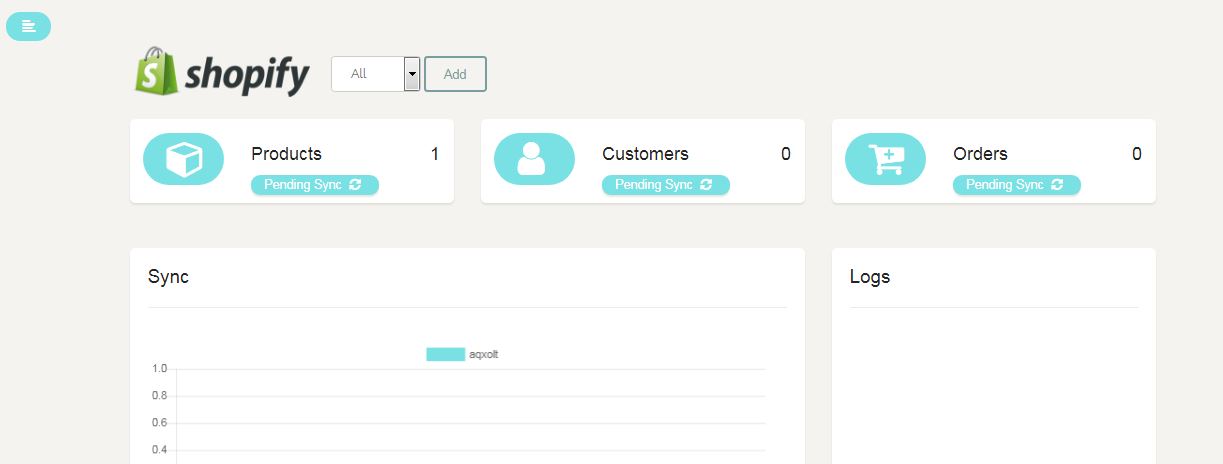
Create or sync products
In Salesforce; to sync or create a new product, make sure the following actions are taken.
- Select “Available” on “e-Commerce platform” check box.
- Create the e-commerce record from the products related list to make the product available on various platforms like Shopify, Amazon, WooCommerce, Magento, and eBay.
- For a product to be available on Amazon, Amazon (ASIN Code) is essential.
- Make sure “Price Book” is active.
- Login to the Heroku user and click “Product ”
This creates a product on the Shopify Store.
Create or sync Customer and Order
- When on Shopify store, click on “create order”– “select product” and “select ”
- If you want to add a new customer, then create a new customer by filling in the customer details such as First Name, Last name, Address and Contact Number.
- After adding the customer, click on “Mark Paid” to close the order.
- Click on “Sync Order” on the Shopify This will sync order and customer account on to Salesforce instance.
Was this article helpful?