
Outbound Logistics
On this page
This article is not available in Español yet. You are reading the English original.
The Outbound Logistics module of Axolt Logistics ensures that all kinds of orders are dispatched accurately to the provided shipping address. The outbound logistics allows items to be placed in the specific packages for shipment. The system allows the user to scan an order reference number for items required for shipment. Stock dispatching is applied mainly to modules like sales orders, purchase returns, work orders, and transfer orders.
- Navigate to Order Management app > Outbound Logistics tab
- The List tab shows the logistics orders that are ready to be Picked and Packed.
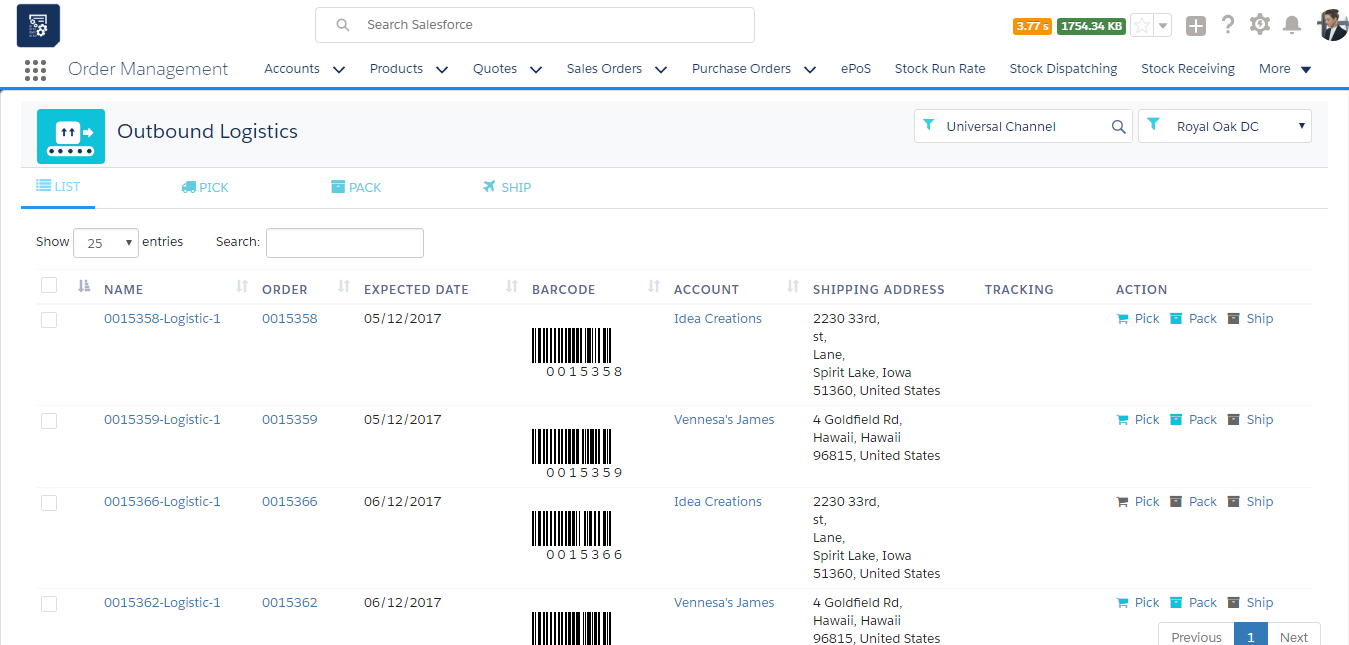
- Select the logistic order to complete the stock dispatching process
- Click the “Pick” button to pick the products from the available stock address.

- Select the outbound logistic line item and click the “Pick” button at the bottom right-hand corner of the page.
- If all the Qty of the line items are picked, the screen moves to the Pack page
- If all Qty is not picked the page remains in the same(Pick) screen until all the Qty is Picked
- On the Pack tab, select the chosen item and select the package type and enter the deposit tag number to identify the package.

- Select the quantity to pack, select the shipping type and click the “Save” button. Make sure Picked and Packed Qty are same.
- The Package will be listed as shown
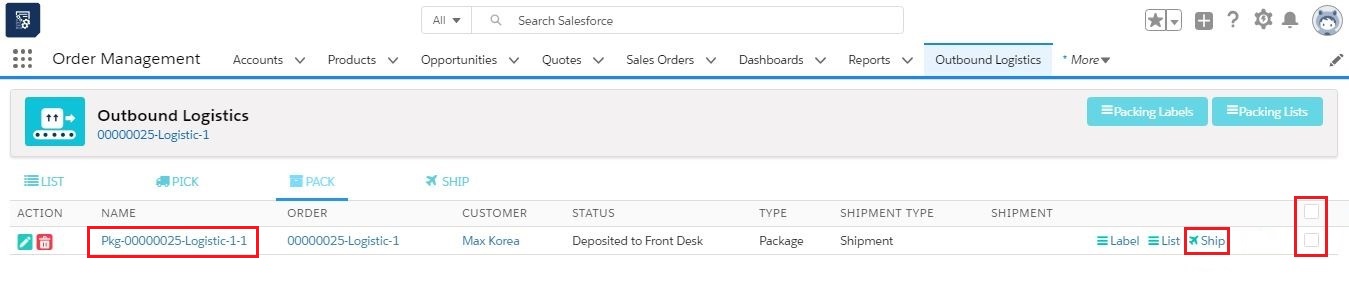
- Multiple packages can also be created by selecting only the required line items in the Pack screen.
- To ship the package, select the checkbox and click the “Ship” button.
- Depending on the Shipment type selected UPS/FedEx or Internal shipment, the screen navigates to Shipment page.
Was this article helpful?