
Skip to content
Support Centre

Installation Guide

BarcodeZone Updated 6. Juni 2024 1 minute read

This article is not available in Deutsch yet. You are reading the English original.

  •  Follow the steps if you are a new user.
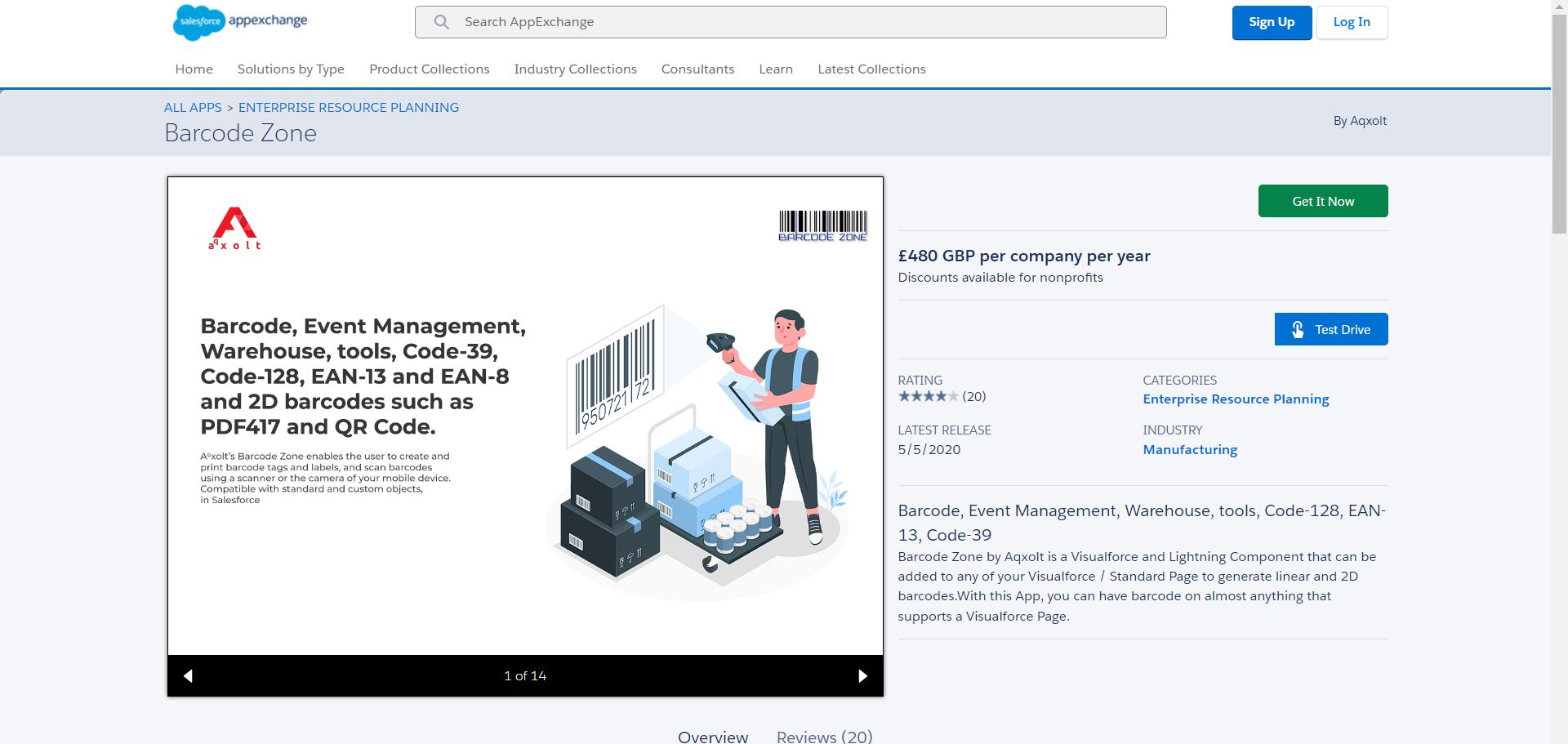
  • The quickest way to assess if Barcode Zone is the right fit for your organization is by creating a free trial. You’ll immediately be taken to a salesforce registration page, where you need to fill out the form and start a free trial. On the app exchange Barcode Zone listing click the “Get It Now” button and login to the salesforce free trial instance and from here you can start to evaluate Barcode Zone in depth.
  • Installing Barcode Zone in your Salesforce instance
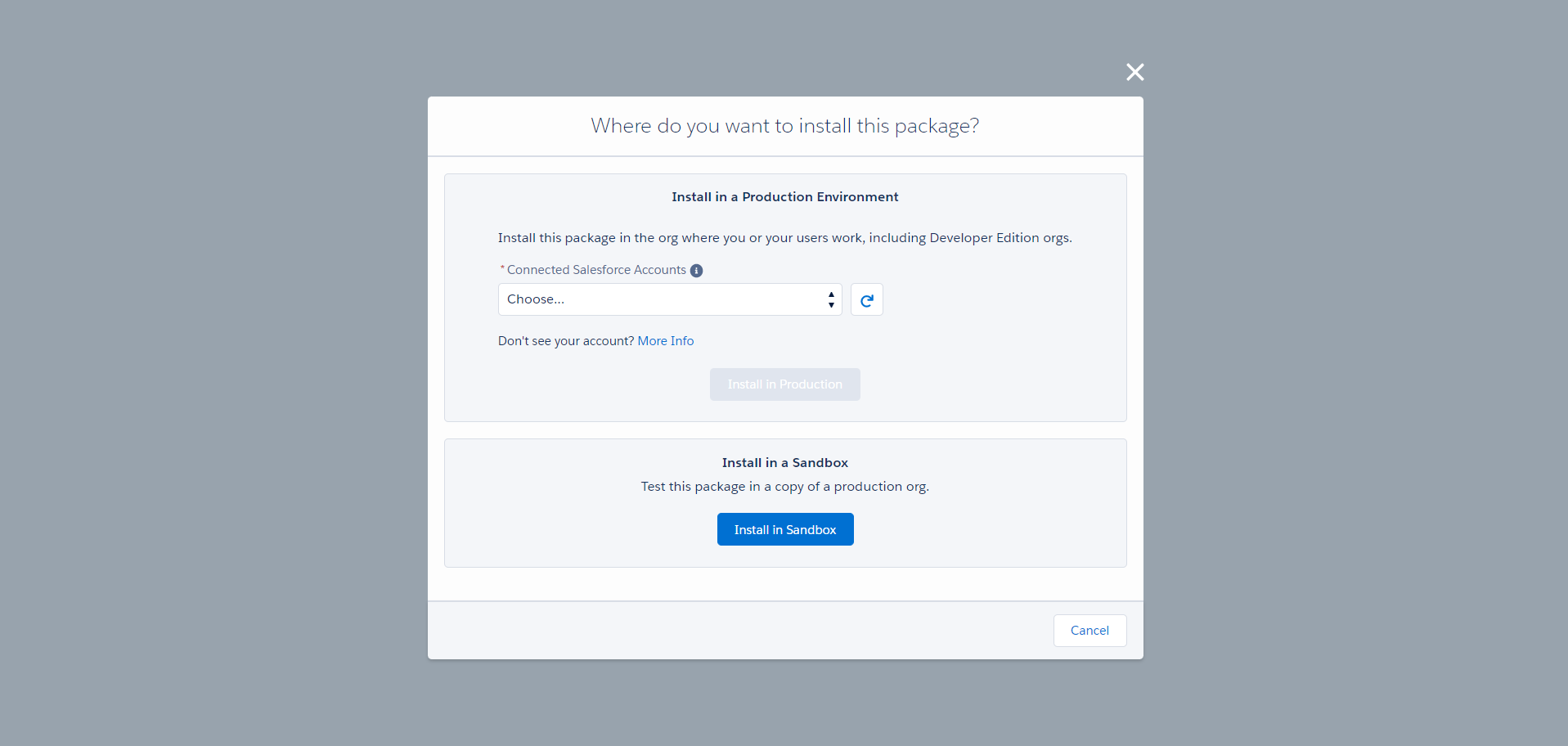
  • Follow these steps

Step 1

Step 2

  •   Confirm the installation details and click the “Confirm and Install” button.

Step 3 Licensing Your users for Barcode Zone

  • Navigate to Setup> Apps > Packaging> Installed Packages.
  • In the list of installed Packages find the Barcode Zone app and click the “Manage Licenses” option under the actions section.
  • Click on the “Add User” button in the Licensed User section.
  •  
  • Select the user from the Available Users section; click the “Add” button.

Validate Your Installation

  • Click on the app launcher and notice that the “Print Barcodes” tab is available
  • Select any of the applications from the App Launcher and notice its available Tabs.
 

Was this article helpful?

Axo

Hi, I’m Axo. Ask me how to do something in Axolt and I’ll answer from the documentation, with links to the articles I used.

AI answers are not switched on yet, so I’ll show the best-matching articles.

Answers come only from published Axolt documentation. Check important steps against the linked article.

Click or press Z to zoom. Drag to move.